May 2, 2012 10:11 pm
Here is a solution to tile M3 programs in Smart Office. It is a Tiling window manager for Smart Office with automatic scaling, placement, and arrangement of windows, for example to organize M3 programs horizontally across the screen.
This solution is useful for example to put side by side two programs that a user might often use, for example Customer Order. Open Toolbox – OIS300 to see all the orders in M3, and Batch Customer Order. Open – OIS275 to see problems with those orders. A user might want to put the two windows side by side to monitor the orders. If a user does that every day, she might want a solution to tile the programs automatically. This solution will enhance the user experience and will contribute to increase user productivity.
First, we get a reference to the window with:
var window = controller.Host.Implementation; // Mango.UI.Services.EmbeddedHostWindow
Then, we de-iconify the window with:
window.ActivateWindow(true);
Then, we scale the window in pixels, for example:
window.Width = 1280;
window.Height = 800;
Then, we scale the window relative to the main Smart Office window – which is given by controller.ParentWindow – for example to half the width and full height of the screen:
window.Width = controller.ParentWindow.Width / 2;
window.Height = controller.ParentWindow.Height;
Then, we position the window horizontally and vertically in pixels on the screen by using Mango.UI.Services.DashboardService, for example:
DashboardService.Window.SetPosition(new Point(100, 20), window); // x, y
Then, we get a list of the M3 programs that are currently running – we use MainController for that – and we get a reference to each window:
var instances = MainController.Current.GetInstances(); // System.Collections.Generic.IList<IInstanceController>
for (var i: int = 0; i < instances.Count; i++) {
    var controller_: Object = instances[i]; // MForms.IInstanceController
    var window = controller_.Host.Implementation;
}
If we want to tile the windows horizontally, we scale each window’s width respective to the total number of windows. For example, if there are three windows on the screen, each window will occupy a third of the screen:
window.Width = controller_.ParentWindow.Width / instances.Count;
DashboardService.Window.SetPosition(new Point(window.Width * i, 0), window);
If we want to tile two specific M3 programs, we can find them by their name, and tile them accordingly. For example, here I position OIS275 to the left, and OIS300 to the right:
var name = controller_.RenderEngine.PanelHeader;
if (name.Equals('OIS275/B1')) {
    DashboardService.Window.SetPosition(new Point(0, 0), window); // left
} else if (name.Equals('OIS300/B')) {
    DashboardService.Window.SetPosition(new Point(controller_.ParentWindow.Width - window.Width, 0), window); // right
}
Here is my full source code to automatically tile all the windows horizontally:
import System.Windows;
import Mango.UI.Services;
import MForms;

package MForms.JScript {
	class TileHorizontally {
		public function Init(element: Object, args: Object, controller : Object, debug : Object) {
			var instances = MainController.Current.GetInstances(); // System.Collections.Generic.IList
			for (var i: int = 0; i < instances.Count; i++) {
				var controller_: Object = instances[i]; // MForms.IInstanceController
				var name = controller_.RenderEngine.PanelHeader; // M3 program name
				var window = controller_.Host.Implementation; // Mango.UI.Services.EmbeddedHostWindow
				window.ActivateWindow(true); // de-iconify
				window.Width = controller_.ParentWindow.Width / instances.Count; // set width to a respective fraction of the screen
				window.Height = controller_.ParentWindow.Height; // set to full height
				DashboardService.Window.SetPosition(new Point(window.Width * i, 0), window); // position
			}

		}
	}
}
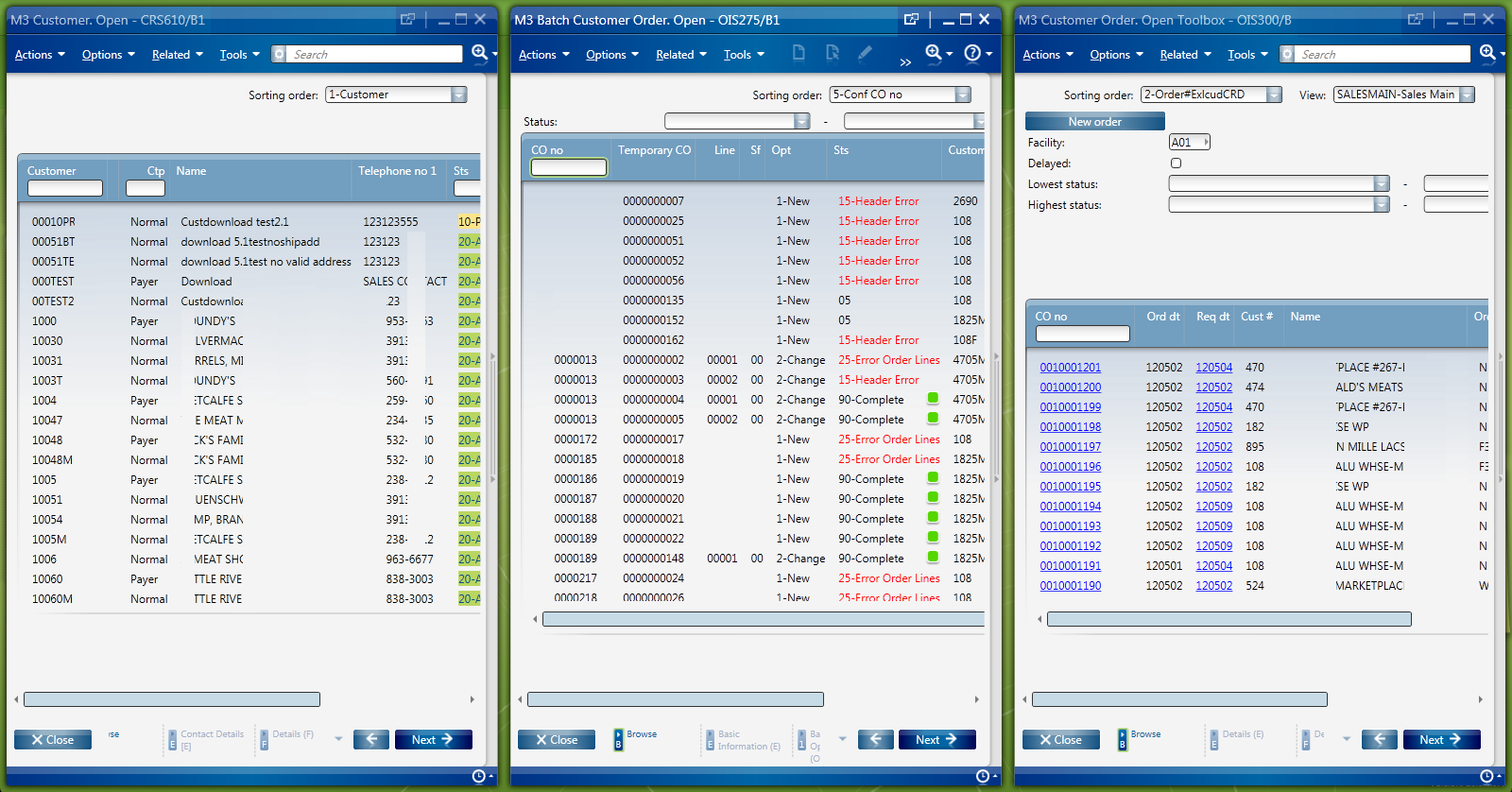
Here is a screenshot of the result that shows three windows tiled horizontally. It’s just for illustration purposes as the windows look crowded with my low resolution screen; in a real scenario two windows or a bigger screen would look better.
Voilà!
If you liked this solution, I invite you to subscribe to this blog.
Also, read the follow-up to this post with Stand-alone scripts for Smart Office where I convert this Tiling Window Manager into a widget-like script.
Special thanks to Karinpb for the help.
Posted by thibaudatwork
Categories: Infor Smart Office Scripts, Usability
Tags: Script, Smart Office, Usability
Mobile Site | Full Site
Get a free blog at WordPress.com Theme: WordPress Mobile Edition by Alex King.
Cool!
Is there a way to run this script from a button on the canvas?
LikeLike
By Jonathan Amiran on May 6, 2012 at 6:06 am
Hi Jonathan. Yes, there is a solution to run scripts from the canvas in their own window. I will write a new post about it soon. Stay tuned 🙂
LikeLike
By thibaudatwork on May 6, 2012 at 11:37 am
Hi Jonathan, I posted the solution here: https://thibaudatwork.wordpress.com/2012/05/08/stand-alone-scripts-for-smart-office/
LikeLike
By thibaudatwork on May 8, 2012 at 1:50 am
[…] script by creating a Tiling Window Manager widget. It’s a continuation of my previous post on How to tile windows in Smart Office. The result will look like […]
LikeLike
By Stand-alone scripts for Smart Office « M3 ideas on May 8, 2012 at 1:48 am
[…] thanks to Thibaud & Co out in the online M3 community for his blog on using JScripts to Tile windows in Smart […]
LikeLike
By ERP solutions, enterprise software, supply chain, Australia, ComActivity » Xbox and M3 on June 24, 2013 at 7:29 pm
I want to create new window using jscript.net . when i used HostWindow and add ListView Control , that ListView Control doesn’t have default Lso theme , i checked mms001 program using inspector , it is open as EmbeddedHostWindow. please help me .
my sample code is ,
create host window —-
—————————————————————————–
HostWindow hostWindow = new HostWindow(true, true);
hostWindow.Type =HostType.Default;
((Window)hostWindow).Owner = ApplicationServices.MainWindow;
———————————————————————————————————
create new ListView
————————————————————————————————————-
System.Windows.Controls.ListView lv = new System.Windows.Controls.ListView();
lv.SetValue(Grid.RowProperty, 4);
GridView gv = new GridView();
GridViewColumn gvc1 = new GridViewColumn();
gvc1.DisplayMemberBinding = new Binding(“Company”);
gvc1.Header = “Company”;
gv.Columns.Add(gvc1);
GridViewColumn gvc2 = new GridViewColumn();
gvc2.DisplayMemberBinding = new Binding(“Facili”);
gvc2.Header = “Facili”;
gv.Columns.Add(gvc2);
GridViewColumn gvc3 = new GridViewColumn();
gvc3.DisplayMemberBinding = new Binding(“Name”);
gvc3.Header = “Last Name”;
gv.Columns.Add(gvc3);
lv.ItemsSource = (IEnumerable)facilities;
lv.View = gv;
grid.Children.Add((UIElement)lv);
hostWindow.HostContent = (FrameworkElement)grid;
((Window)hostWindow).Show();
——————————————————————————————————————-
LikeLike
By Priyantha on December 20, 2013 at 2:45 am
Try this:
listView.Style = StyleManager.StyleListView;
listView.ItemContainerStyle = StyleManager.StyleListViewItem;
gridView.ColumnHeaderContainerStyle = StyleManager.StyleGridViewColumnHeader;
LikeLike
By thibaudatwork on December 20, 2013 at 6:57 am
[…] ago I illustrated the usability idea how to tile windows in Smart Office. Today, I will illustrate two new ideas: content-aware re-sizing of M3 programs, and […]
LikeLike
By Content-aware re-sizing of M3 programs, and text interpolation | M3 ideas on June 27, 2014 at 9:34 pm
[…] How to tile windows in Smart Office […]
LikeLike
By Site map – M3 ideas on May 9, 2017 at 12:27 pm
Hello mate great blog poost
LikeLike
By Marcus on May 25, 2022 at 8:44 pm