September 22, 2011 5:40 pm
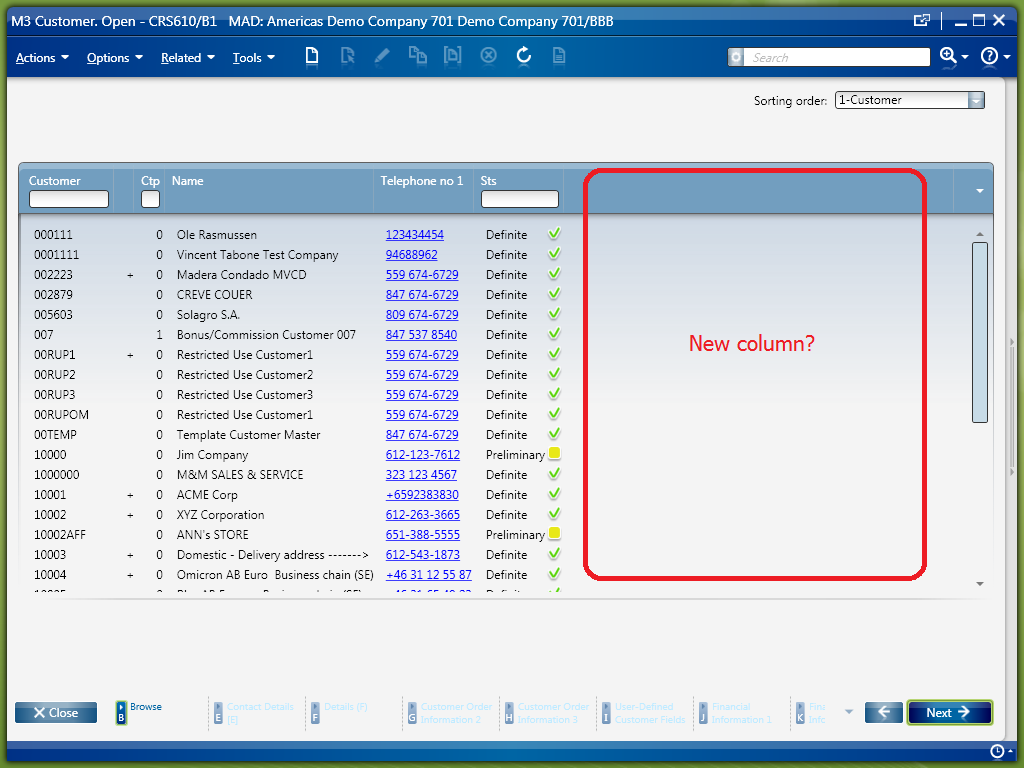
In this article I illustrate a technique to dynamically add a column to the list of a B panel in M3 using a Personalized Script for Lawson Smart Office.
For example, suppose we want to add the column Country (CSCD) in CRS610/B1. None of the available Sorting orders (QTTP) displays the Country. How do we do?
This is the desired result:
The first technique would be to add a column by simple configuration of the View in CRS020. But sometimes the specified M3 program is not configured for it. For instance, CRS610 is not configurable, whereas MMS200 is configurable as seen in this screenshot:

The second technique would be to add a column with a modification to the M3 Java source code and to the View Definition with MAK. But modifications may not be an option in certain M3 implementations.
The third technique would be to add a column dynamically with a Personalized Script for Lawson Smart Office.
First, we get a reference to the list’s controls:
var listControl = controller.RenderEngine.ListControl; // MForms.ListControl
var listView = controller.RenderEngine.ListViewControl; // System.Windows.Controls.ListView
var columns = listView.View.Columns; // System.Windows.Controls.GridViewColumnCollection
Second, we append a new GridViewColumn to the ListView:
var gvch = new GridViewColumnHeader();
gvch.Content = "New Column";
var gvc = new GridViewColumn();
gvc.Header = gvch;
gvc.CellTemplateSelector = new ListCellTemplateSelector(columns.Count, listControl.Columns);
columns.Add(gvc);
Third, we increase each row’s array by one additional element:
var rows = listView.Items;
for (var i = 0; i < rows.Count; i++) {
	var row = rows[i];
	var oldArray = row.Items;
	var newArray = new String[columns.Count];
	oldArray.CopyTo(newArray, 0);
	row.Items = newArray;
	rows.RemoveAt(i);
	rows.Insert(i, row);
}
Finally, we can set our values in the new column:
listView.Items[0].Items[columns.Count - 1] = "Hello world 0";
listView.Items[1].Items[columns.Count - 1] = "Hello world 1";
listView.Items[2].Items[columns.Count - 1] = "Hello world 2";
listView.Items[3].Items[columns.Count - 1] = "Hello world 3";
listView.Items[4].Items[columns.Count - 1] = "Hello world 4";
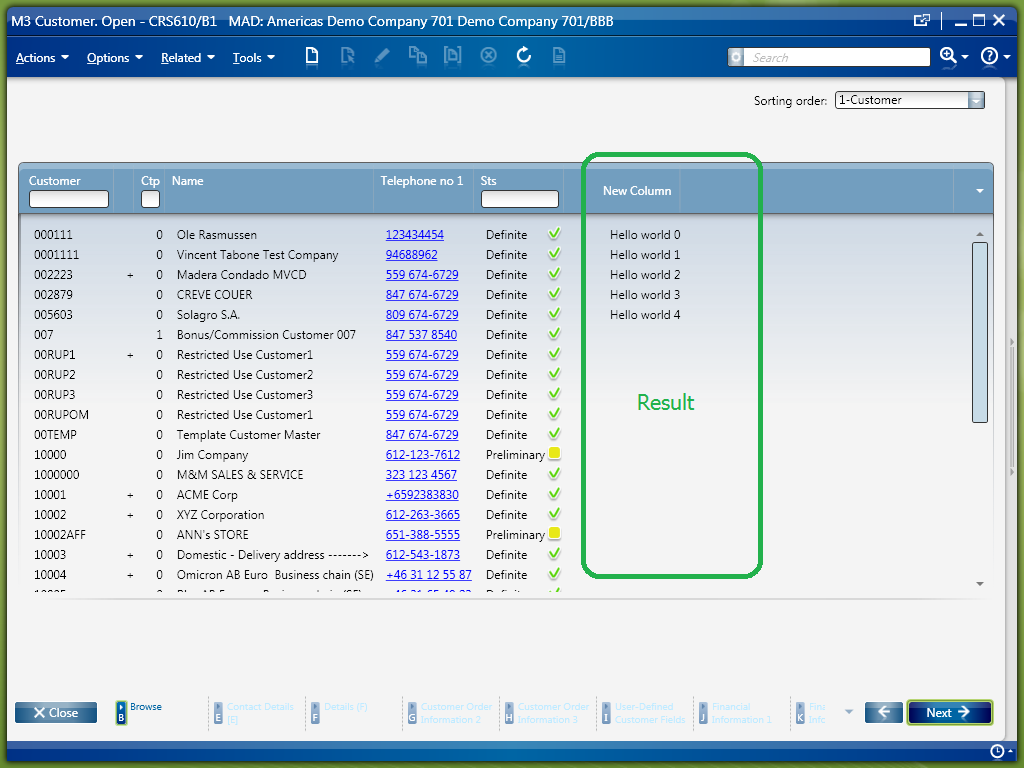
The result looks like this, with the Personalizations like Hyperlinks and Conditional Styles preserved:
The complete script looks like this:

Now we have to populate the column with actual data from M3. For that we can call an M3 API, execute SQL, or consume a Lawson Web Service. We can even use the API MDBREADMI to read an M3 table instead of using SQL.
In this article, I will just hard-code “Hello World” and I will let the reader choose the technique that best suits its needs because getting the data off M3 is not the point of this post.
Finally, we have to load data in increments as the user scrolls the view. Indeed, as the user scrolls down the list Smart Office loads the data in increments, without re-rendering the whole panel, for efficiency.
For that, we need the VisualTreeHelper to get a reference to the ScrollViewer:
var border = VisualTreeHelper.GetChild(listView, 0);
var grid = VisualTreeHelper.GetChild(border, 0);
var scrollViewer: ScrollViewer = VisualTreeHelper.GetChild(grid, 3); // System.Windows.Controls.ScrollViewer
Then, we have to attach to the ScrollViewer’s OnScrollChanged event:
scrollViewer.add_ScrollChanged(OnScrollChanged);
function OnScrollChanged(sender: Object, e: ScrollChangedEventArgs) {}
That event is fired either once, either consecutively twice depending on if new rows were added to the list or not. Only when e.VerticalChange==0 it means that new rows were added.
var oldCount, newCount;
function OnScrollChanged(sender: Object, e: ScrollChangedEventArgs) {
     if (e.VerticalChange != 0) {
         oldCount = listView.Items.Count;
     } else {
         newCount = listView.Items.Count;
         var diff = newCount - oldCount; // that many rows were just added to the list
     }
}
Here’s an illustration:

Now we know exactly which rows are new:
var fromRowIndex = oldCount;
var toRowIndex = newCount - 1;
for (var i = fromRowIndex; i <= toRowIndex; i++) {
     listView.Items[i] // new row
}
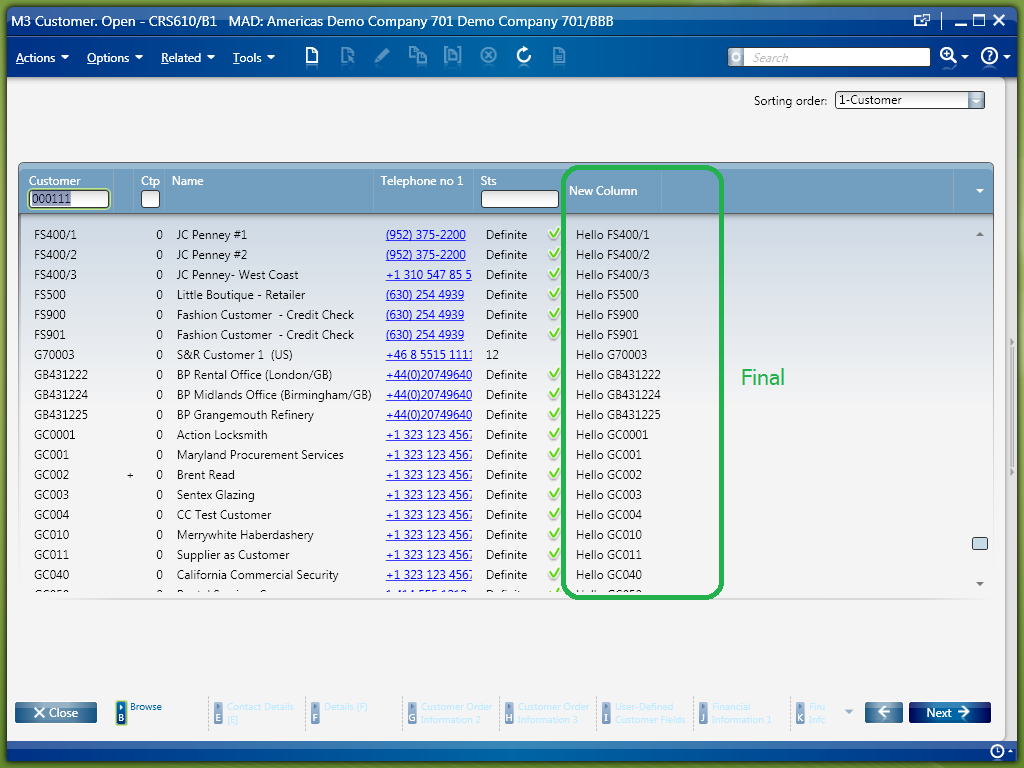
Now we can load and show some data, like Hello + customer number:
var lastColumnIndex = columns.Count - 1;
for (var i = fromRowIndex; i <= toRowIndex; i++) {
     var row = listView.Items[i];
     var data = "Hello " + row.Item[0]; // Hello CUNO
     row.Items[lastColumnIndex] = data;
}
Here is a screenshot of the final result:
Here’s the complete source code:
 import System;
 import System.Windows;
 import System.Windows.Controls;
 import System.Windows.Media;
 import Mango.UI.Services.Lists;

 package MForms.JScript {
     class Test {

         var listView, oldCount;
         /*
             Main entry point.
         */
         public function Init(element: Object, args: Object, controller : Object, debug : Object) {
             try {
                 var listControl = controller.RenderEngine.ListControl; // MForms.ListControl
                 this.listView = controller.RenderEngine.ListViewControl; // System.Windows.Controls.ListView
                 var columns = listView.View.Columns; // System.Windows.Controls.GridViewColumnCollection

                 // append a new GridViewColumn to the ListView
                 var gvch = new GridViewColumnHeader();
                 gvch.Content = "New Column";
                 var gvc = new GridViewColumn();
                 gvc.Header = gvch;
                 gvc.CellTemplateSelector = new ListCellTemplateSelector(columns.Count, listControl.Columns);
                 columns.Add(gvc);

                 var fromRow = 0;
                 var toRow = listView.Items.Count - 1;
                 var newNbColumns = columns.Count;
                 var lastColumnIndex = columns.Count - 1;

                 // increase each row's array by one additional element
                 increaseRowsArray(fromRow, toRow, newNbColumns);

                 // load data in the new column of each row
                 loadData(fromRow, toRow, lastColumnIndex);

                 // find the ScrollViewer
                 var border = VisualTreeHelper.GetChild(listView, 0);
                 var grid = VisualTreeHelper.GetChild(border, 0);
                 var scrollViewer: ScrollViewer = VisualTreeHelper.GetChild(grid, 3); // System.Windows.Controls.ScrollViewer

                 // attach to the OnScrollChanged event
                 scrollViewer.add_ScrollChanged(OnScrollChanged);
                 scrollViewer.add_Unloaded(OnUnloaded);

             } catch (ex: Exception) {
                 debug.WriteLine(ex);
             }
         }

         /*
             That event is fired either once, either consecutively twice depending on if new rows were added to the list or not.
             Only when e.VerticalChange==0 it means that new rows were added.
         */
         function OnScrollChanged(sender: Object, e: ScrollChangedEventArgs) {
             try {
                 if (e.VerticalChange != 0) {
                     oldCount = listView.Items.Count;
                 } else {
                     var fromRow = oldCount;
                     var toRow = listView.Items.Count - 1;
                     var newNbColumns = listView.View.Columns.Count;
                     var lastColumnIndex = listView.View.Columns.Count - 1;
                     increaseRowsArray(fromRow, toRow, newNbColumns);
                     loadData(fromRow, toRow, lastColumnIndex);
                 }
             } catch (ex: Exception) {
                 MessageBox.Show(ex);
             }
         }

         /*
             Increase each row's array by one additional element.
         */
         function increaseRowsArray(fromRow, toRow, newNbColumns) {
             var rows = listView.Items;
             for (var i = fromRow; i <= toRow; i++) {
                 var row = rows[i];
                 var oldArray = row.Items;
                 var newArray = new String[newNbColumns];
                 oldArray.CopyTo(newArray, 0);
                 row.Items = newArray;
                 rows.RemoveAt(i);
                 rows.Insert(i, row);
             }
         }

         /*
             Loads data in the list, from the specified row's index, to the specified row's index, at the specified column index.
         */
         function loadData(fromRow, toRow, columnIndex) {
             for (var i = fromRow; i <= toRow; i++) {
                 var data = "Hello " + listView.Items[i].Item[0]; // Hello CUNO
                 listView.Items[i].Items[columnIndex] = data;
             }
         }

         /*
             Cleanup
         */
         function OnUnloaded(sender: Object, e: RoutedEventArgs) {
             sender.remove_Unloaded(OnUnloaded);
             sender.remove_ScrollChanged(OnScrollChanged);
         }

     }
 }
That’s it! Special thanks to Peder W for the original solution.
This script is deprecated. Refer to the latest script here.
Posted by thibaudatwork
Categories: Infor Smart Office Scripts
Tags: Script, Smart Office
Mobile Site | Full Site
Get a free blog at WordPress.com Theme: WordPress Mobile Edition by Alex King.
Nice post 🙂
I have a few but important comments.
1. You should only use the unloaded event to unregister events in Lawson Smart Client, version 1.0.3 and earlier. For Lawson Smart Office, version 9.0 and later, and with Lawson Smart Client, version 1.0.4 and later you should use the Requested event to unload the event handlers and nothing else. This is due to the control pooling that LSO uses. You might not get issues with this code when you run a demo but it is not safe and you should follow the guidelines in the Lawson Smart Office Developers Guide for M3.
2. loadData has to make an async data call. This example is a showcase of what you can do but any real example communicating with a server has to involve a background thread, for example by using a BackgroundWorker. This introduces more complexity as the list might not be available once the data is returned.
3. Always think twice about any call that you need to do per line. If there is one call per panel that is ok but one call per line is expensive. If you choose to implement it you should have the option of cancelling all pending request ( as the user might navigate to another panel before your data is loaded) making the solution even more complex.
For Lawson Smart Office 9 and later versions of LSC i would not use the OnScrollChanged event at all but instead use the RequestCompleted event. If the command type is a PAGE then I know that a page down has taken place :-). The OnScrollChanged event will probably work just as good but the other is cleaner since it is anly called after a runtrip to M3.
I did like the fact that you counted the lines. Never assume that there are 33 lines, also a page can be 32 or 64 lines depending on client screen resolution.
LikeLike
By Karin on September 23, 2011 at 8:23 am
Thank you Karin! Your input is highly valued 🙂 I will implement your suggestions.
LikeLike
By thibaudatwork on September 23, 2011 at 11:38 am
Karin, in response to your great answers:
LikeLike
By thibaudatwork on October 3, 2011 at 4:13 pm
Hey great work in here…I am a newbie to LSO scripting…but been functional consultant for m3 many yrs . have you thought about CRS990MI which is custom browse API that you could create in MNS185 for issue with #3
LikeLike
By ravi on October 26, 2012 at 12:11 pm
Hi Ravi. I’m glad this site is useful to you. Yes, CRS990MI and MNS815 are great. Alistair had written a post about it here: http://movexblog.blogspot.com/2011/11/creating-custom-list-and-get-apis.html
LikeLike
By thibaudatwork on October 29, 2012 at 5:37 am
Fantastic post, I’ve had a look at this particular problem and got thoroughly messed up trying to figure out what was going on under the hood.
Very helpful indeed!
LikeLike
By potatoit on October 6, 2011 at 1:41 am
[…] then I spied a posting by Thibaud https://thibaudatwork.wordpress.com/2011/09/22/how-to-add-a-column-to-a-list/ which described how to do it quite nicely. I did some work based on the posting and got it working […]
LikeLike
By Modification Removal – Freecap In OIS101 – BackgroundWorker and Adding Columns | Potato IT on January 18, 2012 at 12:29 am
Hi Thibaud,
Have you looked at this with the November release of LSO? For MMS080 at least, the RemoveAt and Insert logic no longer works. When calling these functions a .Net error message is generated “Operation is not valid while ItemsSource is in use. Access and modify elements with ItemsControl.ItemsSource instead”.
Any ideas how to refactor this code address this?
LikeLike
By Al on February 7, 2012 at 1:08 pm
Hi Alistair, I hadn’t tested with the latest release until now. Maybe karinpb can help.
LikeLike
By thibaudatwork on February 7, 2012 at 2:27 pm
You cannot access Items directly anymore. Check out my blog for more information http://lawsonsmartoffice.wordpress.com/2012/02/13/adding-a-new-column-in-a-m3-list/
LikeLike
By karinpb on February 13, 2012 at 1:04 pm
[…] has a more detailed post in his blog. Be sure to read the comments since there are issues on scrolling and threading that you should […]
LikeLike
By Adding a new column in a M3 List « Developing for Lawson Smart Office on February 13, 2012 at 1:32 am
[…] to add a column to a list in M3 using a Script for Smart Office. It’s an illustration of my previous post on the same subject, an implementation of what was discussed in the comments of the first post, […]
LikeLike
By How to add a column to a list (continued) « M3 ideas on September 21, 2012 at 12:22 am
[…] How to add a column to a list, older post on how to add columns to a list with a script Share this:TwitterFacebookLike this:LikeBe the first to like this. […]
LikeLike
By Custom Lists & Mashups « M3 ideas on September 27, 2012 at 2:52 pm
[…] has a more detailed post in his blog. Be sure to read the comments since there are issues on scrolling and threading that you should […]
LikeLike
By Adding a new column in a M3 List | Developing for Infor Smart Office on December 8, 2012 at 5:38 pm
UPDATE 2013-12-27: To add the columns to the middle of the list (instead of appending them to the end of the list), at a specified index i, use
columns.Insert(i, gvc)instead ofcolumns.Add(gvc).LikeLike
By thibaudatwork on December 27, 2013 at 1:07 pm
Hi Thibaud ,, thanks for that great Post ,,, but it does not work for me on Infor Smart Office … the problem is that i can not get the ScrollViewer Object ,,, the Object is always Grid. i don’t know what i should add for that code to work for me.
Regards
LikeLike
By Amr Elbanna on August 11, 2014 at 11:06 pm
i have that Exception also
System.InvalidOperationException: Operation is not valid while ItemsSource is in use. Access and modify elements with ItemsControl.ItemsSource instead.
at System.Windows.Controls.ItemCollection.CheckIsUsingInnerView()
at System.Windows.Controls.ItemCollection.RemoveAt(Int32 removeIndex)
at invoker14.Invoke(Object , Object[] )
at Microsoft.JScript.JSMethodInfo.Invoke(Object obj, BindingFlags options, Binder binder, Object[] parameters, CultureInfo culture)
at Microsoft.JScript.LateBinding.CallOneOfTheMembers(MemberInfo[] members, Object[] arguments, Boolean construct, Object thisob, Binder binder, CultureInfo culture, String[] namedParameters, VsaEngine engine, Boolean& memberCalled)
at Microsoft.JScript.LateBinding.Call(Binder binder, Object[] arguments, ParameterModifier[] modifiers, CultureInfo culture, String[] namedParameters, Boolean construct, Boolean brackets, VsaEngine engine)
at Microsoft.JScript.LateBinding.Call(Object[] arguments, Boolean construct, Boolean brackets, VsaEngine engine)
at MForms.JScript.TestColumn.increaseRowsArray(Object fromRow, Object toRow, Object newNbColumns)
at MForms.JScript.TestColumn.Init(Object element, Object args, Object controller, Object debug)
LikeLike
By Amr Elbanna on August 11, 2014 at 11:54 pm
Hi Amr, use Snoop, WPF Spy, or the VisualTreeHelper to find out the Grid in your case.
https://thibaudatwork.wordpress.com/2014/03/18/hacking-customer-lifecycle-management-clm/
https://thibaudatwork.wordpress.com/2011/09/29/tools-to-develop-smart-office-scripts/
LikeLike
By thibaudatwork on August 12, 2014 at 12:40 am
Amr, also, did you try both updates of the script on 2012-09-27 and 2013-12-27?
LikeLike
By thibaudatwork on August 13, 2014 at 6:13 pm
thanks alot Thibaud … it was very helpful for me … sorry for replying too late,,, i did not check that i have a reply ,, i thought i would have a notification on my mail when i have a new reply
LikeLike
By Amr Elbanna on September 14, 2014 at 10:51 pm
[…] (which is based off a great post by Thibaud here https://thibaudatwork.wordpress.com/2011/09/22/how-to-add-a-column-to-a-list/) […]
LikeLike
By Adding Columns to a ListView – when there are Editable Cells | Potato IT on March 5, 2015 at 12:32 am
[…] How to add a column to a list […]
LikeLike
By Site map – M3 ideas on May 9, 2017 at 12:27 pm
When you’re rebuilding the array, is it possible to control the display properties of the fields? i.e. pretend the telephone field was editable, how would you go about setting it as read only?
I’m trying to make the price fields in PPS220/G (confirm order line) as read only…
LikeLike
By Callum on April 12, 2019 at 8:25 am
Hi! Do you know if it’s possible to sort on the added column somehow? Maybe with a few lines of code inside the script?
Thanks in advance!
LikeLike
By Jonatan Stenbacka on August 28, 2019 at 3:16 am