


April 1, 2014 4:52 pm
Continuing my previous and previous posts on Infor Smart Office SDK, I will now post on how to add a profile fragment in Smart Office Developer mode. For that, I will follow the instructions from the Developer’s Guide and from Karin’s comments.
We use the <Profile> section of the feature Manifest to merge our settings into the system profile. It gets merged only when the feature is deployed to the server with LifeCycle Manager (LCM). It doesn’t get merged when Smart Office is running in Developer mode. The workaround is to use a local profile.xml and reference it in our Windows Registry. First we need to get the server’s profile.xml.
In old versions of Smart Office, the file profile.xml used to be an actual file on the server. Now with the Infor Grid the file has been moved into a distributed database. Supposing you have such version of Smart Office:
Now you can add your settings:
<applicationgroup name="Thibaud">
    <A>
        <A1>Hello World!</A1>
        <A2>123</A2>
    </A>
    <B>
        <B1>true</B1>
        <B2>["abc", "def"]</B2>
        <B3>{ "msg": "I'm a value!" }</B3>
    </B>
</applicationgroup>

Now tell Smart Office Developer mode to use that profile.xml:

Now test it in Smart Office Developer mode:
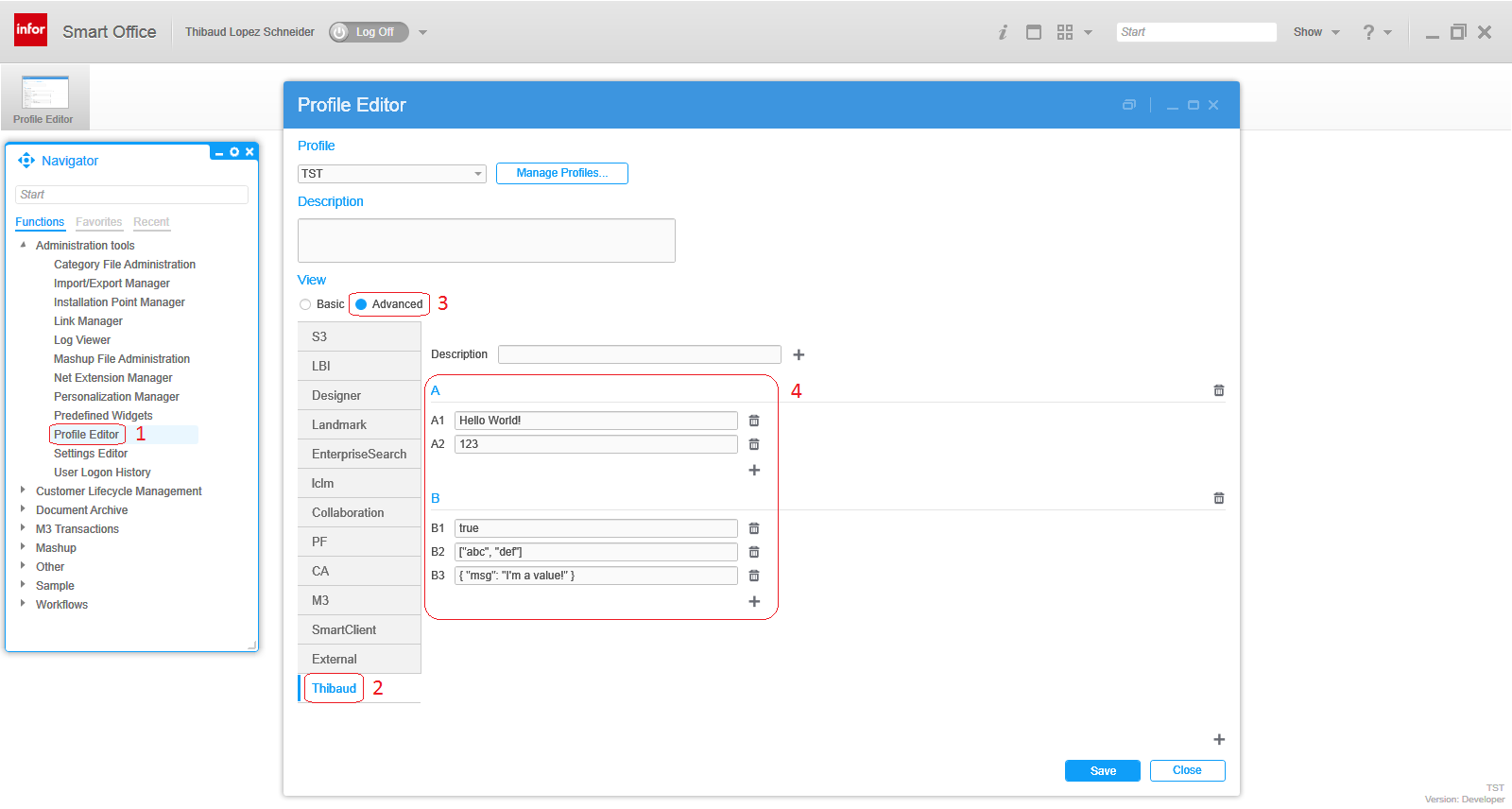
That’s it!
If you liked this, click the Follow link below to subscribe to this blog. And join the authors and share your own M3 ideas with us.
Posted by thibaudatwork
Categories: Infor Smart Office SDK
Tags: M3, SDK, Smart Office
Mobile Site | Full Site
Get a free blog at WordPress.com Theme: WordPress Mobile Edition by Alex King.
UPDATE: You can also get the file profile.xml by calling the SOAP Web Service at http://theserver:theport/mangows/MangoProfileManager?wsdl . In SOAP UI, use the HTTP scheme (non-secure) and respective port number on the WSDL URL to create a new SOAP Project, and use the HTTPS scheme (secure) and respective port number on the endpoint to execute the web service. For input values, set the <get:GetProfilesRequest> to the string dummy. In the Auth tab at the bottom of SoapUI, set your Smart Office username/password. Click Submit to execute. The SOAP Response Body will contain a CDATA section with the profile.xml. Unfortunately you cannot use the Web service test tool of Smart Office (tool://wstest) because the returned value is XML in CDATA and it won’t show in the Output tab of the test tool.
LikeLike
By thibaudatwork on April 2, 2014 at 4:46 pm
I just wanted to thank you for all your ideas and information on M3. We are in the process of installing a new system and it has been a major help in getting things done. You and your efforts are very much appreciated here
LikeLike
By stevewgunn on April 2, 2014 at 10:10 pm
Hi Steve. Thank you for the feedback. I appreciate when I hear back from the community, and when I meet new people. Can you share more about your process of installing a new system?
LikeLike
By thibaudatwork on April 2, 2014 at 10:45 pm
[…] Add a Profile fragment with Smart Office SDK […]
LikeLike
By Site map – M3 ideas on May 9, 2017 at 12:26 pm