User input validation with Smart Office scripts

Here are several solutions to validate user input with Personalized Scripts in Lawson Smart Office, from the simple click of a button, to using a keyboard timer “à la” Google Suggest.

Background

To ensure the integrity of a system it is important to validate user input before it is submitted; incorrect data could compromise the system.

M3 automatically validates most fields that have a functional significance in the Business Engine, for example a date must have a valid format MMDDYY, an Item number must exist in MMS001, or a Bank Account information in CRS692 must be associated with an existing Customer in CRS610.

But M3 does not validate everything, for example it does not validate phone numbers, nor addresses.

In this post I illustrate several techniques to validate user input in Smart Office using Personalized Scripts.

1) Manual validation with button

A simple solution to validate the user input is to dynamically add a “Validate” button on the panel, and let the user click it. This is a simple solution to implement. But it is manual, and it depends on the user self-disciplining and clicking on the button. It is not ideal for enforcing validation.

2) Automatic validation on submit

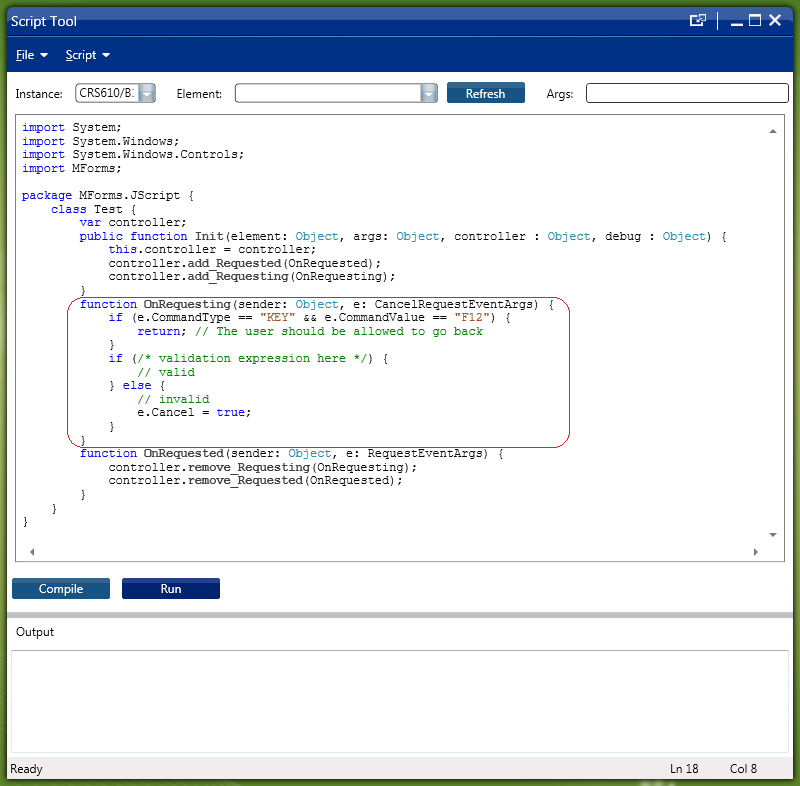
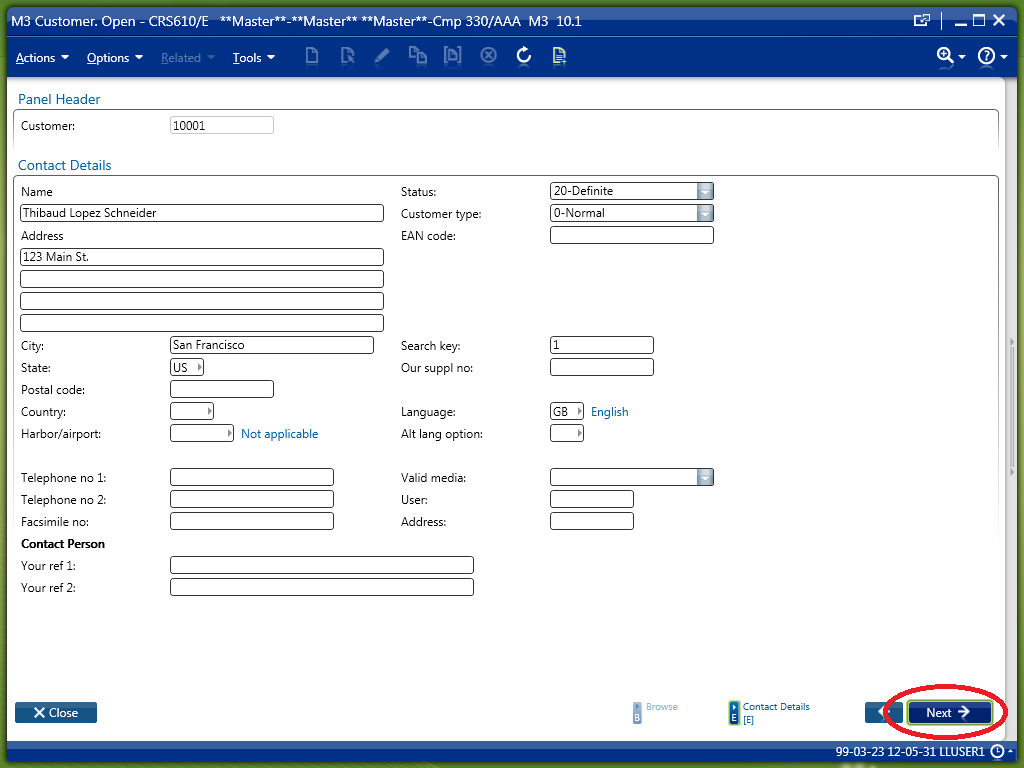
An automatic solution to enforce validation is to intercept the Smart Office request to the server when the user presses ENTER or clicks Next. For that, we listen to the Requesting event, we validate the user input, and we eventually cancel the request. There is a great example named CancelRequestExample in the Lawson Smart Office Developer’s Guide; refer to the Developer’s Guide to copy the source code:
3) Automatic validation when typing

Another automatic solution to enforce validation is to listen to the TextChanged event of the desired TextBox control:

public function Init(element: Object, args: Object, controller: Object, debug: Object) {
    element.add_TextChanged(OnTextChanged);
}
function OnTextChanged(sender: Object, e: TextChangedEventArgs) {
    if (sender.Text /*validation expression here*/) {
        // valid
    } else {
        // invalid
    }
}

But this solution will trigger the event every time the user types on the keyboard, at each keystroke. This could lead to bad usability in some cases, for example if the validation function highlights the TextBox’s background in red if the value is incorrect, the TextBox would flicker unnecessarily as the user is typing.

In the following screenshot, we see the validation expression being evaluated at each keystroke as I type “Hello World” in the TextBox:

4) Automatic validation with a Timer “à la” Google Suggest

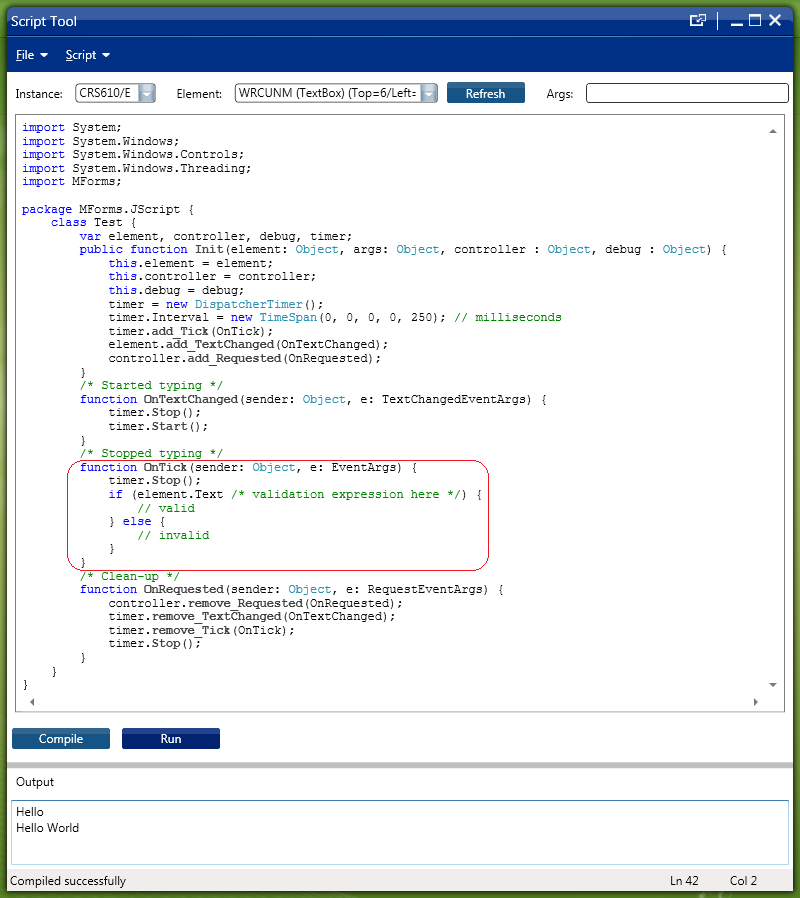
A better solution than the above is to use a keyboard timer and validate the user input only after the user has finished typing. For that we use a DispatcherTimer and the Tick Event. That will only validate the user input when the user is not longer typing, similar to Google Suggest.

This solution is better from a usability point of view.

Also, this solution is better from a performance point of view where the validation function is time and resource consuming, for example if it needs to call an M3 API or a Lawson Web Service to validate the user input, this solution would minimize stress on the server.

In the following screenshot, we see the validation expression being evaluated only twice, once per word; I apparently have a fraction of a second pause between words:
Here is the complete source code:

import System;
import System.Windows;
import System.Windows.Controls;
import System.Windows.Threading;
import MForms;

package MForms.JScript {
    class Test {
        var element, controller, debug, timer;
        public function Init(element: Object, args: Object, controller : Object, debug : Object) {
            this.element = element;
            this.controller = controller;
            this.debug = debug;
            timer = new DispatcherTimer();
            timer.Interval = new TimeSpan(0, 0, 0, 0, 250); // milliseconds
            timer.add_Tick(OnTick);
            element.add_TextChanged(OnTextChanged);
            controller.add_Requested(OnRequested);
        }
        /* Started typing */
        function OnTextChanged(sender: Object, e: TextChangedEventArgs) {
            timer.Stop();
            timer.Start();
        }
        /* Stopped typing */
        function OnTick(sender: Object, e: EventArgs) {
            timer.Stop();
            if (element.Text /* validation expression here */) {
                // valid
            } else {
                // invalid
            }
        }
        /* Clean-up */
        function OnRequested(sender: Object, e: RequestEventArgs) {
            controller.remove_Requested(OnRequested);
            timer.remove_TextChanged(OnTextChanged);
            timer.remove_Tick(OnTick);
            timer.Stop();
        }
    }
}

Conclusion

In this post I introduced several techniques to validate user input in Smart Office using Personalized Scripts, from a simple and manual technique, to an automatic and more advanced technique with a keyboard timer for better usability and performance.

Also, it is important to emphasize that the above solutions will only cover input validation at the user interface level, from Smart Office. They will not cover low-level user input from other entry points such as M3 API, or from Lawson Web Services of type M3 Display Program (MDP). In those cases, only an M3 Java modification with MAK would be able to validate user input.

Stand-alone scripts for Smart Office

Here is a solution to write stand-alone scripts for Smart Office. Stand-alone scripts are interesting to create mini applications in Smart Office like widgets, or to create full blown applications like composite applications.

A stand-alone script runs independently of an M3 program, in its own instance, eventually with its own user interface. Whereas a regular script runs as part of an M3 program, for example inside CRS610.

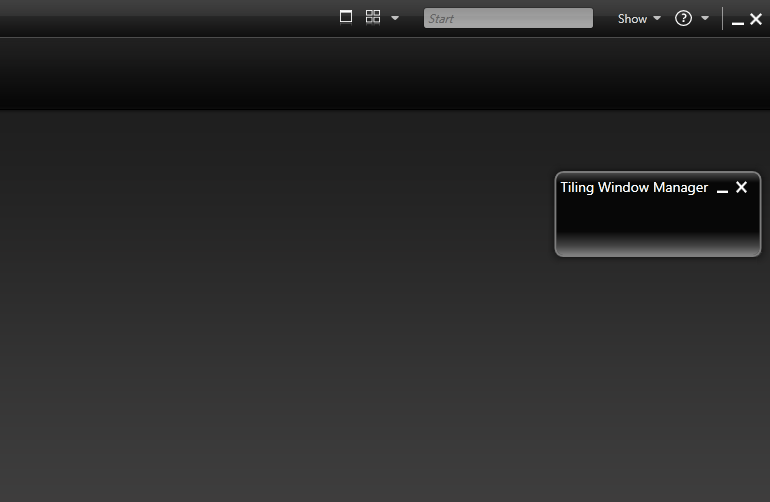
I will illustrate how to write a stand-alone script by creating a Tiling Window Manager widget. It’s a continuation of my previous post on How to tile windows in Smart Office. The result will look like this:

Make sure to read my disclaimer before trying this as I’m using non-public APIs.

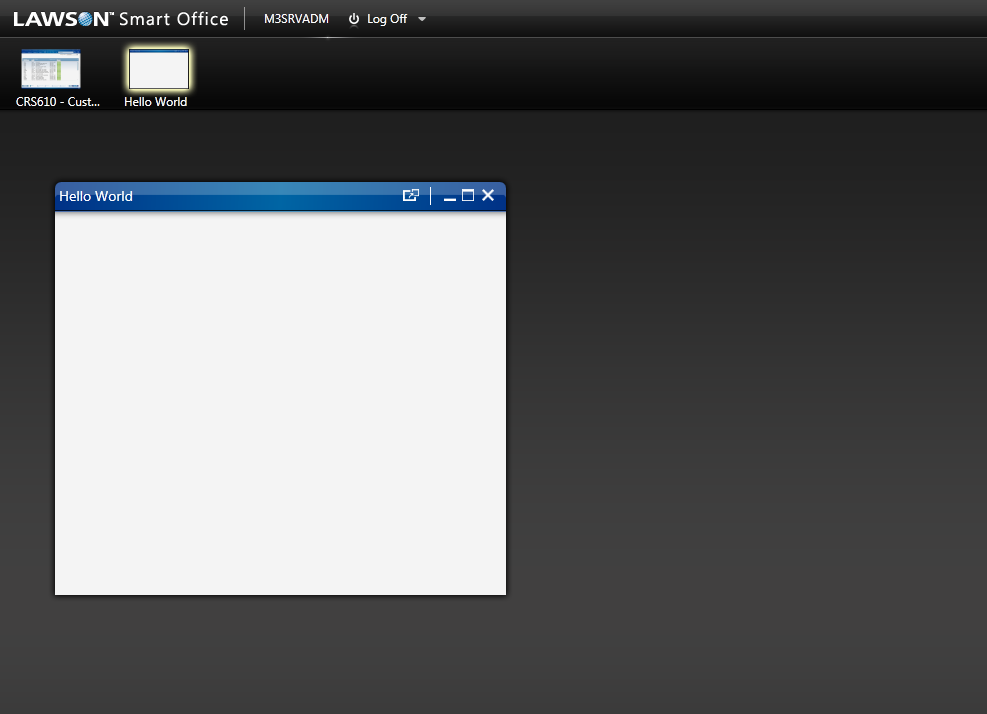
First, I will create an empty window with an icon in the Taskbar:

var task = new Task(new Uri('jscript://'));
task.VisibleName = 'Hello World';
var runner = DashboardTaskService.Current.LaunchTask(task, null);
runner.Status = RunnerStatus.Running;
var host = runner.Host;
host.HostTitle = 'Hello World';
host.Show();

The result will look like a regular Smart Office window, albeit empty:

Then, I will use HostType.Widget to change the appearance of the window and make it look like a small widget:

var task = new Task(new Uri('jscript://'));
task.AllowAsShortcut = false;
task.VisibleName = 'Tiling Window Manager';
var runner = DashboardTaskService.Current.LaunchTask(task, HostType.Widget);
runner.Status = RunnerStatus.Running;
var host = runner.Host;
var wrapPanel = new WrapPanel();
host.HostContent = wrapPanel;
host.HostTitle = 'Tiling Window Manager';
host.ResizeMode = ResizeMode.NoResize;
host.Show();
host.Width = 221;
host.Height = 85;

The host’s Width and Height must be set after host.Show().

The result will look like a widget:

Then, I will add three buttons to the widget:

var buttons: String[] = [' ← ''Tile'' → '];
for (var i in buttons) {
    var btn = new Button();
    btn.Content = buttons[i];
    btn.Width = double.NaN; // auto width
    btn.Margin = new Thickness(3, 0, 3, 0); // ltrb
    btn.Padding = new Thickness(7, 0, 7, 0); // ltrb
    wrapPanel.Children.Add(btn);
}
wrapPanel.HorizontalAlignment = HorizontalAlignment.Center;

The result will finally look like the desired widget:

Then, I will add an event handler for the buttons:

btn.add_Click(OnClick);
...
function OnClick(sender: Object, e: RoutedEventArgs) {
    if (sender.Content.Equals(' ← ')) {
        //
    } else if (sender.Content.Equals('Tile')) {
        //
    } else if (sender.Content.Equals(' → ')) {
        //
    }
}

Then, I will add the functions for tiling and shifting the visible windows horizontally on the screen.

var shift = 0;
...
/*
 Tiles the specified windows horizontally accross the screen.
*/
function tileInstances(instances: ArrayList) {
    this.shift = 0;
    for (var i = 0; i < instances.Count; i++) {
        tileInstance(instances[i], i, instances.Count);
    }
}
/*
 Shifts the specified windows horizontally, to the left or to the right.
*/
function shiftInstances(instances: ArrayList, increment: int) {
    this.shift += increment;
    for (var i = 0; i < instances.Count; i++) {
        var n: int = instances.Count;
        var j: int = (((i + this.shift) % n) + n) % n; // fix the JavaScript modulo bug
        tileInstance(instances[i], j, instances.Count);
    }
}

Then, I will deploy the script on the server.

For Grid installations the deploy folder is somewhere like:

\\hostname\d$\Lawson\LifeCycleManager\Service\XYZ\grid\TST\applications\LSO_M3_Adapter\webapps\mne\jscript\

For non-Grid installations the deploy folder is somewhere like:

\\hostname\d$\IBM\WebSphere7\AppServer\profiles\MWPProfile\installedApps\MWPProfileCell\MWP_EAR.ear\MNE.war\jscript\

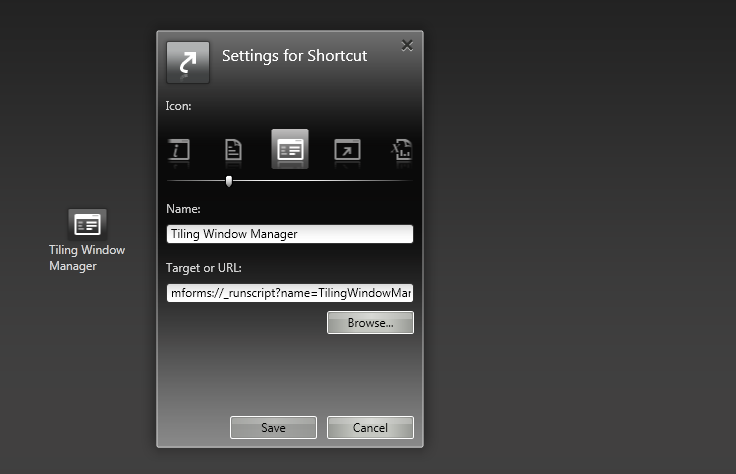
Then, I will add a shortcut to the Smart Office Canvas to launch the script with this special syntax:

mforms://_runscript?name=TilingWindowManager

My final script is:

import System;
import System.Collections;
import System.Windows;
import System.Windows.Controls;
import Mango.Services;
import Mango.UI.Core;
import Mango.UI.Services;
import MForms;
import Mango.UI;

/*
	Thibaud Lopez Schneider
	Infor
	May 7, 2012

	This script opens a widget to tile and shift the visible windows horizontally in Smart Office.
*/

package MForms.JScript {
	class TilingWindowManager {
		var shift = 0;
		public function Init(element: Object, args: Object, controller : Object, debug : Object) {
			try {
				var task = new Task(new Uri('jscript://'));
				task.AllowAsShortcut = false;
				task.VisibleName = 'Tiling Window Manager';
				var runner = DashboardTaskService.Current.LaunchTask(task, HostType.Widget);
				runner.Status = RunnerStatus.Running;
				var host = runner.Host;
				host.HostContent = CreateWindow();
				host.HostTitle = 'Tiling Window Manager';
				host.ResizeMode = ResizeMode.NoResize;
				host.Show();
				host.Width = 221;
				host.Height = 85;
			} catch(ex: Exception) {
				ConfirmDialog.ShowErrorDialogWithoutCancel(ex.GetType(), ex.Message + '\n' + ex.StackTrace, null);
			}

		}
		function CreateWindow() {
			var wrapPanel: WrapPanel = new WrapPanel();
			var buttons: String[] = [' ← ', 'Tile', ' → '];
			for (var i in buttons) {
				var btn = new Button();
				btn.Content = buttons[i];
				btn.Width = double.NaN; // auto width
				btn.Margin = new Thickness(3, 0, 3, 0); // ltrb
				btn.Padding = new Thickness(7, 0, 7, 0); // ltrb
				wrapPanel.Children.Add(btn);
				btn.add_Click(OnClick);
			}
			wrapPanel.HorizontalAlignment = HorizontalAlignment.Center;
			return wrapPanel;
		}
		/*
			Returns a list of the visible windows.
		*/
		function getVisibleInstances() {
			var instances = MainController.Current.GetInstances();
			var visibleInstances = new ArrayList();
			for (var instance in instances) {
				var window: EmbeddedHostWindow = instance.Host.Implementation;
				if (window.Visibility == Visibility.Visible) {
					visibleInstances.Add(instance);
				}
			}
			return visibleInstances;
		}
		/*
			Tiles the specified window at the specified index relative to the specified count of windows.
		*/
		function tileInstance(instance: InstanceController, i: int, count: int) {
			var window: EmbeddedHostWindow = instance.Host.Implementation;
			window.Width = instance.ParentWindow.Width / count;
			window.Height = instance.ParentWindow.Height;
			DashboardService.Window.SetPosition(new Point(window.Width * i, 0), window);
		}
		/*
			Tiles the specified windows horizontally accross the screen.
		*/
		function tileInstances(instances: ArrayList) {
			this.shift = 0;
			for (var i = 0; i < instances.Count; i++) {
				tileInstance(instances[i], i, instances.Count);
			}
		}
		/*
			Shifts the specified windows horizontally, to the left or to the right.
		*/
		function shiftInstances(instances: ArrayList, increment: int) {
			this.shift += increment;
			for (var i = 0; i < instances.Count; i++) {
 				var n: int = instances.Count;
 				var j: int = (((i + this.shift) % n) + n) % n; // fix the JavaScript modulo bug
 				tileInstance(instances[i], j, instances.Count);
 			}
 		}
 		/*
 			Handles the click on the buttons.
 		*/
 		function OnClick(sender: Object, e: RoutedEventArgs) {
 			try {
 				var visibleInstances = getVisibleInstances();
 				if (visibleInstances.Count > 0) {
					if (sender.Content.Equals(' ← ')) {
						shiftInstances(visibleInstances, -1);
					} else if (sender.Content.Equals('Tile')) {
						tileInstances(visibleInstances);
					} else if (sender.Content.Equals(' → ')) {
						shiftInstances(visibleInstances, +1);
					}
				}
			} catch(ex: Exception) {
				ConfirmDialog.ShowErrorDialogWithoutCancel(ex.GetType(), ex.Message + '\n' + ex.StackTrace, null);
			}
		}
	}
}

Voilà!

This solution showed how to create a stand-alone script in Smart Office, how to create a widget-like script, and how to tile and shift windows.

If you liked this solution, I invite you to subscribe to this blog.

Special thanks to Peter A.J. for the original help.

How to tile windows in Smart Office

Here is a solution to tile M3 programs in Smart Office. It is a Tiling window manager for Smart Office with automatic scaling, placement, and arrangement of windows, for example to organize M3 programs horizontally across the screen.

This solution is useful for example to put side by side two programs that a user might often use, for example Customer Order. Open Toolbox – OIS300 to see all the orders in M3, and Batch Customer Order. Open – OIS275 to see problems with those orders. A user might want to put the two windows side by side to monitor the orders. If a user does that every day, she might want a solution to tile the programs automatically. This solution will enhance the user experience and will contribute to increase user productivity.

First, we get a reference to the window with:

var window = controller.Host.Implementation; // Mango.UI.Services.EmbeddedHostWindow

Then, we de-iconify the window with:

window.ActivateWindow(true);

Then, we scale the window in pixels, for example:

window.Width = 1280;
window.Height = 800;

Then, we scale the window relative to the main Smart Office window – which is given by controller.ParentWindow – for example to half the width and full height of the screen:

window.Width = controller.ParentWindow.Width / 2;
window.Height = controller.ParentWindow.Height;

Then, we position the window horizontally and vertically in pixels on the screen by using Mango.UI.Services.DashboardService, for example:

DashboardService.Window.SetPosition(new Point(100, 20), window); // x, y

Then, we get a list of the M3 programs that are currently running – we use MainController for that – and we get a reference to each window:

var instances = MainController.Current.GetInstances(); // System.Collections.Generic.IList<IInstanceController>
for (var i: int = 0; i < instances.Count; i++) {
    var controller_: Object = instances[i]; // MForms.IInstanceController
    var window = controller_.Host.Implementation;
}

If we want to tile the windows horizontally, we scale each window’s width respective to the total number of windows. For example, if there are three windows on the screen, each window will occupy a third of the screen:

window.Width = controller_.ParentWindow.Width / instances.Count;
DashboardService.Window.SetPosition(new Point(window.Width * i, 0), window);

If we want to tile two specific M3 programs, we can find them by their name, and tile them accordingly. For example, here I position OIS275 to the left, and OIS300 to the right:

var name = controller_.RenderEngine.PanelHeader;
if (name.Equals('OIS275/B1')) {
    DashboardService.Window.SetPosition(new Point(0, 0), window); // leftelse if (name.Equals('OIS300/B')) {
    DashboardService.Window.SetPosition(new Point(controller_.ParentWindow.Width - window.Width, 0), window); // right
}

Here is my full source code to automatically tile all the windows horizontally:

import System.Windows;
import Mango.UI.Services;
import MForms;

package MForms.JScript {
	class TileHorizontally {
		public function Init(element: Object, args: Object, controller : Object, debug : Object) {
			var instances = MainController.Current.GetInstances(); // System.Collections.Generic.IList
			for (var i: int = 0; i < instances.Count; i++) {
				var controller_: Object = instances[i]; // MForms.IInstanceController
				var name = controller_.RenderEngine.PanelHeader; // M3 program name
				var window = controller_.Host.Implementation; // Mango.UI.Services.EmbeddedHostWindow
				window.ActivateWindow(true); // de-iconify
				window.Width = controller_.ParentWindow.Width / instances.Count; // set width to a respective fraction of the screen
				window.Height = controller_.ParentWindow.Height; // set to full height
				DashboardService.Window.SetPosition(new Point(window.Width * i, 0), window); // position
			}

		}
	}
}

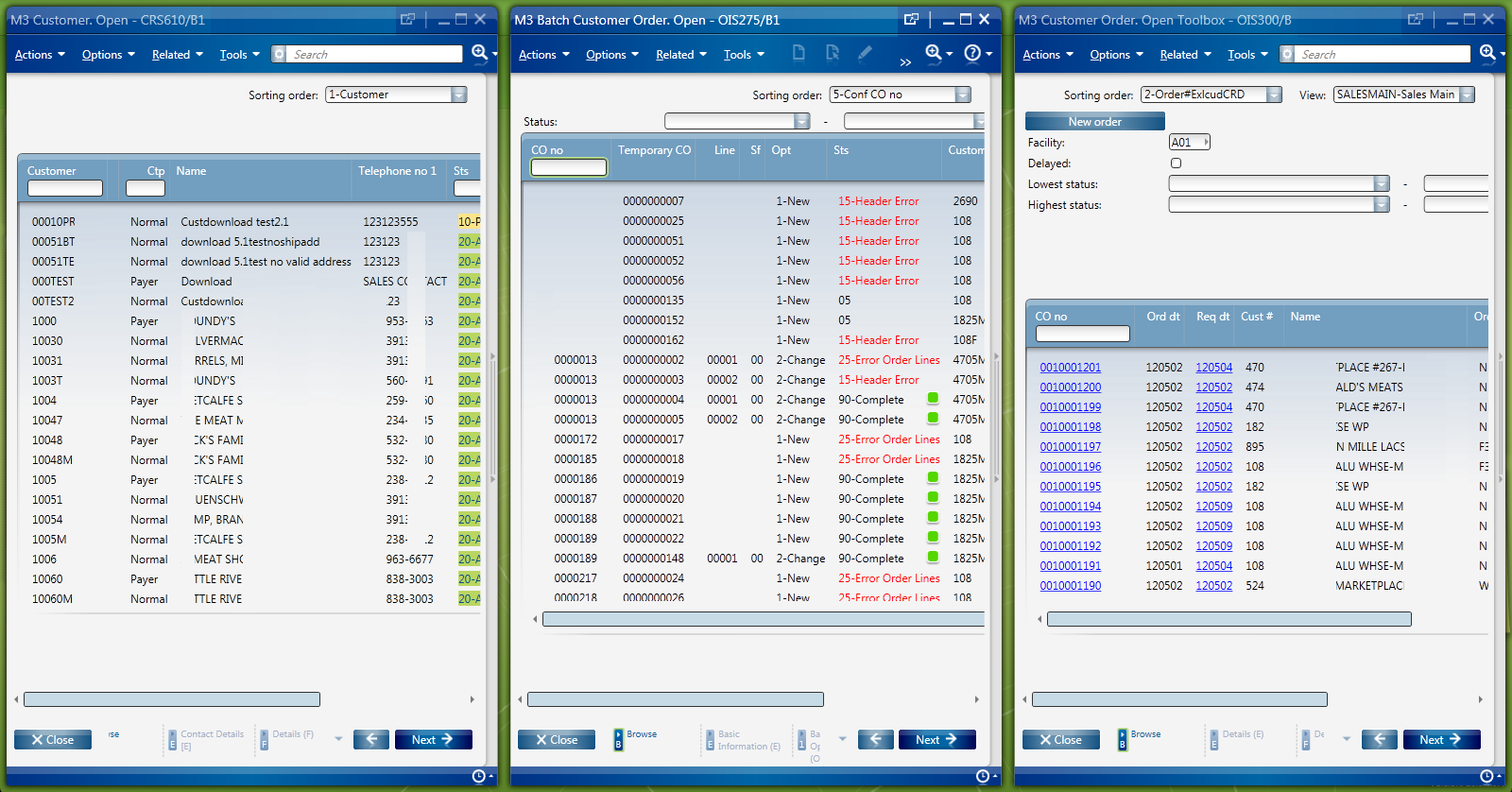
Here is a screenshot of the result that shows three windows tiled horizontally. It’s just for illustration purposes as the windows look crowded with my low resolution screen; in a real scenario two windows or a bigger screen would look better.

Voilà!

If you liked this solution, I invite you to subscribe to this blog.

Also, read the follow-up to this post with Stand-alone scripts for Smart Office where I convert this Tiling Window Manager into a widget-like script.

Special thanks to Karinpb for the help.