Progress indicator adorner

Last week in Stockholm norpe showed me how to add a progress indicator Adorner to a ListView when I call an M3 API in a background thread in a Personalized Script for Lawson Smart Office. When I execute a time consuming operation I like to maintain good usability by indicating activity to the user. For that, I used to display a message to the user in a Label like “Loading please wait…”, but that doesn’t catch the eye very well, and/or I used to changed the mouse cursor to Cursor.Wait. but I think that’s a shared resource. So I prefer this new technique.

It’s only two lines of code from Mango.UI.Controls:

ProgressIndicatorAdorner.AddAdorner(element, useOpacity, scaleFactor);
ProgressIndicatorAdorner.RemoveAdorner(element);

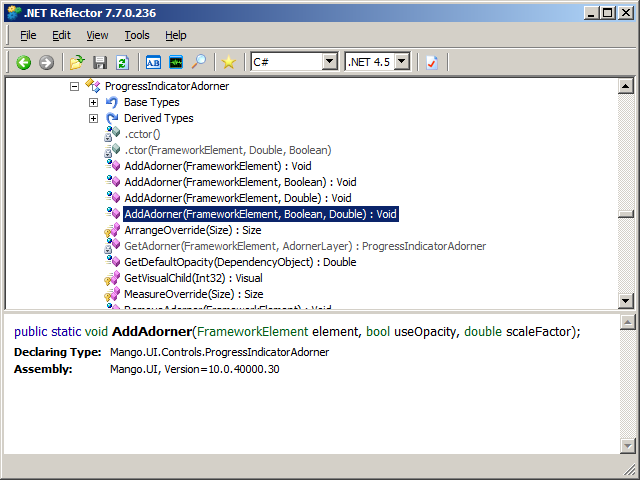
Here’s the method’s signature:
Reflector

Here’s the result:
1_ 2_

That’s it.

OptiMap_V2

Here is the second version of the OptiMap script for Smart Office that integrates the Delivery Toolbox – MWS410/B with OptiMap – Fastest Roundtrip Solver to calculate and show on Google Maps the fastest roundtrip for the selected Routes. This extends the first version of the script.

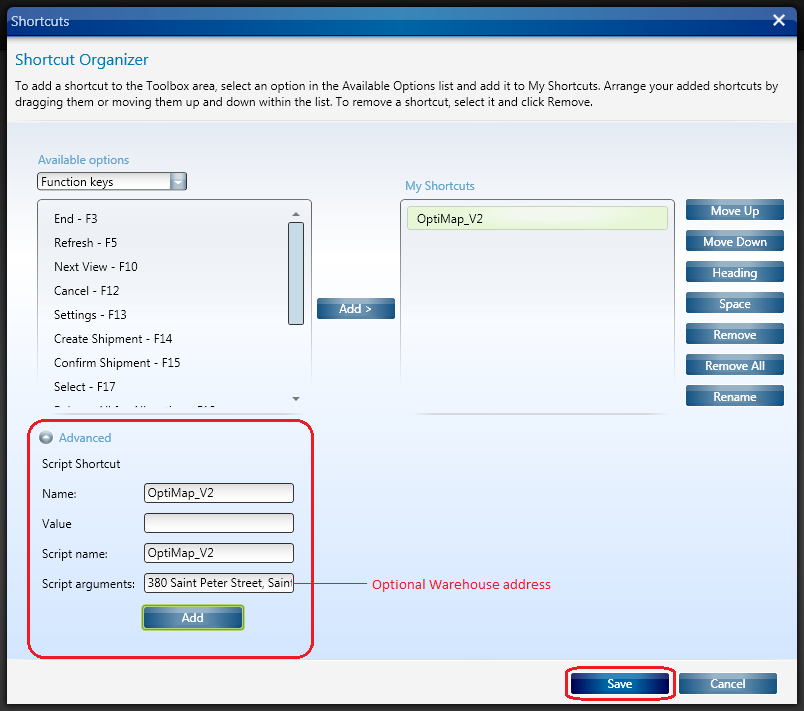
In this second version I added the possibility to set the starting address (for example the Warehouse) as the Script argument. See lines 52-54.

import System;
import System.Web;
import System.Windows;
import Mango.UI.Services.Lists;
import MForms;

/*

	OptiMap_V2 for M3
	Thibaud Lopez Schneider, Infor, October 19, 2012 (rev.2)

	This script illustrates how to integrate the Smart Office Delivery Toolbox - MWS410/B with OptiMap - Fastest Roundtrip Solver, http://www.optimap.net/
	to calculate and show on Google Maps the fastest roundtrip for the selected Routes; it's an application of the Traveling Salesman Problem (TSP) to M3.
	This is interesting for a company to reduce overall driving time and cost, and for a driver to optimize its truck load according to the order of delivery.

	To install this script:
	1) Deploy this script in the mne\jscript\ folder of your Smart Office server
	2) Create a Shortcut in MWS410/B to run this script; for that go to MWS410/B > Tools > Personalize > Shortcuts > Advanced > Script Shortcut, set the Name to OptiMap, and set the Script name to OptiMap
	3) Optionally, set the starting address (for example the Warehouse) as the Script argument; the address must be recognized by Google Maps
	4) Create a View (PAVR) in MWS410/B that shows the address columns ADR1, ADR2, ADR3

	To use this script:
	1) Start MWS410/B
	2) Switch to the View (PAVR) that shows the address columns ADR1, ADR2, ADR3
	3) Select multiple Routes in the list (press CTRL to select multiple rows)
	4) Click the OptiMap Shortcut
	5) The Shortcut will run the script, the script will launch OptiMap in a browser and pass the selected addresses as locN parameters in the URL, and OptiMap will optimize the roundtrip

	For more information and screenshots refer to:
	https://thibaudatwork.wordpress.com/2012/10/04/route-optimization-for-mws410-with-optimap/
	https://thibaudatwork.wordpress.com/2013/03/08/optimap_v2/

*/
package MForms.JScript {
	class OptiMap_V2 {
		public function Init(element: Object, args: Object, controller : Object, debug : Object) {
			try {
				// get a reference to the list
				var listControl: MForms.ListControl = controller.RenderEngine.ListControl;
				var listView: System.Windows.Controls.ListView = controller.RenderEngine.ListViewControl;
				if (listControl == null || listView == null) { MessageBox.Show('Error: Couldn\'t find the list.'); return; }
				// get the selected rows
				var rows = listView.SelectedItems; // System.Windows.Controls.SelectedItemCollection
				if (rows == null || rows.Count == 0) { MessageBox.Show('Error: Select multiple routes in the list (press CTRL to select multiple rows).'); return; }
				// get the address columns ADR1, ADR2, ADR3
				var column1: int = listControl.GetColumnIndexByName('ADR1');
				var column2: int = listControl.GetColumnIndexByName('ADR2');
				var column3: int = listControl.GetColumnIndexByName('ADR3');
				if (column1 == -1 || column2 == -1 || column3 == -1) { MessageBox.Show('Error: Couldn\'t find the address columns ADR1, ADR2, ADR3.'); return; }
				// construct the URL
				var query: String = 'http://www.optimap.net/?';
				// set the optional starting address
				var offset: int = 0;
				if (!String.IsNullOrEmpty(args)) { offset=1; query += 'loc0=' + HttpUtility.UrlEncode(args) + '&'; }
				// add the selected addresses
				for (var i: int = 0; i < rows.Count; i++) {
					var row: ListRow = rows[i];
					var ADR1: String = row[column1];
					var ADR2: String = row[column2];
					var ADR3: String = row[column3];
					var address: String = ADR1 + ',' + ADR2 + ',' + ADR3;
					query += 'loc' + (i+offset) + '=' + HttpUtility.UrlEncode(address) + '&';
				}
				// launch OptiMap in a browser
				ScriptUtil.Launch(new Uri(query));
			} catch (ex: Exception) {
				MessageBox.Show(ex);
			}
		}
	}
}

Here is a screenshot of how to set the address as an Argument of the script:

8_

That’s it!

(Oh, and I finally learned how to post source code to WordPress. Duh!)

Related Articles

Route optimization for MWS410 with OptiMap

Here is a script for Lawson Smart Office that integrates the Delivery Toolbox – MWS410/B with OptiMap – Fastest Roundtrip Solver to calculate and show on Google Maps the fastest roundtrip for the selected Routes. It’s a solution to the Travelling salesman problem (TSP) for M3 Routes.

This is interesting for a company to reduce overall driving time and cost, and it’s interesting for a driver to optimize its truck load according to the order of delivery.

To solve the TSP on Google Maps, the authors of OptiMap implemented several algorithms, including brute force, nearest-neighbor, and the Ant Colony Optimization, and released the code for the TSP Solver for Google Maps API as open source with an MIT License. Because the TSP is an NP-complete problem the solution only works well for up to 10 cities on current desktop computers. But OptiMap can apparently solve more than 15 cities. You can read more about OptiMap at Behind the Scenes of OptiMap and OptiMap version 4 is here.

To integrate OptiMap with Smart Office I wrote a simple Personalized Script that gets the addresses of the selected Routes in MWS410/B, and that opens OptiMap in a web browser with the delivery addresses in the URL. The GET parameters are explained in OptiMap’s Optimize Your Trips.

Setup

To install and use the script:

  1. Deploy this script in the mne\jscript\ folder in your Smart Office server:
  2. Create a Shortcut in MWS410/B to run this script; for that go to MWS410/B > Tools > Personalize > Shortcuts > Advanced, expand Script Shortcut, set the Name to OptiMap, set the Script name to OptiMap, click Add, and click Save:
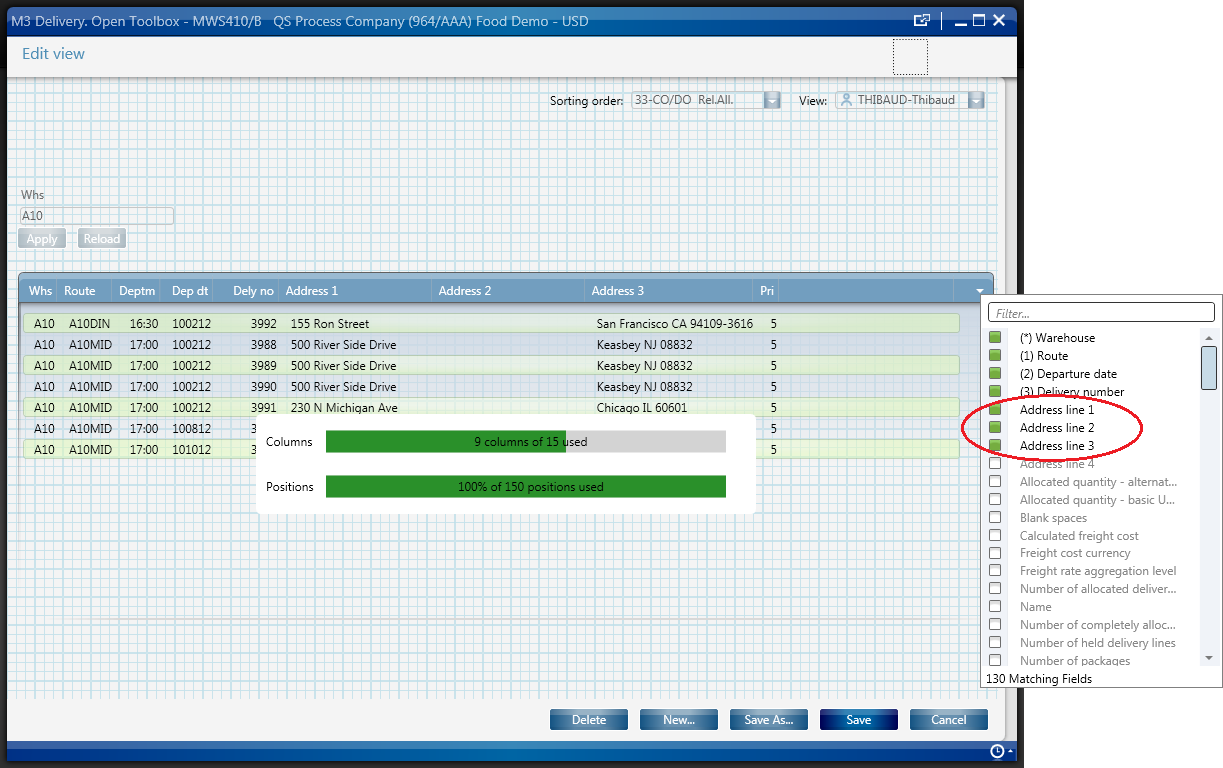
  3. Create a View (PAVR) in MWS410/B that shows the address columns ADR1, ADR2, ADR3:
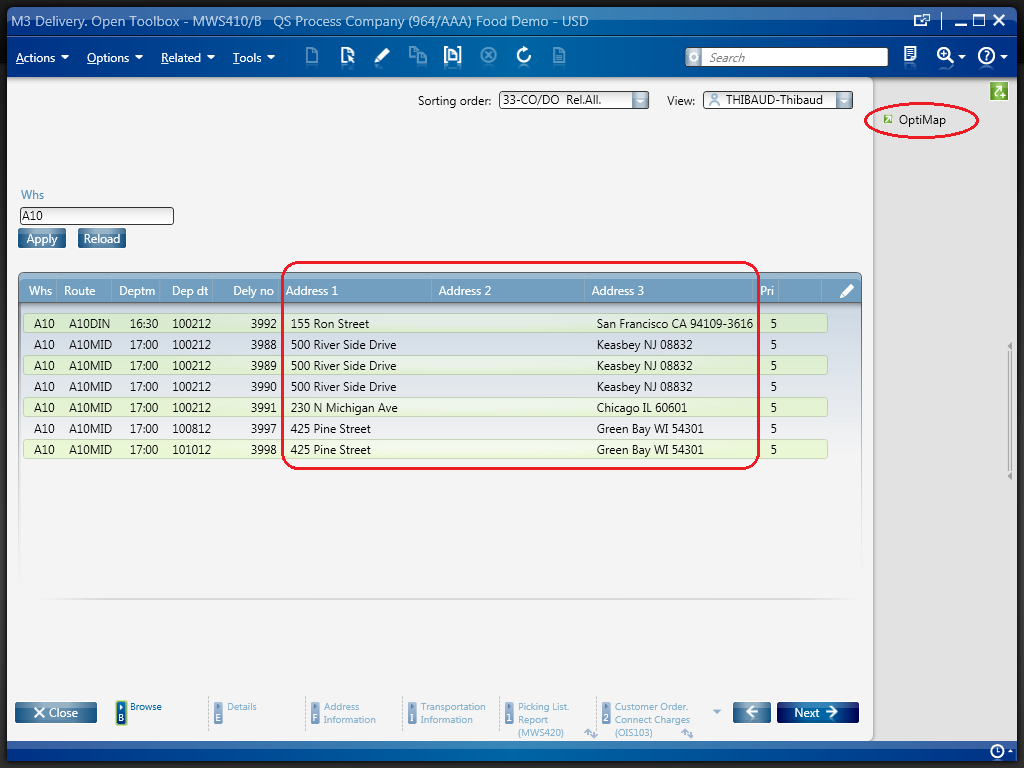
  4. Select multiple Routes in the list (press CTRL to select multiple rows), and click the OptiMap Shortcut to run the script:

Result

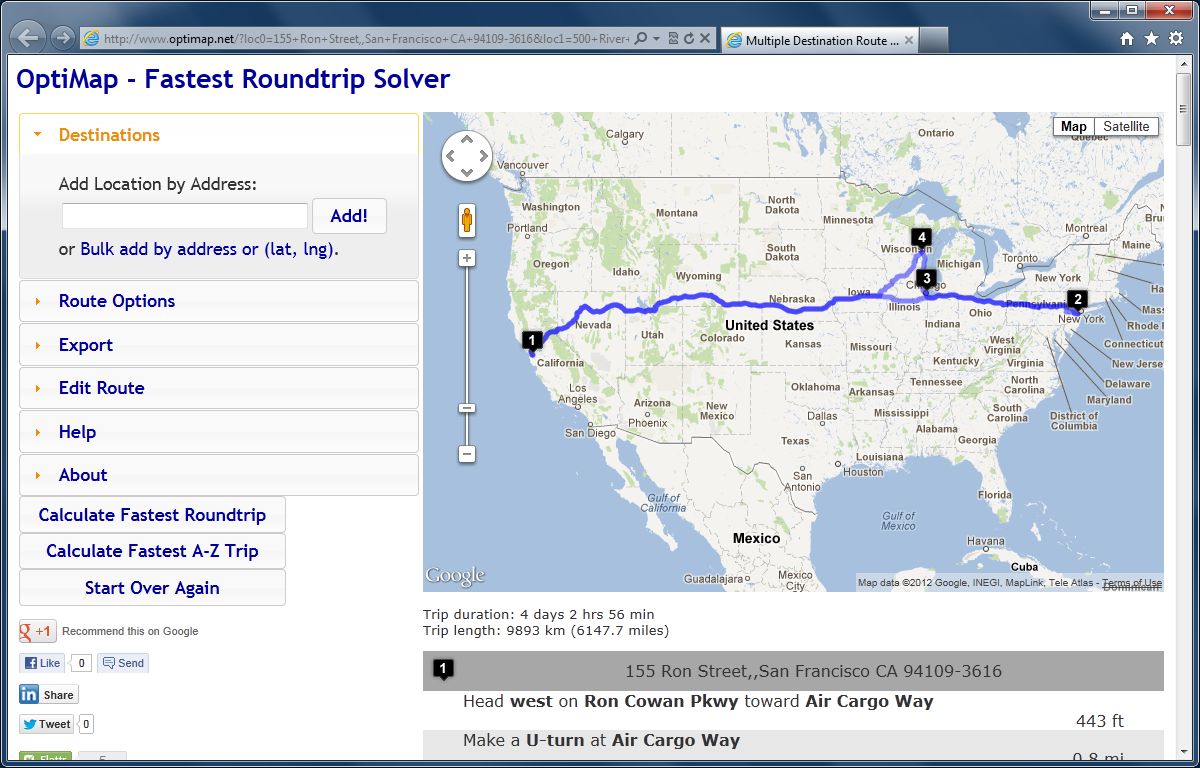
The script will launch OptiMap for the selected Routes, and OptiMap will optimize the order of delivery:

Source code
Here is the complete source code for the script:

import System;
import System.Web;
import System.Windows;
import Mango.UI.Services.Lists;
import MForms;

/*
Integrates the Smart Office Delivery Toolbox - MWS410/B with OptiMap - Fastest Roundtrip Solver, http://www.optimap.net/
to calculate and show on Google Maps the fastest roundtrip for the selected Routes.
This is interesting to reduce driving time and cost, and for a driver to optimize its truck load according to the order of delivery.
1) Deploy this script in the mne\jscript\ folder in your Smart Office server
2) Create a Shortcut in MWS410/B to run this script; for that go to MWS410/B > Tools > Personalize > Shortcuts > Advanced > Script Shortcut, set the Name to OptiMap, and set the Script name to OptiMap
3) Create a View (PAVR) in MWS410/B that shows the address columns ADR1, ADR2, ADR3
4) Select multiple Routes in the list (press CTRL to select multiple rows)
5) Click the OptiMap Shortcut to run this script and launch OptiMap for the selected Routes
For more information and screenshots refer to https://thibaudatwork.wordpress.com/2012/10/04/route-optimizer/
Thibaud Lopez Schneider, Infor, October 4, 2012 (rev.2)
*/
package MForms.JScript {
    class OptiMap {
        public function Init(element: Object, args: Object, controller : Object, debug : Object) {
            try {
                // get the list
                var listControl: MForms.ListControl = controller.RenderEngine.ListControl;
                var listView: System.Windows.Controls.ListView = controller.RenderEngine.ListViewControl;
                if (listControl == null || listView == null) { MessageBox.Show('Error: Couldn\'t find the list.'); return; }
                // get the selected rows
                var rows = listView.SelectedItems; // System.Windows.Controls.SelectedItemCollection
                if (rows == null || rows.Count == 0) { MessageBox.Show('Error: No rows selected.'); return; }
                // get the address columns ADR1, ADR2, ADR3
                var column1: int = listControl.GetColumnIndexByName('ADR1');
                var column2: int = listControl.GetColumnIndexByName('ADR2');
                var column3: int = listControl.GetColumnIndexByName('ADR3');
                if (column1 == -1 || column2 == -1 || column3 == -1) { MessageBox.Show('Error: Couldn\'t find the address columns ADR1, ADR2, ADR3.'); return; }
                // construct the URL
                var query: String = '';
                for (var i: int = 0; i < rows.Count; i++) {
                    var row: ListRow = rows[i];
                    var ADR1: String = row[column1];
                    var ADR2: String = row[column2];
                    var ADR3: String = row[column3];
                    var address: String = ADR1 + ',' + ADR2 + ',' + ADR3;
                    query += 'loc' + i + '=' + HttpUtility.UrlEncode(address) + '&';
                }
                var uri: Uri = new Uri('http://www.optimap.net/?' + query);
                // launch OptiMap
                ScriptUtil.Launch(uri);
            } catch (ex: Exception) {
                MessageBox.Show(ex);
            }
        }
    }
}

That’s it!

Related posts

See also version OptiMap_V2.

How to add a column to a list (continued)

Here is a real example of how to add a column to a list in M3 using a Script for Smart Office. It’s an illustration of my previous post on the same subject, an implementation of what was discussed in the comments of the first post, and a continuation of Karin’s post.

In this example I will add three columns to the list of Stock Location – MMS010/B1 to display the Geographic codes X, Y, and Z, which correspond to the longitude, latitude, and altitude of a Stock Location in a Warehouse. The Geo codes are stored in MMS010/F.

Why it matters

The benefit of this kind of solutions is to avoid an M3 Java modification.

From a technical point of view, this example illustrates how to dynamically add content to an existing M3 panel, how to access the ListView’s new internals in Smart Office 10.x, how to call an M3 API, how to use a background thread, how to indicate activity in the UI thread while the background thread works, and how to use the ScrollViewer to load data at each page scroll.

Desired result

This is the desired result:

Source code

Here is the complete source code:

import System;
import System.Collections;
import System.Windows.Controls;
import System.Windows.Input;
import System.Windows.Media;
import Lawson.M3.MI;
import Mango.UI.Services.Lists;
import MForms;

/*
    Displays the Geo codes XYZ in MMS010/B1 in three new columns loaded by calling MMS010MI.ListLocations.
    Thibaud Lopez Schneider, Infor, 2012-09-27
*/
package MForms.JScript {
    class ShowGeoCodes {

        /*
            PENDING
            - Horizontal align the columns contents to the right
            - Vertical align the columns headers to top
            - Auto width the columns
        */
        var controller: Object, content: Object, debug: Object;
        var listView; // System.Windows.Controls.ListView
        var rows: System.Windows.Controls.ItemCollection;
        var columns: System.Windows.Controls.GridViewColumnCollection;
        var scrollViewer: System.Windows.Controls.ScrollViewer;
        var oldCount: int = 0, newCount: int = 0;
        var GeoCodes; // System.Collections.Generic.IList[Lawson.M3.MI.MIRecord]

        public function Init(element: Object, args: Object, controller : Object, debug : Object) {
            try {

                // global variables
                this.controller = controller;
                this.content = controller.RenderEngine.Content;
                this.debug = debug;
                this.listView = controller.RenderEngine.ListControl.ListView; // == controller.RenderEngine.ListViewControl
                this.rows = listView.Items;
                this.columns = listView.View.Columns;

                // append three new columns to the ListView
                var newColumns = ['Geo code X''Geo code Y''Geo code Z'];
                for (var i in newColumns) {
                    var gvch = new GridViewColumnHeader();
                    gvch.Content = newColumns[i];
                    var gvc = new GridViewColumn();
                    gvc.Header = gvch;
                    gvc.CellTemplateSelector = new ListCellTemplateSelector(columns.Count, controller.RenderEngine.ListControl.Columns);
                    columns.Add(gvc);
                }

                // register the ScrollChanged event of the ListView
                oldCount = newCount = rows.Count;
                var border = VisualTreeHelper.GetChild(listView, 0);
                var grid = VisualTreeHelper.GetChild(border, 0);
                this.scrollViewer = VisualTreeHelper.GetChild(grid, 3);
                this.scrollViewer.add_ScrollChanged(OnScrollChanged);

                // load the Geo codes XYZ by calling MMS010MI
                var CONO = UserContext.CurrentCompany;
                var WHLO = ScriptUtil.FindChild(content, 'WWWHLO').Text;
                BeginLoadGeoCodes(CONO, WHLO);

                // attach event to cleanup
                controller.add_RequestCompleted(OnRequestCompleted);

            } catch (ex: Exception) {
                debug.WriteLine(ex);
            }
        }

        /*
            Loads the Geo codes XYZ by calling MMS010MI.ListLocations.
        */
        function BeginLoadGeoCodes(CONO: int, WHLO: String) {
            controller.RenderEngine.ShowMessage('loading Geo codes...');
            content.Cursor = Cursors.Wait;
            var record = new MIRecord();
            record['CONO'] = CONO;
            record['WHLO'] = WHLO;
            var parameters = new MIParameters();
            parameters.OutputFields = ['WHSL''GEOX''GEOY''GEOZ'];
            parameters.MaxReturnedRecords = 0;
            MIWorker.Run('MMS010MI''ListLocations', record, EndLoadGeoCodes, parameters);
        }

        /*
            Handles the response from MMS010MI.ListLocations.
        */
        function EndLoadGeoCodes(response: MIResponse) {
            try {
                controller.RenderEngine.ClearMessage();
                content.Cursor = Cursors.Arrow;
                if (response.HasError) {
                    controller.RenderEngine.ShowMessage(response.ErrorMessage);
                } else {
                    this.GeoCodes = response.Items;
                    ShowGeoCodesXYZ(0, rows.Count-1);
                }
            } catch(ex: Exception) {
                debug.WriteLine(ex);
            }
        }

        /*
            Loads more rows on ScrollViewer.
        */
        function OnScrollChanged(sender: Object, e: ScrollChangedEventArgs) {
            try {
                if (e.VerticalChange != 0) {
                    oldCount = listView.Items.Count;
                } else {
                    var newCount = listView.Items.Count;
                    var diff: int = newCount - oldCount;
                    var fromRow = oldCount;
                    var toRow = listView.Items.Count - 1;
                    if (diff > 0) {
                        ShowGeoCodesXYZ(fromRow, toRow);
                    }
                }
            } catch (ex: Exception) {
                debug.WriteLine(ex);
            }
        }

        /*
            Shows the Geo codes XYZ for the specified rows.
        */
        function ShowGeoCodesXYZ(fromRow: int, toRow: int) {
            var rows = IList(listView.ItemsSource);
            for (var i = fromRow; i <= toRow; i++) {
                var WHSL = rows[i].Item[0];
                var codes = GetGeoCode(WHSL);
                // replace this row by a new row that's incremented by three new columns
                var row = rows[i];
                var oldArray = row.Items;
                var newArray = new String[oldArray.length + 3];
                oldArray.CopyTo(newArray, 0);
                newArray[newArray.length-3] = codes.GEOX;
                newArray[newArray.length-2] = codes.GEOY;
                newArray[newArray.length-1] = codes.GEOZ;
                row.Items = newArray;
                rows.RemoveAt(i);
                rows.Insert(i, row);
            }
        }

        /*
            Returns the Geo codes XYZ for the specified WHSL.
        */
        function GetGeoCode(WHSL: String) {
            var i = 0;
            while (i < this.GeoCodes.Count && this.GeoCodes[i]['WHSL'] != WHSL) i++; // search array
            if (i < this.GeoCodes.Count) return { 'GEOX'this.GeoCodes[i]['GEOX'], 'GEOY'this.GeoCodes[i]['GEOY'], 'GEOZ'this.GeoCodes[i]['GEOZ'] }; // found WHSL
            else return { 'GEOX''''GEOY''''GEOZ''' }; // no hit
        }

        function OnRequestCompleted(sender: Object, e: RequestEventArgs) {
            try {
                var controller: MForms.InstanceController = sender;
                if (controller.RenderEngine == null) {
                    // program is closing, cleanup
                    scrollViewer.remove_ScrollChanged(OnScrollChanged);
                    controller.remove_RequestCompleted(OnRequestCompleted);
                }
            } catch (ex: Exception) {
                debug.WriteLine(ex);
            }
        }

    }
}

Result

This is the final result:

Future work

This solution loads all records from the API call with MaxReturnedRecords=0. This could be a problem when there are more than several hundred records, or when the server/network response time is bad. I yet have to find a solution to improve this.

Also, the user could scroll the page while the response of the API call hasn’t arrived yet. I yet have to improve the code for that.

Finally, in my next article I will illustrate how to achieve the same result without programming, by using Custom Lists and Mashups.

UPDATE 2012-09-27

I updated the script to detach the event handlers on program close, i.e. cleanup.

Related articles:

BackgroundWorkers in Smart Office Scripts – Part 4

I’m back from Burning Man and ready to write this fourth part of my series on BackgroundWorkers in Lawson Smart Office Scripts to illustrate how to handle worker errors and how to handle exceptions. This article is a continuation of my previous articles, Part 1, Part 2, and Part 3.

How to handle worker errors

When I catch an exception in my programs I want to inform the user about it by displaying an error message in the user interface, whether in a popup or in the status bar, so the user can make eventual corrections and try the action again. But a BackgroundWorker runs in a background thread and doesn’t have access to the user interface, so I cannot inform the user from the method OnDoWork. Instead, I have to let the exception propagate to the method OnRunWorkerCompleted which runs in the UI thread, and inform the user there, whether in a popup or in the status bar. For that, I’ll read e.Error.

Here’s an example:

/* background thread */
function OnDoWork(sender: Object, e: DoWorkEventArgs) {
    doSomethingTimeConsuming();
}

/* UI thread */
function OnRunWorkerCompleted(sender: Object, e: RunWorkerCompletedEventArgs) {
    if (e.Error != null) {
        // error
        e.Error.Message
    } else {
        // success
    }
    ...
}

function doSomethingTimeConsuming() {
     throw new System.Exception('!!!');
}

Note I don’t catch exceptions in the background thread OnDoWork so as to propagate them to the UI thread OnRunWorkerCompleted.

How to handle exceptions

I have to handle exceptions in the Init method and in every event handler: OnRequestingOnRequestedOnProgressChanged, and OnRunWorkerCompleted.

public function Init(element: Object, args: Object, controller: Object, debug: Object) {
    try {
        ...
    } catch (ex: Exception) {
        ...
    }
}

function OnDoWork(sender: Object, e: DoWorkEventArgs) {
    ...
}

function OnRequesting(sender: Object, e: CancelRequestEventArgs) {
    try {
        ...
    } catch (ex: Exception) {
        ...
    }
}

function OnRequested(sender: Object, e: RequestEventArgs) {
    try {
        ...
    } catch (ex: Exception) {
        ...
    }
}

function OnProgressChanged(sender: Object, e: ProgressChangedEventArgs) {
    try {
        ...
    } catch (ex: Exception) {
        ...
    }
}

function OnRunWorkerCompleted(sender: Object, e: RunWorkerCompletedEventArgs) {
    try {
        ...
    } catch (ex: Exception) {
        ...
    }
}

Note I don’t catch exceptions in the background thread OnDoWork so as to propagate them to the UI thread OnRunWorkerCompleted.

Usability

Also, if I have previously disabled the user interface (for example by disabling the Start button) to prevent the user from starting the worker twice, I might want to enable the user interface back when I catch an exception, depending on what the script does, so the user can make eventual corrections and try the action again. Or I can simply let the user press F5 to refresh the screen and start over.

Conclusion

In this article I illustrated how to handle worker errors and how to handle exceptions.

Related articles

All articles in this series:

BackgroundWorkers in Smart Office Scripts – Part 3

In this third part of my series on BackgroundWorkers in Lawson Smart Office Scripts, I illustrate how to handle worker cancellation. This article is a continuation of my previous articles, Part 1 and Part 2.

When a worker is processing a time-consuming operation in a background thread, the user interface remains available and the user could potentially take any of the available actions, for example close the window (F3), refresh the M3 program (F5), click Previous (F12), click Next (ENTER), select an Option (CTRL+1-5), select a Related Option (CTRL+6-99), and go to Settings (F13). In those cases, I want to cancel my worker to stop the processing in a controlled way and avoid abrupt termination.

Fortunately, the life-cycle of Smart Office scripts includes three events I can listen to: Requesting, Requested, and RequestCompleted. I’ll intercept the user actions in those events and I’ll cancel the worker there. For more information on those events, refer to the Lawson Smart Office Developer’s Guide.

To cancel a worker, I use WorkerSupportsCancellation, CancellationPending, e.Cancel, IsBusy, WorkerSupportsCancellation, CancelAsync, and Cancelled.

Steps

First, I listen for the user actions:

controller.add_Requesting(OnRequesting);
controller.add_Requested(OnRequested);

Then, I ensure the worker supports cancellation:

worker.WorkerSupportsCancellation = true;

In the background thread, I do the time-consuming operation as long as there’s no cancellation pending, otherwise I cancel the worker and stop the time-consuming operation:

function OnDoWork(sender: Object, e: DoWorkEventArgs) {
    var worker: BackgroundWorker = sender;
    while (someCondition) {
        doSomethingTimeConsuming();
        if (worker.CancellationPending) {
            e.Cancel = true;
            return;
        }
    }
    ...
}

In the UI thread, if the user takes an action I’ll intercept it in OnRequesting and I will instruct the worker to cancel processing:

// F3-Close, F5-Refresh, F12-Cancel, Option 5-Display, Previous/Next, ENTER, etc.
function OnRequesting(sender: Object, e: CancelRequestEventArgs) {
    if (worker.IsBusy && worker.WorkerSupportsCancellation) {
        worker.CancelAsync();
    }
}

Then, the life-cycle of the script will reach OnRequested where I clean-up my script:

function OnRequested(sender: Object, e: RequestEventArgs) {
    sender.remove_Requesting(OnRequesting);
    sender.remove_Requested(OnRequested);
}

Eventually, the worker will receive the instruction to cancel processing, and in OnRunWorkerCompleted I will do what’s necessary to stop processing in a controlled way and avoid abrupt termination.

function OnRunWorkerCompleted(sender: Object, e: RunWorkerCompletedEventArgs) {
    if (e.Cancelled) {
        // cancel
    } else {
        // continue
    }
    ...
}

Final source code

Here’s the full source code tested in Smart Office 10.0.4.0.38:

import System.ComponentModel;
import Mango.UI;
import MForms;

package MForms.JScript {

    class Test {

        var debug: Object;
        var worker: BackgroundWorker;

        public function Init(element: Object, args: Object, controller: Object, debug: Object) {
            this.debug = debug;
            debug.WriteLine('start');
            controller.add_Requesting(OnRequesting);
            controller.add_Requested(OnRequested);
            worker = new BackgroundWorker();
            worker.WorkerReportsProgress = true;
            worker.WorkerSupportsCancellation = true;
            worker.add_DoWork(OnDoWork);
            worker.add_ProgressChanged(OnProgressChanged);
            worker.add_RunWorkerCompleted(OnRunWorkerCompleted);
            worker.RunWorkerAsync();
        }

        function OnDoWork(sender: Object, e: DoWorkEventArgs) {
            var worker: BackgroundWorker = sender;
            var n = 10;
            for (var i = 0; i < n; i++) {
               worker.ReportProgress(i/n*100, 'processing');
               doSomethingTimeConsuming();
                if (worker.CancellationPending) {
                    e.Cancel = true;
                    return;
                }
            }
        }

        function OnProgressChanged(sender: Object, e: ProgressChangedEventArgs) {
            debug.WriteLine(e.ProgressPercentage + '% ' + e.UserState);
        }

        // F3-Close, F5-Refresh, F12-Cancel, Option 5-Display, Previous/Next, ENTER, etc.
        function OnRequesting(sender: Object, e: CancelRequestEventArgs) {
            debug.WriteLine('OnRequesting');
            if (worker.IsBusy && worker.WorkerSupportsCancellation) {
                debug.WriteLine('cancelling');
                worker.CancelAsync();
            }
        }

        function OnRequested(sender: Object, e: RequestEventArgs) {
            debug.WriteLine('OnRequested');
            sender.remove_Requesting(OnRequesting);
            sender.remove_Requested(OnRequested);
        }

        function OnRunWorkerCompleted(sender: Object, e: RunWorkerCompletedEventArgs) {
            if (e.Cancelled) {
                // cancel
                debug.WriteLine('cancelled');
            } else {
                // continue
                debug.WriteLine('done');
            }
            // cleanup
            var worker: BackgroundWorker = sender;
            worker.remove_DoWork(OnDoWork);
            worker.remove_RunWorkerCompleted(OnRunWorkerCompleted);
            debug.WriteLine('cleaned-up');
         }

        function doSomethingTimeConsuming() {
            System.Threading.Thread.Sleep(1000);
        }

    }
}

Result

A normal execution will result in this output:

start
0% processing
10% processing
20% processing
30% processing
40% processing
50% processing
60% processing
70% processing
80% processing
90% processing
done
cleaned-up

A cancelled execution will result in this output, for example if the user presses F5-Refresh:

start
0% processing
10% processing
20% processing
30% processing
OnRequesting
cancelling
OnRequested
cancelled
cleaned-up

Here’s a screenshot of both results:

Conclusion

In this article I illustrated how to intercept actions the user might take in the user interface while a time-consuming operation is in progress in a background thread, and eventually cancel the worker to stop the processing in a controlled way and avoid abrupt termination.

Next

In my next article I will illustrate how to handle worker errors and how to handle exceptions.

Related articles

All articles in this series:

BackgroundWorkers in Smart Office Scripts – Part 2

In this second part of my series on BackgroundWorkers in Smart Office Scripts, I illustrate how to disable/enable the user interface, how to indicate activity, and how to show progress, because good usability is important to me. This article is a continuation of my previous article, Part 1.

When I put a time-consuming operation in a background thread, the user interface remains available to the user and I must take special consideration when crafting the code. First, I want to disable part of the user interface so the user doesn’t start the time-consuming operation again, or that would have unexpected results. Also, I want to indicate activity so the user knows the time-consuming operation is in progress. Also, I want to show progress – 10%, 20%, 30%…100% – so the user knows where the processing is at. I address these special considerations because good usability is important to me.

How to disable/enable the user interface

In some cases, I want to disable part of the user interface so the user doesn’t start the time-consuming operation again. Starting the time-consuming operation twice could have unexpected results, for example duplicate requests to the server could result in duplicate Customer Orders in M3; it depends on what the script does.

If the BackgroundWorker was started from a button I want to disable that button. But if the script was started from a Smart Office Shortcut (Tools > Personalize > Shortcuts) I would have to implement some kind of semaphore to not start the time-consuming operation again; that code is not shown here.

Finally, after the time-consuming operation is finished I enable the button back to its former state.

Also, I can only disable/enable the user interface in the UI thread, not in the background thread as that would throw an Exception.

My basic code to disable/enable the user interface is the following (in this case I do it in the OnClick of a button, with the methods DisableUI and EnableUI to be defined):

/* UI thread */
function OnClick(sender: Object, e: RoutedEventArgs) {
    DisableUI();
    ...
}
/* background thread */
function OnDoWork(sender: Object, e: DoWorkEventArgs) {
    ...
}
/* UI thread */
function OnRunWorkerCompleted(sender: Object, e: RunWorkerCompletedEventArgs) {
    ...
    EnableUI();
}

Note that if multiple BackgroundWorkers were running in parallel, I would need to enable the user interface only after the last worker has completed; that code is not shown here.

How to indicate activity

I want to indicate activity so the user knows the time-consuming operation is in progress and doesn’t start it again.

Similarly, I can only indicate activity in the UI thread, not in the background thread as that would throw an Exception.

My basic code to indicate activity is the following (with the method IndicateActivity to be defined):

/* UI thread */
public function Init(element: Object, args: Object, controller: Object, debug: Object) {
    IndicateActivity('start');
    ...
}
/* background thread */
function OnDoWork(sender: Object, e: DoWorkEventArgs) {
    ...
}
/* UI thread */
function OnRunWorkerCompleted(sender: Object, e: RunWorkerCompletedEventArgs) {
    ...
    IndicateActivity('done');
}

There are multiple techniques to indicate activity.

One technique to indicate activity is to use controller.RenderEngine.ShowMessage(x) to show a message in the status bar, but messages could show in a modal pop-up window if the user checked Settings > MForms > Display system messages in dialog window:

controller.RenderEngine.ShowMessage('start');
controller.RenderEngine.ShowMessage('done');

Another technique is to show an animated icon.

Another technique is to use debug.WriteLine(x), but that works only in the Script Tool for the developer:

debug.WriteLine('start');
debug.WriteLine('done');

Another technique is to change the cursor pointer, but the cursor is a shared resource on the M3 program’s panel so the script will compete for it with other threads:

content.Cursor = Cursors.Wait;
content.Cursor = Cursors.Arrow;

Another technique is to add a Label to the user interface and set it to whatever text I want.

How to show progress

I want to show progress when I have multiple time-consuming operations so the user knows where the processing is at. For example, if I was processing a shopping cart from the script (in a parallel universe where shopping carts are processed on the client-side) I would want to call various transactions from OIS100MI: first AddBatchHead, then various AddBatchLine, and finally Confirm, and I would want the user to know what the progress is. So, supposing I have N requests, I want to show the progress i of N.

Similarly, I can only show progress in the UI thread, not in the background thread as that would throw an Exception.

To show progress, I use WorkerReportsProgressadd_ProgressChanged, ReportProgress, e.ProgressPercentage, and e.UserState:

public function Init(element: Object, args: Object, controller: Object, debug: Object) {
    ...
    worker.WorkerReportsProgress = true;
    worker.add_ProgressChanged(OnProgressChanged);
    ...
}

function OnDoWork(sender: Object, e: DoWorkEventArgs) {
    var worker: BackgroundWorker = sender;
    worker.ReportProgress(0, 'start');
    doSomethingTimeConsuming1();
    worker.ReportProgress(1/n*100, 'processed 1 of N');
    doSomethingTimeConsuming2();
    worker.ReportProgress(2/n*100, 'processed 2 of N');
    doSomethingTimeConsuming3();
    worker.ReportProgress(3/n*100, 'processed 3 of N');
    ...
    doSomethingTimeConsumingN();
    worker.ReportProgress(100, 'done');
}

function OnProgressChanged(sender: Object, e: ProgressChangedEventArgs) {
    controller.RenderEngine.ShowMessage(e.ProgressPercentage + '% ' + e.UserState);
}

Final source code

Here’s my final source code illustrating how to disable/enable the user interface, how to indicate activity, and how to show progress:

import System.ComponentModel;
import System.Windows;
import System.Windows.Controls;
import System.Windows.Input;

package MForms.JScript {

    class Test {

        var controller, content: Object;
        var startButton: Button;

        /* UI thread */
        public function Init(element: Object, args: Object, controller: Object, debug: Object) {
            this.controller = controller;
            this.content = controller.RenderEngine.Content;
            startButton = new Button();
            startButton.Content = 'Start';
            startButton.Width = double.NaN;
            Grid.SetColumn(startButton, 0);
            Grid.SetRow(startButton, 0);
            Grid.SetColumnSpan(startButton, 5);
            startButton.add_Click(OnClick);
            controller.RenderEngine.Content.Children.Add(startButton);
        }

        /* UI thread */
        function OnClick(sender: Object, e: RoutedEventArgs) {
            // disable the user interface
            sender.IsEnabled = false; // sender == startButton
            // indicate activity
            controller.RenderEngine.ShowMessage('start');
            content.Cursor = Cursors.Wait;
            // start the worker
            var worker = new BackgroundWorker();
            worker.WorkerReportsProgress = true;
            worker.add_DoWork(OnDoWork);
            worker.add_ProgressChanged(OnProgressChanged);
            worker.add_RunWorkerCompleted(OnRunWorkerCompleted);
            worker.RunWorkerAsync();
        }

        /* background thread */
        function OnDoWork(sender: Object, e: DoWorkEventArgs) {
            var worker: BackgroundWorker = sender;
            // time-consuming operation + show progress
            worker.ReportProgress(0, 'start');
            doSomethingTimeConsuming1();
            worker.ReportProgress(25, 'processed 1 of 4');
            doSomethingTimeConsuming2();
            worker.ReportProgress(50, 'processed 2 of 4');
            doSomethingTimeConsuming3();
            worker.ReportProgress(75, 'processed 3 of 4');
            doSomethingTimeConsuming4();
            worker.ReportProgress(100, 'done');
        }

        /* UI thread */
        function OnProgressChanged(sender: Object, e: ProgressChangedEventArgs) {
            // show progress
            controller.RenderEngine.ShowMessage(e.ProgressPercentage + '% ' + e.UserState);
        }

        /* UI thread */
        function OnRunWorkerCompleted(sender: Object, e: RunWorkerCompletedEventArgs) {
            // cleanup worker
            var worker: BackgroundWorker = sender;
            worker.remove_DoWork(OnDoWork);
            worker.remove_ProgressChanged(OnProgressChanged);
            worker.remove_RunWorkerCompleted(OnRunWorkerCompleted);
            // indicate activity
            content.Cursor = Cursors.Arrow;
            controller.RenderEngine.ShowMessage('done');
            // enable the user interface
            startButton.IsEnabled = true;
        }

        function doSomethingTimeConsuming1() {
            System.Threading.Thread.Sleep(1000);
        }

        function doSomethingTimeConsuming2() {
            System.Threading.Thread.Sleep(2000);
        }

        function doSomethingTimeConsuming3() {
            System.Threading.Thread.Sleep(3000);
        }

        function doSomethingTimeConsuming4() {
            System.Threading.Thread.Sleep(4000);
        }
    }
}

That code was tested in Smart Office 10.0.4.0.38.

Here are three mini-screenshots of the result where I disable the ‘Start’ button, I indicate activity with a message in the status bar, I show progress, and I enable the button again:

That’s it!

Conclusion

In this article I illustrated how to disable/enable the user interface, how to indicate activity, and how to show progress when using BackgroundWorkers in Smart Office Scripts because good usability is important to me.

Next

In my next article I will illustrate:

  • How to handle worker cancellation
  • How to handle worker errors
  • How to handle exceptions

Related articles

All articles in this series:
BackgroundWorkers in Smart Office Scripts – Part 1

In this article I illustrate how to set input parameters and how to receive output values with a BackgroundWorker in Personalized Scripts for Lawson Smart Office. This article is a first in a set of articles about BackgroundWorkers to ensure code quality and usability.

As a reminder, time-consuming operations like M3 API calls, Web Service calls, or HTTP Requests, should be placed in a background thread to not freeze the user interface and to not result in bad usability. Refer to Karin’s post about Calling M3 APIs in JScript on a Background Thread.

Knowing how to set input parameters and how to receive output values with a BackgroundWorker will exempt us from using global variables; global variables in a multithreaded program are not thread safe because of possible race conditions that are hard to troubleshoot.

Counter-example

Suppose we have the following simple script that calls a time-consuming operation not in a BackgroundWorker; the time-consuming operation is in the UI thread and will freeze the user interface:

import System.Windows;

package MForms.JScript {
    class Test {
        public function Init(element: Object, args: Object, controller: Object, debug: Object) {
            var inputParameters = ...;
            var outputValues = doSomethingTimeConsuming(inputParameters);
        }
    }
}

BackgroundWorker

A BackgroundWorker executes code in a background thread without blocking the UI thread. There are many more lines of code involved: a BackgroundWorker is started with RunWorkerAsync(), the event handler OnDoWork runs in the background thread with the time-consuming operation, the event handler  OnDunWorkerCompleted resumes in the UI thread, and we cleanup the worker after use. That advantage of BackgroundWorkers is that the UI doesn’t freeze, but the disadvantage is that the code must be carefully crafted and it’s not obvious.

Here’s a simple script that calls a time-consuming operation in a BackgroundWorker; as the time-consuming operation is in the background thread it will not freeze the user interface:

import System.ComponentModel;

package MForms.JScript {
    class Test {
        /* UI thread */
        public function Init(element: Object, args: Object, controller: Object, debug: Object) {
            var worker = new BackgroundWorker();
            worker.add_DoWork(OnDoWork);
            worker.add_RunWorkerCompleted(OnRunWorkerCompleted);
            worker.RunWorkerAsync();
        }
        /* background thread */
        function OnDoWork(sender: Object, e: DoWorkEventArgs) {
            doSomethingTimeConsuming();
        }
        /* UI thread */
        function OnRunWorkerCompleted(sender: Object, e: RunWorkerCompletedEventArgs) {
            var worker: BackgroundWorker = sender;
            worker.remove_DoWork(OnDoWork);
            worker.remove_RunWorkerCompleted(OnRunWorkerCompleted);
        }
        /* something time-consuming */
        function doSomethingTimeConsuming() {
            System.Threading.Thread.Sleep(1000);
        }
    }
}

How to set input parameters

To pass input parameters to a BackgroundWorker we don’t have to use global variables; we can set the input values as the argument of RunWorkerAsync and get e.Argument in OnDoWork:

public function Init(element: Object, args: Object, controller: Object, debug: Object) {
    ...
    var inputParameters = ...;
    worker.RunWorkerAsync(inputParameters);
}
function OnDoWork(sender: Object, e: DoWorkEventArgs) {
    var inputParameters = e.Argument;
    ...
}

How to receive output values

To get output values from a BackgroundWorker we don’t have to use global variables either; we can set e.Result in OnDoWork and get e.Result in OnRunWorkerCompleted:

function OnDoWork(sender: Object, e: DoWorkEventArgs) {
    ...
    var outputValues = ...;
    e.Result = outputValues;
}
function OnRunWorkerCompleted(sender: Object, e: RunWorkerCompletedEventArgs) {
    var outputValues = e.Result;
    ...
}

Final source code

Here is the final source code illustrating how to create a BackgroundWorker, do the time-consuming operation in the background thread, set input parameters and get output values (I use object literals), cleanup the worker, and not use global variables.

import System.ComponentModel;

package MForms.JScript {

    class Test {

        /* UI thread */
        public function Init(element: Object, args: Object, controller: Object, debug: Object) {
            // set input parameters for the background thread
            var inputParameters = {
                'CONO': 100,
                'CUNO': 'ACME'
            };
            // create and start worker
            var worker = new BackgroundWorker();
            worker.add_DoWork(OnDoWork);
            worker.add_RunWorkerCompleted(OnRunWorkerCompleted);
            worker.RunWorkerAsync(inputParameters);
        }

        /* background thread */
        function OnDoWork(sender: Object, e: DoWorkEventArgs) {
            // get input parameters from the UI thread
            var inputParameters = e.Argument;
            var CONO = inputParameters.CONO;
            var CUNO = inputParameters.CUNO;
            // do something time-consuming
            doSomethingTimeConsuming();
            // return output values to the UI thread
            var outputValues = {
                'CUNM': 'A Company Manufacturing Everything',
                'CUA1': '123 Main St.',
                'CUA2': 'SAN FRANCISCO, CA'
            };
            e.Result = outputValues;
        }

        /* UI thread */
        function OnRunWorkerCompleted(sender: Object, e: RunWorkerCompletedEventArgs) {
            // get output values from the background thread
            var outputValues = e.Result;
            var CUNM = outputValues.CUNM;
            var CUA1 = outputValues.CUA1;
            var CUA2 = outputValues.CUA2;
            // cleanup worker
            var worker: BackgroundWorker = sender;
            worker.remove_DoWork(OnDoWork);
            worker.remove_RunWorkerCompleted(OnRunWorkerCompleted);
        }

        function doSomethingTimeConsuming() {
            System.Threading.Thread.Sleep(1000);
        }

   }
}

Conclusion

In this article I illustrated how to set input parameters and how to receive output values with a BackgroundWorker in Personalized Scripts for Lawson Smart Office. Knowing these techniques is important for code quality, but the code may be delicate to craft.

Next

In my next article I will illustrate:

  • How to disable/enable the user interface
  • How to indicate activity
  • How to show progress
  • How to handle worker cancellation
  • How to handle worker errors
  • How to handle exceptions

Related articles

All articles in this series:


UPDATE: 2012-08-06: Consolidated motive and examples, and added conclusion.

User input validation with Smart Office scripts

Here are several solutions to validate user input with Personalized Scripts in Lawson Smart Office, from the simple click of a button, to using a keyboard timer “à la” Google Suggest.

Background

To ensure the integrity of a system it is important to validate user input before it is submitted; incorrect data could compromise the system.

M3 automatically validates most fields that have a functional significance in the Business Engine, for example a date must have a valid format MMDDYY, an Item number must exist in MMS001, or a Bank Account information in CRS692 must be associated with an existing Customer in CRS610.

But M3 does not validate everything, for example it does not validate phone numbers, nor addresses.

In this post I illustrate several techniques to validate user input in Smart Office using Personalized Scripts.

1) Manual validation with button

A simple solution to validate the user input is to dynamically add a “Validate” button on the panel, and let the user click it. This is a simple solution to implement. But it is manual, and it depends on the user self-disciplining and clicking on the button. It is not ideal for enforcing validation.

2) Automatic validation on submit

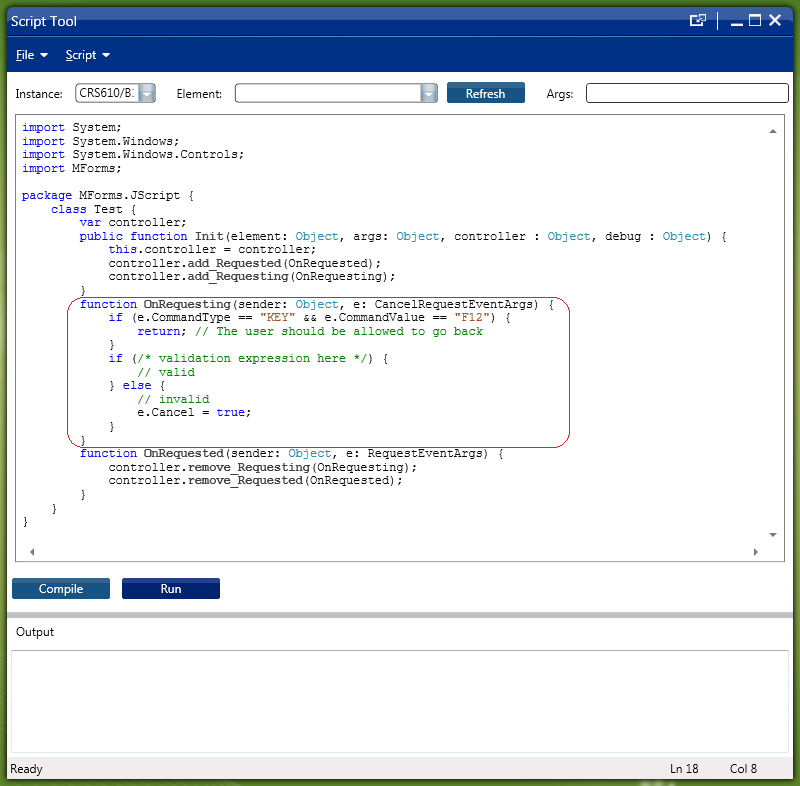
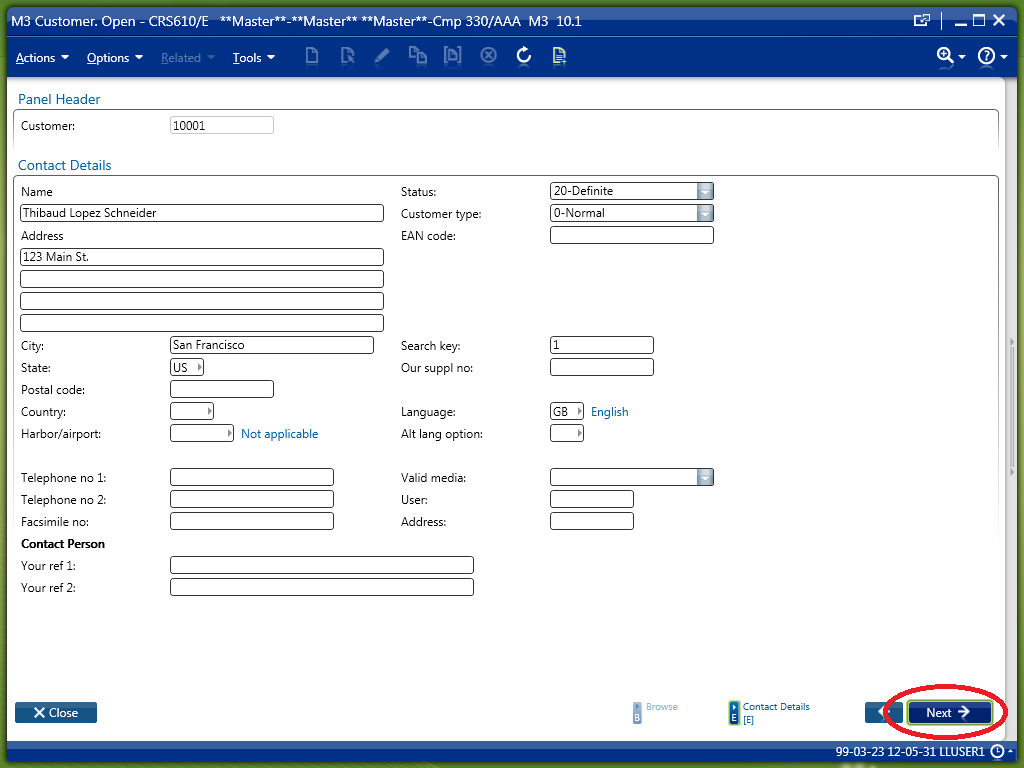
An automatic solution to enforce validation is to intercept the Smart Office request to the server when the user presses ENTER or clicks Next. For that, we listen to the Requesting event, we validate the user input, and we eventually cancel the request. There is a great example named CancelRequestExample in the Lawson Smart Office Developer’s Guide; refer to the Developer’s Guide to copy the source code:

3) Automatic validation when typing

Another automatic solution to enforce validation is to listen to the TextChanged event of the desired TextBox control:

public function Init(element: Object, args: Object, controller: Object, debug: Object) {
    element.add_TextChanged(OnTextChanged);
}
function OnTextChanged(sender: Object, e: TextChangedEventArgs) {
    if (sender.Text /*validation expression here*/) {
        // valid
    } else {
        // invalid
    }
}

But this solution will trigger the event every time the user types on the keyboard, at each keystroke. This could lead to bad usability in some cases, for example if the validation function highlights the TextBox’s background in red if the value is incorrect, the TextBox would flicker unnecessarily as the user is typing.

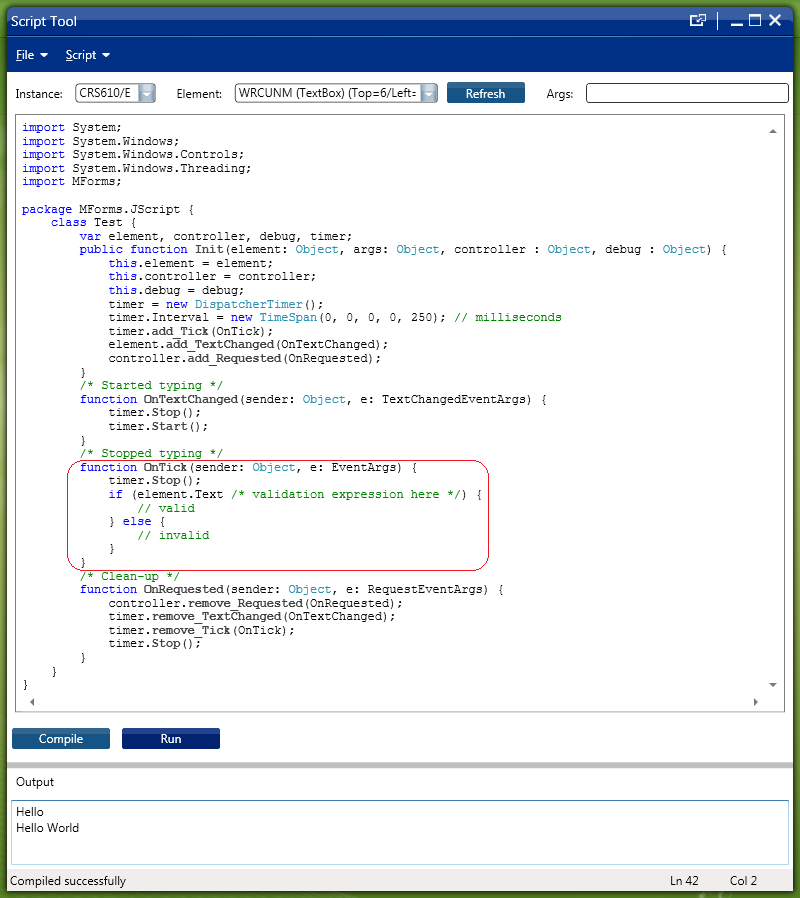
In the following screenshot, we see the validation expression being evaluated at each keystroke as I type “Hello World” in the TextBox:

4) Automatic validation with a Timer “à la” Google Suggest

A better solution than the above is to use a keyboard timer and validate the user input only after the user has finished typing. For that we use a DispatcherTimer and the Tick Event. That will only validate the user input when the user is not longer typing, similar to Google Suggest.

This solution is better from a usability point of view.

Also, this solution is better from a performance point of view where the validation function is time and resource consuming, for example if it needs to call an M3 API or a Lawson Web Service to validate the user input, this solution would minimize stress on the server.

In the following screenshot, we see the validation expression being evaluated only twice, once per word; I apparently have a fraction of a second pause between words:

Here is the complete source code:

import System;
import System.Windows;
import System.Windows.Controls;
import System.Windows.Threading;
import MForms;

package MForms.JScript {
    class Test {
        var element, controller, debug, timer;
        public function Init(element: Object, args: Object, controller : Object, debug : Object) {
            this.element = element;
            this.controller = controller;
            this.debug = debug;
            timer = new DispatcherTimer();
            timer.Interval = new TimeSpan(0, 0, 0, 0, 250); // milliseconds
            timer.add_Tick(OnTick);
            element.add_TextChanged(OnTextChanged);
            controller.add_Requested(OnRequested);
        }
        /* Started typing */
        function OnTextChanged(sender: Object, e: TextChangedEventArgs) {
            timer.Stop();
            timer.Start();
        }
        /* Stopped typing */
        function OnTick(sender: Object, e: EventArgs) {
            timer.Stop();
            if (element.Text /* validation expression here */) {
                // valid
            } else {
                // invalid
            }
        }
        /* Clean-up */
        function OnRequested(sender: Object, e: RequestEventArgs) {
            controller.remove_Requested(OnRequested);
            timer.remove_TextChanged(OnTextChanged);
            timer.remove_Tick(OnTick);
            timer.Stop();
        }
    }
}

Conclusion

In this post I introduced several techniques to validate user input in Smart Office using Personalized Scripts, from a simple and manual technique, to an automatic and more advanced technique with a keyboard timer for better usability and performance.

Also, it is important to emphasize that the above solutions will only cover input validation at the user interface level, from Smart Office. They will not cover low-level user input from other entry points such as M3 API, or from Lawson Web Services of type M3 Display Program (MDP). In those cases, only an M3 Java modification with MAK would be able to validate user input.