Data conversion techniques

Here below is an old slide I found in my archives where I list my known techniques for data conversion, i.e. how to push data into Infor M3, also known as data entry. This list intends to remind readers there are more solutions than the traditional techniques.

Data conversionTechniques

Traditional entry points

The two traditional entry points are:

  1. API – The traditional entry point is to call M3 API. Advantages: it’s the fastest and most reliable technique, and the most widespread in terms of platforms supported, libraries, tools, and documentation. Disadvantages: there aren’t M3 API available for every program/field/operation in M3, as given by the M3 API Repository – MRS001.
  2. MDP – When there’s no M3 API available, we use the other traditional entry point, Lawson Web Services (LWS) of type M3 Display Program (MDP) to simulate a user going through the screens at the middleware level in M3 Net Extension (MNE). Advantages: with the Lawson Web Services Designer we can create the equivalent of an M3 API, for most M3 Programs, in almost no time. Disadvantage: it’s less efficient to run than M3 API as there are more layers to traverse.

Those are the traditional techniques. And we massively call them with for example M3 Data Import (MDI), Smart Data Tool (SDT), M3 E-Collaborator (MeC), Visual Basic macros in Microsoft Excel, ProcessFlow Integrator (PFI), Infor Process Automation (IPA), Tibco, WebMethods, or custom Java/C#/VB programs, with the data coming from a source like for example a Microsoft Excel spreadsheet, a CSV or plain text file, or a staging database.

Alternate techniques

If the traditional entry points fail, there are two alternate techniques.

  1. Manual entry – We can always do manual data entry. Advantage: it requires almost no skills, no programming, and no tools. Disadvantage: it can become humanly impossible to manually enter large amounts of data.
  2. MAK – Alternatively, we can write an M3 modification with MAK, to create a new API or modify an existing one. Advantages: it’s the ultimate solution. Disadvantages: it requires an MAK developer, it can take time, and M3 mods create a maintenance problem.

Despair techniques

Then, there are the following techniques which are less know and which I use when I’m at a loss of ideas:

  1. MForms Automation – When there are no M3 API available, and when Lawson Web Services of type MDP fail for rare M3 programs, we can try to reproduce the steps with MForms Automation and write a Smart Office Script that loops thru a data source and executes the MForms Automation at each iteration. This is a proven technique and Seth will soon write a post illustrating this solution. Advantage: It’s the last card on the deck when you lost hope. Disadvantage: It’s less efficient because it’s at the user interface level.
  2. Bookmarks – Similarly, we can write a Smart Office Script to execute Bookmarks in a loop of the form mforms://bookmark?program=CRS620&tablename=CIDMAS&keys=IDCONO…
  3. MNEAI – Likewise, we can inject a piece of JavaScript in M3 Workplace to simulate a user’s data entry, and loop through a data source we get with JavaScript.
  4. H5 Client – We can do the same JavaScript injection for H5 Client.
  5. Macro – We can record the mouse movement and click events, and the keyboard keystrokes, and use a Windows program to replay them. Advantages: It’s the last solution available out of desperation. Disadvantage: it will break at the slightest change in window position or popup, and it will be slow.

Forbidden techniques

Finally, as a reminder, we never use SQL INSERT/UPDATE/DELETE to M3, as that would break the integrity of the ERP, it would bypass the cache of the data abstraction layer, and it would void warranty for support.

That’s it! Thanks for reading. Subscribe below.

Using Dynamic WS to consume a LWS in a script

Here is a new solution to call SOAP Web Services from a Smart Office script that complements the previous known solutions. It’s a very easy and fast way to call LWS and does not require you to write any C# or XML.

It’s using a private API in Smart Office so it might change in future releases, without any announcement.

Continue reading Using Dynamic WS to consume a LWS in a script

How to call an M3 Web Service using jQuery

Here’s a simple example of calling an M3 web service using jQuery. In this example, my web service has two input fields and 3 output fields. You’ll obvously need to change the URL to the web service and the format of your soap request to match your WSDL.

<html>
<head>
    <title>example m3 soap web service with jquery</title>
    http://ajax.googleapis.com/ajax/libs/jquery/1.9.1/jquery.min.js
    
        $(document).ready(function () {
            jQuery.support.cors = true;

            $("#submitBtn").click(function (event) {
                var wsUrl = "http://ussplu124.lu123train.lawson.com:20005/lws-ws/learning/JK-CustomerService";

                var soapRequest = '';
                soapRequest += '' + $("#cusno").val() + '' + $("#addressId").val();
                soapRequest += '';
                $.ajax({
                    type : "POST",
                    url : wsUrl,
                    contentType : "text/xml",
                    dataType : "xml",
                    data : soapRequest,
                    success : processSuccess,
                    error : processError
                });
            });
        });

        function processSuccess(data, status, req) {
            if (status == "success") {
                var ois002 = $(req.responseText).find('OIS002');
                var response = ois002.find('Name').text() +
                                "
" + ois002.find('AddressLine1').text() + "
" + ois002.find('AddressLine2').text(); $("#response").html(response); } } function processError(data, status, req) { alert(req.responseText + " " + status); } </head> <body> <h3>Calling Web Services with jQuery/AJAX</h3> <h4>Input</h4> Customer Number / Address ID <input id="cusno" type="text" /> <input id="addressId" type="text" /> <input id="submitBtn" value="Submit" type="button" /> <h4>Output</h4> <div id="response"/> </body> </html>

Here’s the example HTML page, with my input fields and the response I get when I submit the form:

jquery example

/Jessica

Related articles

How to get the URL to Lawson Web Services in a Mashup

Here’s a technique for a Mashup to call a Lawson Web Service (LWS) using the correct Lawson Web Service server and the correct environment (DEV, EDU, PRD, TST, etc.).

The problem

By default, when we use the Web Service wizard in Mashup Designer, the URL to the Lawson Web Service server is hard-coded in the two Parameters WS.Wsdl and WS.Address.

For instance, in the following example we’re using a Lawson Web Service that calls the M3 API CRS610MI.LstByNumber, but the server (hostname), the port number (10000), and the environment (TST) are hard-coded in the URL:

<Grid xmlns="http://schemas.microsoft.com/winfx/2006/xaml/presentation" xmlns:x="http://schemas.microsoft.com/winfx/2006/xaml" xmlns:ui="clr-namespace:Mango.UI.Controls;assembly=Mango.UI" xmlns:mashup="clr-namespace:Mango.UI.Services.Mashup;assembly=Mango.UI">
    <mashup:DataPanel Name="WS">
       <mashup:DataPanel.Events>
          <mashup:Events>
             <mashup:Event SourceEventName="Startup" />
          </mashup:Events>
       </mashup:DataPanel.Events>
       <mashup:DataPanel.DataService>
          <mashup:DataService Type="WS">
             <mashup:DataService.Operations>
                <mashup:DataOperation Name="Read">
                   <mashup:DataParameter Key="WS.Wsdl" Value="http://hostname:10000/LWS_TST/svc/CRS610MI.wsdl" />
                   <mashup:DataParameter Key="WS.Address" Value="http://hostname:10000/LWS_TST/services/CRS610MI" />
                   <mashup:DataParameter Key="WS.Operation" Value="LstByNumber" />
                   <mashup:DataParameter Key="WS.Contract" Value="CRS610MI" />
                   <mashup:DataParameter Key="mws.user" Value="LSO.USER" />
                   <mashup:DataParameter Key="mws.password" Value="LSO.PASSWORD" />
                </mashup:DataOperation>
             </mashup:DataService.Operations>
          </mashup:DataService>
       </mashup:DataPanel.DataService>
    </mashup:DataPanel>
 </Grid>

Because the server and environment are hard-coded in the XAML, it will be difficult to deploy the Mashup on other servers, and on other environments (DEV, EDU, PRD, etc.). The workaround would be to make one copy of the Mashup per target server and per target environment. But it would quickly become a maintenance nightmare.

The goal is to make that URL dynamic, based on the server and on the environment we are currently running.

The solution

The solution is to dynamically read at runtime the URL to Lawson Web Services that’s defined in the Smart Office Profile:

Step 1 – Get the value

We get the URL to Lawson Web Services in the Mashup with:

{mashup:ProfileValue Path=M3/WebService/url}

For example:

Step 2 – Create a parameter

Then, we create an Event parameter with a SourceKey and the value, and we call it for example BaseUri:

<mashup:Event SourceEventName="Startup" >
    <mashup:Parameter SourceKey="BaseUri" Value="{mashup:ProfileValue Path=M3/WebService/url}" />
</mashup:Event>

Step 3 – Move it to an Event

Then, we move the two WS parameters from the DataPanel to the Event as TargetKeys:

<mashup:Event SourceEventName="Startup" >
    <mashup:Parameter SourceKey="BaseUri" Value="{mashup:ProfileValue Path=M3/WebService/url}" />
    <mashup:Parameter TargetKey="WS.Wsdl" Value="http://hostname:10000/LWS_TST/svc/CRS610MI.wsdl" />
    <mashup:Parameter TargetKey="WS.Address" Value="http://hostname:10000/LWS_TST/services/CRS610MI" />
</mashup:Event>

Step 4 – Variable substitution

Finally, we use Karin’s solution for variable substitution and markup extension to un-hard-code the URL:

<mashup:Event SourceEventName="Startup" >
    <mashup:Parameter SourceKey="BaseUri" Value="{mashup:ProfileValue Path=M3/WebService/url}" />
    <mashup:Parameter TargetKey="WS.Wsdl" Value="{}{BaseUri}/svc/CRS610MI.wsdl" />
    <mashup:Parameter TargetKey="WS.Address" Value="{}{BaseUri}/services/CRS610MI" />
</mashup:Event>

Final code

Here’s the resulting source code:

<Grid xmlns="http://schemas.microsoft.com/winfx/2006/xaml/presentation" xmlns:x="http://schemas.microsoft.com/winfx/2006/xaml" xmlns:ui="clr-namespace:Mango.UI.Controls;assembly=Mango.UI" xmlns:mashup="clr-namespace:Mango.UI.Services.Mashup;assembly=Mango.UI">
    <mashup:DataPanel Name="WS">
       <mashup:DataPanel.Events>
          <mashup:Events>
             <mashup:Event SourceEventName="Startup" >
                <mashup:Parameter SourceKey="BaseUri" Value="{mashup:ProfileValue Path=M3/WebService/url}" />
                <mashup:Parameter TargetKey="WS.Wsdl" Value="{}{BaseUri}/svc/CRS610MI.wsdl" />
                <mashup:Parameter TargetKey="WS.Address" Value="{}{BaseUri}/services/CRS610MI" />
             </mashup:Event>
          </mashup:Events>
       </mashup:DataPanel.Events>
       <mashup:DataPanel.DataService>
          <mashup:DataService Type="WS">
             <mashup:DataService.Operations>
                <mashup:DataOperation Name="Read">
                   <mashup:DataParameter Key="WS.Operation" Value="LstByNumber" />
                   <mashup:DataParameter Key="WS.Contract" Value="CRS610MI" />
                   <mashup:DataParameter Key="mws.user" Value="LSO.USER" />
                   <mashup:DataParameter Key="mws.password" Value="LSO.PASSWORD" />
                </mashup:DataOperation>
             </mashup:DataService.Operations>
          </mashup:DataService>
       </mashup:DataPanel.DataService>
    </mashup:DataPanel>
</Grid>

Conclusion

With this solution we learned how to create a Mashup that calls a Lawson Web Service such that the Mashup will use the correct Lawson Web Service server and the correct environment (DEV, EDU, PRD, TST, etc.).

Maybe LPD should make this a native feature of Mashups so that developers don’t have to implement it themselves.

For more examples on how to call a Lawson Web Service from a Mashup, refer to Karin’s post.

That’s it!

How to call Lawson Web Services from PHP

Here are examples to call Lawson Web Services from PHP for all three adapters: API, M3 Display Program (MDP), and SQL.

Which SOAP client ?

In the past, I used the external NuSOAP toolkit to make SOAP calls in PHP.

Now, PHP 5 comes built-in with SoapClient.

To determine which SOAP client your PHP server provides, use:

phpInfo();

It will show:

What’s the Endpoint ?

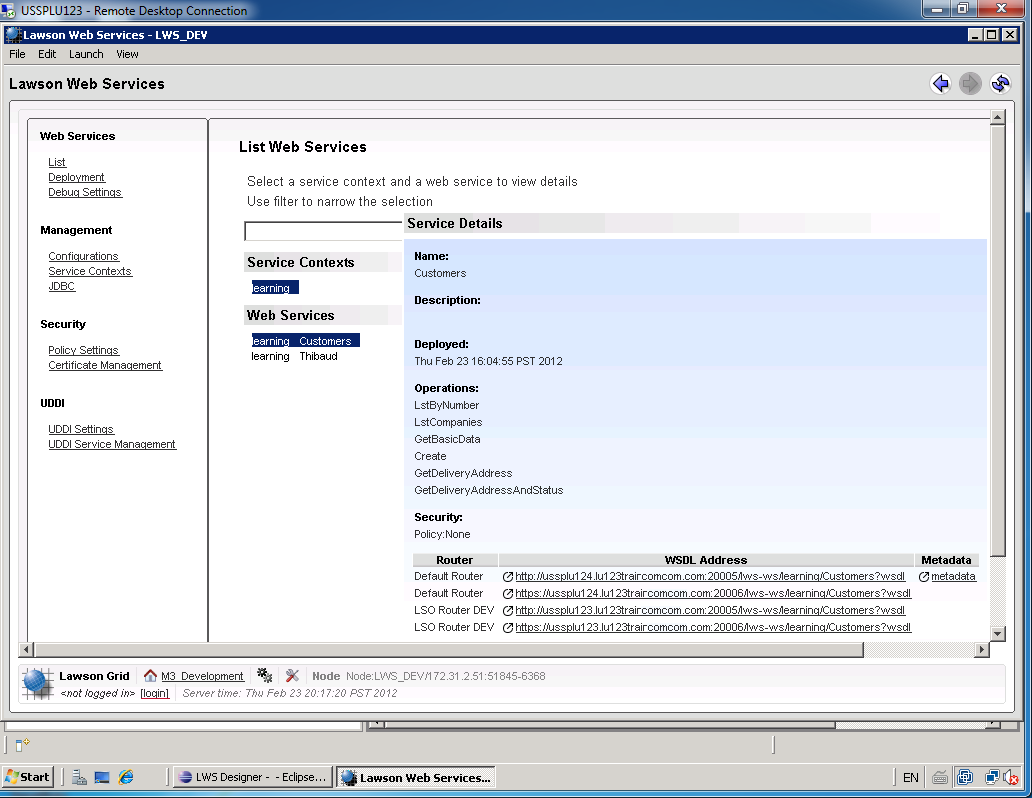
To determine the endpoint or the WSDL to our Lawson Web Service open the Lawson Web Services Runtime Management Page which you can launch from LifeCycle Manager or from Lawson Web Services Designer.

Select List, select the Service Context, and select the Web Service.

The bottom right corner will show the WSDL Address:

How’s the SOAP ?

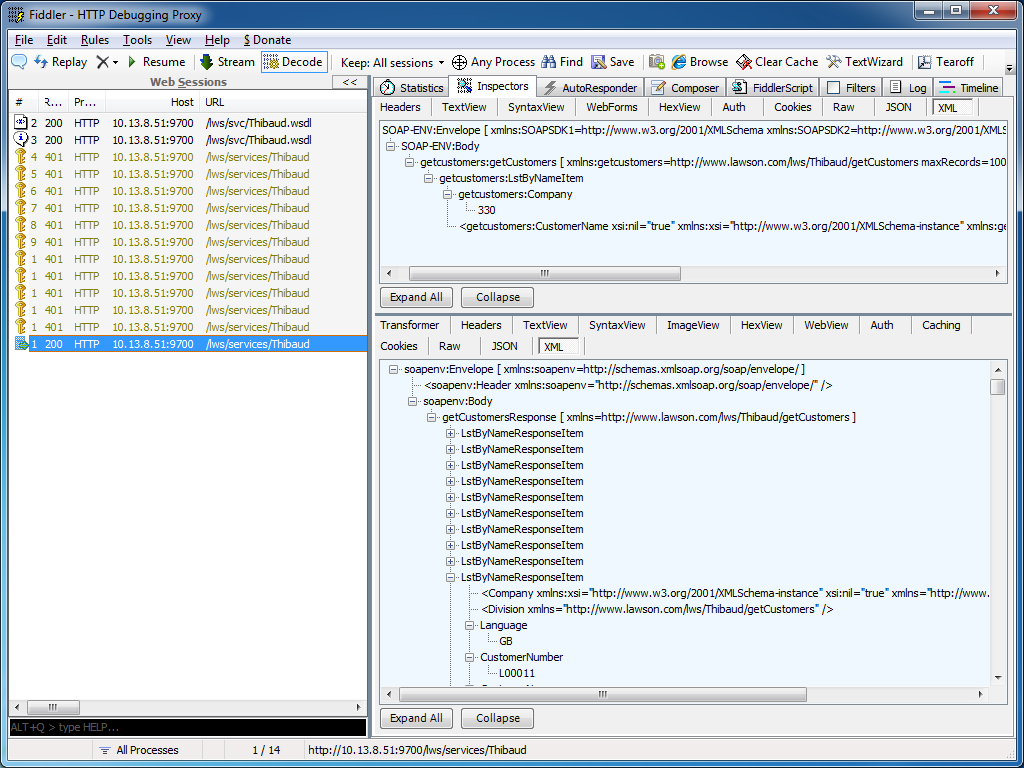
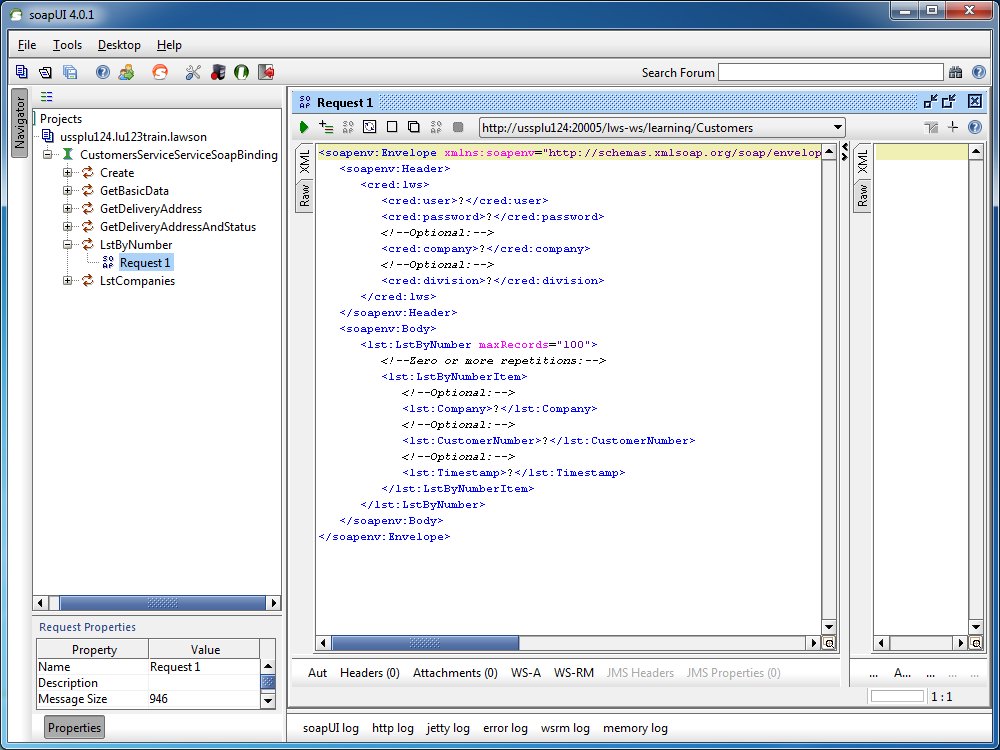
I recommend using tools like Fiddler or soapUI to determine the exact structure of the SOAP Request and SOAP Response to call our Lawson Web Services.

Fiddler can intercept HTTP calls from most SOAP clients, for example from Lawson Web Services Designer, from Microsoft InfoPath, from PocketSOAP, or from Microsoft Visual C# Express, and we can use that SOAP Request and SOAP Response as a reference to write our PHP code:

Similarly, soapUI will create a sample SOAP Request from a WSDL, it will show the SOAP Response after the web service is executed, and we can use that SOAP Request and SOAP Response as a reference to write our PHP code:

M3 API adapter

Here is a sample PHP code to call a Lawson Web Service of type API.

The Web Service name is Customers, the operation name is LstByNumber. It calls the API CRS610MI.LstByNumber. It accepts Company and CustomerNumber as input fields; note the suffix Item in LstByNumberItem for the collection of input fields. It returns CustomerNumber and CustomerName as output fields; note the suffix ResponseItem in LstByNumberResponseItem for the collection of output fields.

<?php
	try {
		$client = new SoapClient("http://hostname:10000/LWS_DEV/svc/Customers.wsdl",
		array(
			'login'=>'M3SRVADM',
			'password'=>'*******'
		)
		);
		$response = $client->LstByNumber(array("LstByNumberItem"=>array(
			"Company"=>"001",
			"CustomerNumber"=>"00100001"
		)));
		foreach ($response->LstByNumberResponseItem as $item) {
			print($item->CustomerNumber." ".$item->CustomerName."\n");
		}
	} catch (Exception $e) {
		echo 'Message: ' .$e->getMessage();
	}
?>

M3 Display Program adapter

Here is a sample PHP code to call a Lawson Web Service of type M3 Display Program (MDP).

The Web Service name is Customers, the operation name is GetName. It works in CRS610/A/E, it accepts W1CUNO as an input field, and returns WRCUNM as an output field.

<?php
	try {
		$client = new SoapClient("http://hostname:10000/LWS_DEV/svc/Customers.wsdl",
		array(
			'login'=>'M3SRVADM',
			'password'=>'*******'
		)
		);
		$response = $client->GetName(array("CRS610"=>array(
			"W1CUNO"=>"0010001"
		)));
		print($response->CRS610->WRCUNM);
	} catch (Exception $e) {
		echo 'Message: ' .$e->getMessage();
	}
?>

SQL adapter

Here is a sample PHP code to call a Lawson Web Service of type SQL (JDBC).

The Web Service name is Customers, the operation name is Search. It works by doing a SELECT FROM WHERE on OCUSMA, it accepts CustomerName as an input field. And it returns OKCUNO and OKCUNM as output fields; note the new1Collection and new1Item automatically generated.

<?php
	try {
		$client = new SoapClient("http://hostname:10000/LWS_DEV/svc/Customers.wsdl",
		array(
			'login'=>'M3SRVADM',
			'password'=>'******'
		)
		);
		$response = $client->Search(array("CustomerName"=>"%ARMY%"));
		foreach ($response->new1Collection->new1Item as $item) {
			print($item->OKCUNO.", ".$item->OKCUNM."\n");
		}
	} catch (Exception $e) {
		echo 'Message: ' .$e->getMessage();
	}
?>

That’s it!

Related articles

How to consume a Lawson Web Service from a Personalized Script in Smart Office

Calling Lawson Web Service (LWS) from a Personalized Script in Lawson Smart Office is very useful as LWS has three adapters: M3 API, SQL, and M3 Display Program (MDP).

As of today, there are three known solutions to call LWS from a script: 1) the “Big string”, 2) the XML writer, and 3) the C# proxy written with Microsoft Visual Studio. Each of these solutions has its advantages and disadvantages.

In the paper How to call LWS from a JScript I illustrate a new solution which complements the other three known solutions. This new solution is interesting as it minimizes code source surface while still ensuring SOAP validation. And the solution does not involve any C# coding, nor does it require Microsoft Visual Studio. For this new solution, we will use the free Microsoft Web Services Description Language Tool (wsdl.exe) to generate a proxy class in C# that we’ll use from JScript.NET.

As an addendum to the paper, I write two additions. First, it’s possible to make the C# proxy re-usable for multiple environments (ex: DEV, PRD, TST) by setting the variable Url of the proxy instance. Second, I have successfully tested this technique with all three LWS adapters: M3 API, SQL, and MDP.

Related articles

Web Service pretty print

Here is a technique that uses XSLT to pretty print the XML metadata of a Lawson Web Service. The output shows each operation’s details (name, input/output parameters, type, length, constraint, SQL statement, etc.) in a human readable HTML format. This technique is useful for creating template spreadsheets in Excel where we input data without having to manually enter the headers in the spreadsheet which is error prone. The result is similar to the template spreadsheets generated by Smart Data Tool.

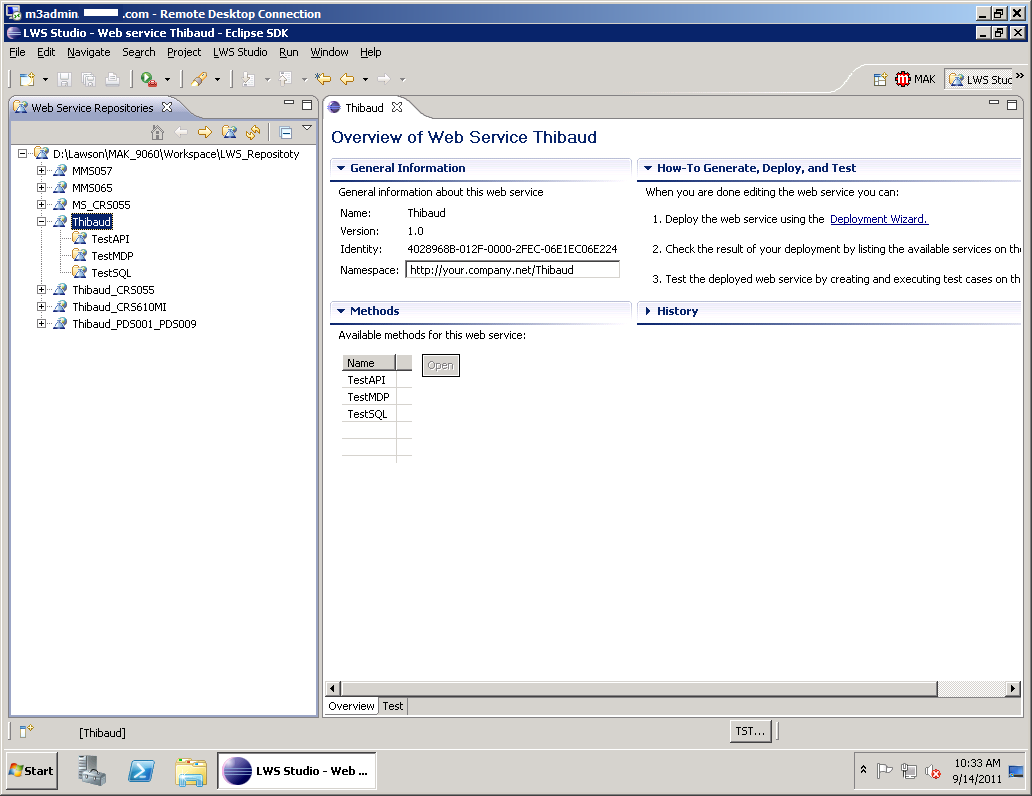
  1. Suppose we have the following Thibaudweb service with three operations, one of each type, API, MDP, and SQL:

  2. Save the XML metadata into a file somewhere in your computer. For that, go to the Lawson Web Service server view (for example: http://hostname/LWS_DEV/), select List Services, expand your web service (in my case Thibaud), right-click the Meta Data link, select Save Target As, and save the XML file somewhere in your computer:
  3. Then, open the XML file in a text editor, insert the following processing instruction at the top of the file, and save the file:
    <?xml-stylesheet type="text/xsl" href="WebServicePrettyPrint.xslt"?>
  4. Then, save a copy of the following XSLT file to somewhere in your computer, in the same folder as the XML file: http://ibrix.info/lws/WebServicePrettyPrint.xslt
  5. Then, open the XML file in Microsoft Internet Explorer. The XSLT processor of Internet Explorer’s MSXML will convert the XML metadata into HTML using the XSLT file above. The HTML output shows each operation’s details (name, input/output parameters, type, length, constraint, SQL statement, etc.) in a human readable HTML format. The result looks like this:
  6. Internet Explorer will show a security warning asking if you want to run the script. Click Allow blocked content. The blocked content is a small piece of JavaScript code that transposes the HTML tables.
  7. The little button at the top right transposes the HTML tables. Click the button. Copy/paste the transposed table in an Excel spreadsheet. That will serve as the header. Now just enter the data. That’s useful to create the template spreadsheets in Excel similar to Smart Data Tool.

That’s it!


UPDATE 2012-08-14: Added support for MDP Output fields and Related Programs.