Here is the solution to get the current username in a Mashup in Lawson Smart Office. Last week I wrote a post on How to get the current M3 profile in a Mashup which returns DEV, EDU, TST, PRD, etc. depending on which profile you are currently connected. This week I post about the username:
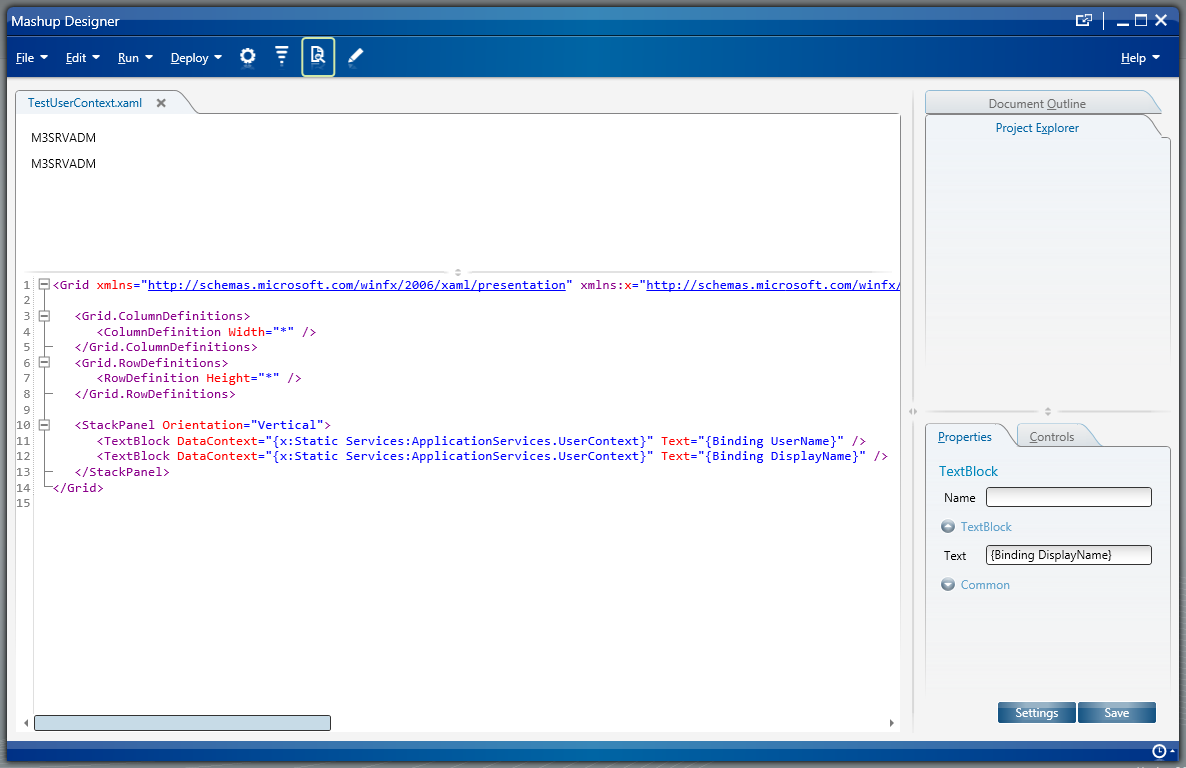
Add this namespace to the Mashup: xmlns:Services=”clr-namespace:Mango.Services;assembly=Mango.Core”
Then get the UserName like this: <TextBlockDataContext=”{x:Static Services:ApplicationServices.UserContext}”Text=”{Binding UserName}”/>
There is also the DisplayName: <TextBlockDataContext=”{x:Static Services:ApplicationServices.UserContext}”Text=“{Binding DisplayName}”/>
Here is a screenshot of the result:
I found inspiration from the Smart Office Developer’s Guide > UserAndProfileExample.js.
karinpb sent me the solution to get the current M3 profile (TST, DEV, EDU, etc.) in a Mashup in Lawson Smart Office. In my case, I use the value to launch a URL with the profile as a parameter. Here is the solution:
Add the namespace: xmlns:Services=“clr-namespace:Mango.Services;assembly=Mango.Core”
Add a control that shows the value: <TextBlockDataContext=“{x:Static Services:ApplicationServices.SystemProfile}”Text=“{Binding Name}”/>
Vincent Tabone from Australia has come up with an innovative solution to trigger PFI flows from Field Audit Trail. Here below are Vincent’s screenshots and instructions.
Create a Field Audit Trail (FAT) file as shown below.List which schema/file is on FAT:
The FAT history file, which auto job is monitoring:
Create an autojob.The autojob is to run as frequent as required (this is described on the following page). The autojob will determine if there are records ready to process and will trigger the process flow.
Add Auto job in MNS051:
The source code for the autojob is not provided here.
Basically, Autojob will copy and delete the records from FAT file(if there is any) to work file(ZZCUWK) and then go through the records in work file to trigger PFI. The records in work file will also be deleted after trigger PFI. The source code contains the following:
ZZCUMA – File that is being monitored by the FAT file
ZZCUWK – Work file, which the autojob is checking to determine which records need to be processed
ZPFIPOC – PFI trigger auto job
ZPFIPOCCL – PFI trigger auto job CL
ZTRGPFI – This is just to test the trigger of PFI. Hard coded the value.
The java code is for the autojob which contains the code to trigger the flow:
user = mdir.getParameterString("app.pfi.user", "put value in movex.properties");
pwd = mdir.getParameterString("app.pfi.password", "put value in movex.properties");
enabled = mdir.getParameterString("app.pfi.enabled", "true").equalsIgnoreCase("true");
—
Special thanks to Vincent for sharing this solution!
Here’s a sample Mashup source code to display the result of a REST Web Service in a ComboBox.
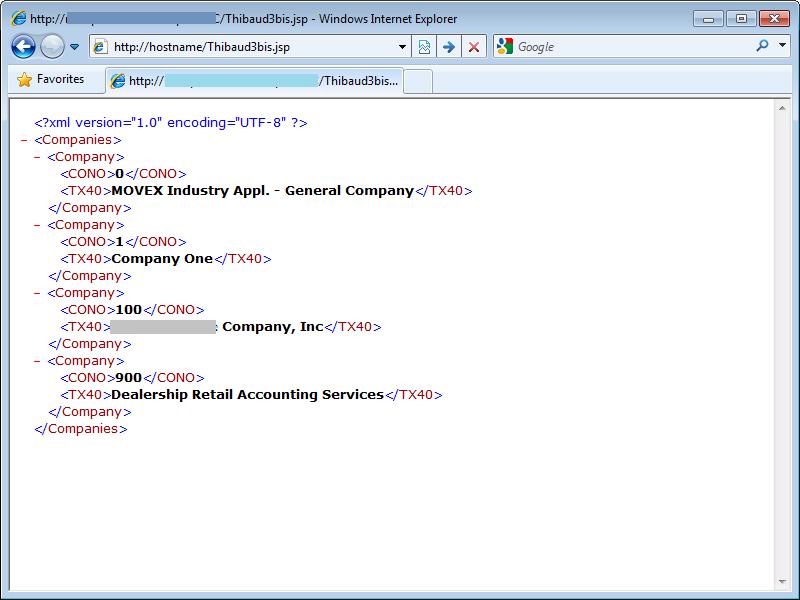
Suppose you have a REST Web Service that returns the following XML:
Note: How to produce the above XML is outside the scope of this post. This particular XML is produced with a JSP querying the M3 table CMNCMP with JDBC.
In the Mashup Designer, we use the mashup:DataPanel control to call the REST Web Service. How to use that DataPanel is outside the scope of this post, but there is an example in the Mashup Designer > Help > Data Services.
Then, in the DataPanel we add our ComboBox, and in the ComboBox we use a ComboBox.ItemTemplate (similar to the ComboBox for M3 API results):
There are plenty of Mashups and Personalized Scripts for Lawson Smart Office available on the Lawson Software Marketplace. To access them, login to your MyLawson.com account, and select Marketplace, the top right tab.
Here is an unofficial technique to write to the Lawson Smart Office log file from a Personalized Script. Smart Office uses the Apache log4net library to write to the log file and we can similarly write to the log file from our scripts. Before using the techniques of this blog you must acknowledge my disclaimer.
First, we get a reference to the Smart Office logger via Mango.Core:
var log: log4net.ILog = Mango.Core.LogManager.GetLogger(System.Reflection.MethodBase.GetCurrentMethod().DeclaringType);
Then, we can write to the log file in any of the log levels:
log.Info("Hello World!");
log.Debug("This is a Debug");
log.Error("This is an Error");
log.Fatal("This is Fatal");
log.Warn("This is a Warning");
We should check if the logger is enabled for that level:
if (log.IsInfoEnabled) log.Info("Hello World!");
if (log.IsDebugEnabled) log.Debug("This is a Debug");
if (log.IsErrorEnabled) log.Error("This is an Error");
if (log.IsFatalEnabled) log.Fatal("This is Fatal");
if (log.IsWarnEnabled) log.Warn("This is a Warning");
The log file can be opened with Smart Office > Help > About Lawson Smart Office > View log file:
It opens in Notepad in Lawson Smart Office 9.1.2.x:
And it opens in the Log Viewer in the newer Lawson Smart Office 9.1.3.x:
For more information, the Apache log4net SDK Documentation details all the ILog Members.
To know the full path and file name of the log file, get this value:
Also, you can use a tail program such as Tail for Win32 to monitor the log file:
Here’s the complete source code of my sample:
import System;
import Mango;
import log4net;
package MForms.JScript {
class MyLogTest {
publicfunction Init(element: Object, args: Object, controller: Object, debug: Object) {
debug.WriteLine(Mango.Core.Storage.FileStorageMachineOnly.Current.FullFilePath("LawsonClient.log")); // filename + pathvar log: log4net.ILog = Mango.Core.LogManager.GetLogger(System.Reflection.MethodBase.GetCurrentMethod().DeclaringType);
if (log.IsInfoEnabled) log.Info("Hello World!");
if (log.IsDebugEnabled) log.Debug("This is a Debug");
if (log.IsErrorEnabled) log.Error("This is an Error");
if (log.IsFatalEnabled) log.Fatal("This is Fatal");
if (log.IsWarnEnabled) log.Warn("This is a Warning");
}
}
}
Note: I have successfully tested this in Smart Office 9.1.2.x and 9.1.3.x.
The URI to launch that Mashup in Smart Office would be:
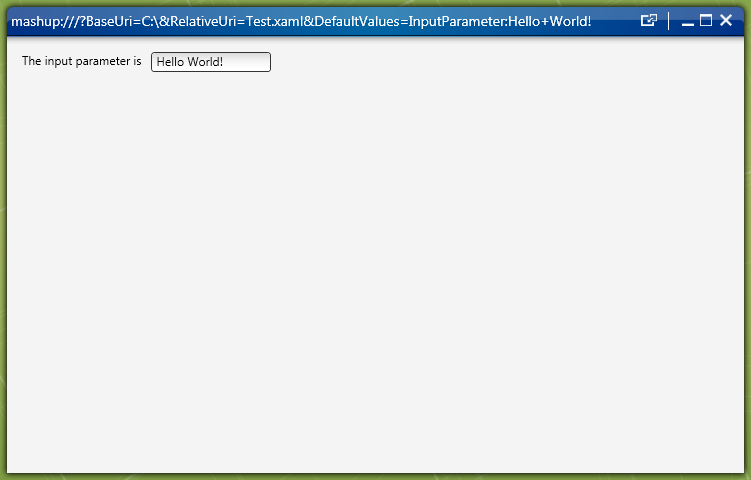
mashup:///?BaseUri=C:\&RelativeUri=Test.xaml
To send a key:value pair as an input parameter to the Mashup we add the parameter DefaultValues to the URI with an arbitrary key and an arbitrary value separated by a colon. In this example I chose a key InputParameter with a value Hello World! and I URI-encoded them:
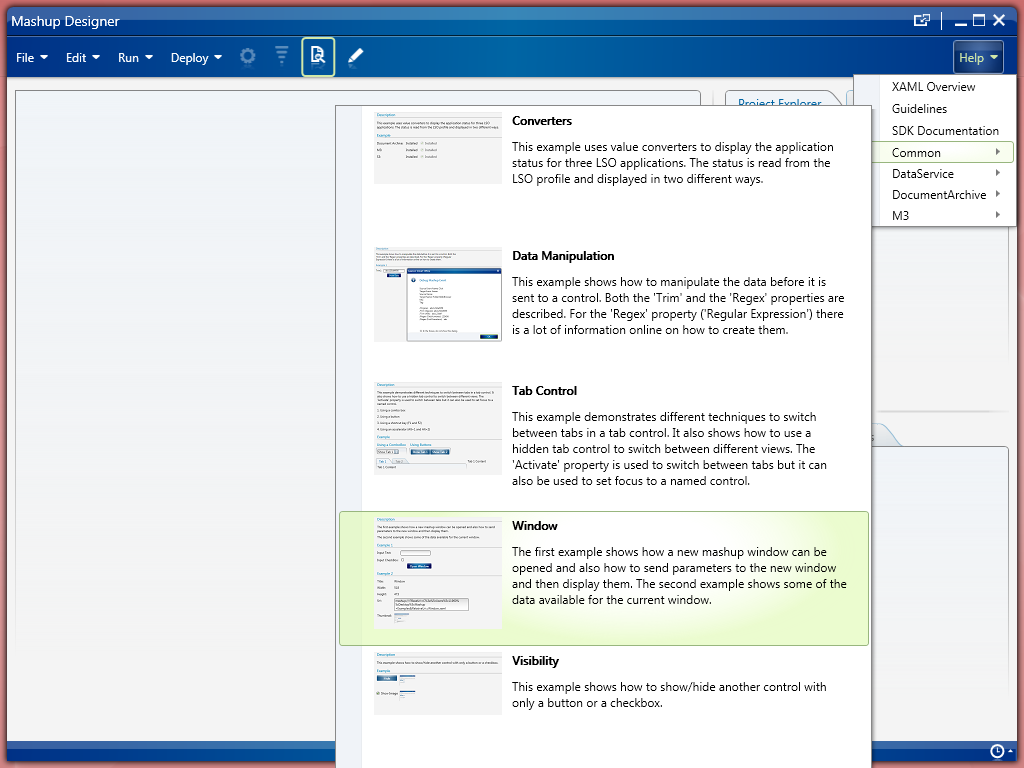
This solution was given by the following sample provided in the Mashup Designer:
That’s it!
UPDATE 2013-01-31:
Note 1: My example above showed the URI to start a Mashup from the C:\ drive and folder. But to start a Mashup that is deployed, the BaseUri must point to the *.mashup file, for example: mashup:///?BaseUri=MyMashup.mashup&RelativeUri=MyMashup.xaml&DefaultValues=key1:value1;key2=value2 . This will work with a Mashup deployed either privately (Mashup Designer > Deploy > Private), either locally (Smart Office > Show > My Local Applications). But for a Mashup deployed globally (LifeCycle Manager > Admin View > Install) you must prefix the BaseUri with the folder Mashups\, for example: mashup:///?BaseUri=Mashups\MyMashup.mashup&RelativeUri=MyMashup.xaml&DefaultValues=…
Note 2: We can create a Shortcut in Smart Office (for example, CRS610 > Tools > Personalize Shortcuts) and dynamically get values from the current panel by putting the field name in curly braces (angle brackets will work as well), for example: mashup:///?BaseUri=MyMashup.mashup&RelativeUri=MyMashup.xaml&DefaultValues=ItemNumber:{ITNO}
Lawson Enterprise Search (LES) is based on Apache Lucene and its syntax is based on Apache Lucene Query Parser Syntax which is interesting to read to learn about Fields, Term Modifiers (Wildcard Searches, Fuzzy Searches, Proximity Searches, Range Searches, Boosting a Term), Boolean Operators (AND, +, NOT, -), Grouping, Field Grouping, and Escaping Special Characters..
I implemented a Warehouse 3D demo that demonstrates the integration capabilities of M3 with cool stuff from the software industry.
The Warehouse 3D demo displays racks and boxes with live data coming from Stock Location – MMS010, and Balance Identity – MMS060. The Location Aisle, Rack, and Level of MMS010 is written dynamically on each box. The Status Balance ID of MMS060 is rendered as the color of the box: 1=yellow, 2=green, 3=red, else brown. And the Item Number is generated dynamically as a real bar code that can be scanned on the front face of the box.
You can try the demo for yourself with your own M3 environment. For that, you will need several things. You will need to install the Google Earth plugin in your browser. You will also need to deploy the Lawson Web Service for MMS060MI provided here; note that your LWS server must be in a DMZ so that the http://www.ibrix.info web server can make the SOAP call over HTTP. Also, you will need to follow the Settings wizard to setup your own M3 environment, user, password, CONO, WHLO, etc. The result is a long URL that is specific to your settings.
You can download the resulting SketchUp model here.
Identifying front faces
Then, I identified each front face of each box so as to dynamically overlay information, such as the Item Number, Item Name, etc. For that, I implemented another Ruby script.
The original model is a SKP filetype, which is binary. I exported the model to a Collada DAE filetype, which is XML. The file is very big, 30.000 lines of XML.
The Collada file contains this:
Components (racks, boxes, walls, etc.)
Homogenous coordinates (X, Y, Z, H) relative to the model
Absolute coordinates (latitude, longitude)
Orientation (azimut, etc.)
Scale
Effects (surface, diffusion, textures, etc.)
Colors in RGBA
From the top of my head, the Collada hierarchy in XML is something like this:
Node Instance
	Node Definition
		Instance Geometry
			Instance Material
				Material
					Instance Effect
						Color
						Surface
							Image
Making the model dynamic
The goal is to set the color of each box dynamically, based on the Location of the box, and based on the Inventory Status in MMS060.
Unfortunately, Google Earth doesn’t have an API to change the color of a component dynamically. So, I decided to change the XML dynamically on the server. There are certainly better solutions but that’s the one I chose at the time. And I chose PHP because that’s what I had available on my server ibrix.info; otherwise any dynamic web language (ASP, JSP, etc.) would have been suitable.
In the XML, I found the mapping between the box (nodeDefinition) and its color (material). So, I changed the mapping from hard-coded to dynamic with a PHP function getColor() that determines the color based on the Location and based on the result of the web service call.
The color is determined by the Balance ID: 1=yellow, 2=green, 3=red, else brown. The Balance ID is stored in the SOAP Response of the web service.
Lawson Web Service
I created a SOAP-based Lawson Web Service for MMS060MI. I invoke the SOAP Web Service at the top of the PHP script, and store the Response in a global variable. To call SOAP Web Services, I use NuSOAP, an open source PHP library.
Generating front faces
I dynamically generate a texture for each each front face as a PNG image with the Item Number, Item Description, Quantity, and the bar code. I set the True Type Font, the size, the XY coordinates, and the background color.
Bar code
I generate an image of the bar code based on the Item Number using PEAR, an open source PHP library.
Settings wizard
I made a Settings wizard to assist the user in setting up a demo with their own M3 environment, user, password, CONO, WHLO, etc.
Applications
This Warehouse 3D demo illustrates possible applications such as:
Monitoring a warehouse
Locating a box for item picking
Implementing Augmented Reality to overlay relevant data on top of the boxes
Demo
Finally, I made a demo video using the back projection screen at the Lawson Schaumburg office, and using Johny Lee’s Low-Cost Multi-point Interactive Whiteboards Using the Wiimote and my home made IR pens to convert the back projection screen into a big touch screen. The 3D model in the demo has 10 Aisles, 6 Racks per Aisle (except the first aisle which only has 4 racks), and 4 Levels per Rack. That’s 224 boxes. There is also a floor plan that illustrates that structure.
Limitations
The main limitation of this demo is performance. When programming with Google Earth we do not have the capability of dynamically changing a 3D model. I would have liked to dynamically set the color of a box, and dynamically overlay text on the face of a box. Because that capability is lacking – there’s no such API in the Google Earth API – I chose to generate the XML of the 3D model dynamically on the server. As a result, the server has to send 30k lines of XML to the web browser over HTTP, it has to generate 224 PNG images and transfer them over the network, and the Google Earth plugin has to render it all. As a consequence, it takes between one and four minutes to fully download and render the demo. This design turns out to be inadequate for this type of application. Worse, it is not scalable nor improvable. I would have to re-think the design from scratch to get a more performant result.
Future Work
If I had to continue working on this project (which is not planned), I would implement the following:
Ideally, we would generate boxes, colors, and text dynamically on the client-side, with JavaScript and WebGL for example. Google Earth doesn’t support that, and generating the model on the server-side turns out to be a bad design. So we need a different technique.
Also, we would need to implement hit detection, so as to click on a box and display more M3 data in a pop-up for example. Google Earth supports even listeners but doesn’t yet support hit detection.
Finally, we would need to improve performance by an order of magnitude.
Thanks
Special thanks to Gunilla A for sponsoring this project and making it possible.
Resources
Download Ruby script to set the Aisle, Rack, and Level of each box as in MMS010
Download Ruby script to identify each front face of each box so as to dynamically overlay information
Download SketchUp model with floor plan, geo-location, racks, and walls
Download SketchUp model of boxes identified by Stock Location
Watch video of the 3D model being built in Google SketchUp
Watch video of the process of setting the Aisle, Rack, and Level of each box as in MMS010
Watch video of the process of identifying each front face of each box
Here is a solution for a Script in Lawson Smart Office to detect the entry mode of an M3 panel: 1-Create, 2-Change, 3-Copy, 4-Delete, or 5-Display.
Scenario
This solution is useful for a scenario like this. Suppose your script dynamically adds an input field to an M3 panel. The input field could be used for example to enter a discount amount which will re-calculate a net value in another field. You would like to either enable that input field so that it becomes editable for the user, either disable it so that it is read-only. That will match the behavior of the M3 panel, for better usability. For that, you will need to tell apart if the user entered the M3 panel in Change mode or in Display mode.
Detect the entry mode
Ideally, we would like to use an API in Smart Office like GetEntryMode() that would return the entry mode. But there is no such API.
Otherwise, we would like to simply read the Control’s properties such as IsReadOnly or IsEnabled. But somehow they incorrectly return false.
The workaround is to read the LSTOPT value that is sent by the M3 panel when it makes the HTTP Request to the M3 server. That value is sent from panels A and B. Note that the option Create returns -1 (negative) instead of 1 (positive).
function OnRequesting(sender: Object, e: CancelRequestEventArgs) {
    if (e.CommandType == 'LSTOPT') {
        e.CommandValue // the entry mode: -1, 2, 3, 4, or 5
    }
}
Set the value
Once we get the value from panels A or B, we have to store it somewhere because Smart Office will unload the script and our value off memory when it executes the said Option and the value will not be available anymore in subsequent panels. We can use the InstanceCache to store the value in the current Smart Office session. The value will then be available in panels E, F, G, etc. In the following example I called my key LSTOPT but you can choose another one:
Once we are in panels E, F, G, etc. we retrieve the value from the InstanceCache like this:
if (InstanceCache.ContainsKey(controller, 'LSTOPT')) {
var LSTOPT = InstanceCache.Get(controller, 'LSTOPT'); // get the entry modeif (LSTOPT == -1) {
// Create
} else if (LSTOPT == 2) {
// Change
} else if (LSTOPT == 3) {
// Copy
} else if (LSTOPT == 4) {
// Delete
} else if (LSTOPT == 5) {
// Display
} else {
// entry mode unknown
}
} else {
// entry mode not set
}
Installation
This script has a getter and a setter:
The setter must be placed in the OnRequesting event handler of panel A or B.
The getter must be attached in the panel (E, F, G, etc.) where you want to know the entry mode.
Tests
I tried this technique in the following conditions:
The technique works whether the user selects the option from the Options menu, or from double-clicking a record in panel B, or by selecting the option in the right-click context menu.
Also, it works whether the users enters the M3 program via panel A or via panel B.
Also, it works with multiple instances of the M3 program running at the same time.
Also, it works with different M3 programs using the same script.
Sample source code
Here is a sample source code for the setter:
import MForms;
package MForms.JScript {
class EntryModeSetter {
var controller;
public function Init(element: Object, args: Object, controller: Object, debug: Object) {
this.controller = controller;
controller.add_Requesting(OnRequesting);
controller.add_Requested(OnRequested);
}
function OnRequesting(sender: Object, e: CancelRequestEventArgs) {
if (e.CommandType == 'LSTOPT') {
InstanceCache.Add(controller, 'LSTOPT', e.CommandValue); // set the entry mode
}
}
function OnRequested(sender: Object, e: RequestEventArgs) {
sender.remove_Requesting(OnRequesting);
sender.remove_Requested(OnRequested);
}
}
}
Here is a sample source code for the getter:
import MForms;
package MForms.JScript {
class EntryModeGetter {
public function Init(element: Object, args: Object, controller: Object, debug: Object) {
if (InstanceCache.ContainsKey(controller, 'LSTOPT')) {
    var LSTOPT = InstanceCache.Get(controller, 'LSTOPT'); // get the entry mode
    if (LSTOPT == -1) {
        // Create
    } else if (LSTOPT == 2) {
        // Change
    } else if (LSTOPT == 3) {
        // Copy
    } else if (LSTOPT == 4) {
        // Delete
    } else if (LSTOPT == 5) {
        // Display
    } else {
        // entry mode unknown
    }
} else {
     // entry mode not set
}
}
}
}








 M3 ideas