Developing H5 Client scripts – Part 2

I am learning to develop H5 Client scripts for a customer; see my previous post for the beginning.

To give back

My customer Chris Bullock thought client side scripts are pretty awesome, and said it would be cool if there was a library of what other M3 users have done. I proposed to post the script here with his permission, and he agreed for the love to give back.

Functional requirement

The requirement is to develop a script for M3. Purchase Order. Receive Goods – PPS300/E in H5 Client that pulls values from a related field in M3 and populates it in another field. Basically getting attribute values from purchase order line, concatenating their values, then populate that in the Lot number field on the purchase order receipt screen.

More specifically, when the user is receiving goods for a purchase order in PPS300/E, the script should automatically set the Location (WHSL) and Lot number (BANO) with the correct values to not let the user enter incorrect values by accident even with the F4-Browse:

Script

Here is the preliminary script I developed:

var PPS300E_BANO = new function () {
	var color = 'rgb(250, 255, 189)';
	this.Init = function (scriptArgs) {
		var controller = scriptArgs.controller;
		var content = controller.GetContentElement();
		var IBITNO = content.GetElement('IBITNO')[0]; // Item number
		var IBPUNO = content.GetElement('IBPUNO')[0]; // Purchase order number
		var IBPNLI = content.GetElement('IBPNLI')[0]; // Purchase order line
		var WLWHSL = content.GetElement('WLWHSL')[0]; // Location
		var WRBANO = content.GetElement('WRBANO')[0]; // Lot number
		// ensure the Item group is MAT
		ScriptUtil.ApiRequest('/execute/MMS200MI/Get;returncols=ITGR?ITNO=' + encodeURIComponent(IBITNO.value), response => {
			var ITGR = response.MIRecord[0].NameValue[0].Value.trim();
			if (ITGR !== 'MAT') {
				return;
			}
			if (!WLWHSL.readOnly && WLWHSL.value === '') {
				// hard-code the Location to YARD
				WLWHSL.value = 'YARD';
				// color the field
				WLWHSL.style.backgroundColor = color;
				WLWHSL.nextElementSibling.style.backgroundColor = color;
			}
			// get the Attribute number
			ScriptUtil.ApiRequest('/execute/PPS200MI/GetLine;returncols=ATNR?PUNO=' + encodeURIComponent(IBPUNO.value) + '&PNLI=' + encodeURIComponent(IBPNLI.value), response => {
				var ATNR = response.MIRecord[0].NameValue[0].Value.trim();
				// get the attributes
				ScriptUtil.ApiRequest('/execute/ATS101MI/LstAttributes;returncols=AALF?ATNR=' + encodeURIComponent(ATNR), response => {
					// calculate the Lot number
					var BANO = '';
					response.MIRecord.forEach(e => BANO += e.NameValue[0].Value.trim());
					if (!WRBANO.readOnly && WRBANO.value === '') {
						// set the Lot number
						WRBANO.value = BANO;
						// color the field
						WRBANO.style.backgroundColor = color;
						WRBANO.nextElementSibling.style.backgroundColor = color;
					}
				}, (error, message) => MainController.Current.ShowDialog([error, message]));
			}, (error, message) => MainController.Current.ShowDialog([error, message]));
		}, (error, message) => MainController.Current.ShowDialog([error, message]));
	};
};

Development time

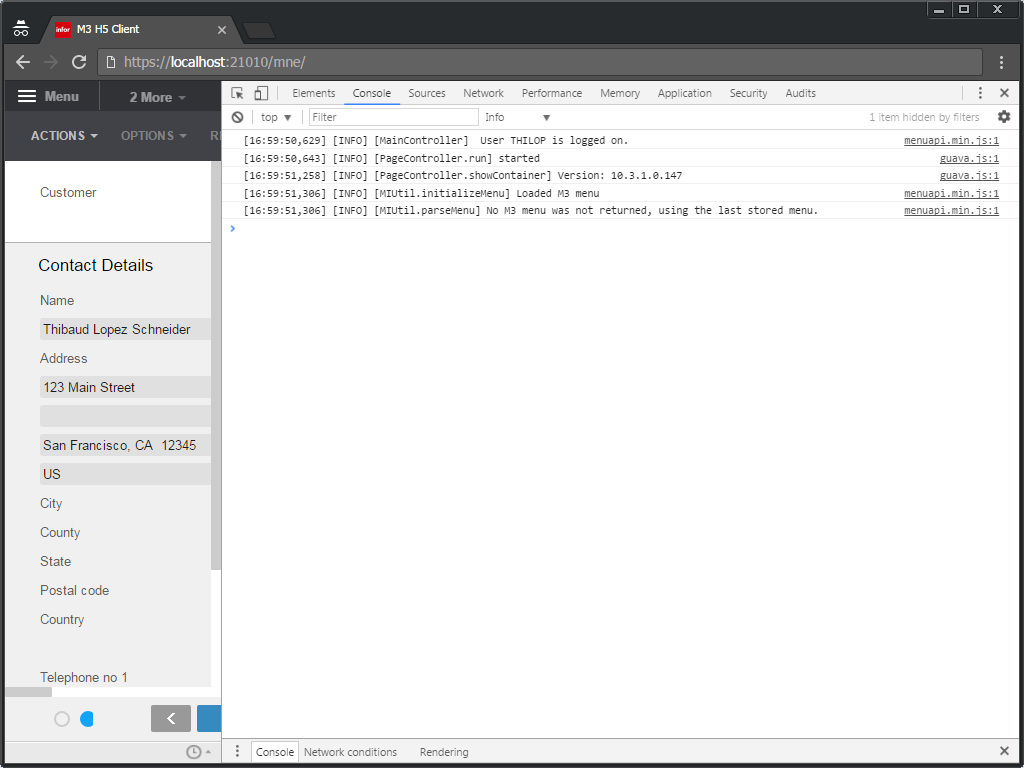
When I develop the script, I alternate between pieces of code in Chrome’s JavaScript console and debugger, and the assembled script in a text editor, iteratively until it’s ready, testing along the way with ScriptName.Init({ 'controller': getActiveController() }):

Result

The result is the following, the script sets the Location and Lot number, and highlights them in yellow with the same color as the web browser’s autofill color to indicate that it autofilled the values:

At this point, the user can verify the values and click Next (or press ENTER) to persist the values in M3.

Problems

There are several problems with this script:

  1. The script is not able to tell apart whether the user entered the record with Option 1-Create or with Option 2-Change. In the former case, the script should set the values because the values have never been set; but in the latter case, the script should not set the values because they have already been set. I tried controller.Response.ControlData.Bookmark.Opt but it returns "2" for both Options 1-Create and 2-Change which is wrong. We are running M3 UI Adapter version 10.3.1.0.147. In a thread with Reah, she said if we upgrade M3 UI Adapter to version 10.3.1.0.161, I will be able to use controller.GetMode() instead. To be continued.
  2. To make M3 API calls, I use ScriptUtil.ApiRequest. But as of M3 UI Adapter version 10.3.1.0.195, that method is deprecated and replaced by MIService. See my thread with Reah. To be continued.

Usability

There is this corner case in usability, unrelated to H5 Client scripts:

Initially, the customer wanted me to set the fields and disable them, no matter what. That works if the user creates a new record with Option 1-Create. But if the user enters an existing record with Option 2-Change and there are already values that another user has previously set, what should the script do? Should the script assume the values are correct and let it be? In which case the script could have guessed incorrectly and leave incorrect values behind (false negative). Or should the script assume the values are incorrect and reset them? In which case the script could have guessed incorrectly and contradict the intention of the previous user (false positive). Furthermore, if the script does reset the values, how will the user know those are new values to persist? Will highlighting in yellow be enough? Or will the user incorrectly assume those are the values currently persisted in M3? I have to read more about WebKit’s autofill design decisions and learn from it. For now, I apply the weakest enforcement: if the field is blank, set it; otherwise, do not; and never disable it.

PENDING

There are several pending issues:

  • Upgrade M3 UI Adapter to the latest version
  • Use controller.GetMode() to tell apart Option 1-Create and 2-Change
  • Replace ScriptUtil.ApiRequest by MIService
  • Usability: disable the two fields while calling the M3 API, indicate activity (spinning wheel), revert when done, cancel if gone (ENTER, F3, F5, F12)
  • Add exception handling: if == null, try/catch, if response.Message, if !response.MIRecord
  • Compose the promises sequentially with request1.then(request2).then(request3) or Promise.all([request1, request2, request3]) instead of nesting them with request1({ request2({ request3() }) })
  • Use JavaScript async/await for ease of source code reading
  • Use Visual Studio and TypeScript as recommended by the M3 H5 Development Guide (H5 Script SDK)

Conclusion

That was my preliminary script for H5 Client while I am learning how to develop them. I still have to learn more about H5 scripts and autofill, solve current problems, and address pending issues.

Special thanks to my customer Chris Bullock.

Building an Infor Grid Lab – Part 7

Continuing to build an Infor ION Grid laboratory for my learning purposes, today I will install the Grid on a $10/month virtual [private] cloud, with DigitalOcean. Random fact: DigitalOcean is headquartered a few blocks from Infor’s headquarters down the Avenue of the Americas in New York.

Competition

There are various cloud hosting service providers for Infor M3 that compete with Infor. Some use cloud computing platforms other than Amazon Web Services. Competition is good to foster innovation, to drive prices down for customers, and to resist vendor lock-in. But it is a tough market as cloud infrastructure is a commodity, and unless those providers can differentiate themselves with a competitive advantage, they will be unable to survive against the utter economies of scale and expertise of Infor and Amazon and their thousands of employees dedicated to the cloud. As a laboratory for learning purposes, however, DigitalOcean or any other cloud platform are sufficient.

Disclaimers

The Grid bundled installer is available for internal use only, not for production use. ** Infor M3 only supports Red Hat Enterprise Linux (see the announcement thing), not CentOS. ** I am not revealing any internal information as Infor made the Installation Guide available online, and the rest can be achieved by inductive reasoning as I am doing. ** I will use Cygwin for the Unix tools on my Windows computer.

1. Create Droplet

In this step we will create a droplet in DigitalOcean:

  1. Click Create Droplet, choose the CentOS distribution, and chose the $10/month size, it has the necessary and sufficient amount of memory (in my local virtual machine of 512 Mb RAM the Grid ran fine, but strangely in a droplet of the same 512 Mb RAM there was not enough memory and the Grid kept crashing, so I upgraded to the next bigger size; 1 Gb of RAM is sufficient as we do not need more):
  2. Generate an SSH key pair on your computer, if you do not already have one:
    ssh-keygen

  3. Add your public key to the droplet (copy/paste):
    cat ~/.ssh/id_rsa.pub

  4. Set the hostname, e.g. droplet2, and click Create:
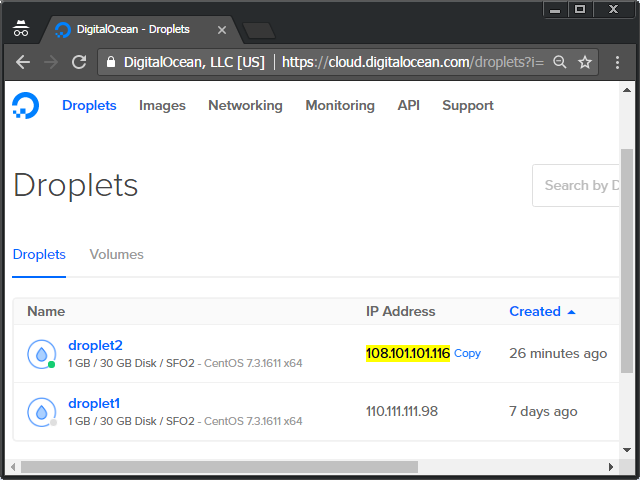
  5. Get the IP address of your droplet:
  6. SSH into it:
    ssh root@108.101.101.116

  7. Create a new user, e.g. thibaud, with administrative privileges (the built-in group wheel is allowed sudo), and switch to it:
    adduser thibaud
    passwd thibaud
    gpasswd -a thibaud wheel
    su thibaud
    cd ~

  8. Setup SSH for that user (I will use the same key setup earlier):
    mkdir ~/.ssh/
    chmod 700 ~/.ssh/
    sudo cp /root/.ssh/authorized_keys .ssh/
    sudo chown thibaud .ssh/authorized_keys
    chmod 600 ~/.ssh/authorized_keys

  9. Disallow SSH as root (uncomment PermitRootLogin, and change it from yes to no):
    sudo vi /etc/ssh/sshd_config
    PermitRootLogin no

    Note: to use vim, move with the cursor until you reach the desired location, press INSERT to enter edit mode, change the text as desired, press ESC to return to command mode, type :wq and press ENTER to write your changes to file and quit.
  10. Restart the SSH service:
    sudo systemctl reload sshd

We now have a droplet ready to use.

2. Preparation

In this step, we will install the JDK, PostgreSQL, and the Grid database, as shown in part 6bis.

  1. Install the JDK:
    sudo yum install java-1.8.0-openjdk-devel

  2. Install PostgreSQL:
    sudo yum install postgresql-server

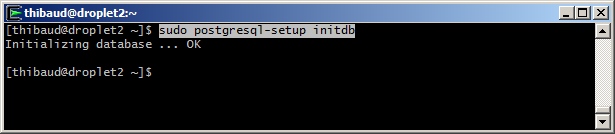
    sudo postgresql-setup initdb

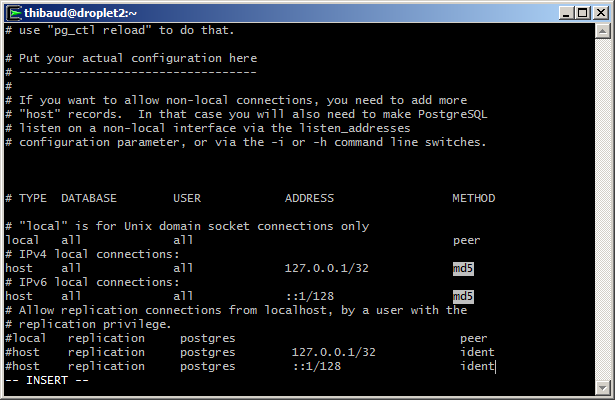
  3. Setup password authentication (change these two host lines from ident to md5):
    sudo vi /var/lib/pgsql/data/pg_hba.conf

  4. Start PostgreSQL, and enable it on reboot:
    sudo systemctl start postgresql
    sudo systemctl enable postgresql

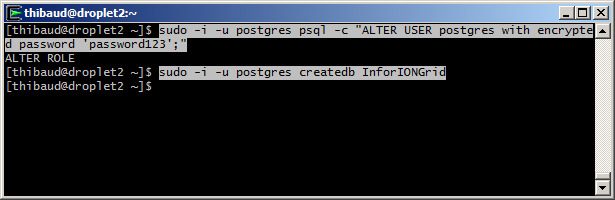
  5. Change the password of user postgres and create the InforIONGrid database:
    sudo -i -u postgres psql -c "ALTER USER postgres with encrypted password 'password123';"
    sudo -i -u postgres createdb InforIONGrid
    

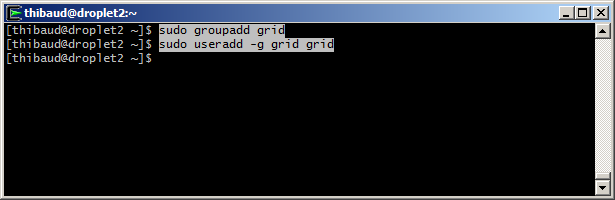
  6. Create the user and group for the Grid service:
    sudo groupadd grid
    sudo useradd -g grid grid

The droplet is now ready to install the Grid.

3. Install the Grid

In this step, we will install the Grid in unattended installation mode as shown in part 4bis.

  1. Copy the Grid installer to somewhere in the droplet, e.g. ~/Downloads/:
    mkdir ~/Downloads/
    exit
    exit
    scp ~/Downloads/installer-1.13.77.jar thibaud@108.101.101.116:~/Downloads/
    ssh thibaud@108.101.101.116

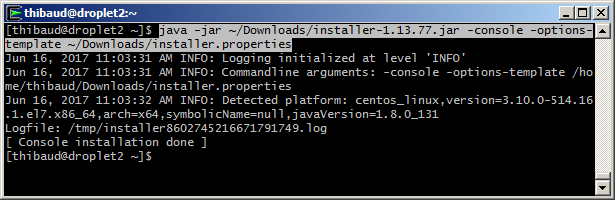
  2. Create a template file installer.properties:
    java -jar ~/Downloads/installer-1.13.77.jar -console -options-template ~/Downloads/installer.properties

  3. Set the following properties (change the IP address and hostname accordingly; use a text editor, e.g. vim):
    install.path=/opt/Infor/InforIONGrid
    jdk.path=/usr/lib/jvm/java-openjdk
    database.jdbc=jdbc:postgresql://localhost:5432/InforIONGrid
    database.username=postgres
    database.password=password123
    database.schema=public
    grid.externaladdress=108.101.101.116
    grid.hostname=droplet2
    grid.internaladdress=droplet2
    service.username=grid
    service.group=grid
    

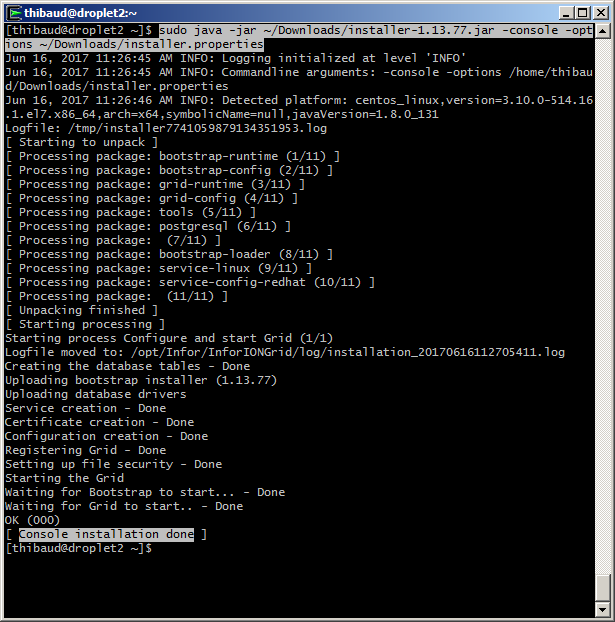
  4. Install the Grid in silent mode:
    sudo java -jar ~/Downloads/installer-1.13.77.jar -console -options ~/Downloads/installer.properties

  5. Check the log files if needed.
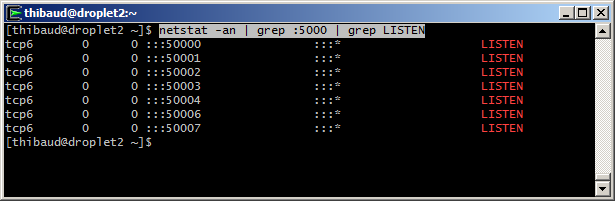
  6. Ensure all the Grid nodes are listening:
    netstat -an | grep :5000 | grep LISTEN

  7. Verify the Grid status is Started:
    curl http://localhost:50002/status

Result

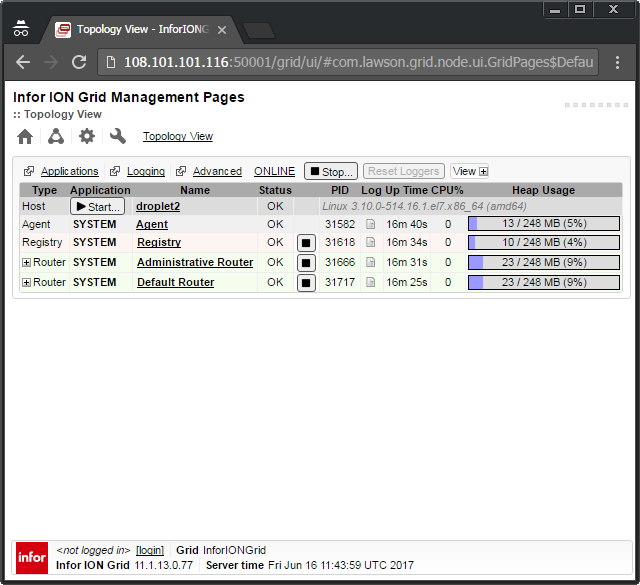
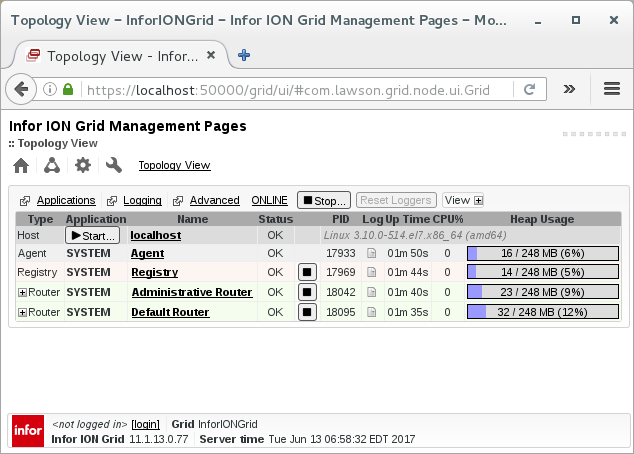
The result is a usual Grid, on a cloud:

Firewall

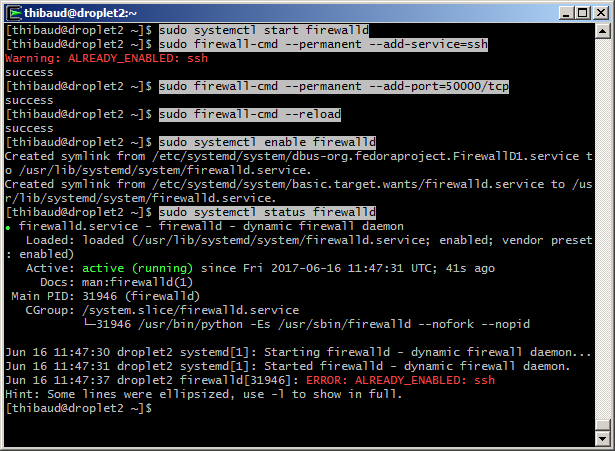
To setup the firewall to block all incoming connections except SSH and Grid https port 50000:

sudo systemctl start firewalld
sudo firewall-cmd --permanent --add-service=ssh
sudo firewall-cmd --permanent --add-port=50000/tcp
sudo firewall-cmd --reload
sudo systemctl enable firewalld
sudo systemctl status firewalld

Next

The droplet is publicly available on the Internet. At this point you should secure it as per your needs, for example with DMZ and VPN. Here are Infor’s installation topology considerations, recommended installation scenarios, and network topology considerations. To make your cloud private, set it up in a private subnet.

GitHub

I put it all together in the install.sh script on my GitHub.

Future work

  • Install Grid session providers
  • Install GDBC
  • Install Grid applications
  • Grid pentesting
  • Proof-of-concept of Grid database on homomorphic encryption with CryptDB or Microsoft’s Always Encrypted SQL Server

Conclusion

That was an illustration of how to install the Infor ION Grid on a virtual [private] cloud as a laboratory for learning purposes, using DigitalOcean as the cloud provider. The installation is remote with SSH, no graphical user interface.

Related posts

Building an Infor Grid Lab – Part 6bis

More building an Infor ION Grid laboratory for my learning purposes. Today, I will install the Grid on CentOS Linux, a free/libre Linux distribution based on Red Hat which the Grid supports (see previous post).

Disclaimer

The Grid bundled installer is available for internal use only, not for production use. Infor M3 only supports Red Hat Enterprise Linux (see announcement thing).

CentOS

I will user the latest CentOS Linux 7:

1. Install PostgreSQL

Install PostgreSQL (see part 5 and part 6):

sudo yum install postgresql-server
sudo postgresql-setup initdb

Setup password authentication of hosts from ident to md5:

/var/lib/pgsql/data/pg_hba.conf

Start and enable PostgreSQL:

systemctl start postgresql
systemctl enable postgresql

Verify the connection and change the password:

sudo -i -u postgres
psql
select version();
\conninfo
\password

2. Create the Grid database

Create the InforIONGrid database and verify:

sudo -i -u postgres
createdb InforIONGrid
psql -d InforIONGrid
\list

3. Install the Grid

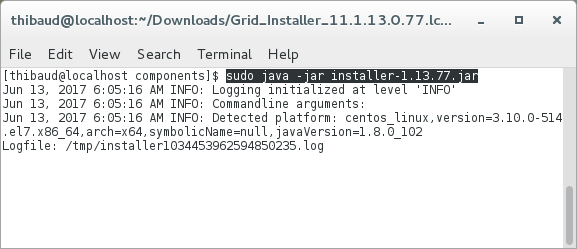
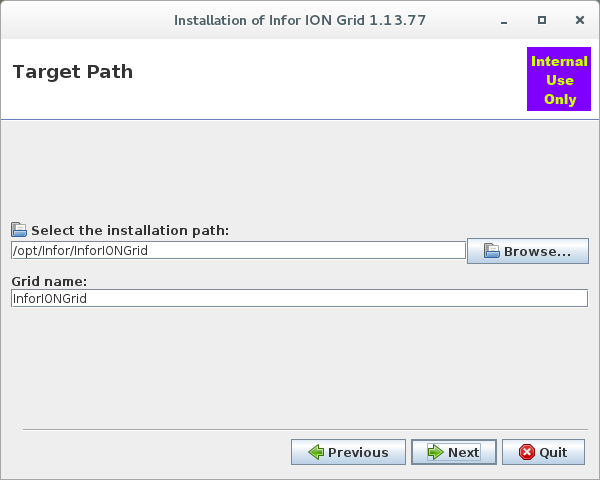
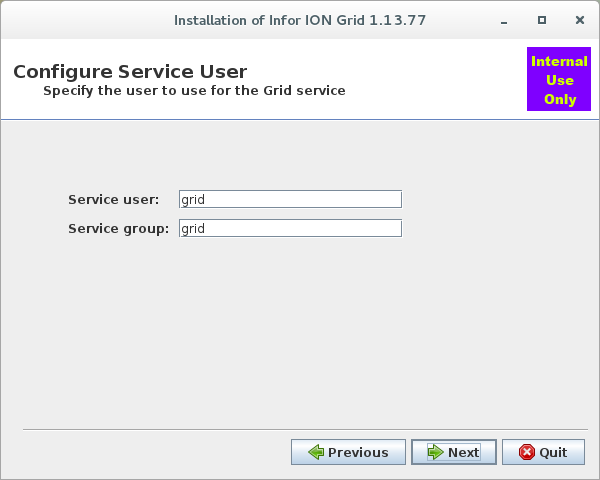
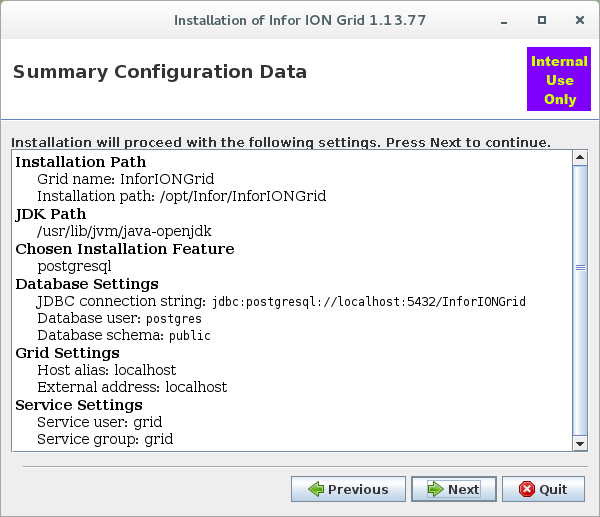
Launch the Grid bundled installer and follow the installation wizard (see part 4):

sudo java -jar installer-1.13.77.jar
/opt/Infor/InforIONGrid
/usr/lib/jvm/java-openjdk

Create the user and group for the Grid service:

sudo groupadd grid
sudo useradd -g grid grid

Result

The result is a usual Grid, in CentOS:

Future work

  • Install Grid on a virtual private cloud
  • Install Grid session providers
  • Install GDBC
  • Install Grid applications
  • Grid pentesting
  • Proof-of-concept of Grid database on homomorphic encryption with CryptDB or Microsoft’s Always Encrypted SQL Server

Conclusion

That was an illustration of how to install the Infor ION Grid on CentOS, a Red Hat based Linux distribution, for learning purposes.

Related posts

Building an Infor Grid Lab – Part 6

Further building my Infor ION Grid laboratory for learning purposes, today, I will install the Grid on Ubuntu Linux, a Debian-based Linux distribution.

About

I will use what I learned in part 5 for the PostgreSQL database, in part 4bis for the console installation mode, in part 2 for the manual installation, and in part 3 for the cryptographic key material. And I will install the latest Grid version 11.1.13.0.77, on the latest Ubuntu Desktop 16.04.2 with Long Term Support (LTS).

1. Install PostgreSQL

Install PostgreSQL on Linux, verify the connection, and set the password for user postgres:

sudo apt-get update
sudo apt-get install postgresql postgresql-contrib
sudo -i -u postgres
psql
\conninfo
\password
\q
exit

2. Grid installer – FAILED!

The Grid bundled installer (as in part 4bis) throws the following error:

You are installing on an unsupported platform (001)
Console installation FAILED!

Apparently, it is hard-coded to only support Red Hat and Suse, not Ubuntu.

Nonetheless, the Grid is just Java and SQL, so it should work on Ubuntu as well. Let’s try installing it manually instead.

3. Create the database manually

Create the Grid database in PostgreSQL as in part 5, and create the Grid tables as in part 2 with a few changes for the binary data type:

sudo -i -u postgres
createdb InforIONGrid
psql -d InforIONGrid
CREATE TABLE GRIDCONF (
 GRID varchar(64) NOT NULL,
 TYPE varchar(32) NOT NULL,
 NAME varchar(128) NOT NULL,
 TS numeric(20, 0) NOT NULL,
 DATA bytea NULL,
 SEQID numeric(5, 0) NOT NULL
);
INSERT INTO GRIDCONF (GRID, TYPE, NAME, TS, DATA, SEQID) VALUES ('InforIONGrid', 'runtime' , 'null', 0, '<?xml version="1.0" ?>
<runtime xmlns="http://schemas.lawson.com/grid/configuration_v3">
 <bindings />
 <sessionProviders /> 
 <routers />
 <contextRoots />
 <propertySettings />
</runtime>', 0);
INSERT INTO GRIDCONF (GRID, TYPE, NAME, TS, DATA, SEQID) VALUES ('InforIONGrid', 'topology' , 'null', 0, '<?xml version="1.0" ?>
<topology xmlns="http://schemas.lawson.com/grid/configuration_v3">
 <hosts>
 <host name="localhost" address="127.0.0.1" gridAgentPort="50003" />
 </hosts>
 <registry host="localhost" port="50004" />
</topology>', 0);

Verify with a JDBC client:

4. Install the Grid manually

Install the Grid manually as in part 2:

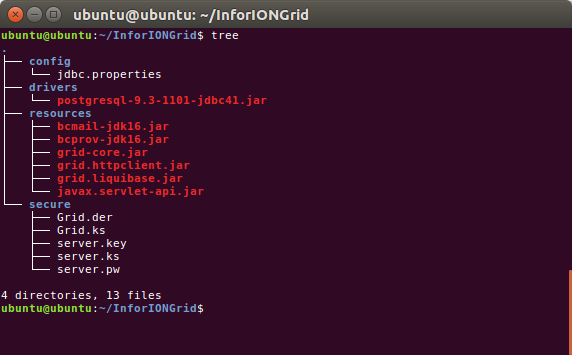
Create the file and folder structure, with the JAR files, and JDBC driver:

jdbc.properties:

driverDir=/home/ubuntu/InforIONGrid/drivers/
url=jdbc:postgresql://localhost:5432/InforIONGrid
dbType=postgresql
user=postgres
encryptedPwd=cGFzc3dvcmQxMjM=
schema=public

Create the cryptographic key material as in part 3:

java -cp resources/grid-core.jar:resources/bcprov-jdk16.jar:resources/bcmail-jdk16.jar com.lawson.grid.security.Certificates -create=gridcert -gridname InforIONGrid -gridpassword password123 -gridkeystore secure
java -cp resources/grid-core.jar:resources/bcprov-jdk16.jar:resources/bcmail-jdk16.jar com.lawson.grid.security.Certificates -create=hostcert -gridname InforIONGrid -gridpassword password123 -hostname localhost -gridkeystore secure -hostkeystore secure -role grid-admin -address localhost -address ::1 -address 127.0.0.1 -address example.com -unresolved
java -cp resources/grid-core.jar:resources/bcprov-jdk16.jar:resources/bcmail-jdk16.jar com.lawson.grid.security.Certificates -create=symkey -gridname InforIONGrid -gridkeystore secure -gridpassword password123 -symkeypath secure -hostkeystore secure -hostname localhost

Start the Grid:

java -cp resources/grid-core.jar:resources/bcprov-jdk16.jar:resources/bcmail-jdk16.jar:resources/grid.liquibase.jar:drivers/sqljdbc42.jar:resources/javax.servlet-api.jar:resources/grid.httpclient.jar com.lawson.grid.Startup -registry -configDir . -host localhost -logLevel ALL

Result

The result is a Grid as usual, in Ubuntu:

GitHub

I put the install.sh script on my GitHub. I tested it with a stock Ubuntu Live DVD, and it works like a charm, installing and launching a Grid in less than a minute.

Demo

I made a demo here: I boot the stock Ubuntu Live DVD, I download the Grid and the install.sh script, I execute the script, it installs the Grid (the minimal version of part 2), and it launches the Grid:

Next

From here, you can finish the rest of part 2 for the Configuration Import & Edit and Topology View, and continue to part 2bis for the Default Router, Developer Session Provider, Administrative Router, Configuration Manager, web user interface, and Grid Agent.

Future work

  • Install Grid on CentOS Linux
  • Install Grid on a virtual private cloud
  • Install Grid session providers
  • Install GDBC
  • Install Grid applications
  • Grid pentesting
  • Proof-of-concept of Grid database on homomorphic encryption with CryptDB or Microsoft’s Always Encrypted SQL Server

Conclusion

That was an illustrated guide on how to install the Infor ION Grid manually on Ubuntu Linux and PostgreSQL, for learning purposes. I had to use everything I learned in this series so far.

That’s it! Thanks for reading until here.

Related posts

Building an Infor Grid Lab – Part 5

To further build my Infor ION Grid laboratory for learning purposes, today I will install the Grid on the PostgreSQL database, on Windows.

Special note

I have a special appreciation for PostgreSQL. It is free/libre software. It is the successor of Postgres which is the successor of Ingres, two pioneering database systems in the heydays of Edgar F. Codd’s relational model. It originated at the University of California at Berkeley, a remarkable institution of computer science, near San Francisco where I live. And Ingres and Postgres were written by professor Michael Stonebraker, who is another recipient of the ACM Turing Award for his extensive contribution to database systems, and whom was my professor in the MIT Big Data course.

Disclaimer

The Infor ION Grid bundled installer has built-in support for PostgreSQL (see part 4), but it is for your internal use only, not for production use. Anyhow, Infor M3 only supports EnterpriseDB Postgres Plus Advanced Server (see the announcement thing).

1. Install PostgreSQL

Download PostgreSQL for Windows:

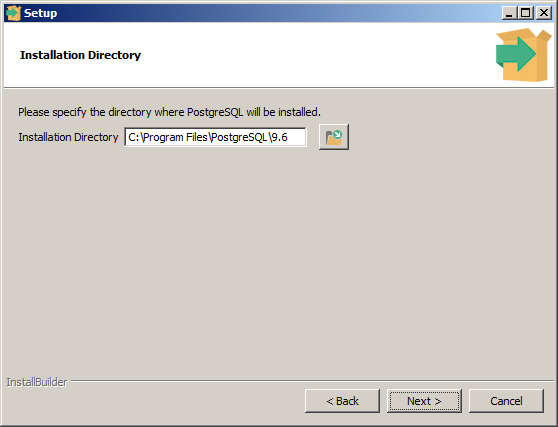
Follow the installation wizard:

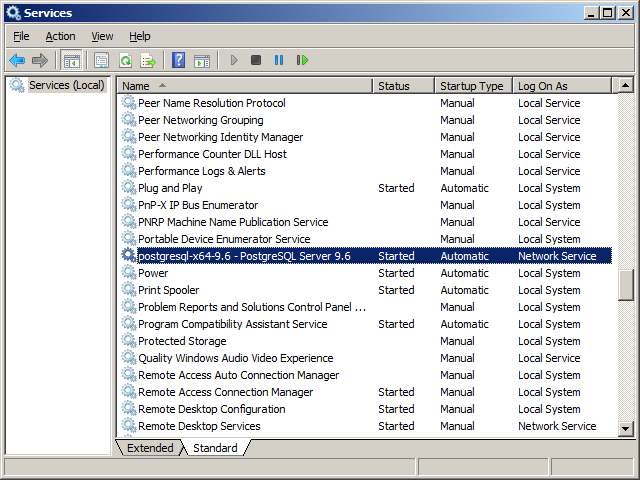
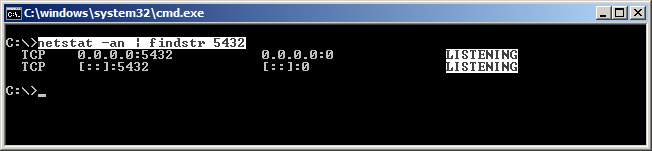
Verify it is started and listening:

2. Create the database

Create the Grid database, e.g. InforIONGrid, and verify the connection:

cd C:\Program Files\PostgreSQL\9.6\
createdb --username=postgres InforIONGrid
psql --username postgres -d InforIONGrid
\conninfo
\list
\q

Verify with a JDBC client such as SQuirreL (the Grid bundled installer ships with a PostgreSQL JDBC driver):

Grid_Installer_11.1.13.0.77.lcm\products\Infor_ION_Grid_11.1.13.0\components\postgresql-9.3-1101-jdbc41.jar
jdbc:postgresql://localhost:5432/InforIONGrid

You can also verify with pgAdmin:

C:\Program Files\PostgreSQL\9.6\pgAdmin 4\bin\pgAdmin4.exe

3. Install the Grid

Now install the Grid as usual, select PostgreSQL support, enter Schema public:

Result

The result is a Grid as usual, running on the PostgreSQL database:

Future work

  • Install Grid on Linux
  • Install Grid on a virtual private cloud
  • Install Grid session providers
  • Install GDBC
  • Install Grid applications
  • Grid pentesting
  • Proof-of-concept of Grid database on homomorphic encryption with CryptDB or Microsoft’s Always Encrypted SQL Server

Conclusion

That was an illustration of how to install the Infor ION Grid on PostgreSQL on Windows, for learning purposes. The installation is quite intuitive.

Special thanks to the Infor ION Grid team in Sweden for making the Grid available on PostgreSQL.

Related posts

Infor M3 open source platform announcement thing

Let’s talk about the Infor M3 open source platform announcement thing.

Announcement

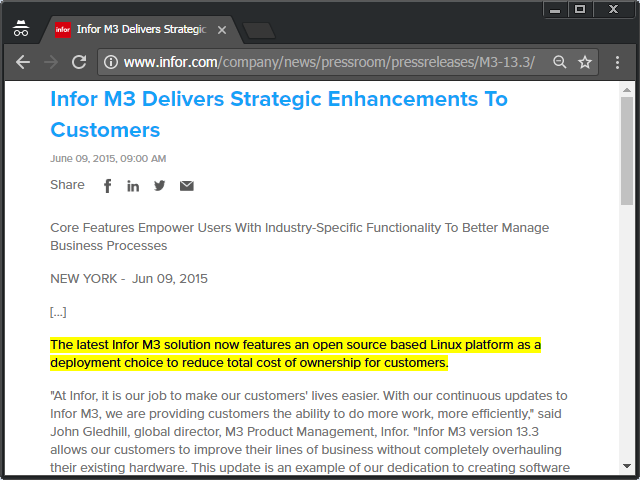
In 2015, Infor announced: “The latest Infor M3 solution now features an open source based Linux platform as a deployment choice to reduce total cost of ownership for customers.”

It is admirable to support open source software, so please join us in congratulating Infor.

What about free/libre software?

It would have been more admirable to support free/libre software. The open source movement and the free/libre software movement are related but distinct; freedom is more important than open source.

Supported platform

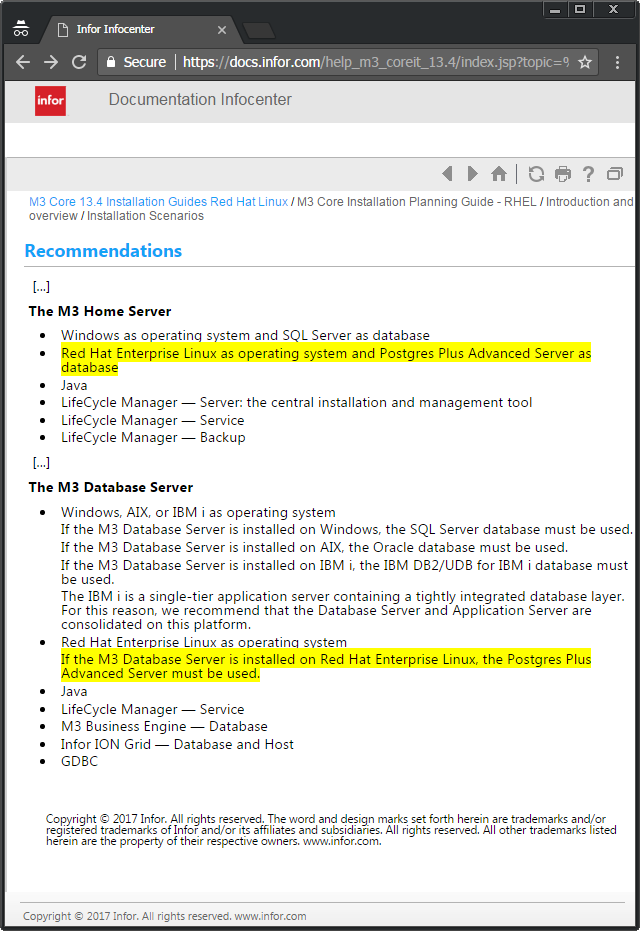
The following documentation, M3 Core 13.4 Installation Guides Red Hat Linux > M3 Core Installation Planning Guide – RHEL > Introduction and overview > Installation Scenarios > Recommendations, says M3 Core is now available as an option on “Red Hat Enterprise Linux as operating system and Postgres Plus Advanced Server as database […] If the M3 Database Server is installed on Red Hat Enterprise Linux, the Postgres Plus Advanced Server must be used.”

Red Hat Enterprise Linux

Red Hat Enterprise Linux is a commercial product. Its source code is open and provided at no cost, but it is not provided in compiled form. To use it, we have to either buy it or go through the difficult compilation and derivative processes.

As a side note, Red Hat has controversy in the community with their non-free/libre licensing and inclusion of binary blobs [1] and as such is not endorsed by the Free Software Foundation [2].

EnterpriseDB Postgres Plus Advanced Server

EnterpriseDB Postgres Plus Advanced Server is also a commercial product, even though based on the open source PostgreSQL, it is provided at cost, and its source code is not available:

Technical reason?

Besides understandably not being able to support every combination of platform, are there any technical reasons for M3 to HAVE TO use Red Hat Enterprise Linux and EnterpriseDB Postgres Plus Advanced Server, and not Fedora, CentOS, Debian, Ubuntu, Suse, PostgreSQL?

Business collaboration?

Does it have anything to do with Infor’s joint collaboration with Red Hat and EnterpriseDB for Infor LN?

Wasn’t there something similar with the Intentia and IBM alliance [3] [4], where Movex Workplace HAD TO use the Enterprise Edition of IBM WebSphere Application Server for no apparent technical reason?

What about the community?

Infor uses a lot of free/libre software on free/libre licenses such as BSD, GPL and Apache. For example, this is the (not cleaned-up) list of about 100 projects used by one of the components of M3, the Infor Grid:

antlr antlr-runtime aopalliance-repackaged asm asm-commons asm-tree bcmail-jdk16 bcprov-jdk16 commonj.sdo commons-daemon commons-fileupload commons-logging commons-math3 ctivation cxf-api cxf-rt-bindings-soap cxf-rt-bindings-xml cxf-rt-core cxf-rt-databinding-jaxb cxf-rt-databinding-xmlbeans cxf-rt-frontend-jaxws cxf-rt-frontend-simple cxf-rt-management cxf-rt-transports-http cxf-rt-ws-addr cxf-rt-ws-policy cxf-rt-ws-rm cxf-rt-ws-security decision-trees derbyclient drools-compiler drools-core ecj eclipselink ehcache-core geronimo-javamail_1.4_spec groovy-all hk2-api hk2-locator hk2-utils izpack-api izpack-tools jackson-core-asl jackson-jaxrs jackson-mapper-asl jackson-xc javassist javax-websocket-client-impl javax-websocket-server-impl javax.annotation-api javax.el javax.inject javax.persistence javax.servlet-api javax.servlet.jsp javax.servlet.jsp-api javax.servlet.jsp.jstl javax.websocket-api javax.ws.rs-api jcommander jersey-client jersey-common jersey-container-servlet jersey-container-servlet-core jersey-core jersey-guava jersey-json jersey-media-json-jackson jersey-media-multipart jersey-multipart jersey-server jersey-servlet jetty-annotations jetty-continuation jetty-http jetty-io jetty-jndi jetty-jsp jetty-plus jetty-schemas jetty-security jetty-server jetty-servlet jetty-servlets jetty-util jetty-webapp jetty-xml jna jna-platform joda-time jsr166 jt400_jdk16 knowledge-api knowledge-internal-api linked-binaries liquibase log-viewer mail maven-shared-utils mimepull mockito-all mvel2 neethi ojalgo ojdbc6 org.apache.taglibs.standard.glassfish org.eclipse.jdt.core osgi-resource-locator postgresql scripting-client slf4j-api slf4j-grid sqljdbc4 stax2-api stringtemplate tasks validation-api websocket-api websocket-client websocket-common websocket-server websocket-servlet windowsjnasecurity woodstox-core-asl wsdl4j wss4j xml-resolver xmlbeans xmlschema-core xmlsec

Does Infor contribute back to the free/libre software community? Individual Infor developers probably contribute to free/libre software with bug fixes and documentation (congratulations). But I have not seen Infor as a company officially sponsor events, fund projects, contribute code, or provide developers to free/libre software. I do not know that they do or that they do not. If you know, please leave me a comment.

Discussion

It is admirable that Infor provides M3 based on an open source platform as an option, it illustrates Infor’s commitment to the cloud and open platforms. However, the narrative is not clear as the required “open source” platform actually requires commercial products, at cost, that have restrictive licenses, with closed source code, possibly due to a business collaboration. For-profit corporations can choose to be commercial, closed source, and collaborate with partners, to fund product development and to protect intellectual property, but then the narrative should be made clear. Is there a technical reason? Is Infor misappropriating “open source”? Is Infor giving back to the free/libre software community? What do you think? Let me know in the comments below.

Building an Infor Grid Lab – Part 4bis

Continuing from part 4 building an Infor ION Grid laboratory for my learning purposes, today I will do alternative installations using the IzPack console and unattended installation modes. Most probably, you will never need to know any of this, except if you maintain a large cloud environment.

Disclaimer

The Grid bundled installer is available publicly as part of the Grid deliverable, but it is for internal use only, not for production use.

Console mode

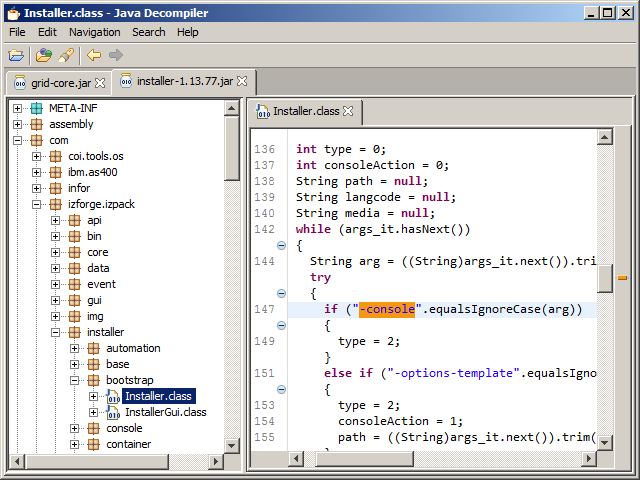
The Grid installer uses IzPack for the installation wizard, which comes with a text console installation mode, to have a command line interface instead of the graphical user interface:

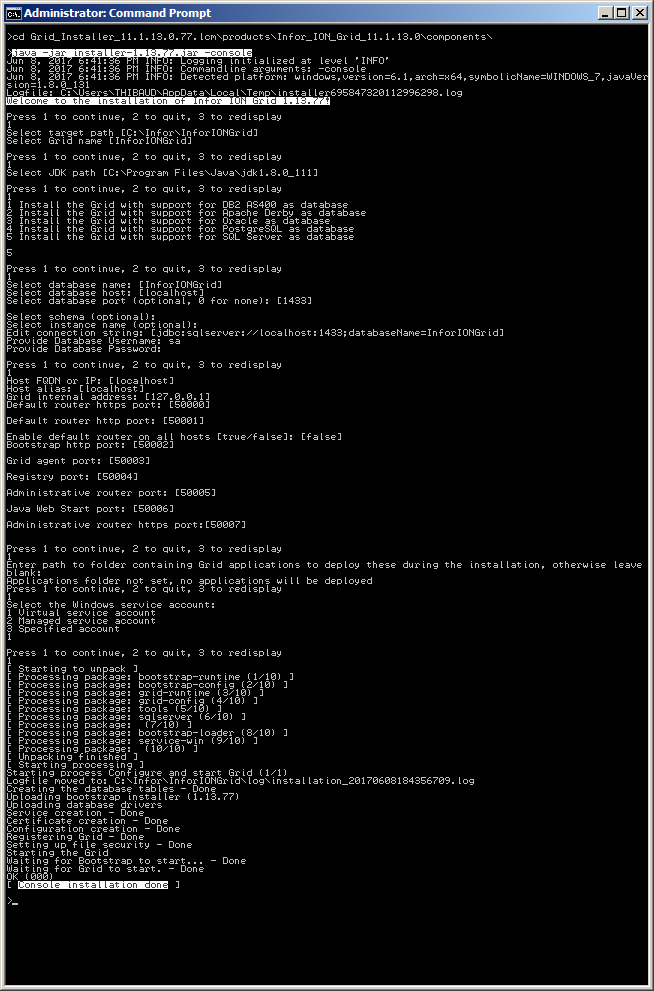
To use it, create the empty database as usual, start a command prompt as administrator, execute the following command, and answer the prompts:

java -jar installer-1.13.77.jar -console

Refer to the log file if needed. The result is the same as in part 4, with database tables, files and folders, Grid registry, administrative router, user interface, Windows Service, etc.

Unattended mode

Furthermore, IzPack has an unattended installation mode, for a silent install.

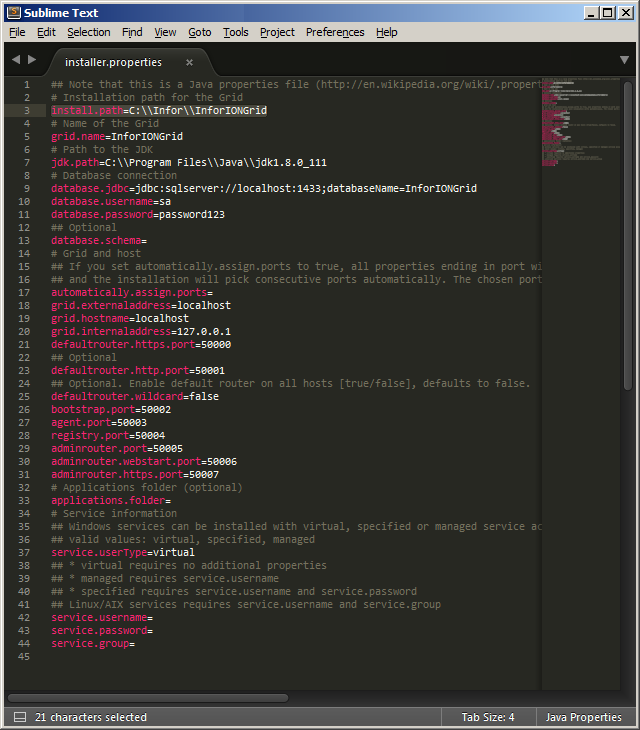
To use, create an empty installer.properties file with the following command:

java -jar installer-1.13.77.jar -console -options-template installer.properties

Open the resulting file in a text editor, set the desired property values, with the proper escaping where necessary (e.g. install.path=C:\\Infor\\InforIONGrid):

And execute the silent install with the following command, there will be no prompts:

java -jar installer-1.13.77.jar -console -options installer.properties

The resulting Grid is the same as usual.

Future work

  • Install the Grid on Linux and PostgreSQL
  • Install Grid on a virtual private cloud
  • Install Grid session providers
  • Install GDBC
  • Install Grid applications
  • Penetration testing
  • Proof-of-concept of Grid database on homomorphic encryption with CryptDB or Microsoft’s Always Encrypted SQL Server

Conclusion

That was an illustration of alternative installations of the Infor ION Grid using the IzPack text console installation mode for a command line interface, and the unattended installation mode for a silent install. Most probably, you will never need to know any of this. It shows Infor’s commitment to transition, from graphical user interfaces and customer on-premise installations, to migrating products to a multi-tenant cloud, the new direction.

That’s it! Please like, comment, subscribe, share, participate.

Related posts

Developing H5 Client scripts – Part 1

The day came I have to develop a script for Infor M3 H5 Client with M3 API calls for a customer. This post will add to my previous post, to Scott’s three previous posts, and to Karin’s previous post.

Disambiguation

Scripts for H5 Client are written in the JavaScript programming language (ECMAScript). Scripts for Infor Smart Office are written in the JScript.NET programming language. Programs for M3 are written in the Java programming language. Despite the similarities, the three languages are different. Smart Office scripts will NOT execute in H5 Client; you will have to re-write most of the code and be familiar with functional programming, jQuery, Deferred, Promises, etc.; it is like back in the days of IBrix.

Documentation

Here is the M3 H5 Development Guide:

Conversion

Here are some tips to convert a Smart Office script to an H5 Client script:

Example of a minimal script for Smart Office:

package MForms.JScript {
	class Test {
		public function Init(element: Object, args: Object, controller : Object, debug : Object) {
			debug.WriteLine('Hello, World!');
		}
	}
}

The equivalent script for H5 Client:

var Test = new function () {
	this.Init = function (scriptArgs) {
		console.log('Hello, World!');
    };
};

Various ways to get a field and its value compared to norpe’s guide for Smart Office:

var controller = scriptArgs.controller;
var host = controller.ParentWindow;
controller.FieldMap.WRCUNM[0]
controller.GetElement('WRCUNM')[0]
H5ControlUtil.GetFieldValue('WRCUNM')
ScriptUtil.FindChild($, 'WRCUNM')[0]
ScriptUtil.FindChild(host, 'WRCUNM')[0]

UPDATE 2017-06-06: According to the H5 Development Guide, the above is not the recommended API, but controller.GetContentElement().GetElement("WRCUNM") instead.

Example to call an M3 API in H5 script:

ScriptUtil.ApiRequest('/execute/CRS610MI/LstByNumber', result => console.log(result), (error, message) => console.log([error, message]))

UPDATE 2017-06-06: According to the H5 Development Guide, the above is not the recommended API, but MIService.Current.execute|executeRequest instead, but I get error ‘MIService is not defined’; perhaps I do not have the latest version of H5 Client.

Chrome Developer tools

Use the Google Chrome Developer tools:

Use it for the list of global variables, code completion, type reflection, console, dynamic execution, debugger, network monitor, DOM, styles:

Pause execution to introspect global variables:

UPDATE 2017-06-06: In the JavaScript console, you can get the current controller with getActiveController() or MainController.Current.Instances.host_X where X is the controller number.

Administrative tool

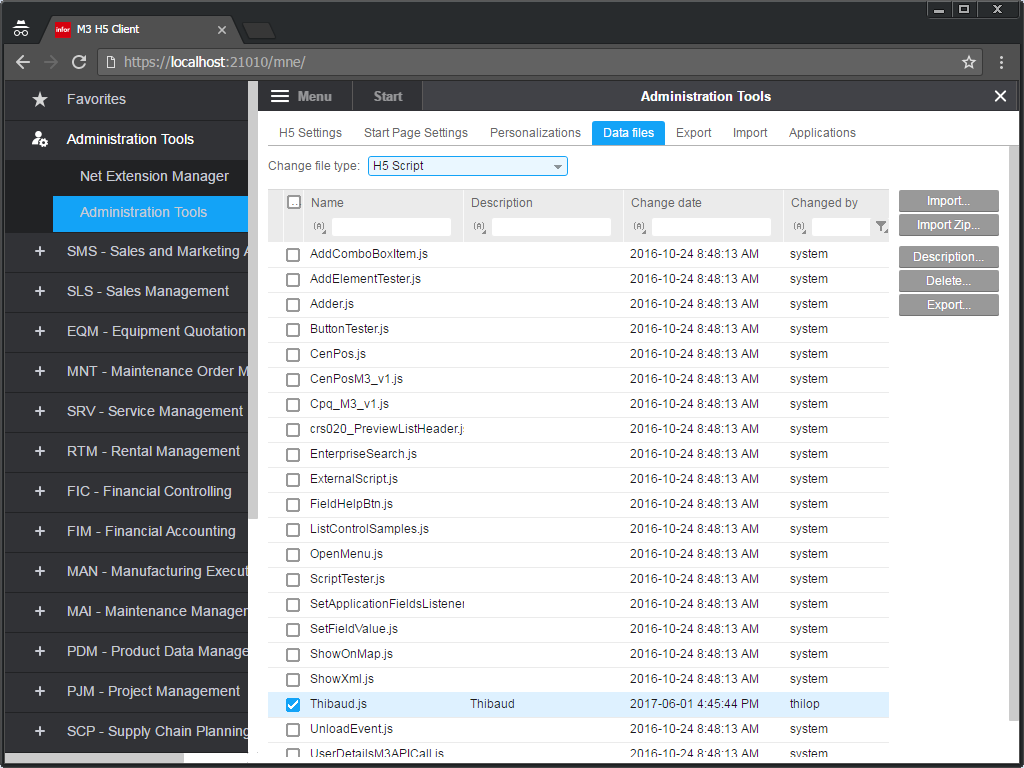
Use the administrative tool to import/export H5 scripts:

UPDATE 2017-06-06: To update a script, simply re-import it, click Yes to override, and refresh the M3 panel with Actions > Refresh-F5; there is no cache thus no need to add the version number in the script file name unlike Smart Office.

Execute

Attach the script to the panel as usual at Tools > Personalize > Scripts:

Select Actions > Refresh-F5 to load the script:

Use the JavaScript debugger statement in your script to pause execution and invoke the Chrome debugger:

Call M3 API, and refer to my previous post:

Conclusion

That was a quick look at how to develop scripts for Infor M3 H5 Client including calls to M3 API.

Thanks to Scott Campbell of Potato IT for the first look.

Please like, comment, subscribe, share, come author with us, or look at other ways to contribute.

Related documentation