How to call Lawson Web Services from PHP

Here are examples to call Lawson Web Services from PHP for all three adapters: API, M3 Display Program (MDP), and SQL.

Which SOAP client ?

In the past, I used the external NuSOAP toolkit to make SOAP calls in PHP.

Now, PHP 5 comes built-in with SoapClient.

To determine which SOAP client your PHP server provides, use:

phpInfo();

It will show:

What’s the Endpoint ?

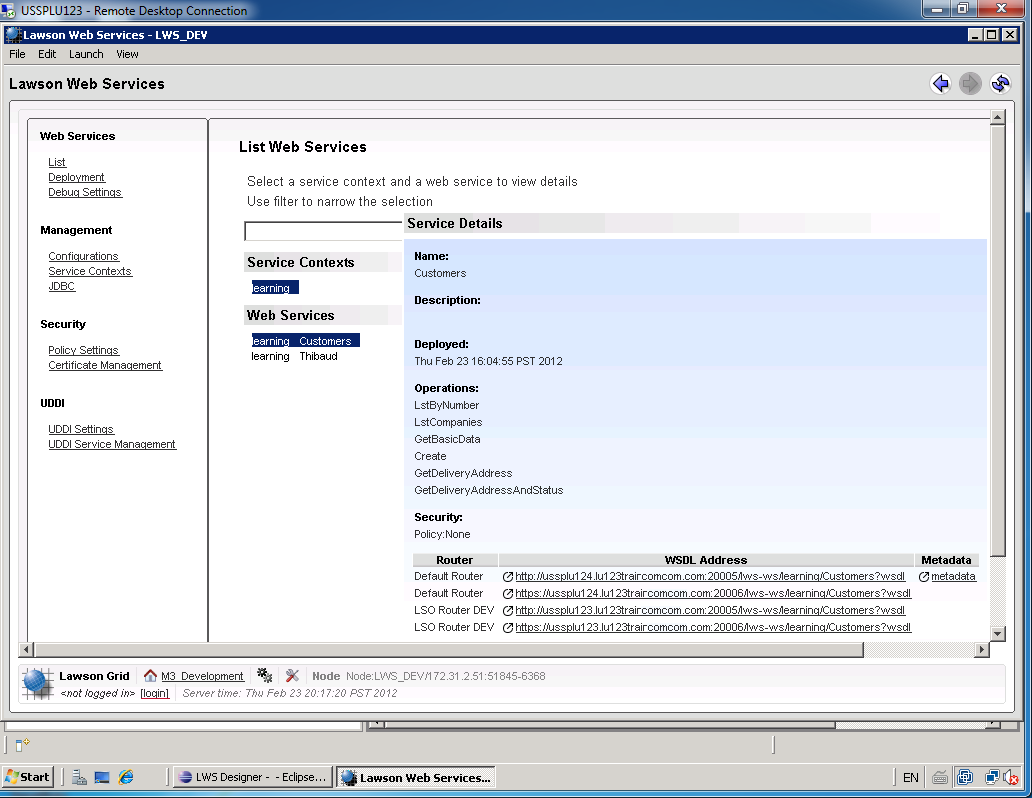
To determine the endpoint or the WSDL to our Lawson Web Service open the Lawson Web Services Runtime Management Page which you can launch from LifeCycle Manager or from Lawson Web Services Designer.

Select List, select the Service Context, and select the Web Service.

The bottom right corner will show the WSDL Address:
How’s the SOAP ?

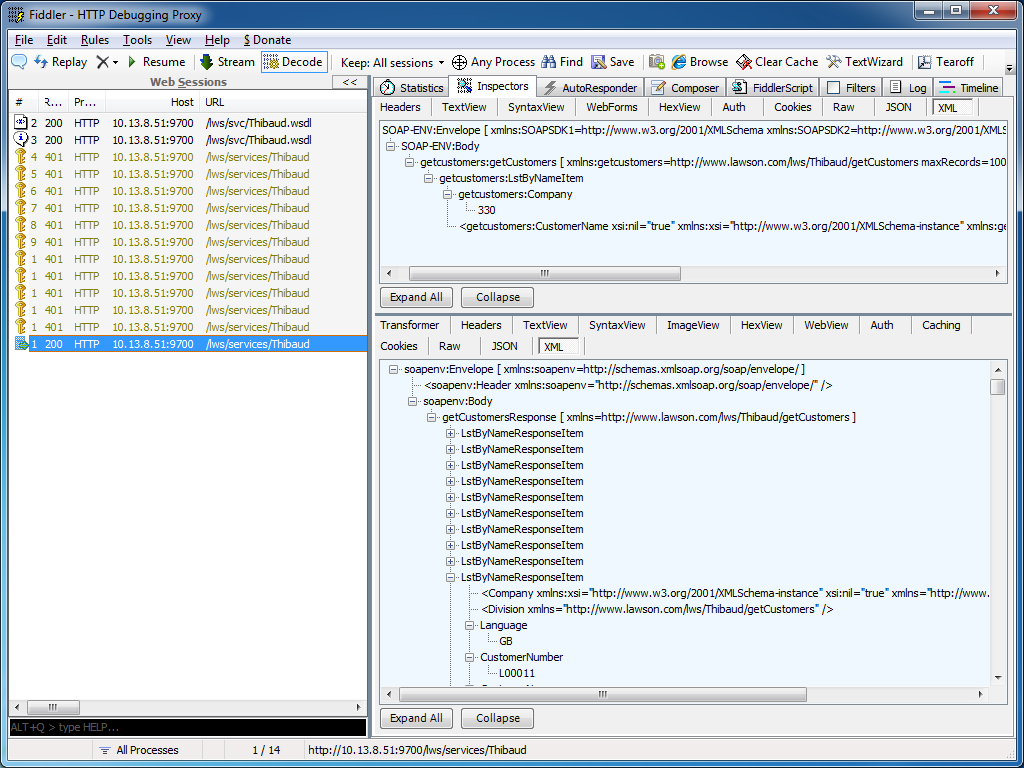
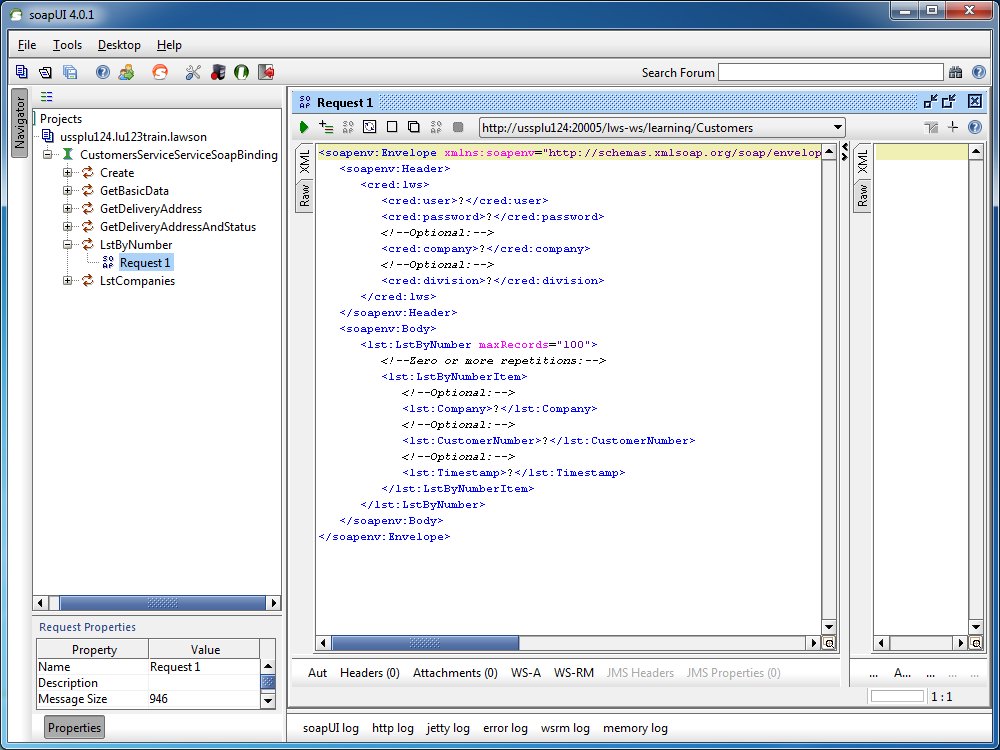
I recommend using tools like Fiddler or soapUI to determine the exact structure of the SOAP Request and SOAP Response to call our Lawson Web Services.

Fiddler can intercept HTTP calls from most SOAP clients, for example from Lawson Web Services Designer, from Microsoft InfoPath, from PocketSOAP, or from Microsoft Visual C# Express, and we can use that SOAP Request and SOAP Response as a reference to write our PHP code:
Similarly, soapUI will create a sample SOAP Request from a WSDL, it will show the SOAP Response after the web service is executed, and we can use that SOAP Request and SOAP Response as a reference to write our PHP code:
M3 API adapter

Here is a sample PHP code to call a Lawson Web Service of type API.

The Web Service name is Customers, the operation name is LstByNumber. It calls the API CRS610MI.LstByNumber. It accepts Company and CustomerNumber as input fields; note the suffix Item in LstByNumberItem for the collection of input fields. It returns CustomerNumber and CustomerName as output fields; note the suffix ResponseItem in LstByNumberResponseItem for the collection of output fields.

<?php
	try {
		$client = new SoapClient("http://hostname:10000/LWS_DEV/svc/Customers.wsdl",
		array(
			'login'=>'M3SRVADM',
			'password'=>'*******'
		)
		);
		$response = $client->LstByNumber(array("LstByNumberItem"=>array(
			"Company"=>"001",
			"CustomerNumber"=>"00100001"
		)));
		foreach ($response->LstByNumberResponseItem as $item) {
			print($item->CustomerNumber." ".$item->CustomerName."\n");
		}
	} catch (Exception $e) {
		echo 'Message: ' .$e->getMessage();
	}
?>

M3 Display Program adapter

Here is a sample PHP code to call a Lawson Web Service of type M3 Display Program (MDP).

The Web Service name is Customers, the operation name is GetName. It works in CRS610/A/E, it accepts W1CUNO as an input field, and returns WRCUNM as an output field.

<?php
	try {
		$client = new SoapClient("http://hostname:10000/LWS_DEV/svc/Customers.wsdl",
		array(
			'login'=>'M3SRVADM',
			'password'=>'*******'
		)
		);
		$response = $client->GetName(array("CRS610"=>array(
			"W1CUNO"=>"0010001"
		)));
		print($response->CRS610->WRCUNM);
	} catch (Exception $e) {
		echo 'Message: ' .$e->getMessage();
	}
?>

SQL adapter

Here is a sample PHP code to call a Lawson Web Service of type SQL (JDBC).

The Web Service name is Customers, the operation name is Search. It works by doing a SELECT FROM WHERE on OCUSMA, it accepts CustomerName as an input field. And it returns OKCUNO and OKCUNM as output fields; note the new1Collection and new1Item automatically generated.

<?php
	try {
		$client = new SoapClient("http://hostname:10000/LWS_DEV/svc/Customers.wsdl",
		array(
			'login'=>'M3SRVADM',
			'password'=>'******'
		)
		);
		$response = $client->Search(array("CustomerName"=>"%ARMY%"));
		foreach ($response->new1Collection->new1Item as $item) {
			print($item->OKCUNO.", ".$item->OKCUNM."\n");
		}
	} catch (Exception $e) {
		echo 'Message: ' .$e->getMessage();
	}
?>

That’s it!

Related articles

How to call M3 API from .NET

Here is an example to call M3 API from .NET in C#.

Background

To call M3 API in .NET there are several options: 1) we can use Interop to wrap the COM unmanaged library, 2) we can use netmodules which were introduced in the M3 API Toolkit version 9.0.1.1, or 3) we can use the native .NET managed library which were introduced in the M3 API Toolkit version 9.0.3.0. I suggest the latter option.

Example

  1. Download and install the M3 API Toolkit version 9.0.3.0 or later.
  2. That version includes the .NET library MvxSockN.dll:
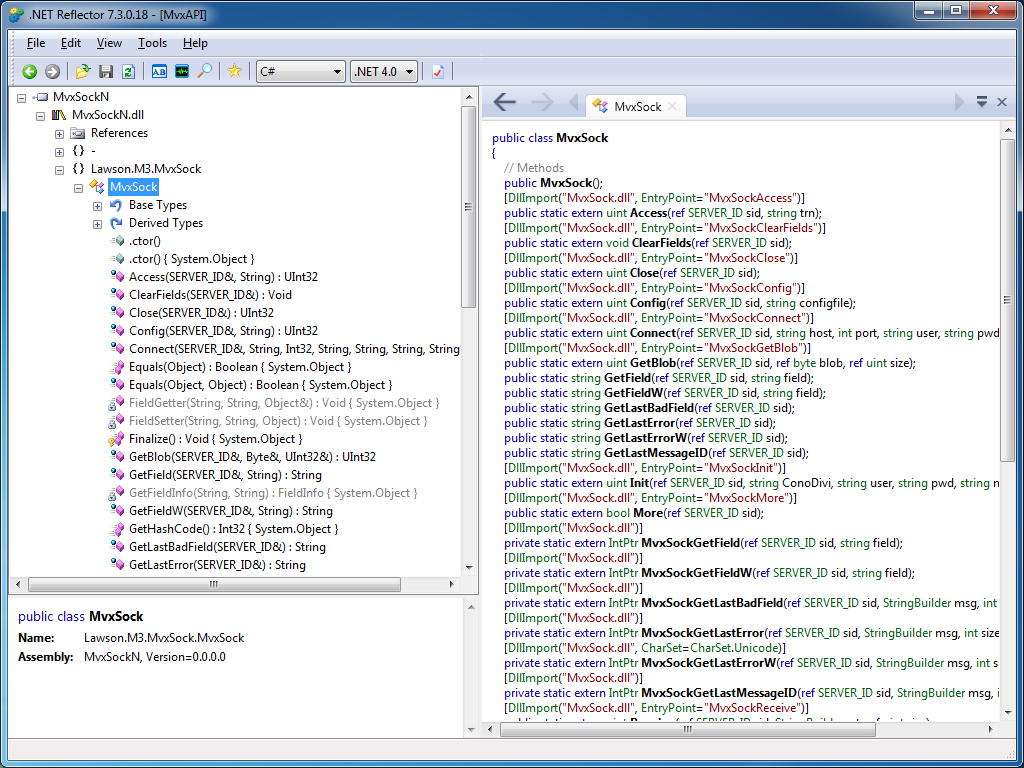
  3. You can use .NET Reflector to introspect the assembly:
  4. That version also includes documentation specifically for .NET:
  5. That version also includes C# examples:
  6. If you are using Microsoft Visual C# Express, add a New Reference to the DLL:
  7. Then add the namespace Lawson.M3.MvxSock to the source code:
    using Lawson.M3.MvxSock;
  8. Then start using MvxSock with IntelliSense:
  9. Here’s my sample source code:
    using System;
    using Lawson.M3.MvxSock;
    
    namespace ConsoleApplication1
    {
        class Program
        {
            static void Main(string[] args)
            {
                SERVER_ID sid = new SERVER_ID();
                uint rc;
                rc = MvxSock.Connect(ref sid, "hostname", 6800, "userid", "*********", "CRS610MI", null);
                if (rc != 0)
                {
                    MvxSock.ShowLastError(ref sid, "Error no " + rc + "\n");
                    return;
                }
                rc = MvxSock.Access(ref sid, "LstByNumber");
                if (rc != 0)
                {
                    MvxSock.ShowLastError(ref sid, "Error no " + rc + "\n");
                    MvxSock.Close(ref sid);
                    return;
                }
                while (MvxSock.More(ref sid))
                {
                    Console.WriteLine(MvxSock.GetField(ref sid, "CUNO") + ", " + MvxSock.GetField(ref sid, "CUNM"));
                    MvxSock.Access(ref sid, null);
                }
                MvxSock.Close(ref sid);
            }
        }
    }
  10. Here’s a sample result of calling CRS610MI.LstByNumber:

That’s it!

Related articles

How to call M3 API with REST & JSON

With the Lawson Grid, M3 introduced a new REST endpoint for calling M3 API where the response is returned in XML or in JSON.

Background

Historically, software clients that called M3 API needed to use proprietary libraries, such as MvxSockJ.class for Java and MvxSockX_SVR.dll for Microsoft languages. Over the years, Intentia introduced Movex Web Services to call M3 API using the SOAP standard. Then, Lawson introduced the Grid for cloud computing. In the process, Lawson replaced IBM WebSphere Application Server by open source software, it also replaced the Core Web Services for Lawson Smart Office, and it added Jersey, an open source implementation of JAX-RS (JSR 311). The positive outcome is that now, software clients can call M3 API using REST/JSON.

Why does it matter?

REST is increasingly popular, and years ago it started supplanting SOAP for web services [1].

Also, JSON is becoming the de facto data-interchange format, nicknamed “The Fat-Free Alternative to XML” [2].

Most importantly, it’s now possible to call M3 API without needing the proprietary libraries, and without needing Lawson Web Services. Software clients can now make simple HTTP Requests to call M3 API. This makes it easier to call M3 API from third-party software (such as Tibco, Business Objects, Web Methods, etc.) and from previously unsupported or difficultly supported programming languages (such as JScript.NET, JavaScript, Ruby, PHP, etc.).

What about Lawson Web Services?

The new REST endpoint for M3 API doesn’t preclude using Lawson Web Services. Lawson Web Services is still necessary for calling M3 API with the SOAP protocol, and for using the unavoidable M3 Display Program adapter which cannot be found in any other Lawson product. Also, Lawson Web Services is still necessary for Lawson Smart Data Tool.

REST endpoint

To access the new REST endpoint for M3 API, open a Grid Information page, which is accessible from any participating Host in the Grid:

For example: http://ussplu123:20005/grid/info.html

At the bottom of the page is the Application Name M3-API-WS, and it has a Link to the Rest Service‘s WADL:

For example: http://ussplu123:20005/m3api-rest/application.wadl

This WADL gives us the resource path:

execute/{program}/{transaction}

Where {program} is the M3 API Program, like MNS150MI, CRS610MI, MMS200MI, etc. And where {transaction} is that API’s transaction, like GetBasicData, AddAddress, LstByNumber, etc.

Let’s try to call the API CRS610MI.LstByNumber. The URL in my example would be: http://ussplu123:20005/m3api-rest/execute/CRS610MI/LstByNumber

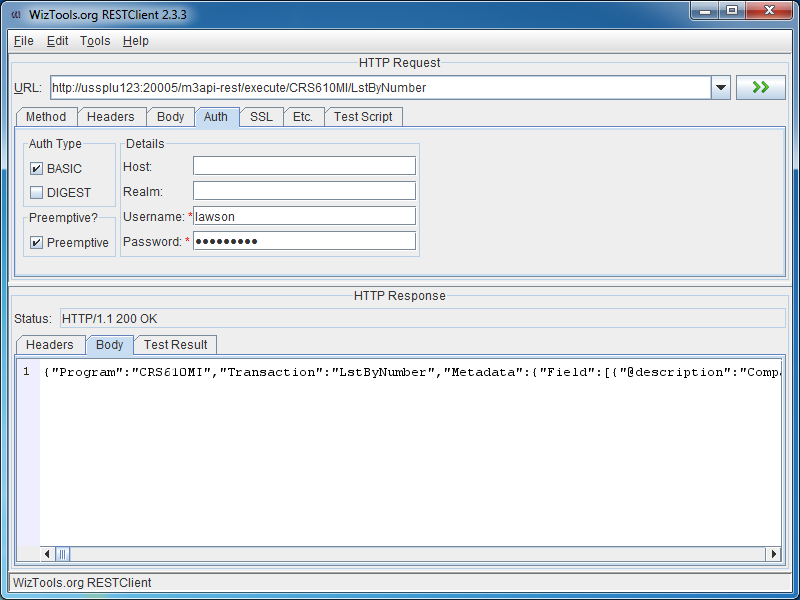
The server will challenge us for HTTP Basic Authentication, we need to provide a valid M3 userid and password:

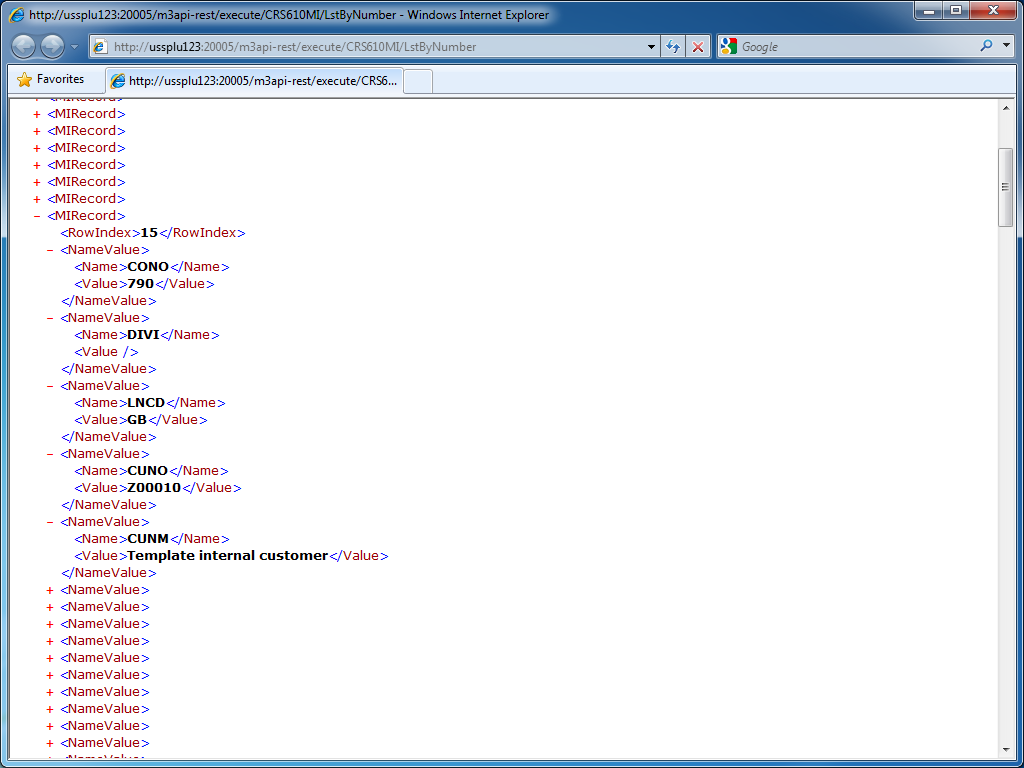
And the result in XML is a collection of MIRecord elements with Name/Value pairs:

JSON

We can get the result in JSON by adding the HTTP Header field:

Accept: application/json

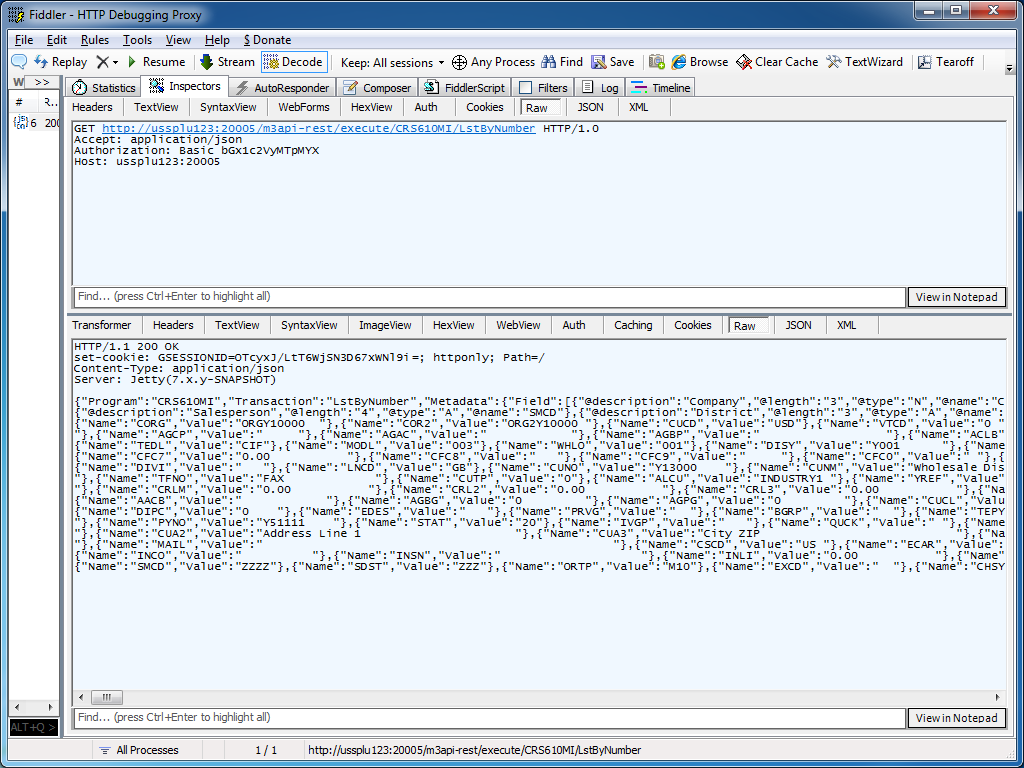
The result is:

REST GUI

RESTClient is a great REST graphical user interface which we can use to test M3 API; you can download it at http://code.google.com/p/rest-client/

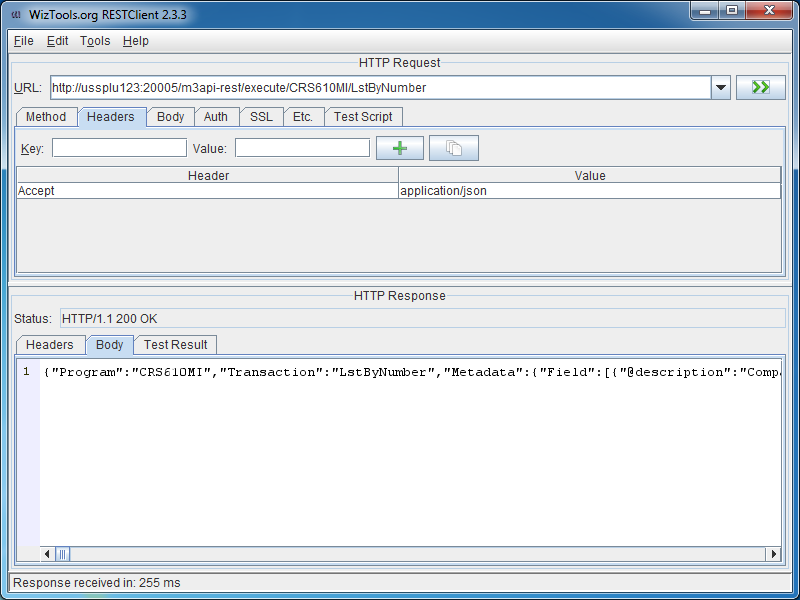
Paste the URL, set the M3 userid and password in the Authentication tab, optionally set the Header to get the response in JSON, and click Go!

Conclusion

With the Lawson Grid, software clients can now natively call M3 API from third-party software, and from previously unsupported or difficultly supported programming languages, without the need for proprietary libraries, and without the need for Lawson Web Services.

Updates

Input parameters

UPDATE 2012-07-17: You can set input parameters in the URL, for example: http://hostname:port/m3api-rest/execute/MMS200MI/GetItmBasic?CONO=531&ITNO=ABCDEF . Also, you can hook RESTClient to use Fiddler as a proxy in Tools >;; Options.

Max number of records

UPDATE 2012-07-31: You can set the maximum number of records returned with the matrix parameter maxrecs, for example: http://hostname:port/m3api-rest/execute/CRS610MI/LstByNumber;maxrecs=20?CONO=1

Output fields

UPDATE 2012-08-02: You can set the output fields returned with the parameter returncols, for example: http://hostname:port/m3api-rest/execute/CRS610MI/LstByNumber;returncols=CUNO,CUNM,CUA1,STAT,PHNO

Related articles

How to loop M3 activity node in PFI

Here is a solution to iterate thru the result set of an M3 activity node in ProcessFlow Integrator (PFI).

Background

M3 API transactions of type Get return one record. For example, CRS610MI.GetBasicData returns information about the specified customer number.

M3 API transactions of type List typically return multiple records. For example, CRS610MI.LstByNumber typically returns thousands of records.

Problem

Unfortunately, the M3 activity node in PF Designer does not include an iterator:

As a consequence, we cannot iterate individually thru the records of the M3 output, nor can we use other activity nodes inside each iteration. For example, there are valid scenarios where I would like to do something at each iteration: send an email, assign a value to a variable, execute SQL, call a Web Service, or do something else, even though there could be thousands of iterations. It’s not possible by default.

Other nodes

There are other activity nodes that appropriately have an iterator. For example, the SQL Query activity node includes an iterator, so we can call other activity nodes at each iteration to do something with each record of the SQL result set:

Goal

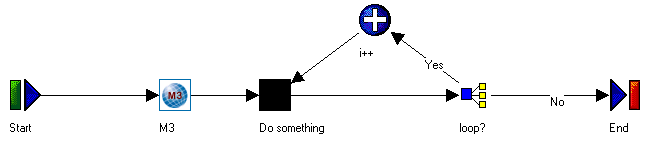
The goal is to find a workaround to iterate thru the result set of an M3 activity node, as illustrated in this fake screenshot:

Workaround 1

One workaround is to iterate thru the M3_output.row array by using JavaScript code in an Assign activity node.

for (var i = 0; i < M3_output.row.length(); i++) {
    var row = M3_output.row[i];
    // do something
    row.fieldName1;
    row.fieldName2;
    row.fieldName3;
}

Where fieldName is the output field of the result set, for example: CONO, CUNO, CUNM, etc. Alternatively, we can use the other syntax for accessing JavaScript Object properties: row[“fieldName“];

But there are several drawbacks to this workaround. First, it requires programming, which counters the graphical paradigm of PF Designer. Second, we cannot call other activity nodes from that JavaScript code. Third, PF Designer throws the false positive error message that we can ignore: “ReferenceError: M3_output is not defined”.

Workaround 2

Another workaround is to use an Assign activity node to serialize the JavaScript object into a String with delimiters (for example a semi-colon), and then two DataIterator activity nodes to parse that String by row and by column. It’s a bit cumbersome but it works.

for (var i = 0; i < M3_output.row.length(); i++) {
    var row = M3_output.row[i];
    csv += row.fieldName1 + ';' + row.fieldName2 + ... + ';' + row.fieldNameN + '\n';
}

The drawback – in addition to being disconcerting for non JavaScript programmers – is that it will take a lot of CPU and memory to process a big result set because appending a String to a String is exponentially slower.

Workaround 3

The third workaround is to create a for loop using a Branch activity node. Indeed, a for loop can be transformed equivalently into a recursive function with an if statement.

Yes branch:

i < M3_output.row.length() - 1

No branch:

i >= M3_output.row.length() - 1

This is my recommended solution.

LPA

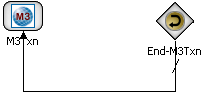
Note that this is not a problem anymore with the newest Lawson Process Automation (LPA) and Lawson Process Designer as the M3 transaction node now correctly includes an iterator:

That’s it!

How to use an M3 program that’s not yet bookmark enabled in a Mashup

Here is a solution for a Mashup to use an M3 program that doesn’t yet support bookmarks, for example MMS081. If the program doesn’t support bookmarks the options are limited. Normally only M3 programs that are bookmark enabled are supported in a Mashup.

But we can workaround the limitation by using the Program attribute instead of a Bookmark element.

<m3:ListPanel Name="MMS081B" Program="MMS081">
    <m3:ListPanel.Events>
       <mashup:Events>
          <mashup:Event SourceEventName="Startup" />
       </mashup:Events>
    </m3:ListPanel.Events>
</m3:ListPanel>

Note that starting programs using the Program property is a bit risky since we cannot guarantee the Sorting order nor the initial values on the panel as we can with Bookmarks.

In this case there is no standard way to set header fields when the program is started. But after the program has been started it can be set to blank using the M3 Mashup Apply event. We can use the Apply event to set values in the header and position fields, and when the values are set the ListPanel will automatically press the ENTER key to update the list.

As an example of the Apply event, we can set the Facility (FACI) to a certain value using the Apply event.

<Button Name="testButton" Content="Set Facility">
    <Button.CommandParameter>
       <mashup:Events>
          <mashup:Event TargetName="MMS081B" SourceEventName="Click" TargetEventName="Apply">
             <mashup:Parameter TargetKey="W1FACI" Value="A01" />
          </mashup:Event>
       </mashup:Events>
    </Button.CommandParameter>
</Button>

As another example of the Apply event, we can transfer a parameter from another ListPanel, for example the Item Number ITNO of MMS001/B:

<m3:ListPanel Name="MMS001B" Header="Items">
    <m3:ListPanel.Events>
       <mashup:Events>
          <mashup:Event SourceEventName="Startup">
             <mashup:Parameter TargetKey="MMCONO" />
             <mashup:Parameter TargetKey="MMITNO" />
          </mashup:Event>
          <mashup:Event SourceEventName="CurrentItemChanged" TargetName="MMS081B" TargetEventName="Apply">
             <mashup:Parameter SourceKey="ITNO" />
             <mashup:Parameter SourceKey="FACI" Value="A01" />
             <mashup:Parameter TargetKey="WHLO" Value="001" />
          </mashup:Event>
       </mashup:Events>
    </m3:ListPanel.Events>
    <m3:ListPanel.Bookmark>
       <m3:Bookmark Program="MMS001" Table="MITMAS" KeyNames="MMCONO,MMITNO" />
    </m3:ListPanel.Bookmark>
</m3:ListPanel>

Thanks to Peter K for all the help!

Self-configuration for Smart Office Scripts

Here is a trivial solution to implement Personalized Scripts for Lawson Smart Office that self-configure based on the program they are being executed in.

Problem

We often implement scripts which functionality can be applied to different M3 programs. For example, a script that makes a phone call based on the phone number displayed on the screen could be applied to any M3 program that has a phone number (Customers, Suppliers, etc.). As another example, a script that shows an address on Google Maps could be applied to any M3 program that has an address (CRS610/E, CRS622/E, etc.).

We could make one copy of the script for each target M3 program, but that would be a maintenance nightmare.

We could make the script re-usable and pass settings to the script, but that would require the installer to manually define the settings, which is time consuming and error prone.

As a general problem, I want to make a script re-usable and with zero configuration so it can be used anywhere in M3 where its functionality is needed.

Solution

The trivial solution is to pre-compute all the possible settings in advance, and apply the corresponding settings at runtime. We dynamically determine in which program we are currently executing the script by reading the HostTitle variable.

I call it a self-configuration script.

Pseudo-code:

HostTitle = controller.RenderEngine.Host.HostTitle
if (HostTitle = X) then { SettingsX }
if (HostTitle = Y) then { SettingsY }
if (HostTitle = Z) then { SettingsZ }

Advantages

The advantage is reduced installation. In some cases we could completely eliminate configuration.

It’s also time saving, and error proof.

And it’s closer to plug’n play and Autonomic Computing.

Example

I had implemented a script that performs address validation.

The script checks the address that is entered by the user with a third-party software that validates if the address is correct or not.

The script needs to get a reference to the address fields: Address line 1 (CUA1), Address line 2 (CUA2), City (TOWN), State (ECAR), etc. In CRS610/E those fields will be WRCUA1, WRCUA2, WRTOWN, and WRECAR. Whereas in CRS622/E those fields will be WWADR1, WWADR2, WWTOWN, and WWECAR.

The fields are different in each M3 program. So I pre-computed the field names of the eight M3 programs and panels where I would be executing the script (CRS610/E, CRS235/E1, CRS300/E, CRS622/E, MNS100/E, OIS002/E, OPS500/I, and SOS005/E), and I hard-coded all the possible values in the script.

Sample source code

Here is part of the source code of my self-configuration script for address validation:

var HostTitle = controller.RenderEngine.Host.HostTitle;
var settings = {};

if (HostTitle.IndexOf('CRS610/E') > 0) {
     // Customer. Open - CRS610/E
     settings = {
         FirmName: 'WRCUNM',
         AddressLine1: 'WRCUA1',
         AddressLine2: 'WRCUA2',
         AddressLine3: 'WRCUA3',
         AddressLine4: 'WRCUA4',
         City: 'WRTOWN',
         State: 'WRECAR',
         PostalCode: 'WRPONO',
         Country: 'WRCSCD',
         Latitude: '',
         Longitude: ''
     };
} else if (HostTitle.IndexOf('CRS622/E') > 0) {
     // Supplier. Connect Address - CRS622/E
     settings = {
         FirmName: 'WWSUNM',
         AddressLine1: 'WWADR1',
         AddressLine2: 'WWADR2',
         AddressLine3: 'WWADR3',
         AddressLine4: 'WWADR4',
         City: 'WWTOWN',
         State: 'WWECAR',
         PostalCode: 'WWPONO',
         Country: 'WWCSCD',
         Latitude: 'WEGEOY',
         Longitude: 'WEGEOX'
     };
} else if (HostTitle.IndexOf('OIS002/E') > 0) {
     // Customer. Connect Addresses - OIS002/E
     settings = {
         FirmName: 'WRCUNM',
         AddressLine1: 'WRCUA1',
         AddressLine2: 'WRCUA2',
         AddressLine3: 'WRCUA3',
         AddressLine4: 'WRCUA4',
         City: 'WRTOWN',
         State: 'WRECAR',
         PostalCode: 'WRPONO',
         Country: 'WRCSCD',
         Latitude: '',
         Longitude: ''
     };
} else if (HostTitle.IndexOf('CRS235/E1') > 0) {
     // Internal Address. Open - CRS235/E1
     settings = {
         FirmName: 'WWCONM',
         AddressLine1: 'WWADR1',
         AddressLine2: 'WWADR2',
         AddressLine3: 'WWADR3',
         AddressLine4: 'WWADR4',
         City: 'WWTOWN',
         State: 'WWECAR',
         PostalCode: 'WWPONO',
         Country: 'WWCSCD',
         Latitude: 'WEGEOY',
         Longitude: 'WEGEOX'
     };
} else if (HostTitle.IndexOf('MNS100/E') > 0) {
     // Company. Connect Division - MNS100/E
     settings = {
         FirmName: 'WWCONM',
         AddressLine1: 'WWCOA1',
         AddressLine2: 'WWCOA2',
         AddressLine3: 'WWCOA3',
         AddressLine4: 'WWCOA4',
         City: 'WWTOWN',
         State: 'WWECAR',
         PostalCode: 'WWPONO',
         Country: 'WWCSCD',
         Latitude: '',
         Longitude: ''
     };
} else if (HostTitle.IndexOf('CRS300/E') > 0) {
     // Ship-Via Address. Open - CRS300/E
     settings = {
         FirmName: 'WWCONM',
         AddressLine1: 'WWADR1',
         AddressLine2: 'WWADR2',
         AddressLine3: 'WWADR3',
         AddressLine4: 'WWADR4',
         City: 'WWTOWN',
         State: 'WWECAR',
         PostalCode: 'WWPONO',
         Country: 'WWCSCD',
         Latitude: '',
         Longitude: ''
     };
} else if (HostTitle.IndexOf('SOS005/E') > 0) {
     // Service Order. Connect Delivery Address - SOS005/E
     settings = {
         FirmName: 'WPCONM',
         AddressLine1: 'WPADR1',
         AddressLine2: 'WPADR2',
         AddressLine3: 'WPADR3',
         AddressLine4: 'WPADR4',
         City: 'WPTOWN',
         State: 'WPECAR',
         PostalCode: 'WPPONO',
         Country: 'WPCSCD',
         Latitude: '',
         Longitude: ''
     };
} else if (HostTitle.IndexOf('OPS500/I') > 0) {
     // Shop. Open - OPS500/I
     settings = {
         FirmName: 'LBL_L21T2',
         AddressLine1: 'WICUA1',
         AddressLine2: 'WICUA2',
         AddressLine3: '',
         AddressLine4: '',
         City: 'WICUA3',
         State: '',
         PostalCode: '',
         Country: 'WICUA4',
         Latitude: '',
         Longitude: ''
     };
} else {
     // M3 panel not supported
}

This has been tested in Lawson Smart Client (LSC), and in Lawson Smart Office (LSO).

Additionally, you can discriminate LSC vs. LSO with:

if (Application.Current.MainWindow.Title == 'Lawson Smart Client') {
 // running in LSC (not LSO)
}

That’s it!

UPDATE

UPDATE 2012-07-24: We can also use controller.RenderEngine.PanelHeader to get just the program and panel (for example: CRS610/B1) instead of the entire host title; the result is a shorter syntax:

var PanelHeader = controller.RenderEngine.PanelHeader;
if (PanelHeader == 'CRS610/E') {
   // CRS610/E
} else if (PanelHeader == 'CRS622/E') {
   // CRS622/E
} else if (PanelHeader == 'OIS002/E') {
   // OIS002/E
} else if (PanelHeader == 'CRS235/E1') {
   // CRS235/E1
} else {
   // not supported
}

Translate M3 with Google Translate API

Here is a solution to automatically translate M3 and user-generated content in 52 languages.

For that, I will use the Google Translate API and a Personalized Script for Lawson Smart Office.

Business advantage

This solution is interesting to translate content that is generated by users, such as:

  • Bill of Materials
  • Work Orders
  • Service Orders
  • Customer Order Notes
  • etc.

Such content is entered in the user’s language and by design is not translated by Lawson Smart Office.

Also, this solution is interesting to translate M3 itself beyond the number of languages that Lawson makes available.

Lawson Smart Office

Lawson Smart Office supports 18 languages: Czech, Danish, German, Greek, English, Spanish, Finnish, French, Hungarian, Italian, Japanese, Dutch, Norwegian, Polish, Portuguese, Russian, Swedish, and Chinese:

It’s a high number of languages given that text is manually translated by professional translators which are probably paid by the word.

The quality is near perfect.

But by design, the user-generated content is not translated.

Google Translate

Google Translate supports 52 languages: Afrikaans, Albanian, Arabic, Belarusian, Bulgarian, Catalan, Chinese Simplified, Chinese Traditional, Croatian, Czech, Danish, Dutch, English, Estonian, Filipino, Finnish, French, Galician, German, Greek, Hebrew, Hindi, Hungarian, Icelandic, Indonesian, Irish, Italian, Japanese, Korean, Latvian, Lithuanian, Macedonian, Malay, Maltese, Norwegian, Persian, Polish, Portuguese, Romanian, Russian, Serbian, Slovak, Slovenian, Spanish, Swahili, Swedish, Thai, Turkish, Ukrainian, Vietnamese, Welsh, and Yiddish.

It’s a very high number of languages because it uses machine learning and statistical analysis for automatic machine translation of millions of web pages and of official translations done by governments and by international organizations.

It is one of the best machine translations available, considered state of the art, and the quality is improving constantly. [1] [2] [3].

Google is even working on recognizing handwritten text, and text in images.

But even though the quality is good it’s not yet accurate.

It may not be accurate enough in a professional context to translate user-generated content in M3 with the Google Translate API.

But it still gives the user a general idea of the meaning of the text.

And as a pedagogical tool, it serves the purpose of illustrating how to write scripts for Smart Office, and how to integrate M3 to external systems.

Hello World!

To use the Google Translate API you need to register and obtain a key. It is a paid service that will translate one million characters of text for $20.

Once you obtain your key, you need to construct a URL with your API key, the text to translate, and the source and target languages.

Here is a sample URL that translates the text Hello World! from English (en) to French (fr):

https://www.googleapis.com/language/translate/v2?key=YOUR_API_KEY&q=Hello%20World!&source=en&target=fr

The result is a JSON object like this:

{
 "data": {
  "translations": [
   {
    "translatedText": "Bonjour tout le monde!"
   }
  ]
 }
}

First script

Then write a Personalized Script for Lawson Smart Office using the Script Tool.

The script will submit the HTTP GET Request to the Google Translate API over HTTPS and will parse the JSON response.

function translate(text: String, source, target) {
     var url = 'https://www.googleapis.com/language/translate/v2?key=YOUR_API_KEY&source=' + source + '&target=' + target + '&q=' + HttpUtility.UrlEncode(text);
     var request = HttpWebRequest(WebRequest.Create(url));
     var response = HttpWebResponse(request.GetResponse());
     var jsonText = (new StreamReader(response.GetResponseStream())).ReadToEnd();
     var o = eval('(' + jsonText + ')''unsafe');
     return o.data.translations[0].translatedText;
}

We can now use this function to translate any piece of user-generated content, for example the Customer Name in CRS610/E (WRCUNM):

var WRCUNM = ScriptUtil.FindChild(controller.RenderEngine.Content, 'WRCUNM');
WRCUNM.Text = translate(WRCUNM.Text, 'en''fr');

Also, we can translate several pieces of text at once by appending as many q parameters to the URL as pieces of text.

Beyond

With this technique, we can translate all the Controls of our Panel, including the user-generated content: Label, TextBox, Button, ListView, GridViewColumnHeader, ListRow, etc. That will cover Panels A, B, E, F, etc.

Also, we will need to submit the HTTP Request in a background thread to avoid blocking the user interface.

Complete Script

Here is the complete source code of my script that translates all the content of any M3 program, any panel.

Installation

Replace the constant YOUR_API_KEY of the source code with your own Google Translate API key.

The script has a limit GOOGLE_MAX_TEXT_SEGMENTS which was applicable when I wrote the script back in March 2010, but Google has since removed the limit so you can remove it from the script as well.

Then deploy the script on each program and each panel that you’d like to translate. The deployment can probably be automated with some custom XML and XSLT.

Result

Here is an animation of the M3 program Work Order – MOS100/B1 with buttons for seven languages. Click on the image to see the animation. Note how the user-generated content in the rightmost column of the list is also being translated.

Future Work

A future implementation should also translate menus, drop down lists, and text panels (T). I still haven’t been able to execute scripts in a T panel.

That’s it!
 

Updates

UPDATE 2012-08-02: Just fixed the line breaks at line 280 which the copy/paste had corrupted + fixed GetType().ToString() + fixed Exception handling in BackgroundWorker.

UPDATE 2012-08-03, Martin Trydal Torp & Thibaud: Adapted listView for newer LSO (new: listView.ItemsSource; old: listView.Items) + change sourceLanguage dynamically

Send SMS from PFI with Twilio

Here I propose a solution to send SMS text messages from M3.

The desired solution is an exchange of SMS text messages between M3 and the user.

Scenario

For example, let’s suppose we have a scenario where approvers need to review new Customers before setting the Customer’s status to 20-Definite in CRS610. Also, let’s suppose that the approvals are done by SMS text messages. In such a scenario, M3 would send an SMS text message to the user’s mobile phone saying “Please review and approve this new customer XYZ”. The user would respond with an SMS text message saying “APPROVE”. M3 would acknowledge receipt of the approval and would call the API CRS610MI.ChgBasicData to set the Customer’s Status to 20-Definite.

Here is a screenshot of such an exchange between M3 and the approver:

Alternate solutions

The current solutions for such approval scenarios is to use the Smart Office Inbasket, the Mailbox Inbasket, and the Mobile Inbasket of ProcessFlow Integrator (PFI). But those solutions do not support SMS text messaging.

Why it matters

SMS text messaging is a market of 6 trillion SMS text messages sent in 2010 [1], generating $114.6 billion in 2010 [2].

We want M3 to also benefit from the potential of using SMS text messages.

Background

In a previous post, I had posted a solution to Send SMS from Smart Office with Skype. That was a solution for the client-side.

This time, I post a solution using Twilio. And this time the solution is for the server-side.

How it works

I propose a solution that uses PFI and the REST API of Twilio cloud communications.

Twilio is a service that allows developers to programmatically make and receive phone calls, and to send and receive text messages. Twilio’s REST API is XML or JSON over HTTP.

Technically speaking, we want PFI to send an HTTP request to Twilio. The HTTP Request must be over HTTPS, using a POST method, using Basic Authentication, and the Body of the request will contain as parameters the source phone number, the target phone number, and the desired message. We’ll use the WebRun activity node in PFI for that. And when Twilio will receive that HTTP Request it will send the SMS text message on our behalf using its PSTN gateway.

Pre-requisites

Make sure your Twilio account works:

  1. Open an account with Twilio
  2. Add funds
  3. Make sure to get a valid Twilio phone number
  4. Test it with the Twilio Sandbox
  5. Test it with the API Explorer
  6. Write down the Account SID and the Authorization Token, they will be needed for authentication later:

Sample HTTP Request

A sample HTTP Request to send an SMS text message looks like:

POST https://api.twilio.com/2010-04-01/Accounts/ACec246b17f76e0f336a6........../SMS/Messages.xml HTTP/1.1
Authorization: Basic QUNlYzI0NmIxN2Y3NmUwZjMzNmE2NTYzMjI2ZmNmMTUyYzo1ZjA2MDA4NDI0ZGQ1OGFmNWZkMThiYW.........==
Content-Type: application/x-www-form-urlencoded
Host: api.twilio.com
Content-Length: 64

From=%2B14156250342&To=%2B18472874945&Body=Hi%2C+this+is+Thibaud!

Solution

Perform the following steps to implement the solution:

  1. Open PF Designer
  2. Create a new flow
  3. Add a WebRun activity node:
  4. Open the Properties of the WebRun activity node.
  5. Set the WebRun to Use external host
  6. Set the hostname to api.twilio.com
  7. Set the userid to your Twilio’s AccountSid as shown on your Twilio’s account Dashboard.
  8. Set the password to your Twilio’s AuthToken as shown on your Twilio’s account Dashboard.
  9. Check the box SSL enabled
  10. Set the Web program to:
    /2010-04-01/Accounts/{AccountSid}/SMS/Messages.{format}

    Where {AccountSid} is your AccountSid, and where {format} is either XML or JSON.

  11. Set the Post string with a From, To, and Body parameters.
  12. Set the source From phone number to your Twilio’s number, and URL-encode it. For example, the phone number +14156250342 becomes:
    From=%2B14156250342
  13. Set the destination To phone number to any number you want, and URL-encode it. For example, the phone number +18472874945 becomes:
    To=%2B18472874945
  14. Set the Body of the SMS text message to any text you want, and URL-encode it. For example, the message “Hi, this is PF Designer!” becomes:
    Body=Hi%2C+this+is+PF+Designer!
  15. Separate the From, To, and Body parameters with ampersands &
  16. Set the Content-type to application/x-www-form-urlencoded.
    But because PF Designer doesn’t have that specific content-type in the available list of options, you will have to add it manually in the XML file of the flow with a text editor like Notepad, and URL-encode it. The new value should be application%2Fx-www-form-urlencoded. The result should look like:

    <activity activityType="WEBRN" ...>
      <prop className="java.lang.String" name="contentType" propType="SIMPLE">
        <anyData><![CDATA[application%2Fx-www-form-urlencoded]]></anyData>
      </prop>
      ...
    </activity>
  17. Save the flow
  18. The Properties of the WebRun should look like this:
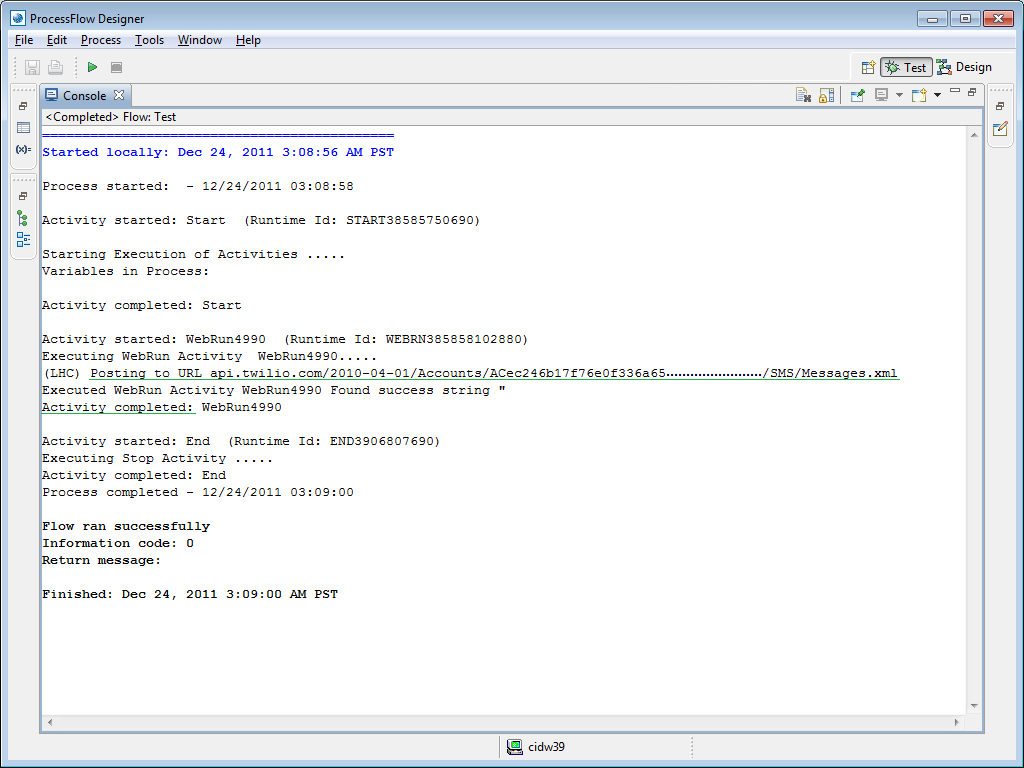
  19. Run the flow:
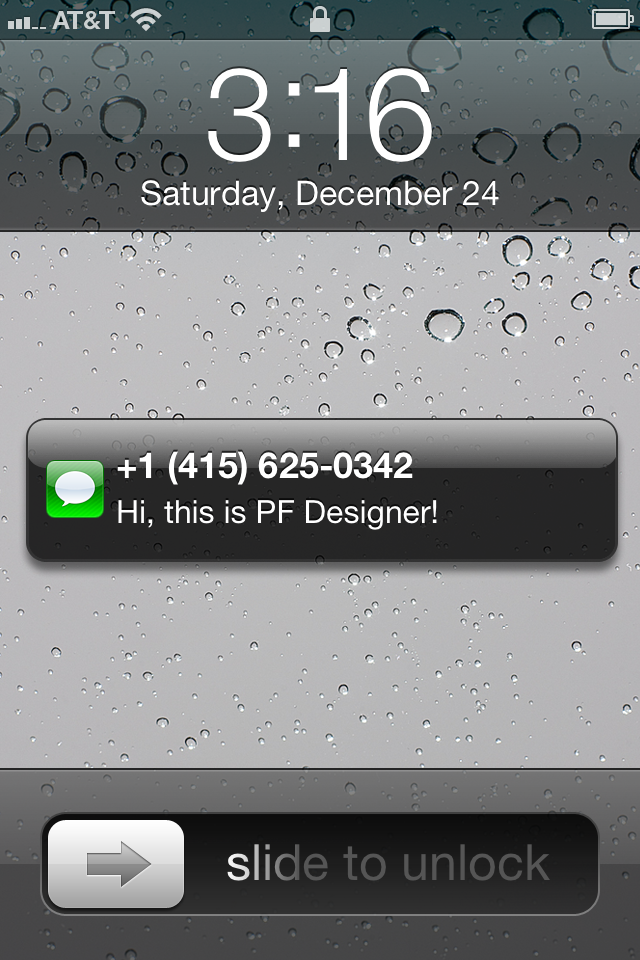
  20. Now your mobile phone should receive the SMS text message and beep. Here is a screenshot from the SMS text message received on my iPhone:
     
  21. You can check the logs in Twilio:

Note: The WebRun activity node was meant for another purpose, to be used in conjunction with S3; we’re sort of deviating the WebRun activity node from its original purpose. So it will submit two more HTTP Requests to PFI – which are unnecessary to our solution – before submitting the HTTP Request to Twilio. It’s inefficient but that’s the only activity node of PFI that can natively submit HTTP Requests. UPDATE: I think I’m wrong here because I was testing from PFI Designer and that may have caused the two extra requests. When deployed the flow will probably not send them. To be verified.

Applications

Here are a few possible applications of sending and receiving SMS text messages from M3:

  • Support for users that do not have smartphones
  • Support for regions that are covered by GSM only and that lack coverage for 3G/4G/Wifi
  • Approve/Reject Customers (CRS610) by text messages
  • Approve/Reject Purchase Orders (PPS180) by text messages
  • Send driving directions to truck drivers
  • Send pick-up reminders
  • Place a Customer Order via text messages
  • Send notifications by text message when an order changes status.
  • Monitoring and alert. To help with the scheduled jobs, such as CAS950, OIS180, PPS600, POs, Invoicing, Stock Transactions, etc. If there is an issue, if the jobs fail or do not complete within the expected time, M3 could alert a maintenance staff via SMS text message to its mobile phone.

Future work

Here are future implementations:
  • In addition to sending text messages, we can receive text messages via Twilio, so as to have two-way SMS text messaging with the user.
  • As an alternative to PFI, we could use Twilio’s helper libraries in Java to send SMS text messages directly from M3 Business Engine with an MAK modification, i.e. without having to go thru PFI.
  • In addition to PFI and M3, we could send SMS text messages from Lawson Smart Office scripts with the Twilio’s helper libraries for .NET.
I will publish such solutions in future posts.

Conclusion

That was an easy solution to send SMS text messages from PFI. By extension, since M3 Business Engine can trigger PFI flows, we can consider this a solution too for M3 BE to send SMS text messages.

That’s it!
How to avoid impersonation with the Mailbox Inbasket for PFI

Here is a solution to avoid impersonation when from an email we take action in the Inbasket of ProcessFlow Integrator (PFI).

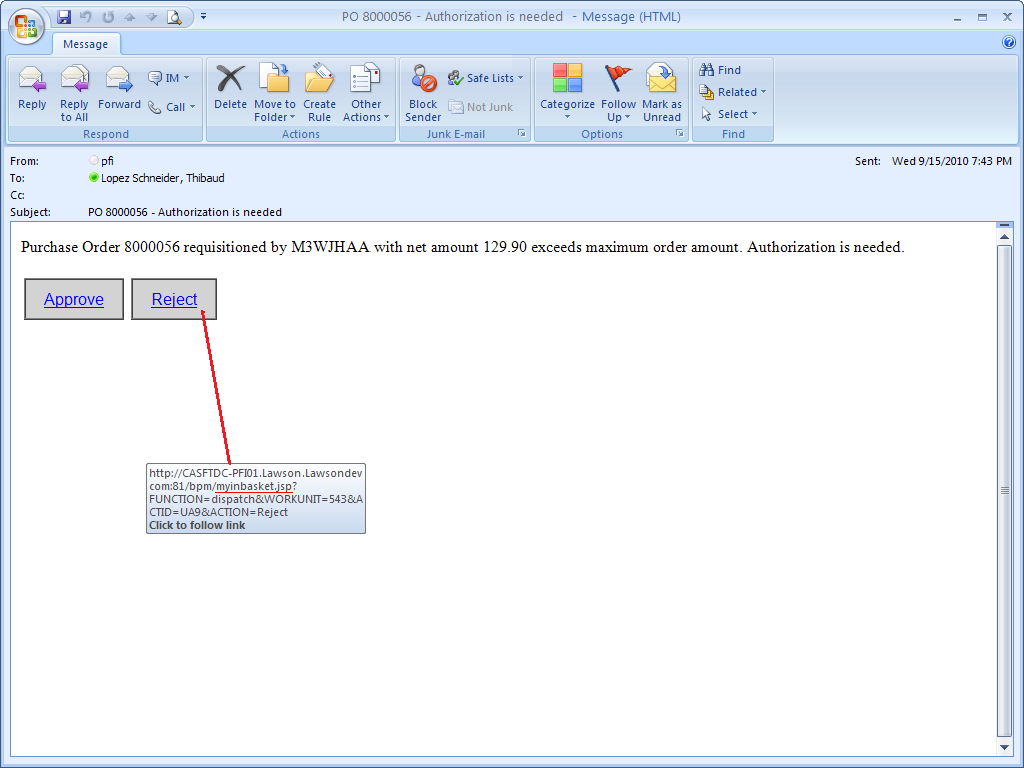
The scenario is the following. We have a workflow where approvers need to review certain information and take action, for example Approve or Reject. In this particular scenario the buttons to approve and reject are embedded in the email such that approvers can take action directly from their mailbox, i.e. we are not discussing the scenario of the Inbasket in Lawson Smart Office (LSO).

I call this the Mailbox Inbasket.

Note: The reason to use emails instead of the Inbasket is that not all approvers use LSO, for example in certain companies the managers don’t use LSO, they just have a mailbox. The other advantage of using the mailbox instead of the Inbasket is that taking action from the mailbox works from virtually any mail client that has network access to the PFI server, from corporate mobile phones for example.

When the approver takes action (for example Approve or Reject), PFI will challenge the user for authentication. The approver enters the login and password, PFI validates the credentials, and carries on with the action (Approve or Reject).

The problem arises if the user forwards the email to another person, the parameter RDUSER embedded in the URL could lead to impersonation, i.e. a user could take action in place of another user. That’s not desirable.

To avoid impersonation, we must remove the parameter RDUSER from the URL. But in doing so, PFI will throw an error.

The solution I propose is to create an intermediate JSP that will append the parameter RDUSER to the URL only after authentication.

I call it myinbasket.jsp.

  1. Create a JSP file with this line:
    <% response.sendRedirect("/bpm/inbasket?" + request.getQueryString() + "&RDUSER=" + session.getAttribute("com.lawson.bpm.webcomponents.userId")); %>
  2. Place that JSP in the bpm.war folder in WebSphere.
  3. Remove the parameter RDUSER from your trigger URL
  4. Then replace inbasket by myinbasket.jsp in your trigger URL. For example,
    from:

    [...]/bpm/inbasket?FUNCTION=dispatch[...]

    to:

    [...]/bpm/myinbasket.jsp?FUNCTION=dispatch[...]

  5. The JSP will dynamically get the userid of the user that just authenticated, will append it to the URL, and will respond with a location redirect.

That’s it!