Stand-alone scripts for Smart Office

Here is a solution to write stand-alone scripts for Smart Office. Stand-alone scripts are interesting to create mini applications in Smart Office like widgets, or to create full blown applications like composite applications.

A stand-alone script runs independently of an M3 program, in its own instance, eventually with its own user interface. Whereas a regular script runs as part of an M3 program, for example inside CRS610.

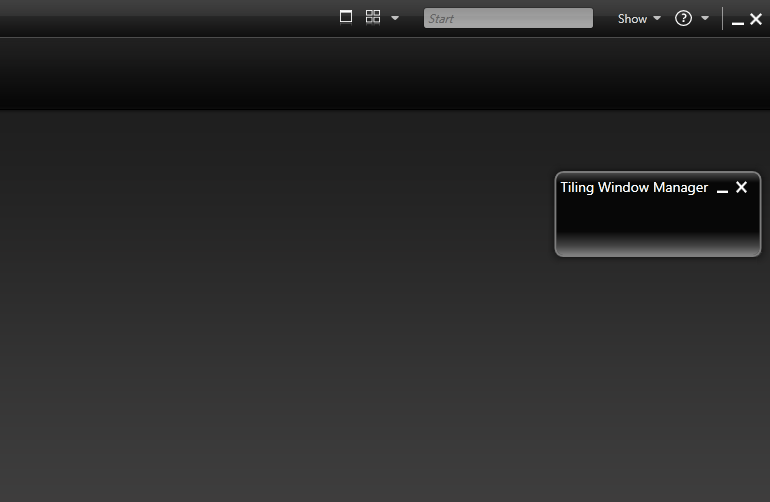
I will illustrate how to write a stand-alone script by creating a Tiling Window Manager widget. It’s a continuation of my previous post on How to tile windows in Smart Office. The result will look like this:

Make sure to read my disclaimer before trying this as I’m using non-public APIs.

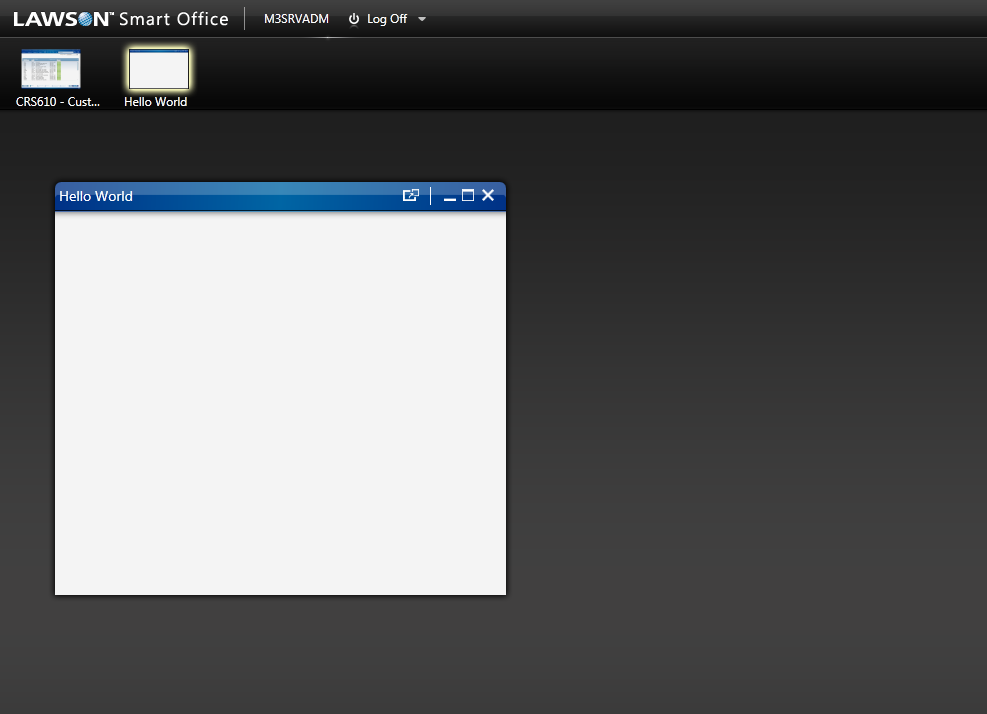
First, I will create an empty window with an icon in the Taskbar:

var task = new Task(new Uri('jscript://'));
task.VisibleName = 'Hello World';
var runner = DashboardTaskService.Current.LaunchTask(task, null);
runner.Status = RunnerStatus.Running;
var host = runner.Host;
host.HostTitle = 'Hello World';
host.Show();

The result will look like a regular Smart Office window, albeit empty:
Then, I will use HostType.Widget to change the appearance of the window and make it look like a small widget:

var task = new Task(new Uri('jscript://'));
task.AllowAsShortcut = false;
task.VisibleName = 'Tiling Window Manager';
var runner = DashboardTaskService.Current.LaunchTask(task, HostType.Widget);
runner.Status = RunnerStatus.Running;
var host = runner.Host;
var wrapPanel = new WrapPanel();
host.HostContent = wrapPanel;
host.HostTitle = 'Tiling Window Manager';
host.ResizeMode = ResizeMode.NoResize;
host.Show();
host.Width = 221;
host.Height = 85;

The host’s Width and Height must be set after host.Show().

The result will look like a widget:
Then, I will add three buttons to the widget:

var buttons: String[] = [' ← ''Tile'' → '];
for (var i in buttons) {
    var btn = new Button();
    btn.Content = buttons[i];
    btn.Width = double.NaN; // auto width
    btn.Margin = new Thickness(3, 0, 3, 0); // ltrb
    btn.Padding = new Thickness(7, 0, 7, 0); // ltrb
    wrapPanel.Children.Add(btn);
}
wrapPanel.HorizontalAlignment = HorizontalAlignment.Center;

The result will finally look like the desired widget:

Then, I will add an event handler for the buttons:

btn.add_Click(OnClick);
...
function OnClick(sender: Object, e: RoutedEventArgs) {
    if (sender.Content.Equals(' ← ')) {
        //
    } else if (sender.Content.Equals('Tile')) {
        //
    } else if (sender.Content.Equals(' → ')) {
        //
    }
}

Then, I will add the functions for tiling and shifting the visible windows horizontally on the screen.

var shift = 0;
...
/*
 Tiles the specified windows horizontally accross the screen.
*/
function tileInstances(instances: ArrayList) {
    this.shift = 0;
    for (var i = 0; i < instances.Count; i++) {
        tileInstance(instances[i], i, instances.Count);
    }
}
/*
 Shifts the specified windows horizontally, to the left or to the right.
*/
function shiftInstances(instances: ArrayList, increment: int) {
    this.shift += increment;
    for (var i = 0; i < instances.Count; i++) {
        var n: int = instances.Count;
        var j: int = (((i + this.shift) % n) + n) % n; // fix the JavaScript modulo bug
        tileInstance(instances[i], j, instances.Count);
    }
}

Then, I will deploy the script on the server.

For Grid installations the deploy folder is somewhere like:

\\hostname\d$\Lawson\LifeCycleManager\Service\XYZ\grid\TST\applications\LSO_M3_Adapter\webapps\mne\jscript\

For non-Grid installations the deploy folder is somewhere like:

\\hostname\d$\IBM\WebSphere7\AppServer\profiles\MWPProfile\installedApps\MWPProfileCell\MWP_EAR.ear\MNE.war\jscript\

Then, I will add a shortcut to the Smart Office Canvas to launch the script with this special syntax:

mforms://_runscript?name=TilingWindowManager
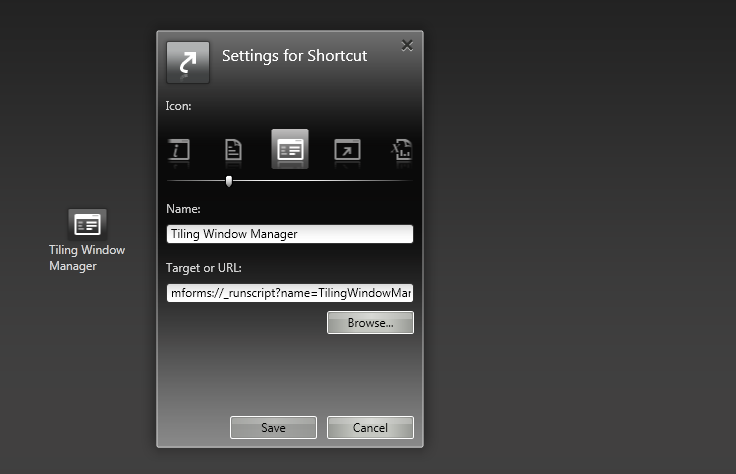
My final script is:

import System;
import System.Collections;
import System.Windows;
import System.Windows.Controls;
import Mango.Services;
import Mango.UI.Core;
import Mango.UI.Services;
import MForms;
import Mango.UI;

/*
	Thibaud Lopez Schneider
	Infor
	May 7, 2012

	This script opens a widget to tile and shift the visible windows horizontally in Smart Office.
*/

package MForms.JScript {
	class TilingWindowManager {
		var shift = 0;
		public function Init(element: Object, args: Object, controller : Object, debug : Object) {
			try {
				var task = new Task(new Uri('jscript://'));
				task.AllowAsShortcut = false;
				task.VisibleName = 'Tiling Window Manager';
				var runner = DashboardTaskService.Current.LaunchTask(task, HostType.Widget);
				runner.Status = RunnerStatus.Running;
				var host = runner.Host;
				host.HostContent = CreateWindow();
				host.HostTitle = 'Tiling Window Manager';
				host.ResizeMode = ResizeMode.NoResize;
				host.Show();
				host.Width = 221;
				host.Height = 85;
			} catch(ex: Exception) {
				ConfirmDialog.ShowErrorDialogWithoutCancel(ex.GetType(), ex.Message + '\n' + ex.StackTrace, null);
			}

		}
		function CreateWindow() {
			var wrapPanel: WrapPanel = new WrapPanel();
			var buttons: String[] = [' ← ', 'Tile', ' → '];
			for (var i in buttons) {
				var btn = new Button();
				btn.Content = buttons[i];
				btn.Width = double.NaN; // auto width
				btn.Margin = new Thickness(3, 0, 3, 0); // ltrb
				btn.Padding = new Thickness(7, 0, 7, 0); // ltrb
				wrapPanel.Children.Add(btn);
				btn.add_Click(OnClick);
			}
			wrapPanel.HorizontalAlignment = HorizontalAlignment.Center;
			return wrapPanel;
		}
		/*
			Returns a list of the visible windows.
		*/
		function getVisibleInstances() {
			var instances = MainController.Current.GetInstances();
			var visibleInstances = new ArrayList();
			for (var instance in instances) {
				var window: EmbeddedHostWindow = instance.Host.Implementation;
				if (window.Visibility == Visibility.Visible) {
					visibleInstances.Add(instance);
				}
			}
			return visibleInstances;
		}
		/*
			Tiles the specified window at the specified index relative to the specified count of windows.
		*/
		function tileInstance(instance: InstanceController, i: int, count: int) {
			var window: EmbeddedHostWindow = instance.Host.Implementation;
			window.Width = instance.ParentWindow.Width / count;
			window.Height = instance.ParentWindow.Height;
			DashboardService.Window.SetPosition(new Point(window.Width * i, 0), window);
		}
		/*
			Tiles the specified windows horizontally accross the screen.
		*/
		function tileInstances(instances: ArrayList) {
			this.shift = 0;
			for (var i = 0; i < instances.Count; i++) {
				tileInstance(instances[i], i, instances.Count);
			}
		}
		/*
			Shifts the specified windows horizontally, to the left or to the right.
		*/
		function shiftInstances(instances: ArrayList, increment: int) {
			this.shift += increment;
			for (var i = 0; i < instances.Count; i++) {
 				var n: int = instances.Count;
 				var j: int = (((i + this.shift) % n) + n) % n; // fix the JavaScript modulo bug
 				tileInstance(instances[i], j, instances.Count);
 			}
 		}
 		/*
 			Handles the click on the buttons.
 		*/
 		function OnClick(sender: Object, e: RoutedEventArgs) {
 			try {
 				var visibleInstances = getVisibleInstances();
 				if (visibleInstances.Count > 0) {
					if (sender.Content.Equals(' ← ')) {
						shiftInstances(visibleInstances, -1);
					} else if (sender.Content.Equals('Tile')) {
						tileInstances(visibleInstances);
					} else if (sender.Content.Equals(' → ')) {
						shiftInstances(visibleInstances, +1);
					}
				}
			} catch(ex: Exception) {
				ConfirmDialog.ShowErrorDialogWithoutCancel(ex.GetType(), ex.Message + '\n' + ex.StackTrace, null);
			}
		}
	}
}

Voilà!

This solution showed how to create a stand-alone script in Smart Office, how to create a widget-like script, and how to tile and shift windows.

If you liked this solution, I invite you to subscribe to this blog.

Special thanks to Peter A.J. for the original help.
How to tile windows in Smart Office

Here is a solution to tile M3 programs in Smart Office. It is a Tiling window manager for Smart Office with automatic scaling, placement, and arrangement of windows, for example to organize M3 programs horizontally across the screen.

This solution is useful for example to put side by side two programs that a user might often use, for example Customer Order. Open Toolbox – OIS300 to see all the orders in M3, and Batch Customer Order. Open – OIS275 to see problems with those orders. A user might want to put the two windows side by side to monitor the orders. If a user does that every day, she might want a solution to tile the programs automatically. This solution will enhance the user experience and will contribute to increase user productivity.

First, we get a reference to the window with:

var window = controller.Host.Implementation; // Mango.UI.Services.EmbeddedHostWindow

Then, we de-iconify the window with:

window.ActivateWindow(true);

Then, we scale the window in pixels, for example:

window.Width = 1280;
window.Height = 800;

Then, we scale the window relative to the main Smart Office window – which is given by controller.ParentWindow – for example to half the width and full height of the screen:

window.Width = controller.ParentWindow.Width / 2;
window.Height = controller.ParentWindow.Height;

Then, we position the window horizontally and vertically in pixels on the screen by using Mango.UI.Services.DashboardService, for example:

DashboardService.Window.SetPosition(new Point(100, 20), window); // x, y

Then, we get a list of the M3 programs that are currently running – we use MainController for that – and we get a reference to each window:

var instances = MainController.Current.GetInstances(); // System.Collections.Generic.IList<IInstanceController>
for (var i: int = 0; i < instances.Count; i++) {
    var controller_: Object = instances[i]; // MForms.IInstanceController
    var window = controller_.Host.Implementation;
}

If we want to tile the windows horizontally, we scale each window’s width respective to the total number of windows. For example, if there are three windows on the screen, each window will occupy a third of the screen:

window.Width = controller_.ParentWindow.Width / instances.Count;
DashboardService.Window.SetPosition(new Point(window.Width * i, 0), window);

If we want to tile two specific M3 programs, we can find them by their name, and tile them accordingly. For example, here I position OIS275 to the left, and OIS300 to the right:

var name = controller_.RenderEngine.PanelHeader;
if (name.Equals('OIS275/B1')) {
    DashboardService.Window.SetPosition(new Point(0, 0), window); // leftelse if (name.Equals('OIS300/B')) {
    DashboardService.Window.SetPosition(new Point(controller_.ParentWindow.Width - window.Width, 0), window); // right
}

Here is my full source code to automatically tile all the windows horizontally:

import System.Windows;
import Mango.UI.Services;
import MForms;

package MForms.JScript {
	class TileHorizontally {
		public function Init(element: Object, args: Object, controller : Object, debug : Object) {
			var instances = MainController.Current.GetInstances(); // System.Collections.Generic.IList
			for (var i: int = 0; i < instances.Count; i++) {
				var controller_: Object = instances[i]; // MForms.IInstanceController
				var name = controller_.RenderEngine.PanelHeader; // M3 program name
				var window = controller_.Host.Implementation; // Mango.UI.Services.EmbeddedHostWindow
				window.ActivateWindow(true); // de-iconify
				window.Width = controller_.ParentWindow.Width / instances.Count; // set width to a respective fraction of the screen
				window.Height = controller_.ParentWindow.Height; // set to full height
				DashboardService.Window.SetPosition(new Point(window.Width * i, 0), window); // position
			}

		}
	}
}

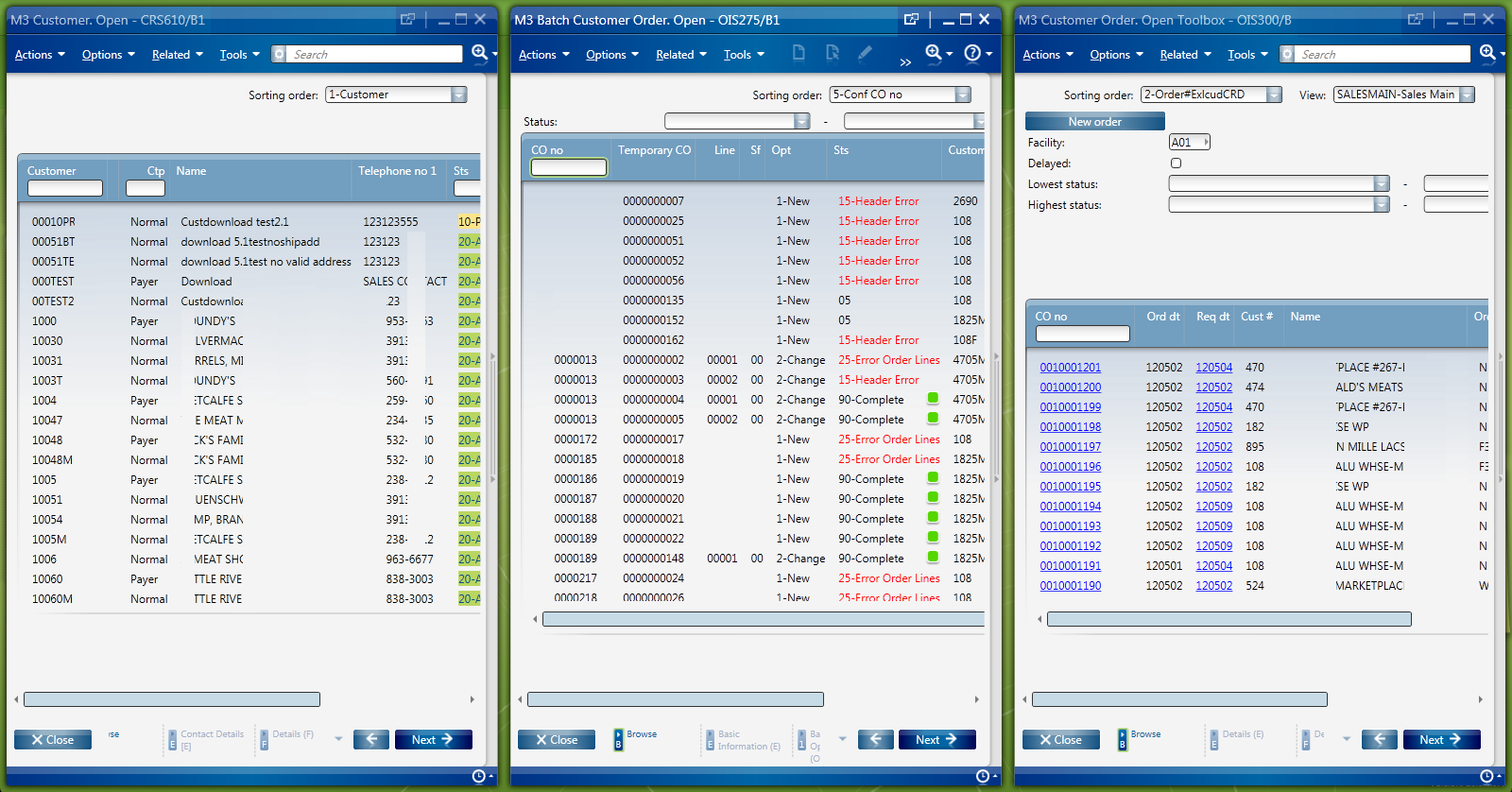
Here is a screenshot of the result that shows three windows tiled horizontally. It’s just for illustration purposes as the windows look crowded with my low resolution screen; in a real scenario two windows or a bigger screen would look better.

Voilà!

If you liked this solution, I invite you to subscribe to this blog.

Also, read the follow-up to this post with Stand-alone scripts for Smart Office where I convert this Tiling Window Manager into a widget-like script.

Special thanks to Karinpb for the help.

Compiled Scripts for Smart Office

Here is a solution in Lawson Smart Office to write “compiled scripts” in C# (as opposed to writing dynamic scripts in JScript.NET).

Background

Traditionally, Personalized Scripts for Lawson Smart Office are written with the built-in Script Editor in the JScript.NET programming language and are deployed as plain text *.js files on the server.

There is also a less known technique. It is also possible to write scripts in C#, to compile them as DLL, and to deploy the *.dll file in lieu of the *.js file.

Pros and cons

There are several advantages of using C# versus JScript.NET. Mostly, the biggest advantage is the full richness of C#. Indeed, C# supports features that are not supported in JScript.NET, for example delegates. Also, C# is more extensively supported by Microsoft and by the community. Whereas JScript.NET is not fully supported by Microsoft, for example there’s no IntelliSense for JScript.NET in Visual Studio whereas there is IntelliSense for C#, and there are almost no examples for JScript.NET in MSDN whereas there are plenty for C#.

There are several disadvantages of using C# versus JScript.NET. Developing compiled scripts requires compiling the C# source code and deploying the DLL to run the script, which makes each iteration longer than developing with JScript.NET. Also, from the deployed DLL it’s not possible to directly see the source code, which is a problem if the source code is not available. Also, the script might need to be re-compiled for different versions of Smart Office, which could be a problem with upgrades.

Microsoft Visual C# Express

I will use Microsoft Visual C# Express to develop and compile my source code.

1) Find the Smart Office libraries

First, we need to find the Smart Office DLL as we’ll need to reference them in Microsoft Visual C# Express.

A user’s computer can run multiple instances of Smart Office at the same time, with different LSO version numbers, and different DLL version numbers. We want to find the correct DLL for our desired instance of Smart Office. There are two sets of DLL to find:

  1. Go to Smart Office
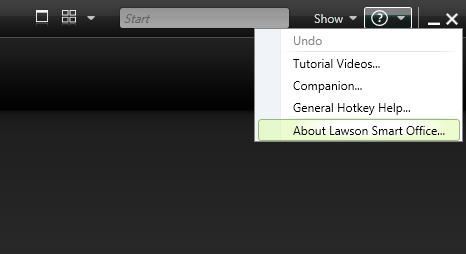
  2. Open the Help menu, it’s the question mark icon at the top right
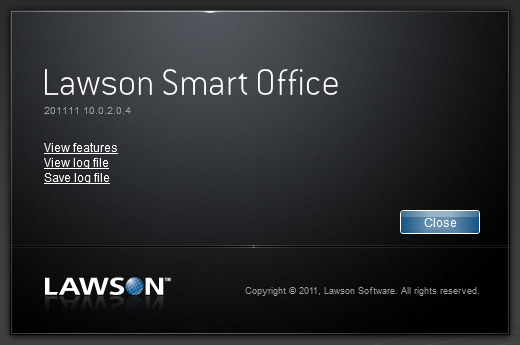
  3. Select About Lawson Smart Office:
  4. Select View log file:
  5. That will open the Log Viewer
  6. Filter by message C:\ . That will show you the path to the Smart Office ClickOnce deployment folder in your computer, for example:
  7. C:\Users\12229\AppData\Local\Apps\2.0\Data\79O176HR.9F1\N42AOMBD.0HB\http..tion_2b27e2947dd74766_000a.0000_20a2b87dbe5264e8\
  8. Open that folder in Windows Explorer
  9. Search for the DLL files in all sub-folders. That will give us the first set of DLL, for example:
  10. The second set of DLL files is located in the other branch of the folder structure at C:\Users\12229\AppData\Local\Apps\2.0\. For example:
    C:\Users\12229\AppData\Local\Apps\2.0\3YDTAV5W.D22\Q01ZYJYU.RV0\http..tion_2b27e2947dd74766_000a.0000_20a2b87dbe5264e8\

2) Create a Project

Now that we found the two sets of DLL files we can create a C# project in Visual C# Express and reference the DLL.

  1. Go to Visual C# Express
  2. Select File > New Project
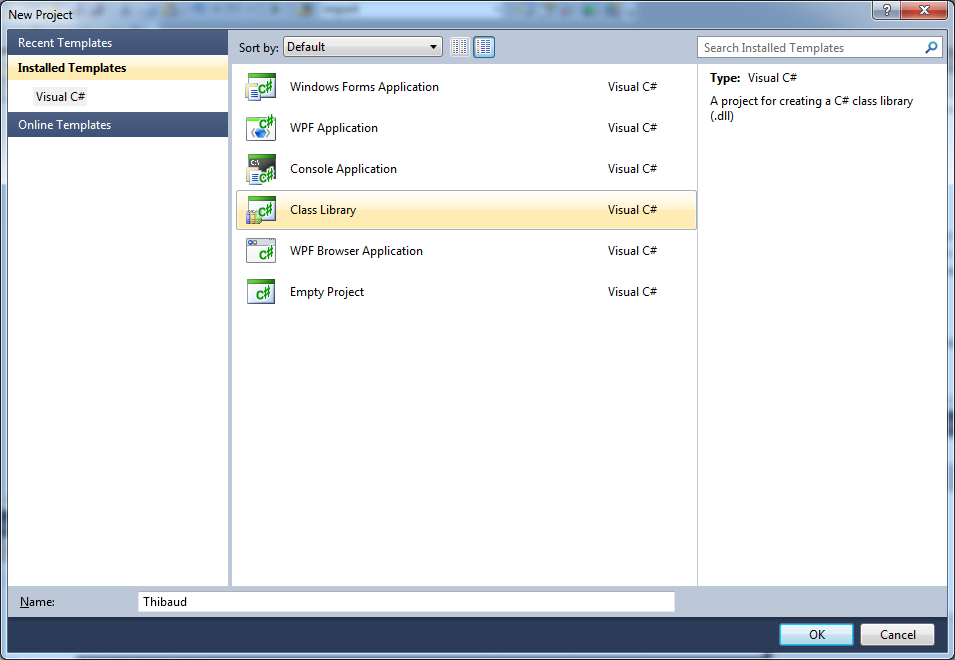
  3. Select Class Library and give it a Name:
  4. Select Project > Properties, and make sure to use the same Target framework as your target Smart Office; for example, I use .NET Framework 4.0:
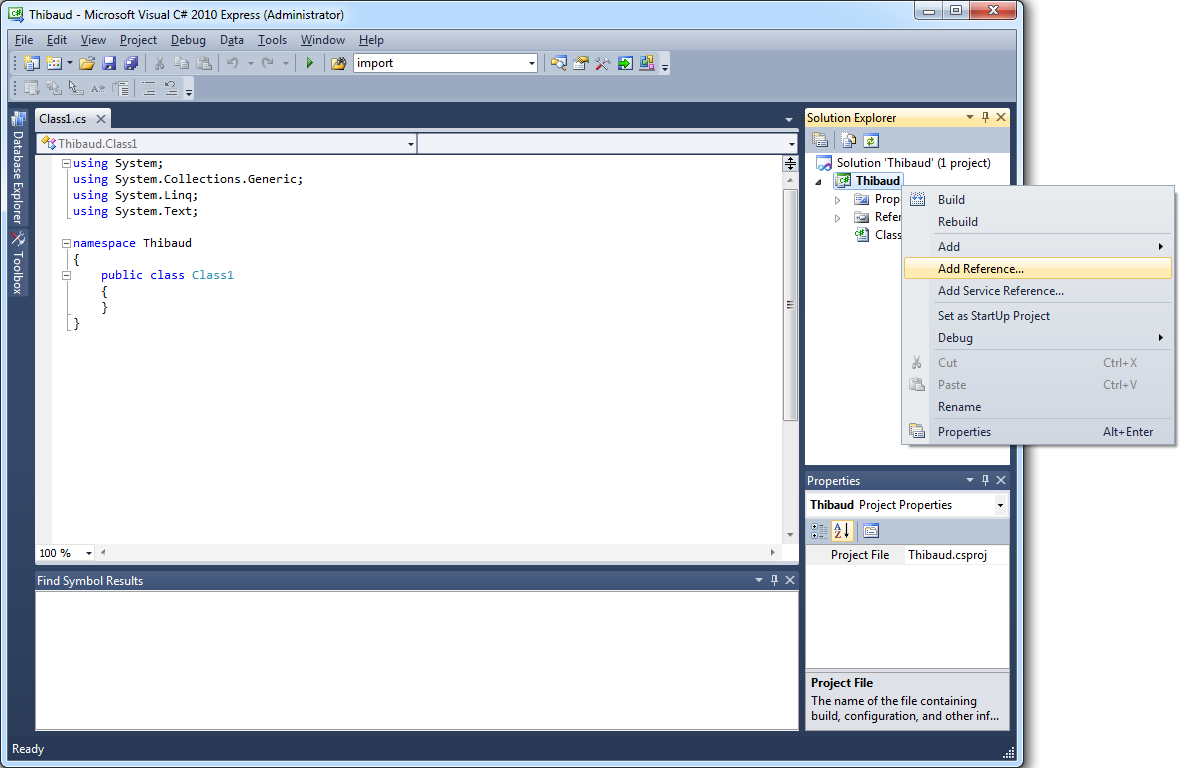
  5. Select Project > Add Reference:
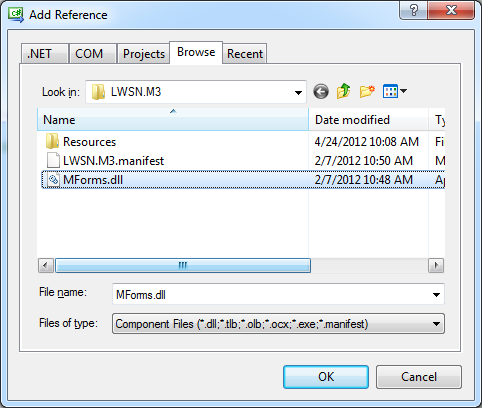
  6. Browse to the first set of DLL found above:
  7. Then add the second set of DLL:
  8. Add the .NET components PresentationCore and PresentationFramework:
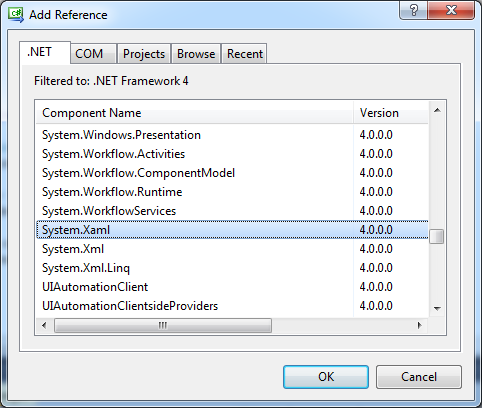
  9. Add System.Xaml:
  10. Add WindowBase:
  11. Select File > Save All, and choose a location to save your project.

3) Type the source code

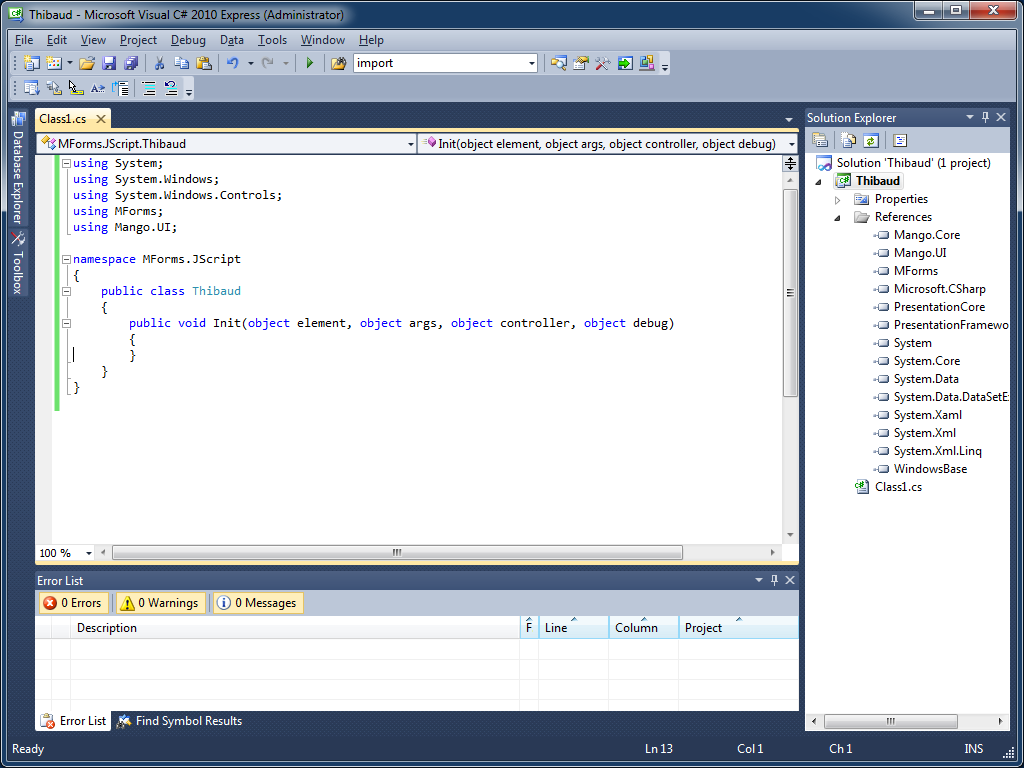
Now we can start creating our script:
using System;
using System.Windows;
using System.Windows.Controls;
using MForms;
using Mango.UI;

namespace MForms.JScript
{
    public class Thibaud
    {
        public void Init(object element, object args, object controller, object debug)
        {
        }
    }
}

The result will look like this:

4)  Compile

Select Debug > Build Solution:

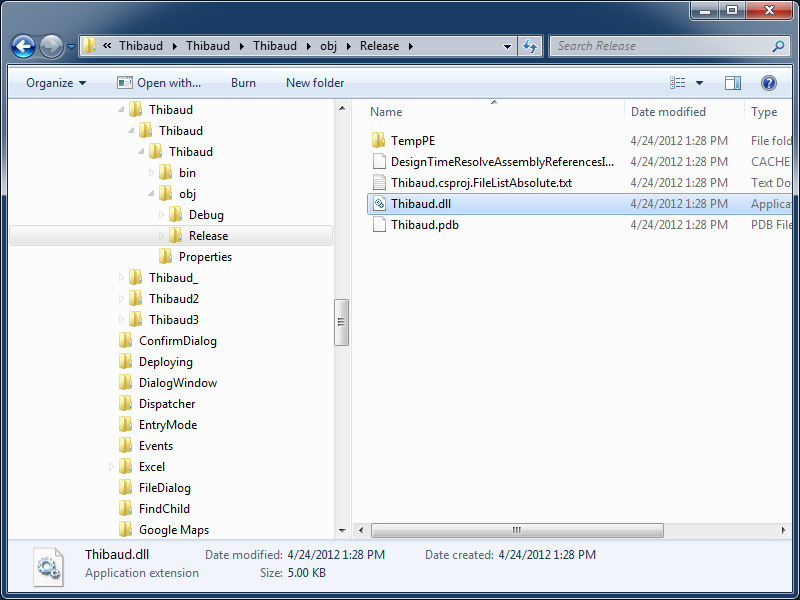
Visual C# Express will compile the code and produce a DLL file in the \obj\Release\ sub-folder of your project:

5) Deploy

Locate the jscript folder.

For Grid versions of Smart Office, the jscript folder is located in one of the LifeCycle Manager sub-folders, for example:

\\hostname\d$\Lawson\LifeCycleManager\Service\<service>\grid\<profile>\applications\LSO_M3_Adapter\webapps\mne\jscript\

For non-Grid versions of Smart Office, the jscript folder is located in one of the WebSphere sub-folders, for example:

\\hostname\d$\IBM\WebSphere7\AppServer\profiles\MWPProfile\installedApps\MWPProfileCell\MWP_EAR.ear\MNE.war\jscript\

And copy/paste your DLL file there:

6) Execute

Now that the script is deployed on the server, we can execute it:

  1. Attach the script to the desired panel in Smart Office via Tools > Personalize > Scripts
     
  2. Set the Script value to the filename and .dll extension, for example Thibaud.dll:
  3. Click Add
  4. Click Save
  5. Press F5 to load and execute the script

7) Additional source code

If you need the controller, you will need to cast it from object to MForms.InstanceController.

InstanceController controller_ = controller as InstanceController;

If you need the content, you will need to cast it from object to System.Windows.Controls.Grid.

Grid content = controller_.RenderEngine.Content;

Now you can start developing your scripts, for example:

TextBox WRCUNM = ScriptUtil.FindChild(content, "WRCUNM") as TextBox;
controller_.RenderEngine.ShowMessage("The value is " + WRCUNM.Text);

Here is a screenshot of my sample script:

UPDATE 2012-04-25: Wayne L. found that we can also use a strongly typed signature for the Init method, so we don’t have to cast the objects anymore:

public void Init(object element, String args, MForms.InstanceController controller, MForms.ScriptDebugConsole debug) {
}

Voilà!

Thanks to Peter A.J. for the help.

How to call a process flow from a Smart Office script

Here is a solution to trigger ProcessFlow Integrator (PFI) from a Personalized Script for Lawson Smart Office (LSO) using the native PF adapter. This technique is new as of LSO 9.1.3.

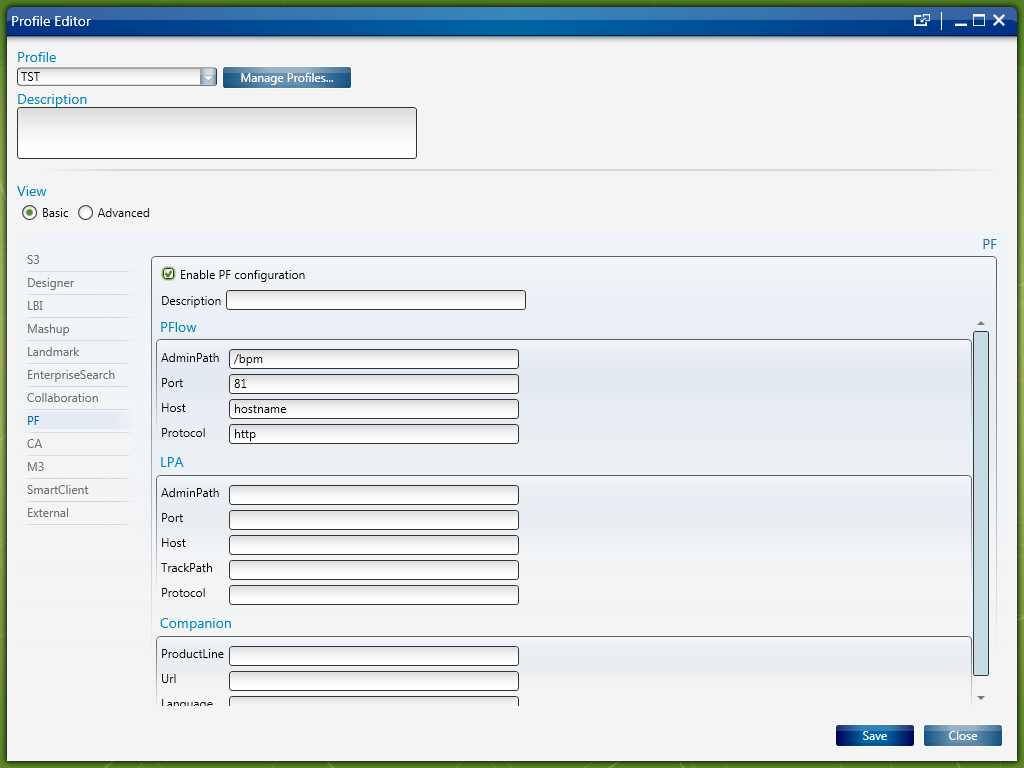
First, enable the PF configuration in the Smart Office Profile Editor:

Then, use Lawson.Shared.PF.Trigger to determine if Trigger Services are available:

if (PFTrigger.HasTriggerService) {
    // Trigger Services are available
} else {
    // Trigger Services are not available
}

PFTrigger is part of Lawson.Shared.dll:

Then, prepare the trigger:

var service = 'MyService';
var product = 'ERP';
var dataArea = 'PFTST';
var category = '';
var title = 'Test from a script';
var trigger = new PFTrigger(service, product, dataArea, category, title);
trigger.AddVariable('var1''Hello1''String');
trigger.AddVariable('var2''Hello2''String');
trigger.AddVariable('var3''Hello3''String');

Then, execute the trigger:

trigger.SubmitRequest(dataArea, OnTriggerCompleted);

Then, add an event handler:

function OnTriggerCompleted(args: PFTriggerEventArgs) {
    if (args != null && args.IsSuccessful) {
        args.Response.DetailMessage
        args.Response.ErrorCode
        args.Response.InformationCode
        args.Response.ReturnCode
        args.Response.ReturnData
        args.Response.Status
        args.Response.WorkunitNumber
    }
}

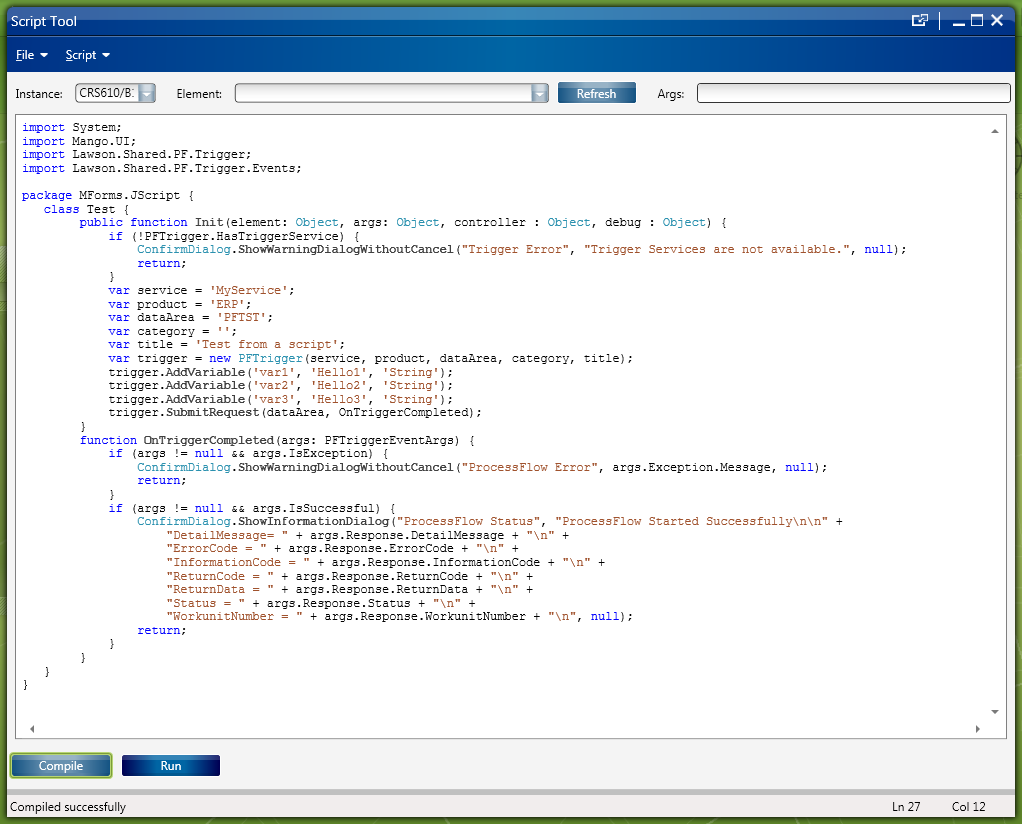
Here’s a screenshot of the result:

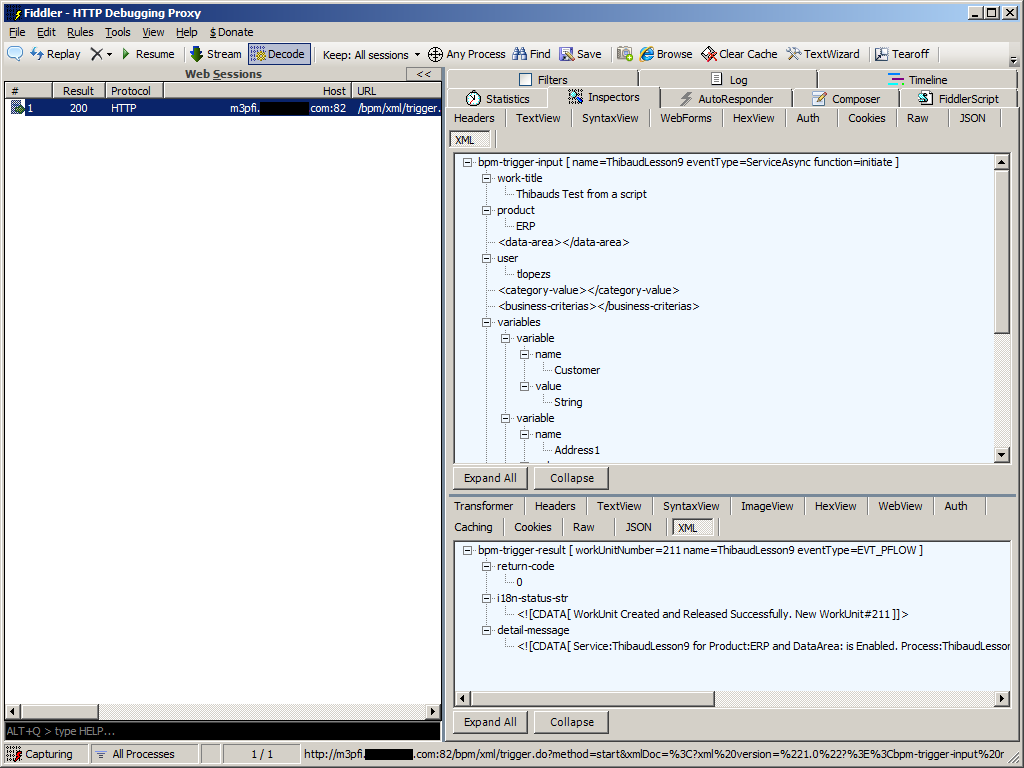
We can see the HTTP Request and Response with Fiddler:

For versions of Smart Office prior to 9.1.3, it’s possible to trigger PF flows using the old technique with URL. For that, you can use the PFI trigger generator.

The advantage of the new technique is the lower number of lines of code, increased readability, no need to hard-code the hostname, port, user, and password anymore, and no need to handle authentication nor logout.


That’s it!

How to tell Mashups apart in a Smart Office script

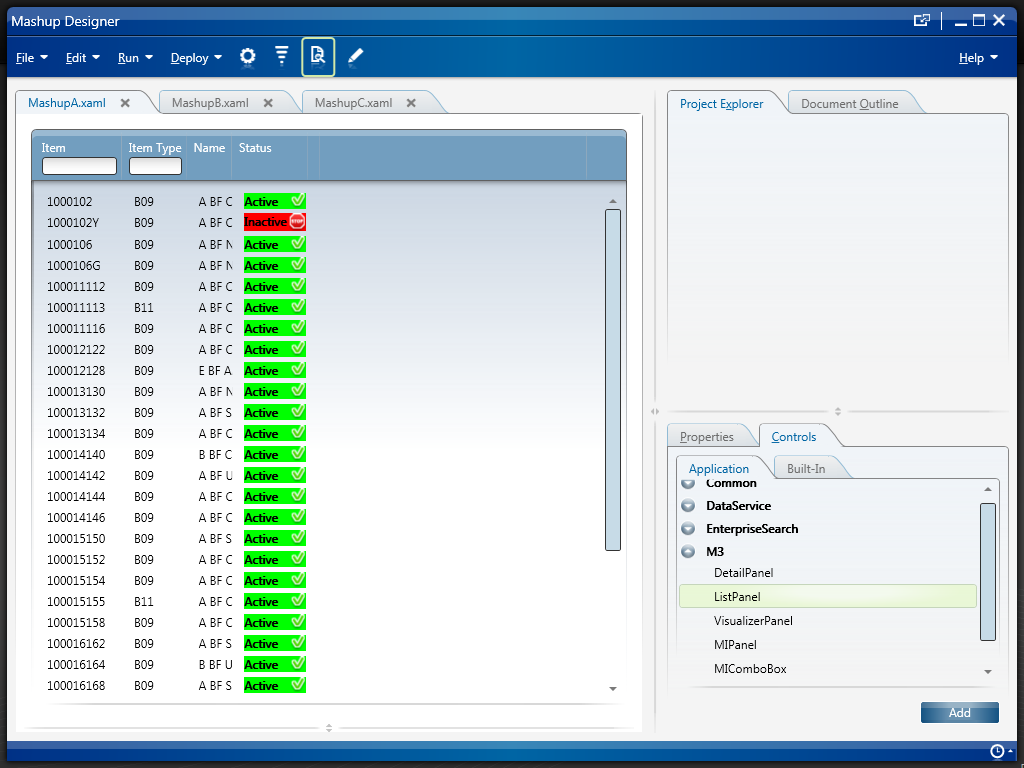
Here is a solution to tell in which Mashup a Personalized Script for Lawson Smart Office is currently running, for example to tell Mashups A and B apart in a script. We’ll read the BaseUri and Uri properties of a MashupInstance.

This solution is useful in scenarios where we have two Mashups, each with a specific script attached to a common M3 program. Each script needs to tell in which Mashup it’s currently running as we don’t want to let the scripts run in the wrong Mashup.

Example

For example, I have two Mashups that both use the M3 program Item Toolbox – MMS200.

The first Mashup (MashupA) shows a list of items and detailed information about a selected item, such as shelf-life, buyer’s name, on-hand availability in all warehouses, lot information, etc. In this Mashup, we need a script (ScriptA) to append an additional column of information to the list of items by querying a third-party warehouse management system. This Mashup is useful for the sales team to accurately communicate detailed information to a customer on the phone to convert a potential customer order and get the sale.

The second Mashup (MashupB) shows a list of items and purchasing information about a selected item, such as demand, supply, inventory, item specifications, sales history, forecast, etc. In this Mashup, we need a script (ScriptB) to append an additional column of information to the list of items by querying a third-party purchasing order software. This Mashup is useful for the purchase planning process when buyers need to decide if to buy an item or not and create a purchase order.

Both Mashups A and B have the same M3 program MMS200 in common, and two different scripts A and B. Each script needs to execute in its corresponding Mashup, script A in Mashup A, and script B in Mashup B. Otherwise, the scripts would show the wrong information in the wrong Mashup.

Problem

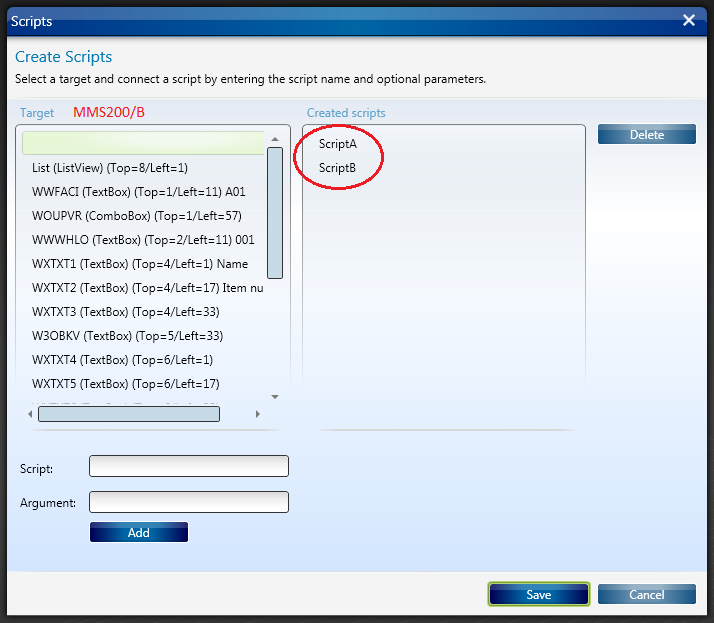
The problem is that when we attach a script to an M3 program in Smart Office, we cannot tell for which Mashup to execute the script. We can only attach the script to an M3 program, in my case to MMS200/B, and then attach the M3 program to the Mashup. But that doesn’t tell the script which Mashup is which.

More generally, Smart Office can only do binary relationships Mashup-Program and Program-Script, whereas we need ternary relationships Mashup-Program-Script. We are trying to solve that problem.

Solution

The solution is to get the identifier of the Mashup. Actually we cannot get the identifier of the Mashup as is defined in the Project’s manifest file. But we can derive one from a combination of the path of the Mashup, for example Mashups\MashupA.mashup, and the filename of the XAML, for example MashupA.xaml. That’s given by the Mashup’s BaseUri and Uri respectively.

For that, we’ll start with karinpb‘s solution to check if a JScript is running in a Mashup.

var element = controller.RenderEngine.ListControl.ListView;
var type = Type.GetType("Mango.UI.Services.Mashup.MashupInstance,Mango.UI");
var mashup = Helpers.FindParent(element, type);

That gives us a object that we can cast to MashupInstance from which we can get the  BaseUri and Uri properties:

mashup.BaseUri // ex: Mashups\MashupA.mashup
mashup.Uri // ex: MashupA.xaml

Here is a screenshot of the Smart Office SDK documentation:

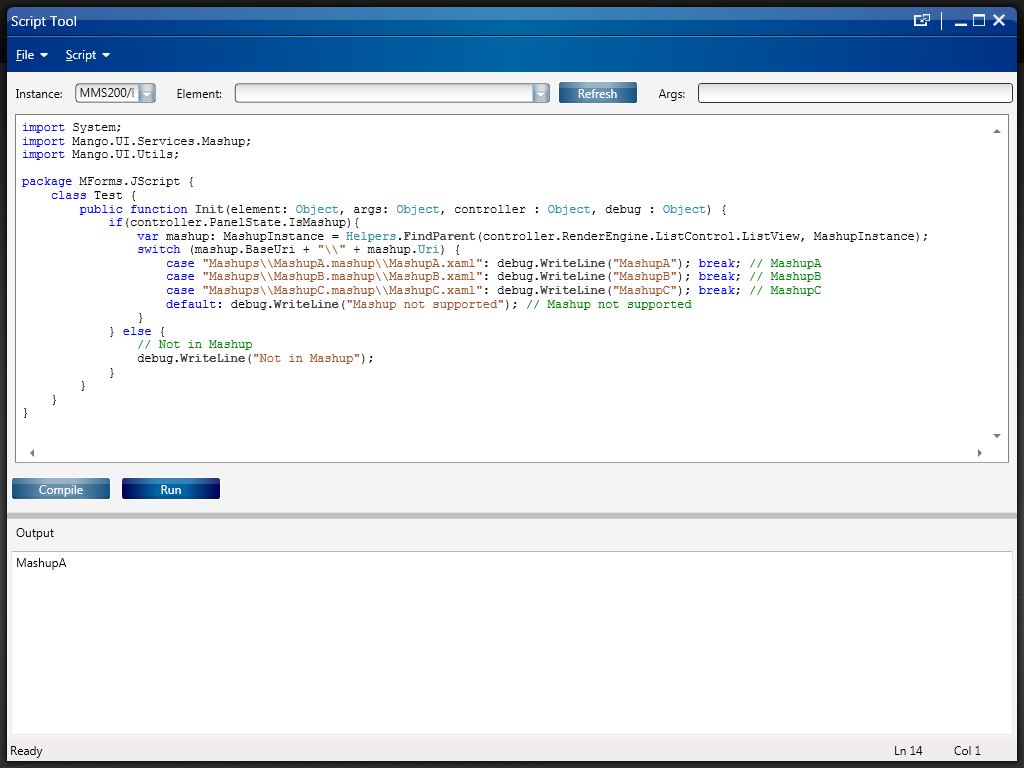
Here’s my sample source code:

import System;
import Mango.UI.Services.Mashup;
import Mango.UI.Utils;

package MForms.JScript {
    class Test {
        public function Init(element: Object, args: Object, controller : Object, debug : Object) {
            if (controller.PanelState.IsMashup){
                var mashup: MashupInstance = Helpers.FindParent(controller.RenderEngine.ListControl.ListView, MashupInstance);
                switch (mashup.BaseUri + "\\" + mashup.Uri) {
                    case "Mashups\\MashupA.mashup\\MashupA.xaml": debug.WriteLine("MashupA"); break// MashupA
                    case "Mashups\\MashupB.mashup\\MashupB.xaml": debug.WriteLine("MashupB"); break// MashupB
                    case "Mashups\\MashupC.mashup\\MashupC.xaml": debug.WriteLine("MashupC"); break// MashupC
                    default: debug.WriteLine("Mashup not supported"); // Mashup not supported
                }
            } else {
                // Not in Mashup
                debug.WriteLine("Not in Mashup");
            }
        }
    }
}

Here are screenshots of the result:

Thanks to karinpb, Peter K, and Joakim I for their help.

That’s it!

How to get the user password in a Smart Office script

Here is a solution to get the Lawson Smart Office user’s password with a Personalized Script.

This solution is interesting in scenarios where at runtime we need the current user’s password to dynamically integrate to external systems, for example to connect to a network drive, to connect to a secure website, to execute SQL, to call web services, etc. Also, this solution is interesting to call M3 API or to trigger PFI flows for early versions of Lawson Smart Office that don’t have those native adapters; late versions of Smart Office have native adapters to call M3 API and to trigger PFI flows without the need to obtain the user’s password.

Follow this link to Geiger’s blog to see the solution: How to get the user password in a Smart Office script.

Self-configuration for Smart Office Scripts

Here is a trivial solution to implement Personalized Scripts for Lawson Smart Office that self-configure based on the program they are being executed in.

Problem

We often implement scripts which functionality can be applied to different M3 programs. For example, a script that makes a phone call based on the phone number displayed on the screen could be applied to any M3 program that has a phone number (Customers, Suppliers, etc.). As another example, a script that shows an address on Google Maps could be applied to any M3 program that has an address (CRS610/E, CRS622/E, etc.).

We could make one copy of the script for each target M3 program, but that would be a maintenance nightmare.

We could make the script re-usable and pass settings to the script, but that would require the installer to manually define the settings, which is time consuming and error prone.

As a general problem, I want to make a script re-usable and with zero configuration so it can be used anywhere in M3 where its functionality is needed.

Solution

The trivial solution is to pre-compute all the possible settings in advance, and apply the corresponding settings at runtime. We dynamically determine in which program we are currently executing the script by reading the HostTitle variable.

I call it a self-configuration script.

Pseudo-code:

HostTitle = controller.RenderEngine.Host.HostTitle
if (HostTitle = X) then { SettingsX }
if (HostTitle = Y) then { SettingsY }
if (HostTitle = Z) then { SettingsZ }

Advantages

The advantage is reduced installation. In some cases we could completely eliminate configuration.

It’s also time saving, and error proof.

And it’s closer to plug’n play and Autonomic Computing.

Example

I had implemented a script that performs address validation.

The script checks the address that is entered by the user with a third-party software that validates if the address is correct or not.

The script needs to get a reference to the address fields: Address line 1 (CUA1), Address line 2 (CUA2), City (TOWN), State (ECAR), etc. In CRS610/E those fields will be WRCUA1, WRCUA2, WRTOWN, and WRECAR. Whereas in CRS622/E those fields will be WWADR1, WWADR2, WWTOWN, and WWECAR.

The fields are different in each M3 program. So I pre-computed the field names of the eight M3 programs and panels where I would be executing the script (CRS610/E, CRS235/E1, CRS300/E, CRS622/E, MNS100/E, OIS002/E, OPS500/I, and SOS005/E), and I hard-coded all the possible values in the script.

Sample source code

Here is part of the source code of my self-configuration script for address validation:

var HostTitle = controller.RenderEngine.Host.HostTitle;
var settings = {};

if (HostTitle.IndexOf('CRS610/E') > 0) {
     // Customer. Open - CRS610/E
     settings = {
         FirmName: 'WRCUNM',
         AddressLine1: 'WRCUA1',
         AddressLine2: 'WRCUA2',
         AddressLine3: 'WRCUA3',
         AddressLine4: 'WRCUA4',
         City: 'WRTOWN',
         State: 'WRECAR',
         PostalCode: 'WRPONO',
         Country: 'WRCSCD',
         Latitude: '',
         Longitude: ''
     };
} else if (HostTitle.IndexOf('CRS622/E') > 0) {
     // Supplier. Connect Address - CRS622/E
     settings = {
         FirmName: 'WWSUNM',
         AddressLine1: 'WWADR1',
         AddressLine2: 'WWADR2',
         AddressLine3: 'WWADR3',
         AddressLine4: 'WWADR4',
         City: 'WWTOWN',
         State: 'WWECAR',
         PostalCode: 'WWPONO',
         Country: 'WWCSCD',
         Latitude: 'WEGEOY',
         Longitude: 'WEGEOX'
     };
} else if (HostTitle.IndexOf('OIS002/E') > 0) {
     // Customer. Connect Addresses - OIS002/E
     settings = {
         FirmName: 'WRCUNM',
         AddressLine1: 'WRCUA1',
         AddressLine2: 'WRCUA2',
         AddressLine3: 'WRCUA3',
         AddressLine4: 'WRCUA4',
         City: 'WRTOWN',
         State: 'WRECAR',
         PostalCode: 'WRPONO',
         Country: 'WRCSCD',
         Latitude: '',
         Longitude: ''
     };
} else if (HostTitle.IndexOf('CRS235/E1') > 0) {
     // Internal Address. Open - CRS235/E1
     settings = {
         FirmName: 'WWCONM',
         AddressLine1: 'WWADR1',
         AddressLine2: 'WWADR2',
         AddressLine3: 'WWADR3',
         AddressLine4: 'WWADR4',
         City: 'WWTOWN',
         State: 'WWECAR',
         PostalCode: 'WWPONO',
         Country: 'WWCSCD',
         Latitude: 'WEGEOY',
         Longitude: 'WEGEOX'
     };
} else if (HostTitle.IndexOf('MNS100/E') > 0) {
     // Company. Connect Division - MNS100/E
     settings = {
         FirmName: 'WWCONM',
         AddressLine1: 'WWCOA1',
         AddressLine2: 'WWCOA2',
         AddressLine3: 'WWCOA3',
         AddressLine4: 'WWCOA4',
         City: 'WWTOWN',
         State: 'WWECAR',
         PostalCode: 'WWPONO',
         Country: 'WWCSCD',
         Latitude: '',
         Longitude: ''
     };
} else if (HostTitle.IndexOf('CRS300/E') > 0) {
     // Ship-Via Address. Open - CRS300/E
     settings = {
         FirmName: 'WWCONM',
         AddressLine1: 'WWADR1',
         AddressLine2: 'WWADR2',
         AddressLine3: 'WWADR3',
         AddressLine4: 'WWADR4',
         City: 'WWTOWN',
         State: 'WWECAR',
         PostalCode: 'WWPONO',
         Country: 'WWCSCD',
         Latitude: '',
         Longitude: ''
     };
} else if (HostTitle.IndexOf('SOS005/E') > 0) {
     // Service Order. Connect Delivery Address - SOS005/E
     settings = {
         FirmName: 'WPCONM',
         AddressLine1: 'WPADR1',
         AddressLine2: 'WPADR2',
         AddressLine3: 'WPADR3',
         AddressLine4: 'WPADR4',
         City: 'WPTOWN',
         State: 'WPECAR',
         PostalCode: 'WPPONO',
         Country: 'WPCSCD',
         Latitude: '',
         Longitude: ''
     };
} else if (HostTitle.IndexOf('OPS500/I') > 0) {
     // Shop. Open - OPS500/I
     settings = {
         FirmName: 'LBL_L21T2',
         AddressLine1: 'WICUA1',
         AddressLine2: 'WICUA2',
         AddressLine3: '',
         AddressLine4: '',
         City: 'WICUA3',
         State: '',
         PostalCode: '',
         Country: 'WICUA4',
         Latitude: '',
         Longitude: ''
     };
} else {
     // M3 panel not supported
}

This has been tested in Lawson Smart Client (LSC), and in Lawson Smart Office (LSO).

Additionally, you can discriminate LSC vs. LSO with:

if (Application.Current.MainWindow.Title == 'Lawson Smart Client') {
 // running in LSC (not LSO)
}

That’s it!

UPDATE

UPDATE 2012-07-24: We can also use controller.RenderEngine.PanelHeader to get just the program and panel (for example: CRS610/B1) instead of the entire host title; the result is a shorter syntax:

var PanelHeader = controller.RenderEngine.PanelHeader;
if (PanelHeader == 'CRS610/E') {
   // CRS610/E
} else if (PanelHeader == 'CRS622/E') {
   // CRS622/E
} else if (PanelHeader == 'OIS002/E') {
   // OIS002/E
} else if (PanelHeader == 'CRS235/E1') {
   // CRS235/E1
} else {
   // not supported
}

Translate M3 with Google Translate API

Here is a solution to automatically translate M3 and user-generated content in 52 languages.

For that, I will use the Google Translate API and a Personalized Script for Lawson Smart Office.

Business advantage

This solution is interesting to translate content that is generated by users, such as:

  • Bill of Materials
  • Work Orders
  • Service Orders
  • Customer Order Notes
  • etc.

Such content is entered in the user’s language and by design is not translated by Lawson Smart Office.

Also, this solution is interesting to translate M3 itself beyond the number of languages that Lawson makes available.

Lawson Smart Office

Lawson Smart Office supports 18 languages: Czech, Danish, German, Greek, English, Spanish, Finnish, French, Hungarian, Italian, Japanese, Dutch, Norwegian, Polish, Portuguese, Russian, Swedish, and Chinese:

It’s a high number of languages given that text is manually translated by professional translators which are probably paid by the word.

The quality is near perfect.

But by design, the user-generated content is not translated.

Google Translate

Google Translate supports 52 languages: Afrikaans, Albanian, Arabic, Belarusian, Bulgarian, Catalan, Chinese Simplified, Chinese Traditional, Croatian, Czech, Danish, Dutch, English, Estonian, Filipino, Finnish, French, Galician, German, Greek, Hebrew, Hindi, Hungarian, Icelandic, Indonesian, Irish, Italian, Japanese, Korean, Latvian, Lithuanian, Macedonian, Malay, Maltese, Norwegian, Persian, Polish, Portuguese, Romanian, Russian, Serbian, Slovak, Slovenian, Spanish, Swahili, Swedish, Thai, Turkish, Ukrainian, Vietnamese, Welsh, and Yiddish.

It’s a very high number of languages because it uses machine learning and statistical analysis for automatic machine translation of millions of web pages and of official translations done by governments and by international organizations.

It is one of the best machine translations available, considered state of the art, and the quality is improving constantly. [1] [2] [3].

Google is even working on recognizing handwritten text, and text in images.

But even though the quality is good it’s not yet accurate.

It may not be accurate enough in a professional context to translate user-generated content in M3 with the Google Translate API.

But it still gives the user a general idea of the meaning of the text.

And as a pedagogical tool, it serves the purpose of illustrating how to write scripts for Smart Office, and how to integrate M3 to external systems.

Hello World!

To use the Google Translate API you need to register and obtain a key. It is a paid service that will translate one million characters of text for $20.

Once you obtain your key, you need to construct a URL with your API key, the text to translate, and the source and target languages.

Here is a sample URL that translates the text Hello World! from English (en) to French (fr):

https://www.googleapis.com/language/translate/v2?key=YOUR_API_KEY&q=Hello%20World!&source=en&target=fr

The result is a JSON object like this:

{
 "data": {
  "translations": [
   {
    "translatedText": "Bonjour tout le monde!"
   }
  ]
 }
}

First script

Then write a Personalized Script for Lawson Smart Office using the Script Tool.

The script will submit the HTTP GET Request to the Google Translate API over HTTPS and will parse the JSON response.

function translate(text: String, source, target) {
     var url = 'https://www.googleapis.com/language/translate/v2?key=YOUR_API_KEY&source=' + source + '&target=' + target + '&q=' + HttpUtility.UrlEncode(text);
     var request = HttpWebRequest(WebRequest.Create(url));
     var response = HttpWebResponse(request.GetResponse());
     var jsonText = (new StreamReader(response.GetResponseStream())).ReadToEnd();
     var o = eval('(' + jsonText + ')''unsafe');
     return o.data.translations[0].translatedText;
}

We can now use this function to translate any piece of user-generated content, for example the Customer Name in CRS610/E (WRCUNM):

var WRCUNM = ScriptUtil.FindChild(controller.RenderEngine.Content, 'WRCUNM');
WRCUNM.Text = translate(WRCUNM.Text, 'en''fr');

Also, we can translate several pieces of text at once by appending as many q parameters to the URL as pieces of text.

Beyond

With this technique, we can translate all the Controls of our Panel, including the user-generated content: Label, TextBox, Button, ListView, GridViewColumnHeader, ListRow, etc. That will cover Panels A, B, E, F, etc.

Also, we will need to submit the HTTP Request in a background thread to avoid blocking the user interface.

Complete Script

Here is the complete source code of my script that translates all the content of any M3 program, any panel.

Installation

Replace the constant YOUR_API_KEY of the source code with your own Google Translate API key.

The script has a limit GOOGLE_MAX_TEXT_SEGMENTS which was applicable when I wrote the script back in March 2010, but Google has since removed the limit so you can remove it from the script as well.

Then deploy the script on each program and each panel that you’d like to translate. The deployment can probably be automated with some custom XML and XSLT.

Result

Here is an animation of the M3 program Work Order – MOS100/B1 with buttons for seven languages. Click on the image to see the animation. Note how the user-generated content in the rightmost column of the list is also being translated.

Future Work

A future implementation should also translate menus, drop down lists, and text panels (T). I still haven’t been able to execute scripts in a T panel.

That’s it!


Updates

UPDATE 2012-08-02: Just fixed the line breaks at line 280 which the copy/paste had corrupted + fixed GetType().ToString() + fixed Exception handling in BackgroundWorker.

UPDATE 2012-08-03, Martin Trydal Torp & Thibaud: Adapted listView for newer LSO (new: listView.ItemsSource; old: listView.Items) + change sourceLanguage dynamically

Write to the Log file from a Smart Office Script

Here is an unofficial technique to write to the Lawson Smart Office log file from a Personalized Script. Smart Office uses the Apache log4net library to write to the log file and we can similarly write to the log file from our scripts. Before using the techniques of this blog you must acknowledge my disclaimer.

The JScript.NET example comes from the log4net Source Distribution at:

log4net\examples\net\1.1\Tutorials\ConsoleApp\js\src\LoggingExample.js

First, we get a reference to the Smart Office logger via Mango.Core:

var log: log4net.ILog = Mango.Core.LogManager.GetLogger(System.Reflection.MethodBase.GetCurrentMethod().DeclaringType);

Then, we can write to the log file in any of the log levels:

log.Info("Hello World!");
log.Debug("This is a Debug");
log.Error("This is an Error");
log.Fatal("This is Fatal");
log.Warn("This is a Warning");

We should check if the logger is enabled for that level:

if (log.IsInfoEnabled) log.Info("Hello World!");
if (log.IsDebugEnabled) log.Debug("This is a Debug");
if (log.IsErrorEnabled) log.Error("This is an Error");
if (log.IsFatalEnabled) log.Fatal("This is Fatal");
if (log.IsWarnEnabled) log.Warn("This is a Warning");

The log file can be opened with Smart Office > Help > About Lawson Smart Office > View log file:

It opens in Notepad in Lawson Smart Office 9.1.2.x:

And it opens in the Log Viewer in the newer Lawson Smart Office 9.1.3.x:

For more information, the Apache log4net SDK Documentation details all the ILog Members.

To know the full path and file name of the log file, get this value:

Mango.Core.Storage.FileStorageMachineOnly.Current.FullFilePath("LawsonClient.log")

For example, in my computer the full path and file name to the Smart Office log file is:

C:\Users\12229\AppData\Local\Apps\2.0\Data\79O176HR.9E2\N43AOMBD.0HB\http..tion_201b89ff2ddb7d50_0009.0001_aca28e931f10a84f\Data\LawsonClient.log

Also, you can use a tail program such as Tail for Win32 to monitor the log file:

Here’s the complete source code of my sample:

import System;
import Mango;
import log4net;

package MForms.JScript {
    class MyLogTest {
        public function Init(element: Object, args: Object, controller: Object, debug: Object) {
            debug.WriteLine(Mango.Core.Storage.FileStorageMachineOnly.Current.FullFilePath("LawsonClient.log")); // filename + path
            var log: log4net.ILog = Mango.Core.LogManager.GetLogger(System.Reflection.MethodBase.GetCurrentMethod().DeclaringType);
            if (log.IsInfoEnabled) log.Info("Hello World!");
            if (log.IsDebugEnabled) log.Debug("This is a Debug");
            if (log.IsErrorEnabled) log.Error("This is an Error");
            if (log.IsFatalEnabled) log.Fatal("This is Fatal");
            if (log.IsWarnEnabled) log.Warn("This is a Warning");
        }
    }
}

Note: I have successfully tested this in Smart Office 9.1.2.x and 9.1.3.x.

That’s it!