Web parts for H5 Client – DRAFT

Here are illustrated steps to add a web part to H5 Client. This post follows-up my previous post where I introduced H5 Client. This is useful for creating personalizations in H5 Client.

As a reminder, H5 Client is a web client for M3 (HTML, CSS, JavaScript, jQuery, and XmlHttpRequests running in a browser) and if it runs as part of H5 Enterprise then we can add Web parts which are custom web development parts that we write to interact between H5 Client and our code. This technique is similar to Movex Next Extension Adaptation Interface (MNEAI) scripts for Movex Explorer around 1999 and Movex Workplace around 2000, and it is similar to Smart Office Scripts of today.

DRAFT

I started this post a long time ago, faced some technical issues, moved on to other assignments, and never managed to finish it nor polish it. So the screenshots don’t match with each other, and the steps are not necessarily all in order. It’s very much like a draft post. But I decided to post it anyway otherwise I’ll never post it. And there are enough steps and screenshots so you get the point. That will give you a head start.

M3 H5 Enterprise

First, you will need M3 H5 Enterprise to be able to use Web Parts; H5 Foundation will not be sufficient.

Create a webpage

Then, create a webpage and publish it on a web server of your choice. It will be run in an iframe in Ming.le and will communicate with H5 Client via message passing.

For example, I created a folder jscriptH5 next to the jscript folder that is used for Smart Office scripts, and I dump my HTML and JavaScript files there (this is probably not the best location as the parent folder is managed by LifeCycle Manager and might be deleted with upgrades…although so will the jscript folder):

\\yourhost\d$\Infor\LifeCycle\<yourhost>\grid\<yourgrid>\grids\<yourgrid>\applications\M3_UI_Adapter\webapps\mne\jscriptH5\

You will need to be a bit familiar with jQuery.

Add code like this for message passing:

<html>
    <head>
        <title>Thibauds web part test</title>
        <script src="somewhere/jquery-1.8.2.min.js"></script>
        <script src="somewhere/jquery.json-2.2.js"></script>
        <script>
            jQuery(function ($) {
                // register message handler
                infor.companyon.client.registerMessageHandler('inforBusinessContext', messageHandler);
                // send a message to Ming.le (for instance resize the Web Part)
                infor.companyon.client.sendMessage(window.name, { height : '235px' });
                // receive a message from Ming.le with the values of the Context
                function messageHandler(o) {
                    alert(o);
                }
            });
        </script>
    </head>
    <body>
        Hello World!!!
    </body>
</html>

Message definition

Then, follow these steps to add a message definition to the M3_UI_Adapter (mne) properties in LifeCycle Manager:

  1. Go to LifeCycle Manager
  2. In the Applications View, expand your environment (Development, Education, Test, etc.)
  3. Right-click M3_UI_Adapter and select Configure Application
  4. Click Edit Properties
  5. Expand Infor Workspace Settings
  6. Click the Value of the Property Context List to edit it (it will show the current number of Entries)
  7. Click Add New Line and select Append
  8. Enter a message definition as a JSON object, with

    uid, title, type, and data, where data is a JSON object with the key/value pairs you want to pass to your Web Part, for example:

    {“uid”:”M3_TBO”, “title”:”Thibaud Hello”, “type”:”thibaudHello”, “data”:{“hello”: “”}}

  9. Validate your JSON object for example with JSON lint
  10. Here’s a screenshot so far (the JSON in the screenshot was an old test with wrong values):
    14_
  11. Click Save to save changes to disk, a popup will appear
  12. Click Save again to confirm
  13. Now let’s verify it’s saved correctly
  14. Close the tab
  15. Back in the Applications View, right-click M3_UI_Adapter and select Monitor Application
  16. Expand the Node for Application M3_UI_Adapter and select M3UIAdapterModule
  17. Select Properties
  18. Double-check the Value of the ContextList Property and ensure your JSON object is correct; an incorrect value will break H5 Client without giving you any error messages and that will be difficult to troubleshoot.

Infor Ming.le administration

Then, follow these steps to become an administrator of Infor Ming.le:

  1. Go to Infor Ming.le at http://yourhost/SitePages/InforSuite.aspx
  2. Login as an administrator
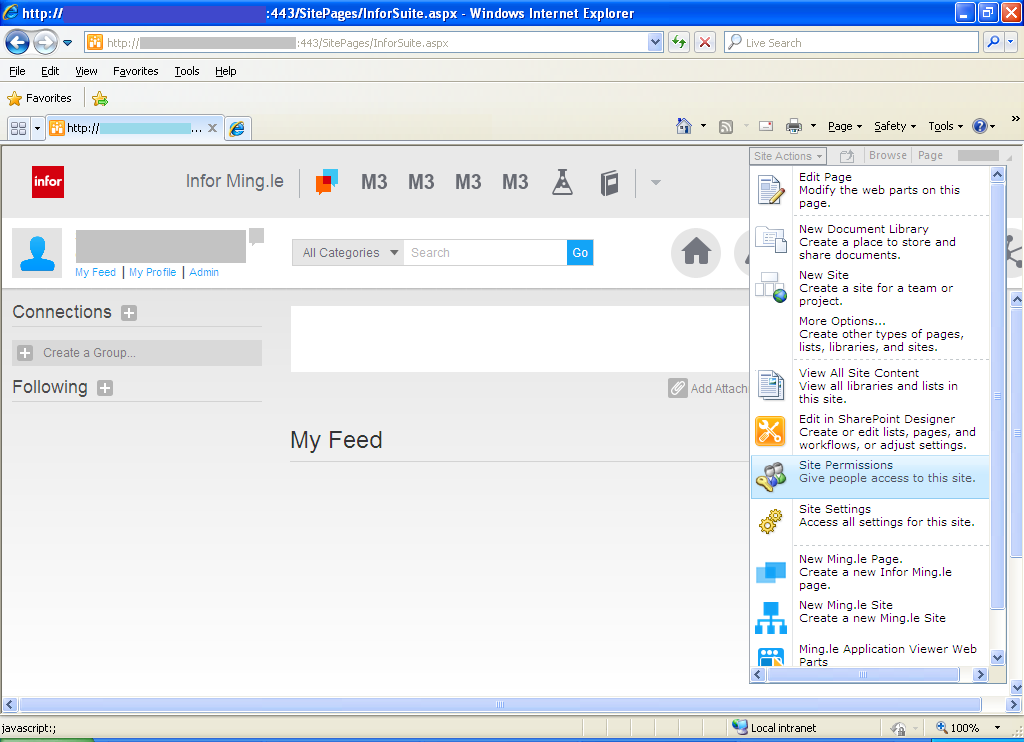
  3. Select Site Actions > Site Permissions:
    1_
  4. Select Site Collection Administrators
  5. Enter the userids of those who will be administrators
  6. Click OK

Ming.le Application Viewer Web Part

Then, follow these steps to add your Web Part:

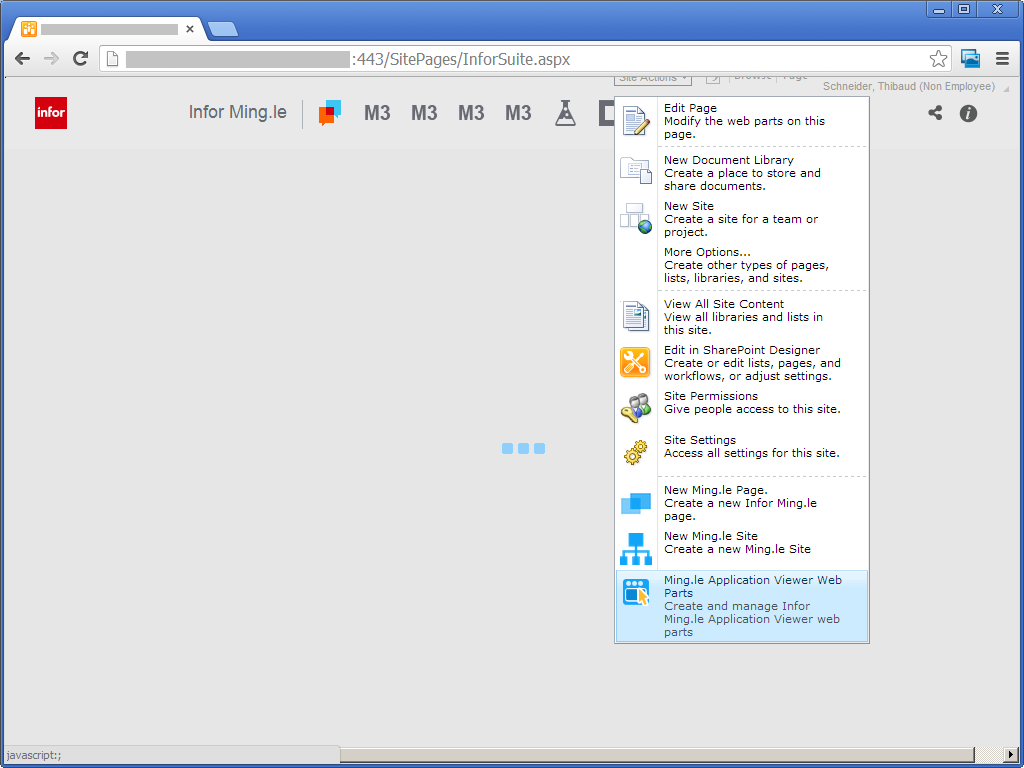
  1. Select Site Actions
  2. Select Ming.le Application Viewer Web Part:
    3_
  3. Select the Category, for example Infor
  4. Enter the Title, Description, and URL
  5. Select an Icon
  6. Click Save (the URL when I took the screenshot had an incorrect value):
    4__

Context Application Manager

Then, follow these steps to add the Context Application Manager:

  1. Select Context Application Manager in the top right corner of Ming.le
  2. Select your Web Part on the left, and click the right arrow
  3. Click Save (my screenshots don’t match my final test but you get the point):
    6__
  4. Now you have a Web Part on the Right Panel Zone:
    7_

Context Publisher

Then, configure the Context Publisher:

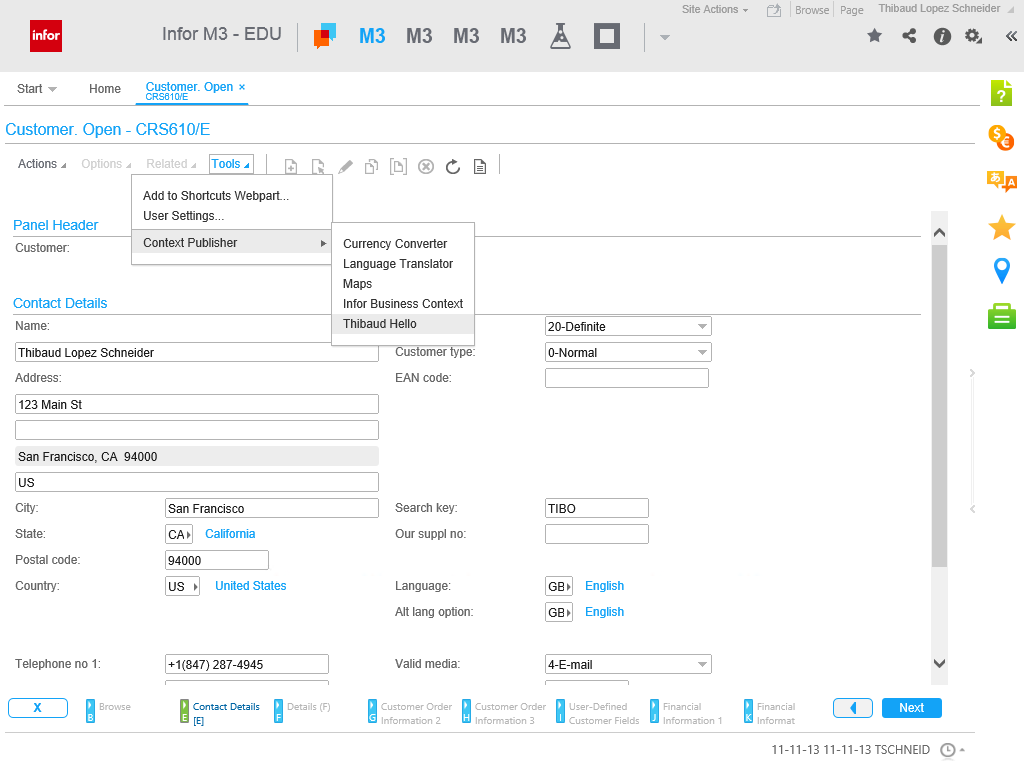
  1. Go to the desired M3 program/panel, for example CRS610/E
  2. Select Tools > Context Publisher, and select your Web Part
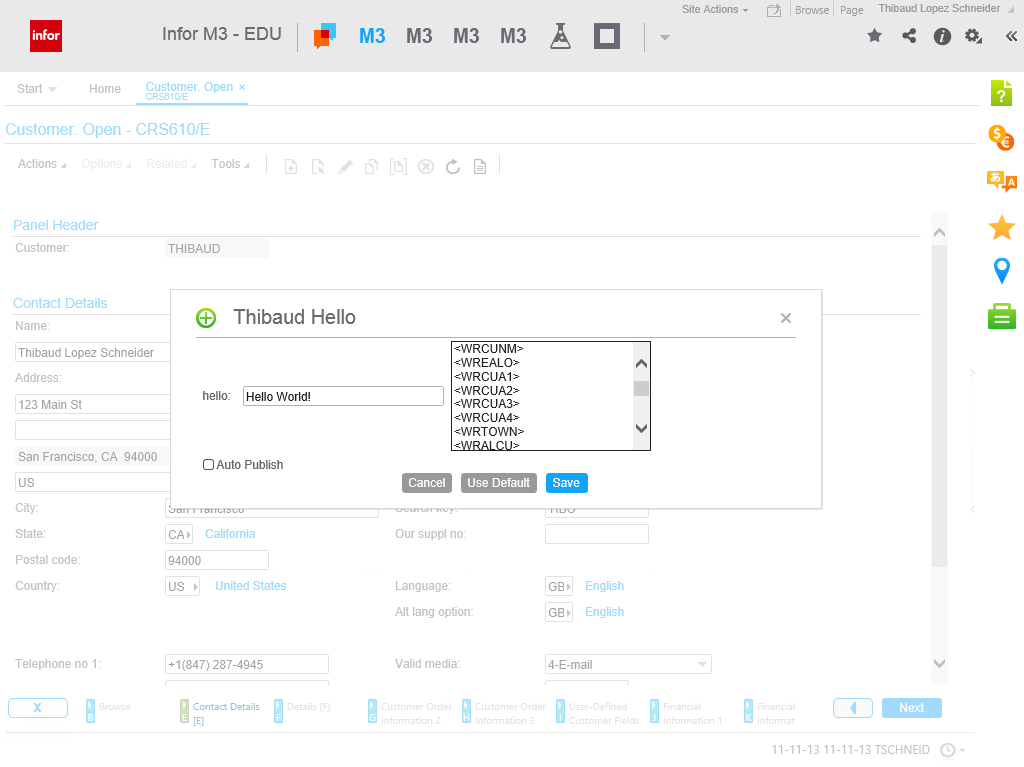
  3. Configure your Web Part by setting values for the keys, for example Hello World! <WRCUNM>:
    31
  4. Click Save:
    32

Start Web Part

Now start the Web Part by clicking on the Panel Zone. You web part code will get the parameters.

Future work

Future work would include:

  • Reduce the number of steps it takes
  • Configure the Web Part per M3 environment (DEV, EDU, TST, etc.). This seems like it’s not native to Ming.le Web Parts.
  • Un-hard-code the Web Part URL
  • Get any field dynamically in source code, ideally with a variable like controller or content, instead of having to configure the Message Definition and Web Part (I’m not an expert on this yet so there might already be some functions or variables available that I’m not seeing).
  • Apply the Web Part only to a desired program/panel.

Acknowledgement

Thanks to Joakim B. for all the help.

That’s it.
Command & Control a Mashup from an M3 program

Here’s an illustration of how to Command & Control a Mashup from an M3 program with a Smart Office Script, for example to launch a Mashup, to set values in a Mashup, to attach event handlers, to get values from the Mashup, and to close the Mashup. I learned this technique from norpe’s MashupBrowse post.

This is useful to add functionality in a Mashup where XAML alone is not sufficient.

You can attach the script to an M3 program, via Tools > Personalize > Scripts, via Tools > Personalize > Shortcut, or you can execute a stand-alone script.

Steps

First, create and deploy a simple Hello World Mashup (no values nor event handlers, to illustrate the point):

<Grid xmlns="http://schemas.microsoft.com/winfx/2006/xaml/presentation">
    <StackPanel>
        <Label Name="lblMessage" Content="Message" />
        <TextBox Name="txtValue" />
        <Button Name="btnOK" Content="OK" />
    </StackPanel>
</Grid>

1 2

Then, create a script that starts the Mashup:

var uri : String = "mashup:///?BaseUri=HelloWorld.mashup&RelativeUri=HelloWorld.xaml";
var task : Task = new Task(uri);
var handler : RunnerStatusChangedEventHandler = Mashup_OnStatusChanged;
DashboardTaskService.Current.LaunchTask(task, null, handler);

Then, get a reference to the Mashup:

function Mashup_OnStatusChanged(sender : Object, e : RunnerStatusChangedEventArgs) {
    if (e.NewStatus == RunnerStatus.Running) {
        // the Mashup is starting
        var runner : Runner = e.Runner;
    } else if (e.NewStatus == RunnerStatus.Closed) {
        // the Mashup is closing
    }
}

Then, set values in the Mashup:

txtValue = runner.Host.HostContent.FindName("txtValue");
txtValue.Text = "Hello World!";

Then, attach event handlers:

var btnOK : Button = runner.Host.HostContent.FindName("btnOK");
btnOK.add_Click(Mashup_OnBtnOK);

Result

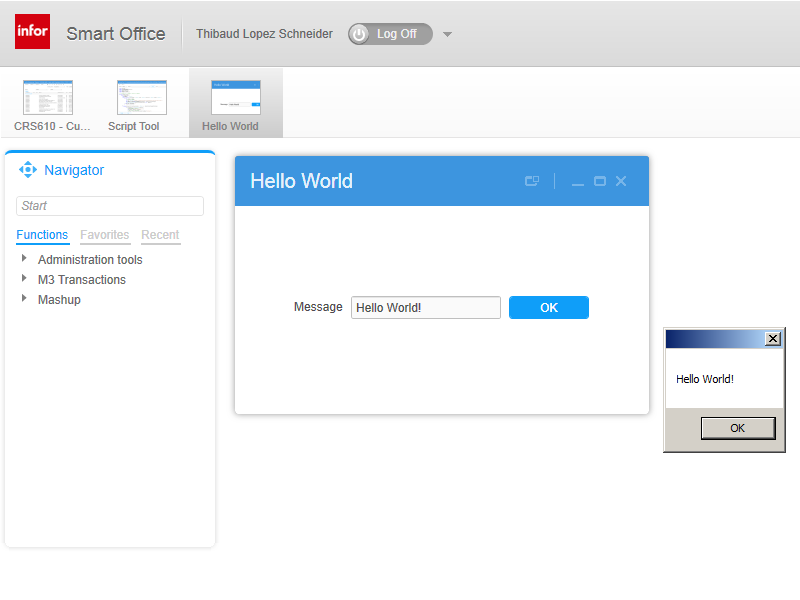
And here’s the result, the Mashup launched, the value “Hello World!” set in the TextBox, the Click event handler added to the button, and the value of the TextBox retrieved back, all that commanded & controlled from the Script, which would not have been all possible with XAML alone:

3

Source code

Here’s the complete source code:

import System;
import System.Windows;
import System.Windows.Controls;
import Mango.Services;
import Mango.UI.Core;
import Mango.UI.Services;

package MForms.JScript {

class HelloWorldCC {
    var debug;
    var txtValue : TextBox;
    public function Init(element : Object, args : Object, controller : Object, debug : Object) {
        try {
            this.debug = debug;
            // launch the Mashup
            var uri : String = "mashup:///?BaseUri=HelloWorld.mashup&RelativeUri=HelloWorld.xaml";
            var task : Task = new Task(uri);
            var handler : RunnerStatusChangedEventHandler = Mashup_OnStatusChanged;
            DashboardTaskService.Current.LaunchTask(task, null, handler);
        } catch (ex : Exception) {
            debug.WriteLine(ex);
        }
    }
    function Mashup_OnStatusChanged(sender : Object, e : RunnerStatusChangedEventArgs) {
        try {
            if (e.NewStatus == RunnerStatus.Running) {
                // the Mashup is starting
                debug.WriteLine("Mashup is starting");
                var runner : Runner = e.Runner;
                // set values in the Mashup
                txtValue = runner.Host.HostContent.FindName("txtValue");
                txtValue.Text = "Hello World!";
                // attach an event handler to the Mashup
                var btnOK : Button = runner.Host.HostContent.FindName("btnOK");
                btnOK.add_Click(Mashup_OnBtnOK);
            } else if (e.NewStatus == RunnerStatus.Closed) {
                // the Mashup is closing
                debug.WriteLine("Mashup is closing");
            }
        } catch (ex : Exception) {
            debug.WriteLine(ex);
        }
    }
    function Mashup_OnBtnOK(sender : Object, e : RoutedEventArgs) {
        try {
            // get values from the Mashup
            MessageBox.Show(txtValue.Text);
        } catch (ex : Exception) {
            debug.WriteLine(ex);
        }
    }
}
}

Finally

Norpe’s code is more complete and you should implement its features in your script as well. For example norpe’s script checks if there is already an open instance of the Mashup, it can control the Mashup with keyboard shortcuts, it puts values back in the M3 panel, it closes the Mashup, it detaches event handlers, and it does cleanup.

That’s it!

MFORMS Automation with Jscript.NET

I was requested to share some of my experience with MFORMS Automation and JScript.NET by Thibaud and here it is. MForms automation is simply a great alternative to perform data modification in M3, if you are left with no other option which was my case.

Problem

In our M3 implementation, we are using Std. Document Connect Media to deliver documents (example, Purchase orders) to our clients. These media entities like email addresses are setup in the program CRS945/949. This M3 program does not have an API implemented for data access. The alternative to using API was creating a Lawson Web service i.e. adding the customer to the program by simulating the panel sequence in LSO.

In CRS945, adding a document media control object involves the selection of document number (W1DONR). This step determines the kind of document selected and hence the other inputs (customer number, supplier ID or warehouse ID). In this example, document number 231 implies Order Confirmation document which requires a Customer number field which gets added to the panel.

Image

Since the Customer Number gets added to the A-panel dynamically after the document number selection, creating a Lawson web service is not a possibility. This is due to the fact that Lawson Web Services designer does not allow “A or B Panel with ENTER followed by panels A, B” which is the case here. So web service was eliminated as an option which would have allowed us to add all the documents en masse by calling it repeatedly which was our requirement.

Solution

This left us with one and only option which was MForms automation. We ended up creating the MForms automation steps which would accomplish the task on hand and it looks as follows:

Image

Note: Step command F3 which closes the panel is missing in this diagram. It is a critical step.

As you can see the sequence of steps are it easy to follow. Step one starts by running the program required which CRS945. In step two we end setting the value for the document number followed by an action step ‘ENTER’. Step 4 is another action which is to create the document connection. Finally we add the name and description for the connection and press ‘ENTER’. I have recreated these same steps using Jscript.NET and here it is:

Image

As you can see the inputs for my MForms automations are provided from an Excel document (column 1: Document number, column 2: Customer number). This allows us to input multiple rows in one attempt. Running this Jscript using LSO on CRS945 adds the document connection for all our customers.

Regards

Seth Subramanian.

Git for M3 Web Services

Here is a preliminary illustration on how to use Git version control system with M3 Web Services Designer to manage changes to web services versions in multi-developer distributed projects. Since the M3 Web Services repository points to a folder of XML files it should be possible to use any revision control software like CVS, Subversion, Git, TFS, etc. Here I illustrate Git with some screenshots.

Install Git

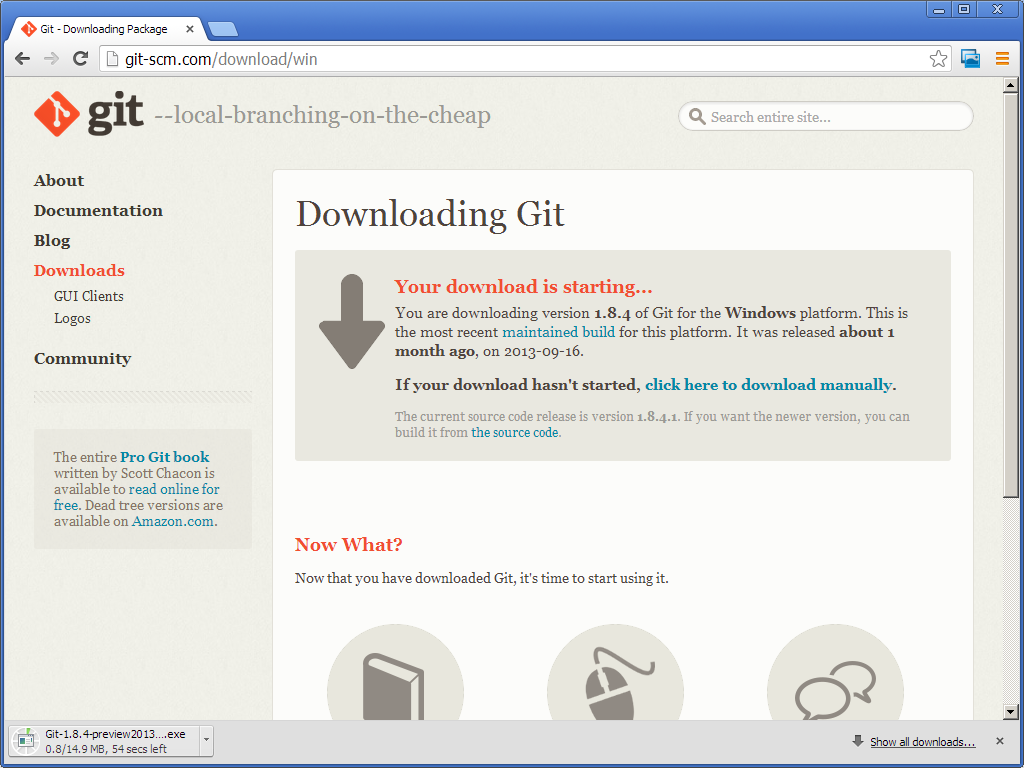
  1. Download and install Git from http://git-scm.com/
    1
  2. I use the default options and Next > Next > … > Finish:
    2
  3. Start Git GUI from the Windows Start menu:
    6

M3 Web Service Repository

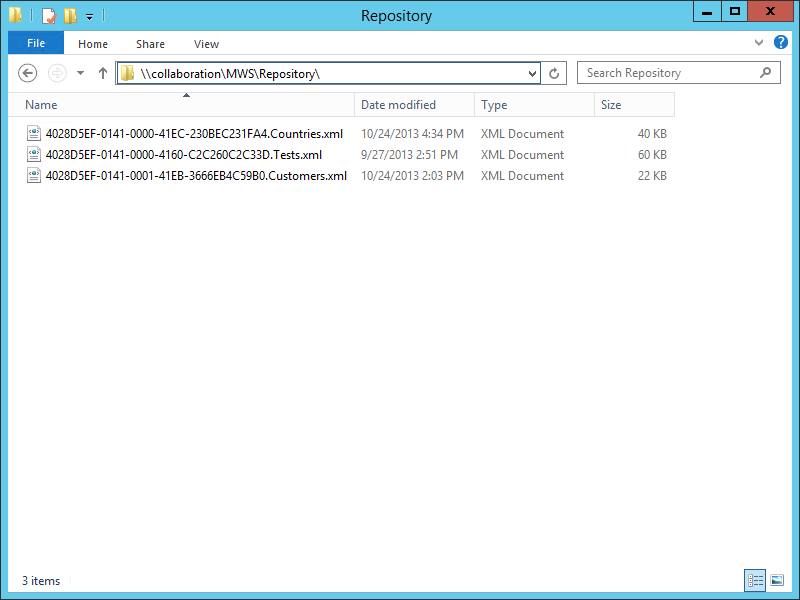
  1. Let’s suppose we have a remote M3 Web Service Repository at \\collaboration\MWS\Repository\ with our metadata files:
    0
  2. And let’s suppose we want to manage those files in Git.
  3. For that, we’ll take that existing directory and import it into Git.

Create a Git Repository

  1. In Git GUI select Create New Repository:
    20
  2. Enter the path to the web service repository, for example \\collaboration\MWS\Repository\ :
    3
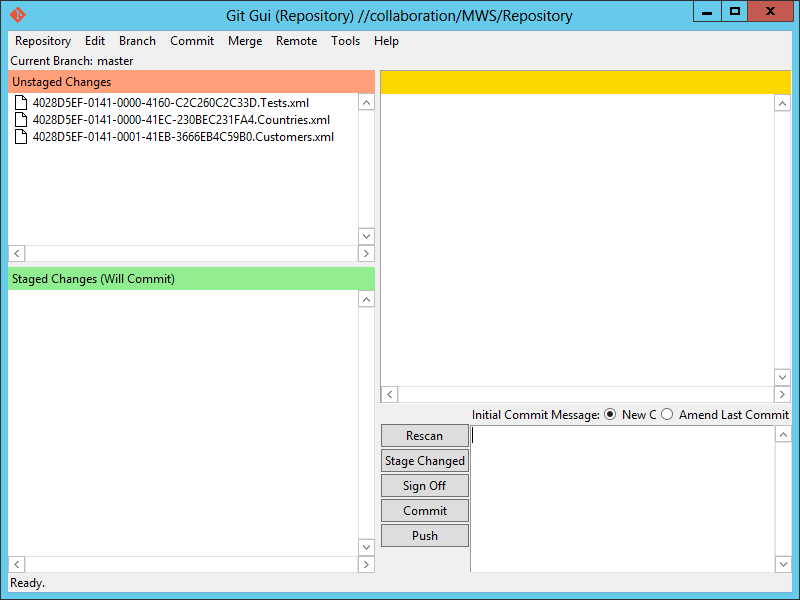
  3. Git GUI shows the files in the Unstaged state:
    4
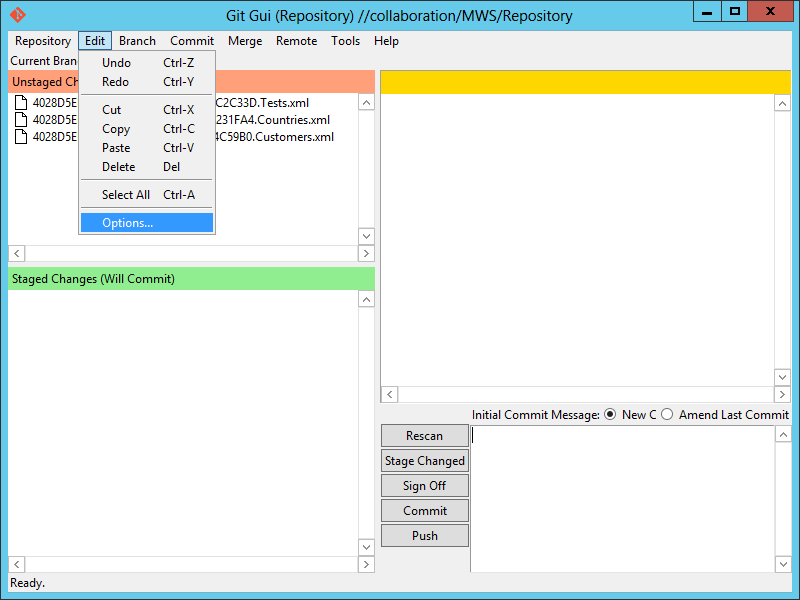
  4. Selection Edit > Options to identify ourselves:
    5
  5. Enter your User Name and Email Address:
    6
  6. Select Commit > Stage Changed Files To Commit (CTRL-I) to add a snapshot of the files to the staging area, and click Yes to confirm:
    7
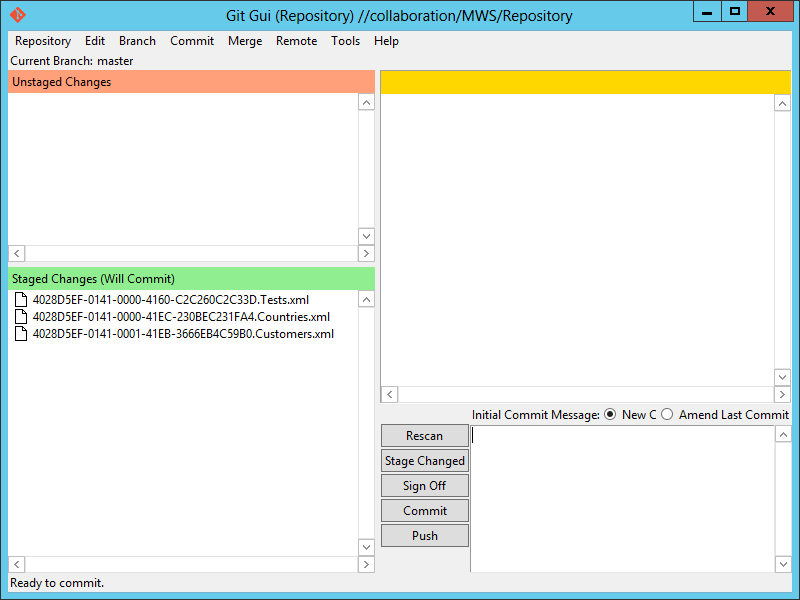
  7. The files are now in the Staged state:
    8
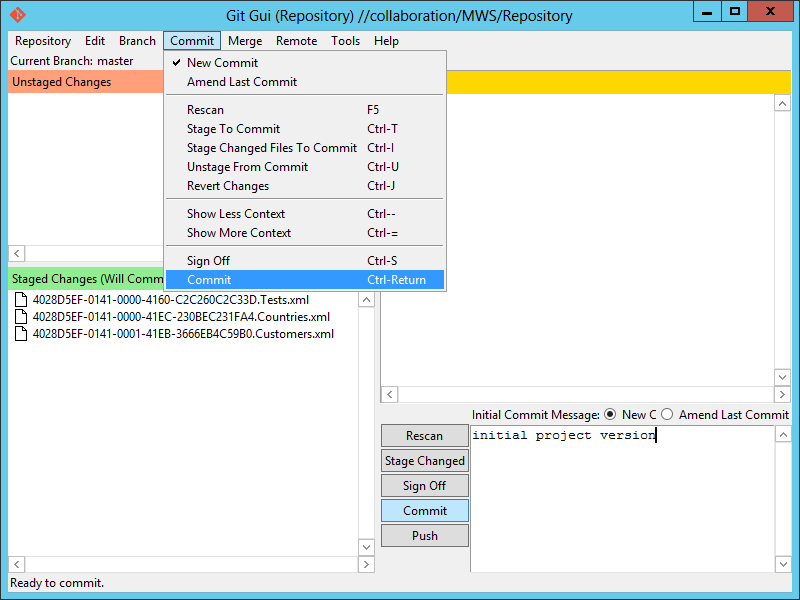
  8. Enter an Initial Commit Message and select Commit:
    9
  9. The files are now permanently committed and safely stored in the Git Repository:
    10
  10. And the folder now contains a hidden .git folder:
    11

Install EGit for Eclipse

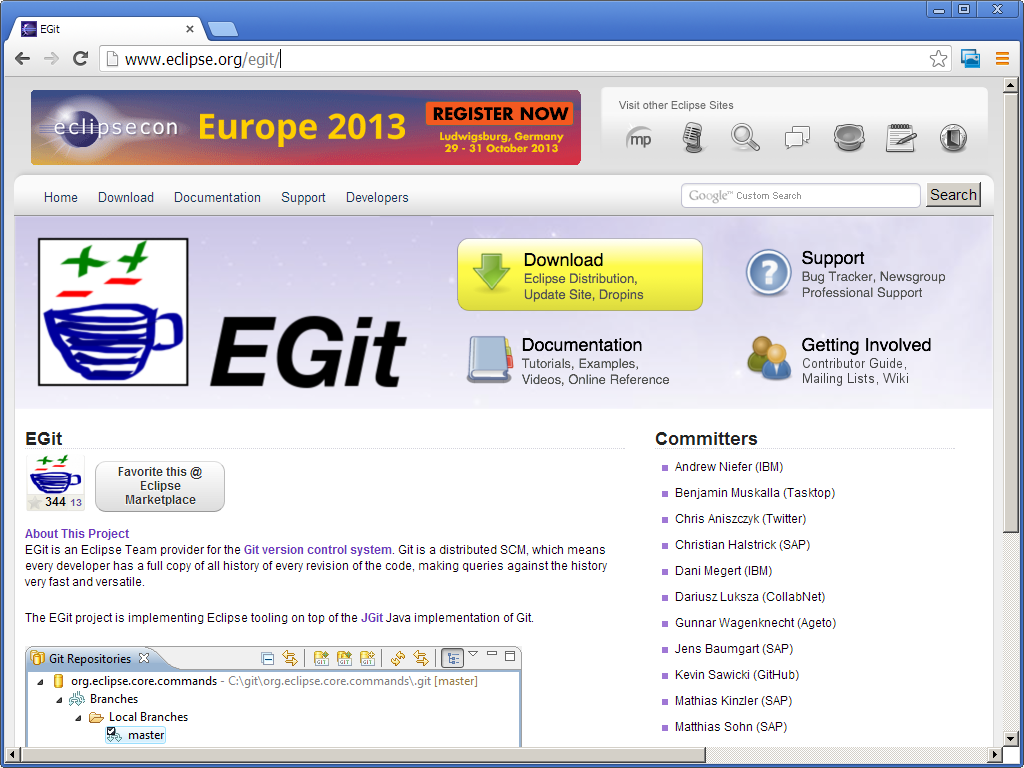
  1. Let’s install EGit for Eclipse on one of the developer’s computer (you’ll repeat these steps for each developer in your team):
    0
  2. Start MWS Designer and discard the web service repository location to avoid confusion for now:
    1
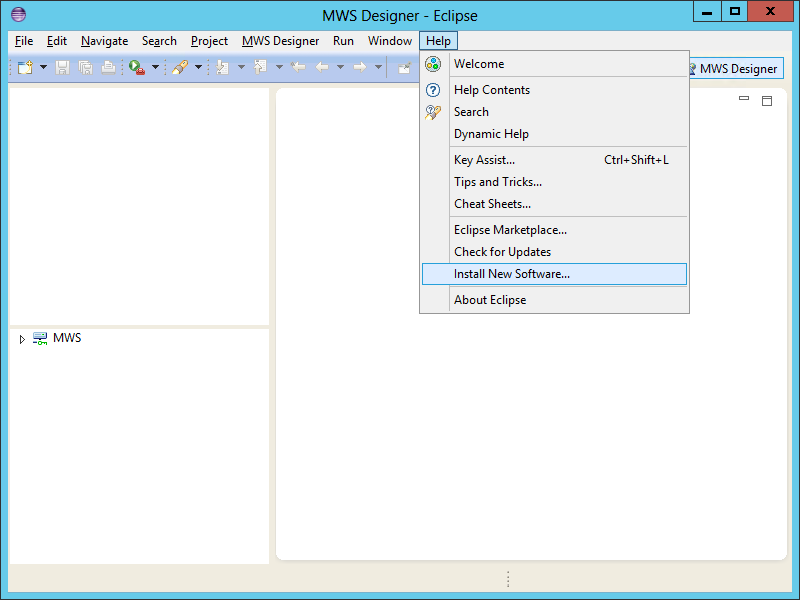
  3. Select Help > Install New Software:
    1
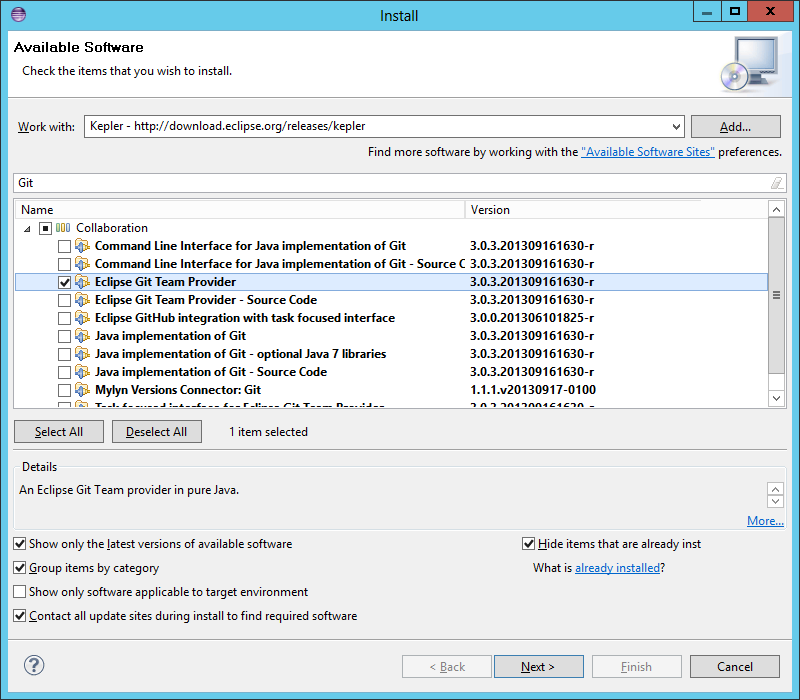
  4. Select the default Eclipse site, for example Kepler – http://download.eclipse.org/releases/kepler , filter for Git, and select Eclipse Git Team Provider:
    2
  5. Click Next > Next > … > Finish and restart Eclipse for the changes to take effect.
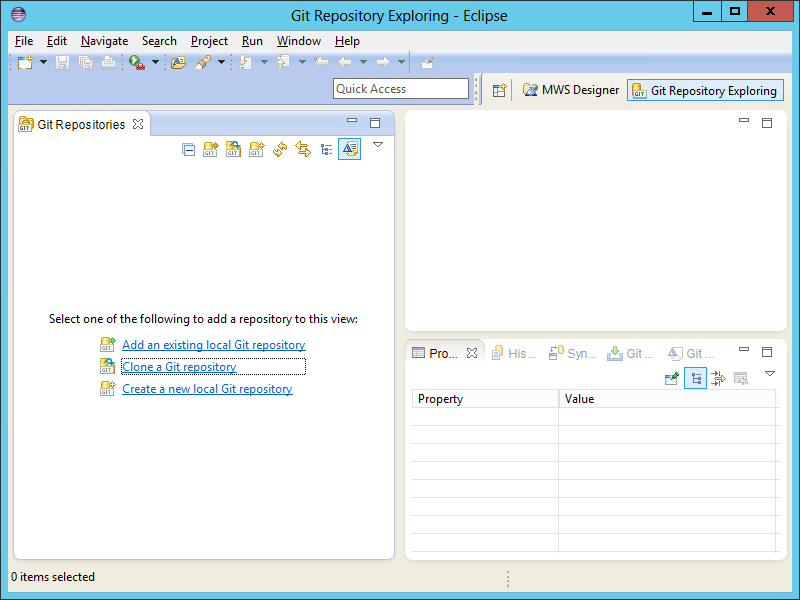
  6. Select Window > Open Perspective > Other > Git Repository Exploring:
    1
  7. It will switch to the Git Repository Exploring:
    2
  8. Repeat the steps for each developer in your team.

Clone the Git Repository

Now we’ll clone the Git Repository to get a local copy of it:

  1. In the Git Repository Exploring, select Clone a Git repository.
  2. Enter the path to the remote Git Repository, for example: \\collaboration\MWS\Repository\ and click Next:
    3
  3. Keep the default master branch and click Next:
    4
  4. Select a local destination, for example C:\MWS\Repository\ and click Finish:
    5
  5. EGit will show the Repository and the Working Directory:
    6
  6. You now have a copy of the web service metadata files in your local directory with a hidden .git folder:
    7
  7. In Eclipse, switch back to the MWS Designer perspective.
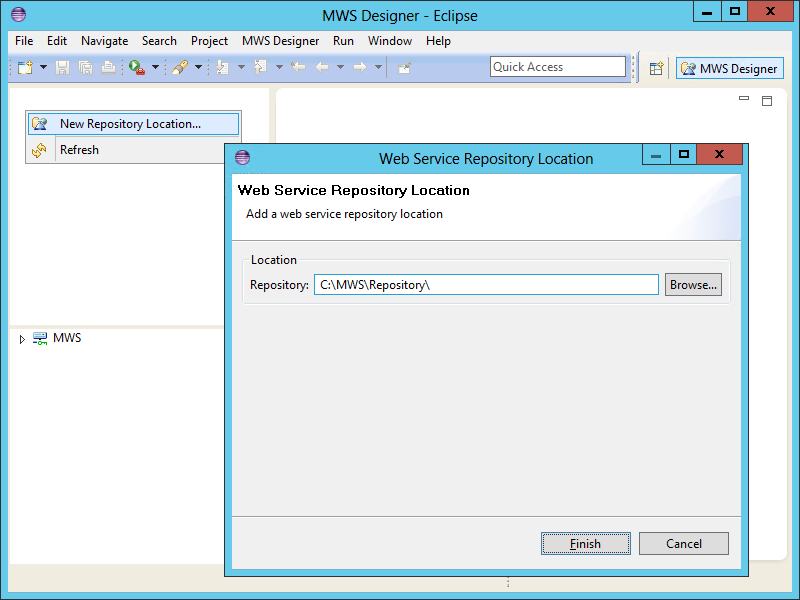
  8. Select New Repository Location and enter the cloned Git repository, for example: C:\MWS\Repository\ and click Finish:
    8
  9. Your MWS Designer now has a local copy of the web services:
    9
  10. Repeat for the other developers in your team.

That’s as far as I got for now.

After that I was able to create a branch and make changes. But I got an error when I tried to merge my changes; EGit seems to truncate the path to my shared folder and not recognize it anymore. I’ll explore more about it later.

New blog LBI Note

New blog! I found this blog LBI Note as I was searching the Internet. Ït’s a blog about “Lawson BI (LBI) Intelligence, BPW, QlikView, Crystal, M3 Analytics, S3 Analytics” maintained by “a team of friendly Business Intelligence consultants who have traveled miles worldwide to make you (customers) happy and help you get the most of Lawson/Infor BI, QlikView, Cognos, SAP HANA, OBIEE and more…” I added it to the list of blogs in my Links page.

Mashup/LES – Related search and changing view while searching.

I accidently discovered a while back that I could use the TargetKey to set views and sorting orders.
This was followed up by another small indecent, which led to another discovery.
Did you know that you are able change the view after a LES search has been performed and keep the current hits?
I will also share how you can perform a related search with LES from a mashup. ( I will not share how to do all the setup, it’s primary just getting the query right)
When combing all these, I believe you can create quite a powerful tool.

Setting the sorting order:

Very simple, but for some unknown.  Just use the TargetKey to set the value.

<mashup:Event TargetName=”MMS200″ SourceEventName=”Click” TargetEventName=”Apply”>
<mashup:Parameter TargetKey=”WWQTTP” Value=”5″ />
</mashup:Event>

Changing the view can be done in multiple ways, here is an example where it’s done from a ComboBox.

<ComboBox Name="ItemMasterChangeView" MinWidth="85" MinHeight="20" MaxWidth="85" MaxHeight="70" Margin="5">
             <mashup:Event.SelectionChanged>
                <mashup:Events>
                   <mashup:Event SourceEventName="SelectionChanged" TargetName="MMS200" TargetEventName="Apply">
                      <mashup:Event.Conditions>
                         <mashup:Conditions>
                            <mashup:Condition TargetKey="Value" SourceValue="{Binding ElementName=ItemMasterChangeView, Path=SelectedIndex}" TargetValue="1" Operator="Equal" />
                         </mashup:Conditions>
                      </mashup:Event.Conditions>
                      <mashup:Parameter TargetKey="WWFACI" Value="100" />
                      <mashup:Parameter TargetKey="WWWHLO" Value="100" />
                      <mashup:Parameter TargetKey="WOPAVR" Value="{Binding ElementName=ONHAND, Path=Content}" />
                   </mashup:Event>

                   <mashup:Event SourceEventName="SelectionChanged" TargetName="MMS200" TargetEventName="Apply">
                      <mashup:Event.Conditions>
                         <mashup:Conditions>
                            <mashup:Condition TargetKey="Value" SourceValue="{Binding ElementName=ItemMasterChangeView, Path=SelectedIndex}" TargetValue="2" Operator="Equal" />
                         </mashup:Conditions>
                      </mashup:Event.Conditions>
                      <mashup:Parameter TargetKey="WWFACI" Value="100" />
                      <mashup:Parameter TargetKey="WWWHLO" Value="100" />
                      <mashup:Parameter TargetKey="WOPAVR" Value="{Binding ElementName=WHS, Path=Content}" />
                   </mashup:Event>
                </mashup:Events>
             </mashup:Event.SelectionChanged>

             <ComboBoxItem Name="BLANK" Content="" />
             <ComboBoxItem Name="ONHAND" Content="ONHAND" />
             <ComboBoxItem Name="WHS" Content="WHS" />
          </ComboBox>

NOTE: CHANGING SORTING ORDER OR VIEW MIGHT GIVE YOU A FATAL ERROR IN SOME OF THE PREVIOUS VERSIONS OF M3.
I don’t know which version the fix came in, but we recently had a upgrade of our environment and it now runs without problem, so far.
However, if you receive an error message, try setting the sorting order with filter 1 or higher, for some strange reason it only used to crash if the filter was set to 0.

Related search – creating the string.

There might be other ways to do this, so if you solved this previously in any other way I hope you are willing to share.
I will show you two different ways you can concatenate text to get the string you need.

1. Provide input to RespText, and using the MultiBinding will get yourself a string looking like this:
related:[ITEM_RESP(“input”)]:

<TextBox Name="RespText"  Text=""   />
<TextBox Name="RespDummy1" Text="related:[ITEM_RESP(&quot;"  Visibility="Hidden" />
  <TextBox Name="RespDummy2" Text="&quot;)]" Visibility="Hidden" />

    <TextBox Name="ItemRespSearch"  Visibility="Hidden">
       <TextBox.Text>
          <MultiBinding StringFormat="{}{0}{1}{2}">
             <Binding ElementName="RespDummy1" Path="Text" />
             <Binding ElementName="RespText" Path="Text" />
             <Binding ElementName="RespDummy2" Path="Text" />
          </MultiBinding>
       </TextBox.Text>
    </TextBox>

2. The other way is using the run command to concatenate.
This was unknown for me until a week ago, but Heiko was nice and shared it .

In the end, both will give you the same output.

</pre>
<TextBox Name="ItemTypeText" Text=""  />

<TextBlock Name="ItemTypeSearch" Visibility="Hidden">
       <TextBlock.Inlines>
         <Run Text="related:[ITEM_ITTY(&quot;" />
         <Run Text="{Binding ElementName=ItemTypeText,Path=Text}" />
         <Run Text="&quot;)]" />
       </TextBlock.Inlines>
     </TextBlock>

You have to add the string query to the TargetKey itself. If you put it as the value you might get some bad output.
You can set the TargetKey to “Query” and the string as value, but that will kill all your other inputs.

<Button Content="Search" Margin="0,0,0,0" Style="{DynamicResource styleButtonPrimaryMashup}">
             <Button.CommandParameter>
                <mashup:Events>
                   <mashup:Event SourceEventName="Click" TargetName="MMS200" TargetEventName="Search">
                      <mashup:Parameter TargetKey="FUDS" Value="{Binding Path=Text, ElementName=NameText}" />
                       <mashup:Parameter TargetKey="{Binding Path=Text, ElementName=ItemRespSearch}" Value="{Binding Path=Text, ElementName=ItemRespCheck}" />
                       <mashup:Parameter TargetKey="{Binding Path=Text, ElementName=ItemTypeSearch}" Value="{Binding Path=Text, ElementName=ItemTypeCheck}" />
                 </mashup:Event>

As you can see I am binding some values.
If the Value is blank the search will not be performed, so I’m just using this to check for any input.

If there is any input to the “RespText” the value will be set to ‘;’ .
You can use standard mashup conditions instead of the MultiDataTrigger as shown below.

<TextBox Name="ItemRespCheck" Visibility="Hidden">
       <TextBox.Style>
       <Style x:Key="ItemRespCheck" TargetType="{x:Type TextBox}" BasedOn="{StaticResource {x:Type TextBox}}">
          <Setter Property="Text" Value=";" />
          <Style.Triggers>
             <MultiDataTrigger>
                <MultiDataTrigger.Conditions>
                   <Condition Binding="{Binding ElementName=RespText, Path=Text}" Value="" />
                </MultiDataTrigger.Conditions>
                <Setter Property="Text" Value="" />
             </MultiDataTrigger>
          </Style.Triggers>
       </Style>
    </TextBox.Style>
    </TextBox>

And the final string query will be like this if you provide input to all 3.

FUDS:(A*) related:[ITEM_RESP(“141254”)]:(;) related:[ITEM_ITTY(“031”)]:(;)
If you are trying and failing with this, I strongly recommand using Fiddler or similar to see what output the mashup sends.

Attached is a full sample containing both the related search and changing view/sorting orders option.
You probably have to change some of the static values I’ve added to make it work.

<Grid xmlns="http://schemas.microsoft.com/winfx/2006/xaml/presentation" xmlns:x="http://schemas.microsoft.com/winfx/2006/xaml" xmlns:ui="clr-namespace:Mango.UI.Controls;assembly=Mango.UI" xmlns:mashup="clr-namespace:Mango.UI.Services.Mashup;assembly=Mango.UI" xmlns:m3="clr-namespace:MForms.Mashup;assembly=MForms">
    <Grid.Resources>
    </Grid.Resources>

    <Grid.ColumnDefinitions>
       <ColumnDefinition Width="*" />

    </Grid.ColumnDefinitions>
    <Grid.RowDefinitions>
       <RowDefinition Height="30" />
       <RowDefinition Height="*" />
    </Grid.RowDefinitions>

    <StackPanel Grid.Row="0" Grid.Column="0" Orientation="Horizontal">
          <TextBlock Text="Name:" />
          <TextBox Name="NameText" MaxWidth="80" MinWidth="80" />
          <TextBlock Text="Item responsible:" />
          <TextBox Name="RespText" Text="" MaxWidth="80" MinWidth="80" />
          <TextBlock Text="Item Type:" />
          <TextBox Name="ItemTypeText" Text="" MaxWidth="80" MinWidth="80" />

          <Button Content="Search" Margin="0,0,0,0" Style="{DynamicResource styleButtonPrimaryMashup}">
             <Button.CommandParameter>
                <mashup:Events>
                   <mashup:Event SourceEventName="Click" TargetName="MMS200" TargetEventName="Search">
                      <mashup:Parameter TargetKey="FUDS" Value="{Binding Path=Text, ElementName=NameText}" />
                         <mashup:Parameter TargetKey="{Binding Path=Text, ElementName=ItemRespSearch}" Value="{Binding Path=Text, ElementName=ItemRespCheck}" />
                          <mashup:Parameter TargetKey="{Binding Path=Text, ElementName=ItemTypeSearch}" Value="{Binding Path=Text, ElementName=ItemTypeCheck}" />
                   </mashup:Event>

                      <mashup:Event TargetName="MMS200" SourceEventName="Click" TargetEventName="Apply">
                      <mashup:Event.Conditions>
                         <mashup:Conditions>
                            <mashup:Condition SourceValue="{Binding Path=Text, ElementName=RespText}" TargetValue="" Operator="Equal" />
                         </mashup:Conditions>
                      </mashup:Event.Conditions>
                      <mashup:Parameter TargetKey="WWQTTP" Value="7" />
                   </mashup:Event>

                      <mashup:Event TargetName="MMS200" SourceEventName="Click" TargetEventName="Apply">
                      <mashup:Event.Conditions>
                         <mashup:Conditions>
                            <mashup:Condition SourceValue="{Binding Path=Text, ElementName=RespText}" TargetValue="" Operator="NotEqual" />
                         </mashup:Conditions>
                      </mashup:Event.Conditions>
                      <mashup:Parameter TargetKey="WWQTTP" Value="5" />

                   </mashup:Event>

                </mashup:Events>
             </Button.CommandParameter>
          </Button>

          <TextBlock Text="View" HorizontalAlignment="Right" />

          <ComboBox Name="ItemMasterChangeView" MinWidth="85" MinHeight="20" MaxWidth="85" MaxHeight="70" Margin="5">
             <mashup:Event.SelectionChanged>
                <mashup:Events>
                   <mashup:Event SourceEventName="SelectionChanged" TargetName="MMS200" TargetEventName="Apply">
                      <mashup:Event.Conditions>
                         <mashup:Conditions>
                            <mashup:Condition TargetKey="Value" SourceValue="{Binding ElementName=ItemMasterChangeView, Path=SelectedIndex}" TargetValue="1" Operator="Equal" />
                         </mashup:Conditions>
                      </mashup:Event.Conditions>
                      <mashup:Parameter TargetKey="WWFACI" Value="100" />
                      <mashup:Parameter TargetKey="WWWHLO" Value="100" />
                      <mashup:Parameter TargetKey="WOPAVR" Value="{Binding ElementName=ONHAND, Path=Content}" />
                   </mashup:Event>

                   <mashup:Event SourceEventName="SelectionChanged" TargetName="MMS200" TargetEventName="Apply">
                      <mashup:Event.Conditions>
                         <mashup:Conditions>
                            <mashup:Condition TargetKey="Value" SourceValue="{Binding ElementName=ItemMasterChangeView, Path=SelectedIndex}" TargetValue="2" Operator="Equal" />
                         </mashup:Conditions>
                      </mashup:Event.Conditions>
                      <mashup:Parameter TargetKey="WWFACI" Value="100" />
                      <mashup:Parameter TargetKey="WWWHLO" Value="100" />
                      <mashup:Parameter TargetKey="WOPAVR" Value="{Binding ElementName=WHS, Path=Content}" />
                   </mashup:Event>
                </mashup:Events>
             </mashup:Event.SelectionChanged>
             <ComboBoxItem Name="BLANK" Content="" />
             <ComboBoxItem Name="ONHAND" Content="ONHAND" />
             <ComboBoxItem Name="WHS" Content="WHS" />

          </ComboBox>

    </StackPanel>

    <TextBox Name="RespDummy1" Text="related:[ITEM_RESP(&quot;" Grid.Row="0" Visibility="Hidden" />
    <TextBox Name="RespDummy2" Text="&quot;)]" Visibility="Hidden" />

    <TextBox Name="ItemRespSearch" Grid.Row="0" Grid.Column="3" Visibility="Hidden">
       <TextBox.Text>
          <MultiBinding StringFormat="{}{0}{1}{2}">
             <Binding ElementName="RespDummy1" Path="Text" />
             <Binding ElementName="RespText" Path="Text" />
             <Binding ElementName="RespDummy2" Path="Text" />
          </MultiBinding>
       </TextBox.Text>
    </TextBox>

    <TextBlock Name="ItemTypeSearch" Visibility="Hidden">
       <TextBlock.Inlines>
         <Run Text="related:[ITEM_ITTY(&quot;" />
         <Run Text="{Binding ElementName=ItemTypeText,Path=Text}" />
         <Run Text="&quot;)]" />
       </TextBlock.Inlines>
     </TextBlock>

       <TextBox Name="ItemRespCheck" Visibility="Hidden">
       <TextBox.Style>
       <Style x:Key="ItemRespCheck" TargetType="{x:Type TextBox}" BasedOn="{StaticResource {x:Type TextBox}}">
          <Setter Property="Text" Value=";" />
          <Style.Triggers>
             <MultiDataTrigger>
                <MultiDataTrigger.Conditions>
                   <Condition Binding="{Binding ElementName=RespText, Path=Text}" Value="" />
                </MultiDataTrigger.Conditions>
                <Setter Property="Text" Value="" />
             </MultiDataTrigger>
          </Style.Triggers>
       </Style>
    </TextBox.Style>
    </TextBox>

       <TextBox Name="ItemTypeCheck" Visibility="Hidden">
       <TextBox.Style>
       <Style x:Key="ItemTypeCheck" TargetType="{x:Type TextBox}" BasedOn="{StaticResource {x:Type TextBox}}">
          <Setter Property="Text" Value=";" />
          <Style.Triggers>
             <MultiDataTrigger>
                <MultiDataTrigger.Conditions>
                   <Condition Binding="{Binding ElementName=ItemTypeText, Path=Text}" Value="" />
                </MultiDataTrigger.Conditions>
                <Setter Property="Text" Value="" />
             </MultiDataTrigger>
          </Style.Triggers>
       </Style>
    </TextBox.Style>
    </TextBox>

    <m3:ListPanel Name="MMS200" Grid.Row="1" IsListHeaderVisible="True" IsListHeaderExpanded="True">
       <m3:ListPanel.Events>
          <mashup:Events>
             <mashup:Event SourceEventName="Startup">
                <mashup:Parameter TargetKey="MBCONO" />
                <mashup:Parameter TargetKey="MBWHLO" />
                <mashup:Parameter TargetKey="MBITNO" />
                <mashup:Parameter TargetKey="WWFACI" Value="100" />
                <mashup:Parameter TargetKey="WWWHLO" Value="100" />
                <mashup:Parameter TargetKey="WWQTTP" Value="5" />
             </mashup:Event>
          </mashup:Events>
       </m3:ListPanel.Events>
       <m3:ListPanel.Bookmark>
          <m3:Bookmark Program="MMS200" Table="MITBAL" KeyNames="MBCONO,MBWHLO,MBITNO" FieldNames="WWFACI,WWHLO,WOPAVR,WWQTTP" />
       </m3:ListPanel.Bookmark>
    </m3:ListPanel>

 </Grid>

Regards
Ken Eric

How to dynamically consume a M3 Web Service in C#

Previous posts have dealt successfully with how to consume a web service and how to use the SmartOffice DynamicWs classes.  This post will help if you need something which is dynamic, yet decoupled from SmartOffice.

This is a sample based on the WCF Dynamic Proxy classes available under a Microsoft Public License in the msdn archive.

For initial reference we have a standard C# invocation using a generated service reference.  The web service we are using is API_MNS150MI_GetUserData.

ScreenShot2390

The only tricky part here is ensuring the http authentication is set so that Web services accepts you as a valid user.

Here is the code for the static call against the generated service reference.

using System;
using System.Collections.Generic;
using System.Linq;
using System.Text;
using System.Net;
using System.IO;
using WebServiceStatic.API131;
using System.ServiceModel;

namespace WebServiceStatic
{
class Program
{
static void Main(string[] args)
{
// Create a client with basic http credentials
API_MNS150MI_GetUserDataClient client = new API_MNS150MI_GetUserDataClient();
System.ServiceModel.BasicHttpBinding binding = new System.ServiceModel.BasicHttpBinding();
binding.Security.Mode = BasicHttpSecurityMode.Transport;
binding.Security.Transport.ClientCredentialType = HttpClientCredentialType.Basic;
binding.MaxReceivedMessageSize = 25 * 1024 * 1024;
client.Endpoint.Binding = binding;

// show endpoint address
Console.WriteLine(client.Endpoint.Address);
Console.WriteLine(client.Endpoint.Name);

// ask for UserID and password
Console.Write("User ID : ");
client.ClientCredentials.UserName.UserName = Console.ReadLine().Trim();
Console.Write("Password: ");
client.ClientCredentials.UserName.Password = Console.ReadLine().Trim();

// Create LWS header
lws header = new lws();
header.user = client.ClientCredentials.UserName.UserName;
header.password = client.ClientCredentials.UserName.Password;

// Create a requests item
GetUserDataItem item1 = new GetUserDataItem();
item1.USID = client.ClientCredentials.UserName.UserName;

// construct a collection for the request item (only 1 accepted?)
GetUserDataCollection collection = new GetUserDataCollection();
collection.GetUserDataItem = new GetUserDataItem[] { item1 };

try
{
// execute the web service
GetUserDataResponseItem[] response = client.GetUserData(header, collection);
// loop through the response items (only 1) and output to console
foreach (GetUserDataResponseItem responseItem in response)
{
Console.WriteLine("User '{0}' description '{1}'", responseItem.USID, responseItem.TX40);
}
}
catch (Exception e)
{
// catch and display any errors
Console.WriteLine(e.Message);
}

// wait for user to press a key
Console.WriteLine("Press any key to continue...");
Console.ReadKey();
}
}
}

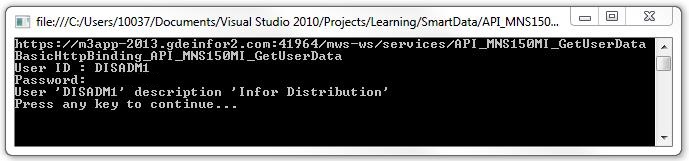
The result shows we have connected to the web service and retrieved the Users ID (USID) and description (TX40).

ScreenShot2391

Now we have the basic hard-coded example code as a template, we can use the DynamicProxyLibrary to do the same.

This dynamically creates an Assembly (dll) containing the service reference which we can use in place of a hard-coded Service reference.

This can be done without the DynamicProxyLibrary however as the DynamicProxy handles most of the Assembly/Reflection plumbing it is much easier to read and work with.

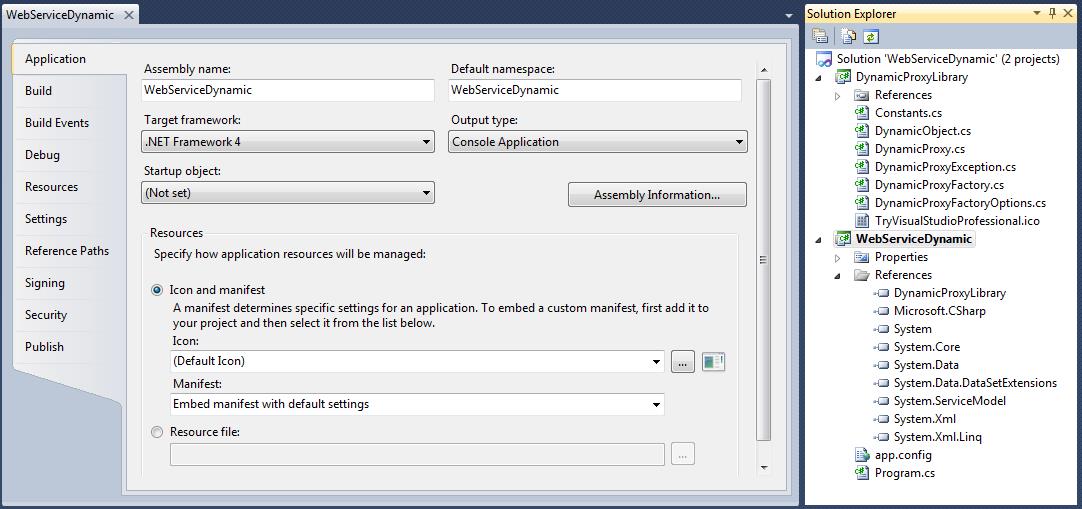
First create a project referencing the DynamicProxyLibrary in Visual Studio.

ScreenShot2393

Now it is possible to use the Dynamic proxy to call the web service without using a hard-coded service references, all field/property/class references can be coded as text.

using System;
using System.Collections.Generic;
using System.Linq;
using System.Text;

namespace WebServiceDynamic
{
using WcfSamples.DynamicProxy;
using System.ServiceModel.Description;
using System.ServiceModel;
using System.Reflection;

class Program
{
static void Main(string[] args)
{
string serviceWsdlUri = "https://m3app-2013.gdeinfor2.com:41964/mws-ws/services/API_MNS150MI_GetUserData?wsdl";
if (args.Length > 0)
serviceWsdlUri = args[0];

// create the dynamic proxy factory, that downloads the service metadata
// and create the dynamic factory.
Console.WriteLine("Creating DynamicProxyFactory for " + serviceWsdlUri);
DynamicProxyFactory factory = new DynamicProxyFactory(serviceWsdlUri);

// list the endpoints.
int count = 0;
foreach (ServiceEndpoint endpoint in factory.Endpoints)
{
// create proxy client
Console.WriteLine("Service Endpoint[{0}]", count);
Console.WriteLine("\tAddress = " + endpoint.Address);
Console.WriteLine("\tContract = " + endpoint.Contract.Name);
Console.WriteLine("\tBinding = " + endpoint.Binding.Name);
DynamicProxy clientProxy = factory.CreateProxy(endpoint.Contract.Name);

// Create a client with basic http credentials
System.ServiceModel.BasicHttpBinding binding = new System.ServiceModel.BasicHttpBinding();
binding.Security.Mode = BasicHttpSecurityMode.Transport;
binding.Security.Transport.ClientCredentialType = HttpClientCredentialType.Basic;
binding.MaxReceivedMessageSize = 25 * 1024 * 1024;
ServiceEndpoint clientEndpoint = (ServiceEndpoint)clientProxy.GetProperty("Endpoint");
clientEndpoint.Binding = binding;

// ask for UserID and password
ClientCredentials credentials = (ClientCredentials)clientProxy.GetProperty("ClientCredentials");
Console.Write("User ID : ");
credentials.UserName.UserName = Console.ReadLine().Trim();
Console.Write("Password: ");
credentials.UserName.Password = Console.ReadLine().Trim();

// Create LWS header
Type lwsType = clientProxy.ProxyType.Assembly.GetType("lws");
DynamicObject header = new DynamicObject(lwsType);
header.CallConstructor();
header.SetProperty("user", credentials.UserName.UserName);
header.SetProperty("password", credentials.UserName.Password);

// Create a requests item
Type itemType = clientProxy.ProxyType.Assembly.GetType("GetUserDataItem");
DynamicObject item = new DynamicObject(itemType);
item.CallConstructor();
item.SetProperty("USID", credentials.UserName.UserName);

// Add the user request item to an array of 1
Array itemArray = Array.CreateInstance(item.ObjectType, 1);
itemArray.SetValue(item.ObjectInstance, 0);

// construct a collection for the request item (only 1 accepted?)
Type collectionType = clientProxy.ProxyType.Assembly.GetType("GetUserDataCollection");
DynamicObject collection = new DynamicObject(collectionType);
collection.CallConstructor();
collection.SetProperty("GetUserDataItem", itemArray);

try
{
// execute the web service
Array responseCollection = (Array)clientProxy.CallMethod("GetUserData", new object[] { header.ObjectInstance, collection.ObjectInstance });
// loop through the response items (only 1) and output to console
foreach (object responseItemObject in responseCollection)
{
DynamicObject responseItem = new DynamicObject(responseItemObject);
Console.WriteLine("User '{0}' description '{1}'",
responseItem.GetProperty("USID"),
responseItem.GetProperty("TX40"));
}
}
catch (Exception e)
{
// catch and display exceptions
Console.WriteLine(e.Message);
// catch and display inner exception (this is the real error from the web service call)
if (e.InnerException != null)
{
Console.WriteLine(e.InnerException.Message);
}
}
// close the connection
clientProxy.Close();
}

Console.WriteLine("Press any key...");
Console.ReadKey();
}

}
}

The result shows that we can use the DynamicProxyFactory to get some basic information about the web service, then consume the web service.

ScreenShot2392

Regards,

Lee Flaherty

UPDATE: This was tested against M3 10.1 and M3 13.1 both running on the grid.  It may, or may not, work on other versions.

Color-coded event graph animations for Mashups

Here is an idea to manually create color-coded event graph animations for Mashups leveraging my previous tool that automatically generates event graphs for Mashup. The idea is to color-code the events in the event graph of a Mashup, and move forward in time to see the animation, in order to have a visual cue of how the Mashup timeline works. See it like a time-lapse of the Mashup.

Let’s take the sample Mashup provided at Mashup Designer > Help > M3 Transactions > List & edit Customers. The sequence of events of that Mashup would be the following:

  1. The Mashup starts and loads the list of customers (Startup event).
  2. Optionally, the user can enter a Customer number and click Search (Click event).
  3. The user selects a customer in the list (CurrentItemChanged event), and the Mashup loads that customer’s details.
  4. Optionally, the user changes the values and clicks Save (Click event), and the Mashup changes the values of that customer record.
  5. The Mashup refreshes the list of customers (UpdateComplete event).

The event graph for this Mashup in plain black & white would be:

graph

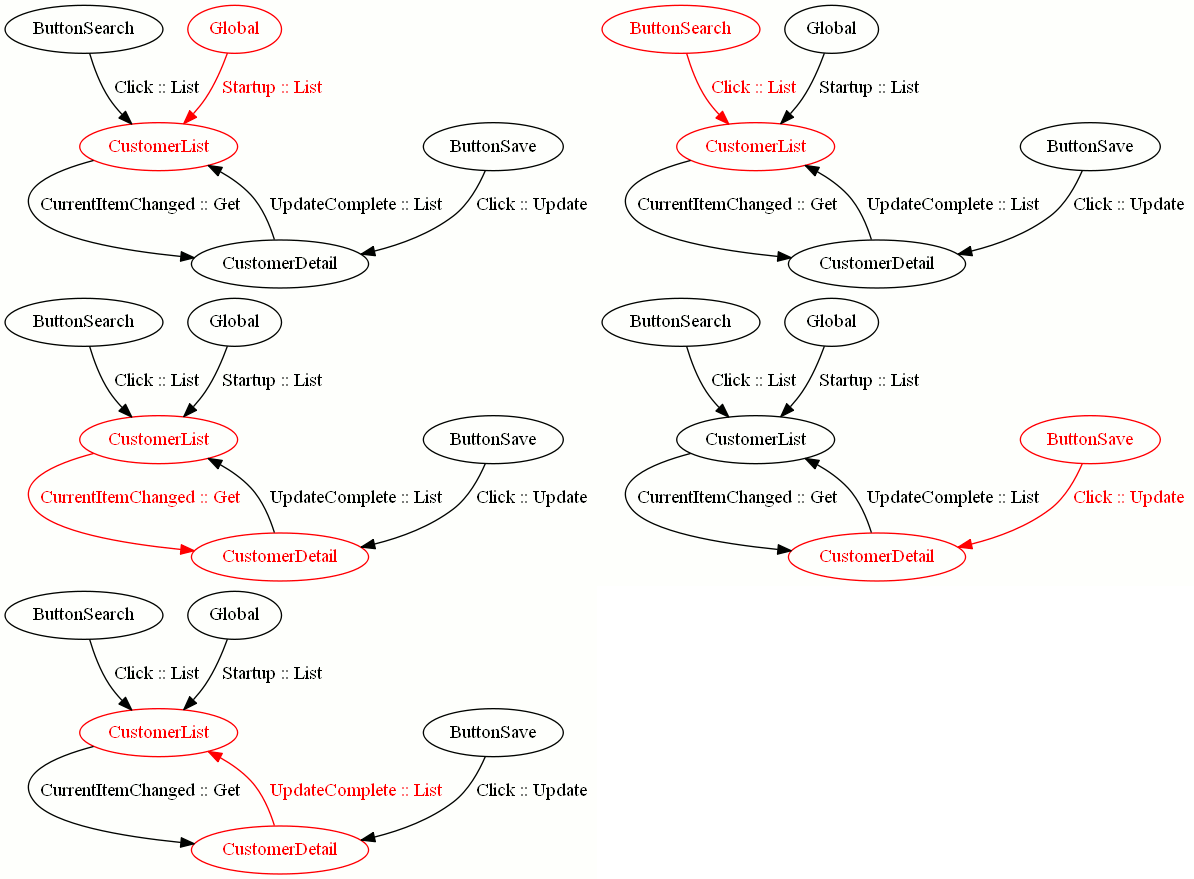
The idea is to create a color-coded graph of each step of the sequence, save a colored image of each step, and render the result as an animated GIF.

Why it’s important

Color-coded event graph animations for Mashups will help developers control the quality of their Mashups, it will help users approve Mashup designs, it will be useful as a prototype for demos and useful for usability testing, and it will help new developers better understand how the user interacts with the Mashup. There is a lot of activity in the software industry around software mockups, for example the popular Balsamiq Mockups. This new idea I introduce for Mashups helps bring software mockups a bit closer to M3.

How to create it

Follow these steps to manually create a color-coded event graph animation for Mashups:

  1. Break down the sequence of Mashup events in numbered order, like I did above.
  2. Take the original DOT file of the event graph (refer to my previous tool), and duplicate the file by as many steps, for example MyMashup.gv would become:
    MyMashup1.gv
    MyMashup2.gv
    MyMashup3.gv
    etc.
  3. Open each file in a text editor, and add color to the node and the edges involved in that step. Use the following syntax, for example for color red:
    [color=red; fontcolor=red]

    MyMashup1.gv:

    <Global> -> CustomerList [label="Startup :: List"; color=red; fontcolor=red];
    <Global> [color=red; fontcolor=red];
    CustomerList [color=red; fontcolor=red];

    MyMashup2.gv:

    ButtonSearch -> CustomerList [label="Click :: List"; color=red; fontcolor=red];
    ButtonSearch [color=red; fontcolor=red];
    CustomerList [color=red; fontcolor=red];

    MyMashup3.gv:

    CustomerList -> CustomerDetail [label="CurrentItemChanged :: Get"; color=red; fontcolor=red];
    CustomerList [color=red; fontcolor=red];
    CustomerDetail [color=red; fontcolor=red];

    etc.

  4. Use Graphivz to generate an output file of each step. For example you will have:
    MyMashup1.png
    1
    MyMashup2.png
    2
    MyMashup3.png
    3
    etc.
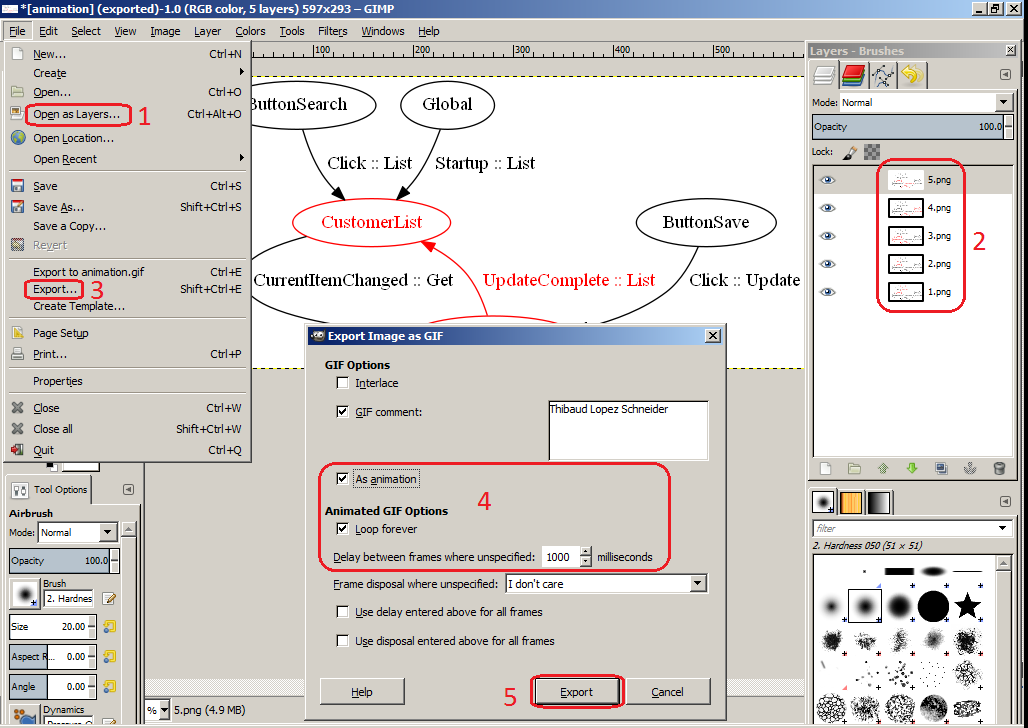
  5. Use a graphic editor like Gimp to generate a GIF animation from the individual image files. In GIMP, open all the images as Layers, order the layers from last to first, and export the result as an animated GIF with 1000 millisecond delay between frames:
    GIMP4
  6. That’s it!

Result

Here below is the result, a color-coded animation of the event graph of the sample List & edit Customer Mashup of the Mashup Designer (click on the image to see the animation):

animation

Future work

In a future work, I would implement a breadth-first search graph traversal algorithm to automatically traverse the Mashup’s event graph, node by node, call Graphiz’ dot layout engine (C:\Program Files (x86)\Graphviz x.y.z\bin\dot.exe) to produce an image at each iteration, and use another tool to merge all the images into an animated GIF.

Related articles

Mashup – Adding a ContextMenu to the ListView

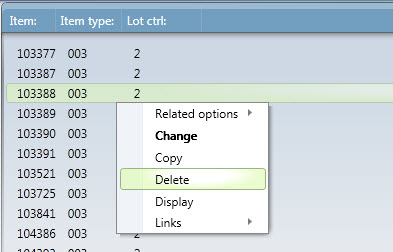
This week I will show you how you can add a ContextMenu to your ListView.
This is one of these small things that sometimes takes quite some time to figure out.
My major problem with getting the ContextMenu to work in the ListView was to get the actually ‘Click’ working.

Today I will provide you with a working .xaml sample containing some of the basic options from MMS001 using bookmark URI’s.
Related Options , Change, Copy, Delete, Display and Links.
You probably have to set your own values to ITGR and CONO to get it to run.
I also added a little bit of styling, in case this is unknown to some of you.

Here is a snapshot of the result:

ContextMenu

And the code:

<Grid xmlns="http://schemas.microsoft.com/winfx/2006/xaml/presentation" xmlns:x="http://schemas.microsoft.com/winfx/2006/xaml" xmlns:ui="clr-namespace:Mango.UI.Controls;assembly=Mango.UI" xmlns:mashup="clr-namespace:Mango.UI.Services.Mashup;assembly=Mango.UI" xmlns:m3="clr-namespace:MForms.Mashup;assembly=MForms">
    <Grid.Resources>
    </Grid.Resources>

    <Grid.ColumnDefinitions>
       <ColumnDefinition Width="*" />
    </Grid.ColumnDefinitions>
    <Grid.RowDefinitions>
       <RowDefinition Height="*" />
       <RowDefinition Height="Auto" />
    </Grid.RowDefinitions>


 <m3:MIListPanel Name="MMS200MIList">
       <m3:MIListPanel.Events>
          <mashup:Events>
             <mashup:Event SourceEventName="Startup">
                <mashup:Parameter TargetKey="ITGR" Value="03.01" />
             </mashup:Event>
          </mashup:Events>
       </m3:MIListPanel.Events>
       <m3:MIListPanel.DataSource>
          <m3:MIDataSource Program="MMS200MI" Transaction="LstItmByItmGr" Type="List" InputFields="ITGR" OutputFields="ITNO,ITTY,INDI" MaxReturnedRecords="20" />
       </m3:MIListPanel.DataSource>

       <ListView Name="MMS200MIListView" ItemsSource="{Binding Items}" Style="{DynamicResource styleListView}" ItemContainerStyle="{DynamicResource styleListViewItem}">

          <ListView.ContextMenu>
             <ContextMenu>

                <MenuItem Header="Related options">
                   <MenuItem.Style>
                      <Style x:Key="Triggers" TargetType="{x:Type MenuItem}">
                         <Style.Triggers>
                            <Trigger Property="MenuItem.IsMouseOver" Value="true">
                               <Setter Property="Foreground" Value="Red" />
                            </Trigger>
                         </Style.Triggers>
                      </Style>
                   </MenuItem.Style>

                   <MenuItem Header="Material plan" Command="mashup:MashupInstance.MashupCommand">
                      <MenuItem.CommandParameter>
                         <mashup:Events>
                            <mashup:Event SourceEventName="Click" LinkUri="mforms://bookmark?program=MMS001&amp;tablename=MITMAS&amp;keys=MMCONO%2c{CONO}%2cMMITNO%2c{ITNO}%2b%2b%2b%2b%2b%2b%2b%2b%2b&amp;option=34&amp;panel=E&amp;name=MMS001%2fE+Bookmark&amp;source=MForms">
                               <mashup:Parameter TargetKey="ITNO" Value="{Binding [ITNO]}" />
                               <mashup:Parameter TargetKey="CONO" Value="001" />
                            </mashup:Event>
                         </mashup:Events>
                      </MenuItem.CommandParameter>
                   </MenuItem>

                </MenuItem>

                <MenuItem Header="Change" Command="mashup:MashupInstance.MashupCommand">
                   <MenuItem.Style>
                      <Style x:Key="Triggers" TargetType="{x:Type MenuItem}">
                         <Setter Property="FontWeight" Value="Bold" />
                      </Style>
                   </MenuItem.Style>
                   <MenuItem.CommandParameter>
                      <mashup:Events>
                         <mashup:Event SourceEventName="Click" LinkUri="mforms://bookmark?program=MMS001&amp;tablename=MITMAS&amp;keys=MMCONO%2c{CONO}%2cMMITNO%2c{ITNO}%2b%2b%2b%2b%2b%2b%2b%2b%2b&amp;option=2&amp;panel=E&amp;name=MMS001%2fE+Bookmark&amp;source=MForms">
                            <mashup:Parameter TargetKey="ITNO" Value="{Binding [ITNO]}" />
                            <mashup:Parameter TargetKey="CONO" Value="001" />
                         </mashup:Event>
                      </mashup:Events>
                   </MenuItem.CommandParameter>
                </MenuItem>

                <MenuItem Header="Copy" Command="mashup:MashupInstance.MashupCommand">
                   <MenuItem.CommandParameter>
                      <mashup:Events>
                         <mashup:Event SourceEventName="Click" LinkUri="mforms://bookmark?program=MMS001&amp;tablename=MITMAS&amp;keys=MMCONO%2c{CONO}%2cMMITNO%2c{ITNO}%2b%2b%2b%2b%2b%2b%2b%2b%2b&amp;option=3&amp;panel=E&amp;name=MMS001%2fE+Bookmark&amp;source=MForms">
                            <mashup:Parameter TargetKey="ITNO" Value="{Binding [ITNO]}" />
                            <mashup:Parameter TargetKey="CONO" Value="001" />
                         </mashup:Event>
                      </mashup:Events>
                   </MenuItem.CommandParameter>
                </MenuItem>

                <MenuItem Header="Delete" Command="mashup:MashupInstance.MashupCommand">
                   <MenuItem.CommandParameter>
                      <mashup:Events>
                         <mashup:Event SourceEventName="Click" LinkUri="mforms://bookmark?program=MMS001&amp;tablename=MITMAS&amp;keys=MMCONO%2c{CONO}%2cMMITNO%2c{ITNO}%2b%2b%2b%2b%2b%2b%2b%2b%2b&amp;option=4&amp;panel=E&amp;name=MMS001%2fE+Bookmark&amp;source=MForms">
                            <mashup:Parameter TargetKey="ITNO" Value="{Binding [ITNO]}" />
                            <mashup:Parameter TargetKey="CONO" Value="001" />
                         </mashup:Event>
                      </mashup:Events>
                   </MenuItem.CommandParameter>
                </MenuItem>

                <MenuItem Header="Display" Command="mashup:MashupInstance.MashupCommand">
                   <MenuItem.CommandParameter>
                      <mashup:Events>
                         <mashup:Event SourceEventName="Click" LinkUri="mforms://bookmark?program=MMS001&amp;tablename=MITMAS&amp;keys=MMCONO%2c{CONO}%2cMMITNO%2c{ITNO}%2b%2b%2b%2b%2b%2b%2b%2b%2b&amp;option=5&amp;panel=E&amp;name=MMS001%2fE+Bookmark&amp;source=MForms">
                            <mashup:Parameter TargetKey="ITNO" Value="{Binding [ITNO]}" />
                            <mashup:Parameter TargetKey="CONO" Value="001" />
                         </mashup:Event>
                      </mashup:Events>
                   </MenuItem.CommandParameter>
                </MenuItem>

                <MenuItem Header="Links">
                   <MenuItem Header="https://thibaudatwork.wordpress.com" Command="mashup:MashupInstance.MashupCommand">
                      <MenuItem.CommandParameter>
                         <mashup:Events>
                            <mashup:Event SourceEventName="Click" LinkUri="https://thibaudatwork.wordpress.com" LinkIsExternal="True">
                                     </mashup:Event>
                         </mashup:Events>
                      </MenuItem.CommandParameter>
                   </MenuItem>

                </MenuItem>
             </ContextMenu>
          </ListView.ContextMenu>

          <ListView.View>
             <GridView ColumnHeaderContainerStyle="{DynamicResource styleGridViewColumnHeader}">
                <GridView.Columns>
                   <GridViewColumn Header="Item:" DisplayMemberBinding="{Binding [ITNO]}" />
                   <GridViewColumn Header="Item type:" DisplayMemberBinding="{Binding [ITTY]}" />
                   <GridViewColumn Header="Lot ctrl:" DisplayMemberBinding="{Binding [INDI]}" />
                </GridView.Columns>
             </GridView>
          </ListView.View>
       </ListView>
    </m3:MIListPanel>

    <ui:StatusBar Name="StatusBar" Grid.Row="1" Grid.Column="0" />
 </Grid>

Regards
Ken Eric