Dependency graphs for data conversion

Dependency graphs show the relationships between M3 programs – how they relate to one another – and are useful during data conversion. In this article I discuss their benefits and how to create them.

Background

Data conversion is the process of transferring data from the customer’s legacy system into M3 with tools such as M3 API, M3 Data Import (MDI), Lawson Web Services (LWS), and Lawson Smart Data Tool (SDT) during the implementation project.

Relationships between programs are governed by M3. The M3 Business Engine ensures the integrity of its programs. For example, to create a Warehouse – MMS005 we need to create a Facility – CRS008, to create a Facility we need to create a Division – MNS100, to create a Division we need to create a Company – MNS095, and so on.

Dependency graphs

Dependency graphs show the relationships between M3 programs in a graphical form, as illustrated in the following subset of a larger graph:

Benefits

Dependency graphs are useful during data conversion for various reasons:

  • They visually provide a lot of information with little cognitive effort
  • They help delimit the scope, and help quantify the amount of work
  • They dictate the order in which to proceed
  • They help build the project plan, and help estimate the duration

Dependencies

Smart Data Tool comes with Configuration Sheets that contain a curated list of M3 dependencies. It’s one of the best sources of dependencies available.

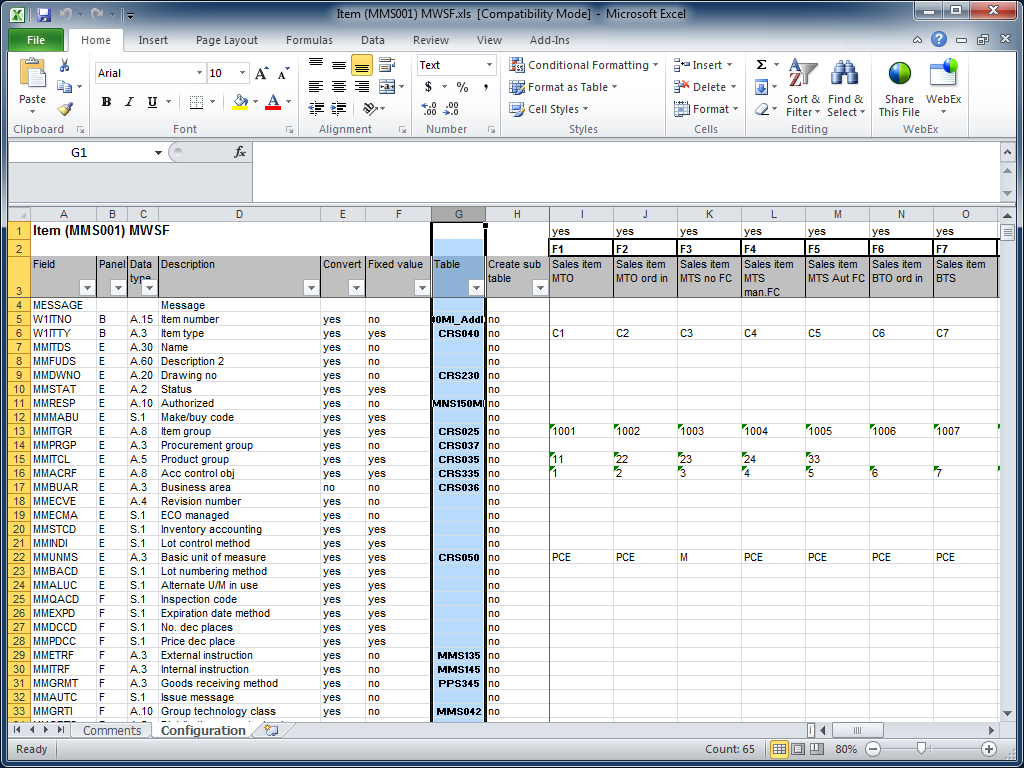
The following screenshot shows the Configuration Sheet for Item – MMS001 where column G tells which programs we need to setup before we can create an Item – MMS001:

Dependencies extraction

We can programmatically extract the dependencies from the Smart Data Tool Configuration Sheets by reading the Excel files with ODBC/JDBC, or with Excel libraries available on the Internet (Java, VB, .NET, PHP, etc.).

Graph production

From those dependencies, we can automatically generate dependency graphs using tools such as Graphviz – an open source graph visualization software – in the DOT language.

Here is a subset of the dependency graph for Customer Addresses – OIS002:

digraph g {
 CRS070 -> OIS002;
 CRS065 -> OIS002;
 OIS002 [label="Customer Addresses\nOIS002"];
 CRS070 [label="Delivery method\nCRS070"];
 CRS065 [label="Delivery terms\nCRS065"];
}

Visualization

We can visualize large graphs in an easy zoomable way with a tool like ZGRViewer.

Conclusion

Dependency graphs greatly facilitate the data conversion effort. We can generate them programmatically with a combination of tools including Lawson Smart Data Tool and the open source Graphviz.

That’s it!

How to get the URL to Lawson Web Services in a Mashup

Here’s a technique for a Mashup to call a Lawson Web Service (LWS) using the correct Lawson Web Service server and the correct environment (DEV, EDU, PRD, TST, etc.).

The problem

By default, when we use the Web Service wizard in Mashup Designer, the URL to the Lawson Web Service server is hard-coded in the two Parameters WS.Wsdl and WS.Address.

For instance, in the following example we’re using a Lawson Web Service that calls the M3 API CRS610MI.LstByNumber, but the server (hostname), the port number (10000), and the environment (TST) are hard-coded in the URL:

<Grid xmlns="http://schemas.microsoft.com/winfx/2006/xaml/presentation" xmlns:x="http://schemas.microsoft.com/winfx/2006/xaml" xmlns:ui="clr-namespace:Mango.UI.Controls;assembly=Mango.UI" xmlns:mashup="clr-namespace:Mango.UI.Services.Mashup;assembly=Mango.UI">
    <mashup:DataPanel Name="WS">
       <mashup:DataPanel.Events>
          <mashup:Events>
             <mashup:Event SourceEventName="Startup" />
          </mashup:Events>
       </mashup:DataPanel.Events>
       <mashup:DataPanel.DataService>
          <mashup:DataService Type="WS">
             <mashup:DataService.Operations>
                <mashup:DataOperation Name="Read">
                   <mashup:DataParameter Key="WS.Wsdl" Value="http://hostname:10000/LWS_TST/svc/CRS610MI.wsdl" />
                   <mashup:DataParameter Key="WS.Address" Value="http://hostname:10000/LWS_TST/services/CRS610MI" />
                   <mashup:DataParameter Key="WS.Operation" Value="LstByNumber" />
                   <mashup:DataParameter Key="WS.Contract" Value="CRS610MI" />
                   <mashup:DataParameter Key="mws.user" Value="LSO.USER" />
                   <mashup:DataParameter Key="mws.password" Value="LSO.PASSWORD" />
                </mashup:DataOperation>
             </mashup:DataService.Operations>
          </mashup:DataService>
       </mashup:DataPanel.DataService>
    </mashup:DataPanel>
 </Grid>

Because the server and environment are hard-coded in the XAML, it will be difficult to deploy the Mashup on other servers, and on other environments (DEV, EDU, PRD, etc.). The workaround would be to make one copy of the Mashup per target server and per target environment. But it would quickly become a maintenance nightmare.

The goal is to make that URL dynamic, based on the server and on the environment we are currently running.

The solution

The solution is to dynamically read at runtime the URL to Lawson Web Services that’s defined in the Smart Office Profile:

Step 1 – Get the value

We get the URL to Lawson Web Services in the Mashup with:

{mashup:ProfileValue Path=M3/WebService/url}

For example:

Step 2 – Create a parameter

Then, we create an Event parameter with a SourceKey and the value, and we call it for example BaseUri:

<mashup:Event SourceEventName="Startup" >
    <mashup:Parameter SourceKey="BaseUri" Value="{mashup:ProfileValue Path=M3/WebService/url}" />
</mashup:Event>

Step 3 – Move it to an Event

Then, we move the two WS parameters from the DataPanel to the Event as TargetKeys:

<mashup:Event SourceEventName="Startup" >
    <mashup:Parameter SourceKey="BaseUri" Value="{mashup:ProfileValue Path=M3/WebService/url}" />
    <mashup:Parameter TargetKey="WS.Wsdl" Value="http://hostname:10000/LWS_TST/svc/CRS610MI.wsdl" />
    <mashup:Parameter TargetKey="WS.Address" Value="http://hostname:10000/LWS_TST/services/CRS610MI" />
</mashup:Event>

Step 4 – Variable substitution

Finally, we use Karin’s solution for variable substitution and markup extension to un-hard-code the URL:

<mashup:Event SourceEventName="Startup" >
    <mashup:Parameter SourceKey="BaseUri" Value="{mashup:ProfileValue Path=M3/WebService/url}" />
    <mashup:Parameter TargetKey="WS.Wsdl" Value="{}{BaseUri}/svc/CRS610MI.wsdl" />
    <mashup:Parameter TargetKey="WS.Address" Value="{}{BaseUri}/services/CRS610MI" />
</mashup:Event>

Final code

Here’s the resulting source code:

<Grid xmlns="http://schemas.microsoft.com/winfx/2006/xaml/presentation" xmlns:x="http://schemas.microsoft.com/winfx/2006/xaml" xmlns:ui="clr-namespace:Mango.UI.Controls;assembly=Mango.UI" xmlns:mashup="clr-namespace:Mango.UI.Services.Mashup;assembly=Mango.UI">
    <mashup:DataPanel Name="WS">
       <mashup:DataPanel.Events>
          <mashup:Events>
             <mashup:Event SourceEventName="Startup" >
                <mashup:Parameter SourceKey="BaseUri" Value="{mashup:ProfileValue Path=M3/WebService/url}" />
                <mashup:Parameter TargetKey="WS.Wsdl" Value="{}{BaseUri}/svc/CRS610MI.wsdl" />
                <mashup:Parameter TargetKey="WS.Address" Value="{}{BaseUri}/services/CRS610MI" />
             </mashup:Event>
          </mashup:Events>
       </mashup:DataPanel.Events>
       <mashup:DataPanel.DataService>
          <mashup:DataService Type="WS">
             <mashup:DataService.Operations>
                <mashup:DataOperation Name="Read">
                   <mashup:DataParameter Key="WS.Operation" Value="LstByNumber" />
                   <mashup:DataParameter Key="WS.Contract" Value="CRS610MI" />
                   <mashup:DataParameter Key="mws.user" Value="LSO.USER" />
                   <mashup:DataParameter Key="mws.password" Value="LSO.PASSWORD" />
                </mashup:DataOperation>
             </mashup:DataService.Operations>
          </mashup:DataService>
       </mashup:DataPanel.DataService>
    </mashup:DataPanel>
</Grid>

Conclusion

With this solution we learned how to create a Mashup that calls a Lawson Web Service such that the Mashup will use the correct Lawson Web Service server and the correct environment (DEV, EDU, PRD, TST, etc.).

Maybe LPD should make this a native feature of Mashups so that developers don’t have to implement it themselves.

For more examples on how to call a Lawson Web Service from a Mashup, refer to Karin’s post.

That’s it!

Lawson Learning courses

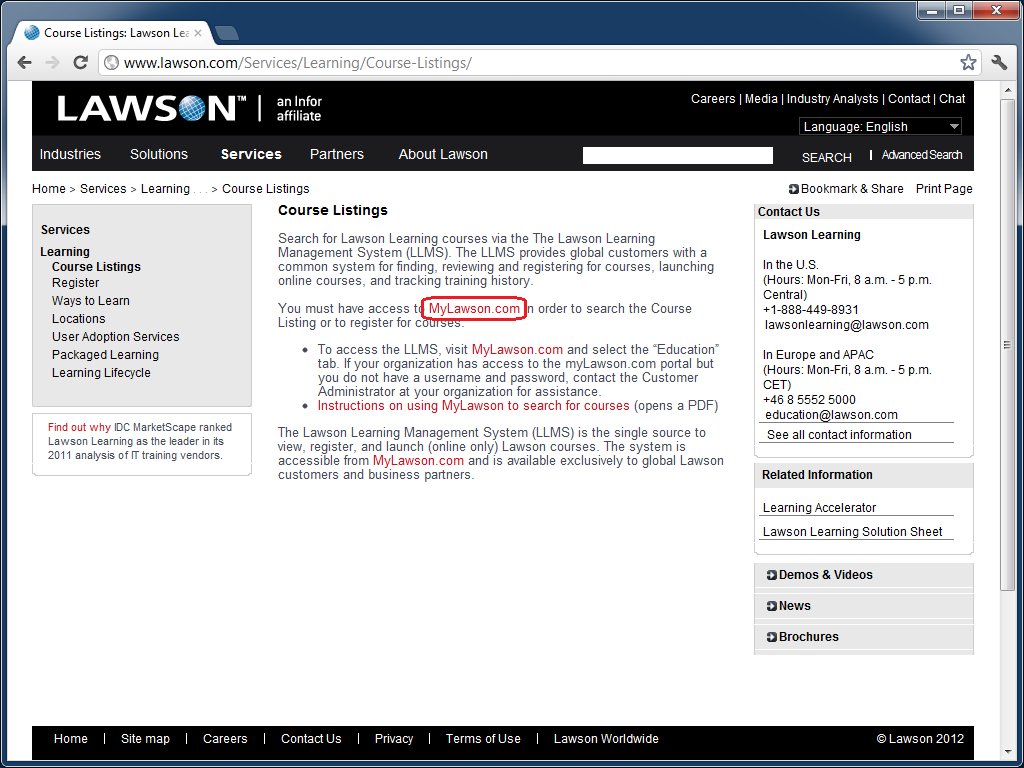
Lawson Learning offers various courses for learning how to create Mashups and Scripts for Lawson Smart Office. To see the list of available courses:

  1. Go to http://www.lawson.com/
  2. Select Services > Course Listings:
  3. Select MyLawson.com:
  4. Login with your MyLawson.com account.
  5. Select the Education tab:
  6. Go to Search and Register for Training and click English:
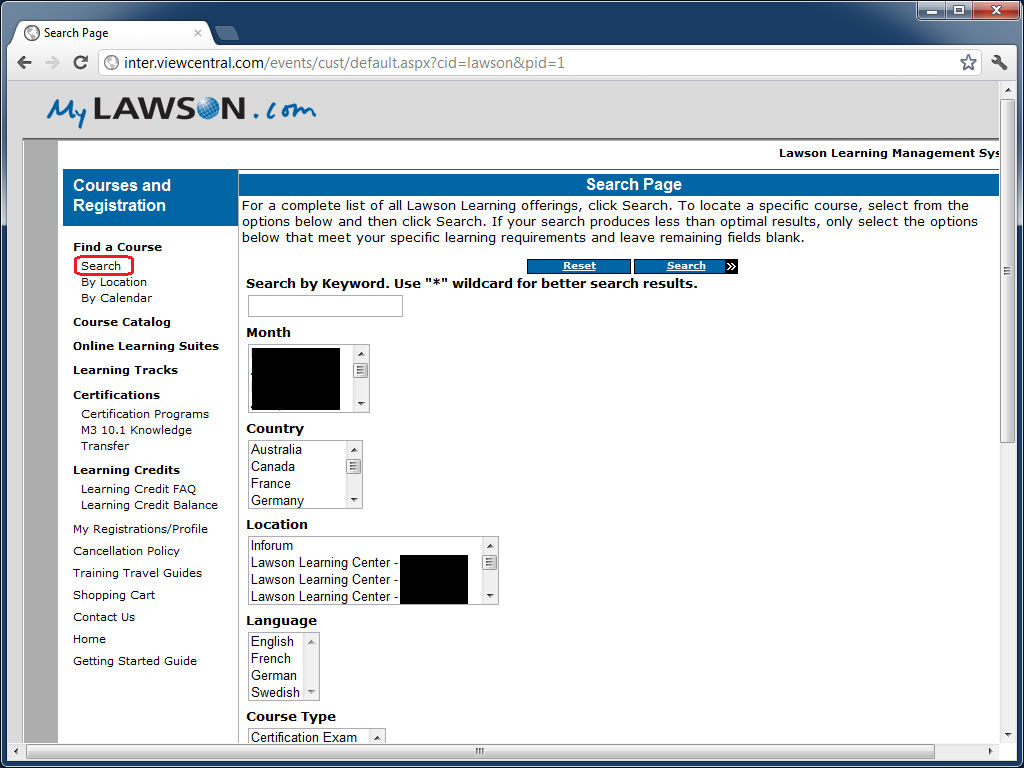
  7. Click on Search to find a course:
  8. Search by keyword Mashup, or Script.

The courses will be listed alphabetically, for example:

  • Lawson Mashup Designer
  • Mashup Designer
  • Smart Office Personalized Script M3

That’s it!

UPDATE 2012-10-16: Alternatively, and more simply, you can go directly to http://inter.viewcentral.com/events/cust/default.aspx?cid=lawson

UPDATE 2012-12-05: The direct link seems to have moved to http://inter.viewcentral.com/events/cust/default.aspx?cid=lawson&pid=1

How to call Lawson Web Services from PHP

Here are examples to call Lawson Web Services from PHP for all three adapters: API, M3 Display Program (MDP), and SQL.

Which SOAP client ?

In the past, I used the external NuSOAP toolkit to make SOAP calls in PHP.

Now, PHP 5 comes built-in with SoapClient.

To determine which SOAP client your PHP server provides, use:

phpInfo();

It will show:

What’s the Endpoint ?

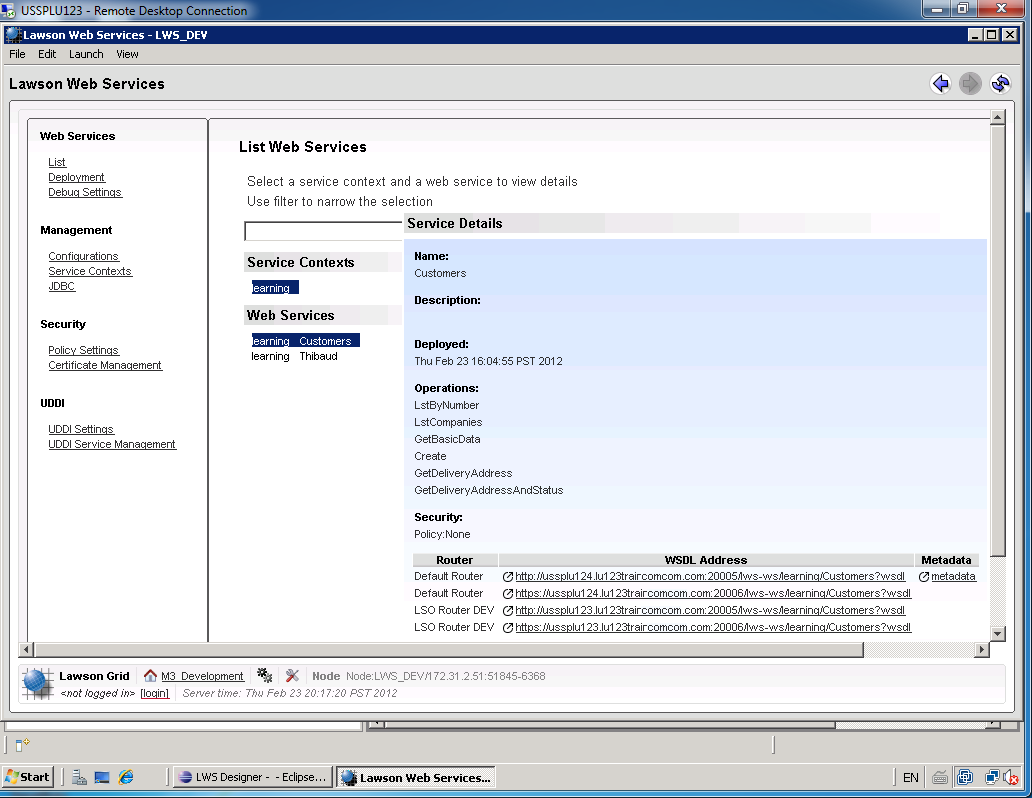
To determine the endpoint or the WSDL to our Lawson Web Service open the Lawson Web Services Runtime Management Page which you can launch from LifeCycle Manager or from Lawson Web Services Designer.

Select List, select the Service Context, and select the Web Service.

The bottom right corner will show the WSDL Address:

How’s the SOAP ?

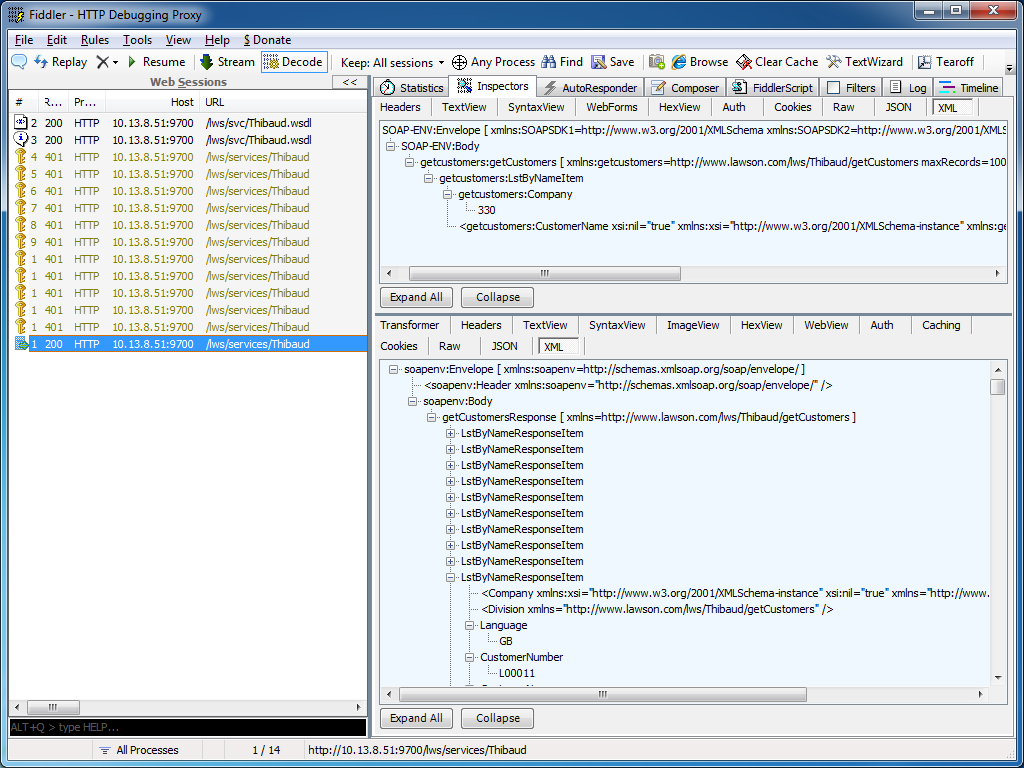
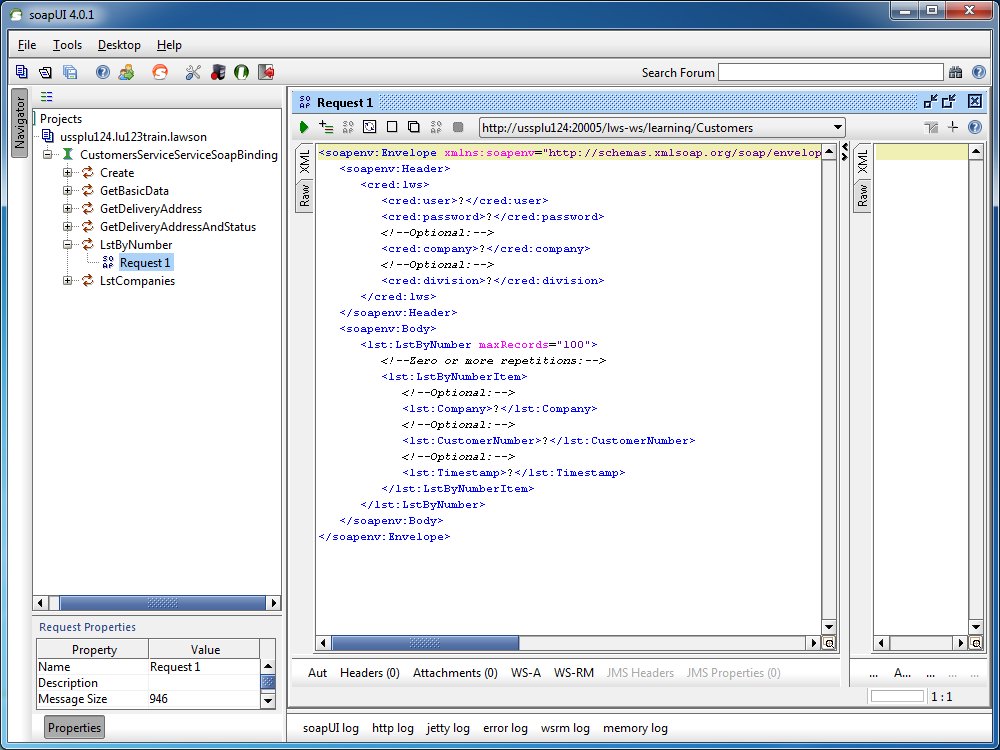
I recommend using tools like Fiddler or soapUI to determine the exact structure of the SOAP Request and SOAP Response to call our Lawson Web Services.

Fiddler can intercept HTTP calls from most SOAP clients, for example from Lawson Web Services Designer, from Microsoft InfoPath, from PocketSOAP, or from Microsoft Visual C# Express, and we can use that SOAP Request and SOAP Response as a reference to write our PHP code:

Similarly, soapUI will create a sample SOAP Request from a WSDL, it will show the SOAP Response after the web service is executed, and we can use that SOAP Request and SOAP Response as a reference to write our PHP code:

M3 API adapter

Here is a sample PHP code to call a Lawson Web Service of type API.

The Web Service name is Customers, the operation name is LstByNumber. It calls the API CRS610MI.LstByNumber. It accepts Company and CustomerNumber as input fields; note the suffix Item in LstByNumberItem for the collection of input fields. It returns CustomerNumber and CustomerName as output fields; note the suffix ResponseItem in LstByNumberResponseItem for the collection of output fields.

<?php
	try {
		$client = new SoapClient("http://hostname:10000/LWS_DEV/svc/Customers.wsdl",
		array(
			'login'=>'M3SRVADM',
			'password'=>'*******'
		)
		);
		$response = $client->LstByNumber(array("LstByNumberItem"=>array(
			"Company"=>"001",
			"CustomerNumber"=>"00100001"
		)));
		foreach ($response->LstByNumberResponseItem as $item) {
			print($item->CustomerNumber." ".$item->CustomerName."\n");
		}
	} catch (Exception $e) {
		echo 'Message: ' .$e->getMessage();
	}
?>

M3 Display Program adapter

Here is a sample PHP code to call a Lawson Web Service of type M3 Display Program (MDP).

The Web Service name is Customers, the operation name is GetName. It works in CRS610/A/E, it accepts W1CUNO as an input field, and returns WRCUNM as an output field.

<?php
	try {
		$client = new SoapClient("http://hostname:10000/LWS_DEV/svc/Customers.wsdl",
		array(
			'login'=>'M3SRVADM',
			'password'=>'*******'
		)
		);
		$response = $client->GetName(array("CRS610"=>array(
			"W1CUNO"=>"0010001"
		)));
		print($response->CRS610->WRCUNM);
	} catch (Exception $e) {
		echo 'Message: ' .$e->getMessage();
	}
?>

SQL adapter

Here is a sample PHP code to call a Lawson Web Service of type SQL (JDBC).

The Web Service name is Customers, the operation name is Search. It works by doing a SELECT FROM WHERE on OCUSMA, it accepts CustomerName as an input field. And it returns OKCUNO and OKCUNM as output fields; note the new1Collection and new1Item automatically generated.

<?php
	try {
		$client = new SoapClient("http://hostname:10000/LWS_DEV/svc/Customers.wsdl",
		array(
			'login'=>'M3SRVADM',
			'password'=>'******'
		)
		);
		$response = $client->Search(array("CustomerName"=>"%ARMY%"));
		foreach ($response->new1Collection->new1Item as $item) {
			print($item->OKCUNO.", ".$item->OKCUNM."\n");
		}
	} catch (Exception $e) {
		echo 'Message: ' .$e->getMessage();
	}
?>

That’s it!

Related articles

How to call M3 API from .NET

Here is an example to call M3 API from .NET in C#.

Background

To call M3 API in .NET there are several options: 1) we can use Interop to wrap the COM unmanaged library, 2) we can use netmodules which were introduced in the M3 API Toolkit version 9.0.1.1, or 3) we can use the native .NET managed library which were introduced in the M3 API Toolkit version 9.0.3.0. I suggest the latter option.

Example

  1. Download and install the M3 API Toolkit version 9.0.3.0 or later.
  2. That version includes the .NET library MvxSockN.dll:
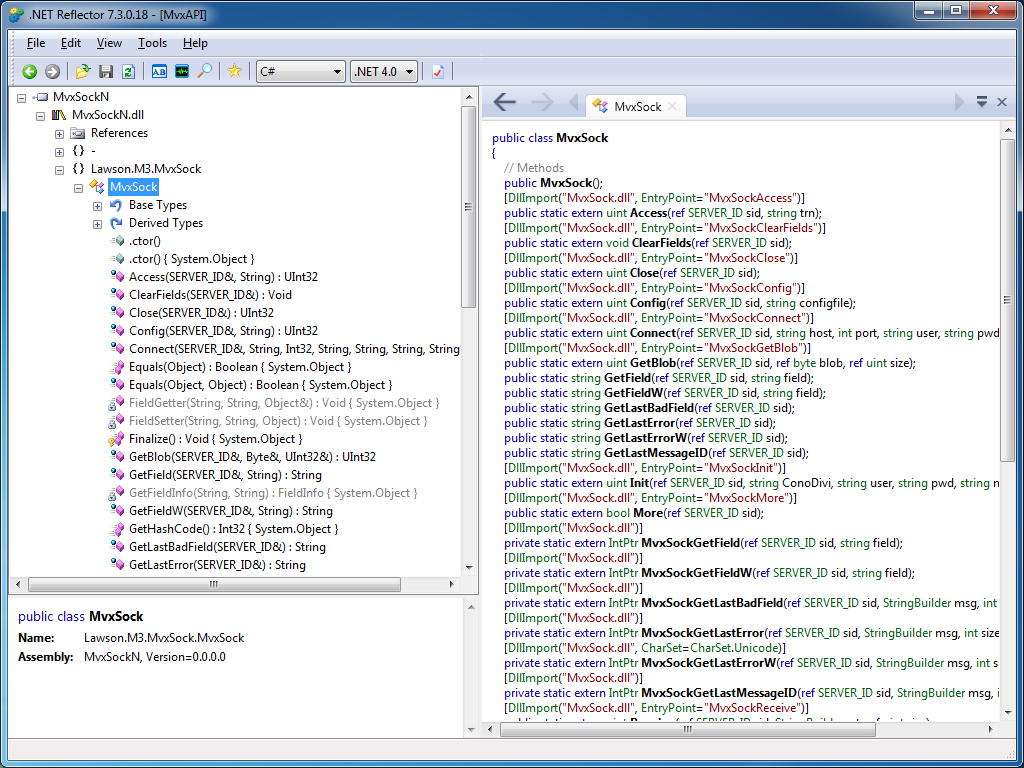
  3. You can use .NET Reflector to introspect the assembly:
  4. That version also includes documentation specifically for .NET:
  5. That version also includes C# examples:
  6. If you are using Microsoft Visual C# Express, add a New Reference to the DLL:
  7. Then add the namespace Lawson.M3.MvxSock to the source code:
    using Lawson.M3.MvxSock;
  8. Then start using MvxSock with IntelliSense:
  9. Here’s my sample source code:
    using System;
    using Lawson.M3.MvxSock;
    
    namespace ConsoleApplication1
    {
        class Program
        {
            static void Main(string[] args)
            {
                SERVER_ID sid = new SERVER_ID();
                uint rc;
                rc = MvxSock.Connect(ref sid, "hostname", 6800, "userid", "*********", "CRS610MI", null);
                if (rc != 0)
                {
                    MvxSock.ShowLastError(ref sid, "Error no " + rc + "\n");
                    return;
                }
                rc = MvxSock.Access(ref sid, "LstByNumber");
                if (rc != 0)
                {
                    MvxSock.ShowLastError(ref sid, "Error no " + rc + "\n");
                    MvxSock.Close(ref sid);
                    return;
                }
                while (MvxSock.More(ref sid))
                {
                    Console.WriteLine(MvxSock.GetField(ref sid, "CUNO") + ", " + MvxSock.GetField(ref sid, "CUNM"));
                    MvxSock.Access(ref sid, null);
                }
                MvxSock.Close(ref sid);
            }
        }
    }
  10. Here’s a sample result of calling CRS610MI.LstByNumber:

That’s it!

Related articles

How to call M3 API with REST & JSON

With the Lawson Grid, M3 introduced a new REST endpoint for calling M3 API where the response is returned in XML or in JSON.

Background

Historically, software clients that called M3 API needed to use proprietary libraries, such as MvxSockJ.class for Java and MvxSockX_SVR.dll for Microsoft languages. Over the years, Intentia introduced Movex Web Services to call M3 API using the SOAP standard. Then, Lawson introduced the Grid for cloud computing. In the process, Lawson replaced IBM WebSphere Application Server by open source software, it also replaced the Core Web Services for Lawson Smart Office, and it added Jersey, an open source implementation of JAX-RS (JSR 311). The positive outcome is that now, software clients can call M3 API using REST/JSON.

Why does it matter?

REST is increasingly popular, and years ago it started supplanting SOAP for web services [1].

Also, JSON is becoming the de facto data-interchange format, nicknamed “The Fat-Free Alternative to XML” [2].

Most importantly, it’s now possible to call M3 API without needing the proprietary libraries, and without needing Lawson Web Services. Software clients can now make simple HTTP Requests to call M3 API. This makes it easier to call M3 API from third-party software (such as Tibco, Business Objects, Web Methods, etc.) and from previously unsupported or difficultly supported programming languages (such as JScript.NET, JavaScript, Ruby, PHP, etc.).

What about Lawson Web Services?

The new REST endpoint for M3 API doesn’t preclude using Lawson Web Services. Lawson Web Services is still necessary for calling M3 API with the SOAP protocol, and for using the unavoidable M3 Display Program adapter which cannot be found in any other Lawson product. Also, Lawson Web Services is still necessary for Lawson Smart Data Tool.

REST endpoint

To access the new REST endpoint for M3 API, open a Grid Information page, which is accessible from any participating Host in the Grid:

For example: http://ussplu123:20005/grid/info.html

At the bottom of the page is the Application Name M3-API-WS, and it has a Link to the Rest Service‘s WADL:

For example: http://ussplu123:20005/m3api-rest/application.wadl

This WADL gives us the resource path:

execute/{program}/{transaction}

Where {program} is the M3 API Program, like MNS150MI, CRS610MI, MMS200MI, etc. And where {transaction} is that API’s transaction, like GetBasicData, AddAddress, LstByNumber, etc.

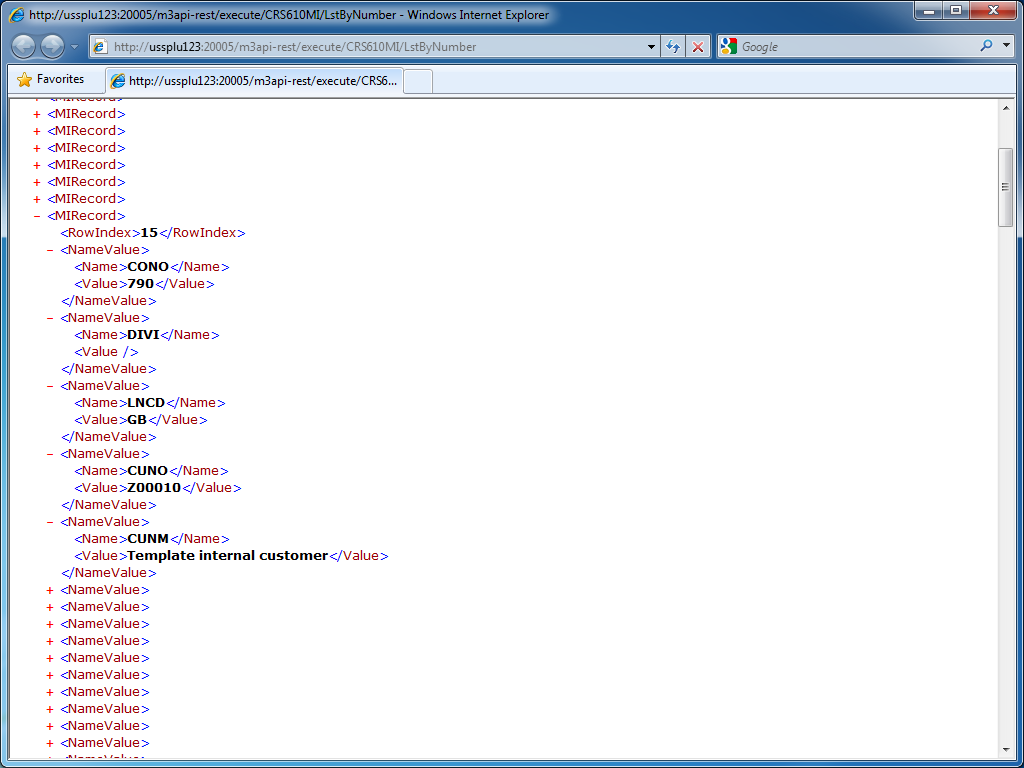
Let’s try to call the API CRS610MI.LstByNumber. The URL in my example would be: http://ussplu123:20005/m3api-rest/execute/CRS610MI/LstByNumber

The server will challenge us for HTTP Basic Authentication, we need to provide a valid M3 userid and password:

And the result in XML is a collection of MIRecord elements with Name/Value pairs:

JSON

We can get the result in JSON by adding the HTTP Header field:

Accept: application/json

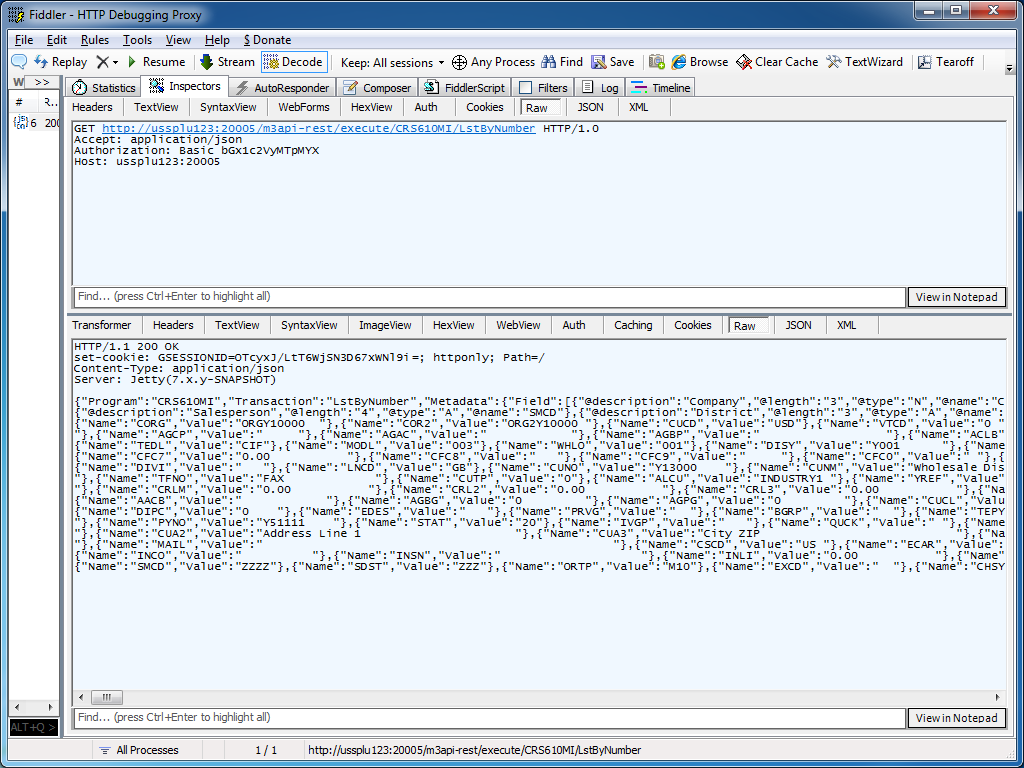
The result is:

REST GUI

RESTClient is a great REST graphical user interface which we can use to test M3 API; you can download it at http://code.google.com/p/rest-client/

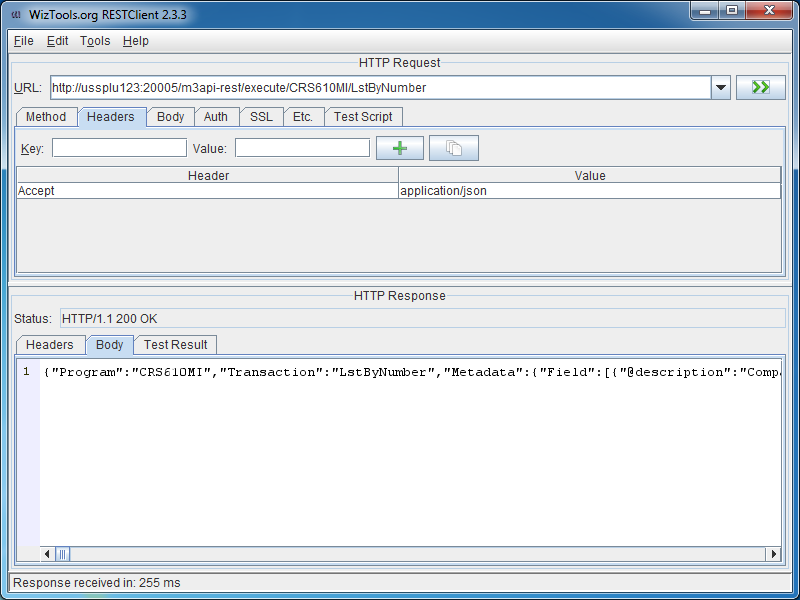
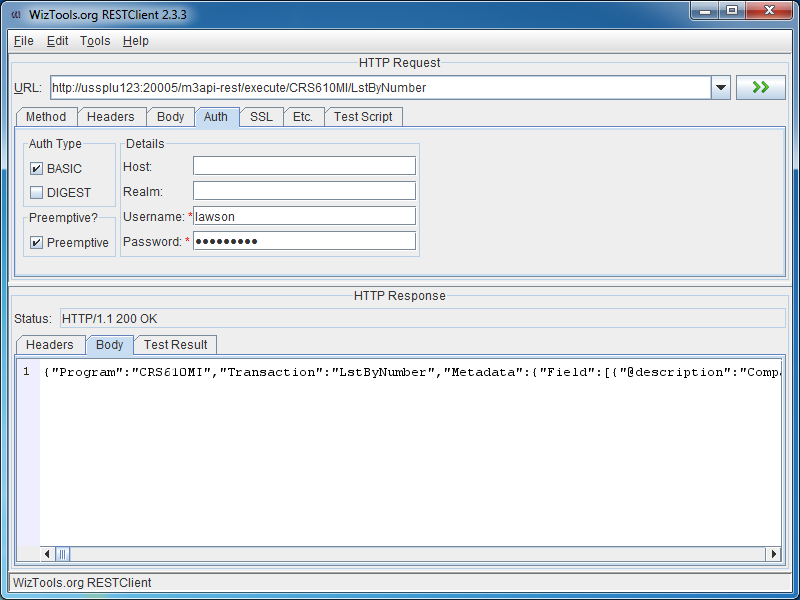
Paste the URL, set the M3 userid and password in the Authentication tab, optionally set the Header to get the response in JSON, and click Go!

Conclusion

With the Lawson Grid, software clients can now natively call M3 API from third-party software, and from previously unsupported or difficultly supported programming languages, without the need for proprietary libraries, and without the need for Lawson Web Services.

Updates

Input parameters

UPDATE 2012-07-17: You can set input parameters in the URL, for example: http://hostname:port/m3api-rest/execute/MMS200MI/GetItmBasic?CONO=531&ITNO=ABCDEF . Also, you can hook RESTClient to use Fiddler as a proxy in Tools >;; Options.

Max number of records

UPDATE 2012-07-31: You can set the maximum number of records returned with the matrix parameter maxrecs, for example: http://hostname:port/m3api-rest/execute/CRS610MI/LstByNumber;maxrecs=20?CONO=1

Output fields

UPDATE 2012-08-02: You can set the output fields returned with the parameter returncols, for example: http://hostname:port/m3api-rest/execute/CRS610MI/LstByNumber;returncols=CUNO,CUNM,CUA1,STAT,PHNO

Related articles

How to loop M3 activity node in PFI

Here is a solution to iterate thru the result set of an M3 activity node in ProcessFlow Integrator (PFI).

Background

M3 API transactions of type Get return one record. For example, CRS610MI.GetBasicData returns information about the specified customer number.

M3 API transactions of type List typically return multiple records. For example, CRS610MI.LstByNumber typically returns thousands of records.

Problem

Unfortunately, the M3 activity node in PF Designer does not include an iterator:

As a consequence, we cannot iterate individually thru the records of the M3 output, nor can we use other activity nodes inside each iteration. For example, there are valid scenarios where I would like to do something at each iteration: send an email, assign a value to a variable, execute SQL, call a Web Service, or do something else, even though there could be thousands of iterations. It’s not possible by default.

Other nodes

There are other activity nodes that appropriately have an iterator. For example, the SQL Query activity node includes an iterator, so we can call other activity nodes at each iteration to do something with each record of the SQL result set:

Goal

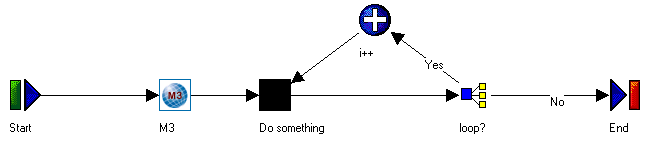
The goal is to find a workaround to iterate thru the result set of an M3 activity node, as illustrated in this fake screenshot:

Workaround 1

One workaround is to iterate thru the M3_output.row array by using JavaScript code in an Assign activity node.

for (var i = 0; i < M3_output.row.length(); i++) {
    var row = M3_output.row[i];
    // do something
    row.fieldName1;
    row.fieldName2;
    row.fieldName3;
}

Where fieldName is the output field of the result set, for example: CONO, CUNO, CUNM, etc. Alternatively, we can use the other syntax for accessing JavaScript Object properties: row[“fieldName“];

But there are several drawbacks to this workaround. First, it requires programming, which counters the graphical paradigm of PF Designer. Second, we cannot call other activity nodes from that JavaScript code. Third, PF Designer throws the false positive error message that we can ignore: “ReferenceError: M3_output is not defined”.

Workaround 2

Another workaround is to use an Assign activity node to serialize the JavaScript object into a String with delimiters (for example a semi-colon), and then two DataIterator activity nodes to parse that String by row and by column. It’s a bit cumbersome but it works.

for (var i = 0; i < M3_output.row.length(); i++) {
    var row = M3_output.row[i];
    csv += row.fieldName1 + ';' + row.fieldName2 + ... + ';' + row.fieldNameN + '\n';
}

The drawback – in addition to being disconcerting for non JavaScript programmers – is that it will take a lot of CPU and memory to process a big result set because appending a String to a String is exponentially slower.

Workaround 3

The third workaround is to create a for loop using a Branch activity node. Indeed, a for loop can be transformed equivalently into a recursive function with an if statement.

Yes branch:

i < M3_output.row.length() - 1

No branch:

i >= M3_output.row.length() - 1

This is my recommended solution.

LPA

Note that this is not a problem anymore with the newest Lawson Process Automation (LPA) and Lawson Process Designer as the M3 transaction node now correctly includes an iterator:

That’s it!

How to use an M3 program that’s not yet bookmark enabled in a Mashup

Here is a solution for a Mashup to use an M3 program that doesn’t yet support bookmarks, for example MMS081. If the program doesn’t support bookmarks the options are limited. Normally only M3 programs that are bookmark enabled are supported in a Mashup.

But we can workaround the limitation by using the Program attribute instead of a Bookmark element.

<m3:ListPanel Name="MMS081B" Program="MMS081">
    <m3:ListPanel.Events>
       <mashup:Events>
          <mashup:Event SourceEventName="Startup" />
       </mashup:Events>
    </m3:ListPanel.Events>
</m3:ListPanel>

Note that starting programs using the Program property is a bit risky since we cannot guarantee the Sorting order nor the initial values on the panel as we can with Bookmarks.

In this case there is no standard way to set header fields when the program is started. But after the program has been started it can be set to blank using the M3 Mashup Apply event. We can use the Apply event to set values in the header and position fields, and when the values are set the ListPanel will automatically press the ENTER key to update the list.

As an example of the Apply event, we can set the Facility (FACI) to a certain value using the Apply event.

<Button Name="testButton" Content="Set Facility">
    <Button.CommandParameter>
       <mashup:Events>
          <mashup:Event TargetName="MMS081B" SourceEventName="Click" TargetEventName="Apply">
             <mashup:Parameter TargetKey="W1FACI" Value="A01" />
          </mashup:Event>
       </mashup:Events>
    </Button.CommandParameter>
</Button>

As another example of the Apply event, we can transfer a parameter from another ListPanel, for example the Item Number ITNO of MMS001/B:

<m3:ListPanel Name="MMS001B" Header="Items">
    <m3:ListPanel.Events>
       <mashup:Events>
          <mashup:Event SourceEventName="Startup">
             <mashup:Parameter TargetKey="MMCONO" />
             <mashup:Parameter TargetKey="MMITNO" />
          </mashup:Event>
          <mashup:Event SourceEventName="CurrentItemChanged" TargetName="MMS081B" TargetEventName="Apply">
             <mashup:Parameter SourceKey="ITNO" />
             <mashup:Parameter SourceKey="FACI" Value="A01" />
             <mashup:Parameter TargetKey="WHLO" Value="001" />
          </mashup:Event>
       </mashup:Events>
    </m3:ListPanel.Events>
    <m3:ListPanel.Bookmark>
       <m3:Bookmark Program="MMS001" Table="MITMAS" KeyNames="MMCONO,MMITNO" />
    </m3:ListPanel.Bookmark>
</m3:ListPanel>

Thanks to Peter K for all the help!

Self-configuration for Smart Office Scripts

Here is a trivial solution to implement Personalized Scripts for Lawson Smart Office that self-configure based on the program they are being executed in.

Problem

We often implement scripts which functionality can be applied to different M3 programs. For example, a script that makes a phone call based on the phone number displayed on the screen could be applied to any M3 program that has a phone number (Customers, Suppliers, etc.). As another example, a script that shows an address on Google Maps could be applied to any M3 program that has an address (CRS610/E, CRS622/E, etc.).

We could make one copy of the script for each target M3 program, but that would be a maintenance nightmare.

We could make the script re-usable and pass settings to the script, but that would require the installer to manually define the settings, which is time consuming and error prone.

As a general problem, I want to make a script re-usable and with zero configuration so it can be used anywhere in M3 where its functionality is needed.

Solution

The trivial solution is to pre-compute all the possible settings in advance, and apply the corresponding settings at runtime. We dynamically determine in which program we are currently executing the script by reading the HostTitle variable.

I call it a self-configuration script.

Pseudo-code:

HostTitle = controller.RenderEngine.Host.HostTitle
if (HostTitle = X) then { SettingsX }
if (HostTitle = Y) then { SettingsY }
if (HostTitle = Z) then { SettingsZ }

Advantages

The advantage is reduced installation. In some cases we could completely eliminate configuration.

It’s also time saving, and error proof.

And it’s closer to plug’n play and Autonomic Computing.

Example

I had implemented a script that performs address validation.

The script checks the address that is entered by the user with a third-party software that validates if the address is correct or not.

The script needs to get a reference to the address fields: Address line 1 (CUA1), Address line 2 (CUA2), City (TOWN), State (ECAR), etc. In CRS610/E those fields will be WRCUA1, WRCUA2, WRTOWN, and WRECAR. Whereas in CRS622/E those fields will be WWADR1, WWADR2, WWTOWN, and WWECAR.

The fields are different in each M3 program. So I pre-computed the field names of the eight M3 programs and panels where I would be executing the script (CRS610/E, CRS235/E1, CRS300/E, CRS622/E, MNS100/E, OIS002/E, OPS500/I, and SOS005/E), and I hard-coded all the possible values in the script.

Sample source code

Here is part of the source code of my self-configuration script for address validation:

var HostTitle = controller.RenderEngine.Host.HostTitle;
var settings = {};

if (HostTitle.IndexOf('CRS610/E') > 0) {
     // Customer. Open - CRS610/E
     settings = {
         FirmName: 'WRCUNM',
         AddressLine1: 'WRCUA1',
         AddressLine2: 'WRCUA2',
         AddressLine3: 'WRCUA3',
         AddressLine4: 'WRCUA4',
         City: 'WRTOWN',
         State: 'WRECAR',
         PostalCode: 'WRPONO',
         Country: 'WRCSCD',
         Latitude: '',
         Longitude: ''
     };
} else if (HostTitle.IndexOf('CRS622/E') > 0) {
     // Supplier. Connect Address - CRS622/E
     settings = {
         FirmName: 'WWSUNM',
         AddressLine1: 'WWADR1',
         AddressLine2: 'WWADR2',
         AddressLine3: 'WWADR3',
         AddressLine4: 'WWADR4',
         City: 'WWTOWN',
         State: 'WWECAR',
         PostalCode: 'WWPONO',
         Country: 'WWCSCD',
         Latitude: 'WEGEOY',
         Longitude: 'WEGEOX'
     };
} else if (HostTitle.IndexOf('OIS002/E') > 0) {
     // Customer. Connect Addresses - OIS002/E
     settings = {
         FirmName: 'WRCUNM',
         AddressLine1: 'WRCUA1',
         AddressLine2: 'WRCUA2',
         AddressLine3: 'WRCUA3',
         AddressLine4: 'WRCUA4',
         City: 'WRTOWN',
         State: 'WRECAR',
         PostalCode: 'WRPONO',
         Country: 'WRCSCD',
         Latitude: '',
         Longitude: ''
     };
} else if (HostTitle.IndexOf('CRS235/E1') > 0) {
     // Internal Address. Open - CRS235/E1
     settings = {
         FirmName: 'WWCONM',
         AddressLine1: 'WWADR1',
         AddressLine2: 'WWADR2',
         AddressLine3: 'WWADR3',
         AddressLine4: 'WWADR4',
         City: 'WWTOWN',
         State: 'WWECAR',
         PostalCode: 'WWPONO',
         Country: 'WWCSCD',
         Latitude: 'WEGEOY',
         Longitude: 'WEGEOX'
     };
} else if (HostTitle.IndexOf('MNS100/E') > 0) {
     // Company. Connect Division - MNS100/E
     settings = {
         FirmName: 'WWCONM',
         AddressLine1: 'WWCOA1',
         AddressLine2: 'WWCOA2',
         AddressLine3: 'WWCOA3',
         AddressLine4: 'WWCOA4',
         City: 'WWTOWN',
         State: 'WWECAR',
         PostalCode: 'WWPONO',
         Country: 'WWCSCD',
         Latitude: '',
         Longitude: ''
     };
} else if (HostTitle.IndexOf('CRS300/E') > 0) {
     // Ship-Via Address. Open - CRS300/E
     settings = {
         FirmName: 'WWCONM',
         AddressLine1: 'WWADR1',
         AddressLine2: 'WWADR2',
         AddressLine3: 'WWADR3',
         AddressLine4: 'WWADR4',
         City: 'WWTOWN',
         State: 'WWECAR',
         PostalCode: 'WWPONO',
         Country: 'WWCSCD',
         Latitude: '',
         Longitude: ''
     };
} else if (HostTitle.IndexOf('SOS005/E') > 0) {
     // Service Order. Connect Delivery Address - SOS005/E
     settings = {
         FirmName: 'WPCONM',
         AddressLine1: 'WPADR1',
         AddressLine2: 'WPADR2',
         AddressLine3: 'WPADR3',
         AddressLine4: 'WPADR4',
         City: 'WPTOWN',
         State: 'WPECAR',
         PostalCode: 'WPPONO',
         Country: 'WPCSCD',
         Latitude: '',
         Longitude: ''
     };
} else if (HostTitle.IndexOf('OPS500/I') > 0) {
     // Shop. Open - OPS500/I
     settings = {
         FirmName: 'LBL_L21T2',
         AddressLine1: 'WICUA1',
         AddressLine2: 'WICUA2',
         AddressLine3: '',
         AddressLine4: '',
         City: 'WICUA3',
         State: '',
         PostalCode: '',
         Country: 'WICUA4',
         Latitude: '',
         Longitude: ''
     };
} else {
     // M3 panel not supported
}

This has been tested in Lawson Smart Client (LSC), and in Lawson Smart Office (LSO).

Additionally, you can discriminate LSC vs. LSO with:

if (Application.Current.MainWindow.Title == 'Lawson Smart Client') {
 // running in LSC (not LSO)
}

That’s it!

UPDATE

UPDATE 2012-07-24: We can also use controller.RenderEngine.PanelHeader to get just the program and panel (for example: CRS610/B1) instead of the entire host title; the result is a shorter syntax:

var PanelHeader = controller.RenderEngine.PanelHeader;
if (PanelHeader == 'CRS610/E') {
   // CRS610/E
} else if (PanelHeader == 'CRS622/E') {
   // CRS622/E
} else if (PanelHeader == 'OIS002/E') {
   // OIS002/E
} else if (PanelHeader == 'CRS235/E1') {
   // CRS235/E1
} else {
   // not supported
}