Open source release of Address Validation for M3

I’m please to announce I finally released the first free and open source version of the Address Validation for M3, and I published the code on GitHub at https://github.com/M3OpenSource/AddressValidation . It’s a combination of a Mashup and a Script for Infor Smart Office, so it’s easy for you to modify, deploy, and run. Currently, it only supports the Google Geocoding API with more address providers to be added later.

I had implemented the first proprietary version of the script for Lawson Software in 2009. Then I had implemented several variants for various customers while working at Lawson Software and Infor. I’ve always wanted it to become available to more customers, so I decided to make it free and open source. But in order to not infringe any intellectual property and copyrights over the previous source code, I had to re-write everything from scratch. The opportunity came up when I quit Infor, and before I joined Ciber, in between the two, so there was no question on the ownership of the source code, and I had made an announcement. It took me a while but here it is. And I made some improvements over to the previous proprietary code.

Self-configuration

The script is self-configurable for the following M3 Panels, i.e. just add the script to one of the supported M3 Panels and execute, without any modifications nor arguments:

  • Customer. Open – CRS610/E
  • Customer. Connect Addresses – OIS002/E
  • Supplier. Connect Address – CRS622/E
  • Customer Order. Connect Address – OIS102/E
  • Internal Address. Open – CRS235/E1
  • Company. Connect Division – MNS100/E
  • Ship-Via Address. Open – CRS300/E
  • Service Order. Connect Delivery Address – SOS005/E
  • Shop. Open – OPS500/I
  • Bank. Open – CRS690/E
  • Bank. Connect Bank Branch Office – CRS691/E
  • Equipment Address. Open – MOS272/E

Deploy locally and test

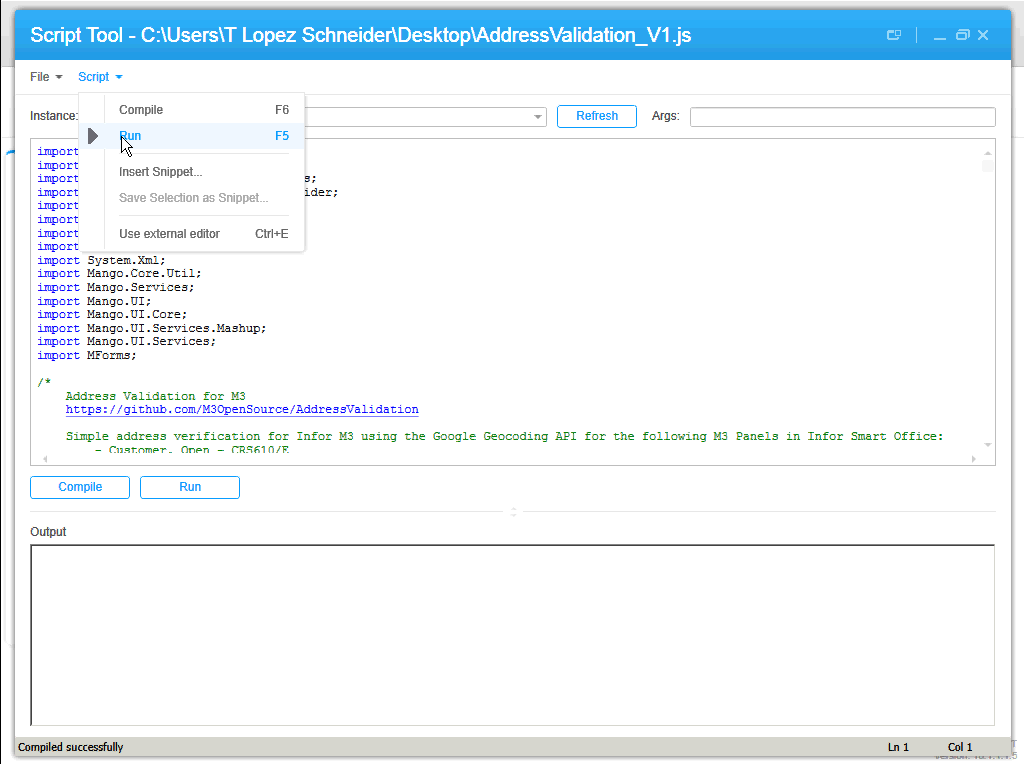
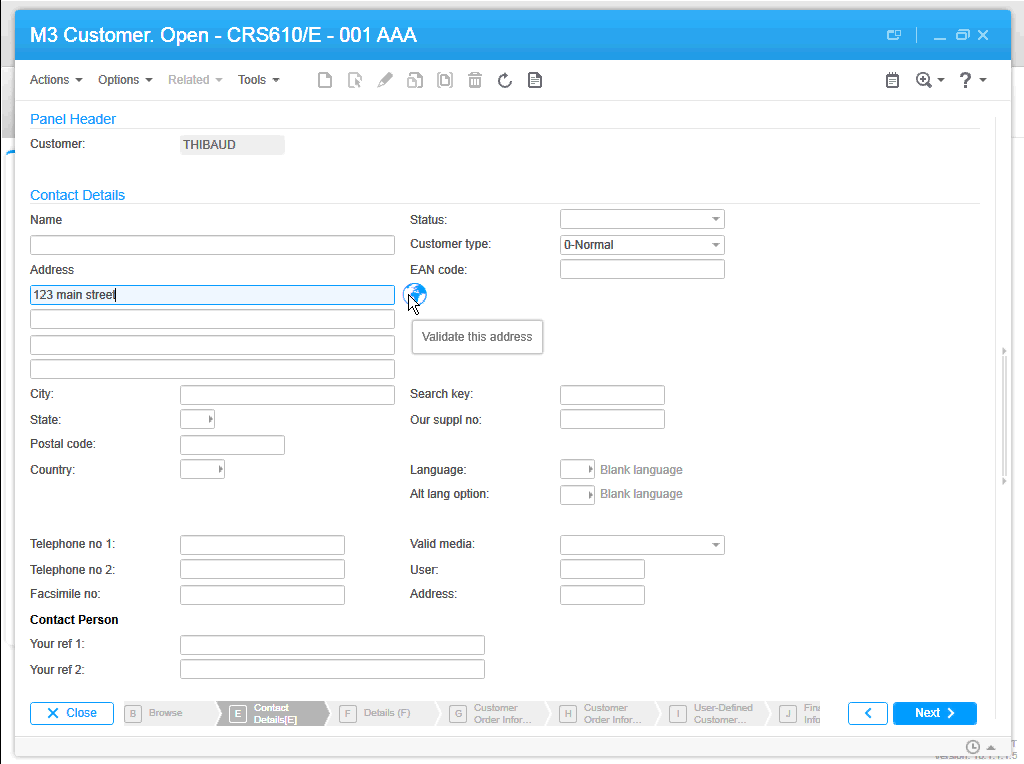
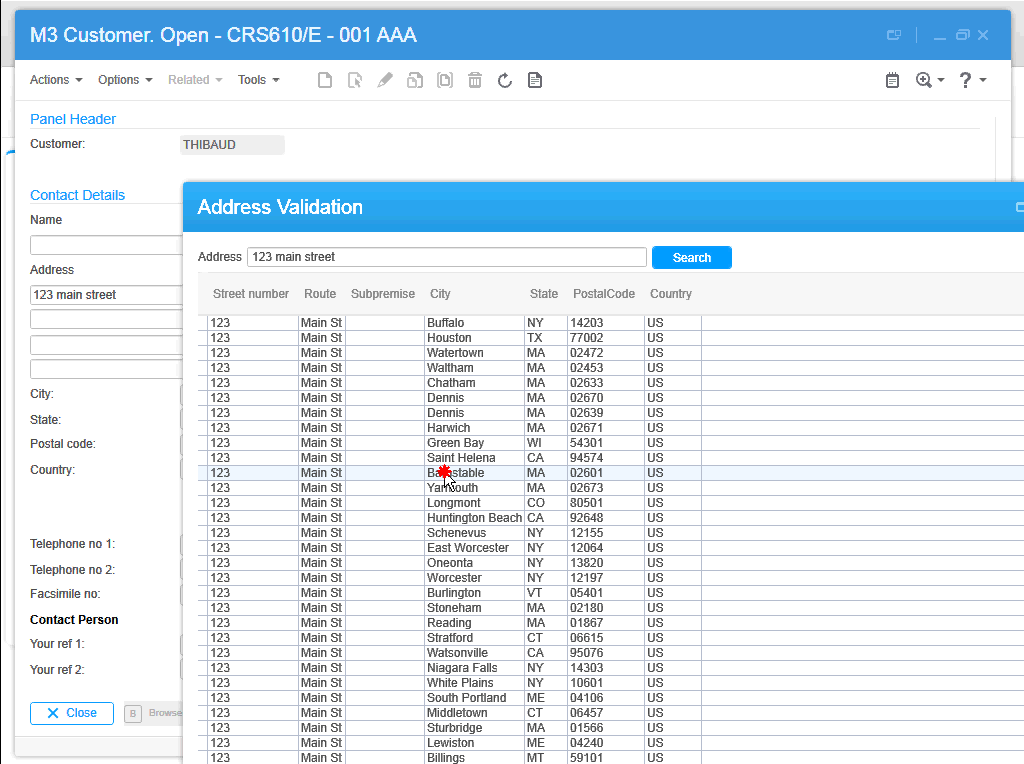
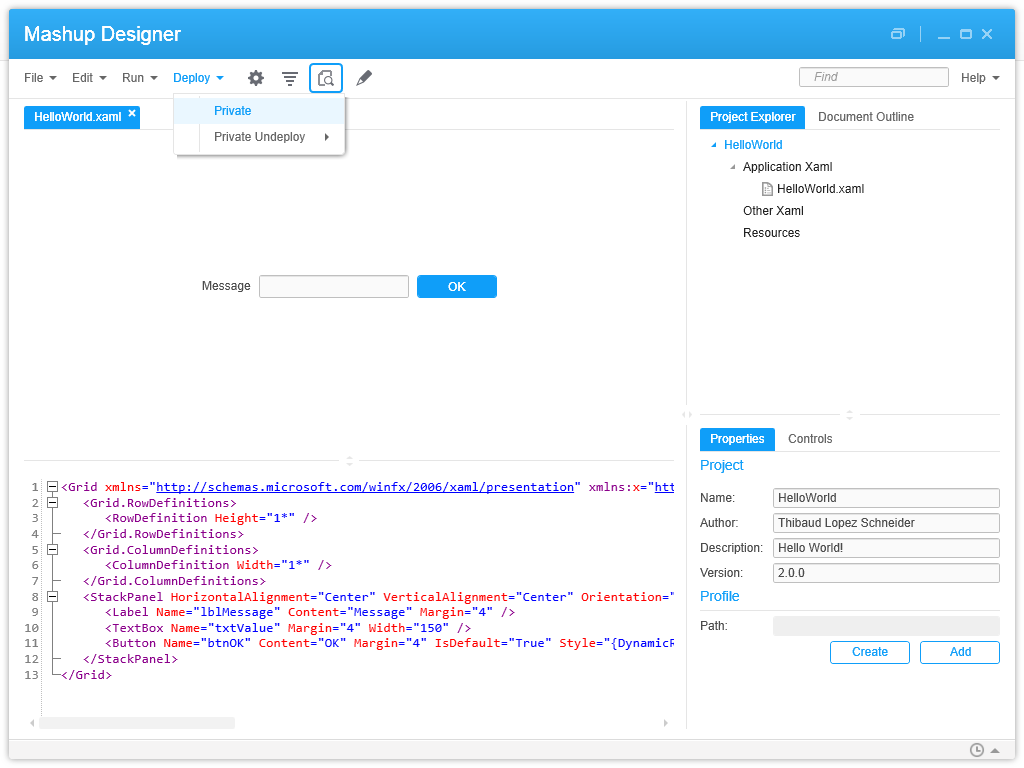
To start using the script, download the Mashup’s Manifest and XAML and the Script from the GitHub repository. Save the three files somewhere temporary on your computer. Then, install the Mashup locally using the Mashup Designer at designer://mashup (watch the video below), and run the Script with the Script Tool at mforms://jscript (watch the video below). Then, enter an address in M3, click the validate button (the little globe icon), you can also use the TAB key from Address line 1 to focus the button and press SPACE to click it, then the Mashup will pop-up with a list of possible matches, and select an address by pressing ENTER or double-clicking the address.

Screenshots

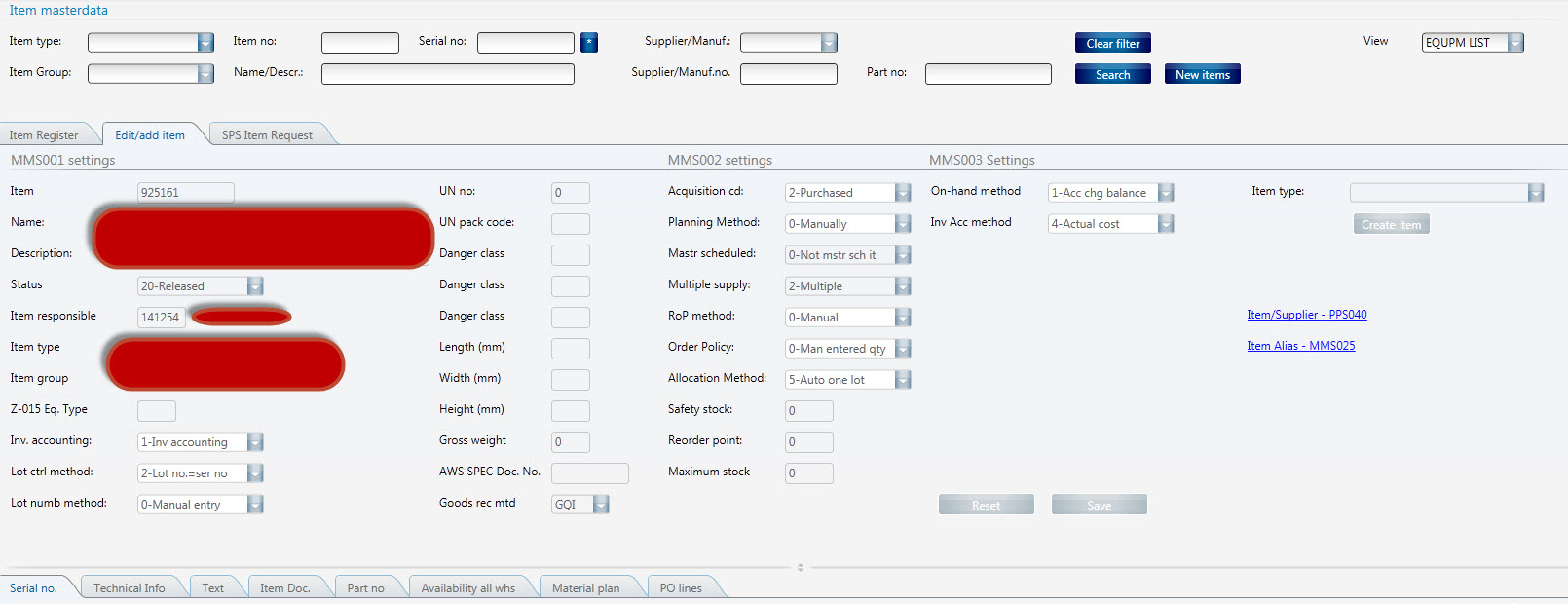
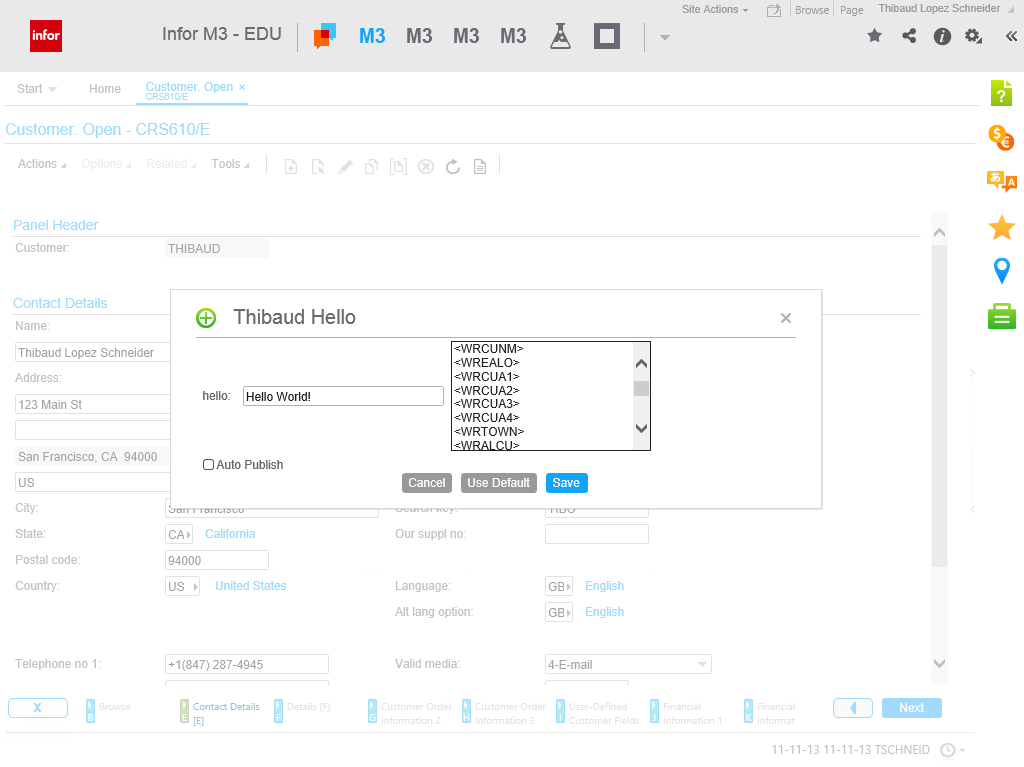
Here are some screenshots:

1 2 3 4 5

Videos

Here are some videos (watch in full-screen and high-definition for better view):

  • How to deploy the Mashup locally
  • How to test the Script
  • Sample address searches:

Then, you can deploy the Mashup globally with LifeCycle Manager, and set the script to everybody with the Smart Office Personalization Manager in the Navigator widget > Administration tools.

Future work

There’s still more work to do. For instance, it appears the Google Geocoding API doesn’t follow the same format for all addresses, they’re local to each country, so right now we have to manually change the address layout based on the country, and I would like to improve that.

Also, I want to add a WebBrowser control to show the addresses in Google Maps.

Also, this first release only supports the Google Geocoding API. I want to add support for other address providers, like Experian QAS, FedEx, Microsoft Bing Maps, UPS, United States Postal Service, and local address providers like Pages Jaunes in France, and Eniro in Sweden.

If you like it, join the project and become a contributor!

Thibaud Lopez Schneider

Mashup – SQL Wildcard / DataGrid with sorting / Copy to Clipboard

Hi,

It’s been a while since I shared something now… I primary spent my time working with mashup combined with SQL… and when I first started there was no turning back.     The same about the DataGrid, its tooo powerful!

Today i’ll share one of probably many ways, how you can perform a wildcard search from a mashup.  I’ll also drop you a few tips when using the DataGrid regarding copying and sorting.

– SQL – WildCard

This solution I provide here now, should give pretty much the exact same results as searching with standard M3.

The use provides an input to a TextBox.

You need to add the following to your mashup to be able to use the IsNotNullOrEmptyConverter

xmlns:utils=”clr-namespace:Mango.UI.Utils;assembly=Mango.UI”

We then use a DataTrigger to provide us a default value if the TextBox is blank, in this case the % to be used in the SQL LIKE(‘%’)  NB: This is a hidden TextBox

<TextBox Name="ItemWhsCheck" Visibility="Hidden">
     			  <TextBox.Style>
      			 <Style x:Key="ItemWhsCheck" TargetType="{x:Type TextBox}" BasedOn="{StaticResource {x:Type TextBox}}">
         			 <Setter Property="Text" Value="{Binding ElementName=ItemWhs, Path=SelectedValue}" />
	        			  <Style.Triggers>
	            		 	<MultiDataTrigger>
	               		 	<MultiDataTrigger.Conditions>
	                   			<Condition Binding="{Binding ElementName=ItemWhs, Path=SelectedValue, Converter={StaticResource IsNotNullOrEmptyConverter}}" Value="False" />
	                			</MultiDataTrigger.Conditions>
	                			<Setter Property="Text" Value="%" />
	            			</MultiDataTrigger>
         		 		</Style.Triggers>
      				 </Style>
    				</TextBox.Style>
  </TextBox>

We should then be able to bind the correct values to the provide it to the SQL.

	<mashup:Parameter TargetKey="ListItems1.MLWHLO" Value="{Binding ElementName=ItemWhsCheck, Path=Text}" />

In the LWS Designer the “?” will be the Input from the mashup.

SELECT MMITNO,MMFUDS from MITMAS  WHERE MMCONO=1  AND TRIM(MMFUDS) LIKE REPLACE(CAST( ? AS VARCHAR(1000)), ‘*’, ‘%’)

This will perform a search which allows exact hits, or multiple hits and the use of multiple wildcards.

Search: O-RING*  Search: O-RING, BS-204 VITON 90  Search- O-RING*204*90

All will provide the following result.  Result: O-RING, BS-204 VITON 90

You can also combine multiple of these.

AND TRIM(MMFUDS) LIKE REPLACE(CAST( ? AS VARCHAR(1000)), ‘*’, ‘%’)  AND TRIM(MMITNO) LIKE REPLACE(CAST( ? AS VARCHAR(1000)), ‘*’, ‘%’)  AND MMITTY LIKE(CAST( ? AS VARCHAR(1000)))  AND TRIM(LISERN) LIKE REPLACE(CAST( ? AS VARCHAR(1000)), ‘*’, ‘%’)  AND MLWHLO LIKE(CAST( ? AS VARCHAR(1000)))  AND TRIM(MLWHSL) LIKE REPLACE(CAST( ? AS VARCHAR(1000)), ‘*’, ‘%’)  AND MLCAMU LIKE(CAST( ? AS VARCHAR(1000)))

DataGrid – Copy to Clipboard

In this example I’m adding a ContextMenu to the DataGrid to allow to copy the line infomration to mail/excel, but you could just aswell use a button .  I added th following extra properties:

The SelectionMode is set to Exteded to allow multiple selections .  The ClipBoardCopyMode is set to IncludeHeaders

<DataGrid Name="dataGrid1" ItemsSource="{Binding ResultSetCollection}" Style="{DynamicResource styleDataGrid}" SelectionMode="Extended" ClipboardCopyMode="IncludeHeader" AutoGenerateColumns="False" SelectedIndex="0" Visibility="{Binding ElementName=SerialRadio, Path=IsChecked, Converter={StaticResource BooleanToVisibilityConverter}}">
			<DataGrid.ContextMenu>
				<ContextMenu>
					<MenuItem Header="Copy to clipboard" Command="ApplicationCommands.Copy" CommandTarget="{Binding ElementName=dataGrid1}" />
				</ContextMenu>
			</DataGrid.ContextMenu>

You should now be able to use the Copy to Clipboard, if using the standard DataGridTextColumns

However, if you would like to use the DataGridTemplateColumn you need to add ClipboardContentBinding or you will be copying blank values.

When using the DataGridTempalte, you also will be losing the standard sorting options, unless you add CanUserSort and SortMemberPath.

The function of this TemplateColumn is just to colour the text red if the overdue value = 1


<DataGridTemplateColumn Header="Next test date" CanUserSort="True" SortMemberPath="NEXTDATE" ClipboardContentBinding="{Binding NEXTDATE}">
					<DataGridTemplateColumn.CellTemplate>
						<DataTemplate>
							<StackPanel Orientation="Horizontal">
								<TextBlock MinWidth="80" MaxWidth="0" Text="{Binding NEXTDATE}">
									<TextBlock.Style>
										<Style TargetType="{x:Type TextBlock}" BasedOn="{StaticResource {x:Type TextBlock}}">
											<Style.Triggers>
												<MultiDataTrigger>
													<MultiDataTrigger.Conditions>
														<Condition Binding="{Binding Overdue}" Value="1" />
													</MultiDataTrigger.Conditions>
													<Setter Property="Background" Value="Red" />
													<Setter Property="Text" Value="{Binding NEXTDATE}" />
												</MultiDataTrigger>
											</Style.Triggers>
										</Style>
									</TextBlock.Style>
								</TextBlock>
							</StackPanel>
						</DataTemplate>
					</DataGridTemplateColumn.CellTemplate>
				</DataGridTemplateColumn>
<DataGridTextColumn Header="Service" Binding="{Binding NEXTSERVICE}" />

This is not the full .xaml ….  But it should contain alot of ideas  I hope its worth sharing.

Here is an example of an end result, and the speed is amazing.
ItemSearch

Please take contact if you got any questions, or are willing to share some of your own ideas.
And I also need to thank Heiko for providing solutions when everything looks dark! 🙂

And since I haven’t seen many M3 SQL’s out there…. Here is a copy of the one behind this mashup, i’m no proffessional, so there might be minor errors.

select MMCONO,MMITNO,MMFUDS,MMITTY,LISERN,MLWHLO,MLWHSL,MLCAMU,MMITGR,LISTAT,
(Select A.MPPOPN from MITPOP A where A.MPCONO=1 and A.MPALWT=’4′ AND A.MPITNO=MMITNO fetch first 1 row only) as Partno,
(Select Case When Count(mlbano) > ‘0’ Then ‘*’ Else ” end from mitloc where mlcono=1 and mlcamu=lisern) as CONTAINED,
(Select Case When Count(asnhsn) > ‘0’ Then ‘*’ Else ” end from MROABS where ascono=1 and (asitno=mmitno and assern=lisern) OR (asnhai=mmitno and asnhsn=lisern )) as ATTACHED,

CASE
WHEN QOSTDT is null Then
CASE
WHEN HP.QHSTDT is null THEN NULL
ELSE HP.QHSTDT
END
ELSE
CASE
WHEN HP.QHSTDT is null THEN QOSTDT
ELSE
CASE
WHEN QOSTDT HP.QHSTDT Then HP.QHSTDT
END
END
END as NEXTDATE,

CASE
WHEN QOSTDT is null Then
CASE
WHEN HP.QHSTDT is null THEN NULL
ELSE HP.QHSUFI
END
ELSE
CASE
WHEN HP.QHSTDT is null THEN QOSUFI
ELSE
CASE
WHEN QOSTDT HP.QHSTDT Then HP.QHSUFI
END
END
END as NEXTSERVICE,

CASE
WHEN (days(current date ) > days (to_date(char(QOSTDT),’yyyymmdd’)))
THEN ‘1’
WHEN (days(current date ) > days (to_date(char(QHSTDT),’yyyymmdd’)))
THEN ‘1’
END AS “Overdue”,

(SELECT
CASE WHEN C.MLCAMU ” THEN C.MLWHLO
ELSE C.MLWHLO
END
FROM MITLOC C WHERE C.MLCONO=1 AND A.MLWHLO IN(‘191′,’291’) AND A.MLCAMU=C.MLBANO ) as ContWhs,

(SELECT
CASE WHEN B.MLCAMU ” THEN B.MLCAMU
ELSE B.MLWHSL
END
FROM MITLOC B WHERE B.MLCONO=1 AND A.MLWHLO IN(‘191′,’291′) AND A.MLCAMU=B.MLBANO ) as ContLoc

FROM
MITMAS
JOIN MILOIN ON LICONO=1 AND LIITNO=MMITNO
JOIN MITLOC A ON MLCONO=1 and LIITNO=MLITNO and LISERN=MLBANO
LEFT JOIN MWOPLP ON QOCONO = MLCONO AND QOFACI=’100’ AND QOPRNO = MLITNO AND QOBANO = MLBANO AND QOORTY = ‘SMA’ AND QOPSTS < 59
AND QOSTDT =(SELECT MIN(MP2.QOSTDT) FROM MWOPLP MP2 WHERE MP2.QOCONO = MLCONO AND MP2.QOFACI='100' AND MP2.QOPRNO = MLITNO AND MP2.QOBANO = MLBANO AND MP2.QOORTY = 'SMA' AND MP2.QOPSTS < 59)
LEFT JOIN MMOHED HP ON HP.QHCONO = MLCONO AND QHFACI='100' AND HP.QHPRNO = MLITNO AND HP.QHBANO = MLBANO AND HP.QHORTY = 'SMA' AND HP.QHWHST < 90
AND HP.QHSTDT =(SELECT MIN(HP2.QHSTDT) FROM MMOHED HP2 WHERE HP2.QHCONO = MMCONO AND HP2.QHFACI='100' AND HP2.QHPRNO = MLITNO AND HP2.QHBANO = MLBANO AND HP2.QHWHST < 90)

WHERE MMCONO=1
AND TRIM(MMFUDS) LIKE REPLACE(CAST( ? AS VARCHAR(1000)), '*', '%')
AND TRIM(MMITNO) LIKE REPLACE(CAST( ? AS VARCHAR(1000)), '*', '%')
AND MMITTY LIKE(CAST( ? AS VARCHAR(1000)))
AND TRIM(LISERN) LIKE REPLACE(CAST( ? AS VARCHAR(1000)), '*', '%')
AND MLWHLO LIKE(CAST( ? AS VARCHAR(1000)))
AND TRIM(MLWHSL) LIKE REPLACE(CAST( ? AS VARCHAR(1000)), '*', '%')
AND MLCAMU LIKE(CAST( ? AS VARCHAR(1000)))

Fetch first 500 rows only

Thanks.

Regards

Ken Eric

Open source project: address validation for M3

I’m announcing the start of an open source project: address validation for M3.

Address validation is the ability for the user to enter a partial or incorrect address, get a list of possible matches, chose the valid address, and save it in M3. The goals are: reduce data entry time, ensure goods will reach their destination, minimize shipment returns, accurately calculate taxes, etc.

I implemented address validation for several customers in the past years while at a previous job, and I proposed that the source code becomes a product available to every customer. I believe address validation should come standard with M3 as it is of great service. The project was ready for distribution in 2009 but it got stuck in the legal department because of a conflict with the licenses of the respective address providers. For example, it seems the company couldn’t sell software that uses the free Google Maps API. So now that I quit my last job and haven’t started a new one, I decided to re-ignite the idea as free and open source software. In that way there are no legal conflicts.

Also, I cannot re-use any of the source code nor material I wrote while at any previous job since all the data is intellectual property of that company, so I will have to re-write everything from scratch. And I need your help.

The goals are to provide address validation for M3 with choice of the following address providers:

  • Bing Maps
  • Eniro
  • Experian QAS
  • FedEx
  • Google Maps
  • Google Maps Premier
  • UPS
  • USPS

I’m looking to include more local address providers in: Belgium, Denmark, France, Germany, Norway, The Netherlands, etc. If you know of any, let me know.

The product will be self-configurable, starting with the following M3 programs :

  • Customer. Open – CRS610/E
  • Customer. Connect Addresses – OIS002/E
  • Supplier. Connect Address – CRS622/E
  • Customer Order. Connect Address – OIS102/E
  • Internal Address. Open – CRS235/E1
  • Company. Connect Division – MNS100/E
  • Ship-Via Address. Open – CRS300/E
  • Service Order. Connect Delivery Address – SOS005/E
  • Shop. Open – OPS500/I
  • Bank. Open – CRS690/E
  • Bank. Connect Bank Branch Office – CRS691/E
  • Equipment Address. Open – MOS272/E

It will be a client-side implementation for Smart Office using:

  • Script assemblies for Smart Office (C#)
  • Mashups (XAML)

With plans to support H5 Enterprise (HTML5/JavaScript) in the future.

It will be made available as free software under the GNU General Public License V3.0 license. It permits commercial use, distribution, and modification. And it requires source be made available, license and copyright notice be included, and changes be indicated. It’s copyleft instead of copyright.

Also, the resulting code will be subject to the licenses of the respective address providers: Google Maps, etc.

Also, this project is a good opportunity for me to contribute to the community, and to learn Git revision control.

I started a repository on GitHub here: https://github.com/ThibaudLopez/AddressValidation

Send me feedback. Let me know what you think. Tell your colleagues. And if you want to be a contributor, come help us.

/Thibaud

Mashup – Dialog Window , Timer and DataListPanel

Since I just posted about the dialog box and the timer to catch the value.
It makes sense to do a small third post mixing it all together with a DataListPanel in a Dialog window.
Again, there was problem starting the DataListPanel with values in the DialogBox. But solved the same way as previous.

Link to Timer: Using the timer .

Link to Dialog: Creating a Dialog Window.

The layout here is not very sexy as it’s still under construction, but it’s an idea worth sharing.
The whole point is to be able to add extra lines to the purchase orders based on calculations done in the background with SQL from Web Service, and start the DataListPanel on startup in a new Dialog Window.

Reorder

This is not a complete working xaml file, but part of the Dialog window containing the DataListPanel

<Grid Height="700" Width="1200" xmlns="http://schemas.microsoft.com/winfx/2006/xaml/presentation" xmlns:x="http://schemas.microsoft.com/winfx/2006/xaml" xmlns:ui="clr-namespace:Mango.UI.Controls;assembly=Mango.UI" xmlns:mashup="clr-namespace:Mango.UI.Services.Mashup;assembly=Mango.UI" xmlns:m3="clr-namespace:MForms.Mashup;assembly=MForms" xmlns:clr="clr-namespace:System;assembly=mscorlib" xmlns:Services="clr-namespace:Mango.Services;assembly=Mango.Core" xmlns:ps="clr-namespace:PF.Client.Mashup;assembly=PF.Client">
	<Grid.Resources>
		<mashup:CurrentItemValue x:Key="CurrentItemValue" />
		<clr:String x:Key="BaseUri">{mashup:ProfileValue Path=M3/WebService/url}"</clr:String>
	</Grid.Resources>
	<Grid.ColumnDefinitions>
		<ColumnDefinition Width="1*" />
	</Grid.ColumnDefinitions>
	<Grid.RowDefinitions>
		<RowDefinition Height="50" />
		<RowDefinition Height="500" />
		<RowDefinition Height="50" />
	</Grid.RowDefinitions>

	<StackPanel Orientation="Vertical" Grid.Row="0">
		<mashup:Dialog Name="MyDialog" Uri="DialogAddPO.xaml" Grid.Column="0" Grid.Row="0">
		</mashup:Dialog>
		<TextBox Name="SupplierNumber" Grid.Row="0" Grid.Column="3" MinWidth="115" MinHeight="20" MaxWidth="115" MaxHeight="50" HorizontalAlignment="Left" MaxLength="18" Text="{Binding Converter={StaticResource CurrentItemValue}, ConverterParameter=Result, Mode=OneTime}" IsEnabled="False" />
		<TextBox Name="PONumber" Grid.Row="0" Grid.Column="3" MinWidth="115" MinHeight="20" MaxWidth="115" MaxHeight="50" HorizontalAlignment="Left" MaxLength="18" Text="{Binding Converter={StaticResource CurrentItemValue}, ConverterParameter=PONumber, Mode=OneWay}" IsEnabled="False" />
	</StackPanel>

	<!-- Timer to catch the SupplierNumber value andprovide it to the DataListPanel -->
	<ps:TriggerPanel Name="SQLReorderTrigger" IsDataAreaInSession="False" IsAsynchronous="True" IsAutoLayoutEnabled="True" IsConversionEnabled="True" IsResponseValidationEnabled="False">
		<ps:TriggerPanel.Events>
			<mashup:Events>
				<mashup:Event TargetName="SQLTriggerTimer" SourceEventName="Startup" TargetEventName="Start" />
			</mashup:Events>
		</ps:TriggerPanel.Events>
	</ps:TriggerPanel>

	<mashup:Timer Name="SQLTriggerTimer" Interval="0:0:01" ElapsedCount="1" Count="1" MinInterval="0:0:01" />

	<!-- Hidden TextBlock to get the CurrentSystem. Dynamic for PRD/TST/DEV/MIG -->
<TextBlock Name="ProfileName" DataContext="{x:Static Services:ApplicationServices.SystemProfile}" Text="{Binding Name}" Grid.Row="0" Visibility="Hidden" />

	<mashup:DataListPanel Name="SQLReorderPointPanel" Grid.Row="1">
		<mashup:DataListPanel.Events>
			<mashup:Events>
				<mashup:Event SourceEventName="Elapsed" TargetName="SQLReorderPointPanel" TargetEventName="Read" Debug="True" SourceName="SQLTriggerTimer">
					<mashup:Parameter TargetKey="BaseUri" Value="{mashup:ProfileValue Path=M3/WebService/url}" />
					<mashup:Parameter TargetKey="Profile" Value="{Binding ElementName=ProfileName, Path=Text}" />
					<mashup:Parameter TargetKey="WS.Wsdl" Value="{}{BaseUri}/LWSSQL{}{Profile}/SQL_Reorderpoint?wsdl" />
					<mashup:Parameter TargetKey="WS.Address" Value="{}{BaseUri}/LWSSQL{}{Profile}/SQL_Reorderpoint" />
					<mashup:Parameter TargetKey="WS.MaxReceivedMessageSize" Value="2000000" />
				</mashup:Event>
			</mashup:Events>
		</mashup:DataListPanel.Events>
		<mashup:DataListPanel.DataService>
			<mashup:DataService Type="WS">
				<mashup:DataService.Operations>
					<mashup:DataOperation Name="Read">
						<mashup:DataParameter Key="WS.CredentialSource" Value="Current" />
						<mashup:DataParameter Key="WS.Operation" Value="GetList" />
						<mashup:DataParameter Key="WS.Contract" Value="SQL_Reorderpoint" />
					</mashup:DataOperation>
				</mashup:DataService.Operations>
			</mashup:DataService>
		</mashup:DataListPanel.DataService>

		<DataGrid Name="Reorder" ItemsSource="{Binding ResultSetCollection, Mode=OneWay}" Grid.Row="1" Style="{DynamicResource styleDataGrid}" CanUserDeleteRows="True" SelectionMode="Single" SelectedIndex="0" AutoGenerateColumns="False">
			<DataGrid.Columns>
				<DataGridTextColumn Header="Item" Binding="{Binding MBITNO}" />
				<DataGridTextColumn Header="Description" Binding="{Binding MMFUDS}" />
				<DataGridTextColumn Header="Min" Binding="{Binding MBREOP, StringFormat=f0}" />
				<DataGridTextColumn Header="Max" Binding="{Binding MBMXST, StringFormat=f0}" />
				<DataGridTextColumn Header="Usage" Binding="{Binding MBUSYE, StringFormat=f0}" />
				<DataGridTextColumn Header="On-Hand" Binding="{Binding MBAVAL, StringFormat=f0}" />
				<DataGridTextColumn Header="In Order" Binding="{Binding MBORQT, StringFormat=f0}" />
				<DataGridTextColumn Header="Lead Time" Binding="{Binding MBLEA1, StringFormat=f0}" />
				<DataGridTextColumn Header="Supplier" Binding="{Binding IDSUNM}" />

				<DataGridTemplateColumn Header="Qty">
					<DataGridTemplateColumn.CellTemplate>
						<DataTemplate>
							<StackPanel Orientation="Vertical">
								<TextBox Text="0" MinWidth="50" MaxLength="5" MaxWidth="50" />
							</StackPanel>
						</DataTemplate>
					</DataGridTemplateColumn.CellTemplate>
				</DataGridTemplateColumn>

				<DataGridTemplateColumn Header="Add to PO">
					<DataGridTemplateColumn.CellTemplate>
						<DataTemplate>
							<StackPanel Orientation="Horizontal">
									<TextBlock Name="ProfileName2" DataContext="{x:Static Services:ApplicationServices.SystemProfile}" Text="{Binding Name}" Visibility="Hidden" />
									<Button Name="AddReorderLine" Content="Add" VerticalAlignment="Top">
									<Button.CommandParameter>
										<mashup:Events>
											<mashup:Event SourceEventName="Click" TargetName="WSReorderAddLine" TargetEventName="Read" Debug="True">
												<mashup:Parameter TargetKey="BaseUri" Value="{mashup:ProfileValue Path=M3/WebService/url}" />
												<mashup:Parameter TargetKey="Profile" Value="{Binding ElementName=ProfileName2, Path=Text}" />
												<mashup:Parameter TargetKey="WS.Wsdl" Value="{}{BaseUri}/lws_{}{Profile}/PPS200_AddLine?wsdl" />
												<mashup:Parameter TargetKey="WS.Address" Value="{}{BaseUri}/lws_{}{Profile}/PPS200_AddLine" />
												<mashup:Parameter TargetKey="WS.MaxReceivedMessageSize" Value="2000000" />
											</mashup:Event>
										</mashup:Events>
									</Button.CommandParameter>
								</Button>
							</StackPanel>
						</DataTemplate>
					</DataGridTemplateColumn.CellTemplate>
				</DataGridTemplateColumn>
			</DataGrid.Columns>
		</DataGrid>
	</mashup:DataListPanel>

	<mashup:DataPanel Name="WSReorderAddLine">
		<mashup:DataPanel.DataService>
			<mashup:DataService Type="WS">
				<mashup:DataService.Operations>
					<mashup:DataOperation Name="Read">
						<mashup:DataParameter Key="WS.Operation" Value="PPS200_AddLine" />
						<mashup:DataParameter Key="WS.Contract" Value="PPS200_AddLine" />
						<mashup:DataParameter Key="WS.CredentialSource" Value="Current" />
					</mashup:DataOperation>
				</mashup:DataService.Operations>
			</mashup:DataService>
		</mashup:DataPanel.DataService>
	</mashup:DataPanel>

	<StackPanel Grid.Row="3">
		<Button Content="Close">
		<Button.CommandParameter>
			<mashup:Events>
				<mashup:Event SourceEventName="Click" TargetEventName="Close">
				<mashup:Parameter TargetKey="Result" Value="{Binding ElementName=ProfileName, Path=Text}" />
				</mashup:Event>
			</mashup:Events>
		</Button.CommandParameter>
	</Button>
	</StackPanel>
</Grid>

Regards
Ken Eric

Mashup – Adding security to part of the mashup based on CurrentUser

I’ve seen a previously posts describing how to put security on a whole mashup.
But what if it is a mashup designed for all end-users, but part of it should be for limited users only, when using MI/Data Panels?

I will provide an example where I disable a GroupBox based on the CurrentUser access to MMS001 from SES401.

The first problem I ran into, was that there was missing an MI transaction to retrieve the user access, or at least I couldn’t find one.
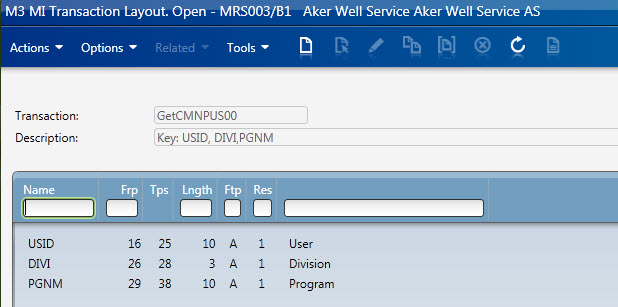
So I create a new transaction in MDBREADMI, from CMNPUS to get the ALO field to get the values.

Input:
GetCMNPUS00

Output:
GetCMNPUS00Output

The next problem I had was that I had to run the MI transaction for user validation’ immediately’ on startup.
However, I couldn’t get the binding correct. It was like the MI startup event was triggered before I was able to bind the currentuser.
( There might be other ways to do this, it might just be me having problems with this kind of binding)
My work around for this was adding in a timer with a second delay. Which allowed me to run the MI Panel with the UserName.

I used a TriggerPanel on the startup which started the timer. The MIPanel was then triggered by Elapsed time after a second.
And then I had all the information required. Using a Hidden TextBox with a style.trigger to catch the UserAccess value ([ALO]).
Then I could bind the the text property directly to the GroupBox IsEnabled.

Here is an snapshot of the .xaml attached. 

UserAccessExample1

Here is a snapshot where I use this in the real world, where you see everything is disabled. 

 Example2UserAcccess

Attached is a full working source code. ( You have to create the MDBREADMI transaction first)

<Grid xmlns="http://schemas.microsoft.com/winfx/2006/xaml/presentation" xmlns:x="http://schemas.microsoft.com/winfx/2006/xaml" xmlns:ui="clr-namespace:Mango.UI.Controls;assembly=Mango.UI" xmlns:mashup="clr-namespace:Mango.UI.Services.Mashup;assembly=Mango.UI" xmlns:ps="clr-namespace:PF.Client.Mashup;assembly=PF.Client" xmlns:m3="clr-namespace:MForms.Mashup;assembly=MForms" xmlns:Services="clr-namespace:Mango.Services;assembly=Mango.Core">
	<Grid.Resources>
	</Grid.Resources>

	<Grid.ColumnDefinitions>
		<ColumnDefinition Width="1*" />
	</Grid.ColumnDefinitions>
	<Grid.RowDefinitions>
		<RowDefinition Height="300" />
		<RowDefinition Height="1*" />

		<RowDefinition Height="Auto" />
	</Grid.RowDefinitions>

<!-- Startup Event -->
	<ps:TriggerPanel Name="ItemMasterUserNameTrigger">
		<ps:TriggerPanel.Events>
			<mashup:Events>
				<mashup:Event TargetName="ItemMasterUserNameTimer" SourceEventName="Startup" TargetEventName="Start" />
			</mashup:Events>
		</ps:TriggerPanel.Events>
	</ps:TriggerPanel>

	<mashup:Timer Name="ItemMasterUserNameTimer" Interval="0:0:01" ElapsedCount="1" Count="1" MinInterval="0:0:01" />

<!-- Hidden TextBlock to get UserName -->
	<TextBlock Name="ItemMasterUserName" DataContext="{x:Static Services:ApplicationServices.UserContext}" Text="{Binding UserName}" Visibility="Hidden" />

	<m3:MIPanel Name="ItemMasterDataReadOnlyMI">
		<m3:MIPanel.Events>
			<mashup:Events>
				<mashup:Event TargetName="ItemMasterDataReadOnlyMI" TargetEventName="Get" SourceEventName="Elapsed" SourceName="ItemMasterUserNameTimer">
					<mashup:Parameter TargetKey="USID" Value="{Binding ElementName=ItemMasterUserName, Path=Text}" />
					<mashup:Parameter TargetKey="DIVI" Value="{mashup:UserContextValue Path=M3/Division}" />
					<mashup:Parameter TargetKey="PGNM" Value="MMS001" />
				</mashup:Event>
			</mashup:Events>
		</m3:MIPanel.Events>
		<m3:MIPanel.DataSource>
			<m3:MIDataSource Program="MDBREADMI" Transaction="GetCMNPUS00" Type="Get" InputFields="USID,DIVI,PGNM" OutputFields="ALO" MaxReturnedRecords="1" />
		</m3:MIPanel.DataSource>
	</m3:MIPanel>

<!-- Validation check, disabled by default  -->
	<TextBox Name="ItemUserValid" Visibility="Hidden">
		<TextBox.Style>
			<Style x:Key="UserCheck" TargetType="{x:Type TextBox}" BasedOn="{StaticResource {x:Type TextBox}}">
				<Setter Property="Text" Value="False" />
				<Style.Triggers>
					<MultiDataTrigger>
						<Setter Property="Text" Value="False" />
					</MultiDataTrigger>
					<MultiDataTrigger>
						<MultiDataTrigger.Conditions>
							<Condition Binding="{Binding ElementName=ItemMasterDataReadOnlyMI, Path=[ALO]}" Value="111111111" />
						</MultiDataTrigger.Conditions>
						<Setter Property="Text" Value="True" />
					</MultiDataTrigger>
				</Style.Triggers>
			</Style>
		</TextBox.Style>
	</TextBox>

<!--  Setting the GroupBox Enabled or Disabled based on the CurrentUser acccess to MMS001 -->
	<GroupBox Name="GroupBox" Header="Validation" Style="{DynamicResource styleGroupLineMashup}" IsEnabled="{Binding ElementName=ItemUserValid, Path=Text}" Grid.Row="0">
		<Grid Margin="0,0,0,8">
			<Grid.ColumnDefinitions>
				<ColumnDefinition Width="100" />
				<ColumnDefinition Width="110" />
			</Grid.ColumnDefinitions>
			<Grid.RowDefinitions>
				<RowDefinition Height="32" />
				<RowDefinition Height="32" />
			</Grid.RowDefinitions>

			<Button Name="Button" Content="Button" Grid.Column="0" Grid.Row="0" />
			<Label Content="IsEnabled" Grid.Row="1" Grid.Column="0" />
			<TextBox Text="{Binding ElementName=ItemUserValid, Path=Text}" Grid.Row="1" Grid.Column="1" MinWidth="100" MaxWidth="100" />

		</Grid>
	</GroupBox>

	<GroupBox Name="GroupBox2" Header="No Validation" Style="{DynamicResource styleGroupLineMashup}" Grid.Row="1">
		<Grid Margin="0,0,0,8">
			<Grid.ColumnDefinitions>
				<ColumnDefinition Width="100" />
				<ColumnDefinition Width="110" />
			</Grid.ColumnDefinitions>
			<Grid.RowDefinitions>
				<RowDefinition Height="32" />
				<RowDefinition Height="32" />
			</Grid.RowDefinitions>

			<Button Content="Button" Grid.Column="0" Grid.Row="0" />
			<Label Content="IsEnabled" Grid.Row="1" Grid.Column="0" />
			<TextBox Name="TextBox" Text="Test 1" Grid.Row="1" Grid.Column="1" MinWidth="100" MaxWidth="100" />

		</Grid>
	</GroupBox>
	<ui:StatusBar Name="StatusBar" Grid.Row="1" Grid.Column="0" />
</Grid>

Regards
Ken Eric

Mashup – The “new modal Dialog window”

Previously this year I wrote a post regarding popups.  And now there is something so much better…
What I didn’t know then, was that there already existed a modal dialog window for exactly this kind of behaviour I wanted within the mashup in later release.
We recently had an upgrade of our environment, and there I suddenly was… Maybe it’s just me not keeping up with all the new features, and I guess there are others of you out there who also don’ know.
So I’d like to share a small example. You can also find an example in the mashup designer under common controls, if you have it.

What I find really nice, is that the dialog windows are own .xaml files, which means it’s being added really quickly if I have to re-use it somewhere else.

This is how it can look, in this case I used it for supplier search, which often can be good to have many places. It writes back from the Dialog.xaml to the primary.xaml.

SupplierDialogBox2

Below is the code that had to be added in the primary mashup. I also added a ‘F4” gesture to open it.


<StackPanel Grid.Row="1" Grid.Column="3">
                  <mashup:Dialog Name="SupplierMyDialog" Uri="SupplierDialogBox.xaml" WindowHeight="600" WindowWidth="540" HorizontalAlignment="Left" />
                  <TextBox Name="Supplier" Text="{Binding ElementName=SupplierMyDialog, Path=CurrentItem[Supplier]}" MinWidth="80" MaxWidth="80">
                     <TextBox.InputBindings>           
                        <KeyBinding Key="F4" Command="mashup:MashupInstance.MashupCommand">          
                           <KeyBinding.CommandParameter>             
                              <mashup:Events>
                                 <mashup:Event SourceEventName="Click" TargetName="SupplierMyDialog" Debug="True">
                                    <mashup:Parameter TargetKey="SupplierNumber" Value="{Binding ElementName=Supplier, Path=Text}" />
                                 </mashup:Event>
                              </mashup:Events>          
                           </KeyBinding.CommandParameter>       
                        </KeyBinding>  
                     </TextBox.InputBindings> 
                  </TextBox>   
  </StackPanel>

And here is the complete code for the DialogBox itself.  The close button will target the supplier field with the text input.

Grid Height="600" Width="540" xmlns="http://schemas.microsoft.com/winfx/2006/xaml/presentation" xmlns:x="http://schemas.microsoft.com/winfx/2006/xaml" xmlns:ui="clr-namespace:Mango.UI.Controls;assembly=Mango.UI" xmlns:mashup="clr-namespace:Mango.UI.Services.Mashup;assembly=Mango.UI" xmlns:m3="clr-namespace:MForms.Mashup;assembly=MForms" xmlns:clr="clr-namespace:System;assembly=mscorlib" xmlns:Services="clr-namespace:Mango.Services;assembly=Mango.Core" xmlns:ps="clr-namespace:PF.Client.Mashup;assembly=PF.Client">
   <Grid.Resources>
      <mashup:CurrentItemValue x:Key="CurrentItemValue" />
   </Grid.Resources>

   <Grid.ColumnDefinitions>
      <ColumnDefinition Width="540" />
   </Grid.ColumnDefinitions>
   <Grid.RowDefinitions>
      <RowDefinition Height="80" />
      <RowDefinition Height="400" />
      <RowDefinition Height="50" />
      <RowDefinition Height="Auto" />
   </Grid.RowDefinitions>

   <GroupBox Style="{DynamicResource styleGroupLineMashup}">
      <Grid Margin="0,0,0,8">
         <Grid.ColumnDefinitions>
            <ColumnDefinition Width="60" />
            <ColumnDefinition Width="150" />
            <ColumnDefinition Width="80" />
         </Grid.ColumnDefinitions>
         <Grid.RowDefinitions>
            <RowDefinition Height="32" />
         </Grid.RowDefinitions>

         <TextBlock Text="Supplier:" Grid.Column="0" />
         <StackPanel Orientation="Vertical" Grid.Row="0" Grid.Column="1">
            <mashup:Dialog Name="SupplierMyDialog" Uri="SupplierDialogBox.xaml" Grid.Column="0" Grid.Row="0">
               </mashup:Dialog>         
            <TextBox Name="SupplierNumber" MinWidth="120" MaxWidth="120" HorizontalAlignment="Left" MaxLength="18" Text="" />

         </StackPanel>

         <Button Name="Button" Grid.Column="2" Content="Search">
            <Button.CommandParameter>
               <mashup:Events>
                  <mashup:Event TargetName="ItemMasterSupplierListBrowse" SourceEventName="Click" TargetEventName="Search" Debug="True">
                     <mashup:Parameter TargetKey="Query" Value="{Binding Path=Text, ElementName=SupplierNumber}" />
                  </mashup:Event>
               </mashup:Events>
            </Button.CommandParameter>
         </Button>
      </Grid>
   </GroupBox>

   <m3:ListPanel Name="ItemMasterSupplierListBrowse" Grid.Row="1" EnablePositionFields="False" EnableSortingOrder="False">
      <m3:ListPanel.Events>
         <mashup:Events>
            <mashup:Event SourceEventName="Startup">
               <mashup:Parameter TargetKey="IDCONO" />
               <mashup:Parameter TargetKey="IDSUNO" />
            </mashup:Event>

            <mashup:Event SourceName="ItemMasterSupplierListBrowse" SourceEventName="CurrentItemChanged" Target="{mashup:SetProperty ElementName=SupplierNumber, Path=Text}" Debug="True">
               <mashup:Parameter SourceKey="SUNO" TargetKey="Value" />
            </mashup:Event>
         </mashup:Events>
      </m3:ListPanel.Events>
      <m3:ListPanel.Bookmark>
         <m3:Bookmark Program="CRS620" Table="CIDMAS" KeyNames="IDCONO,IDSUNO" SortingOrder="1" IncludeStartPanel="True" />
      </m3:ListPanel.Bookmark>
   </m3:ListPanel>

   <Button Content="Close" Grid.Row="2">
      <Button.CommandParameter>
         <mashup:Events>
            <mashup:Event SourceEventName="Click" TargetEventName="Close">
               <mashup:Parameter TargetKey="Supplier" Value="{Binding ElementName=SupplierNumber, Path=Text}" />
            </mashup:Event>
         </mashup:Events>
      </Button.CommandParameter>
   </Button>
   
   <ui:StatusBar Name="StatusBar" Grid.Row="3" Grid.Column="0" />
</Grid>

Hope it can be to any help.

Regards
Ken Eric


Web parts for H5 Client – DRAFT

Here are illustrated steps to add a web part to H5 Client. This post follows-up my previous post where I introduced H5 Client. This is useful for creating personalizations in H5 Client.

As a reminder, H5 Client is a web client for M3 (HTML, CSS, JavaScript, jQuery, and XmlHttpRequests running in a browser) and if it runs as part of H5 Enterprise then we can add Web parts which are custom web development parts that we write to interact between H5 Client and our code. This technique is similar to Movex Next Extension Adaptation Interface (MNEAI) scripts for Movex Explorer around 1999 and Movex Workplace around 2000, and it is similar to Smart Office Scripts of today.

DRAFT

I started this post a long time ago, faced some technical issues, moved on to other assignments, and never managed to finish it nor polish it. So the screenshots don’t match with each other, and the steps are not necessarily all in order. It’s very much like a draft post. But I decided to post it anyway otherwise I’ll never post it. And there are enough steps and screenshots so you get the point. That will give you a head start.

M3 H5 Enterprise

First, you will need M3 H5 Enterprise to be able to use Web Parts; H5 Foundation will not be sufficient.

Create a webpage

Then, create a webpage and publish it on a web server of your choice. It will be run in an iframe in Ming.le and will communicate with H5 Client via message passing.

For example, I created a folder jscriptH5 next to the jscript folder that is used for Smart Office scripts, and I dump my HTML and JavaScript files there (this is probably not the best location as the parent folder is managed by LifeCycle Manager and might be deleted with upgrades…although so will the jscript folder):

\\yourhost\d$\Infor\LifeCycle\<yourhost>\grid\<yourgrid>\grids\<yourgrid>\applications\M3_UI_Adapter\webapps\mne\jscriptH5\

You will need to be a bit familiar with jQuery.

Add code like this for message passing:

<html>
    <head>
        <title>Thibauds web part test</title>
        <script src="somewhere/jquery-1.8.2.min.js"></script>
        <script src="somewhere/jquery.json-2.2.js"></script>
        <script>
            jQuery(function ($) {
                // register message handler
                infor.companyon.client.registerMessageHandler('inforBusinessContext', messageHandler);
                // send a message to Ming.le (for instance resize the Web Part)
                infor.companyon.client.sendMessage(window.name, { height : '235px' });
                // receive a message from Ming.le with the values of the Context
                function messageHandler(o) {
                    alert(o);
                }
            });
        </script>
    </head>
    <body>
        Hello World!!!
    </body>
</html>

Message definition

Then, follow these steps to add a message definition to the M3_UI_Adapter (mne) properties in LifeCycle Manager:

  1. Go to LifeCycle Manager
  2. In the Applications View, expand your environment (Development, Education, Test, etc.)
  3. Right-click M3_UI_Adapter and select Configure Application
  4. Click Edit Properties
  5. Expand Infor Workspace Settings
  6. Click the Value of the Property Context List to edit it (it will show the current number of Entries)
  7. Click Add New Line and select Append
  8. Enter a message definition as a JSON object, with

    uid, title, type, and data, where data is a JSON object with the key/value pairs you want to pass to your Web Part, for example:

    {“uid”:”M3_TBO”, “title”:”Thibaud Hello”, “type”:”thibaudHello”, “data”:{“hello”: “”}}

  9. Validate your JSON object for example with JSON lint
  10. Here’s a screenshot so far (the JSON in the screenshot was an old test with wrong values):
    14_
  11. Click Save to save changes to disk, a popup will appear
  12. Click Save again to confirm
  13. Now let’s verify it’s saved correctly
  14. Close the tab
  15. Back in the Applications View, right-click M3_UI_Adapter and select Monitor Application
  16. Expand the Node for Application M3_UI_Adapter and select M3UIAdapterModule
  17. Select Properties
  18. Double-check the Value of the ContextList Property and ensure your JSON object is correct; an incorrect value will break H5 Client without giving you any error messages and that will be difficult to troubleshoot.

Infor Ming.le administration

Then, follow these steps to become an administrator of Infor Ming.le:

  1. Go to Infor Ming.le at http://yourhost/SitePages/InforSuite.aspx
  2. Login as an administrator
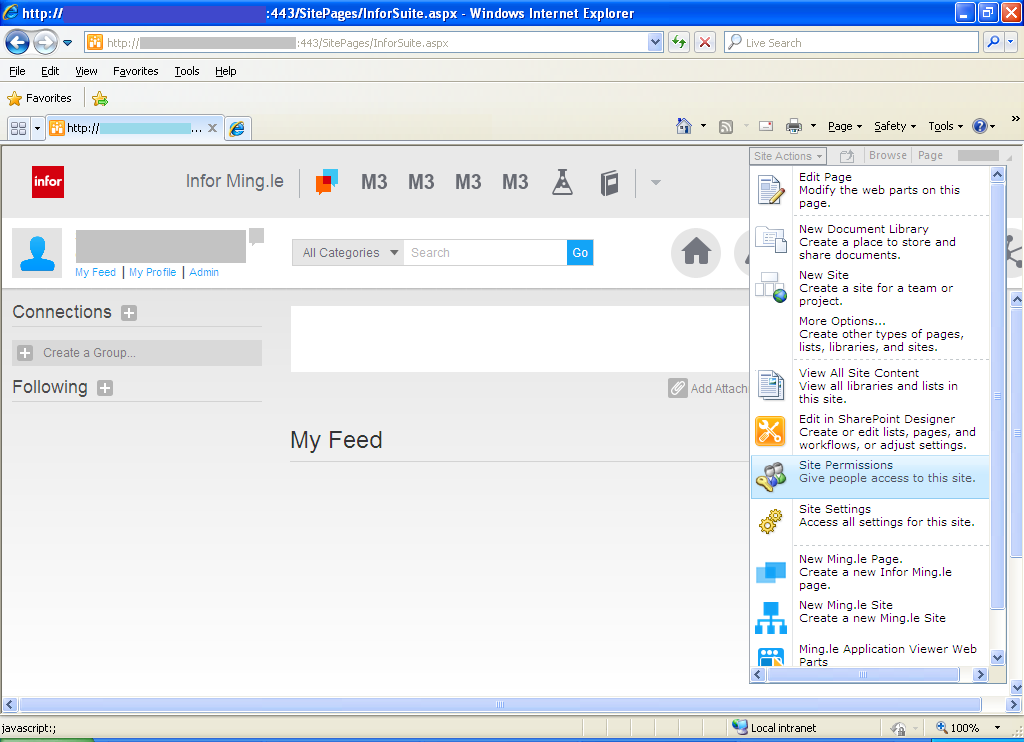
  3. Select Site Actions > Site Permissions:
    1_
  4. Select Site Collection Administrators
  5. Enter the userids of those who will be administrators
  6. Click OK

Ming.le Application Viewer Web Part

Then, follow these steps to add your Web Part:

  1. Select Site Actions
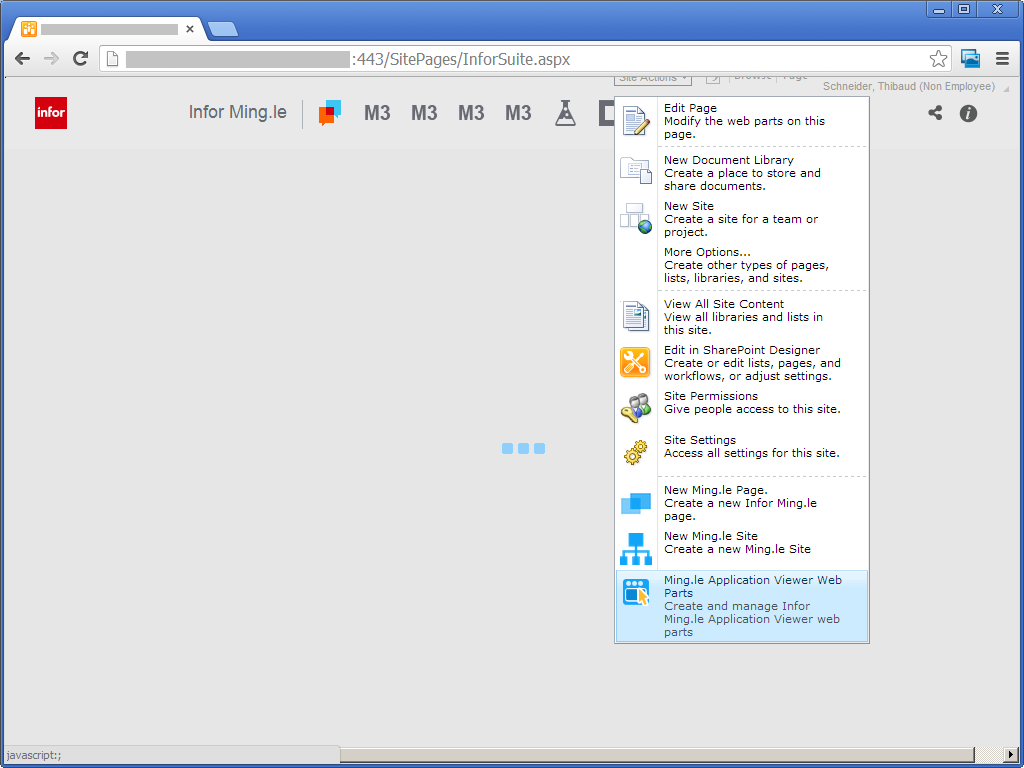
  2. Select Ming.le Application Viewer Web Part:
    3_
  3. Select the Category, for example Infor
  4. Enter the Title, Description, and URL
  5. Select an Icon
  6. Click Save (the URL when I took the screenshot had an incorrect value):
    4__

Context Application Manager

Then, follow these steps to add the Context Application Manager:

  1. Select Context Application Manager in the top right corner of Ming.le
  2. Select your Web Part on the left, and click the right arrow
  3. Click Save (my screenshots don’t match my final test but you get the point):
    6__
  4. Now you have a Web Part on the Right Panel Zone:
    7_

Context Publisher

Then, configure the Context Publisher:

  1. Go to the desired M3 program/panel, for example CRS610/E
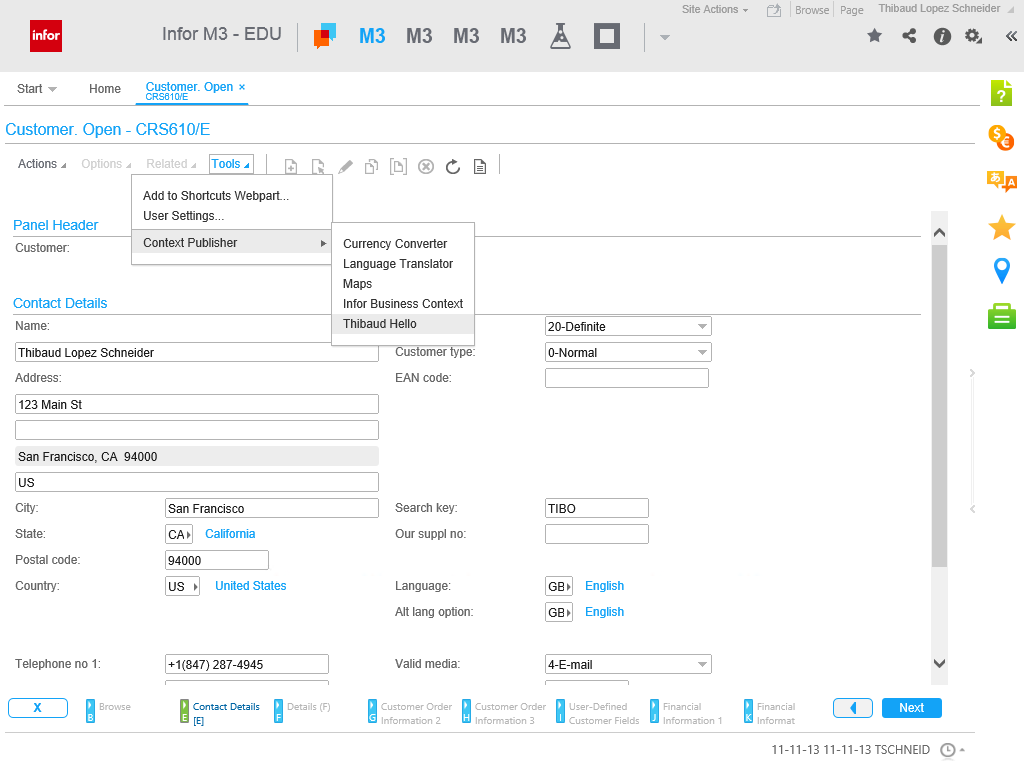
  2. Select Tools > Context Publisher, and select your Web Part
  3. Configure your Web Part by setting values for the keys, for example Hello World! <WRCUNM>:
    31
  4. Click Save:
    32

Start Web Part

Now start the Web Part by clicking on the Panel Zone. You web part code will get the parameters.

Future work

Future work would include:

  • Reduce the number of steps it takes
  • Configure the Web Part per M3 environment (DEV, EDU, TST, etc.). This seems like it’s not native to Ming.le Web Parts.
  • Un-hard-code the Web Part URL
  • Get any field dynamically in source code, ideally with a variable like controller or content, instead of having to configure the Message Definition and Web Part (I’m not an expert on this yet so there might already be some functions or variables available that I’m not seeing).
  • Apply the Web Part only to a desired program/panel.

Acknowledgement

Thanks to Joakim B. for all the help.

That’s it.

Command & Control a Mashup from an M3 program

Here’s an illustration of how to Command & Control a Mashup from an M3 program with a Smart Office Script, for example to launch a Mashup, to set values in a Mashup, to attach event handlers, to get values from the Mashup, and to close the Mashup. I learned this technique from norpe’s MashupBrowse post.

This is useful to add functionality in a Mashup where XAML alone is not sufficient.

You can attach the script to an M3 program, via Tools > Personalize > Scripts, via Tools > Personalize > Shortcut, or you can execute a stand-alone script.

Steps

First, create and deploy a simple Hello World Mashup (no values nor event handlers, to illustrate the point):

<Grid xmlns="http://schemas.microsoft.com/winfx/2006/xaml/presentation">
    <StackPanel>
        <Label Name="lblMessage" Content="Message" />
        <TextBox Name="txtValue" />
        <Button Name="btnOK" Content="OK" />
    </StackPanel>
</Grid>

1 2

Then, create a script that starts the Mashup:

var uri : String = "mashup:///?BaseUri=HelloWorld.mashup&RelativeUri=HelloWorld.xaml";
var task : Task = new Task(uri);
var handler : RunnerStatusChangedEventHandler = Mashup_OnStatusChanged;
DashboardTaskService.Current.LaunchTask(task, null, handler);

Then, get a reference to the Mashup:

function Mashup_OnStatusChanged(sender : Object, e : RunnerStatusChangedEventArgs) {
    if (e.NewStatus == RunnerStatus.Running) {
        // the Mashup is starting
        var runner : Runner = e.Runner;
    } else if (e.NewStatus == RunnerStatus.Closed) {
        // the Mashup is closing
    }
}

Then, set values in the Mashup:

txtValue = runner.Host.HostContent.FindName("txtValue");
txtValue.Text = "Hello World!";

Then, attach event handlers:

var btnOK : Button = runner.Host.HostContent.FindName("btnOK");
btnOK.add_Click(Mashup_OnBtnOK);

Result

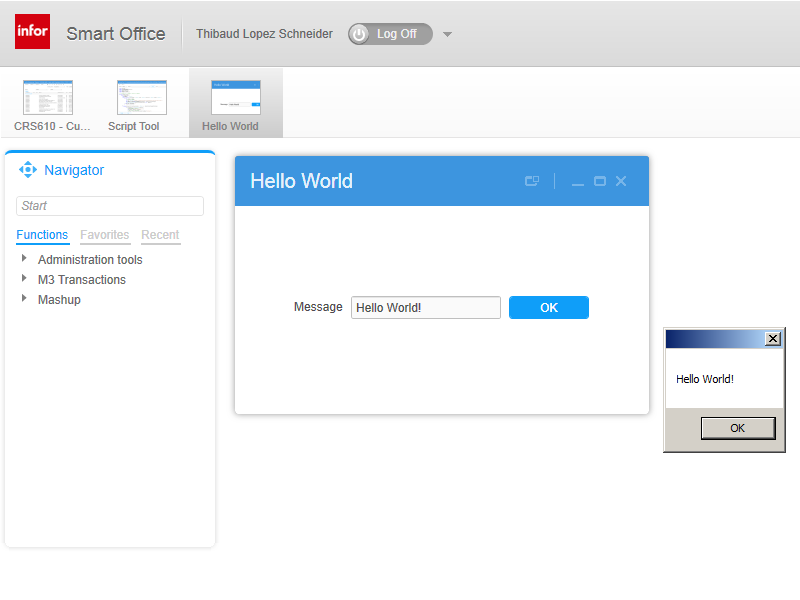
And here’s the result, the Mashup launched, the value “Hello World!” set in the TextBox, the Click event handler added to the button, and the value of the TextBox retrieved back, all that commanded & controlled from the Script, which would not have been all possible with XAML alone:

3

Source code

Here’s the complete source code:

import System;
import System.Windows;
import System.Windows.Controls;
import Mango.Services;
import Mango.UI.Core;
import Mango.UI.Services;

package MForms.JScript {

class HelloWorldCC {
    var debug;
    var txtValue : TextBox;
    public function Init(element : Object, args : Object, controller : Object, debug : Object) {
        try {
            this.debug = debug;
            // launch the Mashup
            var uri : String = "mashup:///?BaseUri=HelloWorld.mashup&RelativeUri=HelloWorld.xaml";
            var task : Task = new Task(uri);
            var handler : RunnerStatusChangedEventHandler = Mashup_OnStatusChanged;
            DashboardTaskService.Current.LaunchTask(task, null, handler);
        } catch (ex : Exception) {
            debug.WriteLine(ex);
        }
    }
    function Mashup_OnStatusChanged(sender : Object, e : RunnerStatusChangedEventArgs) {
        try {
            if (e.NewStatus == RunnerStatus.Running) {
                // the Mashup is starting
                debug.WriteLine("Mashup is starting");
                var runner : Runner = e.Runner;
                // set values in the Mashup
                txtValue = runner.Host.HostContent.FindName("txtValue");
                txtValue.Text = "Hello World!";
                // attach an event handler to the Mashup
                var btnOK : Button = runner.Host.HostContent.FindName("btnOK");
                btnOK.add_Click(Mashup_OnBtnOK);
            } else if (e.NewStatus == RunnerStatus.Closed) {
                // the Mashup is closing
                debug.WriteLine("Mashup is closing");
            }
        } catch (ex : Exception) {
            debug.WriteLine(ex);
        }
    }
    function Mashup_OnBtnOK(sender : Object, e : RoutedEventArgs) {
        try {
            // get values from the Mashup
            MessageBox.Show(txtValue.Text);
        } catch (ex : Exception) {
            debug.WriteLine(ex);
        }
    }
}
}

Finally

Norpe’s code is more complete and you should implement its features in your script as well. For example norpe’s script checks if there is already an open instance of the Mashup, it can control the Mashup with keyboard shortcuts, it puts values back in the M3 panel, it closes the Mashup, it detaches event handlers, and it does cleanup.

That’s it!

Git for M3 Web Services

Here is a preliminary illustration on how to use Git version control system with M3 Web Services Designer to manage changes to web services versions in multi-developer distributed projects. Since the M3 Web Services repository points to a folder of XML files it should be possible to use any revision control software like CVS, Subversion, Git, TFS, etc. Here I illustrate Git with some screenshots.

Install Git

  1. Download and install Git from http://git-scm.com/
    1
  2. I use the default options and Next > Next > … > Finish:
    2
  3. Start Git GUI from the Windows Start menu:
    6

M3 Web Service Repository

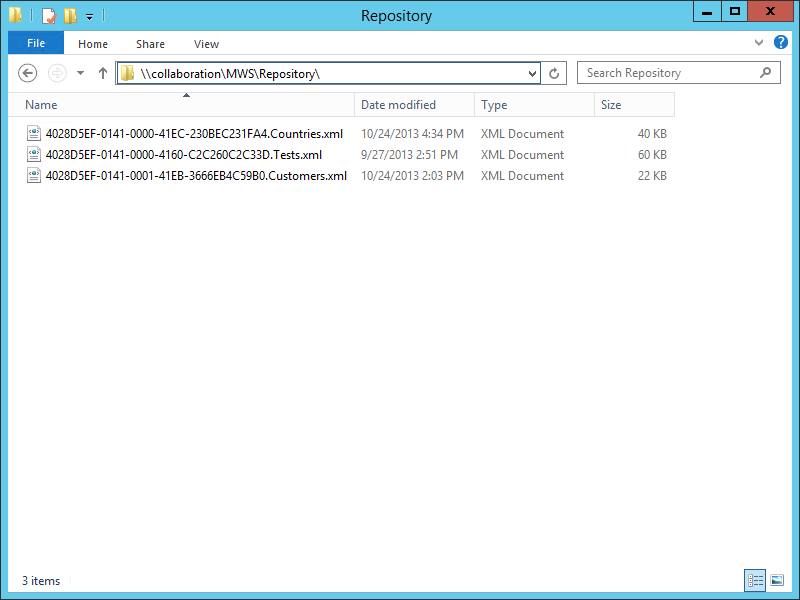
  1. Let’s suppose we have a remote M3 Web Service Repository at \\collaboration\MWS\Repository\ with our metadata files:
    0
  2. And let’s suppose we want to manage those files in Git.
  3. For that, we’ll take that existing directory and import it into Git.

Create a Git Repository

  1. In Git GUI select Create New Repository:
    20
  2. Enter the path to the web service repository, for example \\collaboration\MWS\Repository\ :
    3
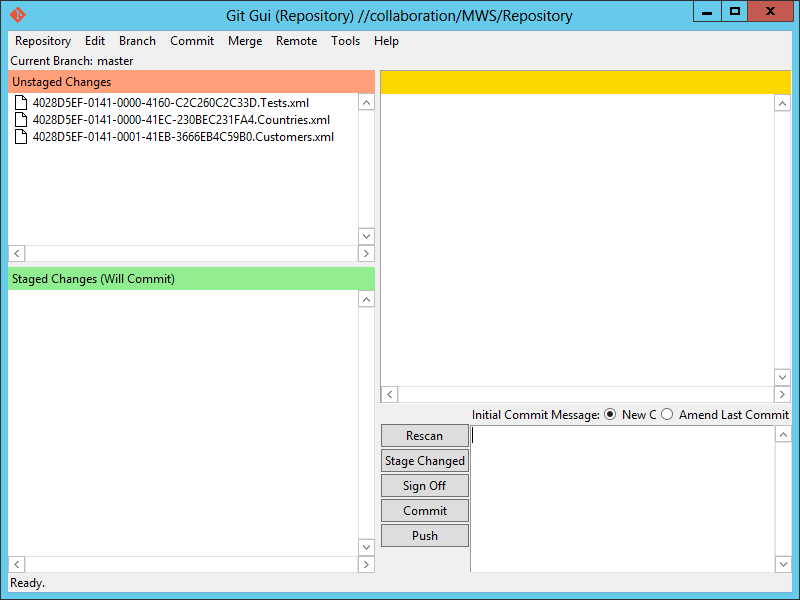
  3. Git GUI shows the files in the Unstaged state:
    4
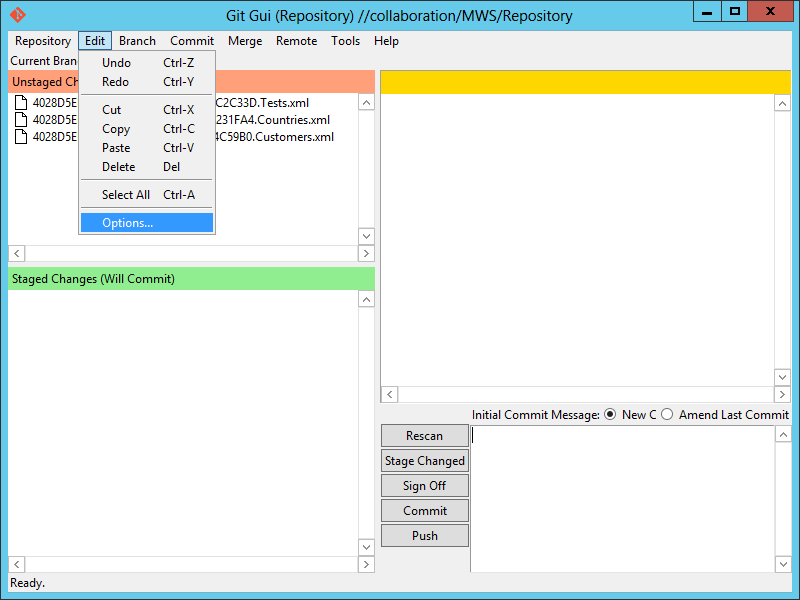
  4. Selection Edit > Options to identify ourselves:
    5
  5. Enter your User Name and Email Address:
    6
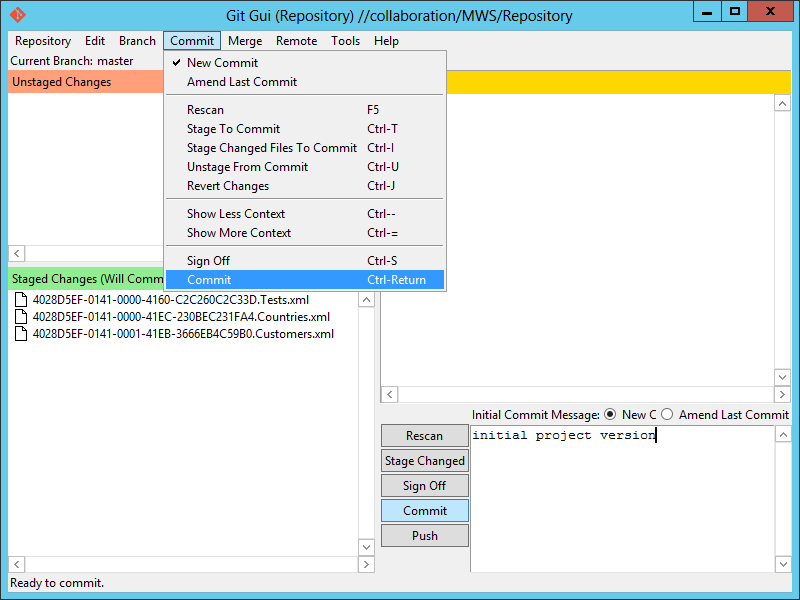
  6. Select Commit > Stage Changed Files To Commit (CTRL-I) to add a snapshot of the files to the staging area, and click Yes to confirm:
    7
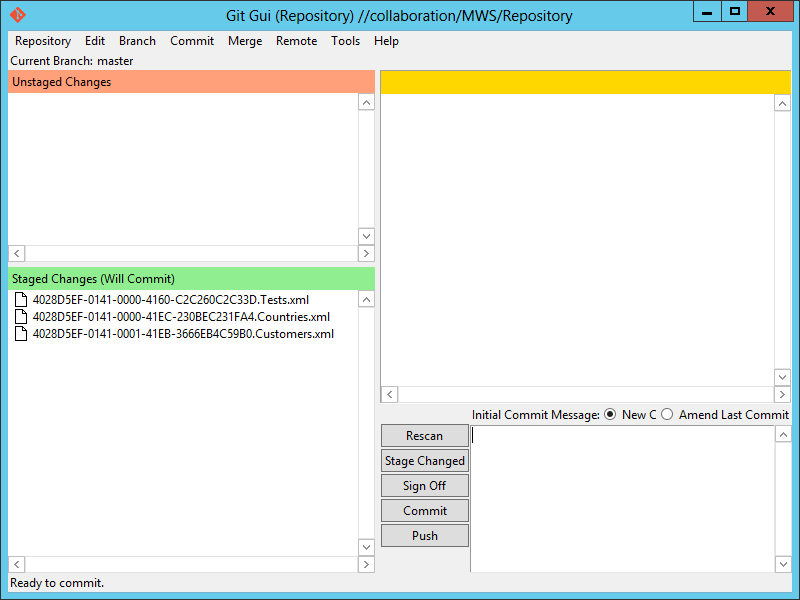
  7. The files are now in the Staged state:
    8
  8. Enter an Initial Commit Message and select Commit:
    9
  9. The files are now permanently committed and safely stored in the Git Repository:
    10
  10. And the folder now contains a hidden .git folder:
    11

Install EGit for Eclipse

  1. Let’s install EGit for Eclipse on one of the developer’s computer (you’ll repeat these steps for each developer in your team):
    0
  2. Start MWS Designer and discard the web service repository location to avoid confusion for now:
    1
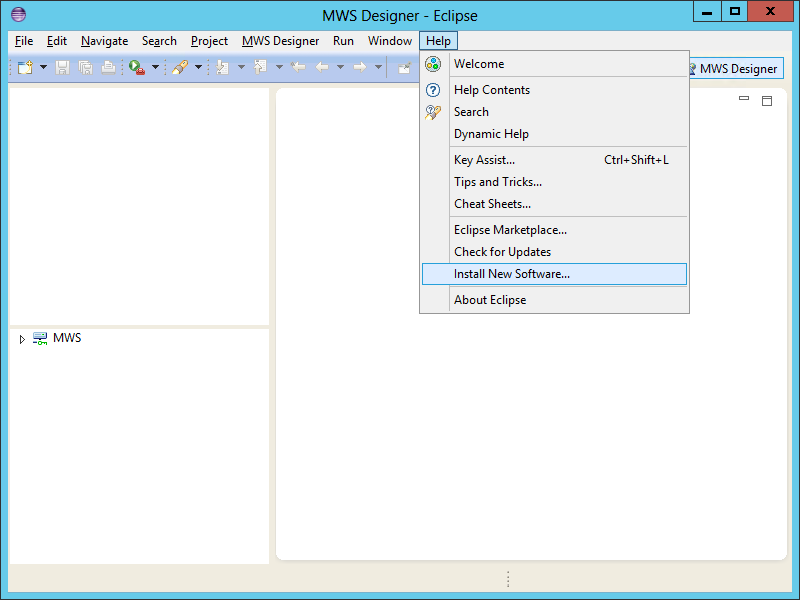
  3. Select Help > Install New Software:
    1
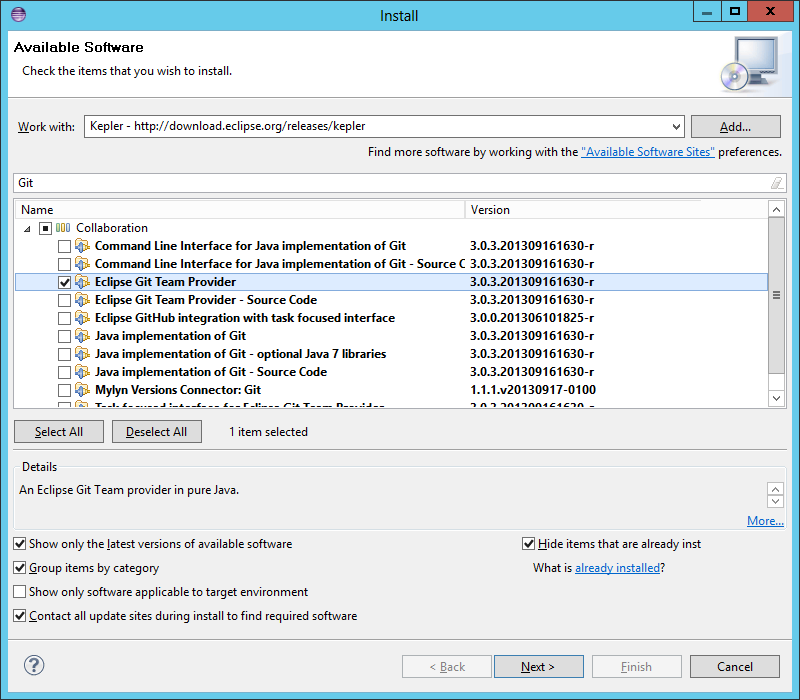
  4. Select the default Eclipse site, for example Kepler – http://download.eclipse.org/releases/kepler , filter for Git, and select Eclipse Git Team Provider:
    2
  5. Click Next > Next > … > Finish and restart Eclipse for the changes to take effect.
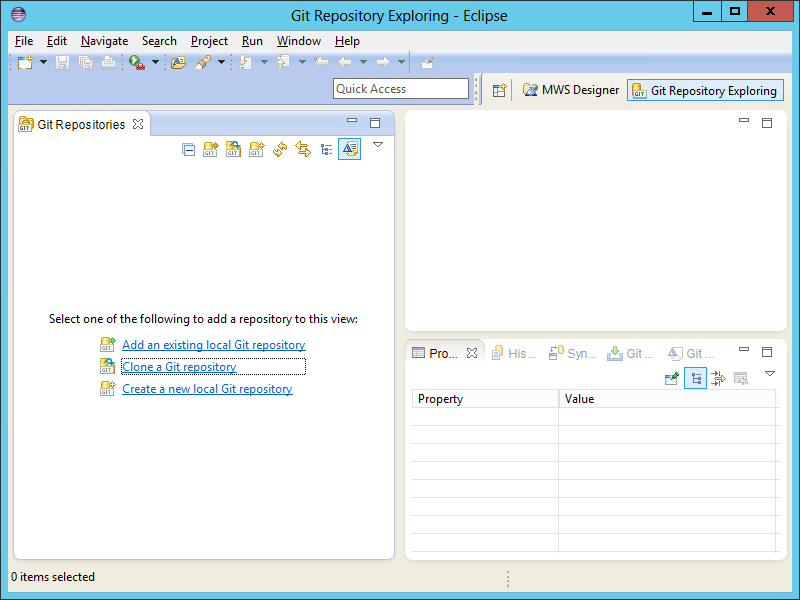
  6. Select Window > Open Perspective > Other > Git Repository Exploring:
    1
  7. It will switch to the Git Repository Exploring:
    2
  8. Repeat the steps for each developer in your team.

Clone the Git Repository

Now we’ll clone the Git Repository to get a local copy of it:

  1. In the Git Repository Exploring, select Clone a Git repository.
  2. Enter the path to the remote Git Repository, for example: \\collaboration\MWS\Repository\ and click Next:
    3
  3. Keep the default master branch and click Next:
    4
  4. Select a local destination, for example C:\MWS\Repository\ and click Finish:
    5
  5. EGit will show the Repository and the Working Directory:
    6
  6. You now have a copy of the web service metadata files in your local directory with a hidden .git folder:
    7
  7. In Eclipse, switch back to the MWS Designer perspective.
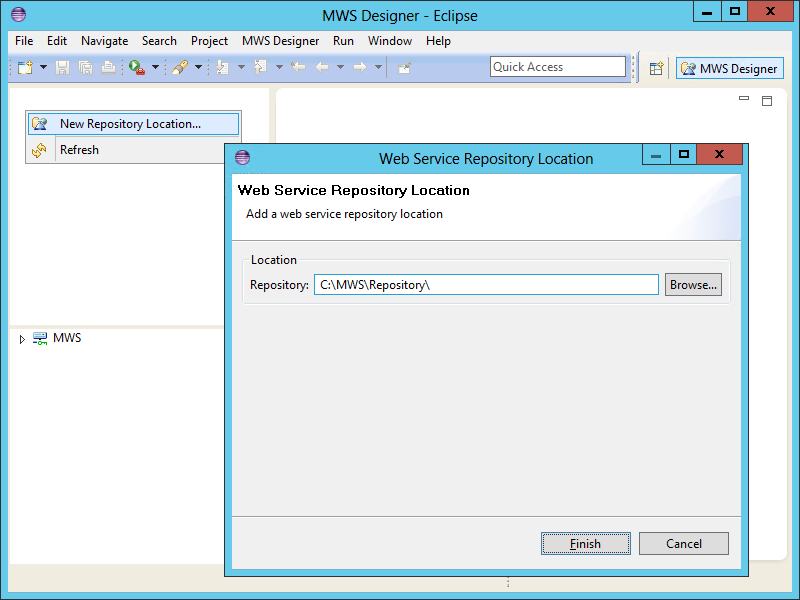
  8. Select New Repository Location and enter the cloned Git repository, for example: C:\MWS\Repository\ and click Finish:
    8
  9. Your MWS Designer now has a local copy of the web services:
    9
  10. Repeat for the other developers in your team.

That’s as far as I got for now.

After that I was able to create a branch and make changes. But I got an error when I tried to merge my changes; EGit seems to truncate the path to my shared folder and not recognize it anymore. I’ll explore more about it later.

Mashup/LES – Related search and changing view while searching.

I accidently discovered a while back that I could use the TargetKey to set views and sorting orders.
This was followed up by another small indecent, which led to another discovery.
Did you know that you are able change the view after a LES search has been performed and keep the current hits?
I will also share how you can perform a related search with LES from a mashup. ( I will not share how to do all the setup, it’s primary just getting the query right)
When combing all these, I believe you can create quite a powerful tool.

Setting the sorting order:

Very simple, but for some unknown.  Just use the TargetKey to set the value.

<mashup:Event TargetName=”MMS200″ SourceEventName=”Click” TargetEventName=”Apply”>
<mashup:Parameter TargetKey=”WWQTTP” Value=”5″ />
</mashup:Event>

Changing the view can be done in multiple ways, here is an example where it’s done from a ComboBox.

<ComboBox Name="ItemMasterChangeView" MinWidth="85" MinHeight="20" MaxWidth="85" MaxHeight="70" Margin="5">
             <mashup:Event.SelectionChanged>
                <mashup:Events>
                   <mashup:Event SourceEventName="SelectionChanged" TargetName="MMS200" TargetEventName="Apply">
                      <mashup:Event.Conditions>
                         <mashup:Conditions>
                            <mashup:Condition TargetKey="Value" SourceValue="{Binding ElementName=ItemMasterChangeView, Path=SelectedIndex}" TargetValue="1" Operator="Equal" />
                         </mashup:Conditions>
                      </mashup:Event.Conditions>
                      <mashup:Parameter TargetKey="WWFACI" Value="100" />
                      <mashup:Parameter TargetKey="WWWHLO" Value="100" />
                      <mashup:Parameter TargetKey="WOPAVR" Value="{Binding ElementName=ONHAND, Path=Content}" />
                   </mashup:Event>

                   <mashup:Event SourceEventName="SelectionChanged" TargetName="MMS200" TargetEventName="Apply">
                      <mashup:Event.Conditions>
                         <mashup:Conditions>
                            <mashup:Condition TargetKey="Value" SourceValue="{Binding ElementName=ItemMasterChangeView, Path=SelectedIndex}" TargetValue="2" Operator="Equal" />
                         </mashup:Conditions>
                      </mashup:Event.Conditions>
                      <mashup:Parameter TargetKey="WWFACI" Value="100" />
                      <mashup:Parameter TargetKey="WWWHLO" Value="100" />
                      <mashup:Parameter TargetKey="WOPAVR" Value="{Binding ElementName=WHS, Path=Content}" />
                   </mashup:Event>
                </mashup:Events>
             </mashup:Event.SelectionChanged>

             <ComboBoxItem Name="BLANK" Content="" />
             <ComboBoxItem Name="ONHAND" Content="ONHAND" />
             <ComboBoxItem Name="WHS" Content="WHS" />
          </ComboBox>

NOTE: CHANGING SORTING ORDER OR VIEW MIGHT GIVE YOU A FATAL ERROR IN SOME OF THE PREVIOUS VERSIONS OF M3.
I don’t know which version the fix came in, but we recently had a upgrade of our environment and it now runs without problem, so far.
However, if you receive an error message, try setting the sorting order with filter 1 or higher, for some strange reason it only used to crash if the filter was set to 0.

Related search – creating the string.

There might be other ways to do this, so if you solved this previously in any other way I hope you are willing to share.
I will show you two different ways you can concatenate text to get the string you need.

1. Provide input to RespText, and using the MultiBinding will get yourself a string looking like this:
related:[ITEM_RESP(“input”)]:

<TextBox Name="RespText"  Text=""   />
<TextBox Name="RespDummy1" Text="related:[ITEM_RESP(&quot;"  Visibility="Hidden" />
  <TextBox Name="RespDummy2" Text="&quot;)]" Visibility="Hidden" />

    <TextBox Name="ItemRespSearch"  Visibility="Hidden">
       <TextBox.Text>
          <MultiBinding StringFormat="{}{0}{1}{2}">
             <Binding ElementName="RespDummy1" Path="Text" />
             <Binding ElementName="RespText" Path="Text" />
             <Binding ElementName="RespDummy2" Path="Text" />
          </MultiBinding>
       </TextBox.Text>
    </TextBox>

2. The other way is using the run command to concatenate.
This was unknown for me until a week ago, but Heiko was nice and shared it .

In the end, both will give you the same output.

</pre>
<TextBox Name="ItemTypeText" Text=""  />

<TextBlock Name="ItemTypeSearch" Visibility="Hidden">
       <TextBlock.Inlines>
         <Run Text="related:[ITEM_ITTY(&quot;" />
         <Run Text="{Binding ElementName=ItemTypeText,Path=Text}" />
         <Run Text="&quot;)]" />
       </TextBlock.Inlines>
     </TextBlock>

You have to add the string query to the TargetKey itself. If you put it as the value you might get some bad output.
You can set the TargetKey to “Query” and the string as value, but that will kill all your other inputs.

<Button Content="Search" Margin="0,0,0,0" Style="{DynamicResource styleButtonPrimaryMashup}">
             <Button.CommandParameter>
                <mashup:Events>
                   <mashup:Event SourceEventName="Click" TargetName="MMS200" TargetEventName="Search">
                      <mashup:Parameter TargetKey="FUDS" Value="{Binding Path=Text, ElementName=NameText}" />
                       <mashup:Parameter TargetKey="{Binding Path=Text, ElementName=ItemRespSearch}" Value="{Binding Path=Text, ElementName=ItemRespCheck}" />
                       <mashup:Parameter TargetKey="{Binding Path=Text, ElementName=ItemTypeSearch}" Value="{Binding Path=Text, ElementName=ItemTypeCheck}" />
                 </mashup:Event>

As you can see I am binding some values.
If the Value is blank the search will not be performed, so I’m just using this to check for any input.

If there is any input to the “RespText” the value will be set to ‘;’ .
You can use standard mashup conditions instead of the MultiDataTrigger as shown below.

<TextBox Name="ItemRespCheck" Visibility="Hidden">
       <TextBox.Style>
       <Style x:Key="ItemRespCheck" TargetType="{x:Type TextBox}" BasedOn="{StaticResource {x:Type TextBox}}">
          <Setter Property="Text" Value=";" />
          <Style.Triggers>
             <MultiDataTrigger>
                <MultiDataTrigger.Conditions>
                   <Condition Binding="{Binding ElementName=RespText, Path=Text}" Value="" />
                </MultiDataTrigger.Conditions>
                <Setter Property="Text" Value="" />
             </MultiDataTrigger>
          </Style.Triggers>
       </Style>
    </TextBox.Style>
    </TextBox>

And the final string query will be like this if you provide input to all 3.

FUDS:(A*) related:[ITEM_RESP(“141254”)]:(;) related:[ITEM_ITTY(“031”)]:(;)
If you are trying and failing with this, I strongly recommand using Fiddler or similar to see what output the mashup sends.

Attached is a full sample containing both the related search and changing view/sorting orders option.
You probably have to change some of the static values I’ve added to make it work.

<Grid xmlns="http://schemas.microsoft.com/winfx/2006/xaml/presentation" xmlns:x="http://schemas.microsoft.com/winfx/2006/xaml" xmlns:ui="clr-namespace:Mango.UI.Controls;assembly=Mango.UI" xmlns:mashup="clr-namespace:Mango.UI.Services.Mashup;assembly=Mango.UI" xmlns:m3="clr-namespace:MForms.Mashup;assembly=MForms">
    <Grid.Resources>
    </Grid.Resources>

    <Grid.ColumnDefinitions>
       <ColumnDefinition Width="*" />

    </Grid.ColumnDefinitions>
    <Grid.RowDefinitions>
       <RowDefinition Height="30" />
       <RowDefinition Height="*" />
    </Grid.RowDefinitions>

    <StackPanel Grid.Row="0" Grid.Column="0" Orientation="Horizontal">
          <TextBlock Text="Name:" />
          <TextBox Name="NameText" MaxWidth="80" MinWidth="80" />
          <TextBlock Text="Item responsible:" />
          <TextBox Name="RespText" Text="" MaxWidth="80" MinWidth="80" />
          <TextBlock Text="Item Type:" />
          <TextBox Name="ItemTypeText" Text="" MaxWidth="80" MinWidth="80" />

          <Button Content="Search" Margin="0,0,0,0" Style="{DynamicResource styleButtonPrimaryMashup}">
             <Button.CommandParameter>
                <mashup:Events>
                   <mashup:Event SourceEventName="Click" TargetName="MMS200" TargetEventName="Search">
                      <mashup:Parameter TargetKey="FUDS" Value="{Binding Path=Text, ElementName=NameText}" />
                         <mashup:Parameter TargetKey="{Binding Path=Text, ElementName=ItemRespSearch}" Value="{Binding Path=Text, ElementName=ItemRespCheck}" />
                          <mashup:Parameter TargetKey="{Binding Path=Text, ElementName=ItemTypeSearch}" Value="{Binding Path=Text, ElementName=ItemTypeCheck}" />
                   </mashup:Event>

                      <mashup:Event TargetName="MMS200" SourceEventName="Click" TargetEventName="Apply">
                      <mashup:Event.Conditions>
                         <mashup:Conditions>
                            <mashup:Condition SourceValue="{Binding Path=Text, ElementName=RespText}" TargetValue="" Operator="Equal" />
                         </mashup:Conditions>
                      </mashup:Event.Conditions>
                      <mashup:Parameter TargetKey="WWQTTP" Value="7" />
                   </mashup:Event>

                      <mashup:Event TargetName="MMS200" SourceEventName="Click" TargetEventName="Apply">
                      <mashup:Event.Conditions>
                         <mashup:Conditions>
                            <mashup:Condition SourceValue="{Binding Path=Text, ElementName=RespText}" TargetValue="" Operator="NotEqual" />
                         </mashup:Conditions>
                      </mashup:Event.Conditions>
                      <mashup:Parameter TargetKey="WWQTTP" Value="5" />

                   </mashup:Event>

                </mashup:Events>
             </Button.CommandParameter>
          </Button>

          <TextBlock Text="View" HorizontalAlignment="Right" />

          <ComboBox Name="ItemMasterChangeView" MinWidth="85" MinHeight="20" MaxWidth="85" MaxHeight="70" Margin="5">
             <mashup:Event.SelectionChanged>
                <mashup:Events>
                   <mashup:Event SourceEventName="SelectionChanged" TargetName="MMS200" TargetEventName="Apply">
                      <mashup:Event.Conditions>
                         <mashup:Conditions>
                            <mashup:Condition TargetKey="Value" SourceValue="{Binding ElementName=ItemMasterChangeView, Path=SelectedIndex}" TargetValue="1" Operator="Equal" />
                         </mashup:Conditions>
                      </mashup:Event.Conditions>
                      <mashup:Parameter TargetKey="WWFACI" Value="100" />
                      <mashup:Parameter TargetKey="WWWHLO" Value="100" />
                      <mashup:Parameter TargetKey="WOPAVR" Value="{Binding ElementName=ONHAND, Path=Content}" />
                   </mashup:Event>

                   <mashup:Event SourceEventName="SelectionChanged" TargetName="MMS200" TargetEventName="Apply">
                      <mashup:Event.Conditions>
                         <mashup:Conditions>
                            <mashup:Condition TargetKey="Value" SourceValue="{Binding ElementName=ItemMasterChangeView, Path=SelectedIndex}" TargetValue="2" Operator="Equal" />
                         </mashup:Conditions>
                      </mashup:Event.Conditions>
                      <mashup:Parameter TargetKey="WWFACI" Value="100" />
                      <mashup:Parameter TargetKey="WWWHLO" Value="100" />
                      <mashup:Parameter TargetKey="WOPAVR" Value="{Binding ElementName=WHS, Path=Content}" />
                   </mashup:Event>
                </mashup:Events>
             </mashup:Event.SelectionChanged>
             <ComboBoxItem Name="BLANK" Content="" />
             <ComboBoxItem Name="ONHAND" Content="ONHAND" />
             <ComboBoxItem Name="WHS" Content="WHS" />

          </ComboBox>

    </StackPanel>

    <TextBox Name="RespDummy1" Text="related:[ITEM_RESP(&quot;" Grid.Row="0" Visibility="Hidden" />
    <TextBox Name="RespDummy2" Text="&quot;)]" Visibility="Hidden" />

    <TextBox Name="ItemRespSearch" Grid.Row="0" Grid.Column="3" Visibility="Hidden">
       <TextBox.Text>
          <MultiBinding StringFormat="{}{0}{1}{2}">
             <Binding ElementName="RespDummy1" Path="Text" />
             <Binding ElementName="RespText" Path="Text" />
             <Binding ElementName="RespDummy2" Path="Text" />
          </MultiBinding>
       </TextBox.Text>
    </TextBox>

    <TextBlock Name="ItemTypeSearch" Visibility="Hidden">
       <TextBlock.Inlines>
         <Run Text="related:[ITEM_ITTY(&quot;" />
         <Run Text="{Binding ElementName=ItemTypeText,Path=Text}" />
         <Run Text="&quot;)]" />
       </TextBlock.Inlines>
     </TextBlock>

       <TextBox Name="ItemRespCheck" Visibility="Hidden">
       <TextBox.Style>
       <Style x:Key="ItemRespCheck" TargetType="{x:Type TextBox}" BasedOn="{StaticResource {x:Type TextBox}}">
          <Setter Property="Text" Value=";" />
          <Style.Triggers>
             <MultiDataTrigger>
                <MultiDataTrigger.Conditions>
                   <Condition Binding="{Binding ElementName=RespText, Path=Text}" Value="" />
                </MultiDataTrigger.Conditions>
                <Setter Property="Text" Value="" />
             </MultiDataTrigger>
          </Style.Triggers>
       </Style>
    </TextBox.Style>
    </TextBox>

       <TextBox Name="ItemTypeCheck" Visibility="Hidden">
       <TextBox.Style>
       <Style x:Key="ItemTypeCheck" TargetType="{x:Type TextBox}" BasedOn="{StaticResource {x:Type TextBox}}">
          <Setter Property="Text" Value=";" />
          <Style.Triggers>
             <MultiDataTrigger>
                <MultiDataTrigger.Conditions>
                   <Condition Binding="{Binding ElementName=ItemTypeText, Path=Text}" Value="" />
                </MultiDataTrigger.Conditions>
                <Setter Property="Text" Value="" />
             </MultiDataTrigger>
          </Style.Triggers>
       </Style>
    </TextBox.Style>
    </TextBox>

    <m3:ListPanel Name="MMS200" Grid.Row="1" IsListHeaderVisible="True" IsListHeaderExpanded="True">
       <m3:ListPanel.Events>
          <mashup:Events>
             <mashup:Event SourceEventName="Startup">
                <mashup:Parameter TargetKey="MBCONO" />
                <mashup:Parameter TargetKey="MBWHLO" />
                <mashup:Parameter TargetKey="MBITNO" />
                <mashup:Parameter TargetKey="WWFACI" Value="100" />
                <mashup:Parameter TargetKey="WWWHLO" Value="100" />
                <mashup:Parameter TargetKey="WWQTTP" Value="5" />
             </mashup:Event>
          </mashup:Events>
       </m3:ListPanel.Events>
       <m3:ListPanel.Bookmark>
          <m3:Bookmark Program="MMS200" Table="MITBAL" KeyNames="MBCONO,MBWHLO,MBITNO" FieldNames="WWFACI,WWHLO,WOPAVR,WWQTTP" />
       </m3:ListPanel.Bookmark>
    </m3:ListPanel>

 </Grid>

Regards
Ken Eric