How to consume a Lawson Web Service from a Personalized Script in Smart Office

Calling Lawson Web Service (LWS) from a Personalized Script in Lawson Smart Office is very useful as LWS has three adapters: M3 API, SQL, and M3 Display Program (MDP).

As of today, there are three known solutions to call LWS from a script: 1) the “Big string”, 2) the XML writer, and 3) the C# proxy written with Microsoft Visual Studio. Each of these solutions has its advantages and disadvantages.

In the paper How to call LWS from a JScript I illustrate a new solution which complements the other three known solutions. This new solution is interesting as it minimizes code source surface while still ensuring SOAP validation. And the solution does not involve any C# coding, nor does it require Microsoft Visual Studio. For this new solution, we will use the free Microsoft Web Services Description Language Tool (wsdl.exe) to generate a proxy class in C# that we’ll use from JScript.NET.

As an addendum to the paper, I write two additions. First, it’s possible to make the C# proxy re-usable for multiple environments (ex: DEV, PRD, TST) by setting the variable Url of the proxy instance. Second, I have successfully tested this technique with all three LWS adapters: M3 API, SQL, and MDP.

Related articles

How to pass settings to a script

In this post I discuss several techniques to pass settings to a Personalized Script for Lawson Smart Office.

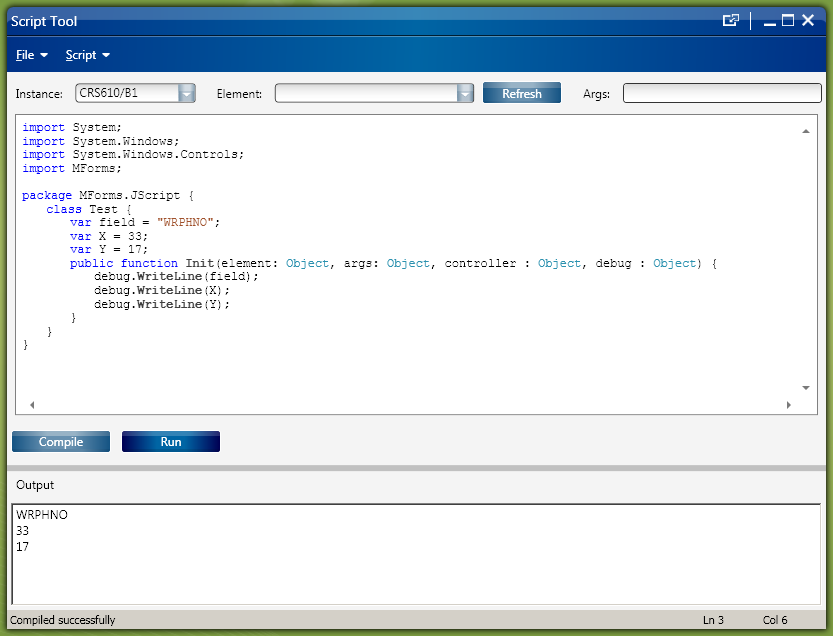
Suppose we have three settings: fieldX, and Y that we want to pass to a script with the respective values WRPHNO, 33, and 17. The question is how do we pass those settings and their values to the script? I can think of five techniques: 1) hard-code the settings in the source code, 2) use comma separated values and String.Split, 3) use JSON, 4) use XML, or 5) use Java Properties or .NET Resource files.

1. Hard-code the settings

The first technique is to hard-code the settings as Fields in the class declaration of the script:

var field = "WRPHNO";
var X = 33;
var Y = 17;

Here is an example:

Or we can use an Array:

var settings = ["WRPHNO", 33, 17];
settings[0] // field
settings[1] // X
settings[2] // Y

Here is an example with the Array:

2. Use comma separated values and String.Split

The second technique is to pass a comma separated list of values like WRPHNO,33,17 as the argument of the script, and to access the values as an array after a String.Split:

var settings = args.Split(",");
settings[0] // field
settings[1] // X
settings[2] // Y

Here is an example:

We can also read the values from a file:

var settings = System.IO.File.ReadAllText("C:\\path\\settings.txt").Split(",");

3. Use JSON

The third technique is to use JSON. With JSON we write our settings in object literal notation like this:

{ "field": "WRPHNO",
 "X": 33,
 "Y": 17 }

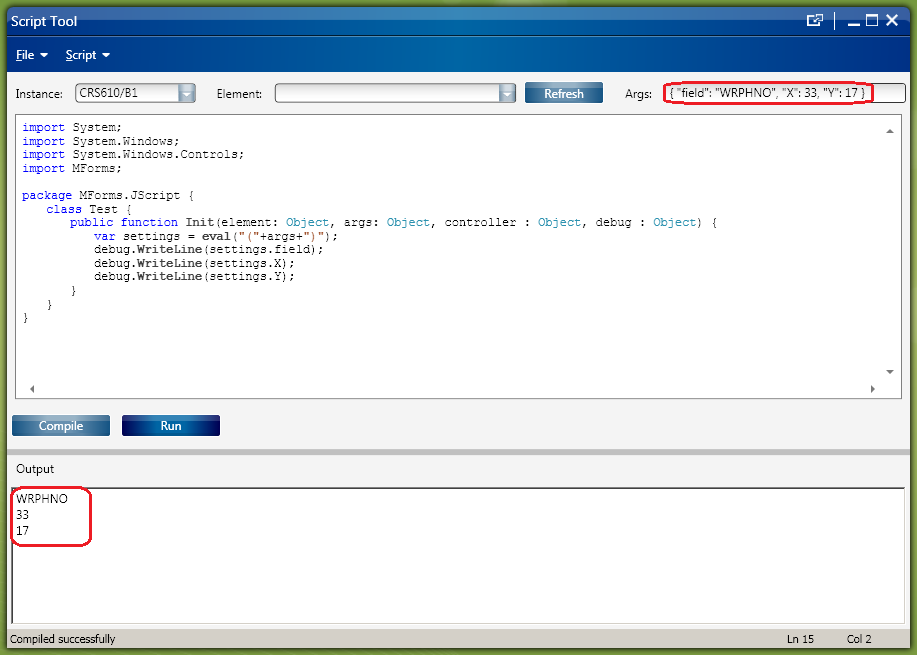
We set the JSON text as the argument of the script, surrounded by parenthesis, and we call eval(JSON) from the script. The settings become a JScript object that we can access with settings.field, settings.X, and settings.Y. Here is an example:

We can also read the JSON text from a file:

var JSON = System.IO.File.ReadAllText("C:\\path\\settings.txt");
var settings = eval("("+JSON+")");

4. Use XML

The fourth technique is to pass XML as the argument of the script, and to use XPath in SelectSingleNode to access the values:

var doc = new XmlDocument();
doc.LoadXml(args);
doc.SelectSingleNode("/settings/field").InnerText
doc.SelectSingleNode("/settings/X").InnerText
doc.SelectSingleNode("/settings/Y").InnerText

Here is an example:

We can also load the XML from a file:

doc.Load("file://hostname/settings.xml");

5. Use Properties or Resource files

The fifth technique is to use Java Properties files or .NET Resource files, but I couldn’t find a concise solution that fits in only a couple of lines of code; it seems to require many lines of code.

UPDATE 2012-12-14: I would copy/paste my properties file to the Smart Office installation point folder on the web server, and refer to it from the script as http://smartoffice/LSO/thibaud.properties using standard .NET classes to read files. If you have an example let me know and I can post it here.

Discussion

The hard-coded values are simple to implement for the developer, but it makes the script non reusable by nature, and it invites a risk of corruption when the administrator has to manually edit the source code to change the settings.

The comma separated list of values and String.Split is also simple to implement for the developer, but maintenance is inversely proportional to scalability: the more settings we add the harder it becomes to identify which value is located where in the string. Also, if by mistake a comma goes missing the whole settings are compromised.

Using JSON is great because of the possibilities to validate the JSON object with JSlint and JSONLint. Also, it’s scalable: we can store a large number of settings in complex structures like in sub-settings or in a tree of settings and still maintain readability.

Using XML is great for all the advantages of XML, like editing tools and semantic validation.

Settings page

I encourage implementing a settings page as an HTML form for the administrators to easily configure the script and save the settings in the XML Customization file in Smart Office.

In our example, and with JSON, we would have the following HTML form:

<input id="field"/>

We create a JSON string in JavaScript like this:

var settings = {};
settings.field = document.getElementById("field").value;
settings.X = document.getElementById("X").value;
settings.Y = document.getElementById("Y").value;
var JSONtext = JSON.stringify(settings);

The JSON object is provided as a JS file by Douglas Crockford here, and it is also natively supported in modern web browsers like Microsoft Internet Explorer 8 and in Google Chrome.

Our settings page would look like this:

The source code for that simple settings page is:

// <![CDATA[
javascript" src="https://raw.github.com/douglascrockford/JSON-js/master/json2.js">
// ]]>// Field  X  Y  

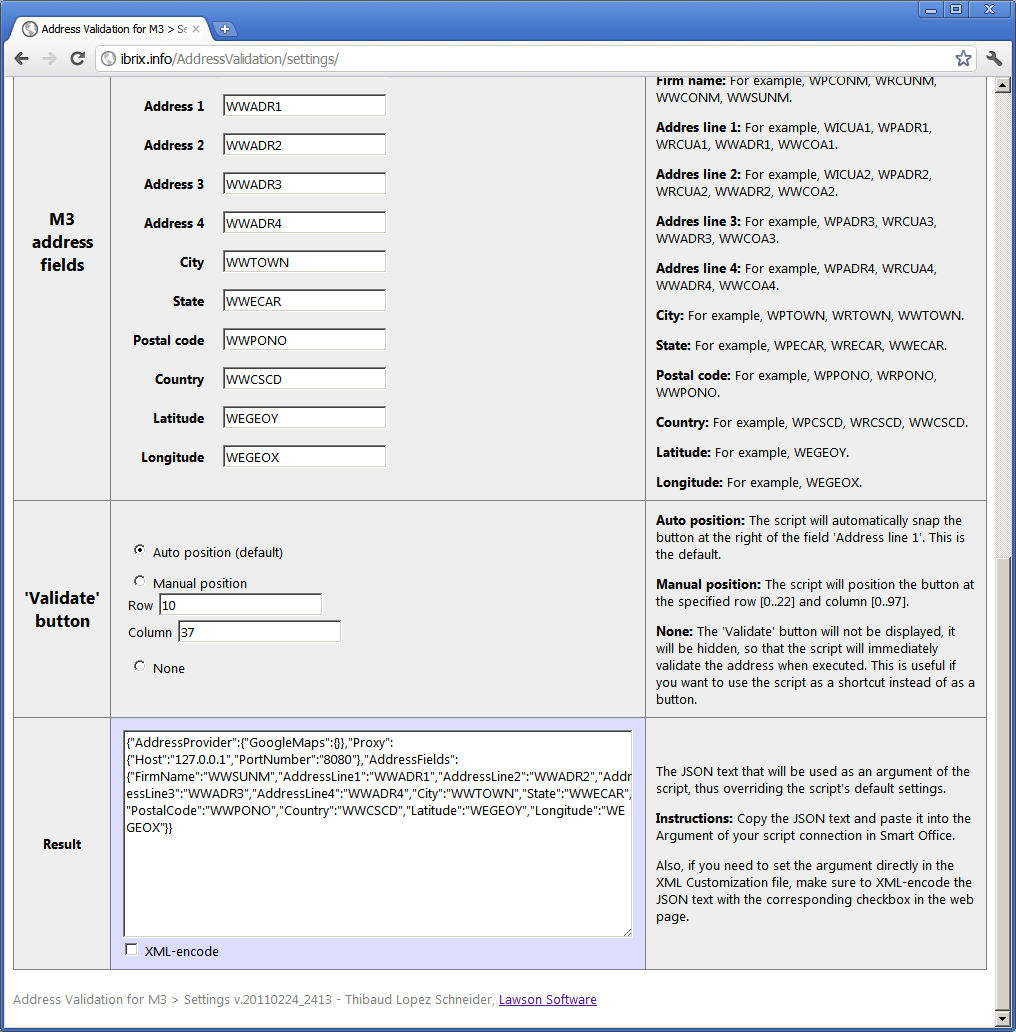
Here are two sample web pages that use JSON for passing plenty of settings to a script to be stored in the XML Customization file:

Sample 1: http://ibrix.info/AddressValidation/settings/
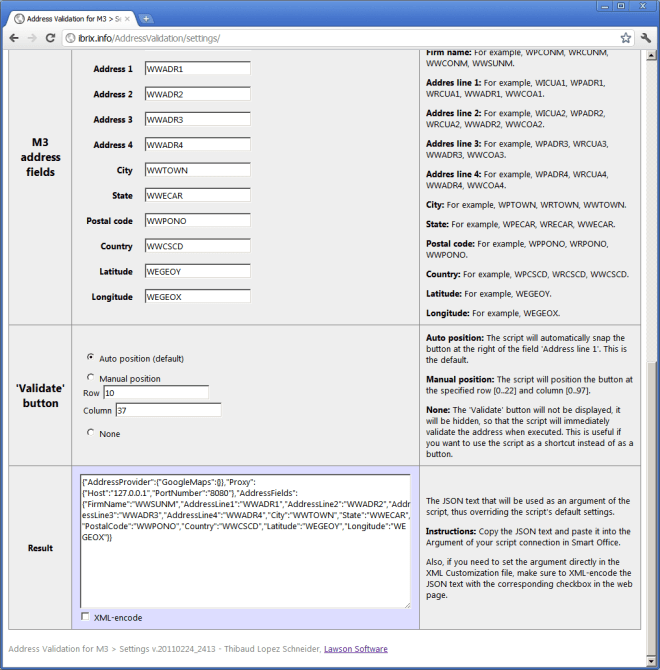
Sample 2: http://ibrix.info/skype/settings/
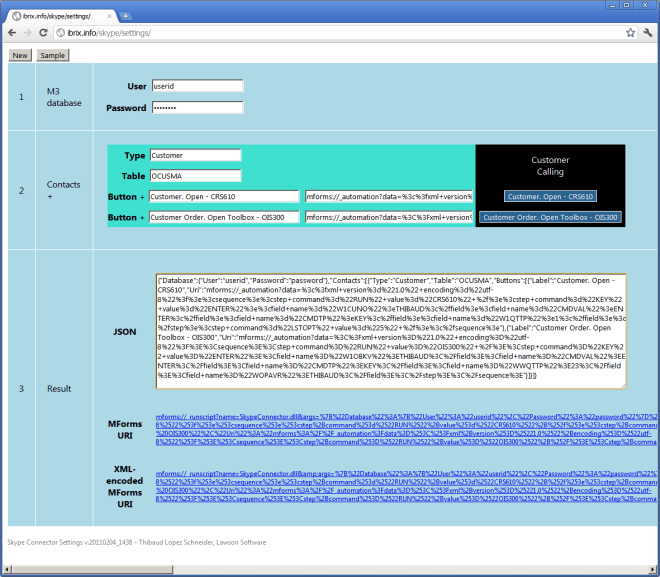
Customization file

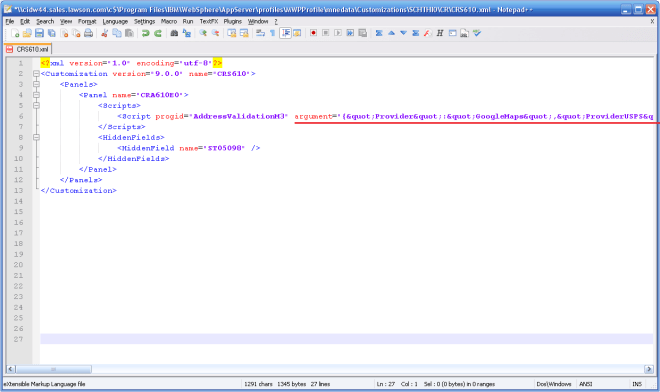
Once the settings are generated, either as a comma separated list of values, or as JSON text, or as XML, we can save the result in the argument attribute of the Customization file in Smart Office. The value must be XML escaped with for example this online tool.

Here is an example of an XML Customization file for a script AddressValidationM3 for CRS610/E with plenty of XML-escaped JSON as the argument:
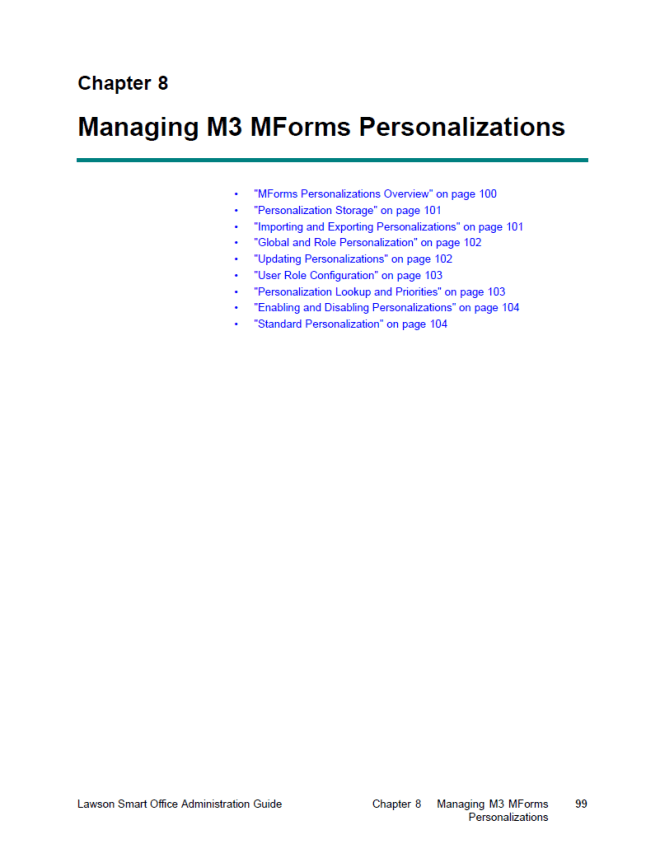
For more information on XML Customization files in Smart Office, refer to the Chapter Managing M3 MForms Personalizations of the Lawson Smart Office Administration Guide:
Print M3 programs locally

Did you ever want to quickly print a screen capture of the current M3 program using any of your local Windows printers and printer preferences?

Print Screen

One known technique is to press the Print Screen button on the keyboard, and to paste the resulting bitmap image into Microsoft Paint or Microsoft Word, and to print from there. The result is a bitmap print. The advantages are: the truthfulness of the result which is a replica of what the user sees on the screen (WYSIWYG), the ability to print locally using the locally configured Windows printers, as well as the last minute control of the printer preferences. The disadvantage is the poor non vectorial quality, and the waste of printer ink used in printing background colors.

MOM, StreamServe

The other known technique is to print using the standard M3 functionality via MOM and streamfiles to StreamServe. The result is a vectorial print. The advantages are: the high quality of the vectorial print, the ability to customize the resulting documents via StreamServe Design Center, and the pre-configuration of the printer preferences in MOM. Also, StreamServe can print more complex content like barcodes. The disadvantage is that pretty much each M3 program needs to be configured via MOM and StreamServe, which requires custom implementation, as well as the inability to print locally using the locally configured Windows printers, and the inability to have last minute control of the printer preferences.

Script

It’s actually possible to programmatically print a screen capture of the current M3 program with a simple Personalized Script for Lawson Smart Office in JScript.NET. The result is similar to using the Print Screen button, while avoiding the extra steps of pasting the bitmap image into Microsoft Paint or Microsoft Word. One click print, locally.

For that, the script must get a reference to the current M3 window, convert the content from vectorial to bitmap using RenderTargetBitmap and BmpBitmapEncoder, and to print it using PrintDocument.

import System;
import System.IO;
import System.Drawing;
import System.Drawing.Printing;
import System.Windows.Media;
import System.Windows.Media.Imaging;

package MForms.JScript {
	class PrintMe {
		var img;
		public function Init(element: Object, args: Object, controller : Object, debug : Object) {
			try {

				// get the current window
				var h = controller.RenderEngine.Host;
				var e = h.VisualElement;

				// convert vectorial to bitmap
				var RTbmap: RenderTargetBitmap = new RenderTargetBitmap(h.Width, h.Height, 96, 96, PixelFormats.Default);
				RTbmap.Render(e);
				var encoder = new BmpBitmapEncoder();
				encoder.Frames.Add(BitmapFrame.Create(RTbmap));
				var stream = new MemoryStream();
				encoder.Save(stream);
				var gdiBitmap = new Bitmap(stream);
				stream.Close();
				stream.Dispose();
				this.img = gdiBitmap;

				// print
				var pd: PrintDocument = new PrintDocument();
				pd.add_PrintPage(OnPrintPage);
				pd.Print();

			} catch (ex: Exception) {
				debug.WriteLine(ex);
			}
		}
		function OnPrintPage(sender: Object, e: PrintPageEventArgs) {
			e.Graphics.DrawImage(this.img, 0, 0);
		}
	}
}

There are also options to preview the document and to open the printer preferences but I haven’t yet succeeded in using them correctly:

(new PrintPreviewDialog()).ShowDialog();
(new PrintDialog()).ShowDialog();

Suppose you have an M3 program like this:

The result of the print would look like this (using printer PDF995):

The next step is to find a solution to add a margin, polish the print, and show the print preview and printer preferences.

The last step would be to place the script in a new Print button in the M3 panel, or to inject a new Print option in the File menu, to deploy the script on the server, and to attach it to the desired M3 programs with the XML Customization files. With that, the user would be able to quickly and locally print the M3 programs.

SQL to XML in a Script

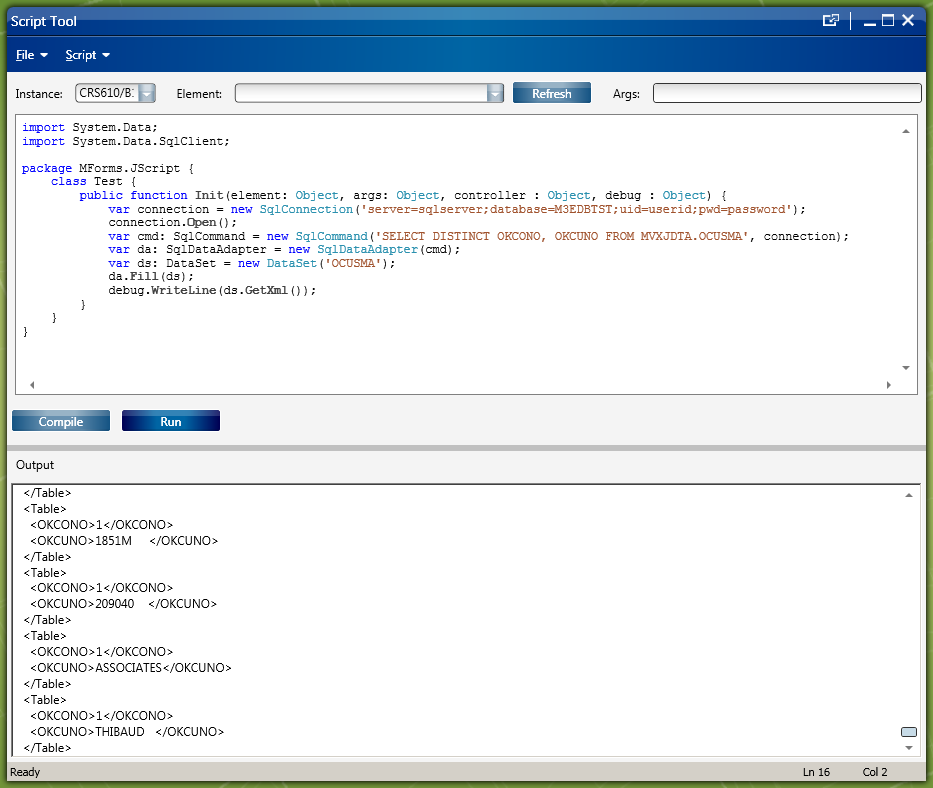
Here’s an example of how to read data from M3’s database using SQL, and how to convert the result into XML, in a Personalized Script for Lawson Smart Office. This example is for Microsoft SQL Server.

import System.Data;
import System.Data.SqlClient;

package MForms.JScript {
     class Test {
         public function Init(element: Object, args: Object, controller : Object, debug : Object) {
             var connection = new SqlConnection('server=sqlserver;database=M3EDBTST;uid=userid;pwd=password');
             connection.Open();
             var cmd: SqlCommand = new SqlCommand('SELECT DISTINCT OKCONO, OKCUNO FROM MVXJDTA.OCUSMA', connection);
             var da: SqlDataAdapter = new SqlDataAdapter(cmd);
             var ds: DataSet = new DataSet('result');
             da.Fill(ds);
             debug.WriteLine(ds.GetXml());
         }
     }
}

It produces the following XML:

<result>
  <Table>
    <OKCONO>1</OKCONO>
    <OKCUNO>Y60000    </OKCUNO>
  </Table>
  <Table>
    <OKCONO>1</OKCONO>
    <OKCUNO>Y60001    </OKCUNO>
  </Table>
  ...
</result>

The result looks like:

Create XML in a Script

There are several techniques to create an XML document in a Personalized Script for Lawson Smart Office. The programming language is JScript.NET.

1) XElement

Here’s an example with LINQ’s XElement :

import System;
import System.Xml.Linq;

package MForms.JScript {
     class Test {
         public function Init(element: Object, args: Object, controller : Object, debug : Object) {
             var x: XElement = new XElement('hello',
                 new XAttribute('id', 'message'),
                 new XElement('world', 'Hello World!'));
             debug.WriteLine(x.ToString());
         }
     }
 }

It produces the following XML:

<hello id="message">
  <world>Hello World!</world>
</hello>

Here’s a screenshot of the result:

2) XmlDocument

Here’s an example with XmlDocument:

import System;
import System.Xml;

package MForms.JScript {
     class Test {
         public function Init(element: Object, args: Object, controller : Object, debug : Object) {
             var doc: XmlDocument = new XmlDocument();
             var dec: XmlDeclaration = doc.CreateXmlDeclaration('1.0', null, null);
             doc.AppendChild(dec);
             var root: XmlElement = doc.CreateElement('hello');
             doc.AppendChild(root);
             var child: XmlElement = doc.CreateElement('world');
             child.SetAttribute('id', 'message');
             child.InnerText = 'Hello World!';
             root.AppendChild(child);
             debug.WriteLine(doc.OuterXml);
         }
     }
}

It produces the following XML:

<?xml version="1.0"?><hello><world id="message">Hello World!</world></hello>

Here’s a screenshot of the result:

3) XmlWriter

And here’s an example with XmlWriter:

import System;
import System.Xml;
import System.Text;

package MForms.JScript {
     class Test {
         public function Init(element: Object, args: Object, controller : Object, debug : Object) {
             var s: StringBuilder = new StringBuilder('');
             var writer: XmlWriter = XmlWriter.Create(s);
             writer.WriteStartDocument();
             writer.WriteStartElement('hello');
             writer.WriteAttributeString('id', 'message');
             writer.WriteElementString('world', 'Hello World');
             writer.WriteEndElement();
             writer.WriteEndDocument();
             writer.Flush();
             debug.WriteLine(s);
         }
     }
}

It produces the following XML:

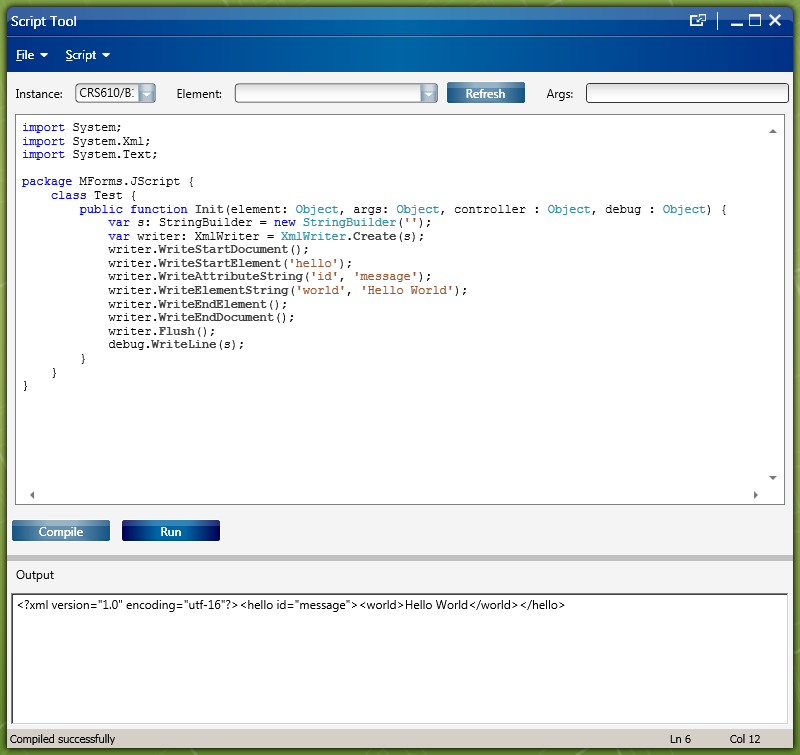
<?xml version="1.0" encoding="utf-16"?><hello id="message"><world>Hello World</world></hello>

Here’s a screenshot of the result:

4) XmlSerializer

Here’s an example with XmlSerializer:

import System.Text;
import System.Xml;
import System.Xml.Serialization;

package MForms.JScript {
     class Test {
         public function Init(element: Object, args: Object, controller : Object, debug : Object) {
             var o = new Hello();
             var s = new XmlSerializer(o.GetType(), 'thibaudns');
             var b: StringBuilder = new StringBuilder('');
              var writer: XmlWriter = XmlWriter.Create(b);
             s.Serialize(writer, o);
             debug.WriteLine(b);
         }
     }
     class Hello {
         var World: String = 'Hello World!';
     }
}

It produces the following XML:

<?xml version="1.0" encoding="utf-16"?>
<Hello xmlns:xsi="http://www.w3.org/2001/XMLSchema-instance" xmlns:xsd="http://www.w3.org/2001/XMLSchema" xmlns="thibaudns">
<World>Hello World!</World>
</Hello>

Here’s a screenshot of the result:

Discussion

Here is a discussion on when to use which solution.

Note: I tested these examples with Lawson Smart Office 9.1.3.1.7.

Send SMS from Smart Office with Skype

To send an SMS text message to a mobile phone from a Personalized Script in Lawson Smart Office using Skype do:

skype.SendSms("+18472874945", "Hello World", null)

Script

A simple script that sends an SMS would be:

import System;
import System.Reflection;

package MForms.JScript {
    class SendSms {
         public function Init(element: Object, args: Object, controller : Object, debug : Object) {
             try {
                 var assembly: Object = Assembly.LoadFrom('C:\\Program Files\\Skype\\SEHE\\Interop.SKYPE4COMLib.dll');
                 var skype = assembly.CreateInstance('SKYPE4COMLib.SkypeClass');
                 skype.Attach(8, false);
                 skype.SendSms('+18472874945', 'Hello World!', null);
             } catch (ex: Exception) {
                 debug.WriteLine(ex);
             }
         }
    }
}

Note: The programming language for scripts in Smart Office is JScript.NET.

Installation

Follow these steps to run the script above:

  1. Download and install Skype on the computer that is running Smart Office (the script must communicate with Skype locally). Then sign in to Skype (the script will not work if you are not signed in). Also, your Skype account must have credit (USD, EUR, etc.) to be able to send SMS.
  2. Download and unzip Skype4COMsomewhere in your computer, for example C:\Program Files\Skype\skype4com-1.0.36\ . Skype4COM is the API used to send/receive Skype commands. Then register the DLL Skype4COM.dll with the following command:
    regsvr32 Skype4COM.dll

  3. Download and install SEHE and place the file Interop.SKYPE4COMLib.dll somewhere in your computer or somewhere on the network so that it is accessible by the Smart Office computer, for example C:\Program Files\Skype\SEHE\Interop.SKYPE4COMLib.dll or http://host/path/Interop.SKYPE4COMLib.dll . That DLL contains the Interop code to be able to call Skype4COM from the .NET framework.
  4. Launch Smart Office, and log in.
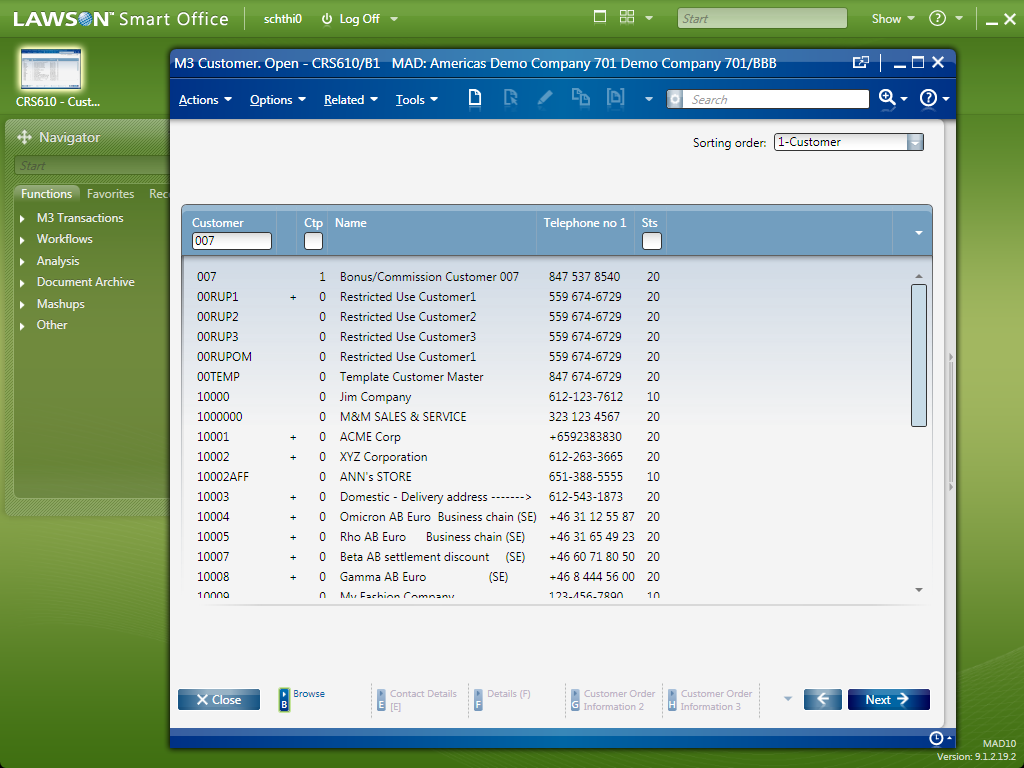
  5. For the Script Tool it is necessary to have an M3 program open, so open for example Customer. Open – CRS610.
  6. Open the Script Tool with the following command:
    mforms://jscript
  7. Copy/paste the sample script above into the Script Tool
  8. Change the path to the DLL. In my example I used C:\\Program Files\\Skype\\SEHE\\Interop.SKYPE4COMLib.dll . Make sure to escape the backslashes in the String with double backslashes.
  9. Change the phone number. It must be in international notation. In my example I used +18472874945.
  10. Click Compile
  11. Click Run
  12. Skype will show the message “LawsonClient.exe wants to use Skype”. Click Allow access; Skype will only ask once.
  13. Skype will now send the SMS. Check in your mobile phone that you received it. That’s it!

Note: I tested this on Windows XP and on Windows 7 32-bit with success. It doesn’t seem to work on Windows 64-bit. Also, I tested this in Smart Office 9.x.

More advanced script

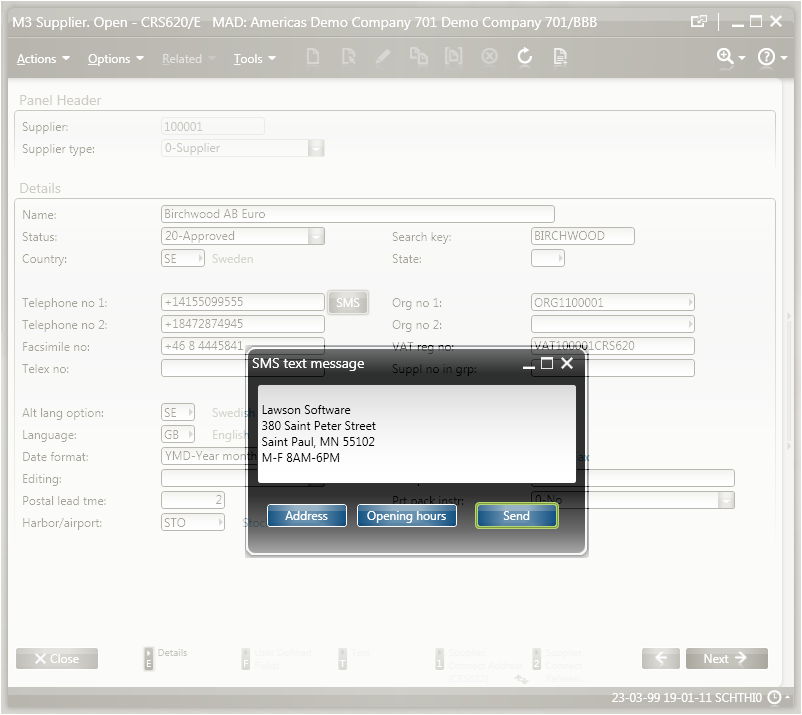
A more elaborated script with an editable SMS text message in a pop-up looks like: