In this article I illustrate a technique to dynamically add a column to the list of a B panel in M3 using a Personalized Script for Lawson Smart Office.
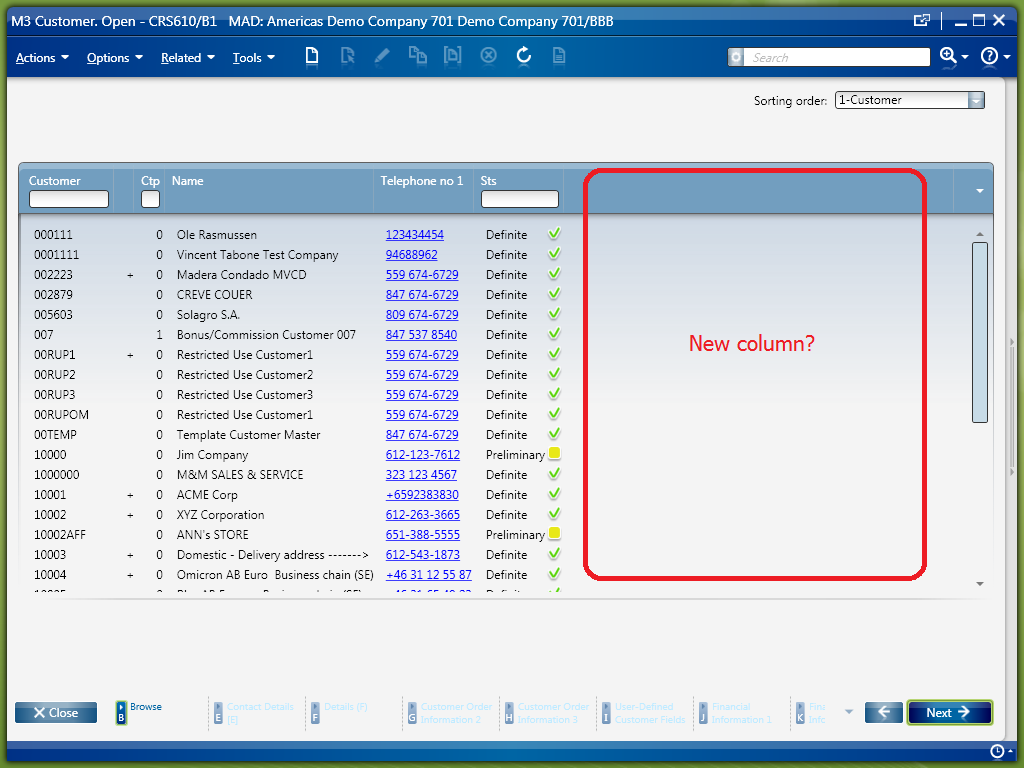
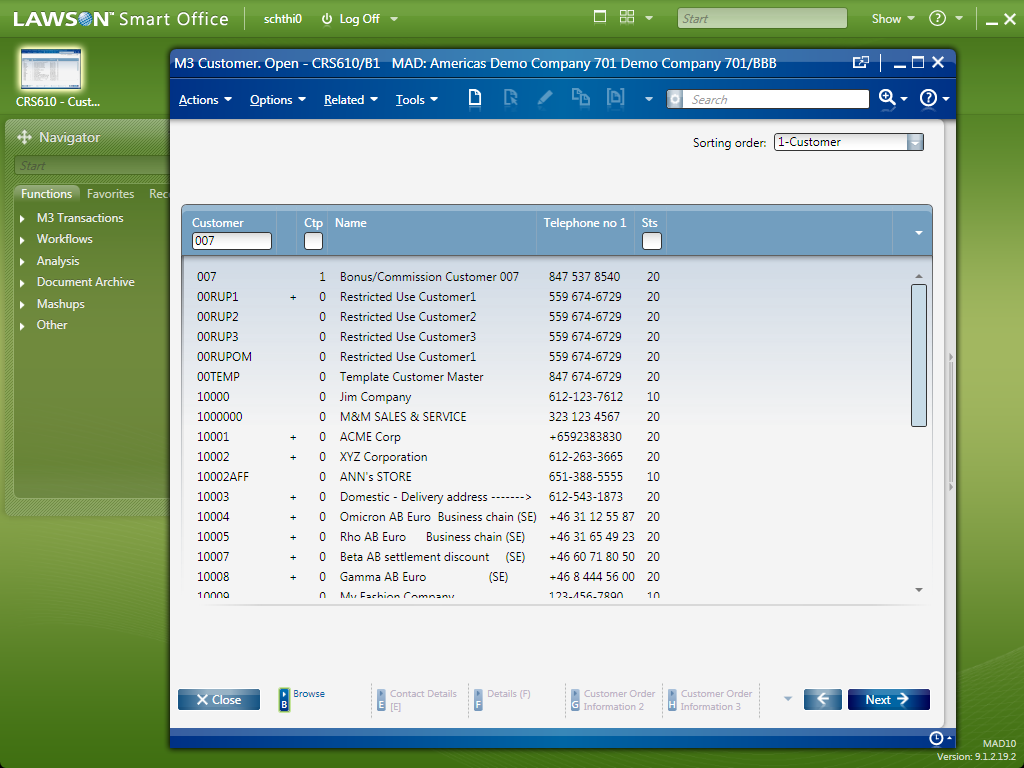
For example, suppose we want to add the column Country (CSCD) in CRS610/B1. None of the available Sorting orders (QTTP) displays the Country. How do we do?
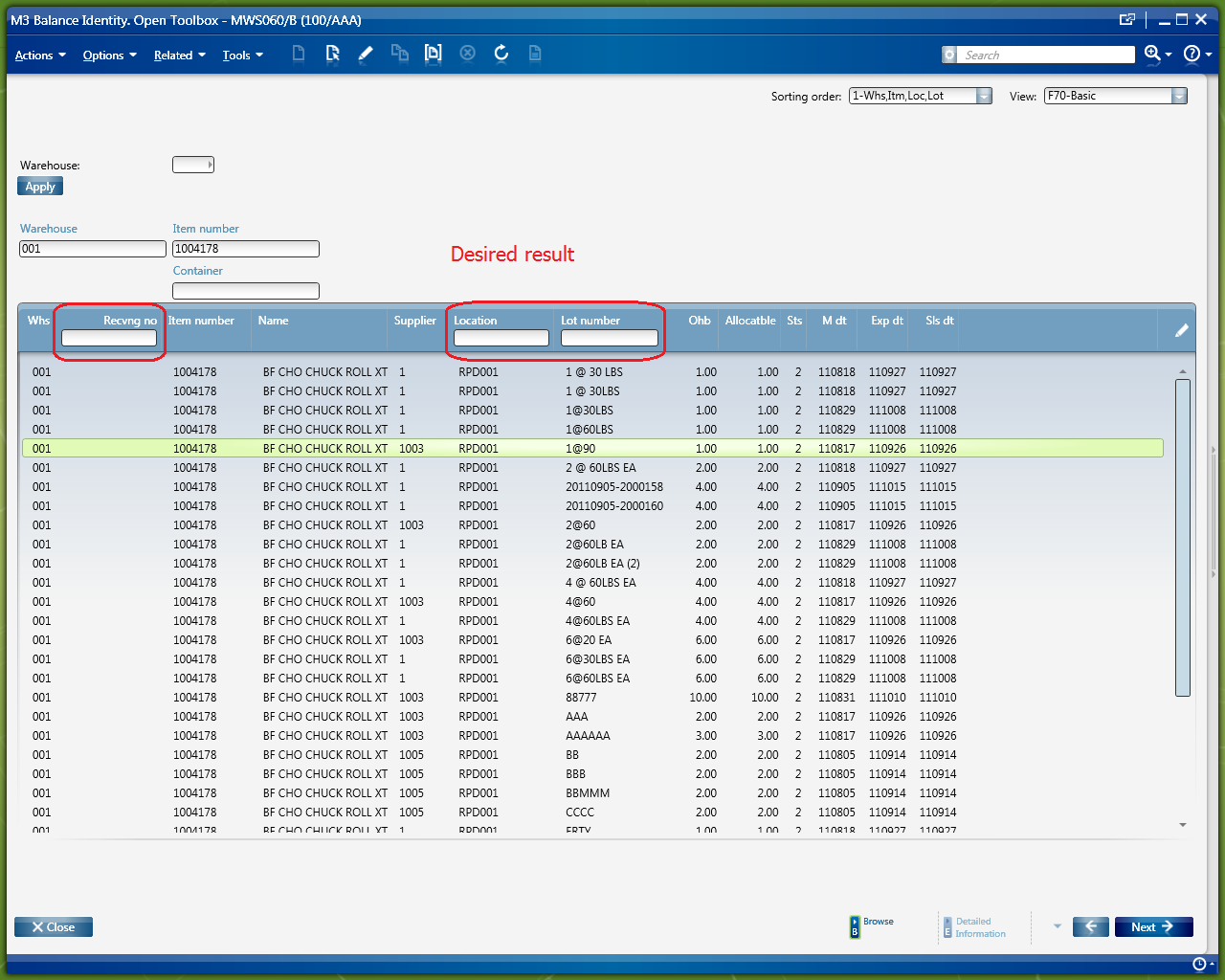
This is the desired result:
1. Add a column by changing the View in CRS020
The first technique would be to add a column by simple configuration of the View in CRS020. But sometimes the specified M3 program is not configured for it. For instance, CRS610 is not configurable, whereas MMS200 is configurable as seen in this screenshot:

2. M3 modification
The second technique would be to add a column with a modification to the M3 Java source code and to the View Definition with MAK. But modifications may not be an option in certain M3 implementations.
3. Add a column programmatically with a script
The third technique would be to add a column dynamically with a Personalized Script for Lawson Smart Office.
Append the column
First, we get a reference to the list’s controls:
var listControl = controller.RenderEngine.ListControl; // MForms.ListControl
var listView = controller.RenderEngine.ListViewControl; // System.Windows.Controls.ListView
var columns = listView.View.Columns; // System.Windows.Controls.GridViewColumnCollection
Second, we append a new GridViewColumn to the ListView:
var gvch = new GridViewColumnHeader();
gvch.Content = "New Column";
var gvc = new GridViewColumn();
gvc.Header = gvch;
gvc.CellTemplateSelector = new ListCellTemplateSelector(columns.Count, listControl.Columns);
columns.Add(gvc);
Third, we increase each row’s array by one additional element:
var rows = listView.Items;
for (var i = 0; i < rows.Count; i++) {
	var row = rows[i];
	var oldArray = row.Items;
	var newArray = new String[columns.Count];
	oldArray.CopyTo(newArray, 0);
	row.Items = newArray;
	rows.RemoveAt(i);
	rows.Insert(i, row);
}
Finally, we can set our values in the new column:
listView.Items[0].Items[columns.Count - 1] = "Hello world 0";
listView.Items[1].Items[columns.Count - 1] = "Hello world 1";
listView.Items[2].Items[columns.Count - 1] = "Hello world 2";
listView.Items[3].Items[columns.Count - 1] = "Hello world 3";
listView.Items[4].Items[columns.Count - 1] = "Hello world 4";
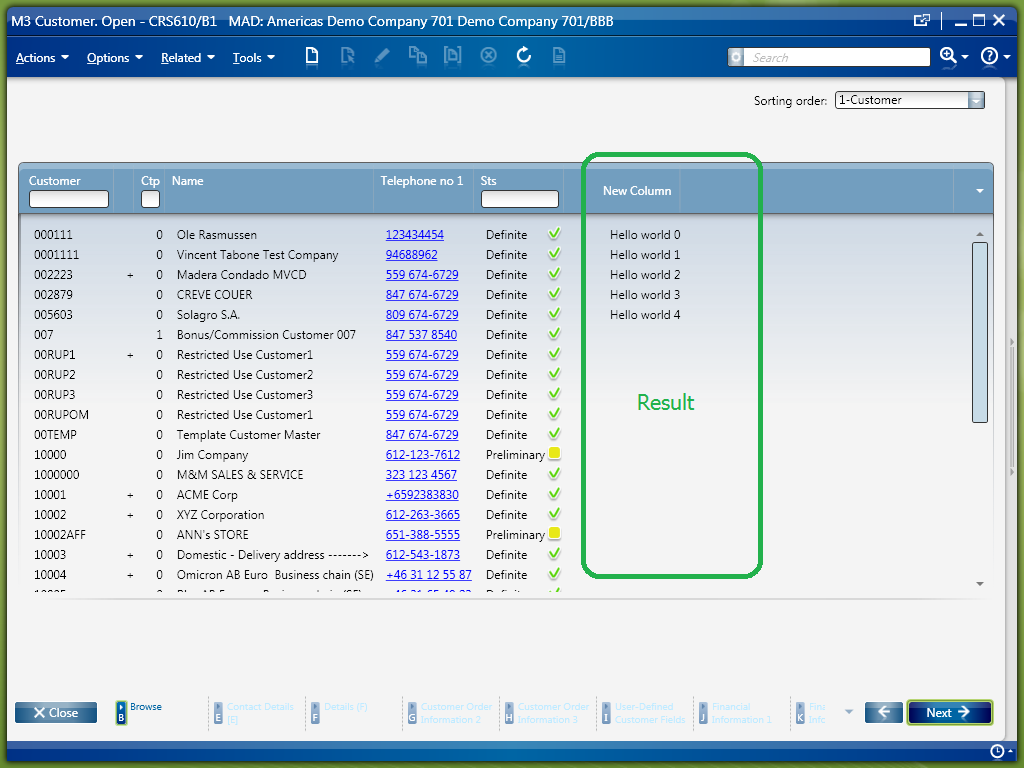
The result looks like this, with the Personalizations like Hyperlinks and Conditional Styles preserved:
The complete script looks like this:

Populate with data
Now we have to populate the column with actual data from M3. For that we can call an M3 API, execute SQL, or consume a Lawson Web Service. We can even use the API MDBREADMI to read an M3 table instead of using SQL.
In this article, I will just hard-code “Hello World” and I will let the reader choose the technique that best suits its needs because getting the data off M3 is not the point of this post.
Load more data on scroll view
Finally, we have to load data in increments as the user scrolls the view. Indeed, as the user scrolls down the list Smart Office loads the data in increments, without re-rendering the whole panel, for efficiency.
For that, we need the VisualTreeHelper to get a reference to the ScrollViewer:
var border = VisualTreeHelper.GetChild(listView, 0);
var grid = VisualTreeHelper.GetChild(border, 0);
var scrollViewer: ScrollViewer = VisualTreeHelper.GetChild(grid, 3); // System.Windows.Controls.ScrollViewer
Then, we have to attach to the ScrollViewer’s OnScrollChanged event:
scrollViewer.add_ScrollChanged(OnScrollChanged);
function OnScrollChanged(sender: Object, e: ScrollChangedEventArgs) {}
That event is fired either once, either consecutively twice depending on if new rows were added to the list or not. Only when e.VerticalChange==0 it means that new rows were added.
var oldCount, newCount;
function OnScrollChanged(sender: Object, e: ScrollChangedEventArgs) {
     if (e.VerticalChange != 0) {
         oldCount = listView.Items.Count;
     } else {
         newCount = listView.Items.Count;
         var diff = newCount - oldCount; // that many rows were just added to the list
     }
}
Here’s an illustration:

Now we know exactly which rows are new:
var fromRowIndex = oldCount;
var toRowIndex = newCount - 1;
for (var i = fromRowIndex; i <= toRowIndex; i++) {
     listView.Items[i] // new row
}
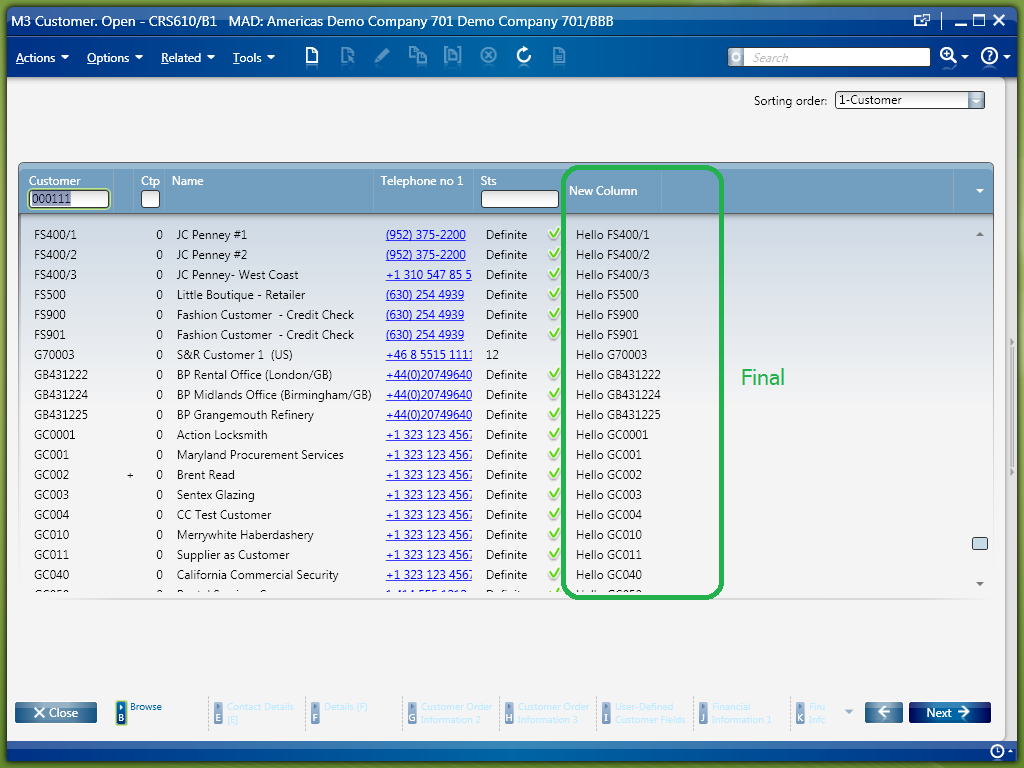
Now we can load and show some data, like Hello + customer number:
var lastColumnIndex = columns.Count - 1;
for (var i = fromRowIndex; i <= toRowIndex; i++) {
     var row = listView.Items[i];
     var data = "Hello " + row.Item[0]; // Hello CUNO
     row.Items[lastColumnIndex] = data;
}
Here is a screenshot of the final result:
Here’s the complete source code:
 import System;
 import System.Windows;
 import System.Windows.Controls;
 import System.Windows.Media;
 import Mango.UI.Services.Lists;

 package MForms.JScript {
     class Test {

         var listView, oldCount;
         /*
             Main entry point.
         */
         public function Init(element: Object, args: Object, controller : Object, debug : Object) {
             try {
                 var listControl = controller.RenderEngine.ListControl; // MForms.ListControl
                 this.listView = controller.RenderEngine.ListViewControl; // System.Windows.Controls.ListView
                 var columns = listView.View.Columns; // System.Windows.Controls.GridViewColumnCollection

                 // append a new GridViewColumn to the ListView
                 var gvch = new GridViewColumnHeader();
                 gvch.Content = "New Column";
                 var gvc = new GridViewColumn();
                 gvc.Header = gvch;
                 gvc.CellTemplateSelector = new ListCellTemplateSelector(columns.Count, listControl.Columns);
                 columns.Add(gvc);

                 var fromRow = 0;
                 var toRow = listView.Items.Count - 1;
                 var newNbColumns = columns.Count;
                 var lastColumnIndex = columns.Count - 1;

                 // increase each row's array by one additional element
                 increaseRowsArray(fromRow, toRow, newNbColumns);

                 // load data in the new column of each row
                 loadData(fromRow, toRow, lastColumnIndex);

                 // find the ScrollViewer
                 var border = VisualTreeHelper.GetChild(listView, 0);
                 var grid = VisualTreeHelper.GetChild(border, 0);
                 var scrollViewer: ScrollViewer = VisualTreeHelper.GetChild(grid, 3); // System.Windows.Controls.ScrollViewer

                 // attach to the OnScrollChanged event
                 scrollViewer.add_ScrollChanged(OnScrollChanged);
                 scrollViewer.add_Unloaded(OnUnloaded);

             } catch (ex: Exception) {
                 debug.WriteLine(ex);
             }
         }

         /*
             That event is fired either once, either consecutively twice depending on if new rows were added to the list or not.
             Only when e.VerticalChange==0 it means that new rows were added.
         */
         function OnScrollChanged(sender: Object, e: ScrollChangedEventArgs) {
             try {
                 if (e.VerticalChange != 0) {
                     oldCount = listView.Items.Count;
                 } else {
                     var fromRow = oldCount;
                     var toRow = listView.Items.Count - 1;
                     var newNbColumns = listView.View.Columns.Count;
                     var lastColumnIndex = listView.View.Columns.Count - 1;
                     increaseRowsArray(fromRow, toRow, newNbColumns);
                     loadData(fromRow, toRow, lastColumnIndex);
                 }
             } catch (ex: Exception) {
                 MessageBox.Show(ex);
             }
         }

         /*
             Increase each row's array by one additional element.
         */
         function increaseRowsArray(fromRow, toRow, newNbColumns) {
             var rows = listView.Items;
             for (var i = fromRow; i <= toRow; i++) {
                 var row = rows[i];
                 var oldArray = row.Items;
                 var newArray = new String[newNbColumns];
                 oldArray.CopyTo(newArray, 0);
                 row.Items = newArray;
                 rows.RemoveAt(i);
                 rows.Insert(i, row);
             }
         }

         /*
             Loads data in the list, from the specified row's index, to the specified row's index, at the specified column index.
         */
         function loadData(fromRow, toRow, columnIndex) {
             for (var i = fromRow; i <= toRow; i++) {
                 var data = "Hello " + listView.Items[i].Item[0]; // Hello CUNO
                 listView.Items[i].Items[columnIndex] = data;
             }
         }

         /*
             Cleanup
         */
         function OnUnloaded(sender: Object, e: RoutedEventArgs) {
             sender.remove_Unloaded(OnUnloaded);
             sender.remove_ScrollChanged(OnScrollChanged);
         }

     }
 }
That’s it! Special thanks to Peder W for the original solution.
UPDATE 2012-09-27
This script is deprecated. Refer to the latest script here.
Related articles
- Custom Lists & Mashups, how to add columns to a list with a Custom List and Mashups
- How to add a column to a list (continued), latest post on how to add columns to a list with a script












 M3 ideas