There are plenty of Mashups and Personalized Scripts for Lawson Smart Office available on the Lawson Software Marketplace. To access them, login to your MyLawson.com account, and select Marketplace, the top right tab.

There are plenty of Mashups and Personalized Scripts for Lawson Smart Office available on the Lawson Software Marketplace. To access them, login to your MyLawson.com account, and select Marketplace, the top right tab.
Here is an unofficial technique to write to the Lawson Smart Office log file from a Personalized Script. Smart Office uses the Apache log4net library to write to the log file and we can similarly write to the log file from our scripts. Before using the techniques of this blog you must acknowledge my disclaimer.
The JScript.NET example comes from the log4net Source Distribution at:
log4net\examples\net\1.1\Tutorials\ConsoleApp\js\src\LoggingExample.js
First, we get a reference to the Smart Office logger via Mango.Core:
var log: log4net.ILog = Mango.Core.LogManager.GetLogger(System.Reflection.MethodBase.GetCurrentMethod().DeclaringType);
Then, we can write to the log file in any of the log levels:
log.Info("Hello World!");
log.Debug("This is a Debug");
log.Error("This is an Error");
log.Fatal("This is Fatal");
log.Warn("This is a Warning");
We should check if the logger is enabled for that level:
if (log.IsInfoEnabled) log.Info("Hello World!");
if (log.IsDebugEnabled) log.Debug("This is a Debug");
if (log.IsErrorEnabled) log.Error("This is an Error");
if (log.IsFatalEnabled) log.Fatal("This is Fatal");
if (log.IsWarnEnabled) log.Warn("This is a Warning");
The log file can be opened with Smart Office > Help > About Lawson Smart Office > View log file:

It opens in Notepad in Lawson Smart Office 9.1.2.x:

And it opens in the Log Viewer in the newer Lawson Smart Office 9.1.3.x:

For more information, the Apache log4net SDK Documentation details all the ILog Members.
To know the full path and file name of the log file, get this value:
Mango.Core.Storage.FileStorageMachineOnly.Current.FullFilePath("LawsonClient.log")
For example, in my computer the full path and file name to the Smart Office log file is:
C:\Users\12229\AppData\Local\Apps\2.0\Data\79O176HR.9E2\N43AOMBD.0HB\http..tion_201b89ff2ddb7d50_0009.0001_aca28e931f10a84f\Data\LawsonClient.log
Also, you can use a tail program such as Tail for Win32 to monitor the log file:

Here’s the complete source code of my sample:
import System;
import Mango;
import log4net;

package MForms.JScript {
    class MyLogTest {
        public function Init(element: Object, args: Object, controller: Object, debug: Object) {
            debug.WriteLine(Mango.Core.Storage.FileStorageMachineOnly.Current.FullFilePath("LawsonClient.log")); // filename + path
            var log: log4net.ILog = Mango.Core.LogManager.GetLogger(System.Reflection.MethodBase.GetCurrentMethod().DeclaringType);
            if (log.IsInfoEnabled) log.Info("Hello World!");
            if (log.IsDebugEnabled) log.Debug("This is a Debug");
            if (log.IsErrorEnabled) log.Error("This is an Error");
            if (log.IsFatalEnabled) log.Fatal("This is Fatal");
            if (log.IsWarnEnabled) log.Warn("This is a Warning");
        }
    }
}
Note: I have successfully tested this in Smart Office 9.1.2.x and 9.1.3.x.
That’s it!
Here is the solution to start a Mashup in Lawson Smart Office with input parameters.
C:\Test.xaml

mashup:///?BaseUri=C:\&RelativeUri=Test.xaml

DefaultValues=InputParameter:Hello+World!
mashup:///?BaseUri=C:\&RelativeUri=Test.xaml&DefaultValues=InputParameter:Hello+World!
{Binding Converter={StaticResource CurrentItemValue}, ConverterParameter=InputParameter, Mode=OneTime}
<TextBox Text="{Binding Converter={StaticResource CurrentItemValue}, ConverterParameter=InputParameter, Mode=OneTime}" Grid.Column="1" />
<Grid.Resources>
	<mashup:CurrentItemValue x:Key="CurrentItemValue" />
</Grid.Resources>

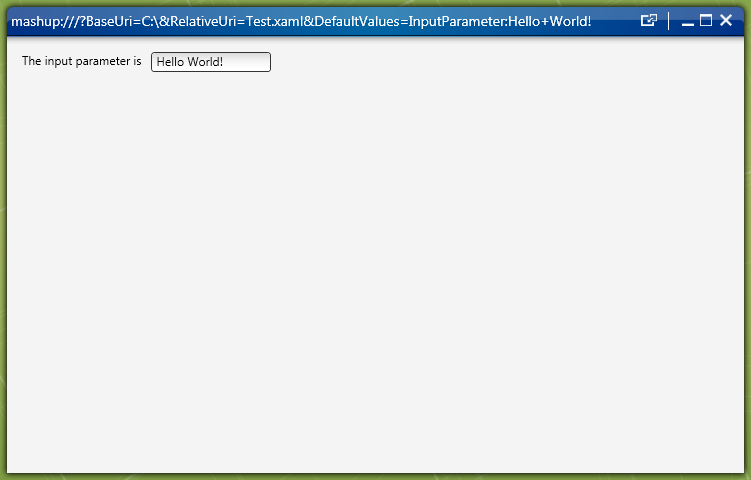
InputParameter1:Hello+World!;InputParameter2:Yeehaa!;InputParameter3:ABC123
mashup:///?BaseUri=C:\&RelativeUri=Test2.xaml&DefaultValues=InputParameter1:Hello+World!;InputParameter2:Yeehaa!;InputParameter3:ABC123

Here is a screenshot of the final XAML in the Mashup Designer:

Here is the complete XAML source code:
xmlns="http://schemas.microsoft.com/winfx/2006/xaml/presentation" xmlns:x="http://schemas.microsoft.com/winfx/2006/xaml" xmlns:ui="clr-namespace:Mango.UI.Controls;assembly=Mango.UI" xmlns:mashup="clr-namespace:Mango.UI.Services.Mashup;assembly=Mango.UI" xmlns:m3="clr-namespace:MForms.Mashup;assembly=MForms" Margin="10">
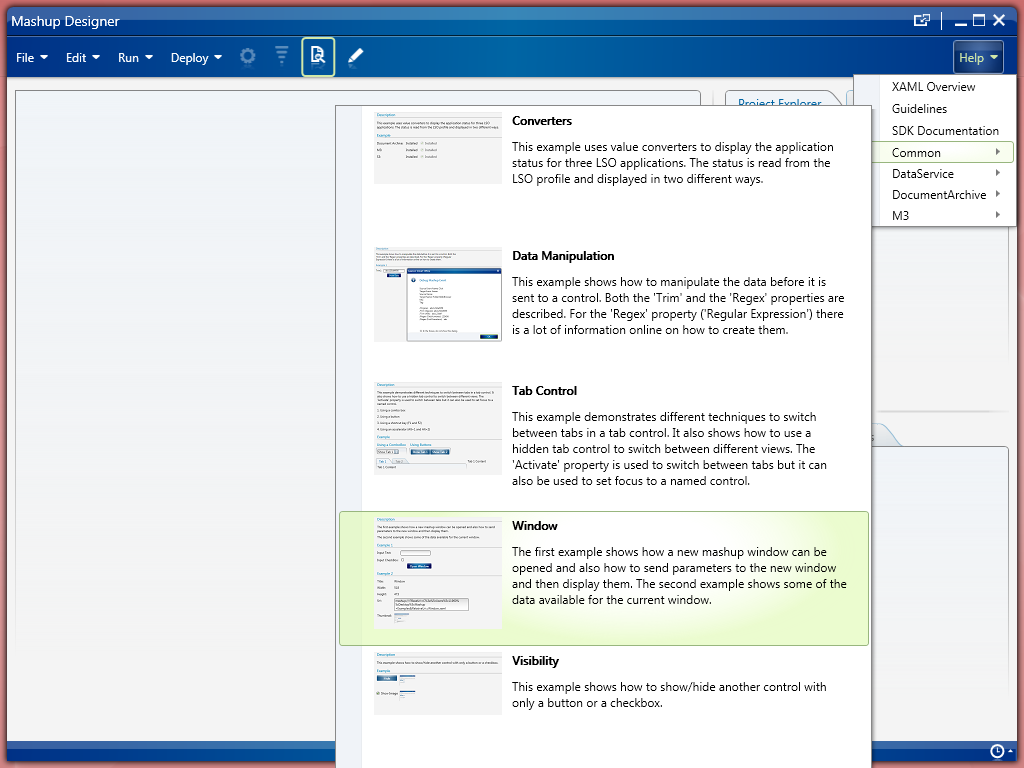
This solution was given by the following sample provided in the Mashup Designer:
That’s it!
UPDATE 2013-01-31:
Note 1: My example above showed the URI to start a Mashup from the C:\ drive and folder. But to start a Mashup that is deployed, the BaseUri must point to the *.mashup file, for example: mashup:///?BaseUri=MyMashup.mashup&RelativeUri=MyMashup.xaml&DefaultValues=key1:value1;key2=value2 . This will work with a Mashup deployed either privately (Mashup Designer > Deploy > Private), either locally (Smart Office > Show > My Local Applications). But for a Mashup deployed globally (LifeCycle Manager > Admin View > Install) you must prefix the BaseUri with the folder Mashups\, for example: mashup:///?BaseUri=Mashups\MyMashup.mashup&RelativeUri=MyMashup.xaml&DefaultValues=…
Note 2: We can create a Shortcut in Smart Office (for example, CRS610 > Tools > Personalize Shortcuts) and dynamically get values from the current panel by putting the field name in curly braces (angle brackets will work as well), for example: mashup:///?BaseUri=MyMashup.mashup&RelativeUri=MyMashup.xaml&DefaultValues=ItemNumber:{ITNO}
Here is a solution for a Script in Lawson Smart Office to detect the entry mode of an M3 panel: 1-Create, 2-Change, 3-Copy, 4-Delete, or 5-Display.

This solution is useful for a scenario like this. Suppose your script dynamically adds an input field to an M3 panel. The input field could be used for example to enter a discount amount which will re-calculate a net value in another field. You would like to either enable that input field so that it becomes editable for the user, either disable it so that it is read-only. That will match the behavior of the M3 panel, for better usability. For that, you will need to tell apart if the user entered the M3 panel in Change mode or in Display mode.
Ideally, we would like to use an API in Smart Office like GetEntryMode() that would return the entry mode. But there is no such API.
Otherwise, we would like to simply read the Control’s properties such as IsReadOnly or IsEnabled. But somehow they incorrectly return false.
The workaround is to read the LSTOPT value that is sent by the M3 panel when it makes the HTTP Request to the M3 server. That value is sent from panels A and B. Note that the option Create returns -1 (negative) instead of 1 (positive).
function OnRequesting(sender: Object, e: CancelRequestEventArgs) {
    if (e.CommandType == 'LSTOPT') {
        e.CommandValue // the entry mode: -1, 2, 3, 4, or 5
    }
}
Once we get the value from panels A or B, we have to store it somewhere because Smart Office will unload the script and our value off memory when it executes the said Option and the value will not be available anymore in subsequent panels. We can use the InstanceCache to store the value in the current Smart Office session. The value will then be available in panels E, F, G, etc. In the following example I called my key LSTOPT but you can choose another one:
InstanceCache.Add(controller, 'LSTOPT', e.CommandValue);
Once we are in panels E, F, G, etc. we retrieve the value from the InstanceCache like this:
if (InstanceCache.ContainsKey(controller, 'LSTOPT')) {
    var LSTOPT = InstanceCache.Get(controller, 'LSTOPT'); // get the entry mode
    if (LSTOPT == -1) {
        // Create
    } else if (LSTOPT == 2) {
        // Change
    } else if (LSTOPT == 3) {
        // Copy
    } else if (LSTOPT == 4) {
        // Delete
    } else if (LSTOPT == 5) {
        // Display
    } else {
        // entry mode unknown
    }
} else {
     // entry mode not set
}
This script has a getter and a setter:
OnRequesting event handler of panel A or B.I tried this technique in the following conditions:
Here is a sample source code for the setter:
import MForms;

package MForms.JScript {
	class EntryModeSetter {
		var controller;
		public function Init(element: Object, args: Object, controller: Object, debug: Object) {
			this.controller = controller;
			controller.add_Requesting(OnRequesting);
			controller.add_Requested(OnRequested);
		}
		function OnRequesting(sender: Object, e: CancelRequestEventArgs) {
			if (e.CommandType == 'LSTOPT') {
				InstanceCache.Add(controller, 'LSTOPT', e.CommandValue); // set the entry mode
			}
		}
		function OnRequested(sender: Object, e: RequestEventArgs) {
			sender.remove_Requesting(OnRequesting);
			sender.remove_Requested(OnRequested);
		}
	}
}
Here is a sample source code for the getter:
import MForms;

package MForms.JScript {
	class EntryModeGetter {
		public function Init(element: Object, args: Object, controller: Object, debug: Object) {
			if (InstanceCache.ContainsKey(controller, 'LSTOPT')) {
				var LSTOPT = InstanceCache.Get(controller, 'LSTOPT'); // get the entry mode
				if (LSTOPT == -1) {
					// Create
				} else if (LSTOPT == 2) {
					// Change
				} else if (LSTOPT == 3) {
					// Copy
				} else if (LSTOPT == 4) {
					// Delete
				} else if (LSTOPT == 5) {
					// Display
				} else {
					// entry mode unknown
				}
			} else {
				// entry mode not set
			}
		}
	}
}
That’s it!
In the PowerPoint document How to decrypt Smart Office’s encrypted traffic I describe how to intercept and decrypt the encrypted HTTPS traffic from Lawson Smart Office which sometimes cannot be captured with Fiddler, and which is unreadable in Wireshark. This technique is useful for troubleshooting Mashups, Smart Office, Personalized Scripts, IBrix, etc.
Does that demonstrate a security flaw in Smart Office? Not at all. Read the last chapter in the document.

Here is a demo video of the integration I implemented for one of our customers between a cash drawer and Lawson Smart Office using a Script. (If you want to skip the talk, jump to time stamp 3:31 in the video to see the cash drawer open.)
The result is a single cash drawer controlled by multiple Points of Sales throughout the showroom. Each Point of Sales runs Smart Office. The solution requires authorization (who can access the cash drawer) and auditing (who opened the cash drawer when) for security purposes. For the user its just a click on a new button Open Register.
I implemented the solution as client/server: the clients are Personalized Scripts in JScript.NET for Smart Office, the server is a custom Java program connected to the cash drawer with JavaPOS and a Serial cable, a custom bridge between .NET and Java made with a tiny HTTP server, and Properties file.

I found this post about getting the current date in XAML. I gave it a try in a Mashup.
Here’s the code to get the current date and time in various formats in a Mashup. You can complement this with the Date picker in Mashup.
<Grid … xmlns:sys=”clr-namespace:System;assembly=mscorlib”>
<TextBlock Text="{Binding Source={x:Static sys:DateTime.Today}, StringFormat='Today is: {0:dddd, MMMM dd, yyyy, hh:mm:ss}'}" />
<TextBlock Text="{Binding Source={x:Static sys:DateTime.Today}, StringFormat='One of LSO formats: {0:MMddyy}'}" />
<TextBlock Text="{Binding Source={x:Static sys:DateTime.Today}, StringFormat='M3 API format: {0:yyyyddMM}'}" />
<TextBlock Text="{Binding Source={x:Static sys:DateTime.Today}, StringFormat='\{0:yyyy/MM/dd}'}" />
<TextBlock Text="{Binding Source={x:Static sys:DateTime.Today}, StringFormat='\{0:yyyyddMM}'}" />
And here is a screenshot of the result with the current date displayed in five different formats:

UPDATE 2012-03-26: To get the date in a TextBox add the binding property Mode=OneWay, for example:
<TextBox Text="{Binding Source={x:Static sys:DateTime.Today}, StringFormat='yyyy', Mode=OneWay}" />
I often get the question about which tool do I use to develop Scripts for Lawson Smart Office. Here’s my list of tools.
The Smart Office Script Tool comes with all installations of Smart Office and can be run with mforms://jscript. It is basically the only tool you need to develop Scripts for Smart Office. It creates a simple JScript.NET source code template (File > New), it shows the list of current Elements with their Name, Control Type, position, and value, it has syntax coloring, it can hook to an External Editor, you can play with the Arguments, it has a debug console, and most importantly it has the Compile and Run buttons.
Here is a screenshot of a template script compiled and run:

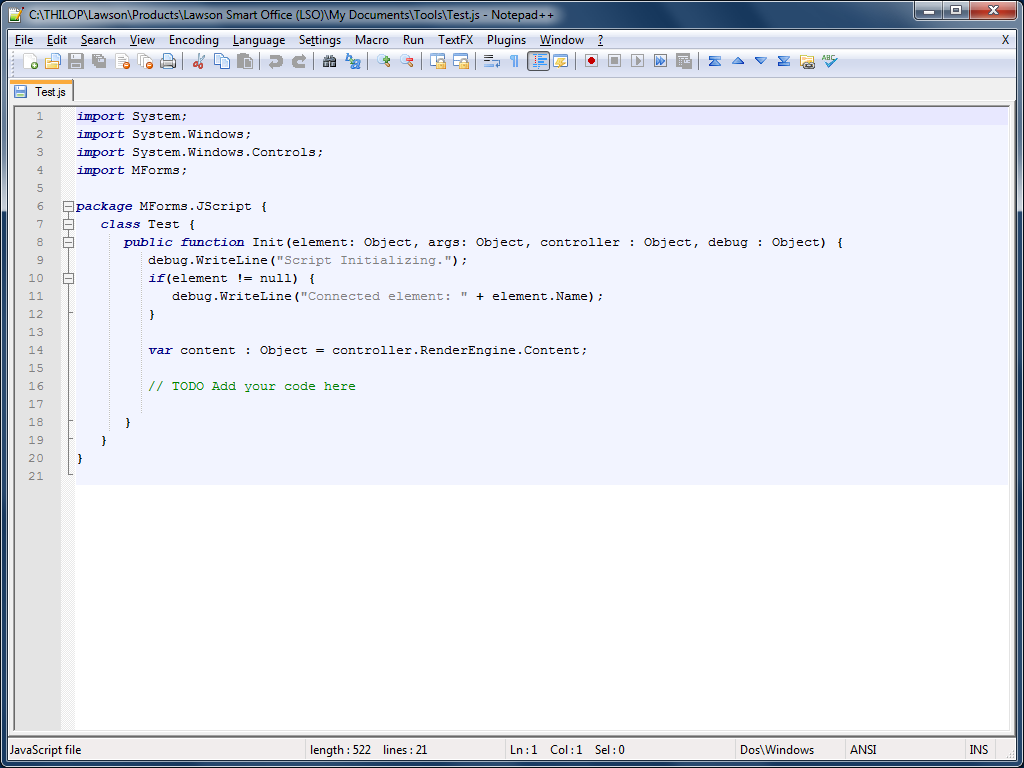
I use Notepad++ for most everything text editing; it’s my vi. It has syntax coloring for JavaScript (which is close enough to JScript.NET) and C#. I hook it to the Script Tool (Script Tool > Script > Use external editor). Also, I use Notepad++ Plugin Manager (Plugins menu) to add the TextFX, Compare, XML/HTML, and HEX plugins.
Here is a screenshot of a simple script in Notepad++:
I also started using Sublime Text 2 as an alternate text editor. I like the more readable syntax coloring, and the Minimap on the right.
Here is a screenshot of a simple script in Sublime Text 2:

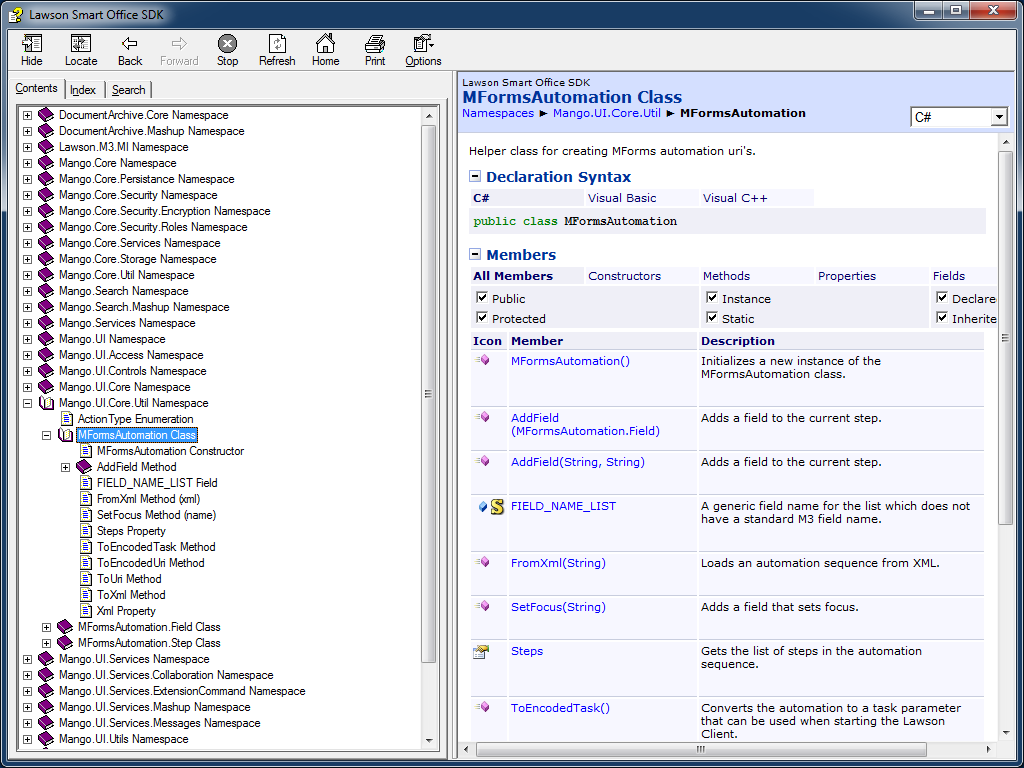
The Smart Office SDK is the premier source of information. We can see the official public interface, descriptive comments, and we can search for classes and members. Right now it’s only available to Infor employees and select partners.
Red Gate Software .NET Reflector is a MUST for any .NET development. I strongly recommend it. You can search for a Type, get the Class hierarchy, Analyze a Class, and the best is that you can disassemble the binary.
The Standard $35 version is enough for my needs. You will get the most value if you load the DLLs from Smart Office. The folder that contains the DLLs can be found with Smart Office > Help > About Lawson Smart Office > View log file. Then you have to go up and down the folder structure to find all the DLLs, or do a Search. The folder names have an ID that’s different on each Smart Office installation. On my laptop the paths are:
C:\Users\12229\AppData\Local\Apps\2.0\Data\79O176HR.9E2\N43AOMBD.0HB\http..tion_689b45b5b21234e1_0009.0001_46f64bcdec4dff2a\Data\
C:\Users\12229\AppData\Local\Apps\2.0\3YDTAV5W.D33\Q01ZYJYT.RW0\http..tion_689b45b5b21234e1_0009.0001_46f64bcdec4dff2a\
Import the Smart Office DLLs into .NET Reflector (File > Open Assembly) and start introspecting Smart Office. You can start with Mango.Core.dll, Mango.UI.dll, and MForms.dll. You can even make separate lists (File > Open Assembly List) of the different DLLs from the different versions of Smart Office.
Here is a screenshot of the Class for a B panel ListRow:

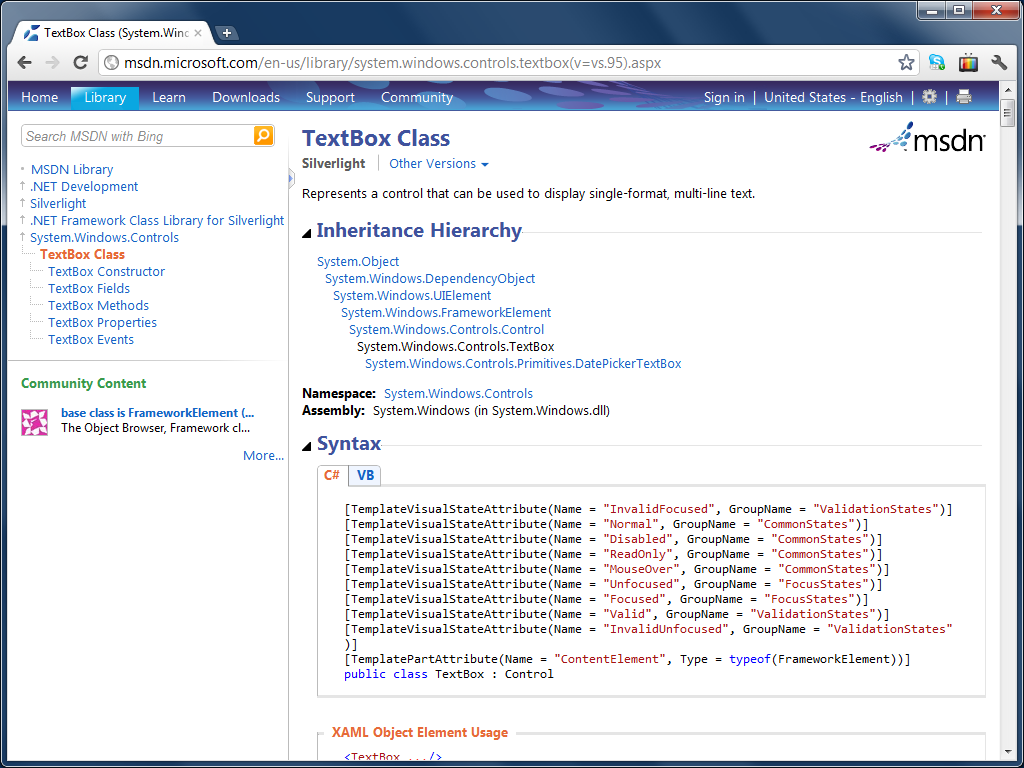
I refer extensively to Microsoft’s MSDN .NET Framework Class Library. When I need the API reference for a control (for example a TextBox) I just Google the following:
C# TextBox Class System.Windows.Controls site:microsoft.com
You will get the Inheritance Hierarchy, Syntax, Constructors, Properties, Methods, Events, Fields, and Examples.
Here is a screenshot of the TextBox Class:
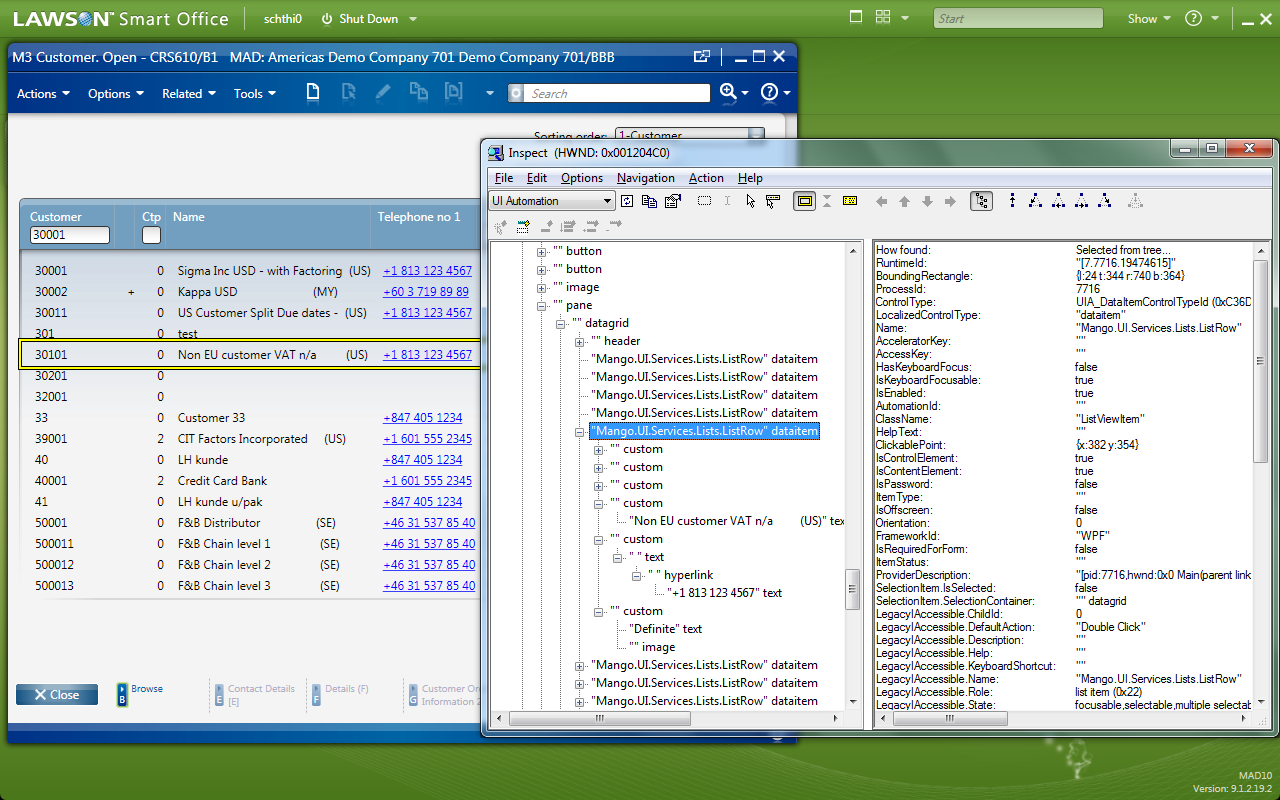
The Microsoft Windows SDK provides the great Inspect tool to dynamically introspect a program. You can start if from Windows > Start > Programs > Microsoft Windows SDK > Tools > Inspect Object. You can point and click at any element of Smart Office and the Inspect tool will show you the control’s Name, Type, Value, place in the Object tree, siblings, etc.
Here is a screenshot of the Inspect Tool highlighting in a yellow box a ListRow of a B panel:
I have also used Microsoft UISpy but I changed laptops and I haven’t re-installed it yet.
I have also used Microsoft Windows SDK Accessible Event Watcher (AccEvent). You can start it from Windows > Start > Programs > Microsoft Windows SDK > Tools > Accessible Event Watcher.
Here is a screenshot of AccEvent listening to my Smart Office clicks:

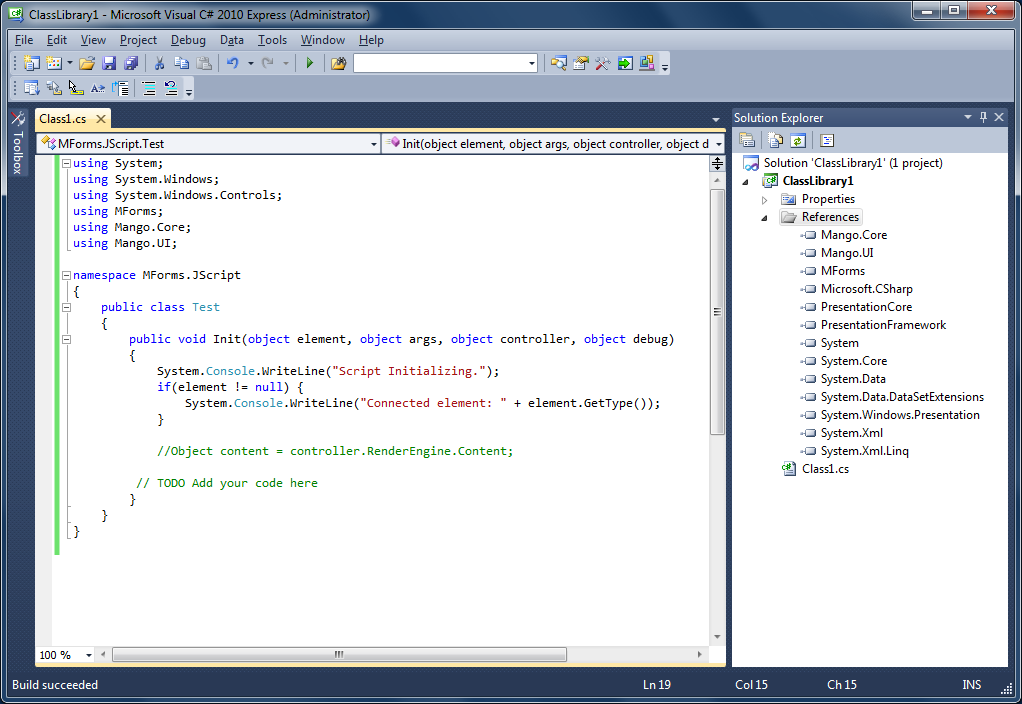
Sometimes I use Microsoft Visual C# 2010 Express . It doesn’t have support for JScript.NET but I can create compiled C# Scripts, for its IntelliSense autocompletion, and for the step by step debug options.
Here is a screenshot of a compiled Smart Office Script in C#:
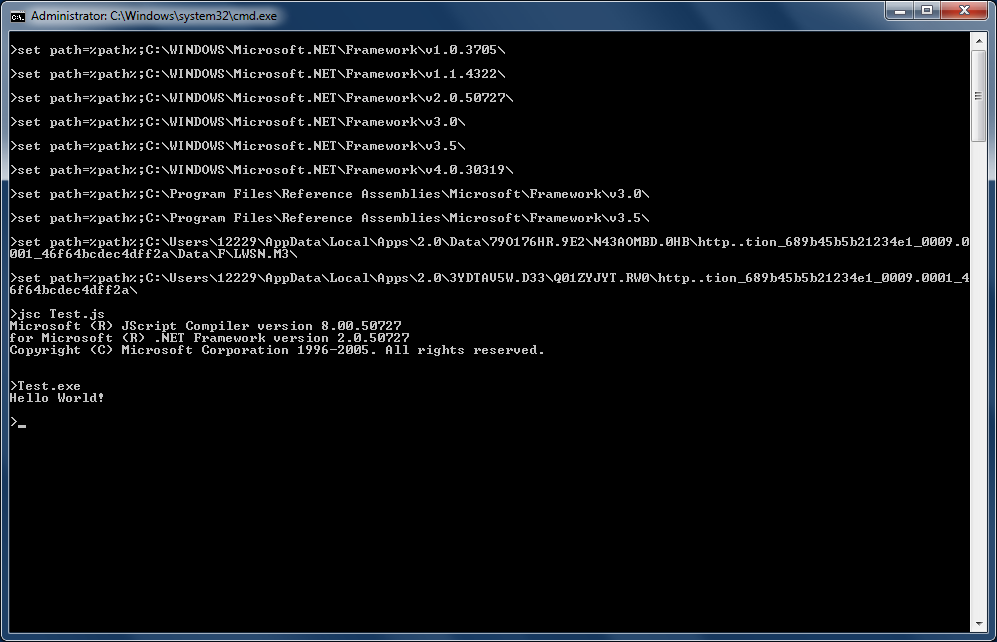
Sometimes I use jsc.exe to compile Scripts from the command line, outside of Smart Office. You need to reference various .NET paths. I have these ones in my laptop:
C:\WINDOWS\Microsoft.NET\Framework\v1.0.3705\
C:\WINDOWS\Microsoft.NET\Framework\v1.1.4322\
C:\WINDOWS\Microsoft.NET\Framework\v2.0.50727\
C:\WINDOWS\Microsoft.NET\Framework\v3.0\
C:\WINDOWS\Microsoft.NET\Framework\v3.5\
C:\WINDOWS\Microsoft.NET\Framework\v4.0.30319\
C:\Program Files\Reference Assemblies\Microsoft\Framework\v3.0\
C:\Program Files\Reference Assemblies\Microsoft\Framework\v3.5\
Also, you can compile Smart Office Scripts from the command line if you reference the Smart Office DLL paths (see the .NET Reflector chapter above). They won’t always execute correctly as they will be missing the dynamic context of Smart Office.
Also, you can even reference a specific DLL like this:
jsc.exe /reference:Interop.SKYPE4COMLib.dll Test.js
Here is a screenshot that shows Hello World! from a Smart Office Script in JScript.NET compiled at the command line (note the extra print statement at the bottom):

Microsoft’s Fiddler tool is your HTTP best friend. It will capture HTTP traffic between Smart Office and M3. It will even capture and decrypt Smart Office’s encrypted traffic. For example, press F5 in CRS610/B to refresh the panel and you will see the HTTP Request to the MvxMCSvt servlet with all the values of the panel. Or for example, create a Script that makes an M3 API call and you will see the HTTP Request to MIAccess with all the Input and Output parameters. It’s fantastic for debugging!
Here is a screenshot that shows CRS610/B displaying a record:

Snoop is another great WPF spying utility like the Inspect tool of the Microsoft Windows SDK.

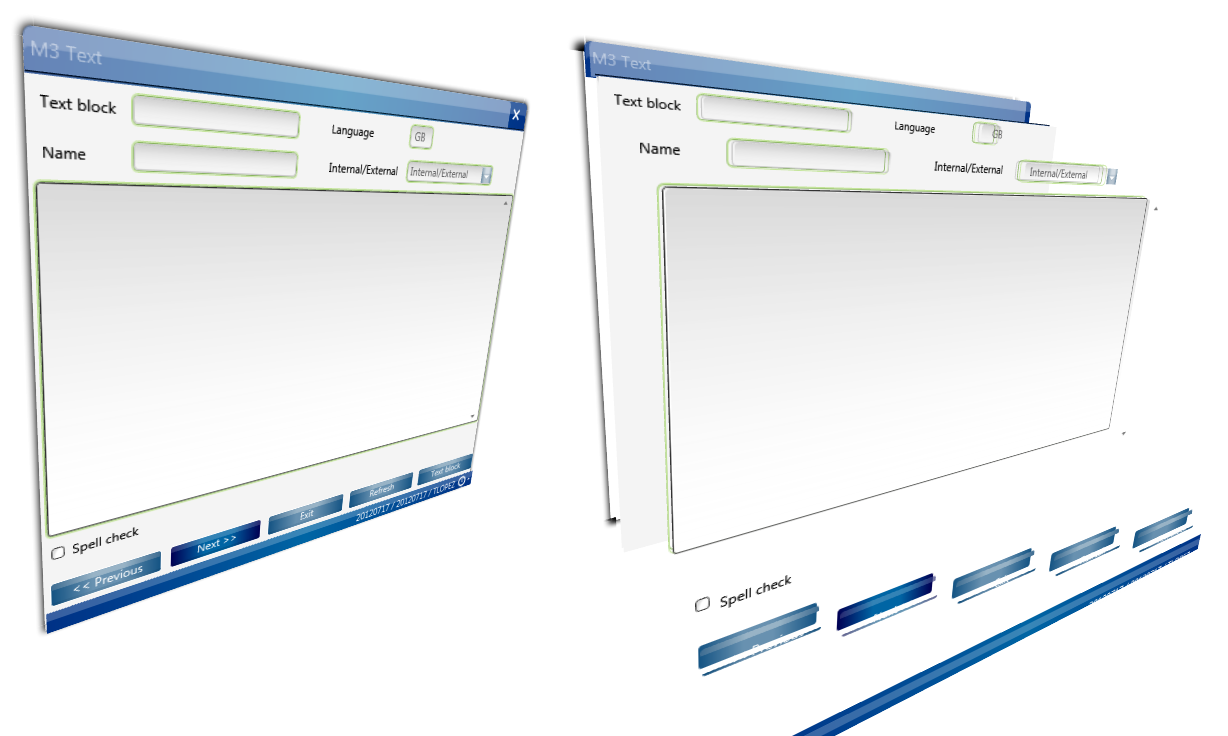
Snoop also shows the 3D breakdown of how the controls are visually rendered hierarchically on the screen:
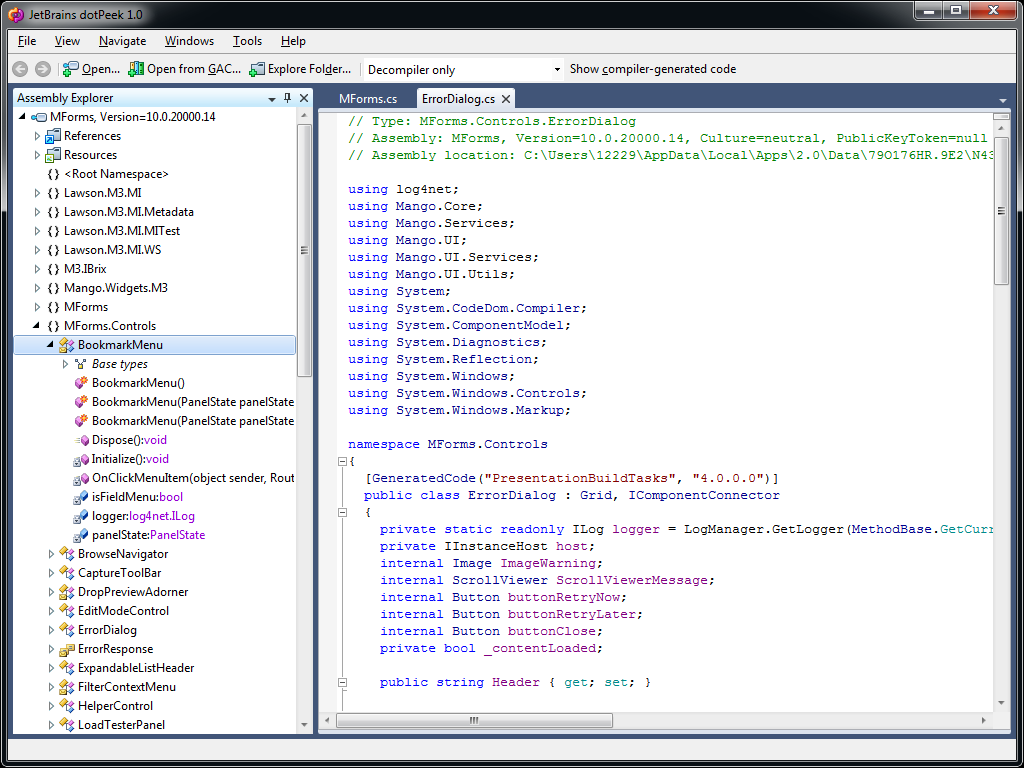
dotPeek is a free-of-charge .NET decompiler from JetBrains that can be used like Red Gate Reflector.
The opinions expressed in this blog are my personal opinions only, and not those of Lawson nor Infor. By using recommendations from this blog your code might break with upgrades of Smart Office. To ensure your code won’t break, use only the Smart Office API which you can find in the Smart Office Developer’s Guide.
UPDATE 2012-04-24: Added paragraphs for Sublime Text 2, and Smart Office SDK.
UPDATE 2012-07-12: Added paragraphs for JetBrains .NET decompiler, and Snoop the WPF spy utility, following Karinpb‘s recommendation.
Thanks to Scott’s PotatoIT blog post Trace in Smart Office for re-discovering the great Smart Office Trace tool. The Trace tool is useful for introspecting fields and values of a panel, and to determine the database tables used by an M3 program. It’s sort of a dynamic MetaData Publisher. Here is my screenshot:

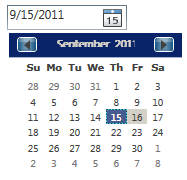
Here’s the XAML code to add a date picker in a Mashup, using DatePicker:
<DatePicker Name="dp" SelectedDateFormat="Short" />
The result looks like this:
If you want to get the value of the date picker use this:
{Binding ElementName=dp, Path=Text}
Here’s a simple Mashup that shows the selected date in a Label:
<Grid xmlns="http://schemas.microsoft.com/winfx/2006/xaml/presentation" xmlns:x="http://schemas.microsoft.com/winfx/2006/xaml" xmlns:ui="clr-namespace:Mango.UI.Controls;assembly=Mango.UI" xmlns:mashup="clr-namespace:Mango.UI.Services.Mashup;assembly=Mango.UI" xmlns:wf="clr-namespace: System.Windows.Forms;assembly=System.Windows.Forms" xmlns:wfi="clr-namespace: System.Windows.Forms.Integration;assembly=WindowsFormsIntegration">
    <Grid.Resources>
    </Grid.Resources>

    <Grid.ColumnDefinitions>
       <ColumnDefinition Width="Auto" />
       <ColumnDefinition Width="*" />
    </Grid.ColumnDefinitions>
    <Grid.RowDefinitions>
       <RowDefinition Height="Auto" />
    </Grid.RowDefinitions>

    <DatePicker Name="dp" SelectedDateFormat="Short" Grid.Column="0" />
    <Label Name="Date" Content="{Binding ElementName=dp, Path=Text}" Grid.Column="1" />

 </Grid>
That’s it!
 M3 ideas