Hacking Infor Grid application development (part 3)

In the series Hacking Infor Grid application development, today I will illustrate how to add a JAR file to an Infor Grid application and a JAR file to a dynamic web application in that Grid application (which is trivial).

JAR for Grid application

First, create a simple Java library:

package net.company.your.library1;

public class HelloWorldLibrary1 {
	public static String getMessage() {
		return "Hello World sample library for my Grid application";
	}
}

Then, compile it with:

javac net\company\your\library1\HelloWorldLibrary1.java

Then, add it to a JAR file with:

jar cvf HelloWorldLibrary1.jar net\company\your\library\HelloWorldLibrary1.class

Then, call that library from the Grid application with:

[...]

import net.company.your.library1.*;

public class HelloWorld implements ApplicationEntryPointEx {

	public boolean startModule(ModuleContext paramModuleContext) {
		System.out.println(HelloWorldLibrary1.getMessage());
		return true;
	}

	[...]
}

Then, recompile that Grid application as usual with:

javac -cp grid-core-1.11.27.jar;. net\company\your\HelloWorld.java

Here’s the result in the command prompt:
1.1

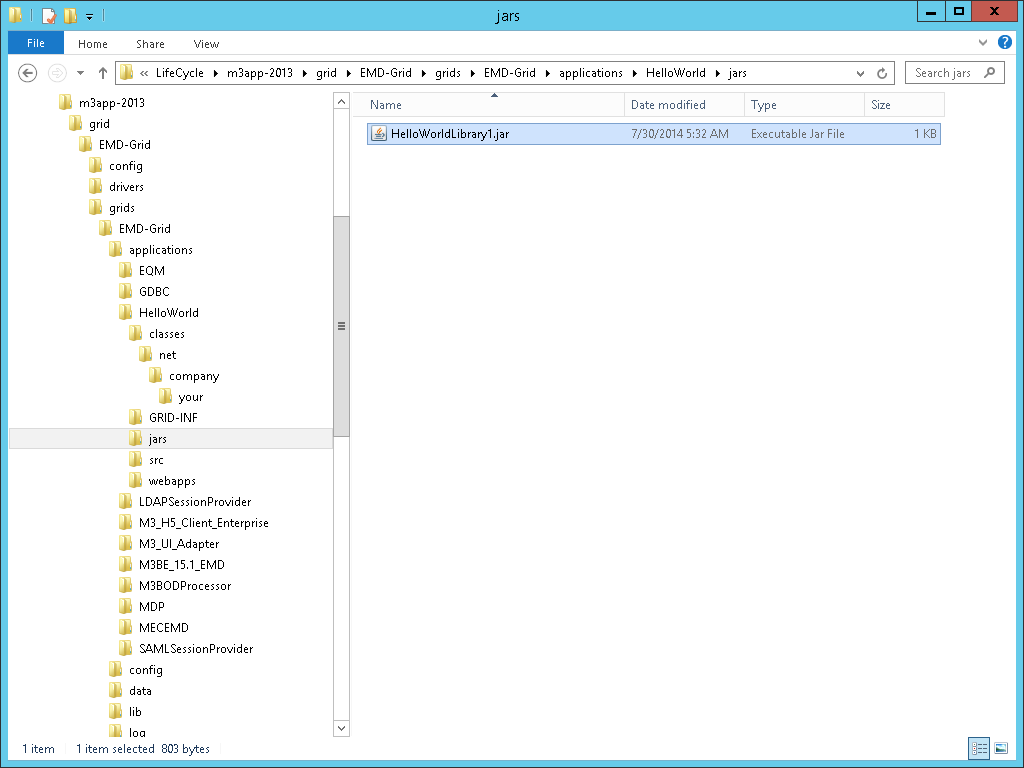
Then, create a jars folder in the Grid application and add the JAR file to it:
1.3

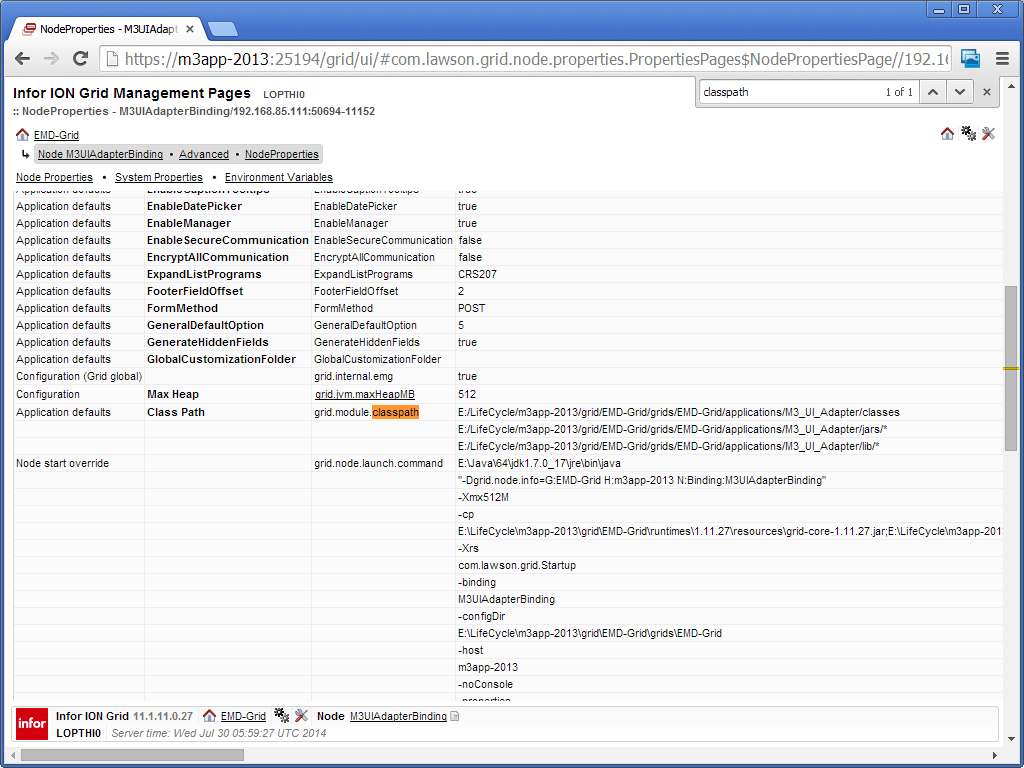
The default folder for JAR files is jars. It seems other Infor Grid applications use folder lib instead. We can change the classpath in the Grid application’s properties, for instance the application M3UIAdapter has JAR files in a folder lib:
3.2b

Then, replace the Grid application:
1.2

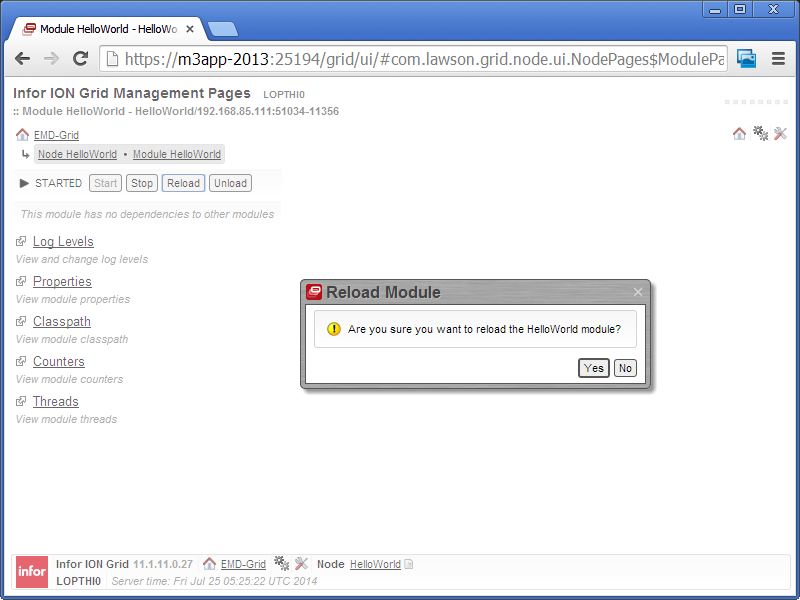
Then, restart the Module in the Grid Management Pages:
b4

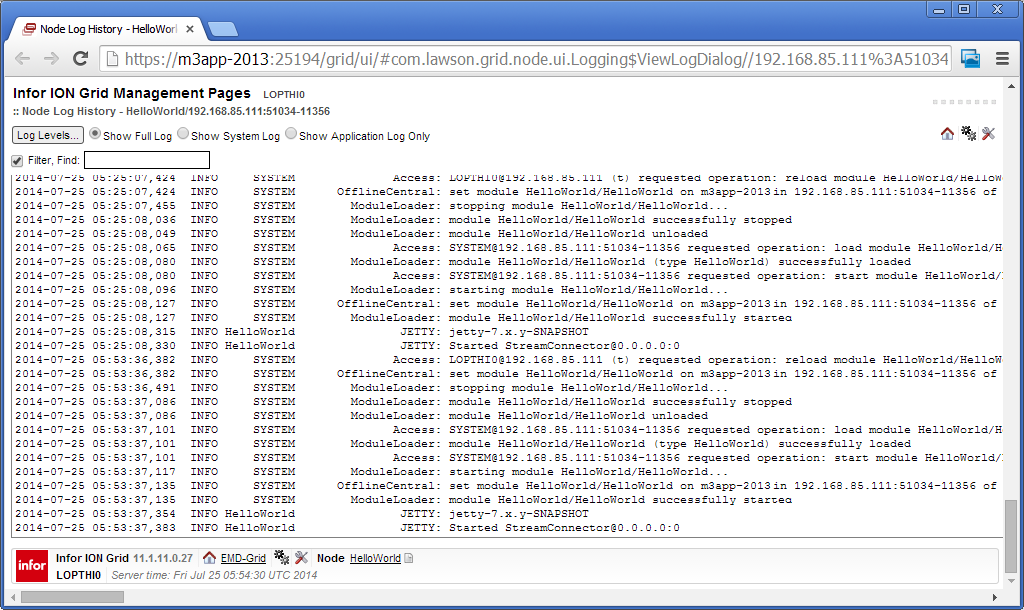
We can see the result in the logs:
1.4

JAR for dynamic web application

Now let’s create a second Java library for the dynamic web application of the Grid application; this is classic J2EE and trivial:

package net.company.your.library2;

public class HelloWorldLibrary2 {
	public static String getMessage() {
		return "Hello World sample library for my dynamic web application";
	}
}

Then, compile it and add it to a JAR file as shown above.

Then, let’s use that library from the servlet (or from a JSP):

[...]

import net.company.your.library2.*;

public class HelloWorldServlet extends HttpServlet {
	public void doGet(HttpServletRequest request, HttpServletResponse response) throws ServletException, IOException {
		[...]
		out.println(HelloWorldLibrary2.getMessage());
	}
}

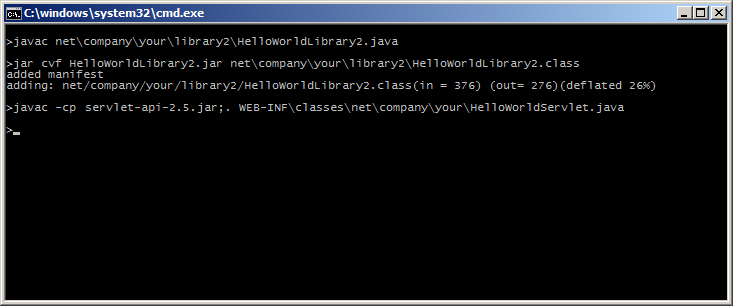
Then, recompile the servlet as usual.

Here’s the result in the command prompt:
2.1

Then, create a lib folder in the WEB-INF folder of the dynamic web application:
2.3

Then, replace the servlet (or JSP):
2.2

And refresh the servlet (or JSP) to see the result:
2.4

Summary

That was how to add a JAR file to an Infor Grid application and a JAR file to a dynamic web application in that Grid application (which was trivial). Next time I will find out how to add a WAR file.

Also, remember this is a hack that currently has limitations due to our lack of knowledge of how to develop good applications for the Infor Grid, as discussed in part 1 of this series.

Also, remember to join the campaign and sign the petition to Infor Product Development for making their source code available.

That’s it! If you like this, please click the Like button, leave a comment below, subscribe to this blog, share around you, and write about your own ideas here. Thank you.

Infor Product Development: Make the source code available – Sign the Petition!

Please join this campaign! I am collecting signatures for a petition to Infor Product Development for making their source code available.

I believe it is important for users, customers, partners and employees to be able to study the source code of the software they use most of their day, for testing, debugging, troubleshooting, support, and enhancement purposes. Infor Product Development already makes the source code of M3 Java programs available under certain license restrictions; fantastic. Now let’s petition them for doing the same with other great products such as Infor Smart Office, Infor Grid, Infor Process Automation, M3 Web Services, Customer Lifecycle Management, etc.

Please sign the petition.

Hacking Infor Grid application development (part 2)

As a prolongation of my previous post on Hacking Infor Grid application development, this time I will show you how to add a simple HelloWorld servlet to your Infor Grid application.

HelloWorld servlet

Create a simple HelloWorld servlet:

package net.company.your;

import java.io.*;
import java.util.*;
import javax.servlet.*;
import javax.servlet.http.*;

public class HelloWorldServlet extends HttpServlet {
	public void doGet(HttpServletRequest request, HttpServletResponse response) throws ServletException, IOException {
		response.setContentType("text/html");
		PrintWriter out = response.getWriter();
		out.println("<html>");
		out.println("<body>");
		out.println("HelloWorld servlet! The time is " + new Date());
		out.println("</body>");
		out.println("</html>");
	}
}

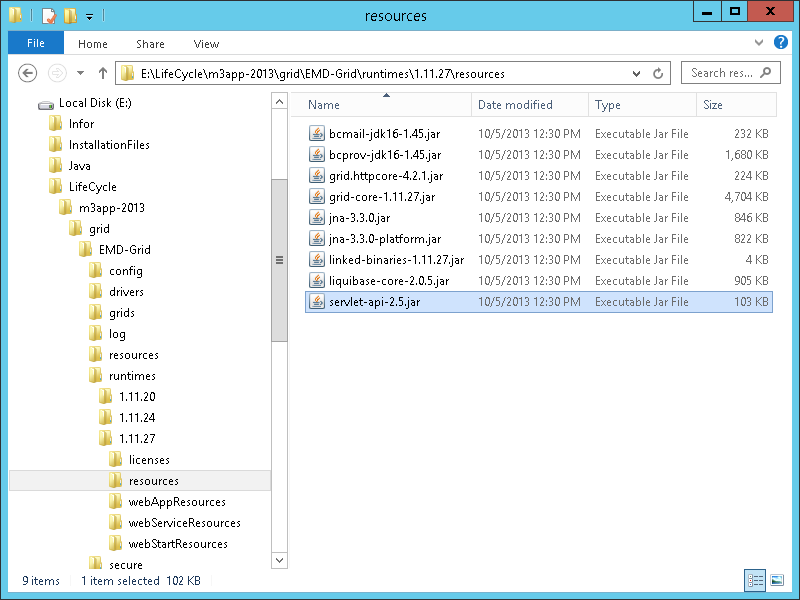
Compile it with the Servlet API library that you can find in the LifeCycle Manager runtime:

E:\LifeCycle\<host>\grid\<grid>\runtimes\1.11.27\resources\servlet-api-2.5.jar
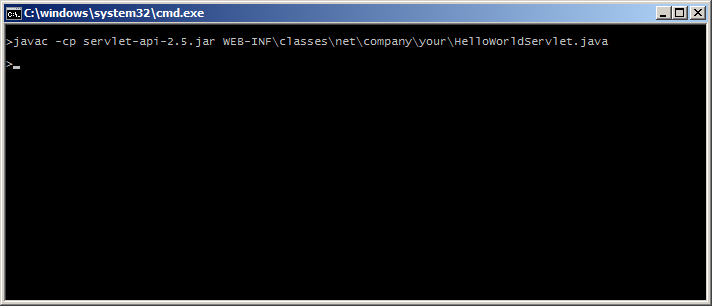
javac -cp servlet-api-2.5.jar WEB-INF\classes\net\company\your\HelloWorldServlet.java

1 2

Deployment descriptor

Create a simple deployment descriptor web.xml:

<?xml version="1.0" encoding="utf-8" ?>
<web-app xmlns="http://java.sun.com/xml/ns/j2ee"
	xmlns:xsi="http://www.w3.org/2001/XMLSchema-instance"
	xsi:schemaLocation="http://java.sun.com/xml/ns/j2ee http://java.sun.com/xml/ns/j2ee/web-app_2_4.xsd"
	version="2.4">

	<display-name>HelloWorld Servlet</display-name>
	<description>My HelloWorld servlet</description>

	<servlet>
		<servlet-name>HelloWorldServlet</servlet-name>
		<servlet-class>net.company.your.HelloWorldServlet</servlet-class>
	</servlet>

	<servlet-mapping>
		<servlet-name>HelloWorldServlet</servlet-name>
		<url-pattern>/sup</url-pattern>
	</servlet-mapping>

</web-app>

File & folder structure

Set the following file & folder structure in a WEB-INF directory:

\---HelloWorld
    ...
    \---webapps
        \---HelloWorld
            ...
            \---WEB-INF
                |   web.xml
                |
                \---classes
                    \---net
                        \---company
                            \---your
                                    HelloWorldServlet.class

b3

With Eclipse

You can also use Eclipse to create the servlet and deployment descriptor and to compile:
e8

Deploy

You can create and deploy your servlet as a new application, or you can add WEB-INF to an existing application in LifeCycle Manager at:

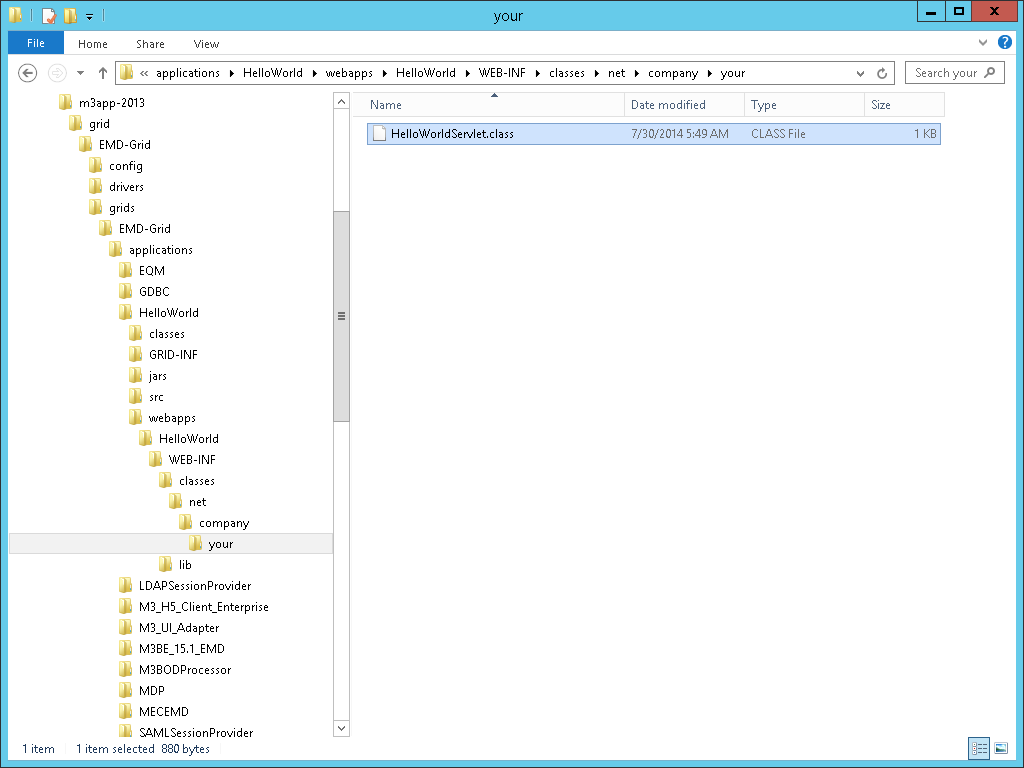
E:\LifeCycle\<host>\grid\<grid>\grids\<grid>\applications\HelloWorld\webapps\HelloWorld\WEB-INF\

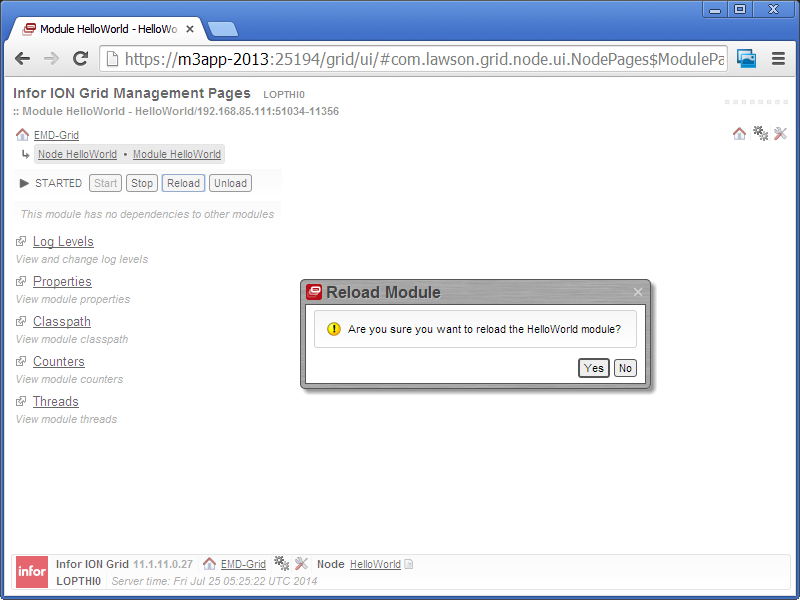
If you choose hot deployment, reload the Grid application module:

b4


Result

You can now test the result in a browser:
b5

And you can check the logs:
b6

Summary

That was how to add a simple servlet to your Infor Grid application. Next time, I will explore how to add JAR files and how to deploy a WAR file.

That’s it! Like + comment + subscribe + share.

I believe Google is silently killing Glass

I am starting to believe that Google is silently killing Glass for lack of success, rumors on The Interwebs Inc. are starting to confirm it, so I too am phasing out of my Glass project and moving on to Augmented Reality. I call Glass the Palm Pilot of 2013.

Palm

For those of you whom remember 1996 when Palm Pilot was released, it instantly became the new must-have gadget in geek universe, it was the future right now in a world of phone bricks…except it never took off, it came too early for its time, it was clunky, it needed to be manually connected, and it suffered from the what-can-I-do-with-it syndrome. A small faction of resistant users kept it afloat for many years, and then it was strolled and bounced around from bad to worse investment at HP to the surprise of most.

After that, phone manufacturers continued to fool us with so-called innovations for another decade.

And then came the iPhone in 2007, it blew everybody away, and it secured smartphones as obvious and unquestionable in every category.

The rumors

The Intertubes (TM) is starting to confirm the rumors that Glass is going away. I heard from a friend that a friend who works at Google said Google had asked some of their employees to return their Glass devices and had assigned them to other projects. Then, at the I/O conference this year Google played radio silence on Glass, no BMX, no parachutes, not even a peep. Then, the video for the release of Glass in London got a whopping 7k hits when I watched it, and now it is stalling at 300k hits. Then, my Google Searches for my Glass software development questions seem to return less and less hits. Finally, another friend of other Googler friends said the topic of Glass shutting down came up during a conversation. That is definitely solid proof, don’t you think?

My experience

I can speak of my own experience with Glass. I originally bought Glass because I was excited to finally try software development for wearable computers and Augmented Reality. I grew up reading in the 90s about the pioneers of the MIT Media Lab, Steve Mann and Thad Starner of the Wearable Computing Group and Hiroshi Ishii of the Tangible Media Group, and Professor Steven Feiner of Columbia University with his research on Augmented Reality. It seemed Glass was set to be the first of such devices ready for the mass market.

I have had Glass for 9 months, and from this gestation emerged the reality. I sadly came to admit I never wear it, it stays in the drawer. Even since October I continue to feel like Robocop with a thing on my face, it changes my behavior as if everybody was looking suspiciously at me, and that makes me uncomfortable. I get many positive reactions from people whom are curious of this novelty. Mostly I get too many negative reactions from Glass haters misconceiving it as an always on surveillance camera with face recognition. False. I sympathize with them because like them I value the protection of our freedom and privacy, and then I cannot help to satirically warn them I can turn on the X-ray vision. Then, in May at the Augmented World Expo 2014, I understood clearly that everybody had tried Glass for Augmented Reality and everybody gave up; in hindsight, they all admitted Glass had never been intended for Augmented Reality. Reality check. It changed my view of Glass as a wearable device. I kept Glass for software development. And then the technical problems. The battery exhausts too quickly, the device heats up and slows down to a freeze, and it is limited in terms of applications. And I am not that good of an Android developer to squeeze the juice out of it. Now I am using it just for pictures and videos, it is excellent for point-of-view shots. And so it has become the most expensive camera I possess.

I am still glad I had Glass, I killed a fever of want, I boosted my software development skills in the process, I anchored my confidence that I can still implement new technologies at 37, and I confirm wearable devices and Augmented Reality are here.

As for my smartphone, I have this weird dream-like feeling of needing to wrap the phone around me like a cloth, dive jump inside the screen and swim in a giant world of digital information. That is my need for the holodeck and Glass does not come close to an inch of fulfilling that.

What’s next

It is a fact wearable computers are here to stay. It just will not be with Glass. Glass was a milestone in history that will remain in the archives as one of the first general wearable devices. Glass also helped spawn the industry of eyewear, and there are valid niche markets where Glass-like devices fit perfectly, for example this safety device for motorcyclists from FUSAR Technologies that displays a rear camera inside the helmet.

I feel sad for Thad Starner and Sergey Brin whom really believed in Glass; they have other awesomeness in their sleeves. Steve Mann does not seem to be affected as he is doing great sensitizing us to sousveillance and working for META. If I project the analogy of the Palm versus iPhone history to Glass, we will see the natural heir of Glass, the obvious leader of the wearable computers, in 11 years from now, in 2025. Yikes! I say it will be a holodeck, light-guided into the eye, mixed with the Minority Report of John Underkoffler (he was one of Hiroshi’s students), and Tony Stark’s helmet of Iron Man.

Meanwhile, I think Google will push full throttle with Project Tango, after all, anything that Johnny Chung Lee touches becomes a hit. Tango is a dream for Augmented Reality enthusiasts. Also, I keep an eye on castAR and Projective Augmented Reality, and I am eagerly awaiting for their first device; Jeri Ellsworth is a self-taught pioneer with many followers that does not come from academics.

As for me, I will finish my Glass proof-of-concept to honor the commitments I made with my partners, and after that I will learn to implement Augmented Reality with Metaio SDK, Unity3DQualcomm Vuforia, and OpenCV.

Hacking Infor Grid application development

I just learned a technique to develop a custom application for the Infor Grid. The idea is to build a simple J2EE app using the Infor Grid as an application server. My understanding is that the Infor Grid is closed, and that this technique is currently unofficial, undocumented and unsupported. I will label this technique as a hack for now until we establish a recommended path.

History

In the past, official products such as Movex Workplace (MWP) and IBrix were built for IBM WebSphere Application Server (WAS), and software developers that needed custom J2EE applications unofficially deployed their code in that same WAS; it was a somewhat symbiotic relationship. With the switch to the Infor Grid, WAS is gone and replaced by a cloud of distributed servers with embedded Jetty – that is a leap forward for M3 – but there is no official solution for custom apps.

As a workaround, we continued to sideload our JSP and HTML files in the MNE folder of the Grid alongside Smart Office Scripts; that was a parasitic relationship subject to potential loss during upgrades. There is also the option to install our own separate application server like Microsoft IIS, but there are advantages to having a unified solution. I know of the Grid Development Tools for Eclipse and the Grid Application Developer Guide and tutorials, but to my knowledge they are internal to Infor products and not available for developing custom applications.

A former colleague of mine found an alternative workaround. He told me he had managed to create a GAR file for the Infor Grid, so now he has an application called “intentia” where he puts the JSP and HTML files instead of the MNE folder. He said it involved decompiling one of the Grid applications and then compiling it back with the new application name. I invited him to write a blog post about his solution, but he responded because it is unofficial he did not want to post it and wanted to remain anonymous. After a couple of email exchanges discussing a disclaimer, he accepted that I post his solution and acknowledge him for his contribution. So thank you, Jonathan Amiran of Intentia Israel.

Call for action

This is my call to Infor Product Development. If you are reading this, please jailbreak the Grid, release the tools and documentation and embrace the community. Help us reach a mutually beneficial relationship where great ideas can get out of anonymity and flourish. I understand there are risks involved in opening up a sensitive system to all sorts of inexperienced developers and misuse as that leads to you having to assume the role of support and troubleshooting until you can prove negligence on the part of the third-party developer. But don’t be closed. Share the good practices with us, certify us, or if it’s a risk, build a system that defends against byzantine failures from third-party developers.

For you readers, please call your Infor representatives and tell them the importance of being open and working together. Meanwhile, please understand the following hack has not yet been peer reviewed so it may be either favorable or damaging.

Find the Grid core

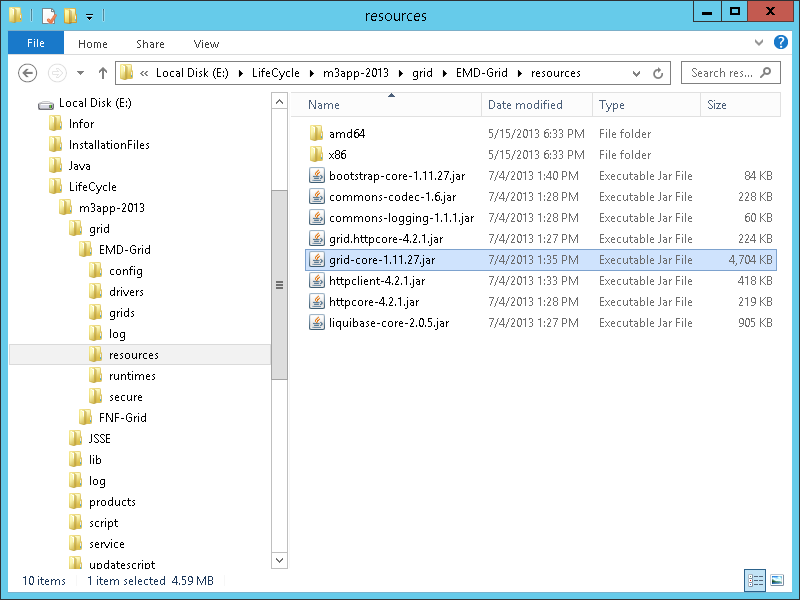
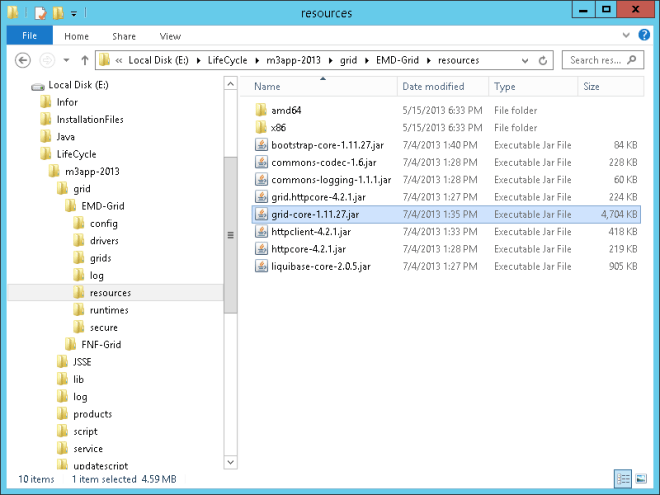
First, go to your LifeCycle Manager server and find the JAR file for the Grid core:

E:\LifeCycle\<host>\grid\<grid>\resources\grid-core-1.11.27.jar
b1

Create the application entry point

Then, create a simple Java class that implements ApplicationEntryPointEx:

package net.company.your;

import com.lawson.grid.node.application.ApplicationEntryPointEx;
import com.lawson.grid.node.application.ApplicationEntryPointEx.GlobalState;
import com.lawson.grid.node.application.ApplicationEntryPointEx.RemainingTaskCount;
import com.lawson.grid.node.application.ModuleContext;

public class HelloWorld implements ApplicationEntryPointEx {

	private boolean isInitialized = false;

	public boolean startModule(ModuleContext paramModuleContext) {
		return true;
	}

	public void onlineNotification() {
		this.isInitialized = true;
	}

	public void offlineNotification() {
		this.isInitialized = false;
	}

	public void stopModule() {
		this.isInitialized = false;
	}

	public ApplicationEntryPointEx.RemainingTaskCount getRemainingTaskCount() {
		return null;
	}

	public ApplicationEntryPointEx.GlobalState getGlobalState() {
		if (this.isInitialized) {
			return new ApplicationEntryPointEx.GlobalState(true, new String[] { "OK" });
		}
		return new ApplicationEntryPointEx.GlobalState(false, new String[] { "Initalizing" });
	}
}

And compile it with:

javac -cp grid-core-1.11.27.jar net\company\your\HelloWorld.java

Create the application deployment descriptor

Create the application deployment descriptor in a file GRID-INF\application.xml:

<?xml version="1.0" encoding="UTF-8" standalone="no"?>
<application xmlns="http://schemas.lawson.com/grid/configuration_v3" xmlns:xsi="http://www.w3.org/2001/XMLSchema-instance" typeName="HelloWorld" version="10.1.0.1" xsi:schemaLocation="http://schemas.lawson.com/grid/configuration_v3 http://schemas.lawson.com/grid/configuration_v3">
	<description>HelloWorld Grid Example</description>
	<moduleDefinitions>
		<moduleDefinition typeName="HelloWorld" entryPointClass="net.company.your.HelloWorld" horizontallyScalable="false" verticallyScalable="false">
			<webApp name="HelloWorld" distributedSessions="false" sessionAffinity="true" />
		</moduleDefinition>
	</moduleDefinitions>
	<nodeTypes>
		<nodeType name="HelloWorld">
			<module typeName="HelloWorld" />
		</nodeType>
	</nodeTypes>
	<connectionDispatchers/>
	<properties>
		<propertyList name="grid.module.classpath">
			<value>classes</value>
			<value>jars/*</value>
		</propertyList>
		<property name="grid.jvm.maxHeapMB">64</property>
	</properties>
</application>

Add the resources

Add the static (HTML, images, CSS, JavaScript, etc.) and dynamic (JSP) resources in a webapps sub-folder, for example index.jsp:

<%@ page import="java.util.*" %>
<!DOCTYPE html>
<html>
   <body>Hello World! This is my first Grid application. The time is <%=new Date()%></body>
</html>

With the Infor Grid we don’t have a web server plugin to optimize serving static from dynamic content by URL path so I keep everything in the same folder.

Zip to a Grid archive

Create a file and folder structure like so:

+---classes
|   \---net
|       \---company
|           \---your
|                   HelloWorld.class
|
+---GRID-INF
|       application.xml
|
\---webapps
    \---HelloWorld
            image.png
            index.jsp
            script.js
            static.html
            style.css

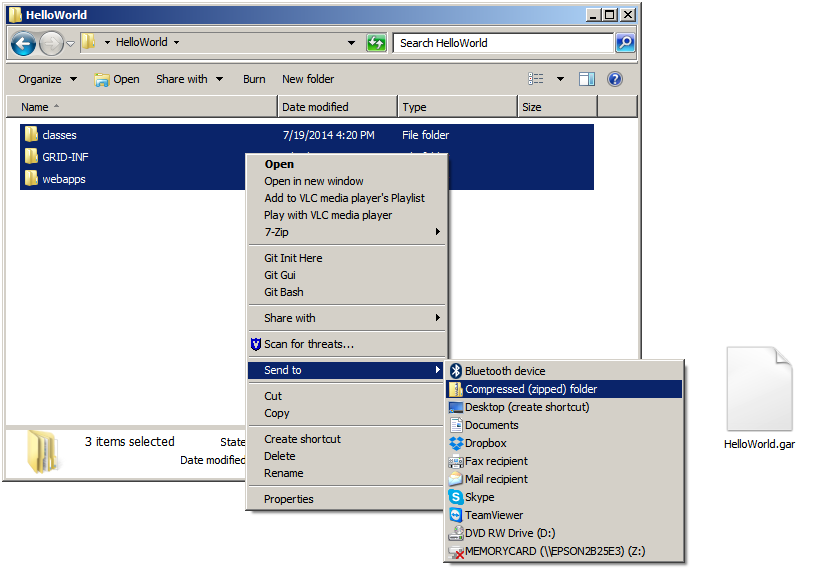
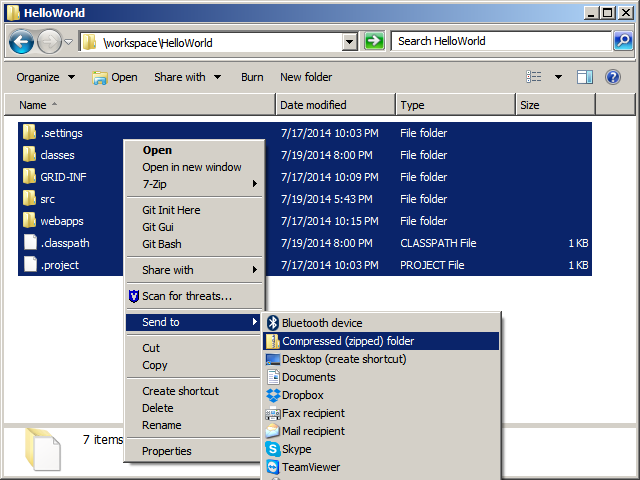
ZIP the contents of the folder into a file and rename the file extension to .gar (make sure to ZIP the contents of the folder and not the folder itself or you will end up with an incorrect folder structure):

b1_

With Eclipse

You can also use Eclipse for this.

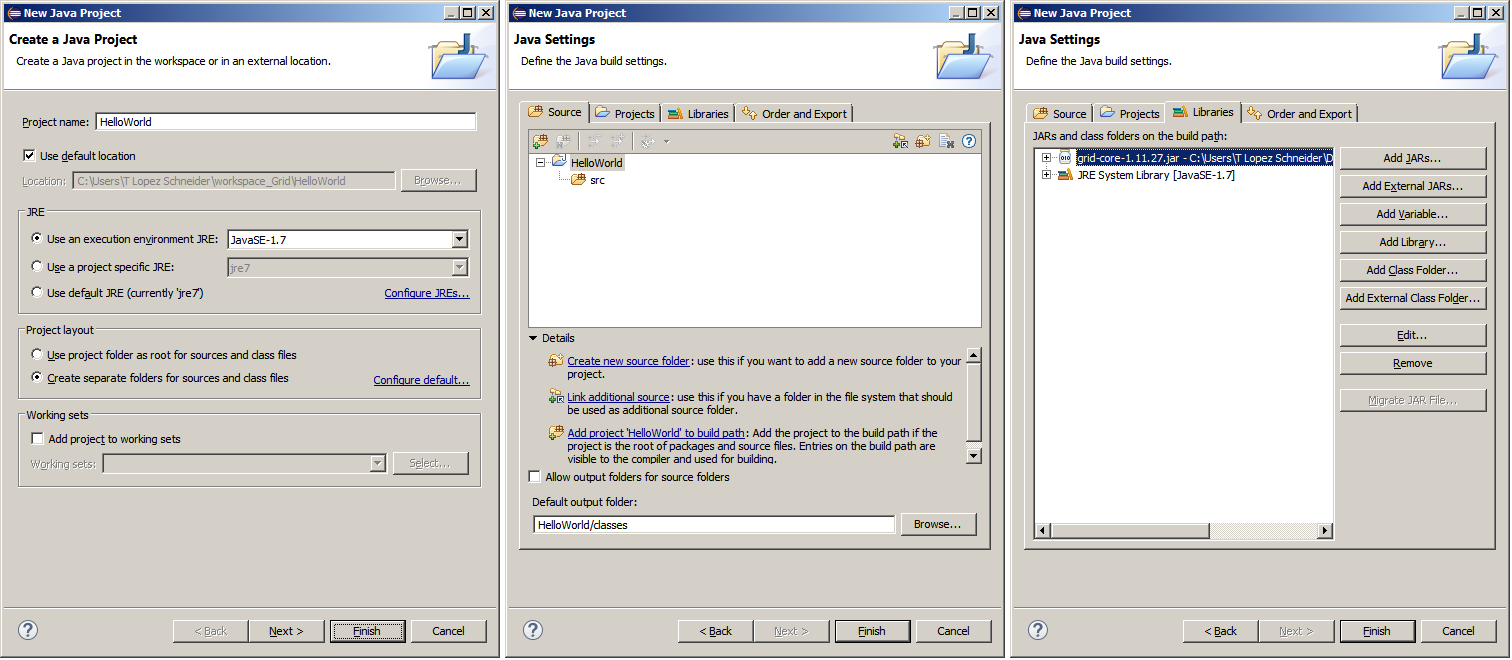
For that, create a new Java project, change the Default output folder from /bin to /classes, and add the grid-core as an external JAR:
b2

Create the file and folder structure as explained above:
b3_

ZIP the entire contents of the folder and change the file extension to .gar as explained above:
b4

Install the application

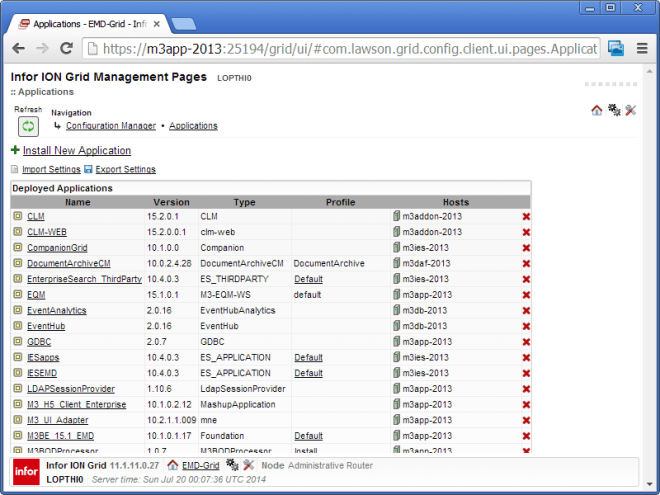
  1. Go to the Grid Management PagesAdvancedConfigurationConfiguration ManagerApplications and select Install New Application:
    b5
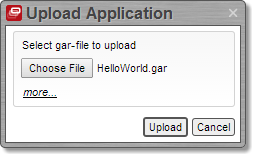
  2. Click Upload, browse to your GAR file, and click Upload:
    b6
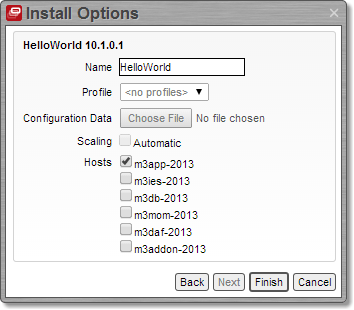
  3. Select the hosts on which to deploy the app and click Finish:
    b7
  4. It will say “Operation completed.” Click Close:
    b8
  5. It will say “The application has no bindings defined”. Select Fix this problem:

    b9
  6. Enter Min 1 and Initial 1 and click Add Binding:
    b10
  7. It will say “The web application ‘HelloWorld’ of module ‘HelloWorld’ has no context root defined”. Select Fix this problem:
    b11
  8. Enter a Context Root Name and click Add:
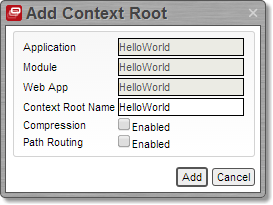
    b12
  9. It will say “There are unsaved changes”. Click Save:
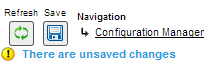
    b13
  10. Click Save to confirm the changes:
    b14
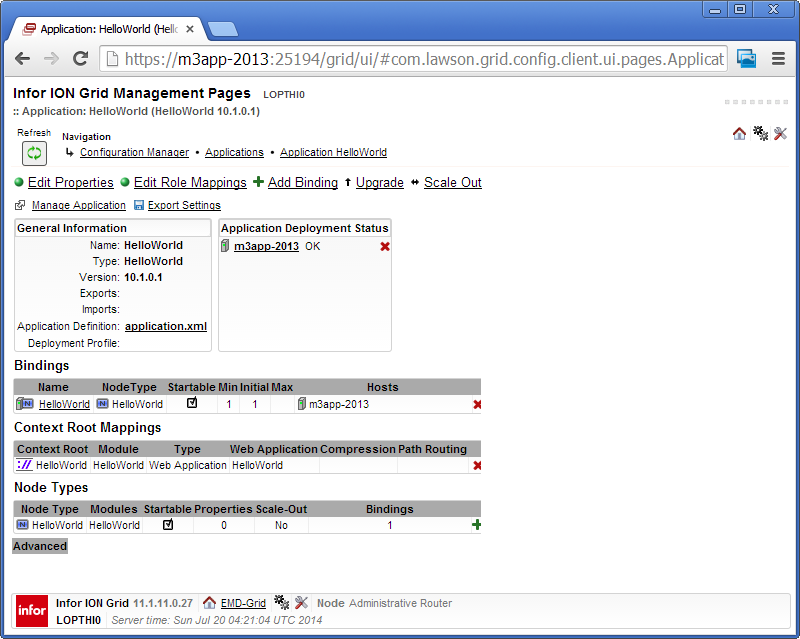
  11. The application is now deployed on the Infor Grid:
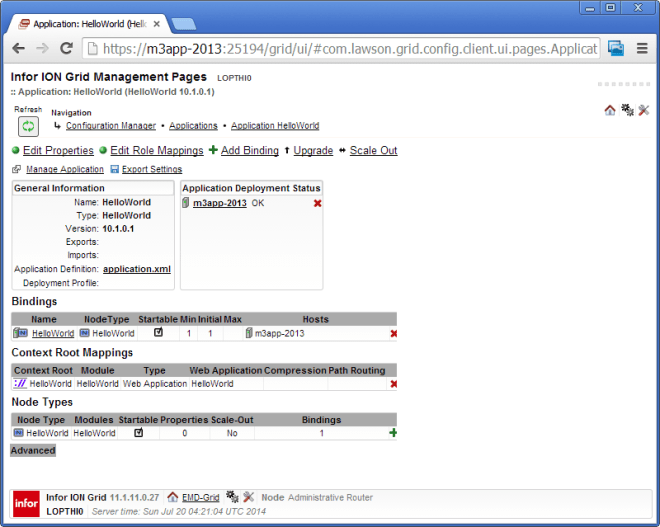
    b15

Result

Now we can try the application by going to /HelloWorld/:
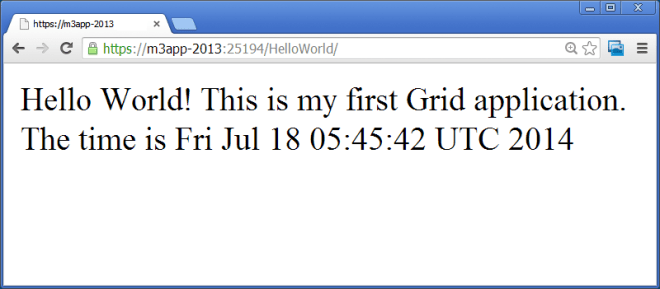
18

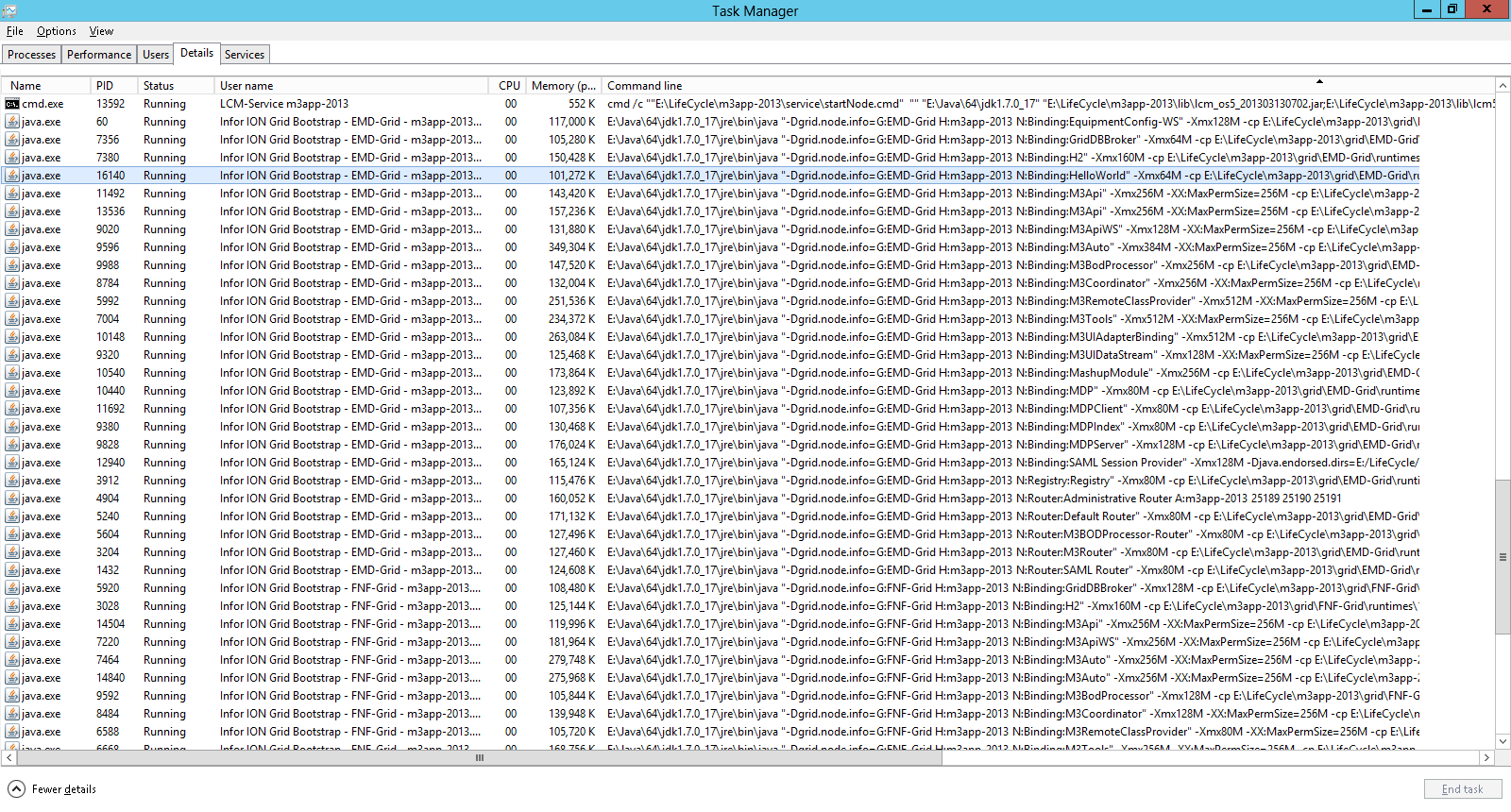
My understanding of the Infor Grid is that applications run in a node, and that a node runs in its own JVM (probably to avoid collateral damage if the app crashes). We can confirm this by finding our app in the server’s Windows Task Manager:
b16


Updates

[UPDATED 2014-07-24]

At this point, you can update your files (JSP, HTML, JavaScript, etc) directly in the LifeCycle Manager deployment folder, refresh the browser, and the server will serve the new version of your files. This is the same type of updates we do with Smart Office scripts. If you do this, remember to backup your changes.

E:\LifeCycle\<host>\grid\<grid>\grids\<grid>\applications\HelloWorld\webapps\HelloWorld\

Limitations

Because of the distributed topology, fault tolerant, load balanced, scalable, and redundant nature of the Infor Grid, it is our responsibility as grid application developers to design them correctly. But we don’t yet know how to do that on the Infor Grid. Remember to call Infor about that. So keep it simple for now:

  • Make the application stateless until we find out how to store and share and synchronize state and make distributed sessions on the Grid.
  • Don’t make direct connections to any servers with network sockets until we find out how to abstract the communication with the Grid routers.
  • Don’t change any shared resources anywhere to avoid race conditions until we find out how to run critical sections on the Grid.
  • Don’t expect to do parallel programming since we don’t yet know how to communicate with multiple instances of the application.
  • Don’t persist data on disk as we don’t yet know how to abstract storage for failover and redundancy.

Summary

This was a hack to start developing simple applications on the Infor Grid. This technique is unofficial, undocumented and unsupported. It is our responsibility as developers to design applications correctly. Ask Infor to open up and support us.

That’s it! If you liked this, thank Jonathan, click Like, leave your comments below, subscribe to this blog, share with your peers, ask Infor to be open and embrace the community, and be responsible with your code. Thank YOU.

How to decrypt network traffic from Infor Grid

Here is a technique to intercept and decrypt the TLS (HTTPS) network traffic from the Infor Grid using Wireshark and the server’s private keys.
Why does it matter?

This technique is useful for troubleshooting products like M3 Web Services (MWS) and Infor Process Automation (IPA) which don’t log the HTTP requests and responses in their entirety. For instance, MWS Runtime can optionally dump the SOAP requests and SOAP responses but misses the HTTP request headers and HTTP response headers, and IPA only logs the HTTP response body but misses the HTTP request’s header and body and the HTTP response header, and neither MWS nor IPA let us hook to a proxy such as Fiddler. Sometimes it’s necessary to troubleshoot the HTTP requests and responses in their entirety. For example, I’m currently troubleshooting for a customer the case of a rogue white space somewhere in a request that’s throwing a syntax error down stream in a parser, and I need to chase the bug down by analyzing the hexadecimal values of the bytes, and for that I need un-encrypted traffic.

We could use Wireshark to intercept all network packets but if the traffic is encrypted with TLS (HTTPS) it’s unreadable. In public-key cryptography, a client and server initiate a TLS connection using asymmetric cryptography, and then switch to symmetric cryptography for the rest of the session. Fortunately, the Wireshark SSL dissector can decrypt traffic if we give it the server’s private keys. I had previously showed this technique a long time ago to decrypt Lawson Smart Office traffic and more recently to intercept un-encrypted IPA traffic. This time I update the technique for encrypted traffic of the Infor Grid.

Don’t get exited about hacking and don’t freak out about security because this technique is only available for those administrators that have access to the servers private keys and passwords.

Server’s private keys and passwords

First, we will need to find the Infor Grid’s private keys and passwords. I don’t do Grid installations so I don’t know where the keys are stored (if in the same path on any Grid, or if at a path defined by the installer), nor how the keys are generated (if automatically by the Grid, or if manually by the installer). In my case, I was testing on two different Grids and I found the keys in LifeCycle Manager (LCM) server at these two different paths:

D:\Infor\LifeCycle\<host>\grid\<grid>\grids\<grid>\secure\
E:\Infor\LifeCycle Manager\LCM-Server\grid\<grid>\keyStore\

This non-consistency tells me the path is defined by the installer.

Here is a screenshot:
b1

The paths contain many files of type *.ks and *.pw. The KS file type is a keystore encrypted with a password. The PW file type is the password in clear text; it looks encrypted but it’s just long random clear text. In my second Grid, there were about 50 pairs of files where the file names seem to follow a specific naming convention. That tells me the keys and passwords are generated automatically by the Grid.

Export and convert the private key

Now that we have the keystores and the passwords, we need to export the private key from the keystore and convert it to a format supported by Wireshark. For that, we can use the keytool of the JRE to export and OpenSSL to convert, or use KeyStore Explorer that will both export and convert.

Here’s with the keytool (export to PKCS12) and OpenSSL (convert to PEM):

keytool -importkeystore -srckeystore mykeystore.ks -destkeystore myexportedkey.p12 -deststoretype PKCS12
openssl pkcs12 -in myexportedkey.p12 -out myexportedkey.pem -nocerts -nodes -passin file:mykeystore.pw

b2

And here’s with the KeyStore Explorer (directly to PEM):
b3

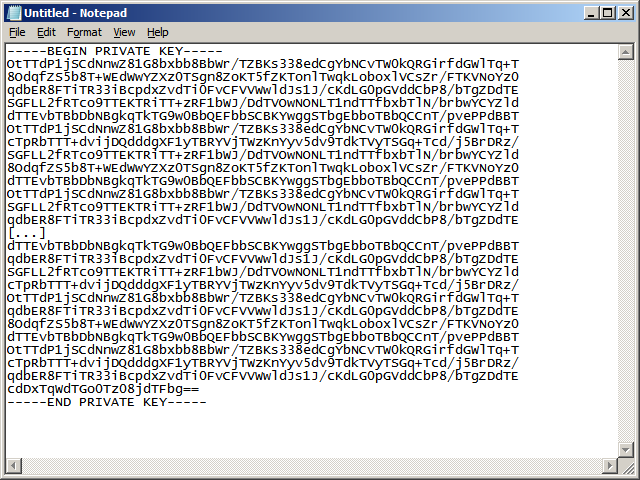
Now we have a file with —–BEGIN PRIVATE KEY—–:
7

Import the private key in Wireshark

Now we import the key in Wireshark > Edit > Preferences > Protocols > SSL and set the Infor Grid server’s IP address, port and private key (PEM):
b4

Intercept and decrypt traffic

Now we are ready to intercept and decrypt traffic, for example we can go to the Grid Management Pages with HTTPS:
b5

Then we filter for ssl, see the decrypted traffic, the key exchange, and Follow SSL Stream:
b6

Summary

That was a technique to intercept and decrypt network traffic of the Infor Grid using Wireshark and the server’s private keys which is useful for troubleshooting purposes. This technique is only available to the administrators that have access to the servers.

If you know of a simpler technique please let me know.

That’s it. Please like, comment, subscribe, share. Thank you.

Open source address validation for Infor M3 using UPS

In the series for the open source address validation for Infor M3, I just added to the GitHub repository a sample script to do address validation using the UPS Address Validation – Street Level API.

UPS Address Validation – Street Level

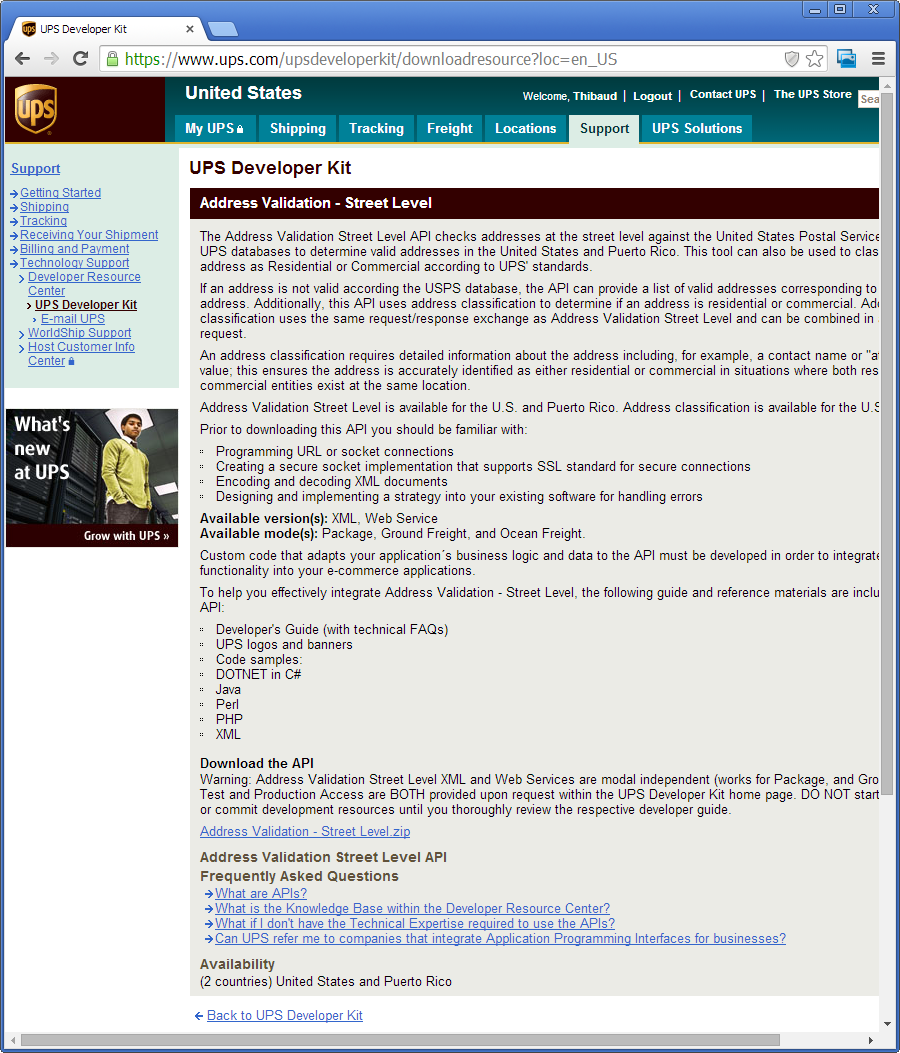
You will need an access key with UPS to access the API, documentation and samples:
2

Sample HTTP request/response

Once you have the access key and documentation, you need to submit an HTTP POST request with two concatenated XML documents:
5

Sample script

Here is the sample TestUPS.js script for Infor Smart Office:

 import System;
 import System.IO;
 import System.Net;
 import System.Xml;
 import System.Xml.Linq;

 /*
     Sample script for Infor Smart Office to validate addresses with the UPS Street Level API
     PENDING: replace authentication and address values + error handling + background thread + user interface
     https://www.ups.com/upsdeveloperkit
 */

 package MForms.JScript {
     class TestUPS {
         public function Init(element: Object, args: Object, controller : Object, debug : Object) {
             // authentication
             var doc1: XDocument = new XDocument(
                 new XDeclaration("1.0", "utf-8"),
                 new XElement("AccessRequest",
                     new XElement("AccessLicenseNumber", "****************"),
                     new XElement("UserId", "******"),
                     new XElement("Password", "********")
                 )
             );
             // address
             var doc2: XDocument = new XDocument(
                 new XDeclaration("1.0", "utf-8"),
                 new XElement("AddressValidationRequest",
                     new XElement("Request",
                         new XElement("TransactionReference",
                             new XElement("CustomerContext", "Infor Smart Office"),
                             new XElement("XpciVersion", "1.0"),
                         ),
                         new XElement("RequestAction", "XAV"),
                         new XElement("RequestOption", "3")
                     ),
                     new XElement("AddressKeyFormat",
                         new XElement("ConsigneeName", "Ciber"),          // Name
                         new XElement("BuildingName", ""),
                         new XElement("AddressLine", "Fiddlers Green"),   // Address line 1
                         new XElement("AddressLine", ""),                 // Address line 2
                         new XElement("AddressLine", ""),                 // Address line 3
                         new XElement("AddressLine", ""),                 // Address line 4
                         new XElement("Region", ""),
                         new XElement("PoliticalDivision2", "Greenwd"),   // City
                         new XElement("PoliticalDivision1", "CO"),        // State
                         new XElement("PostcodePrimaryLow", ""),          // Zip5
                         new XElement("PostcodeExtendedLow", ""),         // Zip4
                         new XElement("Urbanization", ""),
                         new XElement("CountryCode", "US")                // Country
                     )
                 )
             );
             // concatenate both XML docs
             var sw: StringWriter = new StringWriter();
             doc1.Save(sw);
             doc2.Save(sw);
             var docs: String = sw.GetStringBuilder().ToString();
             // HTTP request
             var request: HttpWebRequest = HttpWebRequest(WebRequest.Create("https://onlinetools.ups.com/ups.app/xml/XAV"));
             request.Method = "POST";
             var byteArray: byte[] = System.Text.Encoding.UTF8.GetBytes(docs);
             var dataStream: Stream = request.GetRequestStream();
             dataStream.Write(byteArray, 0, byteArray.Length);
             dataStream.Close();
             // HTTP response
             var response: HttpWebResponse = request.GetResponse();
             var data: Stream = response.GetResponseStream();
             var doc: XmlDocument = new XmlDocument();
             doc.Load(data);
             data.Close();
             response.Close();
             // check for errors
             var error: XmlNode = doc.SelectSingleNode("//Response/Error");
             if (error != null) {
                 debug.WriteLine("Error " + error.SelectSingleNode("ErrorCode").InnerText + ": " + error.SelectSingleNode("ErrorDescription").InnerText);
                 return;
             }
             // show results
             var nodes: XmlNodeList = doc.SelectNodes("//AddressKeyFormat");
             var keys : String[] = [
                 "AddressClassification/Description",
                 "ConsigneeName",
                 "BuildingName",
                 "AddressLine[1]",
                 "AddressLine[2]",
                 "PoliticalDivision2",
                 "PoliticalDivision1",
                 "PostcodePrimaryLow",
                 "PostcodeExtendedLow",
                 //"Region",
                 "Urbanization",
                 "CountryCode"
             ];
             for (var node: XmlNode in nodes) {
                 for (var i: int in keys) {
                     var value: XmlNode = node.SelectSingleNode(keys[i]);
                     debug.Write(value != null ? value.InnerText + ", " : "");
                 }
                 debug.WriteLine("");
             }
         }
     }
 }

That was a sample Smart Office Script to do address validation for M3 using UPS.

Also, check out the samples for USPS and Eniro and the Mashup.

That’s it! Please comment, follow, share, contribute, and donate your source code. Thank you.

UPDATE: I would like to specially acknowledge the contribution of William Dale at Augusta Sportswear for allowing me to use his UPS and USPS accounts so I can do my tests and write the scripts. Thank you William!

Open source address validation of US addresses for Infor M3

As part of the open source address validation project for Infor M3, I just uploaded to the GitHub repository a sample script for Infor Smart Office to validate an address in the US using the United States Postal Service USPS Web Tools API. I provide the script as proof-of-concept for the interested reader to complete to suit their needs.

USPS Web Tools API

The USPS Web Tools API has the Verify and ZipCodeLookup APIs that validate one or more addresses using XML over HTTP GET:
1
2

Sample request/response

Here is a sample XML request and the URL:

https://secure.shippingapis.com/ShippingAPI.dll?API=Verify&XML=…

<AddressValidateRequest USERID="************">
   <Address>
      <FirmName>Ciber</FirmName>
      <Address1>6363 South Fiddlers Green</Address1>
      <Address2></Address2>
      <City>Greenwood Village</City>
      <State>CO</State>
      <Zip5></Zip5>
      <Zip4></Zip4>
   </Address>
</AddressValidateRequest>

Here is the XML response:

<?xml version="1.0" encoding="UTF-8"?>
<AddressValidateResponse>
   <Address>
      <FirmName>CIBER</FirmName>
      <Address1>STE 1400</Address1>
      <Address2>6363 S FIDDLERS GREEN CIR</Address2>
      <City>GREENWOOD VLG</City>
      <State>CO</State>
      <Zip5>80111</Zip5>
      <Zip4>5024</Zip4>
   </Address>
</AddressValidateResponse>

Sample script

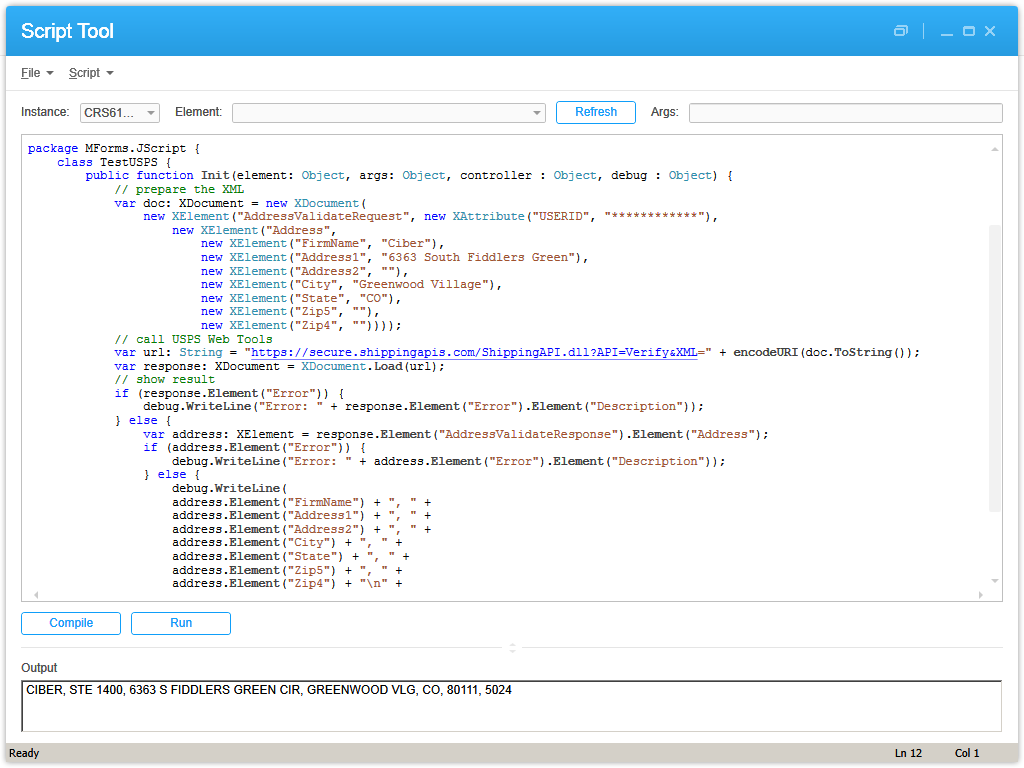
Here is the sample script TestUSPS.js in Smart Office:
3

Here are the resulting XML and HTTP request and response:
4


That was how to do address validation for M3 in Infor Smart Office for US addresses using USPS Web Tools.

If you like this, please comment, subscribe, share, contribute to the project, donate your code. Thank you.

UPDATE: I would like to specially acknowledge the contribution of William Dale at Augusta Sportswear for allowing me to use his UPS and USPS accounts so I can do my tests and write the scripts. Thank you William!

Workaround to have Google Maps back in Mashups

I found a quick workaround to have Google Maps back into Infor Smart Office Mashups. There are currently three problems with Google Maps in Mashups. I’m using Smart Office 10.1.1.1.5, on Windows 7 Professional 64 bits, with Internet Explorer 11.0.9600.17207.

Problem 1

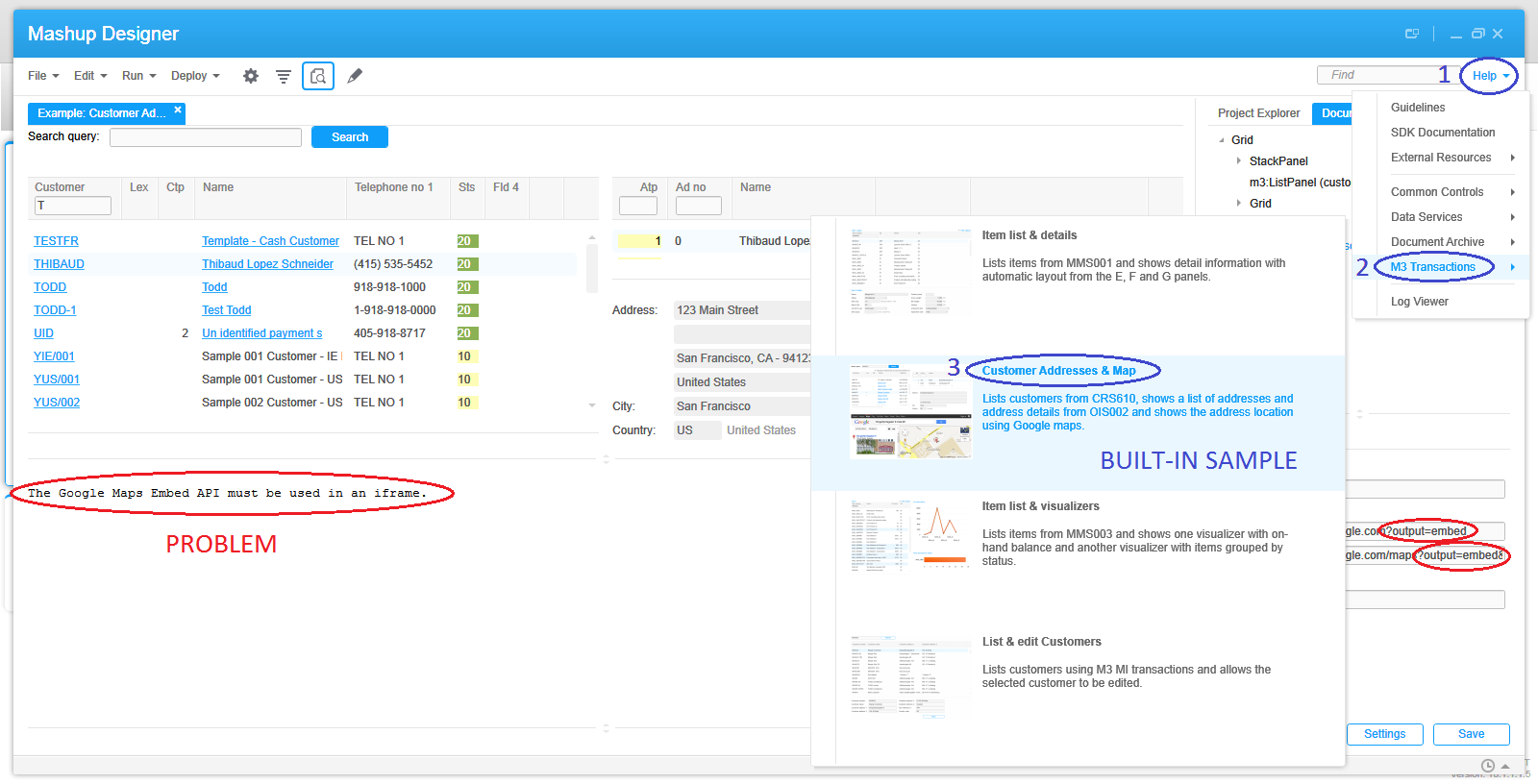
The first problem is that some time ago Google Maps changed their service and removed the parameter output=embed from the allowed parameters of the URL. The embed output was great as it used to hide the header, footer, and sidebar making it ideal for limited spaces like Mashups; the default output having been classic. With that parameter now disallowed, it causes Google Maps to display the error “The Google Maps Embed API must be used in an iframe” and that happens whether in a browser or in a Mashup, and it even broke the built-in Mashup sample of Mashup Designer:
9
8

I haven’t investigated all the details of the problem but I found a workaround. Replace the value embed of the parameter with either of these values: svembed, embedmfe, or svembedmfe. sv seems to be the prefix for Street View. I haven’t yet figured out what the suffix mfe means nor if it will remain long lived.

Here’s a sample result of Google Maps embedded in my browser:
10

Problem 2

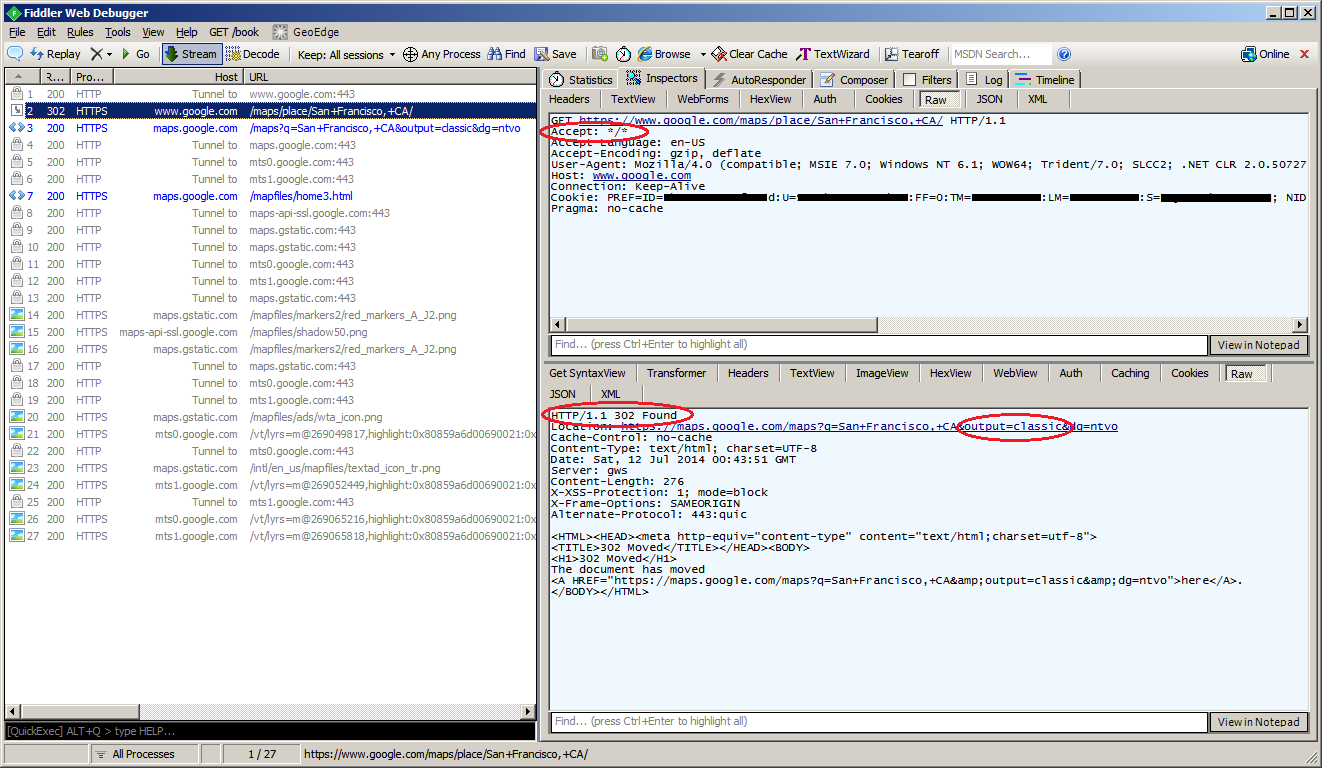
Instead of using the output parameter we could simply use the Google Maps new look which is lean and sexy and also hides the header, footer and sidebar. But unfortunately, the WebBrowser control of Smart Office Mashups sends the HTTP request header Accept: */* instead of Accept: text/html, application/xhtml+xml, */* and that causes Google Maps to respond with HTTP 302 Found redirecting to output=classic and we’re back at problem 1:
12

Problem 3

The third problem is that Google Maps in a Mashup now throws a JavaScript error popup:
11

I haven’t yet investigated what causes it. It seems to be caused by the old render mode IE7 that Smart Office uses (although in the past the same render mode wasn’t causing the script error). The workaround is to add a registry key to your Windows to force the render mode to IE11 (and you need to install Internet Explorer 11). You can read more about this in Karin’s post. Microsoft has tools to push registry keys to users computers. Here’s the Windows Registry key I just added on my computer:
4

Result

After changing to output=svembed, and after adding the Windows Registry key, here’s the result in my Smart Office: the output is correctly embedded, there is no script error, the map works correctly (zoom/pan/etc.), and the Mashup events still work correctly:
7

That was a quick workaround to get Google Maps back into Mashups. If you know of a simpler solution let me know.

Calling M3 Web Services with SQL adapter in Smart Office Mashup

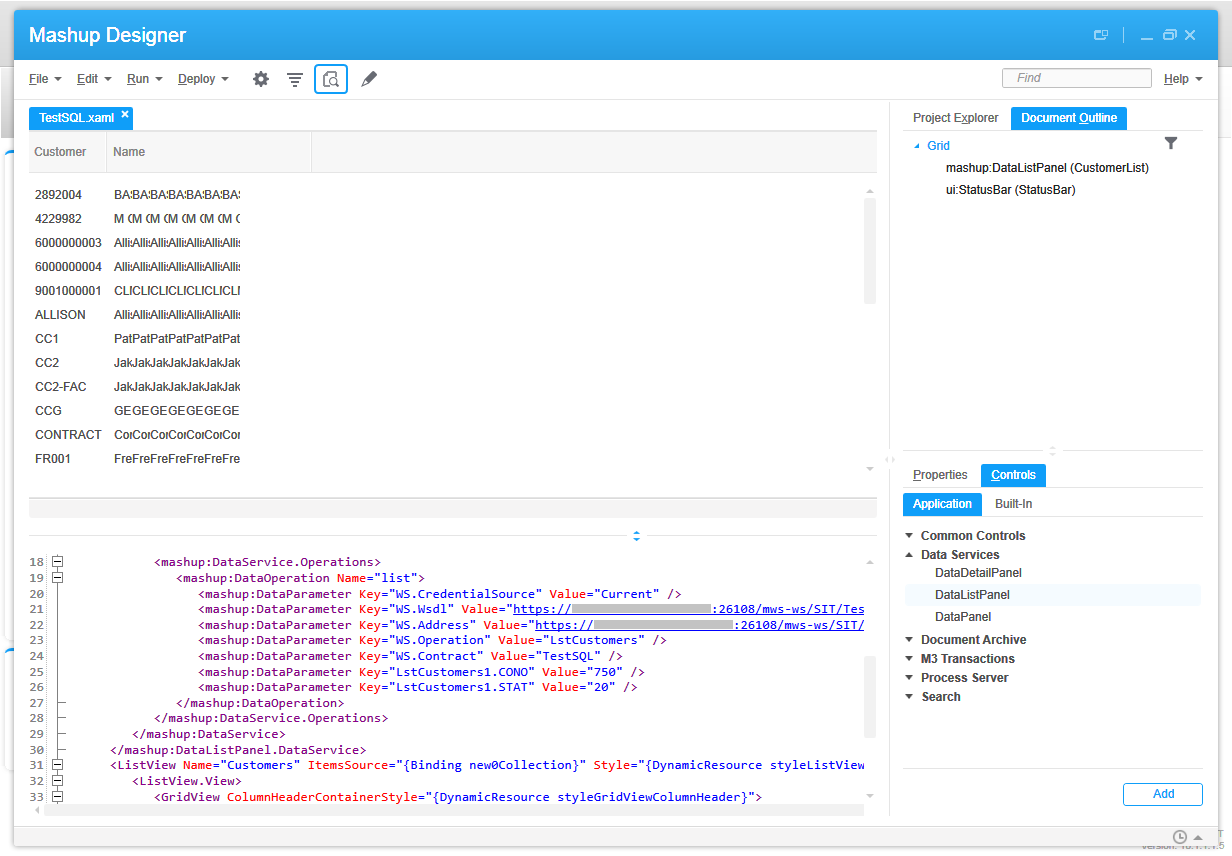
Once in a while I receive this question of how to call an M3 Web Service (MWS) with SQL adapter in a Mashup for Infor Smart Office. As a reminder, MWS has three adapters: M3 API, M3 Display Program (MDP), and SQL (JDBC). Each will return a different SOAP response, thus each will need a slightly specific XAML. The trick with the SQL response is the new0Collection.

Here is my sample SQL:

SELECT OKCUNO, OKCUNM
FROM MVXJDTA.OCUSMA
WHERE OKCONO=? AND OKSTAT=?

1b

Here is the web service in MWS Designer (note the new0 result set in the output):
4_
6b

Here is the Web service test tool in Smart Office (note the new0Collection):
8_

Here is the resulting Mashup:
10b

And here is the final XAML source code with the new0Collection binding highlighted:

<Grid xmlns="http://schemas.microsoft.com/winfx/2006/xaml/presentation" xmlns:x="http://schemas.microsoft.com/winfx/2006/xaml" xmlns:ui="clr-namespace:Mango.UI.Controls;assembly=Mango.UI" xmlns:mashup="clr-namespace:Mango.UI.Services.Mashup;assembly=Mango.UI">
	<Grid.Resources></Grid.Resources>
	<Grid.ColumnDefinitions>
		<ColumnDefinition Width="*" />
	</Grid.ColumnDefinitions>
	<Grid.RowDefinitions>
		<RowDefinition Height="*" />
		<RowDefinition Height="Auto" />
	</Grid.RowDefinitions>
	<mashup:DataListPanel Name="CustomerList" Grid.Row="0">
		<mashup:DataListPanel.Events>
			<mashup:Events>
				<mashup:Event SourceEventName="Startup" TargetEventName="list" />
			</mashup:Events>
		</mashup:DataListPanel.Events>
		<mashup:DataListPanel.DataService>
			<mashup:DataService Type="WS">
				<mashup:DataService.Operations>
					<mashup:DataOperation Name="list">
						<mashup:DataParameter Key="WS.CredentialSource" Value="Current" />
						<mashup:DataParameter Key="WS.Wsdl" Value="https://host:26108/mws-ws/SIT/TestSQL?wsdl" />
						<mashup:DataParameter Key="WS.Address" Value="https://host:26108/mws-ws/SIT/TestSQL" />
						<mashup:DataParameter Key="WS.Operation" Value="LstCustomers" />
						<mashup:DataParameter Key="WS.Contract" Value="TestSQL" />
						<mashup:DataParameter Key="LstCustomers1.CONO" Value="750" />
						<mashup:DataParameter Key="LstCustomers1.STAT" Value="20" />
					</mashup:DataOperation>
				</mashup:DataService.Operations>
			</mashup:DataService>
		</mashup:DataListPanel.DataService>
		<ListView Name="Customers" ItemsSource="{Binding new0Collection}" Style="{DynamicResource styleListView}" ItemContainerStyle="{DynamicResource styleListViewItem}">
			<ListView.View>
				<GridView ColumnHeaderContainerStyle="{DynamicResource styleGridViewColumnHeader}">
					<GridView.Columns>
						<GridViewColumn Header="Customer" DisplayMemberBinding="{Binding Path=OKCUNO}" />
						<GridViewColumn Header="Name" DisplayMemberBinding="{Binding Path=OKCUNM}" />
					</GridView.Columns>
				</GridView>
			</ListView.View>
		</ListView>
	</mashup:DataListPanel>
	<ui:StatusBar Name="StatusBar" Grid.Row="1" />
</Grid>

That’s it!