Today I will illustrate how to get an item image from Infor Document Archive.
For that, I will use Document Archive Client to add an item image with the item number (ITNO) as an attribute, and I will retrieve the item image using the Document Archive REST API. I will do the illustration with two servers on different version numbers, one server running Document Archive version 10.0.2.4.28 and the other server running version 10.1.0.0.93.
I will later use these steps for my Google Glass project to display in Glass the item image of each picking line.
Document Archive Client in Smart Office
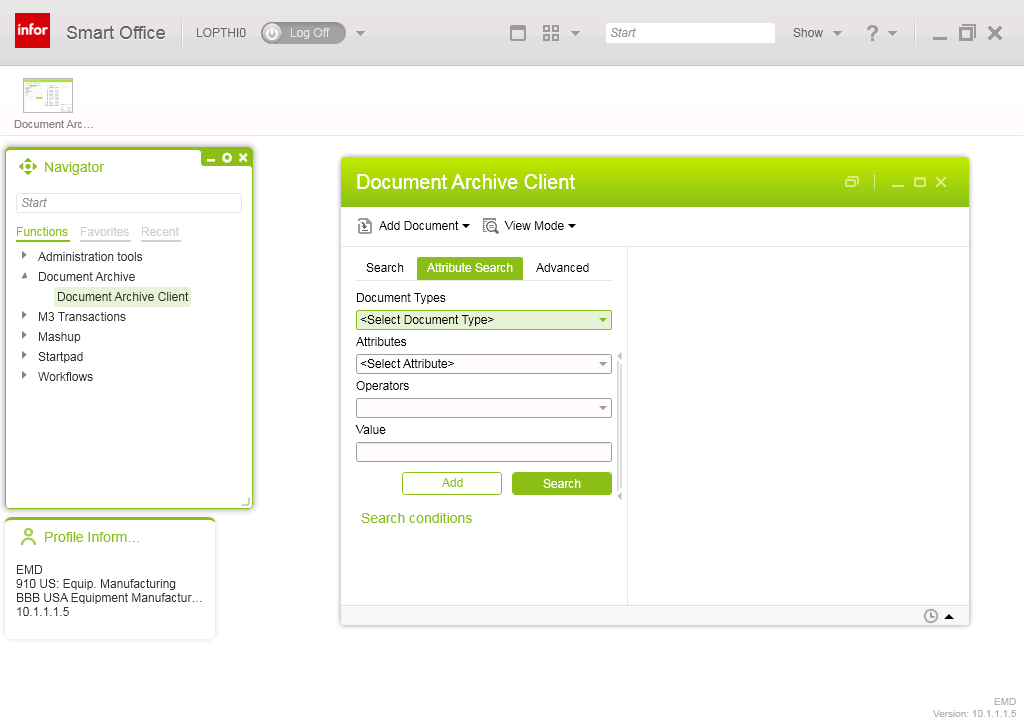
If you have Document Archive installed in your Grid, you will find the Document Archive Client in the Smart Office Navigator widget:

Document Archive web interface
Document Archive has a web interface at /ca/index.html.
Document Archive 10.0.x will simply return the version number:

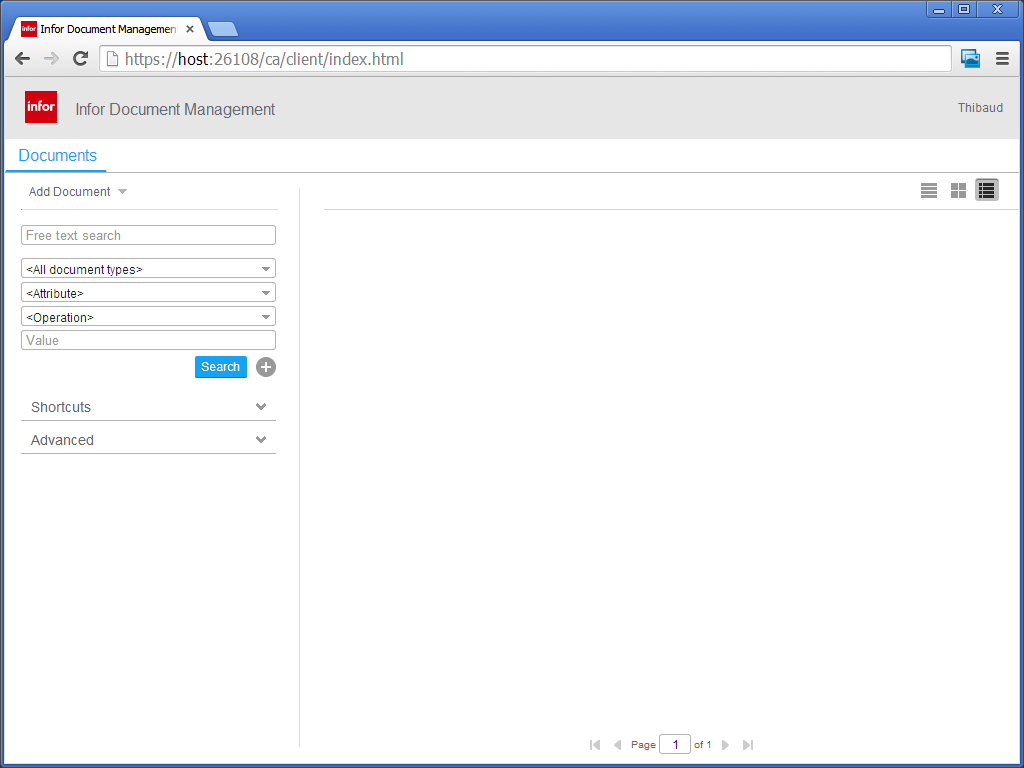
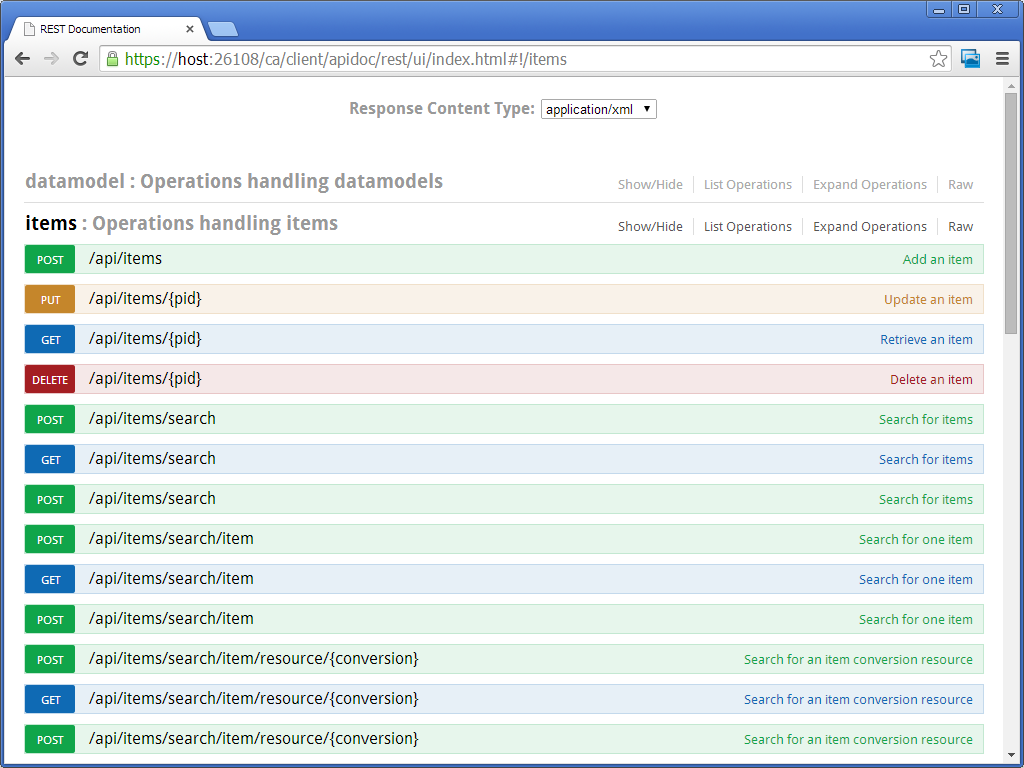
Document Archive 10.1.x has a much richer web interface with a web client, an admin client, a mobile client, a Ming.le part, management pages, and an API overview:


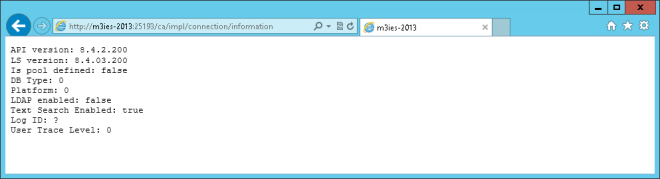
The path /ca/impl/connection/information will return the API version number:
How to add an item image
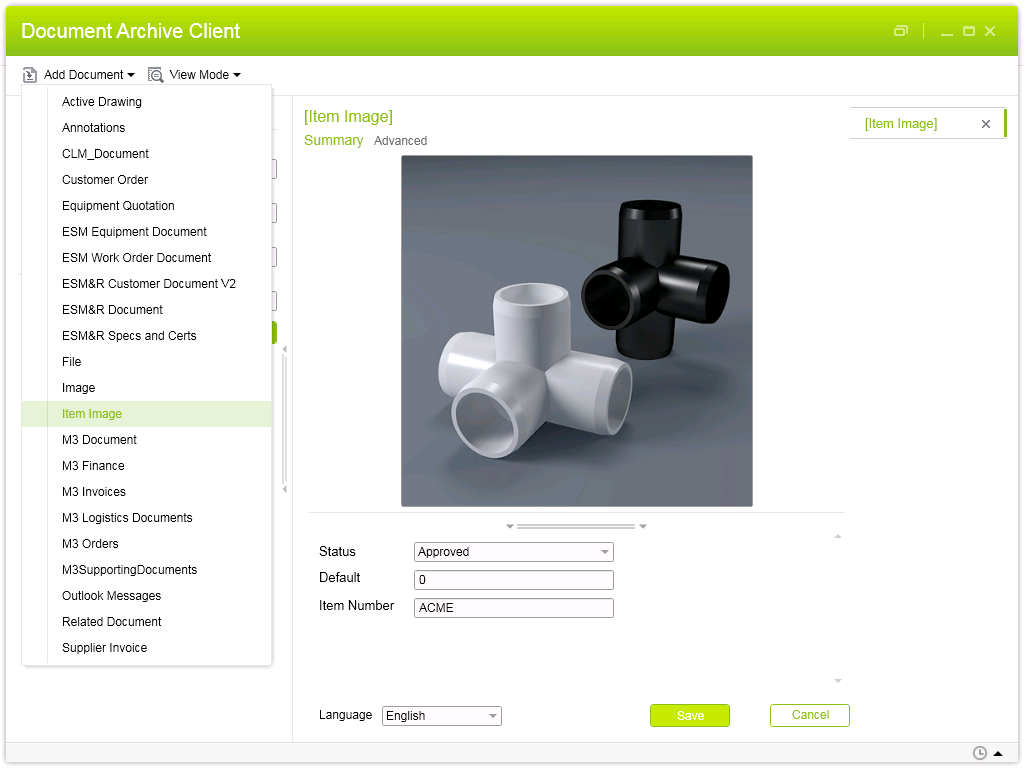
To add an item image to Document Archive:
- Select Add Document > Item Image
- Drop an image file
- Set Status to Approved
- Enter an Item Number (ITNO)
- Click Save

How to search for an item image
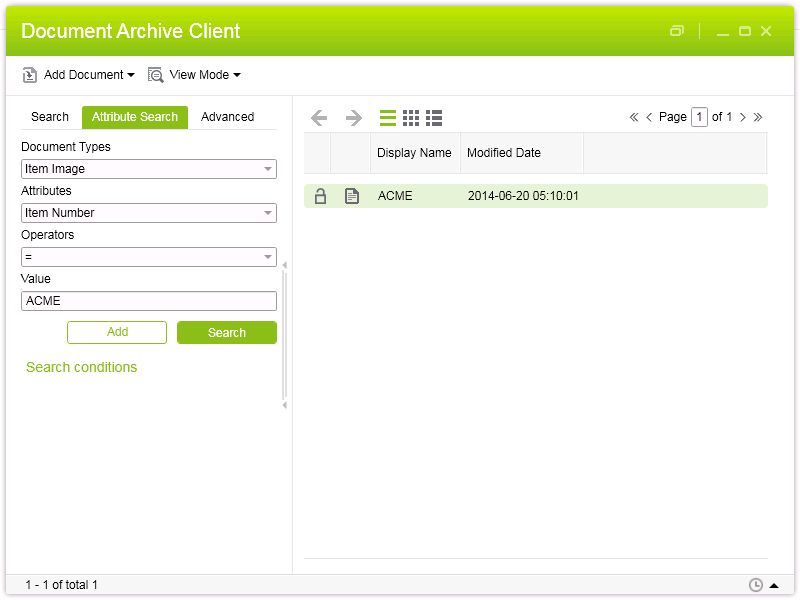
To search for an Item Image by item number (ITNO):
- Select Attribute Search
- Set Document Type to Item Image
- Set Attribute to Item Number
- Set Operator to =
- Enter the item number in Value
- Click Search
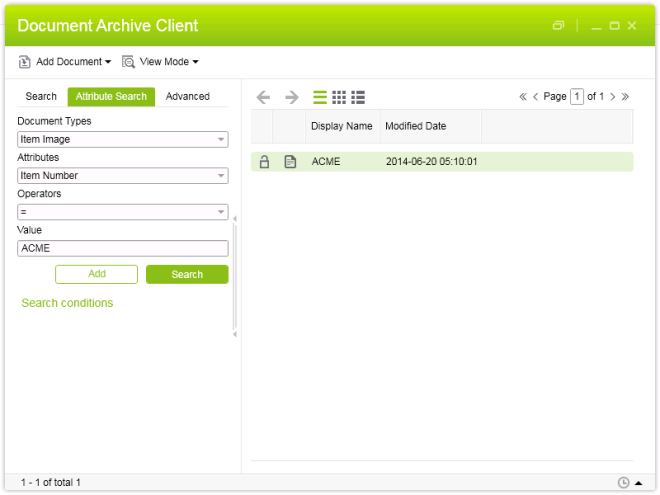
Document Archive Client will return a list of possible matches, and for each match it will return the image converted into different sizes like original, preview, and thumbnail.
HTTP Requests and query
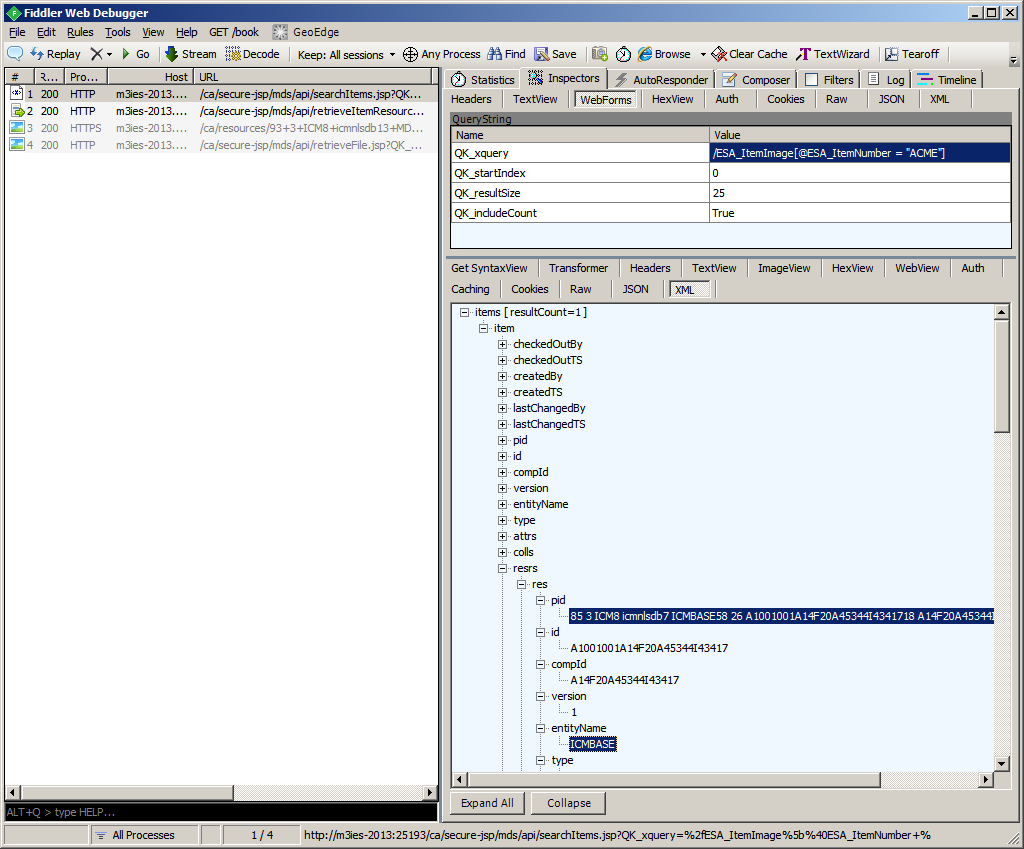
When I intercept those steps in Fiddler, I see four HTTP Requests, starting with the query:

The server with Document Archive 10.0.x used the query /ESA_ItemImage[@ESA_ItemNumber = “ACME”], and the other server with Document Archive 10.1.x used the query /M3_ITEM_IMAGE[@M3_ITNO = “ACME”]. I’m not fully familiar with how Document Archive is configured, so I don’t know if the query is based on the version number or if somebody did a manual configuration. So check what the query is on your server.
From the query, the server returns a list of matches, and for each match it gives the PID of the document and a list of resources with URLs to the item image in various sizes: original, preview, and thumbnail.
I’m only interested in the original item image, that’s entityName=ICMBASE. The PID would be given by the following XPath on the API response:
//res[entityName='ICMBASE']/pid/text()
Document Archive REST API
Document Archive has a REST API that we can access from http://host:port/ca .
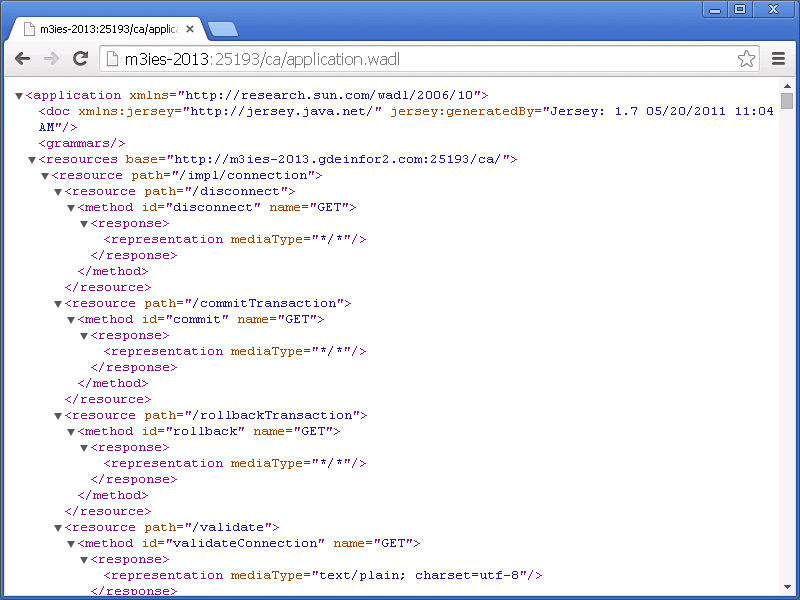
The path /ca/application.wadl will return the Web Application Description Language (WADL) of the API:

Also, Document Archive 10.1.x has a richer API, and a really well polished award-winning documentation and playground:

Search an item image with the REST API
There are several API available to get the item image.
To determine which API accepts query as an input parameter, use the following XPath on the application.wadl:
//param[contains(@name, 'query')]
To determine which API returns binary data (image bytes) as output, use the following XPath:
//representation[contains(@mediaType, 'application/octet-stream')]
By trial and error, I determined I could get the item image in only one request with the following API, the parameter $query properly URL-encoded, and HTTP Basic Authentication:
/ca/api/items/search/item/resource/stream?$query=...

Errors
It wasn’t easy. I ran into a lot of errors which I still don’t understand and which I didn’t fully document. Here are a few bits and pieces I noted:
- Unfortunately, the WADL doesn’t mention the input parameter QK_xquery for the searchItems.jsp API, therefore there may be more undocumented API that also accept QK_xquery as an input parameter; to be tested.
- In some of my tests the server threw HTTP 401 Unauthorized which led me to believe the user/password was wrong. It turns out the Grid session provider didn’t allow HTTP and only allowed HTTPS. Very misleading error message.
- I got a lot of cryptic prolog errors: “Parsing error: Invalid input data: Content is not allowed in prolog. org.xml.sax.SAXParseException”. It seems to be a bug in Document Archive for POST methods and the workaround is to manually change the HTTP Request header to Content-Type: text/plain.
- I got a lot of inexplicable java.lang.NullPointerException even with the correct input parameters.
- I got a lot of inexplicable HTTP/1.1 500 Internal Server Error even with the correct input parameters.
That was quick overview of how to add an item image by item number (ITNO) in Document Archive, and how to retrieve it with the REST API.
That’s it! Please comment, like, share, follow, enjoy, author. Thank you.








 M3 ideas