Mashup quality control #3

I am attempting to develop a quality control tool for Infor Smart Office Mashups. In my original post I was using Python. This time I will use the Smart Office API to get the list of Mashups.

List of Mashups in Smart Office

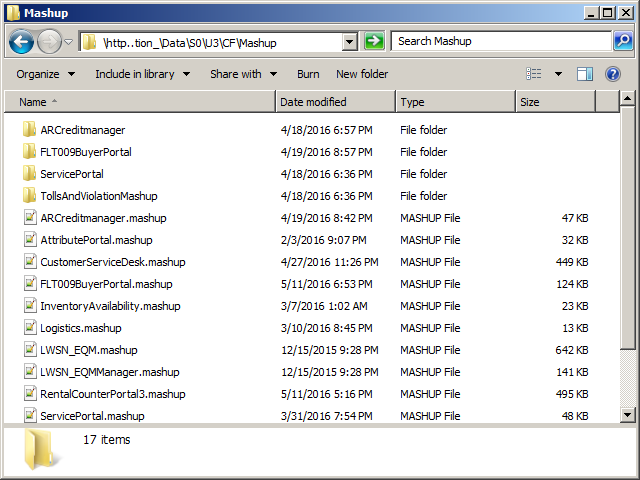
Smart Office automatically installs the Mashups on each user’s computer:
3

The list is based on what is installed in LifeCycle Manager:
4

Smart Office uses the Mango web services CategoryFilesManager.ListAllCategoryFileInfo and ListCategoryFileInfo to get the list of Mashups:
6

And it stores the files locally in a temporary user based path:
5

The administrator can fine tune the Mashups access:
7

That is more than sufficient information for my needs. Let’s move on.

Smart Office API

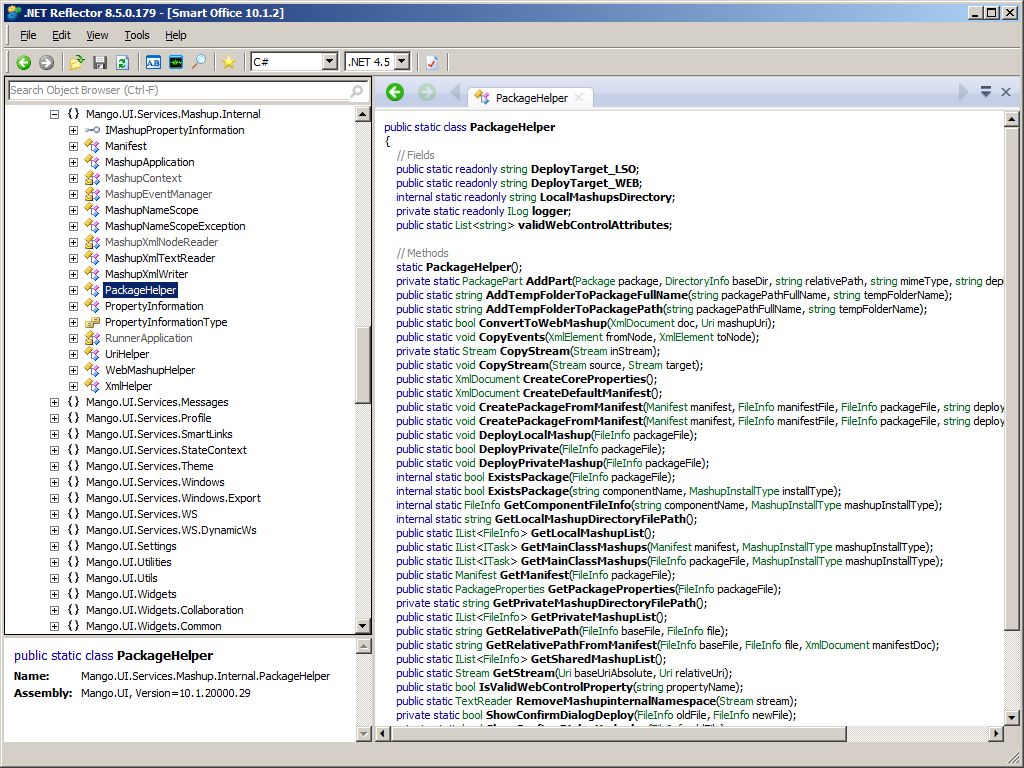
The Smart Office API has a class PackageHelper for Mashups:
1

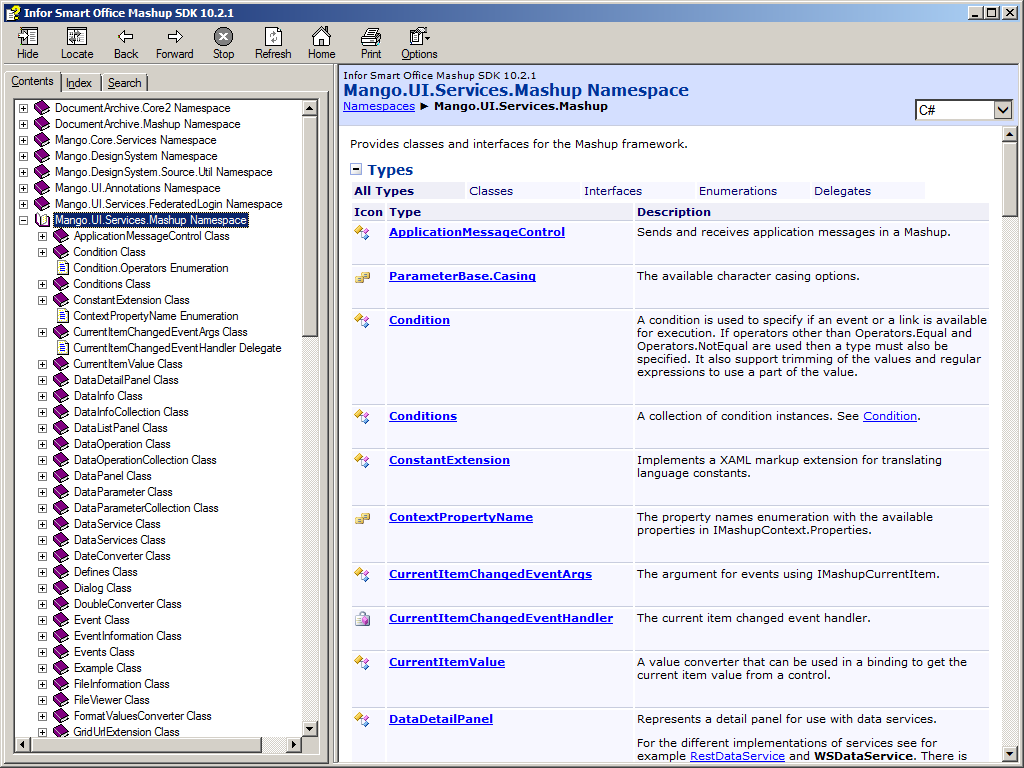
I could not find it in the Smart Office Mashup SDK Documentation, but here is a screenshot of the documentation anyway:
1_

Source code

Here is the source code to get the list of Mashups, the Manifest, the XAML files, and the resources:

import System.IO;
import System.Xml;
import Mango.UI.Services.Mashup.Internal;

package MForms.JScript {
  class Test {
    public function Init(element: Object, args: Object, controller : Object, debug : Object) {
      var mashups /*IList<FileInfo>*/ = PackageHelper.GetSharedMashupList();
      for (var i: int = 0; i < mashups.Count; i++) {
        var mashup: FileInfo = mashups[i];
        debug.WriteLine(mashup.ToString());
        var manifest: Manifest = PackageHelper.GetManifest(mashup);
        var xml: XmlDocument = manifest.Document;
        var files: XmlNodeList = xml.SelectNodes("/Manifest/Files/File");
        for (var j: int = 0; j < files.Count; j++) {
          var node: XmlElement = files[j];
          var relativeUri: String = node.GetAttribute("Path");
          debug.WriteLine(relativeUri);
        }
        debug.WriteLine("");
      }
    }
  }
} 

It was inspired by PackageHelper.GetSharedMashupList and Manifest.CreateFileInformationList.

In addition to GetSharedMashupList(), we can also use GetPrivateMashupList()GetLocalMashupList() to get the various Mashups origins: shared, private, and local.

Reminder: To deploy a shared Mashup, use LifeCycle Manager > Admin > Upload Products > Upload; to deploy a Mashup privately, use Mashup Designer > Deploy > Private; and to deploy a Mashup locally, use Smart Office > Show > My Local Applications > Install.

Result

Here is the resulting list of files: *.mashup, *.xaml, *.png, etc.:
2

Future work

The next steps are:

  • Load the XAML and run my predicate rules
  • Deal with the name scoping across multiple files, e.g. <mashup:Event SourceName=”CustomerList”> where CustomerList is in a separate file
  • Instead of simple static analysis of the XAML files, do dynamic analysis as well, i.e. when the Mashups are running in Smart Office.
  • Explore the UriHelper.CreateMashupUri, Package.Open, Package.GetParts, PackageHelper.GetStream, MashupInstance.CreateInstance, MashupInstance.Load, MashupNameScope, etc.

That’s it.

Please comment, like, subscribe, share, author. Thanks for your support.

Related posts

Mashup quality control #2

Today I had to troubleshoot why a refresh icon in a Smart Office Mashup was not refreshing, and after correcting it, I included the correction as a new predicate rule in my Mashup quality control tool to automatically spot similar errors in other Mashups.

IconButtons and CommandBarButtons

Here is a screenshot of the icon bar and its XAML code:

You can find more information about the Smart Office Design System’s Icons, IconButtons and CommandBarButons on norpe’s blog post.

The error

After some manual troubleshooting, I found that the icon was refreshing the wrong list, i.e. the Click event had the TargetName property set to the wrong <m3:ListPanel>, it was set to PurchaseOrderList (incorrect) instead of RequisitionList (correct). Probably the developer copy/pasted the code from another tab and forgot to change the TargetName. That’s hard to find, quick to fix.

<ds:CommandBarButton IconName="Refresh" ToolTip="{mashup:Constant Refresh, File=Mango.UI}">
    <ds:CommandBarButton.CommandParameter>
        <mashup:Event TargetName="PurchaseOrderList" TargetEventName="Refresh" />
   </ds:CommandBarButton.CommandParameter>
</ds:CommandBarButton>

Finding other errors

Assuming the icons are grouped in a <StackPanel> followed by their <m3:ListPanel>, I can quickly find similar errors with the following XPath expression that lists all the icons TargetName:

//*[name()='ds:IconButton.CommandParameter' or name()='ds:CommandBarButton.CommandParameter']/mashup:Event/@TargetName

The Python code would be:

import os
import glob
import lxml.etree as etree

for f in glob.glob(os.path.join(r'C:\BuyerPortal', '*.xaml')):
    tree = etree.parse(f)
    r = tree.xpath("//*[name()='ds:IconButton.CommandParameter' or name()='ds:CommandBarButton.CommandParameter']/mashup:Event/@TargetName", namespaces={'mashup': 'clr-namespace:Mango.UI.Services.Mashup;assembly=Mango.UI', 'ds': 'clr-namespace:Mango.DesignSystem;assembly=DesignSystem'})
    for element in r:
        print(f, element)

Result

Then I visually inspect the result for outliers. In my case, I see the error I found earlier, and a new error I did not know about:
3

This is a quick way to help identify errors before users have to.

Future work

This still requires a visual inspection of the result. A better solution would be to calculate the distance between the icon and its target m3:ListPanel in the XAML tree, where a minimum distance would indicate a low probability of error, and a maximum distance would indicate a high probability of error.

That’s it!

Please comment, like, subscribe, share, author. Thanks for your support.

Related posts

Mashup quality control #1

It has become difficult for me to manually maintain the Smart Office Mashups of my customer – there are about 50 files, 1,000 controls, and 10,000 lines of XAML – so I am developing a software verification tool that does automatic quality control for me.

How?

I defined a set of predicate rules, and I use XPath to validate the Mashup against those rules. I am using Python for now because of its expressiveness and interactivity, but I will port it to JScript.NET or C# soon to benefit from the Smart Office API.

Sample rule

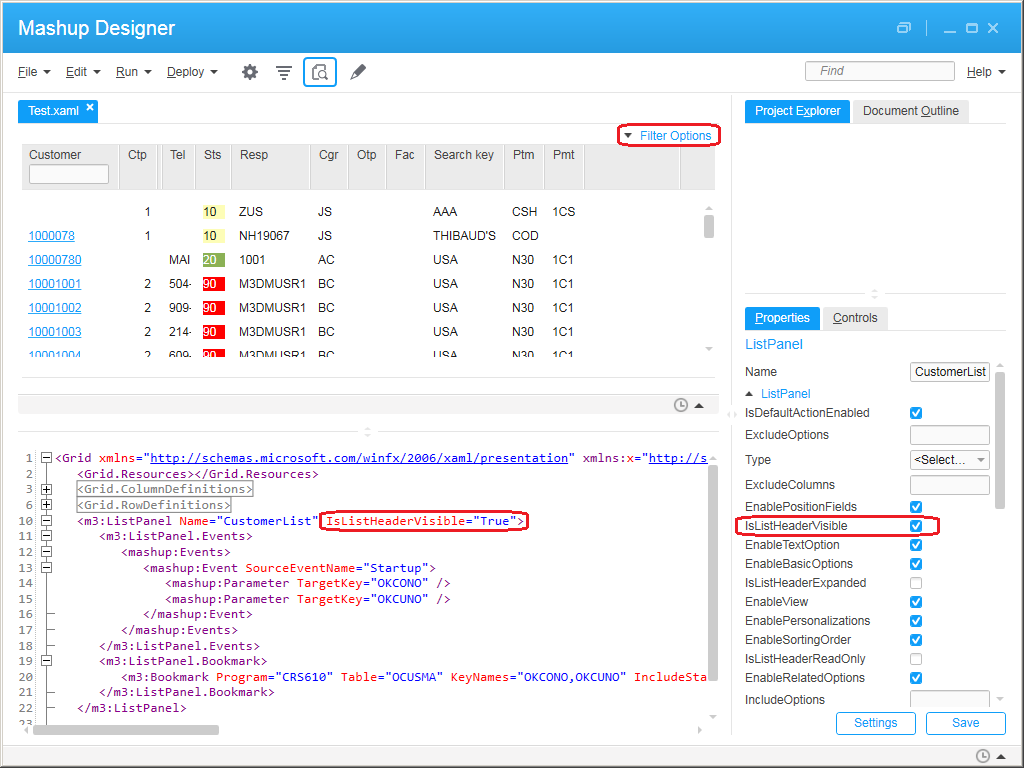
As a sample rule, I want all the <m3:ListPanel> controls to have the property IsListHeaderVisible=”True” such that users have the ability to expand the list header and change the sorting order, view, and apply filters. If one of the list panels does not have that property I want to know about it and correct it. Note this is my own preference, and other developers may have the opposite preference.

Here is the property in Mashup Designer:
3

The following XPath expression will return the list panels not validating the rule:

//m3:ListPanel[not(@IsListHeaderVisible="True")]

Here is a Python code to validate that rule:

import os
import glob
import lxml.etree as etree

for f in glob.glob(os.path.join(r'C:\RentalCounterMashup', '*.xaml')):
    tree = etree.parse(f)
    r = tree.xpath('//m3:ListPanel[not(@IsListHeaderVisible="True")]', namespaces={'m3': 'clr-namespace:MForms.Mashup;assembly=MForms'})
    for element in r:
        print(f, element.attrib['Name'])

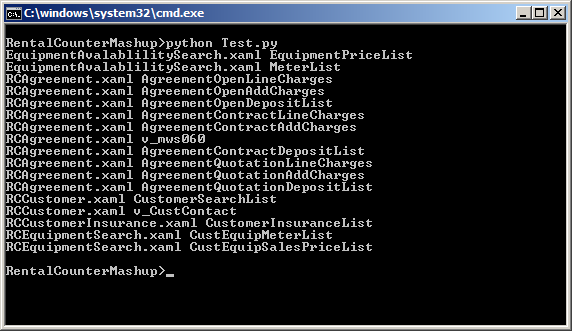
The result is the following, a list of XAML filenames and <m3:ListPanel> names that fail the rule:
4

Result

In my example, out of 63 list panels, 46 had the property, and 17 were missing the property, that’s 27% of list panels not passing the quality control. In other words, I was able to quickly identify a third of the list panels to correct.

Future work

I have many more ideas to implement, for example:

  • Ensure there are no hard-coded values in the MForms Bookmarks, Links, and MForms Automation, such as hard-coded CONO or DIVI
  • Automatically correct the Mashup, e.g. set IsListHeaderVisible=”True” if missing, and save

That’s it!

Let me know in the comments below if you have other rules to control the quality of Mashups.

Please click Like, share this post with your colleagues, click Follow to subscribe, come write the next blog post with us, and send some love to the other M3 blogs as well. This is a volunteer-based community, and your participation keeps the community alive and growing. Thank you.

Related posts

Inspect tool for Mashups

How great the Inspect tool is for developing Mashups in Infor Smart Office! I mentioned it a long time ago in another post about developing scripts, and I want to mention it here again.

I am currently maintaining a Mashup that other developers created. That Mashup has 30 XAML files, 10,000 lines of code, 500 controls, 80 tabs in three levels, etc. Any time I need to modify the Mashup, I have to follow a thread to find the relevant line of source code.

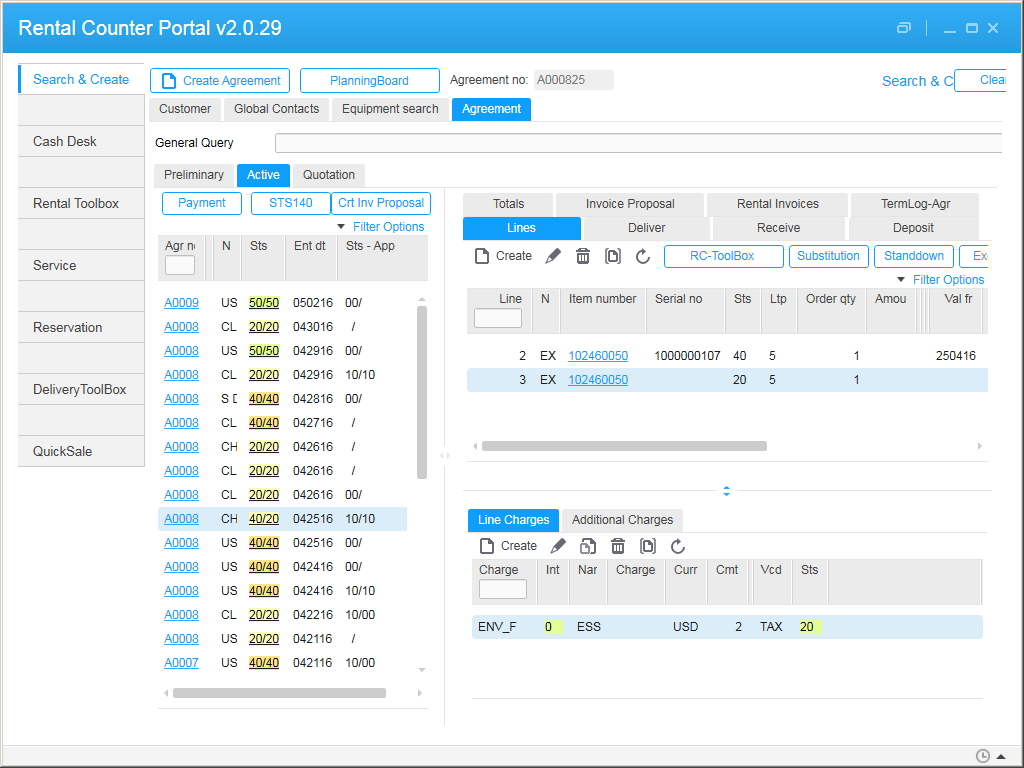
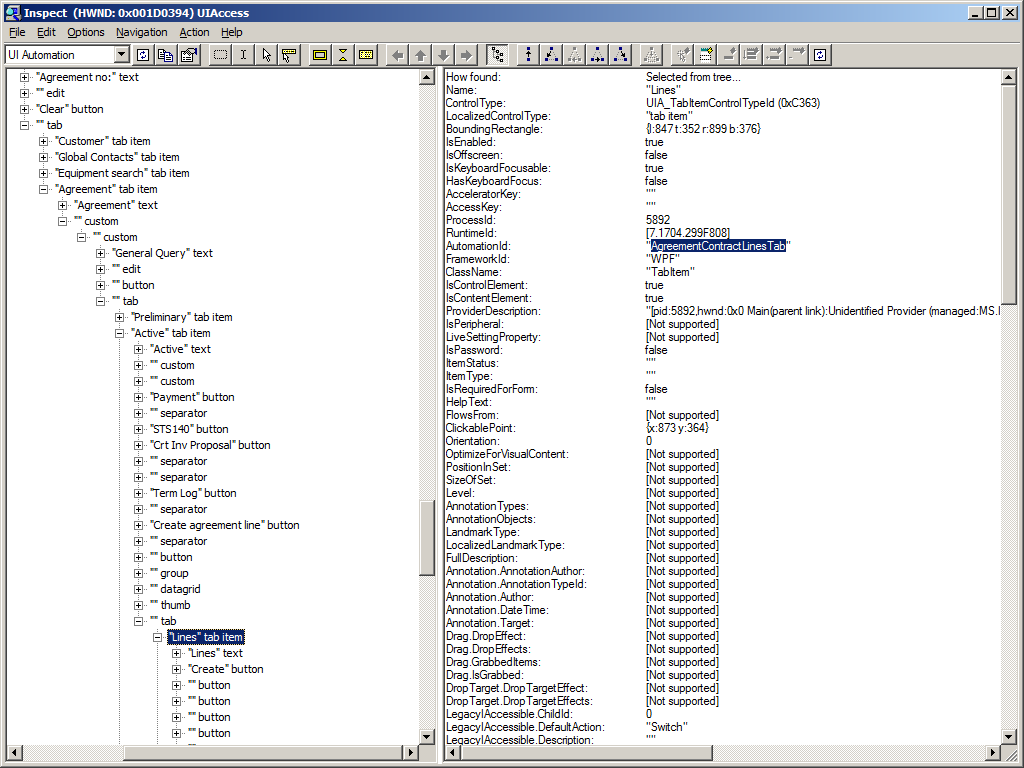
With the Inspect tool, I can point at a control in the Mashup (watch cursor) to find any of its parts, find its name, its parent tab, its XAML file, etc. That saves me valuable time.

Here are some screenshots:
1 2 3

I wish the Mashup Designer had the same watch cursor feature. Maybe it is easy to implement with the Smart Office SDK. To be explored.

There is also the Snoop tool I mentioned in the other post. Try that too.

That’s it!

Let me know in the comments below what other tools you use. Share this post. Click Like. Follow this blog. And come write the new blog post with us. This is a volunteer-based community, and your participation keeps it going. Thank you.

Default country in Mashup ComboBox

Quick illustration of how to set the user’s country as the default selection in a Mashup ComboBox in Infor Smart Office.

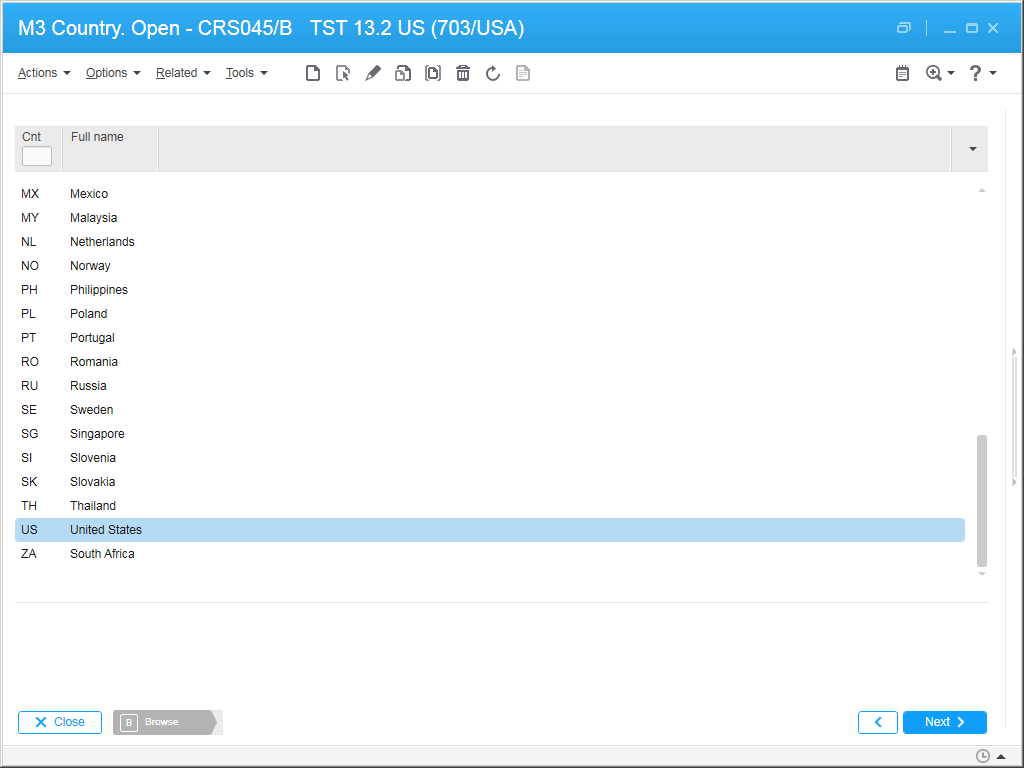
Suppose you have a <m3:MIComboBox>, and you want it to be a list of countries (e.g. FR-France, SE-Sweden, US-United States, etc.), populated from the M3 API CRS045MI.LstByCode, displaying CSCD and TX40, and you want the default selection to be the user’s country (e.g. US).

For that, I will use the System.Globalization.RegionInfo.CurrentRegion’s property TwoLetterISORegionName and assume that CRS045 uses the same two-letter ISO codes.

Here is the code with the relevant lines:

<StackPanel
   xmlns="http://schemas.microsoft.com/winfx/2006/xaml/presentation"
   xmlns:x="http://schemas.microsoft.com/winfx/2006/xaml"
   xmlns:mashup="clr-namespace:Mango.UI.Services.Mashup;assembly=Mango.UI"
   xmlns:glob="clr-namespace:System.Globalization;assembly=mscorlib"
   xmlns:m3="clr-namespace:MForms.Mashup;assembly=MForms">
    <TextBlock Name="MyCountry" Text="{Binding Source={x:Static glob:RegionInfo.CurrentRegion}, Path=TwoLetterISORegionName}" Visibility="Hidden" />
    <m3:MIComboBox Name="Countries" SortField="CSCD" SelectedValuePath="[CSCD]" SelectedValue="{Binding ElementName=MyCountry, Path=Text}" Width="200">
       <m3:MIComboBox.Events>
          <mashup:Events>
             <mashup:Event SourceEventName="Startup" />
          </mashup:Events>
       </m3:MIComboBox.Events>
       <m3:MIComboBox.DataSource>
          <m3:MIDataSource Program="CRS045MI" Transaction="LstByCode" OutputFields="CSCD,TX40" IsCacheable="True" />
       </m3:MIComboBox.DataSource>
       <m3:MIComboBox.ItemTemplate>
          <DataTemplate>
             <StackPanel Orientation="Horizontal">
                <TextBlock Text="{Binding Path=[CSCD]}" />
                <TextBlock Text=" - " />
                <TextBlock Text="{Binding Path=[TX40]}" />
             </StackPanel>
          </DataTemplate>
       </m3:MIComboBox.ItemTemplate>
    </m3:MIComboBox>
 </StackPanel>

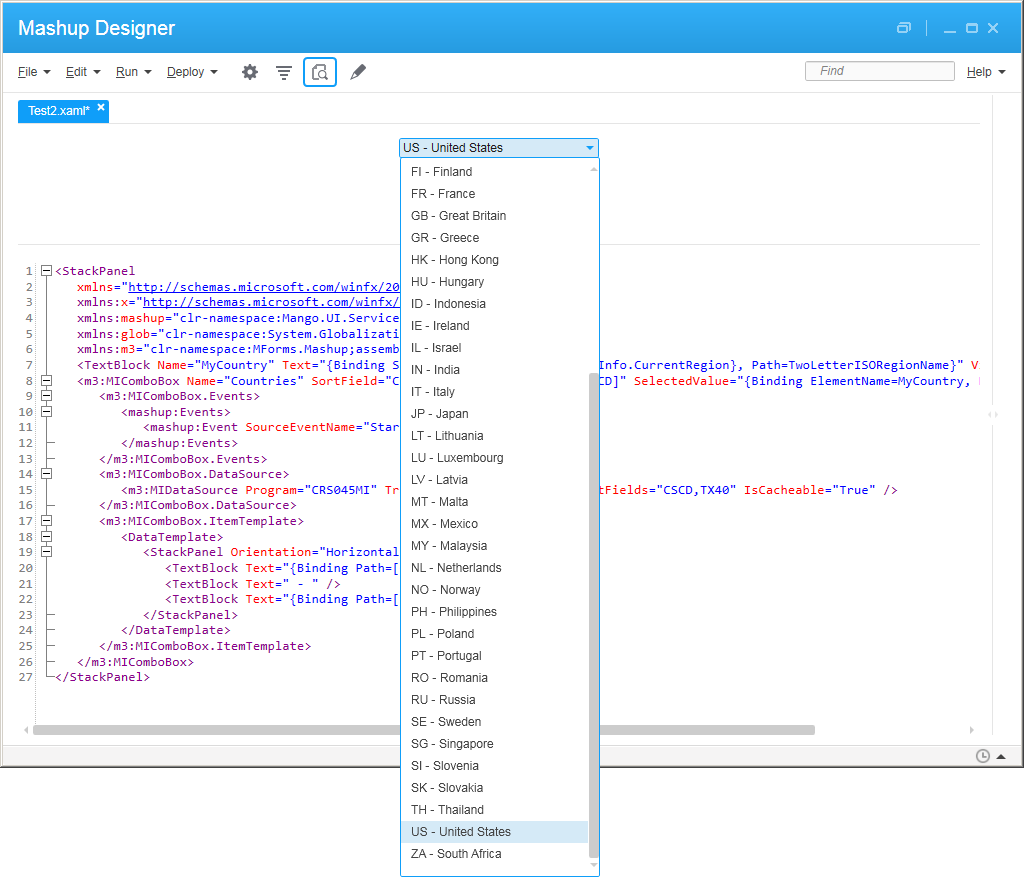
Here is the result:
blog

blog_

That’s it. Please like, share, subscribe, author.

Application messages in Infor Smart Office

Here is an illustration of application messaging in Infor Smart Office to send, broadcast, and receive messages, and process responses between applications in Smart Office, whether in scripts, Mashups, or other entities.

Documentation

The Infor Smart Office SDK Developer’s Guide has Chapter 19 Application messages, and the Smart Office SDK help file has the API reference for Mango.UI.Services.Messages.ApplicationMessageService:
3

Note: For more information on the Smart Office SDK refer to my previous post.

Scripts

Here are some examples of sending, broadcasting and receiving messages, and processing responses in Smart Office scripts; the other party in the communication can be another script, a Mashup or another entity in Smart Office.

To send a message and process the response:

import Mango.UI.Services.Messages;

package MForms.JScript {
	class ApplicationA {
		public function Init(element: Object, args: Object, controller : Object, debug : Object) {
			// send message
			var message: ApplicationMessage = new ApplicationMessage();
			message.Sender = "ApplicationA";
			message.Recipient = "ApplicationB";
			message.Parameter = "Hello World";
			var response: ApplicationMessageResponse = ApplicationMessageService.Current.SendMessage(message);
			// process response
			response.MessageStatus;
			response.Result;
		}
	}
}

To receive a message and return a response:

import Mango.UI.Services.Messages;

package MForms.JScript {
	class ApplicationB {
		public function Init(element: Object, args: Object, controller : Object, debug : Object) {
			ApplicationMessageService.Current.AddRecipient("ApplicationB", OnMessage);
		}
		function OnMessage(message: ApplicationMessage): ApplicationMessageResponse {
			message.Sender;
			message.Recipient;
			message.Parameter;
			var response: ApplicationMessageResponse = new ApplicationMessageResponse();
			response.MessageStatus = MessageStatus.OK;
			response.Result = "Bonjour";
			return response;
		}
	}
}

To broadcast a message (there is no response):

import Mango.UI.Services.Messages;

package MForms.JScript {
	class ApplicationC {
		public function Init(element: Object, args: Object, controller : Object, debug : Object) {
			var broadcastMessage: ApplicationMessage = new ApplicationMessage();
			broadcastMessage.Sender = "ApplicationC";
			broadcastMessage.Recipient = "GroupX";
			broadcastMessage.Parameter = "HELLO WRRRLD!!!!!!";
			ApplicationMessageService.Current.SendBroadcastMessage(broadcastMessage);
		}
	}
}

To receive a broadcasted message (there is no response):

import Mango.UI.Services.Messages;

package MForms.JScript {
	class ApplicationD {
		public function Init(element: Object, args: Object, controller : Object, debug : Object) {
			ApplicationMessageService.Current.AddBroadcastRecipient("GroupX", OnBroadcastMessage);
		}
		function OnBroadcastMessage(message: ApplicationMessage) {
			message.Sender;
			message.Recipient;
			message.Parameter;
		}
	}
}

Mashups

Here are some examples of sending, broadcasting and receiving messages in Smart Office Mashups (there are no responses); the other party in the communication can be another Mashup, a script or another entity in Smart Office.

To send a message (there is no response):

<Grid xmlns="http://schemas.microsoft.com/winfx/2006/xaml/presentation" xmlns:x="http://schemas.microsoft.com/winfx/2006/xaml" xmlns:ui="clr-namespace:Mango.UI.Controls;assembly=Mango.UI" xmlns:mashup="clr-namespace:Mango.UI.Services.Mashup;assembly=Mango.UI">
	<Button Name="BtnMessage" Content="Send" Width="150" />
	<mashup:ApplicationMessageControl Name="test">
		<mashup:ApplicationMessageControl.Events>
			<mashup:Events>
				<mashup:Event SourceName="BtnMessage" SourceEventName="Click" TargetEventName="Send" Debug="True">
					<mashup:Parameter TargetKey="Sender" Value="MashupE" />
					<mashup:Parameter TargetKey="Recipient" Value="MashupF" />
					<mashup:Parameter TargetKey="Parameter" Value="Hello World" />
				</mashup:Event>
			</mashup:Events>
		</mashup:ApplicationMessageControl.Events>
	</mashup:ApplicationMessageControl>
</Grid>

To receive a message (there is no response):

 <Grid xmlns="http://schemas.microsoft.com/winfx/2006/xaml/presentation" xmlns:x="http://schemas.microsoft.com/winfx/2006/xaml" xmlns:ui="clr-namespace:Mango.UI.Controls;assembly=Mango.UI" xmlns:mashup="clr-namespace:Mango.UI.Services.Mashup;assembly=Mango.UI">
	<mashup:ApplicationMessageControl Name="test" Recipient="MashupF">
		<mashup:ApplicationMessageControl.Events>
			<mashup:Events>
				<mashup:Event SourceEventName="Received" Debug="True">
					<mashup:Parameter SourceKey="Sender" />
					<mashup:Parameter SourceKey="Recipient" />
					<mashup:Parameter SourceKey="Parameter" />
				</mashup:Event>
			</mashup:Events>
		</mashup:ApplicationMessageControl.Events>
	</mashup:ApplicationMessageControl>
</Grid>

To broadcast a message:

<mashup:Event...TargetEventName="Broadcast">

To receive a broadcasted message:

<mashup:ApplicationMessageControl...BroadcastRecipient="Everyone">

Illustration

Here is an illustration of messages going in all directions between scripts and Mashups:
r

More

The ApplicationMessageService API has more methods and properties available:

  • You can send multiple parameters and multiple result values with Dictionary<string, Object>.
  • You can return different MessageStatus values depending on your needs, for example OK, Failed or InvalidMessage.
  • You can send a message asynchronously to not block the UI; but there is no response.
  • You should verify if the recipient already exists before adding a message handler; otherwise you will get the exception “A recipient with the key has already been added.”
  • You can remove recipients.

Refer to the SDK documentation for more information.

That’s it. Please like, comment, share, follow, contribute.

Workaround to have Google Maps back in Mashups

I found a quick workaround to have Google Maps back into Infor Smart Office Mashups. There are currently three problems with Google Maps in Mashups. I’m using Smart Office 10.1.1.1.5, on Windows 7 Professional 64 bits, with Internet Explorer 11.0.9600.17207.

Problem 1

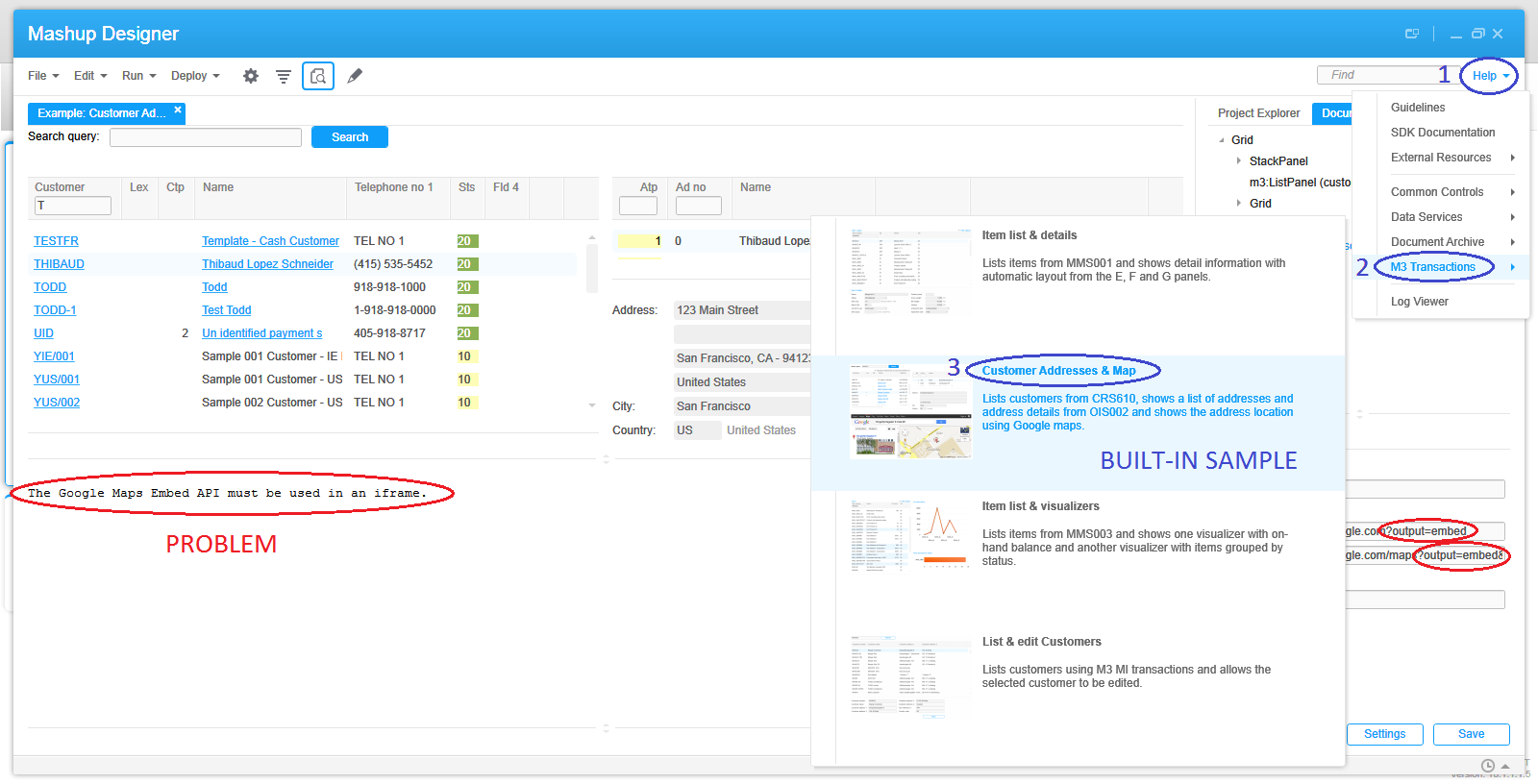
The first problem is that some time ago Google Maps changed their service and removed the parameter output=embed from the allowed parameters of the URL. The embed output was great as it used to hide the header, footer, and sidebar making it ideal for limited spaces like Mashups; the default output having been classic. With that parameter now disallowed, it causes Google Maps to display the error “The Google Maps Embed API must be used in an iframe” and that happens whether in a browser or in a Mashup, and it even broke the built-in Mashup sample of Mashup Designer:
9
8

I haven’t investigated all the details of the problem but I found a workaround. Replace the value embed of the parameter with either of these values: svembed, embedmfe, or svembedmfe. sv seems to be the prefix for Street View. I haven’t yet figured out what the suffix mfe means nor if it will remain long lived.

Here’s a sample result of Google Maps embedded in my browser:
10

Problem 2

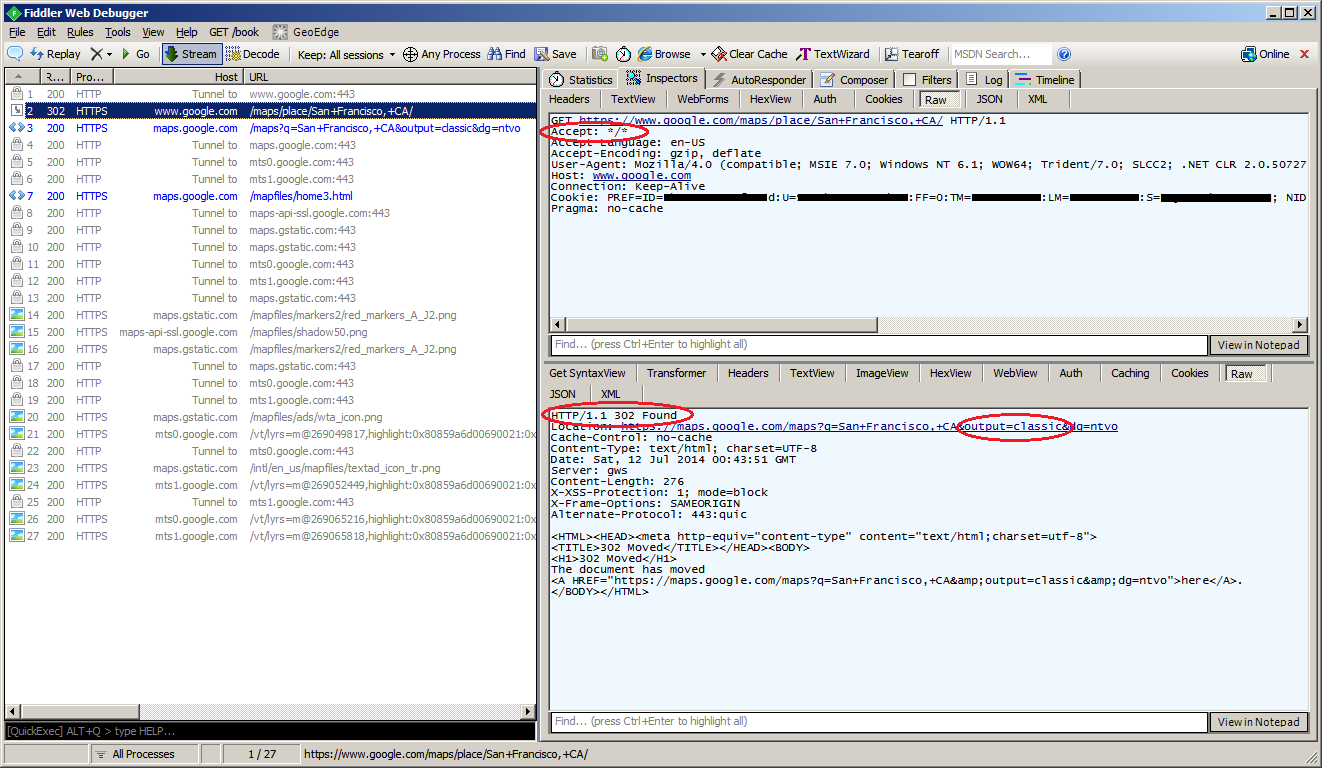
Instead of using the output parameter we could simply use the Google Maps new look which is lean and sexy and also hides the header, footer and sidebar. But unfortunately, the WebBrowser control of Smart Office Mashups sends the HTTP request header Accept: */* instead of Accept: text/html, application/xhtml+xml, */* and that causes Google Maps to respond with HTTP 302 Found redirecting to output=classic and we’re back at problem 1:
12

Problem 3

The third problem is that Google Maps in a Mashup now throws a JavaScript error popup:
11

I haven’t yet investigated what causes it. It seems to be caused by the old render mode IE7 that Smart Office uses (although in the past the same render mode wasn’t causing the script error). The workaround is to add a registry key to your Windows to force the render mode to IE11 (and you need to install Internet Explorer 11). You can read more about this in Karin’s post. Microsoft has tools to push registry keys to users computers. Here’s the Windows Registry key I just added on my computer:
4

Result

After changing to output=svembed, and after adding the Windows Registry key, here’s the result in my Smart Office: the output is correctly embedded, there is no script error, the map works correctly (zoom/pan/etc.), and the Mashup events still work correctly:
7

That was a quick workaround to get Google Maps back into Mashups. If you know of a simpler solution let me know.

Calling M3 Web Services with SQL adapter in Smart Office Mashup

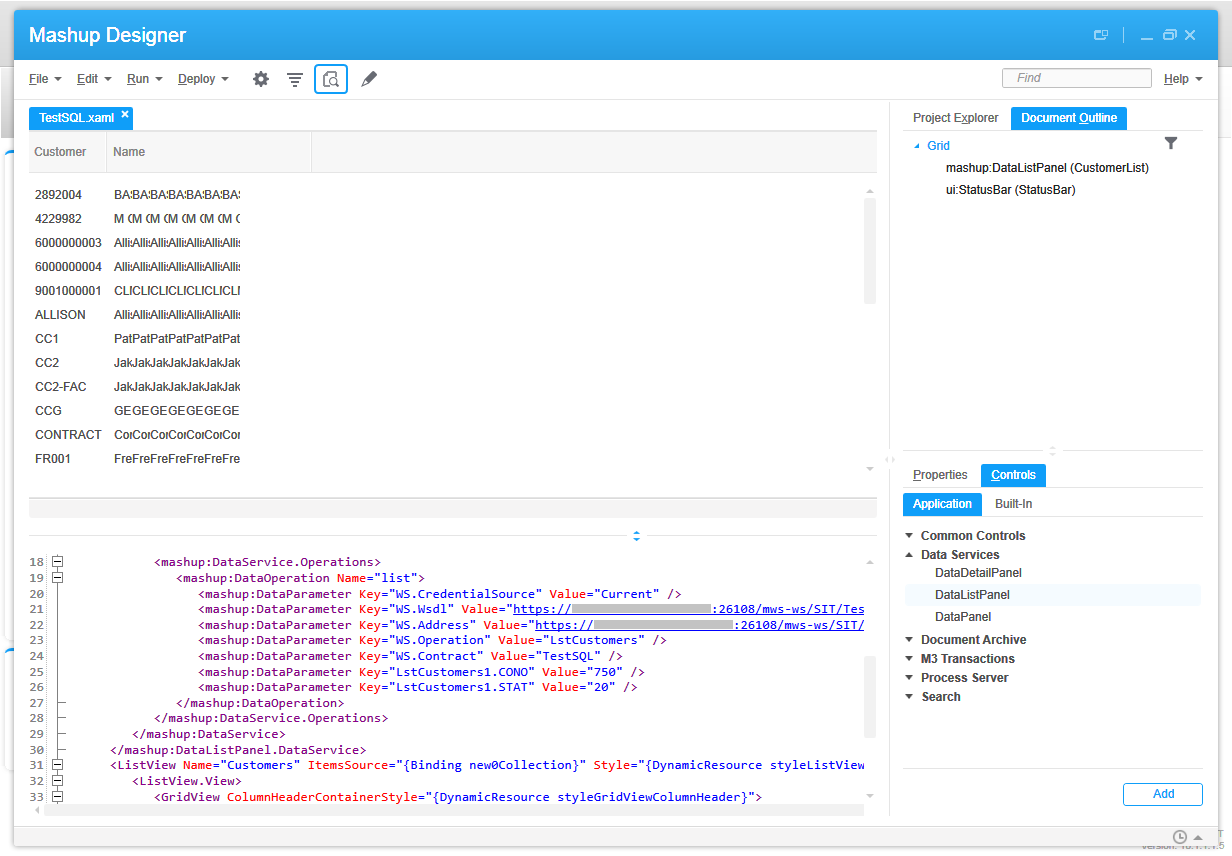
Once in a while I receive this question of how to call an M3 Web Service (MWS) with SQL adapter in a Mashup for Infor Smart Office. As a reminder, MWS has three adapters: M3 API, M3 Display Program (MDP), and SQL (JDBC). Each will return a different SOAP response, thus each will need a slightly specific XAML. The trick with the SQL response is the new0Collection.

Here is my sample SQL:

SELECT OKCUNO, OKCUNM
FROM MVXJDTA.OCUSMA
WHERE OKCONO=? AND OKSTAT=?

1b

Here is the web service in MWS Designer (note the new0 result set in the output):
4_
6b

Here is the Web service test tool in Smart Office (note the new0Collection):
8_

Here is the resulting Mashup:
10b

And here is the final XAML source code with the new0Collection binding highlighted:

<Grid xmlns="http://schemas.microsoft.com/winfx/2006/xaml/presentation" xmlns:x="http://schemas.microsoft.com/winfx/2006/xaml" xmlns:ui="clr-namespace:Mango.UI.Controls;assembly=Mango.UI" xmlns:mashup="clr-namespace:Mango.UI.Services.Mashup;assembly=Mango.UI">
	<Grid.Resources></Grid.Resources>
	<Grid.ColumnDefinitions>
		<ColumnDefinition Width="*" />
	</Grid.ColumnDefinitions>
	<Grid.RowDefinitions>
		<RowDefinition Height="*" />
		<RowDefinition Height="Auto" />
	</Grid.RowDefinitions>
	<mashup:DataListPanel Name="CustomerList" Grid.Row="0">
		<mashup:DataListPanel.Events>
			<mashup:Events>
				<mashup:Event SourceEventName="Startup" TargetEventName="list" />
			</mashup:Events>
		</mashup:DataListPanel.Events>
		<mashup:DataListPanel.DataService>
			<mashup:DataService Type="WS">
				<mashup:DataService.Operations>
					<mashup:DataOperation Name="list">
						<mashup:DataParameter Key="WS.CredentialSource" Value="Current" />
						<mashup:DataParameter Key="WS.Wsdl" Value="https://host:26108/mws-ws/SIT/TestSQL?wsdl" />
						<mashup:DataParameter Key="WS.Address" Value="https://host:26108/mws-ws/SIT/TestSQL" />
						<mashup:DataParameter Key="WS.Operation" Value="LstCustomers" />
						<mashup:DataParameter Key="WS.Contract" Value="TestSQL" />
						<mashup:DataParameter Key="LstCustomers1.CONO" Value="750" />
						<mashup:DataParameter Key="LstCustomers1.STAT" Value="20" />
					</mashup:DataOperation>
				</mashup:DataService.Operations>
			</mashup:DataService>
		</mashup:DataListPanel.DataService>
		<ListView Name="Customers" ItemsSource="{Binding new0Collection}" Style="{DynamicResource styleListView}" ItemContainerStyle="{DynamicResource styleListViewItem}">
			<ListView.View>
				<GridView ColumnHeaderContainerStyle="{DynamicResource styleGridViewColumnHeader}">
					<GridView.Columns>
						<GridViewColumn Header="Customer" DisplayMemberBinding="{Binding Path=OKCUNO}" />
						<GridViewColumn Header="Name" DisplayMemberBinding="{Binding Path=OKCUNM}" />
					</GridView.Columns>
				</GridView>
			</ListView.View>
		</ListView>
	</mashup:DataListPanel>
	<ui:StatusBar Name="StatusBar" Grid.Row="1" />
</Grid>

That’s it!

How to get the text panel in a Mashup

I often forget how to add a TextPanel, for example CRS610/T, into a Mashup for Infor Smart Office, so here is the solution so I can remember next time, and maybe it will help you too.

First, we need to understand how to enter text in M3 using the T panel. Then, we need to understand how the text is stored in M3, in the tables for text headers and text lines, and the TXID. Then, we need to understand how to get that text using a series of three transactions of the M3 API CRS980MI. Finally, we build the Mashup around it using the MI controls and XAML.

How to enter text

To enter text, for example for M3 Customer. Open – CRS610:

  1. Go to Smart Office.
  2. Open CRS610.
  3. Add Panel T to the Panel Sequence.
  4. Select a record, select Options > 2-Change, and click Next until you reach the Panel T; the M3 Text popup will open.
  5. Enter some text, for example Hello World lorem ipsum, on multiple lines.
  6. Click Next. The popup will close.
  7. To enter a second Text block, go back to the popup and click Text block.
  8. Once you enter two text blocks or more, when you go back to the popup, it will first show the M3 Text blocks (text headers), select one, and then it will show the M3 Text (text lines).
  9. You can create text blocks for different languages.

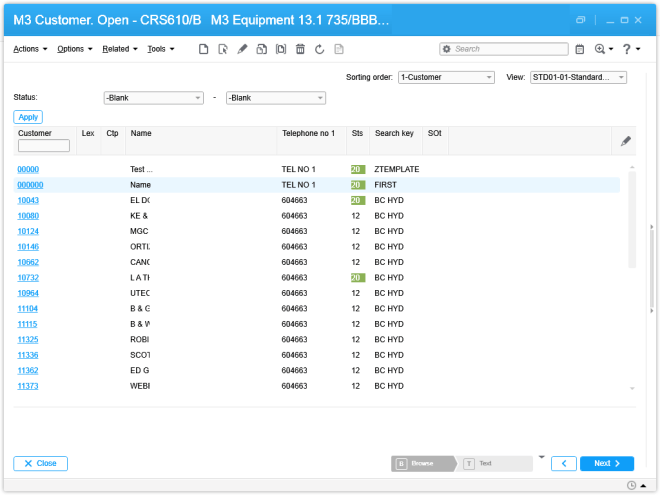
Here’s an example of CRS610/B with Panel Sequence T:
1

Here’s an example of the text headers popup:
2

Here’s an example of the text lines popup:
3

Where is the text stored?

The text is stored in the M3 database in a pair of tables: there’s a table for the text headers and a table for the text lines. The pair of tables depends on the originating M3 Program, for example for CRS610 the tables are OSYTXH and OSYTXL. It’s all tied together by a Text Identity field TXID, for example the Customer table OCUSMA has a TXID column, so do OSYTXH and OSYTXL. The text headers are identified by the fields CONO, DIVI, TXID, TXVR, and LNCD (language). And the text lines are identified by the foreign keys of their text header, and by LINO (line number).

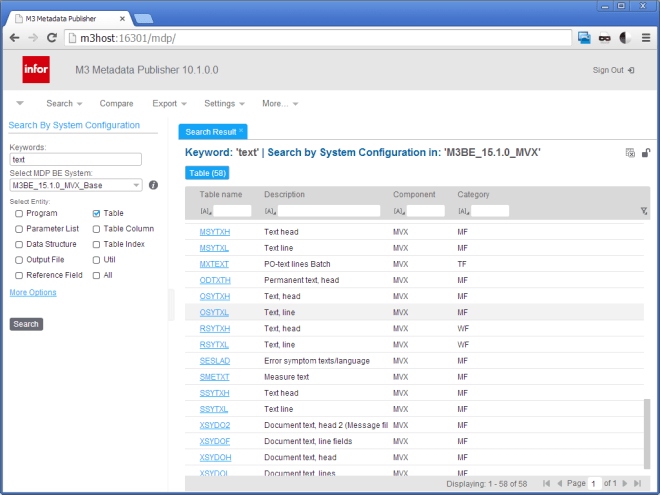
I never rememeber which M3 Program stores text in which pair of tables, for example it took me a while to remember that Customer text is stored in OSTYXL. There’s probably a short way to remember: perhaps somewhere in the M3 Companion, perhaps reading the cryptic M3 Java source code. I usually go to M3 MetaData Publisher (MDP), I search for tables with the word “text”, and then I go fishing for my text with SQL, searching the contents of the tables one by one. Yeah I know…there’s got to be a better way.

Here’s me searching in MDP (I had tried all the pairs of table Text head and Text line, one by one, starting at the top letter A, until I found OSYTXL way below and took this screenshot):
0

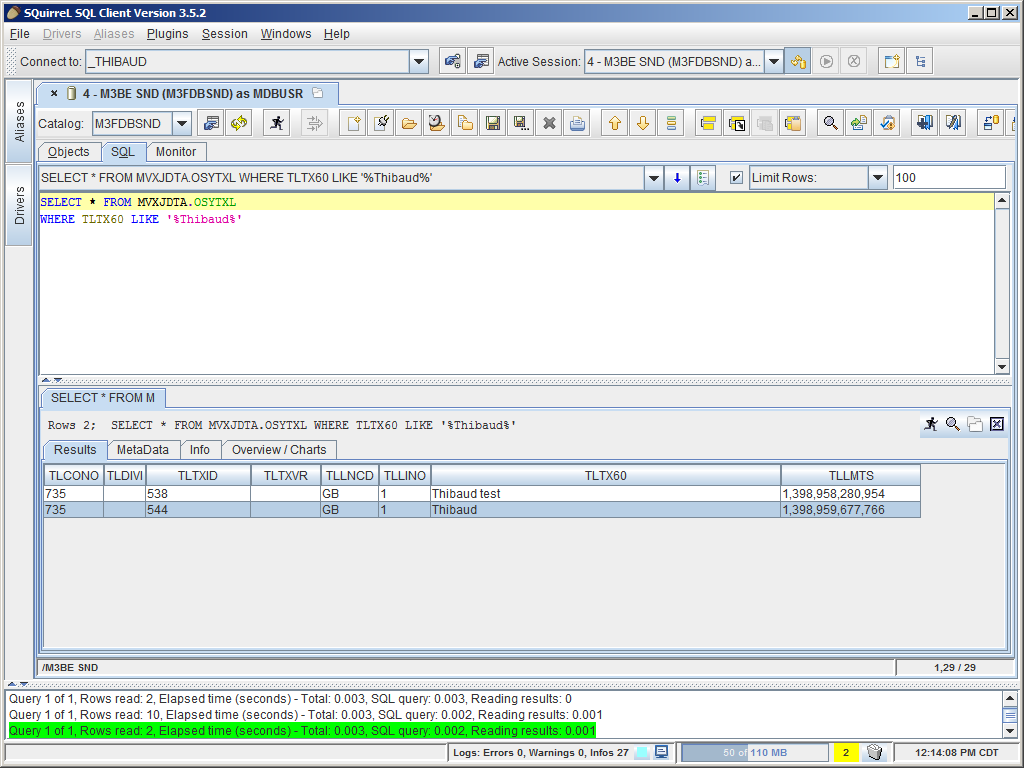
Here’s me fishing in SQuirreL (bingo! I finally found my text):
0__

It seems every four years I go thru this learning process all over again, as for the first time, each time making detailed notes and screenshots and telling myself this time it would be for good, and then four years later I forget it all again. Yikes! If someone has a better way to find the tables please let me know.

How to get the text using M3 APIs?

Several years ago, the M3 Product Development team finally introduced an M3 API CRS980MI to get the text. Before that we had to use good ol’ SQL. There are three transactions (methods) to call. First, we need to get the TXID based on the originating table and key, in my case table OCUSMA and key Company CONO and Customer number CUNO. Then, we need to get the text headers for that TXID. Then, we need to get the text lines for a selected text header.

Step 1 – Get the TXID

To get the TXID:

  • M3 Program: CRS980MI
  • Transaction: GetTextID
  • Input fields:
    • FILE, in my case OCUSMA00
    • KV01, in my case the CONO, for example 735
    • KV02, in my case the CUNO, for example ACME
  • Output field:
    • TXID, for example 544

In the Mashup, we’ll call that using a hidden MIPanel control.

Step 2 – Get the text headers

To get the text headers:

  • M3 Program: CRS980MI
  • Transaction: LstTxtBlocks
  • Input fields:
    • CONO, for example 735
    • DIVI, for example AAA
    • TXID, for example 544
    • TFIL, for example OSYTXH
  • Output fields, a list of:
    • TXVR, for example THIBAUD
    • LNCD, for example GB
    • TX40
    • TXEI

In the Mashup, we’ll call that using a MIListPanel control.

Step 3 – Get the text lines

To get the text lines:

  • M3 Program: CRS980MI
  • Transaction: SltTxtBlock
  • Input fields:
    • CONO, for example 735
    • DIVI, for exapmle AAA
    • TXID, for example 544
    • TXVR, for example THIBAUD
    • LNCD, for example GB
    • TFIL, in my case OSYTXH
  • Output fields, a list of:
    • LINO
    • TX60

In the Mashup, we’ll call that using a MIListPanel control.

Build the Mashup

Here’s the XAML source code (I forgot to un-hard-code the CONO):

<Grid xmlns="http://schemas.microsoft.com/winfx/2006/xaml/presentation" xmlns:x="http://schemas.microsoft.com/winfx/2006/xaml" xmlns:ui="clr-namespace:Mango.UI.Controls;assembly=Mango.UI" xmlns:mashup="clr-namespace:Mango.UI.Services.Mashup;assembly=Mango.UI" xmlns:m3="clr-namespace:MForms.Mashup;assembly=MForms">
    <Grid.Resources></Grid.Resources>
    <Grid.ColumnDefinitions>
        <ColumnDefinition Width="1*" />
    </Grid.ColumnDefinitions>
    <Grid.RowDefinitions>
        <RowDefinition Height="1*" />
        <RowDefinition Height="Auto" />
        <RowDefinition Height="1*" />
        <RowDefinition Height="Auto" />
        <RowDefinition Height="1*" />
        <RowDefinition Height="Auto" />
    </Grid.RowDefinitions>

    <m3:ListPanel Name="CustomerList" Header="{m3:Constant Key=CR61001,File=MVXCON}" IsListHeaderVisible="True" Grid.Row="0">
        <m3:ListPanel.Events>
            <mashup:Events>
                <mashup:Event SourceEventName="Startup">
                    <mashup:Parameter TargetKey="OKCONO" />
                    <mashup:Parameter TargetKey="OKCUNO" />
                </mashup:Event>
            </mashup:Events>
        </m3:ListPanel.Events>
        <m3:ListPanel.Bookmark>
            <m3:Bookmark Program="CRS610" Table="OCUSMA" KeyNames="OKCONO,OKCUNO" IncludeStartPanel="True" SortingOrder="1" View="STD01-01" />
        </m3:ListPanel.Bookmark>
    </m3:ListPanel>

    <m3:MIPanel Name="MIGetTextID">
        <m3:MIPanel.Events>
            <mashup:Events>
                <mashup:Event SourceEventName="CurrentItemChanged" SourceName="CustomerList">
                    <mashup:Parameter TargetKey="FILE" Value="OCUSMA00" />
                    <mashup:Parameter TargetKey="KV01" SourceKey="CONO" />
                    <mashup:Parameter TargetKey="KV02" SourceKey="CUNO" />
                </mashup:Event>
            </mashup:Events>
        </m3:MIPanel.Events>
        <m3:MIPanel.DataSource>
            <m3:MIDataSource Program="CRS980MI" Transaction="GetTextID" Type="Get" InputFields="FILE,KV01,KV02" OutputFields="TXID" />
        </m3:MIPanel.DataSource>
    </m3:MIPanel>

    <Label Grid.Row="1" Content="Text headers" Style="{DynamicResource styleGroupBoxHeaderMashup}" />
    <m3:MIListPanel Name="MILstTxtBlocks" Grid.Row="2">
        <m3:MIListPanel.Events>
            <mashup:Events>
                <mashup:Event SourceName="CustomerList" SourceEventName="CurrentItemChanged" TargetEventName="Clear" />
                <mashup:Event SourceName="MIGetTextID" SourceEventName="Running">
                    <mashup:Parameter TargetKey="CONO" Value="735" />
                    <mashup:Parameter TargetKey="DIVI" />
                    <mashup:Parameter SourceKey="TXID" TargetKey="TXID" />
                    <mashup:Parameter TargetKey="TFIL" Value="OSYTXH" />
                </mashup:Event>
            </mashup:Events>
        </m3:MIListPanel.Events>
        <m3:MIListPanel.DataSource>
            <m3:MIDataSource Program="CRS980MI" Transaction="LstTxtBlocks" Type="List" InputFields="CONO,DIVI,TXID,TFIL" OutputFields="TXVR,LNCD,TX40,TXEI" />
        </m3:MIListPanel.DataSource>
        <ListView ItemsSource="{Binding Items}" Style="{DynamicResource styleListView}" ItemContainerStyle="{DynamicResource styleListViewItem}">
            <ListView.View>
                <GridView ColumnHeaderContainerStyle="{DynamicResource styleGridViewColumnHeader}">
                    <GridView.Columns>
                        <GridViewColumn Header="Text block" DisplayMemberBinding="{Binding [TXVR]}" />
                        <GridViewColumn Header="Language" DisplayMemberBinding="{Binding [LNCD]}" />
                        <GridViewColumn Header="Description" DisplayMemberBinding="{Binding [TX40]}" />
                        <GridViewColumn Header="External/internal text" DisplayMemberBinding="{Binding [TXEI]}" />
                    </GridView.Columns>
                </GridView>
            </ListView.View>
        </ListView>
    </m3:MIListPanel>

    <Label Grid.Row="3" Content="Text lines" Style="{DynamicResource styleGroupBoxHeaderMashup}" />
    <m3:MIListPanel Name="MISltTxtBlock" Grid.Row="4">
        <m3:MIListPanel.Events>
            <mashup:Events>
                <mashup:Event SourceName="CustomerList" SourceEventName="CurrentItemChanged" TargetEventName="Clear" />
                <mashup:Event SourceName="MILstTxtBlocks" SourceEventName="CurrentItemChanged">
                    <mashup:Parameter TargetKey="CONO" Value="735" />
                    <mashup:Parameter TargetKey="DIVI" />
                    <mashup:Parameter TargetKey="TXID" Value="{Binding [TXID], ElementName=MIGetTextID}" />
                    <mashup:Parameter SourceKey="TXVR" TargetKey="TXVR" />
                    <mashup:Parameter SourceKey="LNCD" TargetKey="LNCD" />
                    <mashup:Parameter TargetKey="TFIL" Value="OSYTXH" />
                </mashup:Event>
            </mashup:Events>
        </m3:MIListPanel.Events>
        <m3:MIListPanel.DataSource>
            <m3:MIDataSource Program="CRS980MI" Transaction="SltTxtBlock" Type="List" InputFields="CONO,DIVI,TXID,TXVR,LNCD,TFIL" OutputFields="TX60,LINO" />
        </m3:MIListPanel.DataSource>
        <ListView ItemsSource="{Binding Items}" Style="{DynamicResource styleListView}" ItemContainerStyle="{DynamicResource styleListViewItem}">
            <ListView.View>
                <GridView ColumnHeaderContainerStyle="{DynamicResource styleGridViewColumnHeader}">
                    <GridView.Columns>
                        <GridViewColumn Header="Line number" DisplayMemberBinding="{Binding [LINO]}" />
                        <GridViewColumn Header="Text" DisplayMemberBinding="{Binding [TX60]}" />
                    </GridView.Columns>
                </GridView>
            </ListView.View>
        </ListView>
    </m3:MIListPanel>

    <ui:StatusBar Name="StatusBar" Grid.Row="5" />
</Grid>

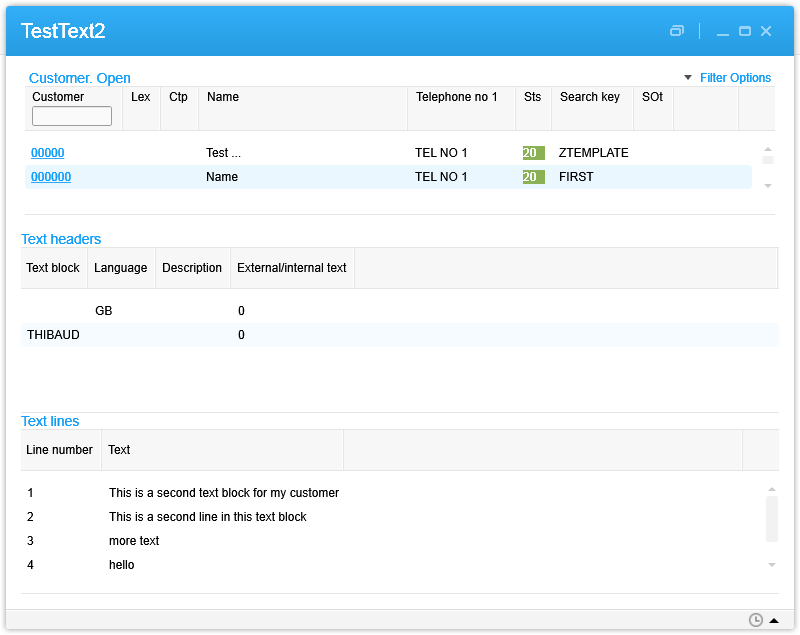
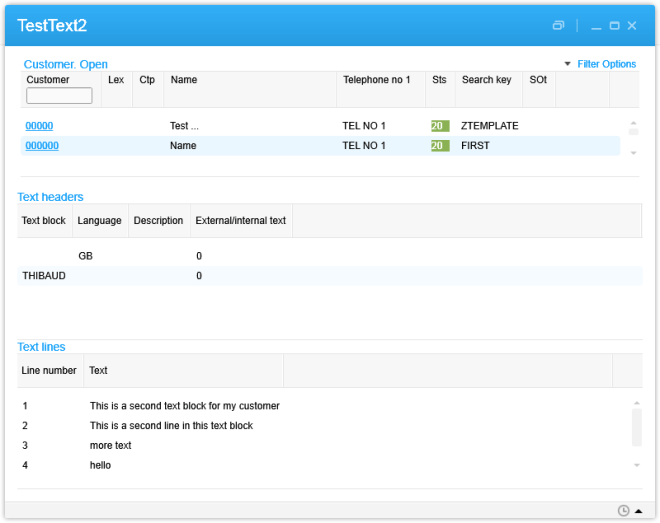
Here’s a screenshot of the result, with the list of customers at the top, the list of text headers for that customer in the middle, and the text lines for that text header at the bottom:
4

That’s it!

Send us your comments below, subscribe to this blog with the Follow button below, be an author and write your own ideas, share with colleagues, and enjoy.

Open source release of Address Validation for M3

I’m please to announce I finally released the first free and open source version of the Address Validation for M3, and I published the code on GitHub at https://github.com/M3OpenSource/AddressValidation . It’s a combination of a Mashup and a Script for Infor Smart Office, so it’s easy for you to modify, deploy, and run. Currently, it only supports the Google Geocoding API with more address providers to be added later.

I had implemented the first proprietary version of the script for Lawson Software in 2009. Then I had implemented several variants for various customers while working at Lawson Software and Infor. I’ve always wanted it to become available to more customers, so I decided to make it free and open source. But in order to not infringe any intellectual property and copyrights over the previous source code, I had to re-write everything from scratch. The opportunity came up when I quit Infor, and before I joined Ciber, in between the two, so there was no question on the ownership of the source code, and I had made an announcement. It took me a while but here it is. And I made some improvements over to the previous proprietary code.

Self-configuration

The script is self-configurable for the following M3 Panels, i.e. just add the script to one of the supported M3 Panels and execute, without any modifications nor arguments:

  • Customer. Open – CRS610/E
  • Customer. Connect Addresses – OIS002/E
  • Supplier. Connect Address – CRS622/E
  • Customer Order. Connect Address – OIS102/E
  • Internal Address. Open – CRS235/E1
  • Company. Connect Division – MNS100/E
  • Ship-Via Address. Open – CRS300/E
  • Service Order. Connect Delivery Address – SOS005/E
  • Shop. Open – OPS500/I
  • Bank. Open – CRS690/E
  • Bank. Connect Bank Branch Office – CRS691/E
  • Equipment Address. Open – MOS272/E

Deploy locally and test

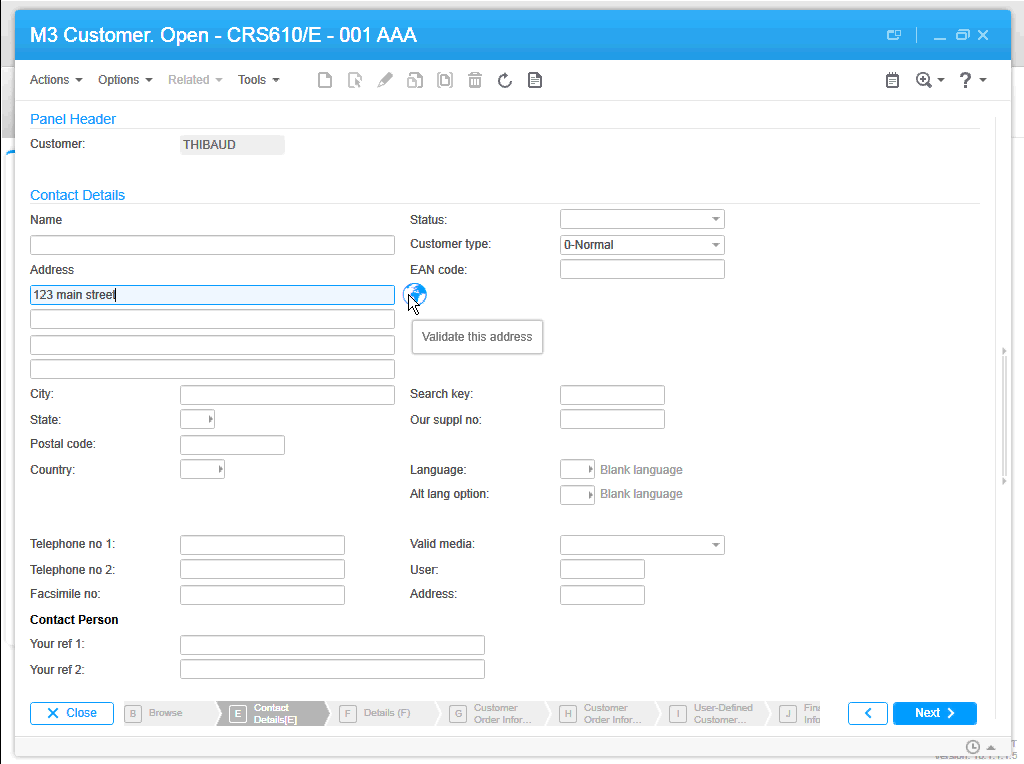
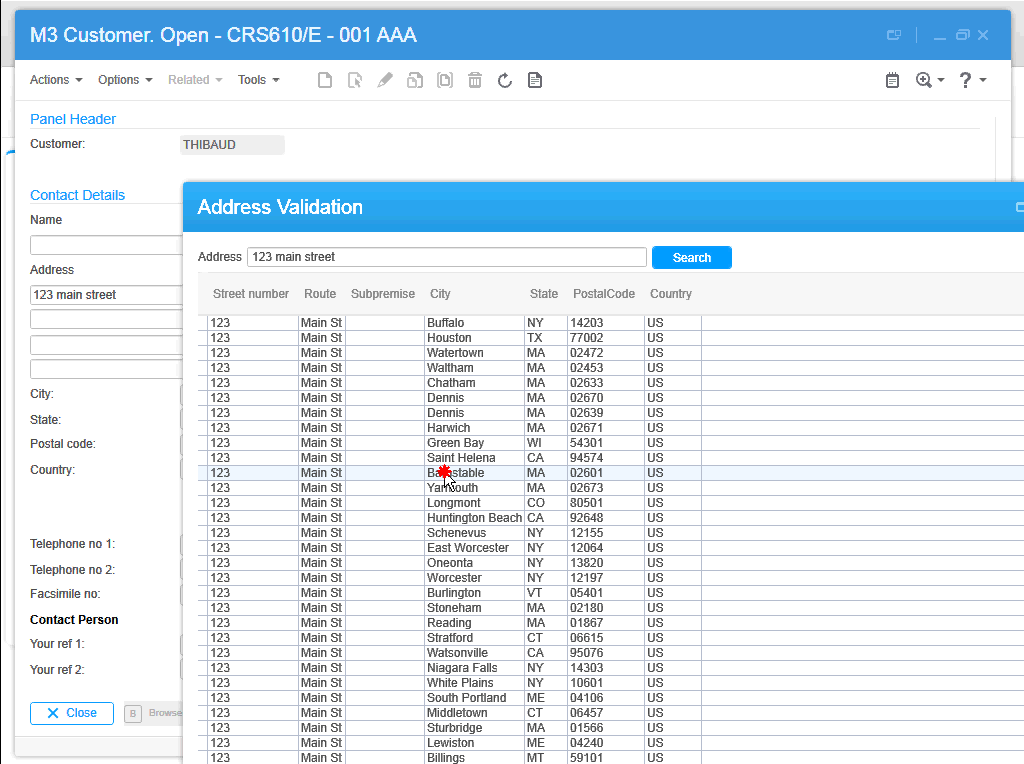
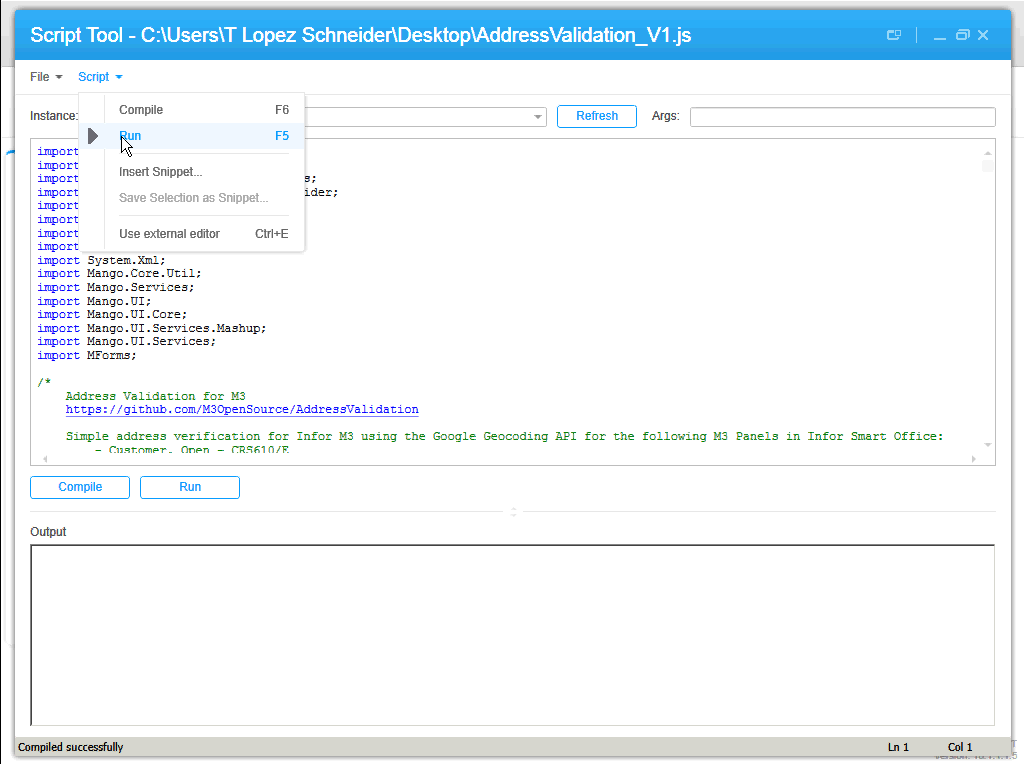
To start using the script, download the Mashup’s Manifest and XAML and the Script from the GitHub repository. Save the three files somewhere temporary on your computer. Then, install the Mashup locally using the Mashup Designer at designer://mashup (watch the video below), and run the Script with the Script Tool at mforms://jscript (watch the video below). Then, enter an address in M3, click the validate button (the little globe icon), you can also use the TAB key from Address line 1 to focus the button and press SPACE to click it, then the Mashup will pop-up with a list of possible matches, and select an address by pressing ENTER or double-clicking the address.

Screenshots

Here are some screenshots:

1 2 3 4 5

Videos

Here are some videos (watch in full-screen and high-definition for better view):

  • How to deploy the Mashup locally
  • How to test the Script
  • Sample address searches:

Then, you can deploy the Mashup globally with LifeCycle Manager, and set the script to everybody with the Smart Office Personalization Manager in the Navigator widget > Administration tools.

Future work

There’s still more work to do. For instance, it appears the Google Geocoding API doesn’t follow the same format for all addresses, they’re local to each country, so right now we have to manually change the address layout based on the country, and I would like to improve that.

Also, I want to add a WebBrowser control to show the addresses in Google Maps.

Also, this first release only supports the Google Geocoding API. I want to add support for other address providers, like Experian QAS, FedEx, Microsoft Bing Maps, UPS, United States Postal Service, and local address providers like Pages Jaunes in France, and Eniro in Sweden.

If you like it, join the project and become a contributor!

Thibaud Lopez Schneider