Translate M3 with Google Translate API

Here is a solution to automatically translate M3 and user-generated content in 52 languages.

For that, I will use the Google Translate API and a Personalized Script for Lawson Smart Office.

Business advantage

This solution is interesting to translate content that is generated by users, such as:

  • Bill of Materials
  • Work Orders
  • Service Orders
  • Customer Order Notes
  • etc.

Such content is entered in the user’s language and by design is not translated by Lawson Smart Office.

Also, this solution is interesting to translate M3 itself beyond the number of languages that Lawson makes available.

Lawson Smart Office

Lawson Smart Office supports 18 languages: Czech, Danish, German, Greek, English, Spanish, Finnish, French, Hungarian, Italian, Japanese, Dutch, Norwegian, Polish, Portuguese, Russian, Swedish, and Chinese:

It’s a high number of languages given that text is manually translated by professional translators which are probably paid by the word.

The quality is near perfect.

But by design, the user-generated content is not translated.

Google Translate

Google Translate supports 52 languages: Afrikaans, Albanian, Arabic, Belarusian, Bulgarian, Catalan, Chinese Simplified, Chinese Traditional, Croatian, Czech, Danish, Dutch, English, Estonian, Filipino, Finnish, French, Galician, German, Greek, Hebrew, Hindi, Hungarian, Icelandic, Indonesian, Irish, Italian, Japanese, Korean, Latvian, Lithuanian, Macedonian, Malay, Maltese, Norwegian, Persian, Polish, Portuguese, Romanian, Russian, Serbian, Slovak, Slovenian, Spanish, Swahili, Swedish, Thai, Turkish, Ukrainian, Vietnamese, Welsh, and Yiddish.

It’s a very high number of languages because it uses machine learning and statistical analysis for automatic machine translation of millions of web pages and of official translations done by governments and by international organizations.

It is one of the best machine translations available, considered state of the art, and the quality is improving constantly. [1] [2] [3].

Google is even working on recognizing handwritten text, and text in images.

But even though the quality is good it’s not yet accurate.

It may not be accurate enough in a professional context to translate user-generated content in M3 with the Google Translate API.

But it still gives the user a general idea of the meaning of the text.

And as a pedagogical tool, it serves the purpose of illustrating how to write scripts for Smart Office, and how to integrate M3 to external systems.

Hello World!

To use the Google Translate API you need to register and obtain a key. It is a paid service that will translate one million characters of text for $20.

Once you obtain your key, you need to construct a URL with your API key, the text to translate, and the source and target languages.

Here is a sample URL that translates the text Hello World! from English (en) to French (fr):

https://www.googleapis.com/language/translate/v2?key=YOUR_API_KEY&q=Hello%20World!&source=en&target=fr

The result is a JSON object like this:

{
 "data": {
  "translations": [
   {
    "translatedText": "Bonjour tout le monde!"
   }
  ]
 }
}

First script

Then write a Personalized Script for Lawson Smart Office using the Script Tool.

The script will submit the HTTP GET Request to the Google Translate API over HTTPS and will parse the JSON response.

function translate(text: String, source, target) {
     var url = 'https://www.googleapis.com/language/translate/v2?key=YOUR_API_KEY&source=' + source + '&target=' + target + '&q=' + HttpUtility.UrlEncode(text);
     var request = HttpWebRequest(WebRequest.Create(url));
     var response = HttpWebResponse(request.GetResponse());
     var jsonText = (new StreamReader(response.GetResponseStream())).ReadToEnd();
     var o = eval('(' + jsonText + ')''unsafe');
     return o.data.translations[0].translatedText;
}

We can now use this function to translate any piece of user-generated content, for example the Customer Name in CRS610/E (WRCUNM):

var WRCUNM = ScriptUtil.FindChild(controller.RenderEngine.Content, 'WRCUNM');
WRCUNM.Text = translate(WRCUNM.Text, 'en''fr');

Also, we can translate several pieces of text at once by appending as many q parameters to the URL as pieces of text.

Beyond

With this technique, we can translate all the Controls of our Panel, including the user-generated content: Label, TextBox, Button, ListView, GridViewColumnHeader, ListRow, etc. That will cover Panels A, B, E, F, etc.

Also, we will need to submit the HTTP Request in a background thread to avoid blocking the user interface.

Complete Script

Here is the complete source code of my script that translates all the content of any M3 program, any panel.

Installation

Replace the constant YOUR_API_KEY of the source code with your own Google Translate API key.

The script has a limit GOOGLE_MAX_TEXT_SEGMENTS which was applicable when I wrote the script back in March 2010, but Google has since removed the limit so you can remove it from the script as well.

Then deploy the script on each program and each panel that you’d like to translate. The deployment can probably be automated with some custom XML and XSLT.

Result

Here is an animation of the M3 program Work Order – MOS100/B1 with buttons for seven languages. Click on the image to see the animation. Note how the user-generated content in the rightmost column of the list is also being translated.

Future Work

A future implementation should also translate menus, drop down lists, and text panels (T). I still haven’t been able to execute scripts in a T panel.

That’s it!


Updates

UPDATE 2012-08-02: Just fixed the line breaks at line 280 which the copy/paste had corrupted + fixed GetType().ToString() + fixed Exception handling in BackgroundWorker.

UPDATE 2012-08-03, Martin Trydal Torp & Thibaud: Adapted listView for newer LSO (new: listView.ItemsSource; old: listView.Items) + change sourceLanguage dynamically

Send SMS from PFI with Twilio

Here I propose a solution to send SMS text messages from M3.

The desired solution is an exchange of SMS text messages between M3 and the user.

Scenario

For example, let’s suppose we have a scenario where approvers need to review new Customers before setting the Customer’s status to 20-Definite in CRS610. Also, let’s suppose that the approvals are done by SMS text messages. In such a scenario, M3 would send an SMS text message to the user’s mobile phone saying “Please review and approve this new customer XYZ”. The user would respond with an SMS text message saying “APPROVE”. M3 would acknowledge receipt of the approval and would call the API CRS610MI.ChgBasicData to set the Customer’s Status to 20-Definite.

Here is a screenshot of such an exchange between M3 and the approver:

Alternate solutions

The current solutions for such approval scenarios is to use the Smart Office Inbasket, the Mailbox Inbasket, and the Mobile Inbasket of ProcessFlow Integrator (PFI). But those solutions do not support SMS text messaging.

Why it matters

SMS text messaging is a market of 6 trillion SMS text messages sent in 2010 [1], generating $114.6 billion in 2010 [2].

We want M3 to also benefit from the potential of using SMS text messages.

Background

In a previous post, I had posted a solution to Send SMS from Smart Office with Skype. That was a solution for the client-side.

This time, I post a solution using Twilio. And this time the solution is for the server-side.

How it works

I propose a solution that uses PFI and the REST API of Twilio cloud communications.

Twilio is a service that allows developers to programmatically make and receive phone calls, and to send and receive text messages. Twilio’s REST API is XML or JSON over HTTP.

Technically speaking, we want PFI to send an HTTP request to Twilio. The HTTP Request must be over HTTPS, using a POST method, using Basic Authentication, and the Body of the request will contain as parameters the source phone number, the target phone number, and the desired message. We’ll use the WebRun activity node in PFI for that. And when Twilio will receive that HTTP Request it will send the SMS text message on our behalf using its PSTN gateway.

Pre-requisites

Make sure your Twilio account works:

  1. Open an account with Twilio
  2. Add funds
  3. Make sure to get a valid Twilio phone number
  4. Test it with the Twilio Sandbox
  5. Test it with the API Explorer
  6. Write down the Account SID and the Authorization Token, they will be needed for authentication later:

Sample HTTP Request

A sample HTTP Request to send an SMS text message looks like:

POST https://api.twilio.com/2010-04-01/Accounts/ACec246b17f76e0f336a6........../SMS/Messages.xml HTTP/1.1
Authorization: Basic QUNlYzI0NmIxN2Y3NmUwZjMzNmE2NTYzMjI2ZmNmMTUyYzo1ZjA2MDA4NDI0ZGQ1OGFmNWZkMThiYW.........==
Content-Type: application/x-www-form-urlencoded
Host: api.twilio.com
Content-Length: 64

From=%2B14156250342&To=%2B18472874945&Body=Hi%2C+this+is+Thibaud!

Solution

Perform the following steps to implement the solution:

  1. Open PF Designer
  2. Create a new flow
  3. Add a WebRun activity node:
  4. Open the Properties of the WebRun activity node.
  5. Set the WebRun to Use external host
  6. Set the hostname to api.twilio.com
  7. Set the userid to your Twilio’s AccountSid as shown on your Twilio’s account Dashboard.
  8. Set the password to your Twilio’s AuthToken as shown on your Twilio’s account Dashboard.
  9. Check the box SSL enabled
  10. Set the Web program to:
    /2010-04-01/Accounts/{AccountSid}/SMS/Messages.{format}

    Where {AccountSid} is your AccountSid, and where {format} is either XML or JSON.

  11. Set the Post string with a From, To, and Body parameters.
  12. Set the source From phone number to your Twilio’s number, and URL-encode it. For example, the phone number +14156250342 becomes:
    From=%2B14156250342
  13. Set the destination To phone number to any number you want, and URL-encode it. For example, the phone number +18472874945 becomes:
    To=%2B18472874945
  14. Set the Body of the SMS text message to any text you want, and URL-encode it. For example, the message “Hi, this is PF Designer!” becomes:
    Body=Hi%2C+this+is+PF+Designer!
  15. Separate the From, To, and Body parameters with ampersands &
  16. Set the Content-type to application/x-www-form-urlencoded.
    But because PF Designer doesn’t have that specific content-type in the available list of options, you will have to add it manually in the XML file of the flow with a text editor like Notepad, and URL-encode it. The new value should be application%2Fx-www-form-urlencoded. The result should look like:

    <activity activityType="WEBRN" ...>
      <prop className="java.lang.String" name="contentType" propType="SIMPLE">
        <anyData><![CDATA[application%2Fx-www-form-urlencoded]]></anyData>
      </prop>
      ...
    </activity>
  17. Save the flow
  18. The Properties of the WebRun should look like this:
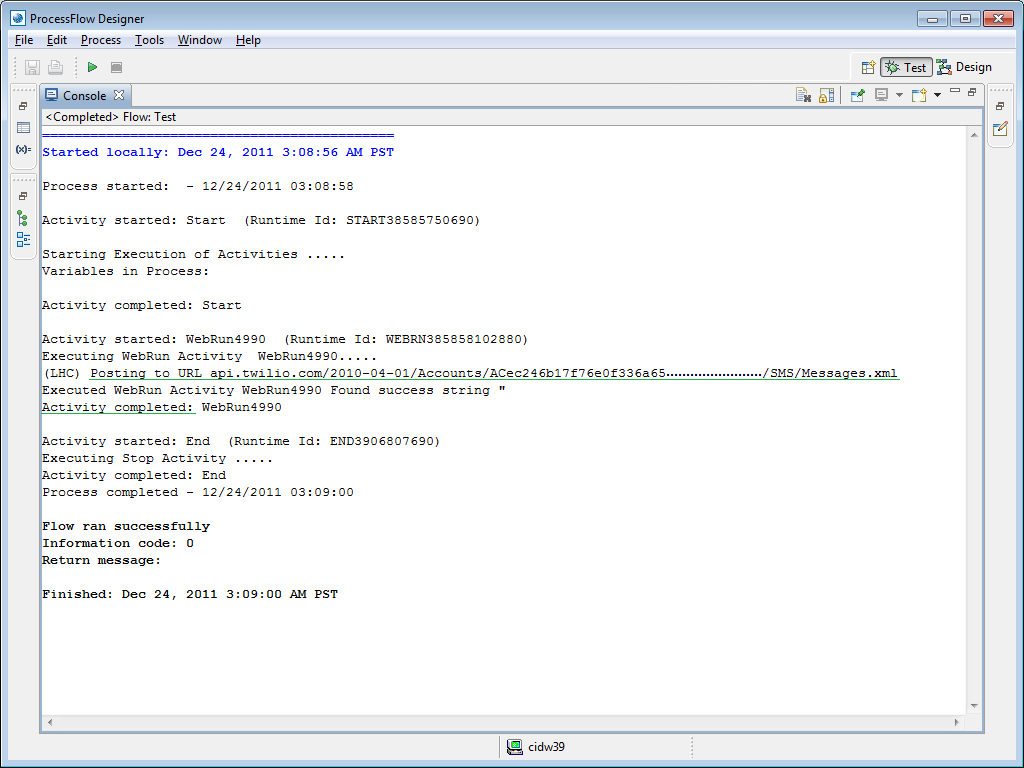
  19. Run the flow:
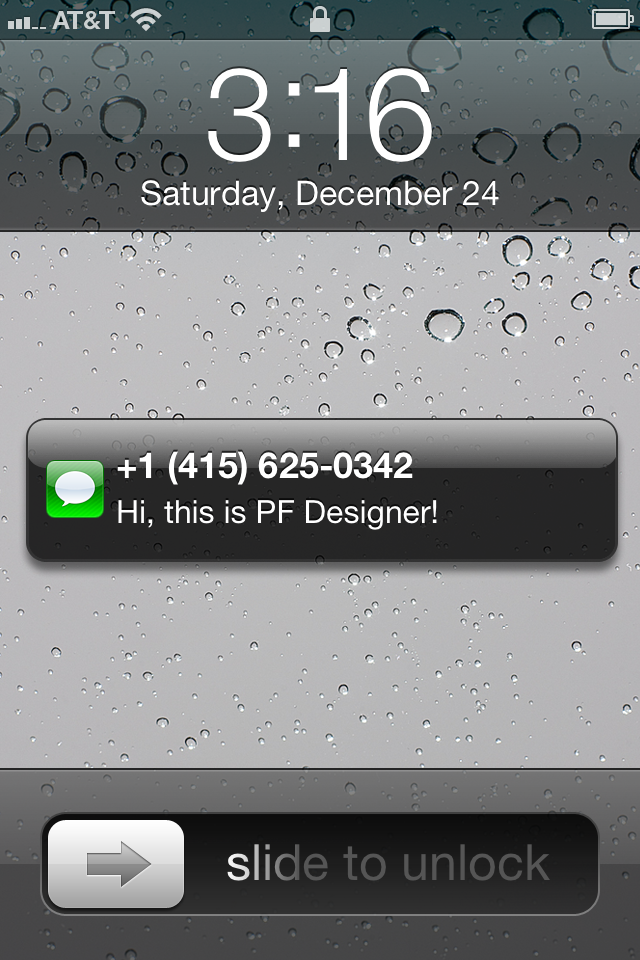
  20. Now your mobile phone should receive the SMS text message and beep. Here is a screenshot from the SMS text message received on my iPhone:
     
  21. You can check the logs in Twilio:

Note: The WebRun activity node was meant for another purpose, to be used in conjunction with S3; we’re sort of deviating the WebRun activity node from its original purpose. So it will submit two more HTTP Requests to PFI – which are unnecessary to our solution – before submitting the HTTP Request to Twilio. It’s inefficient but that’s the only activity node of PFI that can natively submit HTTP Requests. UPDATE: I think I’m wrong here because I was testing from PFI Designer and that may have caused the two extra requests. When deployed the flow will probably not send them. To be verified.

Applications

Here are a few possible applications of sending and receiving SMS text messages from M3:

  • Support for users that do not have smartphones
  • Support for regions that are covered by GSM only and that lack coverage for 3G/4G/Wifi
  • Approve/Reject Customers (CRS610) by text messages
  • Approve/Reject Purchase Orders (PPS180) by text messages
  • Send driving directions to truck drivers
  • Send pick-up reminders
  • Place a Customer Order via text messages
  • Send notifications by text message when an order changes status.
  • Monitoring and alert. To help with the scheduled jobs, such as CAS950, OIS180, PPS600, POs, Invoicing, Stock Transactions, etc. If there is an issue, if the jobs fail or do not complete within the expected time, M3 could alert a maintenance staff via SMS text message to its mobile phone.

Future work

Here are future implementations:
  • In addition to sending text messages, we can receive text messages via Twilio, so as to have two-way SMS text messaging with the user.
  • As an alternative to PFI, we could use Twilio’s helper libraries in Java to send SMS text messages directly from M3 Business Engine with an MAK modification, i.e. without having to go thru PFI.
  • In addition to PFI and M3, we could send SMS text messages from Lawson Smart Office scripts with the Twilio’s helper libraries for .NET.
I will publish such solutions in future posts.

Conclusion

That was an easy solution to send SMS text messages from PFI. By extension, since M3 Business Engine can trigger PFI flows, we can consider this a solution too for M3 BE to send SMS text messages.

That’s it!

How to avoid impersonation with the Mailbox Inbasket for PFI

Here is a solution to avoid impersonation when from an email we take action in the Inbasket of ProcessFlow Integrator (PFI).

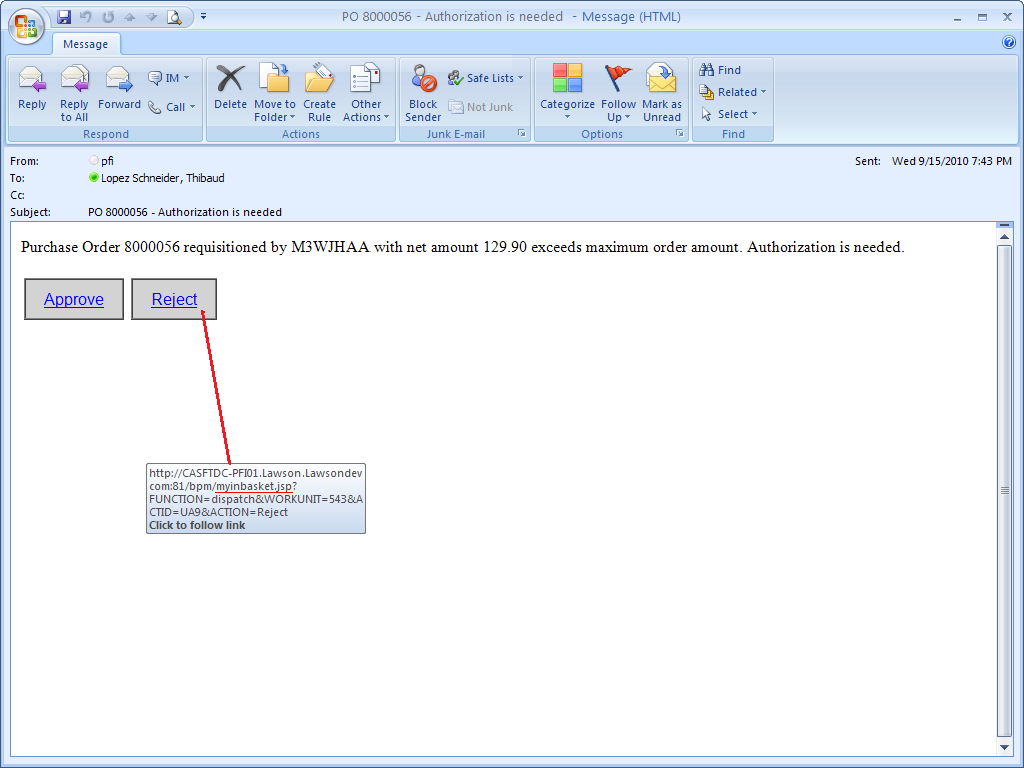
The scenario is the following. We have a workflow where approvers need to review certain information and take action, for example Approve or Reject. In this particular scenario the buttons to approve and reject are embedded in the email such that approvers can take action directly from their mailbox, i.e. we are not discussing the scenario of the Inbasket in Lawson Smart Office (LSO).

I call this the Mailbox Inbasket.

Note: The reason to use emails instead of the Inbasket is that not all approvers use LSO, for example in certain companies the managers don’t use LSO, they just have a mailbox. The other advantage of using the mailbox instead of the Inbasket is that taking action from the mailbox works from virtually any mail client that has network access to the PFI server, from corporate mobile phones for example.

When the approver takes action (for example Approve or Reject), PFI will challenge the user for authentication. The approver enters the login and password, PFI validates the credentials, and carries on with the action (Approve or Reject).

The problem arises if the user forwards the email to another person, the parameter RDUSER embedded in the URL could lead to impersonation, i.e. a user could take action in place of another user. That’s not desirable.

To avoid impersonation, we must remove the parameter RDUSER from the URL. But in doing so, PFI will throw an error.

The solution I propose is to create an intermediate JSP that will append the parameter RDUSER to the URL only after authentication.

I call it myinbasket.jsp.

  1. Create a JSP file with this line:
    <% response.sendRedirect("/bpm/inbasket?" + request.getQueryString() + "&RDUSER=" + session.getAttribute("com.lawson.bpm.webcomponents.userId")); %>
  2. Place that JSP in the bpm.war folder in WebSphere.
  3. Remove the parameter RDUSER from your trigger URL
  4. Then replace inbasket by myinbasket.jsp in your trigger URL. For example,
    from:

    [...]/bpm/inbasket?FUNCTION=dispatch[...]

    to:

    [...]/bpm/myinbasket.jsp?FUNCTION=dispatch[...]

  5. The JSP will dynamically get the userid of the user that just authenticated, will append it to the URL, and will respond with a location redirect.

That’s it!

Mailbox Inbasket for corporate mobile phones

Here is a video that illustrates we can use the mailbox of mobile phones to take action in the Inbasket of ProcessFlow Integrator (PFI). The video is a working demo for the BlackBerry and dates from September 2009, but the concept is still valid today and could apply to iPhones and Android devices as well.

The scenario is the following. We have a workflow where approvers need to review certain information and take action, for example Approve or Reject. In this particular scenario the buttons to approve and reject are embedded in the email such that approvers can take action directly from their mailbox, i.e. we are not discussing the scenario of the Inbasket in Lawson Smart Office (LSO).

The reason to use emails instead of the Inbasket is that taking action from the mailbox works from mobile phones that have network access to the PFI server, such as corporate mobile phones.

An alternative to the mailbox for corporate mobile phones would to use the Mobile Inbasket.

Finally, the demo in the video challenges the user for authentication, but there is also a solution with single sign-on to skip the user/password part.

If you are interested in the solution, contact me for details.

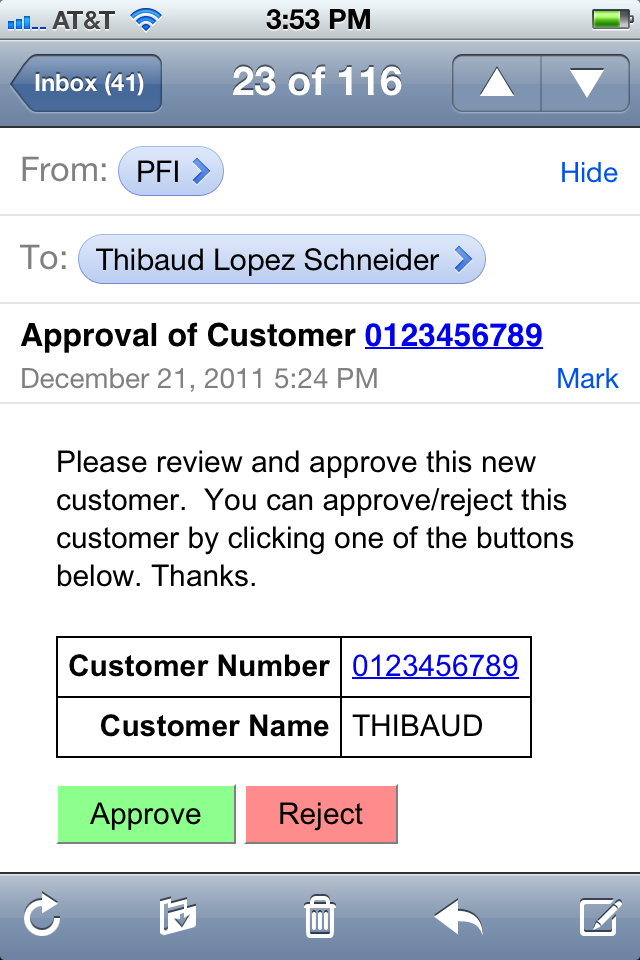
Here is a screenshot for an iPhone:

Solution to avoid the Invalid login request in PFI

In the PDF paper Solution to avoid the Invalid login request I propose a solution to repeatedly trigger ProcessFlow Integrator (PFI) flows while maintaining authentication and while avoiding the error: “SecurityAuthenException: Invalid login request. You are already logged in and have a valid session”

How to customize the result of a ProcessFlow Service

In the PDF paper How to customize the result of a ProcessFlow Service I explain how to customize the content-type of a ProcessFlow Service trigger and propose different output formats depending on the user agent. The output could be a user-friendly HTML page for colorful reading, plain text for simple emails, or XML for post-processing in scripts. The reader could use this technique to produce other content-types such as Excel, CSV, PDF.

Comparison of solutions to trigger PFI flows

Here is a quick comparison of various solutions to trigger ProcessFlow Integrator (PFI) flows:

Technique Manual, Automatic, or Scheduled? M3 modification free?
M3 Java modification with MAK Automatic No
Application Messages in CRS420 (for existing messages) Automatic Yes
Application Messages in CRS420 (for new messages) Automatic No
Script in Smart Office (old technique) Manual Yes
Script in Smart Office (new technique) Manual Yes
External Program Connector (EPC) Automatic Yes
PF Scheduler Scheduled Yes
URL (email, browser, XHR, Document Links, LSO Shortcuts, etc.) Manual Yes
Mashup Manual Yes
Field Audit Trail Automatic ???
Event Hub Automatic Yes

Trigger PFI flows via EPC

As a reminder, there is a solution to trigger ProcessFlow Integrator (PFI) flows using External Program Connector (EPC) to avoid modifications to M3.

One traditional solution to trigger PFI flows from M3 is to make small modifications to the M3 Java source code with MAK. It only takes a few extra lines of code to trigger a PFI flow when an event happens in M3, for example when a new Customer is created in CRS610 or when an Item is changed in MMS001. But this solution is intrusive as it requires a modification to M3 which we strive to avoid to minimize maintenance.

Instead, we could use EPC. EPC is a reverse API where M3 sends XML messages to EPC on events such as Create, Change, and Copy. For that, we setup a Subscriber in EVS040, a Remote Server in EVS038, and a Subsystem Job in MNS051. Then we develop an EPC plugin in Java, outside of M3, to process the XML messages and to trigger the PFI flows. This new solution is non intrusive as it avoids modifications to the M3 source code. However, it requires the configuration of several M3 programs and the development of an EPC plugin in Java.

If anybody is interested in the EPC solution, please contact me for details.

Note: There is also a solution to trigger FPI flows via Field Audit Trail.

How to get CONO, DIVI, FACI in a Mashup

Here is the solution to get the current Company (CONO), Division (DIVI), and Facility (FACI) in a Mashup in Lawson Smart Office. Last week I wrote a post on How to get the current username in a Mashup. This week I post about CONO, DIVI, FACI:

  1. Add this namespace to the Mashup:
    xmlns:mforms=”clr-namespace:MForms;assembly=MForms”
  2. Get the values with this extension method:
    {mashup:UserContextValue Path=M3/Company}
    {mashup:UserContextValue Path=M3/Division}
    {mashup:UserContextValue Path=M3/Facility}
  3. Alternatively, you can use the field names:
    {mashup:UserContextValue Path=M3/CONO}
    {mashup:UserContextValue Path=M3/DIVI}
    {mashup:UserContextValue Path=M3/FACI}
  4. Use the value for example in a TextBlock:
    <TextBlock Text=”{mashup:UserContextValue Path=M3/Company}” />
    <TextBlock Text=”{mashup:UserContextValue Path=M3/Division}” />
    <TextBlock Text=”{mashup:UserContextValue Path=M3/Facility}” />

Here are the values you can get:
CONO | Company, CompanyName
DIVI | Division, DivisionName
FACI | Facility, FacilityName
WHLO | Warehouse, WarehouseName
LANC | Language
DTFM | DateFormat
DCFM | DecimalFormat
TIZO | TimeZone
CUNO | Customer
DEPT | Department
Menu
MenuVersion

Here is a screenshot of the result:

Special thanks to karinpb and Juan V of Spain for their help!