Building an Infor Grid Lab – Part 2

I am building an Infor ION Grid laboratory manually without LifeCycle Manager (LCM) for my learning purposes. In the previous post I had installed a minimalist Grid using an old version. Today I will install the latest version.

1. Preparation

Choose values for the following properties (here are some sample values):

Grid name e.g. Grid
Grid folder e.g. C:\Infor\Grid\
Database name e.g. InforIONGrid
Host name e.g. localhost
Host address e.g. 127.0.0.1
Grid agent port e.g. 50003
Registry port e.g. 50004

2. Download latest version

Download the latest version of the Grid; as of today (5/12/2017) it is 11.1.13.0.77:

3. Create folder structure

Choose a home directory for your Grid, e.g. C:\Infor\Grid\ where the folder must match the Grid name (e.g. Grid), and create these sub-folders:

Grid
+---config
+---drivers
+---resources
\---secure

4. Copy JAR files

Let’s find the main grid-core.jar and supporting JAR files:

  1. Unzip the LCM file.
  2. Go to folder: Grid_Installer_11.1.13.0.77.lcm\products\Infor_ION_Grid_11.1.13.0\tasks\
  3. Select these JAR files:
    bcmail-jdk16.jar
    bcprov-jdk16.jar
    grid.httpclient.jar
    grid.liquibase.jar
    grid-core.jar
    javax.servlet-api.jar
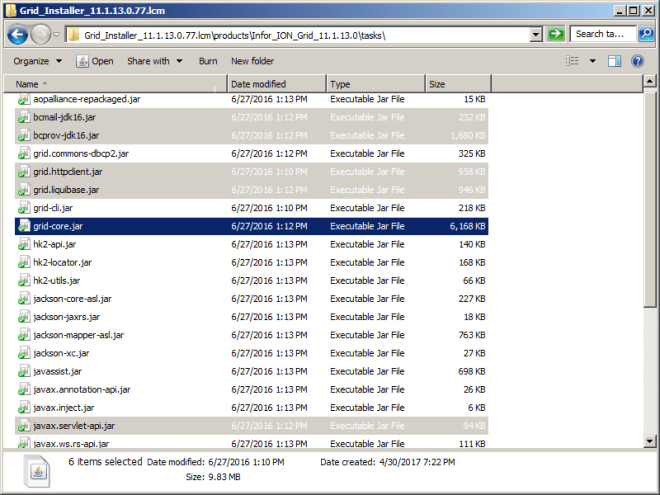
  4. Copy them to your Grid\resources\ folder:

5. Create database

Let’s create the Grid database:

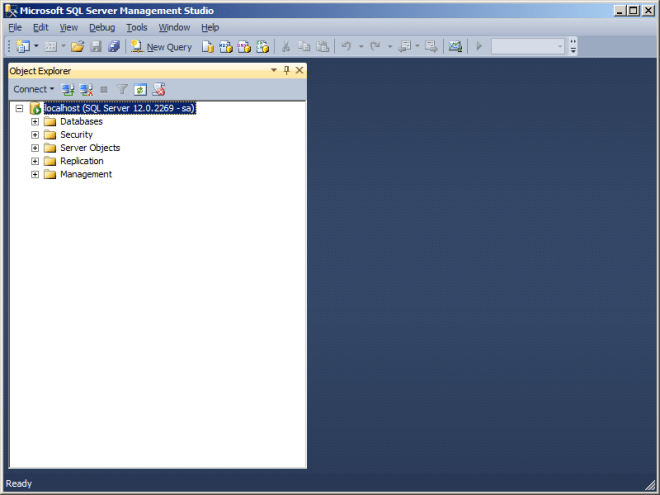
  1. Install SQL Server and SQL Management Studio (I installed SQL Server 2014 Express Edition at no cost), and ensure it works correctly:
  2. Download and install the Microsoft SQL Server JDBC Driver, and ensure you can connect to the database via JDBC (e.g. with SQuirreL):
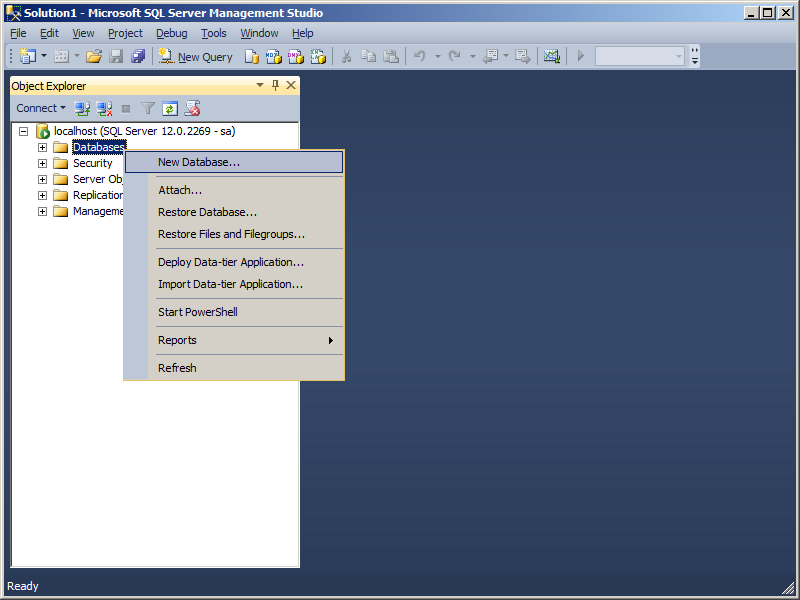
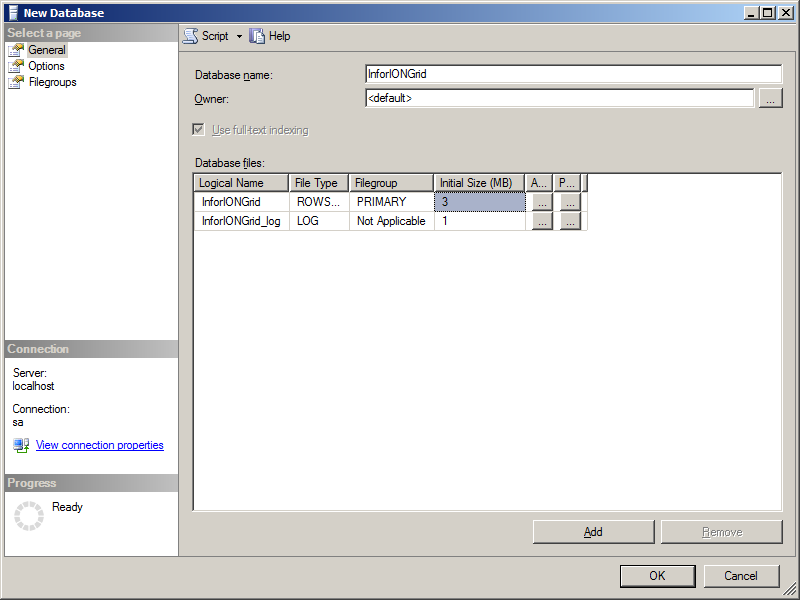
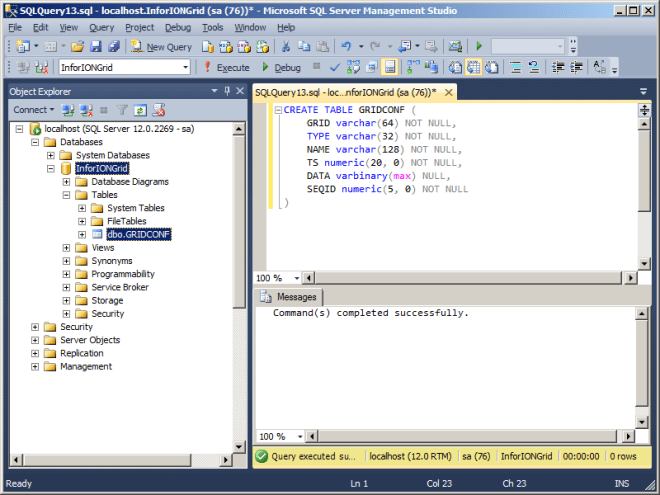
  3. Create a new database (e.g. InforIONGrid):
  4. Run the following SQL to create the configuration table:
    CREATE TABLE GRIDCONF (
        GRID varchar(64) NOT NULL,
        TYPE varchar(32) NOT NULL,
        NAME varchar(128) NOT NULL,
        TS numeric(20, 0) NOT NULL,
        DATA varbinary(max) NULL,
        SEQID numeric(5, 0) NOT NULL
    )
  5. Run the following SQL to create a Grid configuration with name (e.g. Grid), runtime XML and topology XML (replace the Grid name and XML contents as needed):
    DECLARE @runtime VARCHAR(300)
    DECLARE @topology VARCHAR(300)
    SET @runtime =
    '<?xml version="1.0" ?>
    <runtime xmlns="http://schemas.lawson.com/grid/configuration_v3">
        <bindings />
        <sessionProviders />
        <routers />
        <contextRoots />
        <propertySettings />
    </runtime>'
    SET @topology =
    '<?xml version="1.0" ?>
    <topology xmlns="http://schemas.lawson.com/grid/configuration_v3">
        <hosts>
            <host name="localhost" address="127.0.0.1" gridAgentPort="50003" />
        </hosts>
        <registry host="localhost" port="50004" />
    </topology>'
    INSERT INTO GRIDCONF (GRID, TYPE, NAME, TS, DATA, SEQID) VALUES ('Grid', 'runtime' , 'null', 0, CONVERT(varbinary(max), @runtime), 0)
    INSERT INTO GRIDCONF (GRID, TYPE, NAME, TS, DATA, SEQID) VALUES ('Grid', 'topology' , 'null', 0, CONVERT(varbinary(max), @topology), 0)

  6. Verify the result:
    SELECT GRID, TYPE, NAME, TS, DATA, LEFT(DATA, LEN(DATA)), SEQID
    FROM GRIDCONF

  7. Copy the JDBC driver to your Grid\drivers\ folder:
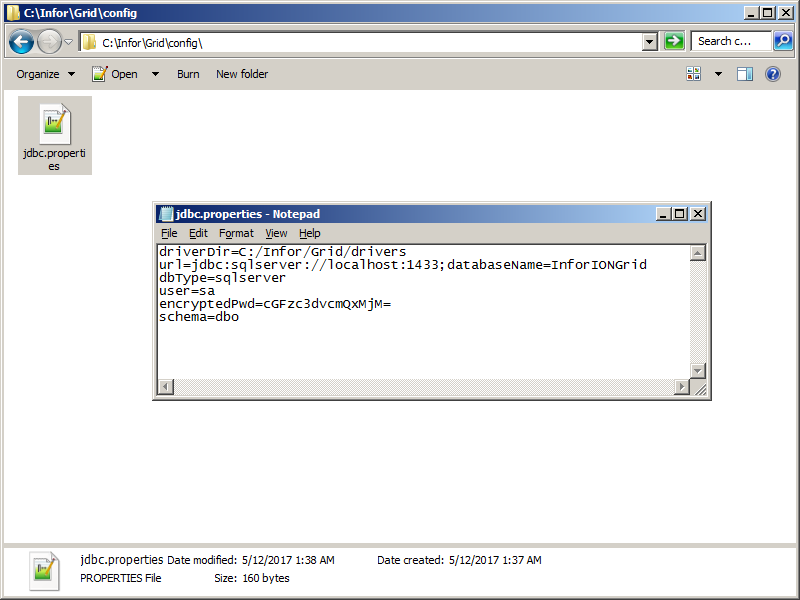
  8. Create the JDBC configuration file at Grid\config\jdbc.properties with the values you chose above and with your database password Base64-encoded (in a production environment, keep this file secure):
    driverDir=C:/Infor/Grid/drivers
    url=jdbc:sqlserver://localhost:1433;databaseName=InforIONGrid
    dbType=sqlserver
    user=sa
    encryptedPwd=cGFzc3dvcmQxMjM=
    schema=dbo

Configuration Import & Edit

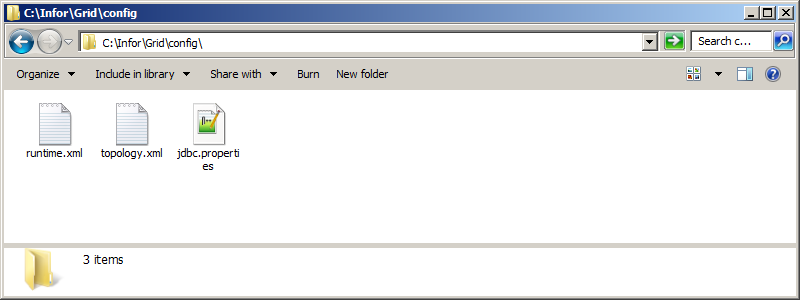
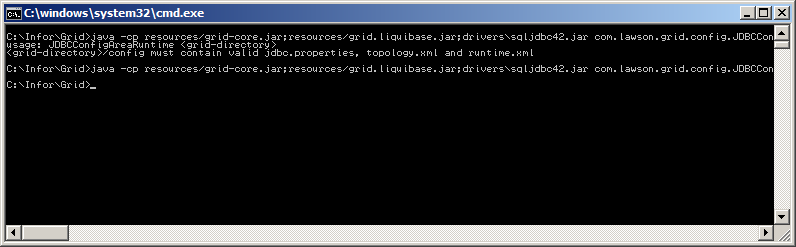
Alternatively, instead of using SQL to insert the runtime and topology XML into the GRIDCONF table, we can run the following command to import the XML files from the Grid\config\ folder into the GRIDCONF table (it requires the EXISTING_GRIDS table):

CREATE TABLE EXISTING_GRIDS (
    GRID_NAME varchar(64) NOT NULL,
    GRID_VERSION varchar(32) NOT NULL,
    MODIFIED_BY varchar(128) NULL,
    TIMESTAMP numeric(20, 0) NOT NULL,
)
INSERT INTO EXISTING_GRIDS (GRID_NAME, GRID_VERSION, MODIFIED_BY, TIMESTAMP) VALUES ('Grid', 1, 'Thibaud', 0)
java -cp resources/grid-core.jar;resources/grid.liquibase.jar;drivers\sqljdbc42.jar com.lawson.grid.config.JDBCConfigAreaRuntime C:\Infor\Grid
Then, we can use this other command to launch the XML Editor and edit, format and validate the XML:

java -cp resources/grid-core.jar;resources/grid.liquibase.jar;drivers\sqljdbc42.jar;resources/bcprov-jdk16.jar;resources/bcmail-jdk16.jar com.lawson.grid.config.client.ui.Launch

6. Security

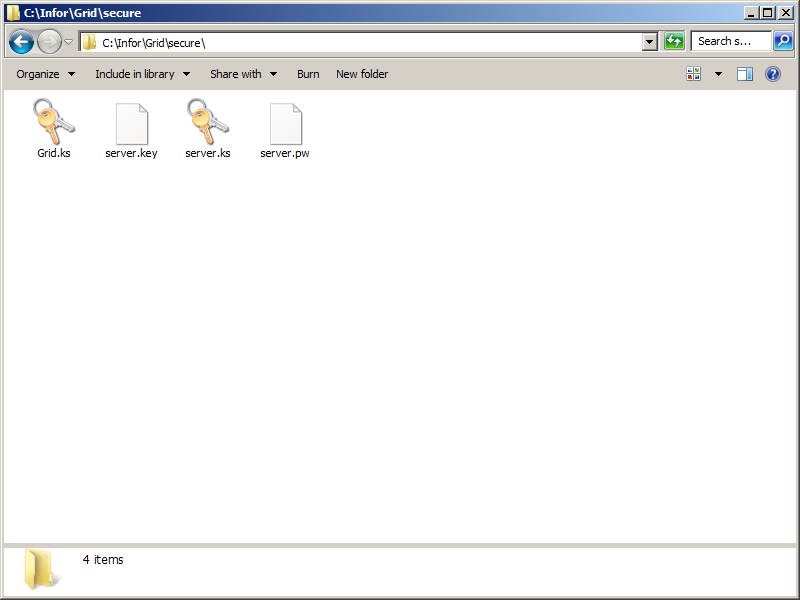
The Grid uses cryptography to protect its network traffic. We need the following four files in the folder Grid\secure\ . For now, I will simply get these files from an existing Grid, and I will create new ones later.

Grid.ks
server.key
server.ks
server.pw
7. Start the Grid

Start the Grid:

java -cp resources/grid-core.jar;resources/bcprov-jdk16.jar;resources/bcmail-jdk16.jar;resources/grid.liquibase.jar;drivers\sqljdbc42.jar;resources/javax.servlet-api.jar;resources/grid.httpclient.jar com.lawson.grid.Startup -registry -configDir . -host localhost -logLevel ALL

8. Grid Management Pages

Start the Grid Management Pages and connect to the registry at localhost:50004:

java -jar resources/grid-core.jar

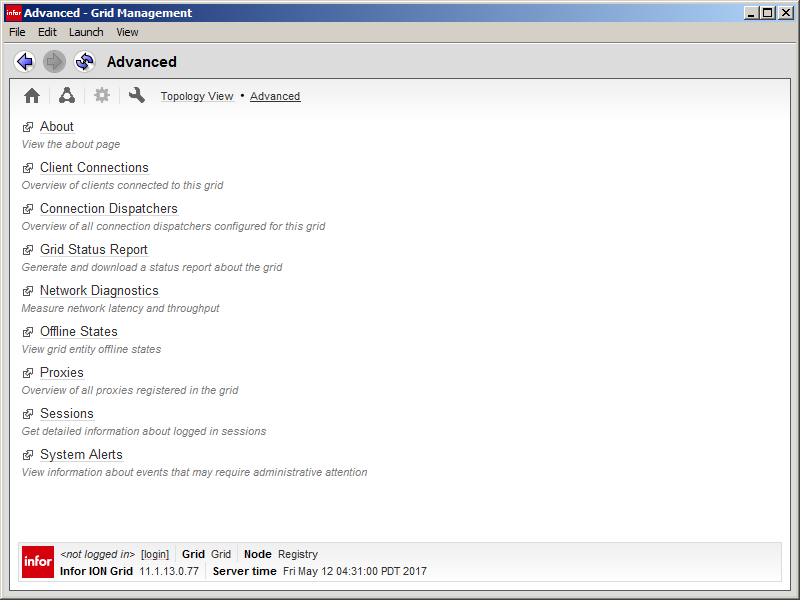
9. Topology View

For the Topology View, we need another table:

CREATE TABLE APPMAPPINGS (
    GRID varchar(256) NOT NULL,
    NAME varchar(256) NOT NULL,
    HOST varchar(256) NOT NULL,
    ID varchar(64) NULL,
    PENDINGID varchar(64) NULL,
    STATE varchar(32) NOT NULL,
    LOGNAME varchar(256) NULL,
    PROFILENAME varchar(64) NULL,
    PROFILEDATA varbinary(max) NULL,
    JVMID varchar(64) NULL
)

Result

We now have a minimalist Grid installed manually without LCM.
Future work

In the next post, I will show how to create the security files.

Conclusion

That was how to install a minimalist latest version of the Infor ION Grid manually without LifeCycle Manager. We have the minimalist folder structure, database, configuration, commands, Grid Management Pages, and Topology View. I will continue in the next post.

That’s it!

M3 Ideas, now 282 subscribers.

Related posts

Building an Infor Grid Lab – Part 1

These days I am doing a lot of work with the Infor ION Grid – to learn, troubleshoot, and do penetration testing – and I need to setup my own laboratory. I will follow the footsteps of PotatoIT’s Lab.

Grid concepts

The Infor ION Grid is a proprietary application framework to run Java applications in a distributed, redundant, fail-over, load balanced, scalable, performant, and secure environment, sort of a crossing between IBM WebSphere Application Server (WAS) and Platform as a Service (PaaS), for the purposes of Infor products, and that over the years has become a rich framework that helps power the Infor CloudSuite. Grid concepts are explained in the Infor documentation and in my previous work. Basically, there are: hosts (physical/virtual machines), a registry (to keep track of the nodes), nodes (JVM), applications (e.g. M3), routers (to direct network traffic), and more.

Download

The Grid is available for download from the Infor Xtreme Product Download Center:

Documentation

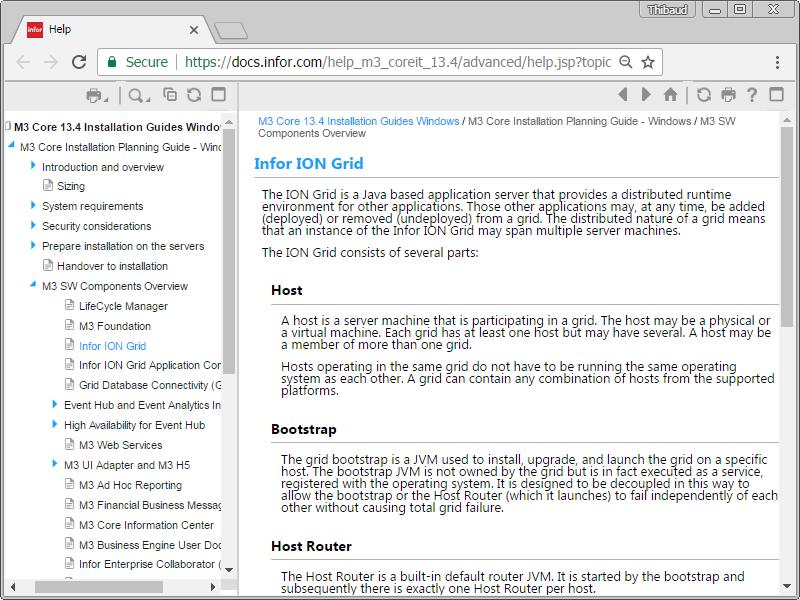
The Installation Guide has a chapter Installing Infor ION Grid:

LCM? No.

The documentation says Infor LifeCycle Manager (LCM) is a prerequisite to install the Grid. But in my previous encounter with LCM I had concluded I can reproduce installation steps manually without LCM, albeit with a lot of work. Anyway, for my purposes I just need a minimal Grid without Infor M3 which makes the installation easier. To that end, I set out to learn how to install a minimal Grid manually without LCM. I will split my learning into several blog posts.

Version 0.x

In my archives of 10 years ago I found an early internal development unreleased version of the Grid with some documentation. It was a pure Java application that started Grid hosts, nodes, routers, registry, and user interface. It did not have database, certificates, configuration, or web server. It was not available publicly. Thanks to its simplicity, I will use it as a starting point of my learning.

1) Start the registry

java -cp grid.jar com.lawson.grid.Startup -registry -groupName THIBAUD

2) Start a node

java -cp grid.jar com.lawson.grid.Startup

3) Start a router

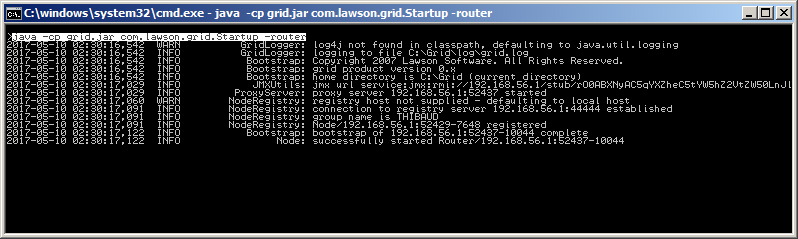
java -cp grid.jar com.lawson.grid.Startup -router

4) Start the user interface

java -jar grid.jar localhost 44444

Result

We have a minimal Grid with a host, a registry, a node, a router, and a user interface.

Future work

In my next blog posts, I will:

  • Install a later version of the Grid
  • Use the new Grid installer
  • Install the Grid on Linux and PostgreSQL

Conclusion

That was a starting point for me to learn how to install a minimal Infor ION Grid manually without LifeCycle Manager. I will continue in the next post.

That’s it!

Related posts

Access Control on Grid Management Pages

It is my great pleasure to be an author of M3 Ideas. Thanks very much for Thibaud’s invitation.

I put my foot into M3 water five years ago and M3 Ideas has been giving me great help in developing my technical skills since then. It is my great honor to share my work and make contributions to it.

The issue of access control on grid management pages has been a trouble to me for nearly two years. The installation web page of ISO, in our case, http://BE Server:19005/LSO/index.html is very close to the grid information page, http://BE Server:19005/grid/info.html and the grid management pages, http://BE Server:19005/grid/ui/#. It is fairly easy for a user with web skills to figure out the latter two web pages and he/she can explore and check basically all the grid information.

Although the grid management pages requires credentials to log on to be able to start or stop a process, a user actually can try the default account,  and the famous password, which are mentioned by the Companion, to get full control. This is not a joke, but a real case. It makes M3 system really vulnerable. Even if users do not make any actions to it, there is no sense and it is ridiculous to disclose all the system information to the public.

We did raise InforXtreme case for Infor to fix it. However, they could not give a robust solution after a long time discussion. The reason is the grid management pages and LSO is sharing the same Java process in the BE server. If you check the TCP connections and processes using netstat in the BE server, you would find there is no way to tell which connection is from the grid management pages visit or from LSO request, which is the biggest technical challenge.

After many tests it seems the most feasible solution is to analyze each incoming and outgoing TCP packet in the BE sever to see whether there are any patterns. If we can be 100% sure that a remote IP address is visiting the grid management pages according to the patterns, then we can apply IPSec to block it automatically. Although it means that IP address cannot use LSO as well, it can be sorted out by manually removing it from the black list given a promise is made not to visit again. If the promise is broken, there is no second chance for them. It is something like Damocles’ Sword.

So I made a Console Application using C# as follows.


using System;
using System.Collections.Generic;
using SharpPcap;
using SharpPcap.LibPcap;
using System.Text;
using System.Net.Mail;
using System.Diagnostics;

namespace CA_Grid
{
class CA_Grid
{
static List<string> jsIPList;

static void Main(string[] args)
{
jsIPList = new List<string>();

var varDevices = CaptureDeviceList.Instance;

if(varDevices.Count<1) { Console.WriteLine("No devices were found on this machine"); return; } Console.WriteLine("The following devices are available on this machine:"); Console.WriteLine("----------------------------------------------------"); Console.WriteLine(); int i = 0; foreach(var varDec in varDevices) { Console.WriteLine("{0}) {1}", i, varDec.Description); i++; } Console.WriteLine(); Console.Write("-- Please choose a device to capture: "); int varChoice = 0; if (!int.TryParse(Console.ReadLine(), out varChoice) || varChoice>=i)
{
Console.WriteLine("The device is not valid!");
return;
}

ICaptureDevice varDevice =varDevices[varChoice];

varDevice.OnPacketArrival += Device_OnPacketArrival;

varDevice.Open();
varDevice.Filter = "ip and tcp";
Console.WriteLine();
Console.WriteLine("-- Listening on {0}, hit 'Ctrl-C' to exit...",varDevice.Description);

varDevice.Capture();

varDevice.OnPacketArrival -=Device_OnPacketArrival;
varDevice.Close();
}

private static void Device_OnPacketArrival(object sender, CaptureEventArgs e)
{
try
{
string varMIP = "BE Server IP Address";
if (e == null || e.Packet == null)
return;

if (e.Packet.Data == null)
return;

var varPacket = PacketDotNet.Packet.ParsePacket(e.Packet.LinkLayerType, e.Packet.Data);
if (varPacket == null)
return;

if (varPacket.GetType()!=typeof(PacketDotNet.EthernetPacket))
return;

var varIP = (PacketDotNet.IpPacket)varPacket.Extract(typeof(PacketDotNet.IpPacket));
if (varIP == null)
return;

string varDIP = varIP.DestinationAddress.ToString();
string varSIP = varIP.SourceAddress.ToString();

if (varSIP != varMIP)
return;

var varTCP = (PacketDotNet.TcpPacket)varPacket.Extract(typeof(PacketDotNet.TcpPacket));
if (varTCP == null)
return;

if (varTCP.PayloadData == null)
return;

var varData = Encoding.UTF8.GetString(varTCP.PayloadData);

if (varData == null)
return;

string varDPort = varTCP.DestinationPort.ToString();
string varSPort = varTCP.SourcePort.ToString();

bool varHTTPS = varSPort == "443";
bool varHTTP = varSPort.Contains("19005") && varData.Contains("text/html") && varData.Contains("gzip");
if ((varHTTPS || varHTTP) && !jsIPList.Contains(varDIP))
{
jsIPList.Add(varDIP);

string varWay = varHTTP ? "HTTP" : "HTTPS";
string varM1 = "----------------------------------------------------";
string varM2 = string.Format("{0}, {1}, {2}", DateTime.Now, varDIP, varWay);
string varM3 = "Original IP packet: " + varIP.ToString();
string varM4 = "Original TCP packet: " + varTCP.ToString();
string varM5 = "Original TCP Header: " + varData;

if (varDIP != "IP to Exclude")
{
using (var varProcess = new Process())
{
varProcess.StartInfo.FileName = "cmd.exe";
varProcess.StartInfo.UseShellExecute = false;
varProcess.StartInfo.RedirectStandardInput = true;
varProcess.StartInfo.RedirectStandardOutput = true;
varProcess.StartInfo.RedirectStandardError = true;
varProcess.StartInfo.CreateNoWindow = true;
varProcess.Start();

string varCommand = "netsh ipsec static add filter filterlist=\"IP_Filter_Grid\" srcaddr=" + varDIP + " dstaddr=me protocol=TCP mirrored=No";
varProcess.StandardInput.WriteLine(varCommand);
varProcess.StandardInput.WriteLine("exit");
varProcess.StandardInput.AutoFlush = true;
varProcess.WaitForExit();
}
}

Console.WriteLine(varM1);
Console.WriteLine(varM2);
Console.WriteLine();
Console.WriteLine(varM3);
Console.WriteLine();
Console.WriteLine(varM4);
Console.WriteLine();
Console.WriteLine(varM5);
Console.WriteLine();

using (var varSMTP = new SmtpClient("Mail Forwarder IP Address"))
{
using (var varMail = new MailMessage())
{
varMail.From = new MailAddress("from address");
varMail.To.Add("my e-mail address");
varMail.Subject = "Unauthorised Access to Infor Grid Management Pages";
varMail.Body = varM1 + "\r\n" + varM2 + "\r\n" + "\r\n" + varM3 + "\r\n" + "\r\n" + varM4 + "\r\n" + "\r\n" + varM5;
varSMTP.Send(varMail);
}
}
}
}
catch (Exception ex)
{
Console.WriteLine(ex.Message);
}
}
}
}

SharpPcap can be downloaded from GitHub. It has two Dlls, SharpPcap for capturing packets and Packet.Net for packet analysis. WinPcap needs to be downloaded and installed into the BE server. There is no need to restart the server after installation.

The console application is running in an asynchronous mode, so there is trivial impact on the M3 performance.

The script starts with detecting all the devices first. Then it asks for a device number to listen to. Each device could be a network adapter. A filter is applied to the device for IP and TCP packets. An event to capture the packets is attached to the device. Finally the listening starts.

The event handler has the key logic.

1. Two patterns to find the visit to the grid management pages.

(1) HTTPS: The source port would be 443.

(2) HTTP: The packet contains text/html and gzip.

HTTPS communication is encrypted, so we cannot analyze the packet content. Fortunately LSO never uses the port of 443.

2. If the destination IP address is not on the white list, then it would be added to the IPSec filter list. We need to manually create a IPSec policy and a IPSec filter & Action beforehand.

3. Console would output the captured information.

4. An e-mail alert would be sent with the captured information.

5. A global variable of jsIPList is used to keep the IP addresses already captured to avoid repeated alerts.

Then it works. There were three IT users from local division, who still tried to access to the grid management pages on Monday as usual. Then they found they could not visit it any more, as well as LSO. So far there are no normal users to be blocked, no matter whether they run M3 programs, or download LSO from the installation web page. All of sudden the two-year headache is gone.

If you have the similar concerns to me, I hope the above solution would give you a ride. If you have got any issues using the solution, please reply to this post or send me an e-mail at warren.dahai.hou@gmail.com.

Finally my heartfelt appreciations to all the authors on this website, as well as the author of SharpPcap and Packet.Net.

Grid CLI

Here is a quick peek at the Infor ION Grid command line interface (CLI).

Early days

The earliest reference I found is the following. The Grid Scripting Utility, a.k.a. Grid Script Client, a.k.a. Scripting Client, was introduced in Lawson Grid 10.1.8.0 in 2011, and can control the Grid and Grid applications, e.g. start/stop the Grid and applications, as well as query the Grid for status information:
doc0

java –cp grid-core.jar;grid-ui.jar com.lawson.grid.util.ScriptingClient agentAddress agentPort -ks keystoreFileName keystorePassword command target

It does not seem to be available anymore, at least I could not find grid-ui.jar. And as per NCR 6975“CLI tool is to be seen as a replacement for Scripting Client that has been deprecated and will be discontinued in Grid 2.0.”

Nowadays

In the Grid 11.1.13, there is a command line interface (CLI), a.k.a. Grid Commander:
4

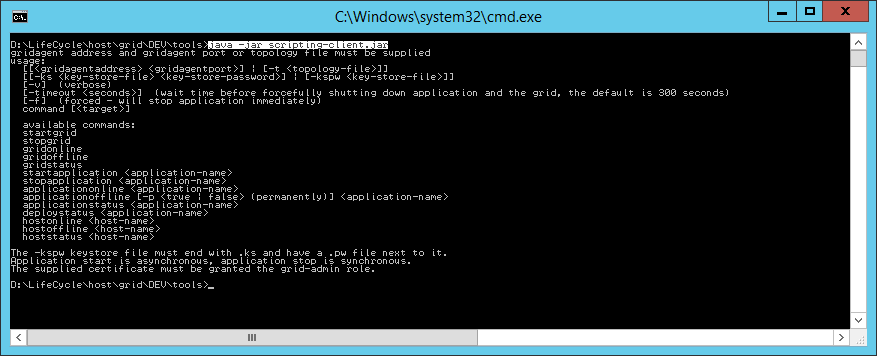
D:\LifeCycle\host\grid\DEV\tools>java -jar grid-cli.jar

3

I could not find documentation about it, but here is the first set of commands:

grid
    start                     Start the Grid
    stop                      Stop the Grid
    info                      Display Grid name, version and state
    offline                   Set Grid offline
    online                    Set Grid online


router
    list                      List routers


host
    start                     Start the specified hosts. Defaults to the local host if no host is specified
    stop                      Stop the specified hosts. Defaults to the local host if no host is specified
    list                      List all hosts in the Grid
    configureHost             Update host configuration, if the address is changed and the new address is not valid for the current host certificate the certificate will be regenerated, this command requires the grid to be stopped
    setSecondaryHost          Set secondary host, this host will get the registry and administrative router in case of the primary host becomes unavailable
    changePrimaryHost         Move Registry and Administrative router to a second host, make sure <gridname>.ks and <gridname>.pw is available in secure folder before this is performed. Also note that the secondary host configuration will be reset
    configurePrimaryHost      Reconfigure registry port and adminrouter ports and external address, only possible to run on the current primary host
    updateHttpsCertificate    Create a new HTTPS certificate for this host with a specific address, requires <gridname>.ks and <gridname>.pw to be available in secure the folder
    add                       Add a new host
    remove                    Remove a host from the Grid
    installer                 Download a host installer


app
    permanentlyOffline        Set a specified application or all applications permanently offline
    propertiesXml             Print application properties as XML
    permanentlyOfflineState   Print application permanently offline state
    start                     Start application
    stop                      Stop application
    list                      List application versions, started and global state
    uninstall                 Uninstall an application
    info                      Print detailed application information
    scaleOut                  Deploy the application to additional host(s)
    scaleIn                   Remove this application from host(s)
    upgrade                   Upgrade an existing application
    online                    Set an application online
    offline                   Set an application offline
    listBindings              List all bindings for a given application
    install                   Install an application
    deploymentStatus          List deployment status for a given application


keystore
    pemFormat                 Convert Java keystore to PEM format


database
    info                      Print details about the Grid database
    config                    Update database url, user and password


keyValueStore
    load                      Loads a byte array property from KeyValueStore and writes it into a file
    save                      Saves a file as a byte array property in the KeyValueStore
    delete                    Delete the property for the given application and key
    listProperties            List all properties for given application and key
    listKeys                  List keys for given application
    deleteAll                 Deletes all stored data for the given application and key


persisteddata
    load                      Loads a byte array property from persisted data and stores it into a file
    save                      Saves a file as a byte array property into persisted data
    delete                    Delete the given property for the given application
    list                      List all properties for given application
    deleteAll                 Deletes all stored data for the given application


node
    log                       Print node log
    stop                      Stop a given node
    list                      Print a list of all running nodes in the Grid
    info                      Print details about a Grid node
    start                     Launch a binding on a specified host


repository
    list                      List gar files in the repository
    clean                     Remove all non deployed gar files of a specific application type from the repository, specifying -version allows to remove gar files matching a specific version

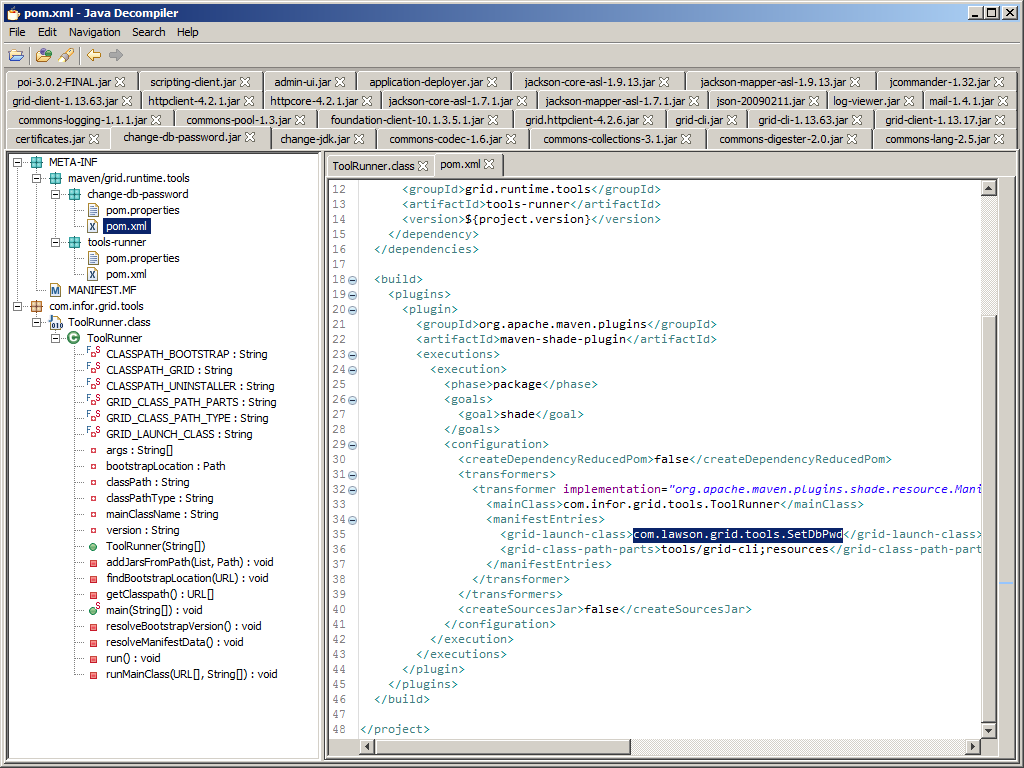
Each tool references a grid-launch-class in the Maven POM, e.g. change-db-password:
6

Wait, there’s more

It seems the old script client is still available, renamed:
5

Conclusion

That was a quick peek at the Grid command line interface (CLI). It is useful for system administrators to manage the Grid as an alternative to the graphical user interface (GUI). In a previous post I was looking for a command line to install Mashups (*.mashup) onto LifeCycle Manager (LCM). But this CLI does not seem to do that, it seems to only install Grid applications (*.gar).

That’s it.

M3 Ideas, now 250 subscribers.

Who is the author of an M3 mod?

Today I needed to find who is the developer of an M3 customer modification. There is a bug in the MForms Bookmark of program M3 Customer. Connect Addresses – OIS002 which the developer modified for our customer’s needs, and I needed to report the bug to that developer. But I do not have the MAK training nor tool, so I cannot easily see the list of modifications and their authors. My colleague Shashank remind me of the following answer in M3 Server View.

  1. Go to M3 Server View (from the Grid Management Pages, or from LifeCycle Manager):
    0
  2. Find the interactive subsystem that is running the program (in my case OIS002), and select Tools:
    1
  3. Select Find Class:
    2
  4. Search for the M3 program (in my case OIS002):
    3
  5. The line with the customer class will give the file path, version, author, date, and unique ID (in my case I found the author, Rajesh):
  6. Note: Up to here, we can access this page anonymously, without being an authenticated user nor an administrator (security vulnerability anyone?)
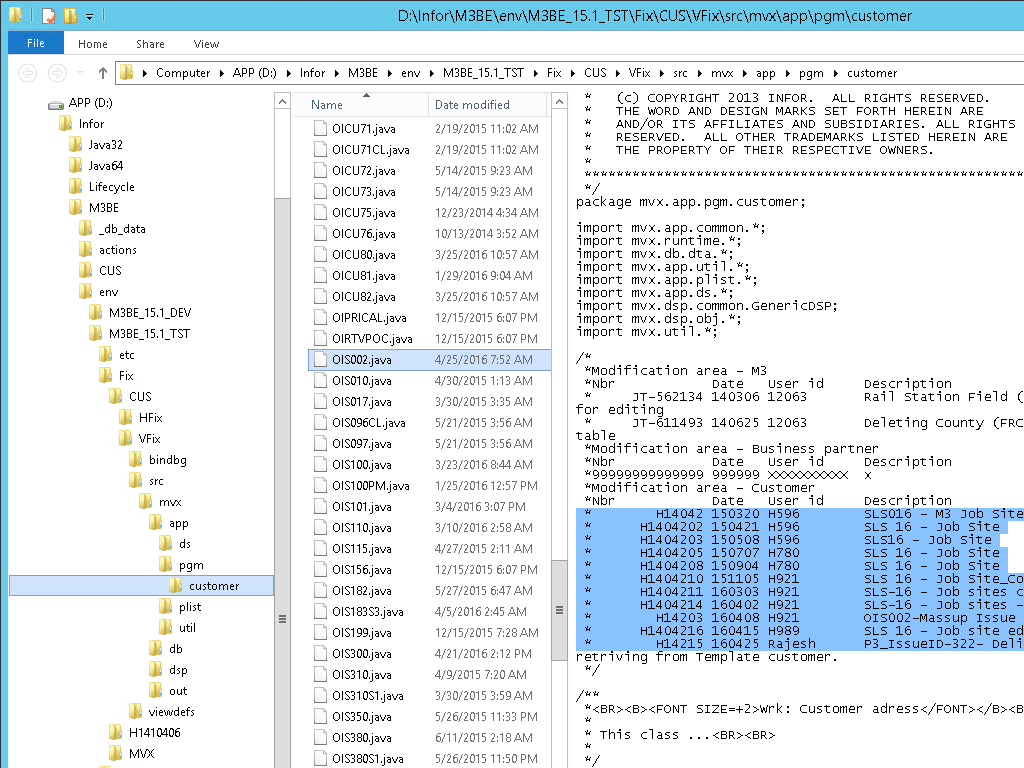
  7. Now, if we have access to the M3 Business Engine file system, we can open the file itself and see the full list of developers; in my case the file is at:
    D:\Infor\M3BE\env\M3BE_15.1_TST\Fix\CUS\VFix\src\mvx\app\pgm\customer\OIS002.java:
    5

That’s it.

Let me know in the comments below if you have other tips. Click Like. Share this post with your colleagues. Click Follow to subscribe. And come write the next blog post with us. This is a volunteer-based community, and your participation keeps this blog going. And send some love to the other M3 blogs too. Thank you.

Call M3 API from Event Analytics rules

Here is how to call M3 API from a Drools rule in Infor Event Analytics; this is a common requirement.

Sample scenario

Here is my sample business case.

When a user changes the status of an approval line in OIS115 (OOAPRO), I have to find the order type (ORTP) of the order to determine which approval flow to trigger in Infor Process Automation (IPA), but ORTP is not part of the table OOAPRO, for that reason I must previously make a call to OIS100MI.GetHead.

I could call M3 in the approval flow, but false positives would generate noise in the WorkUnits.

Is it possible?

I asked Nichlas Karlsson, Senior Architect – Business Integration at Infor, if it was possible to call M3 API directly in the Drools rule. He is one of the original developers of Event Hub and Event Analytics and very helpful with my projects (thank you) although he does not work with these products any longer. He responded that Event Analytics is a generic software with no specific connection to M3, so unfortunately this is not possible out of the box, however it is a common requirement. He said I could solve it using MvxSockJ to call M3 APIs in my own Java class, included in a jar that I put in the lib folder. He added to not forget that the execution time for all rules within a session must be less than the proxy timeout, i.e. 30s. And I would also need to manage host, port, user, password and other properties in some way.

Instead of MvxSockJ I will use the MI-WS proxy of the Grid as illustrated in my previous post.

Sample Drools rule

Here is my sample Drools rule that works:

package com.lawson.eventhub.analytics.drools;

import java.util.List;
import com.lawson.eventhub.analytics.drools.model.Event;
import com.lawson.eventhub.analytics.drools.model.HubEvent;
import com.lawson.eventhub.EventOperation;
import com.lawson.grid.node.Node;
import com.lawson.grid.proxy.access.SessionId;
import com.lawson.grid.proxy.access.SessionProvider;
import com.lawson.grid.proxy.access.SessionUtils;
import com.lawson.grid.proxy.ProxyClient;
import com.lawson.grid.registry.Registry;
import com.lawson.miws.api.data.MIParameters;
import com.lawson.miws.api.data.MIRecord;
import com.lawson.miws.api.data.MIResult;
import com.lawson.miws.api.data.NameValue;
import com.lawson.miws.proxy.MIAccessProxy;

declare HubEvent
	@typesafe(false)
end

rule "TestSubscription"
	@subscription(M3:OOAPRO:U)
	then
end

rule "TestRule"
	no-loop
	when
		event: HubEvent(publisher == "M3", documentName == "OOAPRO", operation == EventOperation.UPDATE, elementOldValues["STAT"] == 10, elementValues["STAT"] == "20")
	then
		// connect to MI-WS
		Registry registry = Node.getRegistry();
		SessionUtils su = SessionUtils.getInstance(registry);
		SessionProvider sp = su.getProvider(SessionProvider.TYPE_USER_PASSWORD);
		SessionId sid = sp.logon("Thibaud", "******".toCharArray());
		MIAccessProxy proxy = (MIAccessProxy)registry.getProxy(MIAccessProxy.class);
		ProxyClient.setSessionId(proxy, sid);

		// prepare input parameters
		MIParameters p = new MIParameters();
		p.setProgram("OIS100MI");
		p.setTransaction("GetHead");
		MIRecord r = new MIRecord();
		r.add("CONO", event.getElementValue("CONO"));
		r.add("ORNO", event.getElementValue("ORNO"));
		p.setParameters(r);

		// execute and get output
		MIResult s = proxy.execute(p);
		List<MIRecord> records = s.getResult(); // all records
		if (records.isEmpty()) return;
		MIRecord record = records.get(0); // zeroth record
		List<NameValue> nameValues = record.getValues(); // all output parameters
		String ORTP = nameValues.get(4).getValue(); // PROBLEM: somehow nameValues.indexOf("X") returns -1

		// make decision
		if (ORTP.equals("100")) event.postEvent("ApprovalFlowA");
		if (ORTP.equals("200")) event.postEvent("ApprovalFlowB");
		if (ORTP.equals("300")) event.postEvent("ApprovalFlowC");
end

Note: You will need to drop foundation-client-10.1.1.3.0.jar in the lib folder of Event Analytics, and restart the application

Limitations

There are some limitations with this code:

  • The execution time must be less than the 30s proxy timeout
  • Limit the number of return columns; there is currently a bug with Serializable in ColumnList, see Infor Xtreme incident 8629267
  • If the M3 API returns an error message it will throw the bug with Serializable in MITransactionException, see Infor Xtreme incident 8629267
  • Somehow NameValue.indexOf(name) always returned -1 during my tests, it is probably a bug in the class, so I had to hard-code the index value of the output field (yikes)
  • I do not know how to avoid the logon to M3 with user and password to get a SessionId; I wish there was a generic SYSTEM account that Event Analytics could use
  • For simplicity of illustration I did not verify all the null pointers; you should do the proper verifications
  • The code may throw MITransactionException, ProxyException and IndexOutOfBoundsException
  • You can move the Java code to a separate class in the lib folder; for that refer to my previous post

Related articles

That’s it. Let me know what you think in the comments below.

How to call M3 API from the Grid application proxy

Here is how to call M3 API using the MI-WS application proxy of the Infor Grid.

This is useful if we want to benefit from what is already setup in the Grid and not have to deal with creating our own connection to the M3 API server with Java library, hostname, port number, userid, password, connection pool, etc.

Note: For details on what Grid application proxies are, refer to the previous post.

MI-WS application proxy

The MI-WS application is part of the M3 Business Engine Foundation. We will need foundation-client.jar to compile our classes:
1b

Step 1. Logon to the Grid

First, login to the Grid from your application and get a SessionId and optionally a GridPrincipal.

From a Grid application:

import com.lawson.grid.proxy.access.GridPrincipal;
import com.lawson.grid.proxy.access.SessionController;
import com.lawson.grid.proxy.access.SessionId;

// get session id
SessionId sid = ??? // PENDING
GridPrincipal principal = ??? // PENDING;

From a client application outside the Grid:

import com.lawson.grid.proxy.access.GridPrincipal;
import com.lawson.grid.proxy.access.SessionId;
import com.lawson.grid.proxy.access.SessionProvider;
import com.lawson.grid.proxy.access.SessionUtils;
import com.lawson.grid.proxy.ProxyException;

// logon and get session id
SessionUtils su = SessionUtils.getInstance(registry);
SessionProvider sp = su.getProvider(SessionProvider.TYPE_USER_PASSWORD);
SessionId sid;
try {
    sid = sp.logon(userid, password.toCharArray());
} catch (ProxyException e) {
    ...
}
GridPrincipal principal = su.getPrincipal(sid);

Step 2. Call the M3 API

Second, call the M3 API, for example CRS610MI.LstByNumber, and get the result:

import java.util.ArrayList;
import java.util.List;
import com.lawson.grid.proxy.ProxyClient;
import com.lawson.grid.proxy.ProxyException;
import com.lawson.miws.api.data.MIParameters;
import com.lawson.miws.api.data.MIParameters.ColumnList;
import com.lawson.miws.api.data.MIRecord;
import com.lawson.miws.api.data.MIResult;
import com.lawson.miws.api.MITransactionException;
import com.lawson.miws.proxy.MIAccessProxy;

// get the proxy
MIAccessProxy proxy = (MIAccessProxy)registry.getProxy(MIAccessProxy.class);

// login to M3
ProxyClient.setSessionId(proxy, sid);

// prepare the parameters
MIParameters paramMIParameters = new MIParameters();
paramMIParameters.setProgram("CRS610MI");
paramMIParameters.setTransaction("LstByNumber");
paramMIParameters.setMaxReturnedRecords(10);

// set the return columns
ColumnList returnColumns = new ColumnList();
List<String> returnColumnNames = new ArrayList<String>();
returnColumnNames.add("CONO");
returnColumnNames.add("CUNO");
returnColumnNames.add("CUNM");
returnColumns.setReturnColumnNames(returnColumnNames);
paramMIParameters.setReturnColumns(returnColumns);

// execute
MIResult result;
try {
	result = proxy.execute(paramMIParameters);
} catch (MITransactionException e) {
	...
} catch (ProxyException e) {
	...
}

// show the result
List<MIRecord> records = result.getResult();
for (MIRecord record: records) {
	record.toString();
}

Note: When I use ColumnList it throws java.io.NotSerializableException: com.lawson.miws.api.data.MIParameters$ColumnList. It appears to be a bug in that the ColumnList class is missing implements Serializable. I reported it in Infor Xtreme incident 8629267.

That’s it. Please let me know what you think in the comments below.

Application proxies in the Infor Grid

Here is how to create and invoke application proxies of the Infor Grid.

What is an application proxy?

An application proxy is an interface for a Grid application that other applications of the Grid or client applications outside the Grid can invoke; it is inter-process communication in a distributed environment.

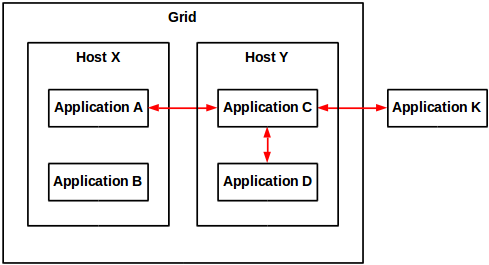
Example. The proxy for Grid application C is invoked from grid application A of a different host, from grid application D of the same host, and from client application K outside the Grid.

How to create an application proxy?

To create a proxy for a Grid application:

package net.company.your;

import com.lawson.grid.node.application.ApplicationEntryPoint;
import com.lawson.grid.node.application.ModuleContext;
import com.lawson.grid.proxy.ProxyException;
import com.lawson.grid.proxy.ProxyServer;

public interface HelloWorldProxy {
    public String hello(String name) throws ProxyException;
}

public class HelloWorld implements HelloWorldProxy {
    public String hello(String name) {
        return "Hello, " + name;
    }
}

public class HelloWorldApp implements ApplicationEntryPoint {
    public boolean startModule(ModuleContext context) {
        ProxyServer.registerProxy(HelloWorldProxy.class, new HelloWorld());
        return true;
    }
    public void stopModule() {
    }
}

Note: For details on how to create a Grid application, refer to the previous post on the subject.

The proxy is now ready to be invoked:
8

How to call the proxy from a Grid application?

To invoke the proxy from a Grid application:

The short source code is:

Registry registry = Node.getRegistry();
HelloWorldProxy proxy = registry.getProxy(HelloWorldProxy.class);
String result = proxy.hello("Thibaud");

The long source code is:

package net.company2.your;

import com.lawson.grid.node.application.ApplicationEntryPoint;
import com.lawson.grid.node.application.ModuleContext;
import com.lawson.grid.node.Node;
import com.lawson.grid.proxy.ProxyException;
import com.lawson.grid.registry.Registry;
import net.company.your.HelloWorldProxy;

public class HelloWorldApp2 implements ApplicationEntryPoint {
	public boolean startModule(ModuleContext context) {
		// connect
		Registry registry = Node.getRegistry();
		if (!registry.isConnected()) {
			System.err.println("failed to connect");
			return false;
		} else {
			System.out.println("connected to " + registry.getGridName());
		}
		// get the proxy
		HelloWorldProxy proxy = (HelloWorldProxy)registry.getProxy(HelloWorldProxy.class);
		if (proxy == null) {
			System.err.println("failed to get proxy...exiting");
			return false;
		} else {
			System.out.println("got proxy");
		}
		// invoke the proxy
		try {
			String result = proxy.hello("Thibaud");
			System.out.println(result);
		} catch (ProxyException e) {
			System.err.println(e.getMessage());
			e.printStackTrace();
			return false;
		}
		return true;
	}

	public void stopModule() {
	}

}

How to call the proxy from a client application?

To invoke the application proxy from a client application outside the Grid:

First, choose a Grid registry’s hostname and port number (a registry is a special node that keeps track of all nodes in a Grid):

Then, connect to the Grid, get the proxy and invoke its methods.

The short source code is:

ClientRegistry registry = new ClientRegistry("Test");
registry.connect(hostname, portNumber);
HelloWorldProxy proxy = registry.getProxy(HelloWorldProxy.class);
String result = proxy.hello("Thibaud");

The long source code is:

import com.lawson.grid.proxy.ProxyConnectionFailedException;
import com.lawson.grid.proxy.ProxyException;
import com.lawson.grid.proxy.access.GridPrincipal;
import com.lawson.grid.proxy.access.SessionId;
import com.lawson.grid.proxy.access.SessionProvider;
import com.lawson.grid.proxy.access.SessionUtils;
import com.lawson.grid.registry.ClientRegistry;
import net.company.your.HelloWorldProxy;

public class Test {
    public static void main(String[] args) {

        // connect
        ClientRegistry registry = new ClientRegistry("Test");
        try {
            registry.connect("host1623", 22102);
        } catch (ProxyConnectionFailedException e) {
            System.err.println(e.getMessage());
            e.printStackTrace();
            return;
        }
        if (!registry.isConnected()) {
            System.err.println("failed to connect");
            return;
        } else {
            System.out.println("connected to " + registry.getGridName());
        }

        // get the proxy
        HelloWorldProxy proxy = (HelloWorldProxy)registry.getProxy(HelloWorldProxy.class);
        if (proxy == null) {
            System.err.println("failed to get proxy...exiting");
            return;
        } else {
            System.out.println("got proxy");
        }

        // invoke the proxy
        try {
            String result = proxy.hello("Thibaud");
            System.out.println(result);
        } catch (ProxyException e) {
            System.err.println(e.getMessage());
            e.printStackTrace();
            return;
        }

        // disconnect
        registry.close();
        if (!registry.isClosed()) {
            System.err.println("failed to close");
        } else {
            System.out.println("registry closed");
        }
    }

}

That’s it. Please like, subscribe, share.

Java code in Event Analytics rules

To add custom Java code to a Drools rule in Event Analytics in the Infor Grid:

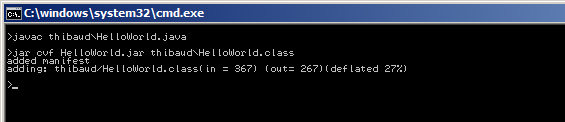
  1. Write your Java code, compile it, and archive it to a JAR file:
    // javac thibaud\HelloWorld.java
    // jar cvf HelloWorld.jar thibaud\HelloWorld.class
    package thibaud;
    public class HelloWorld {
        public static String hello(String CUNO) {
            return "Hello, " + CUNO;
        }
    }
    

  2. Find the host of Event Analytics as explained here, copy/paste the JAR file to the application’s lib folder in the Infor Grid, and restart the application to load the JAR file:

    4_
  3. Write the Drools Rule that makes use of your Java code, reload the rules, and test:
    5
    6_

Thank you.

Java Debugging an Infor Grid application at runtime

Here is an illustrated example of how to use the Java Debugger in Eclipse to debug an existing Infor Grid application at runtime for which we don’t have the source code; for example I will debug the M3 Web Services (MWS) server, line by line, while I make a SOAP request.

For that, I will use the technique I learned in my previous post, Hacking Infor Grid application development (part 6), where I learned how to use the Java Debugger for my own Grid application for which I had the source code, and I will extend that technique to an existing Infor Grid application for which I don’t have the source code but for which I have the JAR files.

I had to learn this technique in order to troubleshoot a timeout issue we are currently having in MWS when making a SOAP request. This helped me pinpoint the modules, packages, classes, methods and lines of code that were at cause and report the results to Infor Support so they can report them to Infor Product Development for help. To that effect, please join the campaign and sign the petition asking Infor Product Development to make their source code available so we can better troubleshoot issues and learn. Also, this week is Open Access Week and it’s a great opportunity to ask Infor to make more of their documentation available.

Logging and DEBUG level

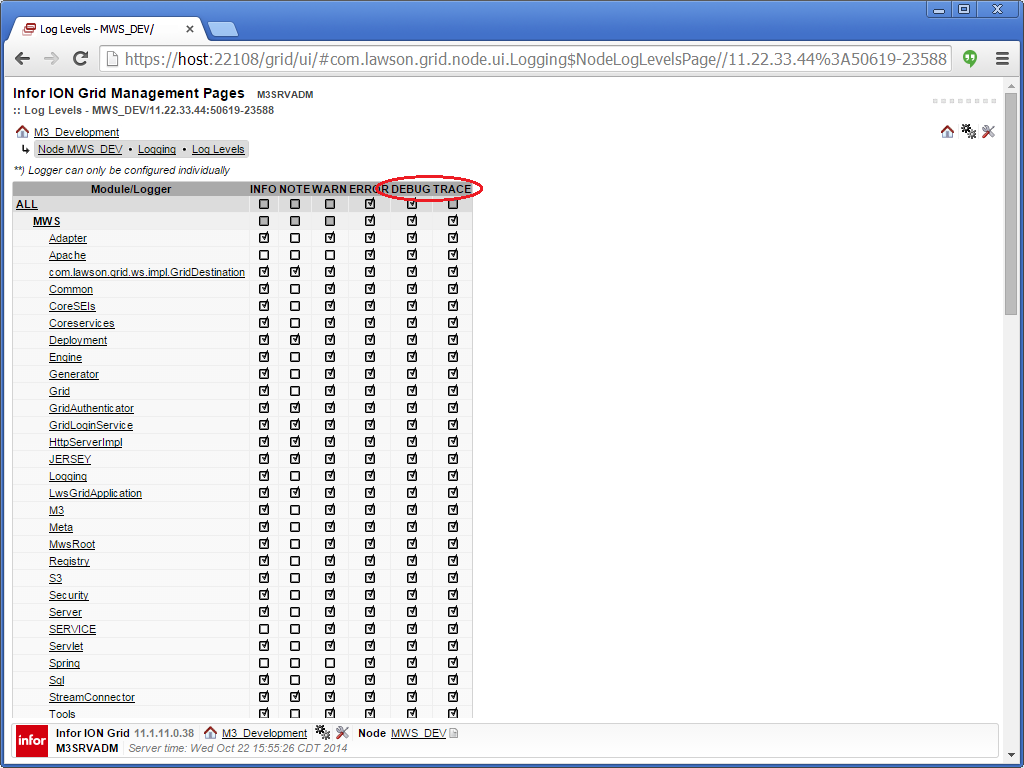
In order to narrow down the search space for the issue I was troubleshooting, I increased the log level of the application’s node to DEBUG level. In my case, I selected ALL modules: SYSTEM and MWS. I had also selected TRACE but it didn’t produce any log.
2

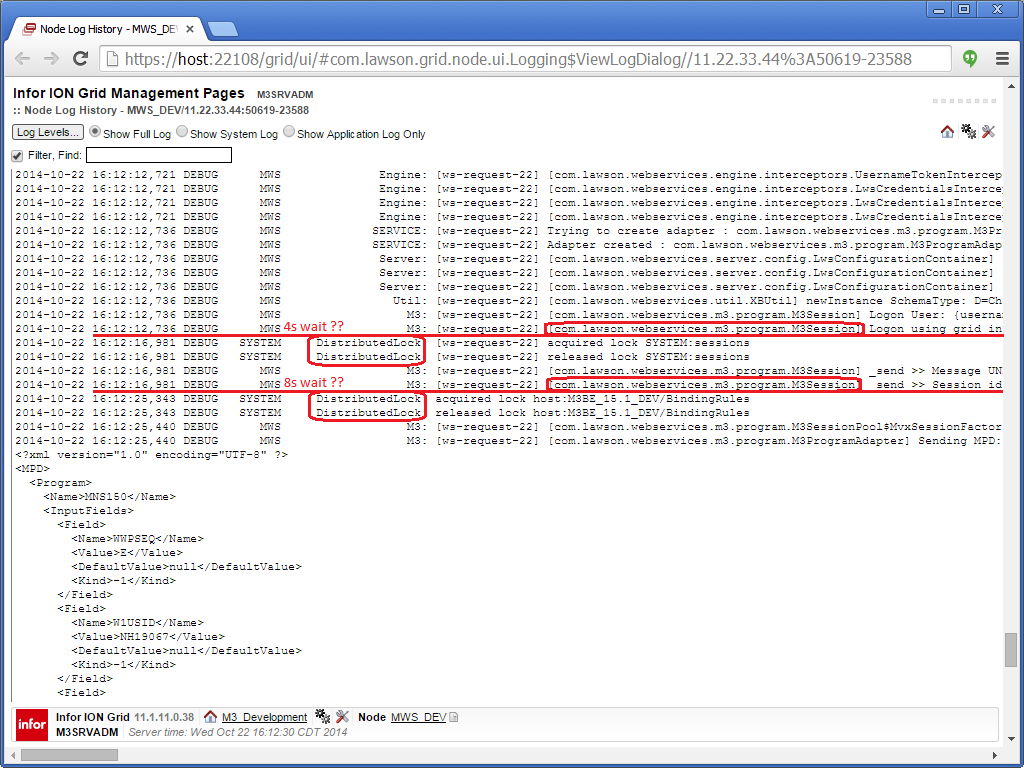
I then opened the log file and found interesting information about the bottleneck issue, that helps me narrow down which modules, packages, and classes to debug. In my case they are: MWS com.lawson.webservices.m3.program.M3Session, and SYSTEM DistributedLock:
2_

Remember to revert the log level changes after you’re done to avoid clogging the disk space with increasing log.

Setup the Java Project in Eclipse

Let’s setup a new Java Project in Eclipse with the JAR files of the Infor Grid application (e.g. MWS in my case). For that:

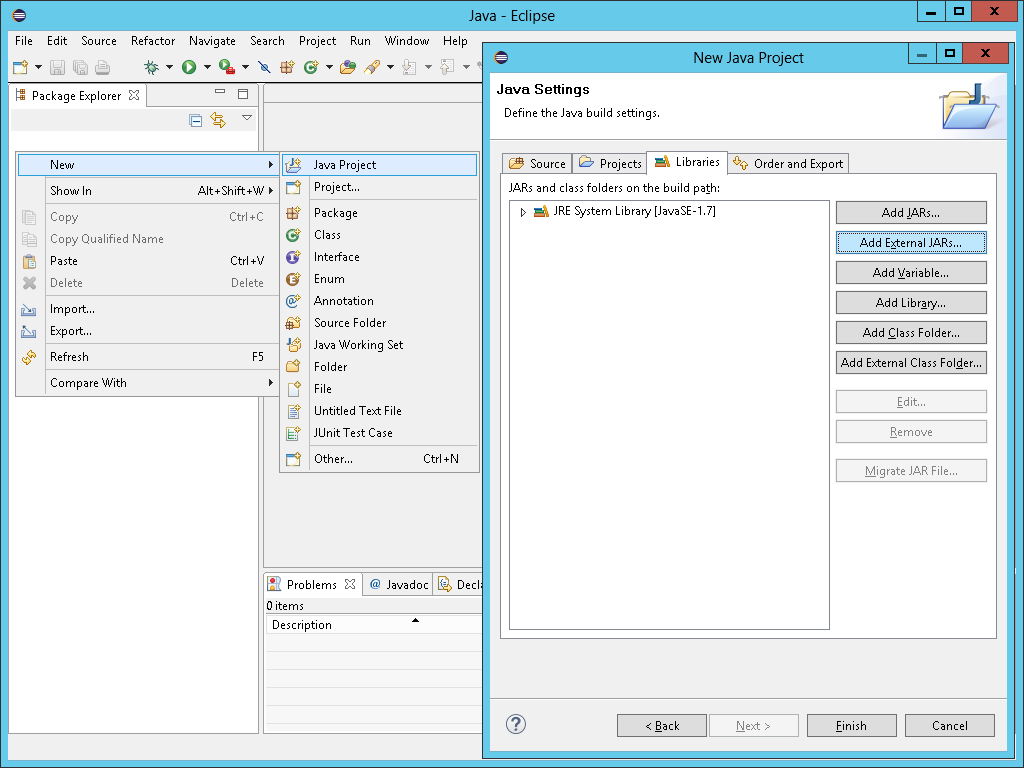
  1. Create a new Java Project in Eclipse, give it a name, and select Add External JARs:
    1.6_
  2. Select the JAR files of the Infor Grid application in LifeCycle Manager (e.g. MWS\lib\*.jar in my case):
    1.7
  3. Optionally, you can also add the JAR files of the Grid runtime (grid-core.x.y.z.jar, etc.).
  4. Open the desired Java class (double-click), Eclipse will open that class in the Class File Editor, and for now it will say “Source not found”, we will fix that later:
    1.11

Start debugging

Now let’s debug the application, even without the source code:

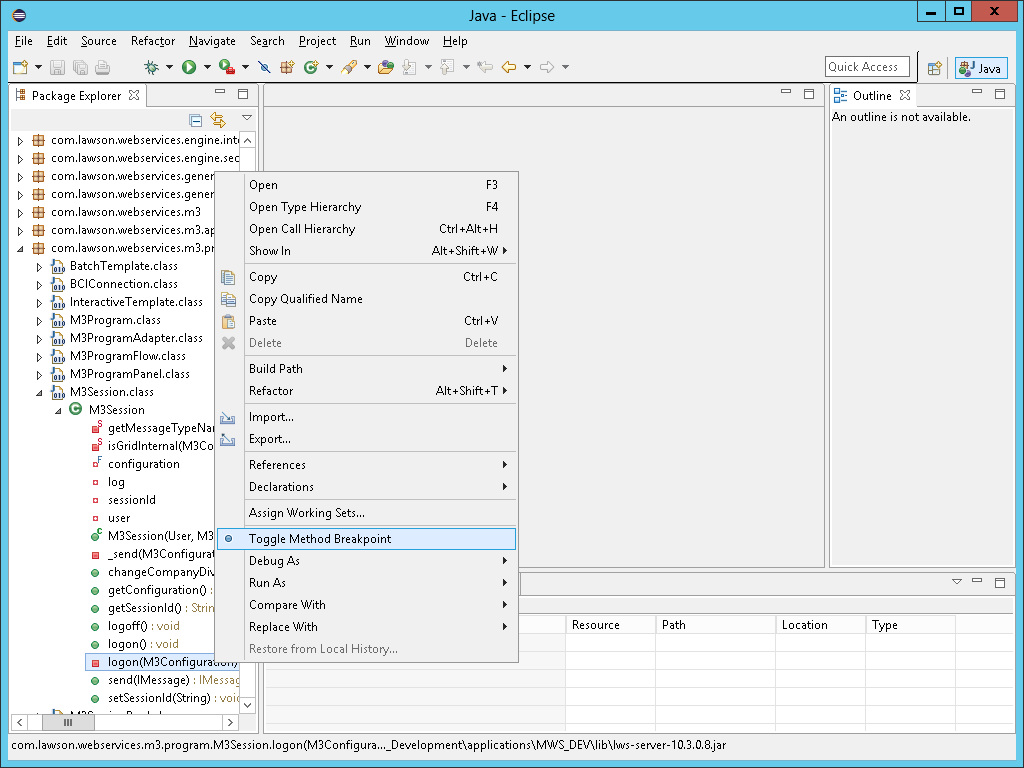
  1. Toggle the breakpoints at the desired methods:
    2.0
  2. Prepare the Infor Grid application for debugging as detailed in my previous post:3
  3. Start debugging in Eclipse:
    2.1_
  4. Make the application go through your breakpoint (in my case I make a SOAP request, the application will call M3Session.logon, and Eclipse will suspend at my breakpoint).
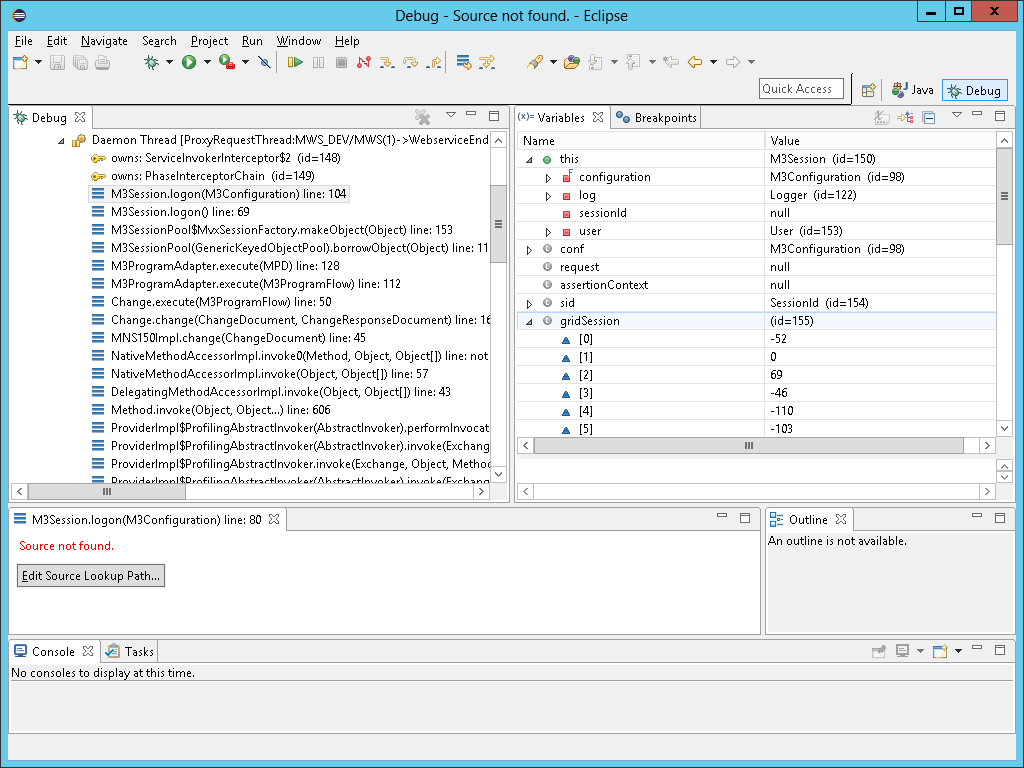
  5. At this point, even without the source code, you can use the debugger as usual, to execute line by line, inspect variables, evaluate expressions, etc.; each class will show “Source not found” for now:
    2.6

Add the Java decompiler

Now let’s use a Java decompiler for Eclipse to recover the source code (not the original source code though) and attach it to the classes.

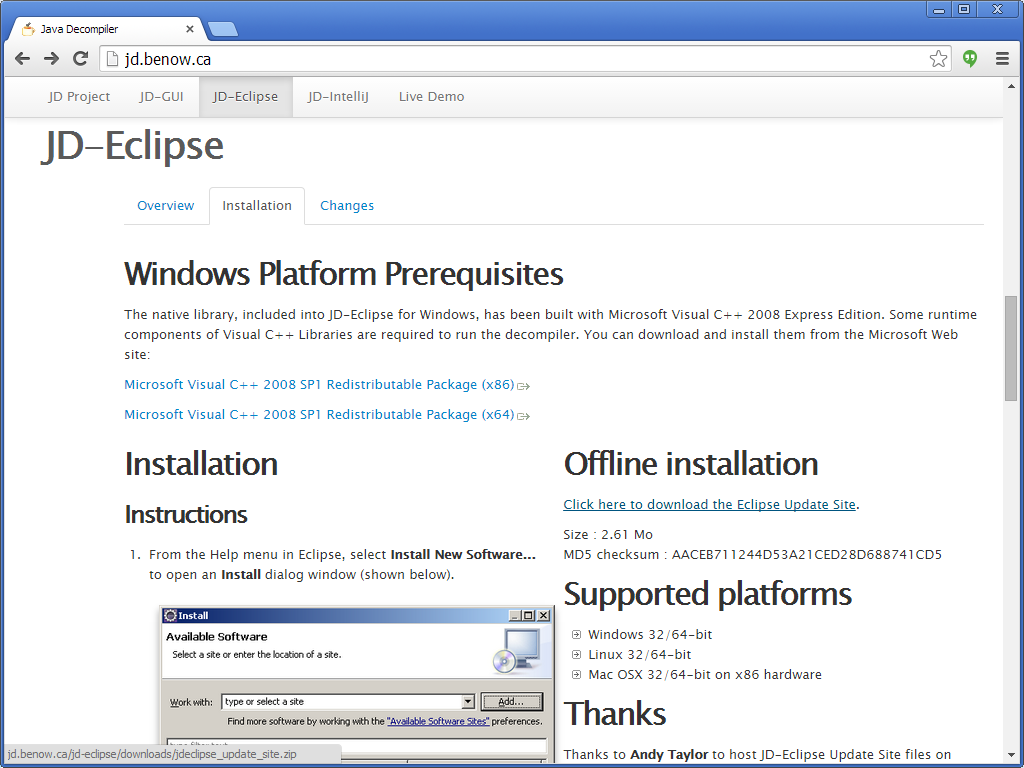
  1. I installed the JD-Eclipse plugin by Emmanuel Dupuy:
    0
  2. JD-Eclipse will change the file association in Eclipse to open class files that don’t have source, decompile them, and attach the decompiled source back to the class:
    1.9
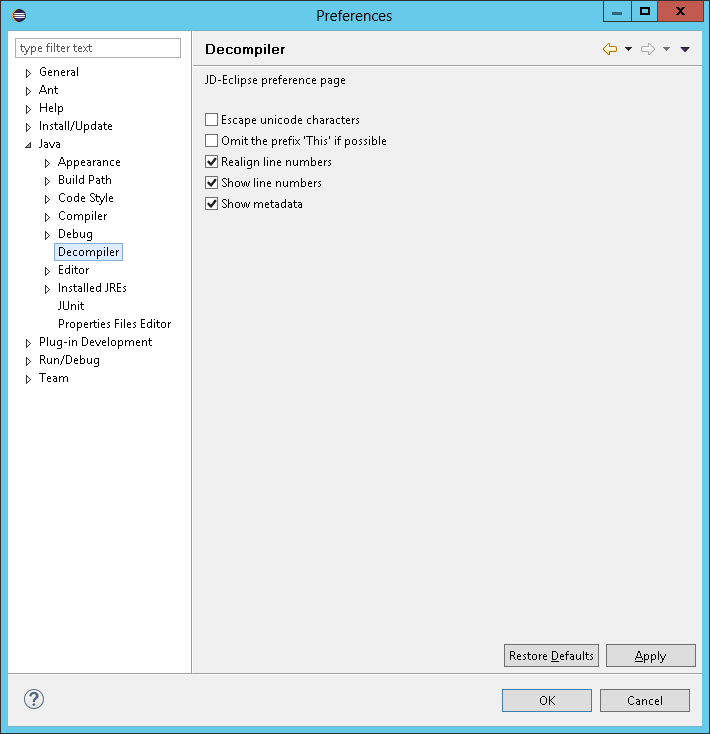
  3. Also, JD-Eclipse will realign the line numbers of the recovered source code so they match with the debug information of the class, otherwise the debugger will show the wrong lines of source code and it will be very confusing:
    1.10
  4. Now open a class file (double-click) and JD-Eclipse will show the recovered source code with line numbers realigned:
    2.1
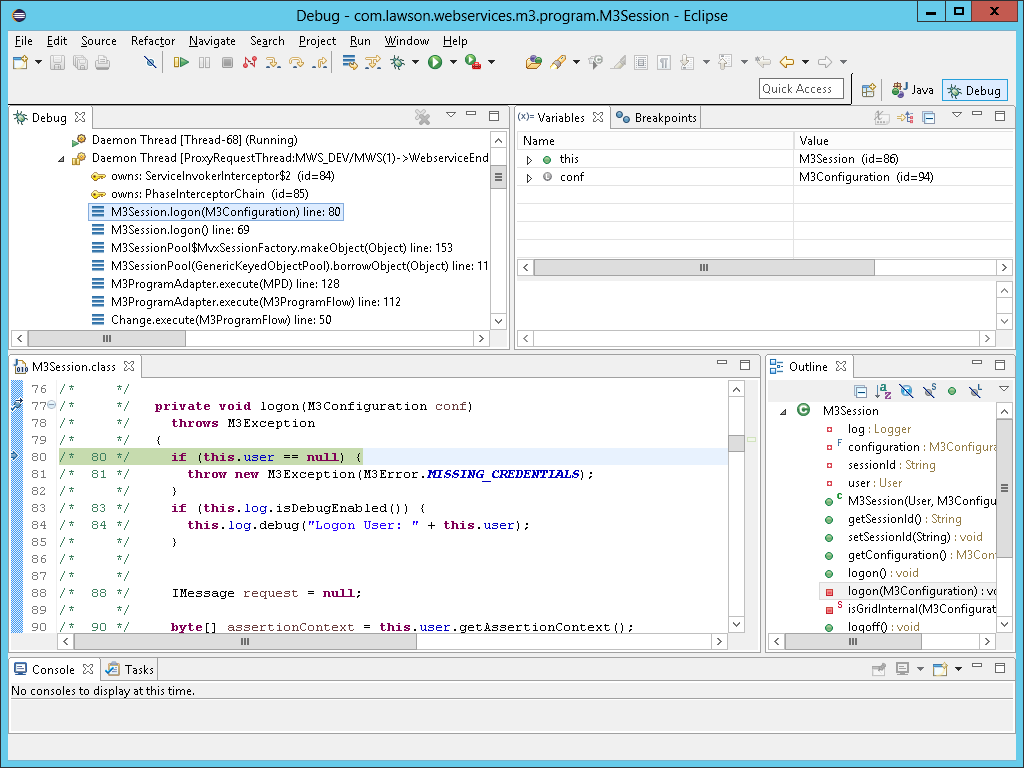
  5. Now debug again with the breakpoints. This time the debugger will show the source code. This is the ideal scenario for debugging line by line:
    3.3

Problem

I realized that as I’m debugging, JD-Eclipse will not decompile classes which it hasn’t previously decompiled. So if the debugger steps through a class that hasn’t been previously decompiled, the debugger will show the usual “Source not found”.

The workaround is to open all the classes we need the source code for, prior to debugging, one by one, so JD-Eclipse can decompile them, and attach the source code back to the class, and then we can try debugging again.

UPDATE 2014-10-29: That is not true anymore, and I found the solution: we have to change the default file association for the *.class files in order to use Java Decompiler’s Class File Editor, and we must do so every time we start Eclipse because Eclipse will revert to the default Class File Viewer when we exit Eclipse:
0

Future work: batch decompilation with realignment

I tried the plugin Realignment for JD-Eclipse by Alex Kosinsky that does batch decompilation, but it doesn’t realign the line numbers, so that doesn’t work. I also tried the plugin JDEclipse-Realign by Martin “Mchr3k” Robertson, it does decompile, and it does realign the line numbers, but I couldn’t get the source code to show while debugging, even after having previously decompiled the class, and I don’t know if it does batch decompilation.

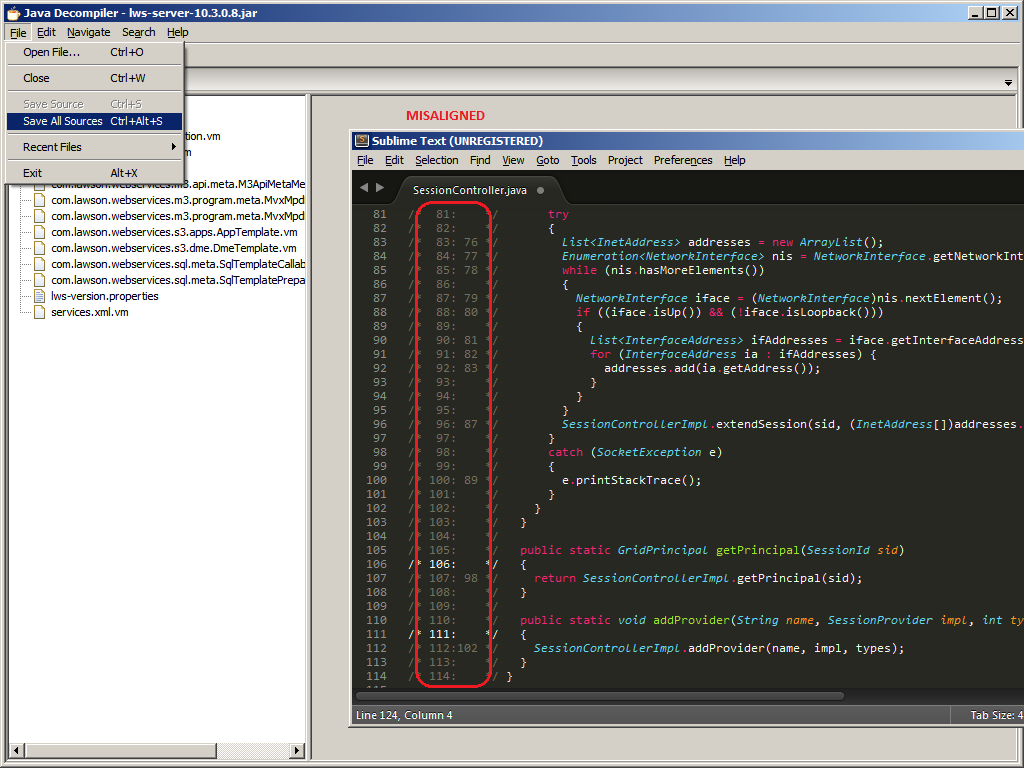
UPDATE 2014-10-29: Also, I tried Java Decompiler’s > Save All Sources, but it doesn’t realign the line numbers, even though JD-Core’s change log for version 0.7.0 says “Added an algorithm to realign the decompiled source code to the original line numbers”:
y

That’s future work to solve.

Summary

That was an illustrative guide of how to do Java debugging on an Infor Grid application, at runtime, without having the source code of the application, having just the JAR files from LifeCycle Manager. This technique helped my troubleshoot an issue with MWS. I hope it will help you too.

That’s it! If you learned something, please click Like below, click Follow to receive notifications about new blog posts, share around you, sign the petition, and write the next blog post with me, you are great. Thank you.