Dependency graphs for data conversion

Dependency graphs show the relationships between M3 programs – how they relate to one another – and are useful during data conversion. In this article I discuss their benefits and how to create them.

Background

Data conversion is the process of transferring data from the customer’s legacy system into M3 with tools such as M3 API, M3 Data Import (MDI), Lawson Web Services (LWS), and Lawson Smart Data Tool (SDT) during the implementation project.

Relationships between programs are governed by M3. The M3 Business Engine ensures the integrity of its programs. For example, to create a Warehouse – MMS005 we need to create a Facility – CRS008, to create a Facility we need to create a Division – MNS100, to create a Division we need to create a Company – MNS095, and so on.

Dependency graphs

Dependency graphs show the relationships between M3 programs in a graphical form, as illustrated in the following subset of a larger graph:

Benefits

Dependency graphs are useful during data conversion for various reasons:

  • They visually provide a lot of information with little cognitive effort
  • They help delimit the scope, and help quantify the amount of work
  • They dictate the order in which to proceed
  • They help build the project plan, and help estimate the duration

Dependencies

Smart Data Tool comes with Configuration Sheets that contain a curated list of M3 dependencies. It’s one of the best sources of dependencies available.

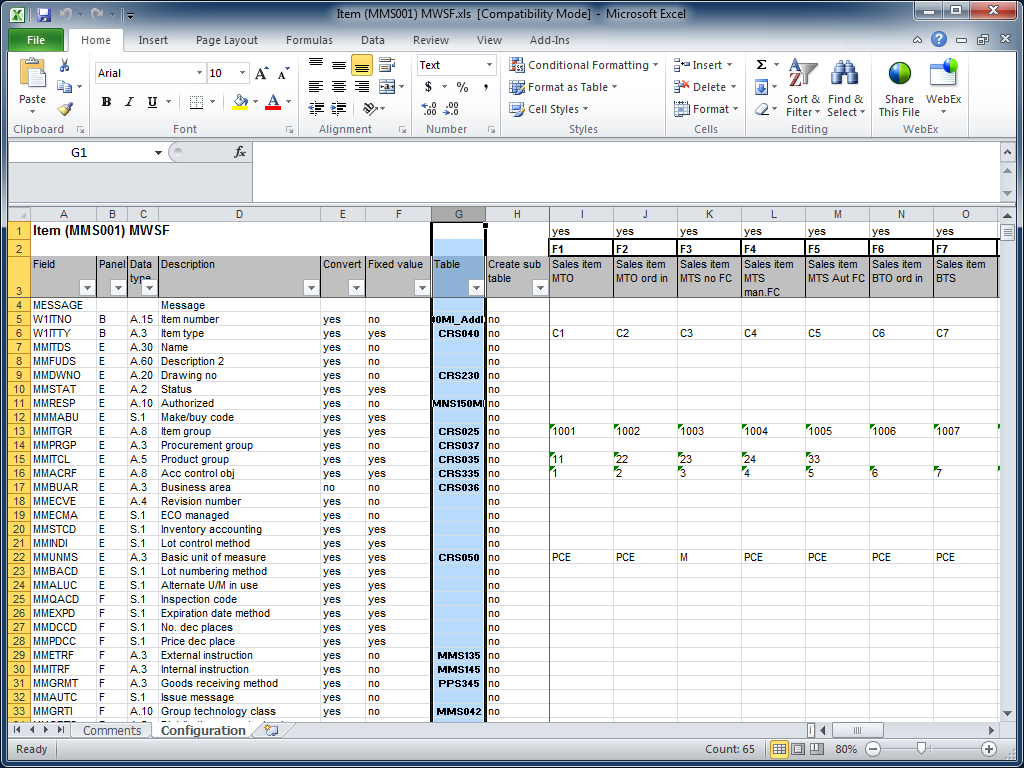
The following screenshot shows the Configuration Sheet for Item – MMS001 where column G tells which programs we need to setup before we can create an Item – MMS001:

Dependencies extraction

We can programmatically extract the dependencies from the Smart Data Tool Configuration Sheets by reading the Excel files with ODBC/JDBC, or with Excel libraries available on the Internet (Java, VB, .NET, PHP, etc.).

Graph production

From those dependencies, we can automatically generate dependency graphs using tools such as Graphviz – an open source graph visualization software – in the DOT language.

Here is a subset of the dependency graph for Customer Addresses – OIS002:

digraph g {
 CRS070 -> OIS002;
 CRS065 -> OIS002;
 OIS002 [label="Customer Addresses\nOIS002"];
 CRS070 [label="Delivery method\nCRS070"];
 CRS065 [label="Delivery terms\nCRS065"];
}

Visualization

We can visualize large graphs in an easy zoomable way with a tool like ZGRViewer.

Conclusion

Dependency graphs greatly facilitate the data conversion effort. We can generate them programmatically with a combination of tools including Lawson Smart Data Tool and the open source Graphviz.

That’s it!

Lawson Learning courses

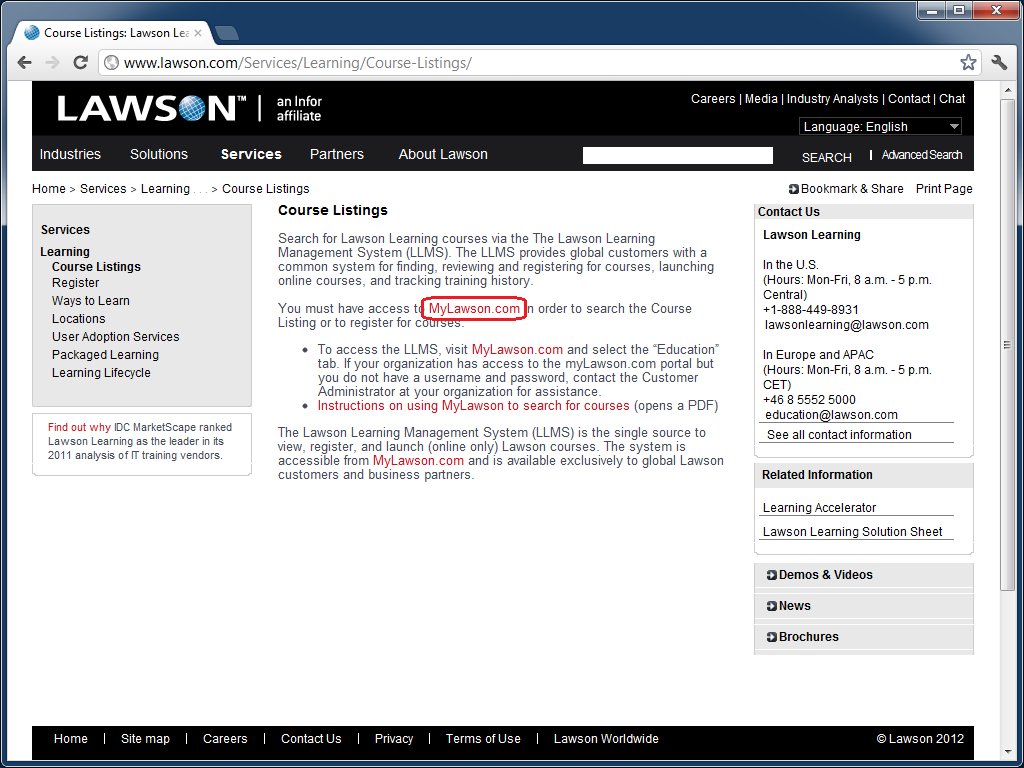
Lawson Learning offers various courses for learning how to create Mashups and Scripts for Lawson Smart Office. To see the list of available courses:

  1. Go to http://www.lawson.com/
  2. Select Services > Course Listings:
  3. Select MyLawson.com:
  4. Login with your MyLawson.com account.
  5. Select the Education tab:
  6. Go to Search and Register for Training and click English:
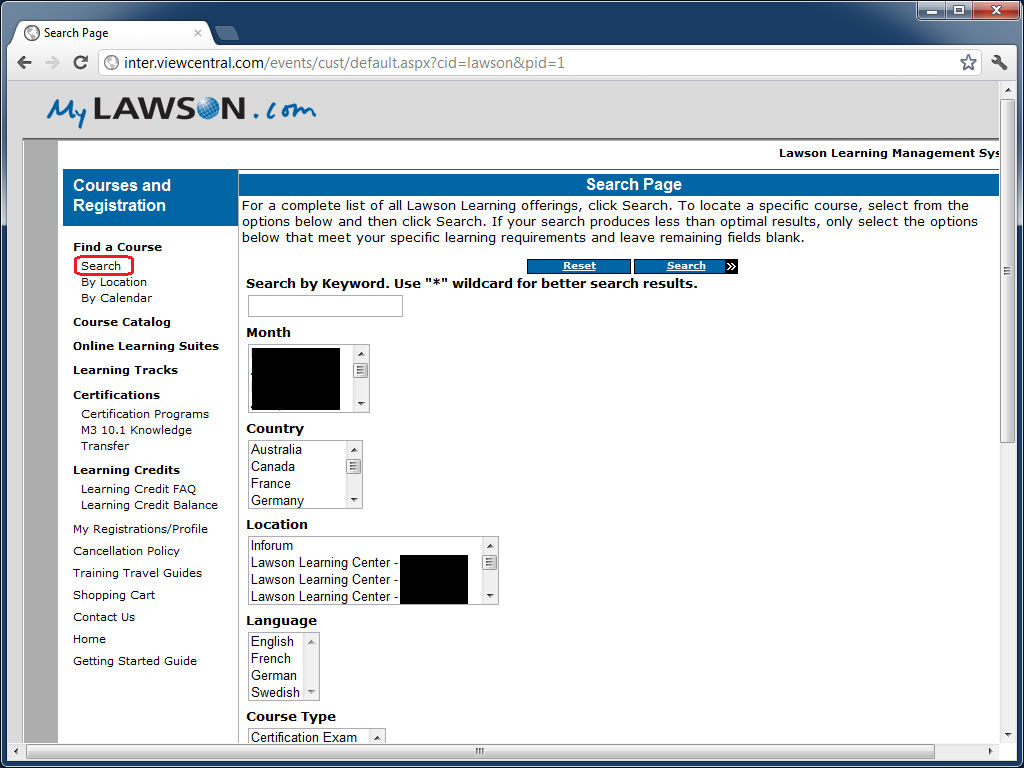
  7. Click on Search to find a course:
  8. Search by keyword Mashup, or Script.

The courses will be listed alphabetically, for example:

  • Lawson Mashup Designer
  • Mashup Designer
  • Smart Office Personalized Script M3

That’s it!

UPDATE 2012-10-16: Alternatively, and more simply, you can go directly to http://inter.viewcentral.com/events/cust/default.aspx?cid=lawson

UPDATE 2012-12-05: The direct link seems to have moved to http://inter.viewcentral.com/events/cust/default.aspx?cid=lawson&pid=1

How to call Lawson Web Services from PHP

Here are examples to call Lawson Web Services from PHP for all three adapters: API, M3 Display Program (MDP), and SQL.

Which SOAP client ?

In the past, I used the external NuSOAP toolkit to make SOAP calls in PHP.

Now, PHP 5 comes built-in with SoapClient.

To determine which SOAP client your PHP server provides, use:

phpInfo();

It will show:

What’s the Endpoint ?

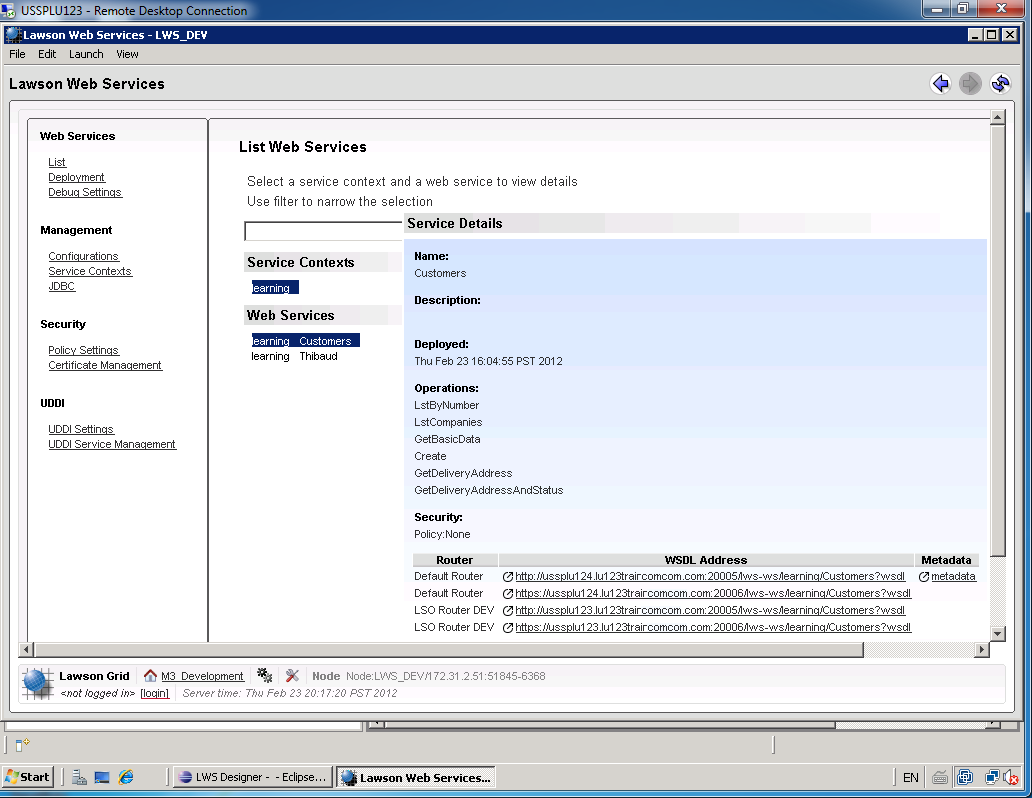
To determine the endpoint or the WSDL to our Lawson Web Service open the Lawson Web Services Runtime Management Page which you can launch from LifeCycle Manager or from Lawson Web Services Designer.

Select List, select the Service Context, and select the Web Service.

The bottom right corner will show the WSDL Address:

How’s the SOAP ?

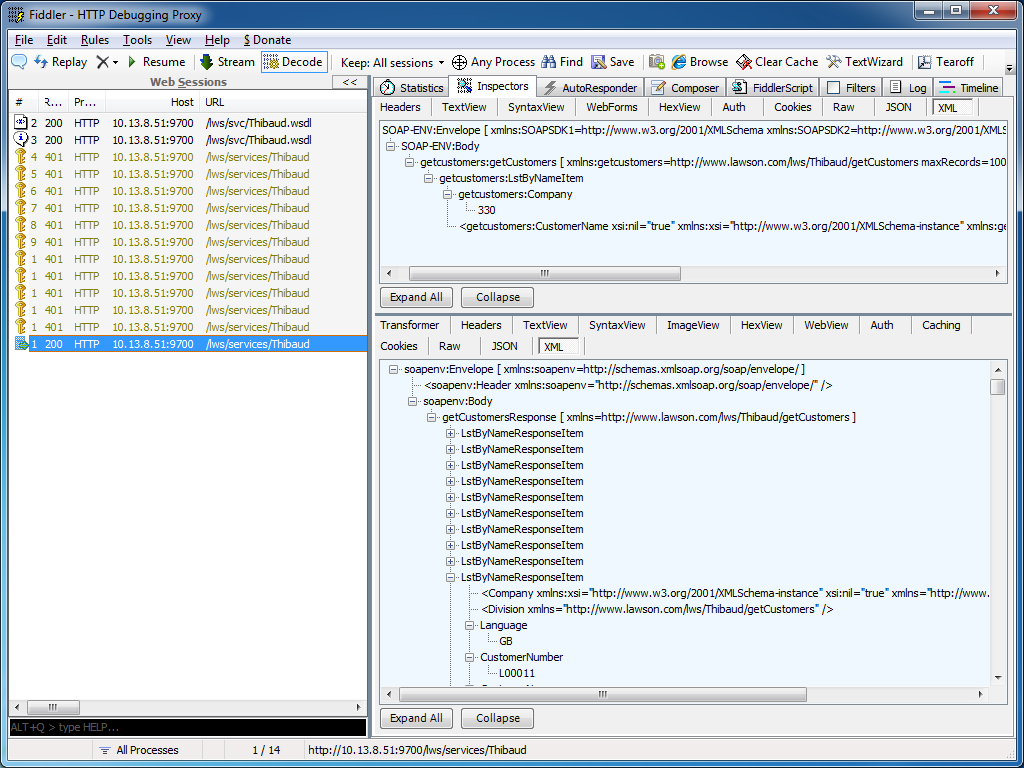
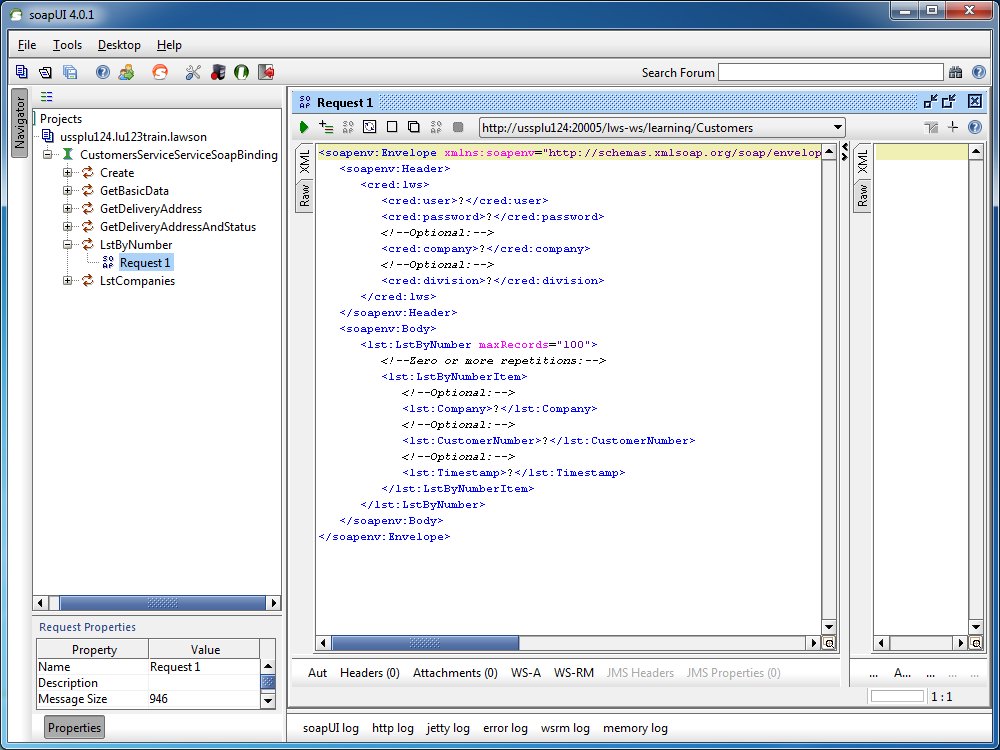
I recommend using tools like Fiddler or soapUI to determine the exact structure of the SOAP Request and SOAP Response to call our Lawson Web Services.

Fiddler can intercept HTTP calls from most SOAP clients, for example from Lawson Web Services Designer, from Microsoft InfoPath, from PocketSOAP, or from Microsoft Visual C# Express, and we can use that SOAP Request and SOAP Response as a reference to write our PHP code:

Similarly, soapUI will create a sample SOAP Request from a WSDL, it will show the SOAP Response after the web service is executed, and we can use that SOAP Request and SOAP Response as a reference to write our PHP code:

M3 API adapter

Here is a sample PHP code to call a Lawson Web Service of type API.

The Web Service name is Customers, the operation name is LstByNumber. It calls the API CRS610MI.LstByNumber. It accepts Company and CustomerNumber as input fields; note the suffix Item in LstByNumberItem for the collection of input fields. It returns CustomerNumber and CustomerName as output fields; note the suffix ResponseItem in LstByNumberResponseItem for the collection of output fields.

<?php
	try {
		$client = new SoapClient("http://hostname:10000/LWS_DEV/svc/Customers.wsdl",
		array(
			'login'=>'M3SRVADM',
			'password'=>'*******'
		)
		);
		$response = $client->LstByNumber(array("LstByNumberItem"=>array(
			"Company"=>"001",
			"CustomerNumber"=>"00100001"
		)));
		foreach ($response->LstByNumberResponseItem as $item) {
			print($item->CustomerNumber." ".$item->CustomerName."\n");
		}
	} catch (Exception $e) {
		echo 'Message: ' .$e->getMessage();
	}
?>

M3 Display Program adapter

Here is a sample PHP code to call a Lawson Web Service of type M3 Display Program (MDP).

The Web Service name is Customers, the operation name is GetName. It works in CRS610/A/E, it accepts W1CUNO as an input field, and returns WRCUNM as an output field.

<?php
	try {
		$client = new SoapClient("http://hostname:10000/LWS_DEV/svc/Customers.wsdl",
		array(
			'login'=>'M3SRVADM',
			'password'=>'*******'
		)
		);
		$response = $client->GetName(array("CRS610"=>array(
			"W1CUNO"=>"0010001"
		)));
		print($response->CRS610->WRCUNM);
	} catch (Exception $e) {
		echo 'Message: ' .$e->getMessage();
	}
?>

SQL adapter

Here is a sample PHP code to call a Lawson Web Service of type SQL (JDBC).

The Web Service name is Customers, the operation name is Search. It works by doing a SELECT FROM WHERE on OCUSMA, it accepts CustomerName as an input field. And it returns OKCUNO and OKCUNM as output fields; note the new1Collection and new1Item automatically generated.

<?php
	try {
		$client = new SoapClient("http://hostname:10000/LWS_DEV/svc/Customers.wsdl",
		array(
			'login'=>'M3SRVADM',
			'password'=>'******'
		)
		);
		$response = $client->Search(array("CustomerName"=>"%ARMY%"));
		foreach ($response->new1Collection->new1Item as $item) {
			print($item->OKCUNO.", ".$item->OKCUNM."\n");
		}
	} catch (Exception $e) {
		echo 'Message: ' .$e->getMessage();
	}
?>

That’s it!

Related articles

How to call M3 API from .NET

Here is an example to call M3 API from .NET in C#.

Background

To call M3 API in .NET there are several options: 1) we can use Interop to wrap the COM unmanaged library, 2) we can use netmodules which were introduced in the M3 API Toolkit version 9.0.1.1, or 3) we can use the native .NET managed library which were introduced in the M3 API Toolkit version 9.0.3.0. I suggest the latter option.

Example

  1. Download and install the M3 API Toolkit version 9.0.3.0 or later.
  2. That version includes the .NET library MvxSockN.dll:
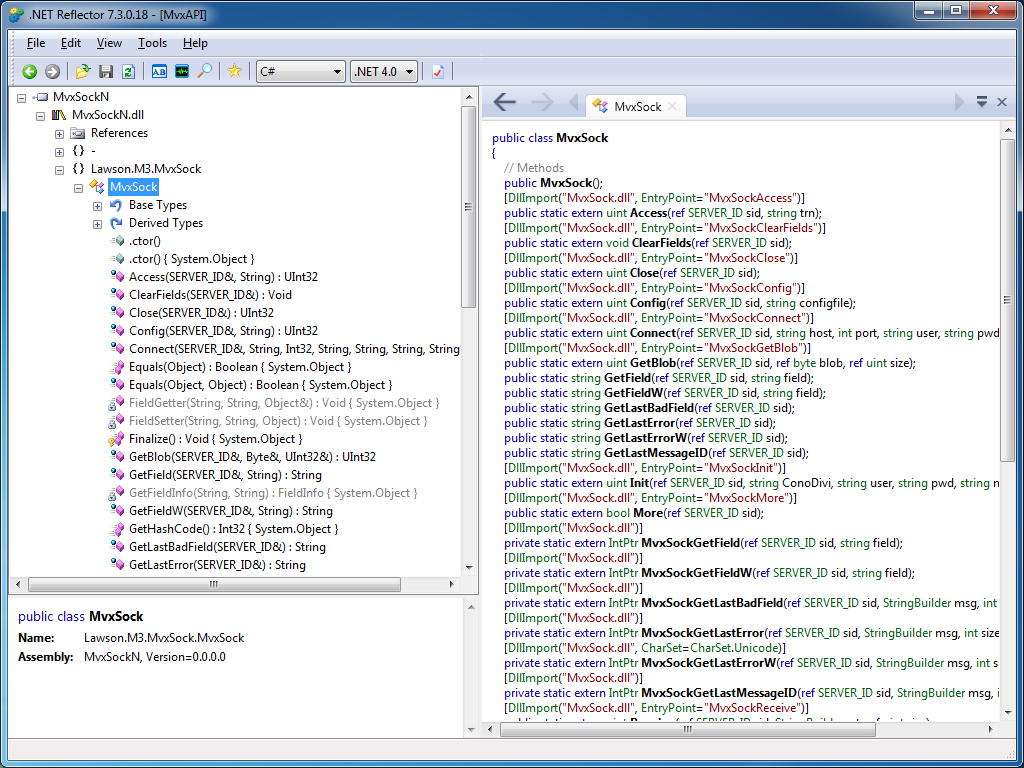
  3. You can use .NET Reflector to introspect the assembly:
  4. That version also includes documentation specifically for .NET:
  5. That version also includes C# examples:
  6. If you are using Microsoft Visual C# Express, add a New Reference to the DLL:
  7. Then add the namespace Lawson.M3.MvxSock to the source code:
    using Lawson.M3.MvxSock;
  8. Then start using MvxSock with IntelliSense:
  9. Here’s my sample source code:
    using System;
    using Lawson.M3.MvxSock;
    
    namespace ConsoleApplication1
    {
        class Program
        {
            static void Main(string[] args)
            {
                SERVER_ID sid = new SERVER_ID();
                uint rc;
                rc = MvxSock.Connect(ref sid, "hostname", 6800, "userid", "*********", "CRS610MI", null);
                if (rc != 0)
                {
                    MvxSock.ShowLastError(ref sid, "Error no " + rc + "\n");
                    return;
                }
                rc = MvxSock.Access(ref sid, "LstByNumber");
                if (rc != 0)
                {
                    MvxSock.ShowLastError(ref sid, "Error no " + rc + "\n");
                    MvxSock.Close(ref sid);
                    return;
                }
                while (MvxSock.More(ref sid))
                {
                    Console.WriteLine(MvxSock.GetField(ref sid, "CUNO") + ", " + MvxSock.GetField(ref sid, "CUNM"));
                    MvxSock.Access(ref sid, null);
                }
                MvxSock.Close(ref sid);
            }
        }
    }
  10. Here’s a sample result of calling CRS610MI.LstByNumber:

That’s it!

Related articles

How to call M3 API with REST & JSON

With the Lawson Grid, M3 introduced a new REST endpoint for calling M3 API where the response is returned in XML or in JSON.

Background

Historically, software clients that called M3 API needed to use proprietary libraries, such as MvxSockJ.class for Java and MvxSockX_SVR.dll for Microsoft languages. Over the years, Intentia introduced Movex Web Services to call M3 API using the SOAP standard. Then, Lawson introduced the Grid for cloud computing. In the process, Lawson replaced IBM WebSphere Application Server by open source software, it also replaced the Core Web Services for Lawson Smart Office, and it added Jersey, an open source implementation of JAX-RS (JSR 311). The positive outcome is that now, software clients can call M3 API using REST/JSON.

Why does it matter?

REST is increasingly popular, and years ago it started supplanting SOAP for web services [1].

Also, JSON is becoming the de facto data-interchange format, nicknamed “The Fat-Free Alternative to XML” [2].

Most importantly, it’s now possible to call M3 API without needing the proprietary libraries, and without needing Lawson Web Services. Software clients can now make simple HTTP Requests to call M3 API. This makes it easier to call M3 API from third-party software (such as Tibco, Business Objects, Web Methods, etc.) and from previously unsupported or difficultly supported programming languages (such as JScript.NET, JavaScript, Ruby, PHP, etc.).

What about Lawson Web Services?

The new REST endpoint for M3 API doesn’t preclude using Lawson Web Services. Lawson Web Services is still necessary for calling M3 API with the SOAP protocol, and for using the unavoidable M3 Display Program adapter which cannot be found in any other Lawson product. Also, Lawson Web Services is still necessary for Lawson Smart Data Tool.

REST endpoint

To access the new REST endpoint for M3 API, open a Grid Information page, which is accessible from any participating Host in the Grid:

For example: http://ussplu123:20005/grid/info.html

At the bottom of the page is the Application Name M3-API-WS, and it has a Link to the Rest Service‘s WADL:

For example: http://ussplu123:20005/m3api-rest/application.wadl

This WADL gives us the resource path:

execute/{program}/{transaction}

Where {program} is the M3 API Program, like MNS150MI, CRS610MI, MMS200MI, etc. And where {transaction} is that API’s transaction, like GetBasicData, AddAddress, LstByNumber, etc.

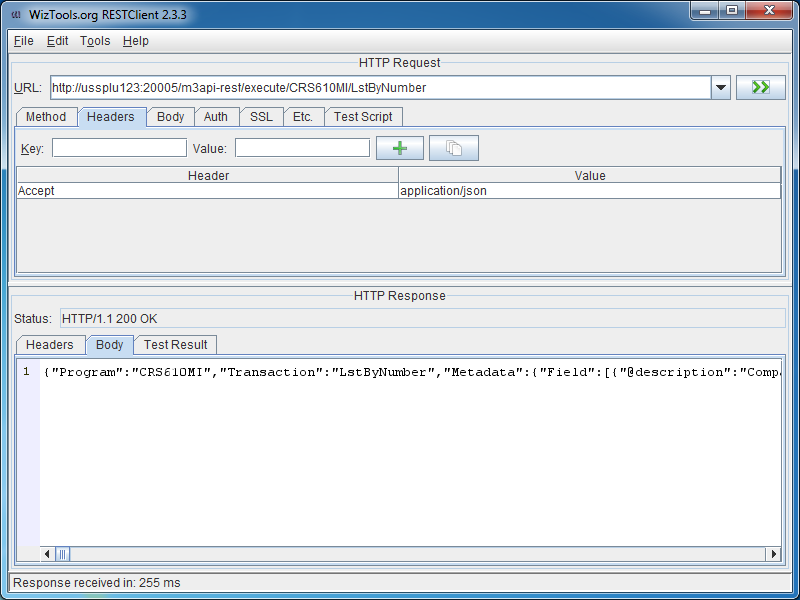
Let’s try to call the API CRS610MI.LstByNumber. The URL in my example would be: http://ussplu123:20005/m3api-rest/execute/CRS610MI/LstByNumber

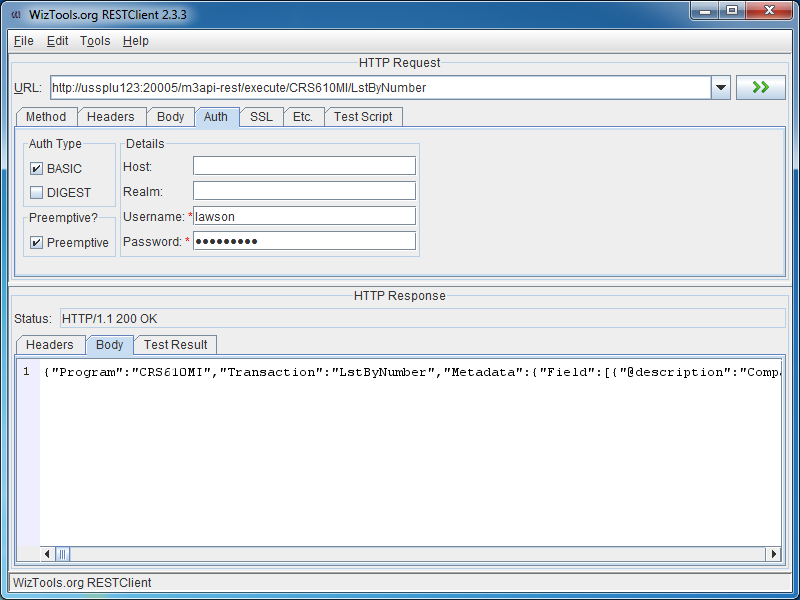
The server will challenge us for HTTP Basic Authentication, we need to provide a valid M3 userid and password:

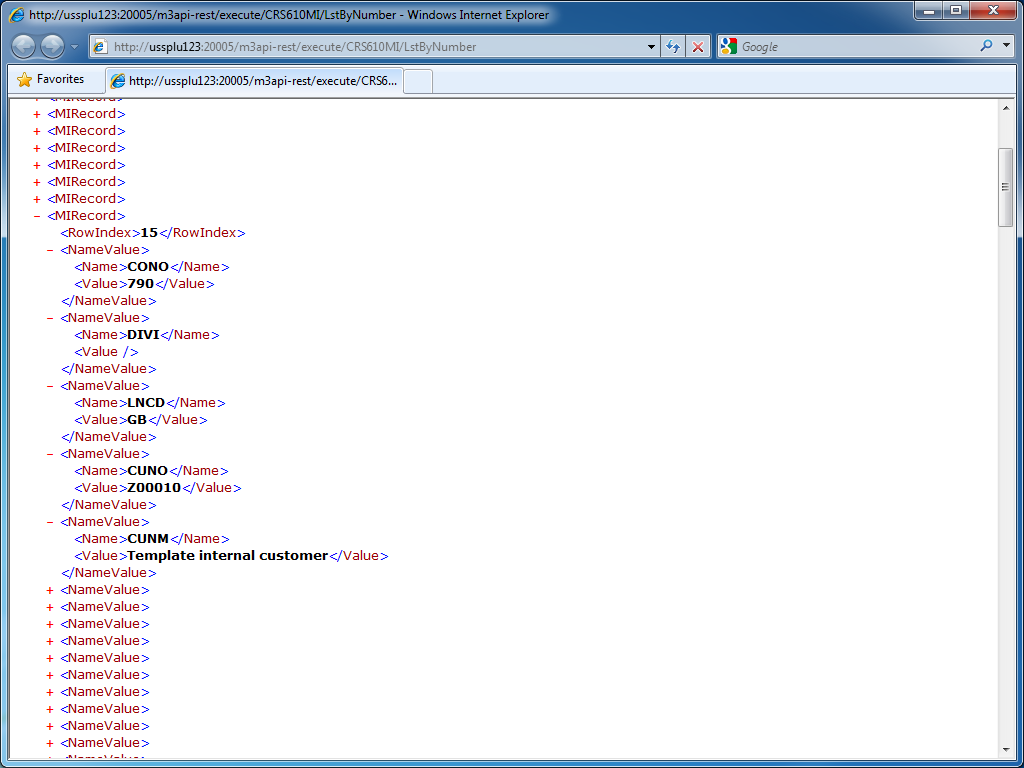
And the result in XML is a collection of MIRecord elements with Name/Value pairs:

JSON

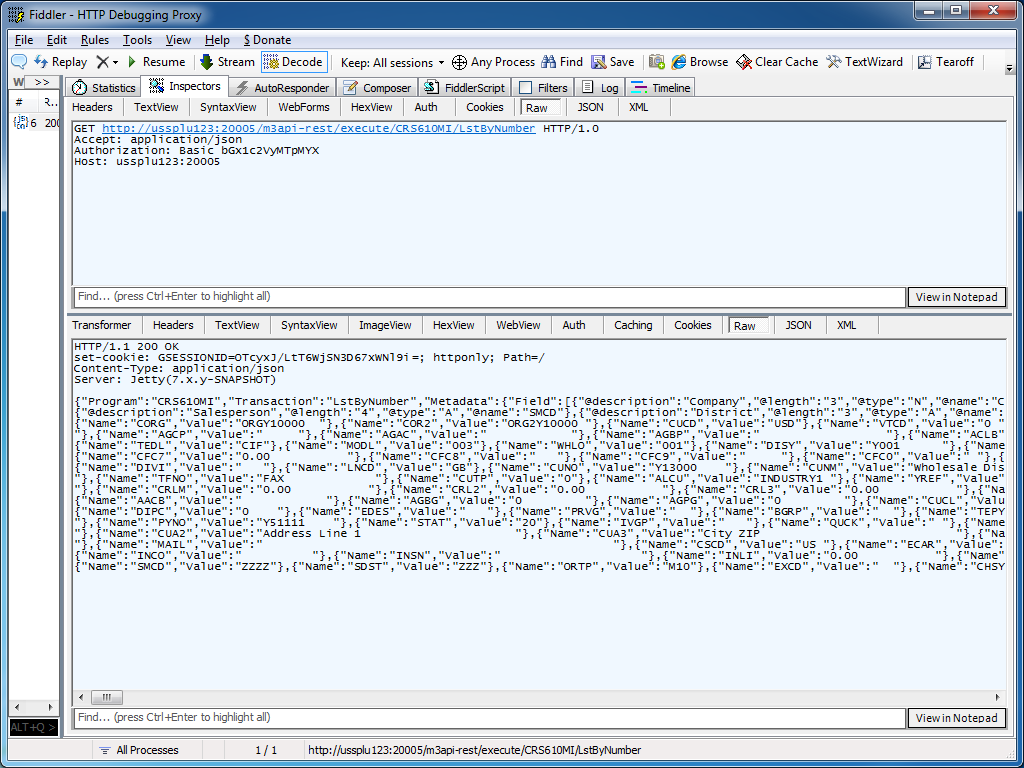
We can get the result in JSON by adding the HTTP Header field:

Accept: application/json

The result is:

REST GUI

RESTClient is a great REST graphical user interface which we can use to test M3 API; you can download it at http://code.google.com/p/rest-client/

Paste the URL, set the M3 userid and password in the Authentication tab, optionally set the Header to get the response in JSON, and click Go!

Conclusion

With the Lawson Grid, software clients can now natively call M3 API from third-party software, and from previously unsupported or difficultly supported programming languages, without the need for proprietary libraries, and without the need for Lawson Web Services.

Updates

Input parameters

UPDATE 2012-07-17: You can set input parameters in the URL, for example: http://hostname:port/m3api-rest/execute/MMS200MI/GetItmBasic?CONO=531&ITNO=ABCDEF . Also, you can hook RESTClient to use Fiddler as a proxy in Tools >;; Options.

Max number of records

UPDATE 2012-07-31: You can set the maximum number of records returned with the matrix parameter maxrecs, for example: http://hostname:port/m3api-rest/execute/CRS610MI/LstByNumber;maxrecs=20?CONO=1

Output fields

UPDATE 2012-08-02: You can set the output fields returned with the parameter returncols, for example: http://hostname:port/m3api-rest/execute/CRS610MI/LstByNumber;returncols=CUNO,CUNM,CUA1,STAT,PHNO

Related articles

Translate M3 with Google Translate API

Here is a solution to automatically translate M3 and user-generated content in 52 languages.

For that, I will use the Google Translate API and a Personalized Script for Lawson Smart Office.

Business advantage

This solution is interesting to translate content that is generated by users, such as:

  • Bill of Materials
  • Work Orders
  • Service Orders
  • Customer Order Notes
  • etc.

Such content is entered in the user’s language and by design is not translated by Lawson Smart Office.

Also, this solution is interesting to translate M3 itself beyond the number of languages that Lawson makes available.

Lawson Smart Office

Lawson Smart Office supports 18 languages: Czech, Danish, German, Greek, English, Spanish, Finnish, French, Hungarian, Italian, Japanese, Dutch, Norwegian, Polish, Portuguese, Russian, Swedish, and Chinese:
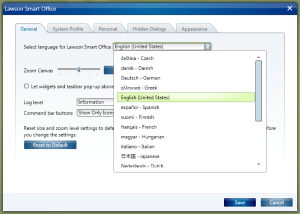
It’s a high number of languages given that text is manually translated by professional translators which are probably paid by the word.

The quality is near perfect.

But by design, the user-generated content is not translated.

Google Translate

Google Translate supports 52 languages: Afrikaans, Albanian, Arabic, Belarusian, Bulgarian, Catalan, Chinese Simplified, Chinese Traditional, Croatian, Czech, Danish, Dutch, English, Estonian, Filipino, Finnish, French, Galician, German, Greek, Hebrew, Hindi, Hungarian, Icelandic, Indonesian, Irish, Italian, Japanese, Korean, Latvian, Lithuanian, Macedonian, Malay, Maltese, Norwegian, Persian, Polish, Portuguese, Romanian, Russian, Serbian, Slovak, Slovenian, Spanish, Swahili, Swedish, Thai, Turkish, Ukrainian, Vietnamese, Welsh, and Yiddish.
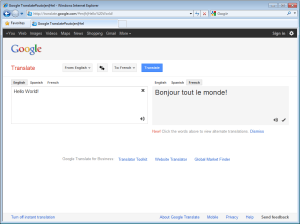
It’s a very high number of languages because it uses machine learning and statistical analysis for automatic machine translation of millions of web pages and of official translations done by governments and by international organizations.

It is one of the best machine translations available, considered state of the art, and the quality is improving constantly. [1] [2] [3].

Google is even working on recognizing handwritten text, and text in images.

But even though the quality is good it’s not yet accurate.

It may not be accurate enough in a professional context to translate user-generated content in M3 with the Google Translate API.

But it still gives the user a general idea of the meaning of the text.

And as a pedagogical tool, it serves the purpose of illustrating how to write scripts for Smart Office, and how to integrate M3 to external systems.

Hello World!

To use the Google Translate API you need to register and obtain a key. It is a paid service that will translate one million characters of text for $20.

Once you obtain your key, you need to construct a URL with your API key, the text to translate, and the source and target languages.

Here is a sample URL that translates the text Hello World! from English (en) to French (fr):

https://www.googleapis.com/language/translate/v2?key=YOUR_API_KEY&q=Hello%20World!&source=en&target=fr

The result is a JSON object like this:

{
 "data": {
  "translations": [
   {
    "translatedText": "Bonjour tout le monde!"
   }
  ]
 }
}

First script

Then write a Personalized Script for Lawson Smart Office using the Script Tool.

The script will submit the HTTP GET Request to the Google Translate API over HTTPS and will parse the JSON response.

function translate(text: String, source, target) {
     var url = 'https://www.googleapis.com/language/translate/v2?key=YOUR_API_KEY&source=' + source + '&target=' + target + '&q=' + HttpUtility.UrlEncode(text);
     var request = HttpWebRequest(WebRequest.Create(url));
     var response = HttpWebResponse(request.GetResponse());
     var jsonText = (new StreamReader(response.GetResponseStream())).ReadToEnd();
     var o = eval('(' + jsonText + ')''unsafe');
     return o.data.translations[0].translatedText;
}

We can now use this function to translate any piece of user-generated content, for example the Customer Name in CRS610/E (WRCUNM):

var WRCUNM = ScriptUtil.FindChild(controller.RenderEngine.Content, 'WRCUNM');
WRCUNM.Text = translate(WRCUNM.Text, 'en''fr');

Also, we can translate several pieces of text at once by appending as many q parameters to the URL as pieces of text.

Beyond

With this technique, we can translate all the Controls of our Panel, including the user-generated content: Label, TextBox, Button, ListView, GridViewColumnHeader, ListRow, etc. That will cover Panels A, B, E, F, etc.

Also, we will need to submit the HTTP Request in a background thread to avoid blocking the user interface.

Complete Script

Here is the complete source code of my script that translates all the content of any M3 program, any panel.

Installation

Replace the constant YOUR_API_KEY of the source code with your own Google Translate API key.

The script has a limit GOOGLE_MAX_TEXT_SEGMENTS which was applicable when I wrote the script back in March 2010, but Google has since removed the limit so you can remove it from the script as well.

Then deploy the script on each program and each panel that you’d like to translate. The deployment can probably be automated with some custom XML and XSLT.

Result

Here is an animation of the M3 program Work Order – MOS100/B1 with buttons for seven languages. Click on the image to see the animation. Note how the user-generated content in the rightmost column of the list is also being translated.

Future Work

A future implementation should also translate menus, drop down lists, and text panels (T). I still haven’t been able to execute scripts in a T panel.

That’s it!


Updates

UPDATE 2012-08-02: Just fixed the line breaks at line 280 which the copy/paste had corrupted + fixed GetType().ToString() + fixed Exception handling in BackgroundWorker.

UPDATE 2012-08-03, Martin Trydal Torp & Thibaud: Adapted listView for newer LSO (new: listView.ItemsSource; old: listView.Items) + change sourceLanguage dynamically

Warehouse 3D demo

I implemented a Warehouse 3D demo that demonstrates the integration capabilities of M3 with cool stuff from the software industry.

The Warehouse 3D demo displays racks and boxes with live data coming from Stock Location – MMS010, and Balance Identity – MMS060. The Location Aisle, Rack, and Level of MMS010 is written dynamically on each box. The Status Balance ID of MMS060 is rendered as the color of the box: 1=yellow, 2=green, 3=red, else brown. And the Item Number is generated dynamically as a real bar code that can be scanned on the front face of the box.

Here is a screenshot:

The demo uses the Google Earth plugin to render a 3D model that was modeled with Google SketchUp, Ruby scripts to geocode the boxes and identify the front faces of the boxes, PHP to make the 3D Collada model dynamic, SOAP-based Lawson Web Services that calls M3 API, and the PEAR and NuSOAP open source PHP libraries.

The result is useful for sales demos, and as a seed for customers interested in implementing such a solution.

Try for yourself

http://ibrix.info/warehouse3d/

You can try the demo for yourself with your own M3 environment. For that, you will need several things. You will need to install the Google Earth plugin in your browser. You will also need to deploy the Lawson Web Service for MMS060MI provided here; note that your LWS server must be in a DMZ so that the http://www.ibrix.info web server can make the SOAP call over HTTP. Also, you will need to follow the Settings wizard to setup your own M3 environment, user, password, CONO, WHLO, etc. The result is a long URL that is specific to your settings.

Constructing the 3D model

I built a 3D model with Google SketchUp.

Here is the video of the 3D model being built in Google SketchUp:

You can download my resulting SketchUp model here.

Identifying Aisles, Racks, Levels

Then, I set the Aisle, Rack, and Level of each box as in MMS010 using a custom Ruby script for Google SketchUp.

Here is a video that shows the script in action:

You can download this Ruby script here.

You can download the resulting SketchUp model here.

Identifying front faces

Then, I identified each front face of each box so as to dynamically overlay information, such as the Item Number, Item Name, etc. For that, I implemented another Ruby script.

Here is a video of that process:

You can also download this Ruby script here.

Exporting the Collada model

The original model is a SKP filetype, which is binary. I exported the model to a Collada DAE filetype, which is XML. The file is very big, 30.000 lines of XML.

The Collada file contains this:

  • Components (racks, boxes, walls, etc.)
  • Homogenous coordinates (X, Y, Z, H) relative to the model
  • Absolute coordinates (latitude, longitude)
  • Orientation (azimut, etc.)
  • Scale
  • Effects (surface, diffusion, textures, etc.)
  • Colors in RGBA

From the top of my head, the Collada hierarchy in XML is something like this:

Node Instance
	Node Definition
		Instance Geometry
			Instance Material
				Material
					Instance Effect
						Color
						Surface
							Image

Making the model dynamic

The goal is to set the color of each box dynamically, based on the Location of the box, and based on the Inventory Status in MMS060.

Unfortunately, Google Earth doesn’t have an API to change the color of a component dynamically. So, I decided to change the XML dynamically on the server. There are certainly better solutions but that’s the one I chose at the time. And I chose PHP because that’s what I had available on my server ibrix.info; otherwise any dynamic web language (ASP, JSP, etc.) would have been suitable.

In the XML, I found the mapping between the box (nodeDefinition) and its color (material). So, I changed the mapping from hard-coded to dynamic with a PHP function getColor() that determines the color based on the Location and based on the result of the web service call.

The color is determined by the Balance ID: 1=yellow, 2=green, 3=red, else brown. The Balance ID is stored in the SOAP Response of the web service.

Lawson Web Service

I created a SOAP-based Lawson Web Service for MMS060MI. I invoke the SOAP Web Service at the top of the PHP script, and store the Response in a global variable. To call SOAP Web Services, I use NuSOAP, an open source PHP library.

Generating front faces

I dynamically generate a texture for each each front face as a PNG image with the Item Number, Item Description, Quantity, and the bar code. I set the True Type Font, the size, the XY coordinates, and the background color.

Bar code

I generate an image of the bar code based on the Item Number using PEAR, an open source PHP library.

Settings wizard

I made a Settings wizard to assist the user in setting up a demo with their own M3 environment, user, password, CONO, WHLO, etc.

Applications

This Warehouse 3D demo illustrates possible applications such as:

  • Monitoring a warehouse
  • Locating a box for item picking
  • Implementing Augmented Reality to overlay relevant data on top of the boxes

Demo

Finally, I made a demo video using the back projection screen at the Lawson Schaumburg office, and using Johny Lee’s Low-Cost Multi-point Interactive Whiteboards Using the Wiimote and my home made IR pens to convert the back projection screen into a big touch screen. The 3D model in the demo has 10 Aisles, 6 Racks per Aisle (except the first aisle which only has 4 racks), and 4 Levels per Rack. That’s 224 boxes. There is also a floor plan that illustrates that structure.

Limitations

The main limitation of this demo is performance. When programming with Google Earth we do not have the capability of dynamically changing a 3D model. I would have liked to dynamically set the color of a box, and dynamically overlay text on the face of a box. Because that capability is lacking – there’s no such API in the Google Earth API – I chose to generate the XML of the 3D model dynamically on the server. As a result, the server has to send 30k lines of XML to the web browser over HTTP, it has to generate 224 PNG images and transfer them over the network, and the Google Earth plugin has to render it all. As a consequence, it takes between one and four minutes to fully download and render the demo. This design turns out to be inadequate for this type of application. Worse, it is not scalable nor improvable. I would have to re-think the design from scratch to get a more performant result.

Future Work

If I had to continue working on this project (which is not planned), I would implement the following:

  • Ideally, we would generate boxes, colors, and text dynamically on the client-side, with JavaScript and WebGL for example. Google Earth doesn’t support that, and generating the model on the server-side turns out to be a bad design. So we need a different technique.
  • Also, we could use a better 3D client, like O3D.
  • Also, we would need to implement easy keyboard navigation, like the First Person Camera demo, and like the Monster Milktruck demo.
  • Also, we would need to implement hit detection, so as to click on a box and display more M3 data in a pop-up for example. Google Earth supports even listeners but doesn’t yet support hit detection.
  • Finally, we would need to improve performance by an order of magnitude.

Thanks

Special thanks to Gunilla A for sponsoring this project and making it possible.

Resources

  • Download Ruby script to set the Aisle, Rack, and Level of each box as in MMS010
  • Download Ruby script to identify each front face of each box so as to dynamically overlay information
  • Download SketchUp model with floor plan, geo-location, racks, and walls
  • Download SketchUp model of boxes identified by Stock Location
  • Watch video of the 3D model being built in Google SketchUp
  • Watch video of the process of setting the Aisle, Rack, and Level of each box as in MMS010
  • Watch video of the process of identifying each front face of each box
  • Watch video of the demo on the large touch screen
  • Download Lawson Web Service for MMS060MI

Related articles

UPDATE

2012-09-27: I added the SketchUp models and Ruby scripts for download.

M3 + Augmented Reality (idea)

Here is an idea that would be great to implement: M3 + Augmented Reality. I believe AR to be one of the next big revolutions in the software industry, and the technology is available today. We have mobile phones with cameras, GPS, compass, and millimetric indoor radio positioning, fast CPU for feature registration, localization and mapping, REST Web Services, etc. It went from being mostly reserved to research labs, to being the hype of emerging start ups. Get ready for the future 🙂