Default country in Mashup ComboBox

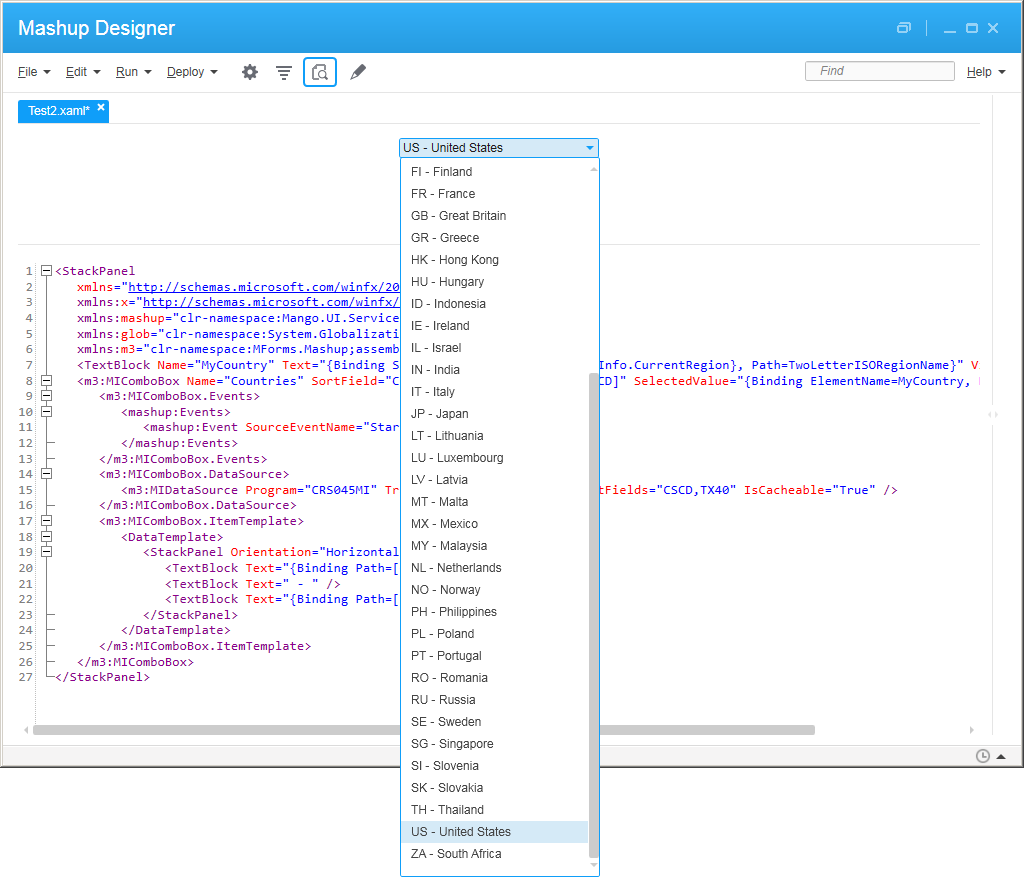
Quick illustration of how to set the user’s country as the default selection in a Mashup ComboBox in Infor Smart Office.

Suppose you have a <m3:MIComboBox>, and you want it to be a list of countries (e.g. FR-France, SE-Sweden, US-United States, etc.), populated from the M3 API CRS045MI.LstByCode, displaying CSCD and TX40, and you want the default selection to be the user’s country (e.g. US).

For that, I will use the System.Globalization.RegionInfo.CurrentRegion’s property TwoLetterISORegionName and assume that CRS045 uses the same two-letter ISO codes.

Here is the code with the relevant lines:

<StackPanel
   xmlns="http://schemas.microsoft.com/winfx/2006/xaml/presentation"
   xmlns:x="http://schemas.microsoft.com/winfx/2006/xaml"
   xmlns:mashup="clr-namespace:Mango.UI.Services.Mashup;assembly=Mango.UI"
   xmlns:glob="clr-namespace:System.Globalization;assembly=mscorlib"
   xmlns:m3="clr-namespace:MForms.Mashup;assembly=MForms">
    <TextBlock Name="MyCountry" Text="{Binding Source={x:Static glob:RegionInfo.CurrentRegion}, Path=TwoLetterISORegionName}" Visibility="Hidden" />
    <m3:MIComboBox Name="Countries" SortField="CSCD" SelectedValuePath="[CSCD]" SelectedValue="{Binding ElementName=MyCountry, Path=Text}" Width="200">
       <m3:MIComboBox.Events>
          <mashup:Events>
             <mashup:Event SourceEventName="Startup" />
          </mashup:Events>
       </m3:MIComboBox.Events>
       <m3:MIComboBox.DataSource>
          <m3:MIDataSource Program="CRS045MI" Transaction="LstByCode" OutputFields="CSCD,TX40" IsCacheable="True" />
       </m3:MIComboBox.DataSource>
       <m3:MIComboBox.ItemTemplate>
          <DataTemplate>
             <StackPanel Orientation="Horizontal">
                <TextBlock Text="{Binding Path=[CSCD]}" />
                <TextBlock Text=" - " />
                <TextBlock Text="{Binding Path=[TX40]}" />
             </StackPanel>
          </DataTemplate>
       </m3:MIComboBox.ItemTemplate>
    </m3:MIComboBox>
 </StackPanel>

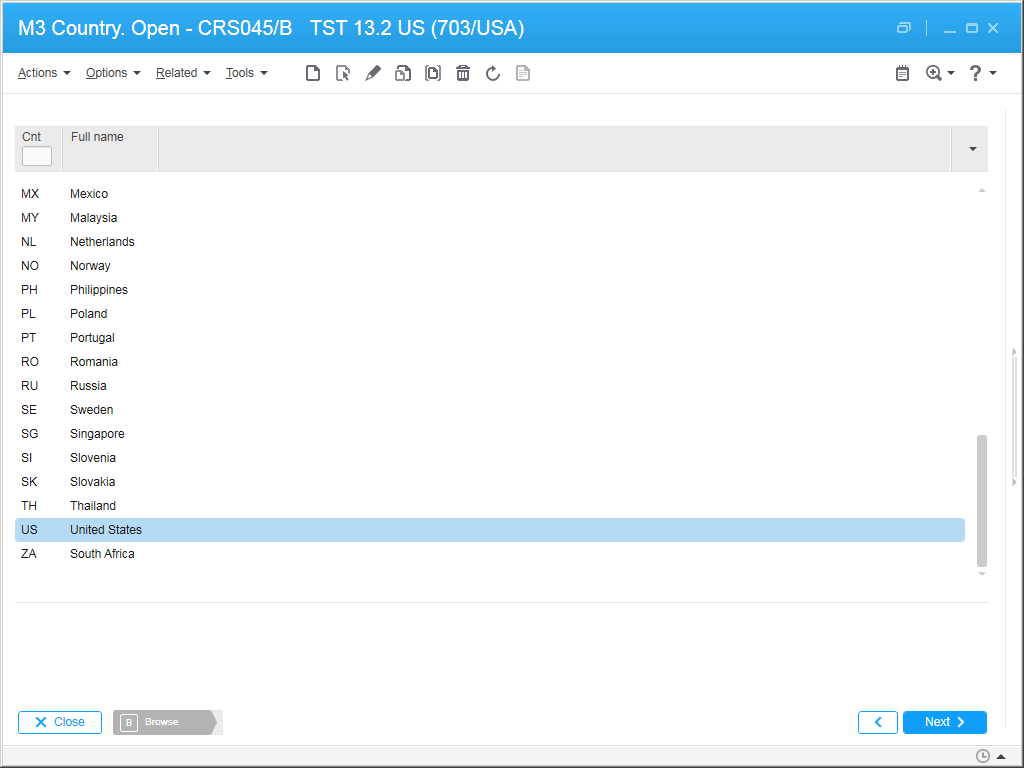
Here is the result:
blog

blog_

That’s it. Please like, share, subscribe, author.

Poll: How to add 80 million item/warehouse records in M3?

My customer is doing data conversion in preparation for go live, of which 80 million item/warehouse records, they want to complete the upload over a week-end, but M3 is being a bottleneck, i.e. it cannot absorb the data as fast as they are feeding it to.

What would you do? I am not an expert at item/warehouse, nor at M3 performance, and from what I have seen in the past, each project handles it at their own sauce.

Synopsis

My customer has about 80,000 items to add to MMS001, and each item needs to be connected to about 1,000 warehouses in MMS002.

The result is about 80 million item/warehouse records to create.

M3 can handle gazillions of records. So this should be a piece of cake, right?

Failed tentative 1

Because the M3 API MMS200MI does not cover all the fields, my customer initially used M3 Web Services (MWS) of type M3 Display Program (MDP) to simulate a user entering data in all the desired fields.

It takes about 10ms per record, or 100 records per second. Loop 80 million times, and that would take about 800ks, which is about 222h, which is about 10 days to complete.

Yikes!!! 10 days to upload???

We need faster. We need one or two orders of magnitude faster.

Failed tentatives 2, 3, 4

I did A/B testing of various alternatives:

  • Use MWS MDP, versus use M3 API (I thought this would be the silver bullet, nope)
  • Create the item from scratch, versus create the item from an item template
  • Call the Add transaction, versus call the Copy transaction
  • Let M3 auto-create (we create the item oursleves but let M3 auto-create the item/warehouse), versus manually create (we create both ourselves).
  • Remote Desktop Connect inside the M3 BE server or database server to avoid any potential network issues
  • etc.

Either way, we only get a marginal, insignificant benefit in some cases, but the order of magnitude is equally bad.

Concurrency

Then, I decided to create the records concurrently (in parallel) rather than sequentially (one after the other).

With the help of some command line Kung fu I was able to automatically split my big CSV file into 80 smaller chunks, create 80 M3 Data Import (MDI) descriptions, and run 80 parallel threads that each upload one million records:
poll2

It turns out M3 can comfortably handle the throughput. It created many jobs in the API subsystem to process the records in parallel:
poll

Each job takes about 1% CPU. So that should max out the server to about 80% CPU utilization.

However, M3 seems to have capped well before the 80 jobs. I guess that is Amdahl’s law of maximum expected performance in parallel computing.

The result was about 1,100 records per second, which would complete in about 20h, less than a day. That is one order of magnitude improvement!!!

With some more benchmarking we could plot the curve of Amdahl’s performance and find the optimum number of jobs and have a pretty accurate estimate of the expected duration.

I also automatically generated a cleanup script that deletes everything, and I noticed the delete takes four times longer than the add.

Reality check

By the time I had come up with my results, the customer had completely changed strategy and decided to upload the records directly with SQL INSERT. [Cough] [Cringe] <your reaction here>. They consulted with some folks at Infor, and apparently it is OK as long as the data has been pre-validated by API or by MWS MDP, and as long as M3 is shut down to avoid collisions with the M3 SmartCache. It is important to get clearance from Infor as SQL INSERT will void your Infor Support warranty.

Future work

I have also heard of the Item Data Interface (IDI) and the Warehouse Interface (WHI). I do not know if those could help. To be explored.

Poll

What would you do? How have you uploaded millions of records at once? Leave me a comment below.

Disclaimer

Do not take these results as a reference. I was just providing some help to my customer and to the colleagues that are handling this.

I am not a reference for item/warehouse in M3, and I am not a reference for M3 performance, there are special teams dedicated to each.

Also, these results are specific to this customer at this time. Results will vary depending on many factors like CPU, memory, disk, tweaks, etc.

Custom UI for MEC

Here is how to create a custom user interface for M3 Enterprise Collaborator (MEC) in the Infor Grid.

The problem

At my current customer, users create purchase orders like this: a buyer creates a purchase order in PPS170/PPS200, then M3 sends an MBM document to MEC, and then MEC sends a cXML PunchOut OrderRequest to the supplier. For some reason PPS200 does not allow changing the status of an order then, so MEC cannot give feedback to the buyer that the supplier acknowledged the order or that there was an error, i.e. the buyer does not know the outcome. The workaround is to setup error handling to have MEC send an email to an administrator in case of error, and the administrator to tell the buyer. But it is a poor design because it is a negative goal – it informs the user only in the absence of acknowledgment – it is a weak link – the administrator may or may not inform the buyer – and it is reactive, not pro-active.

A solution

Instead, I will build a custom page that shows the status of the outgoing purchase orders in MEC, with timestamp, company CONO, division DIVI, and purchase order number PUNO, I will give access to M3 users, and I will place it as a shortcut in PPS200. It will be a useful feedback loop for end-users. It is not as tight a loop as I would like it to be, but at least buyers will be able to verify the status of their orders on their own.

Inspiration

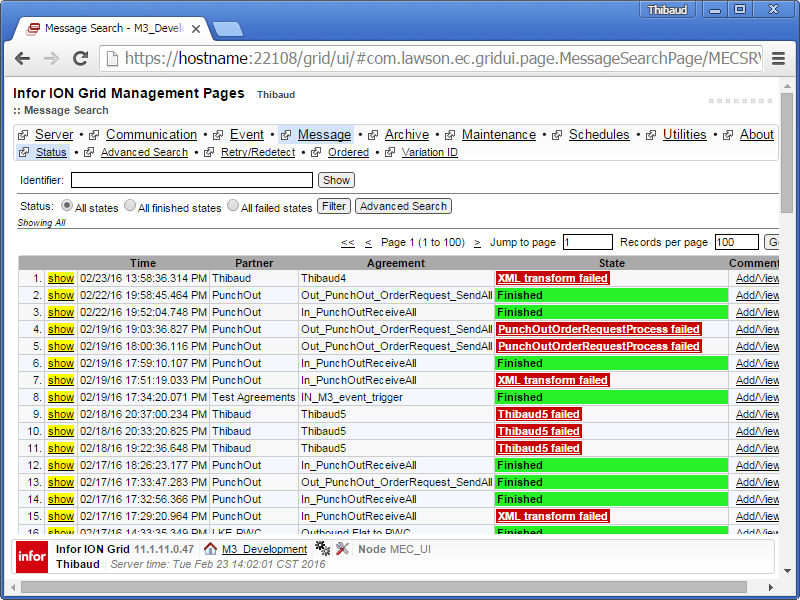
I was inspired by the MessageSearchPage of the Infor ION Grid Management Pages > MEC_UI:1

I decompiled the ec-gridui-x-y-z.jar file to see how it builds the contents of the page:

and to see how StateQuery gets the data from the MEC database:
3

My own content

The mapping adds the CONO, DIVI, and PUNO to the manifest in a Java function with:

setManifestInfo("map:keyValue1", CONO);
setManifestInfo("map:keyValue2", DIVI);
setManifestInfo("map:keyValue3", PUNO);

I prepared an SQL query that gets the status of the outgoing purchase orders with the CONO, DIVI and PUNO from the MEC manifests:
4

HelloWorld Page

Here is a simple page:

package thibaud;

import com.lawson.grid.ui.framework.PageProvider;
import com.lawson.grid.ui.framework.UIRequest;
import com.lawson.grid.ui.framework.UIResponse;
import com.lawson.grid.ui.meta.widget.Page;

public class HelloPage implements PageProvider {
    public Page getPage(UIRequest request, UIResponse response) {
        Page p = new Page("Hello Page");
        p.add("Hello, World!");
        return p;
    }
}

I drop the class in the custom folder of the MEC Grid server at:

D:\Infor\LifeCycle\?\grid\?\grids\?\applications\MECSRV\MecServer\custom\

5

Without restarting the server, I access the page at https://hostname:22108/grid/ui/#thibaud.HelloPage/MECSRVDEV:
6

I add the usual UI widgets: labels, buttons, images, table, links, etc.:
8

I restrict access to authenticated users by adding this annotation:

@Session

I can also restrict access to a specific Grid role mapping, such as app-user, or to my own role PunchOut that I would have to create and assign users to:

@Session(roles={"app-user"}) // MECSRVDEV/app-user
@Session(roles={"PunchOut"}) // MECSRVDEV/PunchOut

When I modify the class file, I stop and start the MEC_UI node:
7

Result

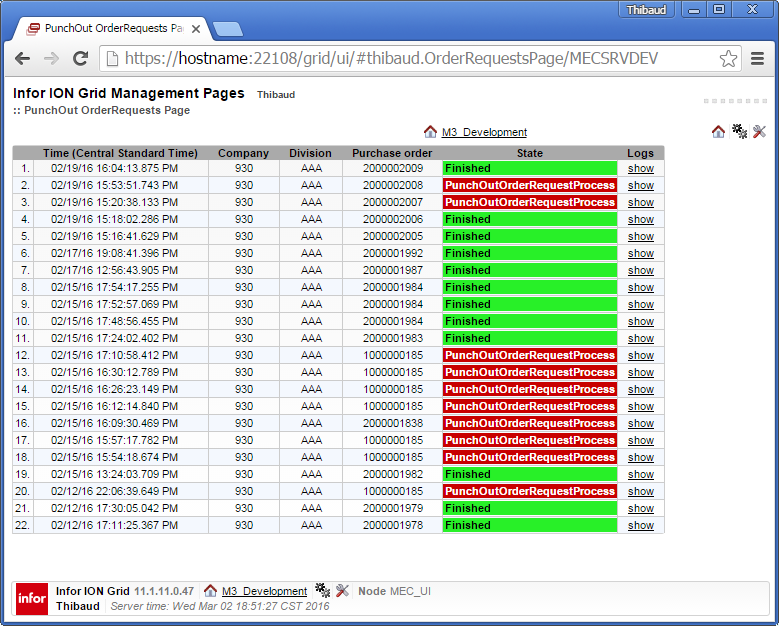
Here is the result of my page; it is similar to the built-in MessageSearchPage, but it is filtered to show outgoing purchase orders only, with additional columns company CONO, division DIVI, and purchase order number PUNO, and it is accessible by end users, except the link to the logs which is for administrators:

Full source code

Here is the full source code of my page; this code is more recent than the older screenshot above, and the code is not finished, but it is a start for you:

package thibaud;

import java.io.UnsupportedEncodingException;
import java.net.MalformedURLException;
import java.net.URL;
import java.net.URLEncoder;
import java.sql.Connection;
import java.sql.ResultSet;
import java.sql.SQLException;
import java.sql.Statement;
import java.util.Date;
import java.util.TimeZone;
import com.intentia.ec.db.ConnectionPool;
import com.lawson.ec.gridui.PropertiesSourceFactory;
import com.lawson.ec.gridui.page.MessageDetailPage;
import com.lawson.ec.gridui.page.ViewFilePage;
import com.lawson.ec.gridui.page.ViewMessageLogsPage;
import com.lawson.ec.gridui.util.DateUtility;
import com.lawson.grid.proxy.access.Session;
import com.lawson.grid.ui.framework.PageProvider;
import com.lawson.grid.ui.framework.UIRequest;
import com.lawson.grid.ui.framework.UIResponse;
import com.lawson.grid.ui.meta.widget.Label;
import com.lawson.grid.ui.meta.widget.Link;
import com.lawson.grid.ui.meta.widget.Page;
import com.lawson.grid.ui.meta.widget.URLLink;
import com.lawson.grid.ui.meta.widget.WidgetTable;
import com.lawson.grid.ui.meta.widget.iface.Container;
import com.lawson.grid.ui.meta.widget.iface.Param;
import com.lawson.grid.ui.meta.widget.iface.StyledText;
import com.lawson.grid.util.logging.GridLogger;

@Session
public class OrderRequestsPage implements PageProvider {

	static GridLogger cat = GridLogger.getLogger(OrderRequestsPage.class);

	public Page getPage(UIRequest request, UIResponse response) {

		// prepare the results table
		Page p = new Page("PunchOut OrderRequests Page");
		WidgetTable table = new WidgetTable();
		table.setHeaders(new String[] { "", "Time (" + TimeZone.getDefault().getDisplayName() + ")", "Company", "Division", "Purchase order", "State", "Message Details", "Message Logs", "MBM identifier", "cXML OrderRequest", "Response" /*, "IsOK", "IsReprocessed", "IsRetried", "IsVerified", "IsWaiting", "IsRecoverable"*/ });
		table.setColumnAlignment(new Container.HAlign[] {
			Container.HAlign.RIGHT,   // #
			Container.HAlign.LEFT,    // Time
			Container.HAlign.CENTER,  // Company
			Container.HAlign.CENTER,  // Division
			Container.HAlign.CENTER,  // Purchase order
			Container.HAlign.LEFT,    // State
			Container.HAlign.CENTER,  // Message Details
			Container.HAlign.CENTER,  // Message Logs
			Container.HAlign.LEFT,    // MBM identifier
			Container.HAlign.CENTER,  // cXML OrderRequest
			Container.HAlign.CENTER,  // Response
		});
		table.setBorderStyle(Container.BorderStyle.SOLID_WEAK);
		table.setAutoSequenceRowHighlight(WidgetTable.RowHighlight.BLUE_WEAK);
		p.add(table);

		// build the query
		String query =
			"SELECT DISTINCT TOP 100\n" +
				"H.UUID,\n" +
				"S.LogTime,\n" +
				"M1.ManifestValue AS CONO,\n" +
				"M2.ManifestValue AS DIVI,\n" +
				"M3.ManifestValue AS PUNO,\n" +
				"M4.ManifestValue AS mbmIdentifier,\n" +
				"M5.ManifestValue AS FilePath,\n" +
				"S.State,\n" +
				"S.IsOK,\n" +
				"S.IsReprocessed,\n" +
				"S.IsRetried,\n" +
				"S.IsVerified,\n" +
				"S.IsWaiting,\n" +
				"S.IsRecoverable\n" +
			"FROM\n" +
				"dbo.DocManifestsHeader AS H,\n" +
				"dbo.DocStates AS S,\n" +
				"dbo.DocManifests AS M1,\n" +
				"dbo.DocManifests AS M2,\n" +
				"dbo.DocManifests AS M3,\n" +
				"dbo.DocManifests AS M4,\n" +
				"dbo.DocManifests AS M5\n" +
			"WHERE H.UUID=S.UUID AND S.UUID=M1.UUID AND M1.UUID=M2.UUID AND M2.UUID=M3.UUID AND M3.UUID=M4.UUID AND M4.UUID=M5.UUID\n" +
				"AND Partner='PunchOut' AND Agreement='Out_PunchOut_OrderRequest_SendAll'\n" +
				"AND M1.Name='map:keyValue1'\n" +
				"AND M2.Name='map:keyValue2'\n" +
				"AND M3.Name='map:keyValue3'\n" +
				"AND M4.Name='mvx:mbmIdentifier'\n" +
				"AND M5.Name='map:keyValue4'\n" +
			"ORDER BY LogTime DESC\n";

		query = query.replace("dbo.", ConnectionPool.getCatalogSchema());
		cat.debug(query);

		Connection con;
		Statement stmt;
		ResultSet rs;
		try {
			// execute the query
			con = ConnectionPool.getConnection();
			stmt = con.createStatement();
			rs = stmt.executeQuery(query);
			// render the result
			int row = 0;
			while (rs.next()) {
				String uuid = rs.getString("UUID");
				// row number
				table.setData(row, 0,  "" + (row + 1) + ".");
				// time
				Date date = new Date(rs.getLong("LogTime"));
				table.setData(row, 1,  DateUtility.getFormattedDate(date));
				// CONO
				String CONO = rs.getString("CONO");
				table.setData(row, 2,  CONO);
				// DIVI
				table.setData(row, 3,  rs.getString("DIVI"));
				// PUNO
				String PUNO = rs.getString("PUNO");
				try {
					String CONO_ = URLEncoder.encode(CONO, "UTF-8");
					String PUNO_ = URLEncoder.encode(PUNO, "UTF-8");
					String bookmark = "mforms://bookmark/?program=PPS200&tablename=MPHEAD&panel=B&includestartpanel=True&requirepanel=True&suppressconfirm=False&sortingorder=1&view=STD01-01&keys=IACONO%2c" + CONO_ + "%2cIAPUNO%2c" + PUNO_ + "&fields=IAPUNO%2c" + PUNO_;
					URLLink bookmarkLink = new URLLink(new URL(bookmark), PUNO); // PENDING
					table.setData(row, 4,  bookmarkLink);
				} catch (UnsupportedEncodingException e) {
					table.setData(row, 4,  PUNO);
				} catch (MalformedURLException e) {
					table.setData(row, 4,  PUNO);
				}
				// State...
				String state = rs.getString("State");
				int isOK = rs.getInt("IsOK");
				StyledText.Category c;
				if (isOK == 0) {
					c = StyledText.Category.ERROR;
				} else {
					c = StyledText.Category.OK;
				}
				table.setData(row, 5,  new Label(state,  StyledText.Size.NORMAL, StyledText.Style.BOLD, c));
				// Message Details
				Link messageLink = new Link("show", MessageDetailPage.class, new Param[] { new Param("uuid", uuid) });
				messageLink.setOpenInNewWindow(true);
				table.setData(row, 6,  messageLink);
				// Message Logs
				Link eventLink = new Link("show", ViewMessageLogsPage.class, new Param[] { new Param("uuid", uuid) });
				eventLink.setOpenInNewWindow(true);
				table.setData(row, 7,  eventLink);
				// MBM identifier; PENDING: see com.lawson.ec.gridui.page.MessageDetailPage.getAllData(String uuid)
				table.setData(row, 8,  rs.getString("mbmIdentifier"));
				// cXML OrderRequest
				String host = PropertiesSourceFactory.getInstance().getProperties().getProperty("Server.Context");
				cat.debug(host);
				String filepath = rs.getString("FilePath");
				Link xmlLink = new Link("show", ViewFilePage.class, new Param[] { new Param("host", host == null ? "local" : host), new Param("type", "xml"), new Param("path", filepath) });
				xmlLink.setOpenInNewWindow(true);
				table.setData(row, 9,  xmlLink);
				// cXML response
				table.setData(row, 10,  "PENDING");
				row++;
			}
			// cleanup
			rs.close();
			stmt.close();
			ConnectionPool.putConnection(con);
		} catch (SQLException e) {
			cat.error("SQLException when building PunchOut page", e);
			p.add(new Label("SQLException when building PunchOut page: " + e.getMessage()));
		}
					
		return p;
	}
}

Future work

Some ideas for future work are:

  • Tighten the loop even more, i.e. inform the user directly in PPS200 when they are creating the order
  • Get the state label; see com.lawson.ec.gridui.page.MessageSearchPage.getStateLabel()
  • Finish the MForms Bookmark link
  • Add a link to the MBM document (.rcv file)
  • Add a link to the cXML OrderRequest response received from the supplier
  • Register the page in the MEC menu
  • Get URL parameters from UIClientRequest
  • Add pagination, see com.lawson.ec.gridui.page.MessageSearchPage.buildPagingPanel()
  • Develop a Mashup that combines PPS200 and the SQL from MEC DB

Conclusion

That was a solution to develop custom UI pages for MEC; for example in my case a page for buyers to see the status of the outgoing purchase orders, with timestamp, company CONO, division DIVI, and purchase order number PUNO. It is a simple solution to provide feedback to end users so they can be pro-active and verify the outcome of their actions on their own.

That’s it.

Thanks for reading. Leave us a comment in the section below. And if you liked this, please subscribe, like, share, and come write the next blog post with us.

Easy export/import M3 with JavaScript 6

Last week I had to copy several M3 Supplier CRS620 records, from one company CONO into another company, and I found this elegant solution using JavaScript 6.

Classic approach

Traditionally, I would have used M3 API or SQL to export the records to a CSV file in my computer, change the company number, and use M3 Data Import (MDI) to import the CSV into the other company. But the API LstSuppliers does not output all the fields, so I would have had to use GetBasicData, record by record. It is trivial, but it is tedious because of the many steps and tools involved, and it is antiquated.

A new approach

Instead, I have been wanting to learn JavaScript 6 (ECMAScript 6th Edition), so I challenged myself to learn this new solution using the M3 API REST web service and ES6.

Using ES6 is elegant because the result is very concise (only two lines of relevant code), and it is very expressive using: arrow functions (the new anonymous functions), map/reduce and array comprehension, Promises (the new deferred; chaining, fluid programming), and the fetch API (the new XMLHttpRequest).

Here is the source code in ES6:

var baseUrl = "https://hostname:21108/m3api-rest/execute/CRS620MI/";
["1069112004", "1069112005", "1069112006", "1069112007", "1069112008", "1069112009", "1069112010"]
    .forEach(SUNO => GetBasicData(930, SUNO)
        .then(data => AddSupplier(702, "USA", data)));

function GetBasicData(CONO, SUNO) {
    var url = baseUrl + "GetBasicData;cono=" + encodeURIComponent(CONO) + "?SUNO=" + encodeURIComponent(SUNO);
    return fetch(url, {
        credentials: 'same-origin',
        headers: { 'Accept': 'application/json', }})
        .then(response => response.json());
}

function AddSupplier(CONO, DIVI, data) {
    var url = baseUrl + "AddSupplier;cono=" + encodeURIComponent(CONO) + ";divi=" + encodeURIComponent(DIVI) + "?";
    data.MIRecord[0].NameValue.map(o => url += "&" + o.Name + "=" + encodeURIComponent(o.Value));
    return fetch(url, {
        credentials: 'same-origin',
        headers: { 'Accept': 'application/json', }});
}

/*
optional:
console.log([data.MIRecord[0].NameValue.find(o => o.Name === "CONO").Value, data.MIRecord[0].NameValue.find(o => o.Name === "SUNO").Value]);
console.log([response.url.split("?")[1].split("&").find(pair => pair.split("=")[0] === "SUNO").split("=")[1], data.Message]);
*/

We have to run this in the JavaScript console of a browser that supports ES6 and the fetch API, such as Google Chrome, and we have to login to the Infor ION Grid Management Pages to have an authenticated session.

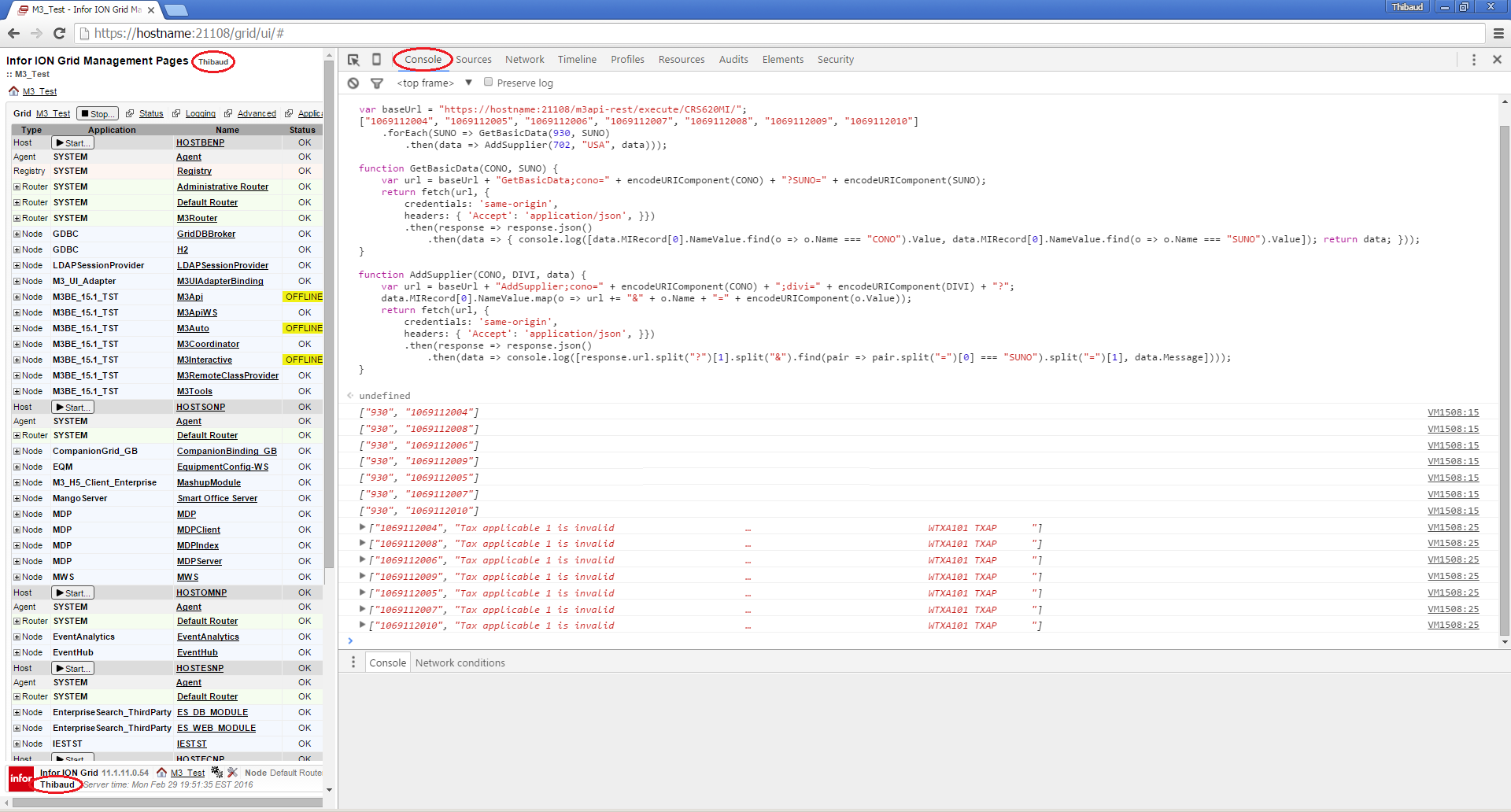
Here is the result:
result1

And we can inspect the request/responses in the network tab:result2

That’s it!

Thanks for reading. Leave us a comment in the section below. And if you liked this, please subscribe, like, share, and come write the next blog post with us.

Error handling in MEC

Here are several ways to handle errors in Infor M3 Enterprise Collaborator (MEC).

(Disclaimer: I have not been to a MEC training, so these are my own findings, not necessarily the official Infor recommendation.)

1. Message detail page

By default, errors in MEC are reported in MEC Management Pages > Message > Status > State; we can drill down to see the MessageDetailPage with the manifest, the input/output files of each process, and the status:
3_

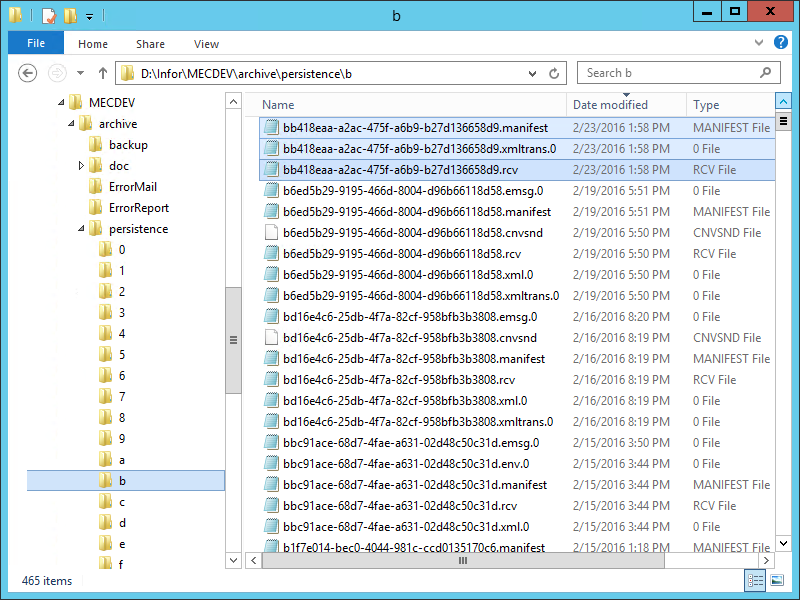
We can also go directly to the file system and get the manifest, and the input/output files of each process:
3c

This is sufficient for MEC administrators to troubleshoot.

But only users with the app-admin or grid-admin roles have access to this, and this is unannounced, so nobody will know there was an error unless somebody looks.

2. Retry/re-detect

The MessageDetailPage has buttons Retry to rerun from last failed process, and buttons Redetect to rerun from message detection:
9

If it helps, the MEC Fundamentals workbook says: “If an error occurs in an XMLTransform step, and Retry is selected, the Process starts with re-sending the input to the XMLTransform step. Meaning that the mapping is executed from the beginning.”

3. Event logs

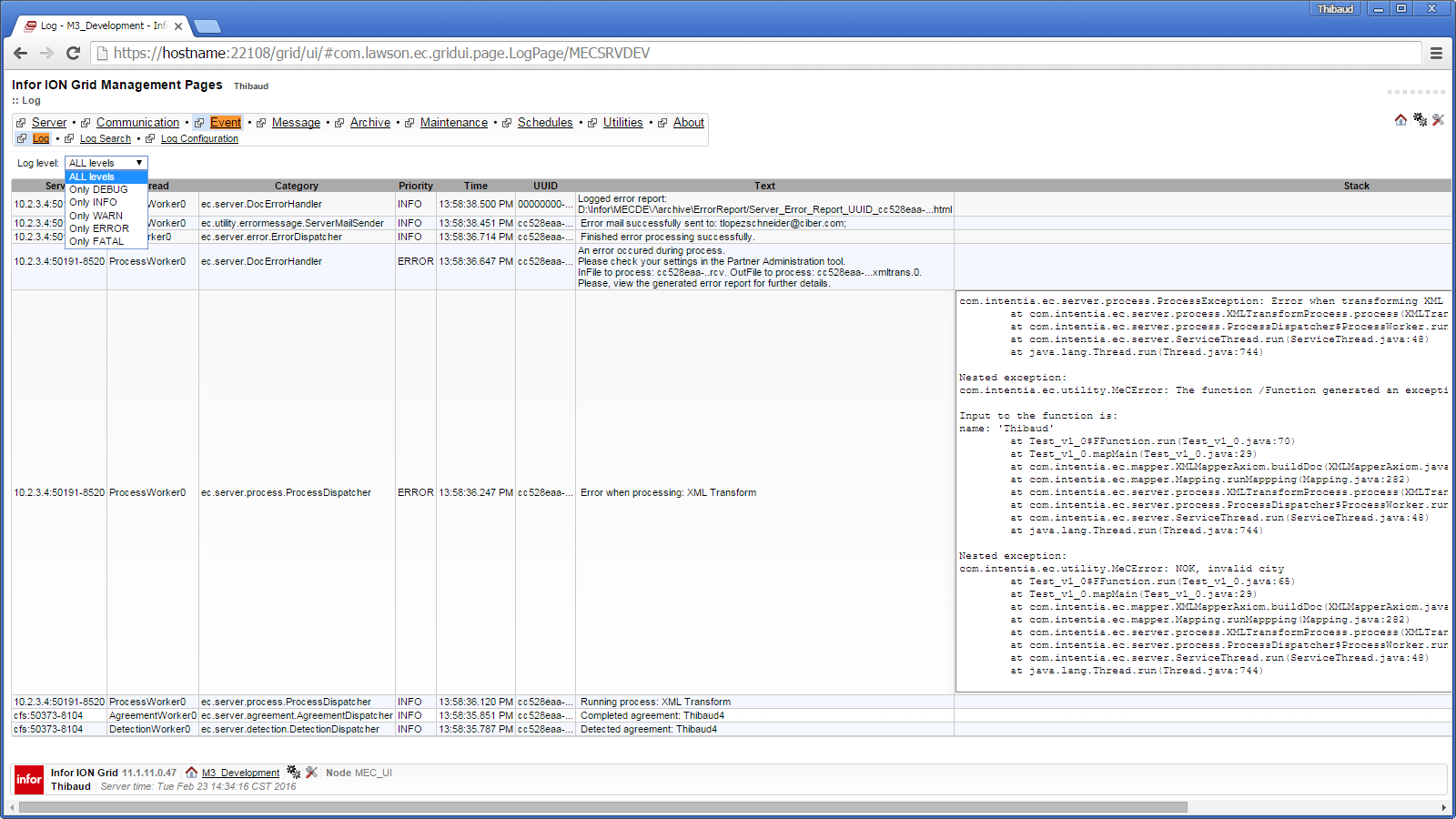
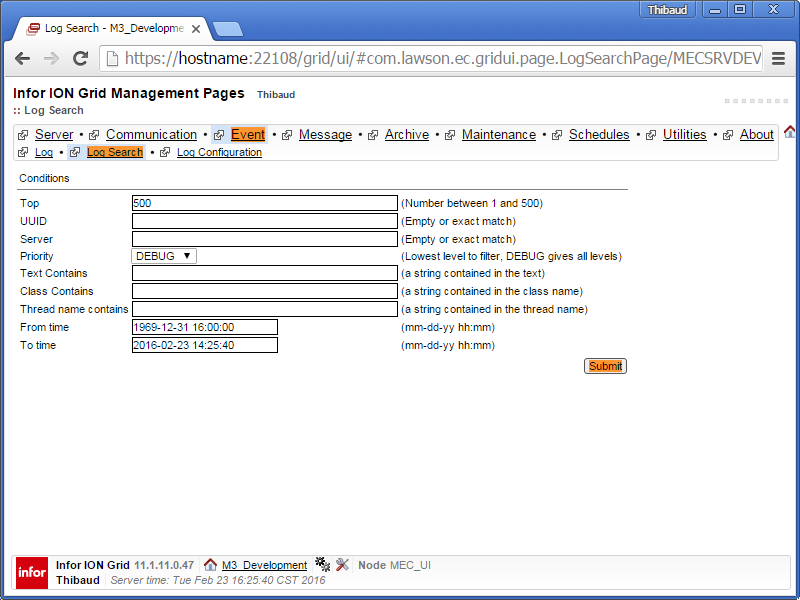
MEC also shows detailed event logs at MEC Management Pages > Event > Log; it uses the Apache Log4J logger with levels DEBUG|INFO|WARN|ERROR|FATAL; it has a search form to search by UUID, class, text, time, etc.; the loggers are configurable via the web form or via the log.config file; and the logs are persisted in the MecLog table of the MEC database:
4__ 4___ 4____ 4_

This shows many more details than the message detail page, most interestingly the DEBUG|TRACE  levels, and the Java stack trace.

4. Error reports

We can drill down the MessageDetailPage to see the HTML error report; it contains the Java stack trace:
3__

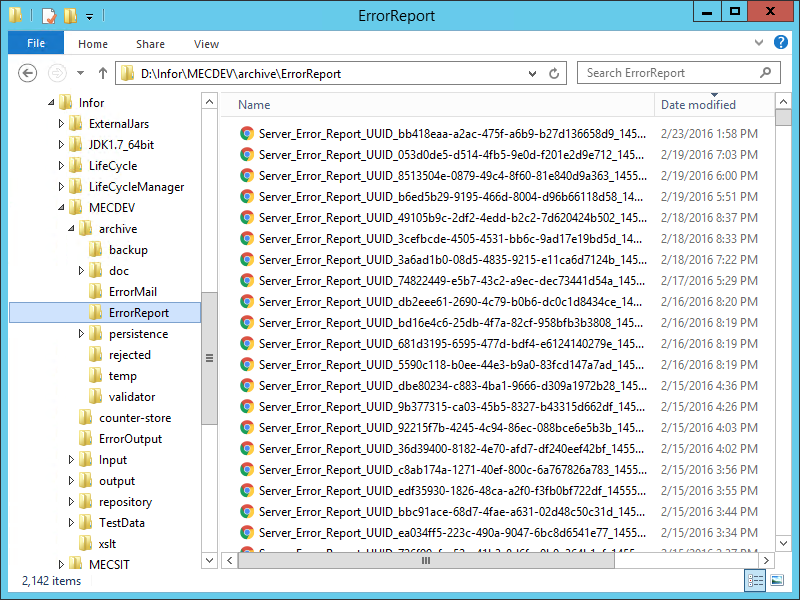
We can also get the error reports directly from the file system:
3___

We can also generate a zipped error report package, e.g. to send to Infor Support:

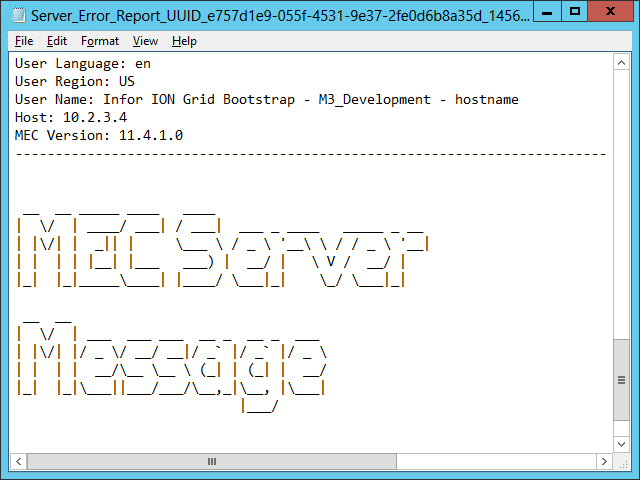
We can change the DocErrorHandler properties to change the XSLT that renders the report, or to change the error report to text format:
3____ 3_____ 3______

5. ErrorMail

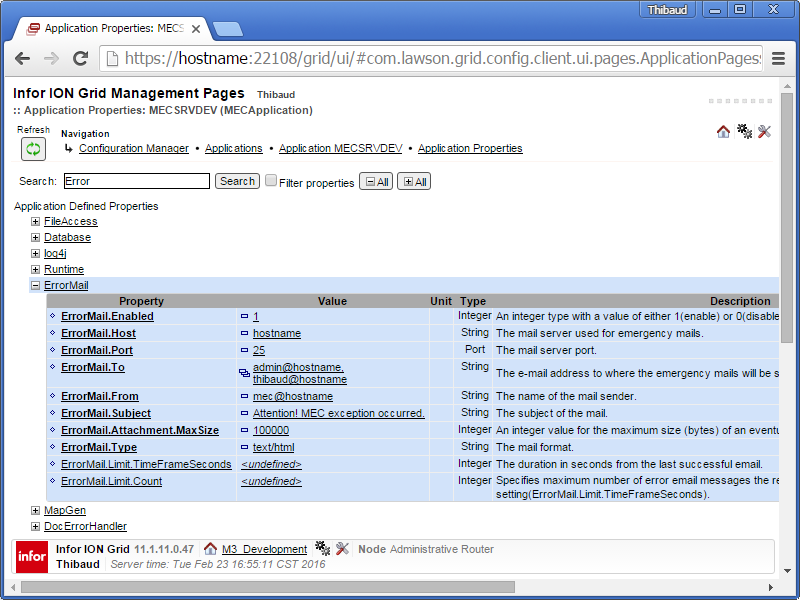
We can configure the ErrorMail properties in MEC to automatically send the error reports to a comma separated list of email addresses; the input file (.rcv) is zipped as an attachment:
5__

This is good to automatically notify administrators in case of errors, and it is great for deputies that don’t have the administrative privileges.

But the recipients risk receiving too many emails and becoming desensitized, resulting in the opposite intention.

6. Agreement Email

We can also set a comma separated list of email addresses in the agreement’s Basic tab, and MEC will send the error reports there instead:
6

This is good to delegate administration to the respective deputies of each agreement, instead of spamming the MEC administrators.

7. Mapping

If our mapping calls an M3 API and the API responds with an error, or if our mapping throws an exception, by default the mapping will stop and will call sendMail() to bubble up to the error report.

We can change this default behavior with the ErrorHandling property:

• Exit map on M3 NOK
• Exit loop on M3 NOK
• Ignore M3 NOK

1

And we can add a Java function that calls the methods isLastAPICallOK()hasNOKOccurred(), and getLastAPIMessage() of class com.intentia.ec.mapper.Mapping:

We can also throw an exception with throw new MeCError(“CRASH!”):
2_

All this to attempt recovering from errors, and to do our own error handling.

One of the MEC Development workbook exercises has the opinion that: “all API calls should have their ErrorHandling property set to “Ignore M3 NOK”to prevent the map from failing, and use method hasNOKOcurred() to determine if any API has returned NOK.”

Note: Sometimes it is desirable to produce a specific error output. However, mappings are unable to produce an output other than the XML schema they were designed for, i.e. there is no secondary schema we can output in case of error. The workaround is to do the error handling offline, e.g. build a custom error report and send it in a custom email.

I can summarize it like this:

// default
if (OK) use output schema
else send error report

// desired, but not possible
if (OK) use output schema
else use error schema

// workaround
if (OK) use output schema
else do custom error handling

We can analyze the generated mapping source to have a better understanding:
7

8. Error handling tab

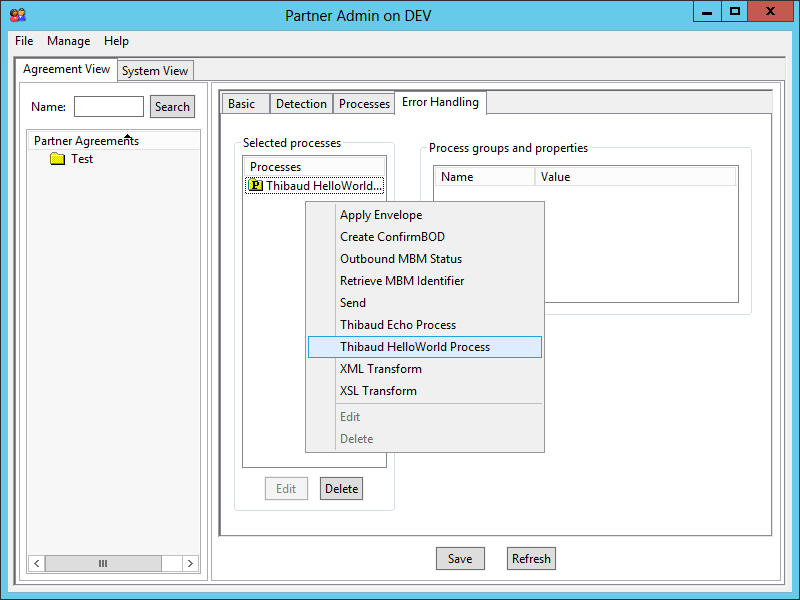
We can use the agreement’s Error Handling tab to handle the error with one or more of these processes:

  • Apply Envelope
  • Create ConfirmBOD
  • Outbound MBM Status
  • Retrieve MBM Identifier
  • Send
  • XML Transform
  • XSL Transform

8

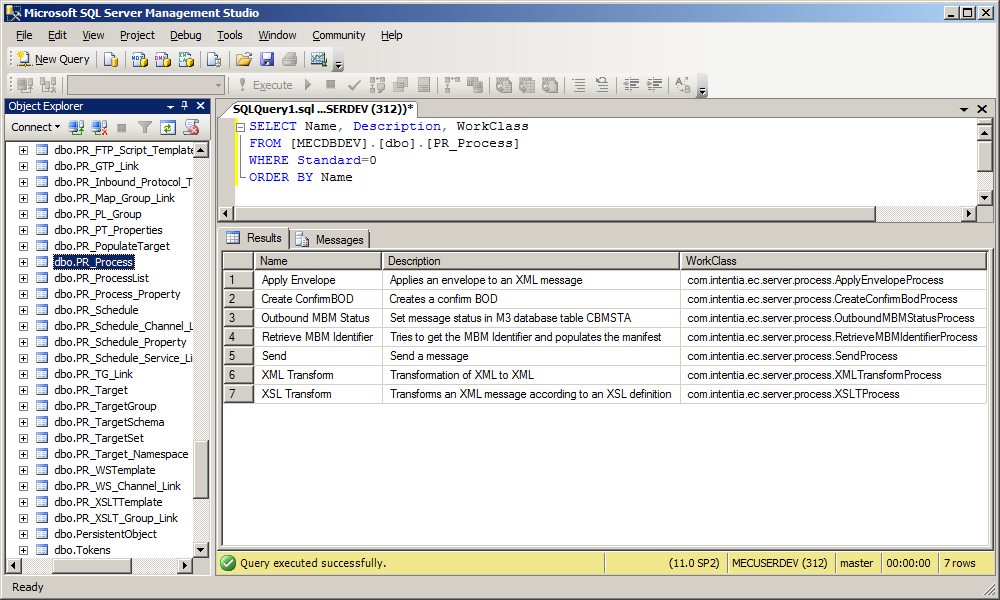
According to class ErrorTab, these processes are stored in table PR_Process with Standard=0, which gives us their class name:
8_ 8__

We can analyze the corresponding Java classes to understand what they do; they seem to made for peculiar requirements.

I created my own processes as illustrated in a previous post, and it works great:
8___

Future work

In the DocErrorHandler properties, there are some AdminException regex properties such that if an exception matches the regex, the DocErrorHandler will send the error report to both the email addresses set in the ErrorMail, and the email addresses set in the agreement. To be tested.

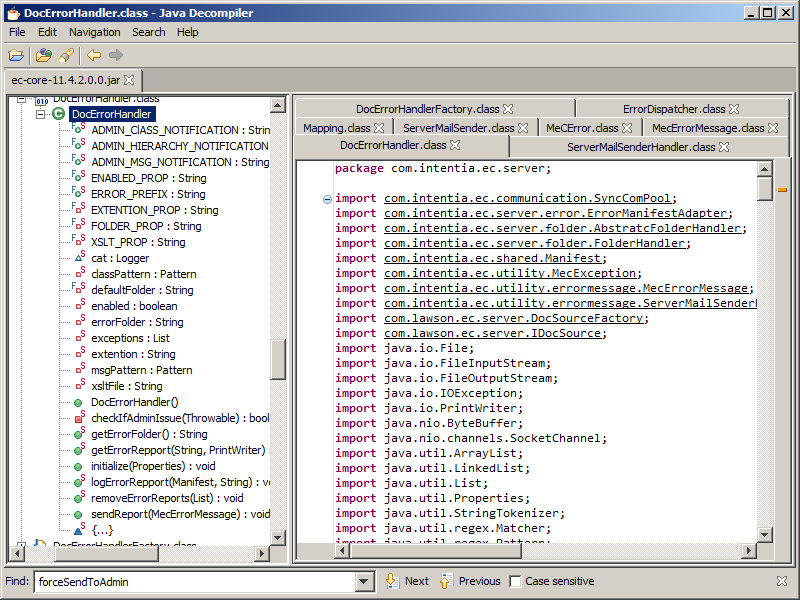
We can learn more about error handling in MEC by diving into ec-core-11.4.2.0.0.jar:
3b 3b_

Conclusion

There are several ways to handle errors in MEC:

  • Use the default message detail page, event logs, and error reports for the administrators to troubleshoot in detail, and eventually retry/re-detect
  • Set the ErrorMail and agreement email to automatically notify the deputies and delegate administration
  • Write custom Java code in the mappings to attempt recovering from errors and to do our own error handling
  • Develop our own error handling processes to have more control

That’s it!

Thanks for reading. If you liked this, please consider subscribing, give a like, leave a comment, share around you, and help us write the next post.

Call M3 API from MEC process

I had a requirement for one of my customers to call M3 API in Infor M3 Enterprise Collaborator (MEC) specifically from a custom process – not from a mapping – and I realized MEC does not have any built-in process for that, so I reverse engineered MEC again, and here is what I found.

Let’s see what MEC has to call M3 API from a process; I am using MEC version 11.4.1.

Processes

The Partner Admin has the following built-in processes:
3_

According to their Java source code, none of these processes calls M3 API, at least not that allow the user to call any M3 API arbitrarily; that does not meet my requirement.

API reference holders

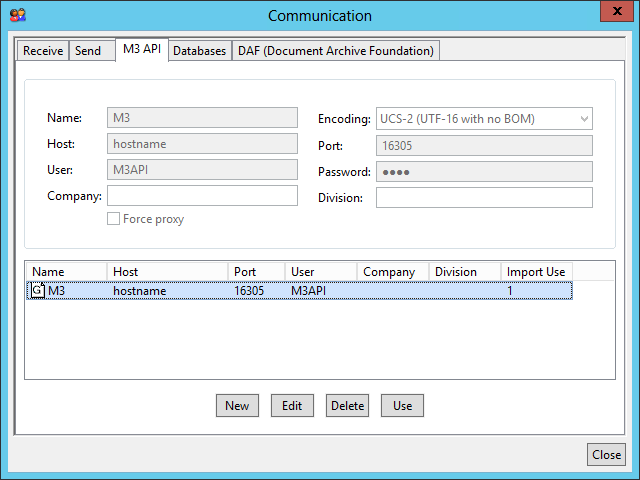
There is a list of API reference holders in Partner Admin > Manage > Communication > M3 API:
1

They are used by the mappings in the XML Transform processes to select the M3 API server at run time:
9

I can get these properties with the following code with ec-core-11.4.1.0.0.jar:

import com.lawson.ec.server.m3api.APIRef;
import com.lawson.ec.server.m3api.APIReferenceHolder;

APIReferenceHolder instance = APIReferenceHolder.getInstance();
List<APIRef> apiRefs = instance.getAPIRefs();
for (APIRef r: apiRefs) {
    String id = r.getId();
    String hostName = r.getHostName();
    String portNumber = r.getPortNumber();
    String username = r.getUsername();
    String password_ = r.getPassword();
    String encodingIANA = r.getEncodingIANA();
    boolean proxyUsage = r.isProxyUsage();
    String refName = r.getRefName();
    List<String> agreements = r.getAgreements();
}

Good.

Note: APIReferenceHolder will run an SQL to table PR_Basic_Property in the MEC database with PR_Basic_Group_Type.Type=’APIRef’:
1_

MEC Mapper

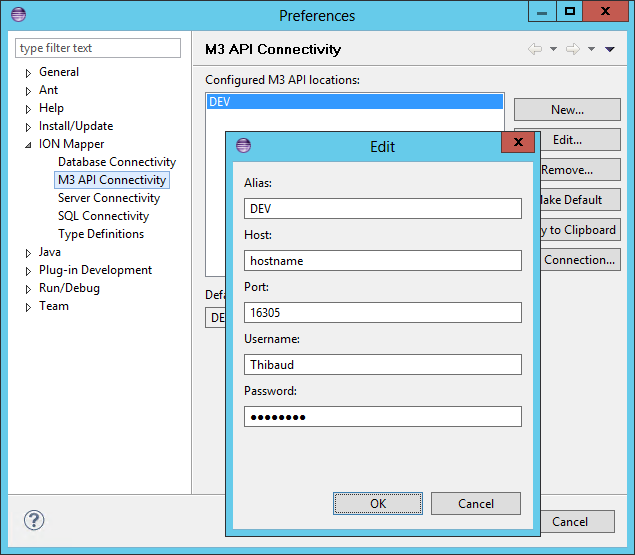
The MEC Mapper (a.k.a. ION Mapper) can call M3 API, and there are settings for design time:
5____ 8__

But I am not interested in the Mapper for my requirement, so I will skip this.

Properties *

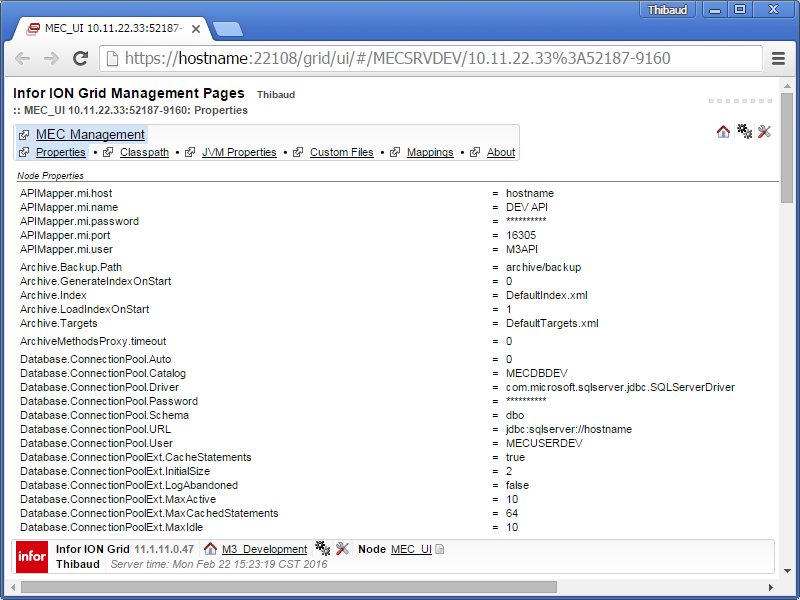
The MEC server has properties about M3 API in the groups APIMapper and MvxAPI:
6_

I can get these values with the technique of my previous post:

import java.util.Properties;
import com.lawson.ec.gridui.PropertiesSourceFactory;

Properties props = PropertiesSourceFactory.getInstance().getProperties();
// APIMapper
String name = props.getProperty("APIMapper.mi.name");
String host = props.getProperty("APIMapper.mi.host");
String port = props.getProperty("APIMapper.mi.port");
String user = props.getProperty("APIMapper.mi.user");
String password = props.getProperty("APIMapper.mi.password");
// MvxAPI
String enabled = props.getProperty("MvxAPI.Pool.Enabled");
String max = props.getProperty("MvxAPI.Pool.Connection.Max");
String expires = props.getProperty("MvxAPI.Pool.Connection.Expires");
String timeout = props.getProperty("MvxAPI.Pool.Connection.Connect.TimeOut");

Good. I will use APIMapper.

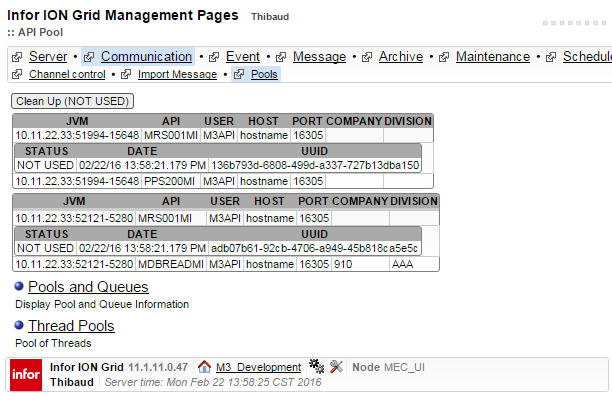
Connection pool

There is also a connection pool, which is recommended for repeated calls, but I have not yet looked into it as it appears to be used only by the Mapper:
Pool

I found this code in com.intentia.ec.mapper.BasicXMLMapper:

import com.intentia.ec.mapper.APIPool;
import com.lawson.ec.mapper.APIPoolInfo;
APIPool apiPool = APIPool.getInstance();
MetaAPI.getAPI(manifest, apiEncoding);
apiPool.getAPI(programName, host, port, user, password, isProxy, manifest, encoding, CONO, DIVI);
List<APIPoolInfo> list = apiPool.getAPIPoolInfo();

For future work.

MvxSockJ *

There is the good old M3 API Java library MvxSockJ-6.1.jar in the MEC server library folder:
7

Refer to the M3 API Toolkit documentation for its complete usage. Here is the minimalist version:

import MvxAPI.MvxSockJ;

MvxSockJ s = new MvxSockJ();
s.mvxConnect(host, port, user, password, "CRS610MI", CONO);
s.mvxSetField("CUNO", "ACME");
s.mvxAccess("GetBasicData");
s.mvxGetField("CUNM")
s.mvxClose();

Good. I will use this.

Remember to check for nulls and return codes.

EBZSocket et al.

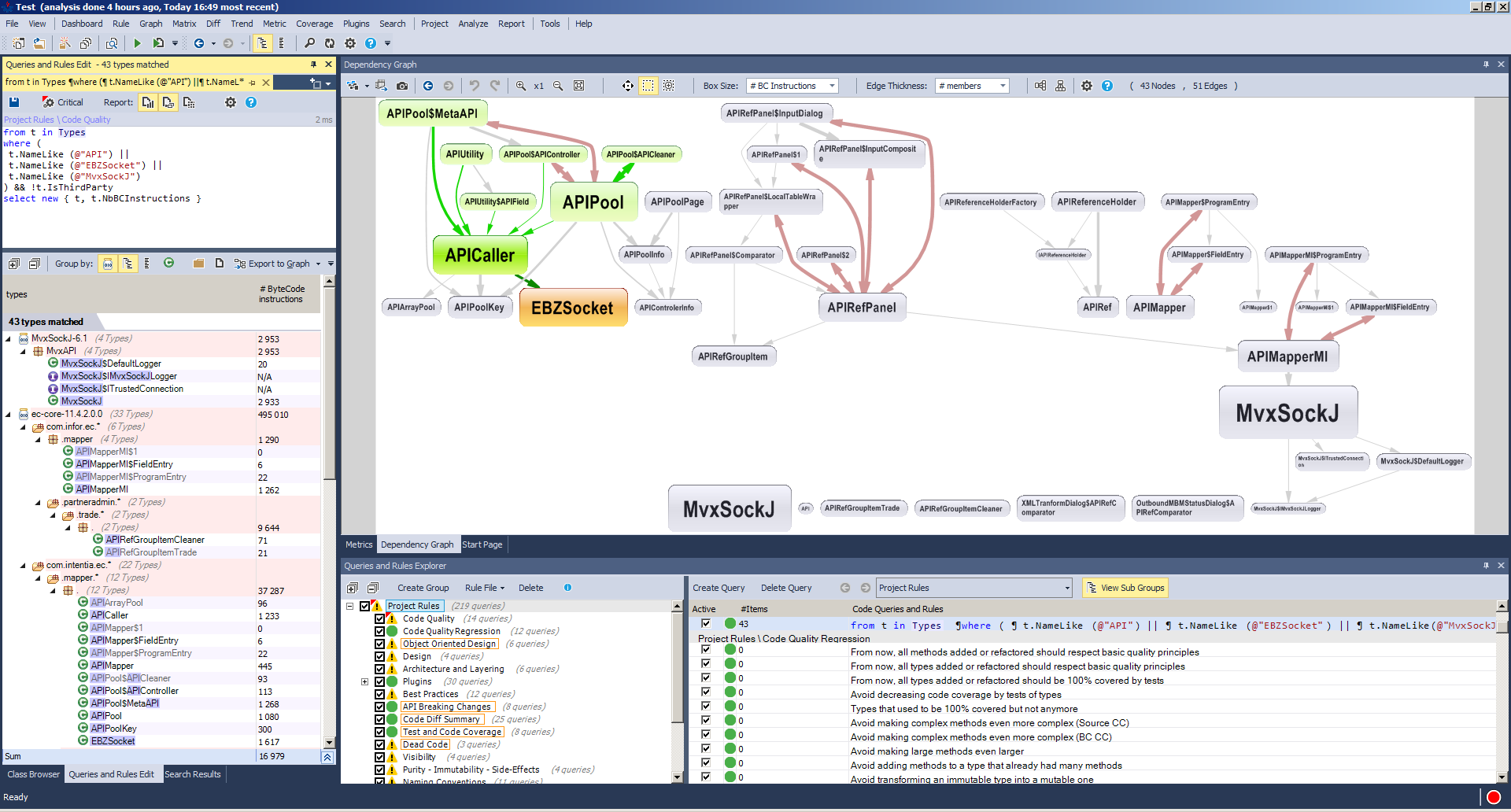
There are plenty of other Java classes in MEC that are related to M3 API, they lead to EBZSocket, but they seem to be used mostly by the mapper, and they require knowledge of the M3 API metadata. I have not looked more into it. Here is a screenshot of the dependency graph from JArchitect:
JArchitect__

Here is some code I found, to be tested:

import com.intentia.ec.mapper.APICaller;

//APICaller ac = new APICaller(poolKey, strUUID, apiEncoding);
APICaller ac = new APICaller(pgm, host, port, user, password, strUUID, apiEncoding, forcedProxy, company, division);
int connectionTimeout = 10000;
int readTimeout = 10000;
ac.initMISock(connectionTimeout, readTimeout);
int startPos = 0;
int maxLength = 28;
String data = "GetBasicData 106AAACRBE01";
ac.setRecord(startPos, maxLength, data);
ac.callMI();

Or:

import com.intentia.ec.mapper.EBZSocket;

EBZSocket sock = new EBZSocket(strUUID, host, Integer.parseInt(port), "EBZSocket", apiEncoding);
String logonStr = "";
sock.mvxLogOn(logonStr, user, password, library, pgm, connectionTimeout, readTimeout, forceProxy);
sock.mvxSend(char[] apiData, int dataLength)
sock.mvxClose();

For future work too.

Conclusion

There does not seem to be a built-in solution to call any M3 API in a process in MEC. However, we can get the existing server properties – either from the API reference holders, either from the property group APIMapper – and use the good old MvxAPI.MvxSockJ to call the M3 API. Now you can add that to your custom process. With some more work, we could perhaps also use the connection pool, and explore more of the remaining Java classes.

I highlighted my favorite with an asterisk.

That’s it!

Thanks for reading. If you liked this, please consider subscribing, give a like, leave a comment, share around you, and help us write the next post.

Get MEC properties

I need to programmatically get the properties of Infor M3 Enterprise Collaborator (MEC). How?

1

At some point I found com.intentia.ec.server.DocServer.getEcProperties(), but I do not remember if that worked or not.

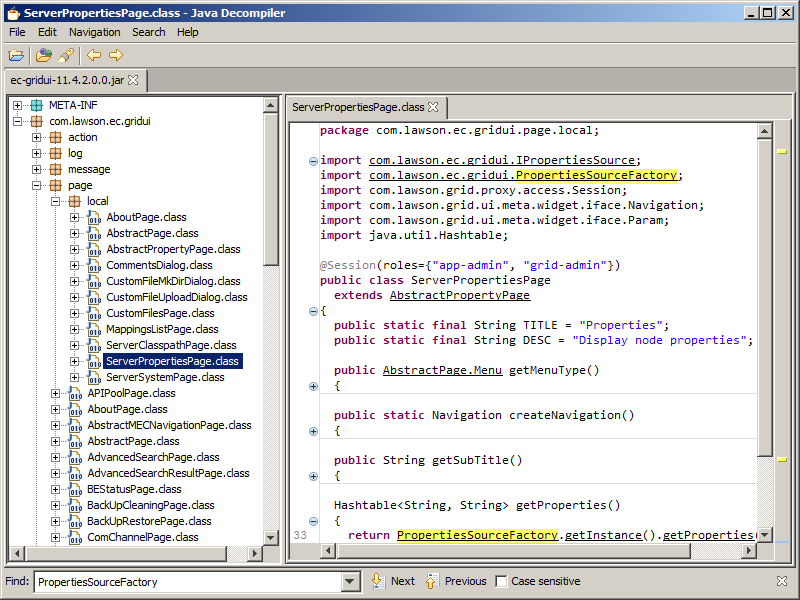
I could not quickly find a solution, and eventually I found the Module MecUIServer’s Local Management Pages (ServerPropertiesPage):
22_

I decompiled it, and I learned it uses com.lawson.ec.gridui.PropertiesSourceFactory.getInstance().getProperties():
3

So that’s the answer to get the MEC properties:

import java.util.Properties;
import com.lawson.ec.gridui.PropertiesSourceFactory;

Properties props = PropertiesSourceFactory.getInstance().getProperties();
props.getProperty("mec.central.file.path"); // D:/Infor/MECDEV

Remember to check for null.

I am now using the properties I need in my mappings and custom processes.

That’s it. Thanks for reading. Please subscribe, like, share.

Rich HTML output from MEC

Here is a technique to give custom, rich, interactive, and user-friendly HTML responses to the users of Infor M3 Enterprise Collaborator (MEC), instead of giving them classic HTML, XML, or email responses.

Scope

MEC is an EAI tool that takes input messages, processes them, and produces output messages. I will only focus on interactive scenarios where the user needs an immediate response from MEC. I will only focus on the HTTP channels of MEC. I will assume we already have a request, and I will only focus on the HTML response. So this is a pretty specific scope of use. Note I have not been to a MEC training so my results by trial and error may not be optimal.

Classic responses

Canned response

By default, the HTTPIn channel of MEC produces this minimalist HTML response, with no piece of identifiable data about what it is referring to, no explanation of what “successfully processed” means – there could actually be a failure behind – it is just a basic acknowledgment of receipt, misspelled:

e-Collaborator HTTP Reply
The request was succesfully processed
e-Collaborate!

Custom XML response

With the HTTPSyncIn + HTTPSyncOut channels we can produce a custom response, typically in XML because MEC is XML-centric. In there, we can put identifiable data, and a detailed explanation. I illustrated this scenario in my previous post HTTP channels in MEC (part 3). But XML is not user-friendly thus not suitable for users.

Email response

Many developers setup their MEC agreements to send responses as emails to their users. However, 1) if a user takes an action that merits an immediate response from MEC, receiving an email disrupts the user context, 2) sending emails worsens mailbox pollution, 3) and most email clients block HTML and JavaScript features, thus thwarting interactivity. I prefer to show an HTML page as the primary confirmation, and optionally the email as the secondary confirmation.

Desired HTML response

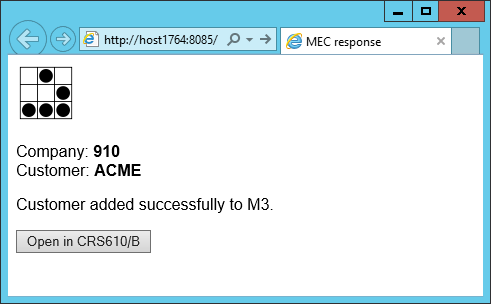
My desired response is dynamic HTML from MEC. To it, I will add images and CSS for beautification, and JavaScript to manipulate the page dynamically. I will reflect the input identifiers onto the output as a feedback loop for the user. I will craft a format that is easy for the user to understand. I will put a detailed message of the processing’s result. And I will add buttons for the user to interact with the result in M3. Here is my example:

Here is my desired dynamic HTML output from MEC. I recommend using HTML5 instead of HTML4 to avoid the quirks:

<!DOCTYPE html>
<html>
   <head>
     <title>MEC response</title>
     <link rel="stylesheet" type="text/css" href="http://host1623:22107/mne/Test.css" />
   </head>
   <body>
     <img src="http://host1623:22107/mne/Test.png" alt="Test" />
     Company: <span id="CONO">910</span>
     Customer: <span id="CUNO">ACME</span>
     Customer added successfully to M3.
     <input id="btn" type="button" value="Open in CRS610/B" />
     <script type="text/javascript" src="http://host1623:22107/mne/Test.js"></script>
   </body>
</html>

Note: for an explanation of that /mne/ path, see the chapter further below about static files.

Here is my static CSS file, Test.css:

body { font-family: sans-serif }
span { font-weight: bold }

Here is my static JavaScript code, Test.js. It opens the customer record in CRS610/B. For that, it uses the Infor Smart Office Installation Point URL, the task parameter [1] and an MForms Bookmark URI [2]:

btn.addEventListener("click", function () {
   var CONO = document.getElementById("CONO").innerText;
   var CUNO = document.getElementById("CUNO").innerText;
   var isoUrl = "http://host1762:22107/mango/MangoClient.application?server=https://host1762:22108";
   var bookmarkUri = "mforms://bookmark/?program=CRS610&tablename=OCUSMA&keys=" + encodeURIComponent(["OKCONO", CONO, "OKCUNO", CUNO]);
   var url = isoUrl + "&task=" + encodeURIComponent(bookmarkUri);
   window.open(url, "_blank");
});

Note 1: You can use anchors <a> instead of buttons if you prefer.

Note 2: You can replace Smart Office by H5 Client if you prefer.

Unsuccessful attempts

I originally tried to produce the HTML output directly from MEC Mapper.

For that, I imported the XHTML 1.0 Strict XML Schema, but MEC Mapper tripped on <xs:import schemaLocation=”…xml.xsd”/>:

I removed it from the XSD and tried again, but then MEC Mapper tripped on <xs:attributeGroup ref>:
3_

I removed them all from the XSD and tried again, but then MEC Mapper added the document elements as a recursive list of all the possible elements and attributes of HTML, even the ones I did not need and the optional ones, with no flexibility to change:
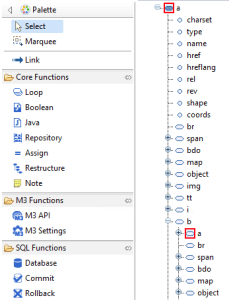
Instead, I created a minimalist XSD for my sample HTML, but MEC Mapper deleted the values of my attributes, even if I enforced them in the XSD <xs:attribute>:

Then I tried to restore my attribute values with a Java function, but that quickly became un-maintainable for a large HTML document with frequent changes:
6_

And each time I change the XSD, I have to do the cycle of delete/un-publish/save/generate/publish/add/reload/activate [3], and it is too overwhelming for short development cycles.

Too complicated.

FAIL

ABORT

Back to XML

I will revert my mapping back to XML output:

Here is the desired XML output:

<?xml version="1.0"?>
<response>
   <CONO>910</CONO>
   <CUNO>ACME</CUNO>
   <result>OK</result>
</response>

As usual, to create the XSD, I use Microsoft SDK’s xsd.exe, I remove the Byte Order Mark (BOM), I remove the NewDataSet, and I import the resulting XSD in MEC Mapper.

Here is the output in MEC Mapper:
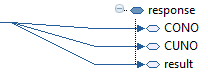
The result will be XML.

XSL Transform

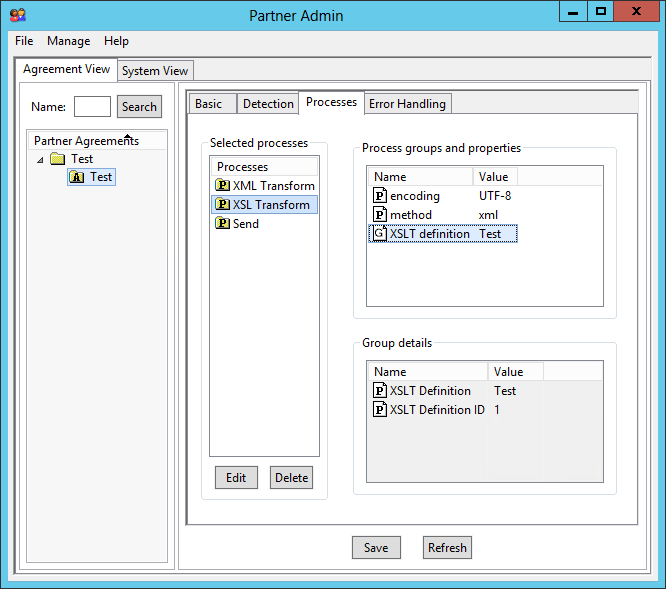
I will use XSL Transformations (XSLT) to transform the XML into HTML. For that, create the XSLT file with your favorite editor, go to Partner Admin > Manage, and add an XSLT Definition:
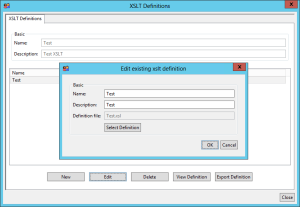
14_

Then go to your agreement > Processes, add an XSL Transform process between XML Transform and Send, and set it to the XSLT Definition:
8

Here is a subset of my XSLT (the complete version includes the rest of the HTML):

<?xml version="1.0"?>
<xsl:stylesheet version="1.0" xmlns:xsl="http://www.w3.org/1999/XSL/Transform">
<xsl:output method="html" doctype-system="about:legacy-compat" encoding="UTF-8" indent="yes" omit-xml-declaration="yes" />
   <xsl:template match="/response">
     <html>
       <body>
         Company: <xsl:value-of select="CONO" />
         Customer: <xsl:value-of select="CUNO" />
         <xsl:choose>
            <xsl:when test="result='OK'">Customer added successfully to M3.</xsl:when>
            <xsl:otherwise>Error: <xsl:value-of select="result" /></xsl:otherwise>
         </xsl:choose>
       </body>
     </html>
   </xsl:template>
</xsl:stylesheet>

The result will be HTML.

Note 1: I use a choose-when-otherwise to display the success and error message differently.

Note 2: I set the xsl:output properties like doctype and omit-xml-declaration in the XSLT file itself, because if I set them in the XSL Transform process properties in Partner Admin then there is no or an incorrect effect (MEC bug?).

Send

Set the Send process in the agreement to Content-type text/html:

Static files

As per the basic rules of web pages, I will make the CSS and JavaScript external, with the CSS at the top and scripts at the bottom.

We can put the static files (images, CSS, JavaScript) on any web server of our choice. I did not find a generic web server in MEC, so for now I put the files in the M3 UI Adapter (MUA) folder at \\host1623\D:\Infor\LifeCycle\?\grid\?\grids\?\applications\M3_UI_Adapter\webapps\mne\, and the files are now accessible at http꞉//host1623:22107/mne/ (I will move them to a sub-folder later):
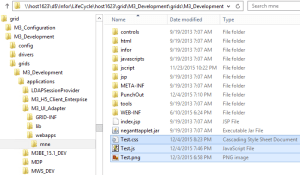
Note: I had originally put the files in the Smart Office MangoServer webapp that serves the ISO Installation Point (IP) at \\host1762\D:\Infor\LifeCycle\?\grid\?\grids\?\applications\MangoServer\Client\IP\ but the server returned the JavaScript as an attachment, and the browser downloaded the JavaScript file instead of executing it. So I moved them to the mne folder which returns the correct content type.
Incorrect:
Content-Disposition: attachment; filename=Test.js
Content-Type: application/x-download

Correct:
Content-Type: application/x-javascript

Then, set the URLs accordingly in the HTML:

<link  href="http://host1623:22107/mne/Test.css".../>
<img    src="http://host1623:22107/mne/Test.png".../>
<script src="http://host1623:22107/mne/Test.js".../>

Result

You can now test the result. MEC will produce XML and will use XSLT to transform the XML into HTML, the browser will get the HTML and will follow the links to get the static files and render the result, and the user will see a nice HTML page that it can interact with.

Here is the result for one of my customers, and it is coming straight from MEC; users love it, they can click on the links to open the records in Smart Office, they can print it, save it as PDF, etc.:
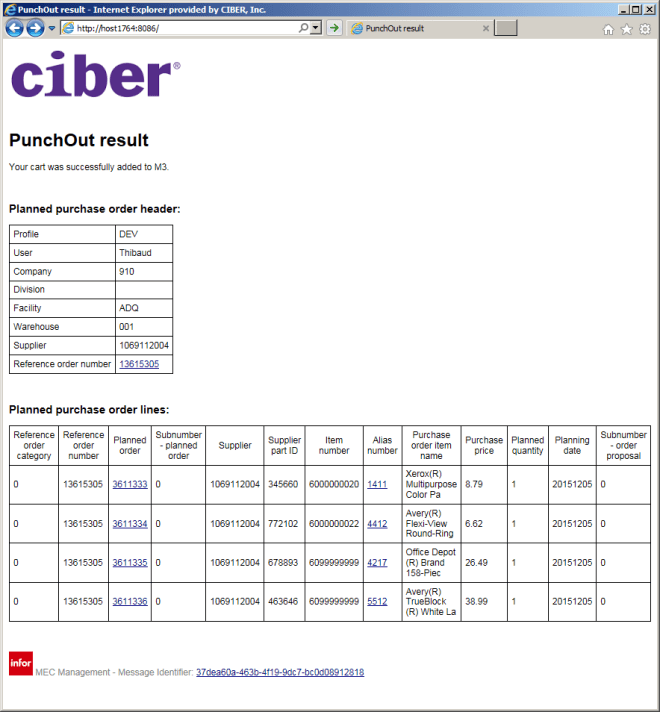
What about you

If you have an existing MEC mapping/agreement that produces XML, and you want to get this HTML solution:

  1. Create the static files (images, CSS, JavaScript) and place them somewhere in a web server
  2. Create the XSLT file that transforms the XML into HTML, set the URL of the static files accordingly, and add the XSLT to the Partner Admin > XSLT Definitions
  3. Add an XSL Transform process to your agreement (between XML Transform and Send), and set the Send content type to text/html

There is nothing to change in the MEC mapping. There is no server to reload.

Maintenance

With this design we have separation of concerns between data, presentation, and control, and it is easier to maintain than my original idea to do HTML output from the mapping:

  • XML: maintain the XML as usual in MEC Mapper
  • Static files (images, CSS, JavaScript): update the files with your favorite editors, and save them directly to the file system
  • XSLT/HTML: update the file with your favorite editor, save directly to the file system, and update the XSLT Definition
  • XSLT Definition: in the Partner Admin, delete the XSL Transform from the agreement and save it, select the new XSLT file in the XSLT Definition, re-add the XSL Transform to the agreement and save

Each step can be maintained individually by the same developer or by separate developers.

Note: MEC is not collaborative for developers, so if two developers are working on the same agreement in MEC Partner Admin (e.g. one maintaining the XML Transform, the other maintaining the XSL Transform) then the agreement will be corrupted.

Future work

There is more work to be done:

  • Move the static files to another web server (who knows what will happen to the mne folder with upgrades of M3)
  • Select the environment dynamically for the Smart Office Installation Point (DEV, TST, PRD)
  • Set the text to the local language (English, Swedish, French, etc.)
  • Get the column headings (CONO, CUNO, etc.) from the M3 language constants using the M3 translate API [4] instead of hard-coding the values
  • Implement the Post/Redirect/Get pattern to avoid duplicate form submission when users click the back button, and to not sanction users that save the page in the browser bookmarks
  • For easy cross-reference to the MEC Management log files, output the manifest UUID to the XML output using the Java method com.intentia.ec.mapper.Mapping.getManifestInfo(“UUID”), and add a link to it in the HTML with the href to https://host1764:22108/grid/ui/#com.lawson.ec.gridui.page.MessageDetailPage/MECSRVDEV?uuid/xxxxxxxx-xxxx-xxxx-xxxx-xxxxxxxxxxxx
  • One time I received the error “Internet Explorer has modified this page to help prevent cross-site scripting” (it is related to the same origin policy of browsers), but I have not been able to reproduce it. Otherwise it is working fine with my URLs spread across three hosts. To be troubleshot.

Conclusion

That was my solution for MEC to give custom, rich, interactive, and user-friendly HTML responses to the users. This is useful where the user needs an immediate response. All you have to do is add the XSL Transform and the static files without touching the existing mapping. In most of the cases, the classic responses – canned response, XML, or email – are sufficient.

That’s it! Special thanks to my colleague Sheryll Limmex for the help with the MEC mapping.

What solution did you design? Let me know in the comments below.
M3 API protocol dissector for Wireshark

Have you ever needed to troubleshoot M3 API calls in Wireshark? Unfortunately, the M3 API protocol is a proprietary protocol. Consequently, Wireshark does not understand it, and it just gives us raw TCP data as a stream of bytes.

Abstract

I implemented a simple protocol dissector for Wireshark that understands the M3 API protocol, i.e. it parses the TCP stream to show the M3 API bytes in a human-readable format, with company (CONO), division (DIVI), user id (USID), and MI program (e.g. CRS610MI). The dissector is currently not complete and only parses the MvxInit request phase of the protocol.

Reverse engineering

I reverse engineered the M3 API protocol thanks to MvxLib, a free and open source client implementation of the protocol in C# by Mattias Bengtsson (now deprecated), and thanks to MvxSockJ, the official and closed-source client implementation of the protocol in Java (up-to-date).

3 2

MvxInit

The MvxInit phase of the protocol is the first phase of the protocol for connection and authentication, and it has the following structure:

struct MvxInit
{
   struct request {
      int size;
      char Command[5]; // PWLOG
      char CONO_DIVI[32];
      char USID[16];
      char PasswordCiphertext[16]; // password ^ key
      char MIProgram[32]; // e.g. CRS610MI
      char ApplicationName[32]; // e.g. MI-TEST
      char LocalIPAddress[16];
   };
   struct response {
      int size_;
      char message[15];
   };
};

Wireshark Generic Dissector

I used the Wireshark Generic Dissector (wsgd) to create a simple dissector. It requires two files: a data format description, and a file description.

The data format description m3api.fdesc is very similar to the C struct above, where the header is required by wsgd:

struct header
{
   byte_order big_endian;
   uint16 id;
   uint16 size;
}
struct body
{
   struct
   {
      uint32 size;
      string(5) Command;
      string(32) CONO_DIVI;
      string(16) USID;
      string(16) PasswordCiphertext;
      string(32) MIProgram;
      string(32) ApplicationName;
      string(16) LocalIPAddress;
   } MvxInit;
}

Given the limitations of wsgd and its message identifier, I could not solve how to parse more than one type of message, so I chose the MvxInit request, and the rest will throw errors.

I made a test M3 API call to M3BE, I captured it in Wireshark, and I saved the TCP stream as a binary file (I anonymized it so I can publish it here):

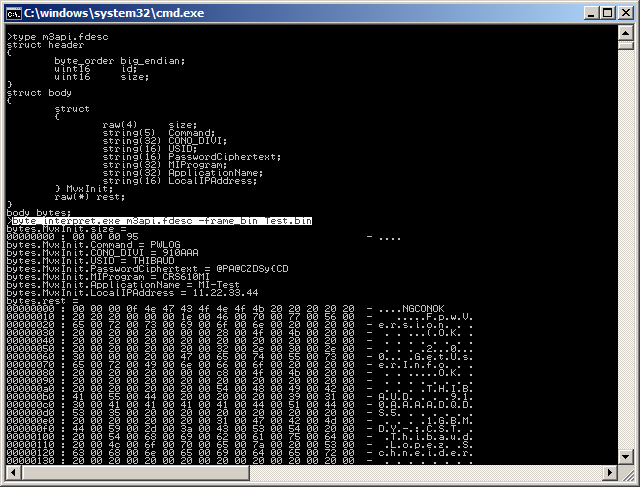
Then, I used wsgd’s byte_interpret.exe (available on the wsgd downloads), using that test binary file, to fine tune my data format description until it was correct:
byte_interpret.exe m3api.fdesc -frame_bin Test.bin

Then, here is the wsgd file description m3api.wsgd; note how I listed the TCP port numbers of my M3 API servers (DEV, TST, PRD):

PROTONAME M3 API protocol
PROTOSHORTNAME M3API
PROTOABBREV m3api

PARENT_SUBFIELD tcp.port
PARENT_SUBFIELD_VALUES 16305 16405 16605 # DEV TST PRD

MSG_HEADER_TYPE header
MSG_ID_FIELD_NAME id
MSG_SUMMARY_SUBSIDIARY_FIELD_NAMES size
MSG_TOTAL_LENGTH size + 4
MSG_MAIN_TYPE body

PROTO_TYPE_DEFINITIONS
include m3api.fdesc;

To activate the new dissector in Wireshark, simply drop the wsgd generic.dll file into Wireshark’s plugins folder, and drop the two above files into Wireshark’s profiles folder:

Then, restart Wireshark, and start capturing M3 API calls. Wireshark will automatically parse the TCP stream as M3 API protocol for the port numbers you specified in the data format description.

Result

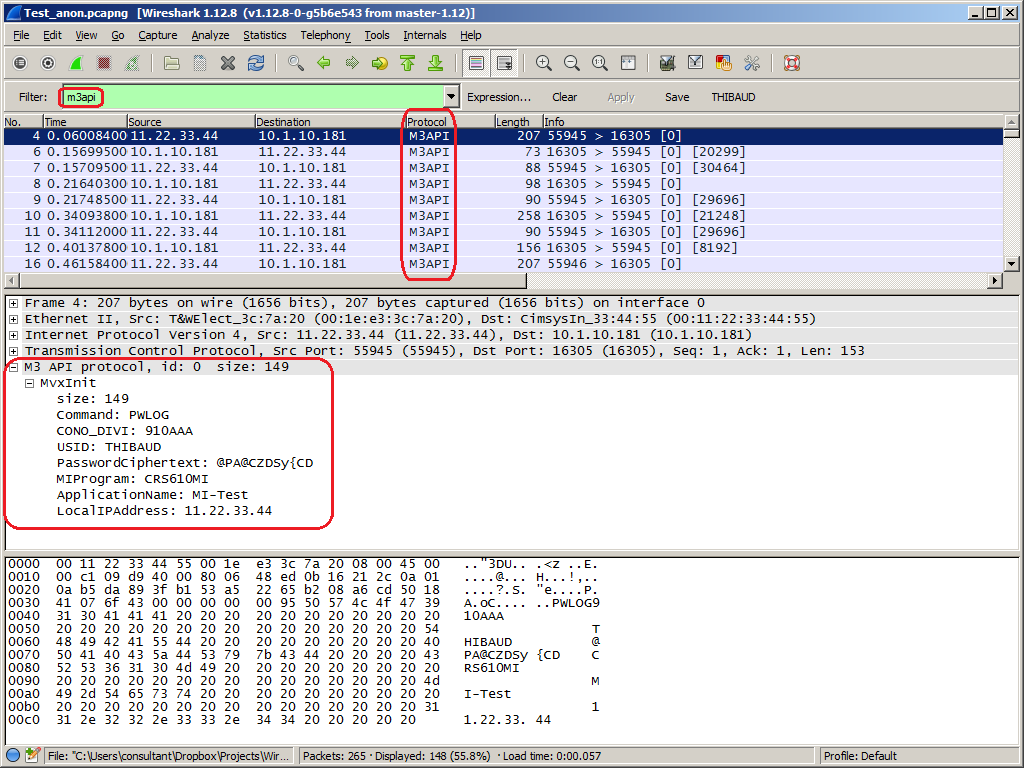
Here is a resulting capture between MI-Test and M3BE. Note how you can filter the displayed packets by m3api. Note how the protocol dissector understands the phase of the M3 API protocol (MvxInit), the company (CONO), division (DIVI), user id (USID), and MIProgram (CRS610MI). Also, I wrote C code to decrypt the password ciphertext, but I could not solve where to put that code in wsgd, so the dissector does not decrypt the password.

Limitations and future work

  • I am using M3BE 15.1.2. The M3 API protocol may be different for previous or future versions of M3.
  • I am doing user/password authentication. The M3 API protocol supports other methods of authentication.
  • Given the limitations of wsgd and its message identifier, I will most likely discontinue using wsgd.
  • Instead, I would write a protocol dissector in LUA.
  • Ideally, I should write a protocol dissector in C, but that is over-kill for my needs.

Conclusion

That was a simple M3 API protocol dissector for Wireshark that parses and displays M3 API bytes into a human readable format to help troubleshoot M3 API calls between client applications and M3 Business Engine.

About the M3 API protocol

The M3 API protocol is a proprietary client/server protocol based on TCP/IP for third-party applications to make API calls to Infor M3 Business Engine (M3BE). It was created a long time ago when Movex was on AS/400. It is a very simple protocol, lean, efficient, with good performance, it is available in major platforms (IBM System i, Microsoft Windows Intel/AMD, SUN Solaris, Linux, 32-bit, 64-bit, etc.), it is available in major programming languages (C/C++, Win32, Java, .NET, etc.), it supports Unicode, it supports multiple authentication methods, and it has withstood the test of time (since the nineties). It has been maintained primarily by Björn P.

The data transits in clear text. The protocol had an optional encryption available with the Blowfish cipher, but that feature was removed. Now, only the password is encoded with a XOR cipher during MvxInit. If you need to make secure calls, use the M3 API SOAP or REST secure endpoints of the Infor Grid.

For more information about M3 API, refer to the documentation in the M3 API Toolkit:
4

More interfaces

If you need to integrate Infor M3 with any of the following interfaces, here are most of the interfaces with which I have worked in the past two years for which I have not posted anything on this blog yet, and for which I may be able to help you if you have questions (contact me here). For that, I used a variety of Enterprise Collaborator, Smart Office scripts, and other code.

Also, check-out the other interfaces I have worked with.