How to tell Mashups apart in a Smart Office script

Here is a solution to tell in which Mashup a Personalized Script for Lawson Smart Office is currently running, for example to tell Mashups A and B apart in a script. We’ll read the BaseUri and Uri properties of a MashupInstance.

This solution is useful in scenarios where we have two Mashups, each with a specific script attached to a common M3 program. Each script needs to tell in which Mashup it’s currently running as we don’t want to let the scripts run in the wrong Mashup.

Example

For example, I have two Mashups that both use the M3 program Item Toolbox – MMS200.

The first Mashup (MashupA) shows a list of items and detailed information about a selected item, such as shelf-life, buyer’s name, on-hand availability in all warehouses, lot information, etc. In this Mashup, we need a script (ScriptA) to append an additional column of information to the list of items by querying a third-party warehouse management system. This Mashup is useful for the sales team to accurately communicate detailed information to a customer on the phone to convert a potential customer order and get the sale.

The second Mashup (MashupB) shows a list of items and purchasing information about a selected item, such as demand, supply, inventory, item specifications, sales history, forecast, etc. In this Mashup, we need a script (ScriptB) to append an additional column of information to the list of items by querying a third-party purchasing order software. This Mashup is useful for the purchase planning process when buyers need to decide if to buy an item or not and create a purchase order.

Both Mashups A and B have the same M3 program MMS200 in common, and two different scripts A and B. Each script needs to execute in its corresponding Mashup, script A in Mashup A, and script B in Mashup B. Otherwise, the scripts would show the wrong information in the wrong Mashup.

Problem

The problem is that when we attach a script to an M3 program in Smart Office, we cannot tell for which Mashup to execute the script. We can only attach the script to an M3 program, in my case to MMS200/B, and then attach the M3 program to the Mashup. But that doesn’t tell the script which Mashup is which.
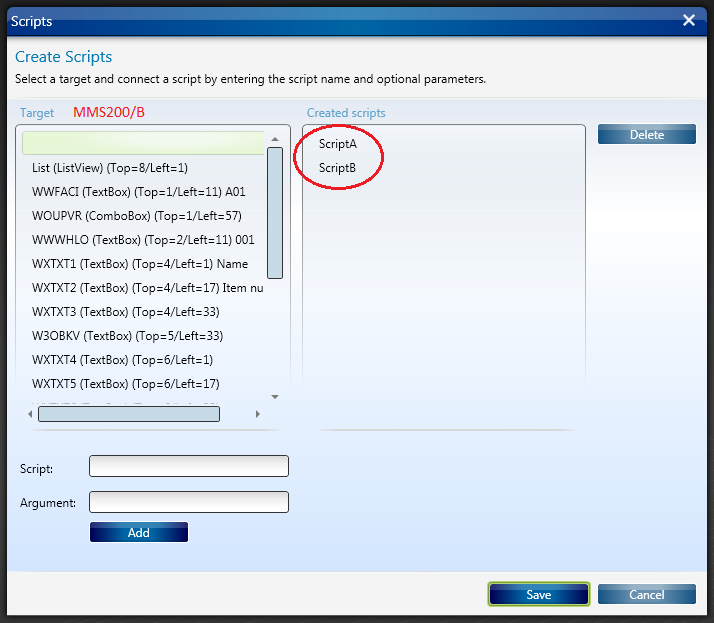
More generally, Smart Office can only do binary relationships Mashup-Program and Program-Script, whereas we need ternary relationships Mashup-Program-Script. We are trying to solve that problem.

Solution

The solution is to get the identifier of the Mashup. Actually we cannot get the identifier of the Mashup as is defined in the Project’s manifest file. But we can derive one from a combination of the path of the Mashup, for example Mashups\MashupA.mashup, and the filename of the XAML, for example MashupA.xaml. That’s given by the Mashup’s BaseUri and Uri respectively.

For that, we’ll start with karinpb‘s solution to check if a JScript is running in a Mashup.

var element = controller.RenderEngine.ListControl.ListView;
var type = Type.GetType("Mango.UI.Services.Mashup.MashupInstance,Mango.UI");
var mashup = Helpers.FindParent(element, type);

That gives us a object that we can cast to MashupInstance from which we can get the  BaseUri and Uri properties:

mashup.BaseUri // ex: Mashups\MashupA.mashup
mashup.Uri // ex: MashupA.xaml

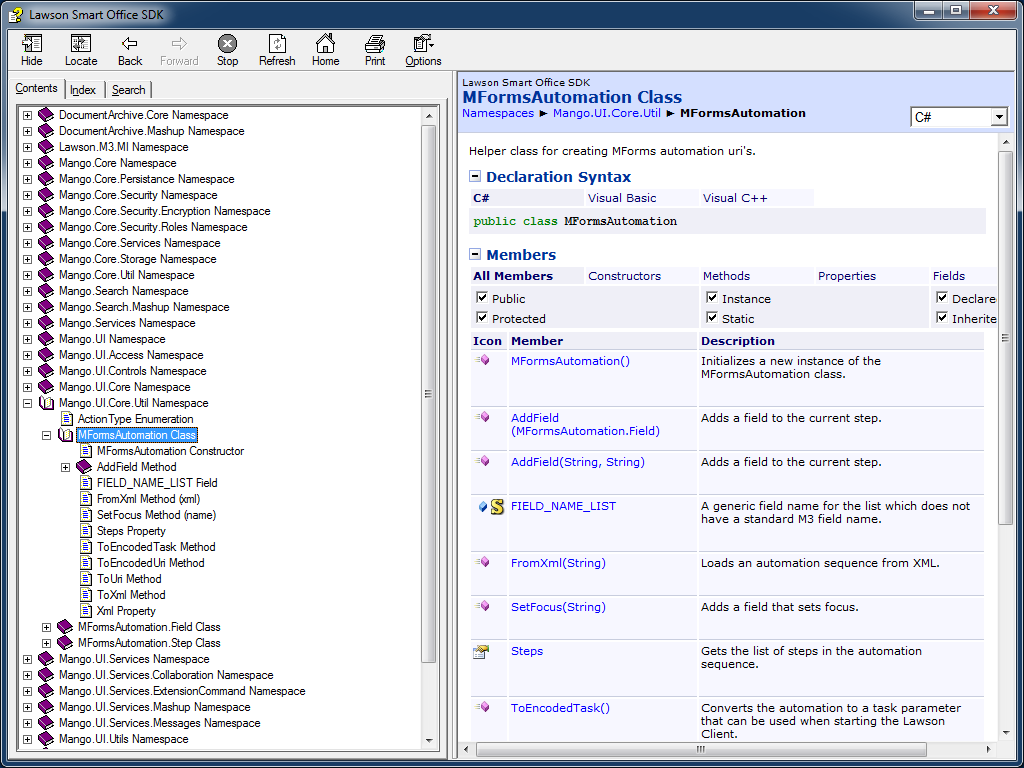
Here is a screenshot of the Smart Office SDK documentation:

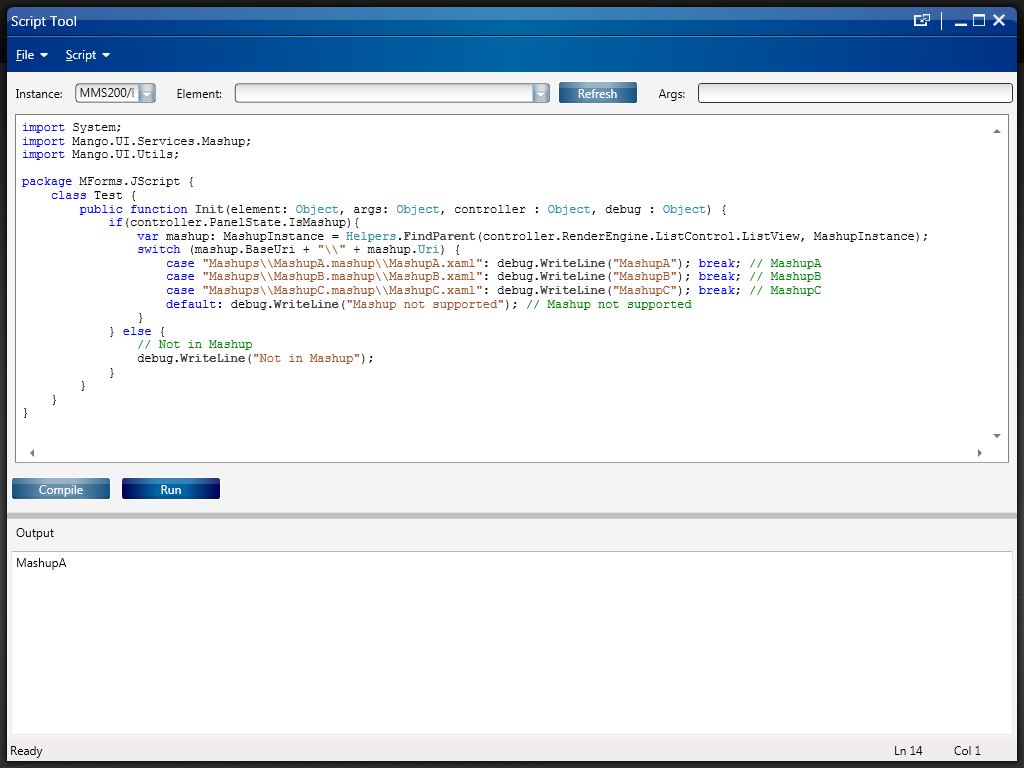
Here’s my sample source code:

import System;
import Mango.UI.Services.Mashup;
import Mango.UI.Utils;

package MForms.JScript {
    class Test {
        public function Init(element: Object, args: Object, controller : Object, debug : Object) {
            if (controller.PanelState.IsMashup){
                var mashup: MashupInstance = Helpers.FindParent(controller.RenderEngine.ListControl.ListView, MashupInstance);
                switch (mashup.BaseUri + "\\" + mashup.Uri) {
                    case "Mashups\\MashupA.mashup\\MashupA.xaml": debug.WriteLine("MashupA"); break// MashupA
                    case "Mashups\\MashupB.mashup\\MashupB.xaml": debug.WriteLine("MashupB"); break// MashupB
                    case "Mashups\\MashupC.mashup\\MashupC.xaml": debug.WriteLine("MashupC"); break// MashupC
                    default: debug.WriteLine("Mashup not supported"); // Mashup not supported
                }
            } else {
                // Not in Mashup
                debug.WriteLine("Not in Mashup");
            }
        }
    }
}

Here are screenshots of the result:
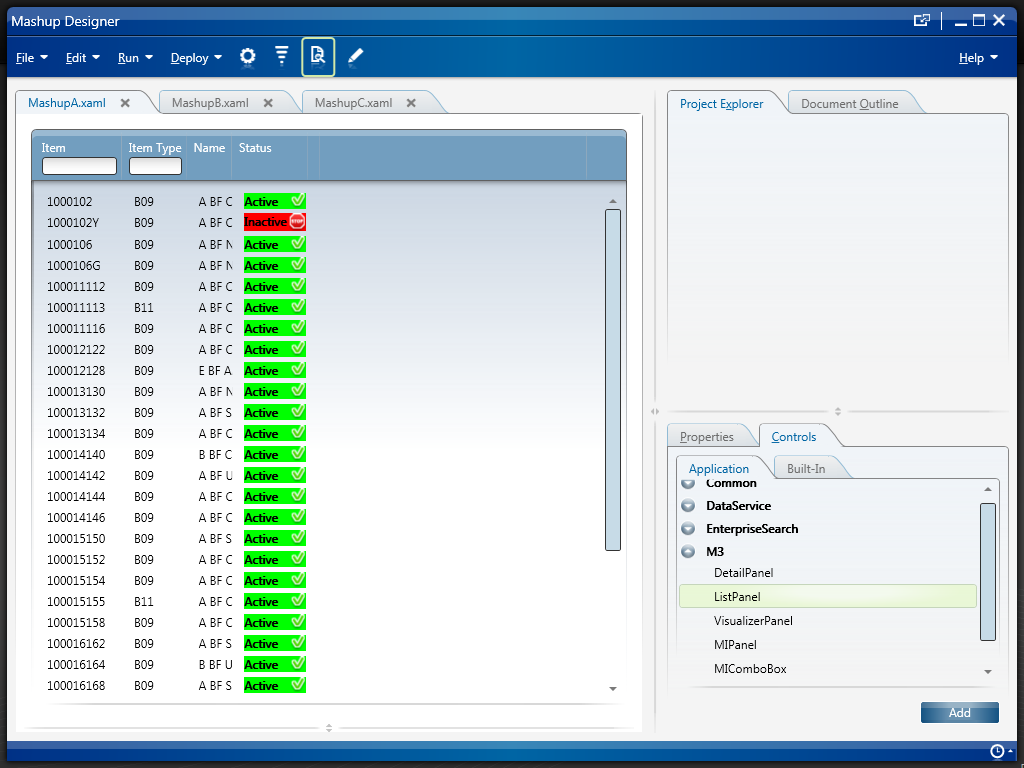
Thanks to karinpb, Peter K, and Joakim I for their help.

That’s it!

How to get the user password in a Smart Office script

Here is a solution to get the Lawson Smart Office user’s password with a Personalized Script.

This solution is interesting in scenarios where at runtime we need the current user’s password to dynamically integrate to external systems, for example to connect to a network drive, to connect to a secure website, to execute SQL, to call web services, etc. Also, this solution is interesting to call M3 API or to trigger PFI flows for early versions of Lawson Smart Office that don’t have those native adapters; late versions of Smart Office have native adapters to call M3 API and to trigger PFI flows without the need to obtain the user’s password.

Follow this link to Geiger’s blog to see the solution: How to get the user password in a Smart Office script.

Lawson Learning courses

Lawson Learning offers various courses for learning how to create Mashups and Scripts for Lawson Smart Office. To see the list of available courses:

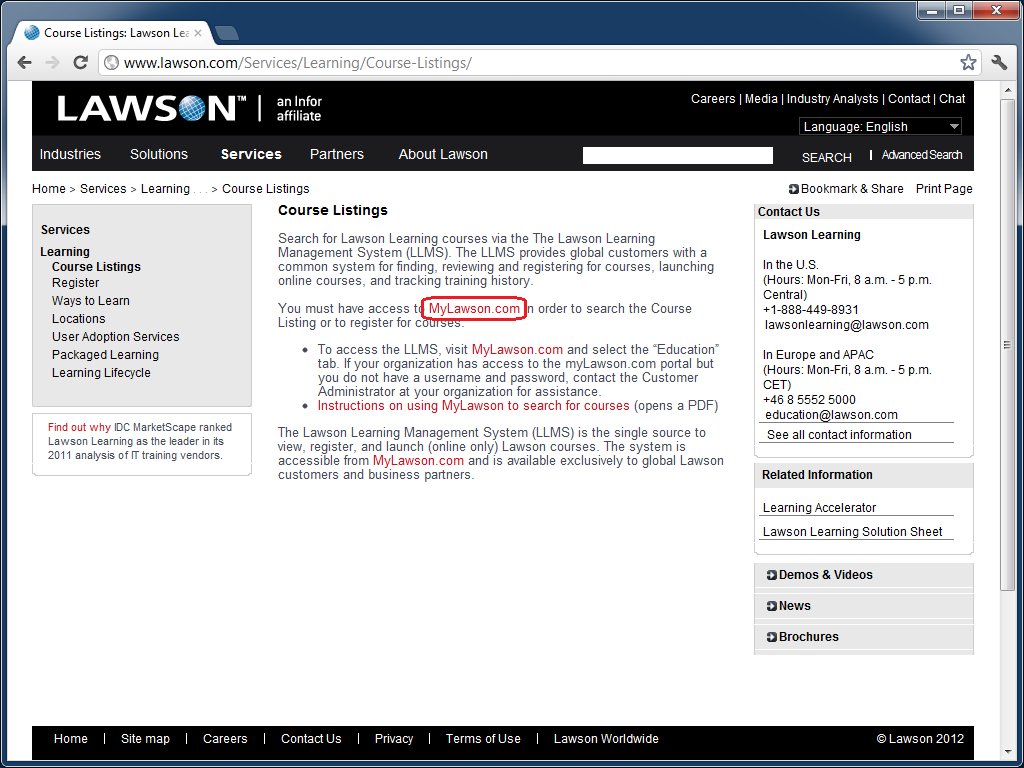
  1. Go to http://www.lawson.com/
  2. Select Services > Course Listings:
  3. Select MyLawson.com:
  4. Login with your MyLawson.com account.
  5. Select the Education tab:
  6. Go to Search and Register for Training and click English:
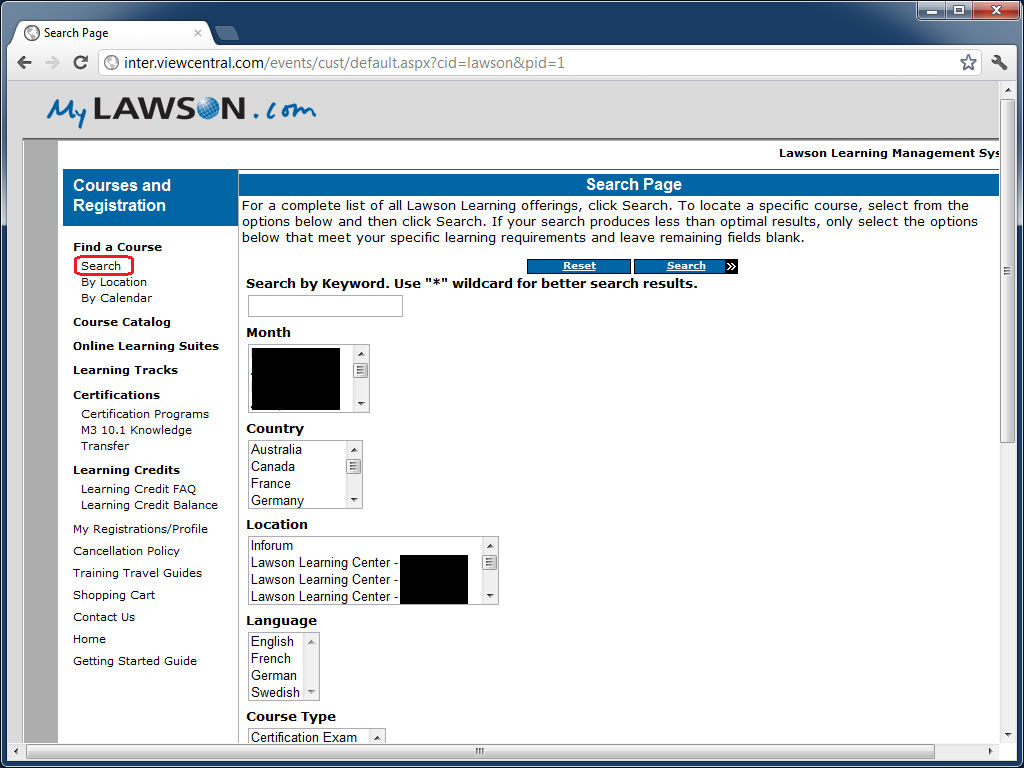
  7. Click on Search to find a course:
  8. Search by keyword Mashup, or Script.

The courses will be listed alphabetically, for example:

  • Lawson Mashup Designer
  • Mashup Designer
  • Smart Office Personalized Script M3

That’s it!

UPDATE 2012-10-16: Alternatively, and more simply, you can go directly to http://inter.viewcentral.com/events/cust/default.aspx?cid=lawson

UPDATE 2012-12-05: The direct link seems to have moved to http://inter.viewcentral.com/events/cust/default.aspx?cid=lawson&pid=1

Self-configuration for Smart Office Scripts

Here is a trivial solution to implement Personalized Scripts for Lawson Smart Office that self-configure based on the program they are being executed in.

Problem

We often implement scripts which functionality can be applied to different M3 programs. For example, a script that makes a phone call based on the phone number displayed on the screen could be applied to any M3 program that has a phone number (Customers, Suppliers, etc.). As another example, a script that shows an address on Google Maps could be applied to any M3 program that has an address (CRS610/E, CRS622/E, etc.).

We could make one copy of the script for each target M3 program, but that would be a maintenance nightmare.

We could make the script re-usable and pass settings to the script, but that would require the installer to manually define the settings, which is time consuming and error prone.

As a general problem, I want to make a script re-usable and with zero configuration so it can be used anywhere in M3 where its functionality is needed.

Solution

The trivial solution is to pre-compute all the possible settings in advance, and apply the corresponding settings at runtime. We dynamically determine in which program we are currently executing the script by reading the HostTitle variable.

I call it a self-configuration script.

Pseudo-code:

HostTitle = controller.RenderEngine.Host.HostTitle
if (HostTitle = X) then { SettingsX }
if (HostTitle = Y) then { SettingsY }
if (HostTitle = Z) then { SettingsZ }

Advantages

The advantage is reduced installation. In some cases we could completely eliminate configuration.

It’s also time saving, and error proof.

And it’s closer to plug’n play and Autonomic Computing.

Example

I had implemented a script that performs address validation.

The script checks the address that is entered by the user with a third-party software that validates if the address is correct or not.

The script needs to get a reference to the address fields: Address line 1 (CUA1), Address line 2 (CUA2), City (TOWN), State (ECAR), etc. In CRS610/E those fields will be WRCUA1, WRCUA2, WRTOWN, and WRECAR. Whereas in CRS622/E those fields will be WWADR1, WWADR2, WWTOWN, and WWECAR.

The fields are different in each M3 program. So I pre-computed the field names of the eight M3 programs and panels where I would be executing the script (CRS610/E, CRS235/E1, CRS300/E, CRS622/E, MNS100/E, OIS002/E, OPS500/I, and SOS005/E), and I hard-coded all the possible values in the script.

Sample source code

Here is part of the source code of my self-configuration script for address validation:

var HostTitle = controller.RenderEngine.Host.HostTitle;
var settings = {};

if (HostTitle.IndexOf('CRS610/E') > 0) {
     // Customer. Open - CRS610/E
     settings = {
         FirmName: 'WRCUNM',
         AddressLine1: 'WRCUA1',
         AddressLine2: 'WRCUA2',
         AddressLine3: 'WRCUA3',
         AddressLine4: 'WRCUA4',
         City: 'WRTOWN',
         State: 'WRECAR',
         PostalCode: 'WRPONO',
         Country: 'WRCSCD',
         Latitude: '',
         Longitude: ''
     };
} else if (HostTitle.IndexOf('CRS622/E') > 0) {
     // Supplier. Connect Address - CRS622/E
     settings = {
         FirmName: 'WWSUNM',
         AddressLine1: 'WWADR1',
         AddressLine2: 'WWADR2',
         AddressLine3: 'WWADR3',
         AddressLine4: 'WWADR4',
         City: 'WWTOWN',
         State: 'WWECAR',
         PostalCode: 'WWPONO',
         Country: 'WWCSCD',
         Latitude: 'WEGEOY',
         Longitude: 'WEGEOX'
     };
} else if (HostTitle.IndexOf('OIS002/E') > 0) {
     // Customer. Connect Addresses - OIS002/E
     settings = {
         FirmName: 'WRCUNM',
         AddressLine1: 'WRCUA1',
         AddressLine2: 'WRCUA2',
         AddressLine3: 'WRCUA3',
         AddressLine4: 'WRCUA4',
         City: 'WRTOWN',
         State: 'WRECAR',
         PostalCode: 'WRPONO',
         Country: 'WRCSCD',
         Latitude: '',
         Longitude: ''
     };
} else if (HostTitle.IndexOf('CRS235/E1') > 0) {
     // Internal Address. Open - CRS235/E1
     settings = {
         FirmName: 'WWCONM',
         AddressLine1: 'WWADR1',
         AddressLine2: 'WWADR2',
         AddressLine3: 'WWADR3',
         AddressLine4: 'WWADR4',
         City: 'WWTOWN',
         State: 'WWECAR',
         PostalCode: 'WWPONO',
         Country: 'WWCSCD',
         Latitude: 'WEGEOY',
         Longitude: 'WEGEOX'
     };
} else if (HostTitle.IndexOf('MNS100/E') > 0) {
     // Company. Connect Division - MNS100/E
     settings = {
         FirmName: 'WWCONM',
         AddressLine1: 'WWCOA1',
         AddressLine2: 'WWCOA2',
         AddressLine3: 'WWCOA3',
         AddressLine4: 'WWCOA4',
         City: 'WWTOWN',
         State: 'WWECAR',
         PostalCode: 'WWPONO',
         Country: 'WWCSCD',
         Latitude: '',
         Longitude: ''
     };
} else if (HostTitle.IndexOf('CRS300/E') > 0) {
     // Ship-Via Address. Open - CRS300/E
     settings = {
         FirmName: 'WWCONM',
         AddressLine1: 'WWADR1',
         AddressLine2: 'WWADR2',
         AddressLine3: 'WWADR3',
         AddressLine4: 'WWADR4',
         City: 'WWTOWN',
         State: 'WWECAR',
         PostalCode: 'WWPONO',
         Country: 'WWCSCD',
         Latitude: '',
         Longitude: ''
     };
} else if (HostTitle.IndexOf('SOS005/E') > 0) {
     // Service Order. Connect Delivery Address - SOS005/E
     settings = {
         FirmName: 'WPCONM',
         AddressLine1: 'WPADR1',
         AddressLine2: 'WPADR2',
         AddressLine3: 'WPADR3',
         AddressLine4: 'WPADR4',
         City: 'WPTOWN',
         State: 'WPECAR',
         PostalCode: 'WPPONO',
         Country: 'WPCSCD',
         Latitude: '',
         Longitude: ''
     };
} else if (HostTitle.IndexOf('OPS500/I') > 0) {
     // Shop. Open - OPS500/I
     settings = {
         FirmName: 'LBL_L21T2',
         AddressLine1: 'WICUA1',
         AddressLine2: 'WICUA2',
         AddressLine3: '',
         AddressLine4: '',
         City: 'WICUA3',
         State: '',
         PostalCode: '',
         Country: 'WICUA4',
         Latitude: '',
         Longitude: ''
     };
} else {
     // M3 panel not supported
}

This has been tested in Lawson Smart Client (LSC), and in Lawson Smart Office (LSO).

Additionally, you can discriminate LSC vs. LSO with:

if (Application.Current.MainWindow.Title == 'Lawson Smart Client') {
 // running in LSC (not LSO)
}

That’s it!

UPDATE

UPDATE 2012-07-24: We can also use controller.RenderEngine.PanelHeader to get just the program and panel (for example: CRS610/B1) instead of the entire host title; the result is a shorter syntax:

var PanelHeader = controller.RenderEngine.PanelHeader;
if (PanelHeader == 'CRS610/E') {
   // CRS610/E
} else if (PanelHeader == 'CRS622/E') {
   // CRS622/E
} else if (PanelHeader == 'OIS002/E') {
   // OIS002/E
} else if (PanelHeader == 'CRS235/E1') {
   // CRS235/E1
} else {
   // not supported
}

Write to the Log file from a Smart Office Script

Here is an unofficial technique to write to the Lawson Smart Office log file from a Personalized Script. Smart Office uses the Apache log4net library to write to the log file and we can similarly write to the log file from our scripts. Before using the techniques of this blog you must acknowledge my disclaimer.

The JScript.NET example comes from the log4net Source Distribution at:

log4net\examples\net\1.1\Tutorials\ConsoleApp\js\src\LoggingExample.js

First, we get a reference to the Smart Office logger via Mango.Core:

var log: log4net.ILog = Mango.Core.LogManager.GetLogger(System.Reflection.MethodBase.GetCurrentMethod().DeclaringType);

Then, we can write to the log file in any of the log levels:

log.Info("Hello World!");
log.Debug("This is a Debug");
log.Error("This is an Error");
log.Fatal("This is Fatal");
log.Warn("This is a Warning");

We should check if the logger is enabled for that level:

if (log.IsInfoEnabled) log.Info("Hello World!");
if (log.IsDebugEnabled) log.Debug("This is a Debug");
if (log.IsErrorEnabled) log.Error("This is an Error");
if (log.IsFatalEnabled) log.Fatal("This is Fatal");
if (log.IsWarnEnabled) log.Warn("This is a Warning");

The log file can be opened with Smart Office > Help > About Lawson Smart Office > View log file:

It opens in Notepad in Lawson Smart Office 9.1.2.x:

And it opens in the Log Viewer in the newer Lawson Smart Office 9.1.3.x:

For more information, the Apache log4net SDK Documentation details all the ILog Members.

To know the full path and file name of the log file, get this value:

Mango.Core.Storage.FileStorageMachineOnly.Current.FullFilePath("LawsonClient.log")

For example, in my computer the full path and file name to the Smart Office log file is:

C:\Users\12229\AppData\Local\Apps\2.0\Data\79O176HR.9E2\N43AOMBD.0HB\http..tion_201b89ff2ddb7d50_0009.0001_aca28e931f10a84f\Data\LawsonClient.log

Also, you can use a tail program such as Tail for Win32 to monitor the log file:

Here’s the complete source code of my sample:

import System;
import Mango;
import log4net;

package MForms.JScript {
    class MyLogTest {
        public function Init(element: Object, args: Object, controller: Object, debug: Object) {
            debug.WriteLine(Mango.Core.Storage.FileStorageMachineOnly.Current.FullFilePath("LawsonClient.log")); // filename + path
            var log: log4net.ILog = Mango.Core.LogManager.GetLogger(System.Reflection.MethodBase.GetCurrentMethod().DeclaringType);
            if (log.IsInfoEnabled) log.Info("Hello World!");
            if (log.IsDebugEnabled) log.Debug("This is a Debug");
            if (log.IsErrorEnabled) log.Error("This is an Error");
            if (log.IsFatalEnabled) log.Fatal("This is Fatal");
            if (log.IsWarnEnabled) log.Warn("This is a Warning");
        }
    }
}

Note: I have successfully tested this in Smart Office 9.1.2.x and 9.1.3.x.

That’s it!
Detect entry mode in Smart Office script

Here is a solution for a Script in Lawson Smart Office to detect the entry mode of an M3 panel: 1-Create, 2-Change, 3-Copy, 4-Delete, or 5-Display.

Scenario

This solution is useful for a scenario like this. Suppose your script dynamically adds an input field to an M3 panel. The input field could be used for example to enter a discount amount which will re-calculate a net value in another field. You would like to either enable that input field so that it becomes editable for the user, either disable it so that it is read-only. That will match the behavior of the M3 panel, for better usability. For that, you will need to tell apart if the user entered the M3 panel in Change mode or in Display mode.

Detect the entry mode

Ideally, we would like to use an API in Smart Office like GetEntryMode() that would return the entry mode. But there is no such API.

Otherwise, we would like to simply read the Control’s properties such as IsReadOnly or IsEnabled. But somehow they incorrectly return false.

The workaround is to read the LSTOPT value that is sent by the M3 panel when it makes the HTTP Request to the M3 server. That value is sent from panels A and B. Note that the option Create returns -1 (negative) instead of 1 (positive).

function OnRequesting(sender: Object, e: CancelRequestEventArgs) {
    if (e.CommandType == 'LSTOPT') {
        e.CommandValue // the entry mode: -1, 2, 3, 4, or 5
    }
}

Set the value

Once we get the value from panels A or B, we have to store it somewhere because Smart Office will unload the script and our value off memory when it executes the said Option and the value will not be available anymore in subsequent panels. We can use the InstanceCache to store the value in the current Smart Office session. The value will then be available in panels E, F, G, etc. In the following example I called my key LSTOPT but you can choose another one:

InstanceCache.Add(controller, 'LSTOPT', e.CommandValue);

Get the value

Once we are in panels E, F, G, etc. we retrieve the value from the InstanceCache like this:

if (InstanceCache.ContainsKey(controller, 'LSTOPT')) {
    var LSTOPT = InstanceCache.Get(controller, 'LSTOPT'); // get the entry mode
    if (LSTOPT == -1) {
        // Create
    } else if (LSTOPT == 2) {
        // Change
    } else if (LSTOPT == 3) {
        // Copy
    } else if (LSTOPT == 4) {
        // Delete
    } else if (LSTOPT == 5) {
        // Display
    } else {
        // entry mode unknown
    }
} else {
     // entry mode not set
}

Installation

This script has a getter and a setter:

  • The setter must be placed in the OnRequesting event handler of panel A or B.
  • The getter must be attached in the panel (E, F, G, etc.) where you want to know the entry mode.

Tests

I tried this technique in the following conditions:

  • The technique works whether the user selects the option from the Options menu, or from double-clicking a record in panel B, or by selecting the option in the right-click context menu.
  • Also, it works whether the users enters the M3 program via panel A or via panel B.
  • Also, it works with multiple instances of the M3 program running at the same time.
  • Also, it works with different M3 programs using the same script.

Sample source code

Here is a sample source code for the setter:

import MForms;

package MForms.JScript {
	class EntryModeSetter {
		var controller;
		public function Init(element: Object, args: Object, controller: Object, debug: Object) {
			this.controller = controller;
			controller.add_Requesting(OnRequesting);
			controller.add_Requested(OnRequested);
		}
		function OnRequesting(sender: Object, e: CancelRequestEventArgs) {
			if (e.CommandType == 'LSTOPT') {
				InstanceCache.Add(controller, 'LSTOPT', e.CommandValue); // set the entry mode
			}
		}
		function OnRequested(sender: Object, e: RequestEventArgs) {
			sender.remove_Requesting(OnRequesting);
			sender.remove_Requested(OnRequested);
		}
	}
}

Here is a sample source code for the getter:

import MForms;

package MForms.JScript {
	class EntryModeGetter {
		public function Init(element: Object, args: Object, controller: Object, debug: Object) {
			if (InstanceCache.ContainsKey(controller, 'LSTOPT')) {
				var LSTOPT = InstanceCache.Get(controller, 'LSTOPT'); // get the entry mode
				if (LSTOPT == -1) {
					// Create
				} else if (LSTOPT == 2) {
					// Change
				} else if (LSTOPT == 3) {
					// Copy
				} else if (LSTOPT == 4) {
					// Delete
				} else if (LSTOPT == 5) {
					// Display
				} else {
					// entry mode unknown
				}
			} else {
				// entry mode not set
			}
		}
	}
}

That’s it!

Cash drawer integration with Smart Office Script

Here is a demo video of the integration I implemented for one of our customers between a cash drawer and Lawson Smart Office using a Script. (If you want to skip the talk, jump to time stamp 3:31 in the video to see the cash drawer open.)

The result is a single cash drawer controlled by multiple Points of Sales throughout the showroom. Each Point of Sales runs Smart Office. The solution requires authorization (who can access the cash drawer) and auditing (who opened the cash drawer when) for security purposes. For the user its just a click on a new button Open Register.

I implemented the solution as client/server: the clients are Personalized Scripts in JScript.NET for Smart Office, the server is a custom Java program connected to the cash drawer with JavaPOS and a Serial cable, a custom bridge between .NET and Java made with a tiny HTTP server, and Properties file.

Tools to develop Smart Office Scripts

I often get the question about which tool do I use to develop Scripts for Lawson Smart Office. Here’s my list of tools.

Smart Office Script Tool

The Smart Office Script Tool comes with all installations of Smart Office and can be run with mforms://jscript. It is basically the only tool you need to develop Scripts for Smart Office. It creates a simple JScript.NET source code template (File > New), it shows the list of current Elements with their Name, Control Type, position, and value, it has syntax coloring, it can hook to an External Editor, you can play with the Arguments, it has a debug console, and most importantly it has the Compile and Run buttons.

Here is a screenshot of a template script compiled and run:

Notepad++

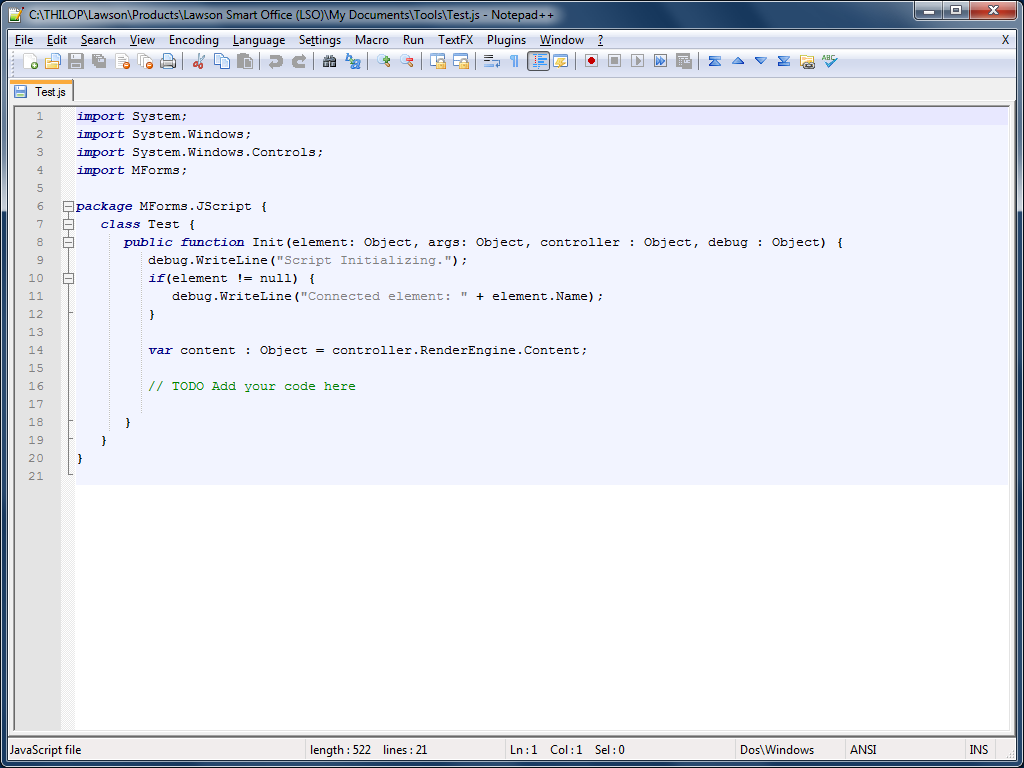
I use Notepad++ for most everything text editing; it’s my vi. It has syntax coloring for JavaScript (which is close enough to JScript.NET) and C#. I hook it to the Script Tool (Script Tool > Script > Use external editor). Also, I use Notepad++ Plugin Manager (Plugins menu) to add the TextFX, Compare, XML/HTML, and HEX plugins.

Here is a screenshot of a simple script in Notepad++:

Sublime Text

I also started using Sublime Text 2 as an alternate text editor. I like the more readable syntax coloring, and the Minimap on the right.

Here is a screenshot of a simple script in Sublime Text 2:

Smart Office SDK

The Smart Office SDK is the premier source of information. We can see the official public interface, descriptive comments, and we can search for classes and members. Right now it’s only available to Infor employees and select partners.

.NET Reflector

Red Gate Software .NET Reflector is a MUST for any .NET development. I strongly recommend it. You can search for a Type, get the Class hierarchy, Analyze a Class, and the best is that you can disassemble the binary.

The Standard $35 version is enough for my needs. You will get the most value if you load the DLLs from Smart Office. The folder that contains the DLLs can be found with Smart Office > Help > About Lawson Smart Office > View log file. Then you have to go up and down the folder structure to find all the DLLs, or do a Search. The folder names have an ID that’s different on each Smart Office installation. On my laptop the paths are:

C:\Users\12229\AppData\Local\Apps\2.0\Data\79O176HR.9E2\N43AOMBD.0HB\http..tion_689b45b5b21234e1_0009.0001_46f64bcdec4dff2a\Data\
C:\Users\12229\AppData\Local\Apps\2.0\3YDTAV5W.D33\Q01ZYJYT.RW0\http..tion_689b45b5b21234e1_0009.0001_46f64bcdec4dff2a\

Import the Smart Office DLLs into .NET Reflector (File > Open Assembly) and start introspecting Smart Office. You can start with Mango.Core.dll, Mango.UI.dll, and MForms.dll. You can even make separate lists (File > Open Assembly List) of the different DLLs from the different versions of Smart Office.

Here is a screenshot of the Class for a B panel ListRow:

Microsoft .NET Framework Class Library

I refer extensively to Microsoft’s MSDN .NET Framework Class Library. When I need the API reference for a control (for example a TextBox) I just Google the following:

C# TextBox Class System.Windows.Controls site:microsoft.com

You will get the Inheritance Hierarchy, Syntax, Constructors, Properties, Methods, Events, Fields, and Examples.

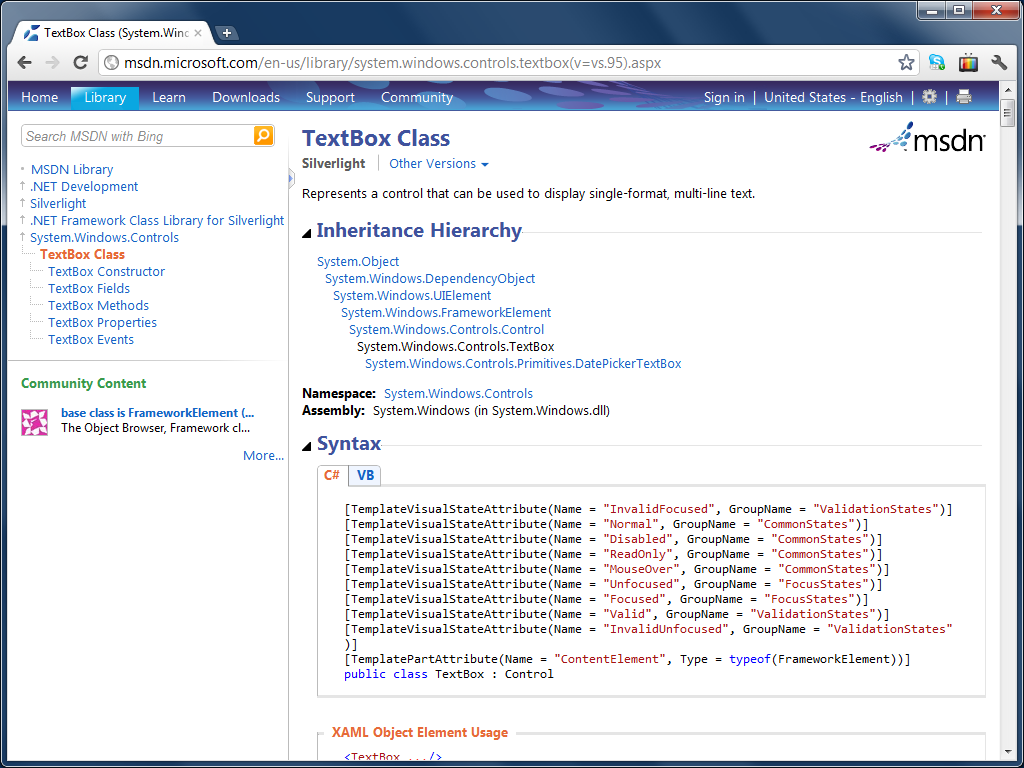
Here is a screenshot of the TextBox Class:

Inspect

The Microsoft Windows SDK provides the great Inspect tool to dynamically introspect a program. You can start if from Windows > Start > Programs > Microsoft Windows SDK > Tools > Inspect Object. You can point and click at any element of Smart Office and the Inspect tool will show you the control’s Name, Type, Value, place in the Object tree, siblings, etc.

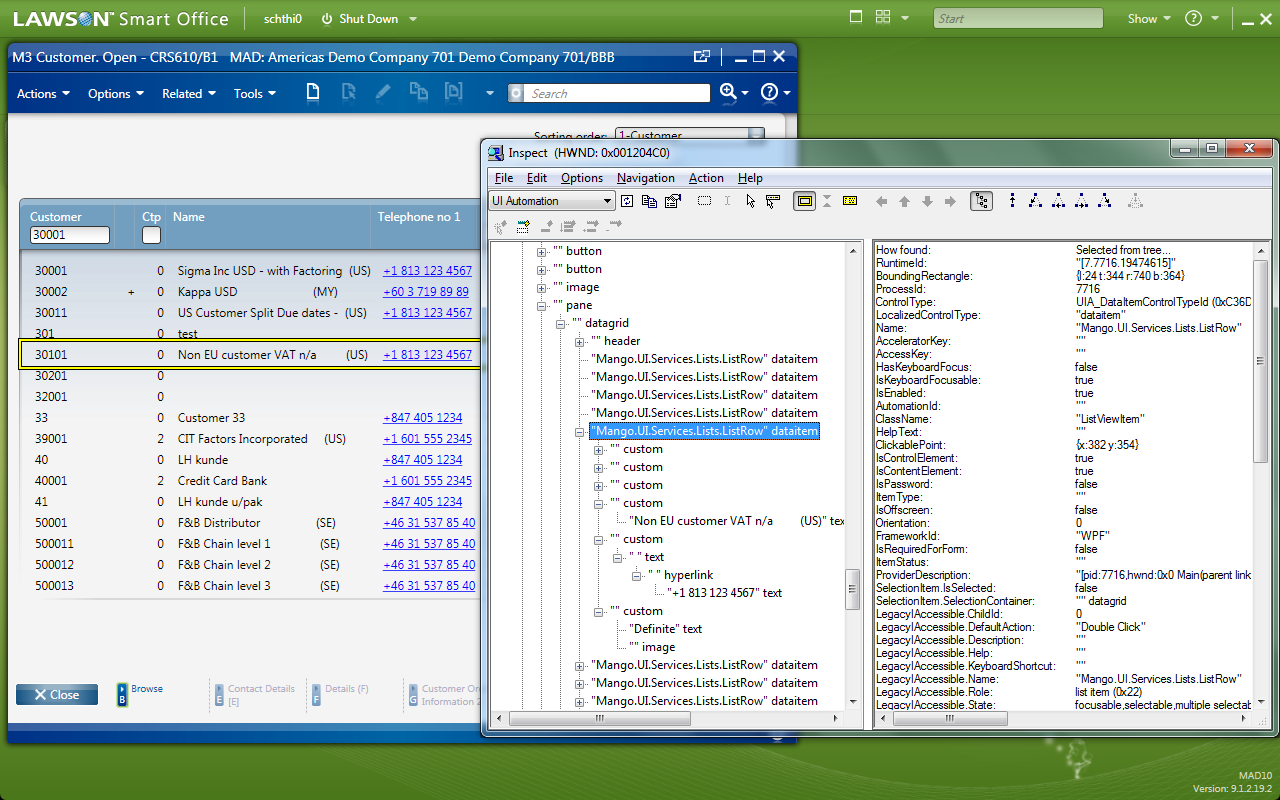
Here is a screenshot of the Inspect Tool highlighting in a yellow box a ListRow of a B panel:

UISpy

I have also used Microsoft UISpy but I changed laptops and I haven’t re-installed it yet.

Accessible Event Watcher

I have also used Microsoft Windows SDK Accessible Event Watcher (AccEvent). You can start it from Windows > Start > Programs > Microsoft Windows SDK > Tools > Accessible Event Watcher.

Here is a screenshot of AccEvent listening to my Smart Office clicks:

Microsoft C# Express

Sometimes I use Microsoft Visual C# 2010 Express . It doesn’t have support for JScript.NET but I can create compiled C# Scripts, for its IntelliSense autocompletion, and for the step by step debug options.

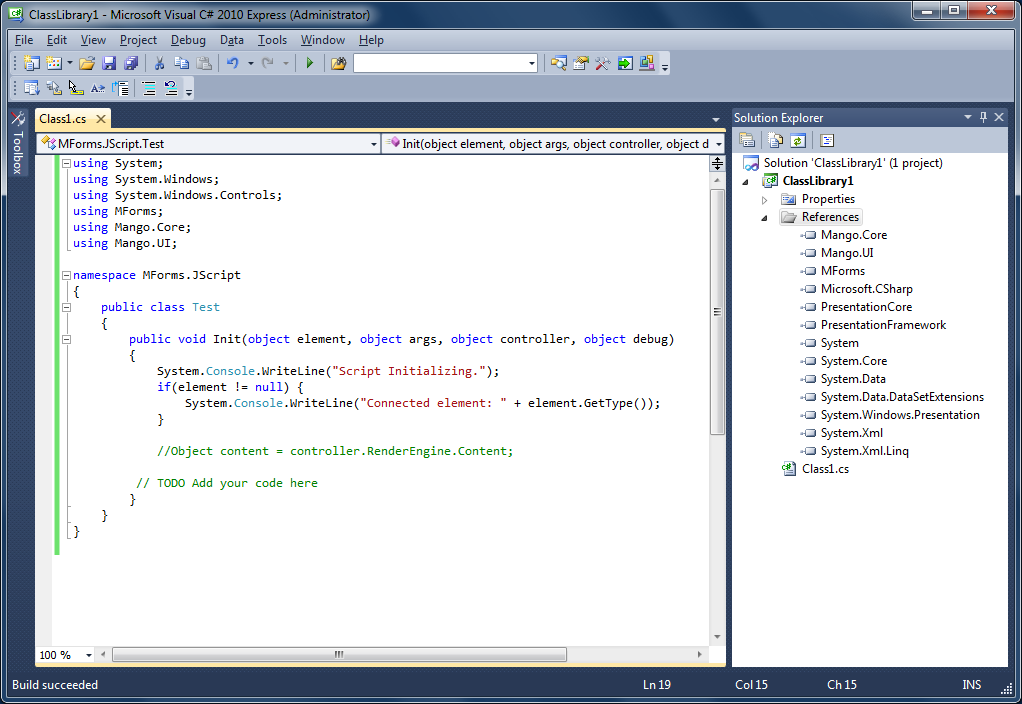
Here is a screenshot of a compiled Smart Office Script in C#:

Microsoft JScript.NET compiler

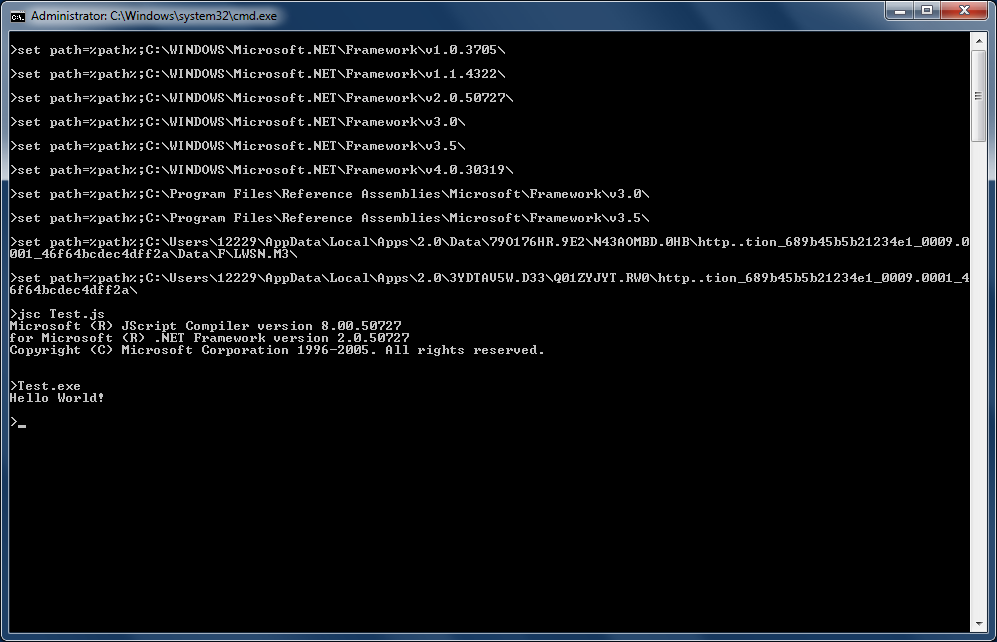
Sometimes I use jsc.exe to compile Scripts from the command line, outside of Smart Office. You need to reference various .NET paths. I have these ones in my laptop:

C:\WINDOWS\Microsoft.NET\Framework\v1.0.3705\
C:\WINDOWS\Microsoft.NET\Framework\v1.1.4322\
C:\WINDOWS\Microsoft.NET\Framework\v2.0.50727\
C:\WINDOWS\Microsoft.NET\Framework\v3.0\
C:\WINDOWS\Microsoft.NET\Framework\v3.5\
C:\WINDOWS\Microsoft.NET\Framework\v4.0.30319\
C:\Program Files\Reference Assemblies\Microsoft\Framework\v3.0\
C:\Program Files\Reference Assemblies\Microsoft\Framework\v3.5\

Also, you can compile Smart Office Scripts from the command line if you reference the Smart Office DLL paths (see the .NET Reflector chapter above). They won’t always execute correctly as they will be missing the dynamic context of Smart Office.

Also, you can even reference a specific DLL like this:

jsc.exe /reference:Interop.SKYPE4COMLib.dll Test.js

Here is a screenshot that shows Hello World! from a Smart Office Script in JScript.NET compiled at the command line (note the extra print statement at the bottom):

Fiddler

Microsoft’s Fiddler tool is your HTTP best friend. It will capture HTTP traffic between Smart Office and M3. It will even capture and decrypt Smart Office’s encrypted traffic. For example, press F5 in CRS610/B to refresh the panel and you will see the HTTP Request to the MvxMCSvt servlet with all the values of the panel. Or for example, create a Script that makes an M3 API call and you will see the HTTP Request to MIAccess with all the Input and Output parameters. It’s fantastic for debugging!

Here is a screenshot that shows CRS610/B displaying a record:

Snoop

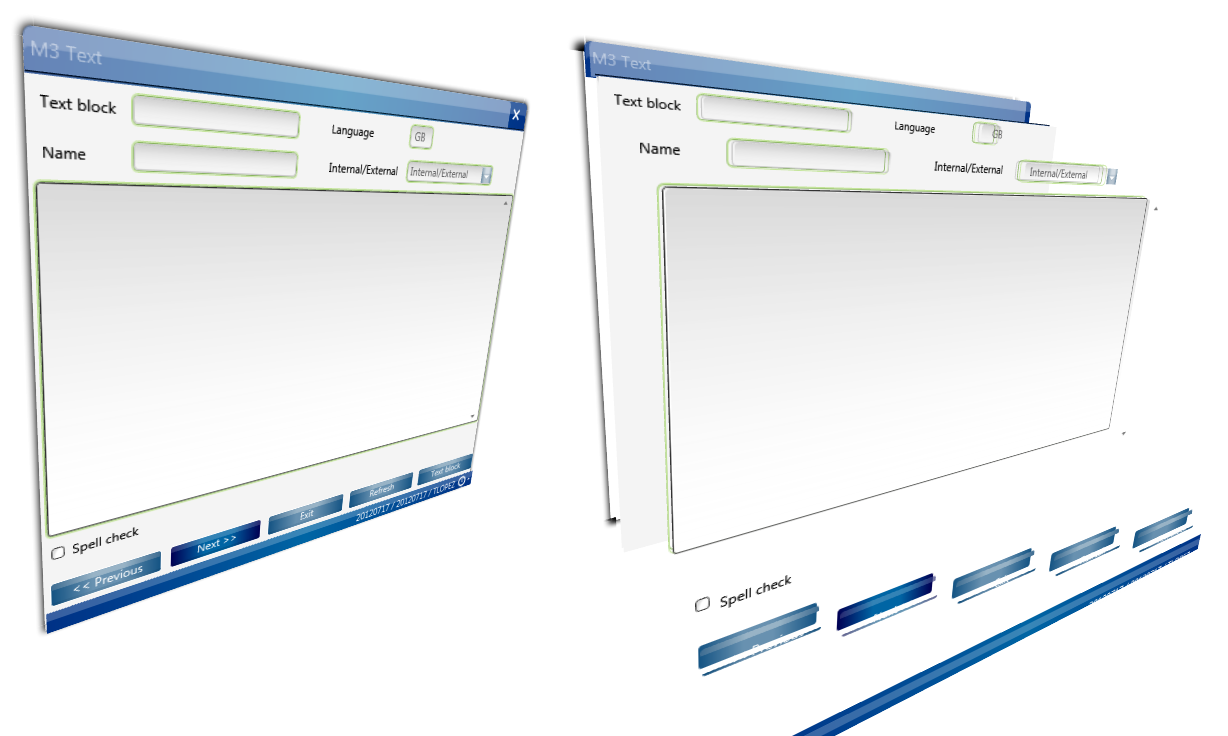
Snoop is another great WPF spying utility like the Inspect tool of the Microsoft Windows SDK.

Snoop also shows the 3D breakdown of how the controls are visually rendered hierarchically on the screen:

JetBrains

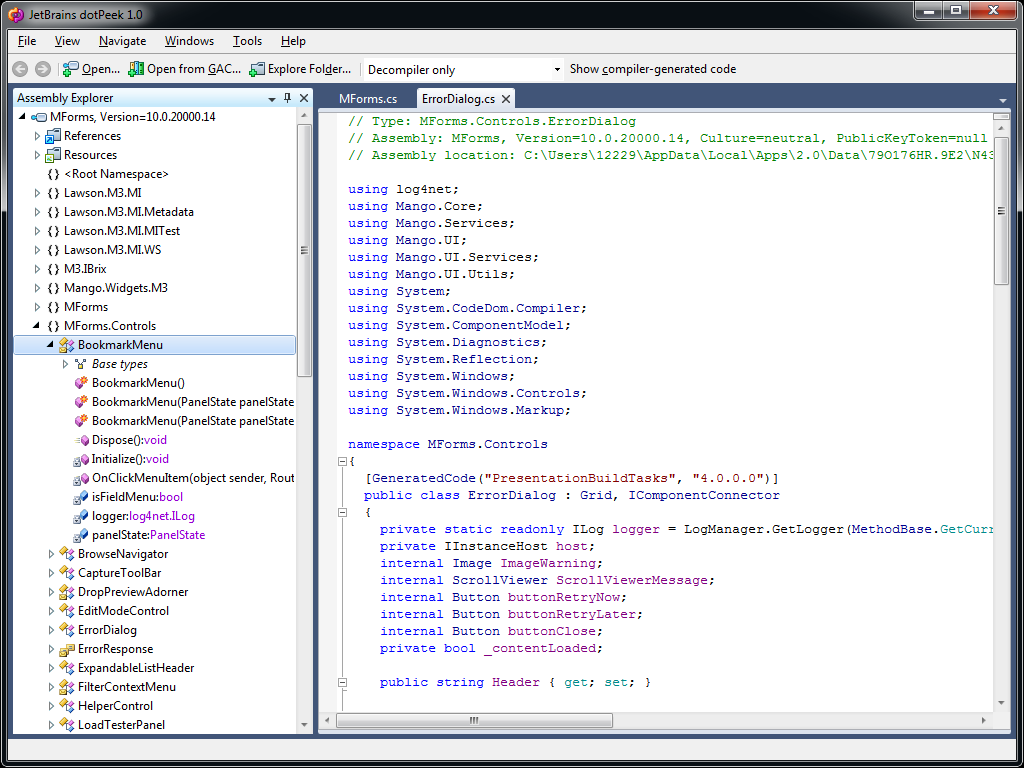
dotPeek is a free-of-charge .NET decompiler from JetBrains that can be used like Red Gate Reflector.

Disclaimer

The opinions expressed in this blog are my personal opinions only, and not those of Lawson nor Infor. By using recommendations from this blog your code might break with upgrades of Smart Office. To ensure your code won’t break, use only the Smart Office API which you can find in the Smart Office Developer’s Guide.

UPDATE 2012-04-24: Added paragraphs for Sublime Text 2, and Smart Office SDK.

UPDATE 2012-07-12: Added paragraphs for JetBrains .NET decompiler, and Snoop the WPF spy utility, following Karinpb‘s recommendation.

How to add a column to a list

In this article I illustrate a technique to dynamically add a column to the list of a B panel in M3 using a Personalized Script for Lawson Smart Office.

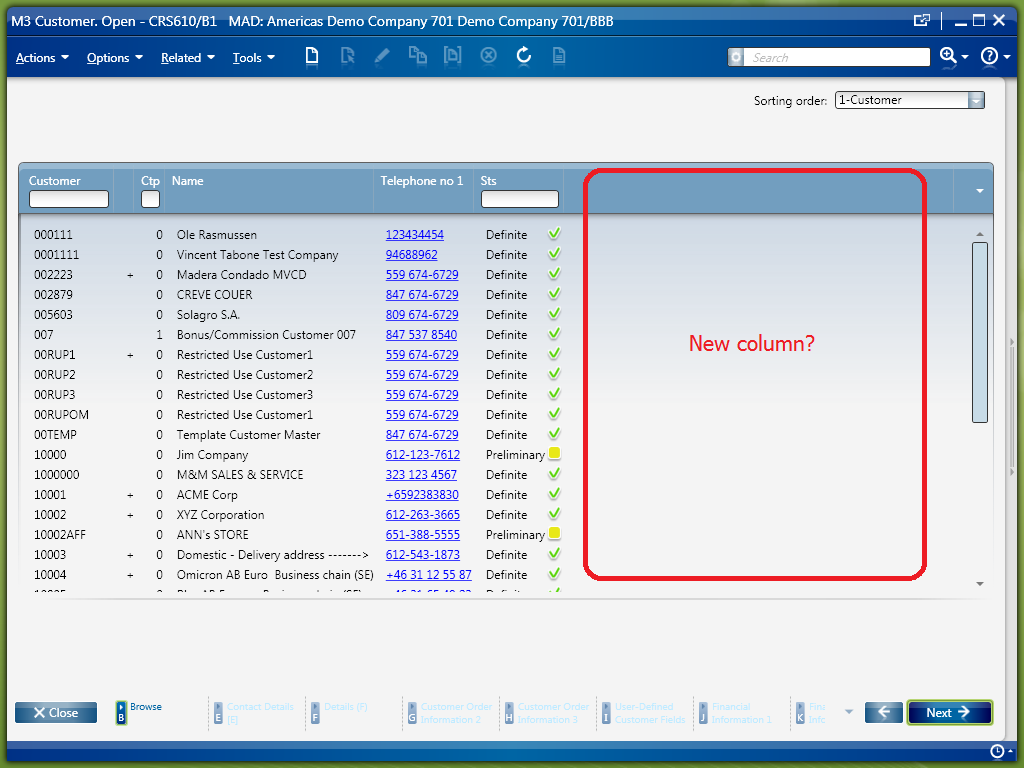
For example, suppose we want to add the column Country (CSCD) in CRS610/B1. None of the available Sorting orders (QTTP) displays the Country. How do we do?

This is the desired result:

1. Add a column by changing the View in CRS020

The first technique would be to add a column by simple configuration of the View in CRS020. But sometimes the specified M3 program is not configured for it. For instance, CRS610 is not configurable, whereas MMS200 is configurable as seen in this screenshot:

2. M3 modification

The second technique would be to add a column with a modification to the M3 Java source code and to the View Definition with MAK. But modifications may not be an option in certain M3 implementations.

3. Add a column programmatically with a script

The third technique would be to add a column dynamically with a Personalized Script for Lawson Smart Office.

Append the column

First, we get a reference to the list’s controls:

var listControl = controller.RenderEngine.ListControl; // MForms.ListControl
var listView = controller.RenderEngine.ListViewControl; // System.Windows.Controls.ListView
var columns = listView.View.Columns; // System.Windows.Controls.GridViewColumnCollection

Second, we append a new GridViewColumn to the ListView:

var gvch = new GridViewColumnHeader();
gvch.Content = "New Column";
var gvc = new GridViewColumn();
gvc.Header = gvch;
gvc.CellTemplateSelector = new ListCellTemplateSelector(columns.Count, listControl.Columns);
columns.Add(gvc);

Third, we increase each row’s array by one additional element:

var rows = listView.Items;
for (var i = 0; i < rows.Count; i++) {
	var row = rows[i];
	var oldArray = row.Items;
	var newArray = new String[columns.Count];
	oldArray.CopyTo(newArray, 0);
	row.Items = newArray;
	rows.RemoveAt(i);
	rows.Insert(i, row);
}

Finally, we can set our values in the new column:

listView.Items[0].Items[columns.Count - 1] = "Hello world 0";
listView.Items[1].Items[columns.Count - 1] = "Hello world 1";
listView.Items[2].Items[columns.Count - 1] = "Hello world 2";
listView.Items[3].Items[columns.Count - 1] = "Hello world 3";
listView.Items[4].Items[columns.Count - 1] = "Hello world 4";

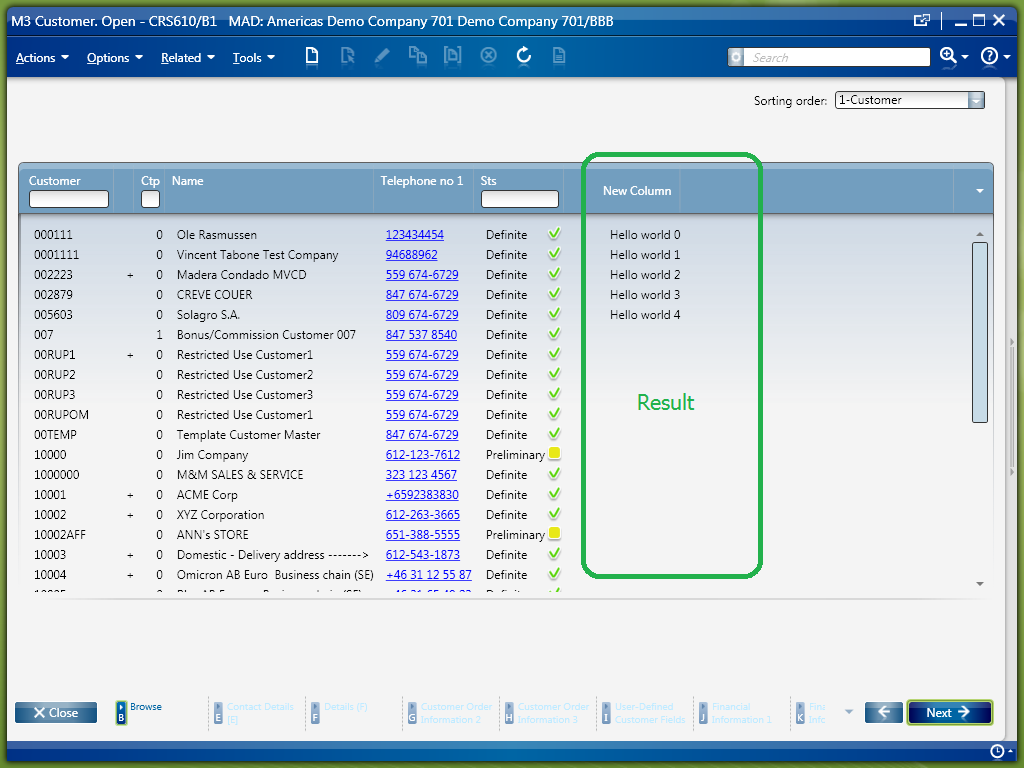
The result looks like this, with the Personalizations like Hyperlinks and Conditional Styles preserved:

The complete script looks like this:

Populate with data

Now we have to populate the column with actual data from M3. For that we can call an M3 API, execute SQL, or consume a Lawson Web Service. We can even use the API MDBREADMI to read an M3 table instead of using SQL.

In this article, I will just hard-code “Hello World” and I will let the reader choose the technique that best suits its needs because getting the data off M3 is not the point of this post.

Load more data on scroll view

Finally, we have to load data in increments as the user scrolls the view. Indeed, as the user scrolls down the list Smart Office loads the data in increments, without re-rendering the whole panel, for efficiency.

For that, we need the VisualTreeHelper to get a reference to the ScrollViewer:

var border = VisualTreeHelper.GetChild(listView, 0);
var grid = VisualTreeHelper.GetChild(border, 0);
var scrollViewer: ScrollViewer = VisualTreeHelper.GetChild(grid, 3); // System.Windows.Controls.ScrollViewer

Then, we have to attach to the ScrollViewer’s OnScrollChanged event:

scrollViewer.add_ScrollChanged(OnScrollChanged);
function OnScrollChanged(sender: Object, e: ScrollChangedEventArgs) {}

That event is fired either once, either consecutively twice depending on if new rows were added to the list or not. Only when e.VerticalChange==0 it means that new rows were added.

var oldCount, newCount;
function OnScrollChanged(sender: Object, e: ScrollChangedEventArgs) {
     if (e.VerticalChange != 0) {
         oldCount = listView.Items.Count;
     } else {
         newCount = listView.Items.Count;
         var diff = newCount - oldCount; // that many rows were just added to the list 
     }
}

Here’s an illustration:

Now we know exactly which rows are new:

var fromRowIndex = oldCount;
var toRowIndex = newCount - 1;
for (var i = fromRowIndex; i <= toRowIndex; i++) {
     listView.Items[i] // new row
}

Now we can load and show some data, like Hello + customer number:

var lastColumnIndex = columns.Count - 1;
for (var i = fromRowIndex; i <= toRowIndex; i++) {
     var row = listView.Items[i];
     var data = "Hello " + row.Item[0]; // Hello CUNO
     row.Items[lastColumnIndex] = data;
}

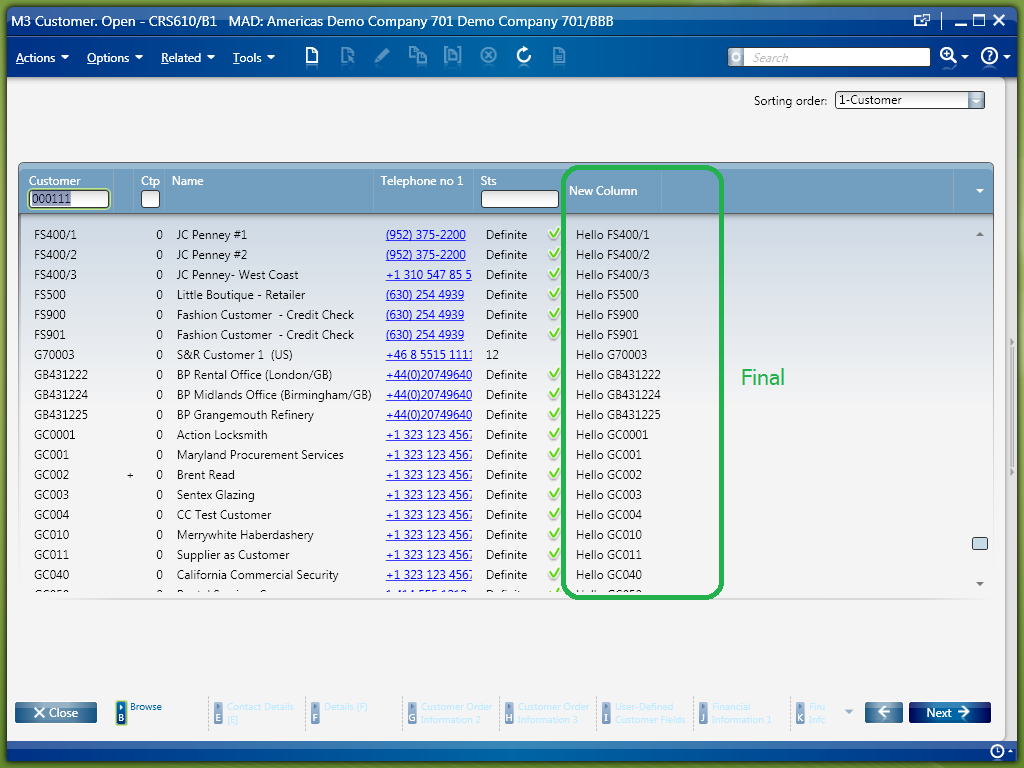
Here is a screenshot of the final result:

Here’s the complete source code:

 import System;
 import System.Windows;
 import System.Windows.Controls;
 import System.Windows.Media;
 import Mango.UI.Services.Lists;

 package MForms.JScript {
     class Test {

         var listView, oldCount;
         /*
             Main entry point.
         */
         public function Init(element: Object, args: Object, controller : Object, debug : Object) {
             try {
                 var listControl = controller.RenderEngine.ListControl; // MForms.ListControl
                 this.listView = controller.RenderEngine.ListViewControl; // System.Windows.Controls.ListView
                 var columns = listView.View.Columns; // System.Windows.Controls.GridViewColumnCollection

                 // append a new GridViewColumn to the ListView
                 var gvch = new GridViewColumnHeader();
                 gvch.Content = "New Column";
                 var gvc = new GridViewColumn();
                 gvc.Header = gvch;
                 gvc.CellTemplateSelector = new ListCellTemplateSelector(columns.Count, listControl.Columns);
                 columns.Add(gvc);

                 var fromRow = 0;
                 var toRow = listView.Items.Count - 1;
                 var newNbColumns = columns.Count;
                 var lastColumnIndex = columns.Count - 1;

                 // increase each row's array by one additional element
                 increaseRowsArray(fromRow, toRow, newNbColumns);

                 // load data in the new column of each row
                 loadData(fromRow, toRow, lastColumnIndex);

                 // find the ScrollViewer
                 var border = VisualTreeHelper.GetChild(listView, 0);
                 var grid = VisualTreeHelper.GetChild(border, 0);
                 var scrollViewer: ScrollViewer = VisualTreeHelper.GetChild(grid, 3); // System.Windows.Controls.ScrollViewer

                 // attach to the OnScrollChanged event
                 scrollViewer.add_ScrollChanged(OnScrollChanged);
                 scrollViewer.add_Unloaded(OnUnloaded);            

             } catch (ex: Exception) {
                 debug.WriteLine(ex);
             }
         }

         /*
             That event is fired either once, either consecutively twice depending on if new rows were added to the list or not.
             Only when e.VerticalChange==0 it means that new rows were added.
         */
         function OnScrollChanged(sender: Object, e: ScrollChangedEventArgs) {
             try {
                 if (e.VerticalChange != 0) {
                     oldCount = listView.Items.Count;
                 } else {
                     var fromRow = oldCount;
                     var toRow = listView.Items.Count - 1;
                     var newNbColumns = listView.View.Columns.Count;
                     var lastColumnIndex = listView.View.Columns.Count - 1;
                     increaseRowsArray(fromRow, toRow, newNbColumns);
                     loadData(fromRow, toRow, lastColumnIndex);
                 }
             } catch (ex: Exception) {
                 MessageBox.Show(ex);
             }
         }

         /*
             Increase each row's array by one additional element.
         */
         function increaseRowsArray(fromRow, toRow, newNbColumns) {
             var rows = listView.Items;
             for (var i = fromRow; i <= toRow; i++) {
                 var row = rows[i];
                 var oldArray = row.Items;
                 var newArray = new String[newNbColumns];
                 oldArray.CopyTo(newArray, 0);
                 row.Items = newArray;
                 rows.RemoveAt(i);
                 rows.Insert(i, row);
             }
         }

         /*
             Loads data in the list, from the specified row's index, to the specified row's index, at the specified column index.
         */
         function loadData(fromRow, toRow, columnIndex) {
             for (var i = fromRow; i <= toRow; i++) {
                 var data = "Hello " + listView.Items[i].Item[0]; // Hello CUNO
                 listView.Items[i].Items[columnIndex] = data;
             }
         }

         /*
             Cleanup
         */
         function OnUnloaded(sender: Object, e: RoutedEventArgs) {
             sender.remove_Unloaded(OnUnloaded);
             sender.remove_ScrollChanged(OnScrollChanged);
         }

     }
 }

That’s it! Special thanks to Peder W for the original solution.
UPDATE 2012-09-27

This script is deprecated. Refer to the latest script here.

Related articles