Mailbox Inbasket for corporate mobile phones

Here is a video that illustrates we can use the mailbox of mobile phones to take action in the Inbasket of ProcessFlow Integrator (PFI). The video is a working demo for the BlackBerry and dates from September 2009, but the concept is still valid today and could apply to iPhones and Android devices as well.

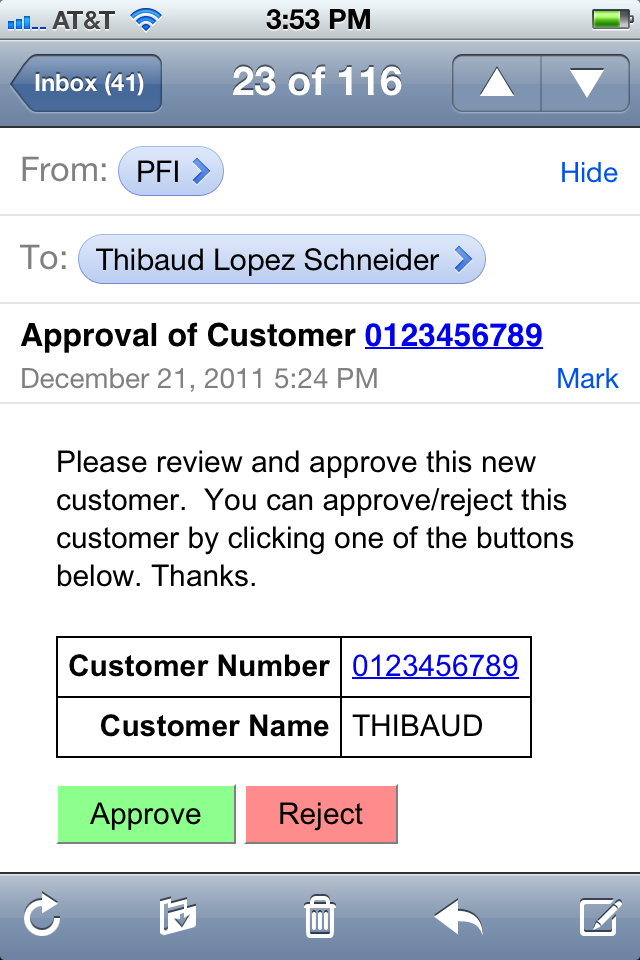
The scenario is the following. We have a workflow where approvers need to review certain information and take action, for example Approve or Reject. In this particular scenario the buttons to approve and reject are embedded in the email such that approvers can take action directly from their mailbox, i.e. we are not discussing the scenario of the Inbasket in Lawson Smart Office (LSO).

The reason to use emails instead of the Inbasket is that taking action from the mailbox works from mobile phones that have network access to the PFI server, such as corporate mobile phones.

An alternative to the mailbox for corporate mobile phones would to use the Mobile Inbasket.

Finally, the demo in the video challenges the user for authentication, but there is also a solution with single sign-on to skip the user/password part.

If you are interested in the solution, contact me for details.

Here is a screenshot for an iPhone:

Solution to avoid the Invalid login request in PFI

In the PDF paper Solution to avoid the Invalid login request I propose a solution to repeatedly trigger ProcessFlow Integrator (PFI) flows while maintaining authentication and while avoiding the error: “SecurityAuthenException: Invalid login request. You are already logged in and have a valid session”

How to customize the result of a ProcessFlow Service

In the PDF paper How to customize the result of a ProcessFlow Service I explain how to customize the content-type of a ProcessFlow Service trigger and propose different output formats depending on the user agent. The output could be a user-friendly HTML page for colorful reading, plain text for simple emails, or XML for post-processing in scripts. The reader could use this technique to produce other content-types such as Excel, CSV, PDF.

Comparison of solutions to trigger PFI flows

Here is a quick comparison of various solutions to trigger ProcessFlow Integrator (PFI) flows:

Technique Manual, Automatic, or Scheduled? M3 modification free?
M3 Java modification with MAK Automatic No
Application Messages in CRS420 (for existing messages) Automatic Yes
Application Messages in CRS420 (for new messages) Automatic No
Script in Smart Office (old technique) Manual Yes
Script in Smart Office (new technique) Manual Yes
External Program Connector (EPC) Automatic Yes
PF Scheduler Scheduled Yes
URL (email, browser, XHR, Document Links, LSO Shortcuts, etc.) Manual Yes
Mashup Manual Yes
Field Audit Trail Automatic ???
Event Hub Automatic Yes

Trigger PFI flows via EPC

As a reminder, there is a solution to trigger ProcessFlow Integrator (PFI) flows using External Program Connector (EPC) to avoid modifications to M3.

One traditional solution to trigger PFI flows from M3 is to make small modifications to the M3 Java source code with MAK. It only takes a few extra lines of code to trigger a PFI flow when an event happens in M3, for example when a new Customer is created in CRS610 or when an Item is changed in MMS001. But this solution is intrusive as it requires a modification to M3 which we strive to avoid to minimize maintenance.

Instead, we could use EPC. EPC is a reverse API where M3 sends XML messages to EPC on events such as Create, Change, and Copy. For that, we setup a Subscriber in EVS040, a Remote Server in EVS038, and a Subsystem Job in MNS051. Then we develop an EPC plugin in Java, outside of M3, to process the XML messages and to trigger the PFI flows. This new solution is non intrusive as it avoids modifications to the M3 source code. However, it requires the configuration of several M3 programs and the development of an EPC plugin in Java.

If anybody is interested in the EPC solution, please contact me for details.

Note: There is also a solution to trigger FPI flows via Field Audit Trail.

How to get CONO, DIVI, FACI in a Mashup

Here is the solution to get the current Company (CONO), Division (DIVI), and Facility (FACI) in a Mashup in Lawson Smart Office. Last week I wrote a post on How to get the current username in a Mashup. This week I post about CONO, DIVI, FACI:

  1. Add this namespace to the Mashup:
    xmlns:mforms=”clr-namespace:MForms;assembly=MForms”
  2. Get the values with this extension method:
    {mashup:UserContextValue Path=M3/Company}
    {mashup:UserContextValue Path=M3/Division}
    {mashup:UserContextValue Path=M3/Facility}
  3. Alternatively, you can use the field names:
    {mashup:UserContextValue Path=M3/CONO}
    {mashup:UserContextValue Path=M3/DIVI}
    {mashup:UserContextValue Path=M3/FACI}
  4. Use the value for example in a TextBlock:
    <TextBlock Text=”{mashup:UserContextValue Path=M3/Company}” />
    <TextBlock Text=”{mashup:UserContextValue Path=M3/Division}” />
    <TextBlock Text=”{mashup:UserContextValue Path=M3/Facility}” />

Here are the values you can get:
CONO | Company, CompanyName
DIVI | Division, DivisionName
FACI | Facility, FacilityName
WHLO | Warehouse, WarehouseName
LANC | Language
DTFM | DateFormat
DCFM | DecimalFormat
TIZO | TimeZone
CUNO | Customer
DEPT | Department
Menu
MenuVersion

Here is a screenshot of the result:

Special thanks to karinpb and Juan V of Spain for their help!

How to get the current username in a Mashup

Here is the solution to get the current username in a Mashup in Lawson Smart Office. Last week I wrote a post on How to get the current M3 profile in a Mashup which returns DEV, EDU, TST, PRD, etc. depending on which profile you are currently connected. This week I post about the username:

  1. Add this namespace to the Mashup:
    xmlns:Services=”clr-namespace:Mango.Services;assembly=Mango.Core”
  2. Then get the UserName like this:
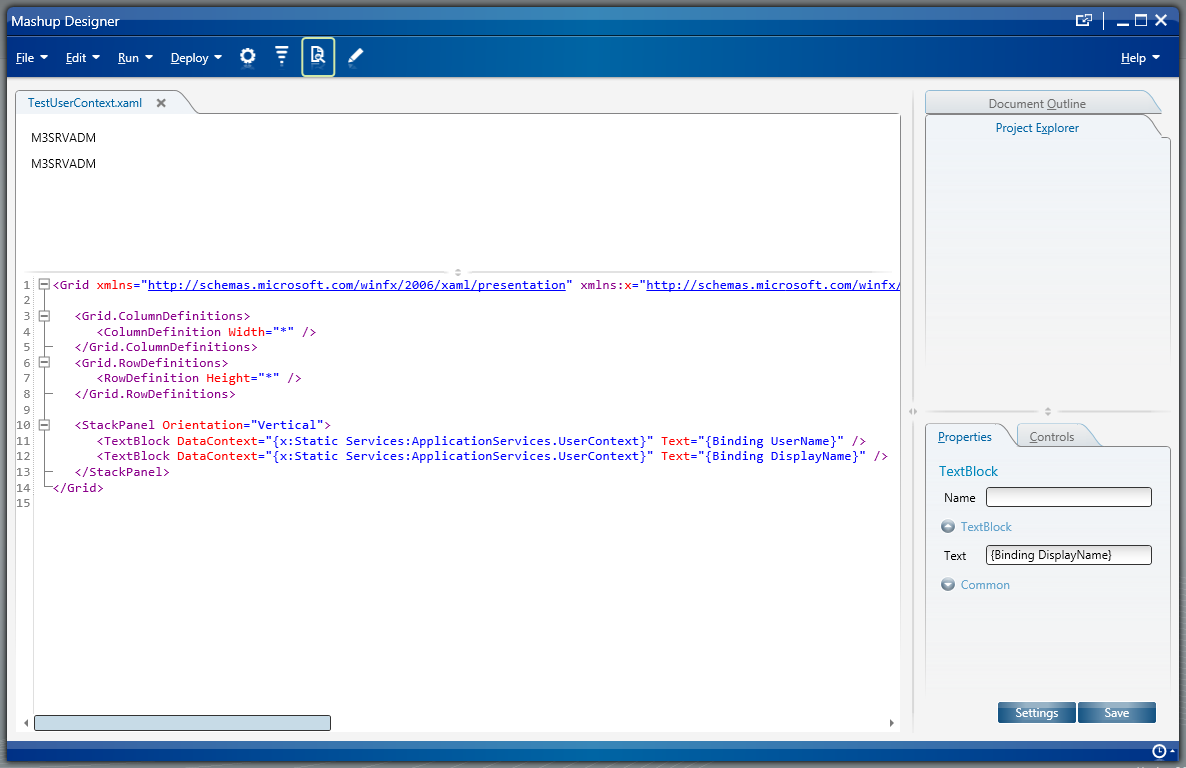
    <TextBlock DataContext=”{x:Static Services:ApplicationServices.UserContext}” Text=”{Binding UserName}” />
  3. There is also the DisplayName:
    <TextBlock DataContext=”{x:Static Services:ApplicationServices.UserContext}” Text=“{Binding DisplayName}” />

Here is a screenshot of the result:

I found inspiration from the Smart Office Developer’s Guide > UserAndProfileExample.js.

Getting the M3 profile in a Mashup

karinpb sent me the solution to get the current M3 profile (TST, DEV, EDU, etc.) in a Mashup in Lawson Smart Office. In my case, I use the value to launch a URL with the profile as a parameter. Here is the solution:

  1. Add the namespace:
    xmlns:Services=“clr-namespace:Mango.Services;assembly=Mango.Core”
  2. Add a control that shows the value:
    <TextBlock DataContext=“{x:Static Services:ApplicationServices.SystemProfile}” Text=“{Binding Name}” />
  3. Here is a screenshot of the result:

Special thanks to Karin for the solution!

Automating the Triggering of a Process Flow using M3 Field Audit Trail

Vincent Tabone from Australia has come up with an innovative solution to trigger PFI flows from Field Audit Trail. Here below are Vincent’s screenshots and instructions.


  1. Create a Field Audit Trail (FAT) file as shown below.List which schema/file is on FAT:

    The FAT history file, which auto job is monitoring:


  2. Create an autojob.The autojob is to run as frequent as required (this is described on the following page). The autojob will determine if there are records ready to process and will trigger the process flow.
  3. Add Auto job in MNS051:

The source code for the autojob is not provided here.

Basically, Autojob will copy and delete the records from FAT file(if there is any) to work file(ZZCUWK) and then go through the records in work file to trigger PFI. The records in work file will also be deleted after trigger PFI. The source code contains the following:

  • ZZCUMA – File that is being monitored by the FAT file
  • ZZCUWK – Work file, which the autojob is checking to determine which records need to be processed
  • ZPFIPOC – PFI trigger auto job
  • ZPFIPOCCL – PFI trigger auto job CL
  • ZTRGPFI – This is just to test the trigger of PFI. Hard coded the value.

The java code is for the autojob which contains the code to trigger the flow:

public void startPFITrigger() { 
    trigger.setFlow("M3CustomerAppV5");
    trigger.addVariable("LSOProfile","MAD");
    trigger.addVariable("Company", ZCUWK.getCONO());
    trigger.addVariable("CustomerNumber", ZCUWK.getCUNO());
    trigger.fire();
    KQLOG.I(trigger.getMessage());
}

You also need to have these in movex.properties:

user = mdir.getParameterString("app.pfi.user", "put value in movex.properties");
pwd = mdir.getParameterString("app.pfi.password", "put value in movex.properties");
enabled = mdir.getParameterString("app.pfi.enabled", "true").equalsIgnoreCase("true");


Special thanks to Vincent for sharing this solution!

Mashup ComboBox for REST Web Service

Here’s a sample Mashup source code to display the result of a REST Web Service in a ComboBox.

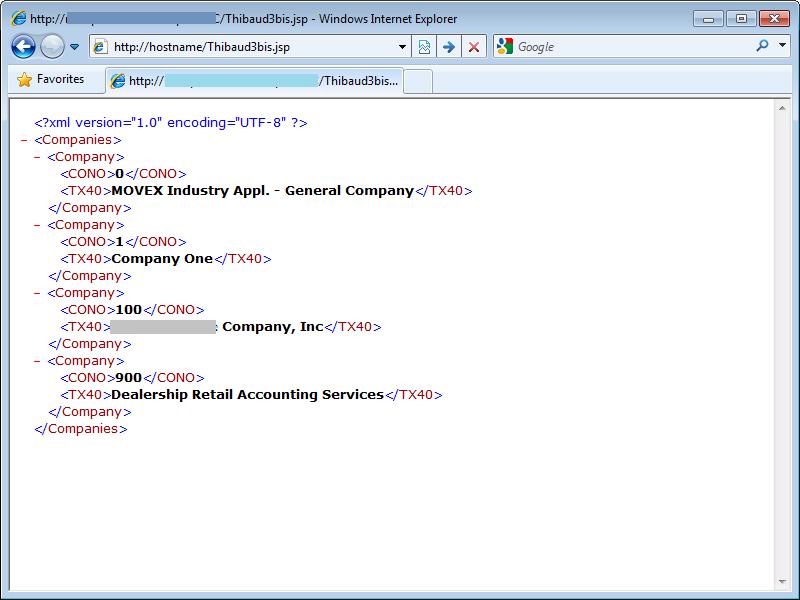
Suppose you have a REST Web Service that returns the following XML:


Note: How to produce the above XML is outside the scope of this post. This particular XML is produced with a JSP querying the M3 table CMNCMP with JDBC.

In the Mashup Designer, we use the mashup:DataPanel control to call the REST Web Service. How to use that DataPanel is outside the scope of this post, but there is an example in the Mashup Designer > Help > Data Services.

Then, in the DataPanel we add our ComboBox, and in the ComboBox we use a ComboBox.ItemTemplate (similar to the ComboBox for M3 API results):

<ComboBox Name="TabComboBox" SelectedIndex="0" HorizontalAlignment="Left" ItemsSource="{Binding Items}">
    <ComboBox.ItemTemplate>
       <DataTemplate>
          <StackPanel Orientation="Horizontal">
             <TextBlock Text="{Binding XPath=CONO, Mode=OneWay}" />
             <TextBlock Text=" - " />
             <TextBlock Text="{Binding XPath=TX40, Mode=OneWay}" />
          </StackPanel>
       </DataTemplate>
    </ComboBox.ItemTemplate>
 </ComboBox>

The result looks like this:


The Mashup Designer looks like this:

The full XAML source code is of the :

<Grid xmlns="http://schemas.microsoft.com/winfx/2006/xaml/presentation" xmlns:x="http://schemas.microsoft.com/winfx/2006/xaml" xmlns:ui="clr-namespace:Mango.UI.Controls;assembly=Mango.UI" xmlns:mashup="clr-namespace:Mango.UI.Services.Mashup;assembly=Mango.UI">

	<Grid.ColumnDefinitions>
		<ColumnDefinition Width="*" />
	</Grid.ColumnDefinitions>
	<Grid.RowDefinitions>
		<RowDefinition Height="*" />
	</Grid.RowDefinitions>

	<mashup:DataPanel Name="Companies">
		<mashup:DataPanel.Events>
			<mashup:Events>
				<mashup:Event SourceEventName="Startup" />
			</mashup:Events>
		</mashup:DataPanel.Events>
		<mashup:DataPanel.DataService>
			<mashup:DataService Type="REST">
				<mashup:DataService.Operations>
					<mashup:DataOperation Name="List">
						<mashup:DataParameter Key="REST.BaseAddress" Value="http://hostname/Thibaud3bis.jsp" />
						<mashup:DataParameter Key="REST.RemoveNamespace" Value="True" />
						<mashup:DataParameter Key="REST.XPath" Value="Companies/Company" />
					</mashup:DataOperation>
				</mashup:DataService.Operations>
			</mashup:DataService>
		</mashup:DataPanel.DataService>
		<ComboBox Name="TabComboBox" SelectedIndex="0" HorizontalAlignment="Left" ItemsSource="{Binding Items}">
			<ComboBox.ItemTemplate>
				<DataTemplate>
					<StackPanel Orientation="Horizontal">
						<TextBlock Text="{Binding XPath=CONO, Mode=OneWay}" />
						<TextBlock Text=" - " />
						<TextBlock Text="{Binding XPath=TX40, Mode=OneWay}" />
					</StackPanel>
				</DataTemplate>
			</ComboBox.ItemTemplate>
		</ComboBox>
	</mashup:DataPanel>
</Grid>

That’s it!