Event graphs for Mashups

Today I introduce a new home-made tool that automatically generates event graphs from a Mashup‘s source code.

Motivation

I am currently doing some maintenance on a monster Mashup that has 20 data controls choreographed by 27 events where the height of the event tree is greater than 3, and I needed to understand the sequence of events so I can implement several new requirements in the Mashup without breaking the entire Mashup.

The tool

To assist me, I implemented a home-made tool with XSLT and XPath that automatically transforms the <mashup:Event> nodes of the Mashup XAML source code into a directed graph in the DOT graph description language that I rendered in GraphViz, an open source graph visualization software. I used what I learned from two of my previous tools: dependency graphs for data conversion, and Web Service pretty print.

Suppose we have a Mashup with a Search button that triggers a search on a Customer list. We would have the following XAML code:

<mashup:Event
    SourceName="BtnSearch"
    SourceEventName="Click"
    TargetName="CustomerList"
    TargetEventName="Search" />

The idea is to take each event’s properties SourceName, SourceEventName, TargetName, and TargetEventName, and display them in a directed graph with nodes, edges, and labels using this DOT syntax:

digraph g {
    BtnSearch -> CustomerList [label="Click > Search"];
}

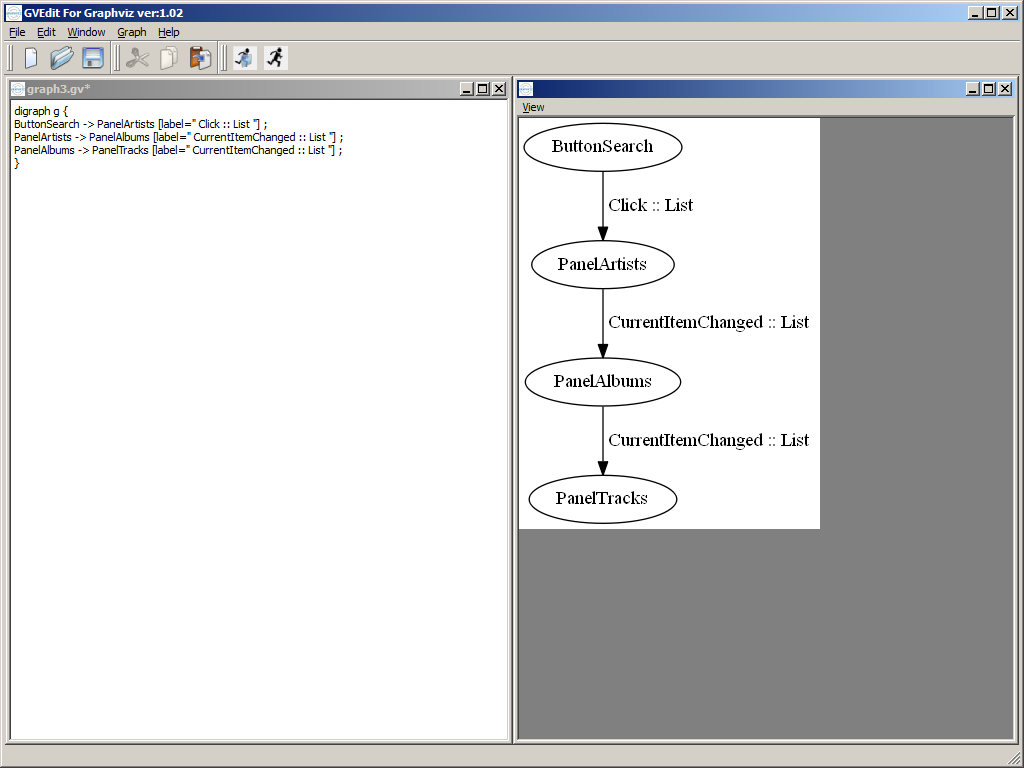
The result will look like:

2
We can automatically transform the XAML code into that DOT code with the following XSLT code:

<?xml version="1.0" encoding="UTF-8"?>
<xsl:stylesheet version="1.0" xmlns:xsl="http://www.w3.org/1999/XSL/Transform" xmlns:mashup="clr-namespace:Mango.UI.Services.Mashup;assembly=Mango.UI">
    <xsl:template match="/">
        digraph g {
            <xsl:apply-templates select="//mashup:Event"/>
        }
    </xsl:template>
    <xsl:template match="mashup:Event">
        <xsl:value-of select="@SourceName"/> -> <xsl:value-of select="@TargetName"/> [label="<xsl:value-of select="@SourceEventName"/> > <xsl:value-of select="@TargetEventName"/>"];
    </xsl:template>
</xsl:stylesheet>

The problem is that not all Events are fully qualified with all the properties SourceName, SourceEventName, TargetName, and TargetEventName. For instance the Mashup has an implicit SourceName <Global> that does not need to be explicitly qualified in the code. And the Button has the implicit SourceEventName “Click” that does not need to be explicitly qualified either. Thus, we need to handle those cases in the XSLT code. The resulting XSLT code is long and complicated with many if-then-else to test if the properties are blank, and, if they are, to test if the control has a known implicit property.

Finally, we will need an XSLT processing engine in order to get the result. Most major browsers have a built-in XSLT engine, for instance Microsoft Internet Explorer, Google Chrome, Safari, and Mozilla Firefox have a built-in XSLT engine. To test my tool on your computer, you can use Internet Explorer, Safari, and Opera as they will process the XSLT file locally from the disk with file://… On the other hand, Firefox and Chrome for security reasons will only process the file if it’s served from a web server with http:// so you would have to setup your localhost.

You can download the final XSLT file at http://thibaudlopez.net/Mashups/EventGraph.xslt

Preparation

Before using my tool, follow these steps:

  1. Download Graphviz from http://www.graphviz.org/ and start it from Windows > Start > Graphviz > gvedit.exe.
  2. Download my XSLT file from http://thibaudlopez.net/Mashups/EventGraph.xslt and save it somewhere in your file system.

How to use

To use my tool, follow these steps:

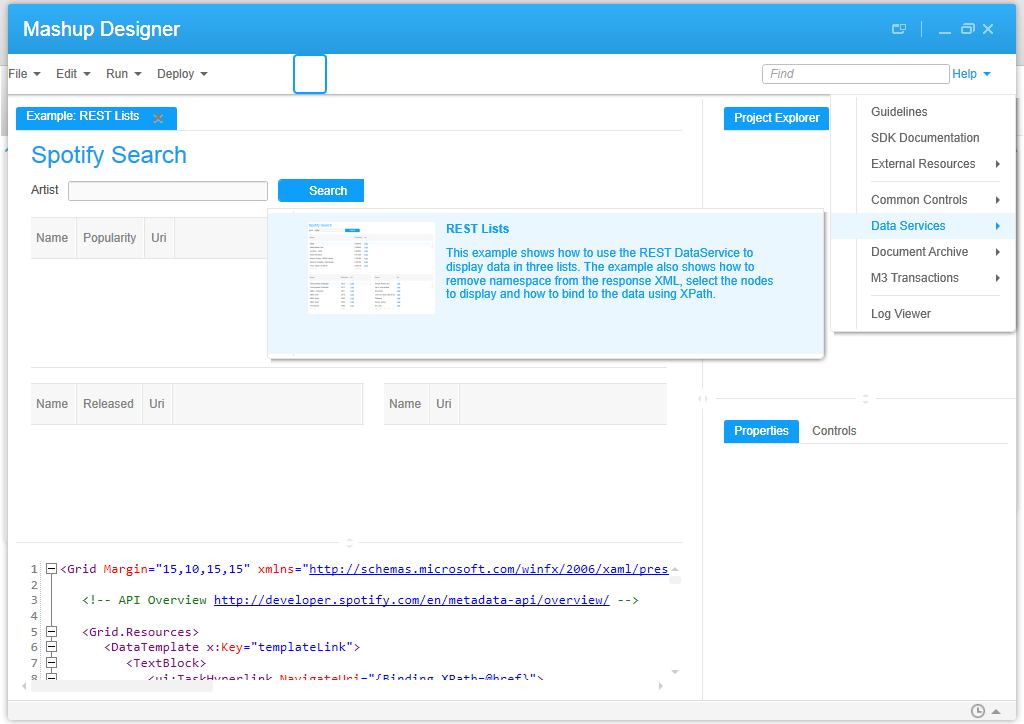
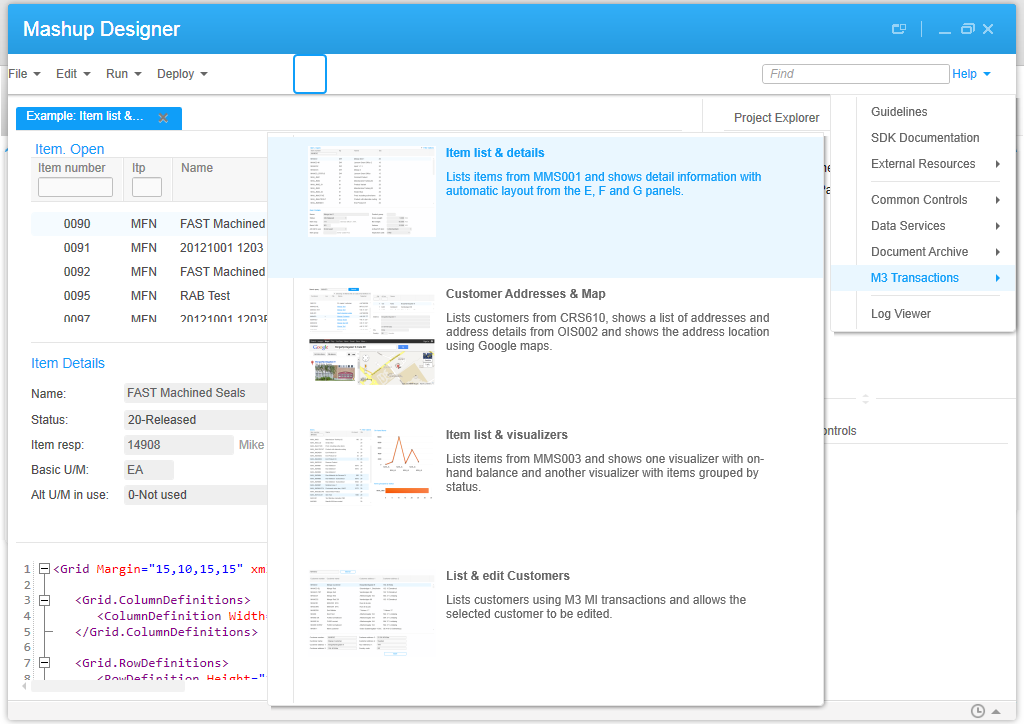
  1. Get some Mashup XAML code, for example from the Mashup Designer built-in examples, and save the XAML in the same folder as the XSLT file you saved previously:4
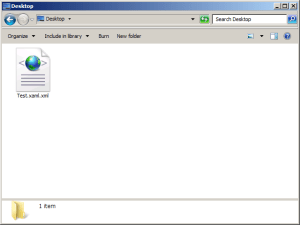
  2. Rename the file extension from XAML to XML so we can open it in one of the browsers later:
    5
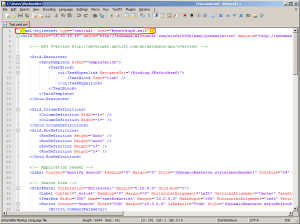
  3. Add the following XSLT processing instruction at the top of the XML file:
    <?xml-stylesheet type=”text/xsl” href=”EventGraph.xslt”?>
    6
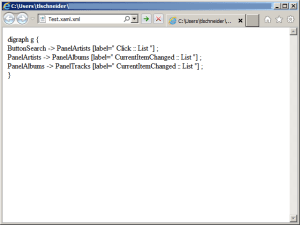
  4. Open the file in one of the browsers, for instance Internet Explorer:
    7
  5. In Graphviz, select File > New.
  6. Copy/paste the code that was generated in the browser:
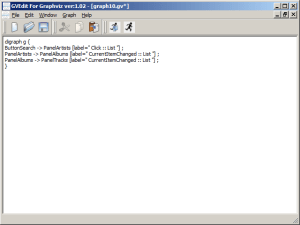
    10
  7. Select Graph > Layout (F5) to generate the graph:
    11
  8. That’s it!

Results

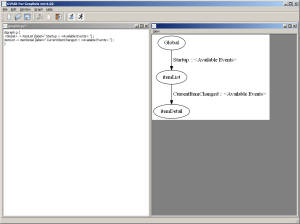
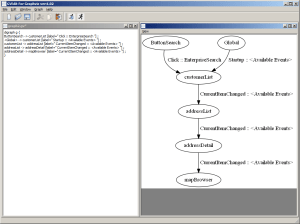
Here are the resulting event graphs for five of the Mashup Designer’s built-in examples:

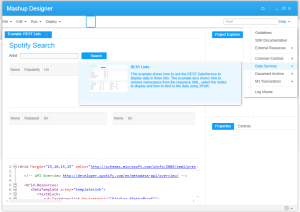
  1. REST Lists:
    213
  2. Item list & details:
    1 3
  3. Customer Addresses & Map:
    23
  4. Item list & visualizers:
    1 2
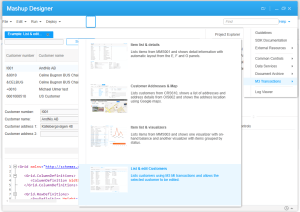
  5. List & edit Customers:
    1 10

Future work

In a future work, the XSLT code would have to be refined to cover all possible scenarios (blanks and implicit properties).

Also, we could include the Bookmark’s Keys or the Event’s Parameter Keys in the event graph, for example CONO, CUNO, ADRT, ADID.

7

The Who’s Who of Mashup Names and Descriptions

Every time I deploy a Mashup I forget which Mashup Name and Description goes where, I get confused, I have to fix the values and re-deploy. So here’s a Who’s Who cheat sheet that shows which Mashup Names and Descriptions goes where so I can remember. This cheat sheet will be helpful to save me time and hopefully it will be helpful to you as well.

I created a sample Test Mashup with the following values:

Project filename: Test.manifest
Project Name: The Project Name (the spaces will later be stripped when generating the Lawson application)
Project Description: The Project Description
XAML filename: Test.xaml
XAML VisibleName: The XAML Visible Name

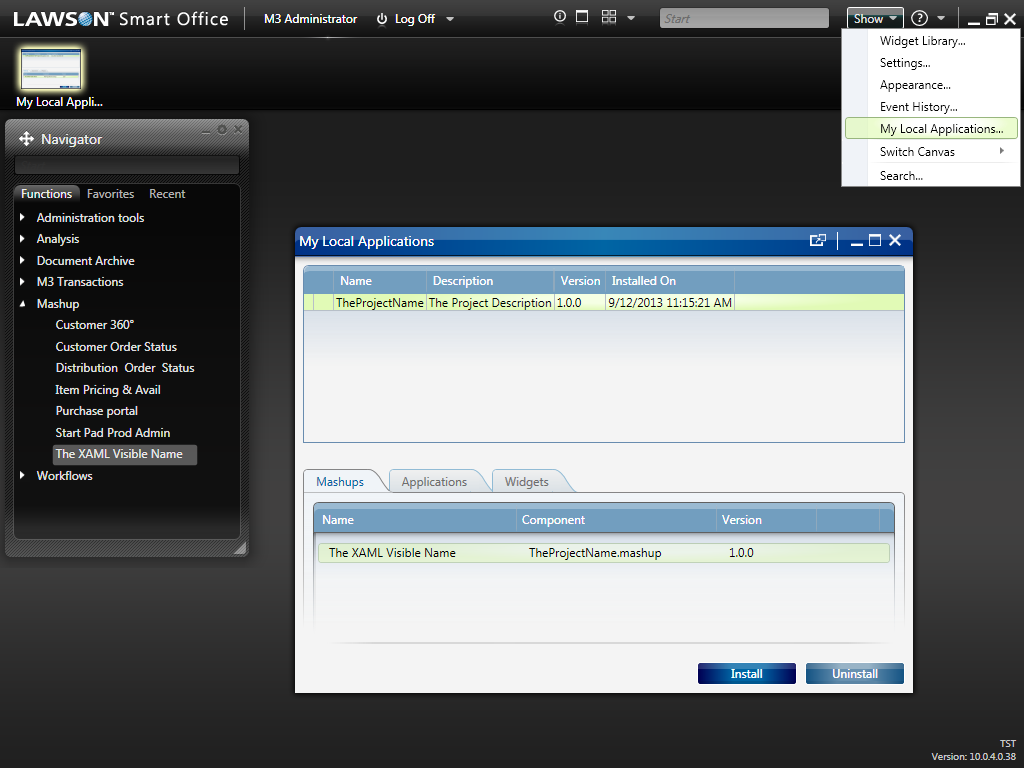
I then generated the Lawson application and deployed the Mashup via LifeCycle Manager. Later, I also installed the Mashup as a Local Application to see if there were any differences.

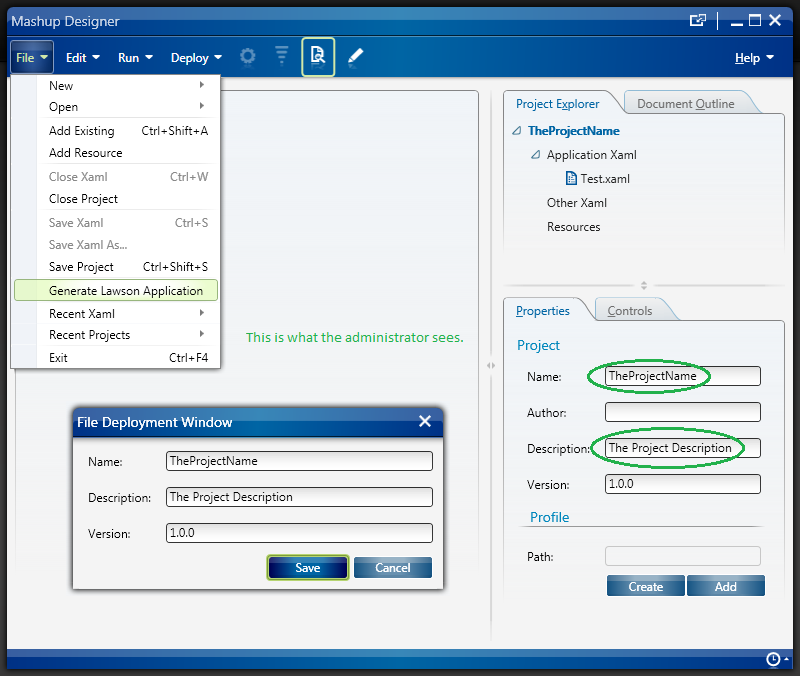
The result  is the following:

  1. The developer sees all the values.
  2. The administrator only sees the Project Name and Project Description in LifeCycle Manager and in the Smart Office Local Applications.
  3. The Lawson application is generated using the Project Name as the filename, regardless of the Manifest’s filename; that’s by default and you can rename it.
  4. The user only sees the XAML Visible Name in the Mashup menu of the Navigator widget, and in the Mashup’s window title bar.

The developer, the administrator, and the user see different values in different places. That partially explains why I got confused. Now that I have a cheat sheet for my failing memory it should be easy to remember.

Here below are the screenshots of my tests.

1 2_ 3_ 4_  5

Hope it helps!

Custom Lists & Mashups

Here is a solution to add columns to a list of an M3 panel in Smart Office without doing any M3 Java modifications and without writing any scripts. The advantage is zero programming. In addition, this technique is interesting when it’s not possible to create custom Sorting Orders (QTTP) nor custom Views (PAVR) for an M3 program (for example Stock Location – MMS010). This technique uses a new feature of M3 called Custom Lists. To create custom lists you will need the Industry Enrichment Package IEP F09201M306 in MNS096.

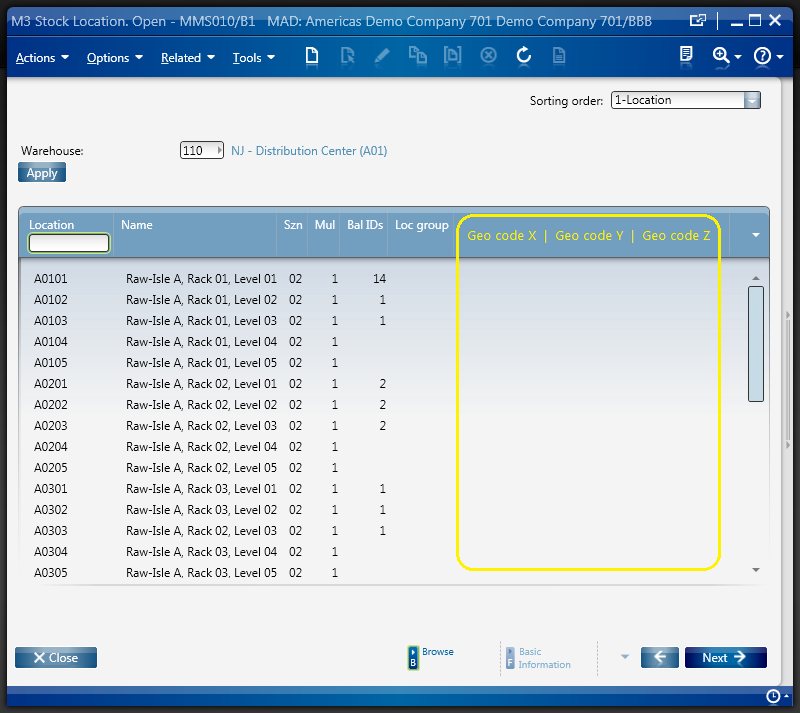
In this example I will add three columns Geo code X, Y, and Z to the list of Stock Location – MMS010/B1. The values come from the fields GEOX, GEOY, and GEOZ of MMS010/F. This solution is an alternative to the solution of my previous post where I illustrated how to programmatically add columns to a list by writing a script.

Desired result

The desired result is the list Stock Location – MMS010/B1 with three new columns Geo code X, Y, and Z.

Custom List

To create this custom list I follow these steps:

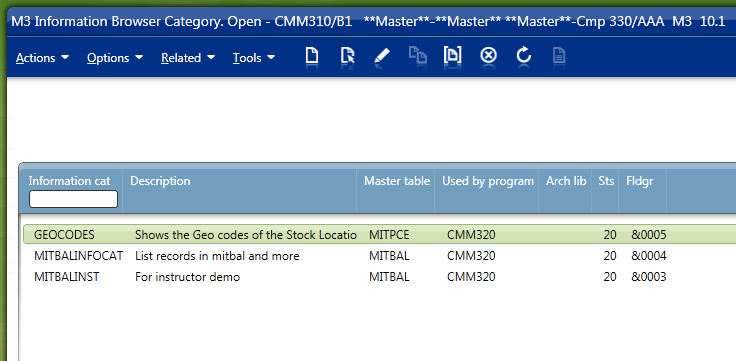
  1. First, I create a new Information Browser Category in CMM310, GEOCODES in this example:
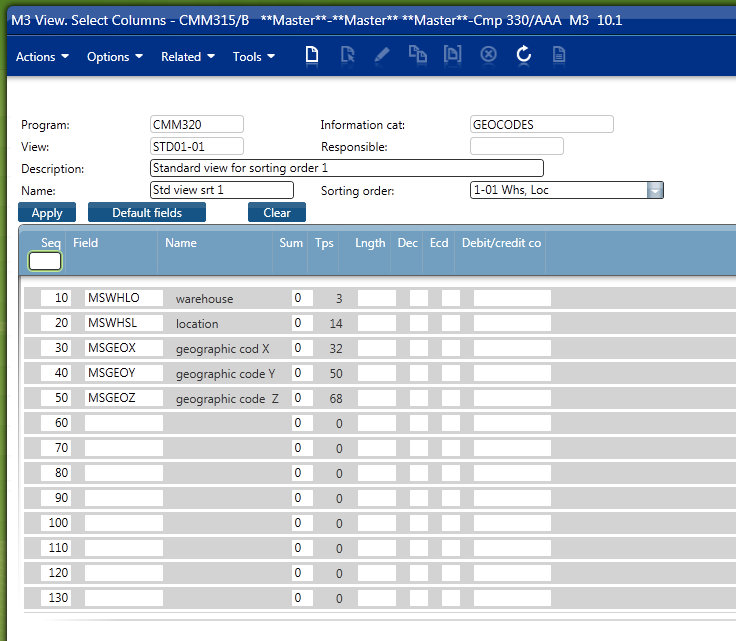
  2. Then, I create a new View in CMM315 where I include the desired new columns, MSGEOX, MSGEOY, and MSGEOZ in this example:
  3. Then, I simulate the list to select the columns to display and to select the order of the columns:
  4. Finally, I add the Custom List to a Mashup where List type = Custom:

Final result

The final result is a Mashup with Stock Location – MMS010 and three new columns Geo code X, Y, and X.

Conclusion

With the new IEP feature and with Mashups we can now create Custom Lists in M3 by configuration only, i.e. without any programming.

For more information

To learn this technique and more, refer to the Mashup Designer Advanced training (code SMMA2) from the Lawson Learning courses.

Related articles

Write a Mashup in multiple languages

Here is a solution to write a Mashup in multiple languages in Lawson Smart Office, for example in English and Spanish. This task is a part of Localization (L10) and Internationalization (i18n).

Background

Smart Office is available in multiple languages, and the language can be switched by selecting Show (in the top right corner) > Settings > Lawson Smart Office > General:

We can write a Mashup so as to dynamically adapt to the current language.

1) Localization files

First, we create XML files with the constants in each target language. In this example I create the files en-us.xml and es.xml for English and Spanish, and I choose to place those files in a sub-folder named Localization in my Mashup folder:

We add the constants to the XML with a text editor such as Notepad. In this example, I have one constant Welcome which I set in English to Hello World! and in Spanish to Hola mundo!

My file en-us.xml contains:

<?xml version="1.0" encoding="utf-8" ?>
<assembly name="">
 <area name="">
 <entry name="Welcome">Hello World!</entry>
 </area>
</assembly>

My file es.xml contains:

<?xml version="1.0" encoding="utf-8" ?>
<assembly name="">
 <area name="">
 <entry name="Welcome">Hola mundo!</entry>
 </area>
</assembly>

We add as many <entry> elements as we have constants.

2) Project

Then, we declare those XML files in the Project in Mashup Designer.

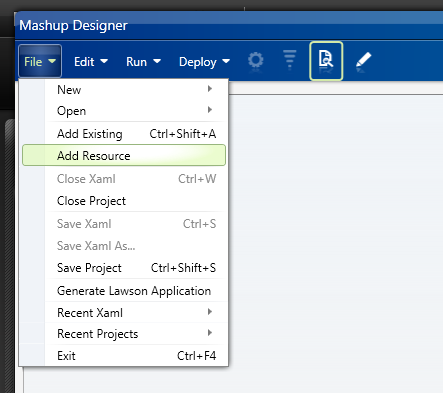
For that, select File > Add Resource, and browse to the XML files, en-us.xml and es.xml in my example:

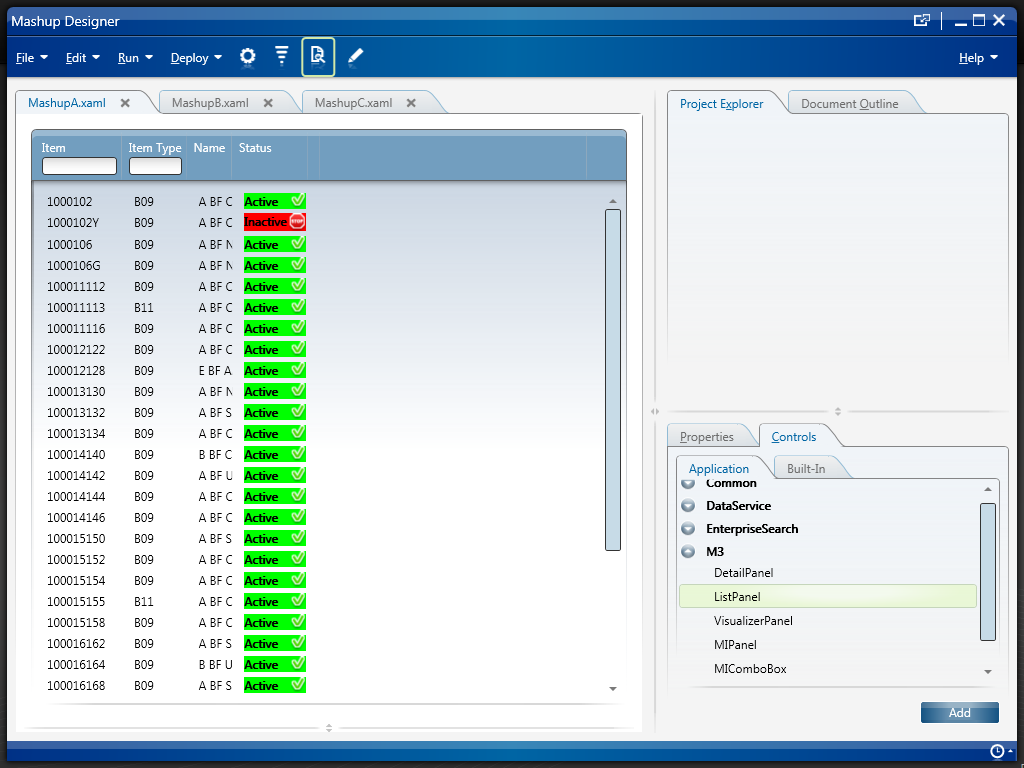
That will add the XML files to the Project Explorer:

3) XAML

Finally, we invoke our constants from the XAML code with the binding {mashup:Constant constant}. In this example I invoke the constant Welcome in a Label:

The XAML code will look like:

<Label Content="{mashup:Constant Welcome}" />

Result

Here is a screenshot of the Mashup in English:

Here is a screenshot of the Mashup in Spanish:

For more examples regarding translation, read the article Translate M3 with Google Translate API to automatically translate M3 and user-generated content in 52 languages.

Thanks to Juan V, and karinpb for their help!

How to tell Mashups apart in a Smart Office script

Here is a solution to tell in which Mashup a Personalized Script for Lawson Smart Office is currently running, for example to tell Mashups A and B apart in a script. We’ll read the BaseUri and Uri properties of a MashupInstance.

This solution is useful in scenarios where we have two Mashups, each with a specific script attached to a common M3 program. Each script needs to tell in which Mashup it’s currently running as we don’t want to let the scripts run in the wrong Mashup.

Example

For example, I have two Mashups that both use the M3 program Item Toolbox – MMS200.

The first Mashup (MashupA) shows a list of items and detailed information about a selected item, such as shelf-life, buyer’s name, on-hand availability in all warehouses, lot information, etc. In this Mashup, we need a script (ScriptA) to append an additional column of information to the list of items by querying a third-party warehouse management system. This Mashup is useful for the sales team to accurately communicate detailed information to a customer on the phone to convert a potential customer order and get the sale.

The second Mashup (MashupB) shows a list of items and purchasing information about a selected item, such as demand, supply, inventory, item specifications, sales history, forecast, etc. In this Mashup, we need a script (ScriptB) to append an additional column of information to the list of items by querying a third-party purchasing order software. This Mashup is useful for the purchase planning process when buyers need to decide if to buy an item or not and create a purchase order.

Both Mashups A and B have the same M3 program MMS200 in common, and two different scripts A and B. Each script needs to execute in its corresponding Mashup, script A in Mashup A, and script B in Mashup B. Otherwise, the scripts would show the wrong information in the wrong Mashup.

Problem

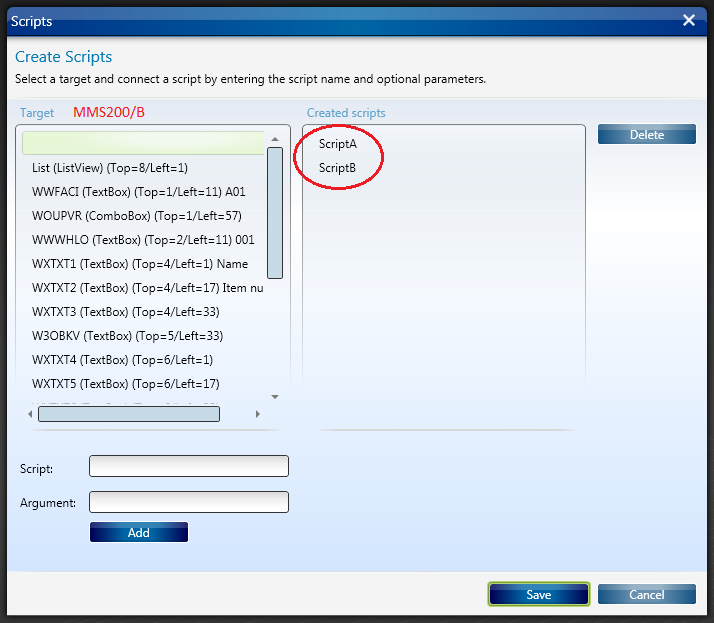
The problem is that when we attach a script to an M3 program in Smart Office, we cannot tell for which Mashup to execute the script. We can only attach the script to an M3 program, in my case to MMS200/B, and then attach the M3 program to the Mashup. But that doesn’t tell the script which Mashup is which.

More generally, Smart Office can only do binary relationships Mashup-Program and Program-Script, whereas we need ternary relationships Mashup-Program-Script. We are trying to solve that problem.

Solution

The solution is to get the identifier of the Mashup. Actually we cannot get the identifier of the Mashup as is defined in the Project’s manifest file. But we can derive one from a combination of the path of the Mashup, for example Mashups\MashupA.mashup, and the filename of the XAML, for example MashupA.xaml. That’s given by the Mashup’s BaseUri and Uri respectively.

For that, we’ll start with karinpb‘s solution to check if a JScript is running in a Mashup.

var element = controller.RenderEngine.ListControl.ListView;
var type = Type.GetType("Mango.UI.Services.Mashup.MashupInstance,Mango.UI");
var mashup = Helpers.FindParent(element, type);

That gives us a object that we can cast to MashupInstance from which we can get the  BaseUri and Uri properties:

mashup.BaseUri // ex: Mashups\MashupA.mashup
mashup.Uri // ex: MashupA.xaml

Here is a screenshot of the Smart Office SDK documentation:

Here’s my sample source code:

import System;
import Mango.UI.Services.Mashup;
import Mango.UI.Utils;

package MForms.JScript {
    class Test {
        public function Init(element: Object, args: Object, controller : Object, debug : Object) {
            if (controller.PanelState.IsMashup){
                var mashup: MashupInstance = Helpers.FindParent(controller.RenderEngine.ListControl.ListView, MashupInstance);
                switch (mashup.BaseUri + "\\" + mashup.Uri) {
                    case "Mashups\\MashupA.mashup\\MashupA.xaml": debug.WriteLine("MashupA"); break// MashupA
                    case "Mashups\\MashupB.mashup\\MashupB.xaml": debug.WriteLine("MashupB"); break// MashupB
                    case "Mashups\\MashupC.mashup\\MashupC.xaml": debug.WriteLine("MashupC"); break// MashupC
                    default: debug.WriteLine("Mashup not supported"); // Mashup not supported
                }
            } else {
                // Not in Mashup
                debug.WriteLine("Not in Mashup");
            }
        }
    }
}

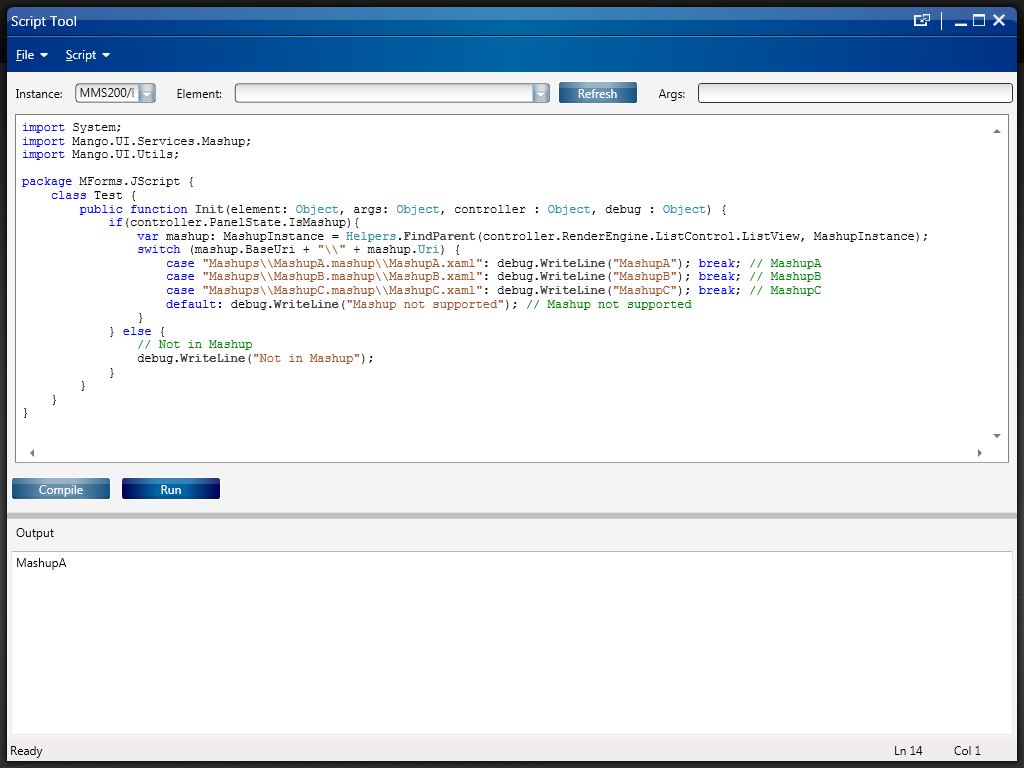
Here are screenshots of the result:

Thanks to karinpb, Peter K, and Joakim I for their help.

That’s it!

How to get the URL to Lawson Web Services in a Mashup

Here’s a technique for a Mashup to call a Lawson Web Service (LWS) using the correct Lawson Web Service server and the correct environment (DEV, EDU, PRD, TST, etc.).

The problem

By default, when we use the Web Service wizard in Mashup Designer, the URL to the Lawson Web Service server is hard-coded in the two Parameters WS.Wsdl and WS.Address.

For instance, in the following example we’re using a Lawson Web Service that calls the M3 API CRS610MI.LstByNumber, but the server (hostname), the port number (10000), and the environment (TST) are hard-coded in the URL:

<Grid xmlns="http://schemas.microsoft.com/winfx/2006/xaml/presentation" xmlns:x="http://schemas.microsoft.com/winfx/2006/xaml" xmlns:ui="clr-namespace:Mango.UI.Controls;assembly=Mango.UI" xmlns:mashup="clr-namespace:Mango.UI.Services.Mashup;assembly=Mango.UI">
    <mashup:DataPanel Name="WS">
       <mashup:DataPanel.Events>
          <mashup:Events>
             <mashup:Event SourceEventName="Startup" />
          </mashup:Events>
       </mashup:DataPanel.Events>
       <mashup:DataPanel.DataService>
          <mashup:DataService Type="WS">
             <mashup:DataService.Operations>
                <mashup:DataOperation Name="Read">
                   <mashup:DataParameter Key="WS.Wsdl" Value="http://hostname:10000/LWS_TST/svc/CRS610MI.wsdl" />
                   <mashup:DataParameter Key="WS.Address" Value="http://hostname:10000/LWS_TST/services/CRS610MI" />
                   <mashup:DataParameter Key="WS.Operation" Value="LstByNumber" />
                   <mashup:DataParameter Key="WS.Contract" Value="CRS610MI" />
                   <mashup:DataParameter Key="mws.user" Value="LSO.USER" />
                   <mashup:DataParameter Key="mws.password" Value="LSO.PASSWORD" />
                </mashup:DataOperation>
             </mashup:DataService.Operations>
          </mashup:DataService>
       </mashup:DataPanel.DataService>
    </mashup:DataPanel>
 </Grid>

Because the server and environment are hard-coded in the XAML, it will be difficult to deploy the Mashup on other servers, and on other environments (DEV, EDU, PRD, etc.). The workaround would be to make one copy of the Mashup per target server and per target environment. But it would quickly become a maintenance nightmare.

The goal is to make that URL dynamic, based on the server and on the environment we are currently running.

The solution

The solution is to dynamically read at runtime the URL to Lawson Web Services that’s defined in the Smart Office Profile:

Step 1 – Get the value

We get the URL to Lawson Web Services in the Mashup with:

{mashup:ProfileValue Path=M3/WebService/url}

For example:

Step 2 – Create a parameter

Then, we create an Event parameter with a SourceKey and the value, and we call it for example BaseUri:

<mashup:Event SourceEventName="Startup" >
    <mashup:Parameter SourceKey="BaseUri" Value="{mashup:ProfileValue Path=M3/WebService/url}" />
</mashup:Event>

Step 3 – Move it to an Event

Then, we move the two WS parameters from the DataPanel to the Event as TargetKeys:

<mashup:Event SourceEventName="Startup" >
    <mashup:Parameter SourceKey="BaseUri" Value="{mashup:ProfileValue Path=M3/WebService/url}" />
    <mashup:Parameter TargetKey="WS.Wsdl" Value="http://hostname:10000/LWS_TST/svc/CRS610MI.wsdl" />
    <mashup:Parameter TargetKey="WS.Address" Value="http://hostname:10000/LWS_TST/services/CRS610MI" />
</mashup:Event>

Step 4 – Variable substitution

Finally, we use Karin’s solution for variable substitution and markup extension to un-hard-code the URL:

<mashup:Event SourceEventName="Startup" >
    <mashup:Parameter SourceKey="BaseUri" Value="{mashup:ProfileValue Path=M3/WebService/url}" />
    <mashup:Parameter TargetKey="WS.Wsdl" Value="{}{BaseUri}/svc/CRS610MI.wsdl" />
    <mashup:Parameter TargetKey="WS.Address" Value="{}{BaseUri}/services/CRS610MI" />
</mashup:Event>

Final code

Here’s the resulting source code:

<Grid xmlns="http://schemas.microsoft.com/winfx/2006/xaml/presentation" xmlns:x="http://schemas.microsoft.com/winfx/2006/xaml" xmlns:ui="clr-namespace:Mango.UI.Controls;assembly=Mango.UI" xmlns:mashup="clr-namespace:Mango.UI.Services.Mashup;assembly=Mango.UI">
    <mashup:DataPanel Name="WS">
       <mashup:DataPanel.Events>
          <mashup:Events>
             <mashup:Event SourceEventName="Startup" >
                <mashup:Parameter SourceKey="BaseUri" Value="{mashup:ProfileValue Path=M3/WebService/url}" />
                <mashup:Parameter TargetKey="WS.Wsdl" Value="{}{BaseUri}/svc/CRS610MI.wsdl" />
                <mashup:Parameter TargetKey="WS.Address" Value="{}{BaseUri}/services/CRS610MI" />
             </mashup:Event>
          </mashup:Events>
       </mashup:DataPanel.Events>
       <mashup:DataPanel.DataService>
          <mashup:DataService Type="WS">
             <mashup:DataService.Operations>
                <mashup:DataOperation Name="Read">
                   <mashup:DataParameter Key="WS.Operation" Value="LstByNumber" />
                   <mashup:DataParameter Key="WS.Contract" Value="CRS610MI" />
                   <mashup:DataParameter Key="mws.user" Value="LSO.USER" />
                   <mashup:DataParameter Key="mws.password" Value="LSO.PASSWORD" />
                </mashup:DataOperation>
             </mashup:DataService.Operations>
          </mashup:DataService>
       </mashup:DataPanel.DataService>
    </mashup:DataPanel>
</Grid>

Conclusion

With this solution we learned how to create a Mashup that calls a Lawson Web Service such that the Mashup will use the correct Lawson Web Service server and the correct environment (DEV, EDU, PRD, TST, etc.).

Maybe LPD should make this a native feature of Mashups so that developers don’t have to implement it themselves.

For more examples on how to call a Lawson Web Service from a Mashup, refer to Karin’s post.

That’s it!

How to use an M3 program that’s not yet bookmark enabled in a Mashup

Here is a solution for a Mashup to use an M3 program that doesn’t yet support bookmarks, for example MMS081. If the program doesn’t support bookmarks the options are limited. Normally only M3 programs that are bookmark enabled are supported in a Mashup.

But we can workaround the limitation by using the Program attribute instead of a Bookmark element.

<m3:ListPanel Name="MMS081B" Program="MMS081">
    <m3:ListPanel.Events>
       <mashup:Events>
          <mashup:Event SourceEventName="Startup" />
       </mashup:Events>
    </m3:ListPanel.Events>
</m3:ListPanel>

Note that starting programs using the Program property is a bit risky since we cannot guarantee the Sorting order nor the initial values on the panel as we can with Bookmarks.

In this case there is no standard way to set header fields when the program is started. But after the program has been started it can be set to blank using the M3 Mashup Apply event. We can use the Apply event to set values in the header and position fields, and when the values are set the ListPanel will automatically press the ENTER key to update the list.

As an example of the Apply event, we can set the Facility (FACI) to a certain value using the Apply event.

<Button Name="testButton" Content="Set Facility">
    <Button.CommandParameter>
       <mashup:Events>
          <mashup:Event TargetName="MMS081B" SourceEventName="Click" TargetEventName="Apply">
             <mashup:Parameter TargetKey="W1FACI" Value="A01" />
          </mashup:Event>
       </mashup:Events>
    </Button.CommandParameter>
</Button>

As another example of the Apply event, we can transfer a parameter from another ListPanel, for example the Item Number ITNO of MMS001/B:

<m3:ListPanel Name="MMS001B" Header="Items">
    <m3:ListPanel.Events>
       <mashup:Events>
          <mashup:Event SourceEventName="Startup">
             <mashup:Parameter TargetKey="MMCONO" />
             <mashup:Parameter TargetKey="MMITNO" />
          </mashup:Event>
          <mashup:Event SourceEventName="CurrentItemChanged" TargetName="MMS081B" TargetEventName="Apply">
             <mashup:Parameter SourceKey="ITNO" />
             <mashup:Parameter SourceKey="FACI" Value="A01" />
             <mashup:Parameter TargetKey="WHLO" Value="001" />
          </mashup:Event>
       </mashup:Events>
    </m3:ListPanel.Events>
    <m3:ListPanel.Bookmark>
       <m3:Bookmark Program="MMS001" Table="MITMAS" KeyNames="MMCONO,MMITNO" />
    </m3:ListPanel.Bookmark>
</m3:ListPanel>

Thanks to Peter K for all the help!

How to get CONO, DIVI, FACI in a Mashup

Here is the solution to get the current Company (CONO), Division (DIVI), and Facility (FACI) in a Mashup in Lawson Smart Office. Last week I wrote a post on How to get the current username in a Mashup. This week I post about CONO, DIVI, FACI:

  1. Add this namespace to the Mashup:
    xmlns:mforms=”clr-namespace:MForms;assembly=MForms”
  2. Get the values with this extension method:
    {mashup:UserContextValue Path=M3/Company}
    {mashup:UserContextValue Path=M3/Division}
    {mashup:UserContextValue Path=M3/Facility}
  3. Alternatively, you can use the field names:
    {mashup:UserContextValue Path=M3/CONO}
    {mashup:UserContextValue Path=M3/DIVI}
    {mashup:UserContextValue Path=M3/FACI}
  4. Use the value for example in a TextBlock:
    <TextBlock Text=”{mashup:UserContextValue Path=M3/Company}” />
    <TextBlock Text=”{mashup:UserContextValue Path=M3/Division}” />
    <TextBlock Text=”{mashup:UserContextValue Path=M3/Facility}” />

Here are the values you can get:
CONO | Company, CompanyName
DIVI | Division, DivisionName
FACI | Facility, FacilityName
WHLO | Warehouse, WarehouseName
LANC | Language
DTFM | DateFormat
DCFM | DecimalFormat
TIZO | TimeZone
CUNO | Customer
DEPT | Department
Menu
MenuVersion

Here is a screenshot of the result:

Special thanks to karinpb and Juan V of Spain for their help!

How to get the current username in a Mashup

Here is the solution to get the current username in a Mashup in Lawson Smart Office. Last week I wrote a post on How to get the current M3 profile in a Mashup which returns DEV, EDU, TST, PRD, etc. depending on which profile you are currently connected. This week I post about the username:

  1. Add this namespace to the Mashup:
    xmlns:Services=”clr-namespace:Mango.Services;assembly=Mango.Core”
  2. Then get the UserName like this:
    <TextBlock DataContext=”{x:Static Services:ApplicationServices.UserContext}” Text=”{Binding UserName}” />
  3. There is also the DisplayName:
    <TextBlock DataContext=”{x:Static Services:ApplicationServices.UserContext}” Text=“{Binding DisplayName}” />

Here is a screenshot of the result:

I found inspiration from the Smart Office Developer’s Guide > UserAndProfileExample.js.

Getting the M3 profile in a Mashup

karinpb sent me the solution to get the current M3 profile (TST, DEV, EDU, etc.) in a Mashup in Lawson Smart Office. In my case, I use the value to launch a URL with the profile as a parameter. Here is the solution:

  1. Add the namespace:
    xmlns:Services=“clr-namespace:Mango.Services;assembly=Mango.Core”
  2. Add a control that shows the value:
    <TextBlock DataContext=“{x:Static Services:ApplicationServices.SystemProfile}” Text=“{Binding Name}” />
  3. Here is a screenshot of the result:

Special thanks to Karin for the solution!