In this example, we have a standard M3 Streamfile (PPS307PF – M3 Put-Away document) that contains separate BEGIN statements (the keyword that signifies a new event to Streamserve) for each item received against a purchase order. My client would like to see one document with all received items shown as separate lines. This will save a tremendous amount of paper and allow for easier processing. With the help of Java and Streamserve filter chains, we can remove unwanted BEGIN statements and quickly achieve a single event document without modification in M3.
In addition to Java knowledge, you’ll also need to have:
- Experience with the M3 Output Solution including Streamserve Control Center and Design Center (version 5.6 is used in this example). Specifically:
- Creating new Streamserve Applications
- Modifying, Exporting, and Deploying Streamserve Projects
- Administrator access to the Streamserve server.
Now that we’re armed with some basic knowledge, let’s get started.
Step 1: Examine the Streamfile
Here is my example Streamfile:
*SERVER	server.company.com
*PORT	 22110
*NAME	PPS307PF
*USER	USER
*JOBID	135979716657926744PPS307PF
*MAIL	YES
*TOMAIL1	mnjones@ciber.com
*FRMAIL1	m3apps@hertz.com
*ARCHIVE1	0
*COUNTRY1	US
*ReportFiletype1	PDF
*LANGUAGE	GB
*ZDCONO	111
*ZDDIVI	AAA
*ZDFACI	FAC
*ZDWHLO	DS5
BEGINPPS3070H
*TIME	20160317153921
*LANGUAGE	GB
*ZZCONO	0
*ZZDIVI
*ZZFACI	FAC
*ZZWHLO	WHS
*LAYOUT	LETTER
0HINDCTR	000000000000000000000000000000000000000000000000001000000000000000000000000000000000000000010000000
0HDSUSS	USER
0HMWLNCD	GB
0HPADAT	03-17-16
0HPATIM	15:39:21
0HWDROW3	COMPANY US (111/AAA)
0HZDROW2	M3 13.2 DEV

1MINDCTR	000000000000000000000000000000000000000000000000001000000000000000000000000000000000000000010000000
1MIABUYE	USER
1MIBECVE
1MIBIRCV
1MIBITNO	100000099
1MIBPITD
1MIBPLPN	0000000
1MIBPNLI	010
1MIBPNLS	000
1MIBPRCS
1MIBPROD
1MIBPUNO	8888888
1MIBPURC	USER
1MIBPUUN	EA
1MIBRORC	0
1MIBRORL
1MIBRORN
1MIBSITE
1MIBSUFI
1MIBSUNO	99999999
1MIBWHLO	WHS
1MICREPN	   2111030001
1MMLBANO	7777777
1MMLBREF
1MMLBRE2
1MMMHAC1
1MMMHAC2
1MMMHAC3
1MMMITDS	Excavator
1MMMPPUN
1MMMSLDY
1MMMUNMS
1MMUCOFA
1MMWWHNM	Main Warehouse
1MWTBUYE	Patty Purchaser
1MWTHAC1
1MWTHAC2
1MWTHAC3
1MWTPROD
1MWTPURC	Patty Purchaser
1MWWCAWE
1MWWFUDS	Excavator
1MWWPQTY
1MWWRPQA	         1
1MWWRPQT
1MWWSUNM	Excavator Supply
1MWWWHSL	SERVICE

0NINDCTR	000000000000000000000000000000000000000000000000001000000000000000001000000000000000000000000000000
0NIBGRMT	DP0
0NP7QCLV	4
0NWTGRMT	Direct Put-Away (No Doc)
0NWWNEAC	No more activity
0NWWQCQT

CFINDCTR	000000000000000000000000000000000000000000000000001000000000000000001000000000000000000000000000000
CFWWTX60	MAKE BOBCAT

CFINDCTR	000000000000000000000000000000000000000000000000001000000000000000001000000000000000000000000000000
CFWWTX60	MODEL D12A
BEGINPPS3070H
*TIME	20160317153921
*LANGUAGE	GB
*ZZCONO	0
*ZZDIVI
*ZZFACI	FAC
*ZZWHLO	WHS
*LAYOUT	LETTER
0HINDCTR	000000000000000000000000000000000000000000000000001000000000000000001000000000000000000000010000000
0HDSUSS	USER
0HMWLNCD	GB
0HPADAT	03-17-16
0HPATIM	15:39:21
0HWDROW3	COMPANY US (111/AAA)
0HZDROW2	M3 13.2 DEV

1MINDCTR	000000000000000000000000000000000000000000000000001000000000000000000000000000000000000000010000000
1MIABUYE	USER
1MIBECVE
1MIBIRCV
1MIBITNO	100000099
1MIBPITD
1MIBPLPN	0000000
1MIBPNLI	010
1MIBPNLS	000
1MIBPRCS
1MIBPROD
1MIBPUNO	8888888
1MIBPURC	USER
1MIBPUUN	EA
1MIBRORC	0
1MIBRORL
1MIBRORN
1MIBSITE
1MIBSUFI
1MIBSUNO	99999999
1MIBWHLO	WHS
1MICREPN	   2111030002
1MMLBANO	8191811
1MMLBREF
1MMLBRE2
1MMMHAC1
1MMMHAC2
1MMMHAC3
1MMMITDS	Excavator
1MMMPPUN
1MMMSLDY
1MMMUNMS
1MMUCOFA
1MMWWHNM	Main Warehouse
1MWTBUYE	Patty Purchaser
1MWTHAC1
1MWTHAC2
1MWTHAC3
1MWTPROD
1MWTPURC	Patty Purchaser
1MWWCAWE
1MWWFUDS	Excavator
1MWWPQTY
1MWWRPQA	         1
1MWWRPQT
1MWWSUNM	Excavator Supply
1MWWWHSL	SERVICE

0NINDCTR	000000000000000000000000000000000000000000000000001000000000000000001000000000000000000000000000000
0NIBGRMT	DP0
0NP7QCLV	4
0NWTGRMT	Direct Put-Away (No Doc)
0NWWNEAC	No more activity
0NWWQCQT

CFINDCTR	000000000000000000000000000000000000000000000000001000000000000000001000000000000000000000000000000
CFWWTX60	MAKE BOBCAT

CFINDCTR	000000000000000000000000000000000000000000000000001000000000000000001000000000000000000000000000000
CFWWTX60	MODEL D12B

CFINDCTR	000000000000000000000000000000000000000000000000001000000000000000001000000000000000000000000000000
CFWWTX60	Air Condition:Yes
We want to process PPS307PF as one document with multiple lines as opposed to the standard document which has multiple documents (indicated by the multiple BEGINPPS3070H statements in the Streamfile) each with a single line.
There is only one type of BEGIN statement in this Streamfile, but some Streamfiles have more than one, so we’ll take that into account in the code.
Step 2: Create Java filter to remove the unwanted BEGIN statements
In the Streamfile above we found two instances of BEGINPPS3070H. In order to remove the second (and any subsequent appearances) while keeping the first, we’ll create a class that will remove these lines as the Streamfile gets passed into Streamserve. We’ll also take into account that we may need to filter Streamfiles other than PPS307, so we’ll use a regular expression to find the instances of BEGIN in the file that end in ‘H’ (This way we’re excluding 0A BEGIN statements while including 0H, 1H, AH, etc.).
import java.io.*;
public class SingleEvent {
 public static void main(String[]args) {
  BufferedReader br = null;
  int counter = 0;
  String regex = "BEGIN[a-zA-Z0-9]+H$";
  try {
   String sCurrentLine;
   br = new BufferedReader(new InputStreamReader(System.in));
   while ((sCurrentLine = br.readLine()) != null) {
    if (sCurrentLine.matches(regex)) {
     counter++;
     if (counter > 1) {
      sCurrentLine = "***BEGIN STATEMENT SKIPPED***";
     }
    }
    System.out.println(sCurrentLine);
   }
  } catch (IOException e) {
   e.printStackTrace();
  }
  finally {
   try {
    if (br != null)
     br.close();
   } catch (IOException ex) {
    ex.printStackTrace();
   }
  }
 }
}
Our code creates a class called SingleEvent which reads the incoming Streamfile one line at a time and checks the current line to see if it matches our regular expression. If so, a counter is increased and if the counter is larger than one, it replaces the current line with new text. This text can be anything other than BEGINPPS3070H as Streamserve is looking for the BEGIN statements to create new documents. Each (new) line is then written to the console and Streamserve picks up each of the lines before processing the Streamfile.
When we replace the BEGIN statements with alternative text (in this case replacing them with the text “***BEGIN STATEMENT SKIPPED***”). Streamserve rejects the line, notes it in the Control Center log, and moves to the next line. Later in the process, we’ll see our skipped lines in the log.
Next, compile the code and create a SingleEvent.jar using your favorite tool. Copy the SingleEvent.jar to an accessible folder on the Streamserve server. Now we can begin prepping Streamserve to use Java.
Step 3: Prep Streamserve to use Java
Because we’ll be adding a filter on both the TCP/IN port and DirScan folder, it’s best to create a new Streamserve Application specifically for our new SingleEvent Streamfiles. We don’t want to place this filter on our base Streamserve Application and filter all Streamfiles. Follow the standard steps to create the new application in the correct domain in Control Center. For this example, we named our application “Dev_SingleEvent_22104” to indicate the domain, application purpose, and incoming port number. Next, right click on the application and select Java Configuration.

When the Java Configuration screen opens, we see the properties list. Click in the Value box and select the appropriate vendor. In my case, this was Oracle.

Next, we’ll need to import our SingleEvent.jar and add the new filter chain in the Streamserve Global_Resourceset. In the Global_Resourceset, right click and select “Import…”.

Navigate to the folder on the Streamserve server where you stored SingleEvent.jar. Highlight SingleEvent.jar and click Open.
Streamserve will automatically load the correct Resource Type (Java).
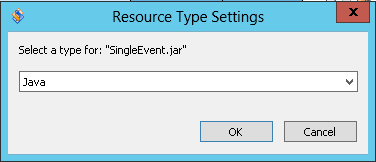
Click OK and your new Java resource will appear in the Global_Resourceset.
Now, let’s create our new filter chain. The filter chain is the heart of this transaction as Streamserve will filter the Streamfile through the Java program as it comes into the TCP port or is dropped into the DirScan folder.
First, navigate to the Filter Chain folder in the Global_Resourceset, right click and select New > Filter Chain.

We’ll name the filter chain “Platform – SingleEvent”. It will be used at both the TCP/IP and Directory input connectors.

Then, right click and select Start Editor.
There will be an existing Codepage Filter already in place. We won’t make any changes here. From the Filter Chain menu, select Add Filter > External Filter. Type “java.exe –jar ..\data\java\SingleEvent.jar” in the Value box, save and close.

Navigate to the Platform next, where we’ll copy/paste the standard TCP_MOVEX and DirScan_MOVEX input connectors and rename them as “SingleEvent_TCP_MOVEX” and “SingleEvent_DirScan_MOVEX”, respectively. Make the necessary changes to ports and input folders for the physical platform you’re using.
Now, we’ll add the Platform – SingleEvent filter chain to each of these input connectors. In the Platform, right click on the SingleEvent_TCP_MOVEX input connector and select Settings.

From the logical platform, click on the “Filter chain” button and add the new filter chain.
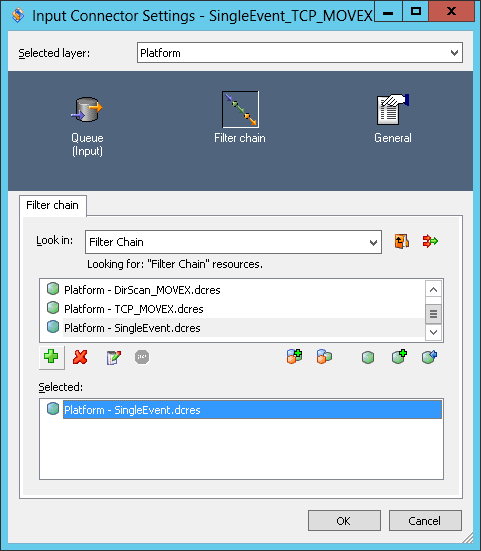
Repeat these steps for the SingleEvent_DirScan_MOVEX connector.
Verify all the changes, save and export the project and then deploy in Control Center to your new application.
Step 4: Test
To test, drop the Streamfile into the DirScan folder in the Management Gateway and see the Filter Chain at work in the Control Center log. Here is a snip from the log:

We can see our “Unknown line (ignored):***BEGIN STATEMENT SKIPPED***” message line and each duplicate header fields that has been ignored. We also see the “ExternFilter exitCode:0” message indicating the filter completed successfully.
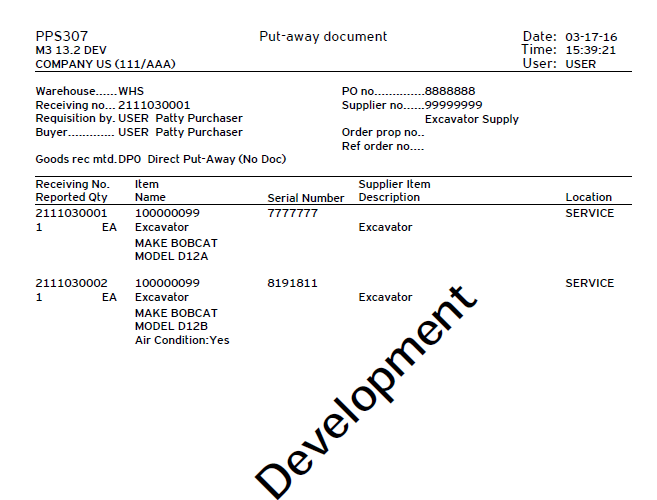
Here is our new document with one event and multiple lines:
Final Thoughts
We’ve successfully written a Java class that works as a filter to remove unwanted BEGIN statements from a Streamfile, setup Streamserve to use Java and our new filter, and processed a test Streamfile through the filter. Let me know how it works for your project and any tweaks you made for it to deliver the document you want.
Special thanks to the posters at StreamShare whose excellent variety of posts on filtering and using Java with Streamserve allowed me to combine them to achieve a solution. If you work with Streamserve, make sure to check out the forums.
Now that we’ve seen how Java works with Streamserve, next time let’s discuss using Java to connect to M3 APIs and add information to a Streamserve PageOut.
Good luck,
Neil






















 M3 ideas