Hacking Infor Grid application development

I just learned a technique to develop a custom application for the Infor Grid. The idea is to build a simple J2EE app using the Infor Grid as an application server. My understanding is that the Infor Grid is closed, and that this technique is currently unofficial, undocumented and unsupported. I will label this technique as a hack for now until we establish a recommended path.

History

In the past, official products such as Movex Workplace (MWP) and IBrix were built for IBM WebSphere Application Server (WAS), and software developers that needed custom J2EE applications unofficially deployed their code in that same WAS; it was a somewhat symbiotic relationship. With the switch to the Infor Grid, WAS is gone and replaced by a cloud of distributed servers with embedded Jetty – that is a leap forward for M3 – but there is no official solution for custom apps.

As a workaround, we continued to sideload our JSP and HTML files in the MNE folder of the Grid alongside Smart Office Scripts; that was a parasitic relationship subject to potential loss during upgrades. There is also the option to install our own separate application server like Microsoft IIS, but there are advantages to having a unified solution. I know of the Grid Development Tools for Eclipse and the Grid Application Developer Guide and tutorials, but to my knowledge they are internal to Infor products and not available for developing custom applications.

A former colleague of mine found an alternative workaround. He told me he had managed to create a GAR file for the Infor Grid, so now he has an application called “intentia” where he puts the JSP and HTML files instead of the MNE folder. He said it involved decompiling one of the Grid applications and then compiling it back with the new application name. I invited him to write a blog post about his solution, but he responded because it is unofficial he did not want to post it and wanted to remain anonymous. After a couple of email exchanges discussing a disclaimer, he accepted that I post his solution and acknowledge him for his contribution. So thank you, Jonathan Amiran of Intentia Israel.

Call for action

This is my call to Infor Product Development. If you are reading this, please jailbreak the Grid, release the tools and documentation and embrace the community. Help us reach a mutually beneficial relationship where great ideas can get out of anonymity and flourish. I understand there are risks involved in opening up a sensitive system to all sorts of inexperienced developers and misuse as that leads to you having to assume the role of support and troubleshooting until you can prove negligence on the part of the third-party developer. But don’t be closed. Share the good practices with us, certify us, or if it’s a risk, build a system that defends against byzantine failures from third-party developers.

For you readers, please call your Infor representatives and tell them the importance of being open and working together. Meanwhile, please understand the following hack has not yet been peer reviewed so it may be either favorable or damaging.

Find the Grid core

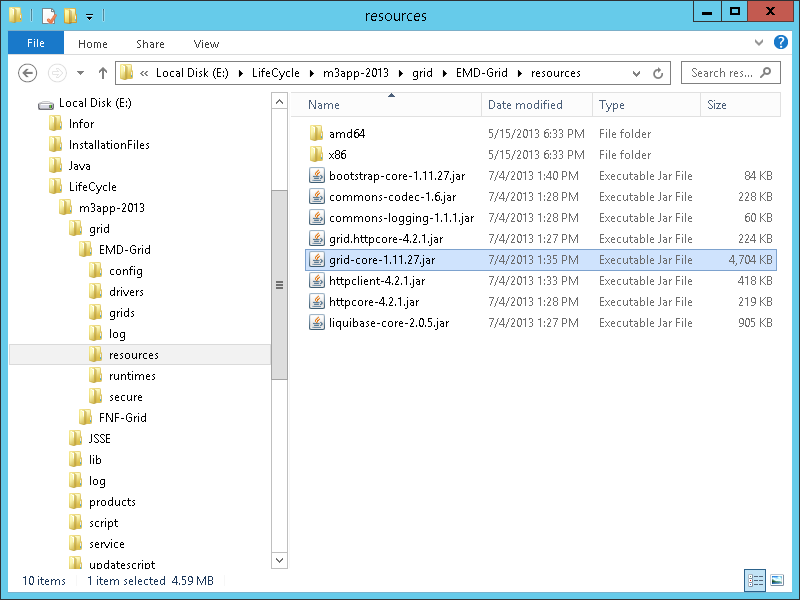
First, go to your LifeCycle Manager server and find the JAR file for the Grid core:

E:\LifeCycle\<host>\grid\<grid>\resources\grid-core-1.11.27.jar
b1

Create the application entry point

Then, create a simple Java class that implements ApplicationEntryPointEx:

package net.company.your;

import com.lawson.grid.node.application.ApplicationEntryPointEx;
import com.lawson.grid.node.application.ApplicationEntryPointEx.GlobalState;
import com.lawson.grid.node.application.ApplicationEntryPointEx.RemainingTaskCount;
import com.lawson.grid.node.application.ModuleContext;

public class HelloWorld implements ApplicationEntryPointEx {

	private boolean isInitialized = false;

	public boolean startModule(ModuleContext paramModuleContext) {
		return true;
	}

	public void onlineNotification() {
		this.isInitialized = true;
	}

	public void offlineNotification() {
		this.isInitialized = false;
	}

	public void stopModule() {
		this.isInitialized = false;
	}

	public ApplicationEntryPointEx.RemainingTaskCount getRemainingTaskCount() {
		return null;
	}

	public ApplicationEntryPointEx.GlobalState getGlobalState() {
		if (this.isInitialized) {
			return new ApplicationEntryPointEx.GlobalState(true, new String[] { "OK" });
		}
		return new ApplicationEntryPointEx.GlobalState(false, new String[] { "Initalizing" });
	}
}

And compile it with:

javac -cp grid-core-1.11.27.jar net\company\your\HelloWorld.java

Create the application deployment descriptor

Create the application deployment descriptor in a file GRID-INF\application.xml:

<?xml version="1.0" encoding="UTF-8" standalone="no"?>
<application xmlns="http://schemas.lawson.com/grid/configuration_v3" xmlns:xsi="http://www.w3.org/2001/XMLSchema-instance" typeName="HelloWorld" version="10.1.0.1" xsi:schemaLocation="http://schemas.lawson.com/grid/configuration_v3 http://schemas.lawson.com/grid/configuration_v3">
	<description>HelloWorld Grid Example</description>
	<moduleDefinitions>
		<moduleDefinition typeName="HelloWorld" entryPointClass="net.company.your.HelloWorld" horizontallyScalable="false" verticallyScalable="false">
			<webApp name="HelloWorld" distributedSessions="false" sessionAffinity="true" />
		</moduleDefinition>
	</moduleDefinitions>
	<nodeTypes>
		<nodeType name="HelloWorld">
			<module typeName="HelloWorld" />
		</nodeType>
	</nodeTypes>
	<connectionDispatchers/>
	<properties>
		<propertyList name="grid.module.classpath">
			<value>classes</value>
			<value>jars/*</value>
		</propertyList>
		<property name="grid.jvm.maxHeapMB">64</property>
	</properties>
</application>

Add the resources

Add the static (HTML, images, CSS, JavaScript, etc.) and dynamic (JSP) resources in a webapps sub-folder, for example index.jsp:

<%@ page import="java.util.*" %>
<!DOCTYPE html>
<html>
   <body>Hello World! This is my first Grid application. The time is <%=new Date()%></body>
</html>

With the Infor Grid we don’t have a web server plugin to optimize serving static from dynamic content by URL path so I keep everything in the same folder.

Zip to a Grid archive

Create a file and folder structure like so:

+---classes
|   \---net
|       \---company
|           \---your
|                   HelloWorld.class
|
+---GRID-INF
|       application.xml
|
\---webapps
    \---HelloWorld
            image.png
            index.jsp
            script.js
            static.html
            style.css

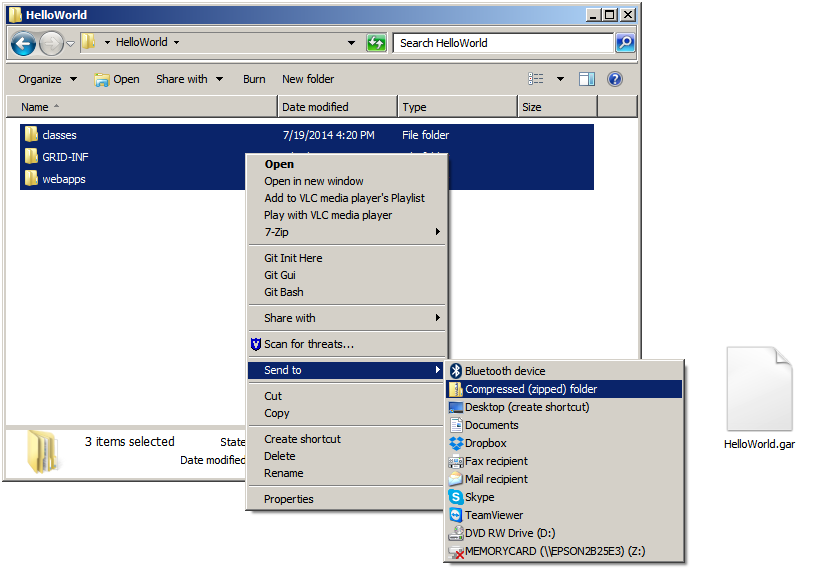
ZIP the contents of the folder into a file and rename the file extension to .gar (make sure to ZIP the contents of the folder and not the folder itself or you will end up with an incorrect folder structure):
b1_

With Eclipse

You can also use Eclipse for this.

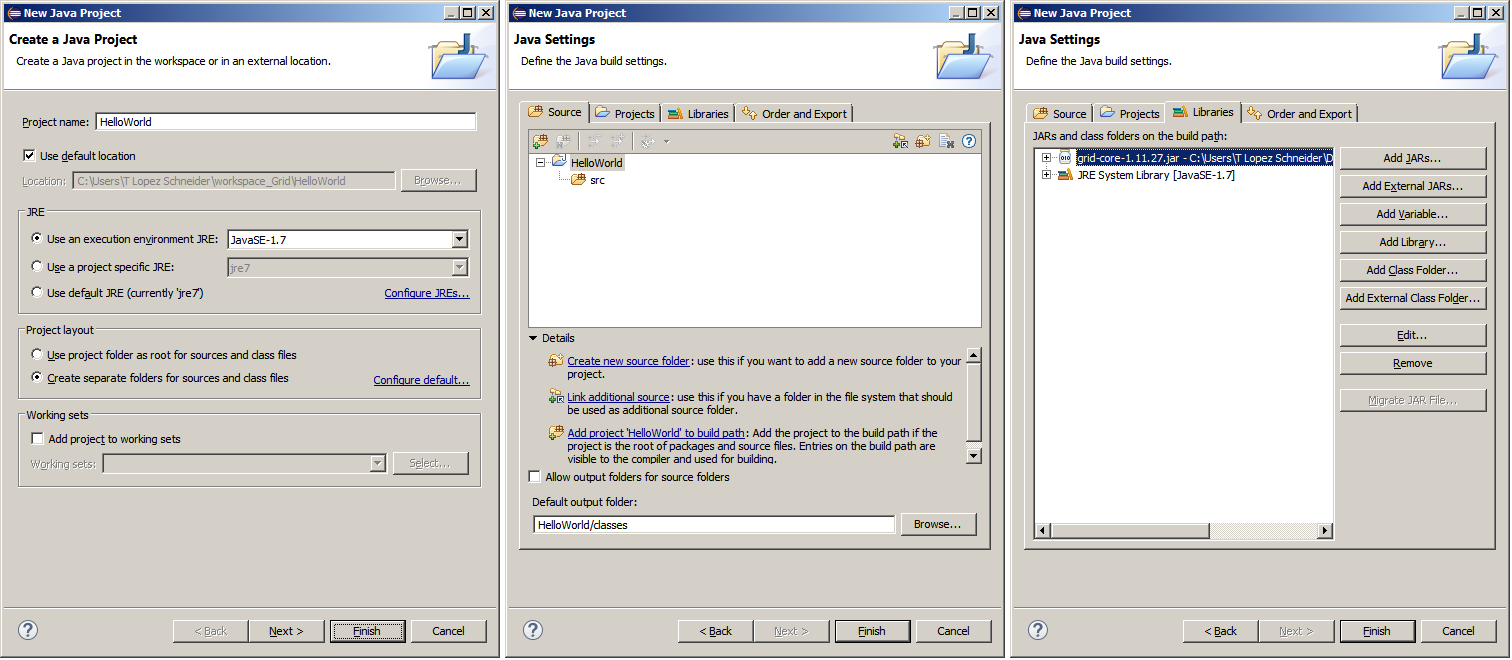
For that, create a new Java project, change the Default output folder from /bin to /classes, and add the grid-core as an external JAR:
b2

Create the file and folder structure as explained above:
b3_

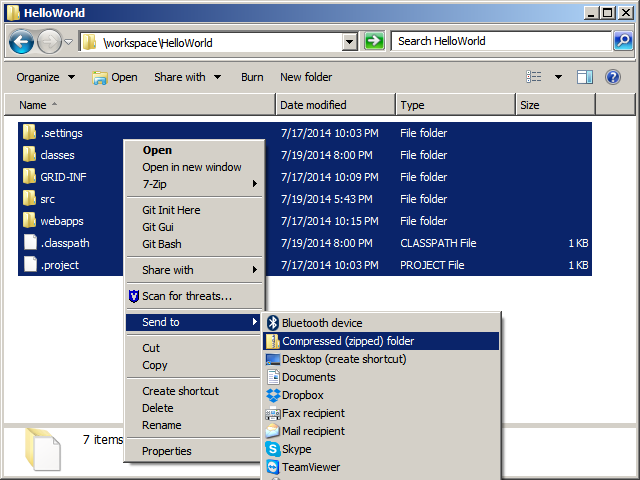
ZIP the entire contents of the folder and change the file extension to .gar as explained above:
b4

Install the application

  1. Go to the Grid Management PagesAdvancedConfigurationConfiguration ManagerApplications and select Install New Application:
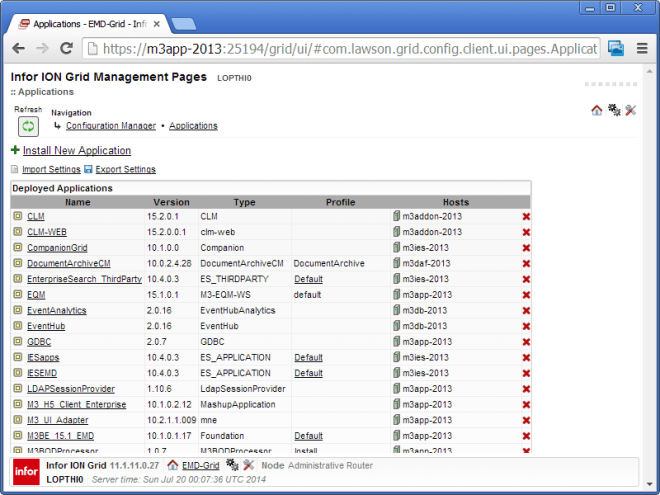
    b5
  2. Click Upload, browse to your GAR file, and click Upload:
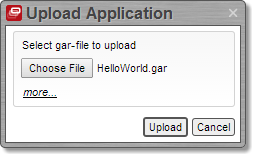
    b6
  3. Select the hosts on which to deploy the app and click Finish:
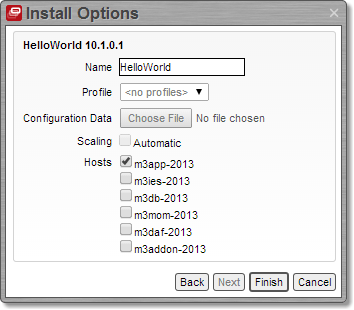
    b7
  4. It will say “Operation completed.” Click Close:
    b8
  5. It will say “The application has no bindings defined”. Select Fix this problem:

    b9
  6. Enter Min 1 and Initial 1 and click Add Binding:
    b10
  7. It will say “The web application ‘HelloWorld’ of module ‘HelloWorld’ has no context root defined”. Select Fix this problem:
    b11
  8. Enter a Context Root Name and click Add:
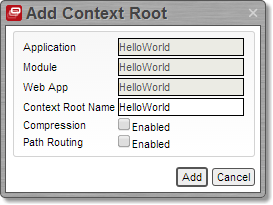
    b12
  9. It will say “There are unsaved changes”. Click Save:
    b13
  10. Click Save to confirm the changes:
    b14
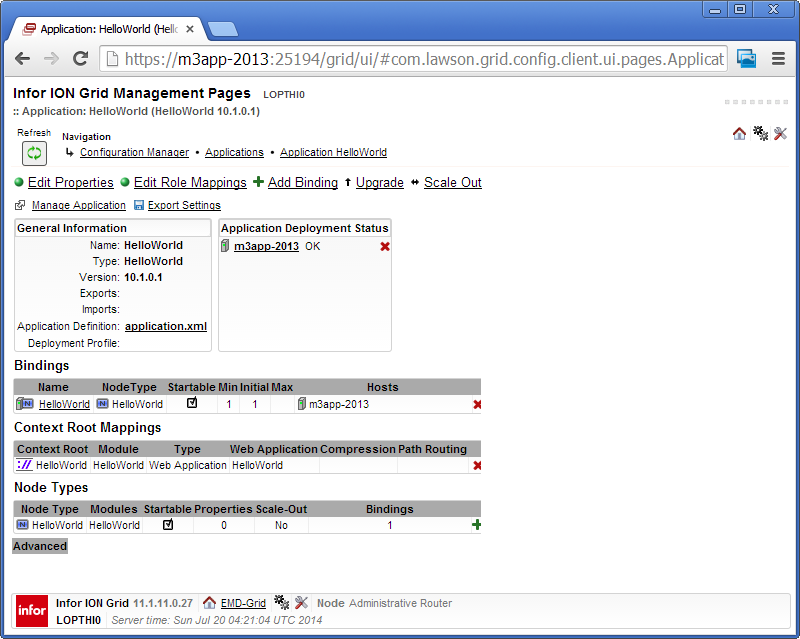
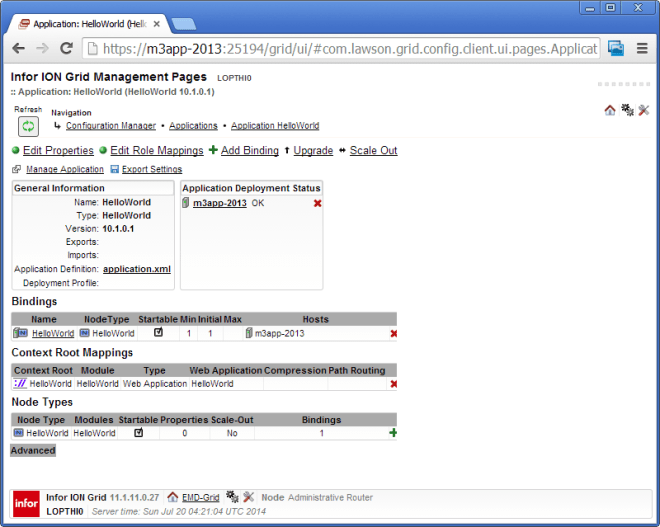
  11. The application is now deployed on the Infor Grid:
    b15

Result

Now we can try the application by going to /HelloWorld/:
18

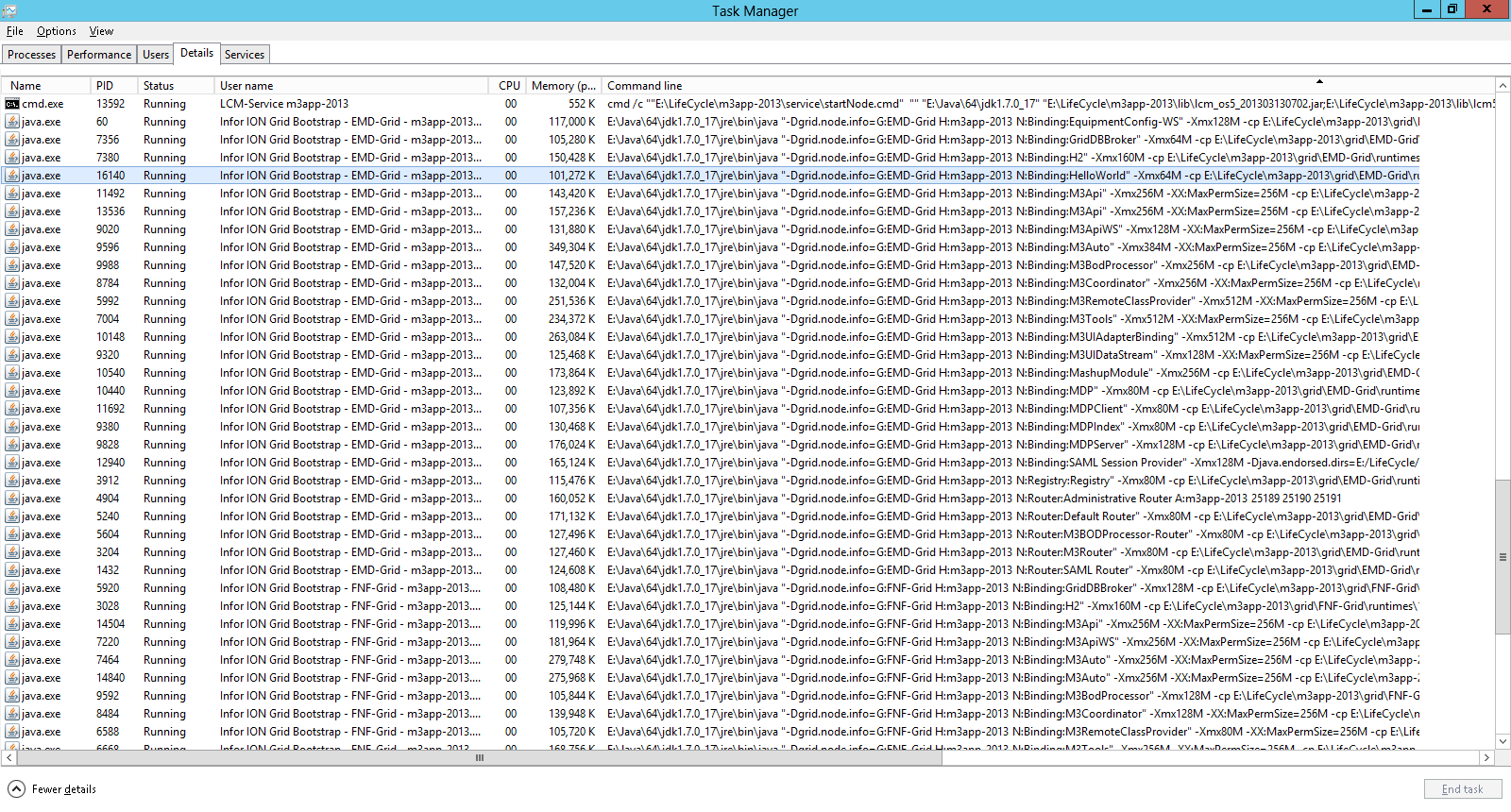
My understanding of the Infor Grid is that applications run in a node, and that a node runs in its own JVM (probably to avoid collateral damage if the app crashes). We can confirm this by finding our app in the server’s Windows Task Manager:
b16


Updates

[UPDATED 2014-07-24]

At this point, you can update your files (JSP, HTML, JavaScript, etc) directly in the LifeCycle Manager deployment folder, refresh the browser, and the server will serve the new version of your files. This is the same type of updates we do with Smart Office scripts. If you do this, remember to backup your changes.

E:\LifeCycle\<host>\grid\<grid>\grids\<grid>\applications\HelloWorld\webapps\HelloWorld\

Limitations

Because of the distributed topology, fault tolerant, load balanced, scalable, and redundant nature of the Infor Grid, it is our responsibility as grid application developers to design them correctly. But we don’t yet know how to do that on the Infor Grid. Remember to call Infor about that. So keep it simple for now:

  • Make the application stateless until we find out how to store and share and synchronize state and make distributed sessions on the Grid.
  • Don’t make direct connections to any servers with network sockets until we find out how to abstract the communication with the Grid routers.
  • Don’t change any shared resources anywhere to avoid race conditions until we find out how to run critical sections on the Grid.
  • Don’t expect to do parallel programming since we don’t yet know how to communicate with multiple instances of the application.
  • Don’t persist data on disk as we don’t yet know how to abstract storage for failover and redundancy.

Summary

This was a hack to start developing simple applications on the Infor Grid. This technique is unofficial, undocumented and unsupported. It is our responsibility as developers to design applications correctly. Ask Infor to open up and support us.

That’s it! If you liked this, thank Jonathan, click Like, leave your comments below, subscribe to this blog, share with your peers, ask Infor to be open and embrace the community, and be responsible with your code. Thank YOU.

Open source address validation of US addresses for Infor M3

As part of the open source address validation project for Infor M3, I just uploaded to the GitHub repository a sample script for Infor Smart Office to validate an address in the US using the United States Postal Service USPS Web Tools API. I provide the script as proof-of-concept for the interested reader to complete to suit their needs.

USPS Web Tools API

The USPS Web Tools API has the Verify and ZipCodeLookup APIs that validate one or more addresses using XML over HTTP GET:
1
2

Sample request/response

Here is a sample XML request and the URL:

https://secure.shippingapis.com/ShippingAPI.dll?API=Verify&XML=…

<AddressValidateRequest USERID="************">
   <Address>
      <FirmName>Ciber</FirmName>
      <Address1>6363 South Fiddlers Green</Address1>
      <Address2></Address2>
      <City>Greenwood Village</City>
      <State>CO</State>
      <Zip5></Zip5>
      <Zip4></Zip4>
   </Address>
</AddressValidateRequest>

Here is the XML response:

<?xml version="1.0" encoding="UTF-8"?>
<AddressValidateResponse>
   <Address>
      <FirmName>CIBER</FirmName>
      <Address1>STE 1400</Address1>
      <Address2>6363 S FIDDLERS GREEN CIR</Address2>
      <City>GREENWOOD VLG</City>
      <State>CO</State>
      <Zip5>80111</Zip5>
      <Zip4>5024</Zip4>
   </Address>
</AddressValidateResponse>

Sample script

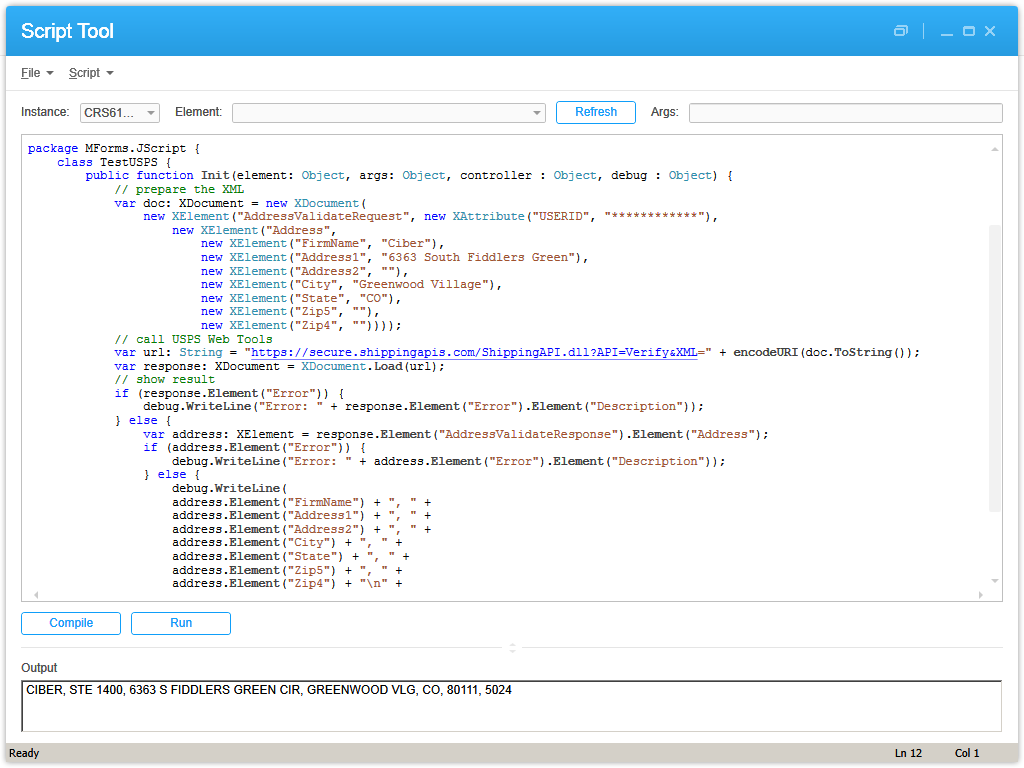
Here is the sample script TestUSPS.js in Smart Office:
3

Here are the resulting XML and HTTP request and response:
4


That was how to do address validation for M3 in Infor Smart Office for US addresses using USPS Web Tools.

If you like this, please comment, subscribe, share, contribute to the project, donate your code. Thank you.

UPDATE: I would like to specially acknowledge the contribution of William Dale at Augusta Sportswear for allowing me to use his UPS and USPS accounts so I can do my tests and write the scripts. Thank you William!

Open source address validation of Nordic addresses for Infor M3

As part of the open source address validation project for Infor M3, I just uploaded to the GitHub repository two sample scripts for Infor Smart Office to do address validation in Nordic countries: Sweden (eniro.se), Denmark (krak.dk), and Norway (gulesider.no). I provide the scripts as proof-of-concept for the interested reader to complete to suit their needs.

Eniro Geocode

The script TestEniroGeocode.js uses the Eniro geocode API. This API seems to be best for address validation, and you don’t need an account for it. But it seems to be deprecated, and I was only able to find an old copy of the documentation.
EniroGeocode
TestEniroGeocode_

Eniro API

The script TestEniroAPI.js uses the Eniro API. This API seems to be for searching places only, like “restaurants in Stockholm”, and doesn’t seem usable for address validation for M3. Also, you will need an account with Eniro, and you will need to sign in to api.eniro.com to see your account profile, key, and documentation.
EniroAPI
TestEniroAPI_


Those were two quick proof-of-concepts scripts for Infor Smart Office to illustrate how to use Eniro to do address validation for Infor M3.

That’s it! Please comment, like, share, follow, author, contribute to the project, donate your source code. Thank you.

Augmented Reality for M3 – Hello World with Metaio Creator

Here is a Hello World illustration of Augmented Reality (AR) for Infor M3 using Metaio Creator and the Junaio Browser on my iPad. The demo shows a 3D warehouse with aisles, racks, and levels, where I highlighted one of the boxes in red. This new result complements my previous demo of AR for M3 which was implemented programmatically in JavaScript. This time I am using Metaio Creator.

Why it matters

The idea is to highlight the stock location of the the next item to pick in a picking list so the picker can quickly identify where to go in the warehouse. This scenario is specially useful for temporary workers that are hired for campaigns on short notice and are not yet familiar with the warehouse thus saving costs in training and picking time.

Also, Augmented Reality is predicted to be one of the next multi-billion dollar industries in five years from now, so this is one of the learning steps I am taking in that direction.

Preview the demo

To preview the demo on your device (PC, Mac, iPad, Android) follow these instructions:

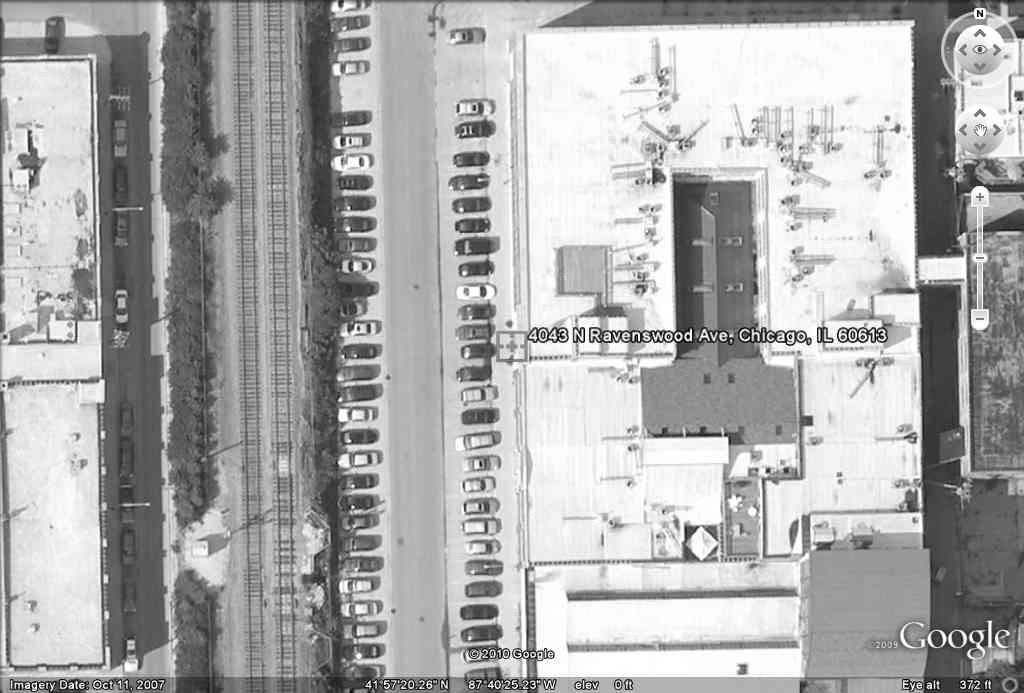
  1. Print the following satellite picture in full page or bigger, and place it on a flat surface; that will be the trackable AR marker:
    GEI142
  2. Install the Junaio Augmented Reality Browser app on your device (from junaio.com for PC/Mac, from the App Store for iPad, or from the Google Play Store for Android).
  3. Open the app and click Scan.
  4. Scan the following QR code; Junaio Browser will identify the QR code, and will download the resources from my channel ThibaudWarehouse3D:
    QRcode
  5. Point your device’s camera towards the printed satellite picture. Junaio Browser will track the satellite picture and will register the warehouse 3D accordingly. Here is a screenshot of the result:
    vlcsnap-2014-07-01-02h18m04s68

How I built it

The creation process is simple.

I used my previous 3D model of a warehouse with racks, aisles, levels, and boxes that I had created in SketchUp for a demo three years ago. I removed the walls and roof. I removed unnecessary 3D elements that slow down the 3D rendering pipeline on iPad. And I hard-coded an arbitrary box in red.

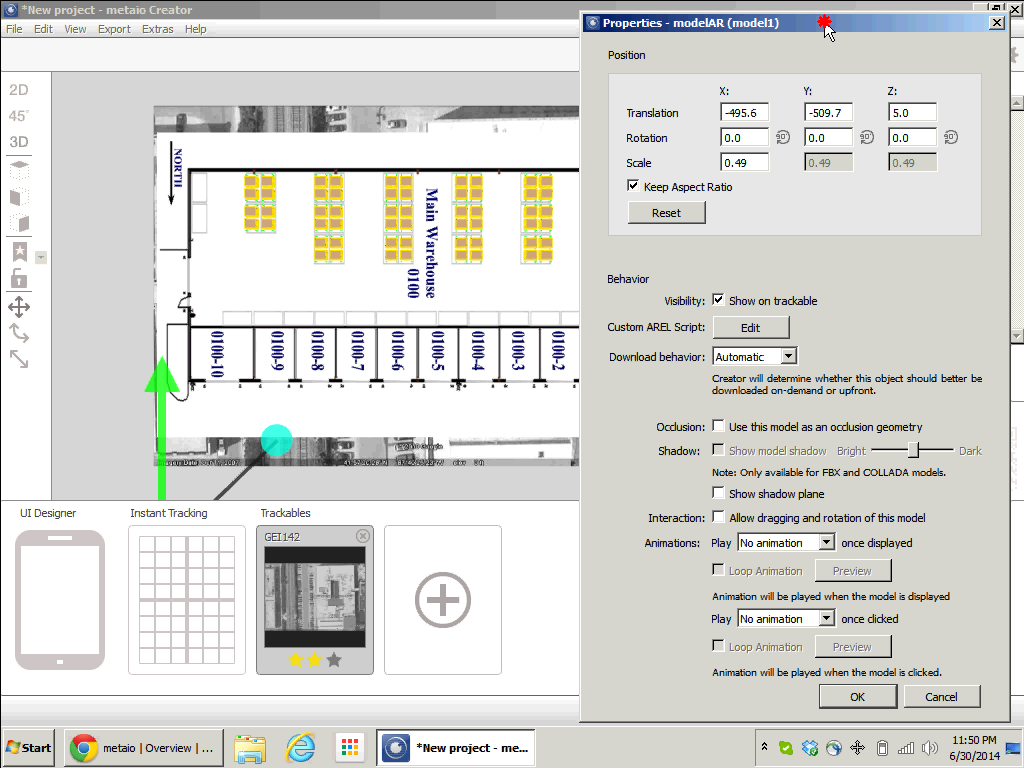
Here is a screenshot of the trackable and 3D model in Metaio Creator:
vlcsnap-2014-07-01-02h31m15s41

Here is a screenshot of the channel creation:
Channel

Here is a video of the entire creation process and preview:

Summary

That was how to create a simple Hello World demo of Augmented Reality for M3 using a 3D warehouse and Metaio Creator to highlight the stock location of the next item to pick in a picking list to save training time and picking time.

Future version

In a future version, I will un-hard-code the red box, and I will highlight it programmatically using Metaio SDK.

That’s it! Like. Comment. Subscribe. Share. Author.

Thank you.


Content-aware re-sizing of M3 programs, and text interpolation

Today I’ll illustrate two usability ideas for Infor M3 – content-aware re-sizing of M3 programs, and text interpolation – to make M3 more usable on high resolution screens.

Synopsis

The M3 user interface was built over 20 years ago for AS/400 and 5250 screens of 73 up to 98 columns and 23 rows, that’s about 0.0022 Mega-characters. The M3 user interface has evolved over the years and has stabilized in Smart Office around the same number of columns and rows as 20 years ago with each cell measuring 10 x 22 pixels at 100% zoom level, that’s about 0.5 Megapixels. It’s about the same for Infor H5 Client.

Meanwhile, screen resolutions and pixel density have continued to increase at an incredible pace. Mobile phones are being produced in China with a horizontal resolution of 3,000 pixels (3K). Televisions are being produced in Japan with a horizontal resolution of 8,000 pixels (8K). And the trend will continue. I even started working on a laptop that has a 3K screen, 3200 x 1800, that’s 5.8 Megapixels or a seven-fold increase in available pixels compared to 1024 x 768. The number of pixels on the surface grows to the square of the linear resolution, for example if we multiply by two the screen resolution on each axis from 1600 x 900 to 3200 x 1800 that’s a four-fold increase in surface.

Despite those technological advances, the M3 user interface hasn’t adapted. Here is a screenshot of Smart Office on my laptop with a screen resolution of 3200 x 1800 pixels, showing CRS610/E sized to 1024 x 768 pixels at the top left corner; the result evidently illustrates how the majority of the space is unused:
3200x1800

There are numerous technical challenges to increasing the number of rows and columns of M3 programs, leading to problems in the database and in legacy source code, but there are several steps we can take in that direction.

Two years ago I illustrated the usability idea how to tile windows in Smart Office. Today, I will illustrate two new ideas: content-aware re-sizing of M3 programs, and text interpolation.

Content-aware re-sizing of M3 programs

The first usability idea is to implement content-aware re-sizing of M3 programs with inspiration from seam carving as introduced by Shai Avidan and Ariel Shamir in 2007. You can watch a demonstration of seam carving in the authors video here. The idea of seam carving is to calculate the energy function of neighboring pixels and remove paths of lowest energy in a way that respects the overall composition of the image. We can manipulate the energy values to keep certain pixels and discard others.

To try seam carving, you can use the Content Aware Scaling feature in Adobe Photoshop, or the Liquid Rescale plugin for Gimp, or the online tool RSIZR.

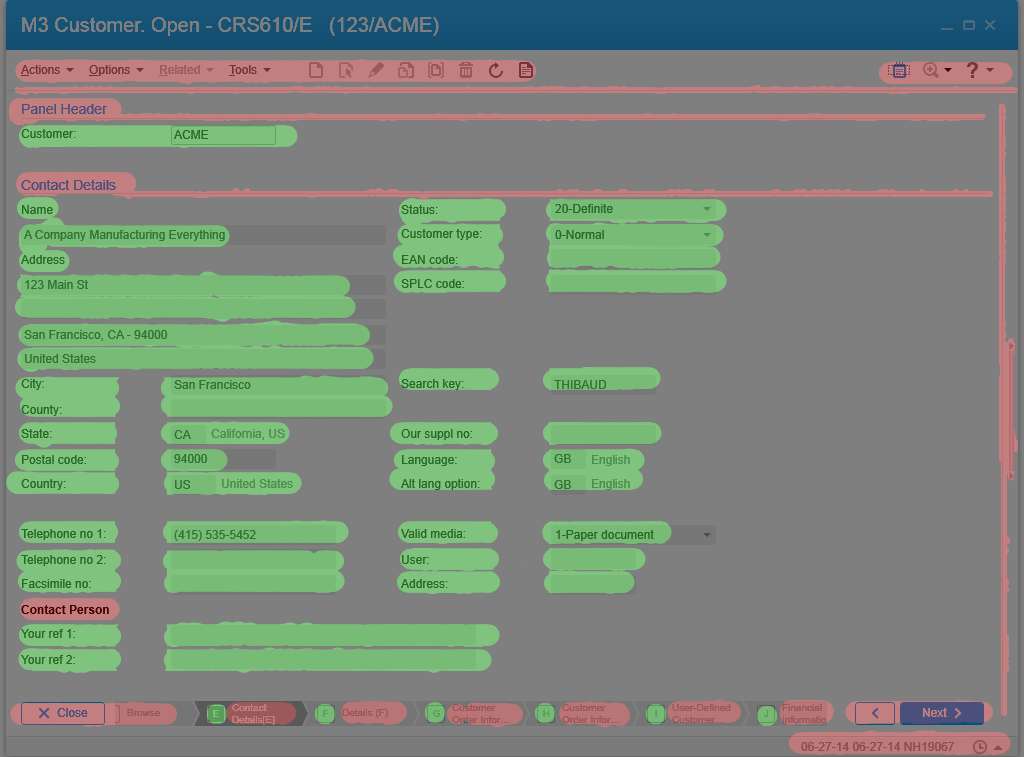
Here is an example of CRS610/E in RSIZR; I used the preserve and remove brushes to mark in green the important portions of CRS610/E to keep and in red the portions to discard:
mask

Previous known techniques to re-size windows include re-scaling but it causes cropping and scrollbar hell, and re-sizing but it causes the image to be squooshed and minimized. The ideal solution is re-targeting with content-aware re-sizing.

Here is a video of the result using a screenshot of CRS610/E in RSIZR:

It’s not possible to simply implement seam carving to M3 because the rendering of the M3 user interface is based on text and not on pixels. Yet, we can approximate an implementation by choosing which parts of the user interface we want to keep and which parts we can discard. We can do this with a hierarchy of importance. And we can do this programmatically. The new M3 user interface does something similar with the adaptable panel sequence ribbon.

Text interpolation

The second usability idea is text interpolation in M3 programs for text like column headers and labels.

M3 is translated in multiple languages by professional translators. You can read more about it in the two blog posts: Translate M3 with Google Translate API, and Write a Mashup in multiple languages.

The language constants are chosen in different widths to fit the varying space of the target medium. The size ids are: 03, 05, 10, 15, AA, C0, C1, C2, CA, and CF.

The text is retrieved at run-time based on the user’s language settings in MNS150.

The Java source code of each M3 program maps the fields and message identifiers. For example CRS610DSP.java:

static final String[] fieldNames={
"X0RCID","PXFKEY","WWCLIN","WWCPOS","WBOPT2","S0SFH","WWCOLN","WWPSEQ","WOPAVR","WOUPVR",
"WWQTTP","WWNFTR","WWAGGR","WXSLCT","WFSLCT","WTSLCT","WXSLC2","WFSLC2","WTSLC2","WXSLC3",
"WFSLC3","WTSLC3","WXTXT1","WXTXT2","WXTXT3","WXTXT4","WXTXT5","WXTXT6","WXTXT7","WXTXT8",
...
"WRGEOC","WRTECN","WRTEEC","WRTAXC","WTTAXC","WRAGBP","WRAGPY","WRACLB","WRAACB","WRAGCP",
"WRAGAC","WRAGPN","WRAGBG","WRAGPG","WRAGTD","OKAGTN","WRAGCA","WTRTEP","WRRPLT","WRRDIS",
"WRRTEP","WRRSMC","WRAOTP","WTRPLT","WTRDIS","WTRSMC","WTAOTP","PXPDSE","WWSPIC","WWDSEQ",
"WWCFEN","WWTPIC","WWTXVR","WWLNCD"};

static final String[] fieldMessageIds={
null,null,null,null,null,null,null,null,null,null,
...
"WGE10","WTE26",null,"WTA39","WDE03","WAGB0","WAG69","WAC95","WAACB","WAG78",
"WAG70","WAG73","WAG77","WAG76",null,"WAG75","WAG72","WDE03","WRPLT","WRDIS",
"WRTEP","WRSMC","WAT90",null,null,"WDE03",null,null,null,null,
null,null,null,null};

For example, here are the identifiers of some common fields in CRS610:

  • Customer name – CUNM: WNA01
  • Customer number – CUNO: WCU02
  • Telephone number 1 – PHNO: WPH01

We can get the values in a Smart Office script with:

function ... {
    var list: ArrayList = new ArrayList();
    list.Add(new TranslationItem(messageId + width, "MVXCON"));
    TranslationService.Current.Translate(list, OnTranslation, "GB");
}
function OnTranslation(items: IEnumerable) {
    for (var item: TranslationItem in items) {
        if (!String.IsNullOrEmpty(item.Text)) {
            if (item.Text != item.Key) {
                debug.WriteLine('Translated ' + item.Key + ' to ' + item.Text);
            } else {
                debug.WriteLine('Key ' + item.Key + ' not found in file ' + item.File);
            }
        } else {
            debug.WriteLine('item.Text is null or empty');
        }
    }
}

That calls the Net Extension command TRANSLATE.

The result would be for example:

PHNO[WPH0103]=Tl1
PHNO[WPH0105]=Tel 1
PHNO[WPH0110]=Tel no 1
PHNO[WPH0115]=Telephone no 1
PHNO[WPH01AA]=telephone number 1

We can then interpolate the resulting Strings, for example my simple algorithm returns:


Tl1
Tel1
Tel 1
Tel n1
Tel nb1
Tel nb 1
Tele nb 1
Telep nb 1
Teleph nb 1
Telepho nb 1
Telephon nb 1
Telephone nb 1
Telephone nub 1
Telephone numb 1
Telephone numbe 1
Telephone number 1

Here’s the simple algorithm I used for that:

/*
    Returns the specified headers interpolated one character at a time, first ocurrence of any different character, from left-to-right.
*/
function interpolate(headers) {
    var interpolated = new ArrayList();
    var str1;
    var str2;
    for (var i = 0; i < headers.length - 1; i++) {
        str1 = headers[i];
        str2 = headers[i + 1];
        interpolated.Add(str1);
        for (var j = 0; j < (str2.length - 1) && str1 != str2; j++) {
            if (j < str1.length) {
                if (str1[j] != str2[j]) {
                    // the character at this position of str2 doesn't exist in str1, add it to str1
                    str1 = str1.Insert(j, str2[j]);
                    interpolated.Add(str1);
                }
            } else {
                // we reached the tail of str1, add the tail of str2 to str1
                str1 = str1.Insert(j, str2[j]);
                interpolated.Add(str1);
            }
        }
    }
    interpolated.Add(str2);
    return interpolated;
}

It turns out the algorithm is not that simple to implement as not all the language constants in M3 can be automatically interpolated, for example the abbreviation no (letter O) would have to be specially interpolated to number (no letter O).

Here is a resulting video of column header interpolation in CRS610/B; I manually sanitized the interpolated Strings and added the field name in parenthesis:

Summary

In this post I illustrated two usability ideas – content-aware re-sizing of M3 programs, and text interpolation – to benefit from the technological advances in ever higher resolution screens and to improve the M3 user interface. This would be specially ideal for large Mashups.


That’s it! If you liked this post, please click the Follow button to subscribe to this blog, leave your comments in the section below, click Like, and share with your peers.


AsYouTypeFormatter for Smart Office

In this post I will introduce a proof-of-concept of AsYouTypeFormatter for Smart Office. AsYouTypeFormatter is used to “format phone numbers on-the-fly when users enter each digit.” It’s part of the open source library libphonenumber, “Google’s phone number handling library, powering Android and more.” This post complements my previous post where I discussed International phone number parsing, validation and formatting for Smart Office.

AsYouTypeFormatter

In addition to parsing, validation, and formatting, libphonenumber has a nice AsYouTypeFormatter that formats the phone number as the user types it.

You can test it with the Phone Number Parser Demo. Here’s a screenshot:
AsYouTypeFormatter

Standard Smart Office without AsYouTypeFormatter

Here is a demo of entering a phone number in the field WRPHNO in M3. Customer Open – CRS610/E in standard Smart Office (without AsYouTypeFormatter); the phone number is not validated nor formatted:

Smart Office with AsYouTypeFormatter

And here’s the same demo with AsYouTypeFormatter that’s formatting the phone number on-the-fly as I enter each digit (I typed only the digits):

Here is the complete source code for that demo:

import System;
import System.Collections;
import System.Windows.Controls;
import libphonenumber;
import MForms;

package MForms.JScript {
	class Test {
		var debug;
		var formatter: AsYouTypeFormatter = PhoneNumberUtil.Instance.GetAsYouTypeFormatter("US");
		var textboxes: ArrayList = new ArrayList();
		var isTextChanging: boolean = false; // to avoid infinite loop in OnTextChanged
		public function Init(element : Object, args : Object, controller : Object, debug : Object) {
			try {
				// save global variables
				this.debug = debug;
				// attach to the phone fields
				var content = controller.RenderEngine.Content;
				var supportedPhoneFields: String[] = ["WRPHNO", "WRPHN2", "WRTFNO"];
				for (var i: int in supportedPhoneFields) {
					var fieldName: String = supportedPhoneFields[i];
					var textbox: TextBox = ScriptUtil.FindChild(content, fieldName);
					if (textbox != null) {
						textboxes.Add(textbox);
						textbox.add_TextChanged(OnTextChanged);
					}
				}
				controller.add_Requested(OnRequested);
			} catch (ex: Exception) {
				debug.WriteLine(ex);
			}
		}
		/* User is typing */
		function OnTextChanged(sender: Object, e: TextChangedEventArgs) {
			try {
				if (!isTextChanging) {
					var textbox: TextBox = sender;
					if (textbox.Text.Length > 0) {
						// format the phone number as the user is typing it
						var newChar: char = textbox.Text.Substring(textbox.Text.Length - 1);
						var newText: String = formatter.InputDigit(newChar);
						isTextChanging = true;
						textbox.Text = newText;
						textbox.CaretIndex = textbox.Text.Length;
						isTextChanging = false;
					}
				}
			} catch (ex : Exception) {
				debug.WriteLine(ex);
			}
		}
		/* Clean-up */
		function OnRequested(sender: Object, e: RequestEventArgs) {
			try {
				if (sender != null) {
					sender.remove_Requested(OnRequested);
				}
				for (var textbox: TextBox in textboxes) {
					if (textbox != null) {
						textbox.remove_TextChanged(OnTextChanged);
					}
				}
			} catch (ex : Exception) {
				debug.WriteLine(ex);
			}
		}
	}
}

Limitations and future work

But according to this thread, AsYouTypeFormatter doesn’t support the backspace key, nor emptying the field, nor replacing a selection, nor inserting text somewhere in the middle. The solution is to handle all the cases ourselves in code. All these are already implemented in android.telephony.PhoneNumberFormattingTextWatcher. There is a partial port of Android to C# in XobotOS, “a Xamarin research project that explored porting Android 4.0 from Java/Dalvik to C#”. So to properly implement AsYouTypeFormatter in Smart Office we would need to combine libphonenumber-csharp and XobotOS.


That’s it! That was my proof-of-concept demo of AsYouTypeFormatter for Smart Office to format phone numbers in M3 Programs as the user is typing the digits.

Like, share, comment, enjoy.

/Thibaud


International phone number parsing, validation and formatting for Smart Office

Today I will introduce a simple solution to do international phone number parsing, validation and formatting in Infor Smart Office. The goal is to validate phone numbers entered by users in Infor M3 Programs such as M3 Customer – CRS610/E, or in Infor Customer Lifecycle Management (CLM) Account Details, against international phone number specifications, and to get the resulting phone number in any of the desired output formats: E.164, international, national, and RFC3966. For that, I will use libphonenumber, “Google’s phone number handling library, powering Android and more”, and more specifically I will use libphonenumber-csharp, the known port for C#.

Examples

Here are some examples of parsing, validation and formatting of a US phone number:

  • Valid phone number: 415 535 5452
  • Invalid phone number: 415 535 545222
  • Country code: 1
  • Phone Number region: US
  • Number type: FIXED_LINE_OR_MOBILE
  • E.164 format: +14155355452
  • International format: +1 415-535-5452
  • National format: (415) 535-5452
  • RFC3966 format: tel:+1-415-535-5452
  • Format for out-of-country calling from France: 00 1 415-535-5452

Why does it matter?

Phone number parsing, validation and formatting may be important in some scenarios.

For instance, for one of my customers, I’m integrating Cisco IP Communicator and Cisco Agent Desktop with CLM in Smart Office such that when customer service representatives receive incoming phone calls from their customers, Smart Office automatically searches for that incoming phone number in CLM and displays a list of possible matches. Then, the user can select the desired match and open the corresponding CLM Account Details. It saves precious time during the call. I wrote a previous post about it with some preliminary findings.

Conversely, users can click a phone number in CLM to make that outgoing phone call.

To implement that programmatically, how do we match the phone number of the incoming call with the phone numbers entered by users in CLM? Cisco Agent Desktop returns the ANI of incoming phone numbers as format 4155355452. What if the user entered the phone number in CLM as format (415) 535-5452? What if another user entered a duplicate record in CLM as format 415-535-5452? What if a user entered the phone number in CRS610 as format +14155355452? Also, for outgoing calls Cisco Agent Desktop will accept phone numbers as format 14155355452. That’s five different formats for the same phone number, and it requires record linkage.

That’s why it’s crucial to normalize the phone numbers so we can compare them.

Also, M3 and CLM synchronize their records with each other via Event Hub. So we have to validate entries on both sides or they would risk polluting each other.

The solution is to do phone number validation and formatting at user input so the user has a chance to enter the correct phone number. But doing it at the user interface level alone is not sufficient. We would also need to cover the other entry points such as M3 API, M3 Web Services of type M3 Display Program (MDP), and REST/SOAP Web Services. Also, as a reminder, we never do direct data entry in the database with SQL CREATE/UPDATE/DELETE as that could potentially break the integrity of the system, so we don’t need to cover that side.

Insufficient solutions

A naive solution to search a record by phone number is to select all records that match the input without normalization.

For example, searching CLM with SQL could be: SELECT AccountID FROM LCLM.Account WHERE Phone=’4155355452′. But that will fail to find the alternate valid numbers (415) 535-5452 and 415-535-5452. And we would have to protect it against SQL injection attacks.

Another naive solution is to strip all non-digit characters and count the resulting number of characters. For example, phone numbers in the United States have 10 digits, so the valid phone number (415) 535-5452 would be correctly validated, but the alternate valid phone number +1 (415) 535-5452 would incorrectly be rejected whereas it’s valid. We could improve the solution and say we now accept 11 digits, but then the valid French phone number +33 6 15 62 07 51 would incorrectly be validated as a US phone number, which is not true.

We could go further and restrict the space of phone numbers to only a specific country, say United States and use the North American Numbering Plan (NANP). But that will just temporarily buy time as there will likely be a need to support international phone numbers at a later point in the future.

Going further, we could use regular expressions. For example, according to this Microsoft pattern & practices document, the regular expression ^[01]?[- .]?(\([2-9]\d{2}\)|[2-9]\d{2})[- .]?\d{3}[- .]?\d{4}$ “Validates a U.S. phone number. It must consist of 3 numeric characters, optionally enclosed in parentheses, followed by a set of 3 numeric characters and then a set of 4 numeric characters.” Unfortunately, that will not validate a valid phone number such as +14155355452; we could improve the regular expression to validate the international prefix +1. Also, it will only validate NANP phone numbers, not international numbers; we could add more regular expressions for other countries.

Also, what about legitimate phone numbers with extensions like (415) 535-5452#1738 ?

We could iteratively improve the solutions, adding more tests and fixes, but it will unfortunately prove to be insufficient unless we spend a tremendous amount of effort. It’s like trying to implement ones own library of time and time zones, or trying to implement ones own cryptographic library.

Advantages of using a known library

libphonenumber is “Google’s common Java, C++ and Javascript library for parsing, formatting, storing and validating international phone numbers. The Java version is optimized for running on smartphones, and is used by the Android framework since 4.0 (Ice Cream Sandwich).”

Using proven robust open source libraries is always a good choice. This library is used by the billion Android phones on the market, so that tells something about its robustness and correctness. And it supports Java and JavaScript so we could use it in M3 Business Engine (Java) and H5 Client (JavaScript). And there is a port for C# so we can also use it in Smart Office, which I will.

Examples for Smart Office

I will use libphonenumber-csharp in a Smart Office script.

For that, I need to create a new feature in Smart Office SDK to add a reference to libphonenumber.dll and to deploy it with ClickOnce. I had originally tried simply using System.Reflection.Assembly.LoadFrom(String), but I couldn’t get it to work.

Once I have a reference to the assembly, I validate the phone number with:

import libphonenumber;
...
var number: PhoneNumber = PhoneNumberUtil.Instance.Parse(phoneNumberStr, "US");
if (number.IsValidNumber) {
    // valid
} else {
    // invalid
}

Then, I format the phone number with:

number.Format(PhoneNumberUtil.PhoneNumberFormat.INTERNATIONAL)
number.Format(PhoneNumberUtil.PhoneNumberFormat.NATIONAL)
number.Format(PhoneNumberUtil.PhoneNumberFormat.E164)
number.Format(PhoneNumberUtil.PhoneNumberFormat.RFC3966)
number.FormatOutOfCountryCallingNumber("US")
number.FormatOutOfCountryCallingNumber("FR")

Example for M3 Programs

The sample source code to validate and format phones numbers in M3 Programs is the following:

import System;
import libphonenumber;

package MForms.JScript {
    class Test {
        public function Init(element : Object, args : Object, controller : Object, debug : Object) {
            var number: PhoneNumber = PhoneNumberUtil.Instance.Parse(element.Text, "US");
            if (number.IsValidNumber) {
                debug.WriteLine(number.Format(PhoneNumberUtil.PhoneNumberFormat.INTERNATIONAL));
                debug.WriteLine(number.Format(PhoneNumberUtil.PhoneNumberFormat.NATIONAL));
                debug.WriteLine(number.Format(PhoneNumberUtil.PhoneNumberFormat.E164));
                debug.WriteLine(number.Format(PhoneNumberUtil.PhoneNumberFormat.RFC3966));
                debug.WriteLine(number.FormatOutOfCountryCallingNumber("US"));
                debug.WriteLine(number.FormatOutOfCountryCallingNumber("FR"));
            }
        }
    }
}

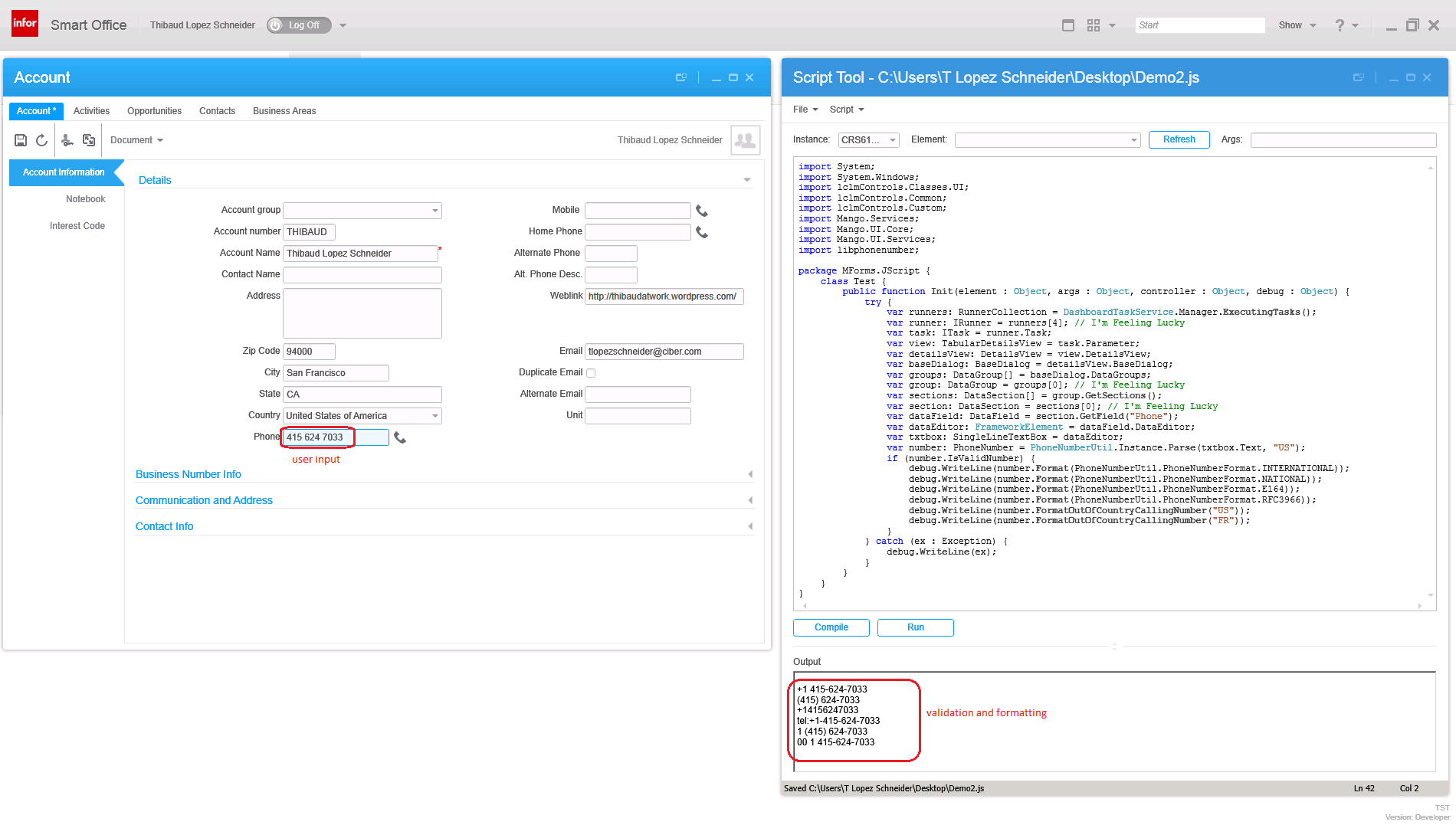
Here is a sample screenshot of the validation and formatting of the field Telephone no 1 (WRPHNO) in M3 Customer. Open – CRS610/E:

2

Example for CLM

My sample source code to validate and format phones numbers in CLM Accounts is the following:

import System;
import System.Windows;
import lclmControls.Classes.UI;
import lclmControls.Common;
import lclmControls.Custom;
import Mango.Services;
import Mango.UI.Core;
import Mango.UI.Services;
import libphonenumber;

package MForms.JScript {
	class Test {
		public function Init(element : Object, args : Object, controller : Object, debug : Object) {
			try {
				var runners: RunnerCollection = DashboardTaskService.Manager.ExecutingTasks();
				var runner: IRunner = runners[4]; // I'm Feeling Lucky
				var task: ITask = runner.Task;
				var view: TabularDetailsView = task.Parameter;
				var detailsView: DetailsView = view.DetailsView;
				var baseDialog: BaseDialog = detailsView.BaseDialog;
				var groups: DataGroup[] = baseDialog.DataGroups;
				var group: DataGroup = groups[0]; // I'm Feeling Lucky
				var sections: DataSection[] = group.GetSections();
				var section: DataSection = sections[0]; // I'm Feeling Lucky
				var dataField: DataField = section.GetField("Phone");
				var dataEditor: FrameworkElement = dataField.DataEditor;
				var txtbox: SingleLineTextBox = dataEditor;
				var number: PhoneNumber = PhoneNumberUtil.Instance.Parse(txtbox.Text, "US");
				if (number.IsValidNumber) {
					debug.WriteLine(number.Format(PhoneNumberUtil.PhoneNumberFormat.INTERNATIONAL));
					debug.WriteLine(number.Format(PhoneNumberUtil.PhoneNumberFormat.NATIONAL));
					debug.WriteLine(number.Format(PhoneNumberUtil.PhoneNumberFormat.E164));
					debug.WriteLine(number.Format(PhoneNumberUtil.PhoneNumberFormat.RFC3966));
					debug.WriteLine(number.FormatOutOfCountryCallingNumber("US"));
					debug.WriteLine(number.FormatOutOfCountryCallingNumber("FR"));
				}
			} catch (ex : Exception) {
				debug.WriteLine(ex);
			}
		}
	}
}

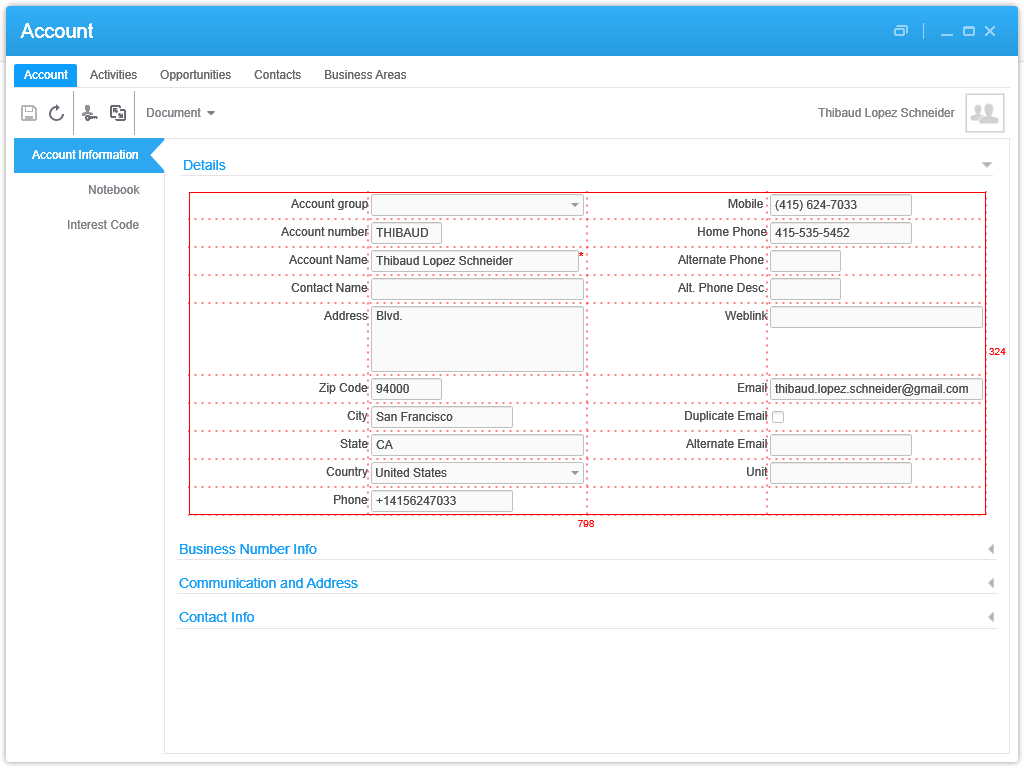
Here is a sample screenshot of the validation and formatting of the field Phone in a CLM Account Details View:
4

This is a proof-of-concept source code for demonstration purposes with “I’m feeling lucky” about the array indexes and not checking if object references are null. I will let the reader write the proper, and more lengthy code.

Completeness

For completeness, a robust solution would need to cover all entry points:

For M3 Programs:

  • MForms in Smart Office
  • MForms in H5 Client
  • M3 API (MvxAPI protocol, REST, and SOAP)
  • M3 Web Services (MWS) of type M3 Display Program (MDP) (REST and SOAP)

For the M3 UI, the solution would involve a combination of Smart Office Scripts in .NET, and H5 Client Web Parts in JavaScript. And for the backend, it would be M3 Java modifications with MAK; using Event Hub would be too late.

For CLM:

  • CLM in Smart Office
  • CLM-Web
  • CLM REST Web Services
  • CLM SOAP Web Services

For the CLM UI, the solution would involve the same combination of Smart Office Scripts in .NET, and H5 Client Web Parts in JavaScript. And for the backend, I’m not a CLM expert but I heard database triggers would do it.

Also, we would need to do retro- validation and formatting of phone numbers that were already entered in the M3 Programs and CLM.

That’s a lot of work.

My wish

My wish is that Infor Product Development implements phone number validation standard into Smart Office. Same for address validation in M3.

Conclusion

In this article I introduced my simple solution to do phone number parsing, validation and formatting for M3 Programs and CLM Accounts in Smart Office using the proven open source library libphonenumber and its known port for C#. I also explained why parsing, validation and formatting of phone numbers matters in some cases. I implemented a demo for M3 Programs and one for CLM Account Details. I also presented my thoughts on insufficient solutions. Then, I discussed what a complete solution would look like.

In my next article, I will present a proof-of-concept of AsYouTypeFormatter to format a phone number as the user is typing the digits.

That’s it!

If you liked this, please Follow the blog by clicking the button below, and let us know your comments in the section below. And share this with your colleagues, customers and partners to grow the community. Or become an author and share your ideas here. Or be a ninja and create your own blog!

/Thibaud

Hacking Customer Lifecycle Management (CLM)

Today I will show you how I made simple modifications to Infor Customer LifeCycle Management (CLM), the CRM product for Infor M3. With CLM standard out-of-the-box we only have the ability to show/hide fields, for example choosing whether or not we want the name, address, and phone number columns in the list or the fields in the details view. CLM is a great product, and by design it is intended to be simple to use. In my case I wanted something more: I needed to add a call button next to the phone number. That is not officially possible by default so I had to do some hacking.

I’m working on a project for a customer to integrate Cisco IP phones with CLM, such that when a customer service representative on the phone receives an incoming phone call we automatically pop-up the corresponding customer data on the screen, and conversely, such that they can click a phone number in CLM and make that outgoing phone call. I had already done some work in the past integrating Skype with Smart Office, and integrating ShoreTel phones with Smart Office. This time it’s Cisco IP phones. I cannot show you the entire source code as it’s propriety of the customer and my employer, but I will show you interesting bits and pieces, and the writing helps me clean-up my code too.

I will show you:

  • How to get the list of open CLM windows
  • How to find the phone number field
  • How to add a button to CLM and use the Design System Icons
  • How to make the outgoing phone call

About CLM

To tell if you have CLM, go to Smart Office > Help > About Infor Smart Office > View features, and you will see CLM Application:
1

Then, go to the Navigator widget, you will see the menu Customer Lifecycle Management, expand it and launch My Accounts > All:
2

It will open the list of accounts:
3_

Double-click one of the rows to open the account details:
4_

How to get the list of open CLM windows

Now we have two CLM windows open: the list of accounts, and the details of an account. To programmatically get that list, I use the DashboardTaskService.FindRunningTaskByUri method, to discriminate by Uri lclm://
0


var list /*System.Collections.Generic.List<Mango.UI.Services.FindTaskResult>*/ = DashboardTaskService.Manager.FindRunningTaskByUri("lclm://", TaskMatch.StartsWith);
for (var result : FindTaskResult in list) {
    var runner : IRunner = result.Runner;
    var task : ITask = runner.Task;
    debug.WriteLine(task.Uri);
}

That will return two tasks:
lclm://filter/?ActionType=View&MainTableID=…&FilterGroupID=…&SubFilterID=…
lclm://details/?ActionType=View&MainTableID=…&PrimaryKey=…

Now we need to tell apart the Accounts windows from the other potential CLM windows such as Activities or Contacts:

var host : IInstanceHost = runner.Host;
if (host.HostTitle.StartsWith("Account")) {
    // ...
}

This code will only work for English. Ideally we would use an official CLM API that returns the correct Tasks, but I haven’t found one. Let me know if you find one.

How to find the phone number field

Now that we have the correct window, we can get its contents and find the phone number field. First, I use WPF Inspector to visually introspect the window and find the phone number field in the visual tree:
6

The fields are layed out in one of the ancestor Grids:
5

More specifically the phone number field is itself a Grid of one row and three columns:
6_

That’s where I’ll inject my button. To get there programmatically, I use the VisualTreeHelper, and I do a pre-order depth first search:

function ... {
    //...
    var content : FrameworkElement = host.HostContent;
    if (content.GetType().ToString() == "lclmControls.Custom.TabularDetailsView") {
        var o: DependencyObject = FindPhoneTextBox(content);
        if (o != null) {
            var txtbox: SingleLineTextBox = o;
        }
    }
}
function FindPhoneTextBox(o : DependencyObject): DependencyObject {
    // visit node
    if (o != null) {
        if (o.GetType().ToString().EndsWith("SingleLineTextBox")) {
            var txtbox: SingleLineTextBox = o;
            if (txtbox.Name == "Phone") {
                return o;
            }
        }
    }
    // visit children
    for (var i = 0; i < VisualTreeHelper.GetChildrenCount(o); i++) {
        var child = VisualTreeHelper.GetChild(o, i);
        var result: DependencyObject = FindPhoneTextBox(child);
        if (result != null) {
            return result;
        }
    }
    // not found
    return null;
}

How to add a button to CLM and use the Design System Icons

Now that we found the phone number field and the Grid, we can add a button. I will use the IconButtons of the Design System as illustrated by norpe:

var btn: IconButton = new IconButton();
btn.IconName = "Phone";
btn.ToolTip = "Call this phone number."
btn.HorizontalAlignment = HorizontalAlignment.Left;
btn.Margin = new Thickness(5, 0, 0, 0);
btn.Tag = txtbox; // remember the textbox
Grid.SetRow(btn, 0);
Grid.SetColumn(btn, 2);
Grid.SetColumnSpan(btn, 2);
var grid: Grid = VisualTreeHelper.GetParent(txtbox);
grid.Children.Add(btn);
btn.add_Click(OnCall);

This is the result, with the IconButton hover and ToolTip:
7_

Note: to get the Grid I used the textboxe’s parent. This assumption is true in CLM version 1.0.0.99, but could be false in a future version of CLM in which case this code would break. Ideally we would have an official CLM API for this.

How to make the outgoing phone call

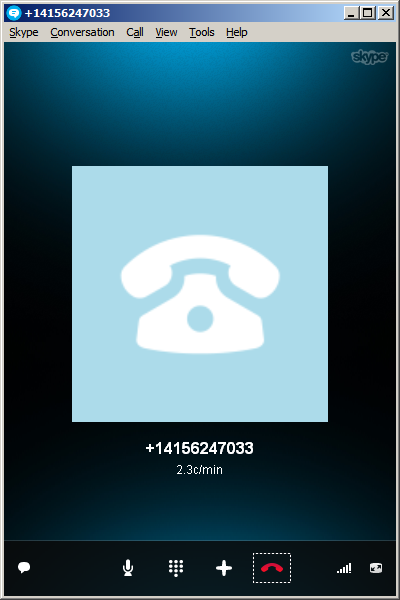
Now you can do whatever with the phone number, for example use the default operating system’s URI handler for the tel scheme which is Skype in my case.

function OnCall(sender: Object, e: RoutedEventArgs) {
    try {
        var btn: Button = sender;
        var txtbox: SingleLineTextBox = btn.Tag;
        var phoneNumber: String = txtbox.Text;
        var uri: Uri = new Uri("tel:" + phoneNumber); // RFC 3966
        ScriptUtil.Launch(uri);
    } catch (ex : Exception) {
        debug.WriteLine(ex);
    }
}

And here’s the result:
8_

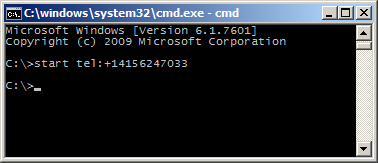
The method ScriptUtil.Launch will instruct the operating system to execute the specified command. That’s the equivalent of typing start command at the DOS prompt. In our case it’s:

start tel:+14156247033

9

That means any special characters of the command must be escaped, such as white spaces and ampersands. To escape white spaces in DOS that means enclosing the entire string in double-quotes. I tried enclosing the URI in double quotes, and it didn’t work. I also tried other escaping and encoding techniques like using backslash, plus sign, and %20, and they didn’t work either. So let’s simply strip it out:

phoneNumber = phoneNumber.Replace(' ', '');

Also, in my example I used a phone number that’s already correctly formatted in international E.123 notation which Skype understands. To validate the phone number, we can use a regular expression. A simple one is to strip all characters and keep only the plus sign and the digits, but that’s probably not fully compliant with the E.123 specification so we need to work more on this in the future:

var regex = /[^\+^\d]/g;
phoneNumber =  phoneNumber.replace(regex, "");

Future work

Future work includes:

  • Use an event handler to listen for new CLM windows to automatically add the Call button as the user opens the Account views. I couldn’t find an event, and Karin confirmed it’s not currently supported. I tried MForms.MainController, DashboardTaskService, DashboardTaskBar, lclmControls.EventNotifier, WindowManager, etc. I found an event handler for M3 Forms, an event handler for the Quick Start CTRL+R, and private event handlers that would have worked had they been public. Nothing I could use. I ended up using a worker that’s polling Tasks every second in a background thread (yikes).
  • Remember we added the button so we don’t add it again next time.
  • Add the Call button on all phone number fields: fax, mobile phone, home phone, etc.
  • Validate the phone number with a regular expression that complies with the specifications.
  • Make the outgoing call thru the Cisco IP phone instead of using Skype.
  • Listen for incoming phone calls.
  • Move the script to a widget using the Smart Office SDK.

That’s it! If you like this post, subscribe to this blog. And if you rock, become an author to share your ideas.

Open source release of Address Validation for M3

I’m please to announce I finally released the first free and open source version of the Address Validation for M3, and I published the code on GitHub at https://github.com/M3OpenSource/AddressValidation . It’s a combination of a Mashup and a Script for Infor Smart Office, so it’s easy for you to modify, deploy, and run. Currently, it only supports the Google Geocoding API with more address providers to be added later.

I had implemented the first proprietary version of the script for Lawson Software in 2009. Then I had implemented several variants for various customers while working at Lawson Software and Infor. I’ve always wanted it to become available to more customers, so I decided to make it free and open source. But in order to not infringe any intellectual property and copyrights over the previous source code, I had to re-write everything from scratch. The opportunity came up when I quit Infor, and before I joined Ciber, in between the two, so there was no question on the ownership of the source code, and I had made an announcement. It took me a while but here it is. And I made some improvements over to the previous proprietary code.

Self-configuration

The script is self-configurable for the following M3 Panels, i.e. just add the script to one of the supported M3 Panels and execute, without any modifications nor arguments:

  • Customer. Open – CRS610/E
  • Customer. Connect Addresses – OIS002/E
  • Supplier. Connect Address – CRS622/E
  • Customer Order. Connect Address – OIS102/E
  • Internal Address. Open – CRS235/E1
  • Company. Connect Division – MNS100/E
  • Ship-Via Address. Open – CRS300/E
  • Service Order. Connect Delivery Address – SOS005/E
  • Shop. Open – OPS500/I
  • Bank. Open – CRS690/E
  • Bank. Connect Bank Branch Office – CRS691/E
  • Equipment Address. Open – MOS272/E

Deploy locally and test

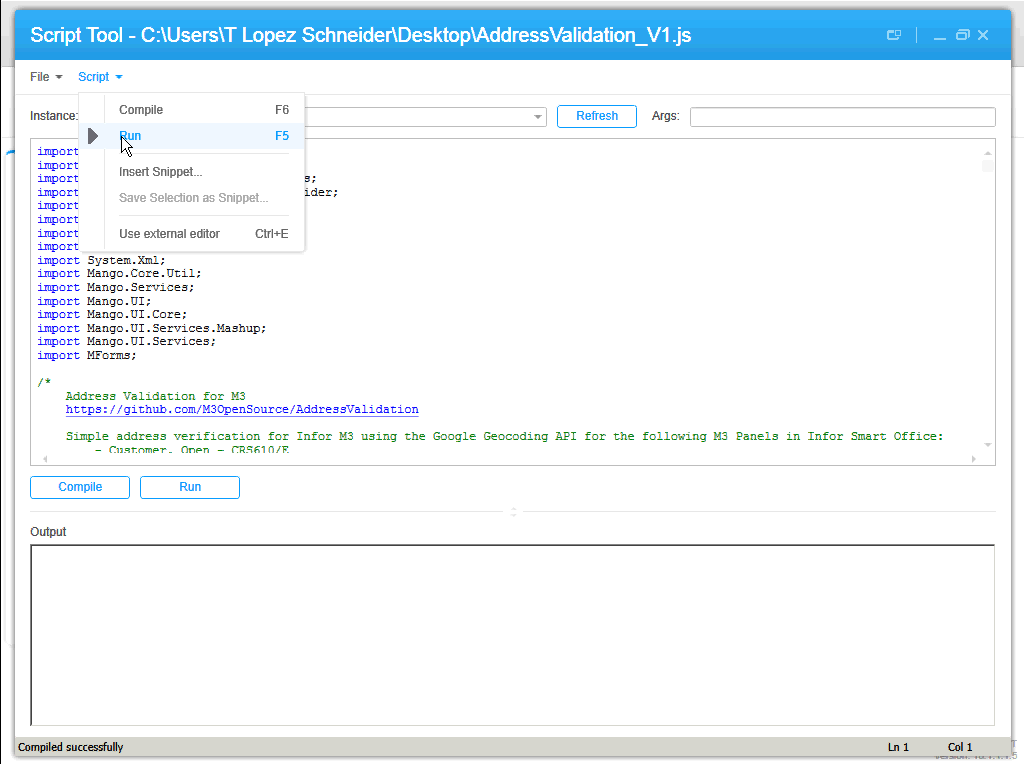
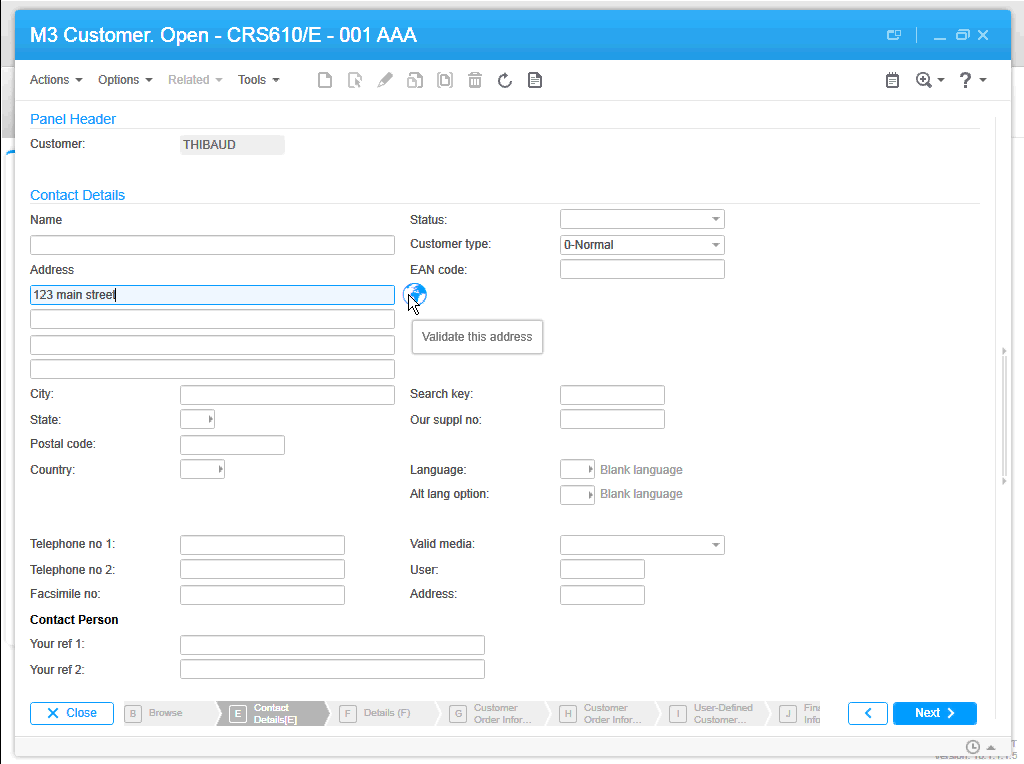
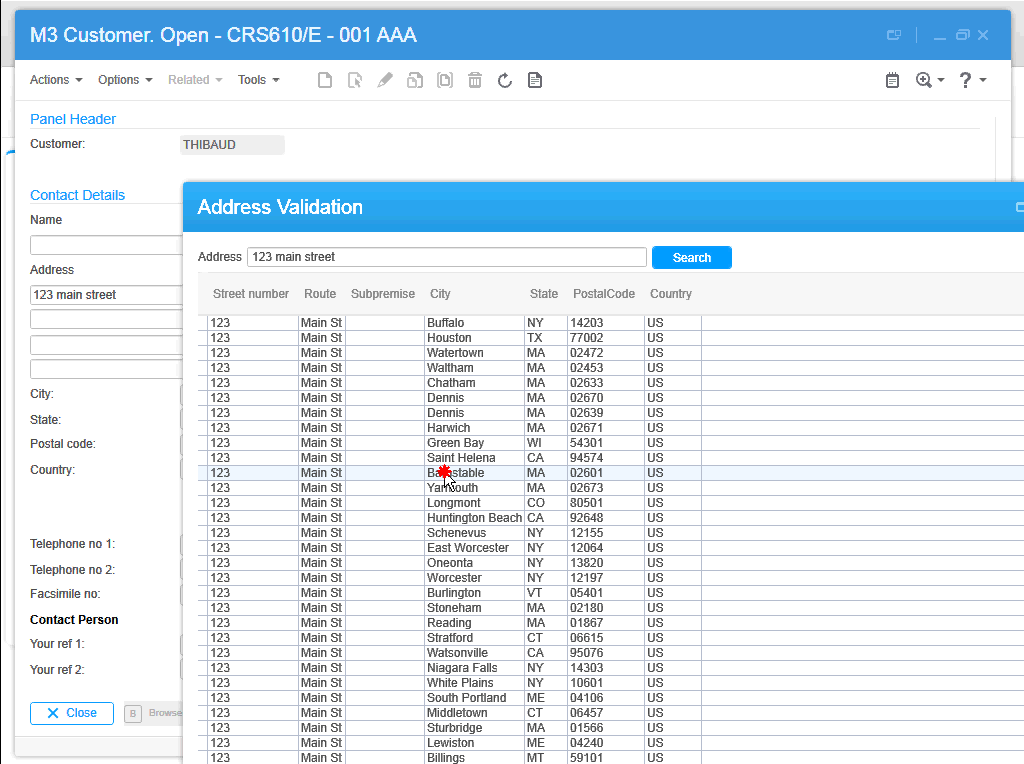
To start using the script, download the Mashup’s Manifest and XAML and the Script from the GitHub repository. Save the three files somewhere temporary on your computer. Then, install the Mashup locally using the Mashup Designer at designer://mashup (watch the video below), and run the Script with the Script Tool at mforms://jscript (watch the video below). Then, enter an address in M3, click the validate button (the little globe icon), you can also use the TAB key from Address line 1 to focus the button and press SPACE to click it, then the Mashup will pop-up with a list of possible matches, and select an address by pressing ENTER or double-clicking the address.

Screenshots

Here are some screenshots:

1 2 3 4 5

Videos

Here are some videos (watch in full-screen and high-definition for better view):

  • How to deploy the Mashup locally
  • How to test the Script
  • Sample address searches:

Then, you can deploy the Mashup globally with LifeCycle Manager, and set the script to everybody with the Smart Office Personalization Manager in the Navigator widget > Administration tools.

Future work

There’s still more work to do. For instance, it appears the Google Geocoding API doesn’t follow the same format for all addresses, they’re local to each country, so right now we have to manually change the address layout based on the country, and I would like to improve that.

Also, I want to add a WebBrowser control to show the addresses in Google Maps.

Also, this first release only supports the Google Geocoding API. I want to add support for other address providers, like Experian QAS, FedEx, Microsoft Bing Maps, UPS, United States Postal Service, and local address providers like Pages Jaunes in France, and Eniro in Sweden.

If you like it, join the project and become a contributor!

Thibaud Lopez Schneider

Open source project: address validation for M3

I’m announcing the start of an open source project: address validation for M3.

Address validation is the ability for the user to enter a partial or incorrect address, get a list of possible matches, chose the valid address, and save it in M3. The goals are: reduce data entry time, ensure goods will reach their destination, minimize shipment returns, accurately calculate taxes, etc.

I implemented address validation for several customers in the past years while at a previous job, and I proposed that the source code becomes a product available to every customer. I believe address validation should come standard with M3 as it is of great service. The project was ready for distribution in 2009 but it got stuck in the legal department because of a conflict with the licenses of the respective address providers. For example, it seems the company couldn’t sell software that uses the free Google Maps API. So now that I quit my last job and haven’t started a new one, I decided to re-ignite the idea as free and open source software. In that way there are no legal conflicts.

Also, I cannot re-use any of the source code nor material I wrote while at any previous job since all the data is intellectual property of that company, so I will have to re-write everything from scratch. And I need your help.

The goals are to provide address validation for M3 with choice of the following address providers:

  • Bing Maps
  • Eniro
  • Experian QAS
  • FedEx
  • Google Maps
  • Google Maps Premier
  • UPS
  • USPS

I’m looking to include more local address providers in: Belgium, Denmark, France, Germany, Norway, The Netherlands, etc. If you know of any, let me know.

The product will be self-configurable, starting with the following M3 programs :

  • Customer. Open – CRS610/E
  • Customer. Connect Addresses – OIS002/E
  • Supplier. Connect Address – CRS622/E
  • Customer Order. Connect Address – OIS102/E
  • Internal Address. Open – CRS235/E1
  • Company. Connect Division – MNS100/E
  • Ship-Via Address. Open – CRS300/E
  • Service Order. Connect Delivery Address – SOS005/E
  • Shop. Open – OPS500/I
  • Bank. Open – CRS690/E
  • Bank. Connect Bank Branch Office – CRS691/E
  • Equipment Address. Open – MOS272/E

It will be a client-side implementation for Smart Office using:

  • Script assemblies for Smart Office (C#)
  • Mashups (XAML)

With plans to support H5 Enterprise (HTML5/JavaScript) in the future.

It will be made available as free software under the GNU General Public License V3.0 license. It permits commercial use, distribution, and modification. And it requires source be made available, license and copyright notice be included, and changes be indicated. It’s copyleft instead of copyright.

Also, the resulting code will be subject to the licenses of the respective address providers: Google Maps, etc.

Also, this project is a good opportunity for me to contribute to the community, and to learn Git revision control.

I started a repository on GitHub here: https://github.com/ThibaudLopez/AddressValidation

Send me feedback. Let me know what you think. Tell your colleagues. And if you want to be a contributor, come help us.

/Thibaud