How to get the user password in a Smart Office script

Here is a solution to get the Lawson Smart Office user’s password with a Personalized Script.

This solution is interesting in scenarios where at runtime we need the current user’s password to dynamically integrate to external systems, for example to connect to a network drive, to connect to a secure website, to execute SQL, to call web services, etc. Also, this solution is interesting to call M3 API or to trigger PFI flows for early versions of Lawson Smart Office that don’t have those native adapters; late versions of Smart Office have native adapters to call M3 API and to trigger PFI flows without the need to obtain the user’s password.

Follow this link to Geiger’s blog to see the solution: How to get the user password in a Smart Office script.

How to get the URL to Lawson Web Services in a Mashup

Here’s a technique for a Mashup to call a Lawson Web Service (LWS) using the correct Lawson Web Service server and the correct environment (DEV, EDU, PRD, TST, etc.).

The problem

By default, when we use the Web Service wizard in Mashup Designer, the URL to the Lawson Web Service server is hard-coded in the two Parameters WS.Wsdl and WS.Address.

For instance, in the following example we’re using a Lawson Web Service that calls the M3 API CRS610MI.LstByNumber, but the server (hostname), the port number (10000), and the environment (TST) are hard-coded in the URL:

<Grid xmlns="http://schemas.microsoft.com/winfx/2006/xaml/presentation" xmlns:x="http://schemas.microsoft.com/winfx/2006/xaml" xmlns:ui="clr-namespace:Mango.UI.Controls;assembly=Mango.UI" xmlns:mashup="clr-namespace:Mango.UI.Services.Mashup;assembly=Mango.UI">
    <mashup:DataPanel Name="WS">
       <mashup:DataPanel.Events>
          <mashup:Events>
             <mashup:Event SourceEventName="Startup" />
          </mashup:Events>
       </mashup:DataPanel.Events>
       <mashup:DataPanel.DataService>
          <mashup:DataService Type="WS">
             <mashup:DataService.Operations>
                <mashup:DataOperation Name="Read">
                   <mashup:DataParameter Key="WS.Wsdl" Value="http://hostname:10000/LWS_TST/svc/CRS610MI.wsdl" />
                   <mashup:DataParameter Key="WS.Address" Value="http://hostname:10000/LWS_TST/services/CRS610MI" />
                   <mashup:DataParameter Key="WS.Operation" Value="LstByNumber" />
                   <mashup:DataParameter Key="WS.Contract" Value="CRS610MI" />
                   <mashup:DataParameter Key="mws.user" Value="LSO.USER" />
                   <mashup:DataParameter Key="mws.password" Value="LSO.PASSWORD" />
                </mashup:DataOperation>
             </mashup:DataService.Operations>
          </mashup:DataService>
       </mashup:DataPanel.DataService>
    </mashup:DataPanel>
 </Grid>

Because the server and environment are hard-coded in the XAML, it will be difficult to deploy the Mashup on other servers, and on other environments (DEV, EDU, PRD, etc.). The workaround would be to make one copy of the Mashup per target server and per target environment. But it would quickly become a maintenance nightmare.

The goal is to make that URL dynamic, based on the server and on the environment we are currently running.

The solution

The solution is to dynamically read at runtime the URL to Lawson Web Services that’s defined in the Smart Office Profile:

Step 1 – Get the value

We get the URL to Lawson Web Services in the Mashup with:

{mashup:ProfileValue Path=M3/WebService/url}

For example:

Step 2 – Create a parameter

Then, we create an Event parameter with a SourceKey and the value, and we call it for example BaseUri:

<mashup:Event SourceEventName="Startup" >
    <mashup:Parameter SourceKey="BaseUri" Value="{mashup:ProfileValue Path=M3/WebService/url}" />
</mashup:Event>

Step 3 – Move it to an Event

Then, we move the two WS parameters from the DataPanel to the Event as TargetKeys:

<mashup:Event SourceEventName="Startup" >
    <mashup:Parameter SourceKey="BaseUri" Value="{mashup:ProfileValue Path=M3/WebService/url}" />
    <mashup:Parameter TargetKey="WS.Wsdl" Value="http://hostname:10000/LWS_TST/svc/CRS610MI.wsdl" />
    <mashup:Parameter TargetKey="WS.Address" Value="http://hostname:10000/LWS_TST/services/CRS610MI" />
</mashup:Event>

Step 4 – Variable substitution

Finally, we use Karin’s solution for variable substitution and markup extension to un-hard-code the URL:

<mashup:Event SourceEventName="Startup" >
    <mashup:Parameter SourceKey="BaseUri" Value="{mashup:ProfileValue Path=M3/WebService/url}" />
    <mashup:Parameter TargetKey="WS.Wsdl" Value="{}{BaseUri}/svc/CRS610MI.wsdl" />
    <mashup:Parameter TargetKey="WS.Address" Value="{}{BaseUri}/services/CRS610MI" />
</mashup:Event>

Final code

Here’s the resulting source code:

<Grid xmlns="http://schemas.microsoft.com/winfx/2006/xaml/presentation" xmlns:x="http://schemas.microsoft.com/winfx/2006/xaml" xmlns:ui="clr-namespace:Mango.UI.Controls;assembly=Mango.UI" xmlns:mashup="clr-namespace:Mango.UI.Services.Mashup;assembly=Mango.UI">
    <mashup:DataPanel Name="WS">
       <mashup:DataPanel.Events>
          <mashup:Events>
             <mashup:Event SourceEventName="Startup" >
                <mashup:Parameter SourceKey="BaseUri" Value="{mashup:ProfileValue Path=M3/WebService/url}" />
                <mashup:Parameter TargetKey="WS.Wsdl" Value="{}{BaseUri}/svc/CRS610MI.wsdl" />
                <mashup:Parameter TargetKey="WS.Address" Value="{}{BaseUri}/services/CRS610MI" />
             </mashup:Event>
          </mashup:Events>
       </mashup:DataPanel.Events>
       <mashup:DataPanel.DataService>
          <mashup:DataService Type="WS">
             <mashup:DataService.Operations>
                <mashup:DataOperation Name="Read">
                   <mashup:DataParameter Key="WS.Operation" Value="LstByNumber" />
                   <mashup:DataParameter Key="WS.Contract" Value="CRS610MI" />
                   <mashup:DataParameter Key="mws.user" Value="LSO.USER" />
                   <mashup:DataParameter Key="mws.password" Value="LSO.PASSWORD" />
                </mashup:DataOperation>
             </mashup:DataService.Operations>
          </mashup:DataService>
       </mashup:DataPanel.DataService>
    </mashup:DataPanel>
</Grid>

Conclusion

With this solution we learned how to create a Mashup that calls a Lawson Web Service such that the Mashup will use the correct Lawson Web Service server and the correct environment (DEV, EDU, PRD, TST, etc.).

Maybe LPD should make this a native feature of Mashups so that developers don’t have to implement it themselves.

For more examples on how to call a Lawson Web Service from a Mashup, refer to Karin’s post.

That’s it!

Lawson Learning courses

Lawson Learning offers various courses for learning how to create Mashups and Scripts for Lawson Smart Office. To see the list of available courses:

  1. Go to http://www.lawson.com/
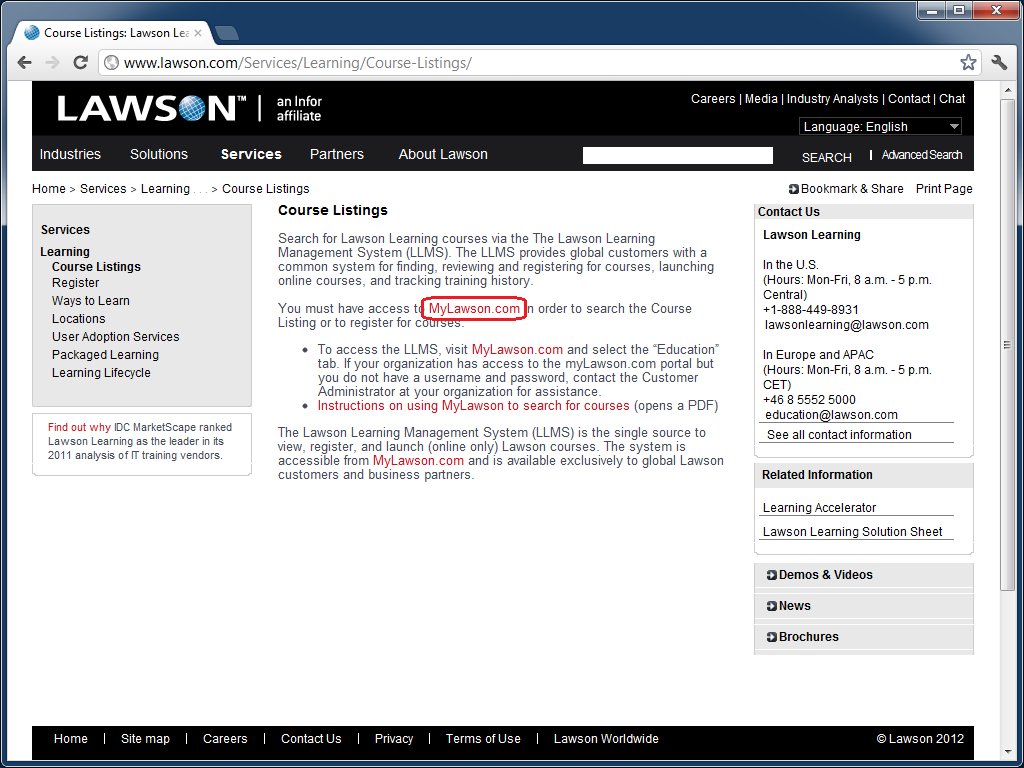
  2. Select Services > Course Listings:
  3. Select MyLawson.com:
  4. Login with your MyLawson.com account.
  5. Select the Education tab:
  6. Go to Search and Register for Training and click English:
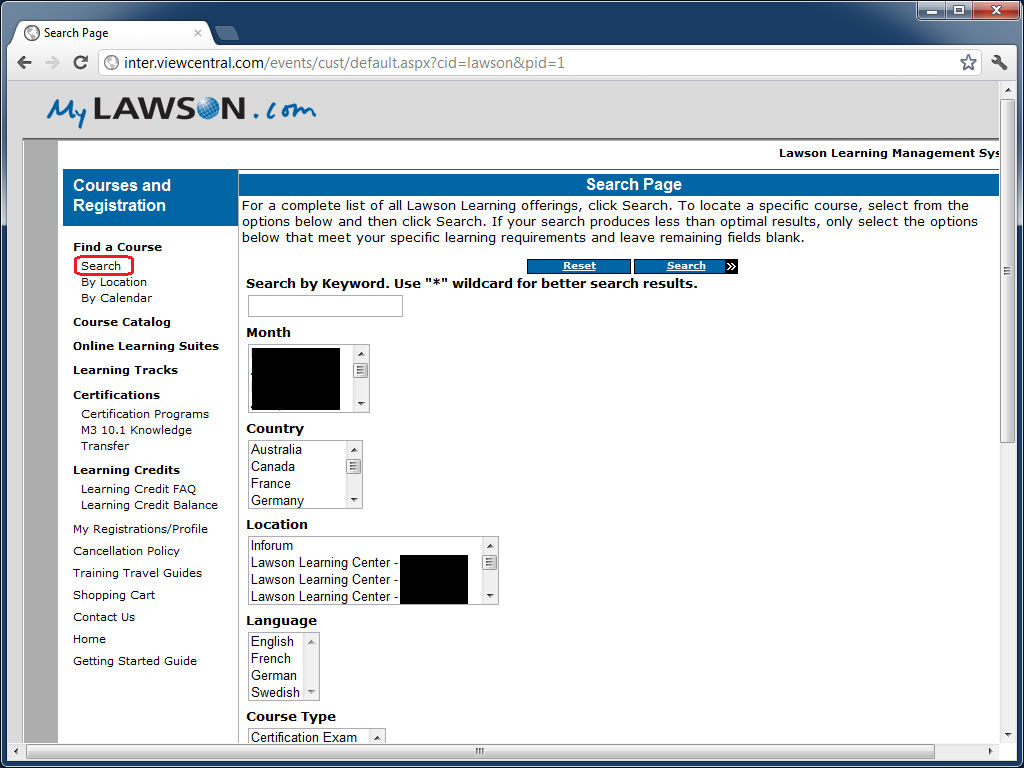
  7. Click on Search to find a course:
  8. Search by keyword Mashup, or Script.

The courses will be listed alphabetically, for example:

  • Lawson Mashup Designer
  • Mashup Designer
  • Smart Office Personalized Script M3

That’s it!

UPDATE 2012-10-16: Alternatively, and more simply, you can go directly to http://inter.viewcentral.com/events/cust/default.aspx?cid=lawson

UPDATE 2012-12-05: The direct link seems to have moved to http://inter.viewcentral.com/events/cust/default.aspx?cid=lawson&pid=1

How to use an M3 program that’s not yet bookmark enabled in a Mashup

Here is a solution for a Mashup to use an M3 program that doesn’t yet support bookmarks, for example MMS081. If the program doesn’t support bookmarks the options are limited. Normally only M3 programs that are bookmark enabled are supported in a Mashup.

But we can workaround the limitation by using the Program attribute instead of a Bookmark element.

<m3:ListPanel Name="MMS081B" Program="MMS081">
    <m3:ListPanel.Events>
       <mashup:Events>
          <mashup:Event SourceEventName="Startup" />
       </mashup:Events>
    </m3:ListPanel.Events>
</m3:ListPanel>

Note that starting programs using the Program property is a bit risky since we cannot guarantee the Sorting order nor the initial values on the panel as we can with Bookmarks.

In this case there is no standard way to set header fields when the program is started. But after the program has been started it can be set to blank using the M3 Mashup Apply event. We can use the Apply event to set values in the header and position fields, and when the values are set the ListPanel will automatically press the ENTER key to update the list.

As an example of the Apply event, we can set the Facility (FACI) to a certain value using the Apply event.

<Button Name="testButton" Content="Set Facility">
    <Button.CommandParameter>
       <mashup:Events>
          <mashup:Event TargetName="MMS081B" SourceEventName="Click" TargetEventName="Apply">
             <mashup:Parameter TargetKey="W1FACI" Value="A01" />
          </mashup:Event>
       </mashup:Events>
    </Button.CommandParameter>
</Button>

As another example of the Apply event, we can transfer a parameter from another ListPanel, for example the Item Number ITNO of MMS001/B:

<m3:ListPanel Name="MMS001B" Header="Items">
    <m3:ListPanel.Events>
       <mashup:Events>
          <mashup:Event SourceEventName="Startup">
             <mashup:Parameter TargetKey="MMCONO" />
             <mashup:Parameter TargetKey="MMITNO" />
          </mashup:Event>
          <mashup:Event SourceEventName="CurrentItemChanged" TargetName="MMS081B" TargetEventName="Apply">
             <mashup:Parameter SourceKey="ITNO" />
             <mashup:Parameter SourceKey="FACI" Value="A01" />
             <mashup:Parameter TargetKey="WHLO" Value="001" />
          </mashup:Event>
       </mashup:Events>
    </m3:ListPanel.Events>
    <m3:ListPanel.Bookmark>
       <m3:Bookmark Program="MMS001" Table="MITMAS" KeyNames="MMCONO,MMITNO" />
    </m3:ListPanel.Bookmark>
</m3:ListPanel>

Thanks to Peter K for all the help!

Self-configuration for Smart Office Scripts

Here is a trivial solution to implement Personalized Scripts for Lawson Smart Office that self-configure based on the program they are being executed in.

Problem

We often implement scripts which functionality can be applied to different M3 programs. For example, a script that makes a phone call based on the phone number displayed on the screen could be applied to any M3 program that has a phone number (Customers, Suppliers, etc.). As another example, a script that shows an address on Google Maps could be applied to any M3 program that has an address (CRS610/E, CRS622/E, etc.).

We could make one copy of the script for each target M3 program, but that would be a maintenance nightmare.

We could make the script re-usable and pass settings to the script, but that would require the installer to manually define the settings, which is time consuming and error prone.

As a general problem, I want to make a script re-usable and with zero configuration so it can be used anywhere in M3 where its functionality is needed.

Solution

The trivial solution is to pre-compute all the possible settings in advance, and apply the corresponding settings at runtime. We dynamically determine in which program we are currently executing the script by reading the HostTitle variable.

I call it a self-configuration script.

Pseudo-code:

HostTitle = controller.RenderEngine.Host.HostTitle
if (HostTitle = X) then { SettingsX }
if (HostTitle = Y) then { SettingsY }
if (HostTitle = Z) then { SettingsZ }

Advantages

The advantage is reduced installation. In some cases we could completely eliminate configuration.

It’s also time saving, and error proof.

And it’s closer to plug’n play and Autonomic Computing.

Example

I had implemented a script that performs address validation.

The script checks the address that is entered by the user with a third-party software that validates if the address is correct or not.

The script needs to get a reference to the address fields: Address line 1 (CUA1), Address line 2 (CUA2), City (TOWN), State (ECAR), etc. In CRS610/E those fields will be WRCUA1, WRCUA2, WRTOWN, and WRECAR. Whereas in CRS622/E those fields will be WWADR1, WWADR2, WWTOWN, and WWECAR.

The fields are different in each M3 program. So I pre-computed the field names of the eight M3 programs and panels where I would be executing the script (CRS610/E, CRS235/E1, CRS300/E, CRS622/E, MNS100/E, OIS002/E, OPS500/I, and SOS005/E), and I hard-coded all the possible values in the script.

Sample source code

Here is part of the source code of my self-configuration script for address validation:

var HostTitle = controller.RenderEngine.Host.HostTitle;
var settings = {};

if (HostTitle.IndexOf('CRS610/E') > 0) {
     // Customer. Open - CRS610/E
     settings = {
         FirmName: 'WRCUNM',
         AddressLine1: 'WRCUA1',
         AddressLine2: 'WRCUA2',
         AddressLine3: 'WRCUA3',
         AddressLine4: 'WRCUA4',
         City: 'WRTOWN',
         State: 'WRECAR',
         PostalCode: 'WRPONO',
         Country: 'WRCSCD',
         Latitude: '',
         Longitude: ''
     };
} else if (HostTitle.IndexOf('CRS622/E') > 0) {
     // Supplier. Connect Address - CRS622/E
     settings = {
         FirmName: 'WWSUNM',
         AddressLine1: 'WWADR1',
         AddressLine2: 'WWADR2',
         AddressLine3: 'WWADR3',
         AddressLine4: 'WWADR4',
         City: 'WWTOWN',
         State: 'WWECAR',
         PostalCode: 'WWPONO',
         Country: 'WWCSCD',
         Latitude: 'WEGEOY',
         Longitude: 'WEGEOX'
     };
} else if (HostTitle.IndexOf('OIS002/E') > 0) {
     // Customer. Connect Addresses - OIS002/E
     settings = {
         FirmName: 'WRCUNM',
         AddressLine1: 'WRCUA1',
         AddressLine2: 'WRCUA2',
         AddressLine3: 'WRCUA3',
         AddressLine4: 'WRCUA4',
         City: 'WRTOWN',
         State: 'WRECAR',
         PostalCode: 'WRPONO',
         Country: 'WRCSCD',
         Latitude: '',
         Longitude: ''
     };
} else if (HostTitle.IndexOf('CRS235/E1') > 0) {
     // Internal Address. Open - CRS235/E1
     settings = {
         FirmName: 'WWCONM',
         AddressLine1: 'WWADR1',
         AddressLine2: 'WWADR2',
         AddressLine3: 'WWADR3',
         AddressLine4: 'WWADR4',
         City: 'WWTOWN',
         State: 'WWECAR',
         PostalCode: 'WWPONO',
         Country: 'WWCSCD',
         Latitude: 'WEGEOY',
         Longitude: 'WEGEOX'
     };
} else if (HostTitle.IndexOf('MNS100/E') > 0) {
     // Company. Connect Division - MNS100/E
     settings = {
         FirmName: 'WWCONM',
         AddressLine1: 'WWCOA1',
         AddressLine2: 'WWCOA2',
         AddressLine3: 'WWCOA3',
         AddressLine4: 'WWCOA4',
         City: 'WWTOWN',
         State: 'WWECAR',
         PostalCode: 'WWPONO',
         Country: 'WWCSCD',
         Latitude: '',
         Longitude: ''
     };
} else if (HostTitle.IndexOf('CRS300/E') > 0) {
     // Ship-Via Address. Open - CRS300/E
     settings = {
         FirmName: 'WWCONM',
         AddressLine1: 'WWADR1',
         AddressLine2: 'WWADR2',
         AddressLine3: 'WWADR3',
         AddressLine4: 'WWADR4',
         City: 'WWTOWN',
         State: 'WWECAR',
         PostalCode: 'WWPONO',
         Country: 'WWCSCD',
         Latitude: '',
         Longitude: ''
     };
} else if (HostTitle.IndexOf('SOS005/E') > 0) {
     // Service Order. Connect Delivery Address - SOS005/E
     settings = {
         FirmName: 'WPCONM',
         AddressLine1: 'WPADR1',
         AddressLine2: 'WPADR2',
         AddressLine3: 'WPADR3',
         AddressLine4: 'WPADR4',
         City: 'WPTOWN',
         State: 'WPECAR',
         PostalCode: 'WPPONO',
         Country: 'WPCSCD',
         Latitude: '',
         Longitude: ''
     };
} else if (HostTitle.IndexOf('OPS500/I') > 0) {
     // Shop. Open - OPS500/I
     settings = {
         FirmName: 'LBL_L21T2',
         AddressLine1: 'WICUA1',
         AddressLine2: 'WICUA2',
         AddressLine3: '',
         AddressLine4: '',
         City: 'WICUA3',
         State: '',
         PostalCode: '',
         Country: 'WICUA4',
         Latitude: '',
         Longitude: ''
     };
} else {
     // M3 panel not supported
}

This has been tested in Lawson Smart Client (LSC), and in Lawson Smart Office (LSO).

Additionally, you can discriminate LSC vs. LSO with:

if (Application.Current.MainWindow.Title == 'Lawson Smart Client') {
 // running in LSC (not LSO)
}

That’s it!

UPDATE

UPDATE 2012-07-24: We can also use controller.RenderEngine.PanelHeader to get just the program and panel (for example: CRS610/B1) instead of the entire host title; the result is a shorter syntax:

var PanelHeader = controller.RenderEngine.PanelHeader;
if (PanelHeader == 'CRS610/E') {
   // CRS610/E
} else if (PanelHeader == 'CRS622/E') {
   // CRS622/E
} else if (PanelHeader == 'OIS002/E') {
   // OIS002/E
} else if (PanelHeader == 'CRS235/E1') {
   // CRS235/E1
} else {
   // not supported
}

Translate M3 with Google Translate API

Here is a solution to automatically translate M3 and user-generated content in 52 languages.

For that, I will use the Google Translate API and a Personalized Script for Lawson Smart Office.

Business advantage

This solution is interesting to translate content that is generated by users, such as:

  • Bill of Materials
  • Work Orders
  • Service Orders
  • Customer Order Notes
  • etc.

Such content is entered in the user’s language and by design is not translated by Lawson Smart Office.

Also, this solution is interesting to translate M3 itself beyond the number of languages that Lawson makes available.

Lawson Smart Office

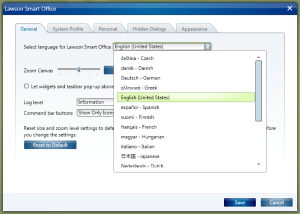
Lawson Smart Office supports 18 languages: Czech, Danish, German, Greek, English, Spanish, Finnish, French, Hungarian, Italian, Japanese, Dutch, Norwegian, Polish, Portuguese, Russian, Swedish, and Chinese:
It’s a high number of languages given that text is manually translated by professional translators which are probably paid by the word.

The quality is near perfect.

But by design, the user-generated content is not translated.

Google Translate

Google Translate supports 52 languages: Afrikaans, Albanian, Arabic, Belarusian, Bulgarian, Catalan, Chinese Simplified, Chinese Traditional, Croatian, Czech, Danish, Dutch, English, Estonian, Filipino, Finnish, French, Galician, German, Greek, Hebrew, Hindi, Hungarian, Icelandic, Indonesian, Irish, Italian, Japanese, Korean, Latvian, Lithuanian, Macedonian, Malay, Maltese, Norwegian, Persian, Polish, Portuguese, Romanian, Russian, Serbian, Slovak, Slovenian, Spanish, Swahili, Swedish, Thai, Turkish, Ukrainian, Vietnamese, Welsh, and Yiddish.
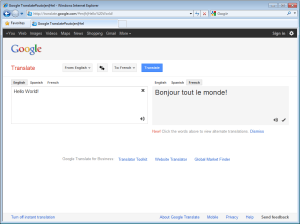
It’s a very high number of languages because it uses machine learning and statistical analysis for automatic machine translation of millions of web pages and of official translations done by governments and by international organizations.

It is one of the best machine translations available, considered state of the art, and the quality is improving constantly. [1] [2] [3].

Google is even working on recognizing handwritten text, and text in images.

But even though the quality is good it’s not yet accurate.

It may not be accurate enough in a professional context to translate user-generated content in M3 with the Google Translate API.

But it still gives the user a general idea of the meaning of the text.

And as a pedagogical tool, it serves the purpose of illustrating how to write scripts for Smart Office, and how to integrate M3 to external systems.

Hello World!

To use the Google Translate API you need to register and obtain a key. It is a paid service that will translate one million characters of text for $20.

Once you obtain your key, you need to construct a URL with your API key, the text to translate, and the source and target languages.

Here is a sample URL that translates the text Hello World! from English (en) to French (fr):

https://www.googleapis.com/language/translate/v2?key=YOUR_API_KEY&q=Hello%20World!&source=en&target=fr

The result is a JSON object like this:

{
 "data": {
  "translations": [
   {
    "translatedText": "Bonjour tout le monde!"
   }
  ]
 }
}

First script

Then write a Personalized Script for Lawson Smart Office using the Script Tool.

The script will submit the HTTP GET Request to the Google Translate API over HTTPS and will parse the JSON response.

function translate(text: String, source, target) {
     var url = 'https://www.googleapis.com/language/translate/v2?key=YOUR_API_KEY&source=' + source + '&target=' + target + '&q=' + HttpUtility.UrlEncode(text);
     var request = HttpWebRequest(WebRequest.Create(url));
     var response = HttpWebResponse(request.GetResponse());
     var jsonText = (new StreamReader(response.GetResponseStream())).ReadToEnd();
     var o = eval('(' + jsonText + ')''unsafe');
     return o.data.translations[0].translatedText;
}

We can now use this function to translate any piece of user-generated content, for example the Customer Name in CRS610/E (WRCUNM):

var WRCUNM = ScriptUtil.FindChild(controller.RenderEngine.Content, 'WRCUNM');
WRCUNM.Text = translate(WRCUNM.Text, 'en''fr');

Also, we can translate several pieces of text at once by appending as many q parameters to the URL as pieces of text.

Beyond

With this technique, we can translate all the Controls of our Panel, including the user-generated content: Label, TextBox, Button, ListView, GridViewColumnHeader, ListRow, etc. That will cover Panels A, B, E, F, etc.

Also, we will need to submit the HTTP Request in a background thread to avoid blocking the user interface.

Complete Script

Here is the complete source code of my script that translates all the content of any M3 program, any panel.

Installation

Replace the constant YOUR_API_KEY of the source code with your own Google Translate API key.

The script has a limit GOOGLE_MAX_TEXT_SEGMENTS which was applicable when I wrote the script back in March 2010, but Google has since removed the limit so you can remove it from the script as well.

Then deploy the script on each program and each panel that you’d like to translate. The deployment can probably be automated with some custom XML and XSLT.

Result

Here is an animation of the M3 program Work Order – MOS100/B1 with buttons for seven languages. Click on the image to see the animation. Note how the user-generated content in the rightmost column of the list is also being translated.

Future Work

A future implementation should also translate menus, drop down lists, and text panels (T). I still haven’t been able to execute scripts in a T panel.

That’s it!


Updates

UPDATE 2012-08-02: Just fixed the line breaks at line 280 which the copy/paste had corrupted + fixed GetType().ToString() + fixed Exception handling in BackgroundWorker.

UPDATE 2012-08-03, Martin Trydal Torp & Thibaud: Adapted listView for newer LSO (new: listView.ItemsSource; old: listView.Items) + change sourceLanguage dynamically

How to get CONO, DIVI, FACI in a Mashup

Here is the solution to get the current Company (CONO), Division (DIVI), and Facility (FACI) in a Mashup in Lawson Smart Office. Last week I wrote a post on How to get the current username in a Mashup. This week I post about CONO, DIVI, FACI:

  1. Add this namespace to the Mashup:
    xmlns:mforms=”clr-namespace:MForms;assembly=MForms”
  2. Get the values with this extension method:
    {mashup:UserContextValue Path=M3/Company}
    {mashup:UserContextValue Path=M3/Division}
    {mashup:UserContextValue Path=M3/Facility}
  3. Alternatively, you can use the field names:
    {mashup:UserContextValue Path=M3/CONO}
    {mashup:UserContextValue Path=M3/DIVI}
    {mashup:UserContextValue Path=M3/FACI}
  4. Use the value for example in a TextBlock:
    <TextBlock Text=”{mashup:UserContextValue Path=M3/Company}” />
    <TextBlock Text=”{mashup:UserContextValue Path=M3/Division}” />
    <TextBlock Text=”{mashup:UserContextValue Path=M3/Facility}” />

Here are the values you can get:
CONO | Company, CompanyName
DIVI | Division, DivisionName
FACI | Facility, FacilityName
WHLO | Warehouse, WarehouseName
LANC | Language
DTFM | DateFormat
DCFM | DecimalFormat
TIZO | TimeZone
CUNO | Customer
DEPT | Department
Menu
MenuVersion

Here is a screenshot of the result:

Special thanks to karinpb and Juan V of Spain for their help!

How to get the current username in a Mashup

Here is the solution to get the current username in a Mashup in Lawson Smart Office. Last week I wrote a post on How to get the current M3 profile in a Mashup which returns DEV, EDU, TST, PRD, etc. depending on which profile you are currently connected. This week I post about the username:

  1. Add this namespace to the Mashup:
    xmlns:Services=”clr-namespace:Mango.Services;assembly=Mango.Core”
  2. Then get the UserName like this:
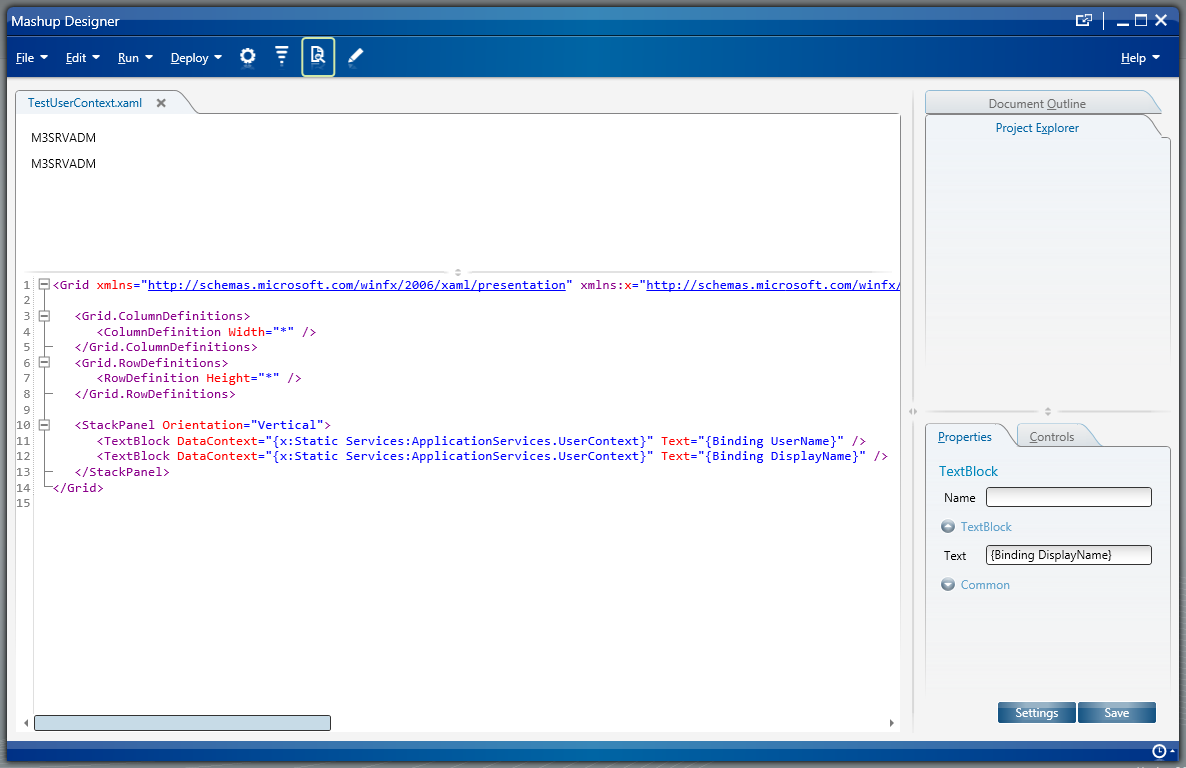
    <TextBlock DataContext=”{x:Static Services:ApplicationServices.UserContext}” Text=”{Binding UserName}” />
  3. There is also the DisplayName:
    <TextBlock DataContext=”{x:Static Services:ApplicationServices.UserContext}” Text=“{Binding DisplayName}” />

Here is a screenshot of the result:

I found inspiration from the Smart Office Developer’s Guide > UserAndProfileExample.js.

Getting the M3 profile in a Mashup

karinpb sent me the solution to get the current M3 profile (TST, DEV, EDU, etc.) in a Mashup in Lawson Smart Office. In my case, I use the value to launch a URL with the profile as a parameter. Here is the solution:

  1. Add the namespace:
    xmlns:Services=“clr-namespace:Mango.Services;assembly=Mango.Core”
  2. Add a control that shows the value:
    <TextBlock DataContext=“{x:Static Services:ApplicationServices.SystemProfile}” Text=“{Binding Name}” />
  3. Here is a screenshot of the result:

Special thanks to Karin for the solution!

Mashup ComboBox for REST Web Service

Here’s a sample Mashup source code to display the result of a REST Web Service in a ComboBox.

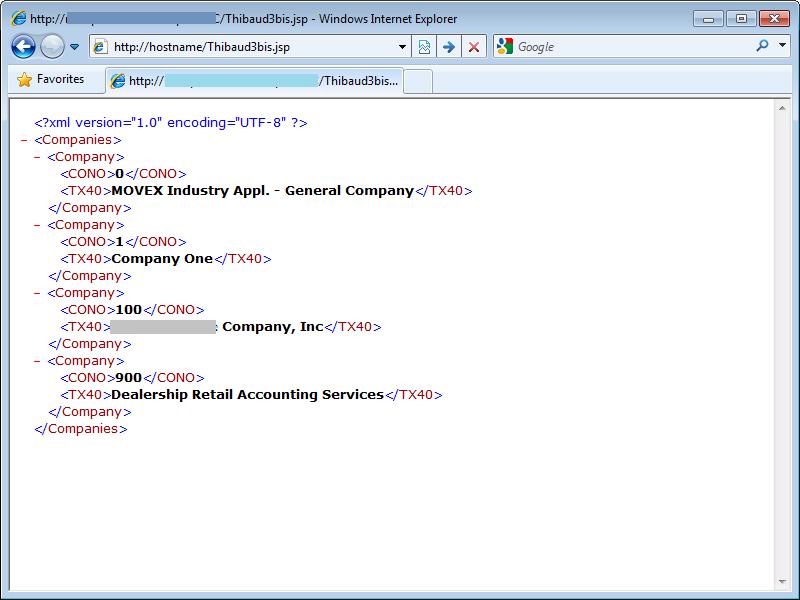
Suppose you have a REST Web Service that returns the following XML:


Note: How to produce the above XML is outside the scope of this post. This particular XML is produced with a JSP querying the M3 table CMNCMP with JDBC.

In the Mashup Designer, we use the mashup:DataPanel control to call the REST Web Service. How to use that DataPanel is outside the scope of this post, but there is an example in the Mashup Designer > Help > Data Services.

Then, in the DataPanel we add our ComboBox, and in the ComboBox we use a ComboBox.ItemTemplate (similar to the ComboBox for M3 API results):

<ComboBox Name="TabComboBox" SelectedIndex="0" HorizontalAlignment="Left" ItemsSource="{Binding Items}">
    <ComboBox.ItemTemplate>
       <DataTemplate>
          <StackPanel Orientation="Horizontal">
             <TextBlock Text="{Binding XPath=CONO, Mode=OneWay}" />
             <TextBlock Text=" - " />
             <TextBlock Text="{Binding XPath=TX40, Mode=OneWay}" />
          </StackPanel>
       </DataTemplate>
    </ComboBox.ItemTemplate>
 </ComboBox>

The result looks like this:


The Mashup Designer looks like this:

The full XAML source code is of the :

<Grid xmlns="http://schemas.microsoft.com/winfx/2006/xaml/presentation" xmlns:x="http://schemas.microsoft.com/winfx/2006/xaml" xmlns:ui="clr-namespace:Mango.UI.Controls;assembly=Mango.UI" xmlns:mashup="clr-namespace:Mango.UI.Services.Mashup;assembly=Mango.UI">

	<Grid.ColumnDefinitions>
		<ColumnDefinition Width="*" />
	</Grid.ColumnDefinitions>
	<Grid.RowDefinitions>
		<RowDefinition Height="*" />
	</Grid.RowDefinitions>

	<mashup:DataPanel Name="Companies">
		<mashup:DataPanel.Events>
			<mashup:Events>
				<mashup:Event SourceEventName="Startup" />
			</mashup:Events>
		</mashup:DataPanel.Events>
		<mashup:DataPanel.DataService>
			<mashup:DataService Type="REST">
				<mashup:DataService.Operations>
					<mashup:DataOperation Name="List">
						<mashup:DataParameter Key="REST.BaseAddress" Value="http://hostname/Thibaud3bis.jsp" />
						<mashup:DataParameter Key="REST.RemoveNamespace" Value="True" />
						<mashup:DataParameter Key="REST.XPath" Value="Companies/Company" />
					</mashup:DataOperation>
				</mashup:DataService.Operations>
			</mashup:DataService>
		</mashup:DataPanel.DataService>
		<ComboBox Name="TabComboBox" SelectedIndex="0" HorizontalAlignment="Left" ItemsSource="{Binding Items}">
			<ComboBox.ItemTemplate>
				<DataTemplate>
					<StackPanel Orientation="Horizontal">
						<TextBlock Text="{Binding XPath=CONO, Mode=OneWay}" />
						<TextBlock Text=" - " />
						<TextBlock Text="{Binding XPath=TX40, Mode=OneWay}" />
					</StackPanel>
				</DataTemplate>
			</ComboBox.ItemTemplate>
		</ComboBox>
	</mashup:DataPanel>
</Grid>

That’s it!