Third part of international phone number parsing, validation and formatting for Smart Office

I just completed implementing international phone number parsing, validation and formatting for Accounts in Infor Customer Lifecycle Management (CLM) in Infor Smart Office. This complements my previous work on international phone number parsing, validation and formatting for M3 MForms like CRS610/E.

To implement the solution I used libphonenumber (C#), the known C# port of “Google’s phone number handling library, powering Android and more”, I used the Infor Smart Office SDK, and I did a lot of hacking CLM.

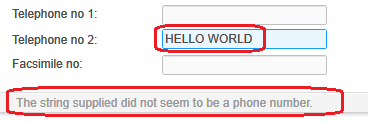
Here is the result for an invalid phone number:
1

Here is a phone number entered in various non-normalized formats before saving the Account:
2

Here are the resulting normalized phone numbers after having saved the Account:
3

Here is a video of the result (watch in full-screen HD for better viewing):

This solution works for saving new accounts and for updating existing accounts. From a development point of view, I had to respectively handle the event OnEntityBeforeSave for a modal dialog box and the event OnEntityBeforeUpdate for a dashboard task.

Note this solution will only apply to the CLM user interface in Smart Office and not to other CLM user interfaces like CLM Web client, it will not apply retro-actively to phone numbers previously stored in the database, and it will not apply to phone numbers eventually synchronized in the background server-to-server from other sources like CRS610; those scenarios would need to be handled separately.


That’s it! If you like it, click the Follow button below to subscribe to this blog, let me know what you think in the comments below, and spread the word.

M3 Picking Lists in Google Glass

Here is the first tangible result of M3 Picking lists in Google Glass. This is a continuation of my previous posts in the series: Getting and processing an M3 picking list and Hello Google Glass from Infor Process Automation.

Goal

As a reminder, I’m developing a proof-of-concept to show rich picking lists from Infor M3 in Google Glass with item number, item description, quantity, stock location, image of the item from Infor Document Archive, and walking directions in a warehouse plan. Also, for interactivity, the picker will be able to tap Glass to confirm the picking. Also, the picker will be able to take a picture of a box at packing.

The result will be useful to showcase the integration capabilities of M3, it’s a first implementation of wearable computing for M3, and it sets a precedent for future Augmented Reality experiments with M3. And the advantages for a picker in a warehouse would be more efficiency and new capabilities. And for me it’s a way to keep my skills up-to-date, and it’s an outlet for my creativity. It’s a lot of software development work, and I’m progressing slowly but steadily on evenings and on week-ends. If you would like to participate please let me know.

Why it matters

According to Gartner, by 2016, wearables will emerge as a $10 billion industry [1].

According to Forbes, “Smart glasses with augmented reality (AR) and head-mounted cameras can increase the efficiency of technicians, engineers and other workers in field service, maintenance, healthcare and manufacturing roles” [2].

According to MarketsandMarkets, the Augmented Reality and Virtual Reality market is expected to grow and reach $1.06 billion by 2018 [3].

Basics of Google Glass

Google Glass is one of the first wearables for the mass market. It is a notification device on the face, an eyewear with all the capabilities of an Android device including camera, head-mounted display, touchpad, network connectivity, voice recognition, location and motion sensors.

It works by displaying a timeline of cards we can swipe back and forth to show past and present events.

To write applications for Google Glass we can use the Mirror API, the Glass Development Kit (GDK), or standard Android development. I will use the Mirror API for simplicity.

I will display an M3 picking list as a series of detailed cards on the timeline that pickers can swipe and interact with like a to-do list as they are progressing in their picking.

Card template

For the template of the timeline card, I will use SIMPLEEVENT from the Google Mirror API Playground per picking list line to easily identify the four pieces of information the picker will need to read per picking list line: item quantity, item number, item description, and stock location:
template

Bundling

I will use Bundling with bundleId and isBundleCover to group the cards together by picking list:
bundling

Picking list lines

I will get the picking list lines with the SQL of my previous post, and I will sort them in descending order because Glass will display them reversely last in, first out, thus they will appear naturally in-order to the user.

SELECT H6WHSL, H6ITNO, H6ITDS, H6ALQT
FROM MVXJDTA.MHPICD
WHERE H6CONO=<!CONO> AND H6DLIX=<!DLIX> AND H6PLSX=<!PLSX>
ORDER BY H6WHSL DESC

HTML card

I will use the SIMPLEEVENT template’s HTML fragment and replace the sample values with item quantity ALQT, item number ITNO, item description ITDS, and stock location WHSL:

<article>
  <section>
    <div class="text-auto-size">
      <p class="yellow"><!SQL_H6ALQT><sub><!SQL_H6ITNO></sub></p>
      <p><!SQL_H6ITDS></p>
    </div>
  </section>
  <footer>
    <div><!SQL_H6WHSL></div>
  </footer>
</article>

JSON

I will embed the HTML fragment in the JSON payload for the Mirror API:

{
	"html": html,
	"bundleId": DLIX
}

Bundle cover

The bundle cover will be:

{
	"text": "Picking list <!DLIX>",
	"bundleId": <!DLIX>,
	"isBundleCover": true
}

Infor Process File

My process file in Infor Process Designer is illustrated in this GIF animation (you can open it in Gimp and see the layers in detail):
flow

Problems

I had to solve the following two trivial problems:

  • I had problems parsing new line characters in the MsgBuilder activity node with JavaScript in an Assign activity node. According to the ECMAScript Language Specification – ECMA-262 Edition 5.1 on String Literals the character for new line is simply \n (line feed <LF>). Then Samar explained to me that the MsgBuilder activity node in IPA uses both characters \r\n (carriage return <CR> and line feed <LF>).
  • JSON is not implemented in IPA for JavaScript in the Assign activity node. So I had to manually add it to IPA. I used Douglas Crockford’s json2.js, and I appended it in the two files <IPDesigner>\IPD\pflow.js and <IPALandmark>\system\LPS\pflow.js.

I still have the following problem:

  • The subscription I used in my previous post, M3:MHPICL:U, seems to occur too early in some of my tests, and that is a blocking problem because when my flow runs the SQL to get the picking list lines only gets the first line – which is the only line that exists in the database at that point in time – while the other lines haven’t yet been created in the database at that time and the flow misses them. I must find a solution to this problem. I haven’t been able to reproduce it.

Result

From my previous post, I had the following picking list:

H6WHSL H6ITNO H6ITDS H6ALQT
T0101 TLSITEM01 Item 01 11
T0102 TLSITEM02 Item 02 13
T0301 TLSITEM03 Item 03 17
T0302 TLSITEM04 Item 04 19

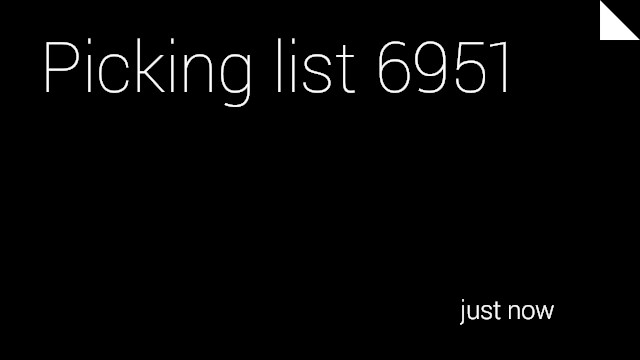
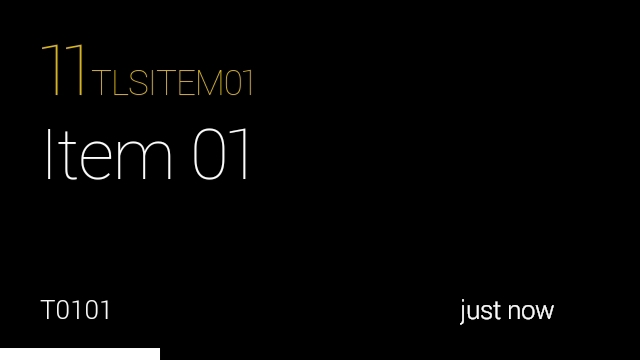
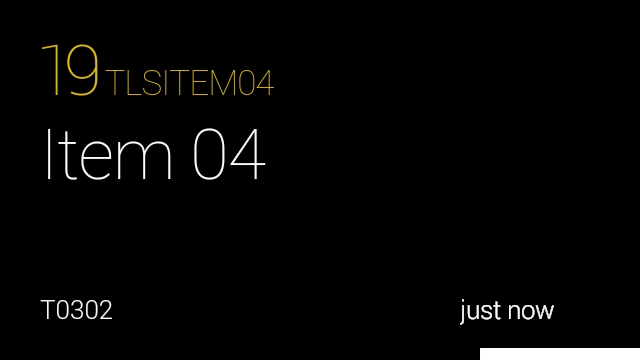
When I re-run the scenario, here are the resulting timeline cards in my Google Glass where black pixels are see-through pixels:
2.1 2.2 2.3 2.4 2.5

And here is a video capture of the result (I used Android screencast which captures at a slow frame rate):

And here is a picture of what it would look like to the user in Glass with see-through pixels:
result

Future work

Next, I will implement the following:

  • Programmatically get the OAuth 2.0 token instead of copy/pasting it manually in the WebRun activity nodes.
  • Show the item image from Infor Document Archive.
  • Show walking directions on a warehouse plan.
  • Tap to confirm the picking.
  • Take a picture of the box at packing.


That’s it! Check out my previous posts on the project. Like this post. Tell me what you think in the comments section below. Share with your colleagues, customers, partners. Click the Follow button to subscribe to this blog. Be an author and publish your own ideas. And enjoy.

M3 ideas @ Inforum 2014

I submitted the following session in the Call for Papers of Inforum 2014 in New Orleans in September:

M3 ideas: social media, open source, and Google Glass

This session will talk about:

  • Social media for M3 to help create communities, circulate information, and get the job done more efficiently while needing authors, readers, and engagement.
  • Open source for M3, a collaborative attempt to make M3 greater to the benefit of everyone beyond the confines of a workplace.
  • Google Glass for M3, a proof-of-concept to showcase the integration capabilities of M3 with wearable computing and future experiments in Augmented Reality for M3. The products involved are: M3, Event Analytics, Infor Process Automation, Infor Document Archive, and Infor CloudSuite.

Includes illustrations with M3 customers.

Would you like to see this session at Inforum 2014? Please vote here below and let me know what you think.


Hello Google Glass from Infor Process Automation

As a continuation of my Google Glass project, my next step is to write Hello World on Google Glass using Infor Process Automation (IPA).

As a reminder of my project, I’m writing an application to show M3 picking lists on Google Glass using Event Analytics and Infor Process Automation to have rich interactive picking lists in Glass with a list of items to pick, quantities, stock locations, item image from Infor Document Archive, and walking directions on a warehouse plan.

Architecture

From a software architecture point of view, we have the following tiers:

  • I’m wearing Glassware and they are connected to the Internet
  • Google’s servers periodically communicate with my Glass
  • My IPA server is located in a Local Area Network (LAN) at the office behind a firewall.

Timeline card

To keep the proof-of-concept simple, I use the Google Mirror API; that’s simpler than using Glass Development Kit (GDK). A sample HTTP Request to insert Hello World in a static card in my Glass timeline looks like this with the proper OAuth 2.0 token:


POST https://www.googleapis.com/mirror/v1/timeline HTTP/1.1
Host: www.googleapis.com
Authorization: Bearer ya29.HQABS3kFLP2b-BsOWMFyGUpUv4JPAhKeEnDbLcjDUAHREBK6mYYVAadIa68S6A
Content-Type: application/json
Content-Length: 29

{ "text": "Hello from IPA" }

Note: For the purposes of this proof-of-concept I bootstrapped the OAuth 2.0 token manually by copy/pasting it from another computer where I already had the Android Development Tools (ADT) and the Glass Java Quick Start Project.

The resulting timeline card looks like this where the black pixels are see-through pixels in Glass:
card

Process Automation

IPA can make HTTP Requests using the Web Run activity node. With WebRun, we can specify the following parts of an HTTP Request: scheme (HTTP/HTTPS), host, port number, method (GET/POST), path, query, Basic Authentication, HTTP Request Body, Content-Type, and HTTP Request Headers.

Here is my sample WebRun for Glass:
WebRun

Problems and rescue

At first, I ran into the following problems:

  1. I didn’t know where to set the scheme (HTTP/HTTPS); the Web Root seemed to me like it was only used to set the host and port number.
  2. The User id and Password fields seem to support Basic Authentication only, not OAuth 2.0.
  3. I need to set the OAuth 2.0 token as a variable because it expires and must be renewed every hour, but the WebRun activity node doesn’t support variable substitution in the Authorization header (CTRL+SPACE and <!var1> are not supported).
  4. I didn’t see the Header string field at first because when the input field is empty it has no border which makes it hard to spot.
  5. The Header string occupies only one line of height so it seems to indicate that it only accepts one HTTP Request Header.
  6. The Content-Type field didn’t propose application/json in the drop down list, so I had to hack into the LPD file with Notepad and write it and XML-encode it manually.
  7. The WebRun failed to execute and returned an HTTP 400 error without additional information.
  8. We cannot set a proxy like Fiddler in the WebRun configuration to intercept the HTTP Request (header and body) and HTTP Response (header and body) which makes it hard to troubleshoot.
  9. The WorkUnit log only shows the HTTP Response body which is only a quarter useful.

I sent an email with the problems to James Jeyachandran (j…@infor.com), the Product Manager for IPA at Infor Product Development whom I know from my previous work on Lawson ProcessFlow Integrator (PFI) and IPA. It has always been a pleasure to work with James for his availability and responsiveness. Once more he impressed me as he called me back within four minutes. He was interested in my Glass project, he addressed my questions, and to assist me he graciously made available Samar Upadhyay s…@infor.com, one of the software engineers of IPA. After troubleshooting together, here are the respective answers to my problems:

  1. The scheme can be set in the Web Root (as shown in the screenshot above).
  2. The OAuth 2.0 token can be set in an Authorization header in the Header string (as shown in the screenshot above).
  3. Samar said he will add variable substitution to the Header string.
  4. Samar said he will make the Header string field wider.
  5. Samar said he will make the Header string field multi-line.
  6. Samar said there is a new version of IPA that adds application/json as a possible Content-type.
  7. Samar said that’s a known problem with Content-type application/json and there is a bug fix available to correct it. Meanwhile, James said I can add it as an additional Header string; for that I had to use Notepad again to add the two Header strings on two lines. Also, Samar said he will attempt to upgrade my server with the new version of IPA.
  8. Samar said he will look into adding an optional proxy configuration for host and port number like we can do in web browsers.
  9. Samar said he will look into adding an option to log the full HTTP Request and Response.

After that collaboration we had a working proof-of-concept within 20mn.

Result

Here is the resulting WorkUnit log:
log

And here is the resulting vignette in my Glass:
photo

Future work

The next step will be to get the OAuth 2.0 token automatically, and to display the M3 picking list onto Glass.

Conclusion

That was a proof-of-concept to write Hello World from Infor Process Automation onto Google Glass using the WebRun activity node to make an HTTP Request to the Mirror API.

That’s it!

I want to specially thank James Jeyachandran and Samar Upadhyay for their support and responsiveness, and for their enthusiasm with this project. They will be at Inforum 2014.

Like. Comment. Share. Subscribe. Enjoy.

Second part of international phone number parsing, validation and formatting for Smart Office

I just implemented international phone number parsing, validation and formatting for all MForms in Smart Office as an implementation of my previous post for a customer that needed to enforce this validation rule, and I will share my findings here with you.

Overview

I used libphonenumber-csharp, the known C# port of “Google’s phone number handling library, powering Android and more”.

I integrated it with Smart Office SDK as an MForms extension with Global scope so it applies to all MForms programs that have phone number fields, for instance CRS610, CRS620, and OIS002. For that I followed Peter’s post: Introduction to MForms extensions.

Then, if the phone number is not valid, I show an error message in MForms, I set focus in the corresponding input field, and I cancel the user request. For that I followed Peter’s other post: Validating M3 panels using JScript and MI programs before a request.

And if the phone number is valid, I re-format it in E.164 phone number format.

Then, I deployed it globally to all users via Infor LifeCycle Manager (LCM).

Now users have to enter valid phone numbers in MForms or they will get an error message that will prevent them from moving forward.

Hunt for the phone number fields

In order to make it work for all MForms, I had to determine what is the set of M3 programs, panels, and phone number fields.

A quick scan in the XML View Definitions gives:

  • 4,260 programs (E:\M3BE\MVX\15.1\base\viewdefs>dir *.xml /s)
  • 72,212 panels (findstr /c:”\<Panel” /s *.xml)
  • 144,377 fields (findstr /c:”\<EntryField” /s *.xml)

That’s too big of a space to search exhaustively.

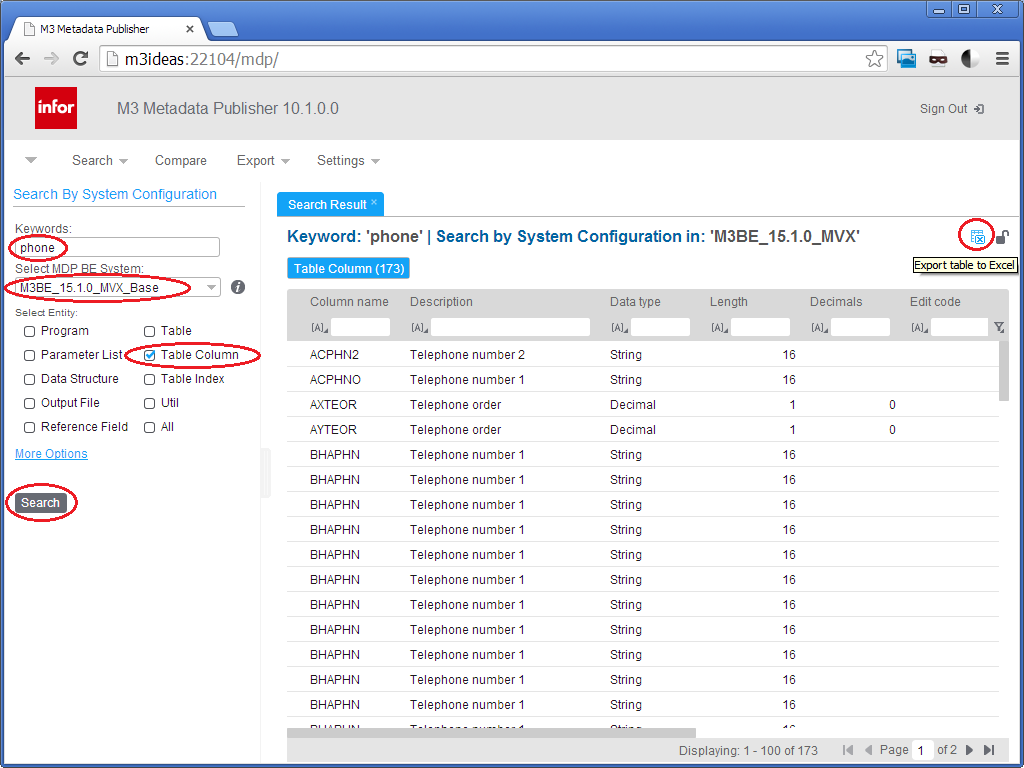
Then, I did a quick search in MetaData Publisher for the strings: phone, facsimile, fax, and mobile. Here is a screenshot:
1.1_

There were 173 results for phone including telephone, the search is case insensitive, 72 results for facsimile, no results for mobile, and results for fax with type checkbox and text that are unrelated to our problem at hand. That narrows down the search space to only 245 fields.

I merged both result sets, I removed the field name prefixes to keep only the radices, and I eliminated duplicates, and that further narrowed down the search space to only nine fields: APHN, CAPH, CPHN, GPNO, PHN1, PHN2, PHNO, SPHN, and TFNO. Here is a screenshot:
5.1

Then, I did the reverse search in MDP to verify that every field is a phone number, to prove the space is bijective, and I realized there are three fields that end in TFNO – they are CPTFNO, PPTFNO, and SPTFNO – that are not phone number fields. We can eliminate those fields by looking up the type and length of the field: it must be String of length 16.

Thus, the resulting set of all phone number fields across all of M3 is the following:

  • APHN
  • CAPH
  • CPHN
  • GPNO
  • PHN1
  • PHN2
  • PHNO
  • SPHN
  • TFNO String[16]

A quick verification by scanning the View Definitions for those fields shows the following M3 Programs: APS095, APS200, ARS025, ARS115, ARS175, ARS200, ARS360, ARS390, CBS020, COS105, CRS435, CRS530, CRS538, CRS605, CRS609, CRS610, CRS620, CRS623, CRS690, CRS691, CRS739, CRS949, CSS204, CSS205, DRS013, GMS090, GMS200, LTS100, LTS101, MHS813, MHS850, MHS890, MMS005, MMS453, MNS100, MNS150, MNS205, MNS212, MOS156, MOS272, MOS295, MSS225, MTS201, MWS098, MWS099, MWS212, OIS002, OIS054, OIS055, OIS056, OIS102, OIS269, POS010, PPS171, PPS200, PPS360, PPS370, PPS390, QQS001, QUS095, QUS100, QUS112, RMS421, RSS103, RSS303, SAS002, SOS100, SOS101, SOS102, SOS105, SOS106, SOS110, SOS165, SOS375, SOS378, SOS435, SOS485, SOS520, SOS650, SOS972, SPS200, STS050, STS100, STS101, STS201, TXS100, TXS130, TXS140, TXS510. I recognize CRS610, CRS620, and OIS002 so I’m confident.

My approach is heuristic and is not guaranteed to be exact.

Source code

Here is the source code in C#:

using System;
using System.Collections.Generic;
using System.Globalization;
using System.Windows;
using System.Windows.Controls;
using libphonenumber;
using MForms;
using MForms.Extension;

namespace PhoneNumberValidation
{
    public class PhoneNumberValidationExtension : IPanelExtension
    {
        private static String validKeys = "F3,F4,F5,F12";
        private static String phoneNumberFields = "APHN,CAPH,CPHN,GPNO,PHN1,PHN2,PHNO,SPHN,TFNO";
        private static readonly log4net.ILog Logger = Mango.Core.LogManager.GetLogger(System.Reflection.MethodBase.GetCurrentMethod().DeclaringType);

        public void Load(PanelExtensionEventArgs e)
        {
            try
            {
                InstanceController controller = (InstanceController)e.Controller;
                controller.Requesting += OnRequesting;
                controller.Requested += OnRequested;
            }
            catch (Exception ex)
            {
                Logger.Error("Failed to handle extension event", ex);
                throw new ApplicationException();
            }
        }

        void OnRequesting(Object sender, CancelRequestEventArgs e)
        {
            try
            {
                if (e.CommandType == "KEY" && validKeys.Contains(e.CommandValue))
                {
                    // Request allowed
                    return;
                }
                // validate all phone numbers in this panel
                InstanceController controller = (InstanceController)sender;
                Grid content = controller.RenderEngine.Content;
                IList<FrameworkElement> controls = controller.RenderEngine.Controls;
                foreach (FrameworkElement control in controls)
                {
                    if (control is System.Windows.Controls.TextBox)
                    {
                        TextBox txtbox = (TextBox)control;
                        String baseName = txtbox.Name.Substring(2);
                        bool IsPhoneNumberField = phoneNumberFields.Contains(baseName) && txtbox.MaxLength == 16;
                        if (IsPhoneNumberField)
                        {
                            if (txtbox.Text != "")
                            {
                                try
                                {
                                    PhoneNumber number = PhoneNumberUtil.Instance.Parse(txtbox.Text, RegionInfo.CurrentRegion.Name);
                                    if (number.IsValidNumber)
                                    {
										txtbox.Text = number.Format(PhoneNumberUtil.PhoneNumberFormat.E164);
                                    }
                                    else
                                    {
                                        controller.RenderEngine.ShowMessage("The phone number is not valid.");
                                        txtbox.Focus();
                                        e.Cancel = true;
                                    }
                                }
                                catch (com.google.i18n.phonenumbers.NumberParseException ex)
                                {
                                    Logger.Debug(ex.Message);
                                    controller.RenderEngine.ShowMessage(ex.Message);
                                    txtbox.Focus();
                                    e.Cancel = true;
                                }
                            }
                        }
                    }
                }
            }
            catch (Exception ex)
            {
                Logger.Debug(ex.ToString());
            }
        }
        void OnRequested(Object sender, RequestEventArgs e)
        {
            try
            {
                InstanceController controller = (InstanceController)sender;
				// clean-up
                controller.Requesting -= OnRequesting;
                controller.Requested -= OnRequested;
            }
            catch (Exception ex)
            {
                Logger.Debug(ex.ToString());
            }
        }
    }
}

Result

Here is the result.

Here is a sample user input with phone numbers formatted incorrectly:
b1

Here is the result after parsing, validation, and formatting:
b2

And here is an invalid input and the error message in the status bar:
b3

Future work

As future work, I would like to use ValidationRule which Infor already uses for Infor Document Archive.


That’s it! Check out my series on telephony. And as usual, subscribe, comment, share, and enjoy.


Getting and processing an M3 picking list

Continuing my Google Glass project to display picking lists from Infor M3 onto Glass, here is how to use Event Hub and Event Analytics to get notified of new picking lists from M3 and how to process the events in Infor Process Automation (IPA) to get the details of each picking list: item numbers, item descriptions, quantities, and stock locations. This is a continuation of my previous posts How to create a picking list in M3 and Event Analytics for Infor Process Automation (IPA).The challenge is to determine which event to listen to, and from which database tables to collect the data from.

M3 Programs

According to the instructions of the previous post to create a picking list, the M3 Programs involved in the creation of a picking list are at least the following:

  • M3 Customer Order. Open Toolbox OIS300
  • M3 Customer Order. Open – OIS100
  • M3 Customer Order. Open Line – OIS101
  • M3 Allocation. Perform Detailed – MMS121
  • M3 Delivery. Open Toolbox – MWS410
  • M3 Picking List. Report – MWS420
  • M3 Picking List. Report Lines – MWS422

Database tables

I was told the database tables for picking lists involve at least the following ones:

  • MHDISH – Deliveries
  • MHDISL – Delivery lines
  • MHPICH – Picking list headers
  • MHPICD – Picking list details
  • MHPICL – Pick list headers
  • MITALO – Allocation
  • MITMAS – Item Master

I’m not completely familiar with the picking list tables so I got confused when I realized MHPICL is for the picking list headers despite the letter L in the name suggesting it’s for picking list lines, also when I realized there are three tables for picking lists instead of two like for deliveries, and when I realized there are two tables for picking list headers instead of just one, with inconsistent naming Picking and Pick. Over the years I’ve learned to accept the quirks of M3. So I used SQL to read each table and find my picking list.

My sample test in the previous post consisted of the following data:

  • 1 customer order
  • 4 customer order lines
  • 1 delivery order
  • 4 deliver lines
  • 1 picking list
  • 4 picking list lines

After reading each table with SQL and filtering by Company (CONO) and Delivery number (DLIX) I found the following numbers of rows:

  • MHDISH – 1 rows
  • MHDISL – 4 rows
  • MHPICH – 1 row
  • MHPICD – 4 rows
  • MHPICL – 1 row


Observation 1: The picking list lines are in table MHPICD. So I’ll get my picking list details from there.

Observation 2: Table MHPICD contains the columns for item numbers, item descriptions (usually found in table MITMAS), quantities, and stock locations, which is what I need for now, so I don’t need to do any joins with any other tables for now.

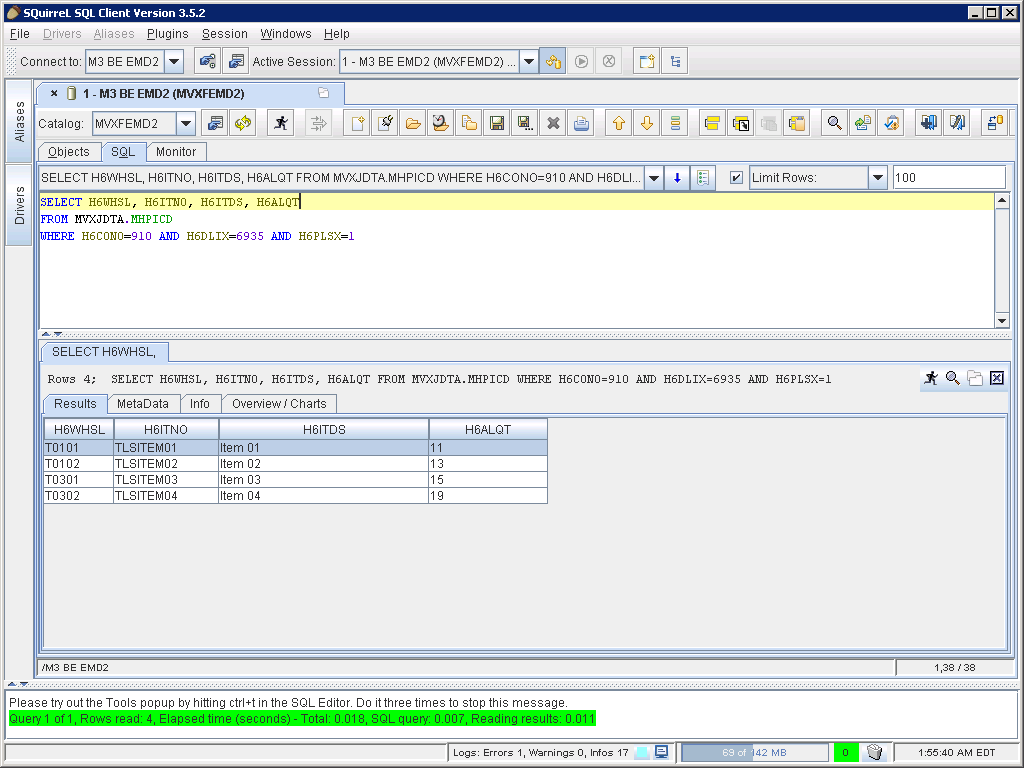
Here is a sample screenshot of the result:
1_

Event Hub

My goal is to get one event per picking list so I can process the picking list in its entirety as a single entity; I’m not interested in getting one event per picking list line, four in my case, as that would loose visibility of the higher level abstraction that is the picking list. So what subscription do I need in Event Hub knowing there are six plausible tables and three possible operations Create, Update, and Delete?

At first I tried the most obvious subscription M3:MHPICH:C for the creation of a row in the table of picking list headers. But that didn’t work because it was too early: by the time I had received the event and processed it in IPA the picking lines didn’t exist yet and I got zero results. It was the same problem with MHPICL. And I didn’t want to do complex processing like count the number of expected picking lines and wait for the last one to arrive, or bad design ideas like wait a second for the rows to be created.

So I tried all possible subscriptions:

  • M3:MHDISH:CUD
  • M3:MHDISL:CUD
  • M3:MHPICH:CUD
  • M3:MHPICD:CUD
  • M3:MHPICL:CUD
  • M3:MITALO:CUD

And I received the following events in this chronological order:

  • M3:MHDISH:C
  • M3:MHDISH:U
  • M3:MHDISL:C
  • M3:MHDISH:U
  • M3:MHDISL:C
  • M3:MHDISH:U
  • M3:MHDISL:C
  • M3:MHDISH:U
  • M3:MHDISL:C
  • M3:MITALO:C
  • M3:MITALO:C
  • M3:MITALO:C
  • M3:MITALO:C
  • M3:MHDISH:U
  • M3:MHPICH:C
  • M3:MHDISH:U
  • M3:MITALO:D
  • M3:MITALO:C
  • M3:MITALO:D
  • M3:MITALO:C
  • M3:MITALO:D
  • M3:MITALO:C
  • M3:MITALO:D
  • M3:MITALO:C
  • M3:MHPICH:U
  • M3:MITALO:U
  • M3:MHDISL:U
  • M3:MITALO:U
  • M3:MHDISL:U
  • M3:MITALO:U
  • M3:MHDISL:U
  • M3:MITALO:U
  • M3:MHDISL:U
  • M3:MHPICH:U
  • M3:MHDISH:U
  • M3:MHPICH:U
  • M3:MHPICL:C
  • M3:MHPICD:C
  • M3:MHPICD:C
  • M3:MHDISH:U
  • M3:MHPICD:C
  • M3:MHPICD:C
  • M3:MHPICL:U

Observation 3: The subscription M3:MHPICL:U is the last one of the sequence so it will happen at the right time after the picking list lines have been created, and it’s unique per picking list so I won’t get duplicate events nor events per picking list line. Good. I’ll subscribe to that event. And the primary keys I’ll receive for MHPICL are Company (CONO), Delivery number (DLIX), and Picking list suffix (PLSX).

Event Analytics

Then, I created a Drools Rule in Event Analytics to filter the events by Company (CONO) and by Warehouse (WHLO) as I’m only interested in that particular warehouse. Here is a screenshot:
Rule

Process flow

Then, I created a process flow in Infor Process Designer (IPD) to receive the primary keys of the picking list and get the picking list lines details with SQL. Here is a screenshot:
2

And I created an Event Hub Receiver:
Channel

Result

Here is the result when I create the picking list following the instructions from my previous post, I get WorkUnits triggered by Event Analytics:
WorkUnit

And I get the primary keys and the picking list lines from the SQL:

Workunit 70 for process NewPickingList execution started @ 05/16/2014 12:01:17 AM


Activity name:Start id:1 started @ 05/16/2014 12:01:17 AM
 Executing Start Activity...
Activity name:Start id:1 completed @ 05/16/2014 12:01:17 AM

Activity name:SQL id:1 started @ 05/16/2014 12:01:17 AM
 SQL Query SQL: Query string SELECT H6WHSL, H6ITNO, H6ITDS, H6ALQT
FROM MVXJDTA.MHPICD
WHERE H6CONO=<!CONO> AND H6DLIX=<!DLIX> AND H6PLSX=<!PLSX>
 SQL SQL: Using JDBC connection String Driver: com.microsoft.sqlserver.jdbc.SQLServerDriver, URL: jdbc:sqlserver://m3db-2013;databaseName=MVXFEMD2, User: *****
 SQL Query SQL: Query string SELECT H6WHSL, H6ITNO, H6ITDS, H6ALQT
FROM MVXJDTA.MHPICD
WHERE H6CONO=910 AND H6DLIX=6940 AND H6PLSX=1
 SQL_errorCode = 0
 SQL_informationCode = 0
 SQL_returnMessage = SQL query SQL: Execution complete.
 SQL_outputData = 
Activity name:SQL id:1 completed @ 05/16/2014 12:01:17 AM
 SQL_RETURN_MSG = Success
 SQL_RETURN_CODE = 0
 SQL_errorCode = 0
 SQL_informationCode = 0
 SQL_returnMessage = SQL query SQL: Execution complete.
 SQL_outputData = 
 SQL_RECORD_COUNT = 4
 SQL Query SQL: Executing loop 1 of 4
 SQL_1 = T0101 
 SQL_H6WHSL = T0101 
 SQL_2 = TLSITEM01 
 SQL_H6ITNO = TLSITEM01 
 SQL_3 = Item 01
 SQL_H6ITDS = Item 01
 SQL_4 = 11
 SQL_H6ALQT = 11
 Message Builder:MsgBuilder6340 Executing this activity...

Activity name:MsgBuilder6340 id:1 started @ 05/16/2014 12:01:17 AM
Activity name:MsgBuilder6340 id:1 completed @ 05/16/2014 12:01:17 AM
 SQL_RETURN_MSG = Success
 SQL_RETURN_CODE = 0
 SQL_errorCode = 0
 SQL_informationCode = 0
 SQL_returnMessage = SQL query SQL: Execution complete.
 SQL_outputData = 
 SQL_RECORD_COUNT = 4
 SQL Query SQL: Executing loop 2 of 4
 SQL_1 = T0102 
 SQL_H6WHSL = T0102 
 SQL_2 = TLSITEM02 
 SQL_H6ITNO = TLSITEM02 
 SQL_3 = Item 02
 SQL_H6ITDS = Item 02
 SQL_4 = 13
 SQL_H6ALQT = 13
 Message Builder:MsgBuilder6340 Executing this activity...

Activity name:MsgBuilder6340 id:1 started @ 05/16/2014 12:01:17 AM
Activity name:MsgBuilder6340 id:1 completed @ 05/16/2014 12:01:17 AM
 SQL_RETURN_MSG = Success
 SQL_RETURN_CODE = 0
 SQL_errorCode = 0
 SQL_informationCode = 0
 SQL_returnMessage = SQL query SQL: Execution complete.
 SQL_outputData = 
 SQL_RECORD_COUNT = 4
 SQL Query SQL: Executing loop 3 of 4
 SQL_1 = T0301 
 SQL_H6WHSL = T0301 
 SQL_2 = TLSITEM03 
 SQL_H6ITNO = TLSITEM03 
 SQL_3 = Item 03
 SQL_H6ITDS = Item 03
 SQL_4 = 17
 SQL_H6ALQT = 17
 Message Builder:MsgBuilder6340 Executing this activity...

Activity name:MsgBuilder6340 id:1 started @ 05/16/2014 12:01:18 AM
Activity name:MsgBuilder6340 id:1 completed @ 05/16/2014 12:01:18 AM
 SQL_RETURN_MSG = Success
 SQL_RETURN_CODE = 0
 SQL_errorCode = 0
 SQL_informationCode = 0
 SQL_returnMessage = SQL query SQL: Execution complete.
 SQL_outputData = 
 SQL_RECORD_COUNT = 4
 SQL Query SQL: Executing loop 4 of 4
 SQL_1 = T0302 
 SQL_H6WHSL = T0302 
 SQL_2 = TLSITEM04 
 SQL_H6ITNO = TLSITEM04 
 SQL_3 = Item 04
 SQL_H6ITDS = Item 04
 SQL_4 = 19
 SQL_H6ALQT = 19
 Message Builder:MsgBuilder6340 Executing this activity...

Activity name:MsgBuilder6340 id:1 started @ 05/16/2014 12:01:18 AM
Activity name:MsgBuilder6340 id:1 completed @ 05/16/2014 12:01:18 AM

Activity name:End id:1 started @ 05/16/2014 12:01:18 AM
 Activity End: Executing End activity
Activity name:End id:1 completed @ 05/16/2014 12:01:18 AM

Workunit 70 for process NewPickingList execution completed @ 05/16/2014 12:01:18 AM

Conclusion

In this post I showed you how to get an M3 picking list and process it using Event Hub, Event Analytics, and Process Automation, to get the picking list details with item number, item description, quantities, and stock location. I also showed you my thought process to identify the table MHPICD for the picking list lines, and the subscription M3:MHPICL:U to get a unique event for the picking list at the right time.

Future work

In a future work, I will send the picking list to my Glass using the Mirror API, I will get the item image from Infor’s Document Archive, and I will show walking directions on a warehouse plan.

That’s it! If you liked this post please subscribe to this blog with the Follow button below, leave your comments in the section below, like, share with your colleagues, and enjoy.

How to create a picking list in M3

As part of my Google Glass project to display Infor M3 picking lists on Glass, I had to learn how to easily create picking lists in M3. M3 is a comprehensive Enterprise resource planning (ERP) suite that does customer sales, supply chain, manufacturing, inventory, packing, shipping, accounting, and many other functions. It takes learning and practice to conquer it. I’m a technical consultant for M3, not a functional consultant, so I had to ask for help for the setup to create picking lists. My dear colleagues Philip Cancino, M3 Business Consultant – SCM at Infor in Manila, and Marie-Pascale Authié, Fashion Solution Consultant at Infor in Chicago generously helped me.

I recorded Philip’s and Marie-Pascale’s instructions and the final setup, and I’m sharing the results here so you can follow my Glass project along. Watch the videos in full screen and in high definition to see the small details. Also, Philip’s video has audio, and I transcribed it, so you can turn on closed captioning (CC) if needed; the other videos don’t have audio.

Philip’s instructions and demo

Philip showed me detailed instructions to create a picking list on one of the Infor Education servers that was already setup for Manufacturing, and we recorded a demo.

Philip’s instructions are:

  1. Create a customer order in M3 Customer Order. Open – OIS100
  2. Create order lines in M3 Customer Order. Open Line – OIS101
  3. Select the order > Related Options > Delivery Toolbox CTRL+43; it takes us to M3 Delivery. Open Toolbox – MWS410
  4. Select the delivery > Related Options > Release for Picking CTRL+32
  5. Refresh until Released for Picking RIP = 1; it can take a while for the auto-jobs
  6. Back in OIS300, the order will change to Status 44
  7. Back in MWS410, select the delivery > Related Options > Picking Lists CTRL+11; it takes us to M3 Picking List. Report – MWS420
  8. Select the picking list > Related Options > Pick List Lines CTRL+11; it takes us to M3 Picking List. Report Lines – MWS422
  9. It shows the picking list lines with item numbers, quantities, and stock locations; this is what I need for Google Glass
  10. Select one line at a time > Related Options > Confirm Issues CTRL+16, that’s what the picker will do on Google Glass to complete the pick list
  11. When all the picking list lines have been confirmed, the picking list and the delivery will change to status 90, and the order will change to status 66.

Here is Philip’s demo:

Back to basics

After Philip’s demo, I wasn’t able to reproduce the instructions on another server that had a different setup for Equipment service management and rental (ESM&R). So Marie-Pascale helped me setup that other server. She setup everything from scratch, mostly copying from existing records, then going back and forth adjusting what was important for my project until it was working as desired.

Setup 1/4 – configuration tables

First, Marie-Pascale set up of the configuration tables company, division, facility, warehouse, and stock locations:

  • M3 Company. Open – MNS095
  • M3 Company. Connect Division – MNS100
  • M3 Facility. Open – CRS008
  • M3 Warehouse. Open – MMS005
  • M3 Stock Location. Open – MMS010:
    • In panel B we set the Warehouse (WHLO) and the Location (WHSL)
    • In panel E we set the Name (TX40) of each location to the respective aisle, rack, and bin
    • In panel F I will later set the Geo codes XYZ based on my previous work Geocoding of Stock Locations in MMS010.

Here is my quick walkthrough of the result (pause the video as needed):
http://www.youtube.com/watch?v=KWIVoYsykng

Setup 2/4 – order type

Then, Marie-Pascale set up the all-important order type, and she chose a fast order type that automatically allocates inventory, creates a picking list, and does not require packing nor shipping:

  • M3 CO Type. Open – OIS010:
    • Allocation method: 1-Automatic/manually
  • M3 CO Type. Connect Documents – OIS011:
    • Print document: Yes
  • M3 CO Type. Update Field Selection – OIS014:
    • Route: blank
    • Route departure: blank
    • Contact method: phone
  • M3 Dispatch Policy. Open – MWS010:
    • 030 Released for allocation: Yes
    • 040 Released for picking: Yes
    • 100 Auto print of picking lists: Yes
    • 160 Shipment assembly point: 9-Not used
    • 240 Packing reporting method: 0-Packing not used
    • 330 Automatic connection to shipment: 0-No auto connect

Here is the result:
http://www.youtube.com/watch?v=CL16XWJsJos

Setup 3/4 – items and inventory

Then, Marie-Pascale setup the items and inventory:

  • M3 Item. Open – MMS001:
    • Status: 20-Released
    • Responsible
    • Make/buy code: 2-Purchased
    • Lot control method: 0-Not used
    • Lot numb method: 0-Manual entry
    • Purchase price
    • Sales price
    • Supplier
  • M3 Item. Connect Warehouse – MMS002:
    • Planner
    • Acquisition code: 2-Purchased
    • Status: 20-Released
    • Location
  • M3 Item. Connect Facility – MMS003
  • M3 Physical Inventory. Quick Entry – MMS310:
    • Warehouse
    • Item number
    • Location
    • Physical inventory quantity (STQI)
    • Status – ph inv (STAG): 1-Auto approved

Here is the result:
http://www.youtube.com/watch?v=d1SA4DuRlCw

Setup 4/4 – customer and supplier

Then, Marie-Pascale the setup of the customer and supplier:

  • M3 Customer. Open – CRS610:
    • Status: 20-Definite
    • Order Type
    • Warehouse
  • M3 Supplier. Open – CRS620

Here is the result:
http://www.youtube.com/watch?v=03mHYaSg8iA

Final demo

And finally, here is the quick demo to create a customer order and get the picking list with item numbers, quantities, and stock locations to display in Google Glass:
http://www.youtube.com/watch?v=GKVWuM0Jz5M

And here is a screenshot of the final picking list:
result

They are the same steps as Philip’s, except now everything is automatic: allocation and picking are automatic, and there’s no packing nor shipping.

We had a problem with automatic allocation though, it failed, and we had to allocate manually in M3 Allocation. Perform Detailed – MMS121. Marie-Pascale said she will look into it.

Future work

Next, I will capture the event that creates the picking list, and I will gather more information about the Items, like names, and I will send the formatted picking list to Glass. For that, I will use Event Analytics and Infor Process Automation (IPA) and the Glass API.


That’s it!

Special thanks to Philip Cancino and Marie-Pascale Authié for making this possible. I wouldn’t have been able to progress without your help.

Subscribe to this blog to follow my Google Glass adventures. Comment. Share. Enjoy.

IBrix conversion proof-of-concept

http://youtu.be/N_zM1ewH0ug

I want to quickly share with you the progress of a proof-of-concept conversion – with Ryan at a customer – of a Movex Workplace IBrix into HTML5/JavaScript that will eventually be run inside Infor M3 H5 Client. (Watch the video full-screen in HD for better resolution.)

Current features:

  • Client-side pagination, sorting, search
  • List and detail panel fed by M3 API
  • Drill-down click
  • Input validation as the user is typing
  • Auto-complete dropdown lists
  • F4-Browse dialog
  • F1-Field Help to /help/GB/FieldHelp/xml/FIELD.xml
  • Context-menu
  • Works in Chrome, Safari, Firefox, iPad, etc.
  • Some more stuff

M3 API used:

  • CRS610MI.LstByNumber
  • CRS175MI.GetGeneralCode
  • CRS175MI.LstGeneralCode

Built with:

  • jQuery
  • jQuery UI
  • jQuery Datatables

Future work:

  • Server-side pagination, sorting, search
  • A lot of tweaking and sexifying

Related article: H5 Client and M3 API with jQuery DataTables revisited

H5 Client and M3 API with jQuery DataTables revisited

Today I will revisit my previous articles on H5 Client and M3 API with jQuery DataTables: I will correct a few mistakes in my code, I will update the code to the latest versions of jQuery and DataTables, and I will introduce new features.

Motivation: IBrix conversion

I’m helping a customer convert their old IBrix to HTML5/JavaScript. The IBrix we’re starting with uses a lot of M3 API and M3 Web Services (MWS), as well as IPM <c:table> components to render resulting data in selectable lists of rows and columns. To replace that, we could write Infor Smart Office Mashups that use the controls m3:MIListPanel, m3:MIPanel, and mashup:DataService, but the customer won’t use Smart Office as their main user interface; they’ll use Infor M3 H5 Client instead. Alternatively, we could convert the Smart Office Mashups to Web Mashups for H5 Client, but Web Mashups currently don’t support the MI controls. Infor says they are adding support for more and more controls, but they haven’t released any specific information on which controls they’ll add nor on what timeline. The customer couldn’t wait for Web Mashups to support those controls, so we decided to rewrite the IBrix from scratch using HTML5/JavaScript, and to re-evaluate Web Mashups later when Infor releases something new in the future. We opted for jQuery as the JavaScript library – as opposed to another JavaScript library like Dojo – because jQuery is already used by H5 Client and Web Mashups, so if we have to learn something new we might as well just learn one. As part of this learning process, I will share with you what I learn.

Files & folders

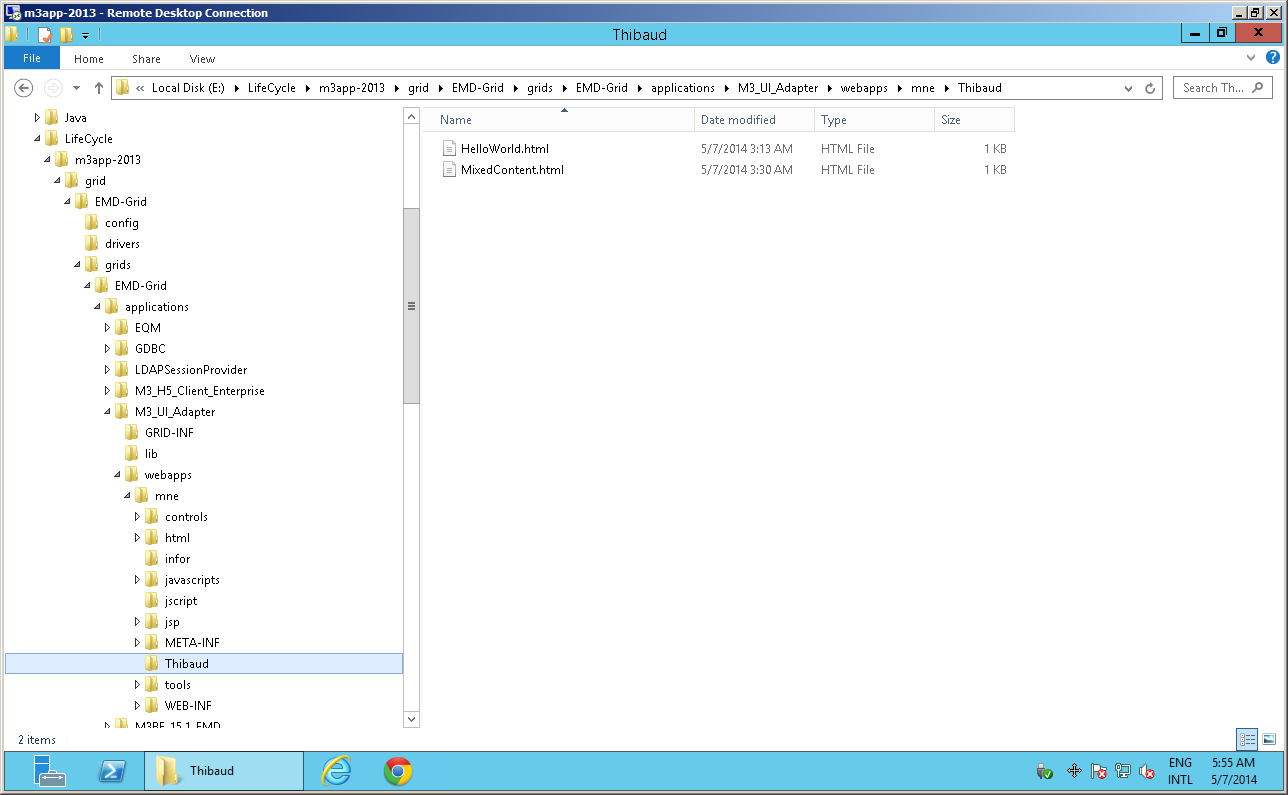
I haven’t yet found a good place to put my HTML5/JavaScript code. So for now I will continue to use the mne folder in Infor LifeCycle Manager where I have my own sub-folder:
folder

It’s probably not the best idea, but we already trust Smart Office Script files in the jscript sister folder, so I don’t yet see a problem with putting other files in a sibling folder. The only problem could be an upgrade or a migration that wouldn’t account for our piggyback folder and our folder could be lost (yikes!).

URI relative references

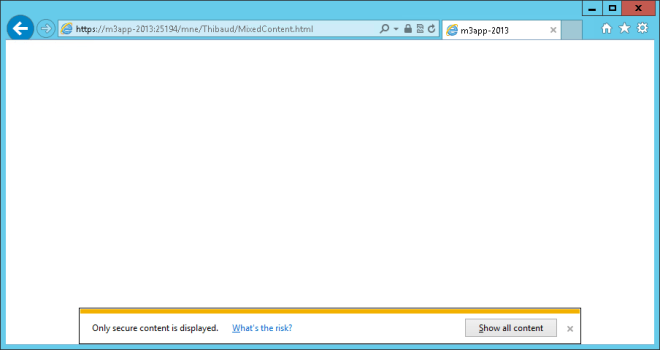
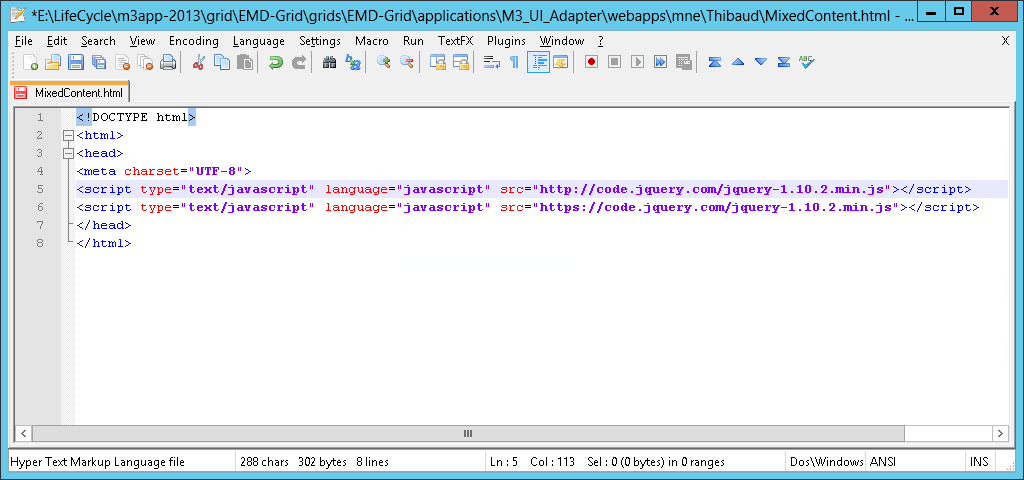
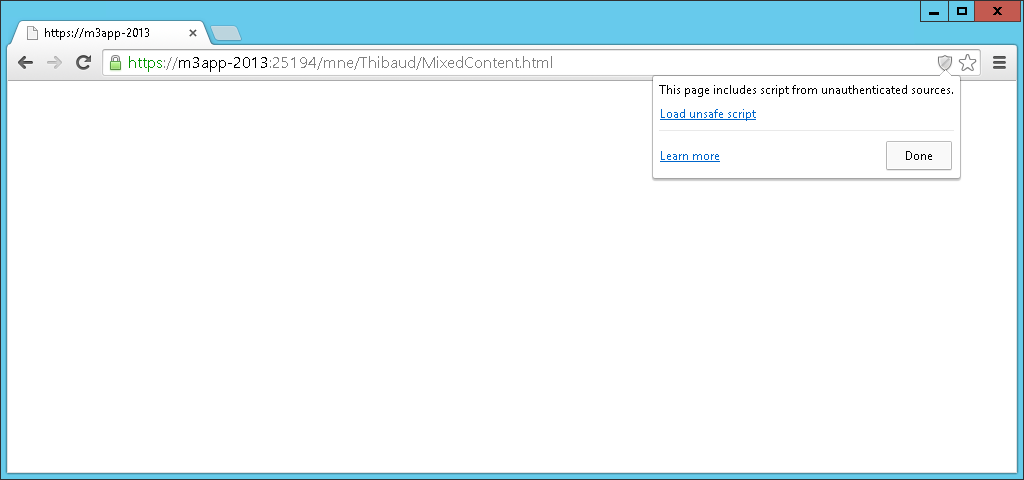
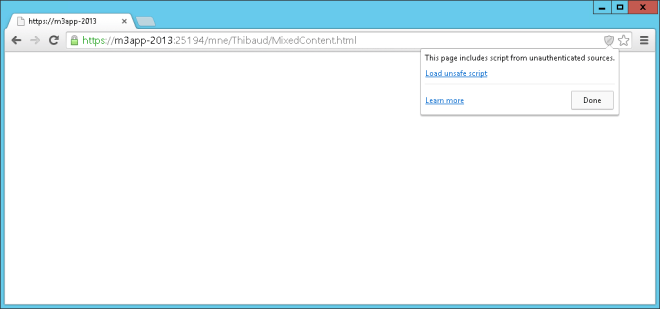
Most resources on the Infor Grid can be accessed over an insecure channel with HTTP, or over a secure channel with HTTPS, like many resources on the web. If our code requests resources over a mix of secure and insecure channels, and the user requests the page over a secure channel, the browser (for example Internet Explorer and Google Chrome) will protect the user: it will show a security icon in the address bar, it will show a security popup, and it will not load the resources that are over the unsecure channel unless the user confirms to do so:
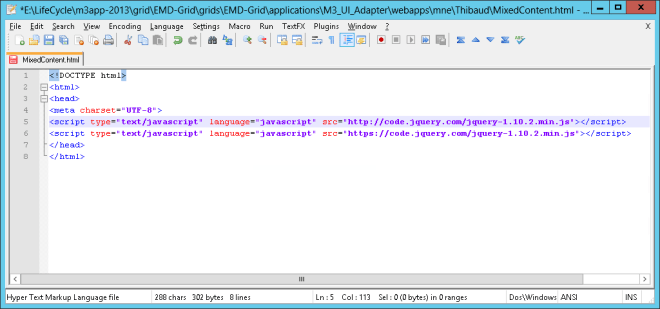
MixedContent
MixedContentChrome2
MixedContent

The page behaves seemingly normal in one case and broken in another. It’s tricky to troubleshoot for the developer, users, support, etc.

The solution is to use URI relative reference for scheme abstraction, i.e. remove the scheme part of the URI. The browser will then load the resources using the scheme the user chose in the first place, HTTP or HTTPS.

For example, replace this:

http://code.jquery.com/jquery-1.10.2.min.js
https://code.jquery.com/jquery-1.10.2.min.js

with this:

//code.jquery.com/jquery-1.10.2.min.js

The resulting URI looks strange, yet it’s valid. It’s not a well-known technique, yet it has been in the URI specification for a long time. And it’s important in our case to prevent a potentially broken page that’s hard to troubleshoot.

URI relative references cont’d.

Also, the Infor Grid is a distributed system where the same application can run on any of the deployed nodes and any of the binding ports. Thus the variations in the URI can be on the scheme HTTP/HTTPS, the host A or B, and the port number X or Y. For example the user could legitimately request any of these and should get the same Grid application:

So our code must account for this possibility. If we used absolute URI in our code, H5 Client and our code wouldn’t be within the same document origin, and we could run into same-origin policy restrictions.

The solution is to use relative references again, this time just with the path and query parts of the URI, without the scheme://host:port parts.

For example, use:

/m3api-rest/execute/CRS610MI/GetBasicData;returncols=CUNM?CONO=910&CUNO=ACME

instead of:

https://host:48494/m3api-rest/execute/CRS610MI/GetBasicData;returncols=CUNM?CONO=910&CUNO=ACME

Caching

As we’re developing for the web, we have to be cognizant of caching and cookies. In my case I’m developing static HTML pages that I’m updating frequently (within seconds). I’m using a browser to execute the page. The browser caches the page, and there could be proxies along the way that cache the page. I’m using Fiddler to intercept M3 API requests/responses. MNE uses cookies to maintain the session across requests. To prevent caching, I use Fiddler > Rules > Performance > Disable caching, and I switch with the anonymous mode of the browser, InPrivate Browsing in Internet Explorer, and Incognito window in Chrome to start fresh without cookies. And I check my page versions and cookies in the HTTP Responses in Fiddler.

Security vulnerability

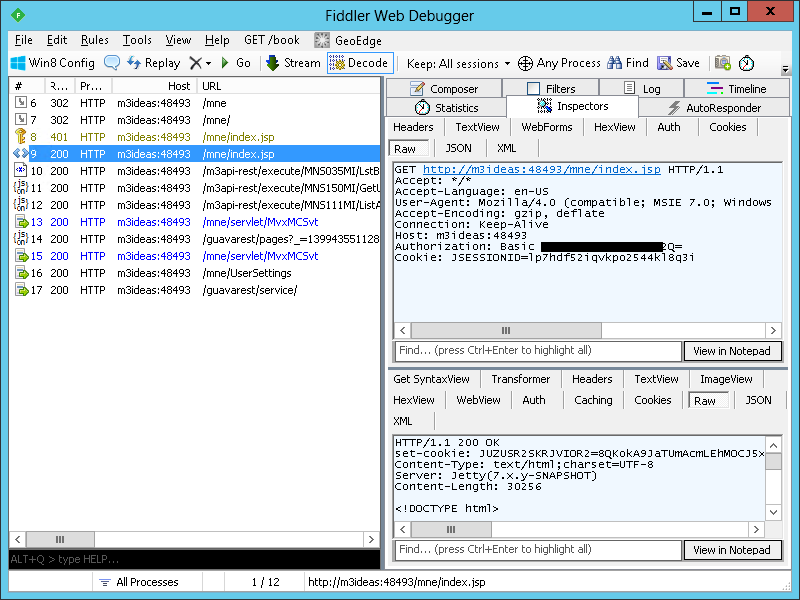
H5 Client is one of the Grid applications that will work over both HTTP-only, an insecure channel, and HTTPS, a secure channel. Unfortunately, when using HTTP, the login phase is done over HTTP-only as well, it’s not redirected over HTTPS and back like M3 Workplace did, and as all sites should do. So the user/password is sent Base64-encoded over the network, i.e. in clear text:
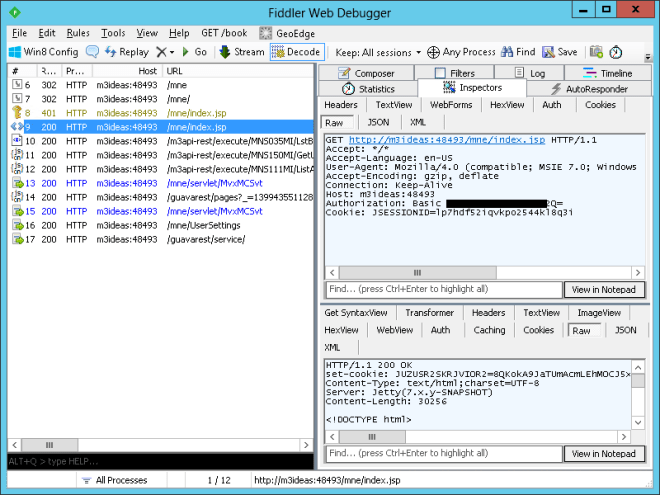
Password

I validated this with H5 Client 10.2.1.2 (Enterprise):
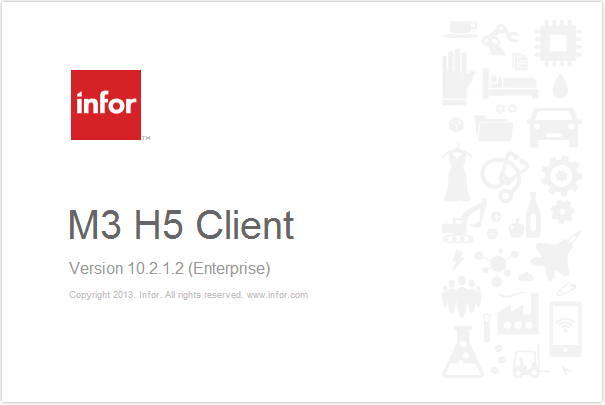
H5v

That’s a security vulnerability. So I’m looking into if this was an undetected installation/configuration mishap, and how to force HTTPS-only and prevent HTTP, at least for the login phase, or at default for the entire MNE. I reported this to Infor. To be further investigated.

H5 Client is usually confined to the corporate network behind firewall and NAT, so this is not as big a risk as with a vulnerability that would be exposed on the Internet.

UPDATE 2014-05-07: It appears this was a misconfiguration of the particular Grid I tested. Check your Grid in case you too have an undetected misconfiguration. Go to: Grid Management > M3_H5_Client > Web Components > Web Routers > Configure. The WWW Authentication Methods should only be checked for HTTPS, and unchecked for HTTP. I don’t do installations/configurations of the Grid, so this is to be confirmed by a certified installer.

 H5 Client lifetime

Let’s learn more about the H5 Client lifetime: login, session handling, keep alive, and logout.

  1. When the user requests H5 Client at /mne, /mne/, or /mne/index.jsp, the J2EE Jetty server sets a new cookie JSESSIONID for the session. I don’t yet know where that cookie is used.
  2. At /mne/index.jsp the server will challenge the client for authentication, and the browser will prompt the user for id/password in a popup.
  3. The user enters the M3 userid/password, and the browser sends that Base64-encoded along with the JSESSIONID cookie. The Authorization header will be transmitted throughout the session.
  4. The server authenticates the credentials and responds with a new cookie JUZUSR2SKRJVIOR2. This cookie will be used by the browser to maintain the session across requests, and it’s even validated by M3 API and MWS which will be very useful later.
  5. At this point we can add our HTML5/JavaScript code into an H5 Client Page. The browser will pass along the JUZUSR2SKRJVIOR2 cookie and authenticate our M3 API and MWS requests.
  6. Also, H5 Client will POST a CMDTP=LOGON to the MNE server with the userid UID and the two cookies. The server seems to ignore the cookies here.
  7. The server will respond with the MNE session id SID.
  8. Then the user optionally opens an M3 Program like CRS610.
  9. When the user closes the browser, H5 Client will issue CMDTP=QUIT with the SID, and the server will logout that user from M3 and invalidate that SID. However, the cookies are not invalidated. Is that another potential security vulnerability?
  10. Also, H5 Client does ping with CMDTP=FNC&CMDVAL=PING at about a 25mn frequency to maintain the session alive and not let it timeout.

We can now draw some useful conclusions:

  1. For H5 Client, we need the SID parameter, and either the HTTP Basic Authorization header or the cookie JUZUSR2SKRJVIOR2.
  2. For M3 API and M3 Web Services, we can use either the HTTP Basic Authorization header or the cookie JUZUSR2SKRJVIOR2. This will prove very useful later.

The JSESSIONID cookie doesn’t seem to be used anywhere.

In my observations, I saw both a HTTP Basic Authorization header and the cookie JUZUSR2SKRJVIOR2 throughout the session, and that seems redundant to me as we only need one, not both. I don’t see an impact yet.

I did my tests by analyzing the HTTP Requests/Responses with Fiddler, and with forged HTTP Requests in Fiddler Composer to try the various combinations. And I did my tests in a rush so not everything might be accurate. Please comment if you find a discrepancy. All I wanted to know was how to authenticate the M3 API and MWS requests.

M3 API authentication

We now know we don’t need to authenticate our M3 API requests, i.e. we don’t need to hard-code any userid/password in our code nor prompt the user to login, provided we conform to the following:

  1. Our code must run within the same browser session as H5 Client, i.e. same origin, for example in an H5 Page.
  2. Remove any authentication from our code, i.e. remove any user/password, and don’t authenticate HTTP Requests to M3 API or MWS.
  3. Use only the path & query parts of the URL without the scheme://host:port, so for example use just /m3api-rest, in order to be within the same origin, so the browser will pass the cookie along, regardless of scheme HTTP/HTTPS, host/FQDN, port

Alternatively, we could build our own login page, but we would have to deal with password management (password expired, forgot password), session keep-alive, and logout.

M3 API with jQuery.ajax()

In my previous article, I had use the native XMLHttpRequest object to call the M3 API. This time I will use jQuery.ajax():

	$(document).ready(function () {
		$.ajax({
			url : "/m3api-rest/execute/CRS610MI/GetBasicData;returncols=CUNM,TOWN,ECAR,PONO,CSCD?CONO=910&CUNO=ACME",
			"dataType": "json"
		})
	});

jQuery DataTables

Now to render the M3 API into a jQuery DataTable, I won’t do a time and memory consuming row and cell creation anymore. I’ll simply use the jQuery DataTables Custom data source property dataSrc:

	var program = 'CRS610MI';
	var transaction = 'LstByNumber';
	var maxrecs = 100;
	var returncols = 'CUNO,CUNM,CUA1,TFNO,STAT';
	var inputFields = 'CONO=910&CUNO=ACME';
	// construct the URL
	var url = '/m3api-rest/execute/' + program + '/' + transaction + ';maxrecs=' + maxrecs + ';returncols=' + returncols + '?' + inputFields;
	// prepare the columns for dataTable
	var arr = returncols.split(',');
	var columns = [];
	for (var i in arr) {
		columns[i] = { "data": arr[i] };
	}
	$(document).ready(function () {
		var table = $('#CustomerList').dataTable( {
			"ajax": {
				"url": url,
				"dataSrc": function (json) {
					var result = [];
					for (var i in json.MIRecord) {
						var record = {};
						json.MIRecord[i].NameValue.map(function(o){ record[o.Name] = o.Value; });
						result[i] = record;
					}
					return result;
				}
			},
			"columns": columns
		});
	});

And the HTML fragment with the column headers:

	<table id="CustomerList" class="display" cellspacing="0" width="100%">
		<thead>
			<tr>
				<th>Customer</th>
				<th>Name</th>
				<th>Address line 1</th>
				<th>Telephone</th>
				<th>Status</th>
			</tr>
		</thead>
	</table>

Row selection

To enable row selection:

	$('#CustomerList tbody').on('click', 'tr', function () {
		if ($(this).hasClass('selected')) {
			$(this).removeClass('selected');
		} else {
			table.$('tr.selected').removeClass('selected');
			$(this).addClass('selected');
		}
	});

Context menu

To get a context menu (right-click), I use jQuery contextMenu, and it looks like this (unfinished code):

	$(function(){
		$.contextMenu({
			selector: '#CustomerList tbody',
			callback: function(key, options) {
				// PENDING
			},
			items: {
				"Select": {name: "select", icon: "select"},
				"Copy": {name: "copy", icon: "copy"},
				"Change": {name: "change", icon: "edit"},
				"Display": {name: "display", icon: "display"},
				"Delete": {name: "delete", icon: "delete"}
			}
		});
	});

I’m still working on completing this code.

Result

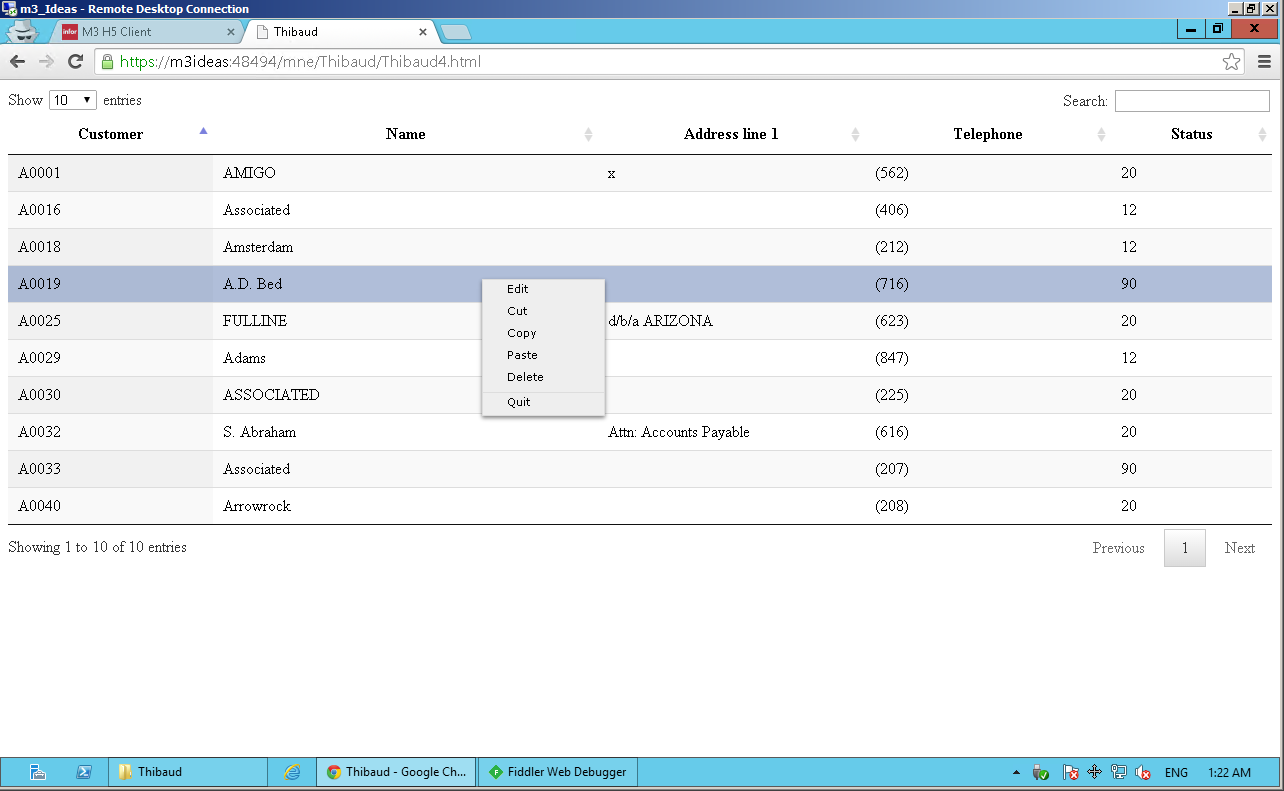
Here’s a screenshot of the result:
contextmenu

Also, jQuery DataTables supports client-side search, pagination, and sorting. It took about 6s to load and render 3,000 rows. That’s about 2ms per row, not bad. But I will look into making this server-side anyway as client-side is not suitable for production.


Conclusion

In this post, we re-visited how to call M3 API with jQuery, how to take care of authentication, how to maintain the session across requests, how to do session keep alive, and logout (in fact H5 Client takes care of it, and the browser passes along the session to our code provide we conform to certain conditions), how to render the result with jQuery DataTables, how to enable row selection, and how to add a context menu.

As future work, I will follow-up on the security vulnerabilities, complete the code for the context menu, I will implement the equivalent of the SelectionChanged event of Mashups, I will render the M3 API Get with jQuery, and I will implement the F4-Browse dialogs of Ken Eric.

With all those simple engineering problems tackled one after the other, I will have a good basis to start converting IBrix to HTML5/JavaScript.

A more tricky engineering problem will be to implement the server-side search, pagination, and sorting.

Related articles


That’s it! This was a sloppy article put together hastily to get it out of my system and anchor it at once. It nonetheless contains useful information. I’ll be posting more. Stay tuned. Subscribe. Comment. Share. Enjoy.

Introduction to Web Mashups

Here’s a quick introduction to Web Mashups for Infor M3 H5 Client; Web Mashups are the cousins of Infor Smart Office Mashups. To do Web Mashups, you’ll need Infor Smart Office, the Mashup Designer, and Infor M3 H5 Client. I’ll show lots of screenshots.
What are Web Mashups

Historically, Smart Office Mashups were just called Mashups and would run in Smart Office. Smart Office is currently the main user interface for M3, built using C# and Microsoft WPF. With the launch of Infor M3 H5 Client released about 2013, M3 can now run in HTML5/JavaScript in any major web browser (for example Microsoft Internet Explorer, Google Chrome, Apple Safari, Mozilla Firefox), in any major operating system (for example Microsoft Windows, Mac OS,  Linux, etc.), in any major device (Mac, PC, iPhone, iPad, Android, etc.). As part of that web enablement, Mashups are now automatically converted from Smart Office Mashups to Web Mashups, and they can run inside H5 Client or standalone in a browser.

To do Web Mashups, the developer creates Mashups as usual in XAML with the Smart Office Mashup Designer, and the server converts the XAML the best it can into HTML5/JavaScript, jQuery, REST/SOAP, and JSON/XML. Currently Web Mashups don’t support all the controls that Smart Office Mashups supports. I successfully tested m3:ListPanel, m3:DetailPanel, as well as Grid, StackPanel, Label, TextBox, and Button. It seems MIListPanel and MIDetailPanel are not supported. It seems Document Archive is supported. And it seems XAML’s ListView may already be supported, to be confirmed. According to the Product Manager and component owner at Infor, they are adding support for more and more controls. I expect loss along the conversion as I don’t think it’s possible to automatically convert all of XAML, Binding, Converters, and other advanced WPF tricks. But it should work fine if we stick to a specific subset of Mashups.

Documentation

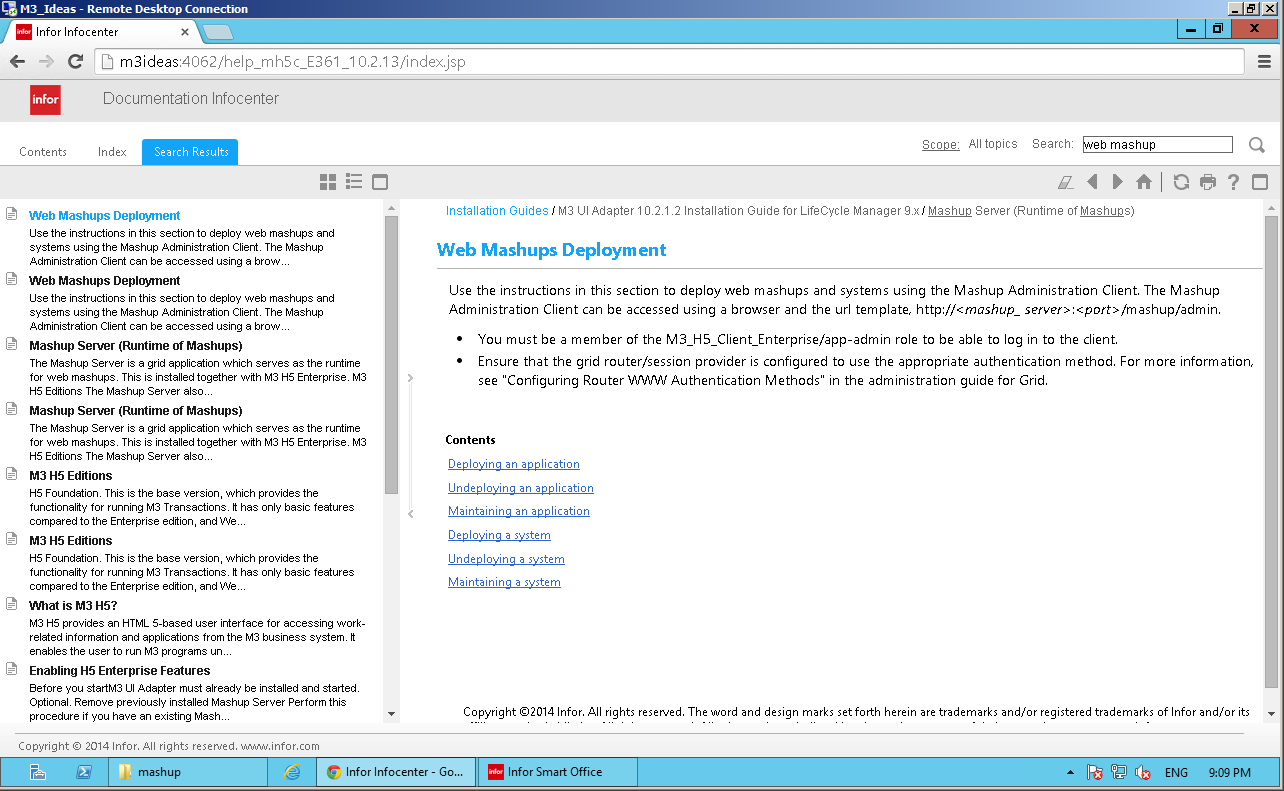
You can read more about Web Mashups on the Infor InfoCenter:
doc

Web Mashup demo

I’m working with Ryan, an IBrix and J2EE developer at a long-time customer, to help him convert IBrix from the obsolete Movex Workplace to the new M3 13.1 as part of their company’s upgrade. We’re evaluating the capabilities of Web Mashups, and the best strategy to do IBrix conversion. Here I’ll illustrate the basics.

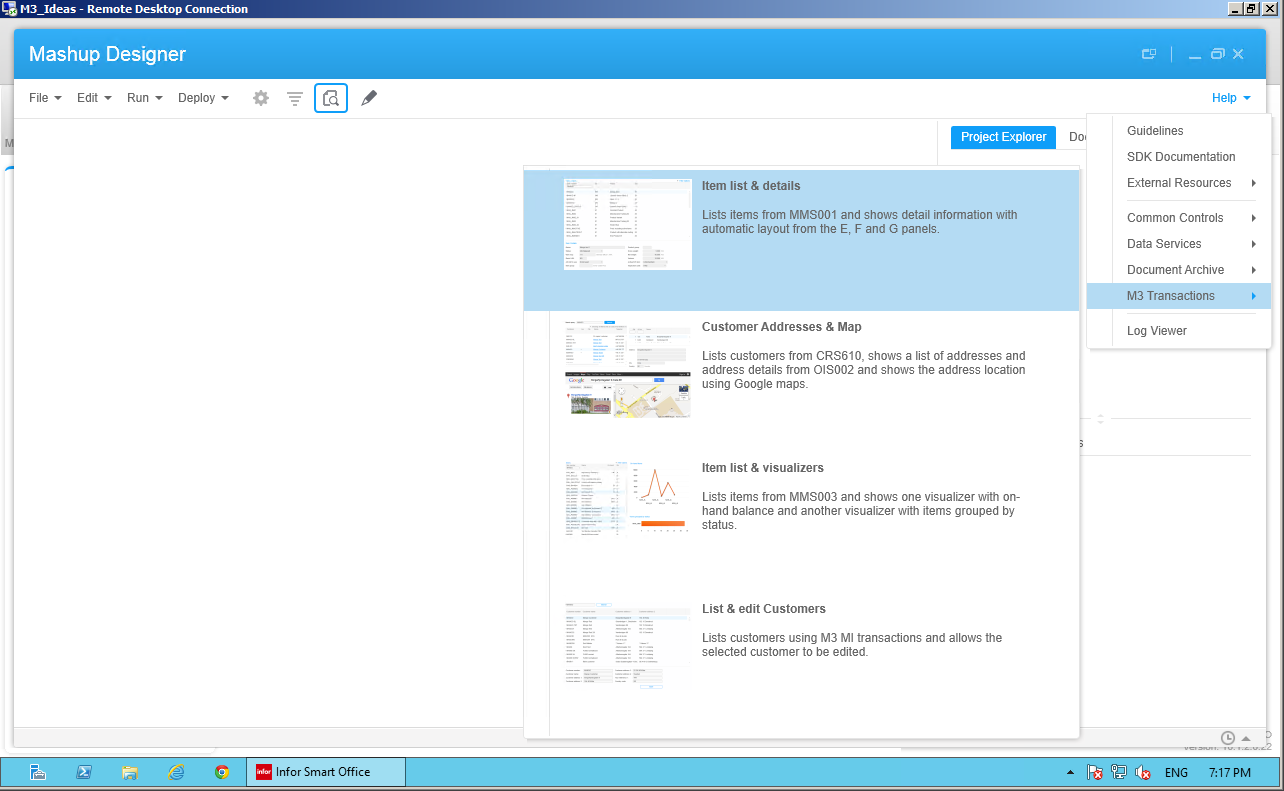
First, I’ll create a simple Mashup using the built-in example at Mashup Designer > Help > M3 Transactions > Item list & details:
1b

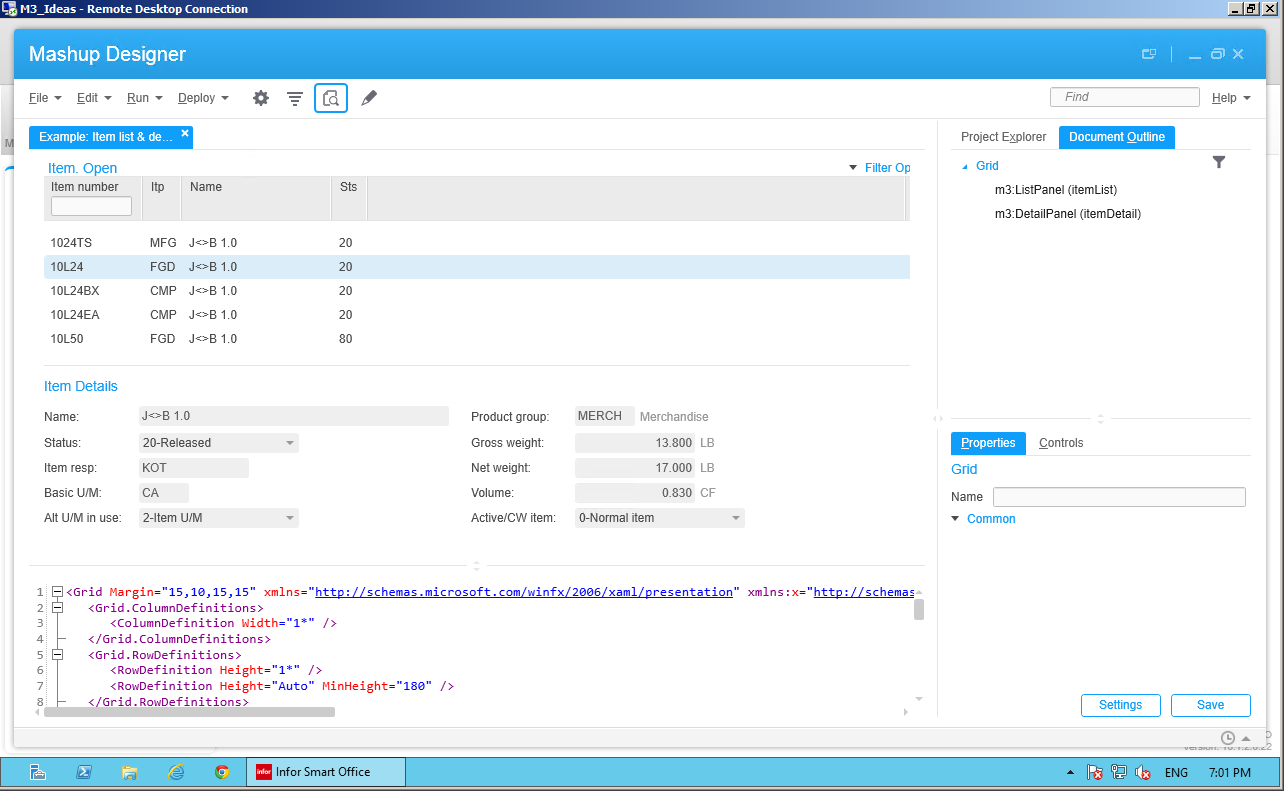
That simple Mashup is good for illustration purposes as it shows records from M3 Customer. Open – CRS610, and it is made of a m3:ListPanel to show the list CRS610/B, and a m3:DetailPanel to show fields from CRS610 panels EFG:
2b

Then, I’ll put the XAML inside a Mashup Project (*.manifest), and I’ll deploy the Mashup privately as a Web Mashup deployment target:
3b

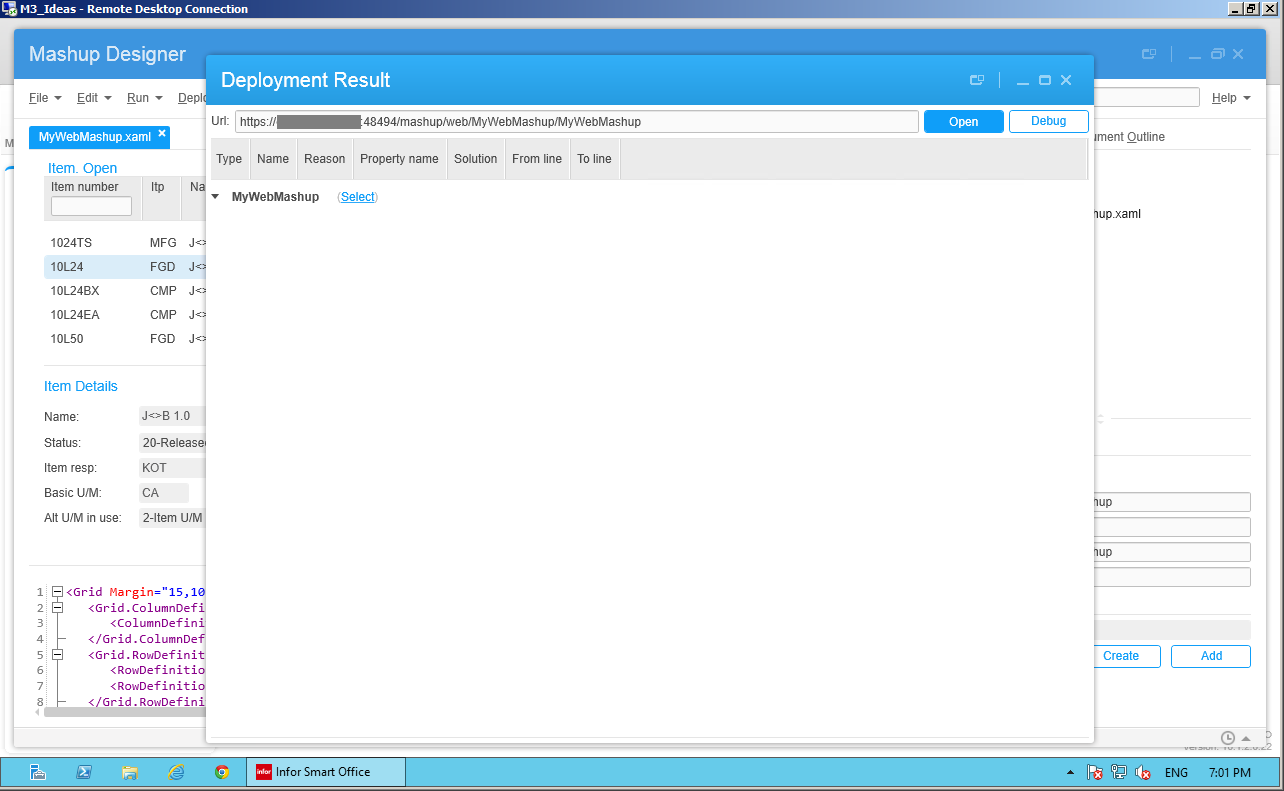
Then, Smart Office opens a Deployment Result popup confirming the Web Mashup is deployed privately, with two buttons Open and Debug:
4b

Then, I click Open, and Smart Office launches the Web Mashup in my browser at /mashup/web/MyMashup, and the server prompts me for M3 authentication with User Name and Password:
5b

Finally, I can use the Web Mashup, it works great:
6b

I tried the Debug to simulate a Search event with a Query parameter, but it didn’t work for me, nothing happened when I clicked Execute event, and I don’t yet know why:
7b

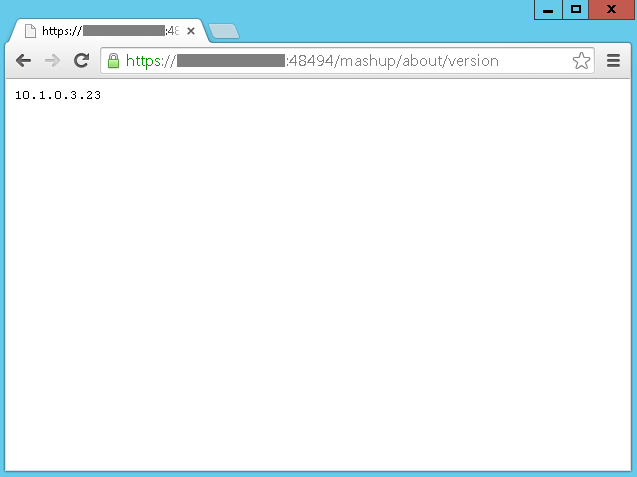
You can also check the version of your Mashup grid application at /mashup/about/version, in my case it’s 10.1.0.3.23:
1b

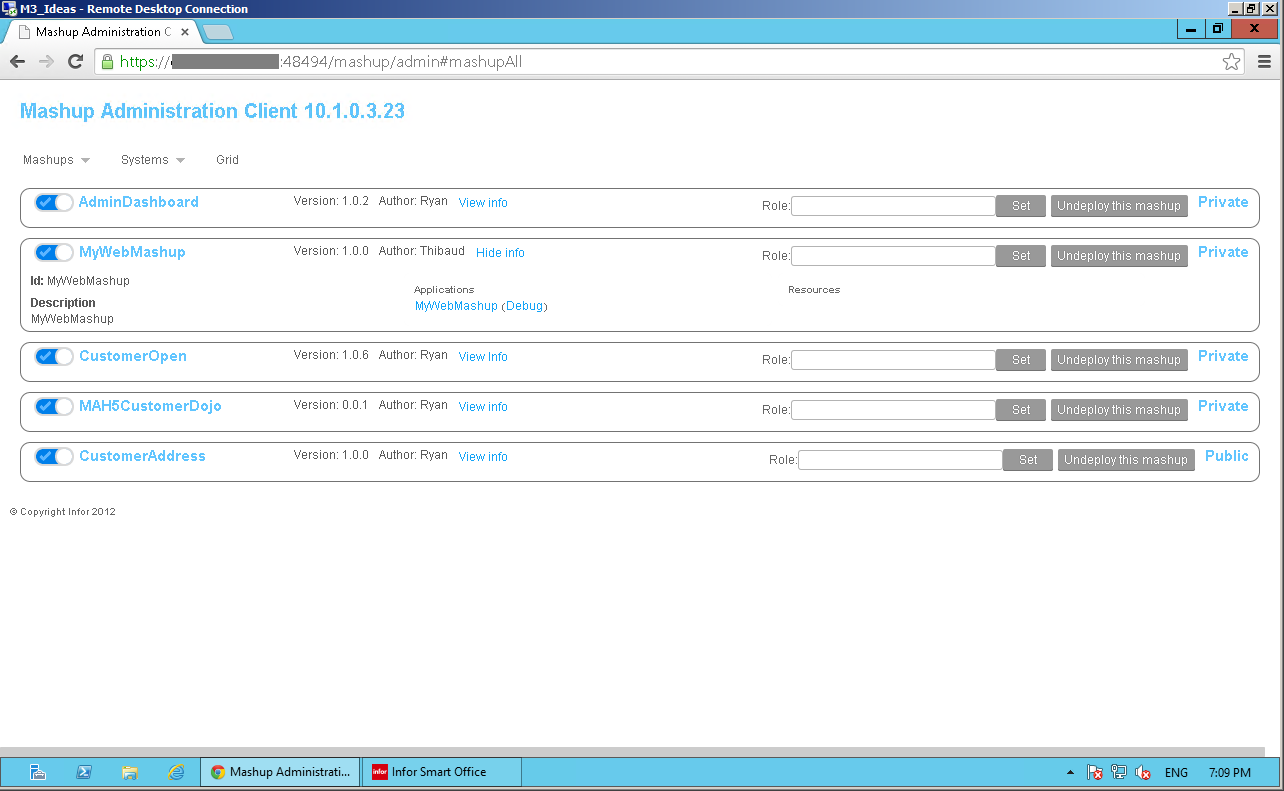
You can also go to the Administration UI and see the deployed Mashups at /mashup/admin:
10

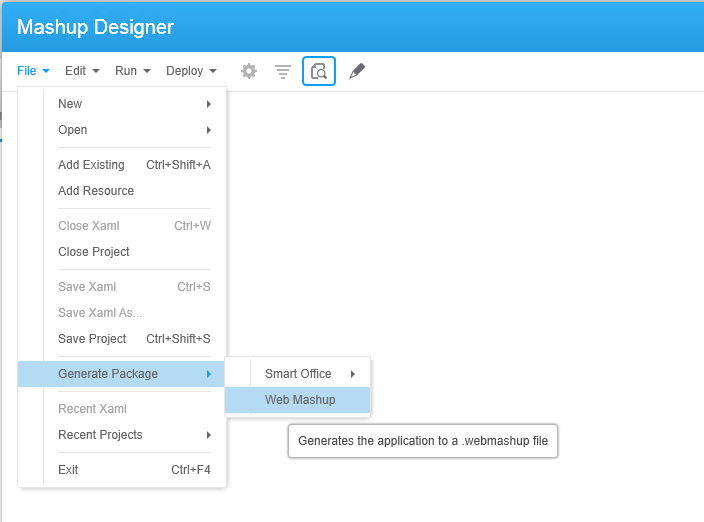
You can also generate a *.webmashup package to deploy the Web Mashup globally:
g

You can also see the supported controls, parameters, and events:
7

You can also check some of the files in LifeCycle Manager:
2b

That’s it!

Also, check out the post on Web Parts for H5 Client.

And don’t forget to subscribe by clicking the Follow button below, leave us your comments, share, and contribute.