Second part of international phone number parsing, validation and formatting for Smart Office

I just implemented international phone number parsing, validation and formatting for all MForms in Smart Office as an implementation of my previous post for a customer that needed to enforce this validation rule, and I will share my findings here with you.

Overview

I used libphonenumber-csharp, the known C# port of “Google’s phone number handling library, powering Android and more”.

I integrated it with Smart Office SDK as an MForms extension with Global scope so it applies to all MForms programs that have phone number fields, for instance CRS610, CRS620, and OIS002. For that I followed Peter’s post: Introduction to MForms extensions.

Then, if the phone number is not valid, I show an error message in MForms, I set focus in the corresponding input field, and I cancel the user request. For that I followed Peter’s other post: Validating M3 panels using JScript and MI programs before a request.

And if the phone number is valid, I re-format it in E.164 phone number format.

Then, I deployed it globally to all users via Infor LifeCycle Manager (LCM).

Now users have to enter valid phone numbers in MForms or they will get an error message that will prevent them from moving forward.

Hunt for the phone number fields

In order to make it work for all MForms, I had to determine what is the set of M3 programs, panels, and phone number fields.

A quick scan in the XML View Definitions gives:

  • 4,260 programs (E:\M3BE\MVX\15.1\base\viewdefs>dir *.xml /s)
  • 72,212 panels (findstr /c:”\<Panel” /s *.xml)
  • 144,377 fields (findstr /c:”\<EntryField” /s *.xml)

That’s too big of a space to search exhaustively.

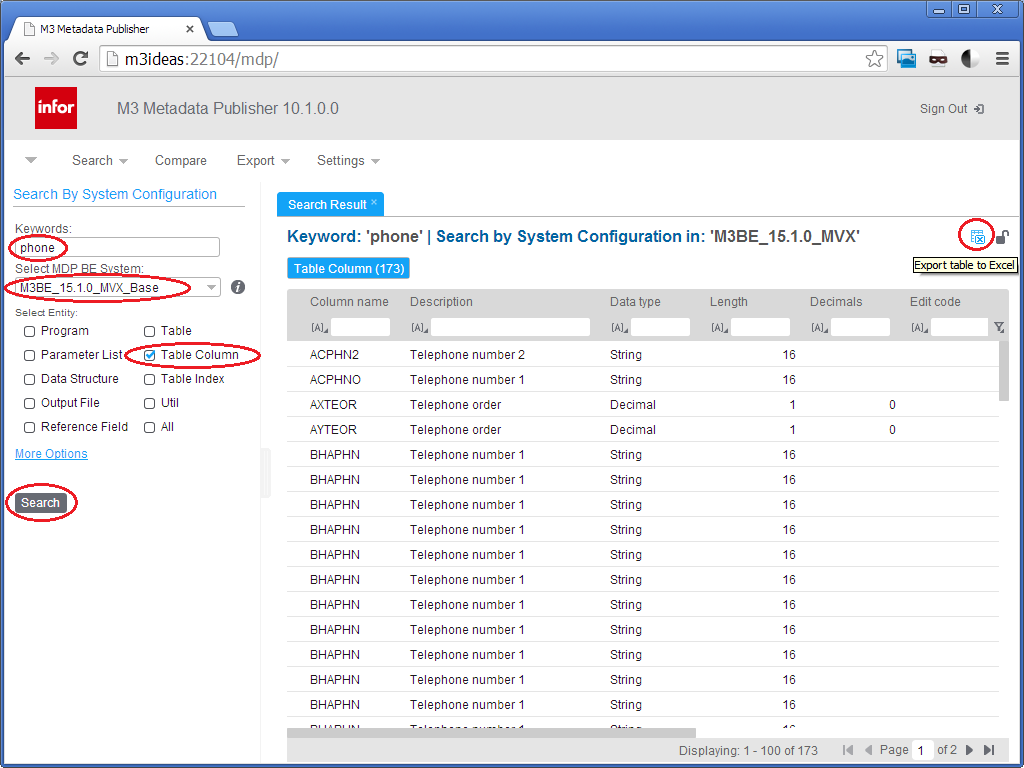
Then, I did a quick search in MetaData Publisher for the strings: phone, facsimile, fax, and mobile. Here is a screenshot:
1.1_

There were 173 results for phone including telephone, the search is case insensitive, 72 results for facsimile, no results for mobile, and results for fax with type checkbox and text that are unrelated to our problem at hand. That narrows down the search space to only 245 fields.

I merged both result sets, I removed the field name prefixes to keep only the radices, and I eliminated duplicates, and that further narrowed down the search space to only nine fields: APHN, CAPH, CPHN, GPNO, PHN1, PHN2, PHNO, SPHN, and TFNO. Here is a screenshot:
5.1

Then, I did the reverse search in MDP to verify that every field is a phone number, to prove the space is bijective, and I realized there are three fields that end in TFNO – they are CPTFNO, PPTFNO, and SPTFNO – that are not phone number fields. We can eliminate those fields by looking up the type and length of the field: it must be String of length 16.

Thus, the resulting set of all phone number fields across all of M3 is the following:

  • APHN
  • CAPH
  • CPHN
  • GPNO
  • PHN1
  • PHN2
  • PHNO
  • SPHN
  • TFNO String[16]

A quick verification by scanning the View Definitions for those fields shows the following M3 Programs: APS095, APS200, ARS025, ARS115, ARS175, ARS200, ARS360, ARS390, CBS020, COS105, CRS435, CRS530, CRS538, CRS605, CRS609, CRS610, CRS620, CRS623, CRS690, CRS691, CRS739, CRS949, CSS204, CSS205, DRS013, GMS090, GMS200, LTS100, LTS101, MHS813, MHS850, MHS890, MMS005, MMS453, MNS100, MNS150, MNS205, MNS212, MOS156, MOS272, MOS295, MSS225, MTS201, MWS098, MWS099, MWS212, OIS002, OIS054, OIS055, OIS056, OIS102, OIS269, POS010, PPS171, PPS200, PPS360, PPS370, PPS390, QQS001, QUS095, QUS100, QUS112, RMS421, RSS103, RSS303, SAS002, SOS100, SOS101, SOS102, SOS105, SOS106, SOS110, SOS165, SOS375, SOS378, SOS435, SOS485, SOS520, SOS650, SOS972, SPS200, STS050, STS100, STS101, STS201, TXS100, TXS130, TXS140, TXS510. I recognize CRS610, CRS620, and OIS002 so I’m confident.

My approach is heuristic and is not guaranteed to be exact.

Source code

Here is the source code in C#:

using System;
using System.Collections.Generic;
using System.Globalization;
using System.Windows;
using System.Windows.Controls;
using libphonenumber;
using MForms;
using MForms.Extension;

namespace PhoneNumberValidation
{
    public class PhoneNumberValidationExtension : IPanelExtension
    {
        private static String validKeys = "F3,F4,F5,F12";
        private static String phoneNumberFields = "APHN,CAPH,CPHN,GPNO,PHN1,PHN2,PHNO,SPHN,TFNO";
        private static readonly log4net.ILog Logger = Mango.Core.LogManager.GetLogger(System.Reflection.MethodBase.GetCurrentMethod().DeclaringType);

        public void Load(PanelExtensionEventArgs e)
        {
            try
            {
                InstanceController controller = (InstanceController)e.Controller;
                controller.Requesting += OnRequesting;
                controller.Requested += OnRequested;
            }
            catch (Exception ex)
            {
                Logger.Error("Failed to handle extension event", ex);
                throw new ApplicationException();
            }
        }

        void OnRequesting(Object sender, CancelRequestEventArgs e)
        {
            try
            {
                if (e.CommandType == "KEY" && validKeys.Contains(e.CommandValue))
                {
                    // Request allowed
                    return;
                }
                // validate all phone numbers in this panel
                InstanceController controller = (InstanceController)sender;
                Grid content = controller.RenderEngine.Content;
                IList<FrameworkElement> controls = controller.RenderEngine.Controls;
                foreach (FrameworkElement control in controls)
                {
                    if (control is System.Windows.Controls.TextBox)
                    {
                        TextBox txtbox = (TextBox)control;
                        String baseName = txtbox.Name.Substring(2);
                        bool IsPhoneNumberField = phoneNumberFields.Contains(baseName) && txtbox.MaxLength == 16;
                        if (IsPhoneNumberField)
                        {
                            if (txtbox.Text != "")
                            {
                                try
                                {
                                    PhoneNumber number = PhoneNumberUtil.Instance.Parse(txtbox.Text, RegionInfo.CurrentRegion.Name);
                                    if (number.IsValidNumber)
                                    {
										txtbox.Text = number.Format(PhoneNumberUtil.PhoneNumberFormat.E164);
                                    }
                                    else
                                    {
                                        controller.RenderEngine.ShowMessage("The phone number is not valid.");
                                        txtbox.Focus();
                                        e.Cancel = true;
                                    }
                                }
                                catch (com.google.i18n.phonenumbers.NumberParseException ex)
                                {
                                    Logger.Debug(ex.Message);
                                    controller.RenderEngine.ShowMessage(ex.Message);
                                    txtbox.Focus();
                                    e.Cancel = true;
                                }
                            }
                        }
                    }
                }
            }
            catch (Exception ex)
            {
                Logger.Debug(ex.ToString());
            }
        }
        void OnRequested(Object sender, RequestEventArgs e)
        {
            try
            {
                InstanceController controller = (InstanceController)sender;
				// clean-up
                controller.Requesting -= OnRequesting;
                controller.Requested -= OnRequested;
            }
            catch (Exception ex)
            {
                Logger.Debug(ex.ToString());
            }
        }
    }
}

Result

Here is the result.

Here is a sample user input with phone numbers formatted incorrectly:
b1

Here is the result after parsing, validation, and formatting:
b2

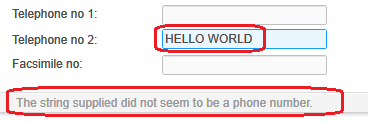
And here is an invalid input and the error message in the status bar:
b3

Future work

As future work, I would like to use ValidationRule which Infor already uses for Infor Document Archive.


That’s it! Check out my series on telephony. And as usual, subscribe, comment, share, and enjoy.
 

H5 Client and M3 API with jQuery DataTables revisited

Today I will revisit my previous articles on H5 Client and M3 API with jQuery DataTables: I will correct a few mistakes in my code, I will update the code to the latest versions of jQuery and DataTables, and I will introduce new features.

Motivation: IBrix conversion

I’m helping a customer convert their old IBrix to HTML5/JavaScript. The IBrix we’re starting with uses a lot of M3 API and M3 Web Services (MWS), as well as IPM <c:table> components to render resulting data in selectable lists of rows and columns. To replace that, we could write Infor Smart Office Mashups that use the controls m3:MIListPanel, m3:MIPanel, and mashup:DataService, but the customer won’t use Smart Office as their main user interface; they’ll use Infor M3 H5 Client instead. Alternatively, we could convert the Smart Office Mashups to Web Mashups for H5 Client, but Web Mashups currently don’t support the MI controls. Infor says they are adding support for more and more controls, but they haven’t released any specific information on which controls they’ll add nor on what timeline. The customer couldn’t wait for Web Mashups to support those controls, so we decided to rewrite the IBrix from scratch using HTML5/JavaScript, and to re-evaluate Web Mashups later when Infor releases something new in the future. We opted for jQuery as the JavaScript library – as opposed to another JavaScript library like Dojo – because jQuery is already used by H5 Client and Web Mashups, so if we have to learn something new we might as well just learn one. As part of this learning process, I will share with you what I learn.

Files & folders

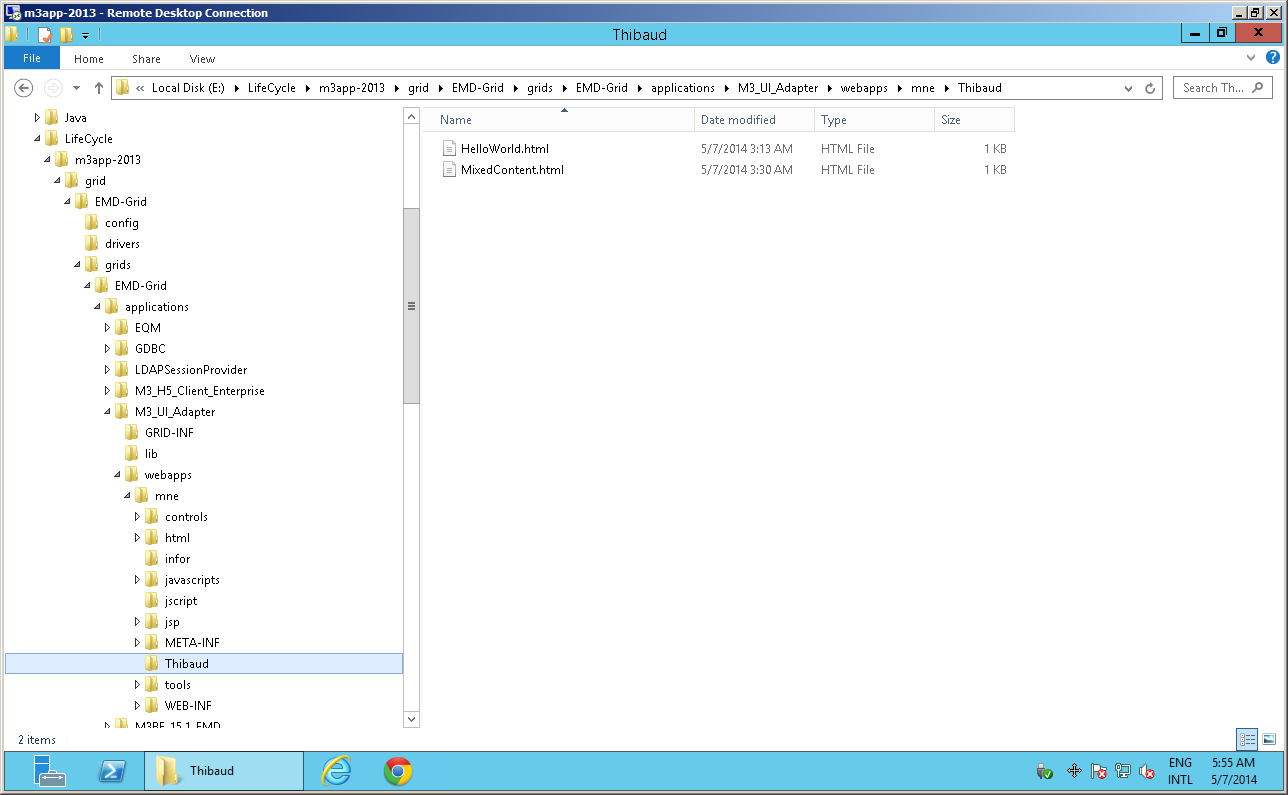
I haven’t yet found a good place to put my HTML5/JavaScript code. So for now I will continue to use the mne folder in Infor LifeCycle Manager where I have my own sub-folder:
folder

It’s probably not the best idea, but we already trust Smart Office Script files in the jscript sister folder, so I don’t yet see a problem with putting other files in a sibling folder. The only problem could be an upgrade or a migration that wouldn’t account for our piggyback folder and our folder could be lost (yikes!).

URI relative references

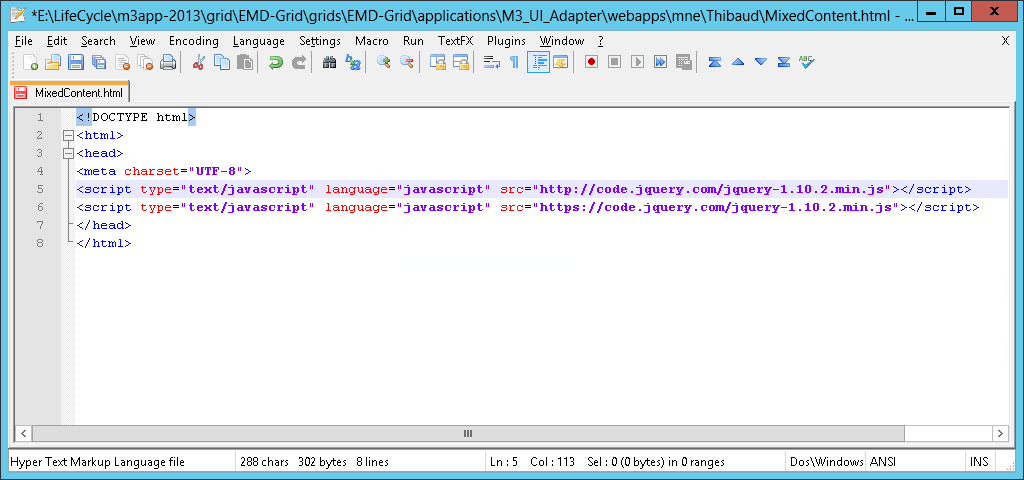
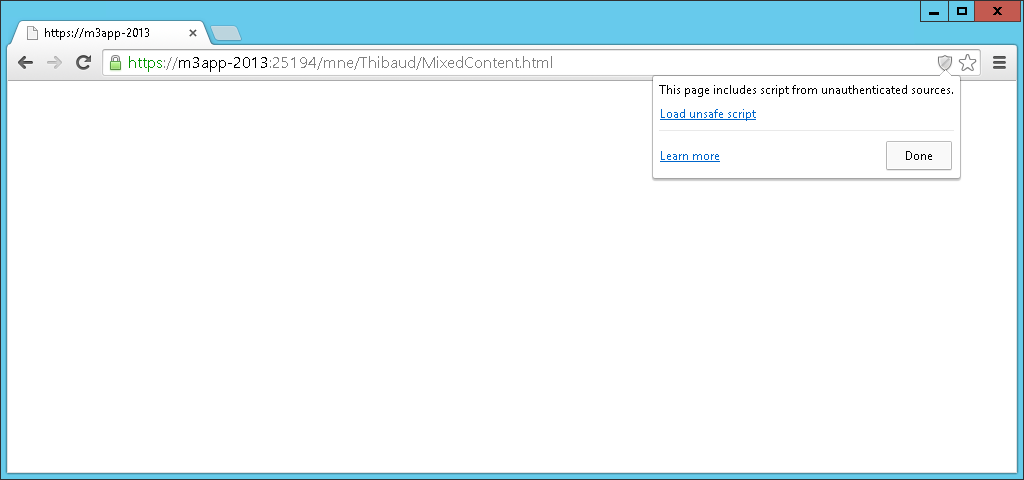
Most resources on the Infor Grid can be accessed over an insecure channel with HTTP, or over a secure channel with HTTPS, like many resources on the web. If our code requests resources over a mix of secure and insecure channels, and the user requests the page over a secure channel, the browser (for example Internet Explorer and Google Chrome) will protect the user: it will show a security icon in the address bar, it will show a security popup, and it will not load the resources that are over the unsecure channel unless the user confirms to do so:

MixedContent
MixedContentChrome2
MixedContent

The page behaves seemingly normal in one case and broken in another. It’s tricky to troubleshoot for the developer, users, support, etc.

The solution is to use URI relative reference for scheme abstraction, i.e. remove the scheme part of the URI. The browser will then load the resources using the scheme the user chose in the first place, HTTP or HTTPS.

For example, replace this:

http://code.jquery.com/jquery-1.10.2.min.js
https://code.jquery.com/jquery-1.10.2.min.js

with this:

//code.jquery.com/jquery-1.10.2.min.js

The resulting URI looks strange, yet it’s valid. It’s not a well-known technique, yet it has been in the URI specification for a long time. And it’s important in our case to prevent a potentially broken page that’s hard to troubleshoot.

URI relative references cont’d.

Also, the Infor Grid is a distributed system where the same application can run on any of the deployed nodes and any of the binding ports. Thus the variations in the URI can be on the scheme HTTP/HTTPS, the host A or B, and the port number X or Y. For example the user could legitimately request any of these and should get the same Grid application:

So our code must account for this possibility. If we used absolute URI in our code, H5 Client and our code wouldn’t be within the same document origin, and we could run into same-origin policy restrictions.

The solution is to use relative references again, this time just with the path and query parts of the URI, without the scheme://host:port parts.

For example, use:

/m3api-rest/execute/CRS610MI/GetBasicData;returncols=CUNM?CONO=910&CUNO=ACME

instead of:

https://host:48494/m3api-rest/execute/CRS610MI/GetBasicData;returncols=CUNM?CONO=910&CUNO=ACME

Caching

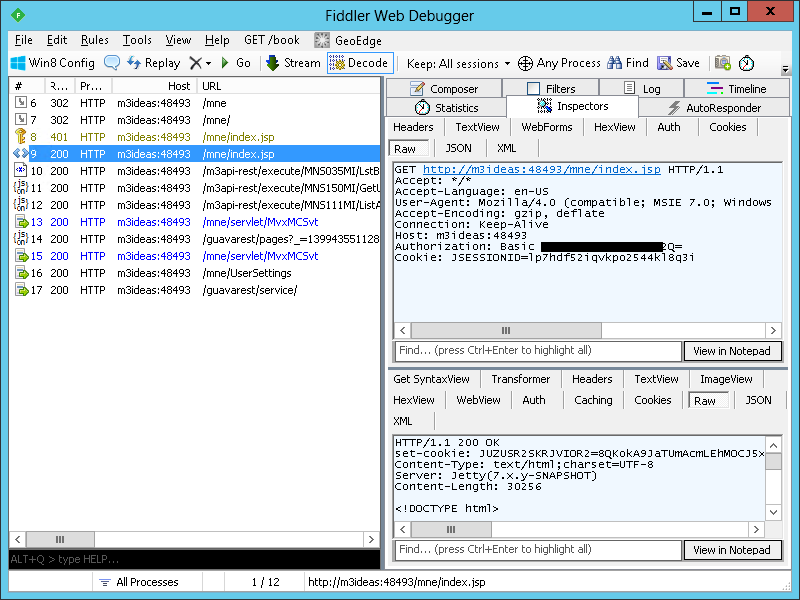
As we’re developing for the web, we have to be cognizant of caching and cookies. In my case I’m developing static HTML pages that I’m updating frequently (within seconds). I’m using a browser to execute the page. The browser caches the page, and there could be proxies along the way that cache the page. I’m using Fiddler to intercept M3 API requests/responses. MNE uses cookies to maintain the session across requests. To prevent caching, I use Fiddler > Rules > Performance > Disable caching, and I switch with the anonymous mode of the browser, InPrivate Browsing in Internet Explorer, and Incognito window in Chrome to start fresh without cookies. And I check my page versions and cookies in the HTTP Responses in Fiddler.

Security vulnerability

H5 Client is one of the Grid applications that will work over both HTTP-only, an insecure channel, and HTTPS, a secure channel. Unfortunately, when using HTTP, the login phase is done over HTTP-only as well, it’s not redirected over HTTPS and back like M3 Workplace did, and as all sites should do. So the user/password is sent Base64-encoded over the network, i.e. in clear text:
Password

I validated this with H5 Client 10.2.1.2 (Enterprise):
H5v

That’s a security vulnerability. So I’m looking into if this was an undetected installation/configuration mishap, and how to force HTTPS-only and prevent HTTP, at least for the login phase, or at default for the entire MNE. I reported this to Infor. To be further investigated.

H5 Client is usually confined to the corporate network behind firewall and NAT, so this is not as big a risk as with a vulnerability that would be exposed on the Internet.

UPDATE 2014-05-07: It appears this was a misconfiguration of the particular Grid I tested. Check your Grid in case you too have an undetected misconfiguration. Go to: Grid Management > M3_H5_Client > Web Components > Web Routers > Configure. The WWW Authentication Methods should only be checked for HTTPS, and unchecked for HTTP. I don’t do installations/configurations of the Grid, so this is to be confirmed by a certified installer.

 H5 Client lifetime

Let’s learn more about the H5 Client lifetime: login, session handling, keep alive, and logout.

  1. When the user requests H5 Client at /mne, /mne/, or /mne/index.jsp, the J2EE Jetty server sets a new cookie JSESSIONID for the session. I don’t yet know where that cookie is used.
  2. At /mne/index.jsp the server will challenge the client for authentication, and the browser will prompt the user for id/password in a popup.
  3. The user enters the M3 userid/password, and the browser sends that Base64-encoded along with the JSESSIONID cookie. The Authorization header will be transmitted throughout the session.
  4. The server authenticates the credentials and responds with a new cookie JUZUSR2SKRJVIOR2. This cookie will be used by the browser to maintain the session across requests, and it’s even validated by M3 API and MWS which will be very useful later.
  5. At this point we can add our HTML5/JavaScript code into an H5 Client Page. The browser will pass along the JUZUSR2SKRJVIOR2 cookie and authenticate our M3 API and MWS requests.
  6. Also, H5 Client will POST a CMDTP=LOGON to the MNE server with the userid UID and the two cookies. The server seems to ignore the cookies here.
  7. The server will respond with the MNE session id SID.
  8. Then the user optionally opens an M3 Program like CRS610.
  9. When the user closes the browser, H5 Client will issue CMDTP=QUIT with the SID, and the server will logout that user from M3 and invalidate that SID. However, the cookies are not invalidated. Is that another potential security vulnerability?
  10. Also, H5 Client does ping with CMDTP=FNC&CMDVAL=PING at about a 25mn frequency to maintain the session alive and not let it timeout.

We can now draw some useful conclusions:

  1. For H5 Client, we need the SID parameter, and either the HTTP Basic Authorization header or the cookie JUZUSR2SKRJVIOR2.
  2. For M3 API and M3 Web Services, we can use either the HTTP Basic Authorization header or the cookie JUZUSR2SKRJVIOR2. This will prove very useful later.

The JSESSIONID cookie doesn’t seem to be used anywhere.

In my observations, I saw both a HTTP Basic Authorization header and the cookie JUZUSR2SKRJVIOR2 throughout the session, and that seems redundant to me as we only need one, not both. I don’t see an impact yet.

I did my tests by analyzing the HTTP Requests/Responses with Fiddler, and with forged HTTP Requests in Fiddler Composer to try the various combinations. And I did my tests in a rush so not everything might be accurate. Please comment if you find a discrepancy. All I wanted to know was how to authenticate the M3 API and MWS requests.

M3 API authentication

We now know we don’t need to authenticate our M3 API requests, i.e. we don’t need to hard-code any userid/password in our code nor prompt the user to login, provided we conform to the following:

  1. Our code must run within the same browser session as H5 Client, i.e. same origin, for example in an H5 Page.
  2. Remove any authentication from our code, i.e. remove any user/password, and don’t authenticate HTTP Requests to M3 API or MWS.
  3. Use only the path & query parts of the URL without the scheme://host:port, so for example use just /m3api-rest, in order to be within the same origin, so the browser will pass the cookie along, regardless of scheme HTTP/HTTPS, host/FQDN, port

Alternatively, we could build our own login page, but we would have to deal with password management (password expired, forgot password), session keep-alive, and logout.

M3 API with jQuery.ajax()

In my previous article, I had use the native XMLHttpRequest object to call the M3 API. This time I will use jQuery.ajax():

	$(document).ready(function () {
		$.ajax({
			url : "/m3api-rest/execute/CRS610MI/GetBasicData;returncols=CUNM,TOWN,ECAR,PONO,CSCD?CONO=910&CUNO=ACME",
			"dataType": "json"
		})
	});

jQuery DataTables

Now to render the M3 API into a jQuery DataTable, I won’t do a time and memory consuming row and cell creation anymore. I’ll simply use the jQuery DataTables Custom data source property dataSrc:

	var program = 'CRS610MI';
	var transaction = 'LstByNumber';
	var maxrecs = 100;
	var returncols = 'CUNO,CUNM,CUA1,TFNO,STAT';
	var inputFields = 'CONO=910&CUNO=ACME';
	// construct the URL
	var url = '/m3api-rest/execute/' + program + '/' + transaction + ';maxrecs=' + maxrecs + ';returncols=' + returncols + '?' + inputFields;
	// prepare the columns for dataTable
	var arr = returncols.split(',');
	var columns = [];
	for (var i in arr) {
		columns[i] = { "data": arr[i] };
	}
	$(document).ready(function () {
		var table = $('#CustomerList').dataTable( {
			"ajax": {
				"url": url,
				"dataSrc": function (json) {
					var result = [];
					for (var i in json.MIRecord) {
						var record = {};
						json.MIRecord[i].NameValue.map(function(o){ record[o.Name] = o.Value; });
						result[i] = record;
					}
					return result;
				}
			},
			"columns": columns
		});
	});

And the HTML fragment with the column headers:

	<table id="CustomerList" class="display" cellspacing="0" width="100%">
		<thead>
			<tr>
				<th>Customer</th>
				<th>Name</th>
				<th>Address line 1</th>
				<th>Telephone</th>
				<th>Status</th>
			</tr>
		</thead>
	</table>

Row selection

To enable row selection:

	$('#CustomerList tbody').on('click', 'tr', function () {
		if ($(this).hasClass('selected')) {
			$(this).removeClass('selected');
		} else {
			table.$('tr.selected').removeClass('selected');
			$(this).addClass('selected');
		}
	});

Context menu

To get a context menu (right-click), I use jQuery contextMenu, and it looks like this (unfinished code):

	$(function(){
		$.contextMenu({
			selector: '#CustomerList tbody',
			callback: function(key, options) {
				// PENDING
			},
			items: {
				"Select": {name: "select", icon: "select"},
				"Copy": {name: "copy", icon: "copy"},
				"Change": {name: "change", icon: "edit"},
				"Display": {name: "display", icon: "display"},
				"Delete": {name: "delete", icon: "delete"}
			}
		});
	});

I’m still working on completing this code.

Result

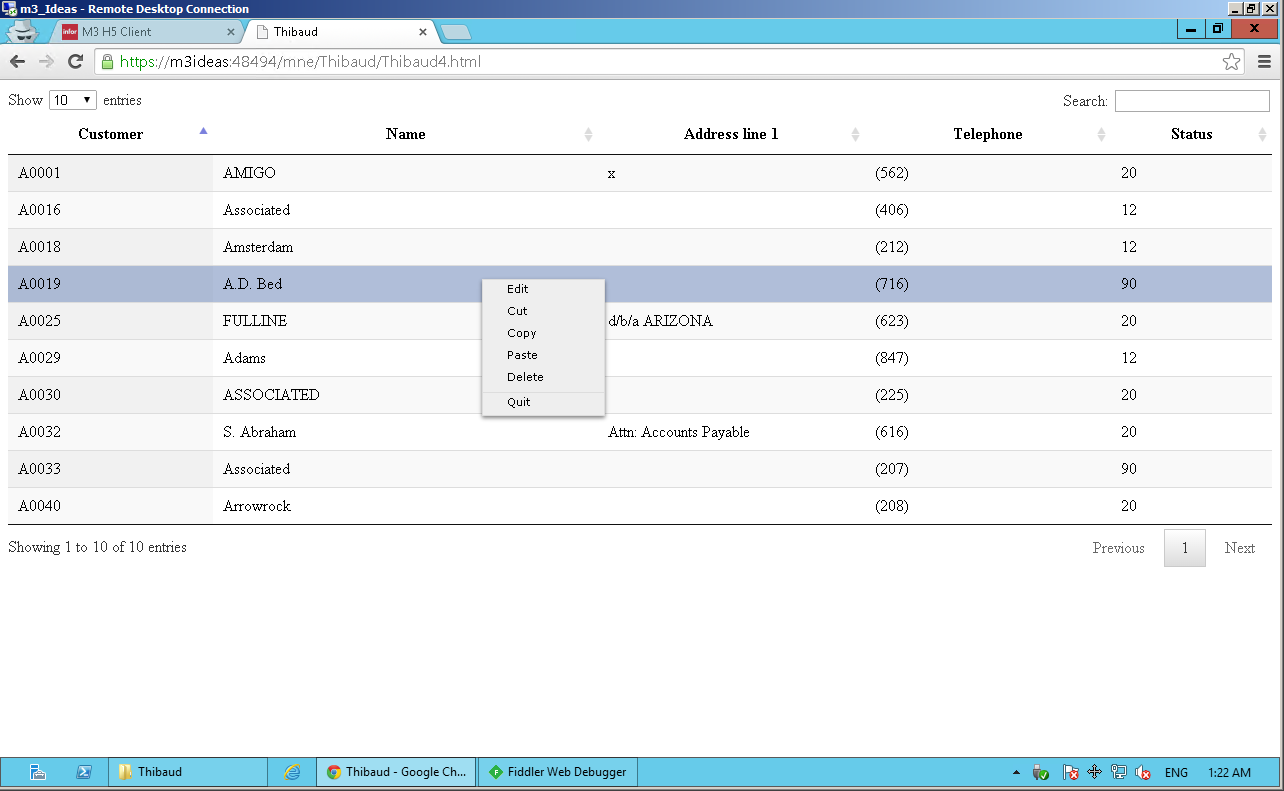
Here’s a screenshot of the result:
contextmenu

Also, jQuery DataTables supports client-side search, pagination, and sorting. It took about 6s to load and render 3,000 rows. That’s about 2ms per row, not bad. But I will look into making this server-side anyway as client-side is not suitable for production.


Conclusion

In this post, we re-visited how to call M3 API with jQuery, how to take care of authentication, how to maintain the session across requests, how to do session keep alive, and logout (in fact H5 Client takes care of it, and the browser passes along the session to our code provide we conform to certain conditions), how to render the result with jQuery DataTables, how to enable row selection, and how to add a context menu.

As future work, I will follow-up on the security vulnerabilities, complete the code for the context menu, I will implement the equivalent of the SelectionChanged event of Mashups, I will render the M3 API Get with jQuery, and I will implement the F4-Browse dialogs of Ken Eric.

With all those simple engineering problems tackled one after the other, I will have a good basis to start converting IBrix to HTML5/JavaScript.

A more tricky engineering problem will be to implement the server-side search, pagination, and sorting.

Related articles


That’s it! This was a sloppy article put together hastily to get it out of my system and anchor it at once. It nonetheless contains useful information. I’ll be posting more. Stay tuned. Subscribe. Comment. Share. Enjoy.

Introduction to Web Mashups

Here’s a quick introduction to Web Mashups for Infor M3 H5 Client; Web Mashups are the cousins of Infor Smart Office Mashups. To do Web Mashups, you’ll need Infor Smart Office, the Mashup Designer, and Infor M3 H5 Client. I’ll show lots of screenshots.

What are Web Mashups

Historically, Smart Office Mashups were just called Mashups and would run in Smart Office. Smart Office is currently the main user interface for M3, built using C# and Microsoft WPF. With the launch of Infor M3 H5 Client released about 2013, M3 can now run in HTML5/JavaScript in any major web browser (for example Microsoft Internet Explorer, Google Chrome, Apple Safari, Mozilla Firefox), in any major operating system (for example Microsoft Windows, Mac OS,  Linux, etc.), in any major device (Mac, PC, iPhone, iPad, Android, etc.). As part of that web enablement, Mashups are now automatically converted from Smart Office Mashups to Web Mashups, and they can run inside H5 Client or standalone in a browser.

To do Web Mashups, the developer creates Mashups as usual in XAML with the Smart Office Mashup Designer, and the server converts the XAML the best it can into HTML5/JavaScript, jQuery, REST/SOAP, and JSON/XML. Currently Web Mashups don’t support all the controls that Smart Office Mashups supports. I successfully tested m3:ListPanel, m3:DetailPanel, as well as Grid, StackPanel, Label, TextBox, and Button. It seems MIListPanel and MIDetailPanel are not supported. It seems Document Archive is supported. And it seems XAML’s ListView may already be supported, to be confirmed. According to the Product Manager and component owner at Infor, they are adding support for more and more controls. I expect loss along the conversion as I don’t think it’s possible to automatically convert all of XAML, Binding, Converters, and other advanced WPF tricks. But it should work fine if we stick to a specific subset of Mashups.

Documentation

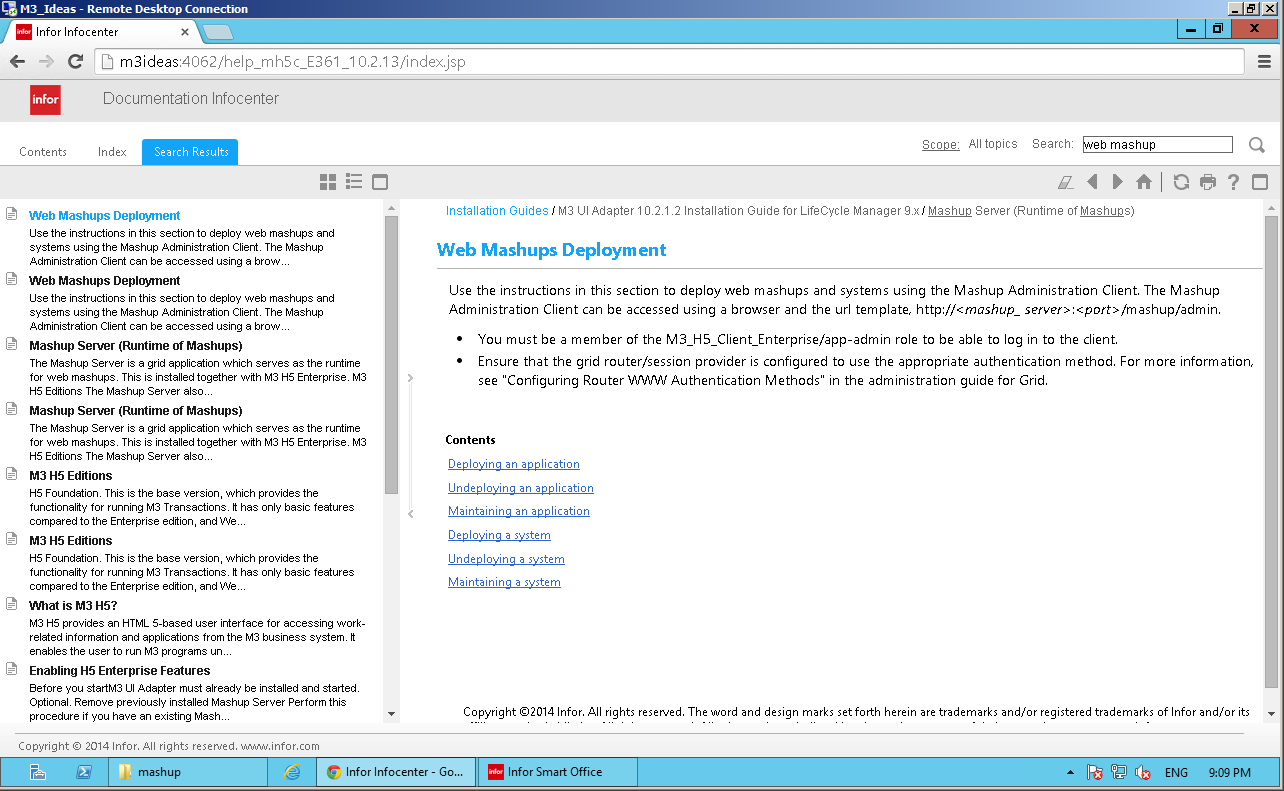
You can read more about Web Mashups on the Infor InfoCenter:
doc

Web Mashup demo

I’m working with Ryan, an IBrix and J2EE developer at a long-time customer, to help him convert IBrix from the obsolete Movex Workplace to the new M3 13.1 as part of their company’s upgrade. We’re evaluating the capabilities of Web Mashups, and the best strategy to do IBrix conversion. Here I’ll illustrate the basics.

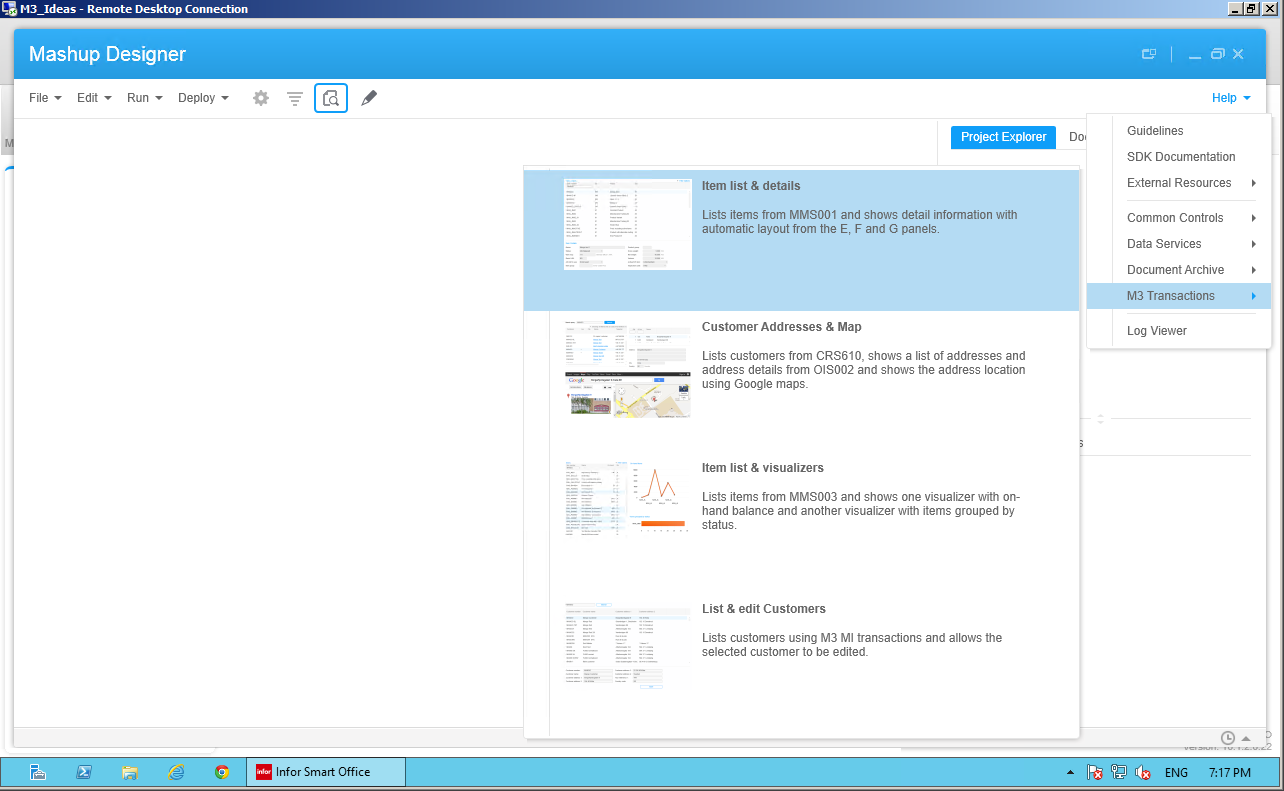
First, I’ll create a simple Mashup using the built-in example at Mashup Designer > Help > M3 Transactions > Item list & details:
1b

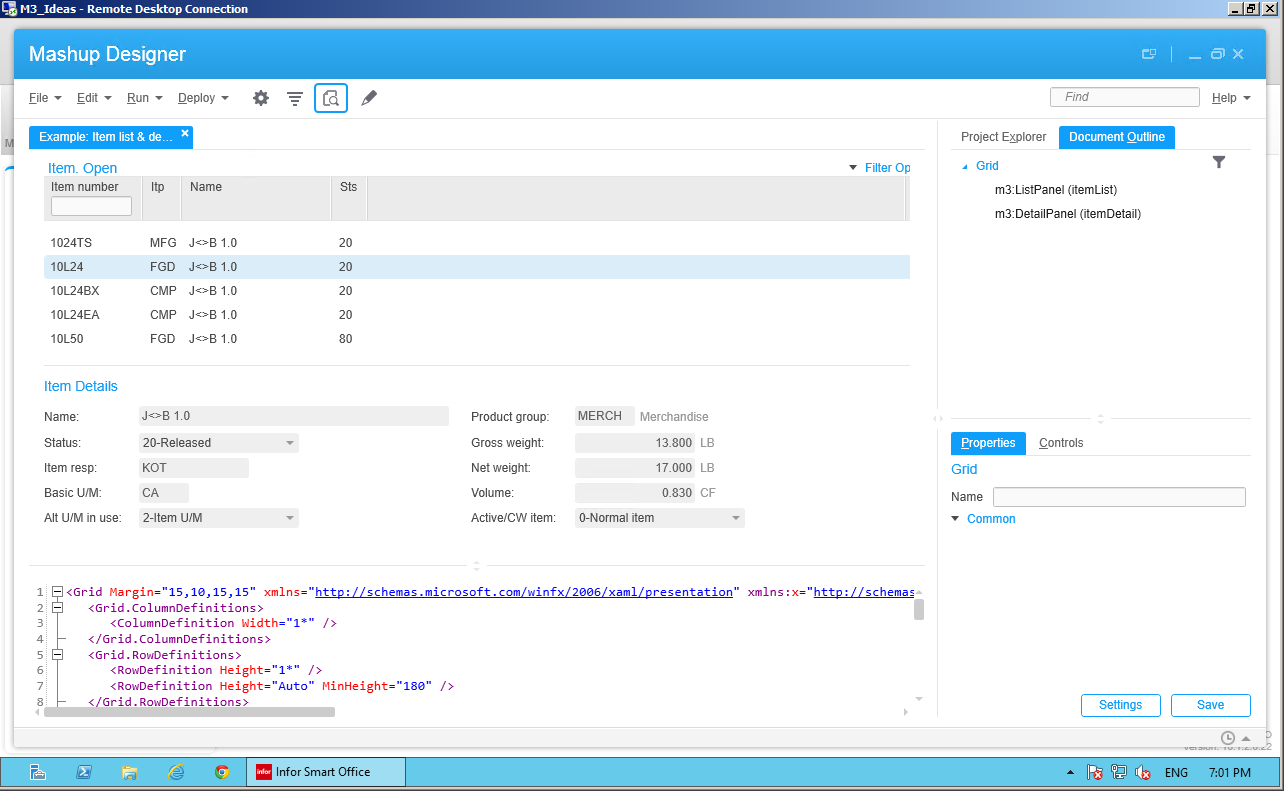
That simple Mashup is good for illustration purposes as it shows records from M3 Customer. Open – CRS610, and it is made of a m3:ListPanel to show the list CRS610/B, and a m3:DetailPanel to show fields from CRS610 panels EFG:
2b

Then, I’ll put the XAML inside a Mashup Project (*.manifest), and I’ll deploy the Mashup privately as a Web Mashup deployment target:
3b

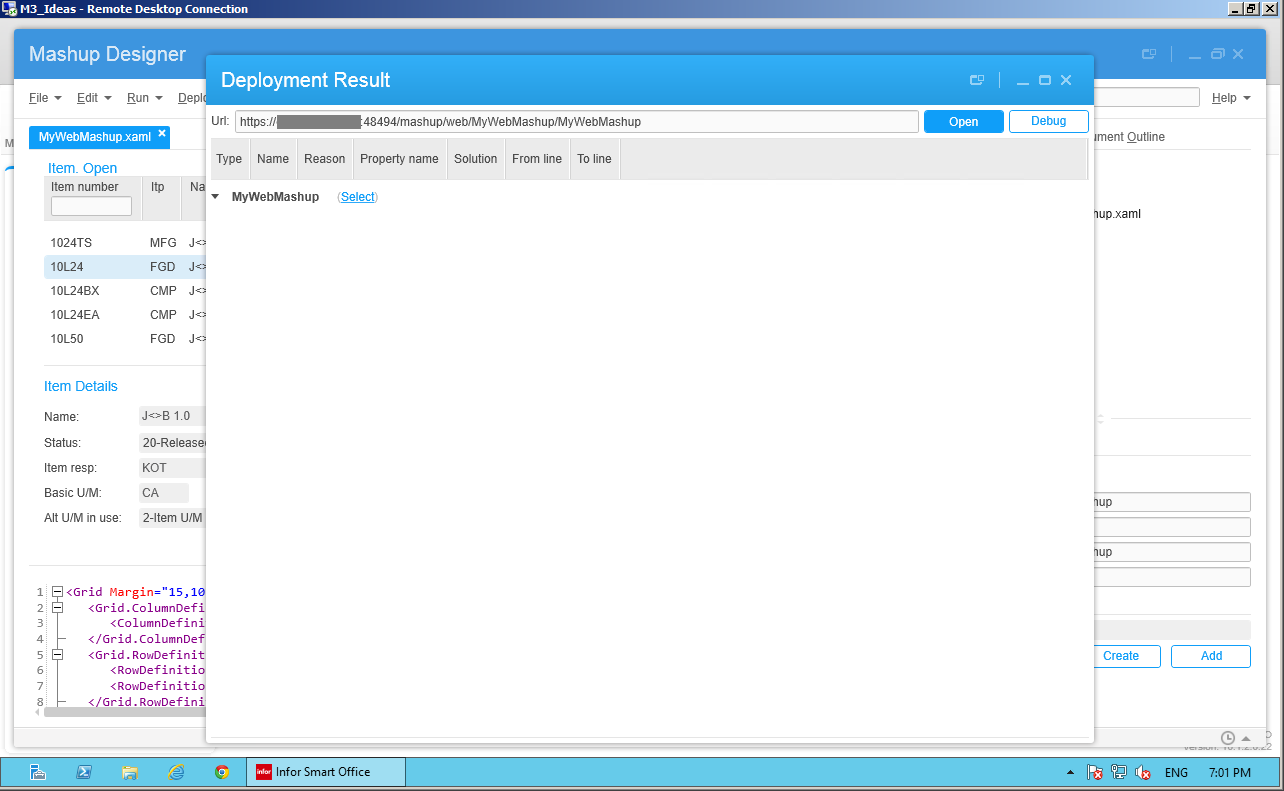
Then, Smart Office opens a Deployment Result popup confirming the Web Mashup is deployed privately, with two buttons Open and Debug:
4b

Then, I click Open, and Smart Office launches the Web Mashup in my browser at /mashup/web/MyMashup, and the server prompts me for M3 authentication with User Name and Password:
5b

Finally, I can use the Web Mashup, it works great:
6b

I tried the Debug to simulate a Search event with a Query parameter, but it didn’t work for me, nothing happened when I clicked Execute event, and I don’t yet know why:
7b

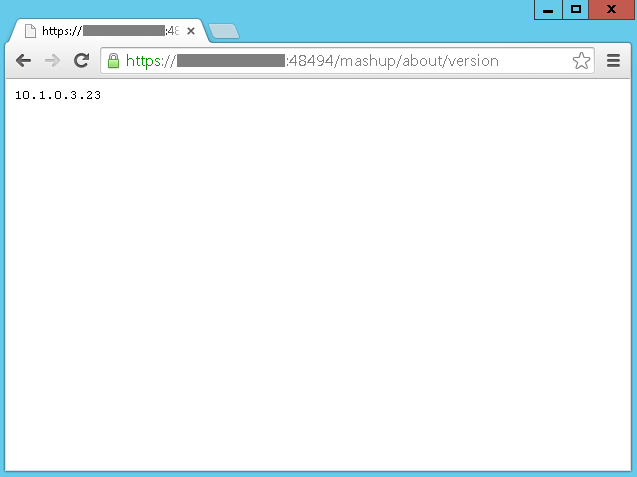
You can also check the version of your Mashup grid application at /mashup/about/version, in my case it’s 10.1.0.3.23:
1b

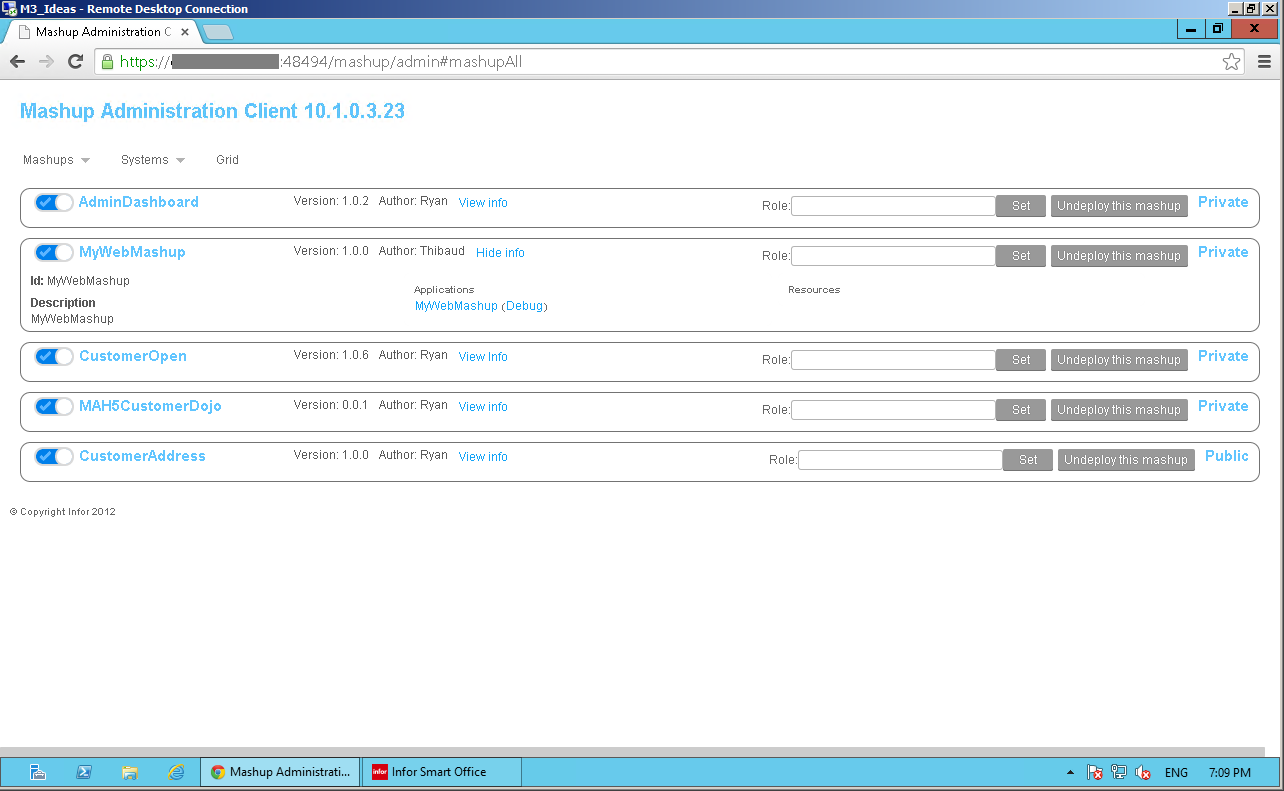
You can also go to the Administration UI and see the deployed Mashups at /mashup/admin:
10

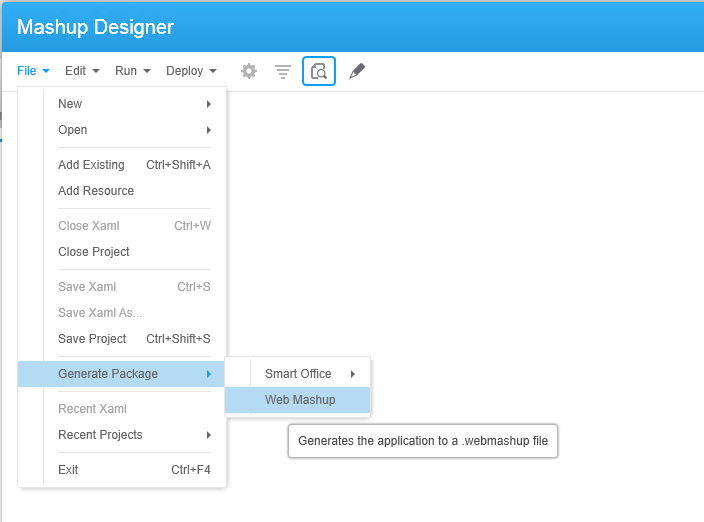
You can also generate a *.webmashup package to deploy the Web Mashup globally:
g

You can also see the supported controls, parameters, and events:
7

You can also check some of the files in LifeCycle Manager:
2b

That’s it!

Also, check out the post on Web Parts for H5 Client.

And don’t forget to subscribe by clicking the Follow button below, leave us your comments, share, and contribute.

AsYouTypeFormatter for Smart Office

In this post I will introduce a proof-of-concept of AsYouTypeFormatter for Smart Office. AsYouTypeFormatter is used to “format phone numbers on-the-fly when users enter each digit.” It’s part of the open source library libphonenumber, “Google’s phone number handling library, powering Android and more.” This post complements my previous post where I discussed International phone number parsing, validation and formatting for Smart Office.

AsYouTypeFormatter

In addition to parsing, validation, and formatting, libphonenumber has a nice AsYouTypeFormatter that formats the phone number as the user types it.

You can test it with the Phone Number Parser Demo. Here’s a screenshot:
AsYouTypeFormatter

Standard Smart Office without AsYouTypeFormatter

Here is a demo of entering a phone number in the field WRPHNO in M3. Customer Open – CRS610/E in standard Smart Office (without AsYouTypeFormatter); the phone number is not validated nor formatted:

Smart Office with AsYouTypeFormatter

And here’s the same demo with AsYouTypeFormatter that’s formatting the phone number on-the-fly as I enter each digit (I typed only the digits):

Here is the complete source code for that demo:

import System;
import System.Collections;
import System.Windows.Controls;
import libphonenumber;
import MForms;

package MForms.JScript {
	class Test {
		var debug;
		var formatter: AsYouTypeFormatter = PhoneNumberUtil.Instance.GetAsYouTypeFormatter("US");
		var textboxes: ArrayList = new ArrayList();
		var isTextChanging: boolean = false; // to avoid infinite loop in OnTextChanged
		public function Init(element : Object, args : Object, controller : Object, debug : Object) {
			try {
				// save global variables
				this.debug = debug;
				// attach to the phone fields
				var content = controller.RenderEngine.Content;
				var supportedPhoneFields: String[] = ["WRPHNO", "WRPHN2", "WRTFNO"];
				for (var i: int in supportedPhoneFields) {
					var fieldName: String = supportedPhoneFields[i];
					var textbox: TextBox = ScriptUtil.FindChild(content, fieldName);
					if (textbox != null) {
						textboxes.Add(textbox);
						textbox.add_TextChanged(OnTextChanged);
					}
				}
				controller.add_Requested(OnRequested);
			} catch (ex: Exception) {
				debug.WriteLine(ex);
			}
		}
		/* User is typing */
		function OnTextChanged(sender: Object, e: TextChangedEventArgs) {
			try {
				if (!isTextChanging) {
					var textbox: TextBox = sender;
					if (textbox.Text.Length > 0) {
						// format the phone number as the user is typing it
						var newChar: char = textbox.Text.Substring(textbox.Text.Length - 1);
						var newText: String = formatter.InputDigit(newChar);
						isTextChanging = true;
						textbox.Text = newText;
						textbox.CaretIndex = textbox.Text.Length;
						isTextChanging = false;
					}
				}
			} catch (ex : Exception) {
				debug.WriteLine(ex);
			}
		}
		/* Clean-up */
		function OnRequested(sender: Object, e: RequestEventArgs) {
			try {
				if (sender != null) {
					sender.remove_Requested(OnRequested);
				}
				for (var textbox: TextBox in textboxes) {
					if (textbox != null) {
						textbox.remove_TextChanged(OnTextChanged);
					}
				}
			} catch (ex : Exception) {
				debug.WriteLine(ex);
			}
		}
	}
}

Limitations and future work

But according to this thread, AsYouTypeFormatter doesn’t support the backspace key, nor emptying the field, nor replacing a selection, nor inserting text somewhere in the middle. The solution is to handle all the cases ourselves in code. All these are already implemented in android.telephony.PhoneNumberFormattingTextWatcher. There is a partial port of Android to C# in XobotOS, “a Xamarin research project that explored porting Android 4.0 from Java/Dalvik to C#”. So to properly implement AsYouTypeFormatter in Smart Office we would need to combine libphonenumber-csharp and XobotOS.


That’s it! That was my proof-of-concept demo of AsYouTypeFormatter for Smart Office to format phone numbers in M3 Programs as the user is typing the digits.

Like, share, comment, enjoy.
/Thibaud


International phone number parsing, validation and formatting for Smart Office

Today I will introduce a simple solution to do international phone number parsing, validation and formatting in Infor Smart Office. The goal is to validate phone numbers entered by users in Infor M3 Programs such as M3 Customer – CRS610/E, or in Infor Customer Lifecycle Management (CLM) Account Details, against international phone number specifications, and to get the resulting phone number in any of the desired output formats: E.164, international, national, and RFC3966. For that, I will use libphonenumber, “Google’s phone number handling library, powering Android and more”, and more specifically I will use libphonenumber-csharp, the known port for C#.

Examples

Here are some examples of parsing, validation and formatting of a US phone number:

  • Valid phone number: 415 535 5452
  • Invalid phone number: 415 535 545222
  • Country code: 1
  • Phone Number region: US
  • Number type: FIXED_LINE_OR_MOBILE
  • E.164 format: +14155355452
  • International format: +1 415-535-5452
  • National format: (415) 535-5452
  • RFC3966 format: tel:+1-415-535-5452
  • Format for out-of-country calling from France: 00 1 415-535-5452

Why does it matter?

Phone number parsing, validation and formatting may be important in some scenarios.

For instance, for one of my customers, I’m integrating Cisco IP Communicator and Cisco Agent Desktop with CLM in Smart Office such that when customer service representatives receive incoming phone calls from their customers, Smart Office automatically searches for that incoming phone number in CLM and displays a list of possible matches. Then, the user can select the desired match and open the corresponding CLM Account Details. It saves precious time during the call. I wrote a previous post about it with some preliminary findings.

Conversely, users can click a phone number in CLM to make that outgoing phone call.

To implement that programmatically, how do we match the phone number of the incoming call with the phone numbers entered by users in CLM? Cisco Agent Desktop returns the ANI of incoming phone numbers as format 4155355452. What if the user entered the phone number in CLM as format (415) 535-5452? What if another user entered a duplicate record in CLM as format 415-535-5452? What if a user entered the phone number in CRS610 as format +14155355452? Also, for outgoing calls Cisco Agent Desktop will accept phone numbers as format 14155355452. That’s five different formats for the same phone number, and it requires record linkage.

That’s why it’s crucial to normalize the phone numbers so we can compare them.

Also, M3 and CLM synchronize their records with each other via Event Hub. So we have to validate entries on both sides or they would risk polluting each other.

The solution is to do phone number validation and formatting at user input so the user has a chance to enter the correct phone number. But doing it at the user interface level alone is not sufficient. We would also need to cover the other entry points such as M3 API, M3 Web Services of type M3 Display Program (MDP), and REST/SOAP Web Services. Also, as a reminder, we never do direct data entry in the database with SQL CREATE/UPDATE/DELETE as that could potentially break the integrity of the system, so we don’t need to cover that side.

Insufficient solutions

A naive solution to search a record by phone number is to select all records that match the input without normalization.

For example, searching CLM with SQL could be: SELECT AccountID FROM LCLM.Account WHERE Phone=’4155355452′. But that will fail to find the alternate valid numbers (415) 535-5452 and 415-535-5452. And we would have to protect it against SQL injection attacks.

Another naive solution is to strip all non-digit characters and count the resulting number of characters. For example, phone numbers in the United States have 10 digits, so the valid phone number (415) 535-5452 would be correctly validated, but the alternate valid phone number +1 (415) 535-5452 would incorrectly be rejected whereas it’s valid. We could improve the solution and say we now accept 11 digits, but then the valid French phone number +33 6 15 62 07 51 would incorrectly be validated as a US phone number, which is not true.

We could go further and restrict the space of phone numbers to only a specific country, say United States and use the North American Numbering Plan (NANP). But that will just temporarily buy time as there will likely be a need to support international phone numbers at a later point in the future.

Going further, we could use regular expressions. For example, according to this Microsoft pattern & practices document, the regular expression ^[01]?[- .]?(\([2-9]\d{2}\)|[2-9]\d{2})[- .]?\d{3}[- .]?\d{4}$ “Validates a U.S. phone number. It must consist of 3 numeric characters, optionally enclosed in parentheses, followed by a set of 3 numeric characters and then a set of 4 numeric characters.” Unfortunately, that will not validate a valid phone number such as +14155355452; we could improve the regular expression to validate the international prefix +1. Also, it will only validate NANP phone numbers, not international numbers; we could add more regular expressions for other countries.

Also, what about legitimate phone numbers with extensions like (415) 535-5452#1738 ?

We could iteratively improve the solutions, adding more tests and fixes, but it will unfortunately prove to be insufficient unless we spend a tremendous amount of effort. It’s like trying to implement ones own library of time and time zones, or trying to implement ones own cryptographic library.

Advantages of using a known library

libphonenumber is “Google’s common Java, C++ and Javascript library for parsing, formatting, storing and validating international phone numbers. The Java version is optimized for running on smartphones, and is used by the Android framework since 4.0 (Ice Cream Sandwich).”
Using proven robust open source libraries is always a good choice. This library is used by the billion Android phones on the market, so that tells something about its robustness and correctness. And it supports Java and JavaScript so we could use it in M3 Business Engine (Java) and H5 Client (JavaScript). And there is a port for C# so we can also use it in Smart Office, which I will.

Examples for Smart Office

I will use libphonenumber-csharp in a Smart Office script.

For that, I need to create a new feature in Smart Office SDK to add a reference to libphonenumber.dll and to deploy it with ClickOnce. I had originally tried simply using System.Reflection.Assembly.LoadFrom(String), but I couldn’t get it to work.

Once I have a reference to the assembly, I validate the phone number with:

import libphonenumber;
...
var number: PhoneNumber = PhoneNumberUtil.Instance.Parse(phoneNumberStr, "US");
if (number.IsValidNumber) {
    // valid
} else {
    // invalid
}

Then, I format the phone number with:

number.Format(PhoneNumberUtil.PhoneNumberFormat.INTERNATIONAL)
number.Format(PhoneNumberUtil.PhoneNumberFormat.NATIONAL)
number.Format(PhoneNumberUtil.PhoneNumberFormat.E164)
number.Format(PhoneNumberUtil.PhoneNumberFormat.RFC3966)
number.FormatOutOfCountryCallingNumber("US")
number.FormatOutOfCountryCallingNumber("FR")

Example for M3 Programs

The sample source code to validate and format phones numbers in M3 Programs is the following:

import System;
import libphonenumber;

package MForms.JScript {
    class Test {
        public function Init(element : Object, args : Object, controller : Object, debug : Object) {
            var number: PhoneNumber = PhoneNumberUtil.Instance.Parse(element.Text, "US");
            if (number.IsValidNumber) {
                debug.WriteLine(number.Format(PhoneNumberUtil.PhoneNumberFormat.INTERNATIONAL));
                debug.WriteLine(number.Format(PhoneNumberUtil.PhoneNumberFormat.NATIONAL));
                debug.WriteLine(number.Format(PhoneNumberUtil.PhoneNumberFormat.E164));
                debug.WriteLine(number.Format(PhoneNumberUtil.PhoneNumberFormat.RFC3966));
                debug.WriteLine(number.FormatOutOfCountryCallingNumber("US"));
                debug.WriteLine(number.FormatOutOfCountryCallingNumber("FR"));
            }
        }
    }
}

Here is a sample screenshot of the validation and formatting of the field Telephone no 1 (WRPHNO) in M3 Customer. Open – CRS610/E:

2

Example for CLM

My sample source code to validate and format phones numbers in CLM Accounts is the following:

import System;
import System.Windows;
import lclmControls.Classes.UI;
import lclmControls.Common;
import lclmControls.Custom;
import Mango.Services;
import Mango.UI.Core;
import Mango.UI.Services;
import libphonenumber;

package MForms.JScript {
	class Test {
		public function Init(element : Object, args : Object, controller : Object, debug : Object) {
			try {
				var runners: RunnerCollection = DashboardTaskService.Manager.ExecutingTasks();
				var runner: IRunner = runners[4]; // I'm Feeling Lucky
				var task: ITask = runner.Task;
				var view: TabularDetailsView = task.Parameter;
				var detailsView: DetailsView = view.DetailsView;
				var baseDialog: BaseDialog = detailsView.BaseDialog;
				var groups: DataGroup[] = baseDialog.DataGroups;
				var group: DataGroup = groups[0]; // I'm Feeling Lucky
				var sections: DataSection[] = group.GetSections();
				var section: DataSection = sections[0]; // I'm Feeling Lucky
				var dataField: DataField = section.GetField("Phone");
				var dataEditor: FrameworkElement = dataField.DataEditor;
				var txtbox: SingleLineTextBox = dataEditor;
				var number: PhoneNumber = PhoneNumberUtil.Instance.Parse(txtbox.Text, "US");
				if (number.IsValidNumber) {
					debug.WriteLine(number.Format(PhoneNumberUtil.PhoneNumberFormat.INTERNATIONAL));
					debug.WriteLine(number.Format(PhoneNumberUtil.PhoneNumberFormat.NATIONAL));
					debug.WriteLine(number.Format(PhoneNumberUtil.PhoneNumberFormat.E164));
					debug.WriteLine(number.Format(PhoneNumberUtil.PhoneNumberFormat.RFC3966));
					debug.WriteLine(number.FormatOutOfCountryCallingNumber("US"));
					debug.WriteLine(number.FormatOutOfCountryCallingNumber("FR"));
				}
			} catch (ex : Exception) {
				debug.WriteLine(ex);
			}
		}
	}
}

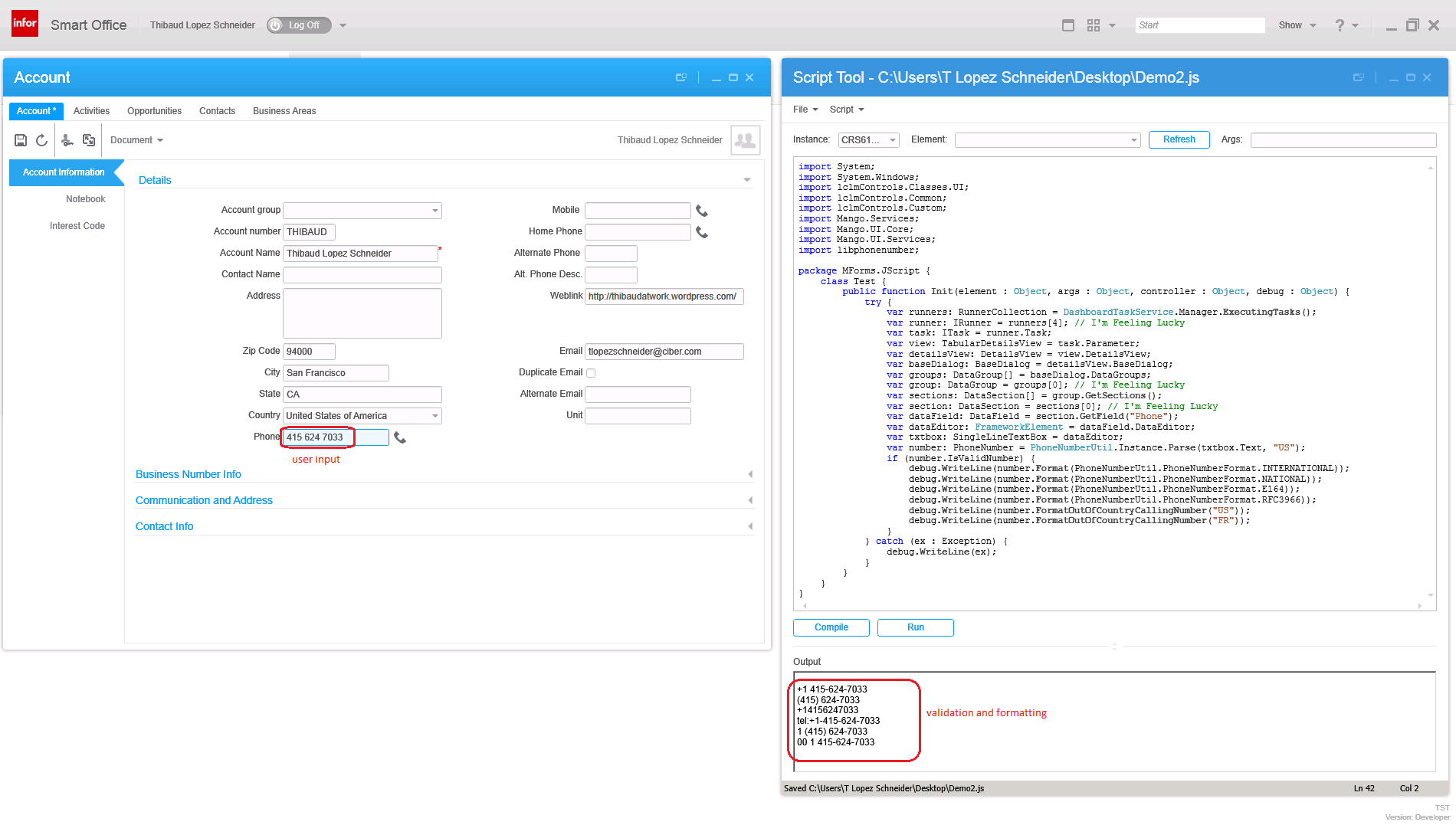
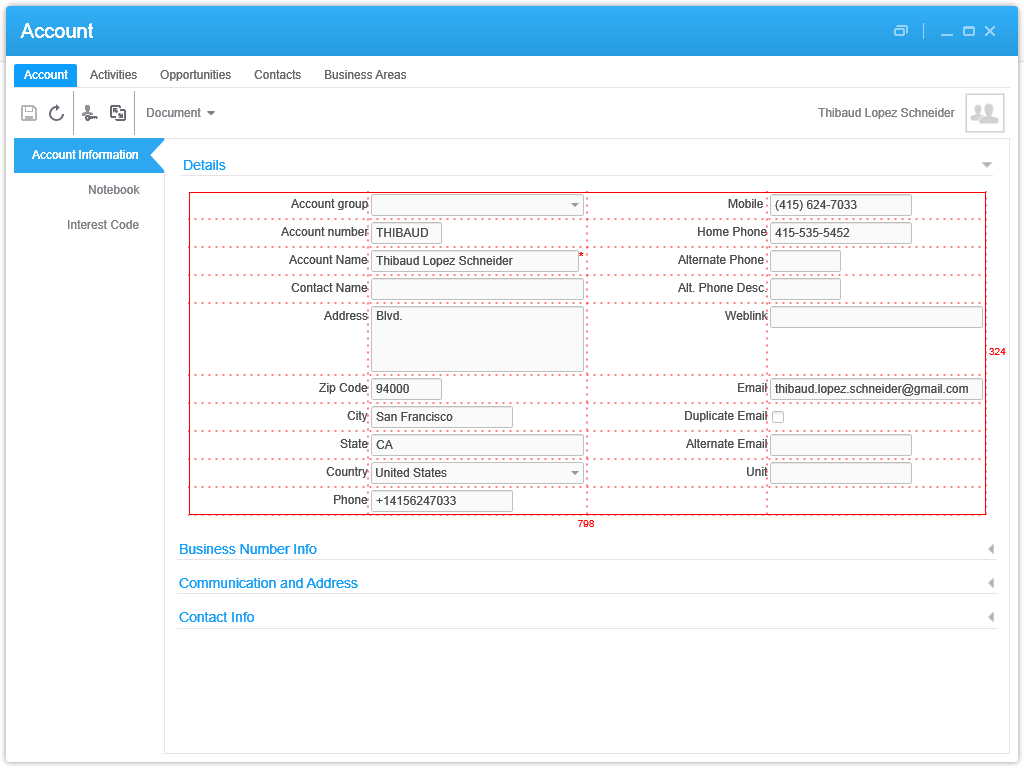
Here is a sample screenshot of the validation and formatting of the field Phone in a CLM Account Details View:
4

This is a proof-of-concept source code for demonstration purposes with “I’m feeling lucky” about the array indexes and not checking if object references are null. I will let the reader write the proper, and more lengthy code.

Completeness

For completeness, a robust solution would need to cover all entry points:

For M3 Programs:

  • MForms in Smart Office
  • MForms in H5 Client
  • M3 API (MvxAPI protocol, REST, and SOAP)
  • M3 Web Services (MWS) of type M3 Display Program (MDP) (REST and SOAP)

For the M3 UI, the solution would involve a combination of Smart Office Scripts in .NET, and H5 Client Web Parts in JavaScript. And for the backend, it would be M3 Java modifications with MAK; using Event Hub would be too late.

For CLM:

  • CLM in Smart Office
  • CLM-Web
  • CLM REST Web Services
  • CLM SOAP Web Services

For the CLM UI, the solution would involve the same combination of Smart Office Scripts in .NET, and H5 Client Web Parts in JavaScript. And for the backend, I’m not a CLM expert but I heard database triggers would do it.

Also, we would need to do retro- validation and formatting of phone numbers that were already entered in the M3 Programs and CLM.

That’s a lot of work.

My wish

My wish is that Infor Product Development implements phone number validation standard into Smart Office. Same for address validation in M3.

Conclusion

In this article I introduced my simple solution to do phone number parsing, validation and formatting for M3 Programs and CLM Accounts in Smart Office using the proven open source library libphonenumber and its known port for C#. I also explained why parsing, validation and formatting of phone numbers matters in some cases. I implemented a demo for M3 Programs and one for CLM Account Details. I also presented my thoughts on insufficient solutions. Then, I discussed what a complete solution would look like.

In my next article, I will present a proof-of-concept of AsYouTypeFormatter to format a phone number as the user is typing the digits.

That’s it!

If you liked this, please Follow the blog by clicking the button below, and let us know your comments in the section below. And share this with your colleagues, customers and partners to grow the community. Or become an author and share your ideas here. Or be a ninja and create your own blog!

/Thibaud

Add a Profile fragment with Smart Office SDK

Continuing my previous and previous posts on Infor Smart Office SDK, I will now post on how to add a profile fragment in Smart Office Developer mode. For that, I will follow the instructions from the Developer’s Guide and from Karin’s comments.

We use the <Profile> section of the feature Manifest to merge our settings into the system profile. It gets merged only when the feature is deployed to the server with LifeCycle Manager (LCM). It doesn’t get merged when Smart Office is running in Developer mode. The workaround is to use a local profile.xml and reference it in our Windows Registry. First we need to get the server’s profile.xml.

Find the server’s profile.xml

In old versions of Smart Office, the file profile.xml used to be an actual file on the server. Now with the Infor Grid the file has been moved into a distributed database. Supposing you have such version of Smart Office:

  1. Go to your H2 Web Console following Scott’s instructions, login to the MangoServer application, click on the CATEGORYFILES table, it will display the contents of the table, and copy the CONTENT of profile.xml:
    1anon
  2. HEX-decode the contents, for example with Notepad++ or Ostermiller’s decoder:
    2anon
  3. Save the decoded contents to a file profile.xml somewhere on your computer, and ensure it’s valid XML:
    3anon
  4. That’s the server’s profile.xml.

Add your fragment

Now you can add your settings:

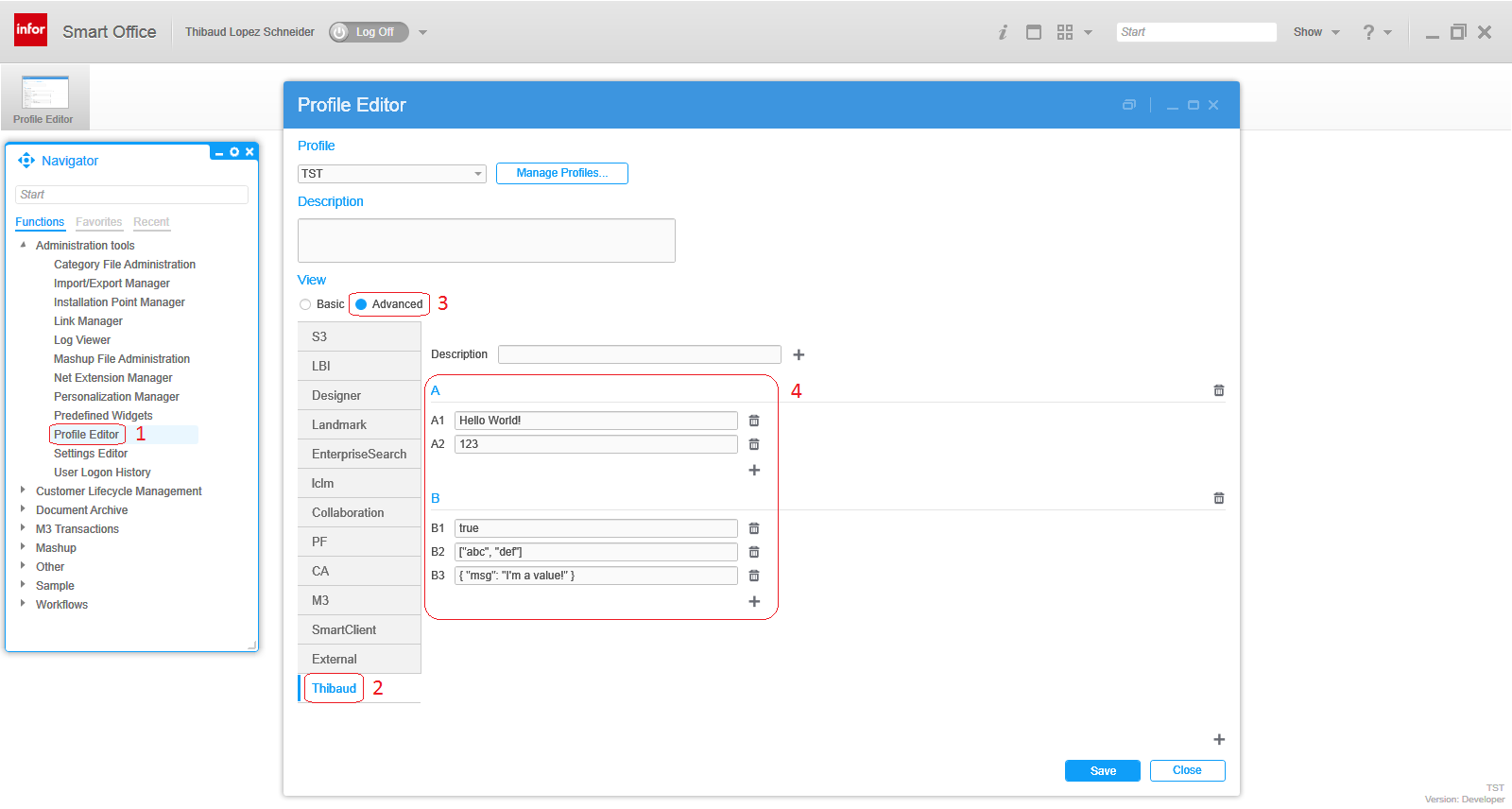
  1. Open the file profile.xml with a text editor like Notepad, add your application group (or extend an existing one), and add your settings, for example:
    <applicationgroup name="Thibaud">
        <A>
            <A1>Hello World!</A1>
            <A2>123</A2>
        </A>
        <B>
            <B1>true</B1>
            <B2>["abc", "def"]</B2>
            <B3>{ "msg": "I'm a value!" }</B3>
        </B>
    </applicationgroup>
    
  2. Ensure the file is still valid XML:
    4
  3. Optionally, you can add Description attributes at each element, and enabled=”true” on the applicationgroup.

Reference the file in Windows Registry

Now tell Smart Office Developer mode to use that profile.xml:

  1. Start your Windows Registry Editor (C:\Windows\regedit.exe).
  2. Go to the Smart Office SDK Window Registry Key HKEY_CURRENT_USER\Software\Infor\MangoDev
  3. Add a String value ProfilePath, and set the value to the path of your profile.xml:
    5

Test in Smart Office

Now test it in Smart Office Developer mode:

  1. Now re-start Smart Office in Developer mode (from your Visual Studio solution).
  2. Start the Profile Editor from the Navigator widget > Administration tools.
  3. Select your application group, Thibaud in my example.
  4. Select Advanced and your settings are there:
    6

That’s it!

If you liked this, click the Follow link below to subscribe to this blog. And join the authors and share your own M3 ideas with us.

Related articles


Add a feature to Smart Office SDK

After my previous post Hello World of Infor Smart Office SDK, I will now illustrate how to add a feature to Infor Smart Office SDK, for example the Infor Customer Lifecycle Management (CLM) feature. For that, we’ll need to get the feature files and add them to our Visual Studio Solution.

Get the feature files

To get the feature files, we need to find the Manifest and Application extension (DLL) files of our feature.

From the Smart Office server

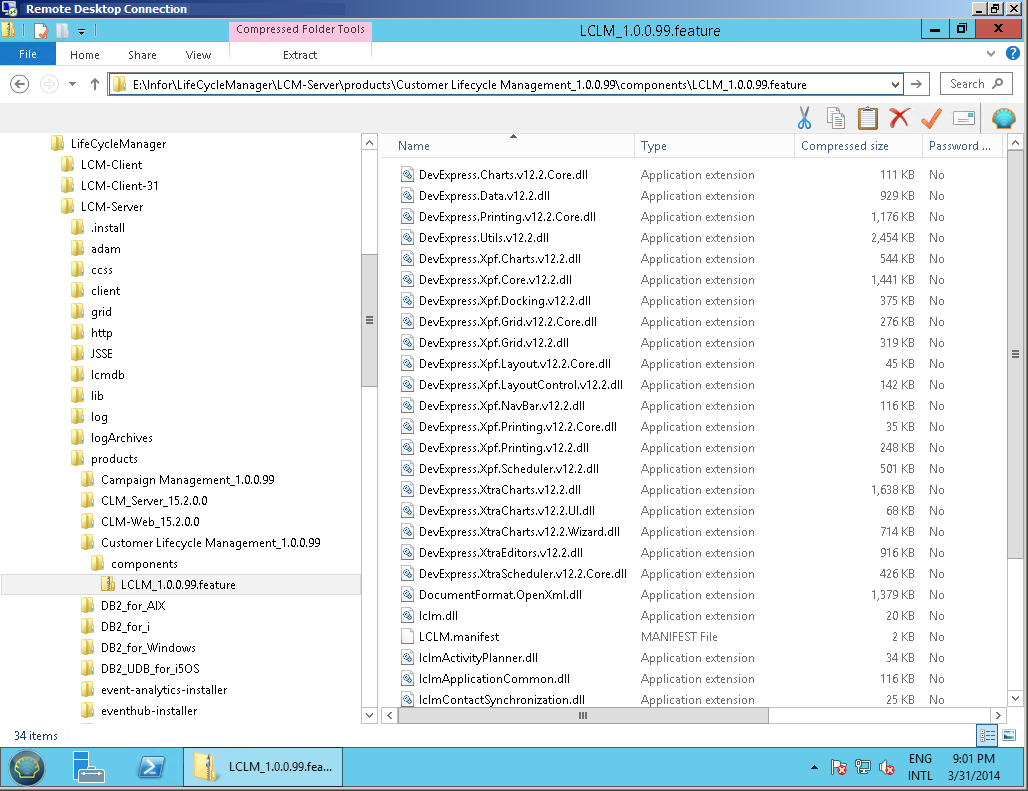
You can find the feature files in the Infor LifeCycle Manager (LCM) server > products > components folder, and unzip the feature:

From Infor Xtreme

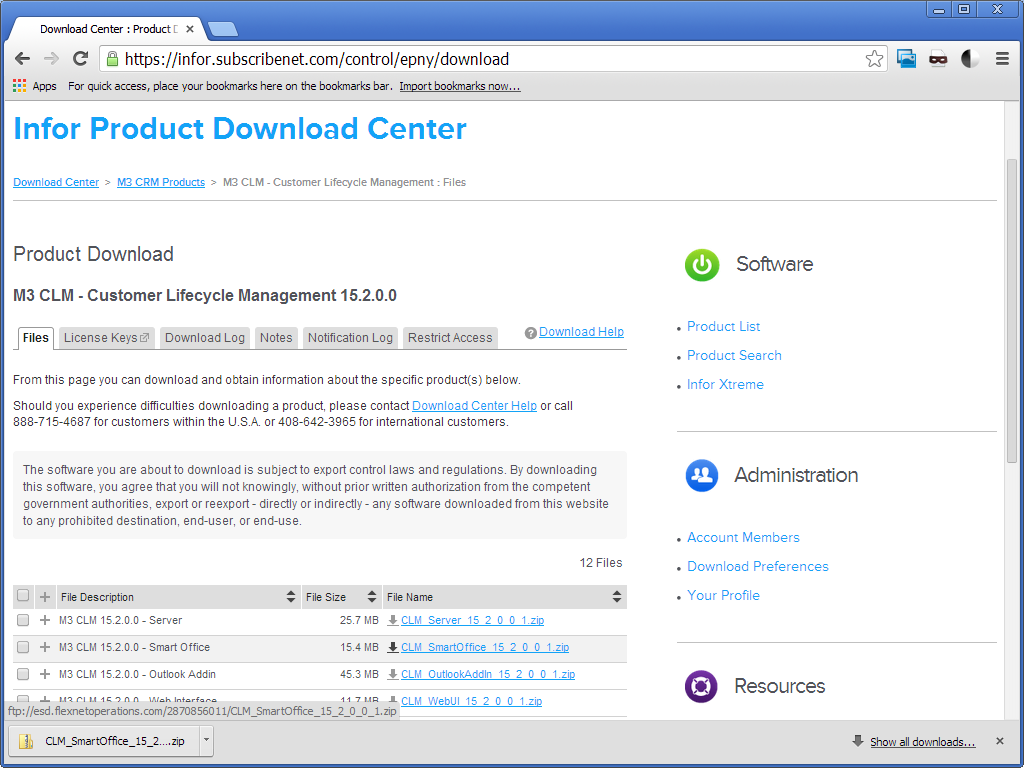
You can also find the feature files by downloading and unzipping the feature from Infor Xtreme. In my case I couldn’t find the same version of CLM to download as my server, but I put screenshots anyway to illustrate the point:

7.2__

From the local deployment

You can also find the feature files locally in the current ClickOnce application deployment folder of your computer:

  1. Start Smart Office from the server (not Smart Office Developer from Visual Studio).
  2. Select Show > Settings > Infor Smart Office, switch the Log level to Debug, and click Save:
    6.2
  3. Logoff Smart Office and logon again.
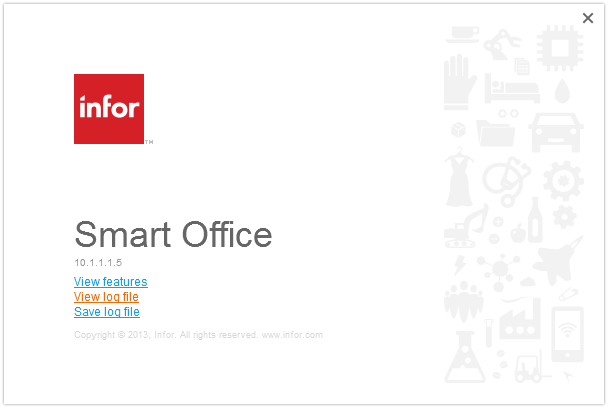
  4. Select the Help menu (question mark icon at the top right) > About Infor Smart Office > View log file:
    6.2
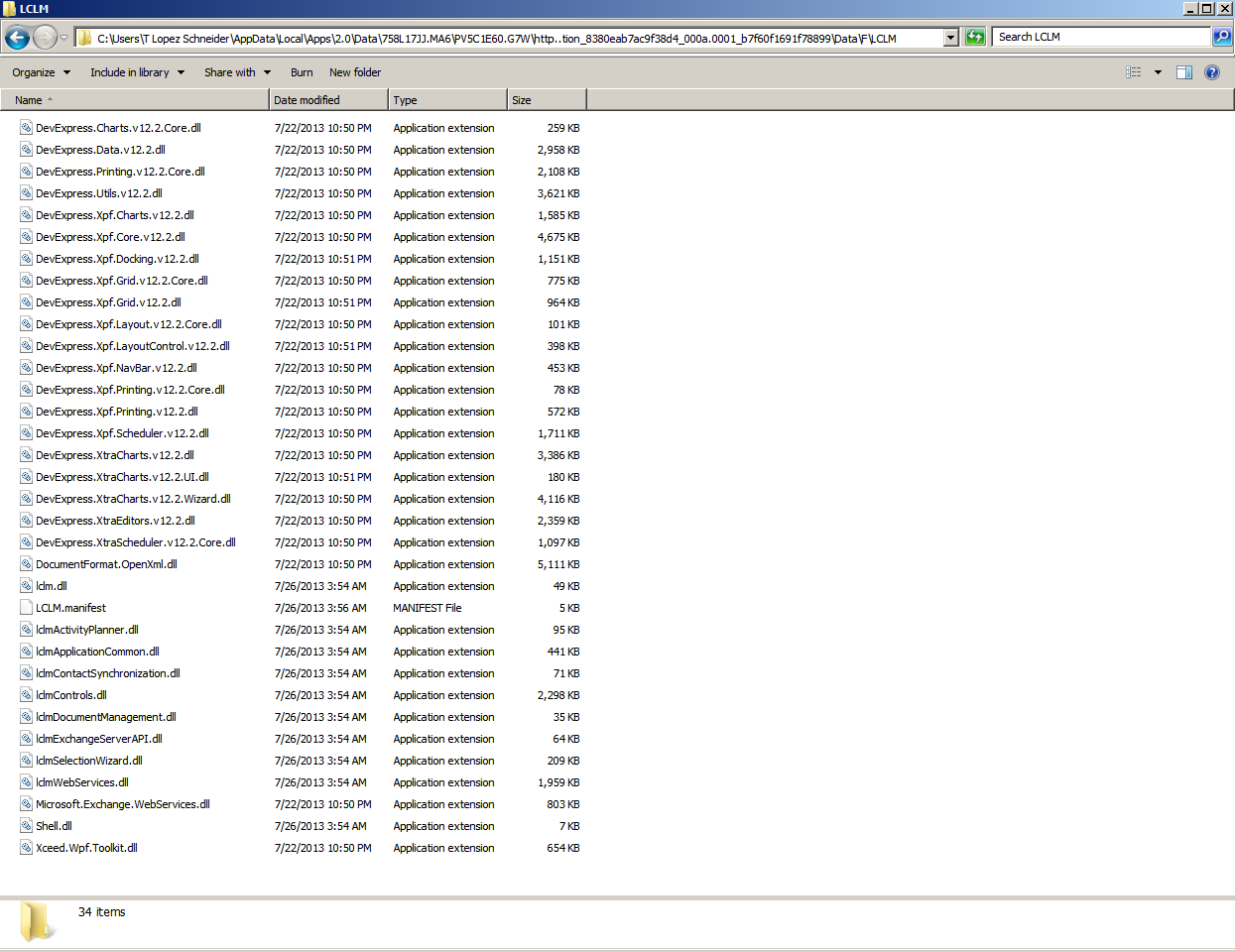
  5. Filter Origin with RegisterGroups, filter Message with the Manifest of the feature you want to add, for instance LCLM.manifest, and notice the path to the Manifest, for example C:\Users\…\AppData\Local\Apps\2.0\Data\…\…\http…\Data\F\<feature>\ :
    6.4_
  6. And open that path in Windows Explorer:
    3.2___

Reference the files in Visual Studio

Once you found the Manifest and Application extension (DLL) files:

  1. Copy/paste them to the Bin directory of your SDK root directory:
    3.2__
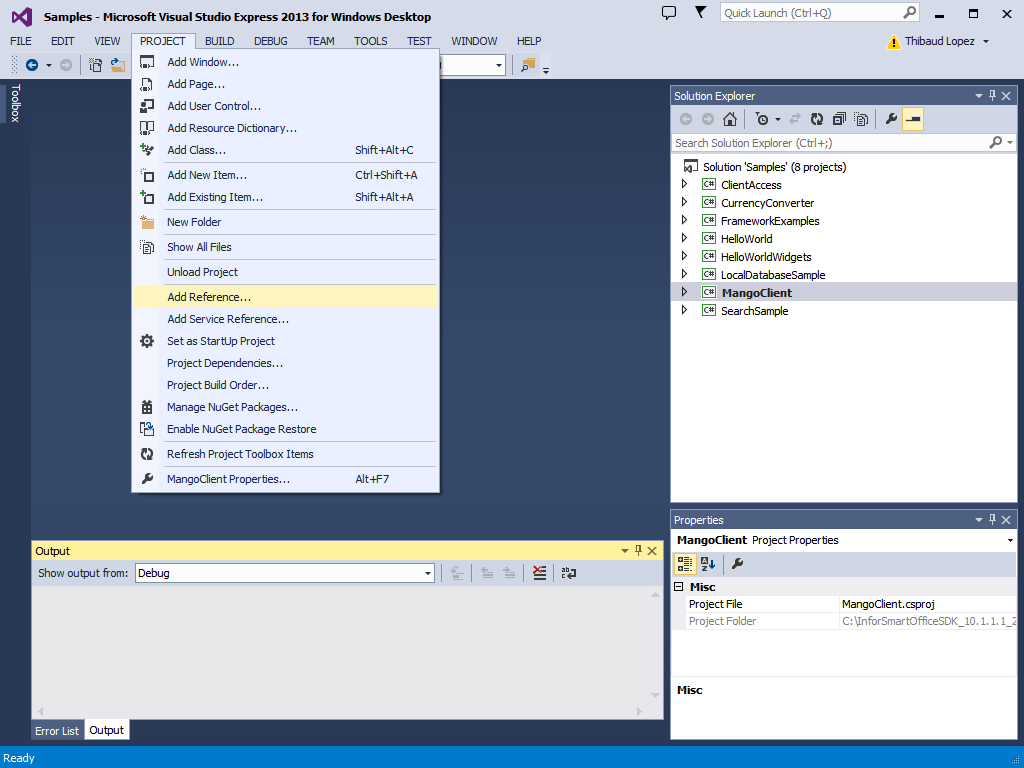
  2. Open your Visual Studio solution, select the MangoClient Project, and select PROJECT > Add Reference:
    3.1_
  3. Browse to the Bin directory, select the DLL files you just pasted, and click OK:
    6.7
  4. Now Rebuild your solution, Start it, and the feature will be there in your Smart Office Developer mode:
    3.9

That’s it!

Note: Instead of copy/pasting the files to the Bin directory, I also tried adding a reference to the files of the ClickOnce directory, i.e. no need to copy/paste, and it worked fine. But the Developer’s Guide states “The feature assemblies and the feature manifest must be copied to the bin directory so that the framework can load the feature when the client starts.” Maybe there’s a reason I don’t know about, so I followed their instructions.

If you liked this post, subscribe to this blog and we’ll send you an email notification when we write a new post. Also, become a contributor and post your M3 ideas.

Hello World of Infor Smart Office SDK

Today I will write a post on how to start with the Infor Smart Office SDK as a continuation of Karin’s getting started post and Scott’s one to eight part series. We use the Smart Office SDK to develop applications in C#/WPF that run inside Smart Office with the benefits of look & feel, session, user information, M3 context, integration to M3 APIs and M3 Web Services, etc. I’m developing an application for a customer to integrate Cisco IP phones with Infor Customer Lifecycle Management (CLM). This is a great opportunity for me to share with you interesting bits and pieces as I progress, and it’s a way for me to anchor what I learn. I will put screenshots galore.

Here are the steps:

  1. Download and install Microsoft Visual Studio for C# and WPF development. I opted for the free Visual Studio Express 2013 for Windows Desktop:
    1.1
  2. Launch it from the Windows Start menu > All Programs > Visual Studio 2013 > VS Express 2013 for Desktop:
    1.2
  3. Download and install the Infor Smart Office SDK from Infor Xtreme > Downloads > ProductsUser Productivity PlatformSmart Office SDK – M3; choose the same version as the target Smart Office server you will develop for, version 10.1 in my case:
    2.1
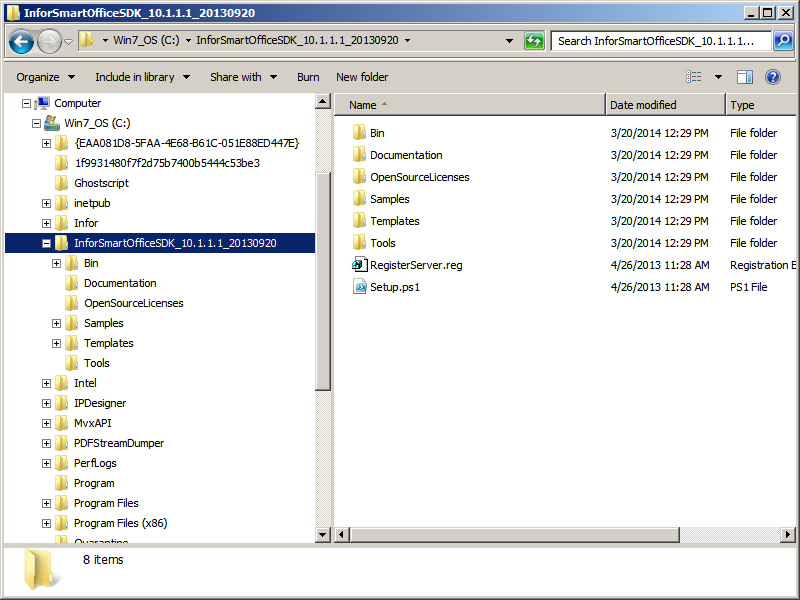
  4. Unzip to a temporary folder in your computer and move the contents to the SDK root directory, for example C:\InforSmartOfficeSDK\ ; I moved to a folder with the full version number as I might have to switch back and forth between different versions for customer projects:
    2.2
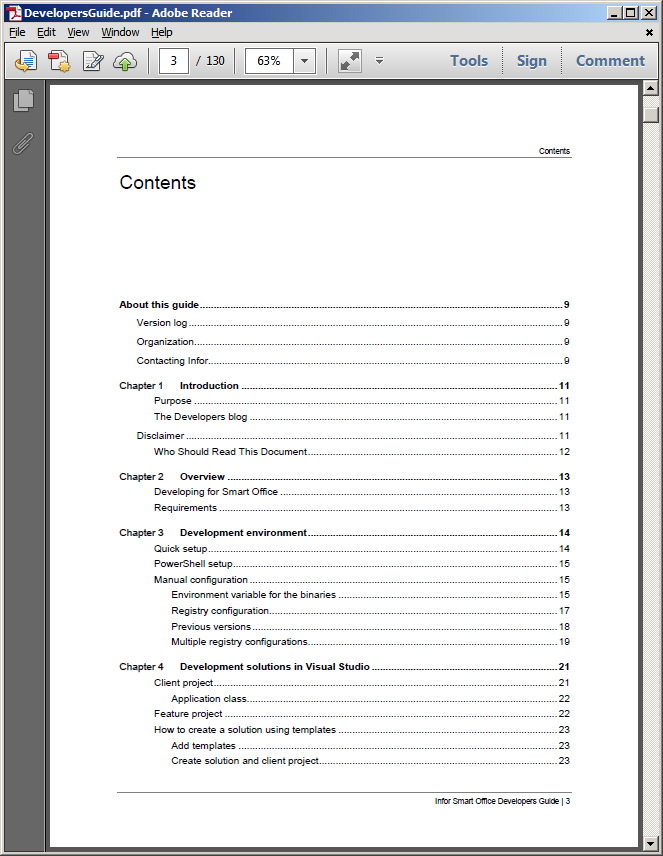
  5. For more information , read the installation instructions in the Infor Smart Office Developers Guide at path Documentation\DevelopersGuide.pdf:
    0
  6. Set an environment variable LSOSDKBin in My Computer > Properties > Advanced system settings > Environment Variables, to the path of the Bin sub-folder, in my case it’s C:\InforSmartOfficeSDK_10.1.1.1_20130920\Bin :
    2.4
  7. Edit the contents of the file RegisterServer.reg in a text editor like Notepad, and change the value of Server to point to the scheme://domain:port of your Smart Office server URL. Then execute the file to merge the new MangoDev Key into your Windows Registry (C:\Windows\regedit.exe); in my case I later manually added String values for Username and Password so I don’t get authentication prompts anymore (beware of this security risk):
    2.5_
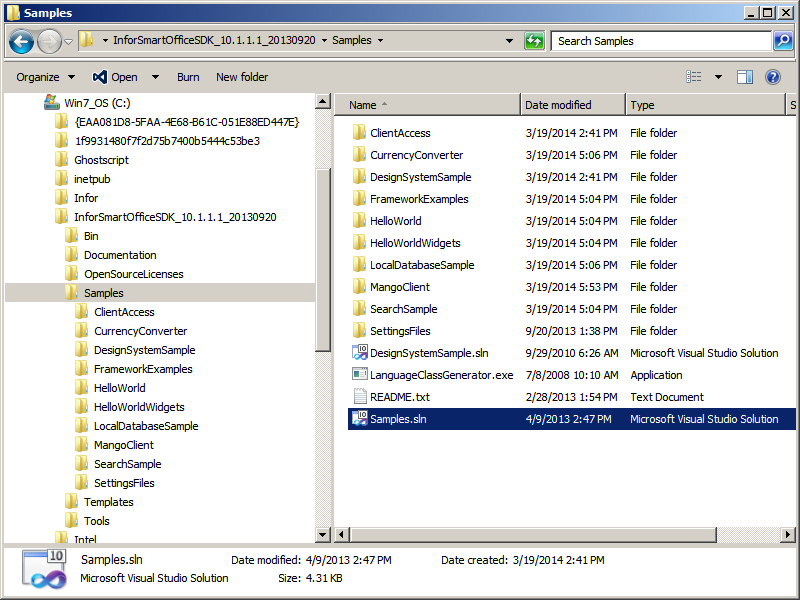
  8. Open the Sample Solution Samples\Samples.sln in Visual Studio:
    2.7
  9. Select BUILD > Build Solution F7:
    2.8
  10. Select DEBUG > Start Debugging F5:
    2.9
  11. That will start Smart Office in Developer mode. Select Help (question mark icon at the top right) > About Infor Smart OfficeView features, that will show you the Framework Examples and the Sample Feature:
    2.10_
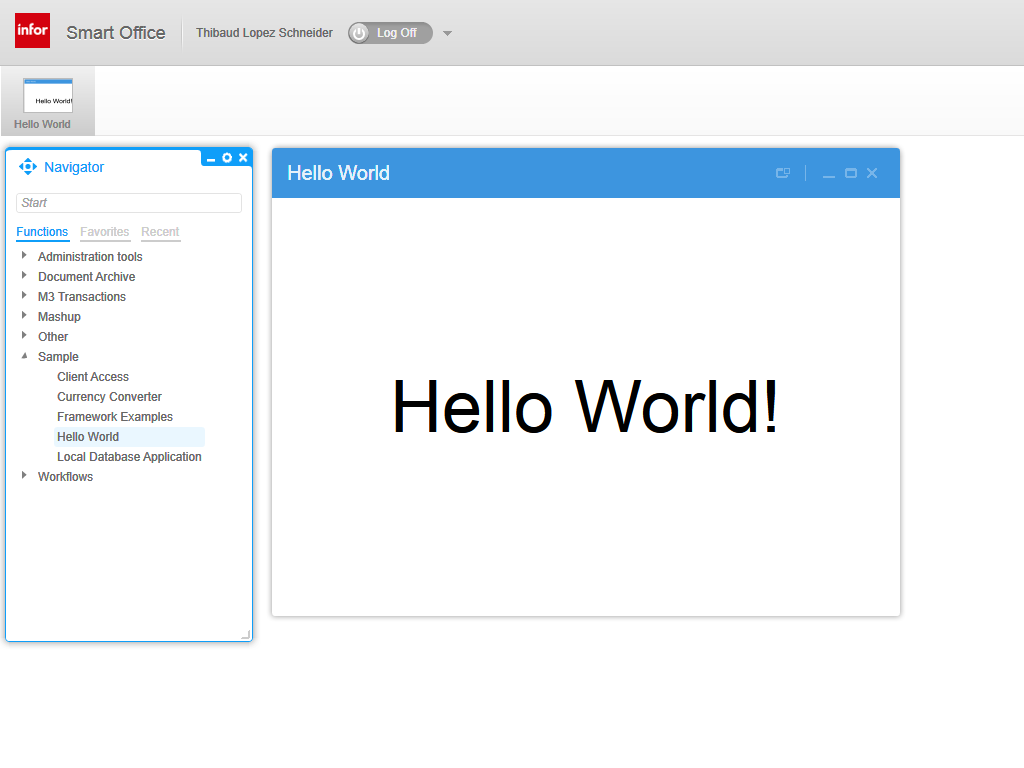
  12. Start the Hello World application in the Sample menu of the Navigator widget:
    2.12
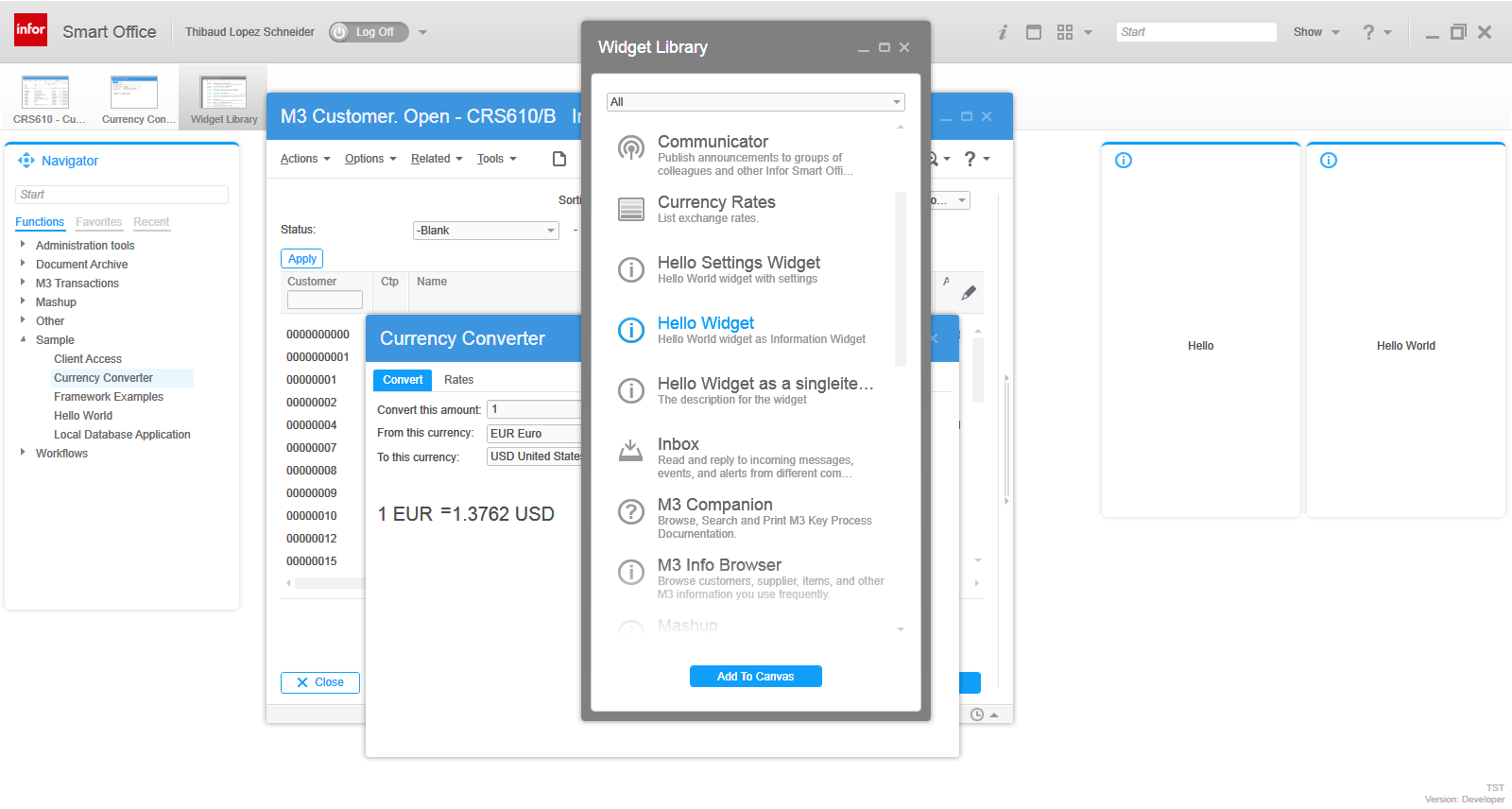
  13. And try the other samples and widgets:
    2.11

That’s it!

If you like this, subscribe to this blog to receive an email notification when we write posts, and become a contributor and write your M3 ideas.

Hacking Customer Lifecycle Management (CLM)

Today I will show you how I made simple modifications to Infor Customer LifeCycle Management (CLM), the CRM product for Infor M3. With CLM standard out-of-the-box we only have the ability to show/hide fields, for example choosing whether or not we want the name, address, and phone number columns in the list or the fields in the details view. CLM is a great product, and by design it is intended to be simple to use. In my case I wanted something more: I needed to add a call button next to the phone number. That is not officially possible by default so I had to do some hacking.

I’m working on a project for a customer to integrate Cisco IP phones with CLM, such that when a customer service representative on the phone receives an incoming phone call we automatically pop-up the corresponding customer data on the screen, and conversely, such that they can click a phone number in CLM and make that outgoing phone call. I had already done some work in the past integrating Skype with Smart Office, and integrating ShoreTel phones with Smart Office. This time it’s Cisco IP phones. I cannot show you the entire source code as it’s propriety of the customer and my employer, but I will show you interesting bits and pieces, and the writing helps me clean-up my code too.

I will show you:

  • How to get the list of open CLM windows
  • How to find the phone number field
  • How to add a button to CLM and use the Design System Icons
  • How to make the outgoing phone call

About CLM

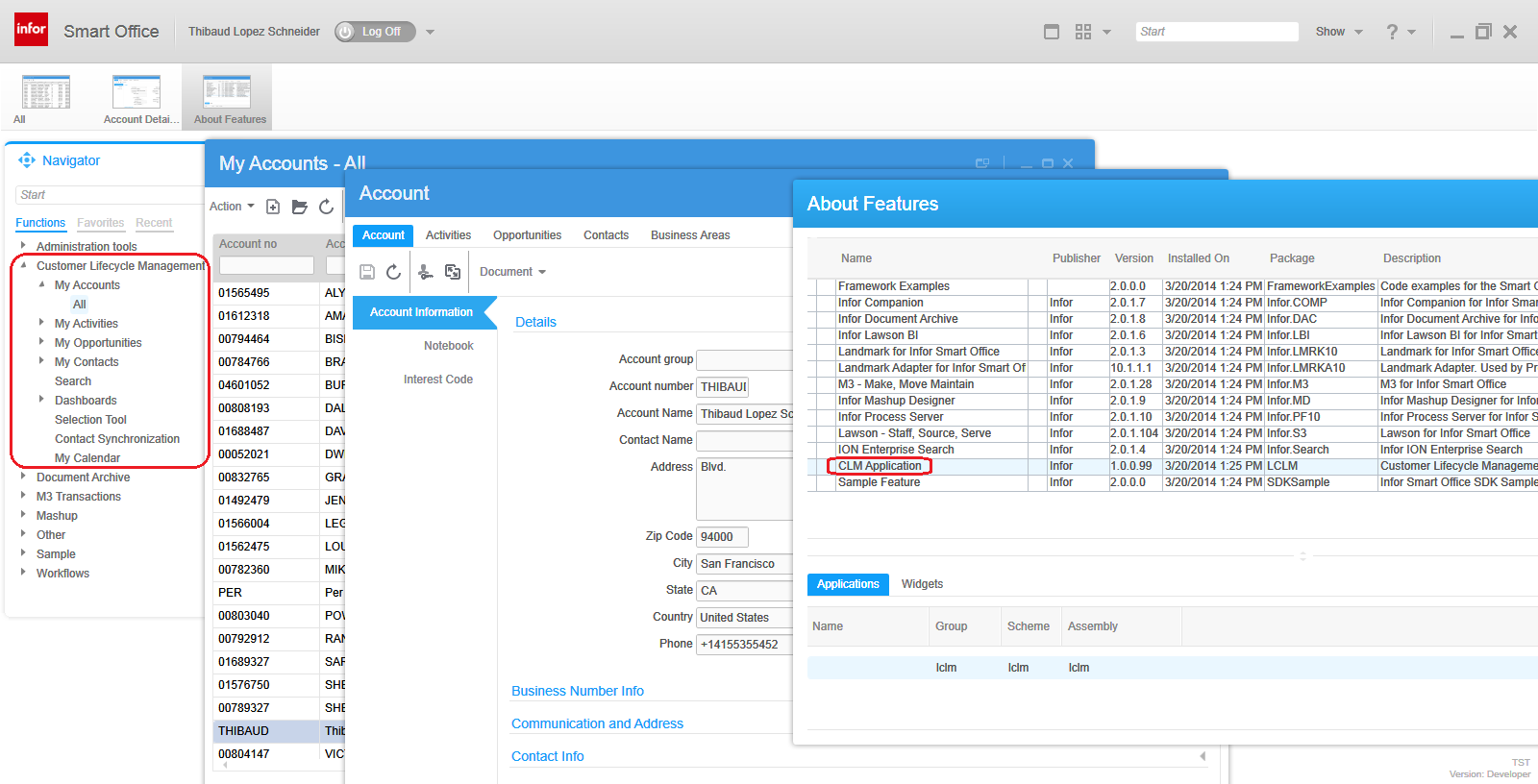
To tell if you have CLM, go to Smart Office > Help > About Infor Smart Office > View features, and you will see CLM Application:
1

Then, go to the Navigator widget, you will see the menu Customer Lifecycle Management, expand it and launch My Accounts > All:
2

It will open the list of accounts:
3_

Double-click one of the rows to open the account details:
4_

How to get the list of open CLM windows

Now we have two CLM windows open: the list of accounts, and the details of an account. To programmatically get that list, I use the DashboardTaskService.FindRunningTaskByUri method, to discriminate by Uri lclm://
0


var list /*System.Collections.Generic.List<Mango.UI.Services.FindTaskResult>*/ = DashboardTaskService.Manager.FindRunningTaskByUri("lclm://", TaskMatch.StartsWith);
for (var result : FindTaskResult in list) {
    var runner : IRunner = result.Runner;
    var task : ITask = runner.Task;
    debug.WriteLine(task.Uri);
}

That will return two tasks:
lclm://filter/?ActionType=View&MainTableID=…&FilterGroupID=…&SubFilterID=…
lclm://details/?ActionType=View&MainTableID=…&PrimaryKey=…

Now we need to tell apart the Accounts windows from the other potential CLM windows such as Activities or Contacts:

var host : IInstanceHost = runner.Host;
if (host.HostTitle.StartsWith("Account")) {
    // ...
}

This code will only work for English. Ideally we would use an official CLM API that returns the correct Tasks, but I haven’t found one. Let me know if you find one.

How to find the phone number field

Now that we have the correct window, we can get its contents and find the phone number field. First, I use WPF Inspector to visually introspect the window and find the phone number field in the visual tree:
6

The fields are layed out in one of the ancestor Grids:
5

More specifically the phone number field is itself a Grid of one row and three columns:
6_

That’s where I’ll inject my button. To get there programmatically, I use the VisualTreeHelper, and I do a pre-order depth first search:

function ... {
    //...
    var content : FrameworkElement = host.HostContent;
    if (content.GetType().ToString() == "lclmControls.Custom.TabularDetailsView") {
        var o: DependencyObject = FindPhoneTextBox(content);
        if (o != null) {
            var txtbox: SingleLineTextBox = o;
        }
    }
}
function FindPhoneTextBox(o : DependencyObject): DependencyObject {
    // visit node
    if (o != null) {
        if (o.GetType().ToString().EndsWith("SingleLineTextBox")) {
            var txtbox: SingleLineTextBox = o;
            if (txtbox.Name == "Phone") {
                return o;
            }
        }
    }
    // visit children
    for (var i = 0; i < VisualTreeHelper.GetChildrenCount(o); i++) {
        var child = VisualTreeHelper.GetChild(o, i);
        var result: DependencyObject = FindPhoneTextBox(child);
        if (result != null) {
            return result;
        }
    }
    // not found
    return null;
}

How to add a button to CLM and use the Design System Icons

Now that we found the phone number field and the Grid, we can add a button. I will use the IconButtons of the Design System as illustrated by norpe:

var btn: IconButton = new IconButton();
btn.IconName = "Phone";
btn.ToolTip = "Call this phone number."
btn.HorizontalAlignment = HorizontalAlignment.Left;
btn.Margin = new Thickness(5, 0, 0, 0);
btn.Tag = txtbox; // remember the textbox
Grid.SetRow(btn, 0);
Grid.SetColumn(btn, 2);
Grid.SetColumnSpan(btn, 2);
var grid: Grid = VisualTreeHelper.GetParent(txtbox);
grid.Children.Add(btn);
btn.add_Click(OnCall);

This is the result, with the IconButton hover and ToolTip:
7_

Note: to get the Grid I used the textboxe’s parent. This assumption is true in CLM version 1.0.0.99, but could be false in a future version of CLM in which case this code would break. Ideally we would have an official CLM API for this.

How to make the outgoing phone call

Now you can do whatever with the phone number, for example use the default operating system’s URI handler for the tel scheme which is Skype in my case.

function OnCall(sender: Object, e: RoutedEventArgs) {
    try {
        var btn: Button = sender;
        var txtbox: SingleLineTextBox = btn.Tag;
        var phoneNumber: String = txtbox.Text;
        var uri: Uri = new Uri("tel:" + phoneNumber); // RFC 3966
        ScriptUtil.Launch(uri);
    } catch (ex : Exception) {
        debug.WriteLine(ex);
    }
}

And here’s the result:
8_

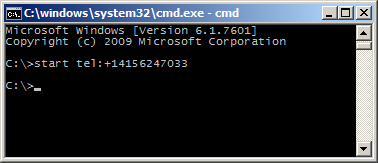
The method ScriptUtil.Launch will instruct the operating system to execute the specified command. That’s the equivalent of typing start command at the DOS prompt. In our case it’s:

start tel:+14156247033

9

That means any special characters of the command must be escaped, such as white spaces and ampersands. To escape white spaces in DOS that means enclosing the entire string in double-quotes. I tried enclosing the URI in double quotes, and it didn’t work. I also tried other escaping and encoding techniques like using backslash, plus sign, and %20, and they didn’t work either. So let’s simply strip it out:

phoneNumber = phoneNumber.Replace(' ', '');

Also, in my example I used a phone number that’s already correctly formatted in international E.123 notation which Skype understands. To validate the phone number, we can use a regular expression. A simple one is to strip all characters and keep only the plus sign and the digits, but that’s probably not fully compliant with the E.123 specification so we need to work more on this in the future:

var regex = /[^\+^\d]/g;
phoneNumber =  phoneNumber.replace(regex, "");

Future work

Future work includes:

  • Use an event handler to listen for new CLM windows to automatically add the Call button as the user opens the Account views. I couldn’t find an event, and Karin confirmed it’s not currently supported. I tried MForms.MainController, DashboardTaskService, DashboardTaskBar, lclmControls.EventNotifier, WindowManager, etc. I found an event handler for M3 Forms, an event handler for the Quick Start CTRL+R, and private event handlers that would have worked had they been public. Nothing I could use. I ended up using a worker that’s polling Tasks every second in a background thread (yikes).
  • Remember we added the button so we don’t add it again next time.
  • Add the Call button on all phone number fields: fax, mobile phone, home phone, etc.
  • Validate the phone number with a regular expression that complies with the specifications.
  • Make the outgoing call thru the Cisco IP phone instead of using Skype.
  • Listen for incoming phone calls.
  • Move the script to a widget using the Smart Office SDK.

That’s it! If you like this post, subscribe to this blog. And if you rock, become an author to share your ideas.

Mashup – Adding security to part of the mashup based on CurrentUser

I’ve seen a previously posts describing how to put security on a whole mashup.
But what if it is a mashup designed for all end-users, but part of it should be for limited users only, when using MI/Data Panels?

I will provide an example where I disable a GroupBox based on the CurrentUser access to MMS001 from SES401.

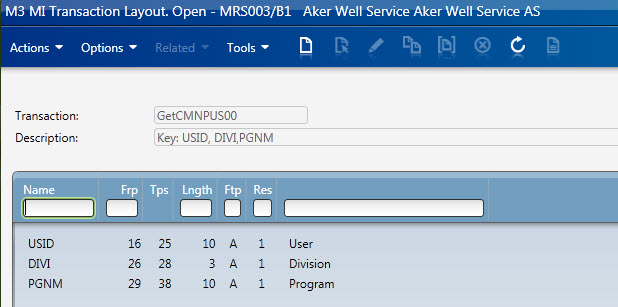
The first problem I ran into, was that there was missing an MI transaction to retrieve the user access, or at least I couldn’t find one.
So I create a new transaction in MDBREADMI, from CMNPUS to get the ALO field to get the values.

Input:
GetCMNPUS00

Output:
GetCMNPUS00Output

The next problem I had was that I had to run the MI transaction for user validation’ immediately’ on startup.
However, I couldn’t get the binding correct. It was like the MI startup event was triggered before I was able to bind the currentuser.
( There might be other ways to do this, it might just be me having problems with this kind of binding)
My work around for this was adding in a timer with a second delay. Which allowed me to run the MI Panel with the UserName.

I used a TriggerPanel on the startup which started the timer. The MIPanel was then triggered by Elapsed time after a second.
And then I had all the information required. Using a Hidden TextBox with a style.trigger to catch the UserAccess value ([ALO]).
Then I could bind the the text property directly to the GroupBox IsEnabled.

Here is an snapshot of the .xaml attached. 

UserAccessExample1

Here is a snapshot where I use this in the real world, where you see everything is disabled. 

 Example2UserAcccess

Attached is a full working source code. ( You have to create the MDBREADMI transaction first)

<Grid xmlns="http://schemas.microsoft.com/winfx/2006/xaml/presentation" xmlns:x="http://schemas.microsoft.com/winfx/2006/xaml" xmlns:ui="clr-namespace:Mango.UI.Controls;assembly=Mango.UI" xmlns:mashup="clr-namespace:Mango.UI.Services.Mashup;assembly=Mango.UI" xmlns:ps="clr-namespace:PF.Client.Mashup;assembly=PF.Client" xmlns:m3="clr-namespace:MForms.Mashup;assembly=MForms" xmlns:Services="clr-namespace:Mango.Services;assembly=Mango.Core">
	<Grid.Resources>
	</Grid.Resources>

	<Grid.ColumnDefinitions>
		<ColumnDefinition Width="1*" />
	</Grid.ColumnDefinitions>
	<Grid.RowDefinitions>
		<RowDefinition Height="300" />
		<RowDefinition Height="1*" />

		<RowDefinition Height="Auto" />
	</Grid.RowDefinitions>

<!-- Startup Event -->
	<ps:TriggerPanel Name="ItemMasterUserNameTrigger">
		<ps:TriggerPanel.Events>
			<mashup:Events>
				<mashup:Event TargetName="ItemMasterUserNameTimer" SourceEventName="Startup" TargetEventName="Start" />
			</mashup:Events>
		</ps:TriggerPanel.Events>
	</ps:TriggerPanel>

	<mashup:Timer Name="ItemMasterUserNameTimer" Interval="0:0:01" ElapsedCount="1" Count="1" MinInterval="0:0:01" />

<!-- Hidden TextBlock to get UserName -->
	<TextBlock Name="ItemMasterUserName" DataContext="{x:Static Services:ApplicationServices.UserContext}" Text="{Binding UserName}" Visibility="Hidden" />

	<m3:MIPanel Name="ItemMasterDataReadOnlyMI">
		<m3:MIPanel.Events>
			<mashup:Events>
				<mashup:Event TargetName="ItemMasterDataReadOnlyMI" TargetEventName="Get" SourceEventName="Elapsed" SourceName="ItemMasterUserNameTimer">
					<mashup:Parameter TargetKey="USID" Value="{Binding ElementName=ItemMasterUserName, Path=Text}" />
					<mashup:Parameter TargetKey="DIVI" Value="{mashup:UserContextValue Path=M3/Division}" />
					<mashup:Parameter TargetKey="PGNM" Value="MMS001" />
				</mashup:Event>
			</mashup:Events>
		</m3:MIPanel.Events>
		<m3:MIPanel.DataSource>
			<m3:MIDataSource Program="MDBREADMI" Transaction="GetCMNPUS00" Type="Get" InputFields="USID,DIVI,PGNM" OutputFields="ALO" MaxReturnedRecords="1" />
		</m3:MIPanel.DataSource>
	</m3:MIPanel>

<!-- Validation check, disabled by default  -->
	<TextBox Name="ItemUserValid" Visibility="Hidden">
		<TextBox.Style>
			<Style x:Key="UserCheck" TargetType="{x:Type TextBox}" BasedOn="{StaticResource {x:Type TextBox}}">
				<Setter Property="Text" Value="False" />
				<Style.Triggers>
					<MultiDataTrigger>
						<Setter Property="Text" Value="False" />
					</MultiDataTrigger>
					<MultiDataTrigger>
						<MultiDataTrigger.Conditions>
							<Condition Binding="{Binding ElementName=ItemMasterDataReadOnlyMI, Path=[ALO]}" Value="111111111" />
						</MultiDataTrigger.Conditions>
						<Setter Property="Text" Value="True" />
					</MultiDataTrigger>
				</Style.Triggers>
			</Style>
		</TextBox.Style>
	</TextBox>

<!--  Setting the GroupBox Enabled or Disabled based on the CurrentUser acccess to MMS001 -->
	<GroupBox Name="GroupBox" Header="Validation" Style="{DynamicResource styleGroupLineMashup}" IsEnabled="{Binding ElementName=ItemUserValid, Path=Text}" Grid.Row="0">
		<Grid Margin="0,0,0,8">
			<Grid.ColumnDefinitions>
				<ColumnDefinition Width="100" />
				<ColumnDefinition Width="110" />
			</Grid.ColumnDefinitions>
			<Grid.RowDefinitions>
				<RowDefinition Height="32" />
				<RowDefinition Height="32" />
			</Grid.RowDefinitions>

			<Button Name="Button" Content="Button" Grid.Column="0" Grid.Row="0" />
			<Label Content="IsEnabled" Grid.Row="1" Grid.Column="0" />
			<TextBox Text="{Binding ElementName=ItemUserValid, Path=Text}" Grid.Row="1" Grid.Column="1" MinWidth="100" MaxWidth="100" />

		</Grid>
	</GroupBox>

	<GroupBox Name="GroupBox2" Header="No Validation" Style="{DynamicResource styleGroupLineMashup}" Grid.Row="1">
		<Grid Margin="0,0,0,8">
			<Grid.ColumnDefinitions>
				<ColumnDefinition Width="100" />
				<ColumnDefinition Width="110" />
			</Grid.ColumnDefinitions>
			<Grid.RowDefinitions>
				<RowDefinition Height="32" />
				<RowDefinition Height="32" />
			</Grid.RowDefinitions>

			<Button Content="Button" Grid.Column="0" Grid.Row="0" />
			<Label Content="IsEnabled" Grid.Row="1" Grid.Column="0" />
			<TextBox Name="TextBox" Text="Test 1" Grid.Row="1" Grid.Column="1" MinWidth="100" MaxWidth="100" />

		</Grid>
	</GroupBox>
	<ui:StatusBar Name="StatusBar" Grid.Row="1" Grid.Column="0" />
</Grid>

Regards
Ken Eric