Mashup quality control #2

Today I had to troubleshoot why a refresh icon in a Smart Office Mashup was not refreshing, and after correcting it, I included the correction as a new predicate rule in my Mashup quality control tool to automatically spot similar errors in other Mashups.

IconButtons and CommandBarButtons

Here is a screenshot of the icon bar and its XAML code:

You can find more information about the Smart Office Design System’s Icons, IconButtons and CommandBarButons on norpe’s blog post.

The error

After some manual troubleshooting, I found that the icon was refreshing the wrong list, i.e. the Click event had the TargetName property set to the wrong <m3:ListPanel>, it was set to PurchaseOrderList (incorrect) instead of RequisitionList (correct). Probably the developer copy/pasted the code from another tab and forgot to change the TargetName. That’s hard to find, quick to fix.

<ds:CommandBarButton IconName="Refresh" ToolTip="{mashup:Constant Refresh, File=Mango.UI}">
    <ds:CommandBarButton.CommandParameter>
        <mashup:Event TargetName="PurchaseOrderList" TargetEventName="Refresh" />
   </ds:CommandBarButton.CommandParameter>
</ds:CommandBarButton>

Finding other errors

Assuming the icons are grouped in a <StackPanel> followed by their <m3:ListPanel>, I can quickly find similar errors with the following XPath expression that lists all the icons TargetName:

//*[name()='ds:IconButton.CommandParameter' or name()='ds:CommandBarButton.CommandParameter']/mashup:Event/@TargetName

The Python code would be:

import os
import glob
import lxml.etree as etree

for f in glob.glob(os.path.join(r'C:\BuyerPortal', '*.xaml')):
    tree = etree.parse(f)
    r = tree.xpath("//*[name()='ds:IconButton.CommandParameter' or name()='ds:CommandBarButton.CommandParameter']/mashup:Event/@TargetName", namespaces={'mashup': 'clr-namespace:Mango.UI.Services.Mashup;assembly=Mango.UI', 'ds': 'clr-namespace:Mango.DesignSystem;assembly=DesignSystem'})
    for element in r:
        print(f, element)

Result

Then I visually inspect the result for outliers. In my case, I see the error I found earlier, and a new error I did not know about:
3

This is a quick way to help identify errors before users have to.

Future work

This still requires a visual inspection of the result. A better solution would be to calculate the distance between the icon and its target m3:ListPanel in the XAML tree, where a minimum distance would indicate a low probability of error, and a maximum distance would indicate a high probability of error.

That’s it!

Please comment, like, subscribe, share, author. Thanks for your support.

Related posts

Mashup quality control #1

It has become difficult for me to manually maintain the Smart Office Mashups of my customer – there are about 50 files, 1,000 controls, and 10,000 lines of XAML – so I am developing a software verification tool that does automatic quality control for me.

How?

I defined a set of predicate rules, and I use XPath to validate the Mashup against those rules. I am using Python for now because of its expressiveness and interactivity, but I will port it to JScript.NET or C# soon to benefit from the Smart Office API.

Sample rule

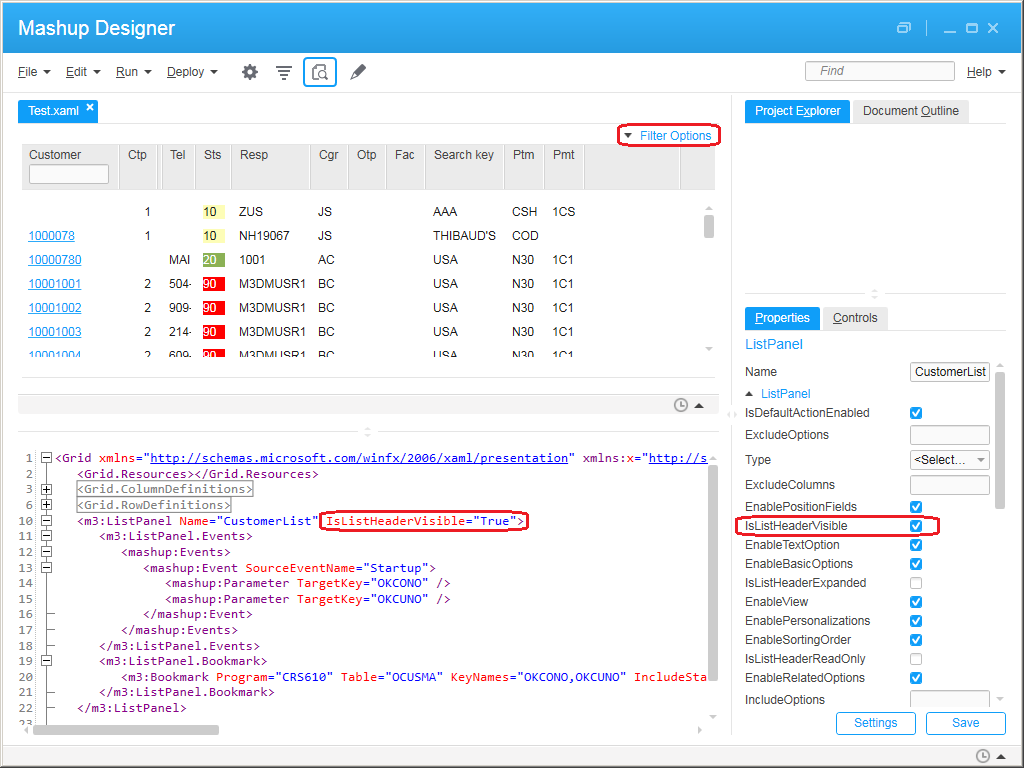
As a sample rule, I want all the <m3:ListPanel> controls to have the property IsListHeaderVisible=”True” such that users have the ability to expand the list header and change the sorting order, view, and apply filters. If one of the list panels does not have that property I want to know about it and correct it. Note this is my own preference, and other developers may have the opposite preference.

Here is the property in Mashup Designer:
3

The following XPath expression will return the list panels not validating the rule:

//m3:ListPanel[not(@IsListHeaderVisible="True")]

Here is a Python code to validate that rule:

import os
import glob
import lxml.etree as etree

for f in glob.glob(os.path.join(r'C:\RentalCounterMashup', '*.xaml')):
    tree = etree.parse(f)
    r = tree.xpath('//m3:ListPanel[not(@IsListHeaderVisible="True")]', namespaces={'m3': 'clr-namespace:MForms.Mashup;assembly=MForms'})
    for element in r:
        print(f, element.attrib['Name'])

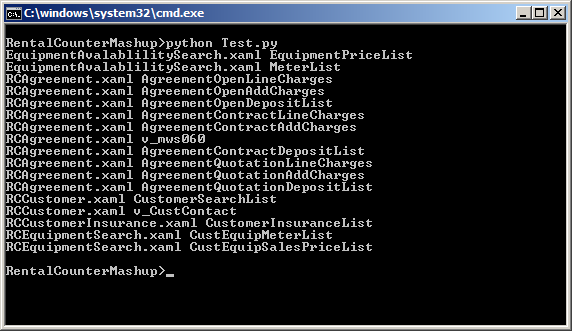
The result is the following, a list of XAML filenames and <m3:ListPanel> names that fail the rule:
4

Result

In my example, out of 63 list panels, 46 had the property, and 17 were missing the property, that’s 27% of list panels not passing the quality control. In other words, I was able to quickly identify a third of the list panels to correct.

Future work

I have many more ideas to implement, for example:

  • Ensure there are no hard-coded values in the MForms Bookmarks, Links, and MForms Automation, such as hard-coded CONO or DIVI
  • Automatically correct the Mashup, e.g. set IsListHeaderVisible=”True” if missing, and save

That’s it!

Let me know in the comments below if you have other rules to control the quality of Mashups.

Please click Like, share this post with your colleagues, click Follow to subscribe, come write the next blog post with us, and send some love to the other M3 blogs as well. This is a volunteer-based community, and your participation keeps the community alive and growing. Thank you.

Related posts

Inspect tool for Mashups

How great the Inspect tool is for developing Mashups in Infor Smart Office! I mentioned it a long time ago in another post about developing scripts, and I want to mention it here again.

I am currently maintaining a Mashup that other developers created. That Mashup has 30 XAML files, 10,000 lines of code, 500 controls, 80 tabs in three levels, etc. Any time I need to modify the Mashup, I have to follow a thread to find the relevant line of source code.

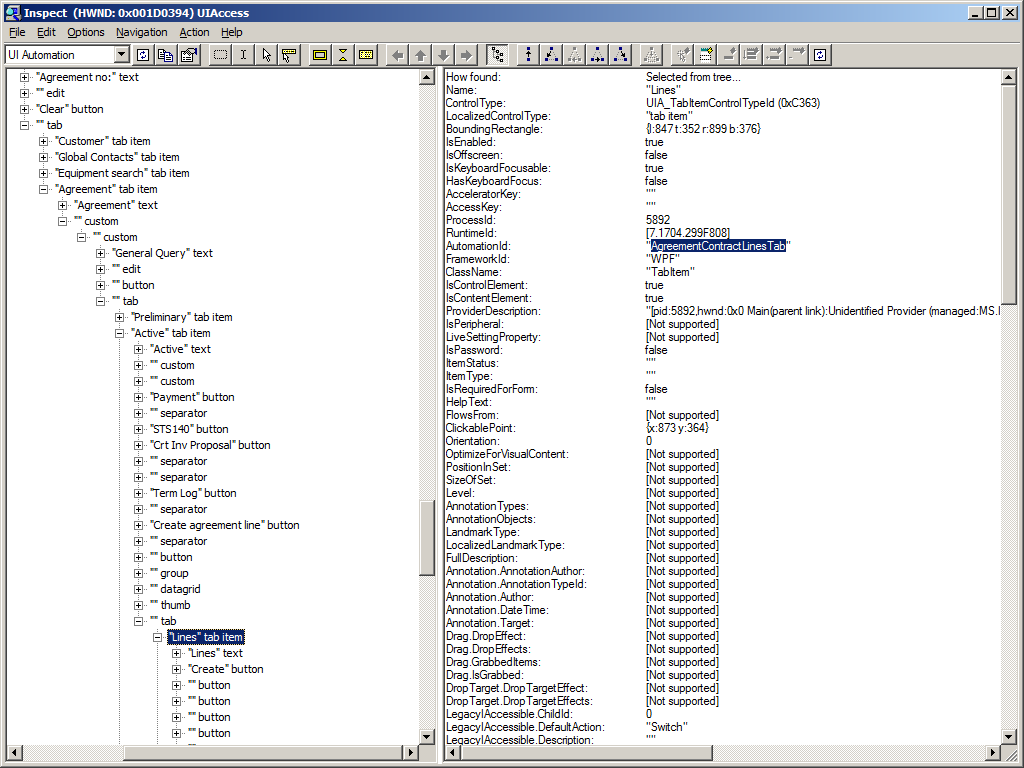
With the Inspect tool, I can point at a control in the Mashup (watch cursor) to find any of its parts, find its name, its parent tab, its XAML file, etc. That saves me valuable time.

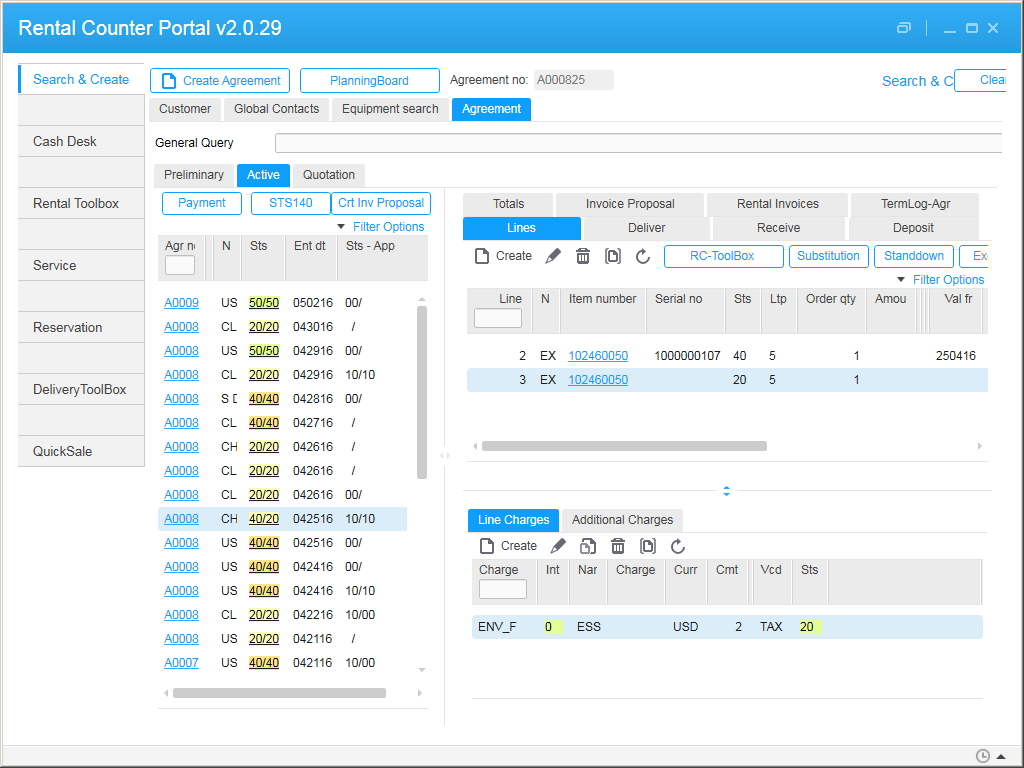
Here are some screenshots:
1 2 3

I wish the Mashup Designer had the same watch cursor feature. Maybe it is easy to implement with the Smart Office SDK. To be explored.

There is also the Snoop tool I mentioned in the other post. Try that too.

That’s it!

Let me know in the comments below what other tools you use. Share this post. Click Like. Follow this blog. And come write the new blog post with us. This is a volunteer-based community, and your participation keeps it going. Thank you.

M3 API protocol dissector for Wireshark

Have you ever needed to troubleshoot M3 API calls in Wireshark? Unfortunately, the M3 API protocol is a proprietary protocol. Consequently, Wireshark does not understand it, and it just gives us raw TCP data as a stream of bytes.

Abstract

I implemented a simple protocol dissector for Wireshark that understands the M3 API protocol, i.e. it parses the TCP stream to show the M3 API bytes in a human-readable format, with company (CONO), division (DIVI), user id (USID), and MI program (e.g. CRS610MI). The dissector is currently not complete and only parses the MvxInit request phase of the protocol.

Reverse engineering

I reverse engineered the M3 API protocol thanks to MvxLib, a free and open source client implementation of the protocol in C# by Mattias Bengtsson (now deprecated), and thanks to MvxSockJ, the official and closed-source client implementation of the protocol in Java (up-to-date).

3 2

MvxInit

The MvxInit phase of the protocol is the first phase of the protocol for connection and authentication, and it has the following structure:

struct MvxInit
{
   struct request {
      int size;
      char Command[5]; // PWLOG
      char CONO_DIVI[32];
      char USID[16];
      char PasswordCiphertext[16]; // password ^ key
      char MIProgram[32]; // e.g. CRS610MI
      char ApplicationName[32]; // e.g. MI-TEST
      char LocalIPAddress[16];
   };
   struct response {
      int size_;
      char message[15];
   };
};

Wireshark Generic Dissector

I used the Wireshark Generic Dissector (wsgd) to create a simple dissector. It requires two files: a data format description, and a file description.

The data format description m3api.fdesc is very similar to the C struct above, where the header is required by wsgd:

struct header
{
   byte_order big_endian;
   uint16 id;
   uint16 size;
}
struct body
{
   struct
   {
      uint32 size;
      string(5) Command;
      string(32) CONO_DIVI;
      string(16) USID;
      string(16) PasswordCiphertext;
      string(32) MIProgram;
      string(32) ApplicationName;
      string(16) LocalIPAddress;
   } MvxInit;
}

Given the limitations of wsgd and its message identifier, I could not solve how to parse more than one type of message, so I chose the MvxInit request, and the rest will throw errors.

I made a test M3 API call to M3BE, I captured it in Wireshark, and I saved the TCP stream as a binary file (I anonymized it so I can publish it here):

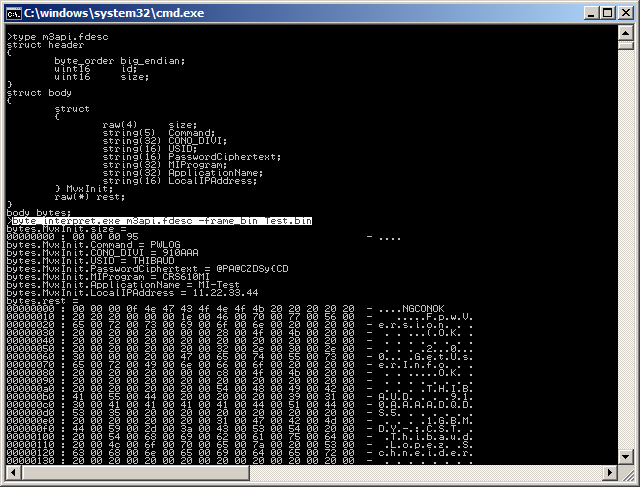
Then, I used wsgd’s byte_interpret.exe (available on the wsgd downloads), using that test binary file, to fine tune my data format description until it was correct:
byte_interpret.exe m3api.fdesc -frame_bin Test.bin

Then, here is the wsgd file description m3api.wsgd; note how I listed the TCP port numbers of my M3 API servers (DEV, TST, PRD):

PROTONAME M3 API protocol
PROTOSHORTNAME M3API
PROTOABBREV m3api

PARENT_SUBFIELD tcp.port
PARENT_SUBFIELD_VALUES 16305 16405 16605 # DEV TST PRD

MSG_HEADER_TYPE header
MSG_ID_FIELD_NAME id
MSG_SUMMARY_SUBSIDIARY_FIELD_NAMES size
MSG_TOTAL_LENGTH size + 4
MSG_MAIN_TYPE body

PROTO_TYPE_DEFINITIONS
include m3api.fdesc;

To activate the new dissector in Wireshark, simply drop the wsgd generic.dll file into Wireshark’s plugins folder, and drop the two above files into Wireshark’s profiles folder:

Then, restart Wireshark, and start capturing M3 API calls. Wireshark will automatically parse the TCP stream as M3 API protocol for the port numbers you specified in the data format description.

Result

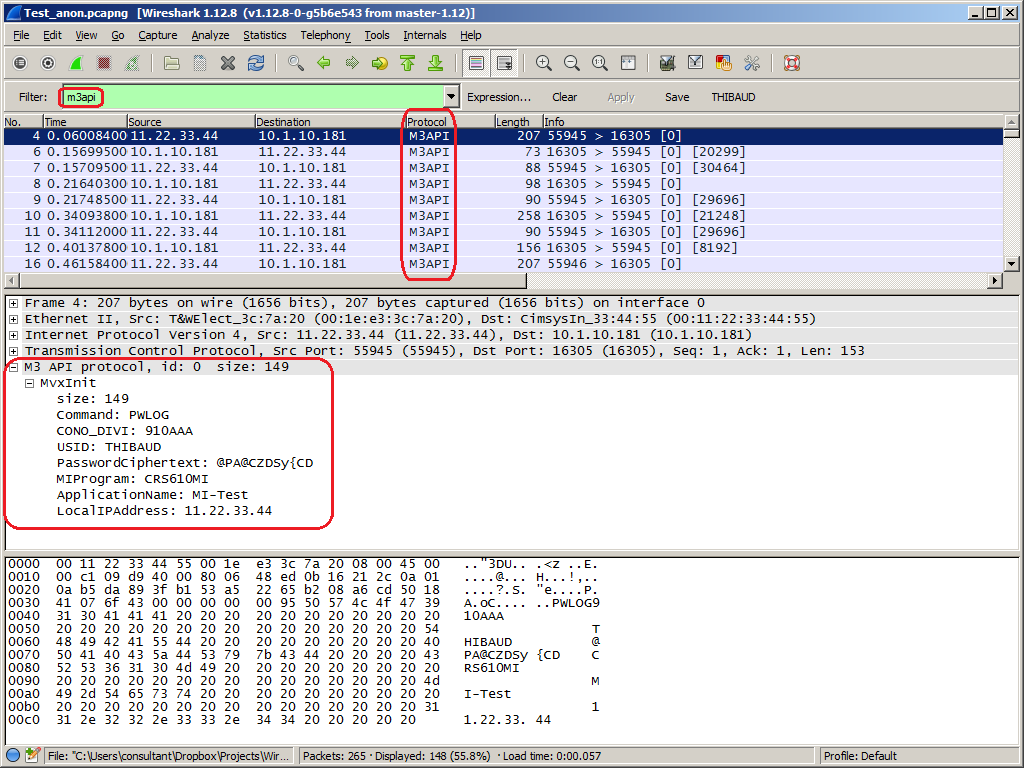
Here is a resulting capture between MI-Test and M3BE. Note how you can filter the displayed packets by m3api. Note how the protocol dissector understands the phase of the M3 API protocol (MvxInit), the company (CONO), division (DIVI), user id (USID), and MIProgram (CRS610MI). Also, I wrote C code to decrypt the password ciphertext, but I could not solve where to put that code in wsgd, so the dissector does not decrypt the password.

Limitations and future work

  • I am using M3BE 15.1.2. The M3 API protocol may be different for previous or future versions of M3.
  • I am doing user/password authentication. The M3 API protocol supports other methods of authentication.
  • Given the limitations of wsgd and its message identifier, I will most likely discontinue using wsgd.
  • Instead, I would write a protocol dissector in LUA.
  • Ideally, I should write a protocol dissector in C, but that is over-kill for my needs.

Conclusion

That was a simple M3 API protocol dissector for Wireshark that parses and displays M3 API bytes into a human readable format to help troubleshoot M3 API calls between client applications and M3 Business Engine.

About the M3 API protocol

The M3 API protocol is a proprietary client/server protocol based on TCP/IP for third-party applications to make API calls to Infor M3 Business Engine (M3BE). It was created a long time ago when Movex was on AS/400. It is a very simple protocol, lean, efficient, with good performance, it is available in major platforms (IBM System i, Microsoft Windows Intel/AMD, SUN Solaris, Linux, 32-bit, 64-bit, etc.), it is available in major programming languages (C/C++, Win32, Java, .NET, etc.), it supports Unicode, it supports multiple authentication methods, and it has withstood the test of time (since the nineties). It has been maintained primarily by Björn P.

The data transits in clear text. The protocol had an optional encryption available with the Blowfish cipher, but that feature was removed. Now, only the password is encoded with a XOR cipher during MvxInit. If you need to make secure calls, use the M3 API SOAP or REST secure endpoints of the Infor Grid.

For more information about M3 API, refer to the documentation in the M3 API Toolkit:
4

Git for M3 Web Services

Here is a preliminary illustration on how to use Git version control system with M3 Web Services Designer to manage changes to web services versions in multi-developer distributed projects. Since the M3 Web Services repository points to a folder of XML files it should be possible to use any revision control software like CVS, Subversion, Git, TFS, etc. Here I illustrate Git with some screenshots.

Install Git

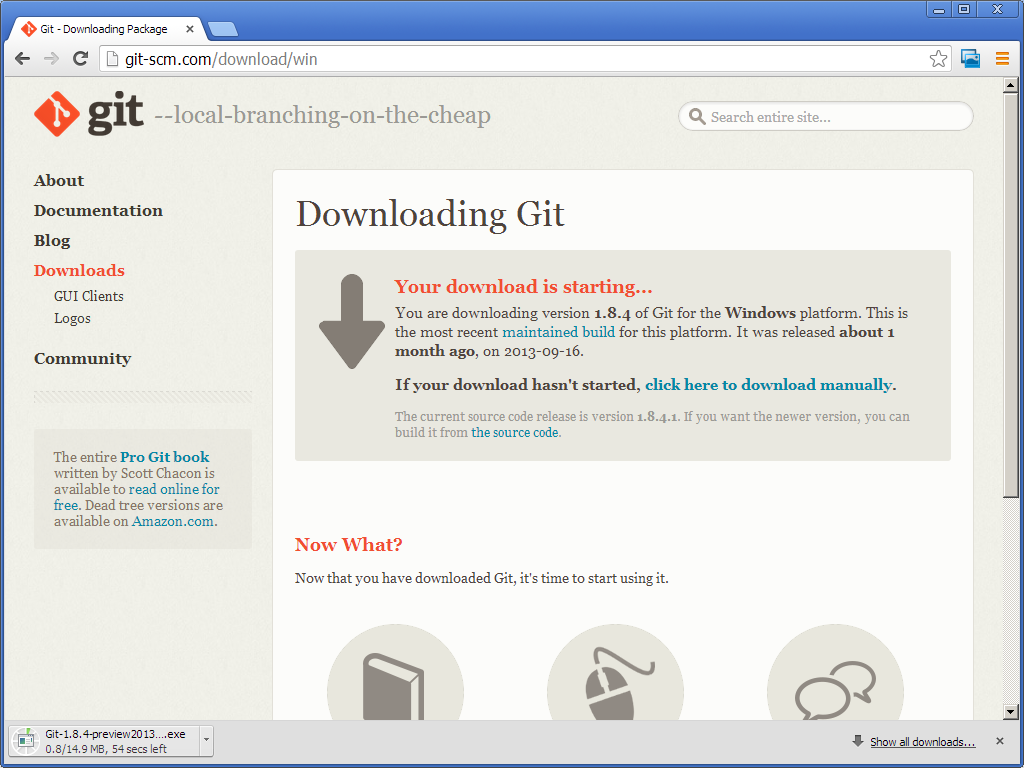
  1. Download and install Git from http://git-scm.com/
    1
  2. I use the default options and Next > Next > … > Finish:
    2
  3. Start Git GUI from the Windows Start menu:
    6

M3 Web Service Repository

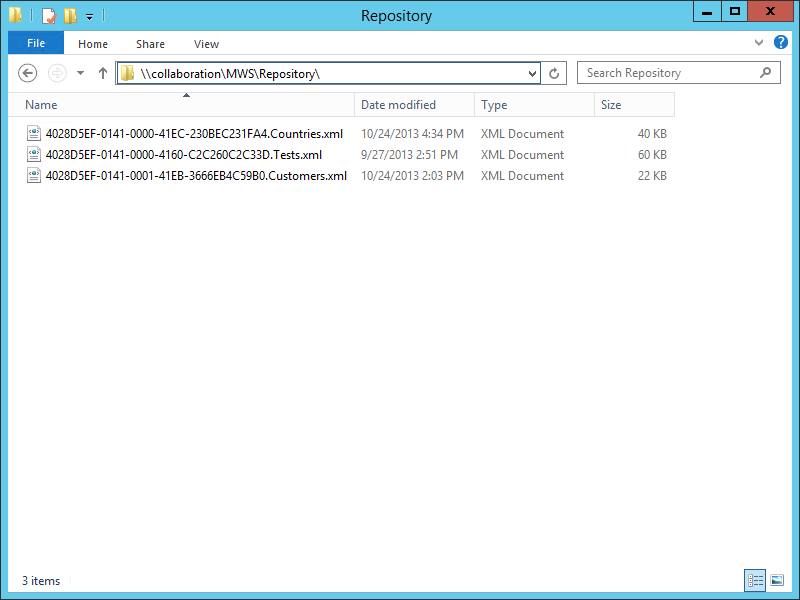
  1. Let’s suppose we have a remote M3 Web Service Repository at \\collaboration\MWS\Repository\ with our metadata files:
    0
  2. And let’s suppose we want to manage those files in Git.
  3. For that, we’ll take that existing directory and import it into Git.

Create a Git Repository

  1. In Git GUI select Create New Repository:
    20
  2. Enter the path to the web service repository, for example \\collaboration\MWS\Repository\ :
    3
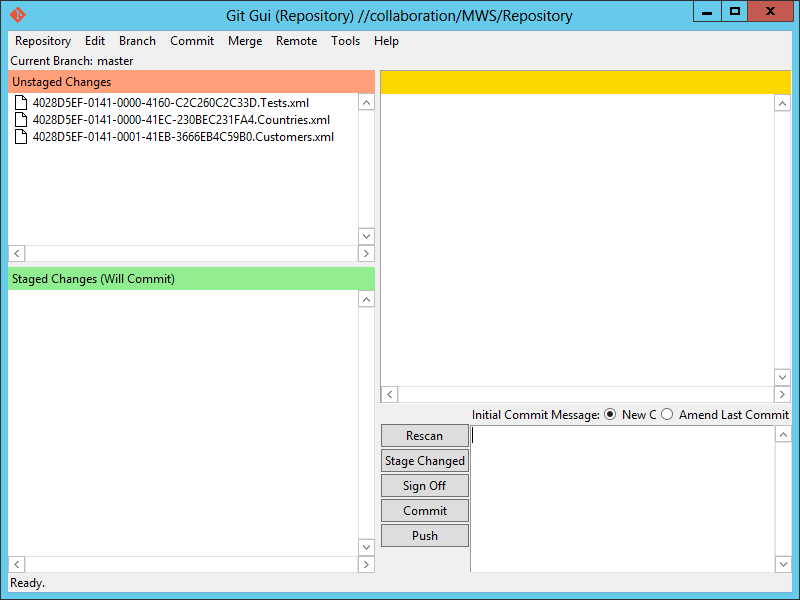
  3. Git GUI shows the files in the Unstaged state:
    4
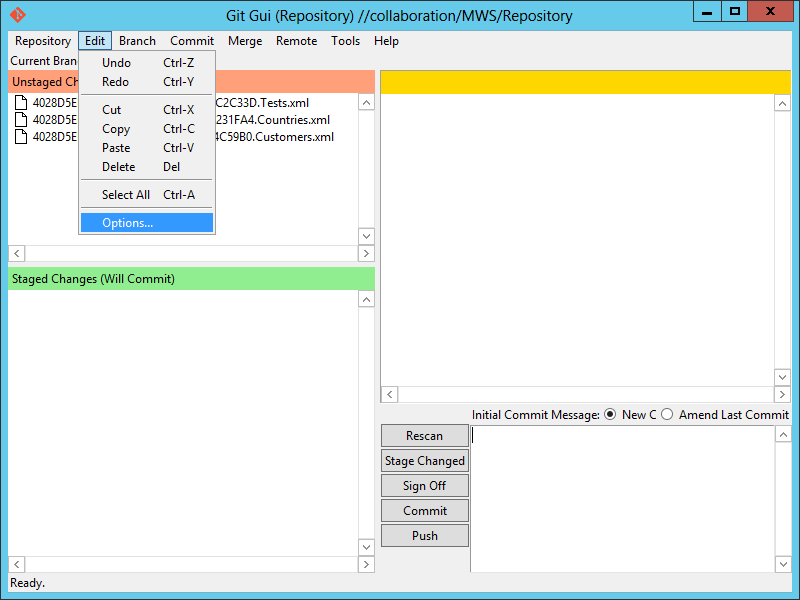
  4. Selection Edit > Options to identify ourselves:
    5
  5. Enter your User Name and Email Address:
    6
  6. Select Commit > Stage Changed Files To Commit (CTRL-I) to add a snapshot of the files to the staging area, and click Yes to confirm:
    7
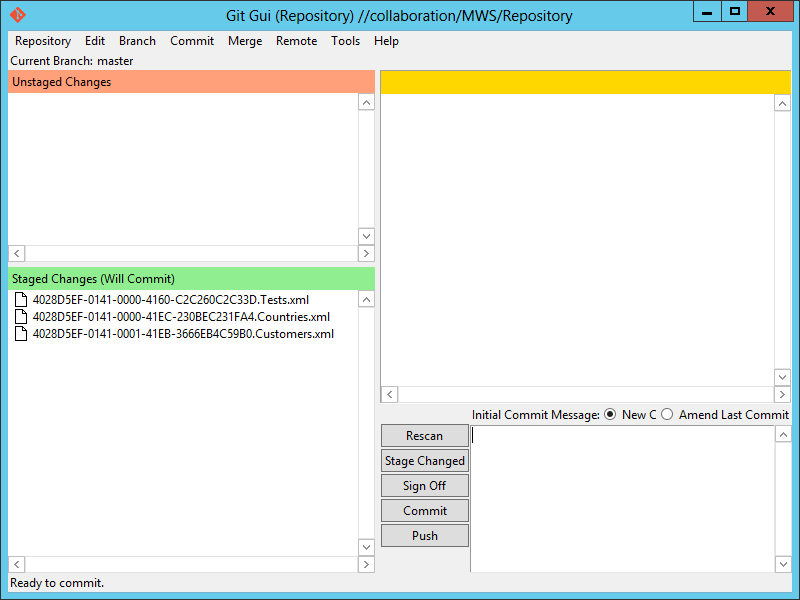
  7. The files are now in the Staged state:
    8
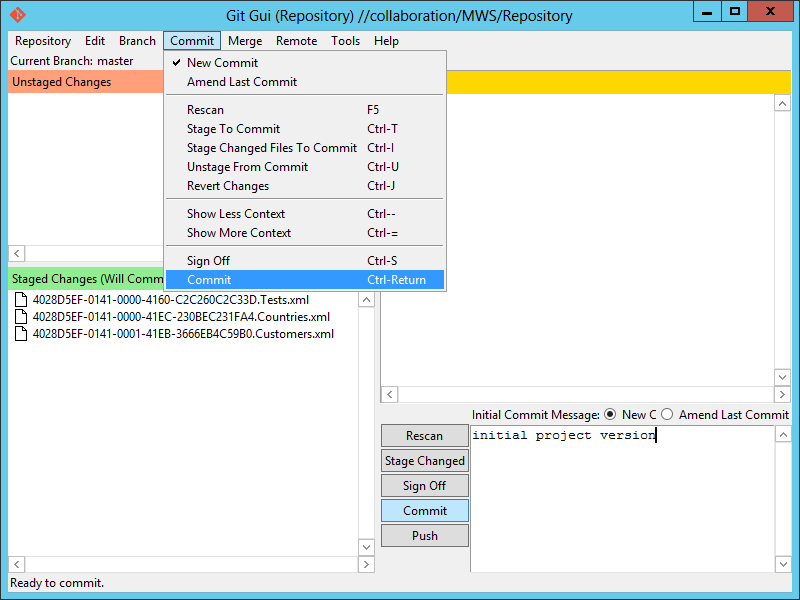
  8. Enter an Initial Commit Message and select Commit:
    9
  9. The files are now permanently committed and safely stored in the Git Repository:
    10
  10. And the folder now contains a hidden .git folder:
    11

Install EGit for Eclipse

  1. Let’s install EGit for Eclipse on one of the developer’s computer (you’ll repeat these steps for each developer in your team):
    0
  2. Start MWS Designer and discard the web service repository location to avoid confusion for now:
    1
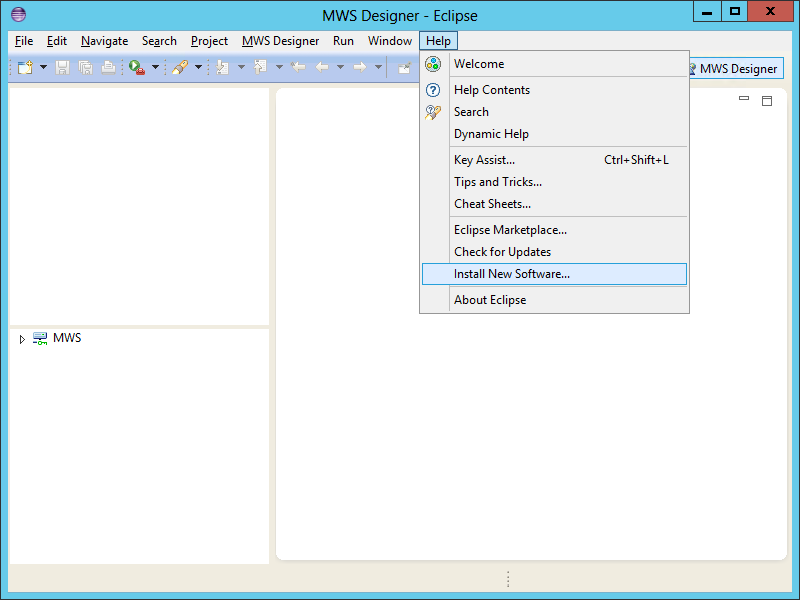
  3. Select Help > Install New Software:
    1
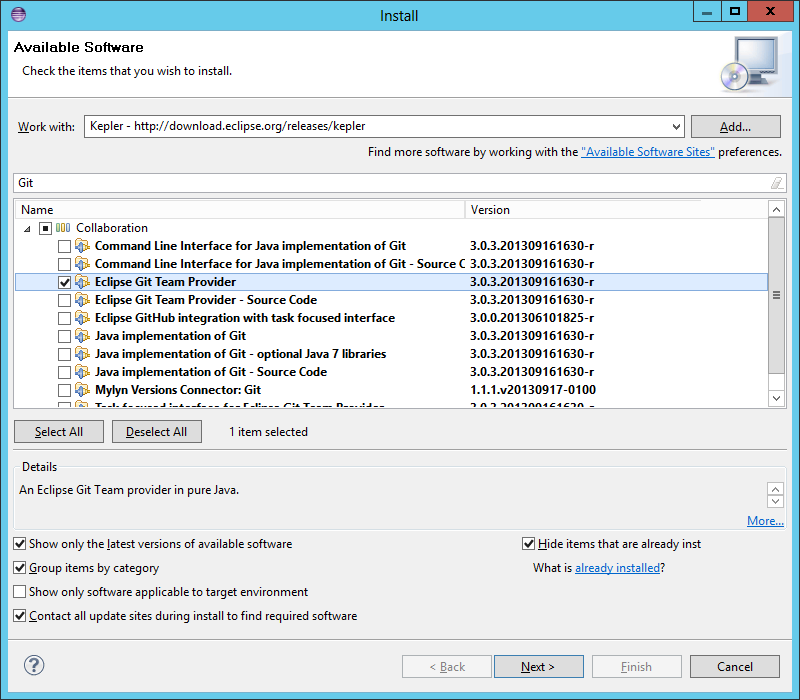
  4. Select the default Eclipse site, for example Kepler – http://download.eclipse.org/releases/kepler , filter for Git, and select Eclipse Git Team Provider:
    2
  5. Click Next > Next > … > Finish and restart Eclipse for the changes to take effect.
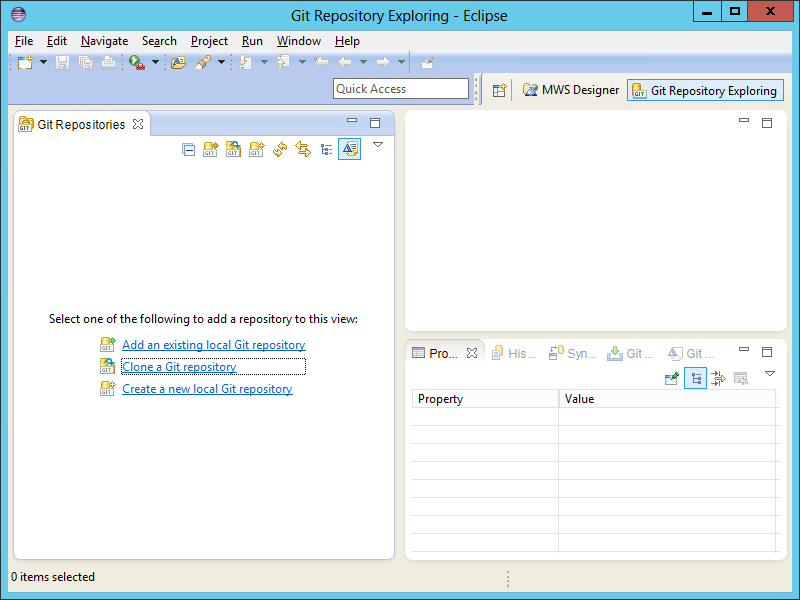
  6. Select Window > Open Perspective > Other > Git Repository Exploring:
    1
  7. It will switch to the Git Repository Exploring:
    2
  8. Repeat the steps for each developer in your team.

Clone the Git Repository

Now we’ll clone the Git Repository to get a local copy of it:

  1. In the Git Repository Exploring, select Clone a Git repository.
  2. Enter the path to the remote Git Repository, for example: \\collaboration\MWS\Repository\ and click Next:
    3
  3. Keep the default master branch and click Next:
    4
  4. Select a local destination, for example C:\MWS\Repository\ and click Finish:
    5
  5. EGit will show the Repository and the Working Directory:
    6
  6. You now have a copy of the web service metadata files in your local directory with a hidden .git folder:
    7
  7. In Eclipse, switch back to the MWS Designer perspective.
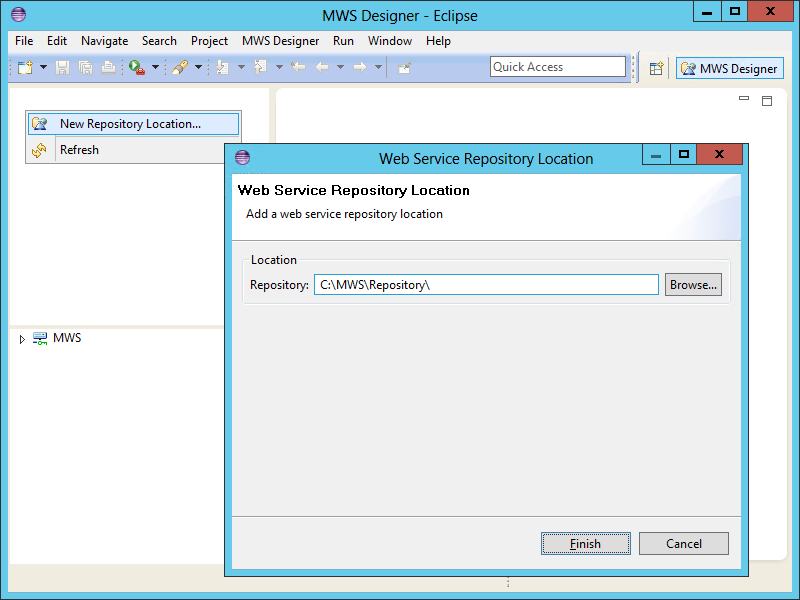
  8. Select New Repository Location and enter the cloned Git repository, for example: C:\MWS\Repository\ and click Finish:
    8
  9. Your MWS Designer now has a local copy of the web services:
    9
  10. Repeat for the other developers in your team.

That’s as far as I got for now.

After that I was able to create a branch and make changes. But I got an error when I tried to merge my changes; EGit seems to truncate the path to my shared folder and not recognize it anymore. I’ll explore more about it later.

Color-coded event graph animations for Mashups

Here is an idea to manually create color-coded event graph animations for Mashups leveraging my previous tool that automatically generates event graphs for Mashup. The idea is to color-code the events in the event graph of a Mashup, and move forward in time to see the animation, in order to have a visual cue of how the Mashup timeline works. See it like a time-lapse of the Mashup.

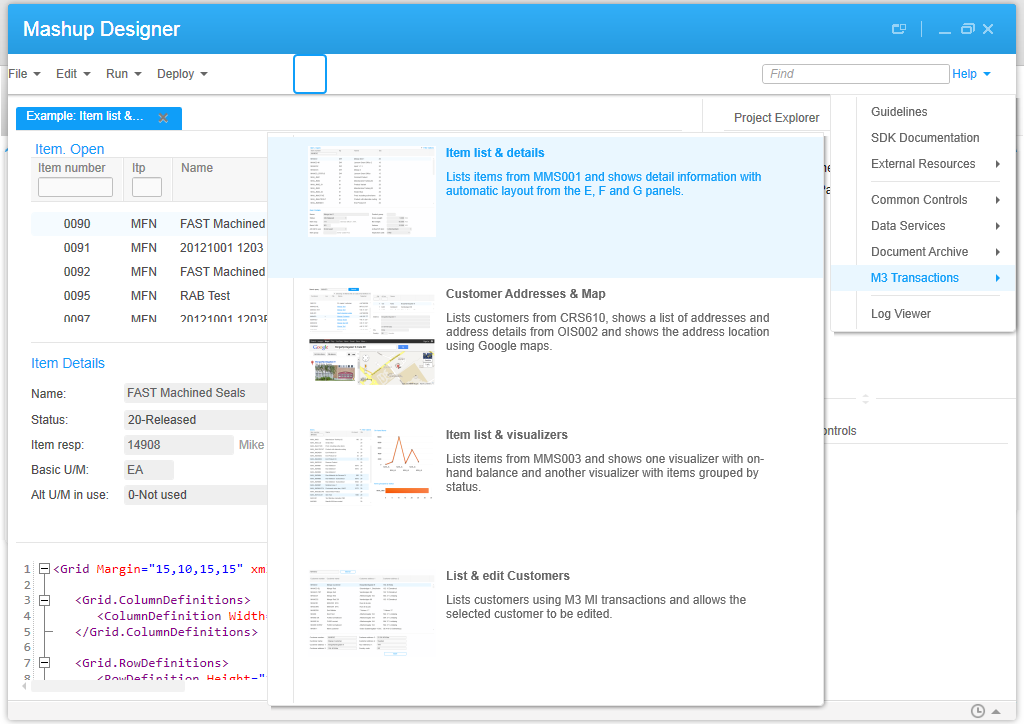
Let’s take the sample Mashup provided at Mashup Designer > Help > M3 Transactions > List & edit Customers. The sequence of events of that Mashup would be the following:

  1. The Mashup starts and loads the list of customers (Startup event).
  2. Optionally, the user can enter a Customer number and click Search (Click event).
  3. The user selects a customer in the list (CurrentItemChanged event), and the Mashup loads that customer’s details.
  4. Optionally, the user changes the values and clicks Save (Click event), and the Mashup changes the values of that customer record.
  5. The Mashup refreshes the list of customers (UpdateComplete event).

The event graph for this Mashup in plain black & white would be:

graph

The idea is to create a color-coded graph of each step of the sequence, save a colored image of each step, and render the result as an animated GIF.

Why it’s important

Color-coded event graph animations for Mashups will help developers control the quality of their Mashups, it will help users approve Mashup designs, it will be useful as a prototype for demos and useful for usability testing, and it will help new developers better understand how the user interacts with the Mashup. There is a lot of activity in the software industry around software mockups, for example the popular Balsamiq Mockups. This new idea I introduce for Mashups helps bring software mockups a bit closer to M3.

How to create it

Follow these steps to manually create a color-coded event graph animation for Mashups:

  1. Break down the sequence of Mashup events in numbered order, like I did above.
  2. Take the original DOT file of the event graph (refer to my previous tool), and duplicate the file by as many steps, for example MyMashup.gv would become:
    MyMashup1.gv
    MyMashup2.gv
    MyMashup3.gv
    etc.
  3. Open each file in a text editor, and add color to the node and the edges involved in that step. Use the following syntax, for example for color red:
    [color=red; fontcolor=red]

    MyMashup1.gv:

    <Global> -> CustomerList [label="Startup :: List"; color=red; fontcolor=red];
    <Global> [color=red; fontcolor=red];
    CustomerList [color=red; fontcolor=red];

    MyMashup2.gv:

    ButtonSearch -> CustomerList [label="Click :: List"; color=red; fontcolor=red];
    ButtonSearch [color=red; fontcolor=red];
    CustomerList [color=red; fontcolor=red];

    MyMashup3.gv:

    CustomerList -> CustomerDetail [label="CurrentItemChanged :: Get"; color=red; fontcolor=red];
    CustomerList [color=red; fontcolor=red];
    CustomerDetail [color=red; fontcolor=red];

    etc.

  4. Use Graphivz to generate an output file of each step. For example you will have:
    MyMashup1.png
    1
    MyMashup2.png
    2
    MyMashup3.png
    3
    etc.
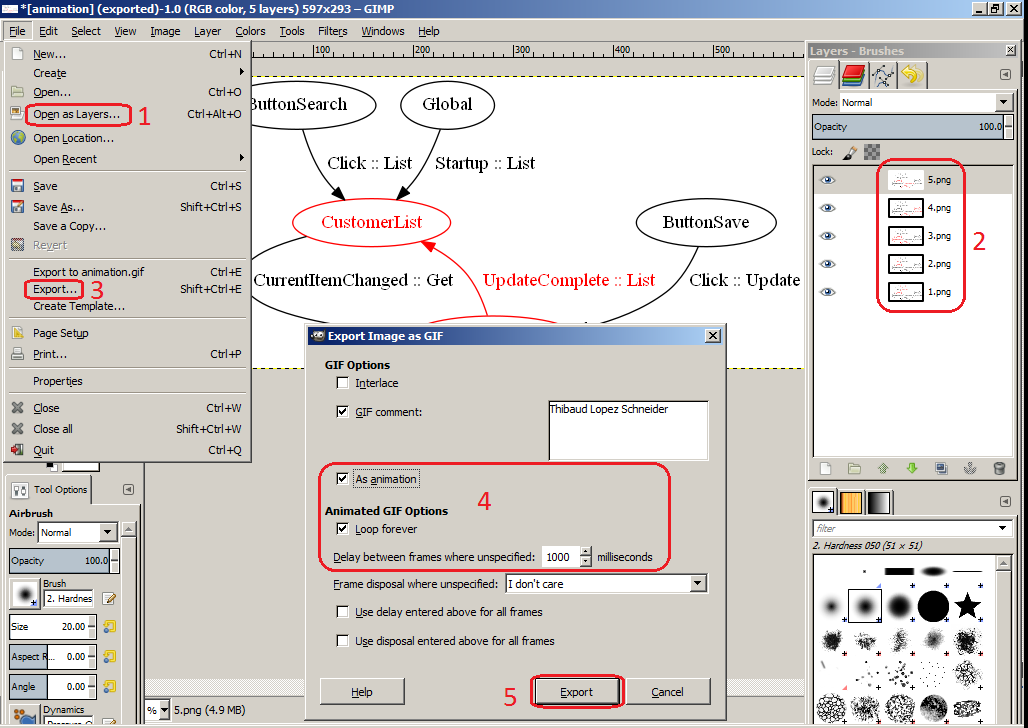
  5. Use a graphic editor like Gimp to generate a GIF animation from the individual image files. In GIMP, open all the images as Layers, order the layers from last to first, and export the result as an animated GIF with 1000 millisecond delay between frames:
    GIMP4
  6. That’s it!

Result

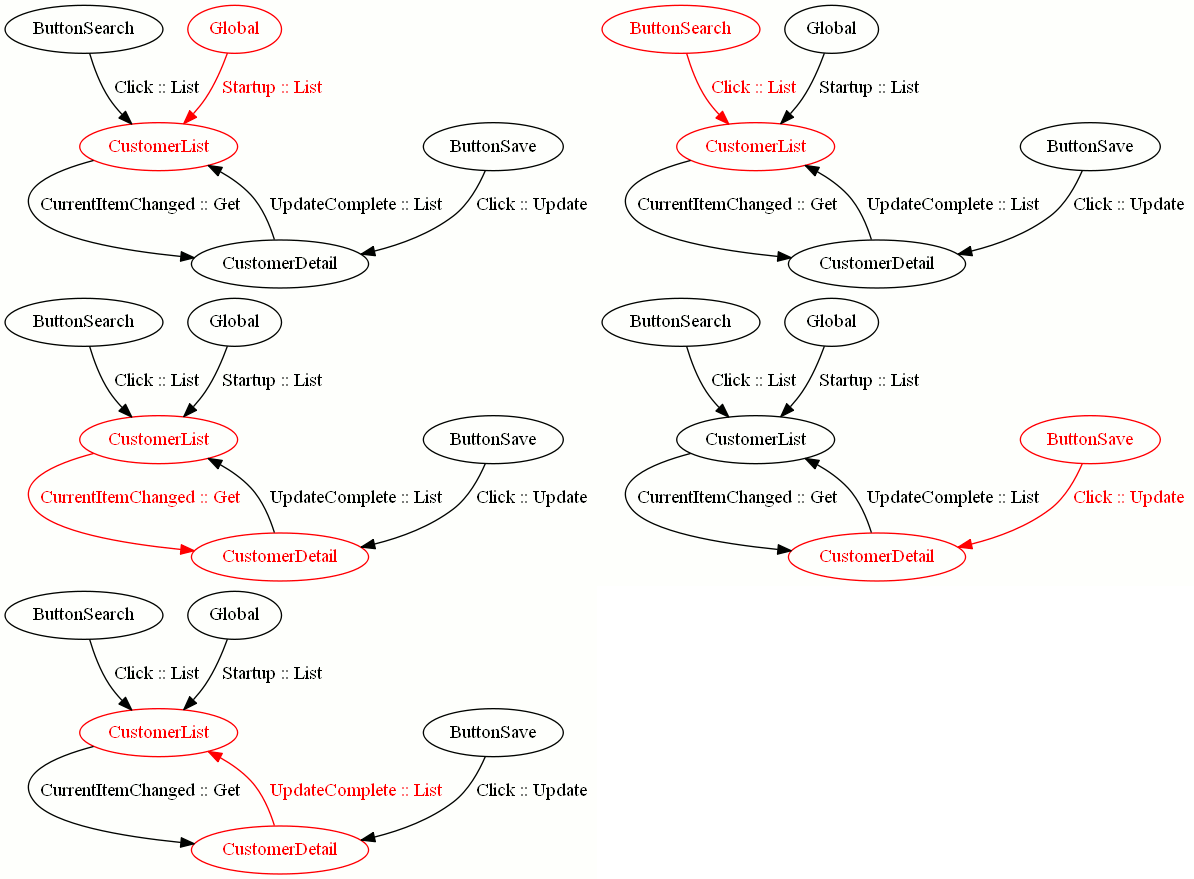
Here below is the result, a color-coded animation of the event graph of the sample List & edit Customer Mashup of the Mashup Designer (click on the image to see the animation):

animation

Future work

In a future work, I would implement a breadth-first search graph traversal algorithm to automatically traverse the Mashup’s event graph, node by node, call Graphiz’ dot layout engine (C:\Program Files (x86)\Graphviz x.y.z\bin\dot.exe) to produce an image at each iteration, and use another tool to merge all the images into an animated GIF.

Related articles

Grid MobileUI Management Pages

I recently came across Grid MobileUI, a mobile version of the Infor ION Grid Management Pages to efficiently monitor Grid Applications such as M3 on tablets and mobile phones like iPads and iPhones. I believe the Grid MobileUI was released with the new M3 13.1 in July. Here are some screenshots of the Grid MobileUI to spread the goodness.

The Grid MobileUI strips out the extra fat of the Grid Management Pages, keeping only the necessary information for an efficient user experience on a mobile device: you can easily see the list of Grid applications, you can check the errors and warning logs of each application, and you can automatically compose an email and it will paste the link to the page application details.

The Grid MobileUI is important to continue monitoring your M3 when you are on the move, for example when you are away from your office, commuting in the train, or waiting at the boarding gate at the airport. You can now pull up your tablet or your phone, and quickly address issues until you get back to your computer. It helps address issues faster and helps make more efficient use of your downtime.

In order to access the URL from your mobile device, you will have to use a VPN client on your mobile device to access your office network, or setup the web server in your DMZ and setup some form of encrypted authentication.

Here is a screenshot of the Infor ION Grid Management Pages for M3 showing the link to the Grid MobileUI:

2_

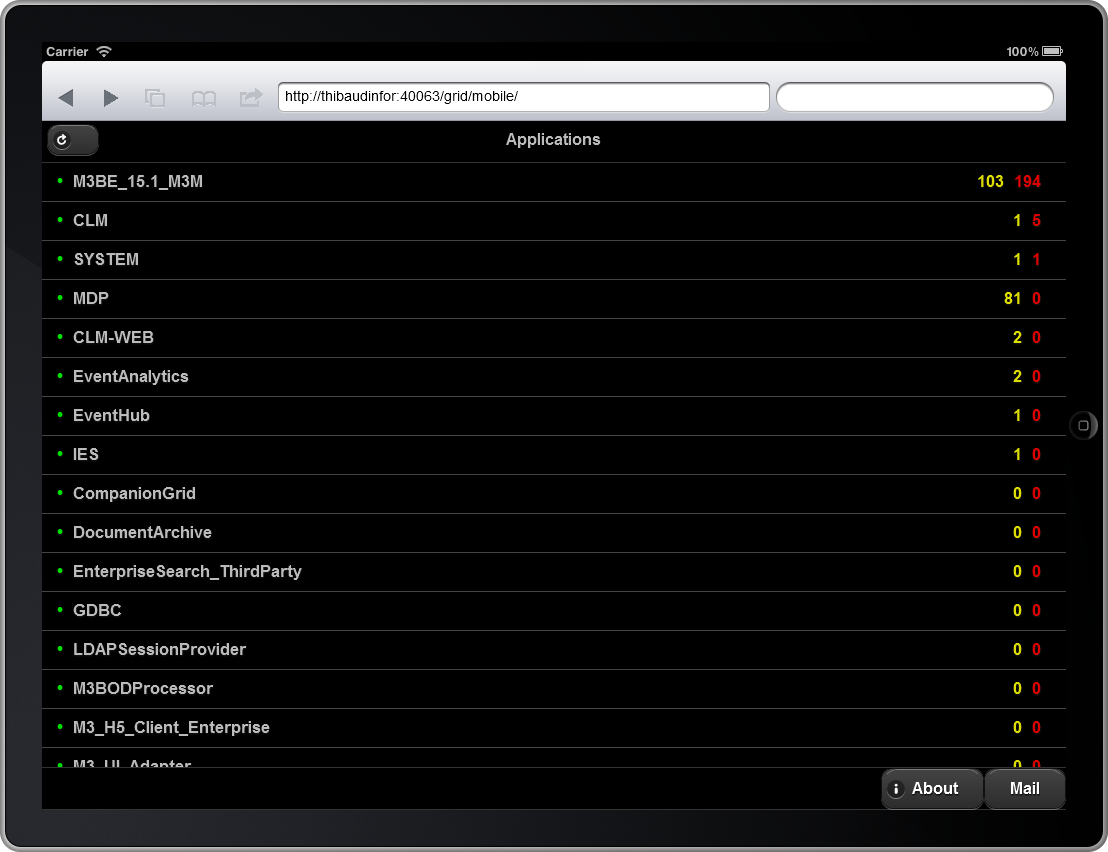
Here are two screenshots of the Grid MobileUI on an iPad, showing the main page, and one of the page application details:

5 6

Here is a screenshot of my iPhone’s Home Screen with the shortcut to the Grid MobileUI:

IMG_2487

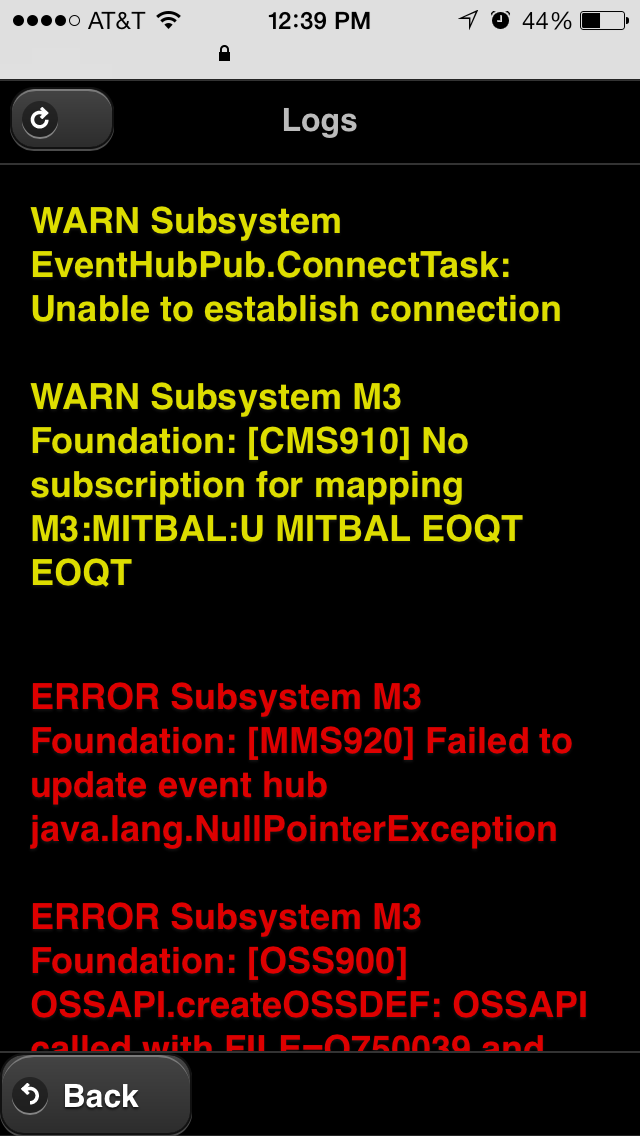
Here are four screenshots of the Grid MobileUI on my iPhone, showing the main page, one of the page application details, the logs, and composing an email:

IMG_2489 IMG_2490 IMG_2491 IMG_2461

And if the Grid MobileUI is not enough for your administration needs, you can always request the desktop site on the iPad of the Grid Management Pages to get the full user interface, with the entire set of options, and all the detailed information:

7

That’s it!

Related articles:

  • H5 Client, a new HTML5 user interface for M3 that runs on mobile devices and modern browsers like Google Chrome.

Event graphs for Mashups

Today I introduce a new home-made tool that automatically generates event graphs from a Mashup‘s source code.

Motivation

I am currently doing some maintenance on a monster Mashup that has 20 data controls choreographed by 27 events where the height of the event tree is greater than 3, and I needed to understand the sequence of events so I can implement several new requirements in the Mashup without breaking the entire Mashup.

The tool

To assist me, I implemented a home-made tool with XSLT and XPath that automatically transforms the <mashup:Event> nodes of the Mashup XAML source code into a directed graph in the DOT graph description language that I rendered in GraphViz, an open source graph visualization software. I used what I learned from two of my previous tools: dependency graphs for data conversion, and Web Service pretty print.

Suppose we have a Mashup with a Search button that triggers a search on a Customer list. We would have the following XAML code:

<mashup:Event
    SourceName="BtnSearch"
    SourceEventName="Click"
    TargetName="CustomerList"
    TargetEventName="Search" />

The idea is to take each event’s properties SourceName, SourceEventName, TargetName, and TargetEventName, and display them in a directed graph with nodes, edges, and labels using this DOT syntax:

digraph g {
    BtnSearch -> CustomerList [label="Click > Search"];
}

The result will look like:

2
We can automatically transform the XAML code into that DOT code with the following XSLT code:

<?xml version="1.0" encoding="UTF-8"?>
<xsl:stylesheet version="1.0" xmlns:xsl="http://www.w3.org/1999/XSL/Transform" xmlns:mashup="clr-namespace:Mango.UI.Services.Mashup;assembly=Mango.UI">
    <xsl:template match="/">
        digraph g {
            <xsl:apply-templates select="//mashup:Event"/>
        }
    </xsl:template>
    <xsl:template match="mashup:Event">
        <xsl:value-of select="@SourceName"/> -> <xsl:value-of select="@TargetName"/> [label="<xsl:value-of select="@SourceEventName"/> > <xsl:value-of select="@TargetEventName"/>"];
    </xsl:template>
</xsl:stylesheet>

The problem is that not all Events are fully qualified with all the properties SourceName, SourceEventName, TargetName, and TargetEventName. For instance the Mashup has an implicit SourceName <Global> that does not need to be explicitly qualified in the code. And the Button has the implicit SourceEventName “Click” that does not need to be explicitly qualified either. Thus, we need to handle those cases in the XSLT code. The resulting XSLT code is long and complicated with many if-then-else to test if the properties are blank, and, if they are, to test if the control has a known implicit property.

Finally, we will need an XSLT processing engine in order to get the result. Most major browsers have a built-in XSLT engine, for instance Microsoft Internet Explorer, Google Chrome, Safari, and Mozilla Firefox have a built-in XSLT engine. To test my tool on your computer, you can use Internet Explorer, Safari, and Opera as they will process the XSLT file locally from the disk with file://… On the other hand, Firefox and Chrome for security reasons will only process the file if it’s served from a web server with http:// so you would have to setup your localhost.

You can download the final XSLT file at http://thibaudlopez.net/Mashups/EventGraph.xslt

Preparation

Before using my tool, follow these steps:

  1. Download Graphviz from http://www.graphviz.org/ and start it from Windows > Start > Graphviz > gvedit.exe.
  2. Download my XSLT file from http://thibaudlopez.net/Mashups/EventGraph.xslt and save it somewhere in your file system.

How to use

To use my tool, follow these steps:

  1. Get some Mashup XAML code, for example from the Mashup Designer built-in examples, and save the XAML in the same folder as the XSLT file you saved previously:4
  2. Rename the file extension from XAML to XML so we can open it in one of the browsers later:
    5
  3. Add the following XSLT processing instruction at the top of the XML file:
    <?xml-stylesheet type=”text/xsl” href=”EventGraph.xslt”?>
    6
  4. Open the file in one of the browsers, for instance Internet Explorer:
    7
  5. In Graphviz, select File > New.
  6. Copy/paste the code that was generated in the browser:
    10
  7. Select Graph > Layout (F5) to generate the graph:
    11
  8. That’s it!

Results

Here are the resulting event graphs for five of the Mashup Designer’s built-in examples:

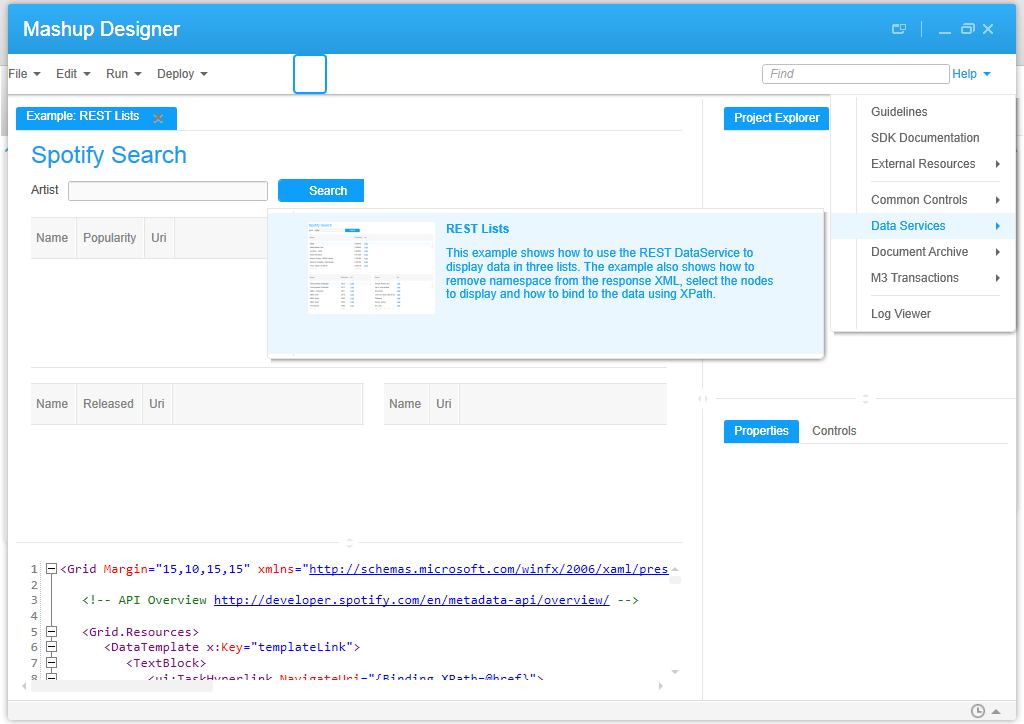
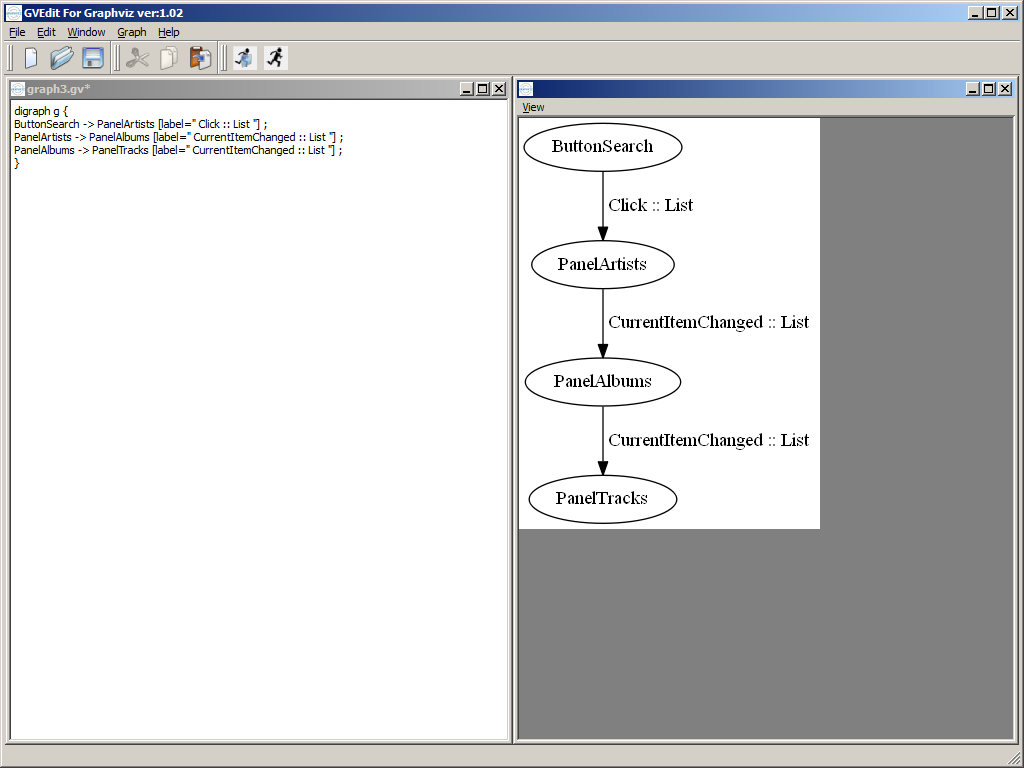
  1. REST Lists:
    213
  2. Item list & details:
    1 3
  3. Customer Addresses & Map:
    23
  4. Item list & visualizers:
    1 2
  5. List & edit Customers:
    1 10

Future work

In a future work, the XSLT code would have to be refined to cover all possible scenarios (blanks and implicit properties).

Also, we could include the Bookmark’s Keys or the Event’s Parameter Keys in the event graph, for example CONO, CUNO, ADRT, ADID.

7

MForms Automation / URI generator

Here is a tool that generates Smart Office URI to execute MForms Automation. The tool is interesting to launch M3 programs with parameters from third-party applications. For example, I could have an email message with a link in that launches OIS300/B to list the Orders of a specific Customer number, in one click, without having to type any Customer number or Sorting order; the URI would switch to Smart Office if it’s already open, or it would launch it and ask for user/password otherwise.

MForms Automation URIs have the syntax: mforms://_automation?data=xml where xml is the URI-encoded version of the MForms Automation XML. I call it the internal URI. In addition to MForms Automation, the internal URI could also be a Bookmark URI with a syntax like: mforms://bookmark/?program=MMS081&tablename=MITBAL&keys=MBCONO,100,MBWHLO,AA1,MBITNO,+9D8353.

That internal URI can be launched from a third-party application (i.e. not Smart Office) if it’s embedded in a second URI (the Smart Office installation point) with the syntax: http://server:port/LSO/LawsonClient.application?server=https://server:port/ESM&task=internalUri where internalUri is the internal URI that is also URI-encoded. I call it the external URI.

To access the URI generator, visit: http://ibrix.info/mfa/